When you start looking for malware protection for your Mac, it usually means strange pop-ups, a slower Mac, or that uncomfortable feeling that your files and logins might already be at risk. With MacKeeper's Antivirus, our security experts give you real-time protection that spots and blocks threats early, so you can keep using your Mac confidently without digging through complicated security settings.
Yes, we confirm that Macs can get malware, even though macOS includes built-in protections like Gatekeeper, XProtect, and notarization. Malware can still reach a Mac through unsafe downloads, malicious email attachments, browser redirects, and phishing pages. As our tests show, these threats often bypass outdated systems or weak settings, so keeping macOS updated and using real-time protection tools remains essential for staying safe.
A note from our experts:
If you're looking for a reliable way to protect your Mac from malware, our team's experience shows that real-time scanning makes the biggest difference. MacKeeper’s Antivirus is a leading solution in Mac cybersecurity that detects threats the moment they appear, so your documents, apps, and system folders stay fully protected before anything can spread or steal data. Since MacKeeper is developed by Clario Tech and Apple-notarized, it operates safely and integrates smoothly with macOS.
Here's how to safeguard your files with MacKeeper's Antivirus:
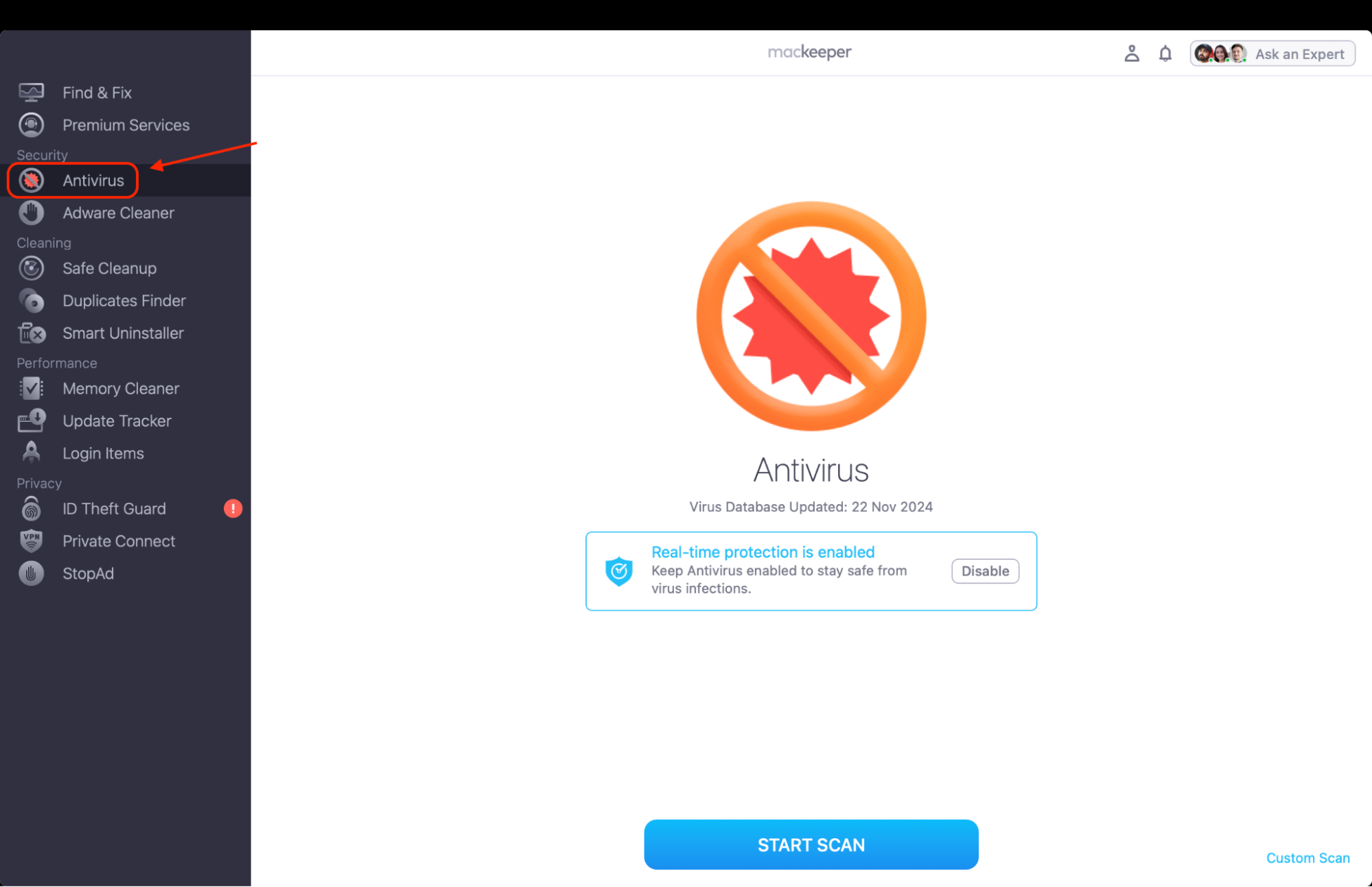
Open the app and select Antivirus in the left sidebar.
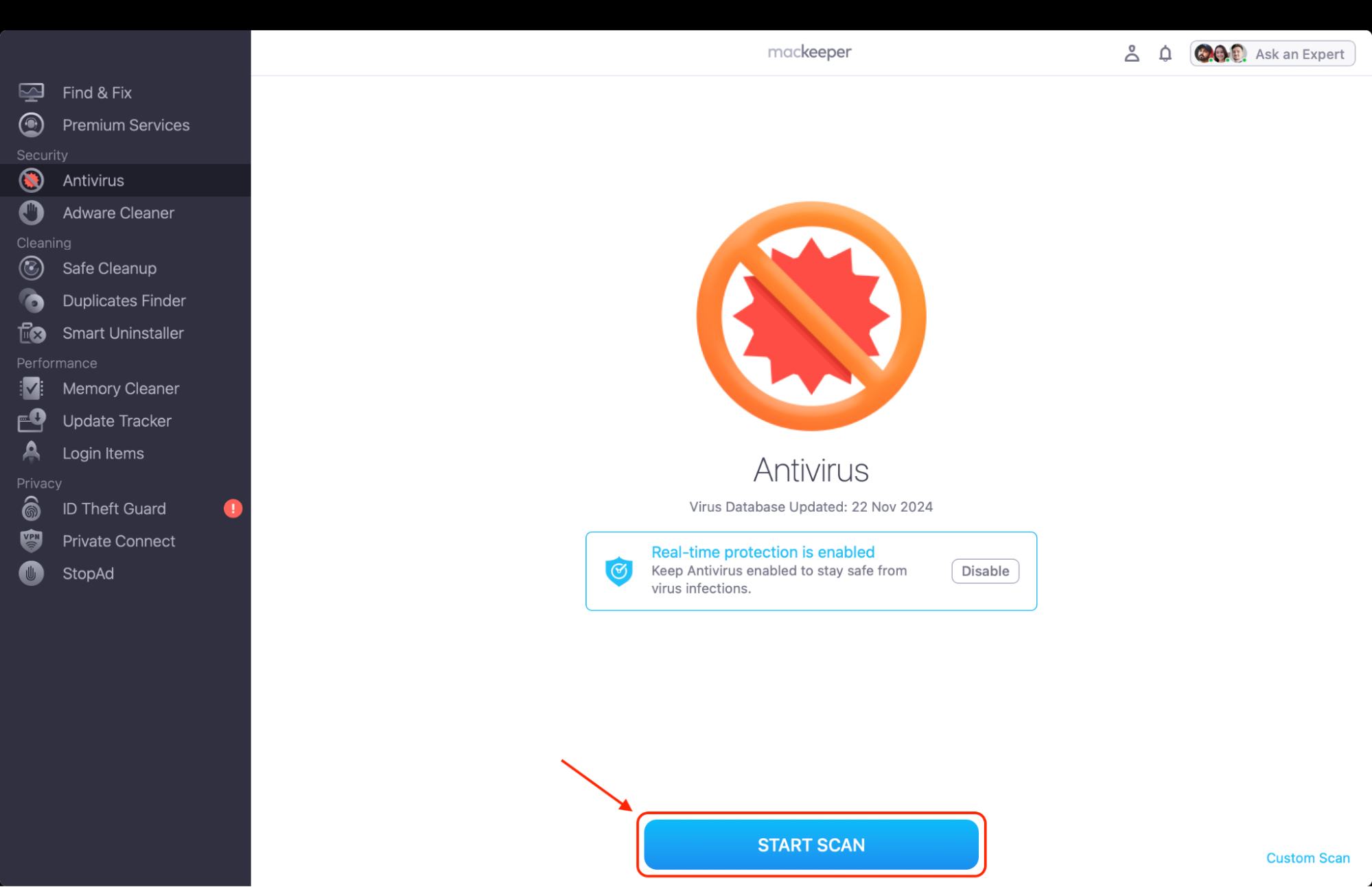
Click Start Scan to run a full system check for malware and potentially unwanted items.
Review everything detected and quarantinesuspicious files to block activity.
Restart your Mac and permanently delete the quarantined items for complete removal.
Step 1. Find the Antivirus section in the left-side menu barStep 2. Press the Start Scan button to launch the scanning process
How to keep Mac safe from malware?
To keep your Mac safe from malware, update macOS regularly, use strong passwords with two-factor authentication as the basic step and turn on built-in tools like Firewall and Gatekeeper as some extra. Avoid unsafe websites, unknown downloads, and suspicious email attachments. Adding real-time antivirus protection strengthens your defenses further by blocking threats before they can spread through your files or apps.
1. Restrict app downloads to trusted sources
You don't need anything complicated here since macOS already gives you tools to stay safer. And if you're checking settings because you've learned how to check for malware on a Mac, locking down download permissions is the next smart step.
Here's the quickest way to control which apps your Mac accepts:
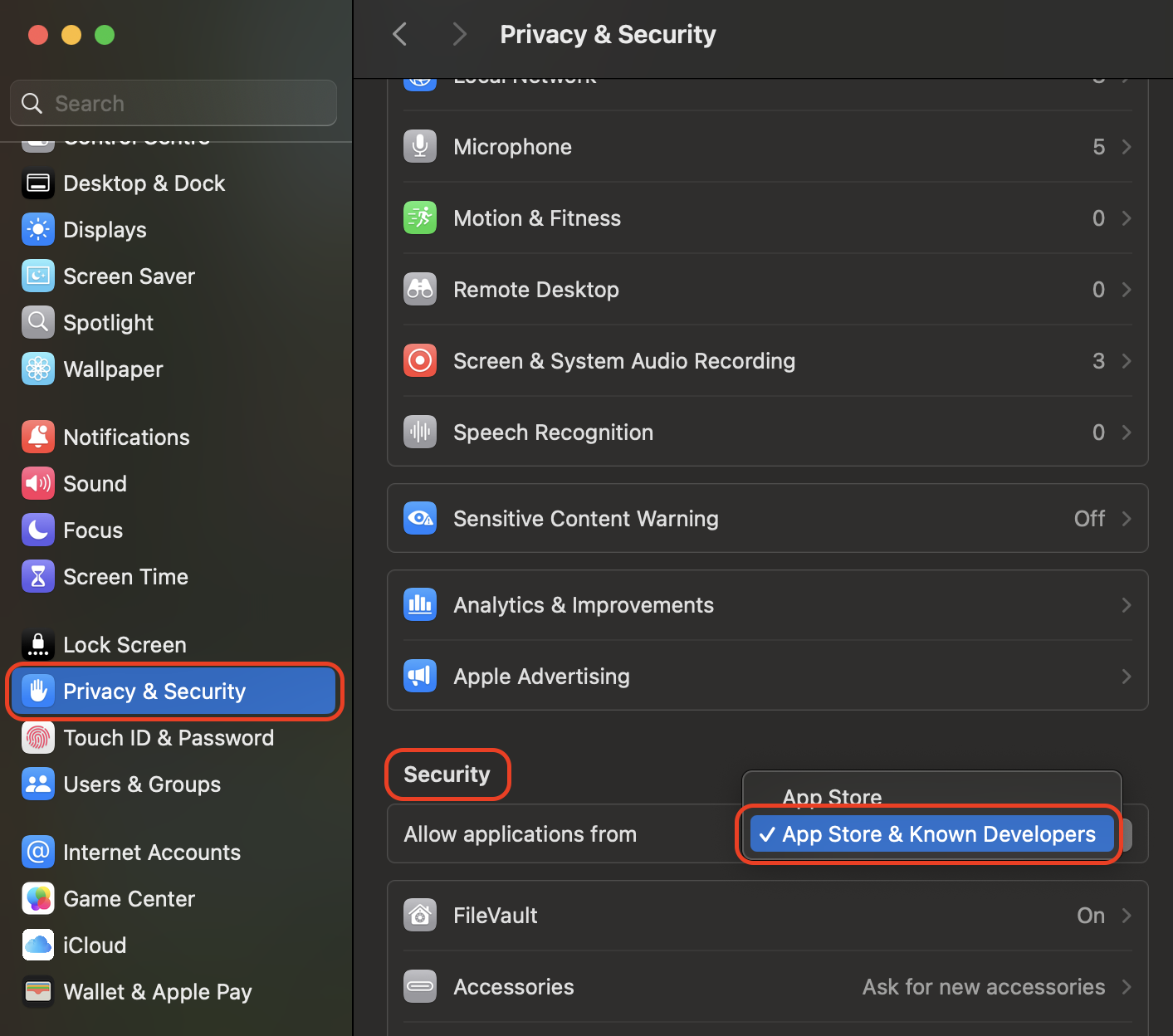
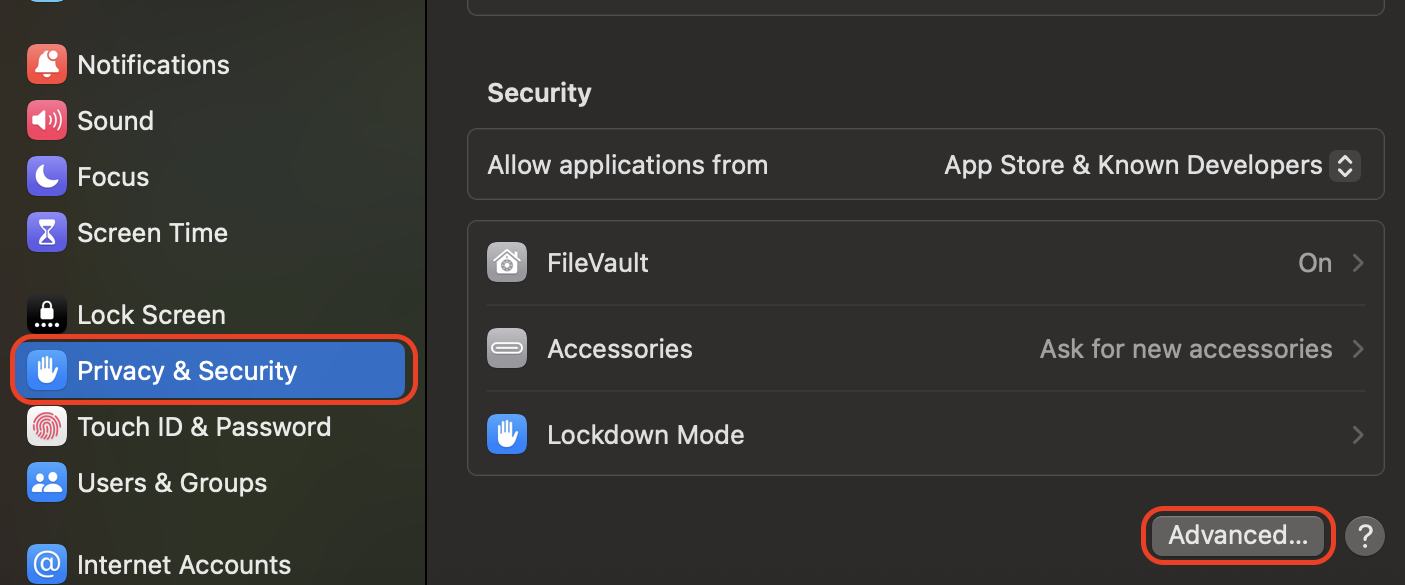
Under Allow applications from, choose App Store or App Store and known developers.
Close the window, as your Mac will now automatically block unverified installers.
From System Settings, go to Privacy & Security, scroll to the Security section, andunder Allow applications from, choose App Store or App Store and known developers
2. Keep your macOS and software up to date
We know that an updated system is noticeably harder to compromise, and we've seen countless issues disappear after users applied patches they'd ignored for months. It's one of the easiest protective habits you can build.
Here's how to keep your Mac fully updated:
Open System Settings from the Apple menu.
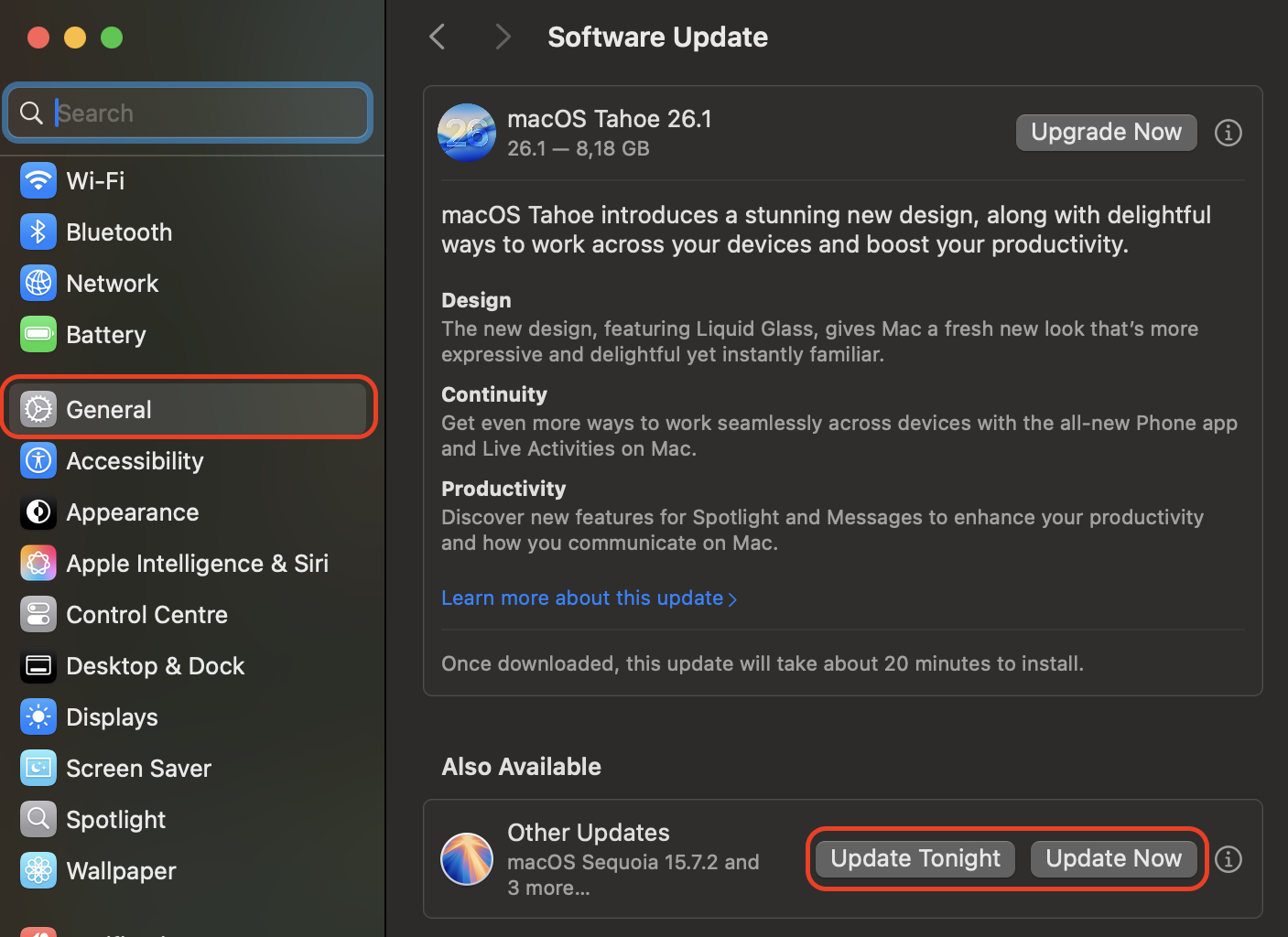
Select General, then choose Software Update.
Install any available macOS update shown on the screen.
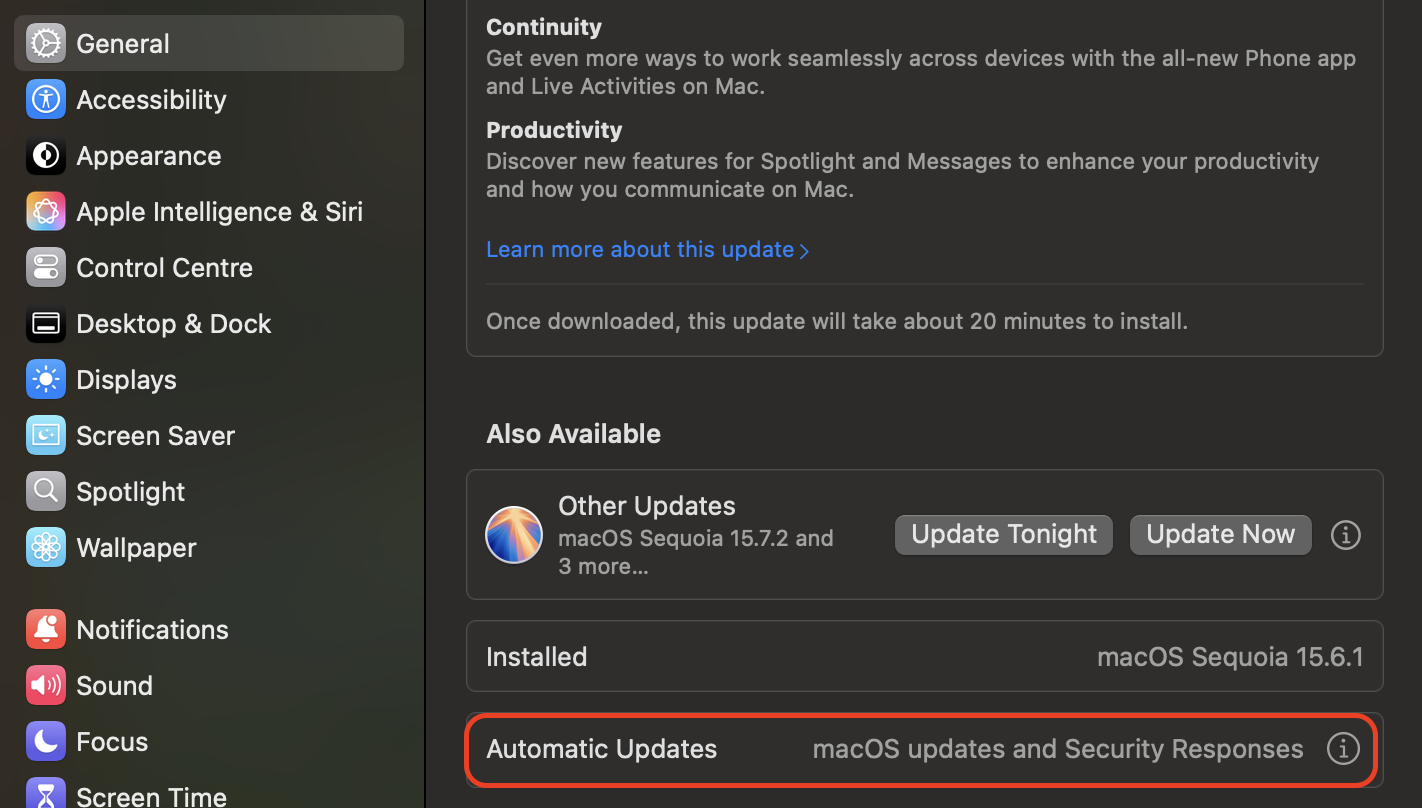
Click the i icon next to Automatic Updates, then enable all options.
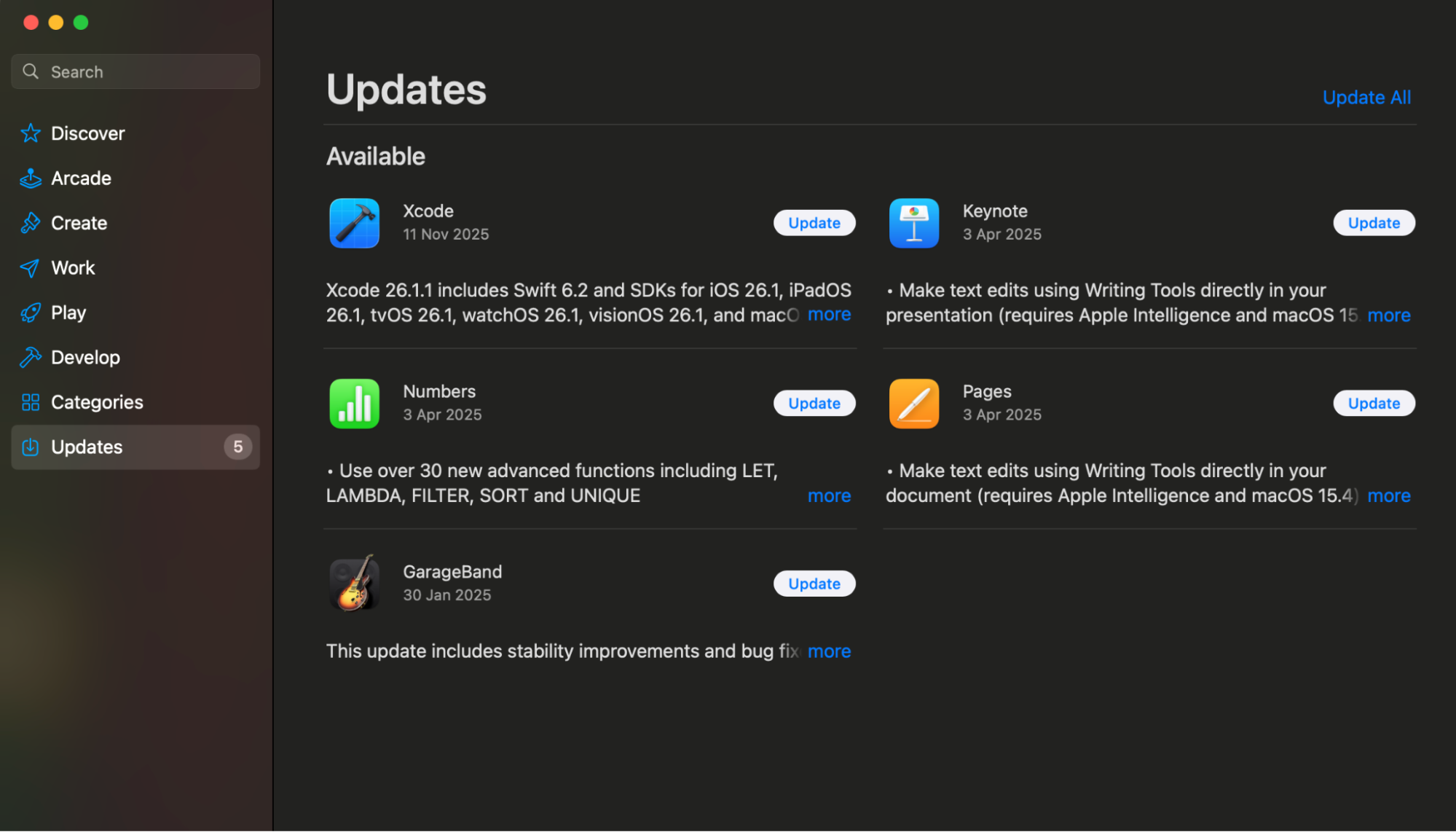
Open the App Store, go to Updates, and install everything listed.
Step 1. Open System Settings, select General, then choose Software Update, and install any available macOS updateStep 2. Click the i icon next to Automatic Updates, then enable all optionsStep 3. Open the App Store, go to Updates, and install everything listed
3. Use a secure login password
A strong login password protects far more than your account. When users ask how to remove malware from your Mac, weak device access often ends up being part of the story.
You can update your login password like this:
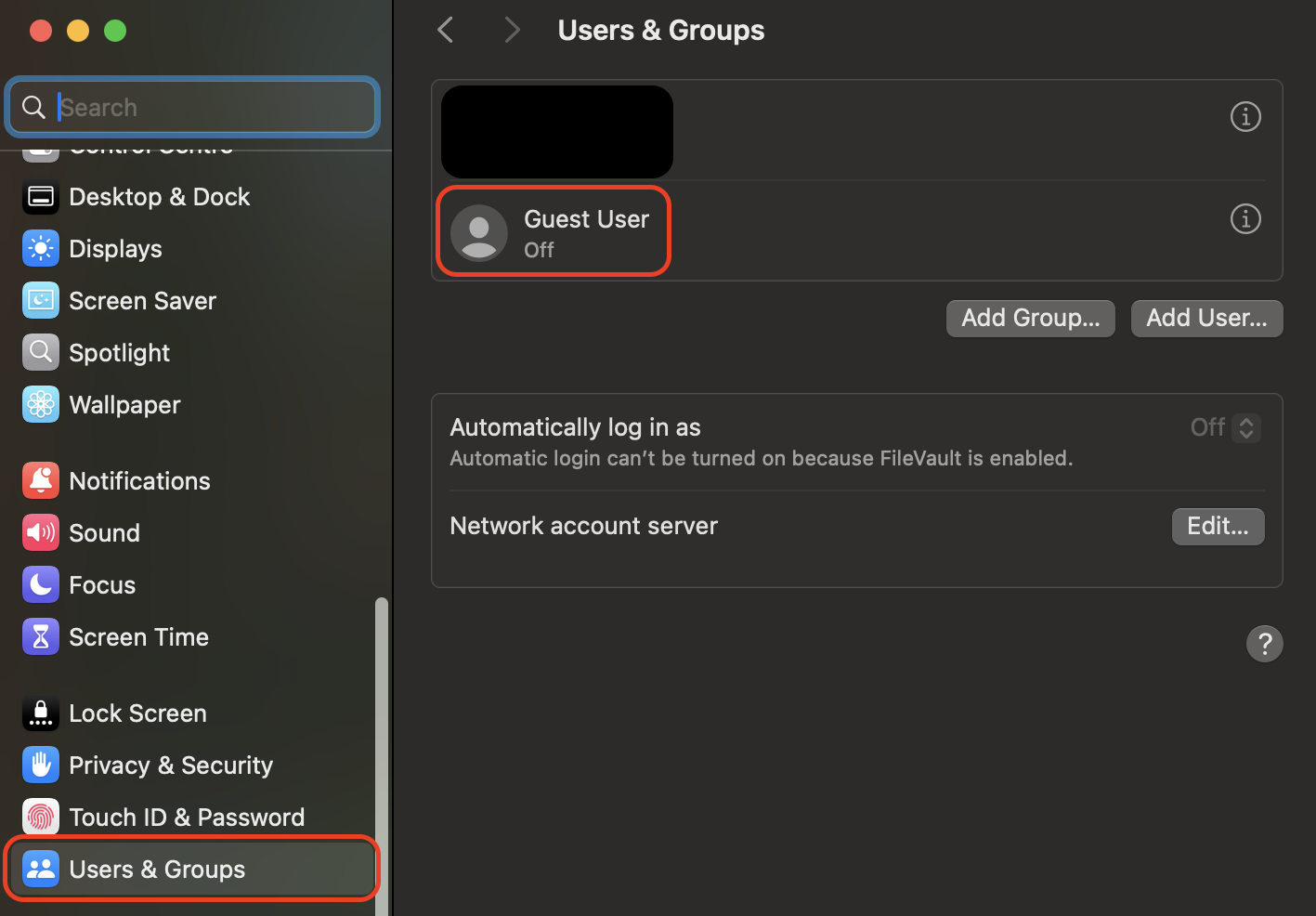
Open System Settings and select Users & Groups.
Choose your profile from the list.
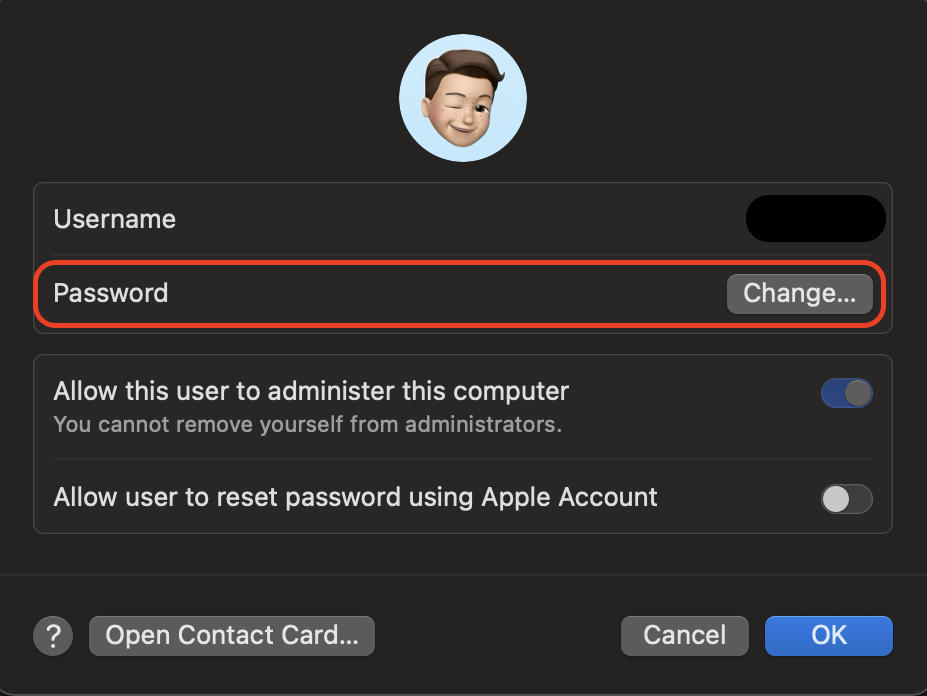
Click Change Password.
Enter your current password when prompted.
Set a new password with varied characters and no predictable patterns.
Save the changes, then restart your Mac to apply the updated login requirement.
Step 1. Open System Settings and select Users & Groups, then choose your profile from the listStep 2. Click Change Password
4. Enable Firewall for network protection
Your Mac's Firewall works quietly in the background, blocking unwanted network connections that could expose your data. We've noticed that users who regularly join public Wi-Fi networks benefit from enabling this immediately.
Turn on Firewall protection using these steps:
Open System Settings from the Apple menu.
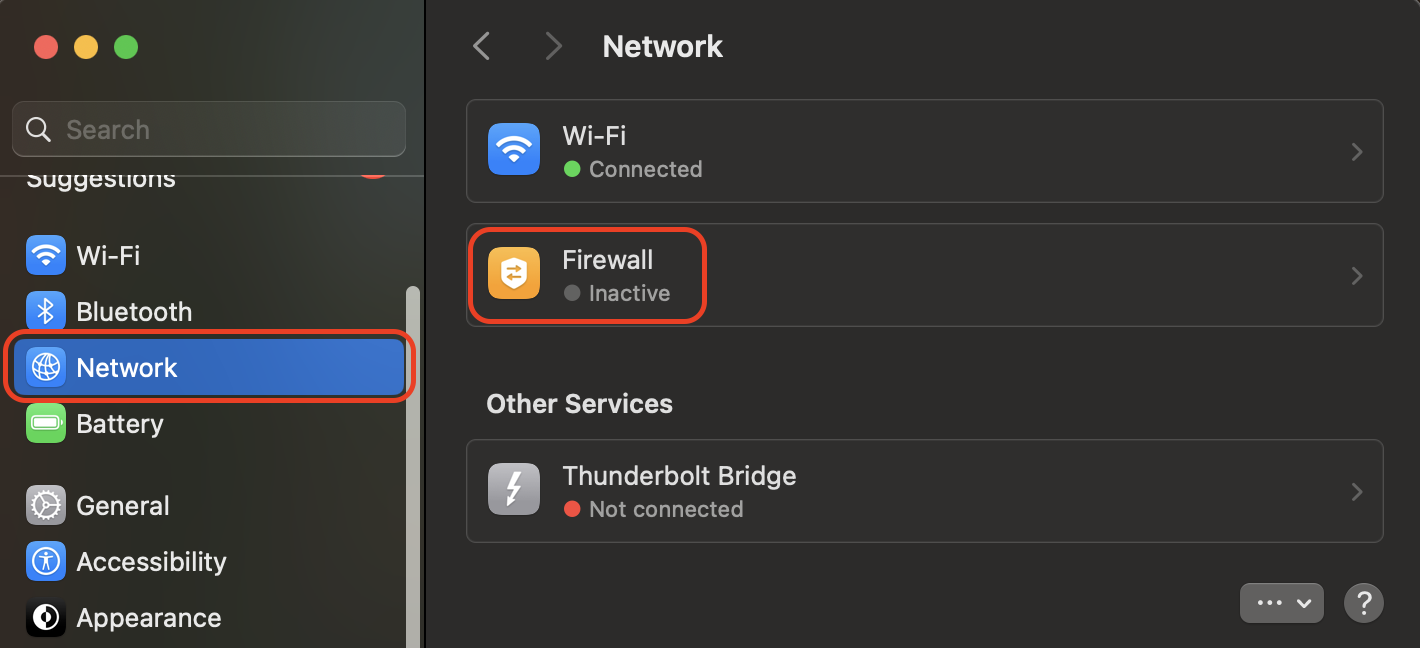
Go to Network in the sidebar.
Select Firewall at the bottom.
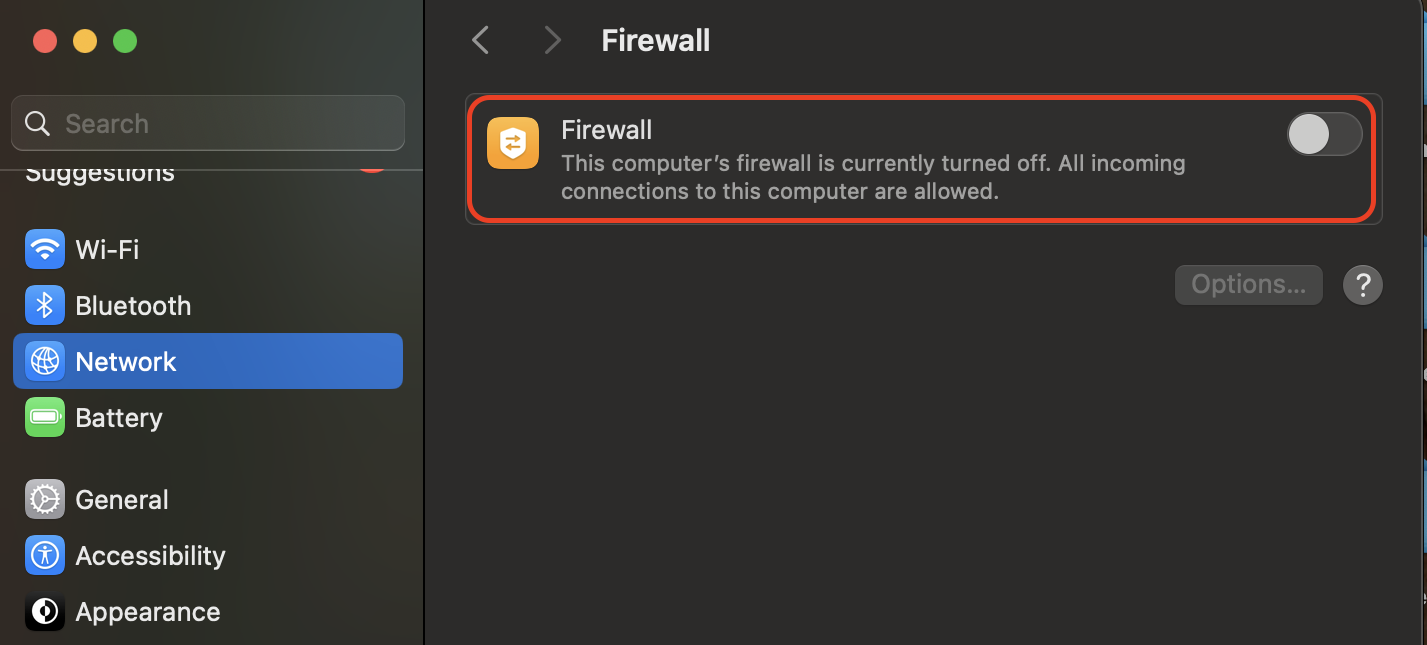
Toggle the switch to On.
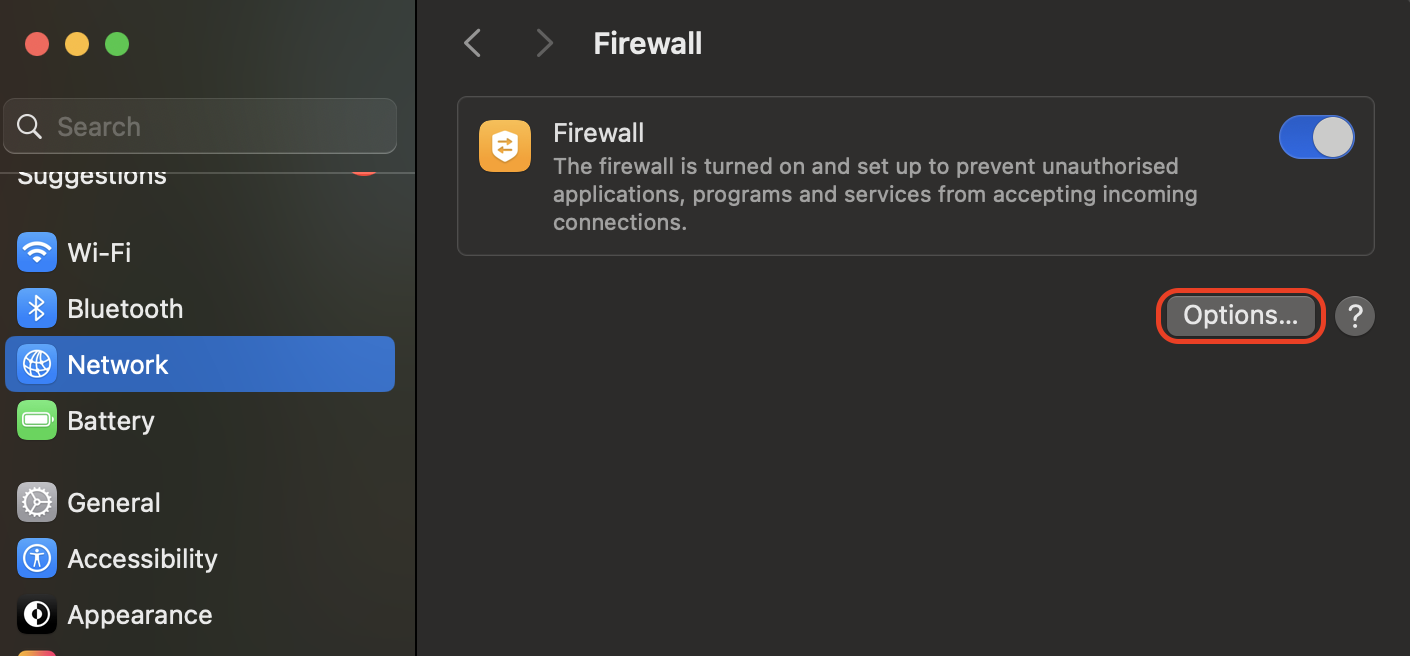
Click Options to block all incoming connections or customize exceptions.
Close the window. The Firewall activates and protects your Mac instantly.
Step 1. Open System Settings, go to Network in the sidebar, and select FirewallStep 2. Toggle the switch to OnStep 3. Click Options to block all incoming connections or customize exceptions
5. Practice safe browsing and downloads
Many users realize how vulnerable the web can feel only after they've accidentally downloaded malware on a Mac. Once that happens, every link and download prompt starts to look suspicious.
Try the following steps to build safer browsing routines:
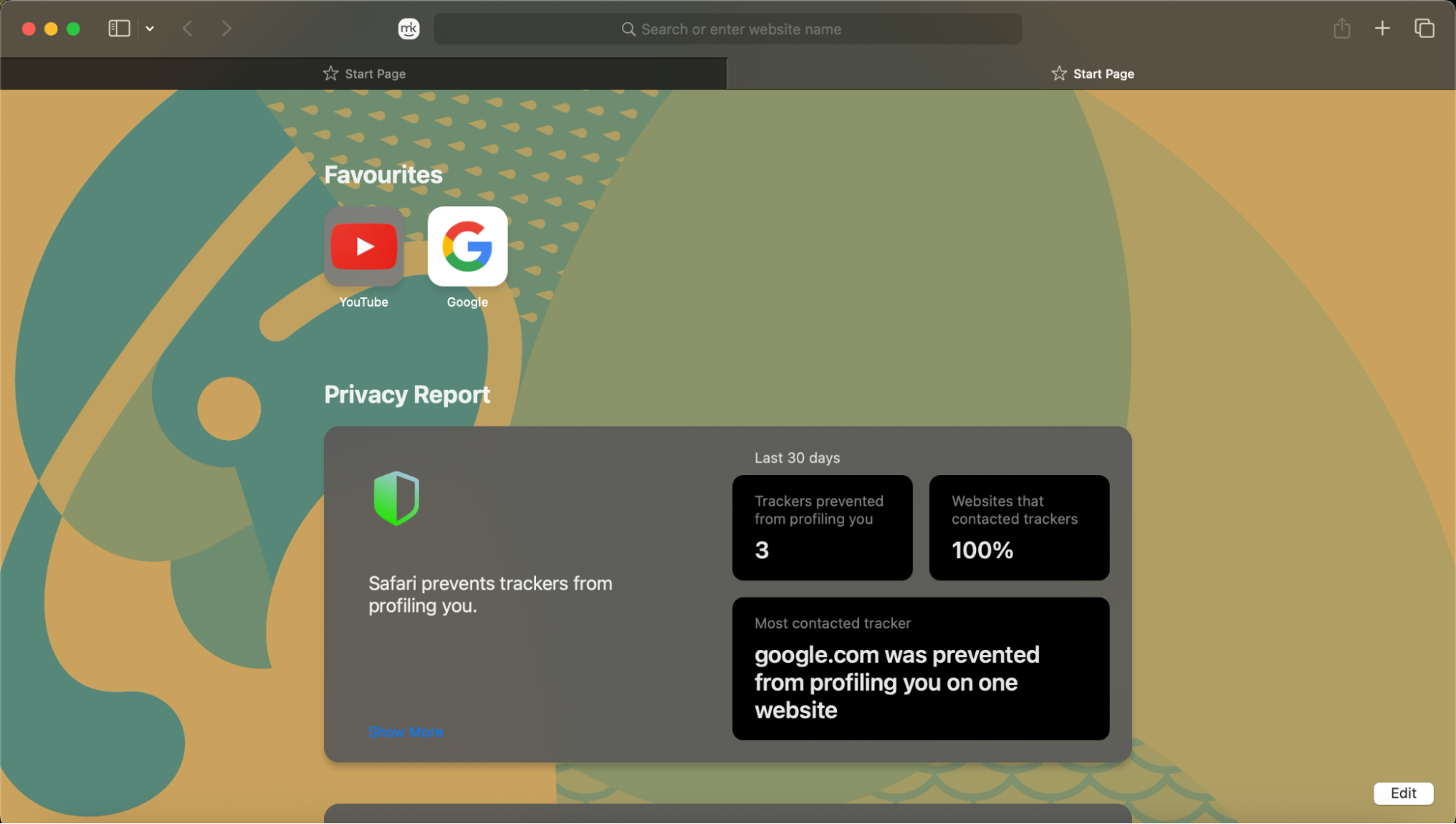
Use Safari or another browser with reliable protection features.
Check a site's address before opening files from it.
Ignore download prompts that appear without explanation.
Avoid running installers that come from pop-ups or redirects.
Switch to private browsing on unfamiliar websites.
Quit and reopen the browser if a page behaves oddly.
Use Safari or another browser with reliable protection features
6. Review and manage browser extensions
Extensions can improve your workflow, yet over time, they accumulate and behave unpredictably. Some begin requesting permissions you don't remember granting, while others sit unused and outdated.
Here's how to manage them effectively:
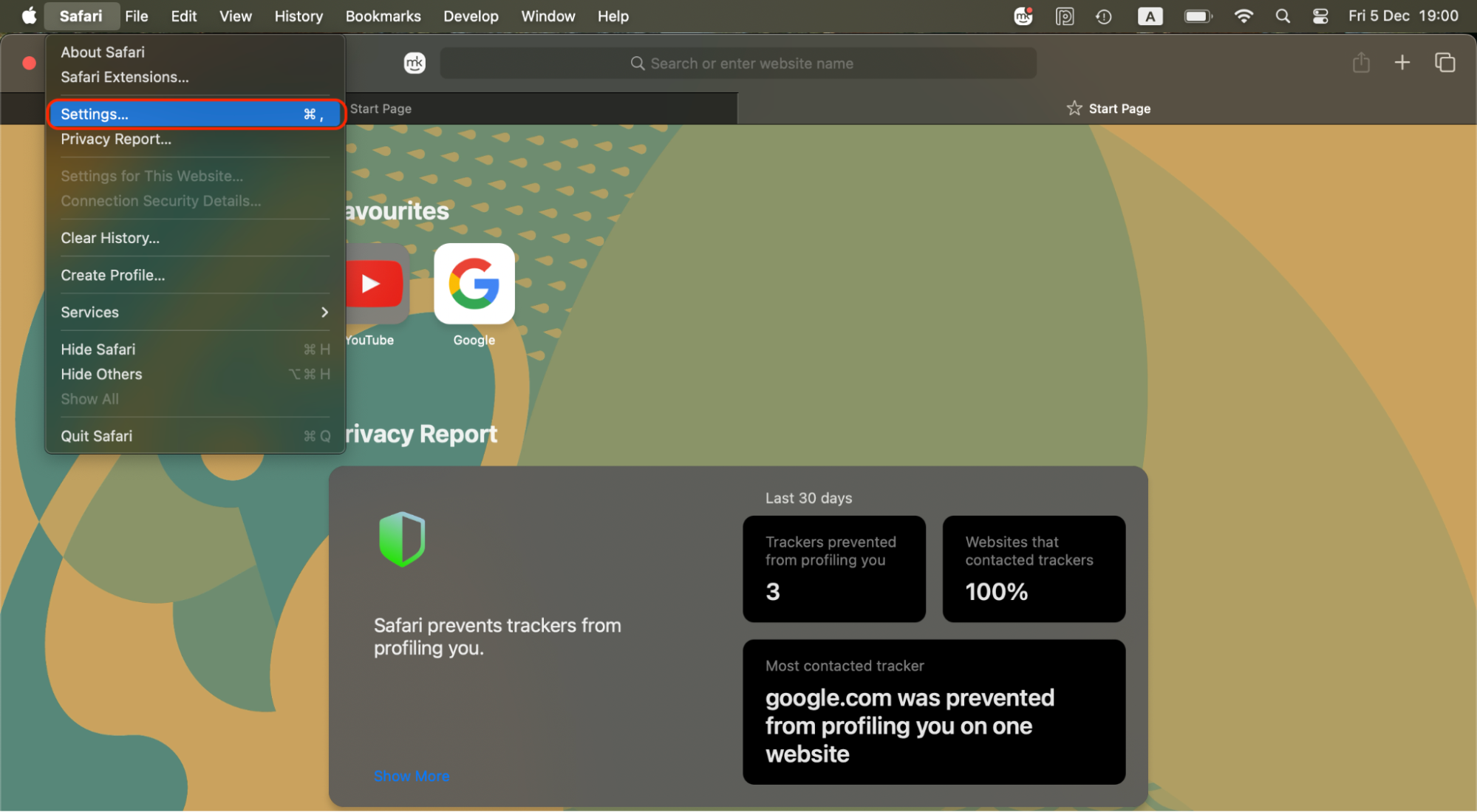
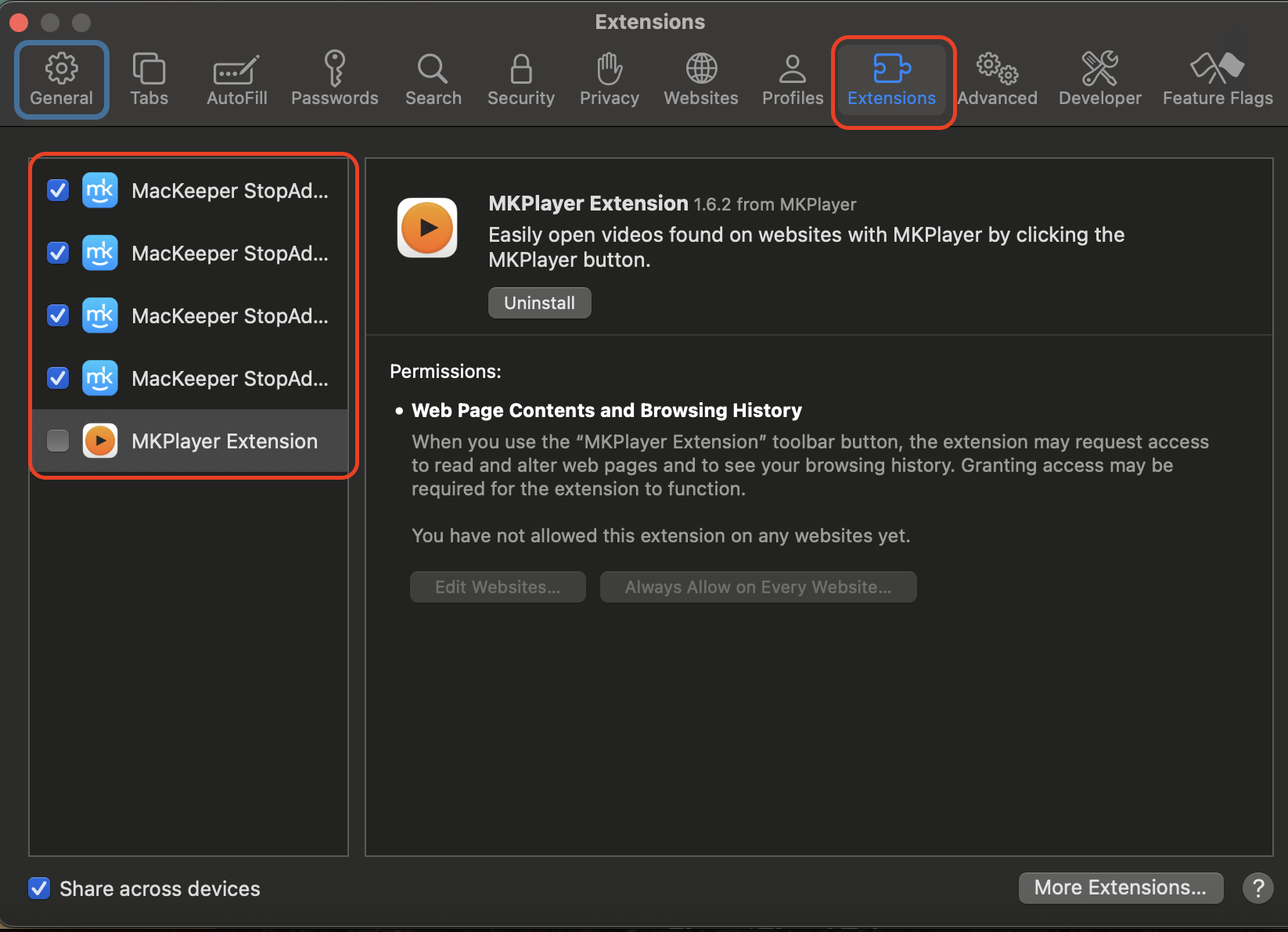
Open Safari and navigate to Settings→Extensions.
Disable extensions you don't recognize.
Remove those you haven't used in a long time.
Open Chrome and go to chrome://extensions.
Review permission requests and delete anything uncertain.
Restart the browser so all changes apply cleanly.
Step 1. Open Safari and navigate to SettingsStep 2. Go to Extensions, disable extensions you don't recognize, and remove those you haven't used in a long time
7. Turn on disk encryption
FileVault adds a valuable layer of protection for anyone who carries a Mac outside their home or workplace. Once disk encryption is enabled, your data remains unreadable without your login password, even if someone has physical access to the device.
Enable encryption with the following steps:
Open System Settings.
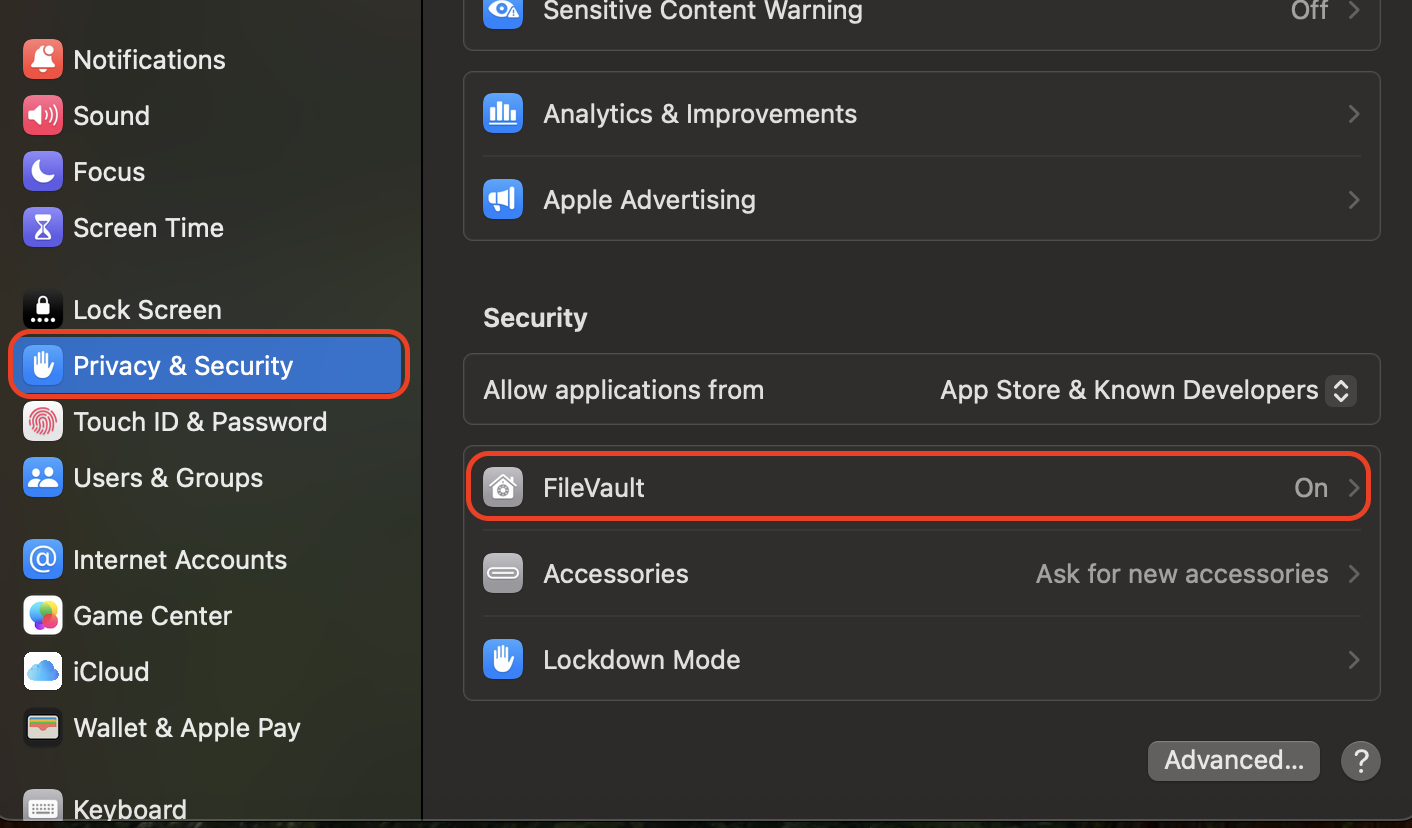
Select Privacy & Security.
Scroll to FileVault and click Turn On.
Restart the Mac to start the encryption process.
Open System Settings, select Privacy & Security, scroll to FileVault, and click Turn On
8. Enable Find My Mac
With the Find My Mac feature activated, your Mac can be located, locked, or erased, and that level of control often prevents data exposure during stressful situations. It's a simple feature, but one that brings noticeable peace of mind if your Mac is ever out of sight.
You can set it up in just a moment:
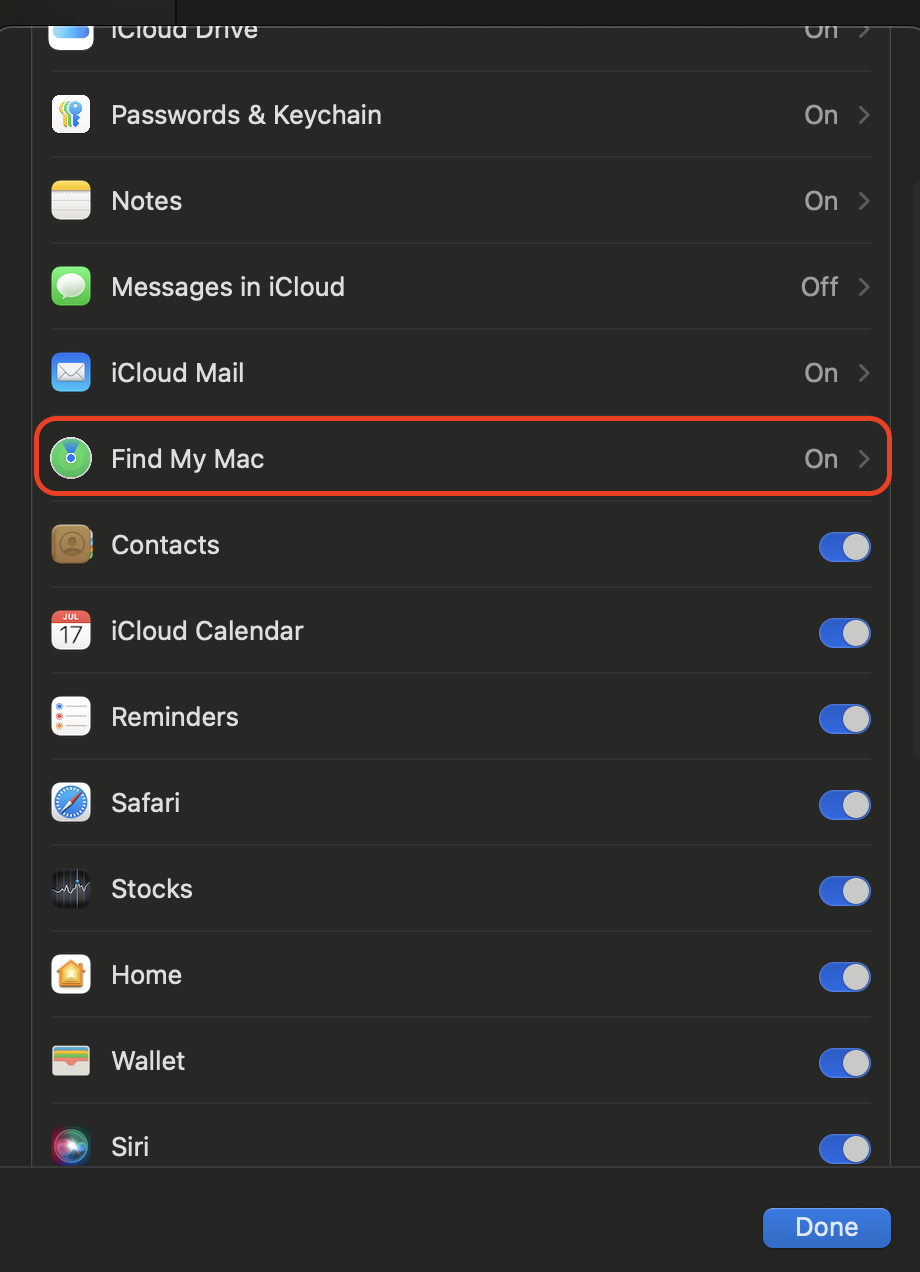
Open System Settings.
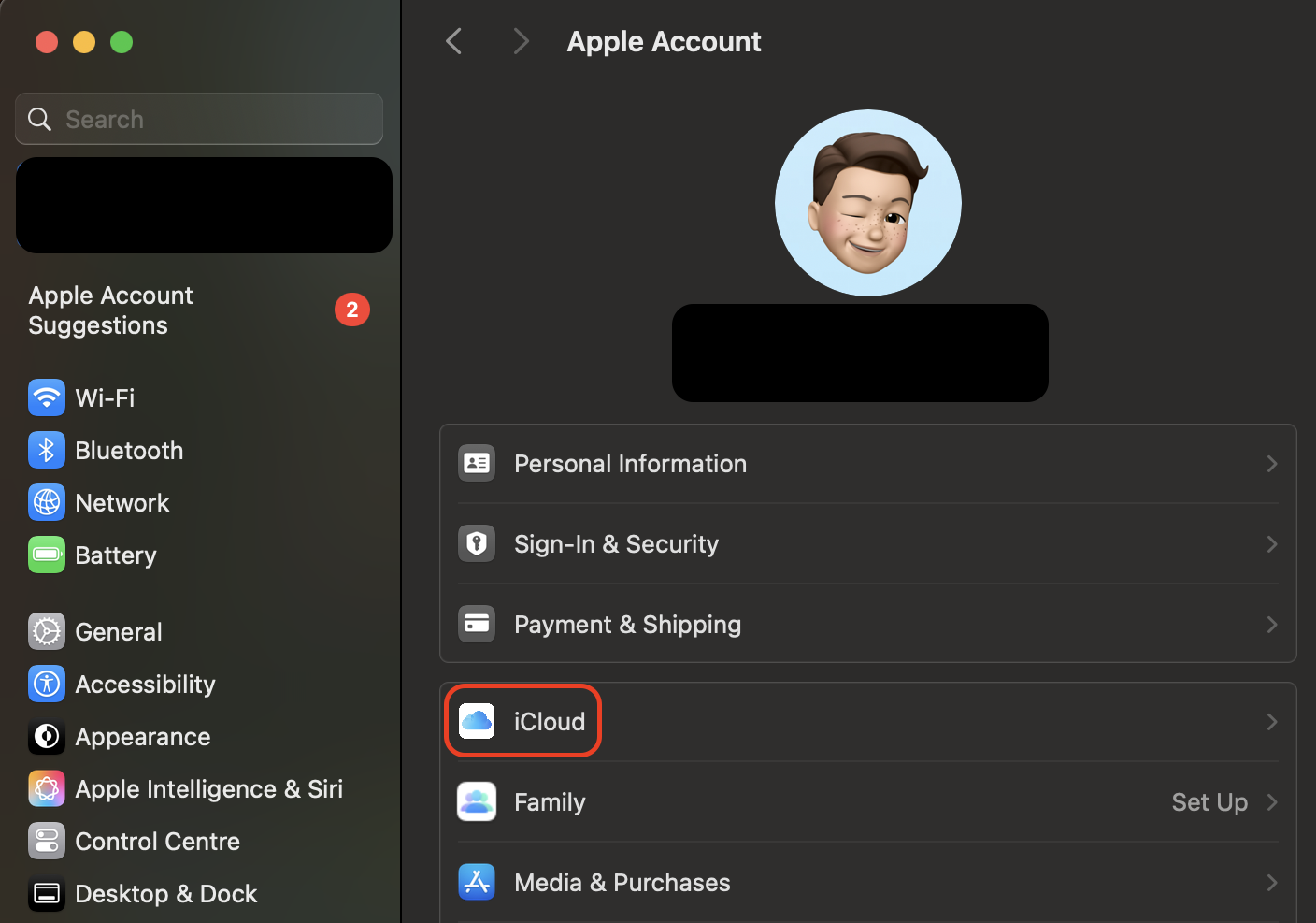
Click your Apple Account at the top.
Select iCloud.
Turn on Find My Mac.
Enable Find My Network for better tracking.
Confirm with your Apple ID password.
Step 1. Open System Settings, click your Apple Account at the top, and select iCloudStep 2. Turn on Find My Mac
9. Limit admin users on your device
Privileges matter more than most people realize, especially when they learn that Macs can get viruses. Admin accounts have broad access to system files and security settings, so fewer admin users reduce the risk of accidental changes or unauthorized installations.
Adjust account privileges using these steps:
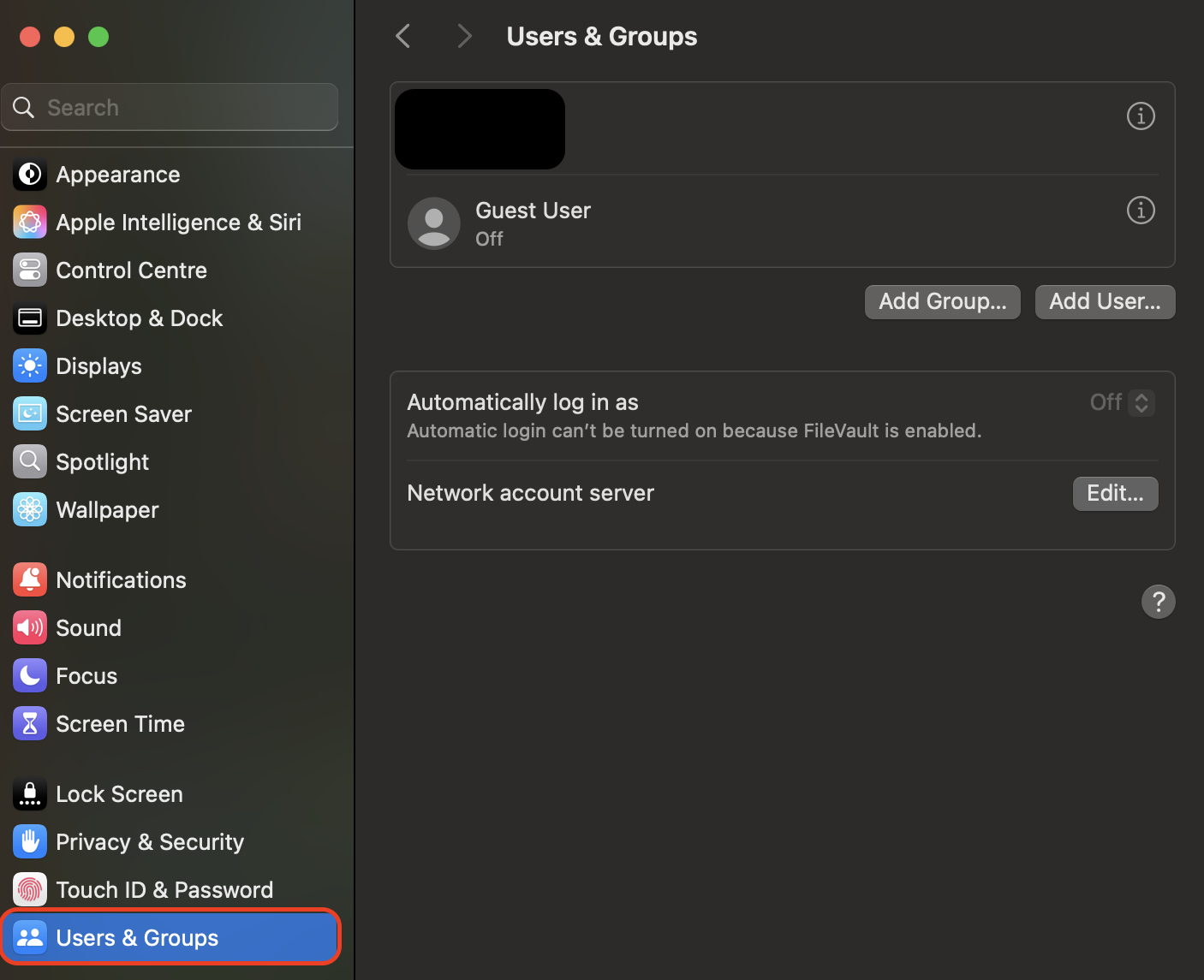
Open System Settings and go to Users & Groups.
Select the account you want to modify.
Click Edit and switch the role to Standard.
Keep only one active admin account for essential tasks.
Remove unused accounts to limit access points.
Restart the Mac to apply the changes.
Go to Users & Groups, select the account you want to modify, click Edit and switch the role to Standard
10. Use Apple Passwords app
Apple's built-in Passwords app offers a straightforward way to store secure logins without relying on separate tools. It keeps your passwords synced across devices, suggests stronger alternatives, and alerts you to weak or compromised entries.
Here's how to manage your passwords with Apple's tool:
Open System Settings from the Apple menu.
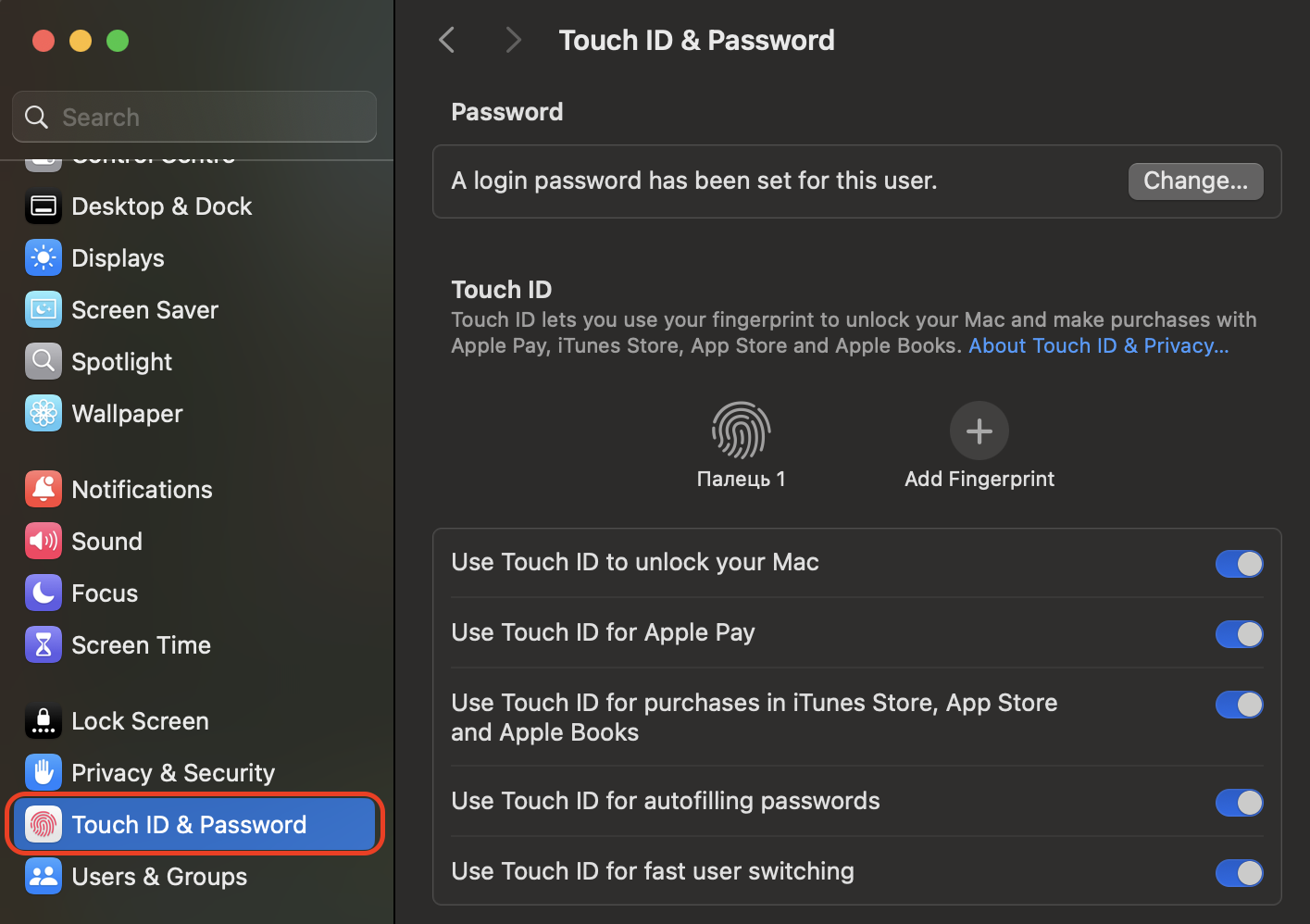
Select Touch ID & Password from the sidebar.
Authenticate with Touch ID or your account password.
Review saved logins and update those marked as weak or reused.
Use the Add Password button to securely store new entries.
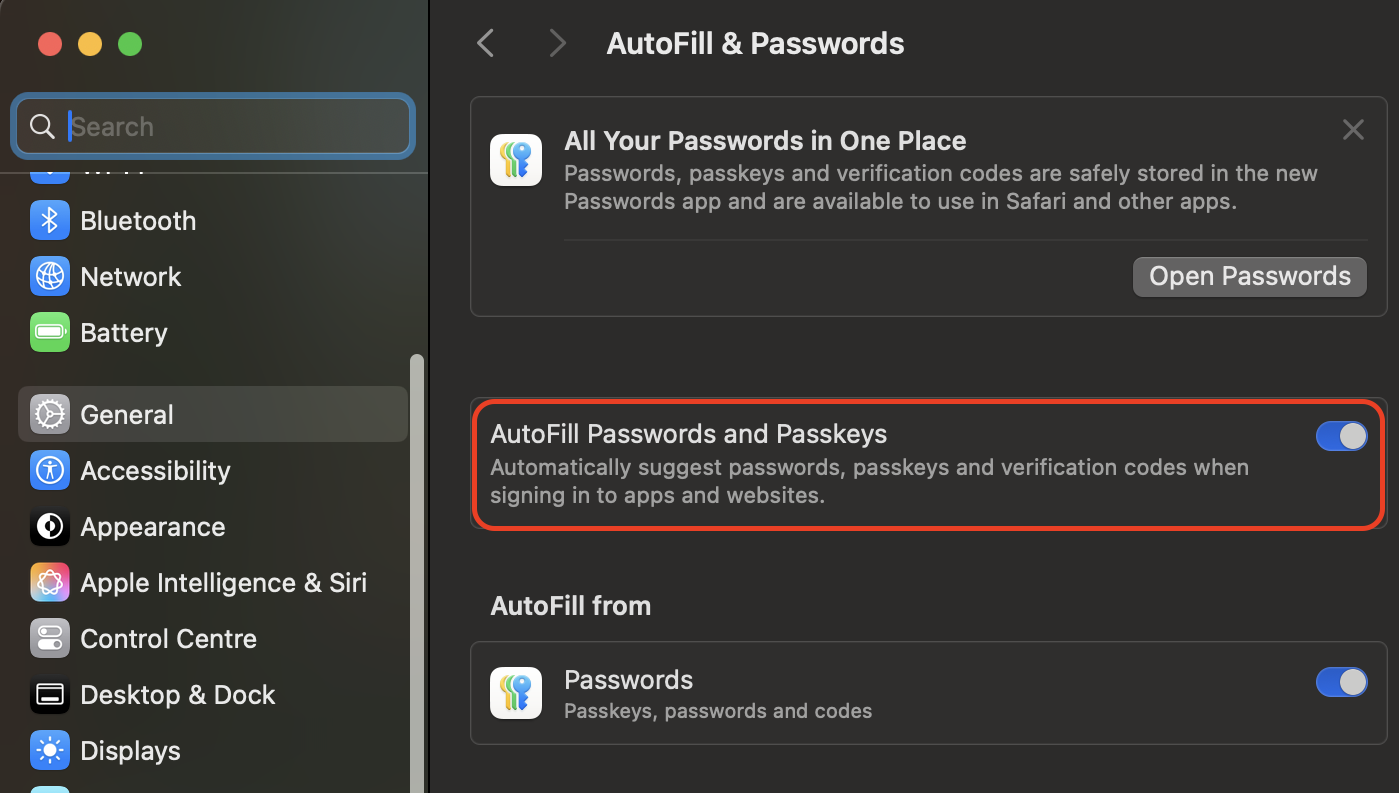
Enable AutoFill so Safari and apps can use your stored passwords automatically.
Check password alerts occasionally to catch new security recommendations.
Step 1. From System Settings, select Touch ID & PasswordStep 2. Enable AutoFill so Safari and apps can use your stored passwords automatically
11. Secure your device when it’s not in use
Leaving your Mac unattended, even for a short break, can expose personal files or settings. Enabling automatic logout keeps your information protected and prevents others from interacting with your apps while you're away.
Set up automatic logout using these steps:
Open System Settings.
Go to Privacy & Security.
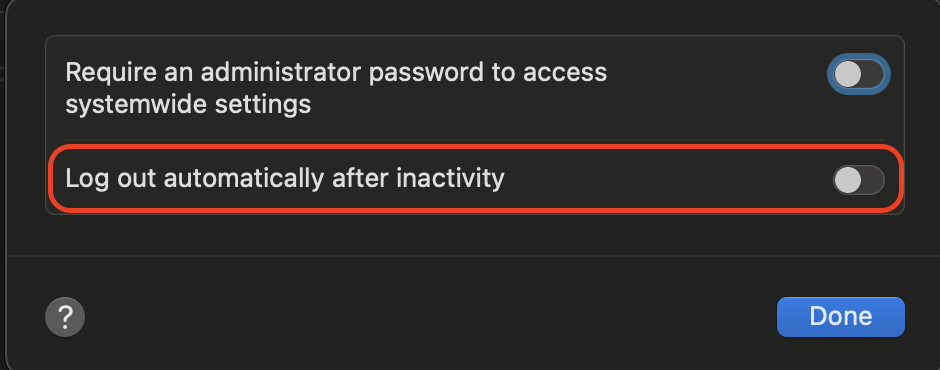
Scroll to the bottom and select Advanced.
Turn on Log outautomatically after inactivity.
Choose the time interval that suits your routine.
Confirm your selection and close the window.
Test the feature by stepping away to ensure the timing feels right.
Step 1. Go to Privacy & Security and scroll to the bottom and select AdvancedStep 2. Turn on Log out automatically after inactivity
12. Check app permissions
Periodically reviewing permissions helps ensure your microphone, camera, location, and files are only available to apps you trust. It's a simple habit that noticeably improves daily privacy.
Manage your permissions with the following steps:
Open System Settings from the Apple menu.
Select Privacy & Security.
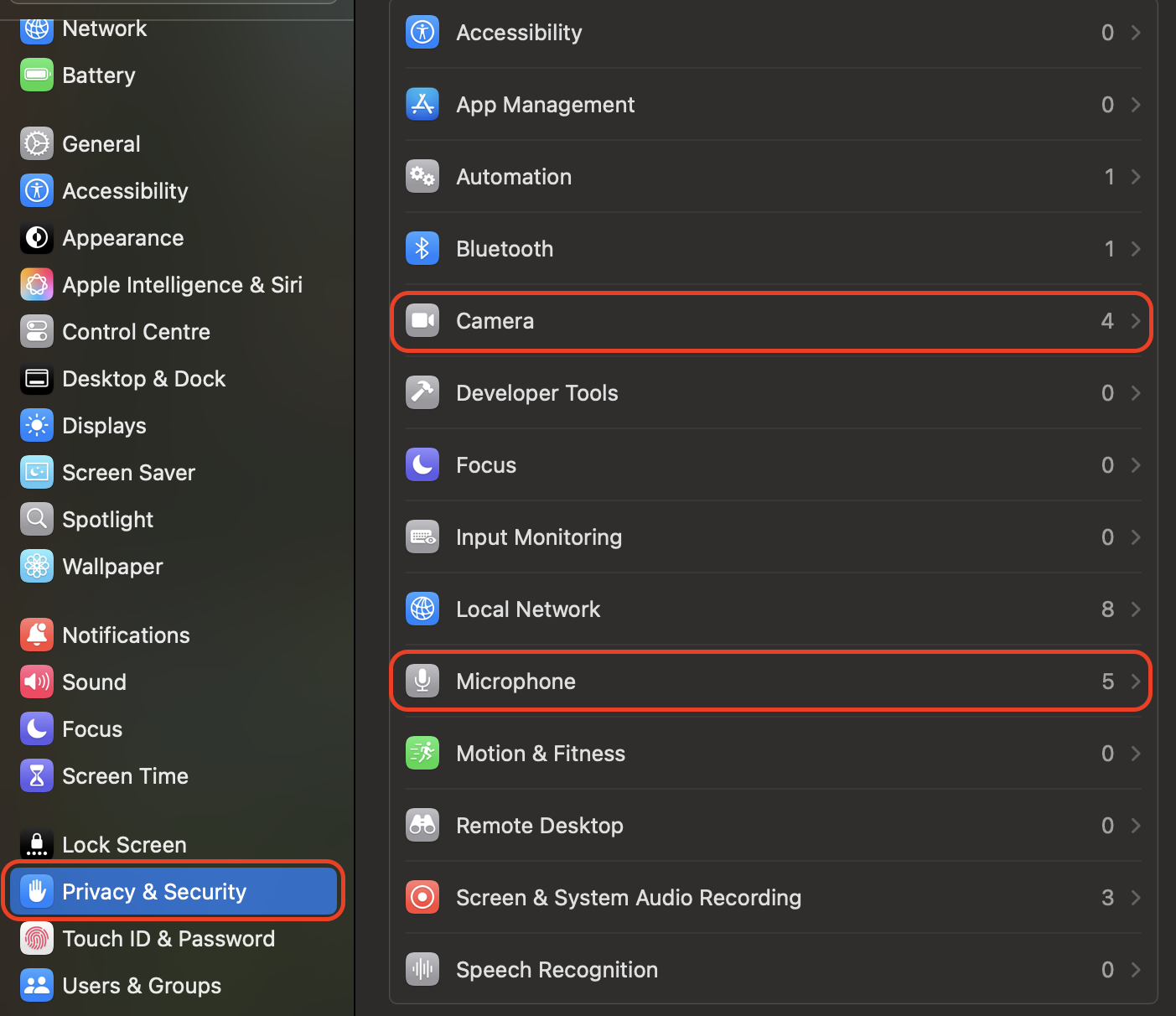
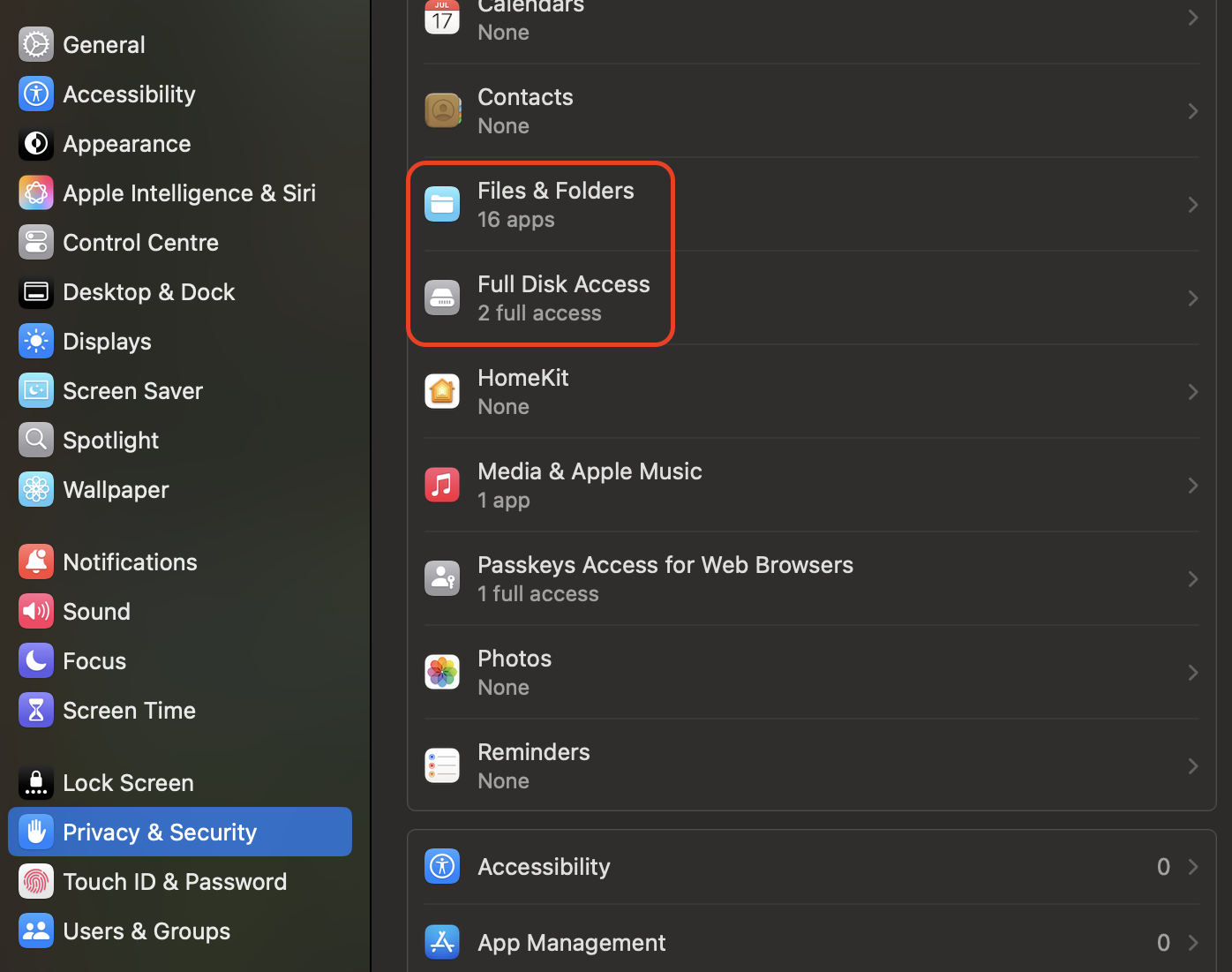
Open the categories Camera, Microphone, and Files and Folders.
Turn off access for apps you no longer use.
Re-enable permissions only when a trusted app requires them.
Review Full Disk Access to ensure only essential apps are listed.
Repeat the process once a month to keep permissions up to date.
Step 1. From System Settings, select Privacy & Security and open the categories Camera, Microphone to turn off access for apps you no longer useStep 2. Check out Files and Folders and review Full Disk Access to ensure only essential apps are listed
13. Use antivirus software
Even with careful browsing habits and strong system settings, your Mac benefits from an extra layer of protection. Real-time monitoring catches threats long before they affect files, and that's precisely where MacKeeper's Antivirus comes in.
It checks new items as they appear, blocks suspicious activity instantly, and keeps your system safe without asking you to manage complicated configurations. Many users tell us they feel noticeably more confident once they add continuous malware protection to their routine.
Conclusion
To protect your Mac from malware, you benefit most from keeping macOS updated, managing app permissions, maintaining strong passwords, reviewing extensions, and using built-in security tools like Firewall and FileVault. These steps work together to reduce common infection paths and strengthen everyday device safety.
Since MacKeeper is optimized for macOS, its Antivirus adds continuous, real-time threat detection that helps block malware before it spreads. It's a practical way to keep your system consistently protected.
We respect your privacy and
use cookies
for the best site experience.
Privacy Preferences Center
We use cookies along with other tools to give you the best possible experience while using the
MacKeeper website. Cookies are small text files that help the website load faster. The cookies we
use don’t contain any type of personal data meaning they never store information such as your
location, email address, or IP address.
Help us improve how you interact with our website by accepting the use of cookies. You can change
your privacy settings whenever you like.
Manage consent
All cookies
These cookies are strictly necessary for enabling basic website functionality (including page
navigation, form submission, language detection, post commenting), downloading and purchasing
software. The website might malfunction without these cookies.