Struggling to remove Adobe Creative Cloud from a Mac? To simplify the process and find all the leftovers scattered across your device, just use MacKeeper’s Smart Uninstaller.
Even if you no longer use any of the apps, we advise you to remove Adobe Creative Cloud from Mac to free up space, avoid conflicts with other applications, and prevent it from using up system resources in the background.
From our Mac experience, almost all Adobe programs use processes that quietly run automatically whenever they see fit. They’re used to sync data, keep apps up to date, and more. However, if you don’t remove them, these processes can have an impact on system performance.
What happens when you remove Creative Cloud?
When you remove Adobe Creative Cloud and uninstall Flash Player from Mac, all the storage they were using will be freed up to give you more space. In addition, background processes will be uninstalled so that they cannot use processing power or system memory.
We should point out that even without a Creative Cloud subscription, some apps may continue to work on a free or starter plan. However, they’ll have limited functionality, and without a paid subscription, your cloud storage is reduced from 30GB to just 2GB.
Adobe gives users 30 days to reduce their cloud storage usage, which means making local backups of your files in case you ever want access to them in the future. However, after 30 days, you might lose access to some or all of those files.
What you should do before uninstalling Adobe Creative Cloud from Mac
Before you uninstall Adobe Creative Cloud on Mac, you should ensure all your files are synced or backed up locally. Any files that aren’t saved in some form may be lost for good when you remove Adobe’s apps from your computer.
We’d like to add here that syncing your files to Creative Cloud is sufficient if you plan to continue with your Creative Cloud subscription. If not, you’ll need to create local copies of your files so that you can access them later.
A note from our experts:
Removing apps from your Mac can be a troublesome process. Their leftovers don’t want to leave your Mac and hide throughout the device. To get rid of Adobe Creative Cloud, utilize MacKeeper’s Smart Uninstaller. Our tool removes apps with all their files.
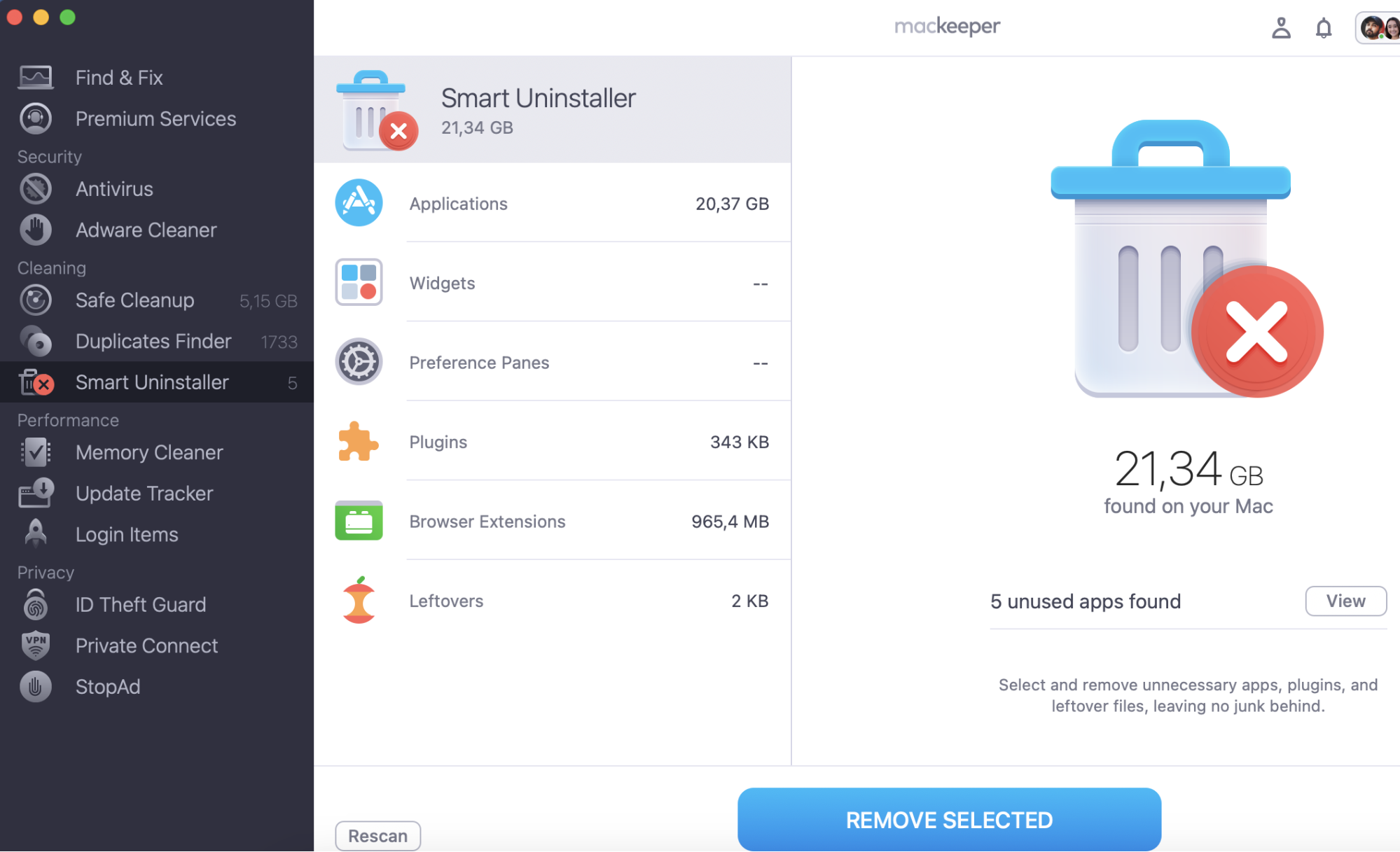
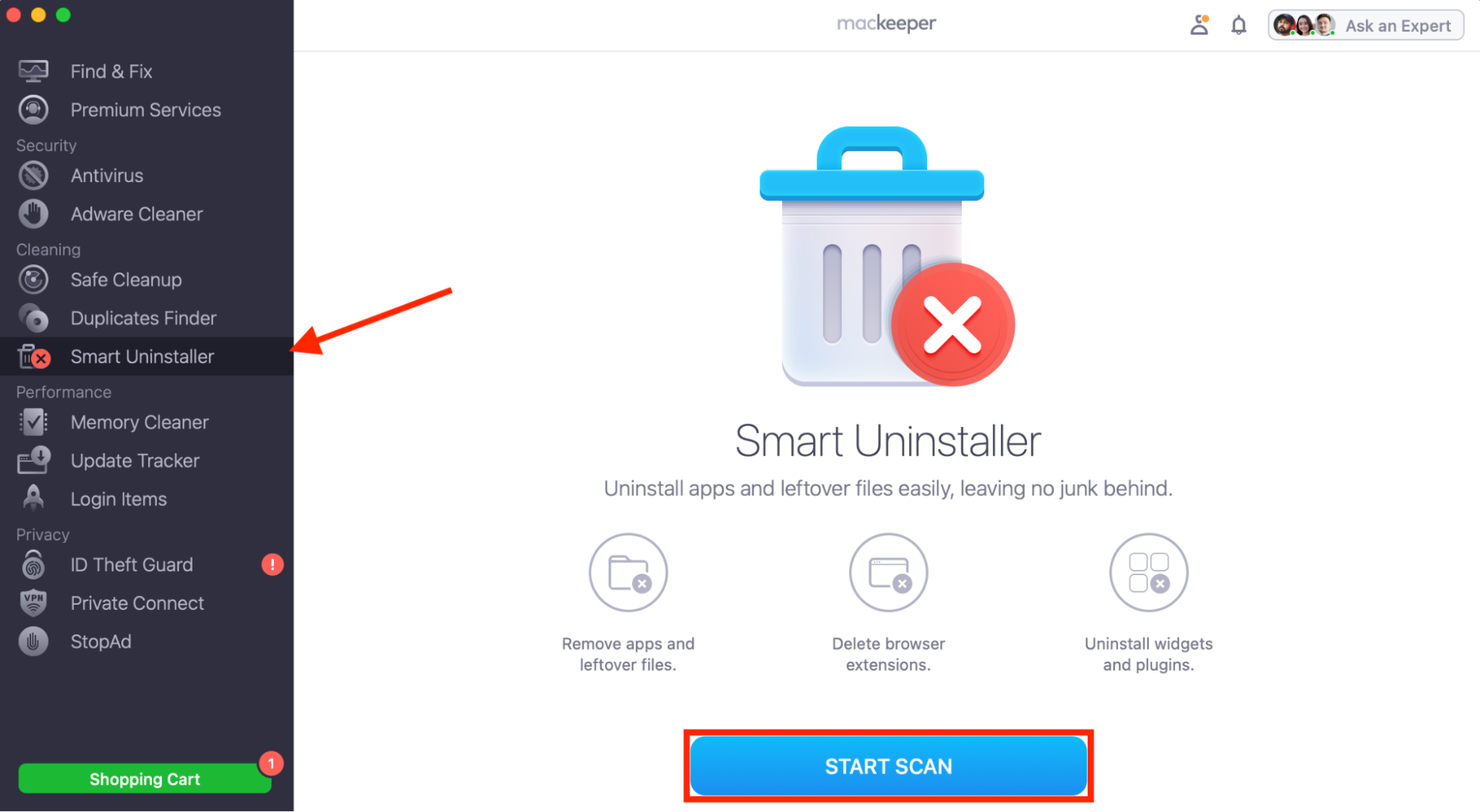
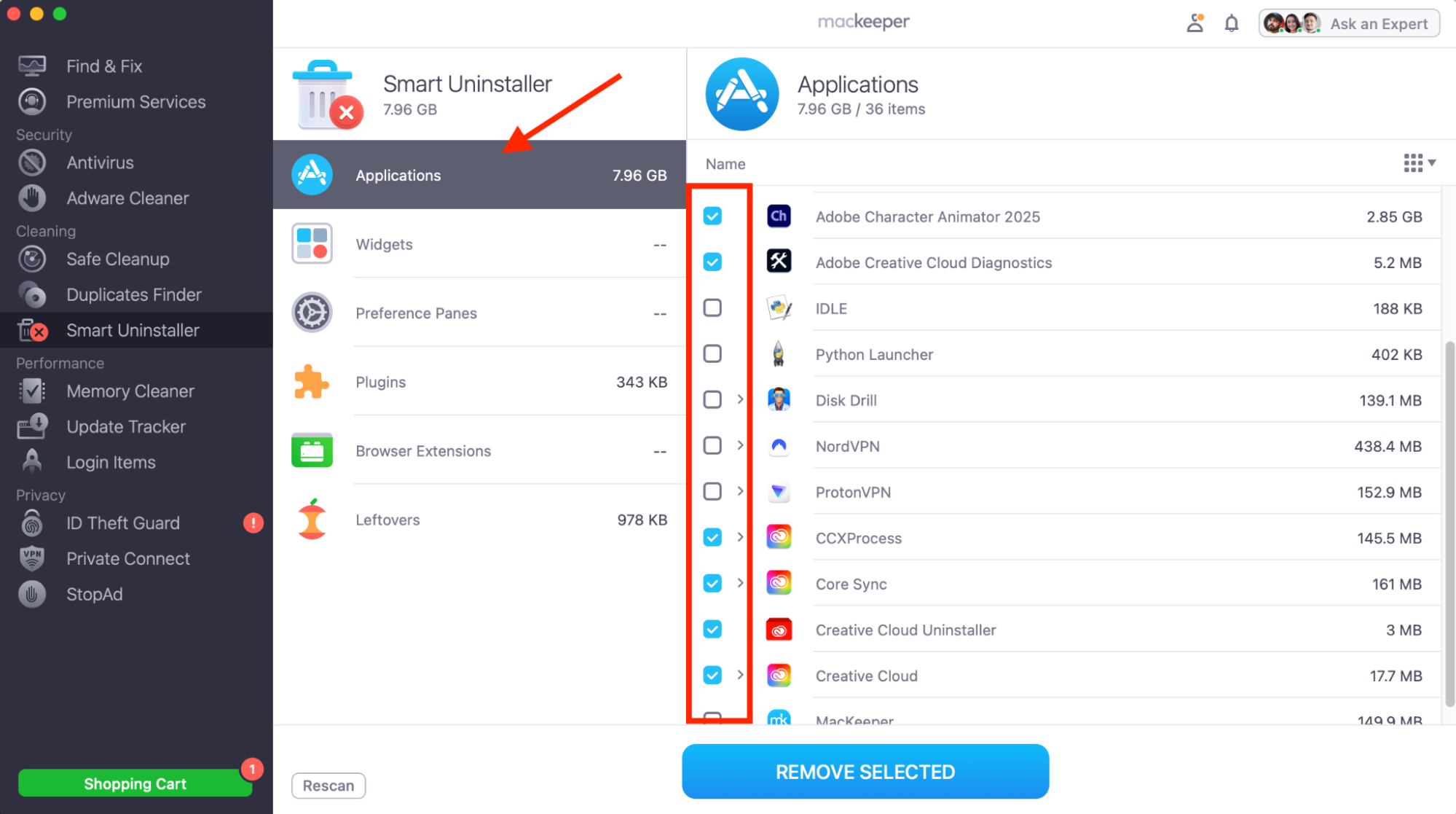
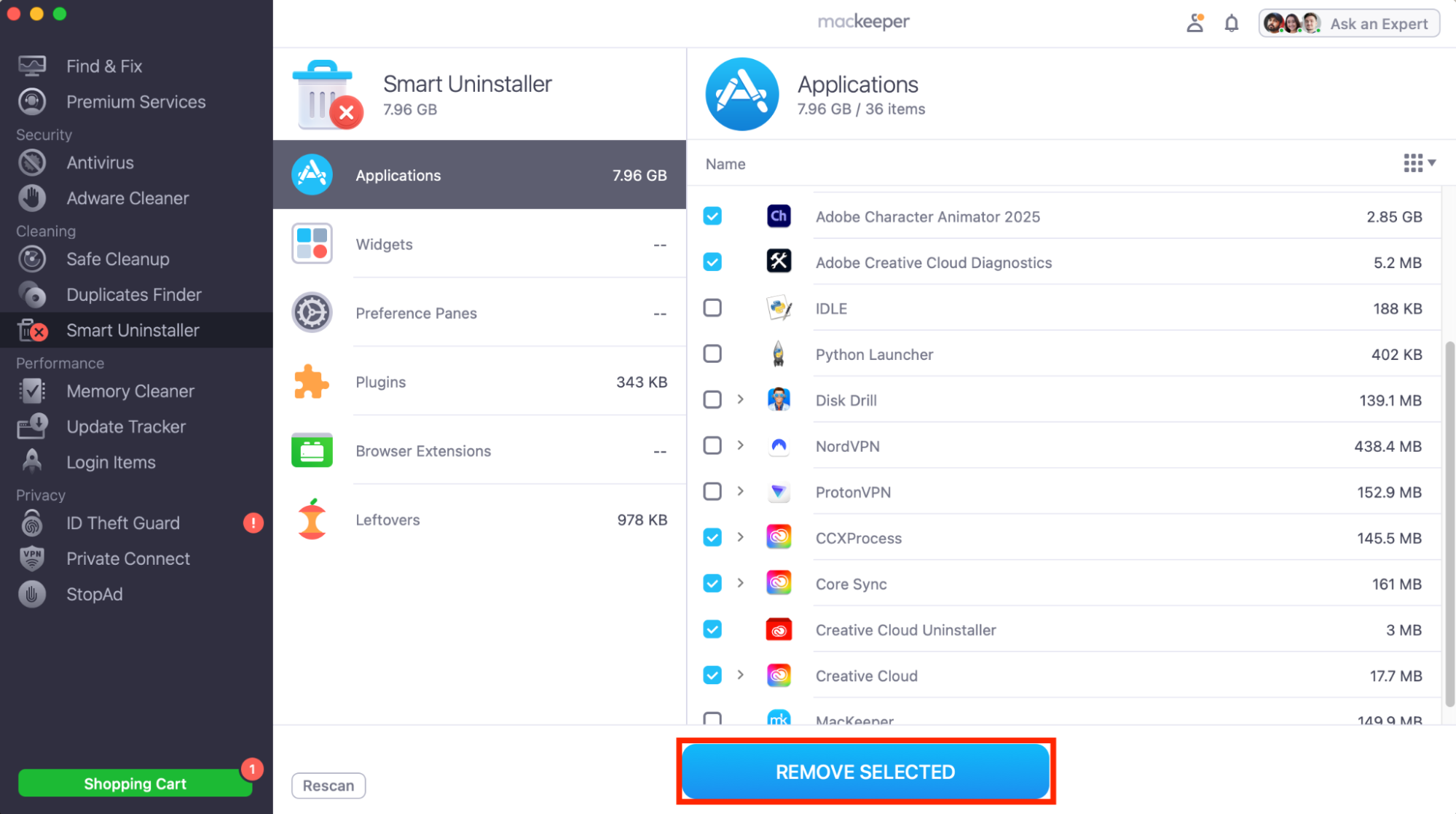
Select the apps you want to delete, then click Remove Selected.
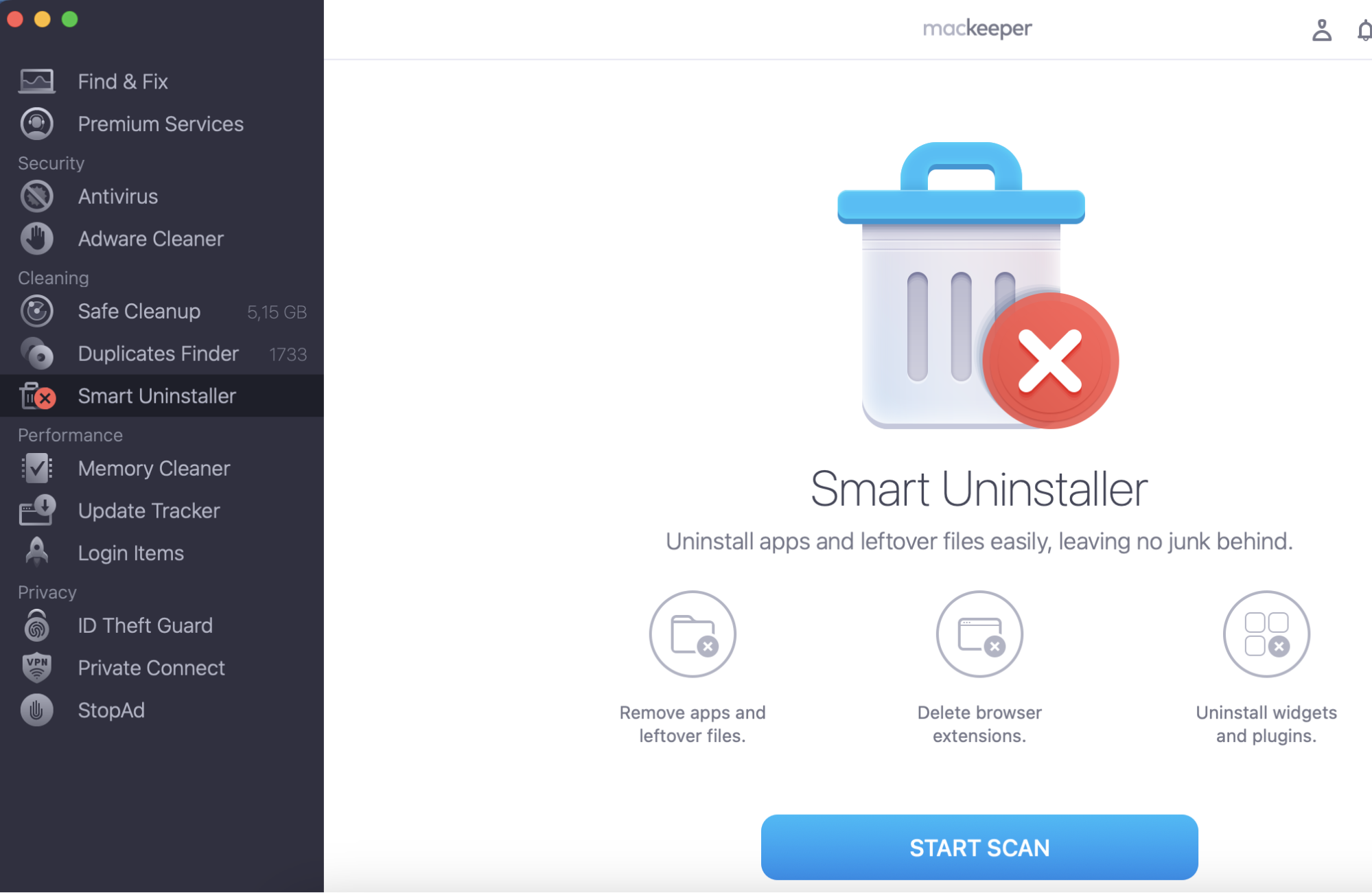
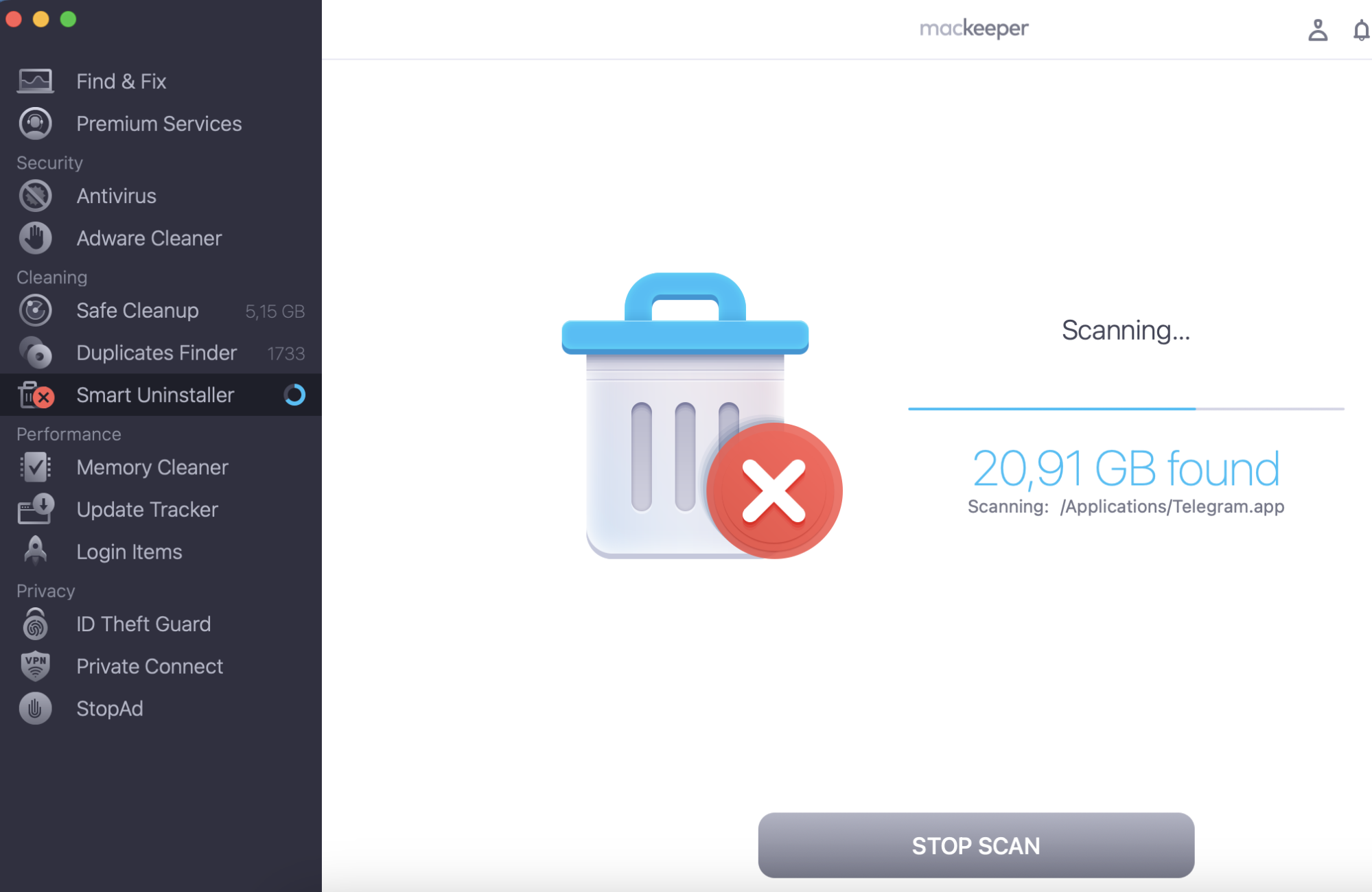
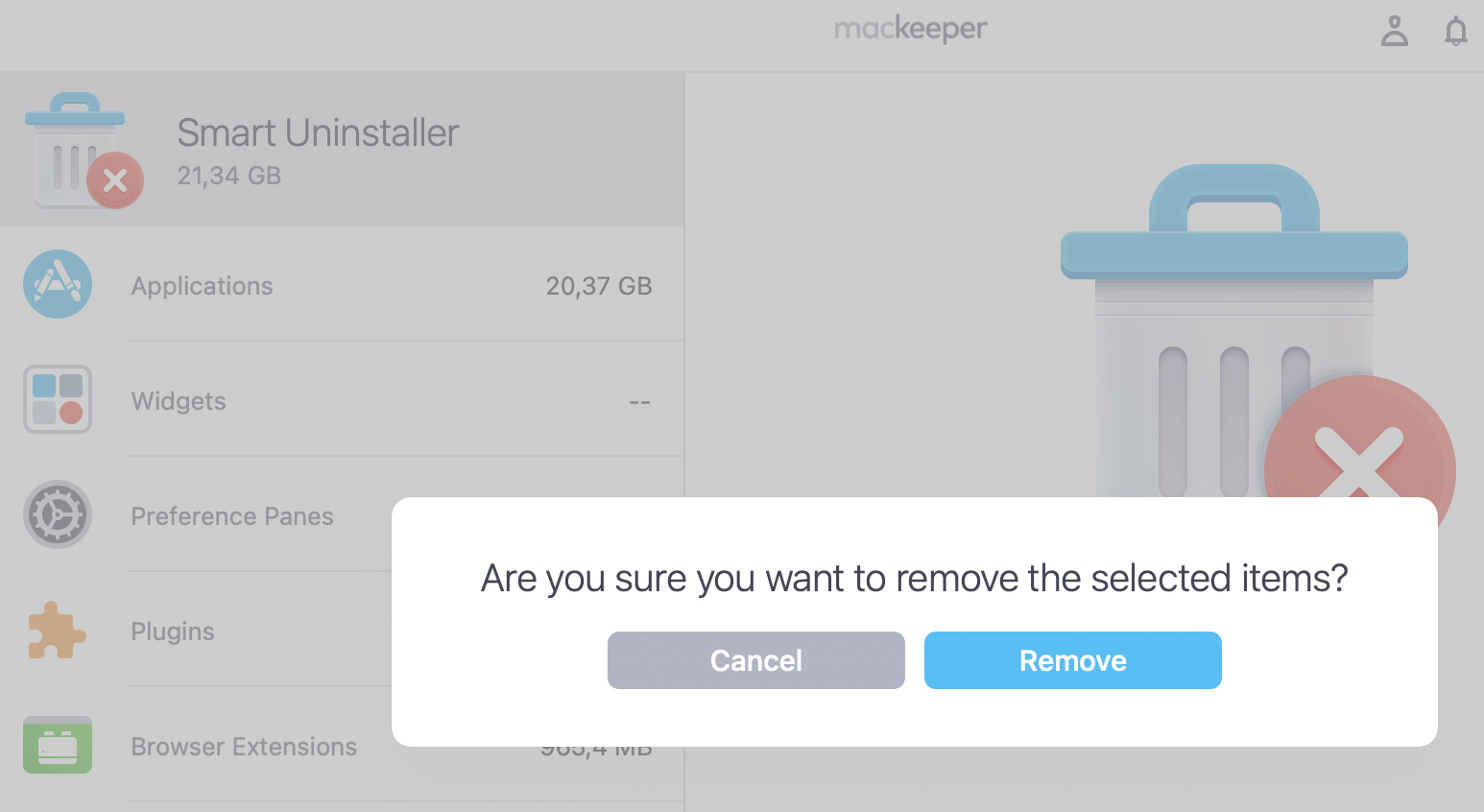
Step 1. MacKeeper > Smart Uninstaller > Start ScanStep 2. Let MacKeeper scan your MacStep 3. Select the items to remove > Remove SelectedStep 4. Click Remove
How to remove Adobe Creative Cloud from Mac manually
Once you’re ready to start removing Adobe Creative Cloud from your Mac, you have two options—manually and automatically. Let’s start with the first one and see what it entails:
Close Adobe Creative Cloud applications
Delete Adobe applications to prepare for Creative Cloud removal
Find Creative Cloud uninstaller
Run uninstaller to remove Creative Cloud from your Mac
Get rid of Adobe Creative Cloud-related folders and files
1. Close Creative Cloud applications
Before you can remove any Creative Cloud apps from your Mac, you need to close all that are currently running. This includes Photoshop, Lightroom, Illustrator, Premiere Pro, etc. Try this:
Look for any Adobe app icons in the macOS dock to see what’s running.
Open any active apps and Save any projects you’ve opened.
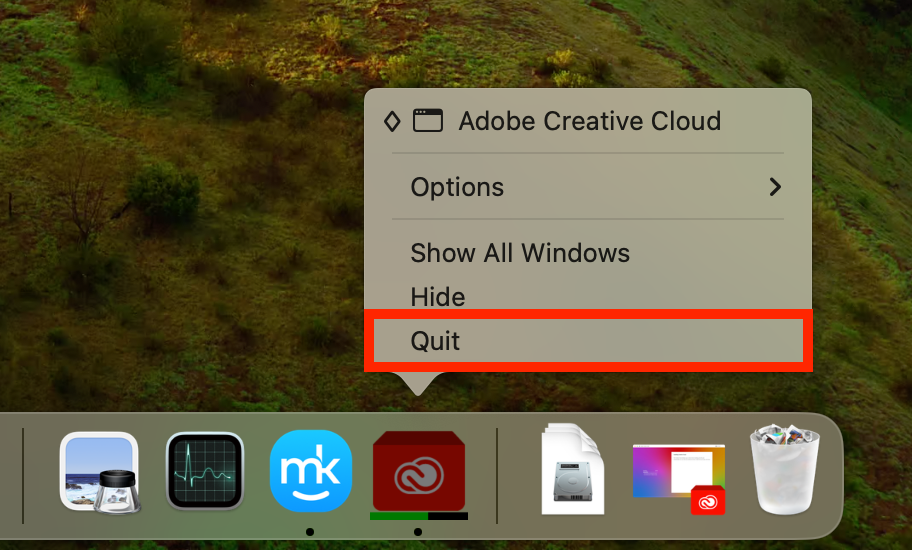
Right-click the app’s icon in the dock, then select Quit.
After saving your work, Quit all Adobe apps
2. Delete Adobe applications to prepare for Creative Cloud removal
You can’t remove Creative Cloud until you delete all Adobe applications from your MacBook, so after closing each one, prepare for Creative Cloud’s removal like so:
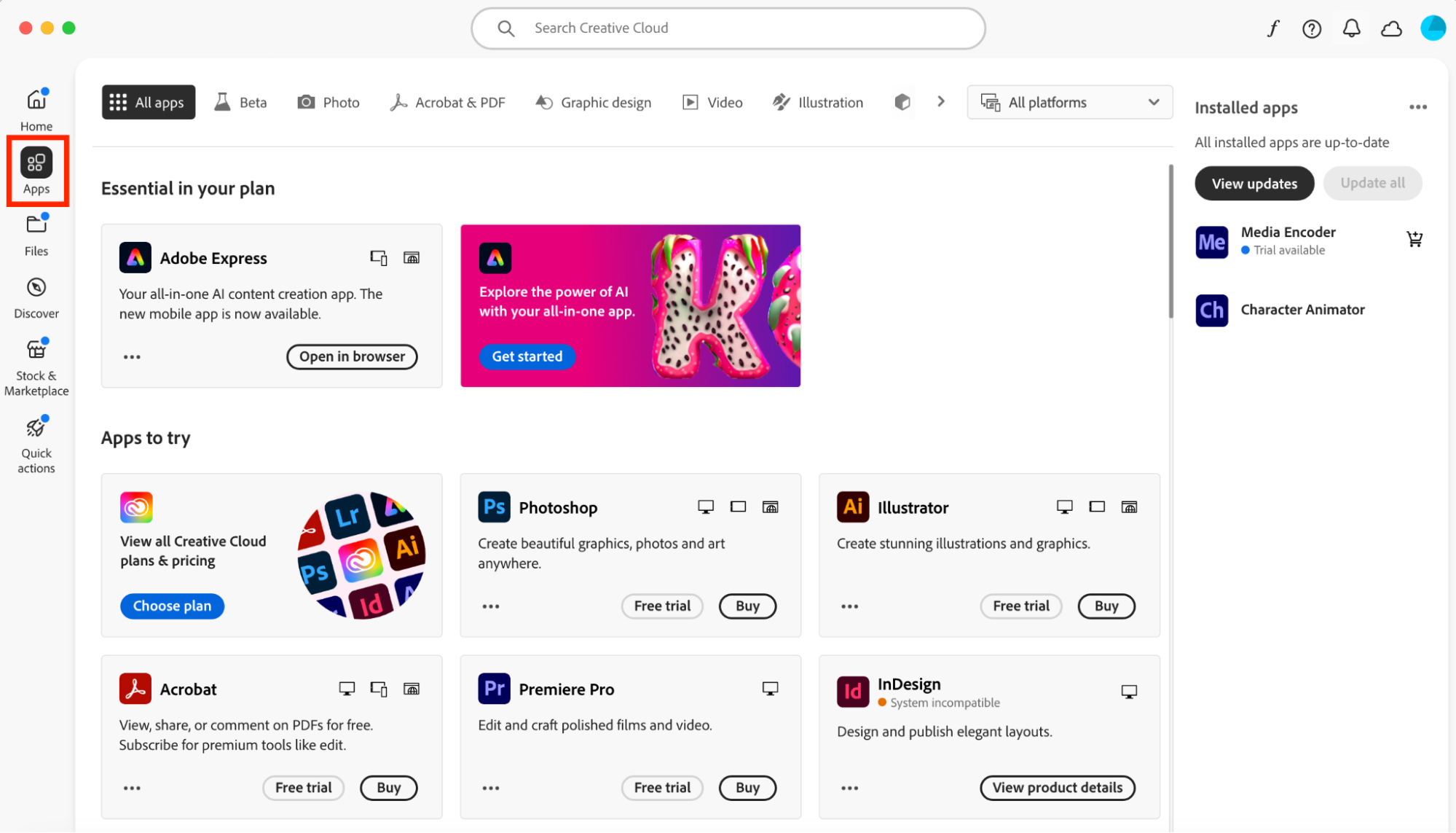
Open the Creative Cloud desktop application, then go to Apps.
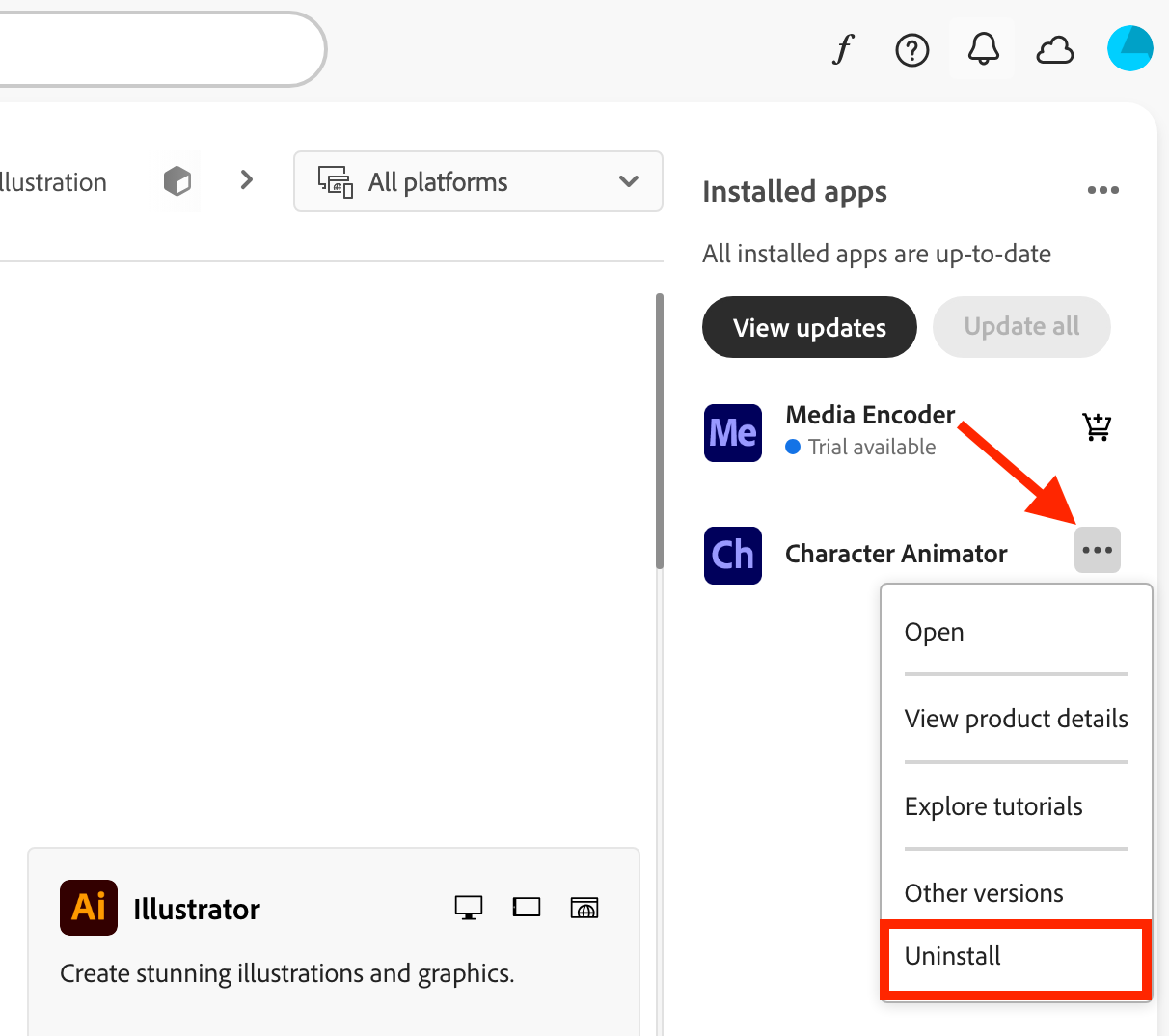
On the right, you’ll see a list of installed apps. Click the three dots next to each one, then select Uninstall.
Follow the on-screen instructions to proceed.
Step 1. In Creative Cloud, select AppsStep 2. Click the three dots next to an app, then choose Uninstall
A hint from our team:
From our tests, some users may be unable to delete apps through Creative Cloud, at which point we suggest you uninstall each one manually. If you’re not sure how to completely uninstall an app on Mac, you’ll be pleased to know it’s almost as easy as deleting an unwanted file.
3. Find Creative Cloud uninstaller
With Photoshop, Premiere Pro, and any other Adobe apps uninstalled, it’s now safe to get rid of Creative Cloud. First, find the Creative Cloud uninstaller:
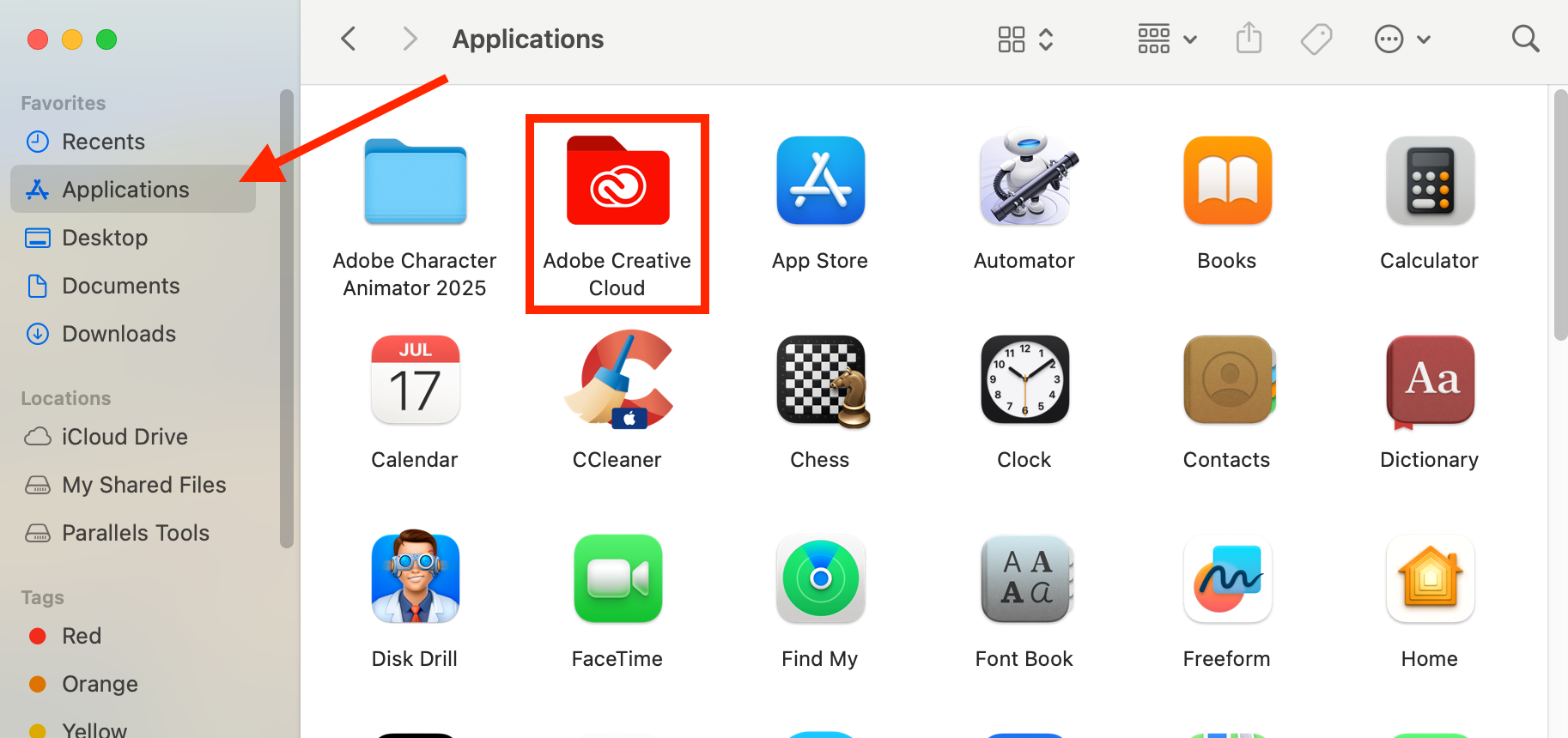
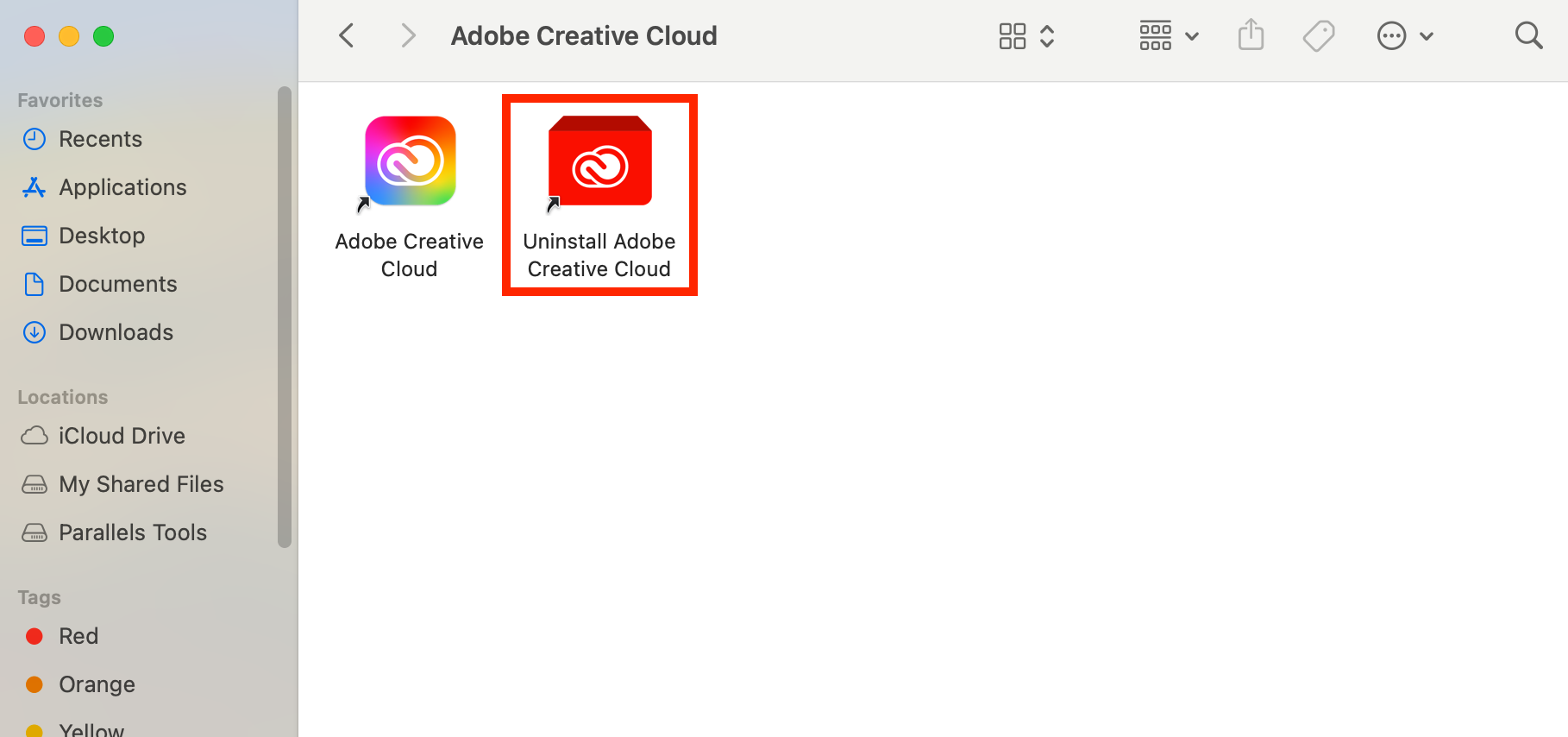
Open Finder and select Applications.
Double-click the Adobe Creative Cloud folder to open it. You’ll see the uninstaller here.
In Finder > Applications, open Adobe Creative Cloud
4. Run uninstaller to remove Creative Cloud from your Mac
To remove Creative Cloud from your Mac, run the uninstaller:
Run Uninstall Adobe Creative Cloud.
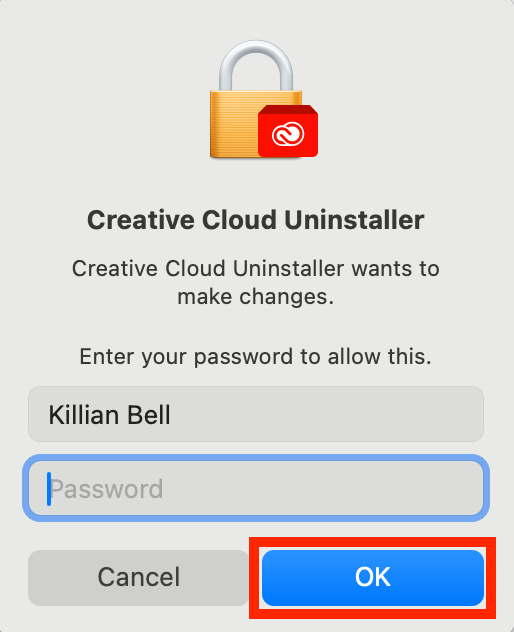
Enter your Mac’s admin password, then click OK.
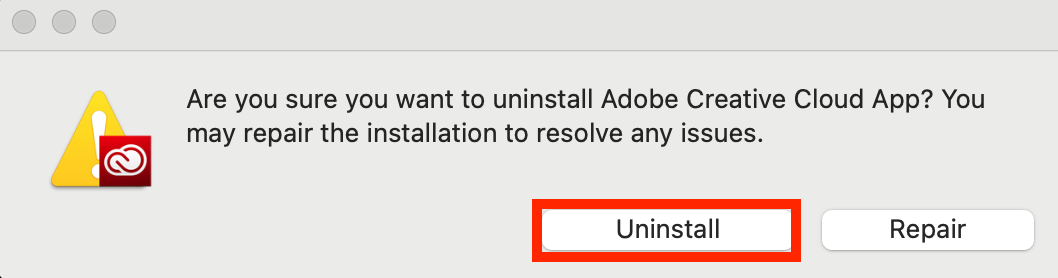
Click Uninstall, then follow the steps on-screen to complete the process.
Step 1. Run Uninstall Adobe Creative CloudStep 2. Enter your Mac's admin password, then click OKStep 3. Click Uninstall, then follow the steps
5. Get rid of Adobe Creative Cloud-related folders and files
We’ve got evidence that not all Creative Cloud-related folders and files are removed by the uninstaller, so you’ll need to get rid of them manually. Here’s how:
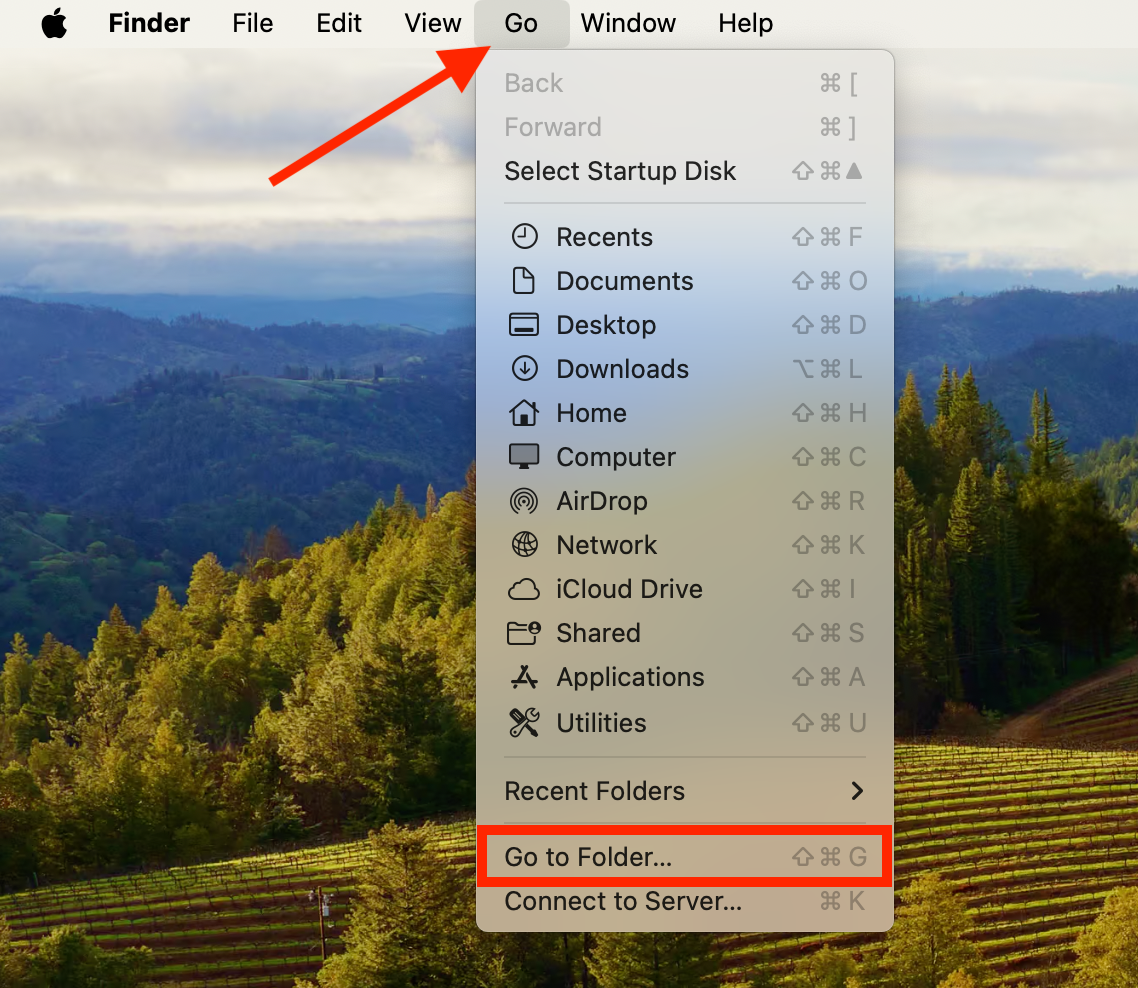
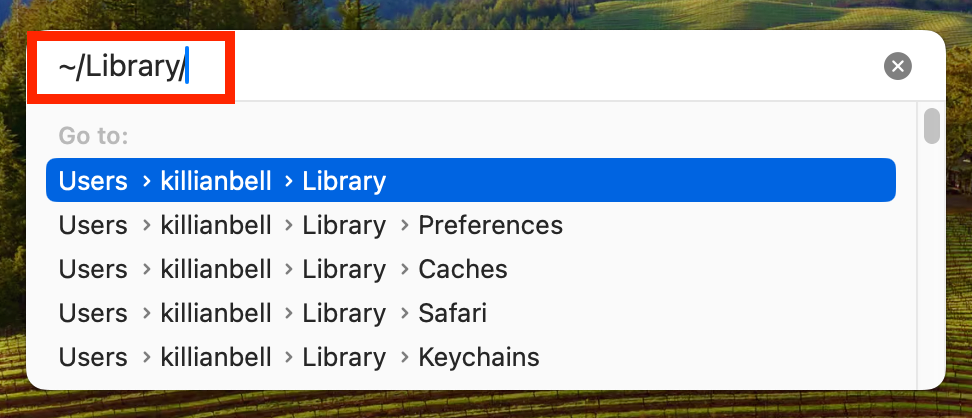
Open Finder, then select Go > Go to Folder in the menu bar.
Enter ~/Library, then press Enter.
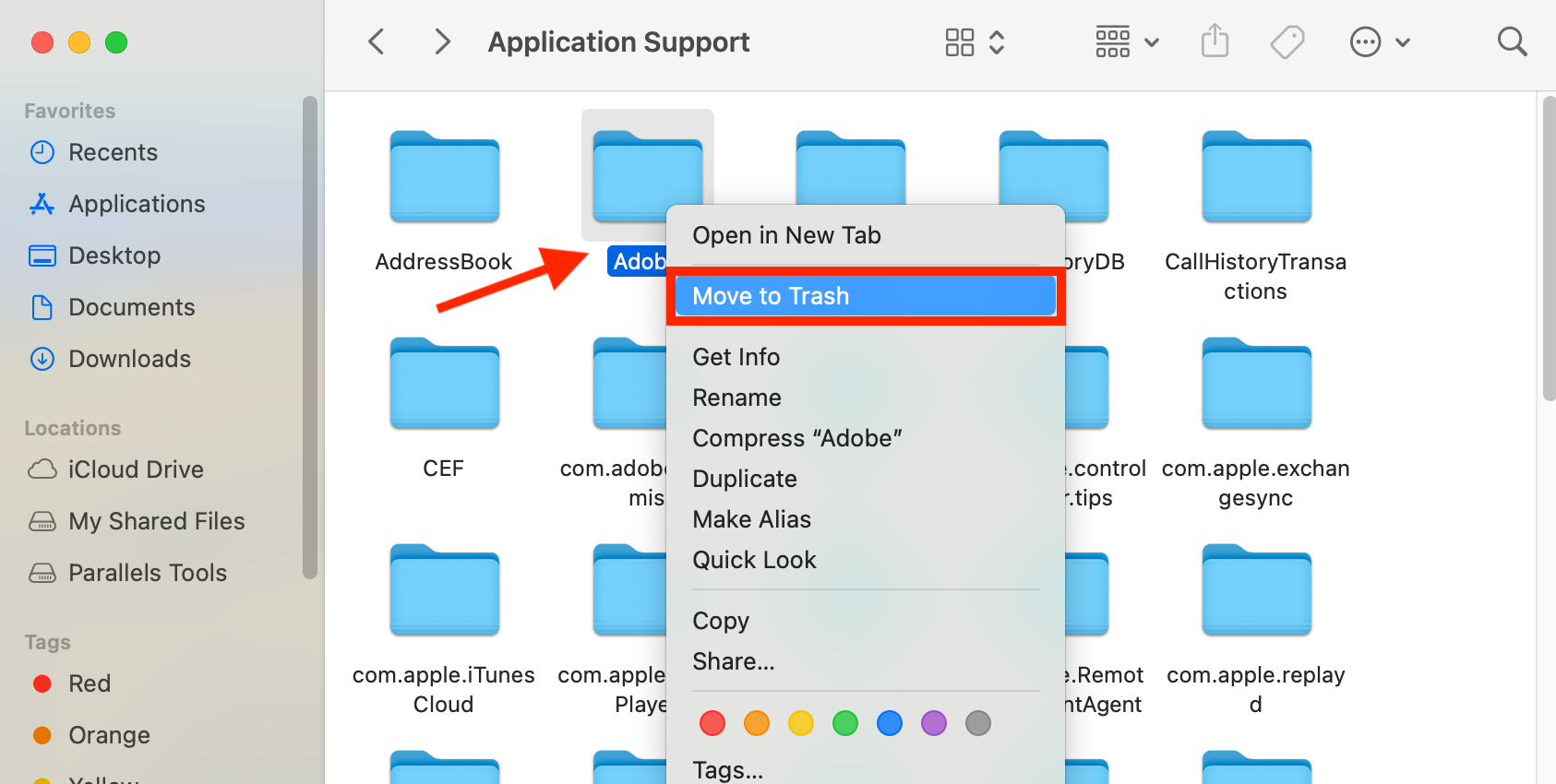
Find any Adobe Creative Cloud-related folders, then delete them.
Repeat this process for these locations:
~/Library/Application Support
~/Library/Preferences
/Library/LaunchAgents
/Library/LaunchDaemons
/Library/PrivilegedHelperTools
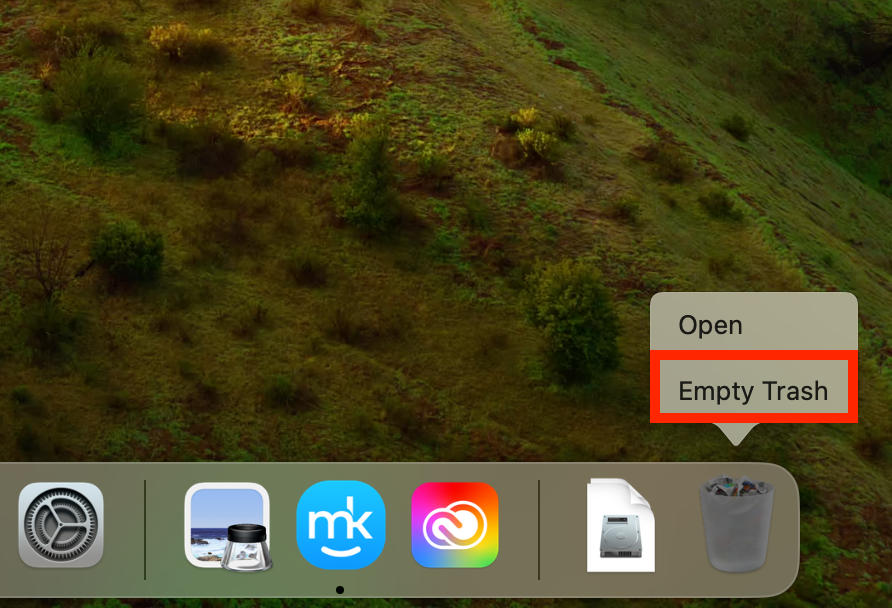
Empty the Trash on your Mac.
Step 1. In Finder, select Go > Go to FolderStep 2. Enter the path to Adobe library filesStep 3. Find Adobe folders, then delete themStep 4. Empty the Trash
How to uninstall Adobe Creative Cloud from Mac with a third-party app
In our opinion, an easier way to uninstall Adobe Creative Cloud and all its associated files from Mac is with a third-party app. We recommend MacKeeper’s Smart Uninstaller. Try this:
Choose Applications, then select all Adobe and Creative Cloud-related apps in the list.
Click Remove Selected to uninstall them.
Step 1. Select Smart Uninstaller > Start ScanStep 2. Choose Applications, then select all Adobe appsStep 3. Click Remove Selected
As a bonus, MacKeeper comes with lots of other tools for optimizing your computer, so if you’ve been wondering how to clear RAM on Mac, simply try our Memory Cleaner.
Conclusion on deleting Creative Cloud from Mac
Although removing all Adobe Creative Cloud apps and files from your MacBook can be a somewhat cumbersome process, ensure you’re not wasting disk space and system resources on programs that you no longer use.
If you’re looking for an easier way to remove all Adobe software from your Mac, check out MacKeeper’s Smart Uninstaller. It not only clears unwanted programs but also all associated files that could cause problems later on. And it only takes a few clicks.
We respect your privacy and
use cookies
for the best site experience.
Privacy Preferences Center
We use cookies along with other tools to give you the best possible experience while using the
MacKeeper website. Cookies are small text files that help the website load faster. The cookies we
use don’t contain any type of personal data meaning they never store information such as your
location, email address, or IP address.
Help us improve how you interact with our website by accepting the use of cookies. You can change
your privacy settings whenever you like.
Manage consent
All cookies
These cookies are strictly necessary for enabling basic website functionality (including page
navigation, form submission, language detection, post commenting), downloading and purchasing
software. The website might malfunction without these cookies.