How to Delete Chrome, Safari, Firefox, and Opera Extensions on a Mac
Want to delete Chrome, Safari, Firefox, and Opera extensions on a Mac, being tired of all this annoyance? Nothing is easier! MacKeeper’s Smart Uninstaller will help you to remove unused apps, plugins, extensions, and app leftovers for good.
To remove browser extensions on a Mac, open your web browser, navigate to the settings, locate the Extensions menu, and delete them. For example, in Safari, go to Settings (Preferences)> Extensions and use the Uninstall button. For Chrome/Firefox, click the three dots and then open Extensions or Add-ons to remove them.
Browser extensions are great as they help us to block ads, personalize the app, save passwords, and even correct our imperfect grammar. Extensions need resources, so eventually, they will slow down your Mac and decrease its performance. Read on to learn how to delete Safari, Chrome, Firefox, and Opera extensions on Mac.
A note from our experts:
Browser extensions often leave behind background components that stay active even after manual removal. Because MacKeeper is Apple-notarized and optimized for macOS, its Smart Uninstaller helps remove unnecessary extensions and their associated files in a single pass, reducing browser clutter and preventing hidden leftovers from affecting system stability.
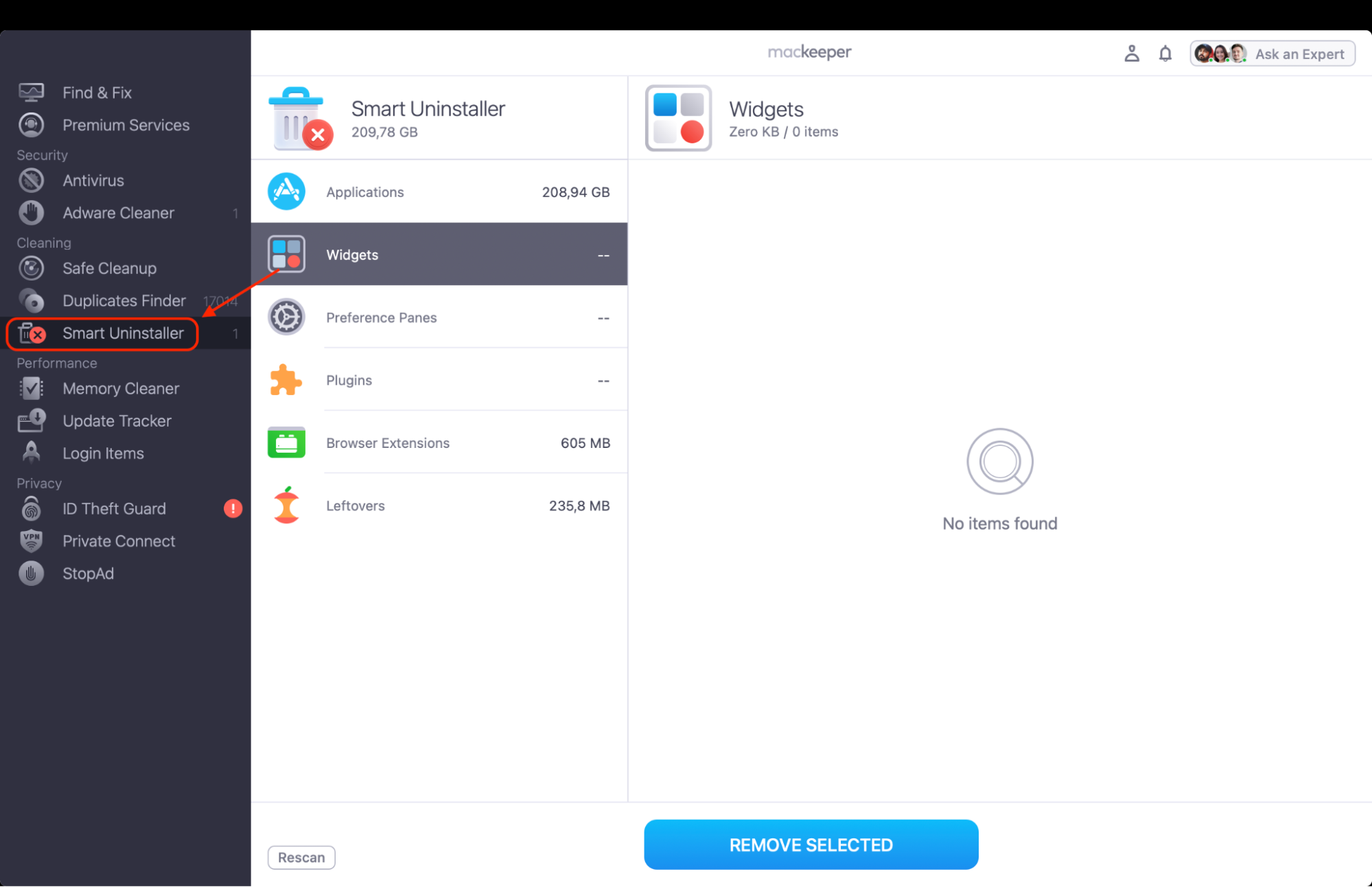
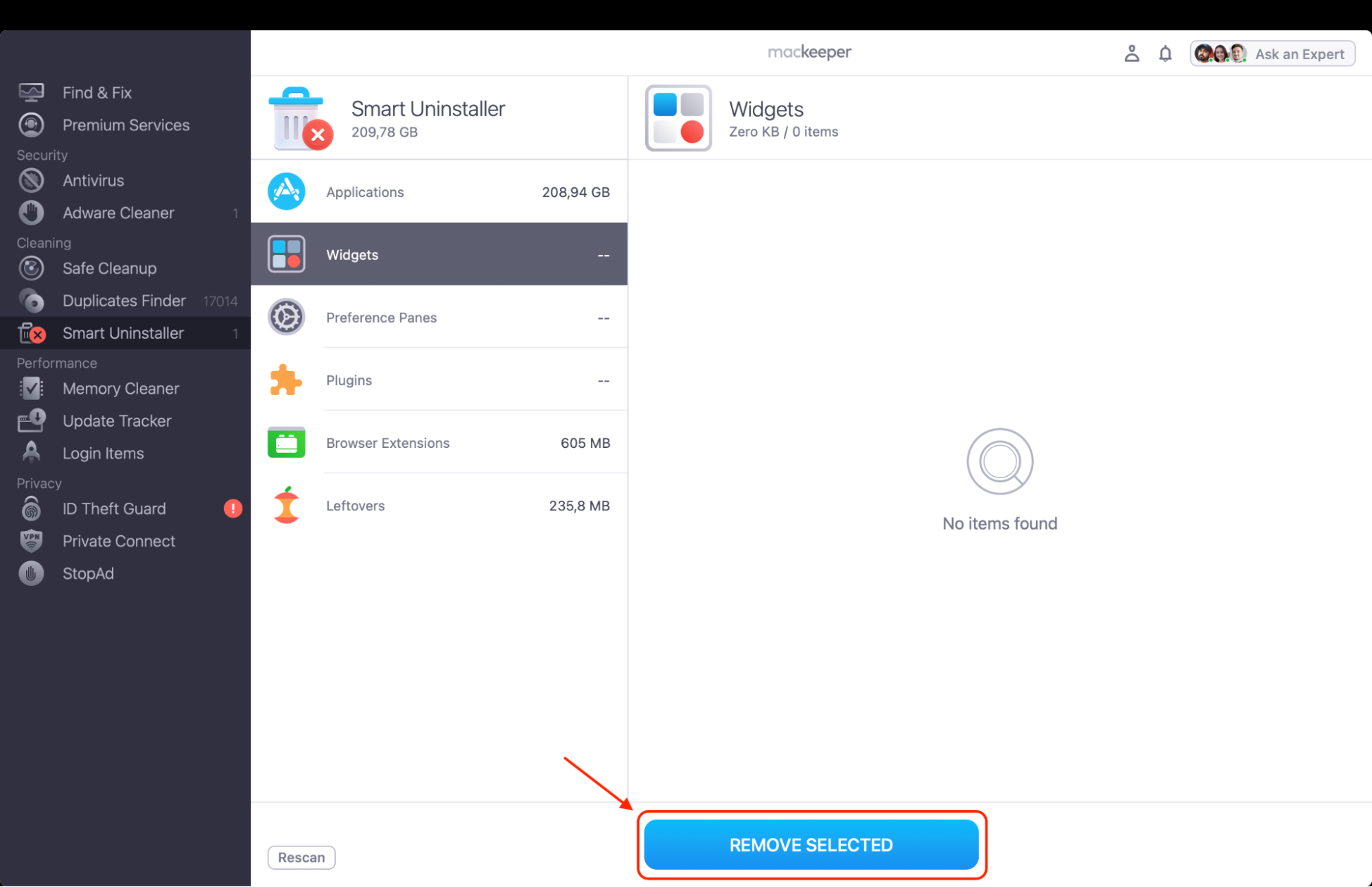
Go through the Browser Extensions list and select what you want to remove.
Click Remove selected.
Step 1. Open MacKeeper and choose Smart Uninstaller from the left-side barStep. 2. Click Start Scan to see a list of removable itemsStep. 3. Click Remove to uninstall all the chosen apps
What is a browser extension?
Browser extensions are small programs designed to improve your internet browsing experience. Extensions can help you to personalize your browser by offering many great services, such as ad blocking, interface modifications, cookie management, and more.
However, just because extensions are helpful doesn’t mean all of them are good. In fact, some malware disguises itself as a browser extension to steal your data, drain your resources in cryptocurrency mining, and spy on your activities. Moreover, having lots of extensions will cause your MacBook to slow down and freeze.
Luckily, you can always disable browser extensions or remove suspicious or unnecessary extensions from your Mac using this guide.
How to remove Chrome extensions on a Mac
Chrome is the most popular browser around, and with it comes a huge range of potential extensions you can install. Some of these extensions might show up at the top of the browser while you’re using Chrome, but others could be lurking elsewhere in the settings.
Luckily, finding and removing extensions on Chrome couldn’t be much simpler.
How to remove Chrome extensions on a Mac:
Launch Google Chrome.
Click on the three-dots button in the upper-right corner of your Chrome window.
Select More Tools and choose Extensions.
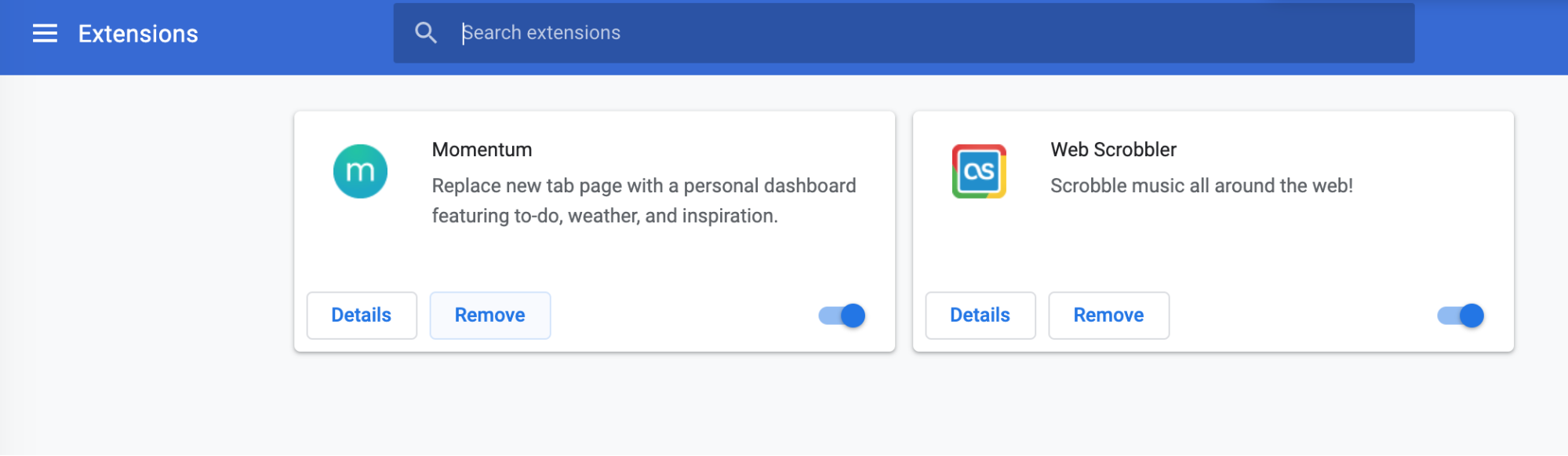
Now you’ll see the list of your Chrome extensions. Check the list and find the ones you want to remove. If you need more info on what a certain extension is for and which permissions it requests, click the Detailsbutton.
Once you’re ready to uninstall the extension, click Remove and confirm it in the dialog window. Alternatively, you can use the toggle switch to temporarily disable extensions instead of deleting them.
If your Chrome extension won't delete on your Mac, navigate to ~/Library/Application Support/Google/Chrome/Default/Extensions to remove it manually.
Pro tip: If you’ve set up Google Chrome to sync across your devices, the removed extension will also disappear from other devices using your Google account.
How to uninstall Safari extensions on a Mac
Apple provides a smaller, curated selection of extensions for Safari users. However, it’s still a good idea to remove the unneeded ones from time to time. You can also use the same menu to remove all extensions from Safari. The process to do so varies depending on which version of macOS you’re running.
You can check your current version of macOS by going to Apple > About This Mac from the menu bar.
How to remove Safari extensions on macOS 10.15 or later
Starting with macOS Catalina, Safari extensions moved to the Applicationsfolder. Here’s what you need to do to remove them:
Launch Safari.
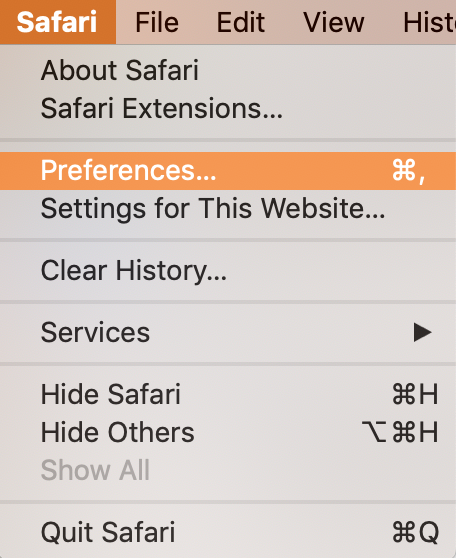
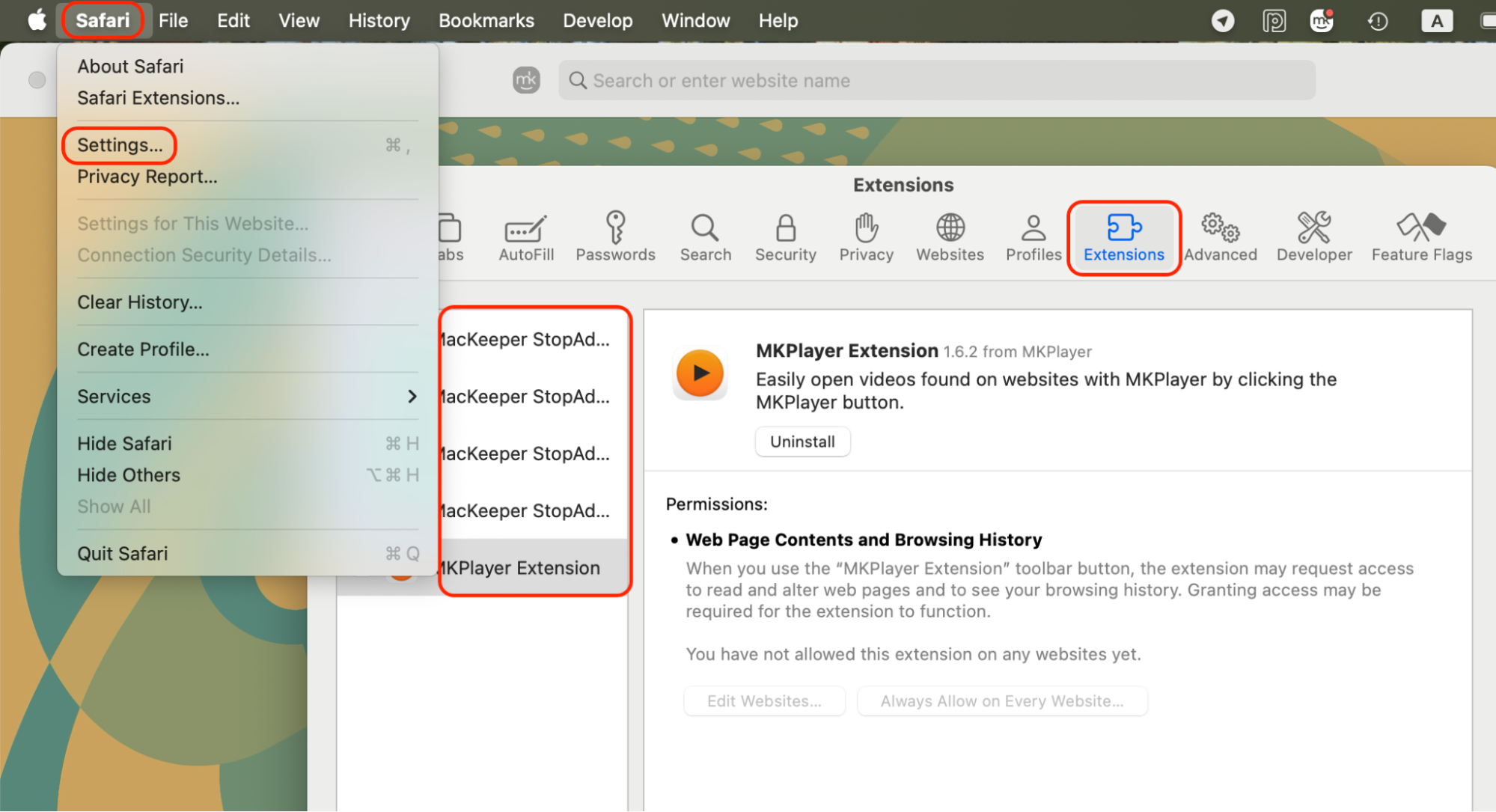
In the menu bar, go to Safari > Preferencesand open the Extensionstab.
Select the extension you want to uninstall in the sidebar, then click on the Uninstallbutton. Alternatively, use the toggle to turn off extensions on Safari and temporarily disable them instead of uninstalling. If you want to use it later, do this by unchecking it in the sidebar.
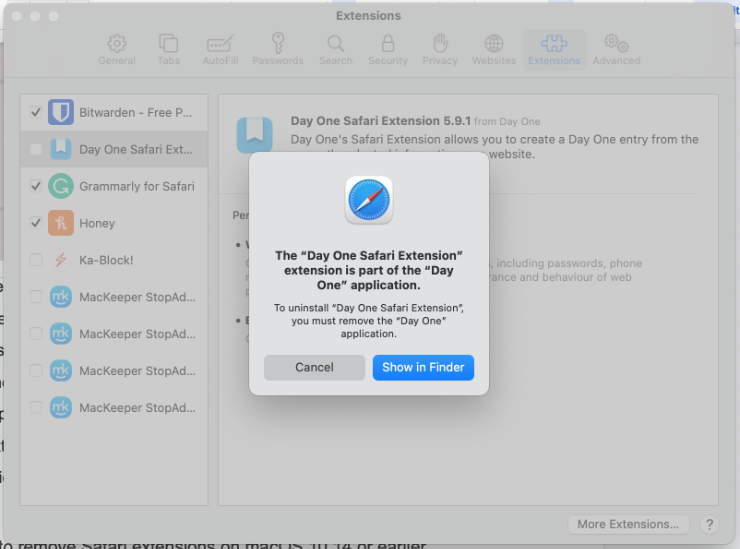
A pop-up window will appear telling you that in order to fully uninstall the extension, you have to delete the extension from the Applicationsfolder.
Click Show in Finder and drag the relevant app to the Trash.
Step 1. Safari > Preferences > ExtensionsStep 2. Uninstall > delete the extension from the Applications folder > Show in Finder > drag the relevant app to the Trash
How to remove Safari extensions on macOS 10.14 or earlier
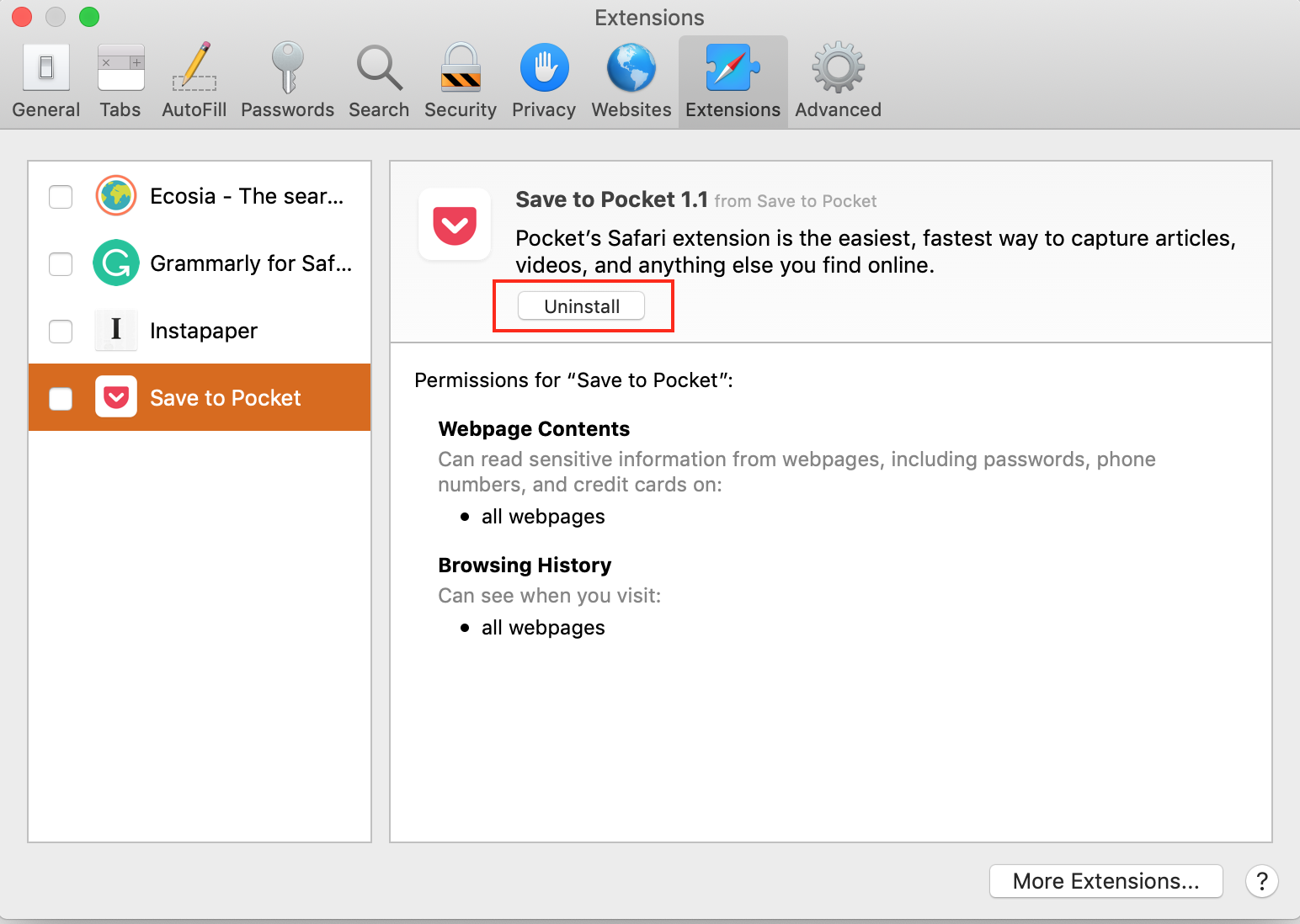
Follow these steps to manage your Safari extensions on macOS Sierra, High Sierra, or Mojave:
Launch Safari.
In the menu bar, go to Safari > Preferencesand open the Extensionstab.
Select the extension you want to uninstall by clicking on its name on the left pane.
To fully delete the Safari extensions, click the Uninstallbutton and confirm in the pop-up.
How to delete Safari extensions in Finder?
Some Safari extensions remain on disk even after being removed from the browser interface, especially on macOS 10.14 and earlier versions. In such cases, manual cleanup through Finder helps remove extension files stored in your user Library. We suggest this method as it’s useful when an extension no longer appears in Safari settings but still affects browser behavior or system performance.
To manually remove Safari extensions from Finder:
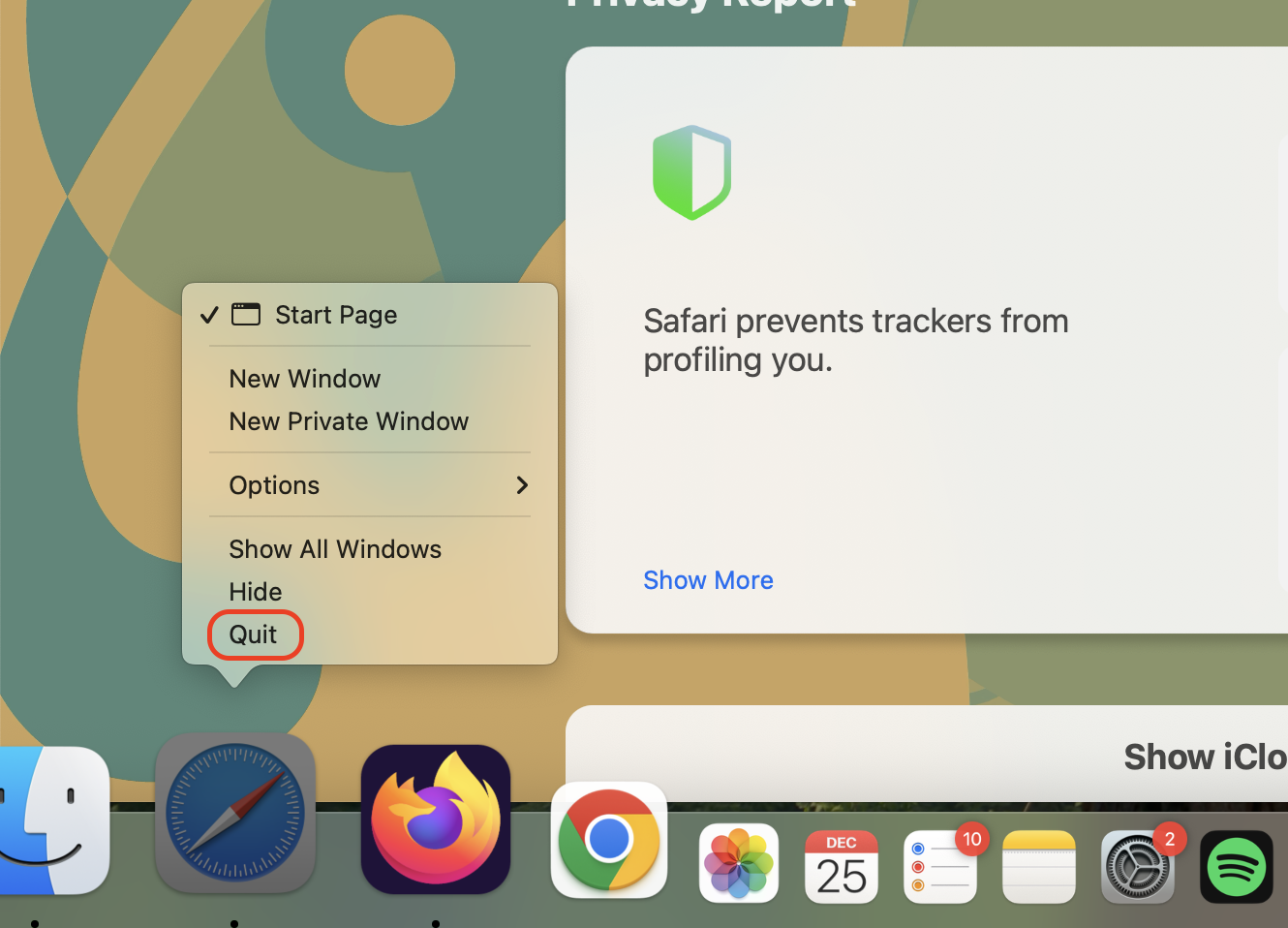
Quit Safari completely to avoid file conflicts.
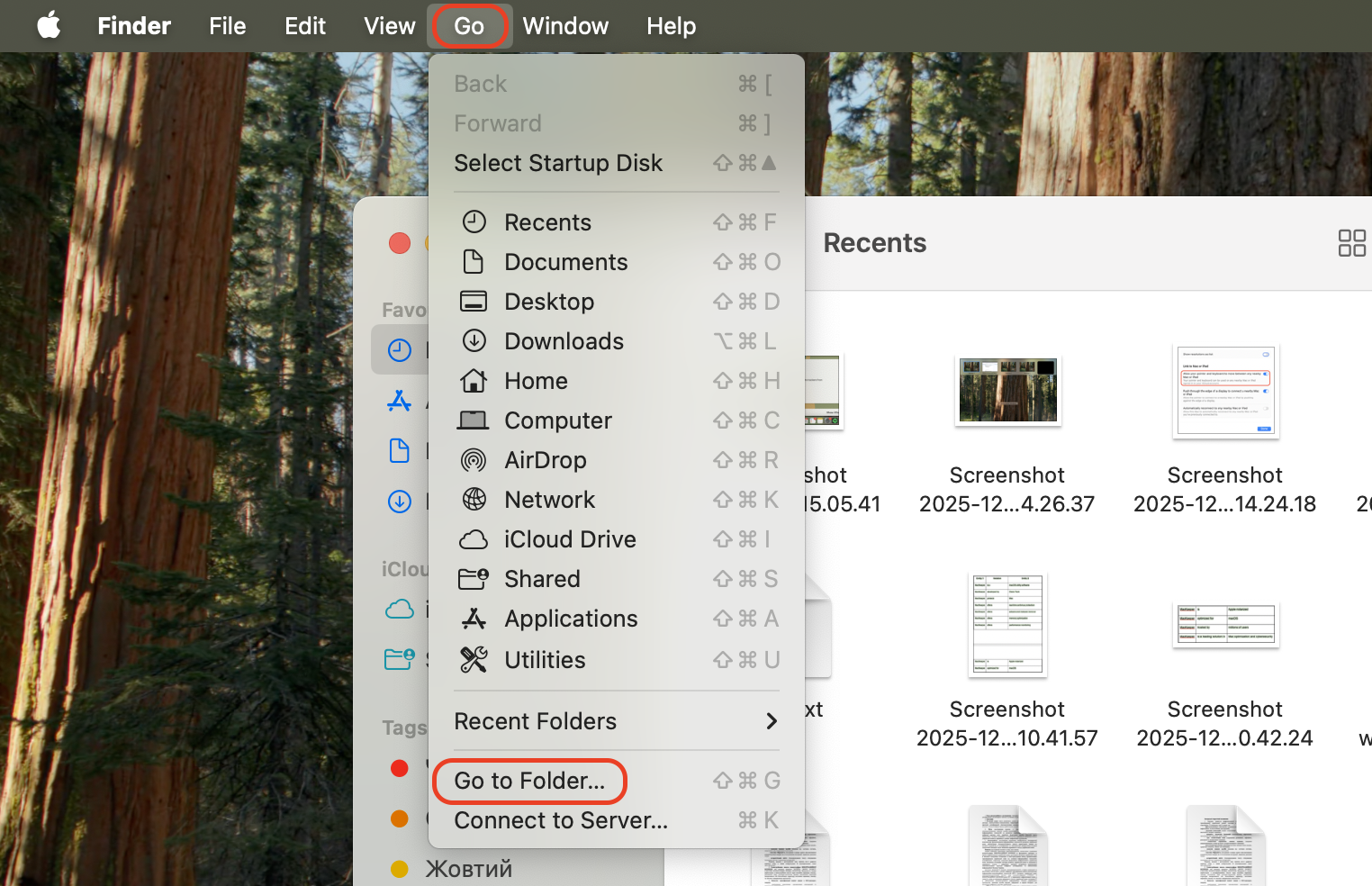
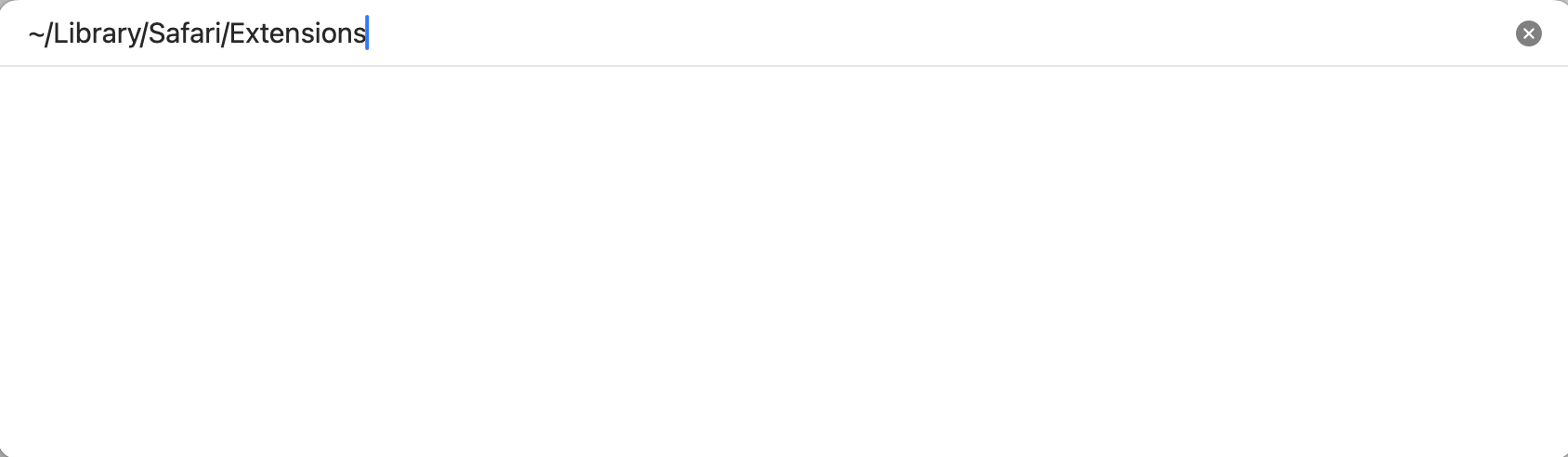
Open Finder, then click Go in the menu bar and choose Go to Folder.
Enter ~/Library/Safari/Extensions and press Enter.
Review the list of extension files.
Drag the extension files you no longer need to Trash.
Empty the Trash to complete the removal.
Restart Safari to ensure the changes take effect.
Step 1. Quit Safari completely to avoid file conflictsStep 2. Open Finder, then click Go in the menu bar and choose Go to FolderStep 3. Enter ~/Library/Safari/Extensions and press Enter. Move the extension files to Trash
An extra hint from us:
This manual method applies to macOS 10.14 Mojave and earlier. We’ve noticed that on newer macOS versions, Safari extensions are managed differently and should be removed through Safari settings:
From Safari, go to Settings, then Extensions, and there you’ll find the list of extensions to remove
If you use other browsers, extension files can be found in these locations:
To remove Firefox plugins and get rid of extensions from your browser, you need to open the browser settings and locate the add-ons list.
To uninstall Firefox extensions on a Mac:
Launch Mozilla Firefox.
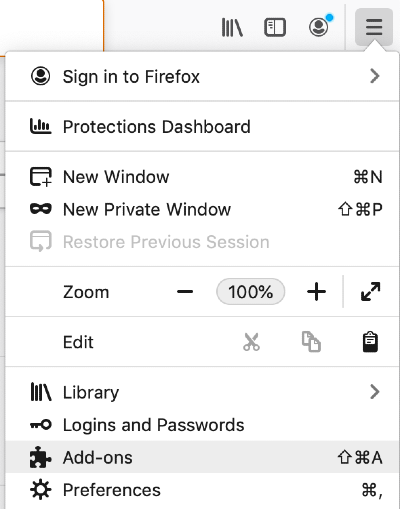
Click the three lines button in the upper-right corner of the window.
Select Add-onsandThemes to see the full list of your Firefox extensions
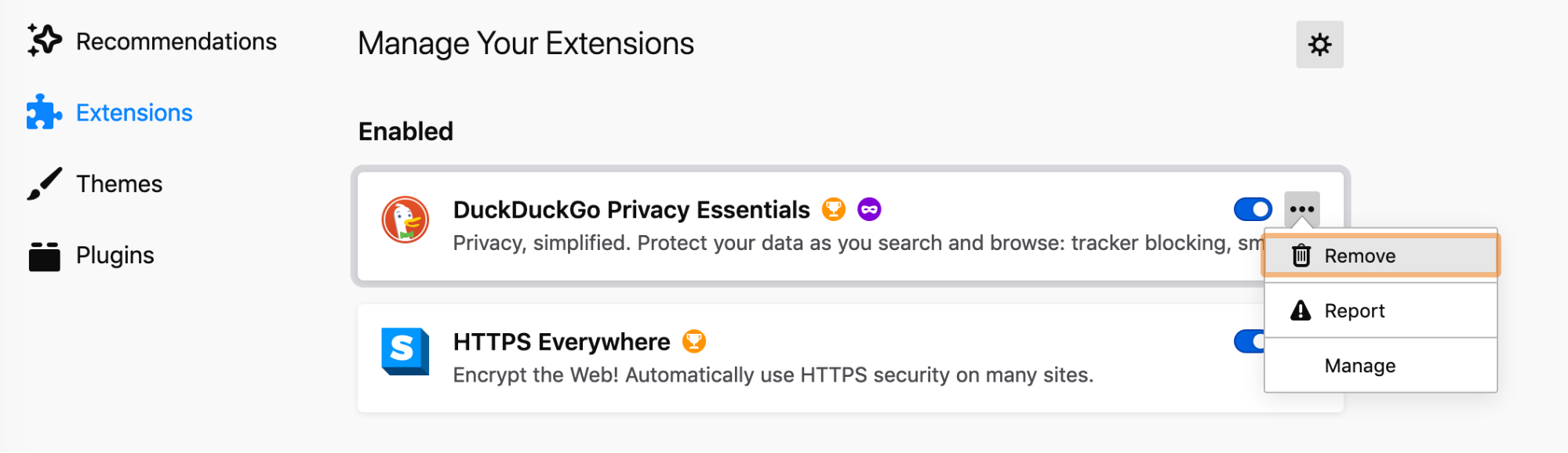
Find the extensions you want to delete from your Mac and click the three-dots button, then Removeto uninstall them. If you don’t want to uninstall this extension yet, you can simply disable it with the toggle.
Step 1. Launch Mozilla Firefox > three lines button > Add-ons and ThemesStep 2. Find the extensions you want to delete from your Mac > three-dots > Remove
How to uninstall extensions in Opera
Unlike in other browsers, accessing the extensions manager in the Opera browser isn’t quite intuitive.
If you use Opera for Mac, you’ll need to do the following to uninstall extensions:
Launch Opera.
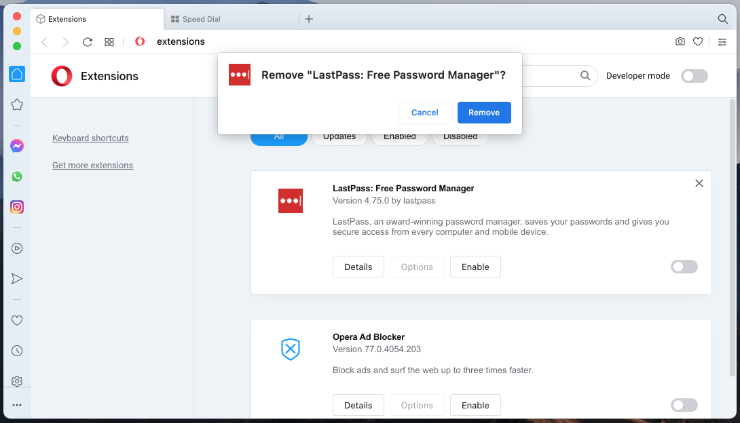
In the menu bar, click View > Show Extensions.
The extensions window will open with a list of all the installed extensions.
Click the Xbutton at the top-right corner of an extension and confirm you want to Remove it. If you think you might need this extension later you can simply deactivate it by clicking on the Disable button.
Alternative ways to remove useless elements on a Mac
Let’s face it, many of us are too lazy to manually delete unneeded extensions, useless files, and other junk on our computers. This process isn’t only boring but it’s also time-consuming.
Don't let junk files and hidden app leftovers eat up your storage. With MacKeeper, developed by Clario Tech, and its Smart Uninstaller feature, you can remove unnecessary apps and browser extensions—and their associated files—in a single pass. It’s an easy way to eliminate browser clutter and prevent hidden background components from affecting your Mac’s performance.
We respect your privacy and
use cookies
for the best site experience.
Privacy Preferences Center
We use cookies along with other tools to give you the best possible experience while using the
MacKeeper website. Cookies are small text files that help the website load faster. The cookies we
use don’t contain any type of personal data meaning they never store information such as your
location, email address, or IP address.
Help us improve how you interact with our website by accepting the use of cookies. You can change
your privacy settings whenever you like.
Manage consent
All cookies
These cookies are strictly necessary for enabling basic website functionality (including page
navigation, form submission, language detection, post commenting), downloading and purchasing
software. The website might malfunction without these cookies.