You power on your Mac for the first time this year after not using it for weeks over the holidays, only to have it request your admin password, which you’ve suddenly forgotten. Instead of wasting time trying to recall your old password, it might make more sense to reset it. While your admin password on a Mac may protect your device from unauthorized access, it won’t prevent bad actors from breaching it. Use MacKeeper’s Antivirus tool to keep threats at bay.
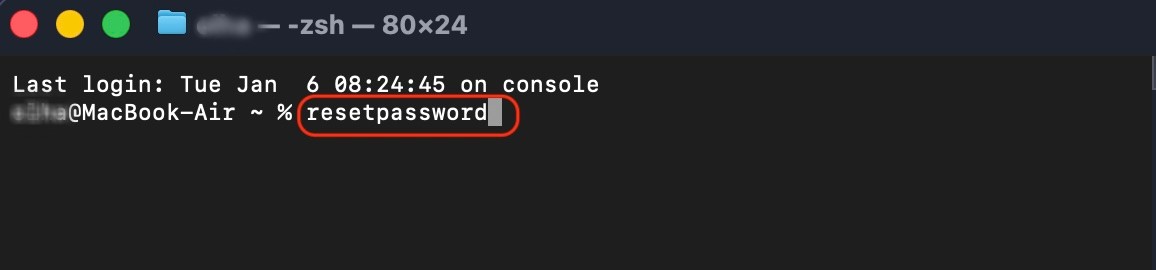
There are several ways to reset a Mac administrator password. If it’s linked to your Apple ID account, enter the incorrect password a few times to get a password reset prompt, and then reset it with your Apple ID. You can also use another admin account on your Mac. To reset it in Recovery Mode, press the Command + R keys, enter Terminal, and enter the command resetpassword to change your password. If you can’t enter Recovery Mode, consider using an external boot drive. Otherwise, try using Single User Mode.
Why reset the admin password on a Mac?
Many scenarios call for resetting your Mac’s password, such as forgetting your admin password, the Mac password not working, inheriting the Mac from someone else, or buying it from someone who forgot to wipe their Mac. Another reason is if the Mac was previously used by a former employee who has either left the company or received another Mac.
A note from our experts:
Setting an admin password alone isn’t enough to keep your Mac and data safe from hackers and bad actors. If privacy is important to you, consider using MacKeeper’s Antivirus software. It scans your Mac and files for viruses that can compromise your privacy and helps you quickly get rid of them to secure your Mac. Think of it as an additional layer of security to safeguard yourself against online threats. MacKeeper is notarized by Apple, making it a trusted solution for optimizing your Mac and keeping it secure.
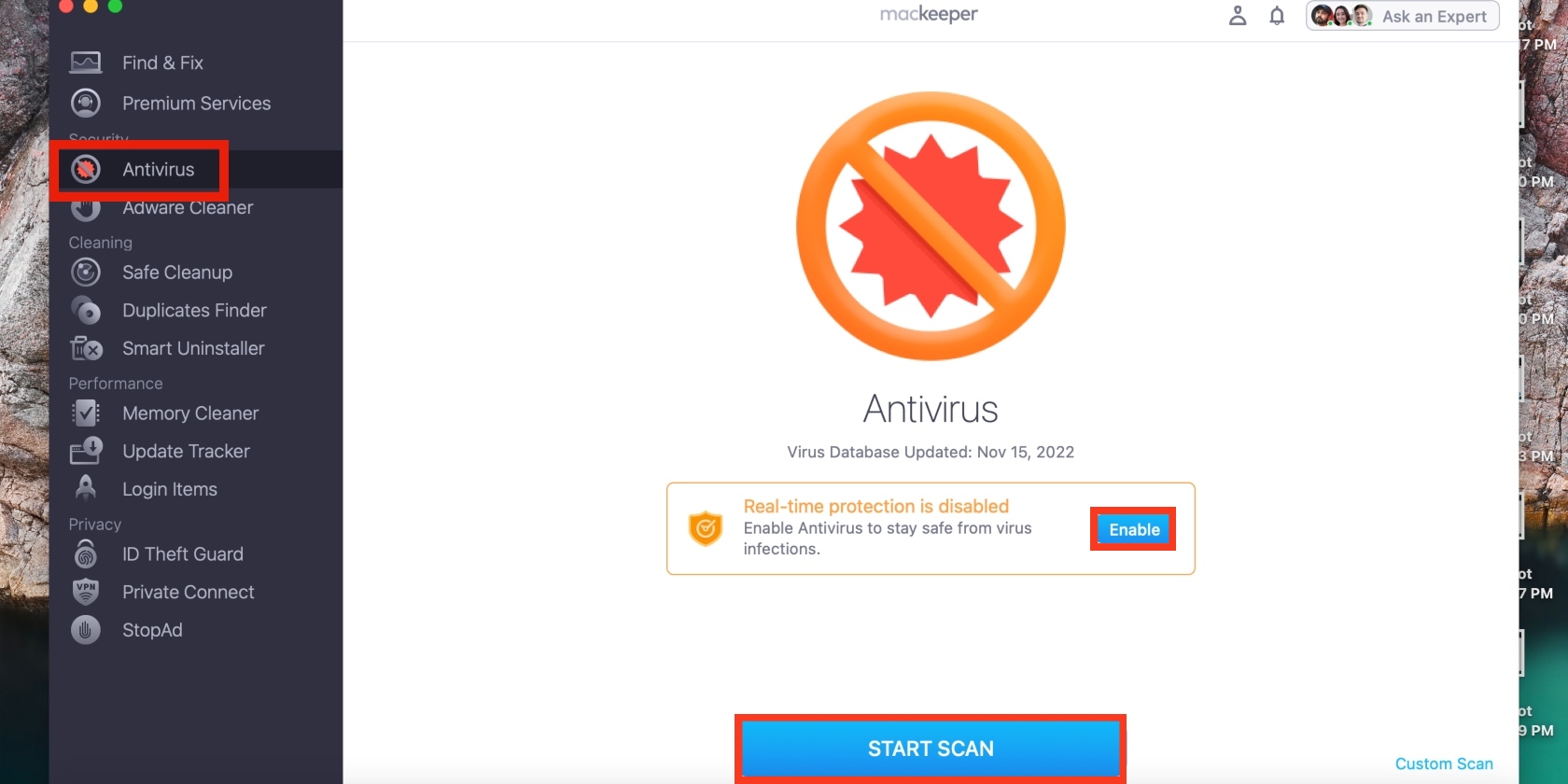
Here’s how to protect your Mac with MacKeeper’s Antivirus tool today:
Open the app and click on the Antivirus option in the left sidebar, followed by Launch Antivirus > Start Scan, and don’t forget to enable real-time protection.
How to change the admin password on a Mac?
We know and can suggest many ways to change the admin password on macOS. For instance, you can reset your password with your Apple ID via a password reset prompt after entering the incorrect one multiple times, provided your password is connected to your Apple ID. You can also reset it from another administrator’s account and with Terminal in Recovery Mode. Recovering your admin password from FileVault is also an option, as well as resetting your admin password using Single-User mode.
1. Using your Apple ID
Our admin account is linked to our Apple ID, making it the easiest option for resetting our admin password with our Apple ID account. In addition to streamlining your Apple accounts through synchronization, Apple ID gives you centralized control, including helping you regain access to your MacBook computer. Please note that this method only works for users who’ve turned on Apple ID password recovery for your account.
Here’s how you can reset your Mac’s admin password using Apple ID:
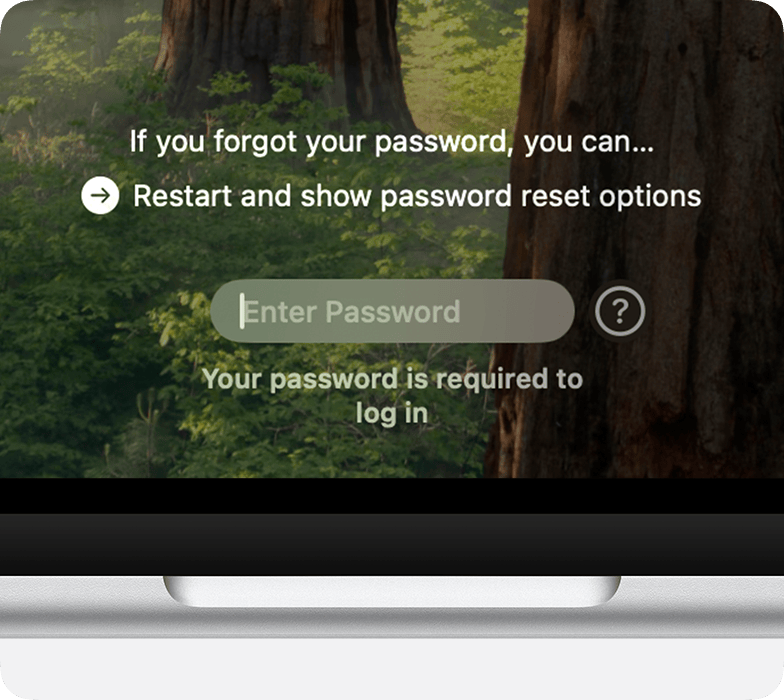
Click on the question mark icon next to the password reset field.
Choose the Reset it using your Apple ID option and follow the on-screen instructions to reset your password.
2. Reset admin password using Recovery Mode (with Terminal)
When we can’t reset our admin password with Apple ID, we do it in macOS Recovery. Mac’s Recovery Mode is a built-in tool that helps you regain access to your device when locked out, including using Terminal commands.
Follow these steps to reset your admin password with Terminal in Recovery Mode:
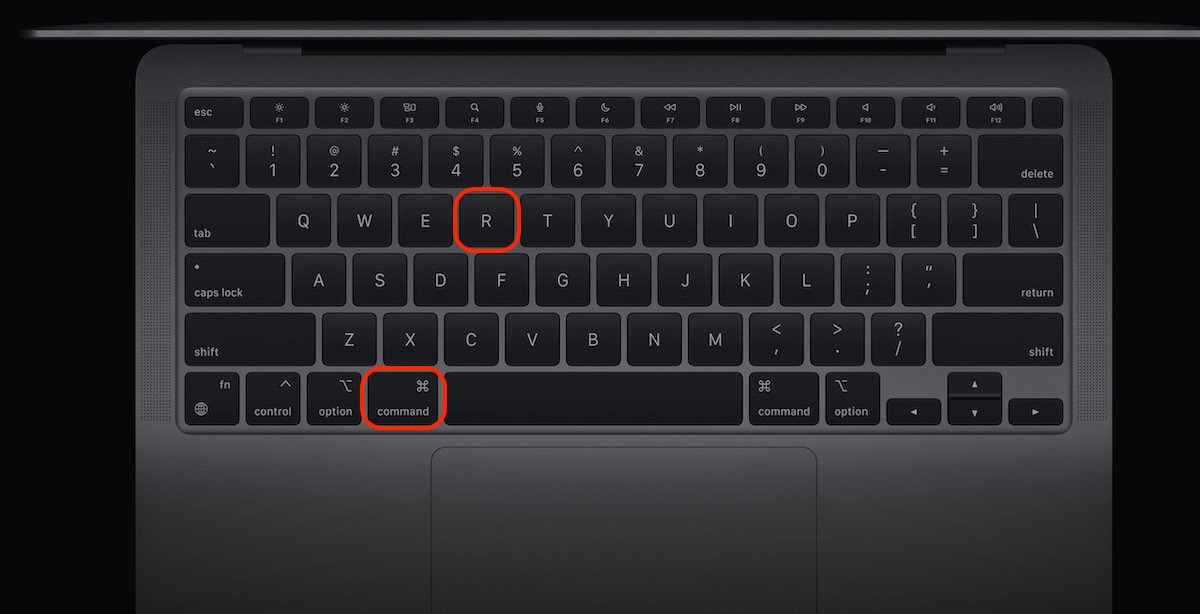
Restart your Mac and immediately hold down the Command + R keys until the Apple logo appears or you hear a chime.
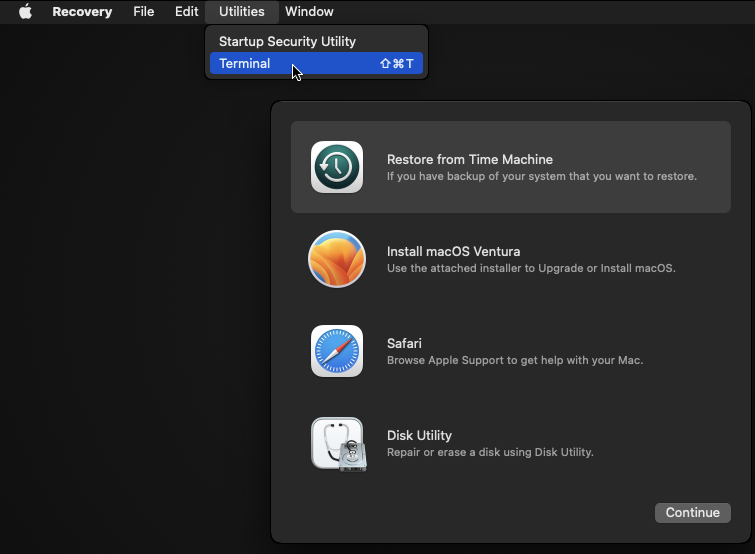
Select Utilities > Terminal from the macOS Utilities window.
Enter the Terminal command resetpassword and press Return.
Pick your disk and account from the drop-down list. Now, type your new password, confirm it, and click on Next.
Step 1. Restart your Mac and immediately hold down the Command + R keysStep 2. Select Terminal from the macOS Utilities windowStep 3. Enter the Terminal command resetpassword and press Return
3. Use another admin account
Since we share our Macs with others, we have multiple admin accounts, which comes in handy in instances like this, where one user has forgotten their admin password on a Mac. So we reset it using another admin account in macOS users and groups.
To reset your admin password from another admin account, do this:
Sign in to the other admin account.
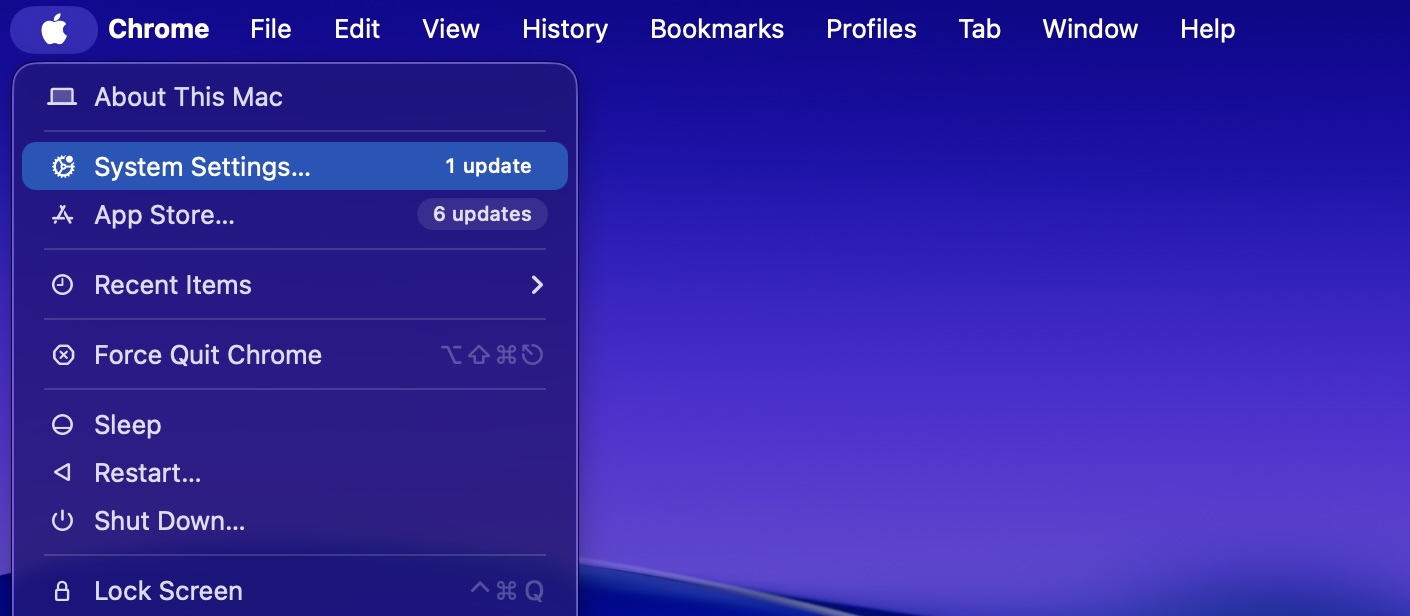
Click on the Apple menu and choose the System Settings option.
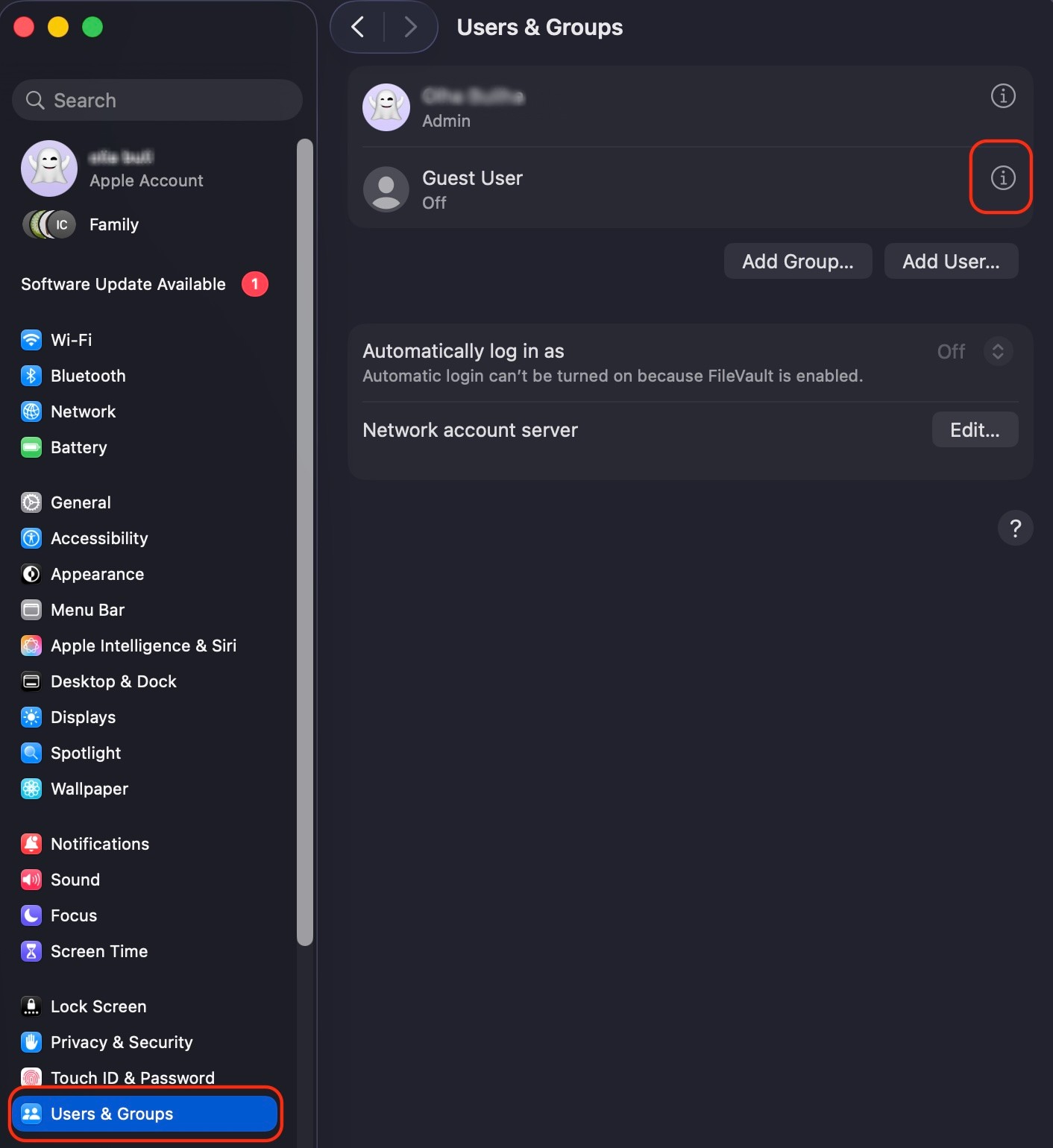
Select Users & Groups, navigate to the locked account, click on the information icon next to it, and select the Reset Password option.
Enter a new password and confirm it.
Step 1. Click on the Apple menu > System SettingsStep 2. Select Users & Groups > information icon > Reset Password
4. Recover your admin password from FileVault
When previous methods fail, we turn to Mac’s FileVault to find our password on a Mac. Introduced in Mac OS X 10.3, FileVault is a disk encryption program that protects your data using encryption, including a 256-bit key. During the encryption process, FileVault automatically creates a recovery key, which you can use to reset the login password for your locked account.
Use this approach to recover your admin password from FileVault:
Ensure you have your FileVault recovery key on hand and restart your Mac.
Choose your account and reset your password.
Hit the question mark icon next to the password field and select the option to Reset it using your Recovery Key.
Enter your recovery key, reset your admin password, and log in with it.
5. Reset your admin password using Single-User mode
When all else fails, we use Mac’s Single-User mode to reset our Mac admin password as a last resort. It provides direct command-line access to the Unix system to reset the password and regain access to Mac devices, especially on older macOS versions.
Here’s how to reset your admin password using Mac’s Single-User mode:
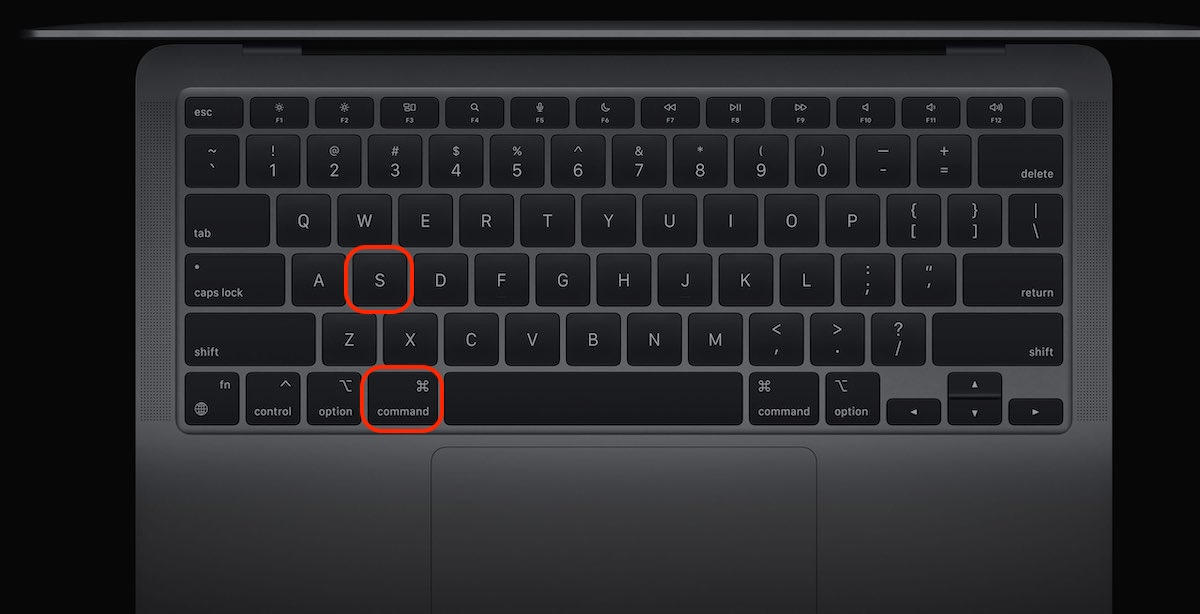
Restart your Mac and hold down the Command + S keys at startup. You’ll now enter Single-User mode.
Enter the command mount –uw / and press Return.
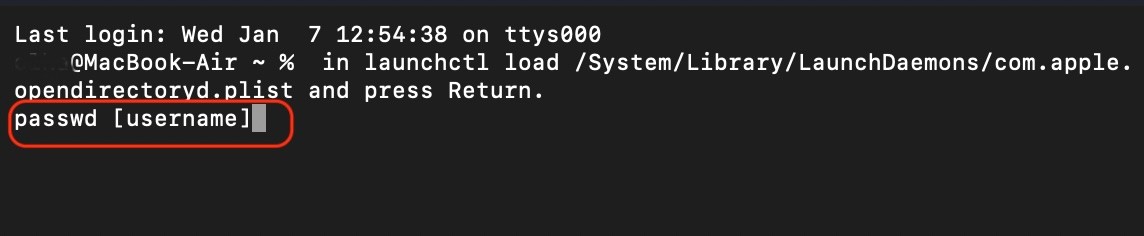
Now enter the command in launchctl load /System/Library/LaunchDaemons/com.apple.opendirectoryd.plist and press Return.
Type in passwd [username] and hit the Return key (replace [username] with the name of your account).
Reset your password.
Type in reboot and press Return.
Log in with your new admin password.
Step 1. Restart your Mac and hold down the Command + S keys at startupStep 2. Enter the command mount –uw / and press ReturnStep 3. Enter the command in launchctl load /System/Library/LaunchDaemons/com.apple.opendirectoryd.plist and press ReturnStep 4. Type in passwd [username] and hit the Return key (replace [username] with the name of your account)
Resolving Keychain issues after reset
Are you suddenly getting requests to enter your old Keychain password? This is a common occurrence after recovering your Mac password, one we’ve experienced too, as your macOS Keychain password is linked to your admin password by default. As such, if you reset your Mac admin password without knowing the old one (for instance, via Apple ID or Recovery Mode), Keychain cannot automatically update.
Here’s how to fix your Keychain issues after resetting your Mac’s admin password:
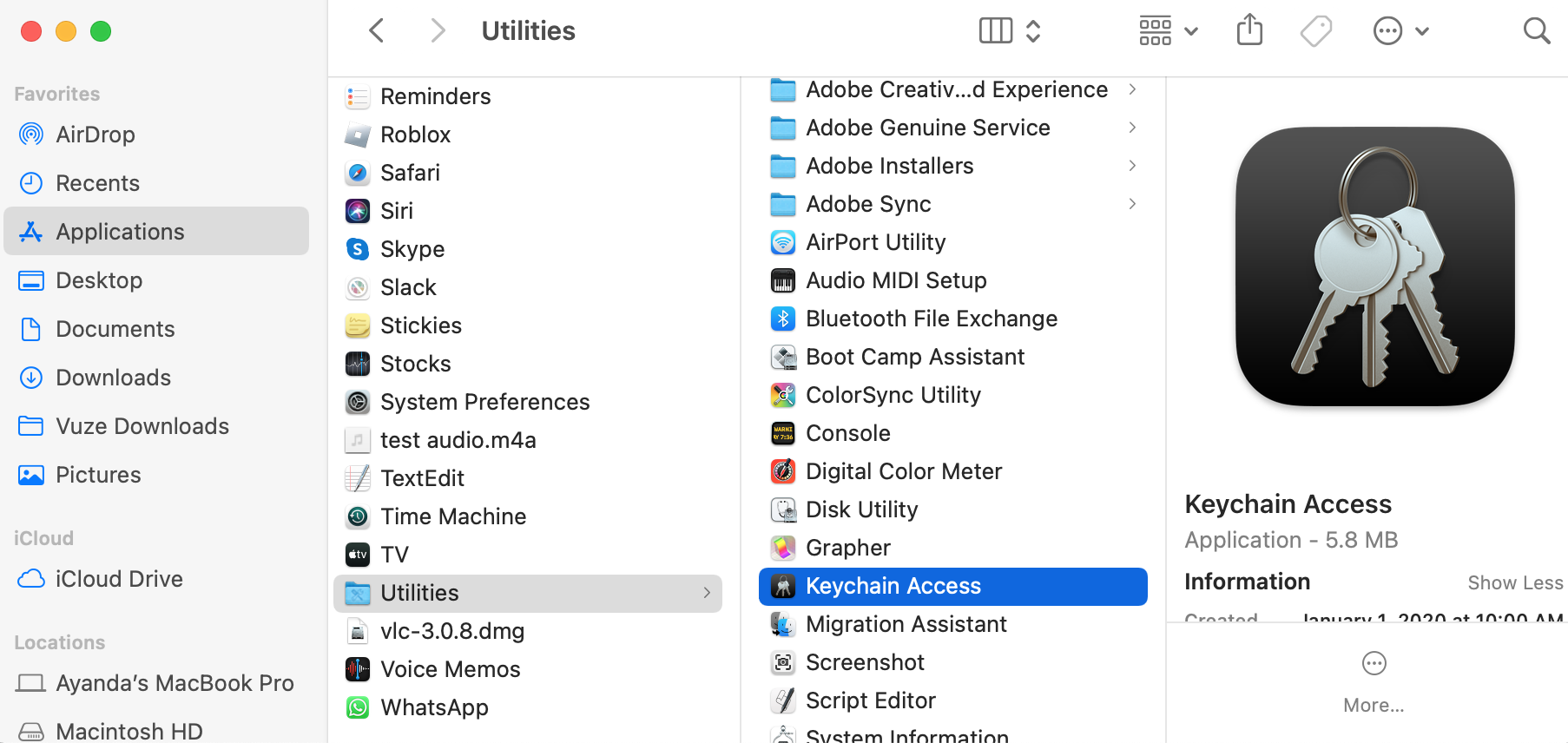
Open Finder > Applications > Utilities > Keychain Access.
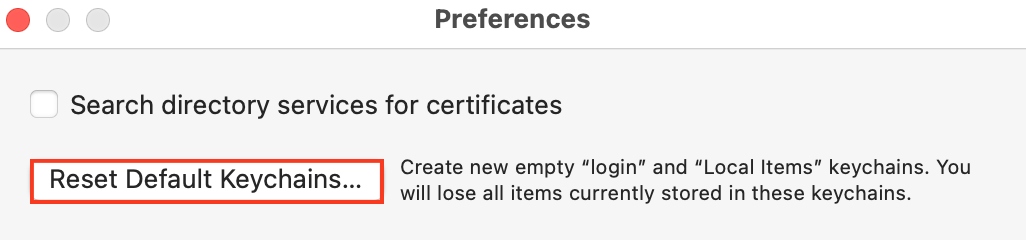
In the menu bar, select Keychain Access > Settings or Preferences > Reset My Default Keychain.
Enter your new administrator password. This will prompt your Mac to generate a new default keychain.
Step 1. Open Finder > Applications > Utilities > Keychain AccessStep 2. Select Keychain Access > Settings or Preferences > Reset My Default Keychain
Easily reset your admin password on a Mac
Whether you can't remember your admin password on a Mac, or whatever your reasons for changing your Mac’s admin password, there are several ways to reset it—including using your Apple ID, resetting your password in Recovery Mode, and more. Use the easy-to-follow guidelines in this article to reset your password and regain access to your Mac in no time.
Remember: it takes more than securing your Mac account with a password to safeguard your data. Use MacKeeper’s Antivirus tool to keep your data and device free of unwanted viruses that can compromise your privacy.
We respect your privacy and
use cookies
for the best site experience.
Privacy Preferences Center
We use cookies along with other tools to give you the best possible experience while using the
MacKeeper website. Cookies are small text files that help the website load faster. The cookies we
use don’t contain any type of personal data meaning they never store information such as your
location, email address, or IP address.
Help us improve how you interact with our website by accepting the use of cookies. You can change
your privacy settings whenever you like.
Manage consent
All cookies
These cookies are strictly necessary for enabling basic website functionality (including page
navigation, form submission, language detection, post commenting), downloading and purchasing
software. The website might malfunction without these cookies.