How to Reset Finder Settings on macOS Sequoia (15)
Is your Finder acting up—windows opening in the wrong view, or your sidebar looking off? Learning how to reset Finder settings on macOS Sequoia (version 15) can bring things back to normal. If you’d rather not do it alone, MacKeeper’s Premium Services connect you with experts who’ll guide you step by step.
What happens when you reset Finder settings on macOS 15?
Resetting Finder on macOS 15 usually means removing Finder preference data, allowing the system to rebuild a fresh copy. Put simply, we reset Finder preferences macOS Sequoia keeps on file, and the system rebuilds them automatically. This can reset window behavior, sidebar layout, default view preferences, search behavior, and other customizations. The good news—it doesn’t delete your personal files, apps, or folders.
A reset often helps after a macOS installation or update, when settings drift, or when you run into Finder not responding. The com.apple.finder.plist file keeps your window behavior, default view options, and search settings, while com.apple.LSSharedFileList.Favorite*sfl4 stores your sidebar Locations, Favorites, and connected drives. However, we should mention that this isn’t always the case; you may not see it in ~/Library/Application\ Support/com.apple.sharedfilelist, so the main file to run the shots here is com.apple.finder.plist file.
Before you reset Finder settings on macOS 15
A little prep keeps things smooth. Quit any open Finder windows first, then jot down the custom sidebar items or view preferences you’d like to recreate later. Make sure you only remove Finder-related preference files—leave the rest of your Library alone.
Keep in mind that macOS Sequoia may restore some settings after Finder relaunches or after shutting down and restarting your Mac. This is normal, so don’t worry if a few options reappear.
A note from our experts:
As the word reset often causes user agitation and concerns, we suggest getting the helping hand from us. With MacKeeper’s Premium Services, you can get yourself equipped with the step-by-step advice on how to do the reset process on macOS 15 to remove all the fear away.
To get our tech support help in troubleshooting your Mac-related problem, follow these steps:
Select Premium Services in the list of features on the left
Click Chat Now to contact our support.
Explain your concern and get our advice on how to solve your particular issue.
Step 1. Go to MacKeeper and Choose Premium Services Step 2. Click Chat NowStep 3. Type in your message
How to reset Finder settings on macOS 15 manually?
The manual method works through Finder and the hidden Library folder. If you’ve ever wondered where is the Library folder on Mac, it sits inside your home directory, and we’ll open it together below. Read on for our simple three-step method.
1. Remove Finder preference file
The Finder preference file stores many Finder behavior settings on your Mac. When we remove it, macOS recreates a fresh version with default values.
Let’s remove it together:
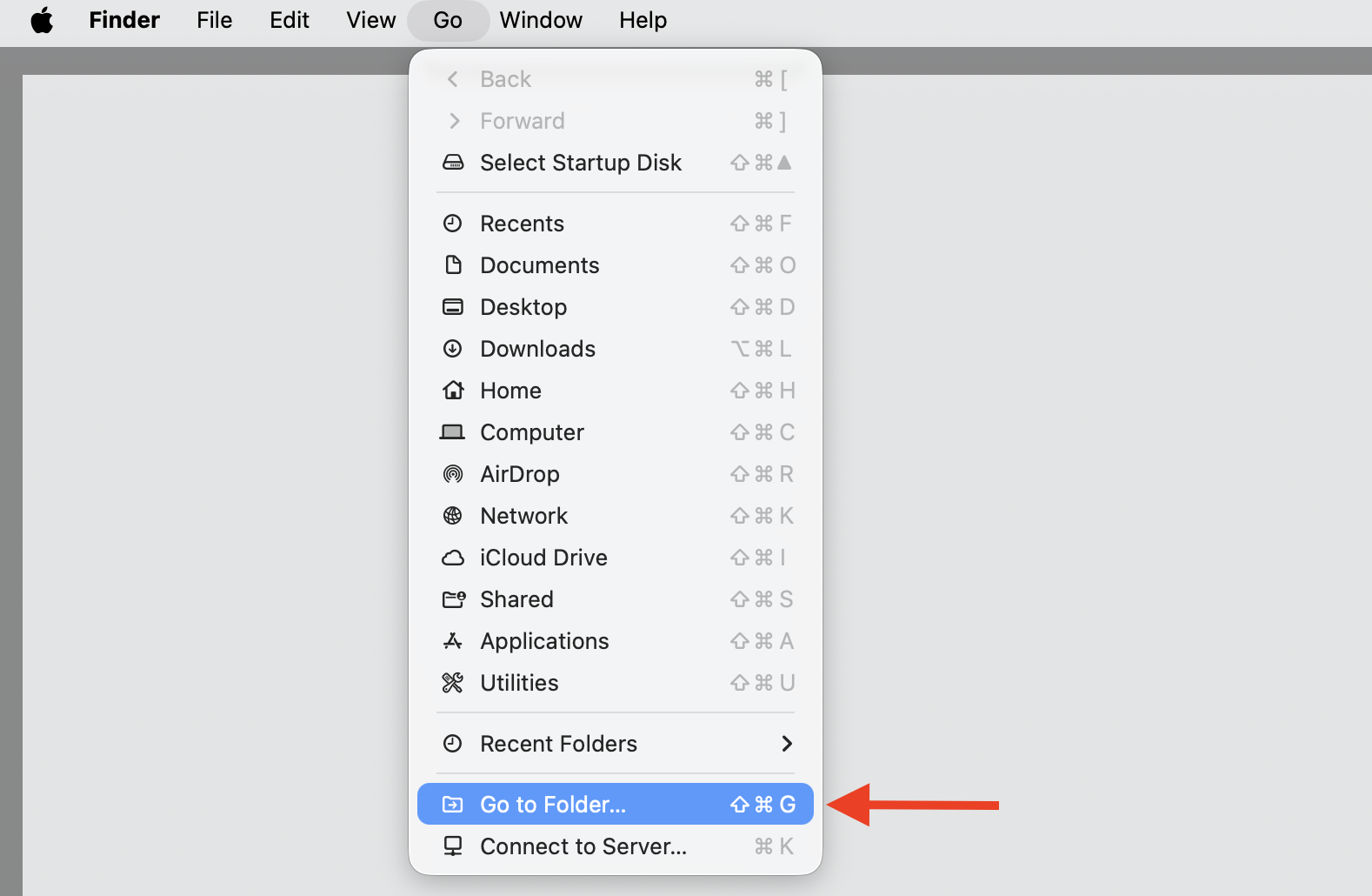
Open Finder, then select Go > Go to Folder from the menu bar.
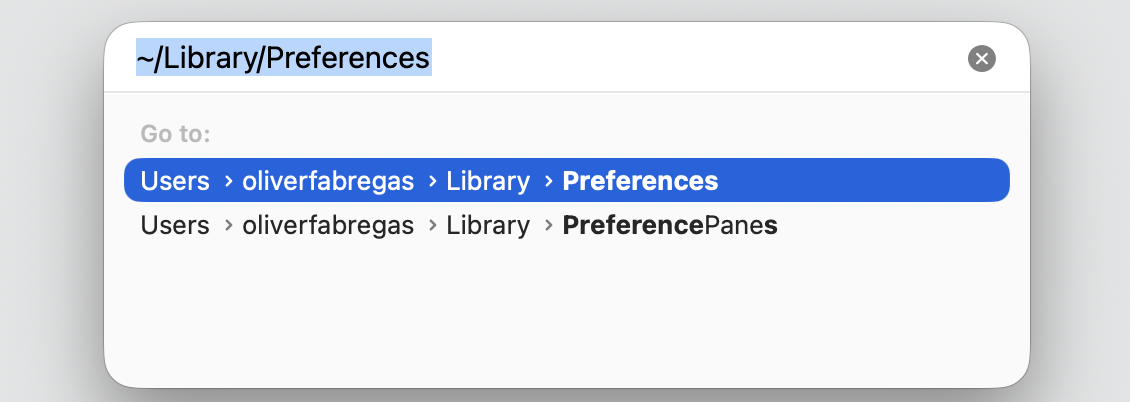
Type ~/Library/Preferences and press Return.
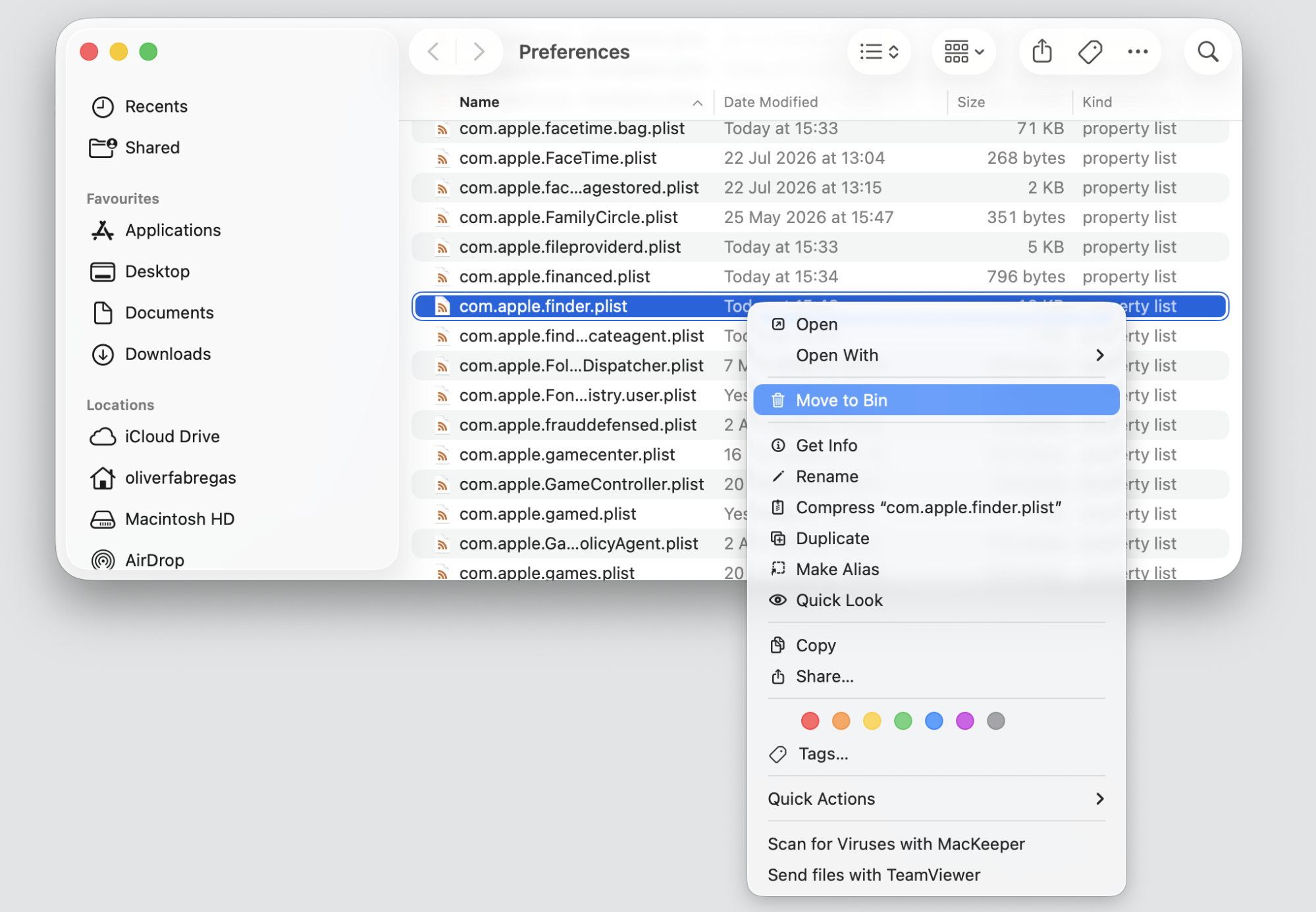
Find the file named com.apple.finder.plist.
Drag it to the Trash, or move it to your Desktop as a backup.
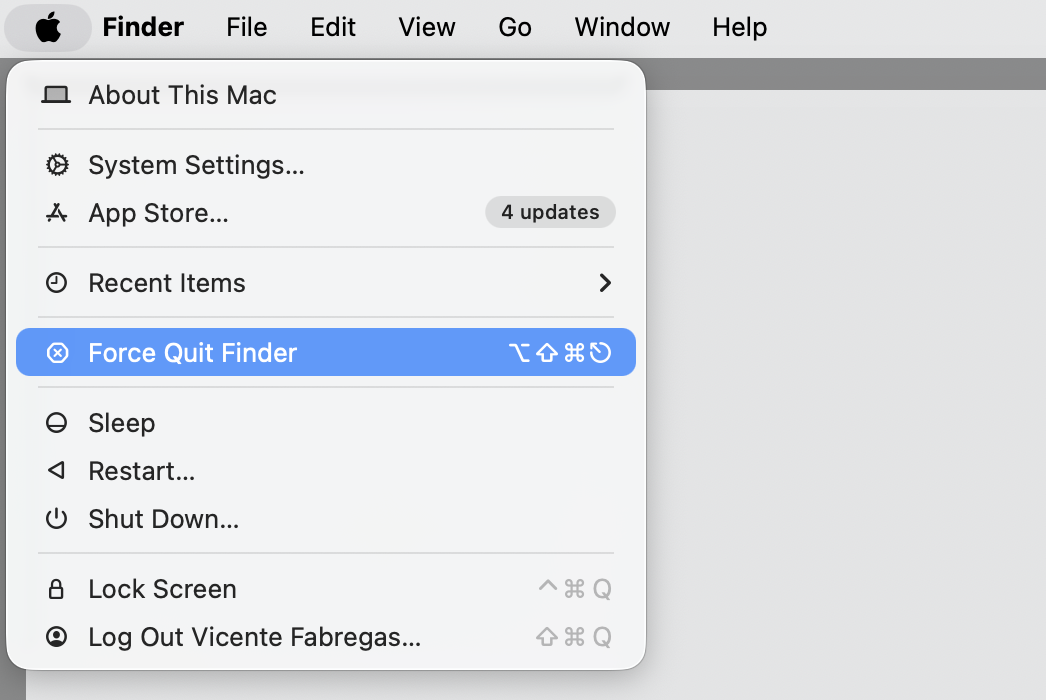
Go to Apple logo, hold Shift button, and select Force Quit Finder to reload the app.
Step 1. Select Go to Folder from the menu barStep 2. Type ~/Library/Preferences and hit ReturnStep 3. Select com.apple.finder.plist and move to the bin with control clickStep 4. Go to Apple Logo, hold Shift button and select Force Quit Finder
2. Relaunch Finder or restart your Mac
For the reset to apply, you’ll need to relaunch Finder. You can also close Finder, log out and back in, or restart the whole Mac.
Try this:
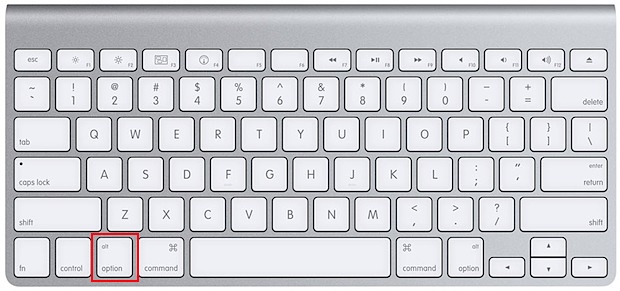
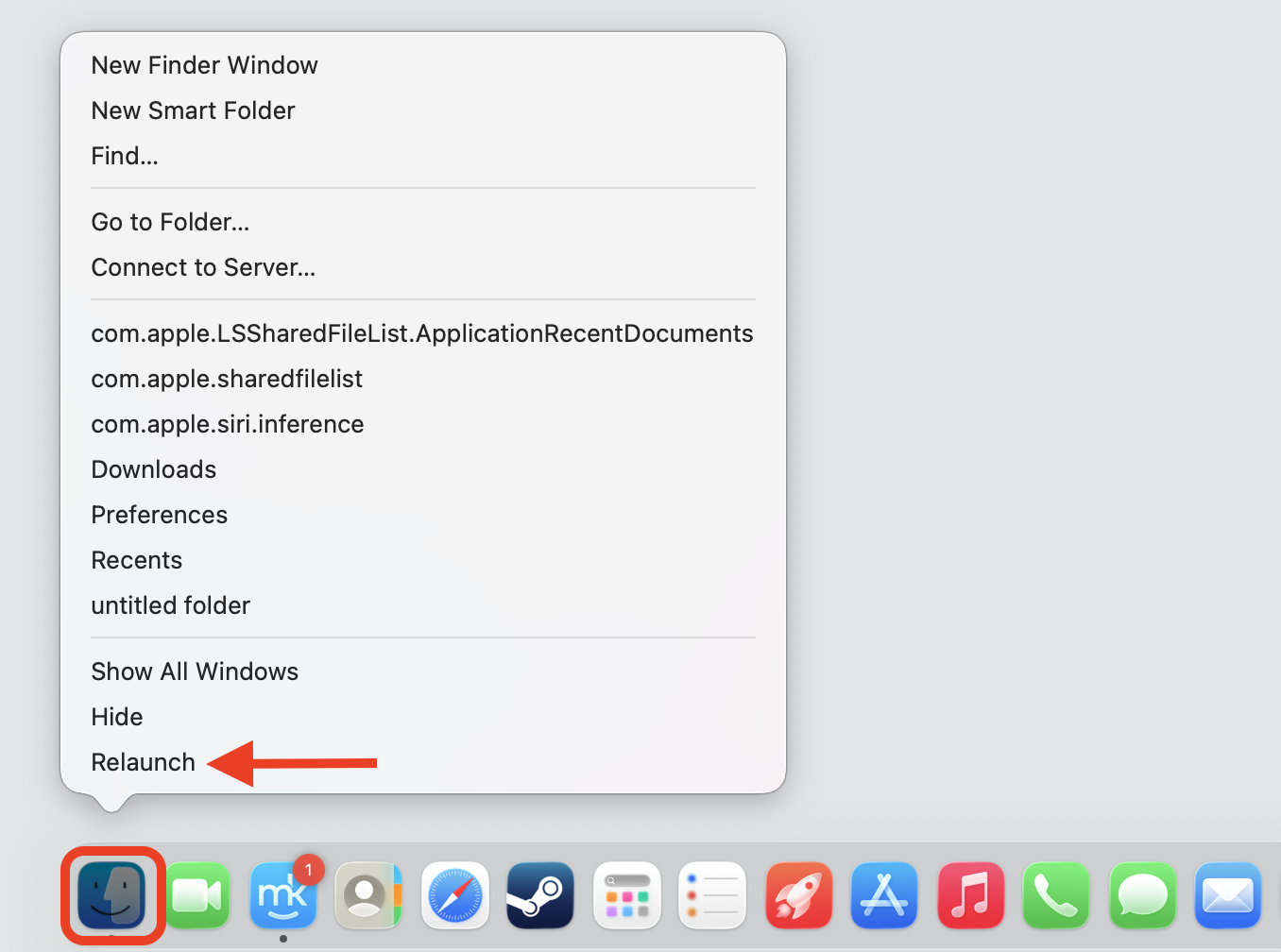
Press and hold Option, then right-click the Finder icon in the Dock.
Select Relaunch from the menu.
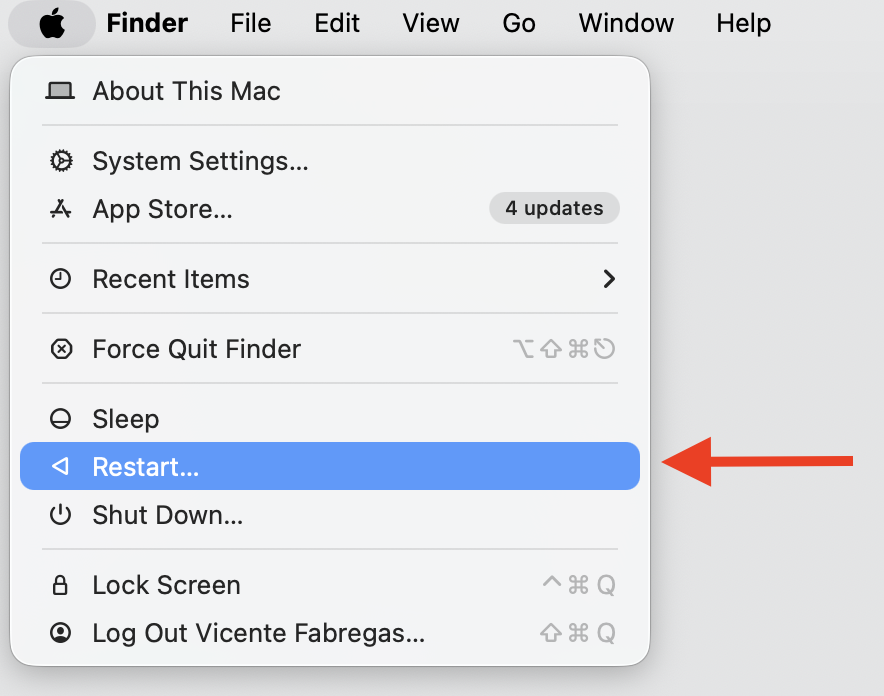
If needed, restart from the Apple menu > Restart.
Step 1. Hold the Option buttonStep 2. Control-click on Finder and select RelaunchStep 3. Restart your Mac from Apple Menu
How to reset Finder settings with Terminal on macOS Sequoia (15)?
Terminal offers a fast route for anyone comfortable typing a command. It can remove Finder preference files in seconds, though we’d suggest copying each line carefully and knowing what it does.
Enter these commands with us:
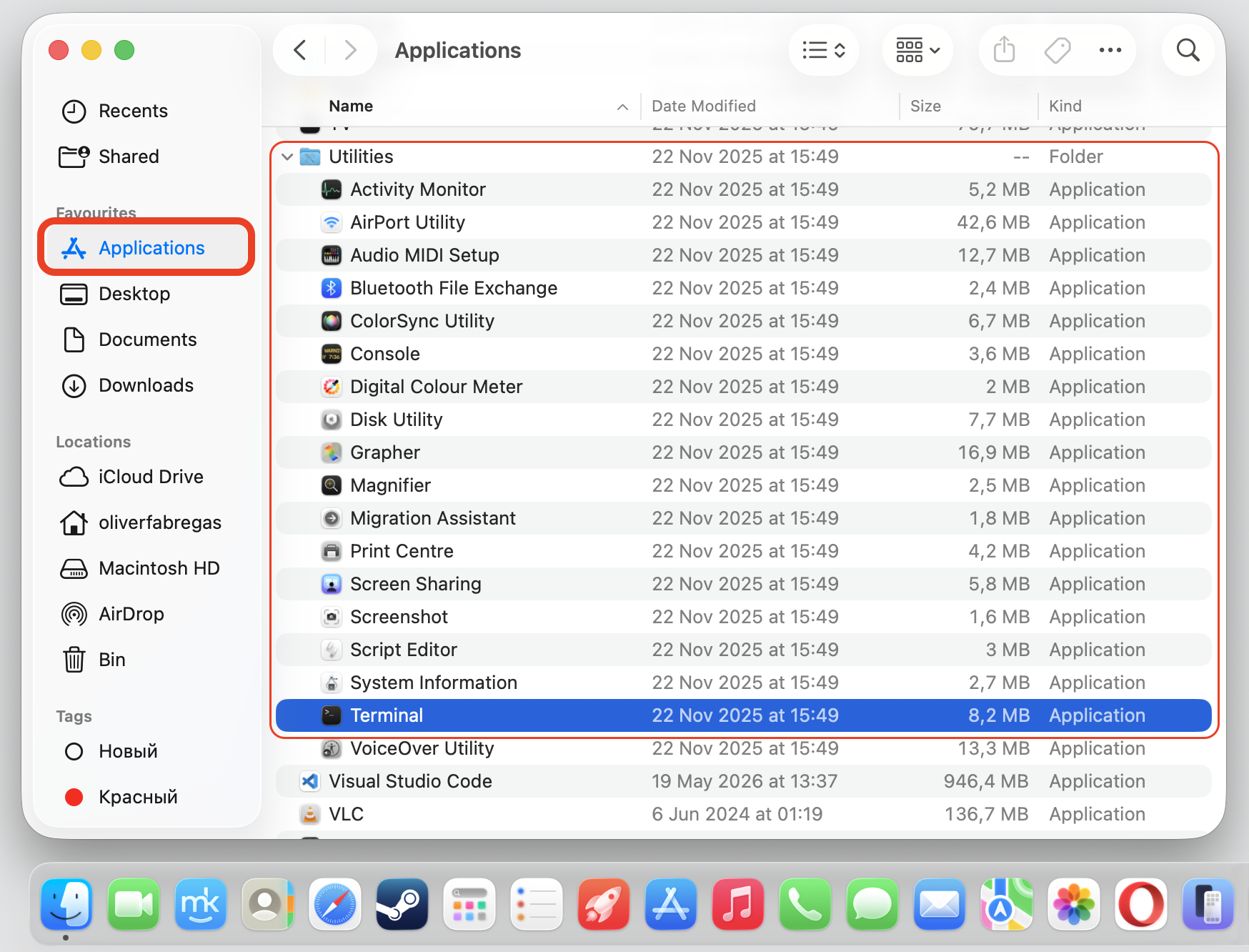
Open Terminal from Applications > Utilities.
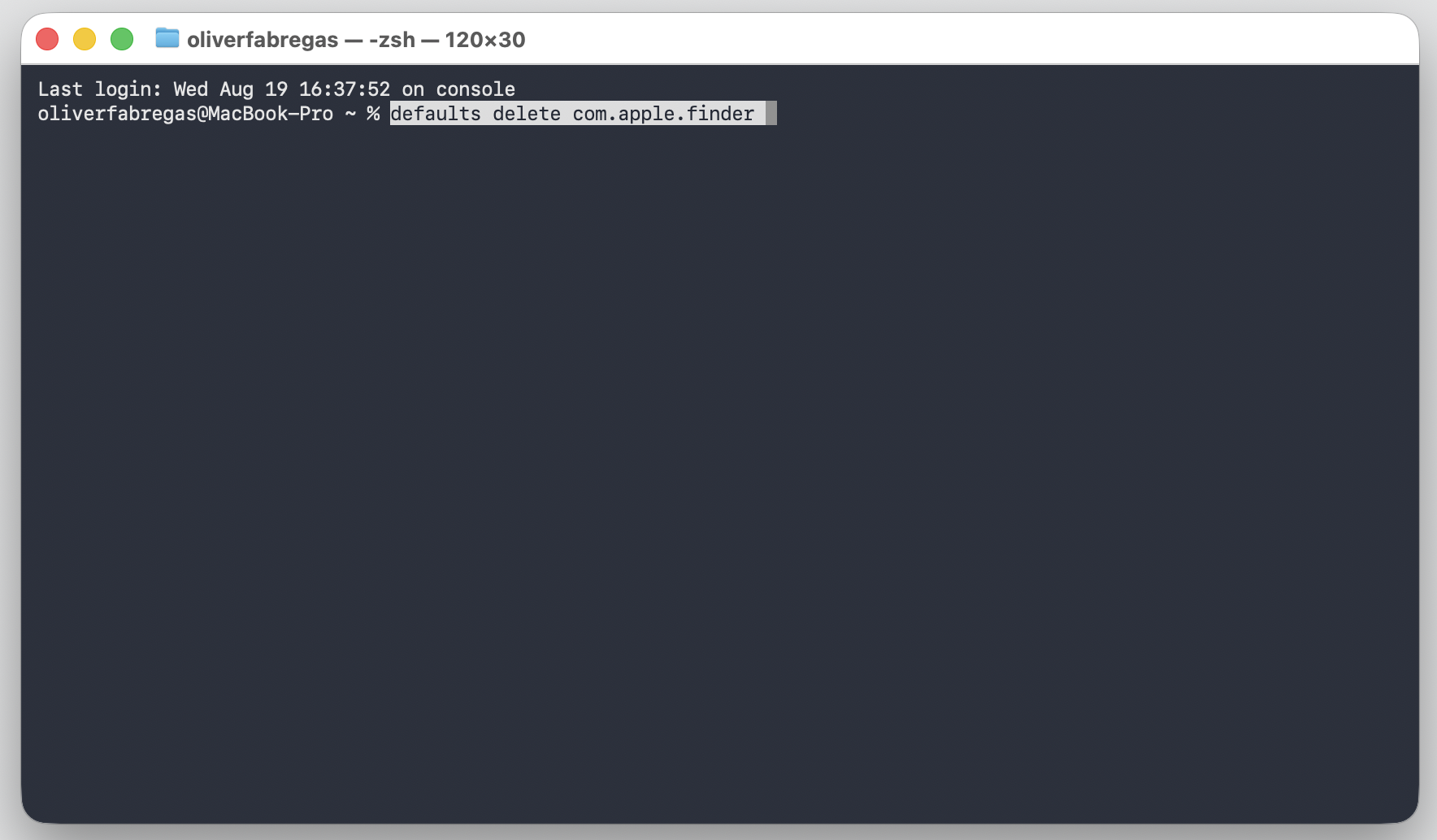
Type defaults delete com.apple.finder and press Return.
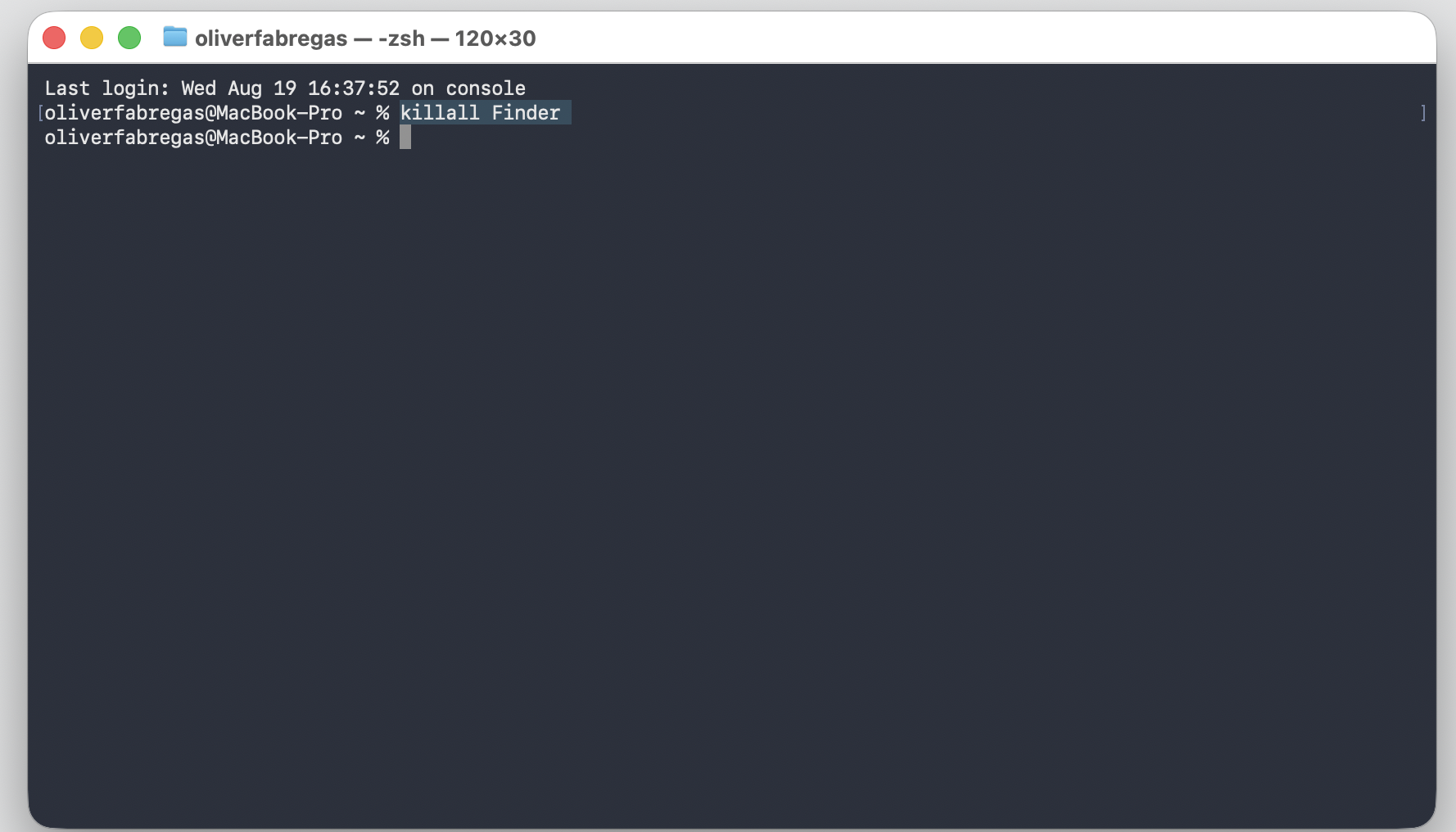
Type killall Finder and press Return to relaunch Finder with default settings.
Step 1. Open Terminal from Applications > UtilitiesStep 2. Type defaults delete com.apple.finder and press ReturnStep 3. Type killall Finder and press Return
How to reset Finder view options only?
Some macOS Sequoia users don’t need a full preference reset. If your only issue is icon size, list view, sorting, column view, or how a specific folder is laid out, adjusting Finder view options is enough. Below, we’ll walk through three quick changes.
1. Change Finder view mode
We can switch between Finder view modes if the issue is only how files and folders are displayed. The View menu shows every layout option in one place.
Switch it like this:
Open any folder in Finder.
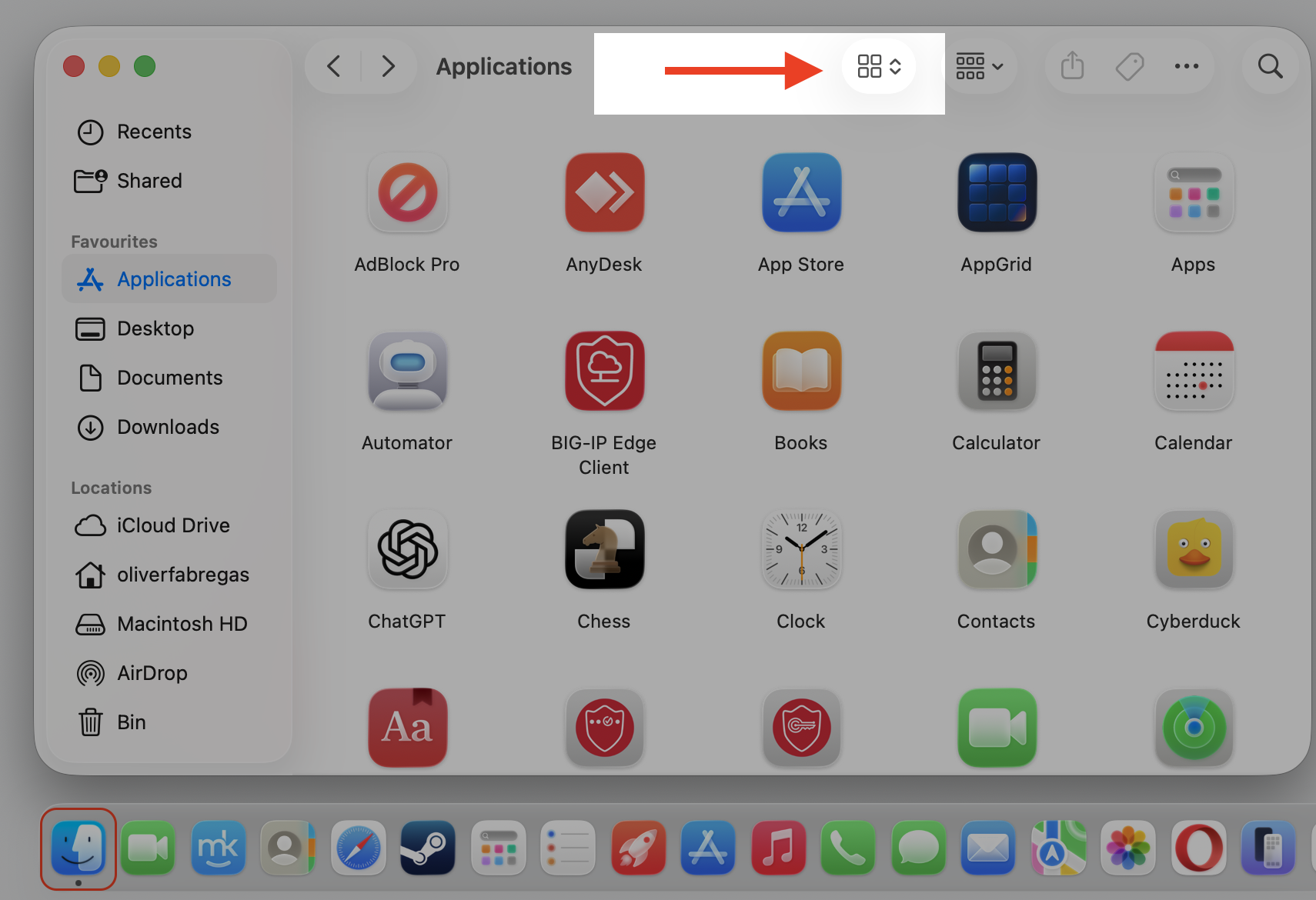
Select the View menu.
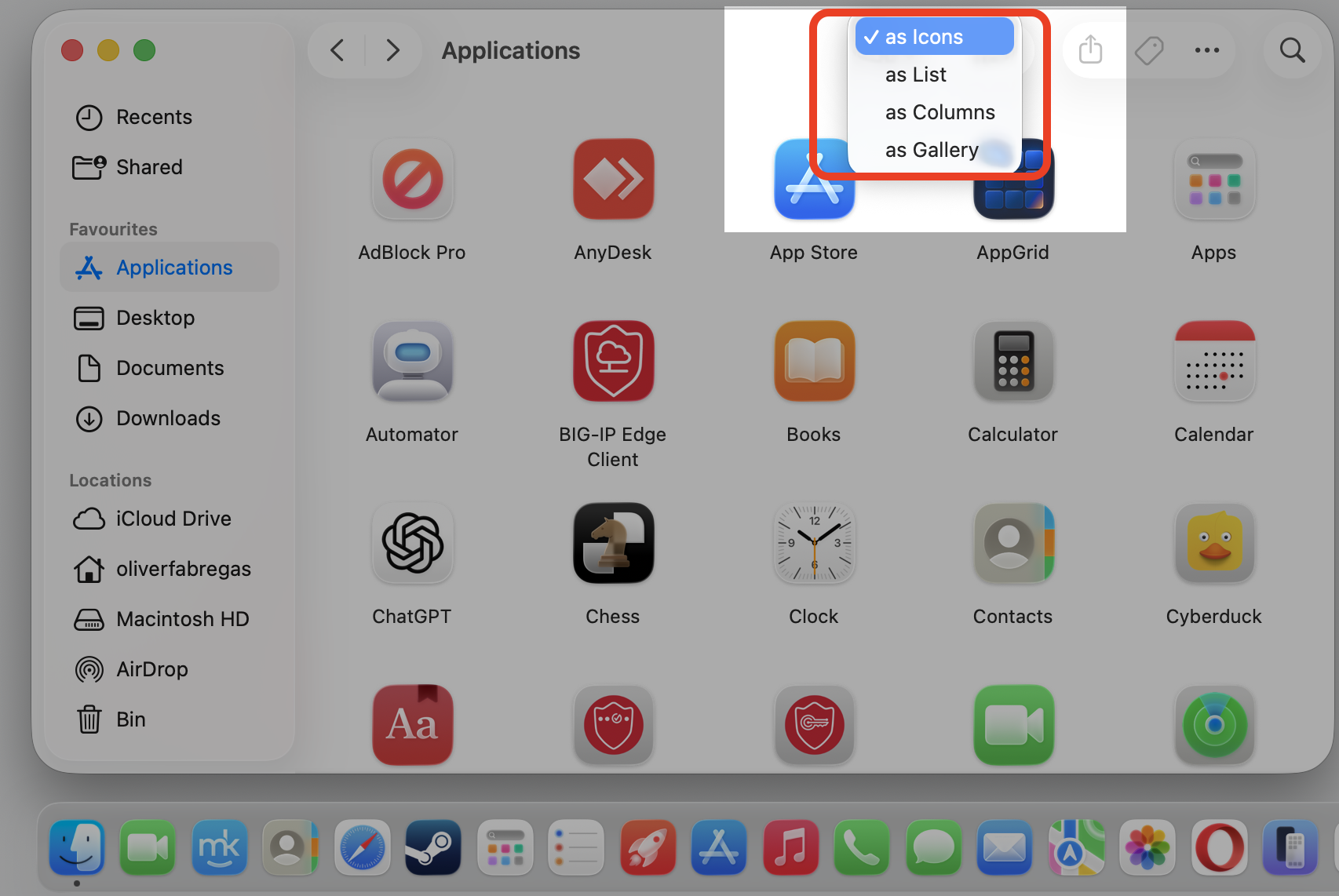
Choose as Icons, as List, as Columns, or as Gallery.
Step 1. Select the View menu from Finder Step 2. Choose as Icons, as List, as Columns, or as Gallery
2. Adjust folder display settings
We can change visual folder settings such as icon size, sorting, grouping, columns, or preview behavior to match how you work.
Give this a go:
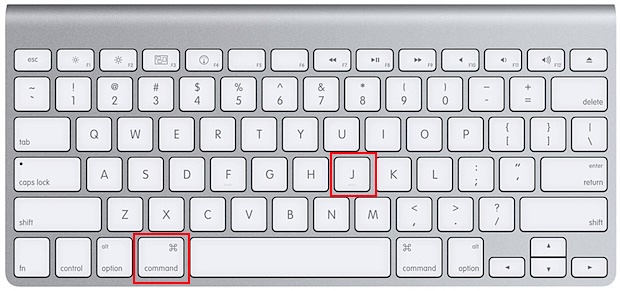
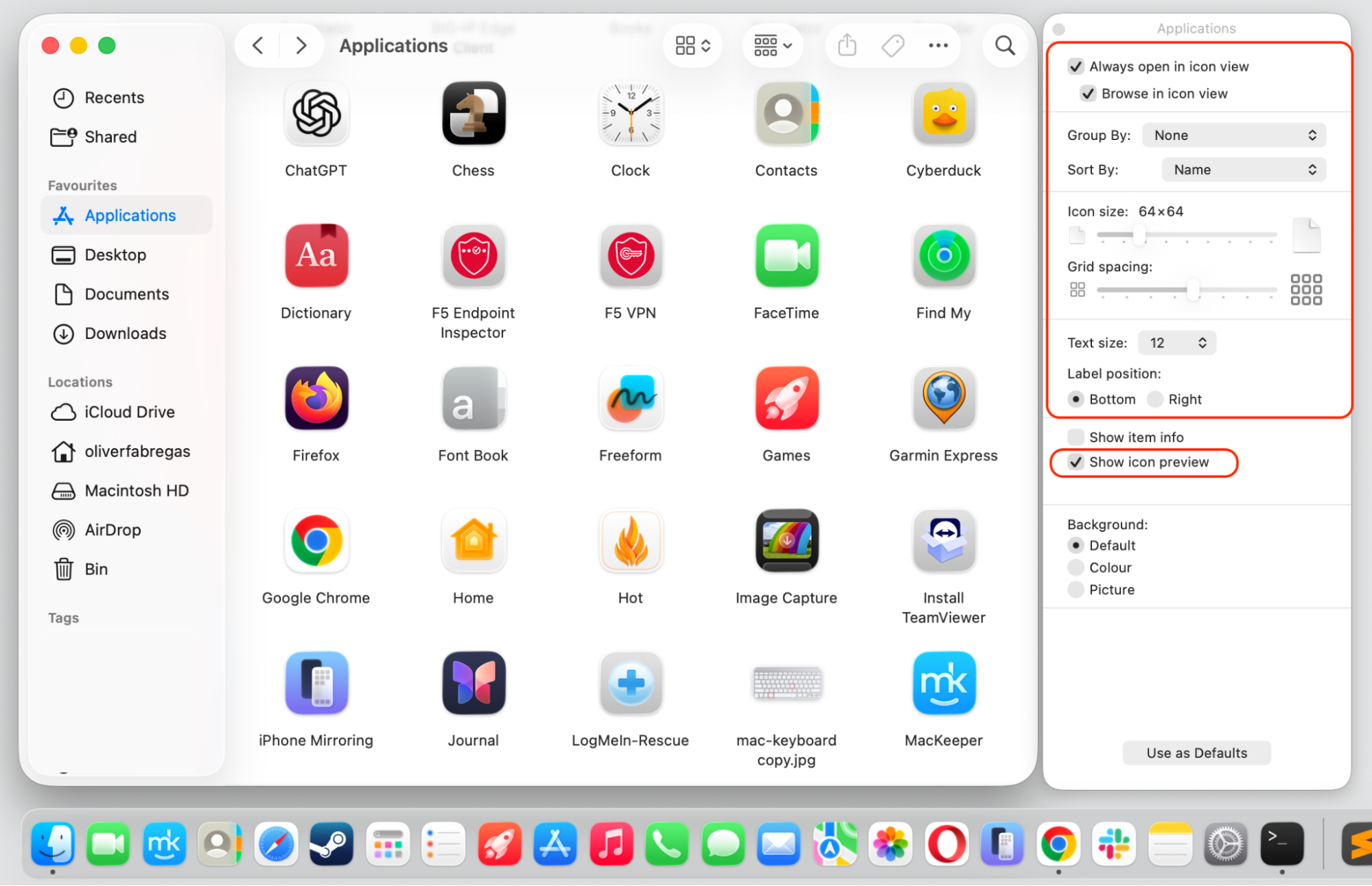
With a folder open, press Command + J to open Show View Options.
Adjust icon size, grid spacing, sorting, or grouping to your liking.
Enable Show icon preview if you’d like thumbnails.
Step 1. Open Finder and press Command + JStep 2. Customize to your favorite and enable show icon preview
How to reset Finder sidebar on macOS Sequoia (15)?
If Locations, external drives, folders, or favorite shortcuts have gone, a few tweaks usually bring them back. We consider it a common fix when you spot a Finder sidebar missing its usual shortcuts. Start by checking your sidebar settings, then re-add anything important by hand.
Bring them back like this:
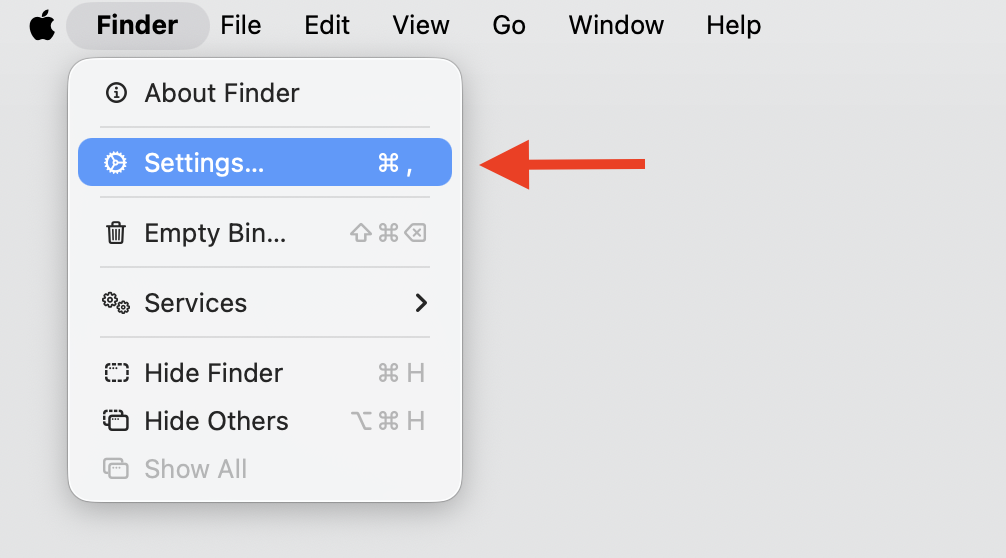
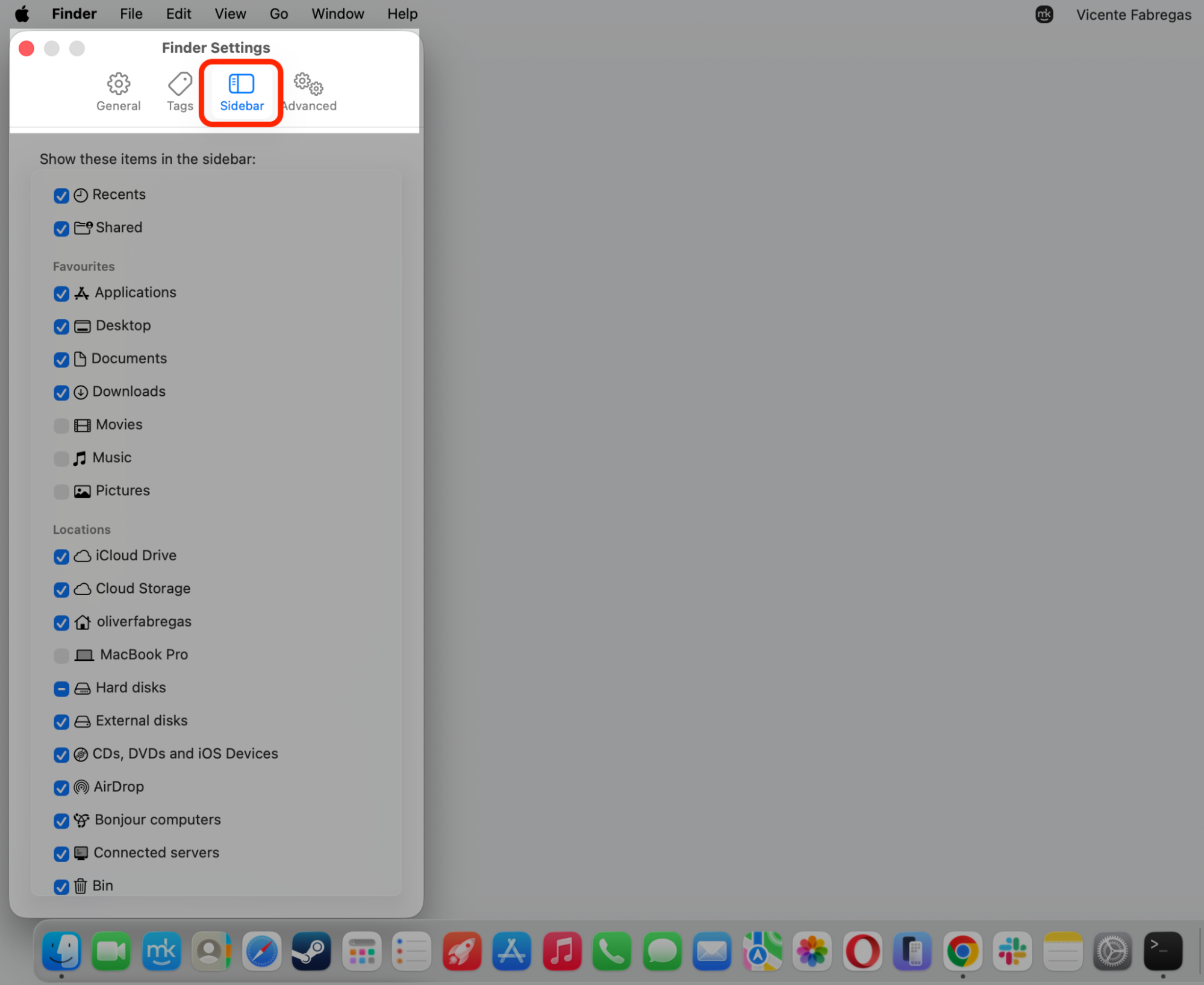
Open Finder and go to Finder > Settings in the menu bar.
Select the Sidebar tab.
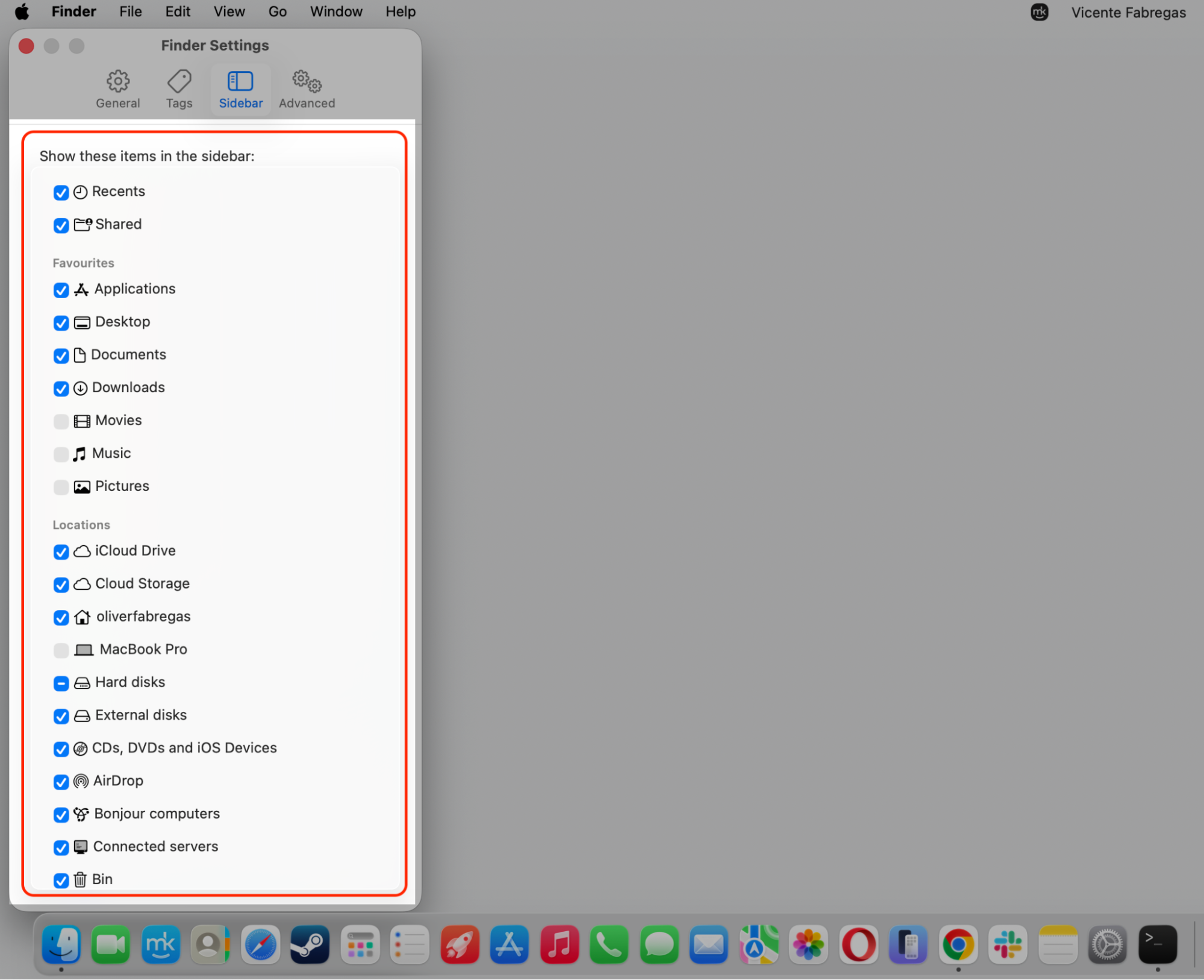
Select the items you’d like to see, such as Recents, Applications, or your Macintosh HD drive.
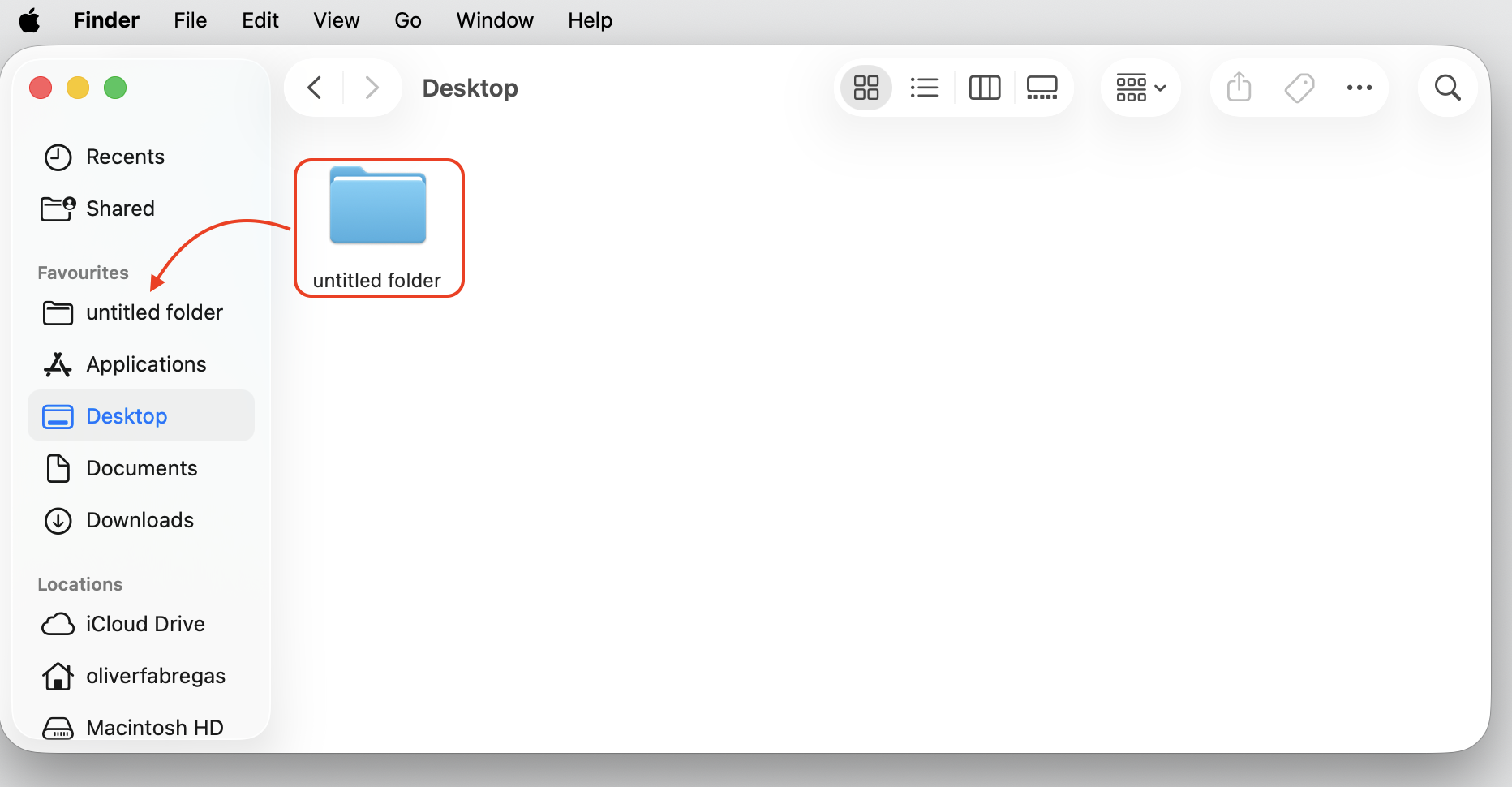
Drag any folder from a Finder window into the sidebar to pin it under Favorites.
Step 1. Go to Finder > SettingsStep 2. Select SidebarStep 3. Select the items you’d like to seeStep 4. Drag any folder from a Finder window into the sidebar to pin it under Favorites
Conclusion
Resetting Finder settings on macOS 15 involves removing Finder preference data and relaunching Finder, with no personal files at risk. Whether your sidebar vanished on a MacBook or your views keep changing, these steps put you back in control.
And if you’d like a helping hand, MacKeeper’s Premium Services pair you with experts who’ll walk you through it whenever you need. Our support team is always ready to help with whatever issue you face on your Mac.
We respect your privacy and
use cookies
for the best site experience.
Privacy Preferences Center
We use cookies along with other tools to give you the best possible experience while using the
MacKeeper website. Cookies are small text files that help the website load faster. The cookies we
use don’t contain any type of personal data meaning they never store information such as your
location, email address, or IP address.
Help us improve how you interact with our website by accepting the use of cookies. You can change
your privacy settings whenever you like.
Manage consent
All cookies
These cookies are strictly necessary for enabling basic website functionality (including page
navigation, form submission, language detection, post commenting), downloading and purchasing
software. The website might malfunction without these cookies.