If you’re noticing lifespan issues with your laptop’s battery, it might be time to check cycle count Macbook to ensure it’s still got the capacity to retain a full charge. To help extend your Apple battery cycle, we recommend MacKeeper’s Safe Cleanup–our tool can declutter your Mac of junk and help protect your battery health.
Not sure what battery cycles on MacBook actually are? A battery cycle is a way to monitor and track 100% of your battery’s capacity. If you use half your battery today and the other 50% tomorrow, that’s still one full battery cycle. This macOS feature shows important battery info, including condition, lifespan, status, and usage.
Poor battery health can cause a MacBook die so fast by draining too quickly, shutting down unexpectedly, and struggling to hold a charge.
Why does battery cycle count on MacBook matter?
When your MacBook is no longer holding its charge like it used to, it’s common for the cycle count to help explain things. When you find the battery cycle count on a MacBook, it can give you a clearer idea of the hardware’s condition. We’ve found that a higher count may mean shorter battery life is normal, but we still recommend you regularly check how long your battery will last, especially if you suspect it might need a replacement soon.
How to see cycle count on MacBook?
There are several ways that we recommend to help you view battery cycles Mac–depending on your macOS version and how quickly you need to check battery health.
Our Clario Tech experts will show you the following ways to see cycle count on Mac:
Through System Information
Via System Settings and System report
Using third-party Mac utilities
1. Through System Information
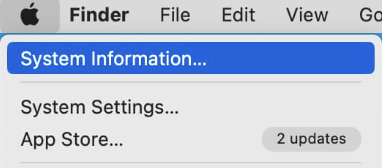
For convenience, we recommend that you check the number of battery cycles on Mac through the System Information panel on your Macintosh device. This’ll let you check the cycle count and battery condition. Here’s how:
Hold down Option.
Click on the Apple Icon.
Select System Information.
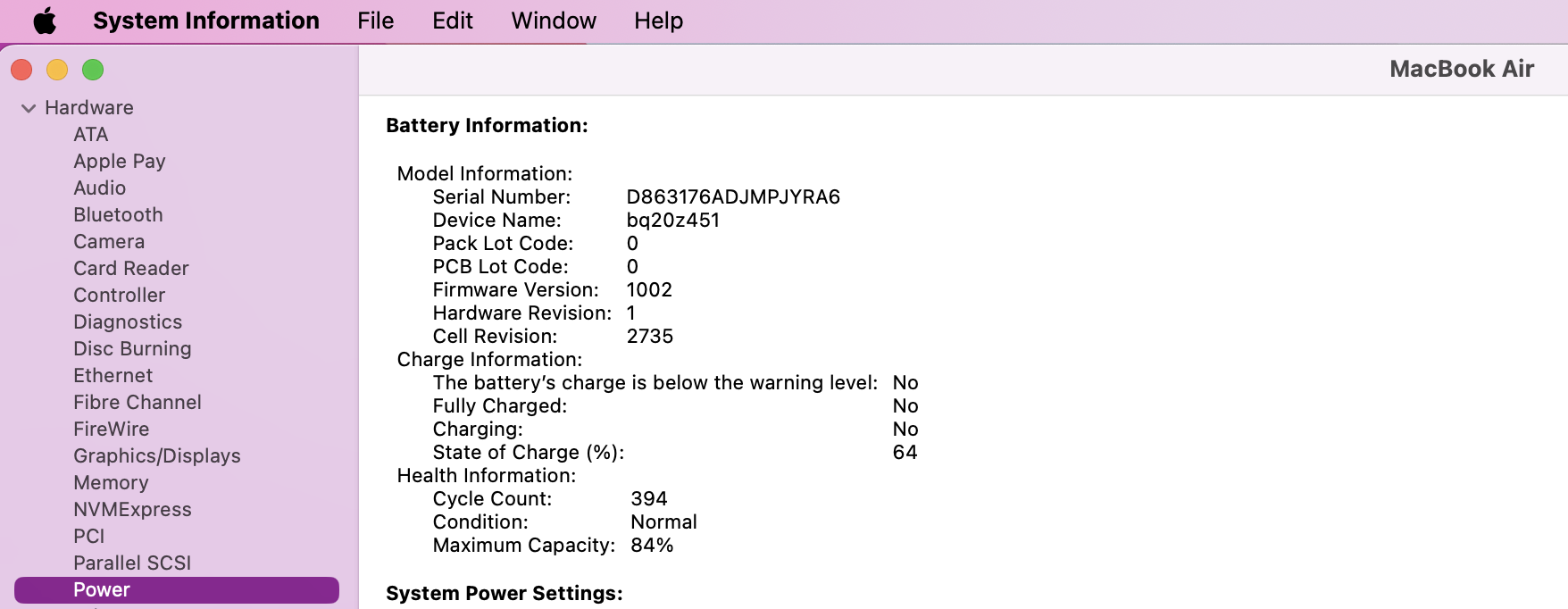
Go to Hardware > Power to find Cycle Count under Battery Information.
Step 1. Hold down Option, go to the Apple icon, and click on System InformationStep 2. Go to Hardware> Power > Battery Information to find Cycle Count info
2. Via System Settings and System Report
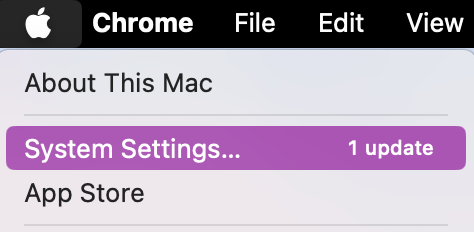
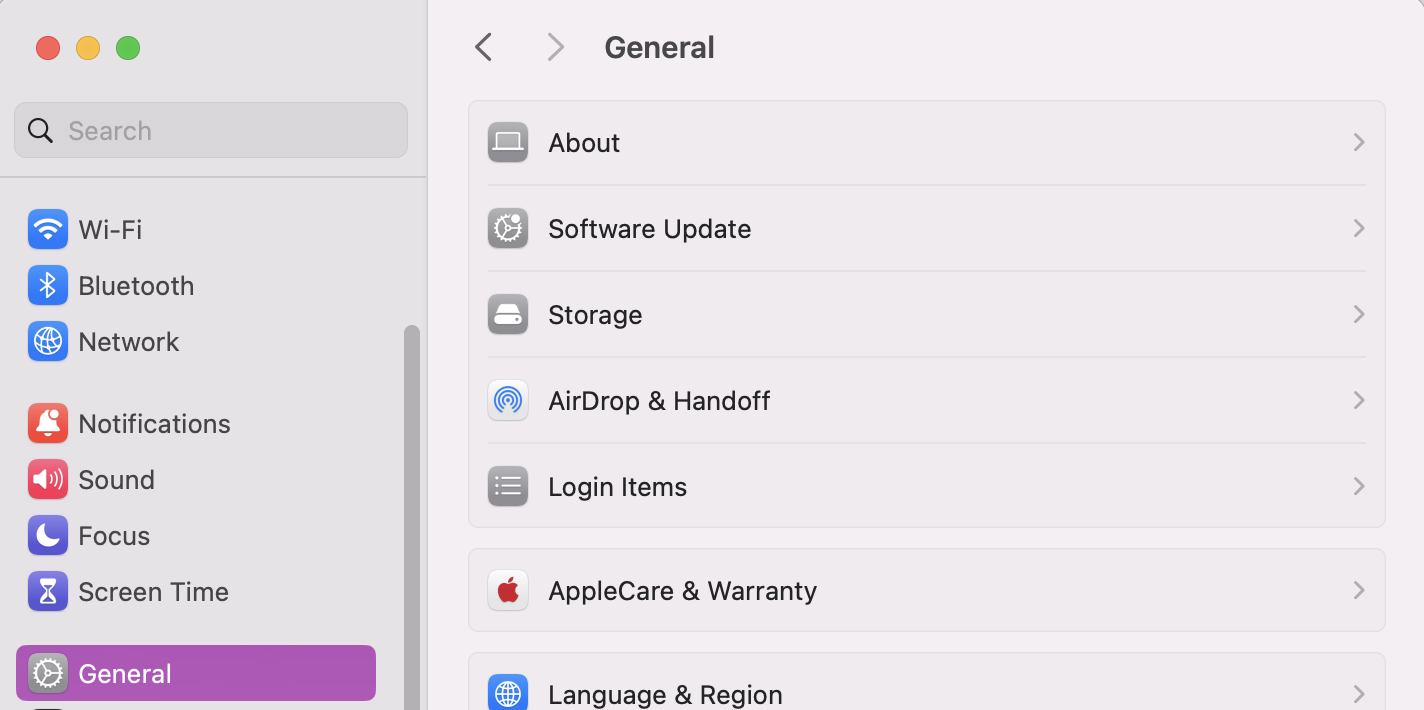
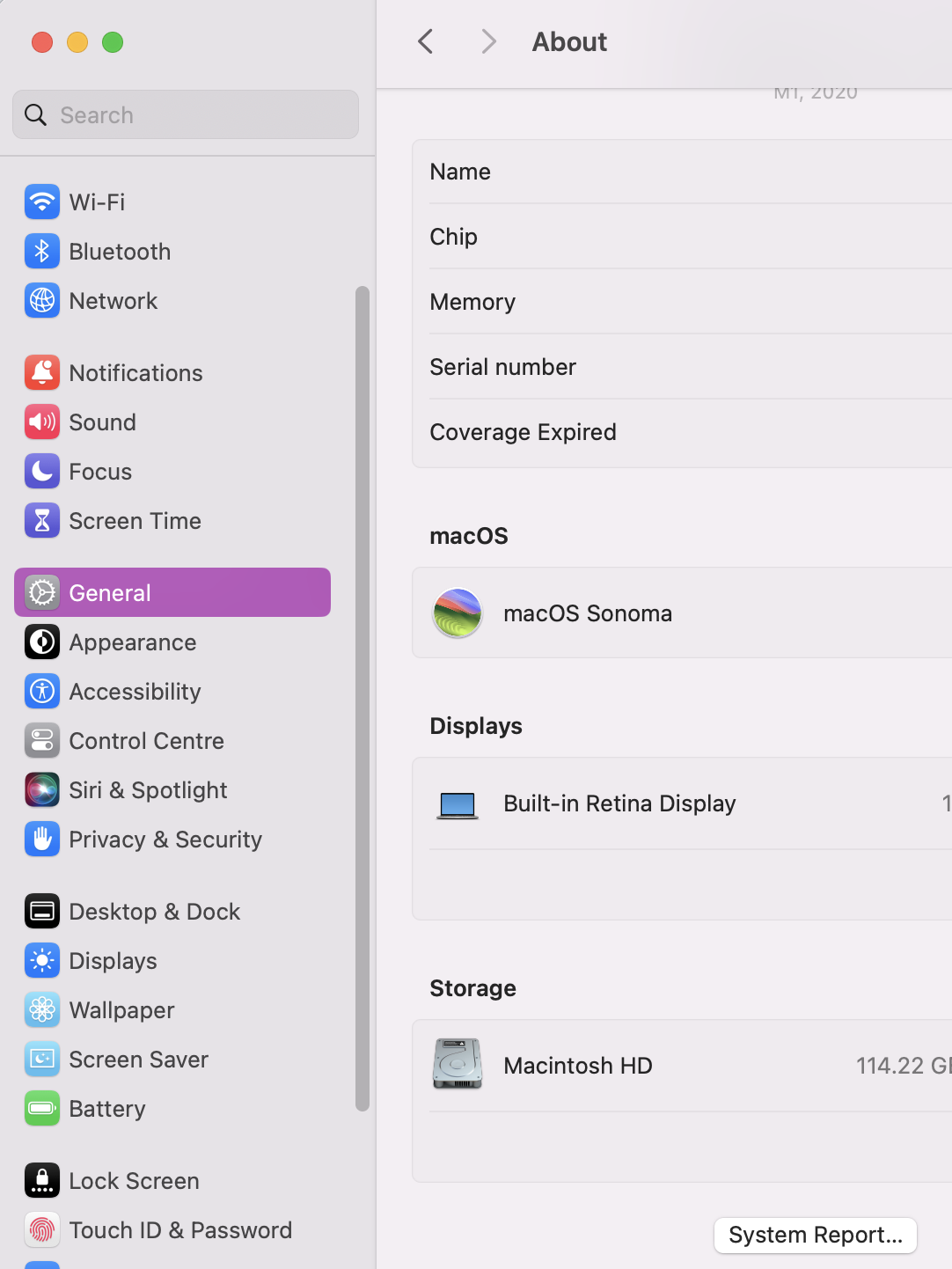
If you have a newer version of macOS, you can also look at your battery info via System Settings’ System Report. It takes a few extra steps to find, so let us walk you through them below:
Open System Settings.
Go to General > About.
Scroll down and click on System Report.
Step 1. Open System SettingsStep 2. Click on General > About Step 3. Scroll down and press the System Report button
3. Using third-party Mac utilities
Regular or Pro MacBook users may decide to install third-party utility software to get more intricate battery info, including system alerts when an app is demanding too much battery. In this case, you’d just need to open the tool and look for battery details to help see your cycle count, battery capacity, and health.
A note from our experts:
Keeping your Mac’s battery optimized is one of the best ways to increase the lifespan of your device; the healthier the battery, the smoother your performance is likely to remain over time. MacKeeper’s Safe Cleanup tool can help you get into the habit of regurally decluttering your Mac to boost its chances of a smooth and steady performance.
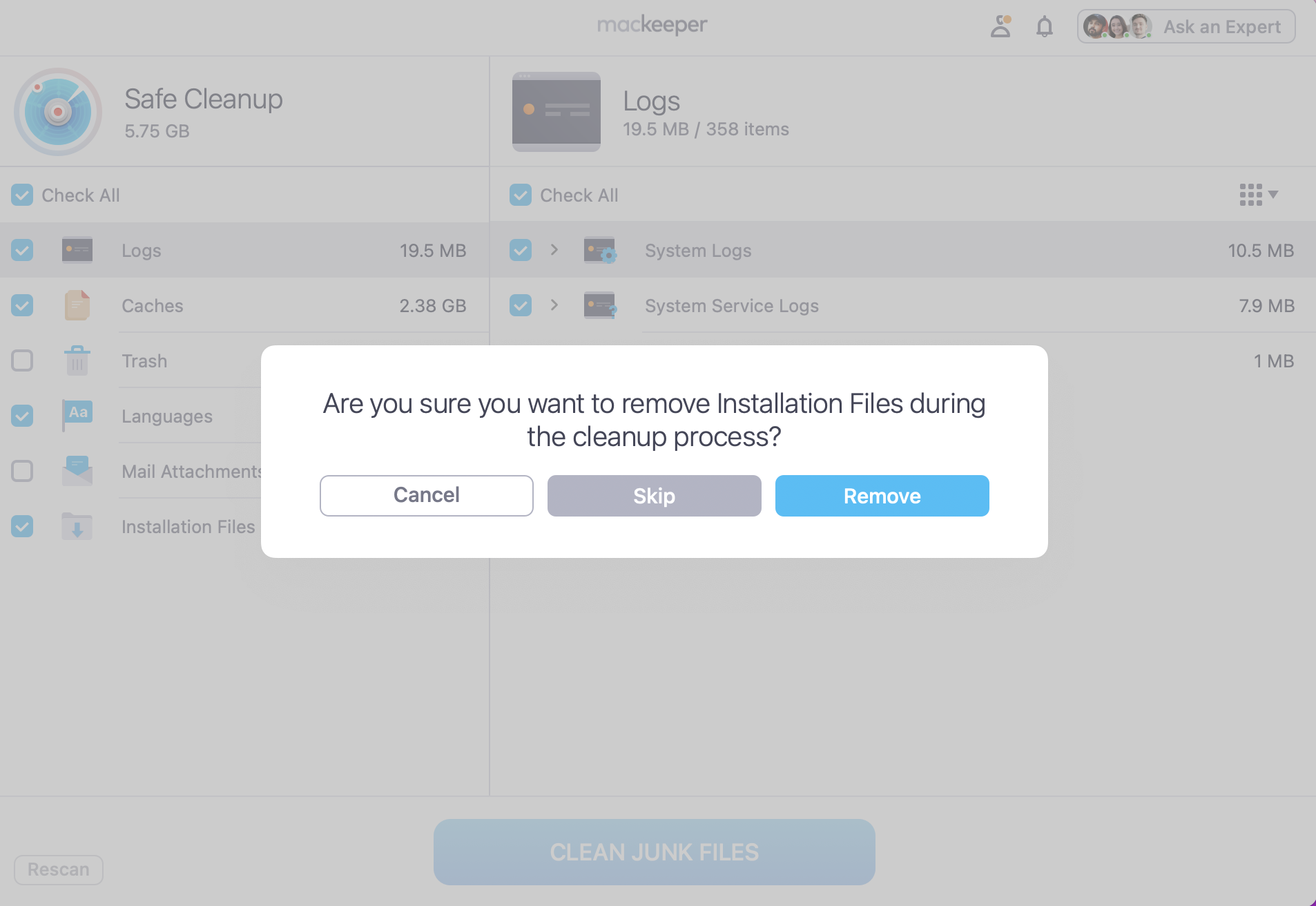
Here’s how MacKeeper’s Safe Cleanup can optimize your battery:
Once done, tick all the Logs, Cache, and Trash you want to remove.
Press Clean Junk Files and Confirm.
Step 1. In the MacKeeper app, go to Safe Cleanup and press Start ScanStep 2. Tick what you want to delete and press Clean Junk Files > Remove
How to know battery cycle limit for your MacBook model?
Apple has a recommended cycle count for every device model they have–comparing your device’s count to their recommendation is a good way to know if your cycle limit is in a normal condition or might need replacing. Be sure to check out our post titled: MacBook lifespan for more advice on supporting battery health.
What is a good cycle count for MacBook?
When it comes to cycle count, a good one would generally be low, as this means less wear on the battery. Whereas a higher count could be a sign of an aging battery, but there is no one ‘good number’. We recommend reading our attached guide to find out how long does MacBook battery last.
When to consider replacing MacBook battery?
Do you keep seeing the macOS service recommended message on your Mac? This might be a sign that your battery is in need of some maintenance or a full replacement. If you suspect battery issues, you may also notice unexpected shutdowns and poor battery life.
Optimizing your battery with MacKeeper's help
Whenever you need to show battery cycles on macOS, you can use the methods above to check your battery’s condition and spot potential issues. We also recommend using MacKeeper’s Safe Cleanup to remove junk, free up space, and optimize your Mac. Be sure to download MacKeeper to optimize your battery stability today.
We respect your privacy and
use cookies
for the best site experience.
Privacy Preferences Center
We use cookies along with other tools to give you the best possible experience while using the
MacKeeper website. Cookies are small text files that help the website load faster. The cookies we
use don’t contain any type of personal data meaning they never store information such as your
location, email address, or IP address.
Help us improve how you interact with our website by accepting the use of cookies. You can change
your privacy settings whenever you like.
Manage consent
All cookies
These cookies are strictly necessary for enabling basic website functionality (including page
navigation, form submission, language detection, post commenting), downloading and purchasing
software. The website might malfunction without these cookies.