Trying to scan a QR code on a MacBook can feel surprisingly inconvenient when the system doesn’t recognize it right away, especially if you just need quick access to a link or file. MacKeeper’s Antivirus adds a layer of protection to that process by guarding your Mac with real-time threat detection, keeping every scanned file and opened link safe from hidden risks.
To open a QR code on your MacBook, use a QR-scanner app or a web-based reader. Choose the scan option, allow camera access, and hold the QR code in front of the lens. Adjust the distance if needed so the code can be read instantly.
Why MacBooks don’t have built‑in QR scanning?
MacBooks don’t include native QR scanning because the macOS Camera app isn’t designed to interpret QR data, unlike the iPhone and iPad cameras, which have built-in decoding. That’s why you need external tools to read a QR code on a MacBook, such as third-party apps, browser extensions, or online scanners.
A note from our experts:
When you try to read or open QR content on your Mac, you often don’t know what’s behind that code until it loads. Our team has seen cases where unsafe links, files, or installers were hidden in seemingly harmless QR redirects. To help avoid this, MacKeeper’s Antivirus provides real-time protection that scans every new file and action the moment it appears on your system. Since MacKeeper is Apple-notarized, the security checks run safely on macOS and keep your documents, downloads, and folders protected while you interact with QR codes.
Here’s how to safeguard your Mac with MacKeeper’s Antivirus:
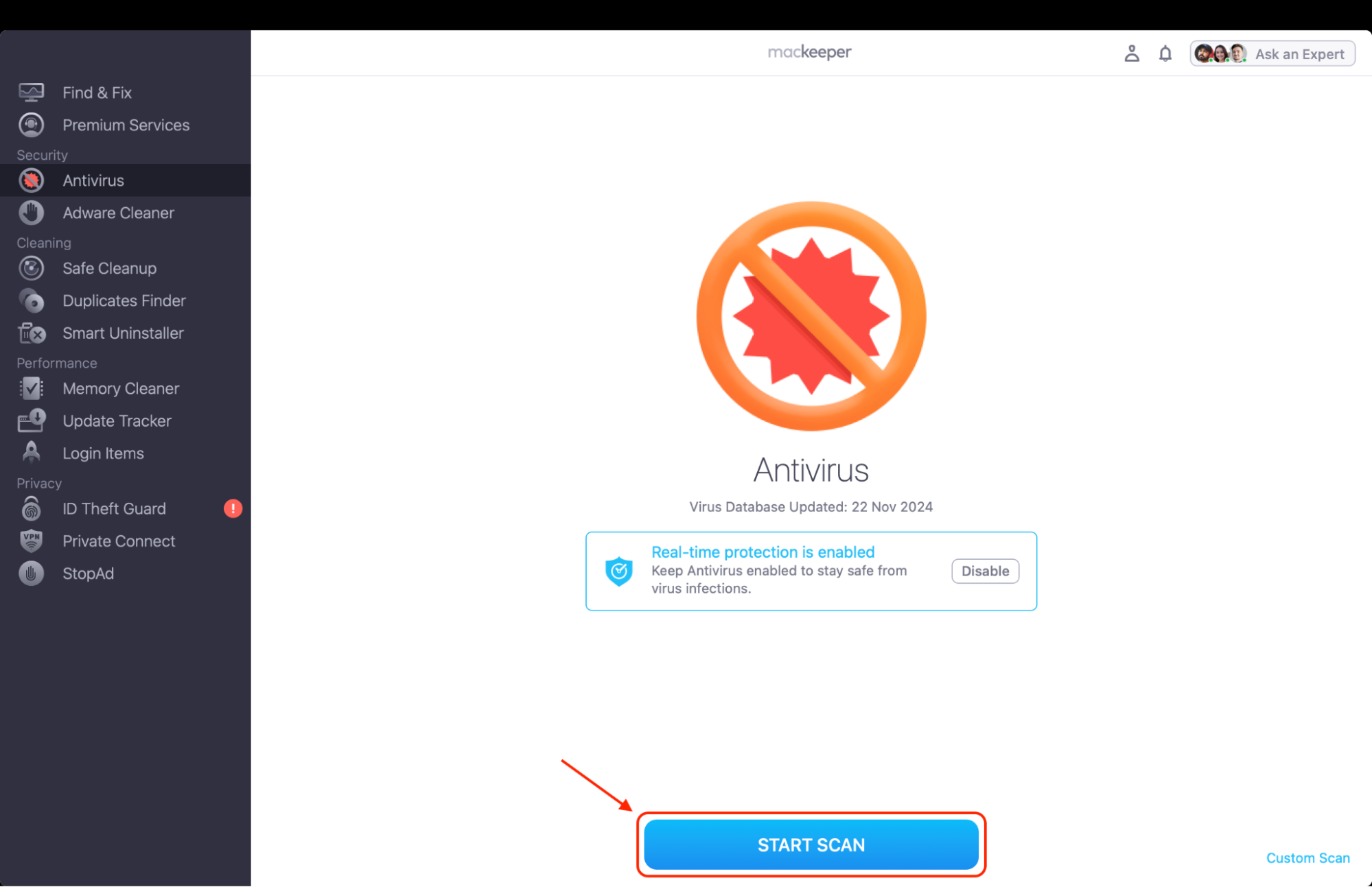
Open the app and select Antivirus in the left sidebar.
Click Start Scan to run a full system check for threats and suspicious items.
Review the results and quarantine detected files to block harmful activity.
Restart your Mac and delete quarantined items to remove them completely.
Step 1. Locate the Antivirus section in the left-side menu barStep 2. Hit the Start Scan button to kick-start the scanning process
How to read QR code on a MacBook?
You can read a QR code on a MacBook by using a QR-scanner app or an online QR reader, since macOS doesn’t decode QR data through the built-in camera. All you need to do is open a trusted tool, allow camera access, then hold the code in front of the lens or upload an image. The reader will extract the information instantly, making this the simplest way to read QR code content on a MacBook.
Open a trusted tool, allow camera access, then hold the code in front of the lens or upload an image
1. How to scan using third‑party apps?
From our experience, third-party apps are the fastest way to scan QR codes on a Mac because they work consistently, don’t require extra setup, and give you immediate results.
1.1 QR Capture
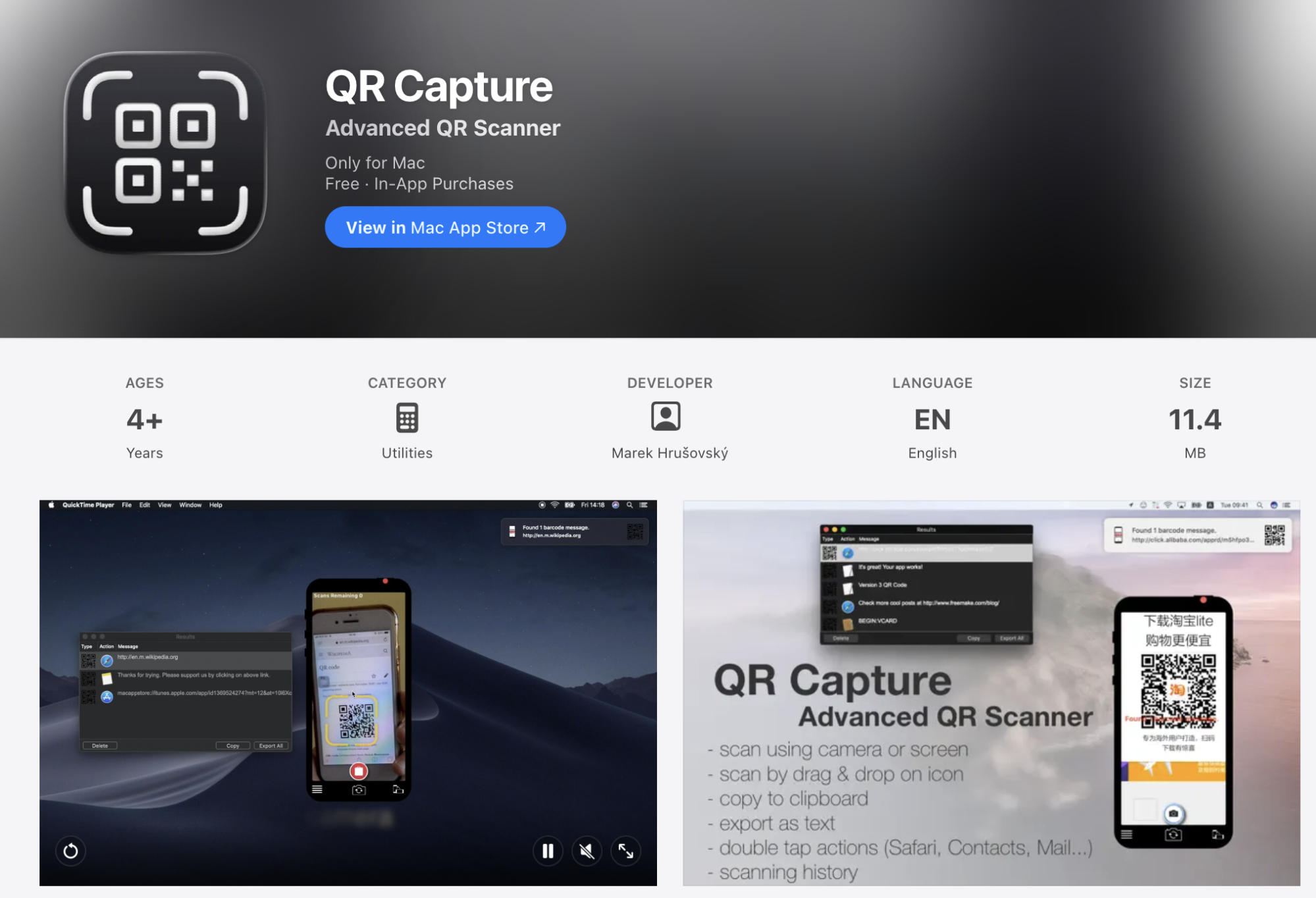
QR Capture is one of the most straightforward tools when you want quick scans without unnecessary menus, and it’s especially helpful if you’re learning how to prevent cybercrime by avoiding unsafe links.
Here’s how you can do it:
Open the QR Capture app.
Allow camera access when prompted.
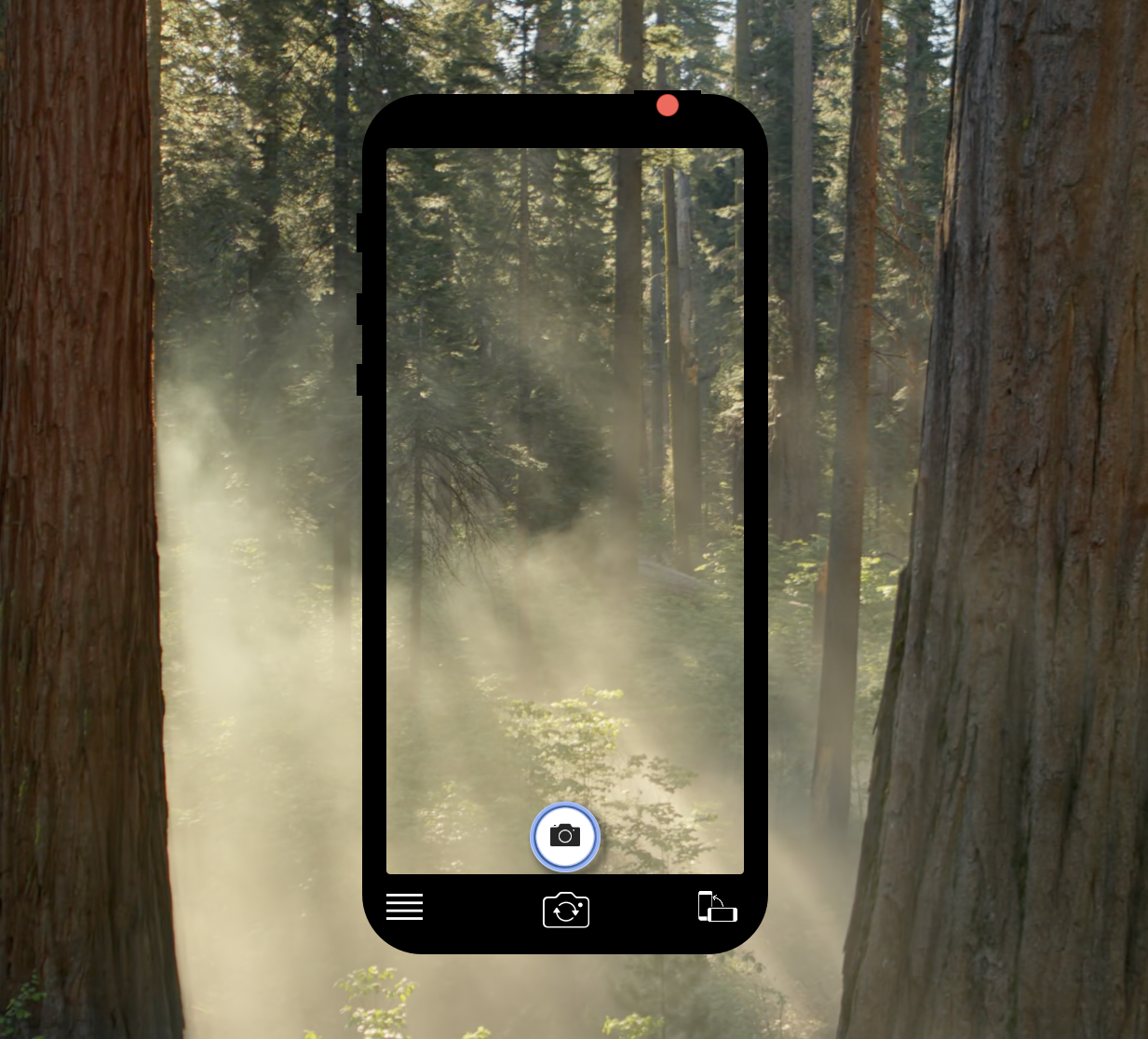
Hold the QR code in front of your Mac’s camera until it’s detected.
Follow the link or action displayed on screen.
Install QR Capture and use it according to the app’s instructions
1.2 Code Reader
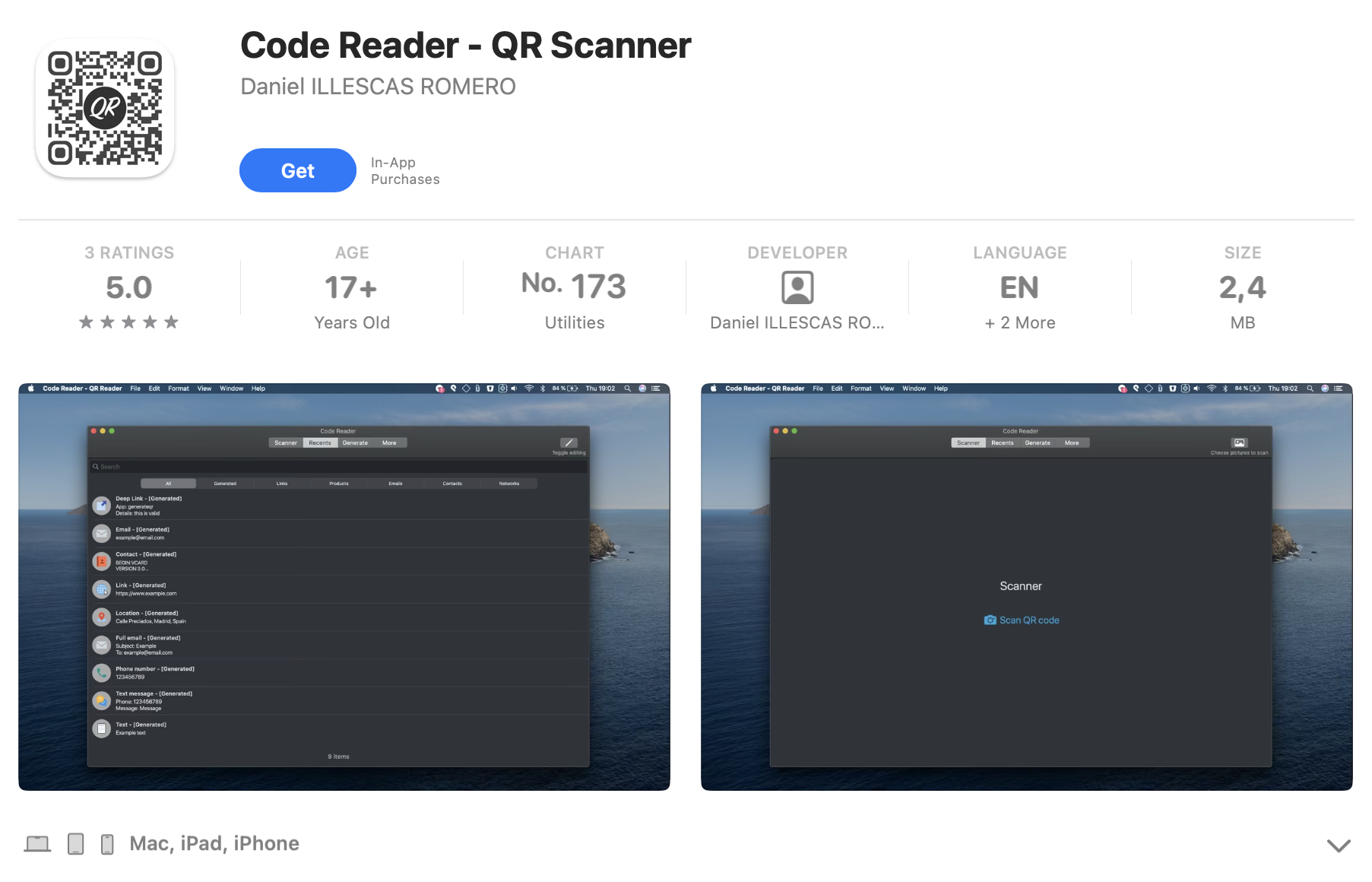
Code Reader is more feature-rich than many lightweight scanners, and we prefer it for situations where you want both scanning and the ability to save or copy QR data immediately.
Here’s how to use it:
Launch Code Reader on your Mac.
Authorize camera access on the first launch.
Hold the QR code steadily in front of the camera.
Let the app decode the information and choose how to open or store it.
Install Code Reader from App Store and follow the developer’s instructions
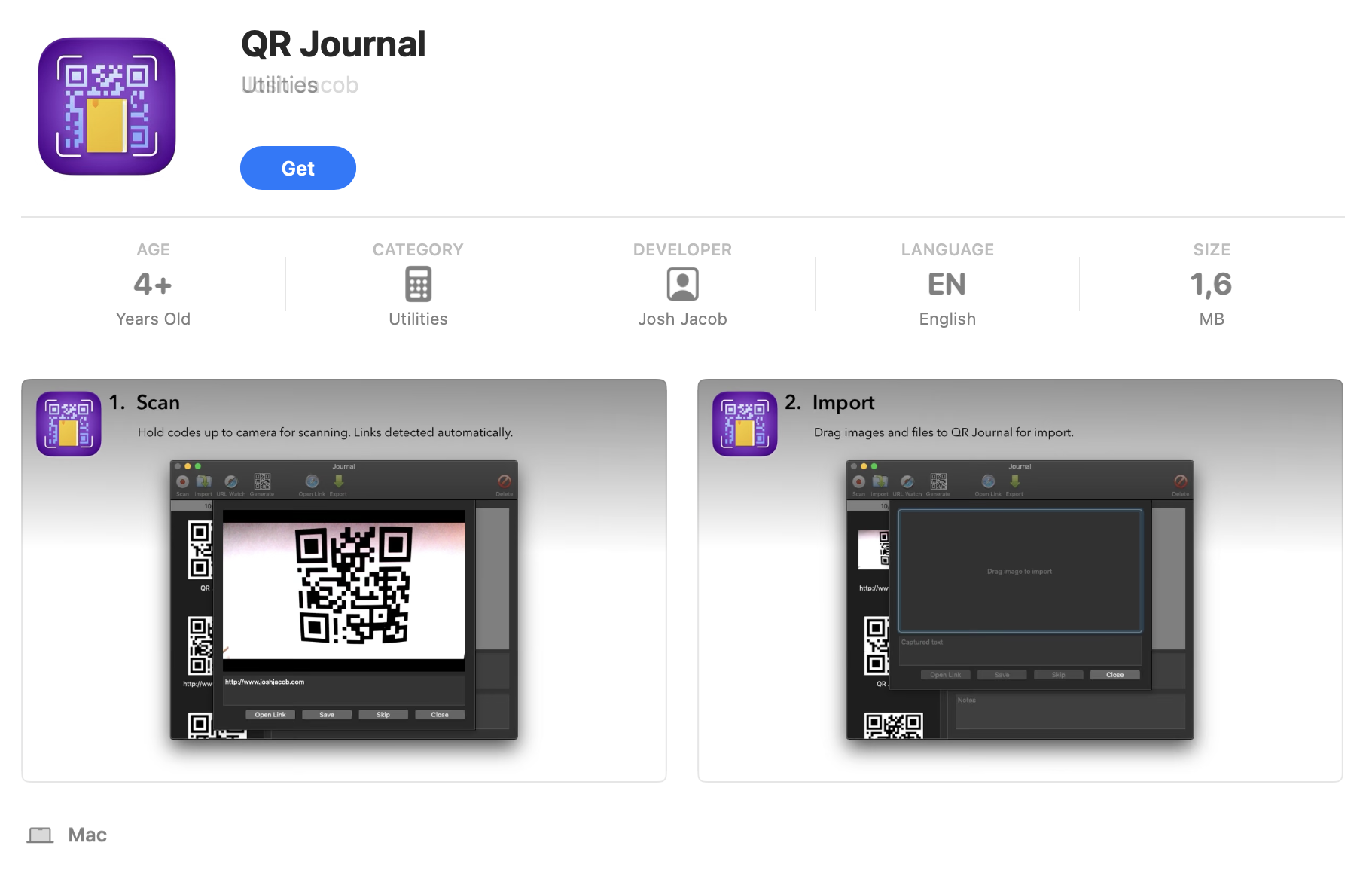
1.3 QR Journal
QR Journal is ideal when you need extra reliability and secure handling, especially if you're managing sensitive data or enabling features like Mac full disk access.
Follow these steps to use it:
Open QR Journal on your Mac.
Approve camera access when prompted.
Lift the QR code toward your Mac’s camera or import an image.
Review and open the decoded information.
Install the app from App Store and use it by following the internal instructions
2. Web‑based QR Code scanners
We often use web-based QR tools when we need something quick, lightweight, and accessible from any browser without installing apps.
2.1 Using your webcam
Sometimes the easiest path is simply holding the QR code up to the screen, and web-based webcam scanners make that possible without adding anything to your Mac.
Using the webcam feels like the closest thing to point-and-scan simplicity on a Mac:
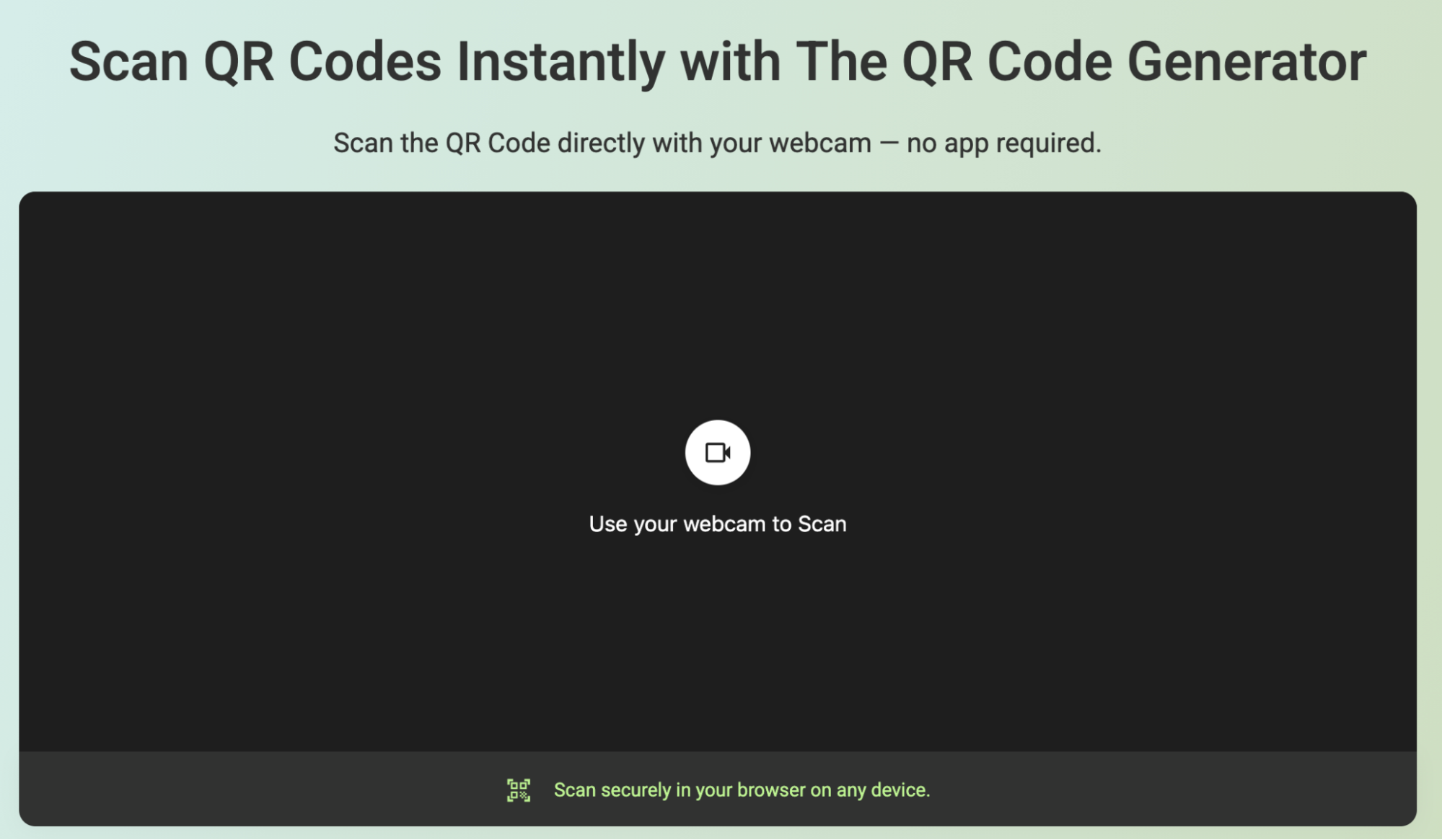
Open a trusted online QR scanner in your browser.
Select Use Webcam.
Allow the browser to access your Mac’s camera when prompted.
Hold the QR code steadily in front of the lens.
Wait for the site to recognize the code and display the result.
Open a trusted online QR scanner in your browser and select Use Webcam
We prefer uploading a QR image using these instructions:
Visit a reputable web-based QR code reader.
Select Upload Image or Choose File on the homepage.
Navigate to the QR image stored on your Mac and select it.
Let the tool process the image and display the extracted data.
Review the decoded link before interacting with it.
Visit a reputable web-based QR code reader and select Upload Image or Choose File on the homepage
3. How to read using OCR tools and screenshots?
We often rely on OCR tools when a QR code appears directly on the screen, and we want to decode it without switching devices. It’s especially useful when we already have screenshots saved—something that happens often while we search for duplicate files on your Mac and verify where links originate.
To make this method work smoothly, follow these steps:
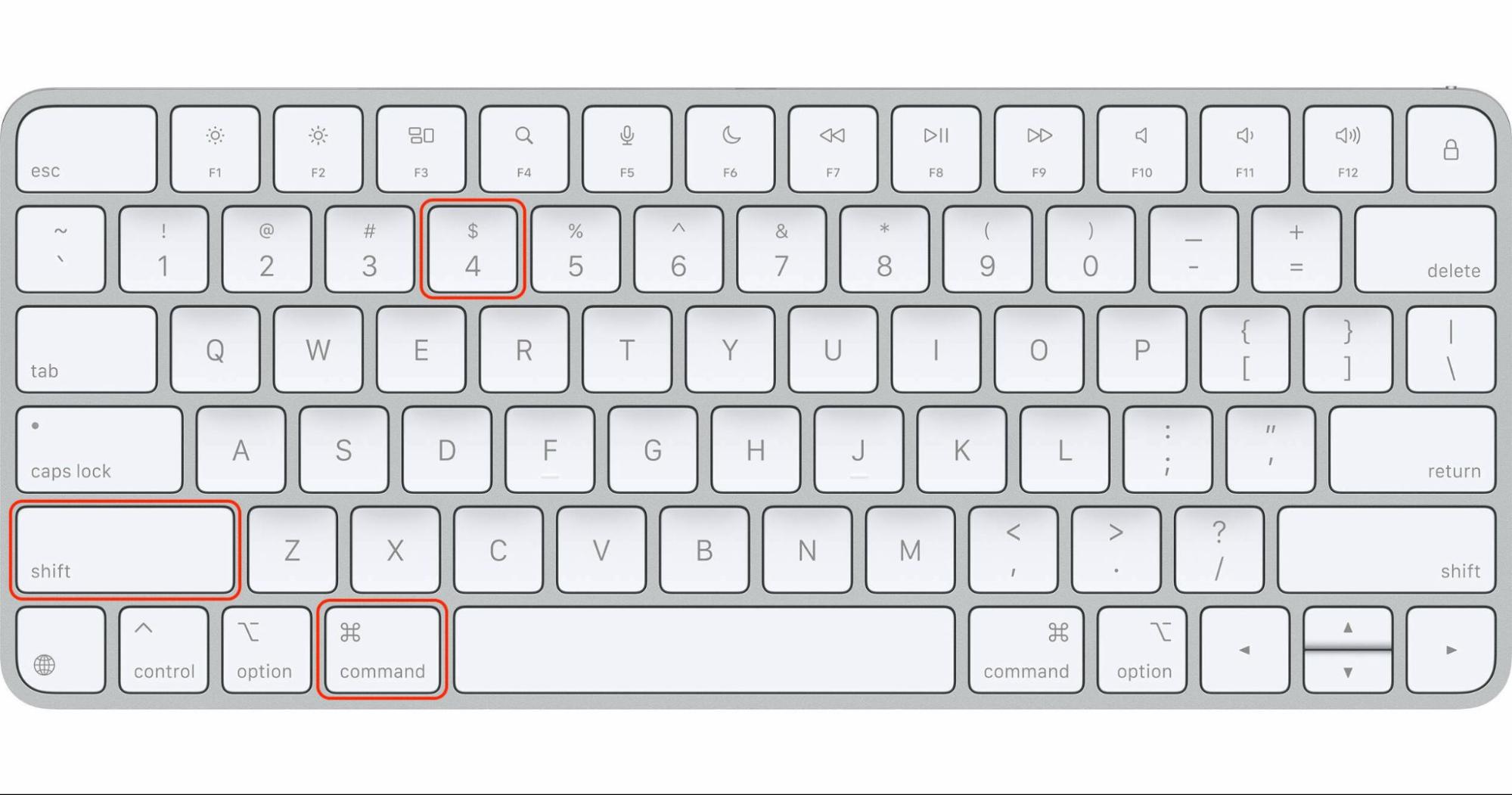
Take a screenshot of the QR code using Shift + Command + 4.
Open an OCR tool like TextSniper or CleanShot X.
Choose the OCR or Capture Text option in the app.
Drag to highlight the QR code area on the screenshot.
Wait for the tool to decode the content, then copy or open the link.
Take a screenshot of the QR code using Shift + Command + 4. Open an OCR tool like TextSniper or CleanShot X. Choose the OCR or Capture Text option in the app
4. Using iPhone with Mac
We like this option because it combines both devices into a single workflow—your iPhone handles the scan, and your Mac displays the result with no extra effort on your part.
Here’s how to activate this workflow across your devices:
Make sure your iPhone and Mac are signed in to the same Apple ID and Wi-Fi network.
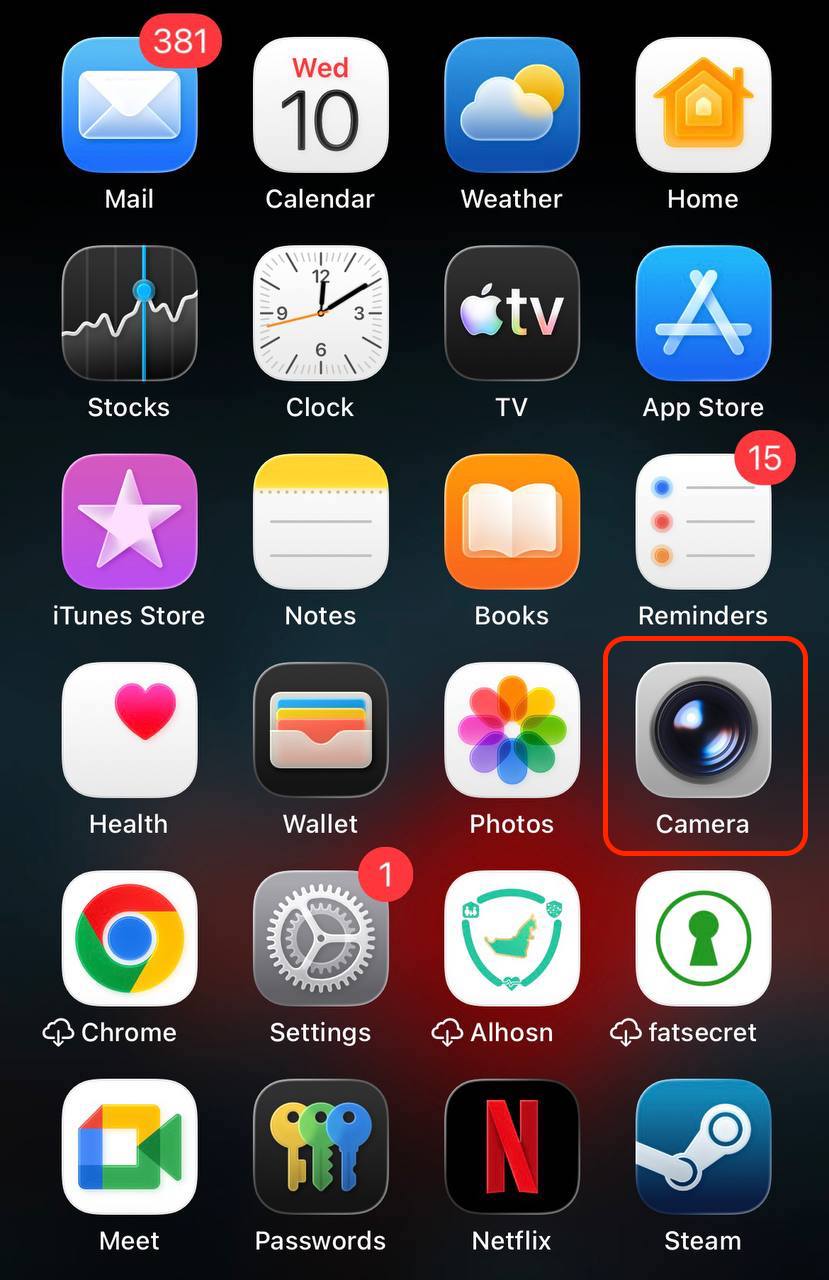
Open the Camera app on your iPhone.
Point the camera at the QR code until the link appears.
Tap the link on your iPhone to trigger Continuity.
Open the Camera app on your iPhone, point it at the QR code, and tap the link
Conclusion
Scanning QR codes on your MacBook can be done through apps, browser tools, OCR utilities, or your iPhone. Each method provides a reliable way to decode QR content. For safer scanning, remember that MacKeeper is a leading solution in Mac optimization and cybersecurity, giving you real-time protection while interacting with QR-linked files and downloads. Its Antivirus feature helps ensure that every scanned link, attachment, or installer remains secure before threats can spread across your system.
We respect your privacy and
use cookies
for the best site experience.
Privacy Preferences Center
We use cookies along with other tools to give you the best possible experience while using the
MacKeeper website. Cookies are small text files that help the website load faster. The cookies we
use don’t contain any type of personal data meaning they never store information such as your
location, email address, or IP address.
Help us improve how you interact with our website by accepting the use of cookies. You can change
your privacy settings whenever you like.
Manage consent
All cookies
These cookies are strictly necessary for enabling basic website functionality (including page
navigation, form submission, language detection, post commenting), downloading and purchasing
software. The website might malfunction without these cookies.