You downloaded DuckDuckGo to browse the internet with peace of mind. But after using it for some time, you’ve realized it’s not as robust as common browsers, or have become skeptical about its safety, and decided it’s time to let it go. You can manually remove the DuckDuckGo browser app on a Mac, or have an expert technician assist you through MacKeeper’s Premium Services.
DuckDuckGo is a secure, private search engine and web browser. It’s popular with users who want to avoid monitoring and browser tracking, given its high level of privacy. DuckDuckGo works best alongside a comprehensive browser like Safari rather than as a standalone solution.
How to remove DuckDuckGo from Mac?
To remove DuckDuckGo from your MacBook, first try uninstalling the DuckDuckGo app either by dragging it to the Trash in the Dock or by deleting it from applications in Finder. Or better delete DuckDuckGo from Mac with MacKeeper’s Smart Uninstaller. As for the DuckDuckGo browser extension, remove it from Safari, Google Chrome, or Firefox settings.
A note from our experts:
Removing DuckDuckGo from macOS can sometimes prove difficult, especially if you’ve installed it as a browser extension. But not to worry—MacKeeper is here to help. Its expert technicians, accessible via Premium Services, can troubleshoot this specific problem and lots more. For instance, we’ll let you know how to remove a browser hijacker, reduce the risk that comes with trial and error, and save valuable time. Plus, given MacKeeper has more than 150 professionals on hand, you’re less likely to be stuck waiting a long time for help. MacKeeper is a safe, secure cybersecurity solution developed by Clario Tech and trusted by Mac owners around the globe.
Follow these steps to remove DuckDuckGo using MacKeeper’s Premium Services solution:
Navigate to the left sidebar, choose Premium Services, and hit the Chat Now button.
Using the text box, tell the expert technician what you’d like to do, and you’ll be sorted in no time. Please note that you may have to grant them virtual access to your Mac if you’re comfortable with it.
Let’s explore the various ways to remove DuckDuckGo from your MacBook device. Just don’t forget to empty the Trash after each step.
1. Uninstall DuckDuckGo app from Mac
We always start with the most straightforward solution for getting rid of DuckDuckGo. Not to be confused with changing the search engine on a Mac, uninstalling the browser this way is a fast and efficient solution we can almost always rely on.
Here’s how to delete the DuckDuckGo app from your Mac:
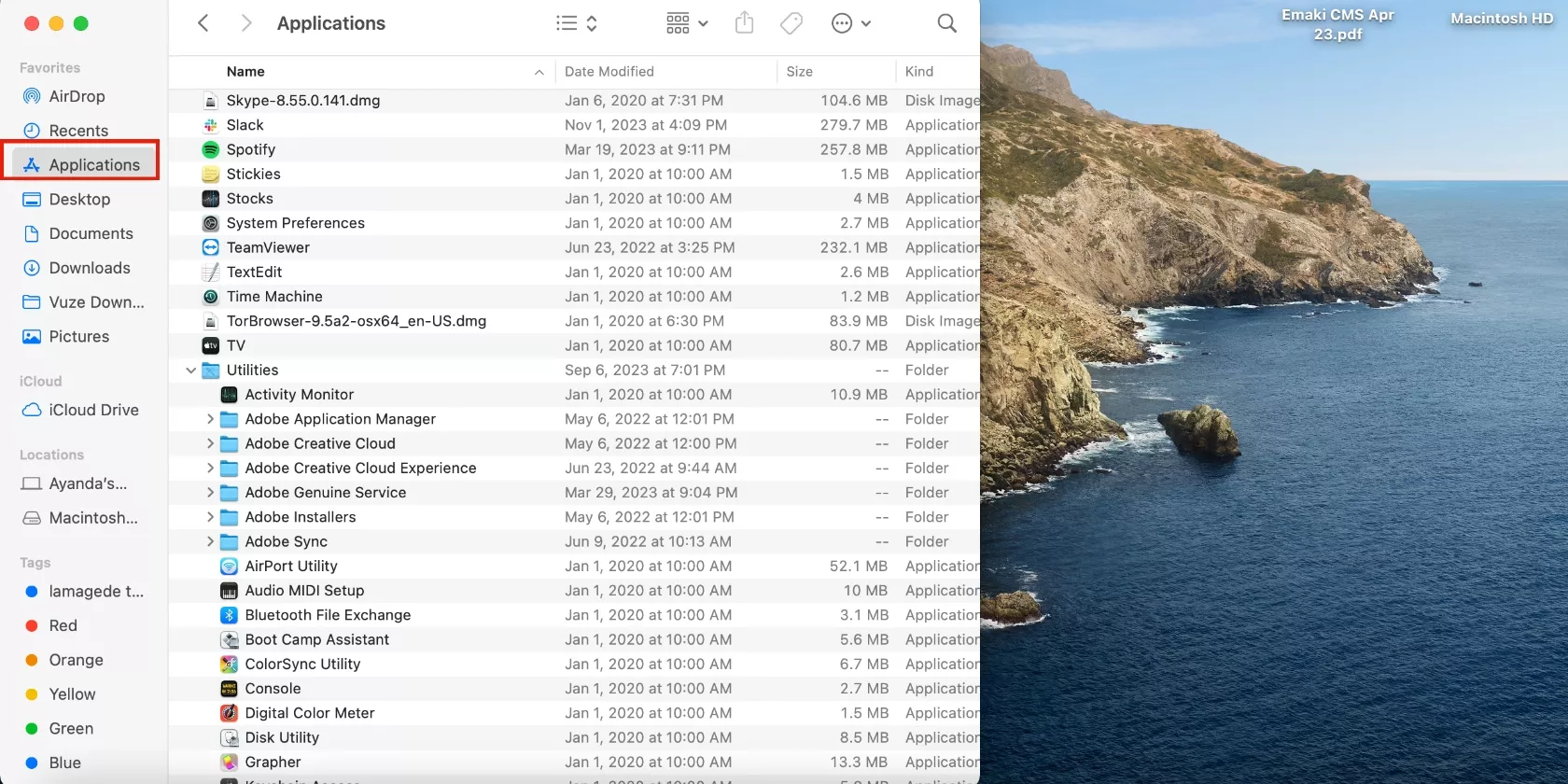
Launch Finder and open the Applications folder.
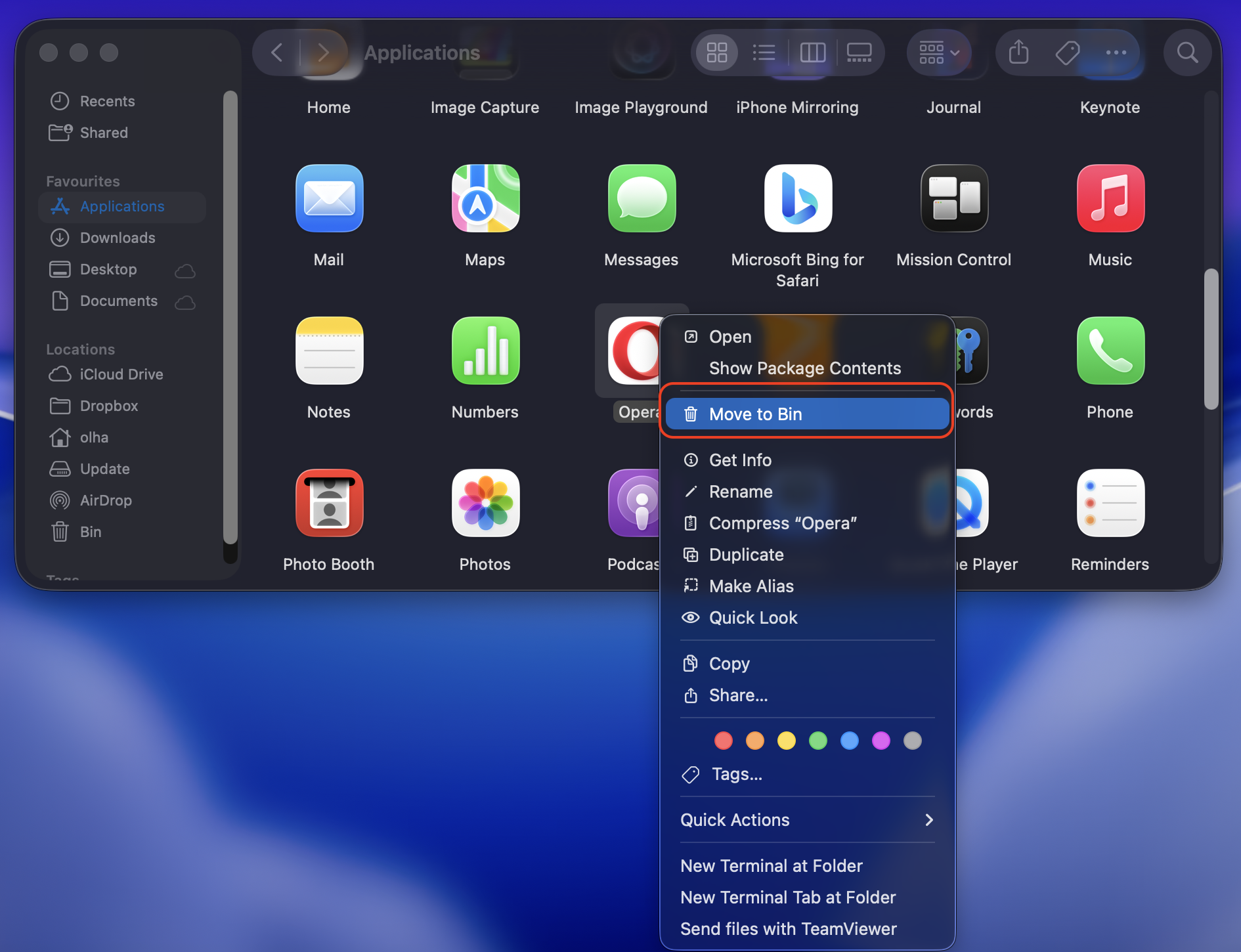
Find the DuckDuckGo app and drag it to the Trash can (you’ll find it on the right side of the Dock) or click on the app name and select the Move to Trash option.
Step 1. Click on Finder > ApplicationsStep 2. Delete the DuckDuckGo app
2. Delete DuckDuckGo with MacKeeper
When we don’t want to handle the heavy lifting, we turn to MacKeeper to remove DuckDuckGo from our Mac. Its Smart Uninstaller tool not only automatically finds unwanted apps, but it also helps you get rid of them with the click of a button.
Follow this approach to uninstall DuckDuckGo using MacKeeper’s Smart Uninstaller:
If you haven’t already, download and install MacKeeper on your Mac.
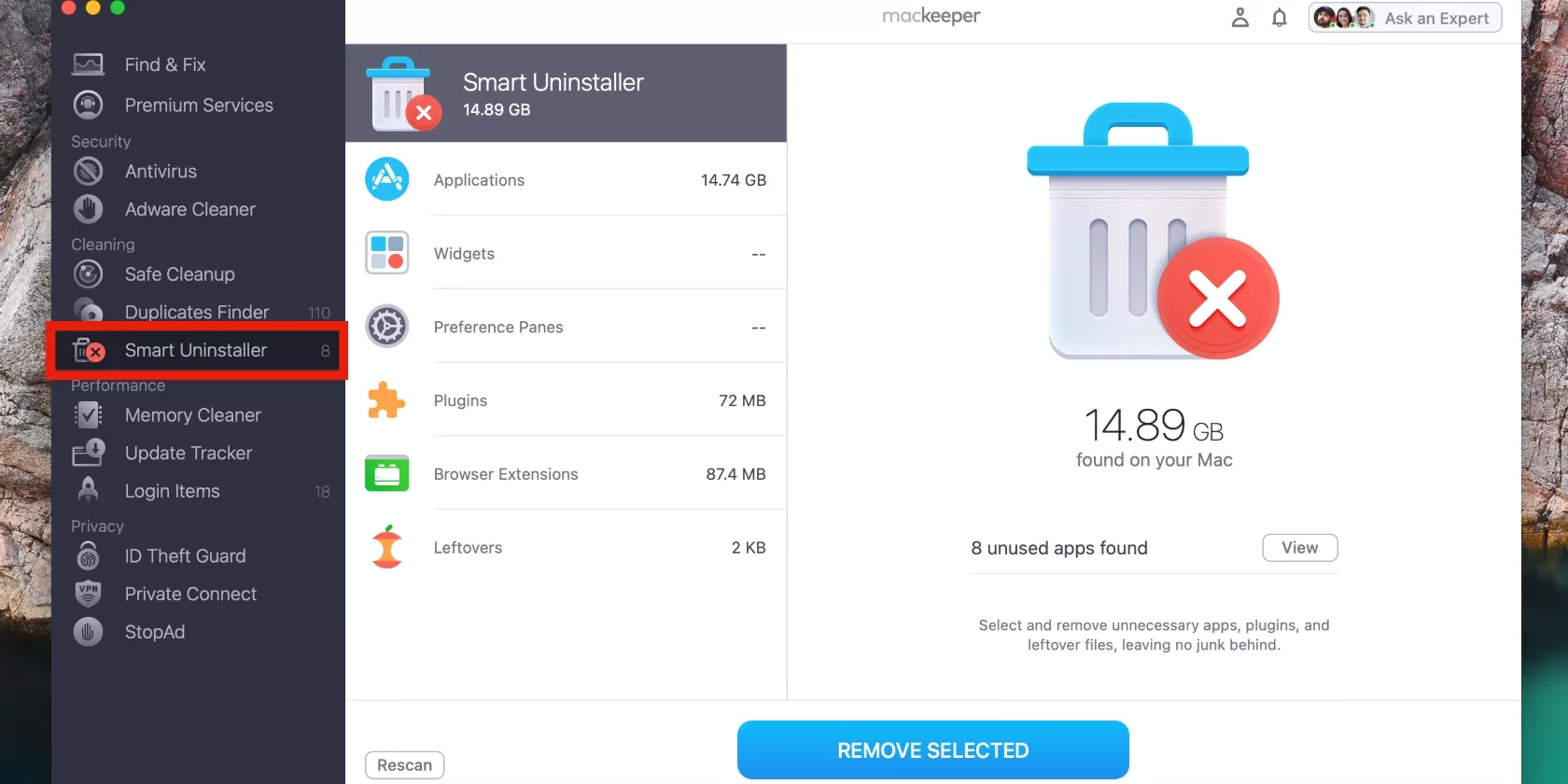
Open the Smart Uninstaller tool.
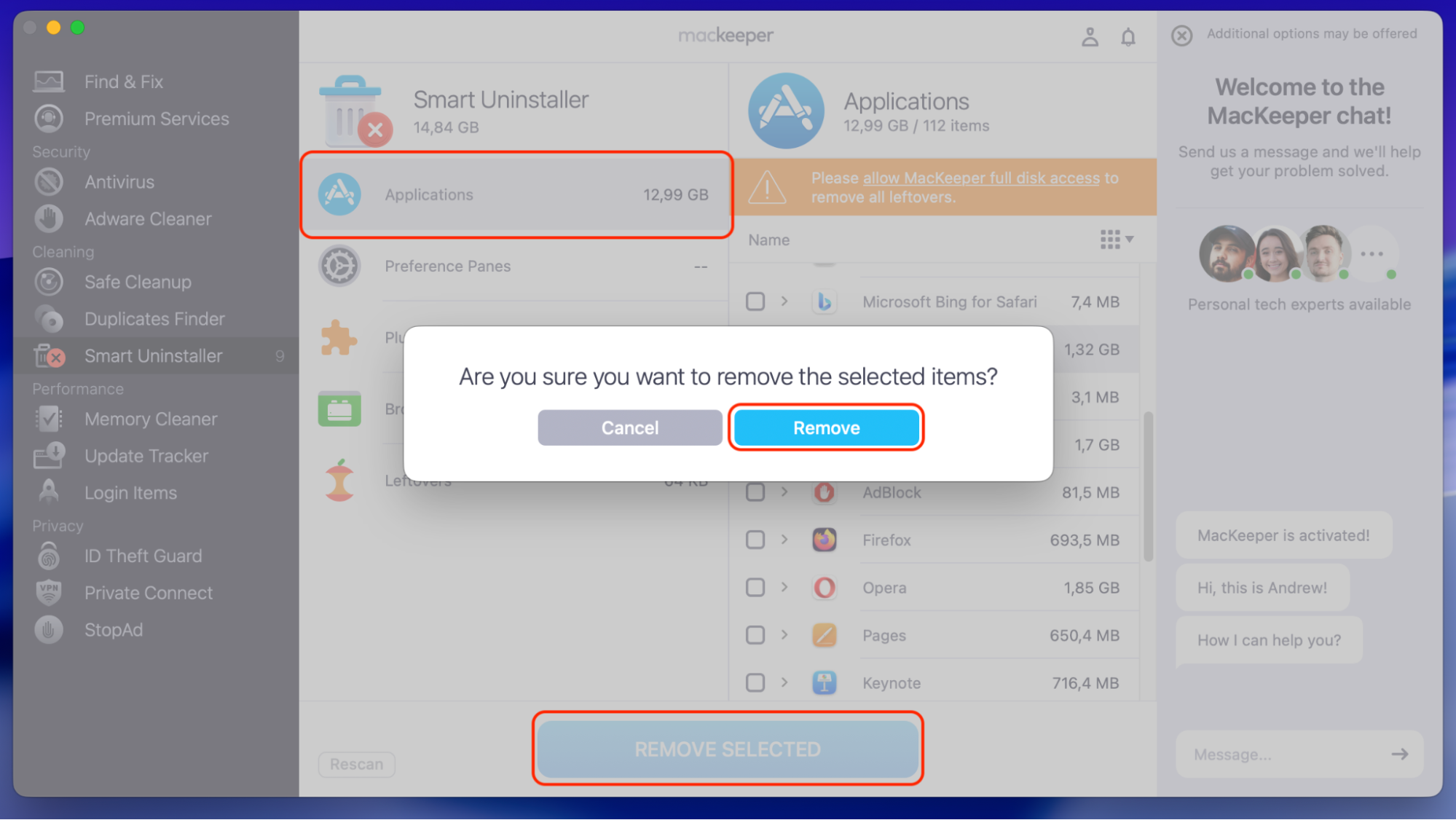
Now, select Applications > DuckDuckGo > Remove Selected > Remove and wait for confirmation that the app has been removed.
Step 1. Open the Smart Uninstaller toolStep 2. Select Applications > DuckDuckGo > Remove Selected > Remove
3. Remove the browser extension
If we were using the DuckDuckGo browser extension, we would remove it from the relevant web browser, be it Safari, Chrome, or Firefox.
1. Safari
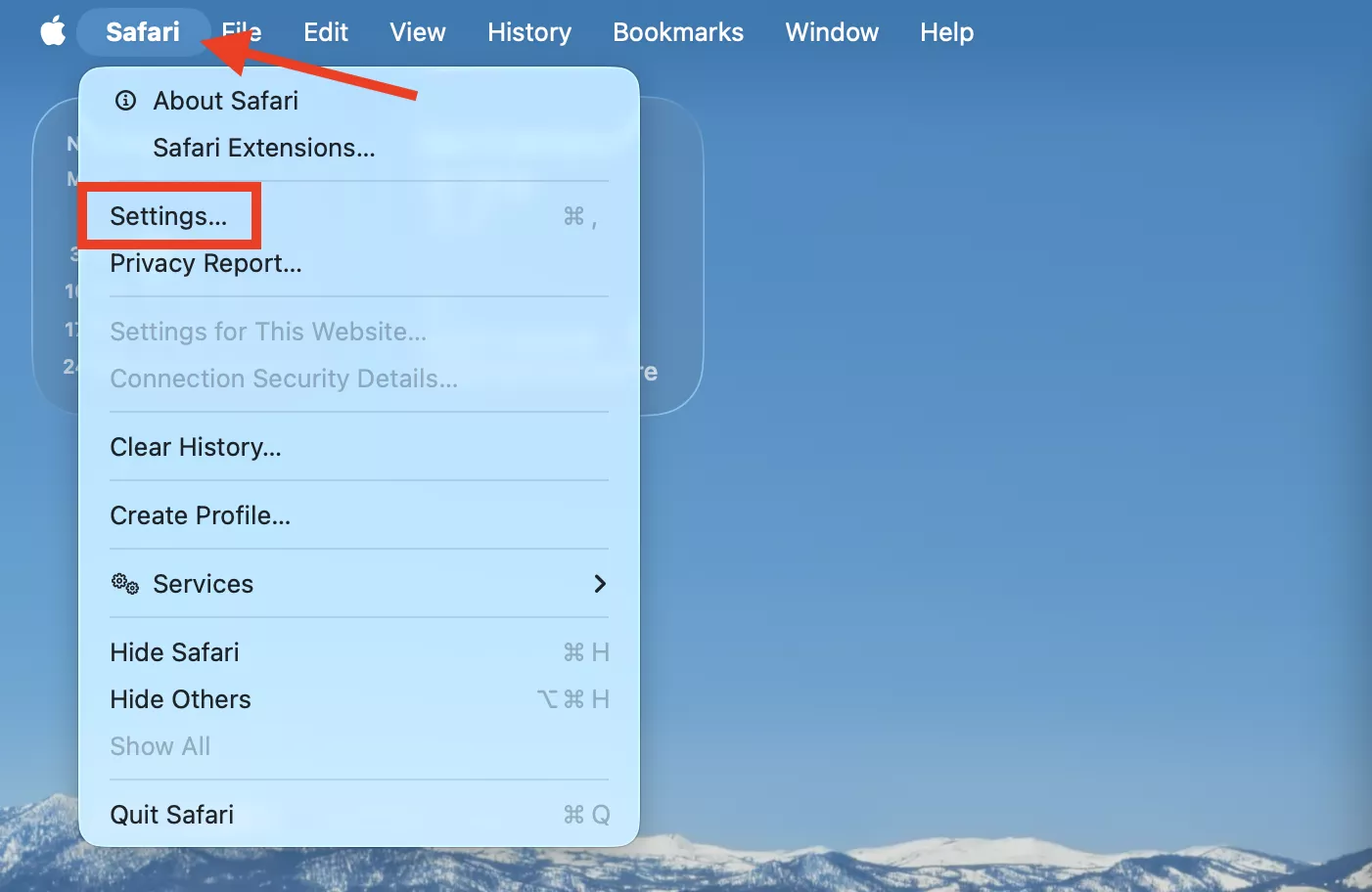
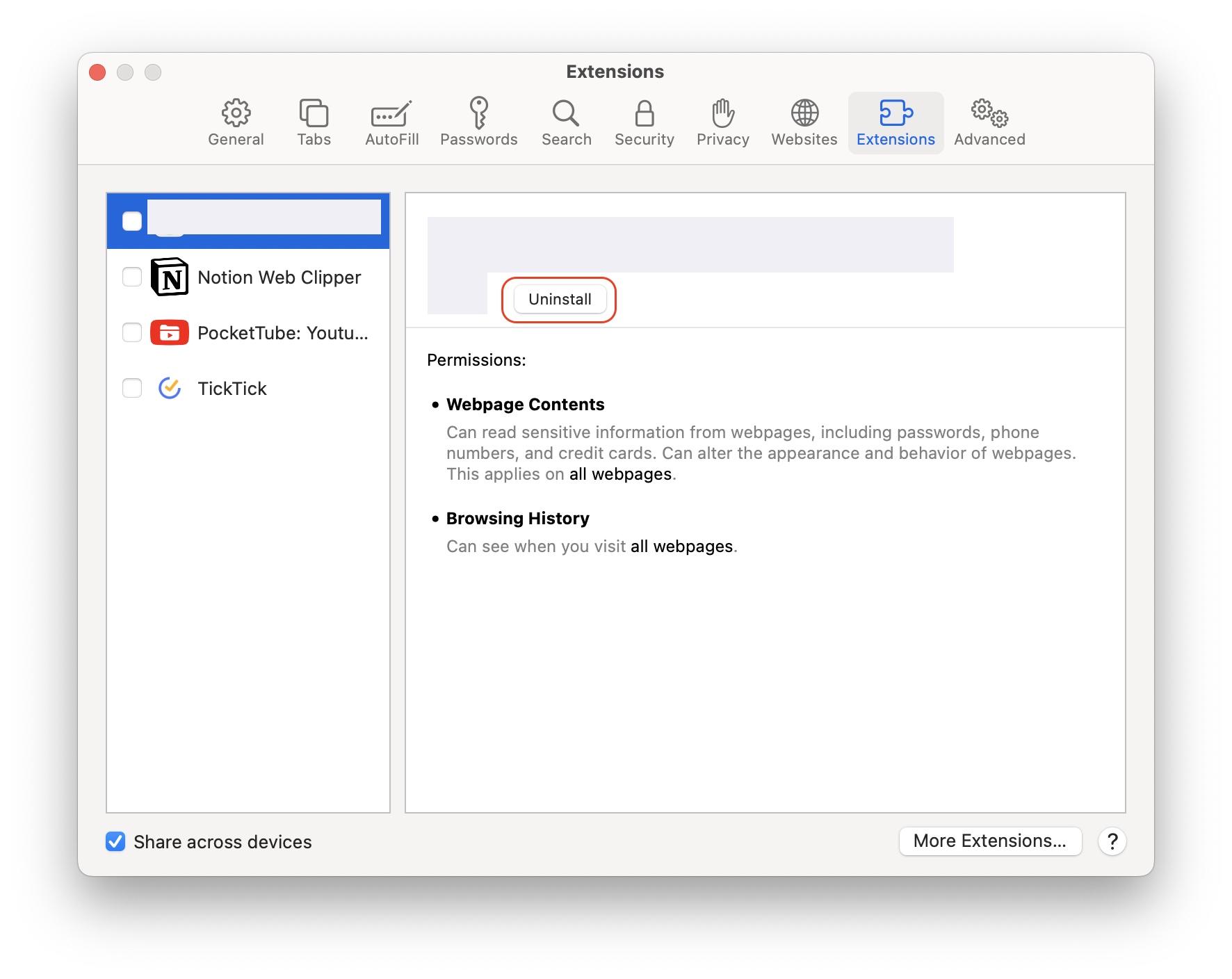
Here’s how to get rid of the DuckDuckGo extension in Safari on a Mac:
In the Safari app, click Safari > Settings.
Click the Extensions tab and select DuckDuckGo > Uninstall (you may be prompted to select Show in Finder).
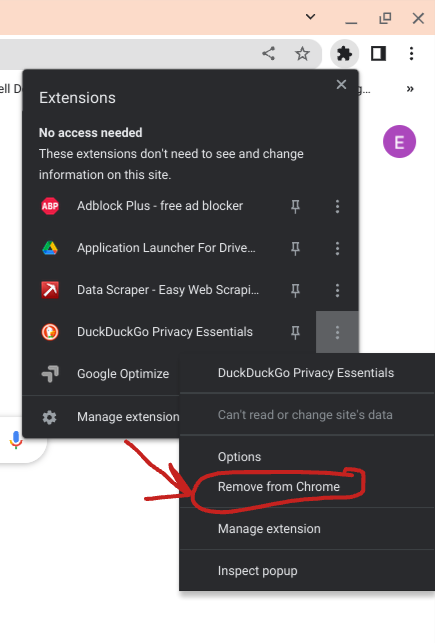
To remove the DuckDuckGo extension in Chrome, do this:
In the Chrome browser, click the extensions icon next to the search bar.
Select the three-dot menu on the right and click Remove from Chrome > Remove.
Step 1. Click the extensions icon next to the search barStep 2. Select the three-dot menu > Remove from Chrome > Remove
3. Firefox
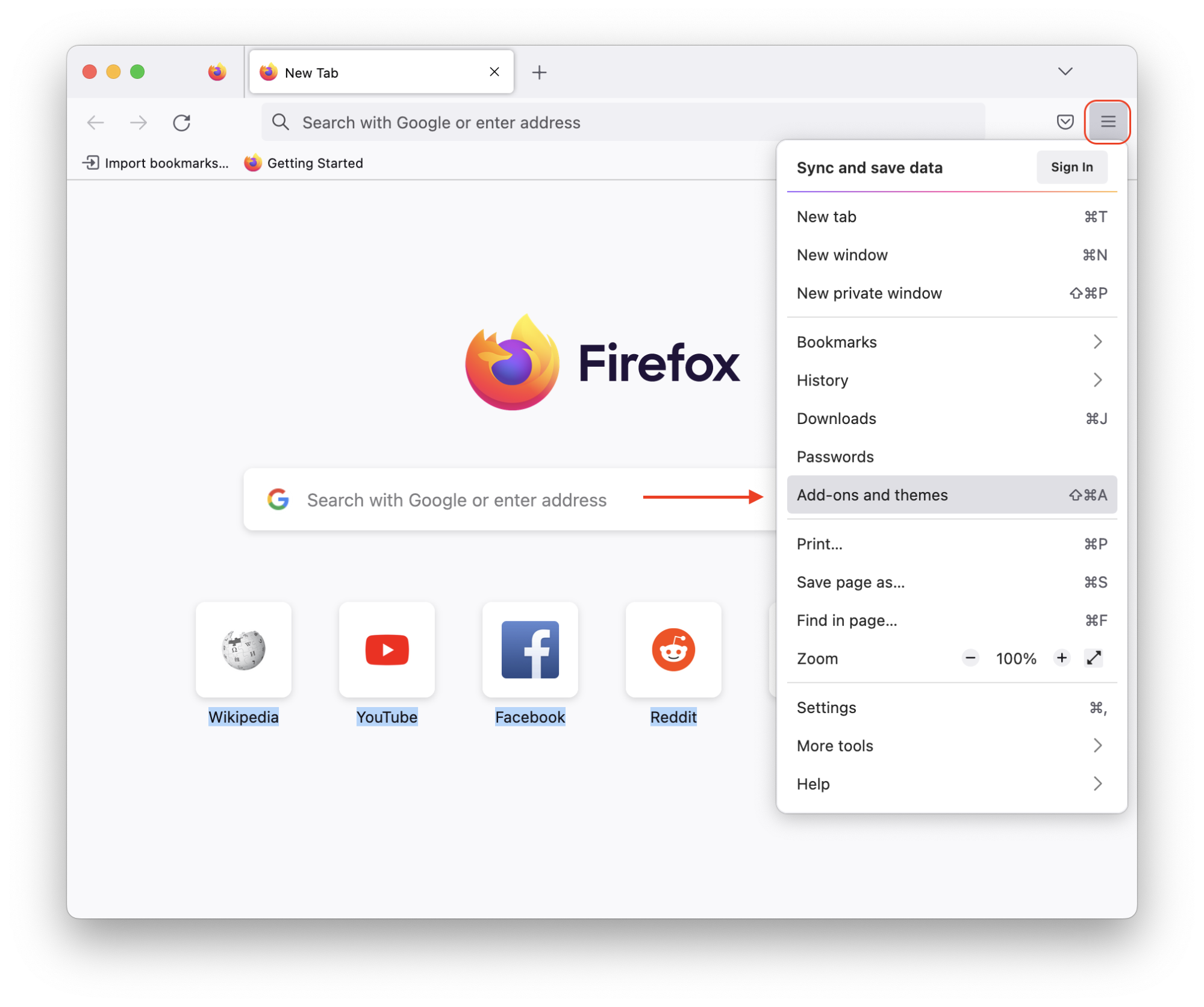
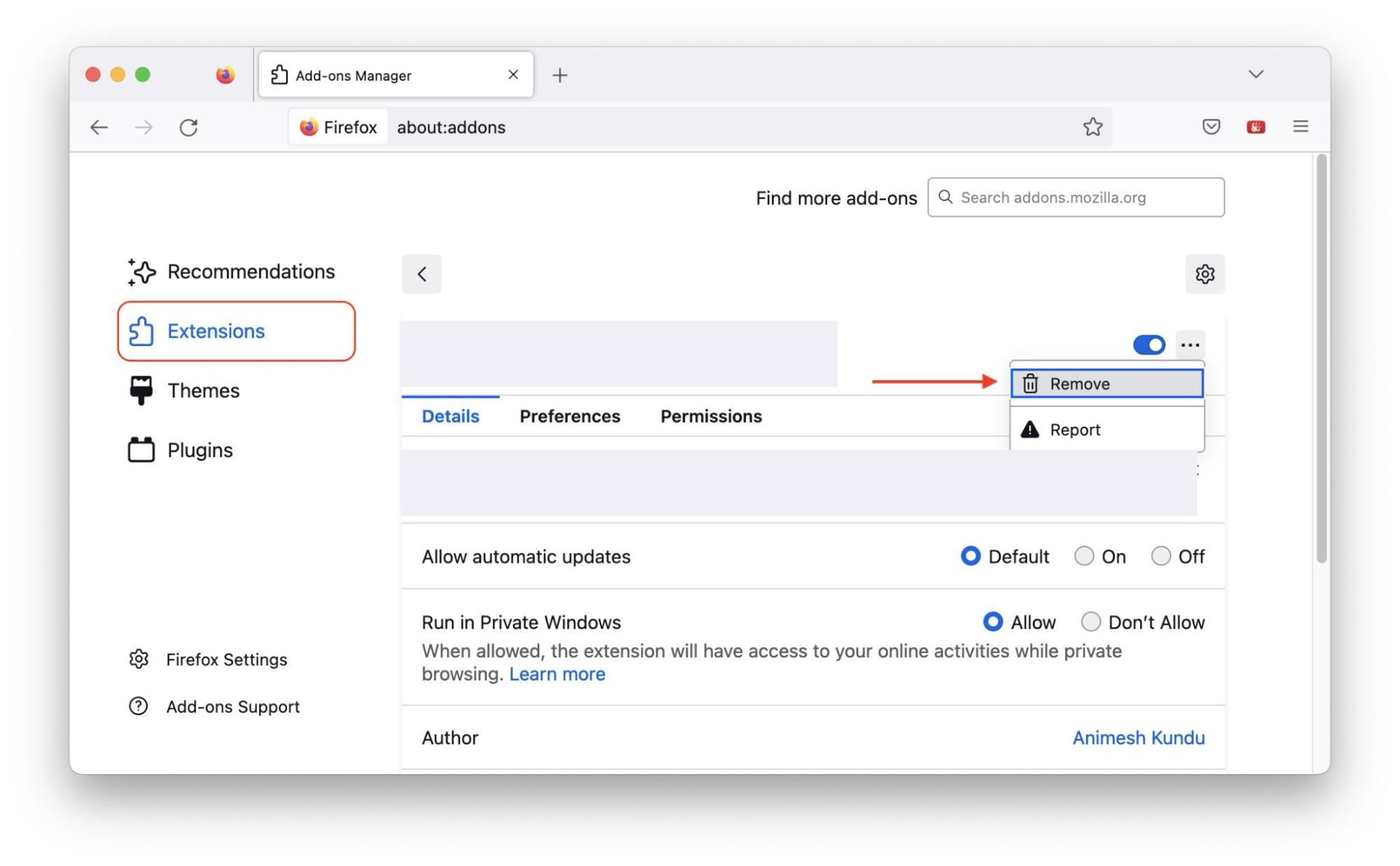
Follow these steps to uninstall the DuckDuckGo extension in Firefox:
Click on the hamburger menu in the upper-right corner and select Add-ons and themes.
Now, click on Extensions and remove DuckDuckGo.
Step 1. Click the hamburger menu > Add-ons and themesStep 2. Click on Extensions and remove DuckDuckGo
Remove DuckDuckGo safely from your Mac
Whatever your reasons for getting rid of DuckDuckGo, you can delete it safely using the expert tips in this guide. Here’s a recap of your options: remove the DuckDuckGo app manually by deleting it from the Applications folder in Finder. Simply drag it to the Trash in the Dock or right-click on the app and select the Move to Trash option.
Not a fan of DIY? No problem. Automate the DuckDuckGo app removal process with MacKeeper’s Smart Uninstaller. All you have to do is download the app, select Smart Uninstaller, let MacKeeper detect the app, and delete it immediately. It’s the safe and efficient way to remove Mac apps.
Not forgetting MacKeeper’s Premium Services. Use this solution to get expert assistance from one of more than 150 of MacKeeper’s professionals, who will troubleshoot any problems related to DuckDuckGo or within Mac’s system while you wait.
We respect your privacy and
use cookies
for the best site experience.
Privacy Preferences Center
We use cookies along with other tools to give you the best possible experience while using the
MacKeeper website. Cookies are small text files that help the website load faster. The cookies we
use don’t contain any type of personal data meaning they never store information such as your
location, email address, or IP address.
Help us improve how you interact with our website by accepting the use of cookies. You can change
your privacy settings whenever you like.
Manage consent
All cookies
These cookies are strictly necessary for enabling basic website functionality (including page
navigation, form submission, language detection, post commenting), downloading and purchasing
software. The website might malfunction without these cookies.