Want to share iCloud storage with family, but your Mac’s low on space? MacKeeper’s Safe Cleanup clears out junk files, caches, and logs in one click—without touching your personal files—so you get room back fast. Try it out today to feel the smoother Mac performance.
Yes, you can share iCloud storage with family through Apple’s Family Sharing feature, as long as you’re on an eligible iCloud+ plan. Up to six people can draw from one storage pool, so nobody has to buy a separate plan. Because you combine everyone into one plan, the monthly cost stays the same no matter how many people join, which lowers the price for each person.
The setup is usually straightforward, but if the sharing option doesn’t appear or a family member can’t access the plan, don’t worry. If you’re trying to set things up and find yourself unable to share, the common reasons behind iCloud family sharing not working are usually quick to sort out.
A note from our experts:
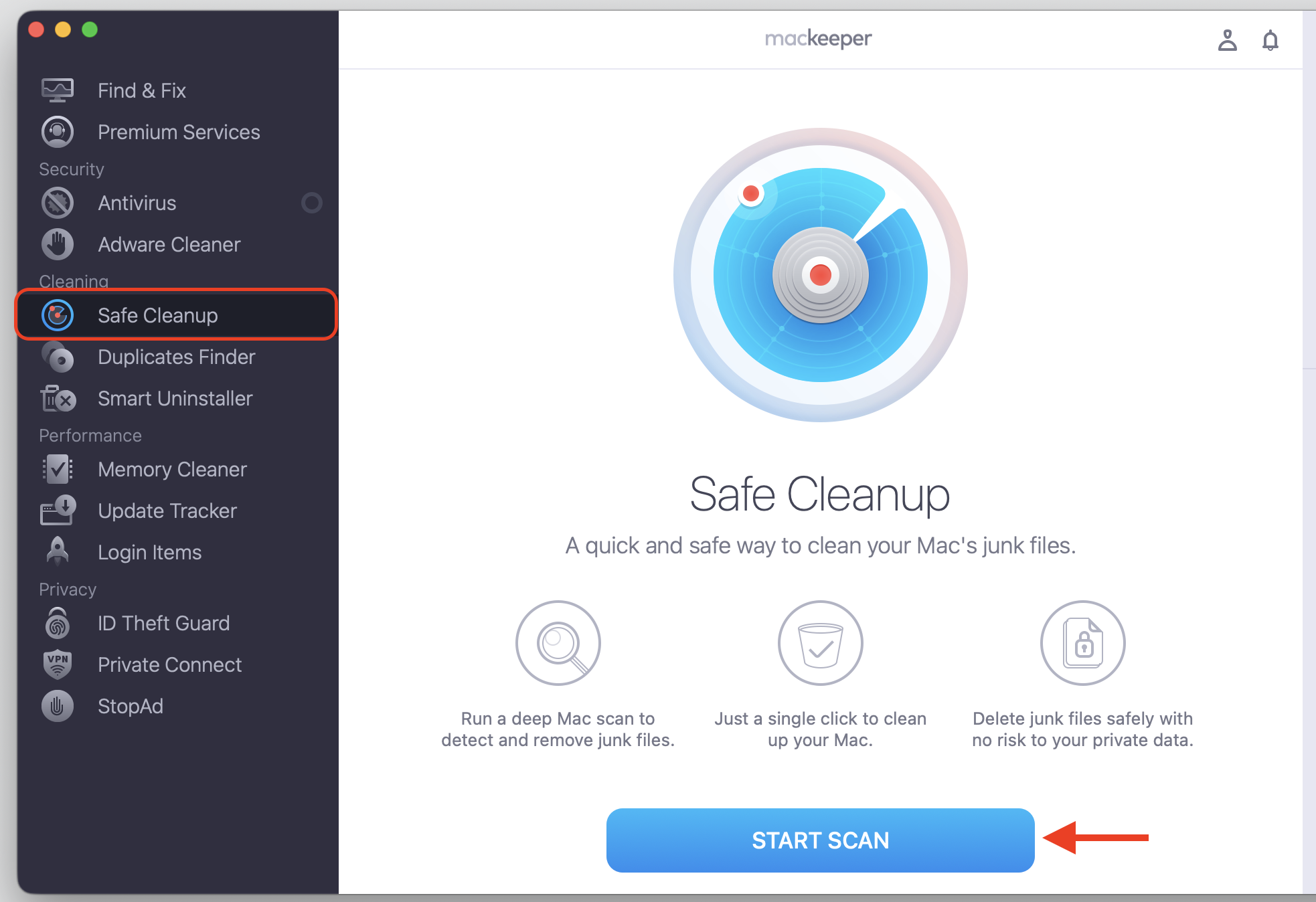
Before sharing files with your family members, it’s wise to remove all unnecessary clutter from your computer. The best friend on your side in this case is the third-party cleaning tool. We suggest MacKeeper’s Safe Cleanup to remove all junk files and hidden clutter safely and quickly.
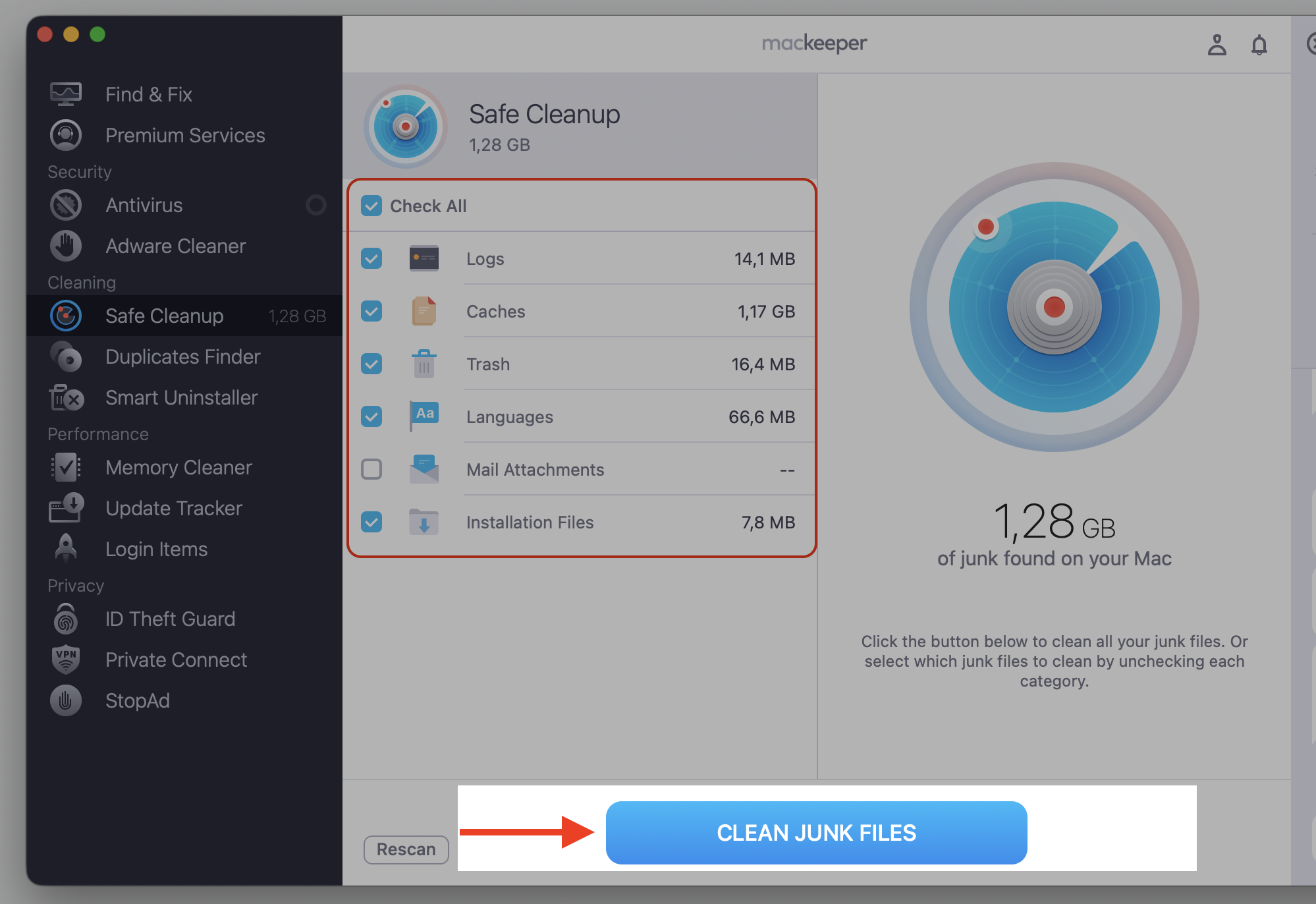
Select the relevant boxes, then choose Clean Junk Files.
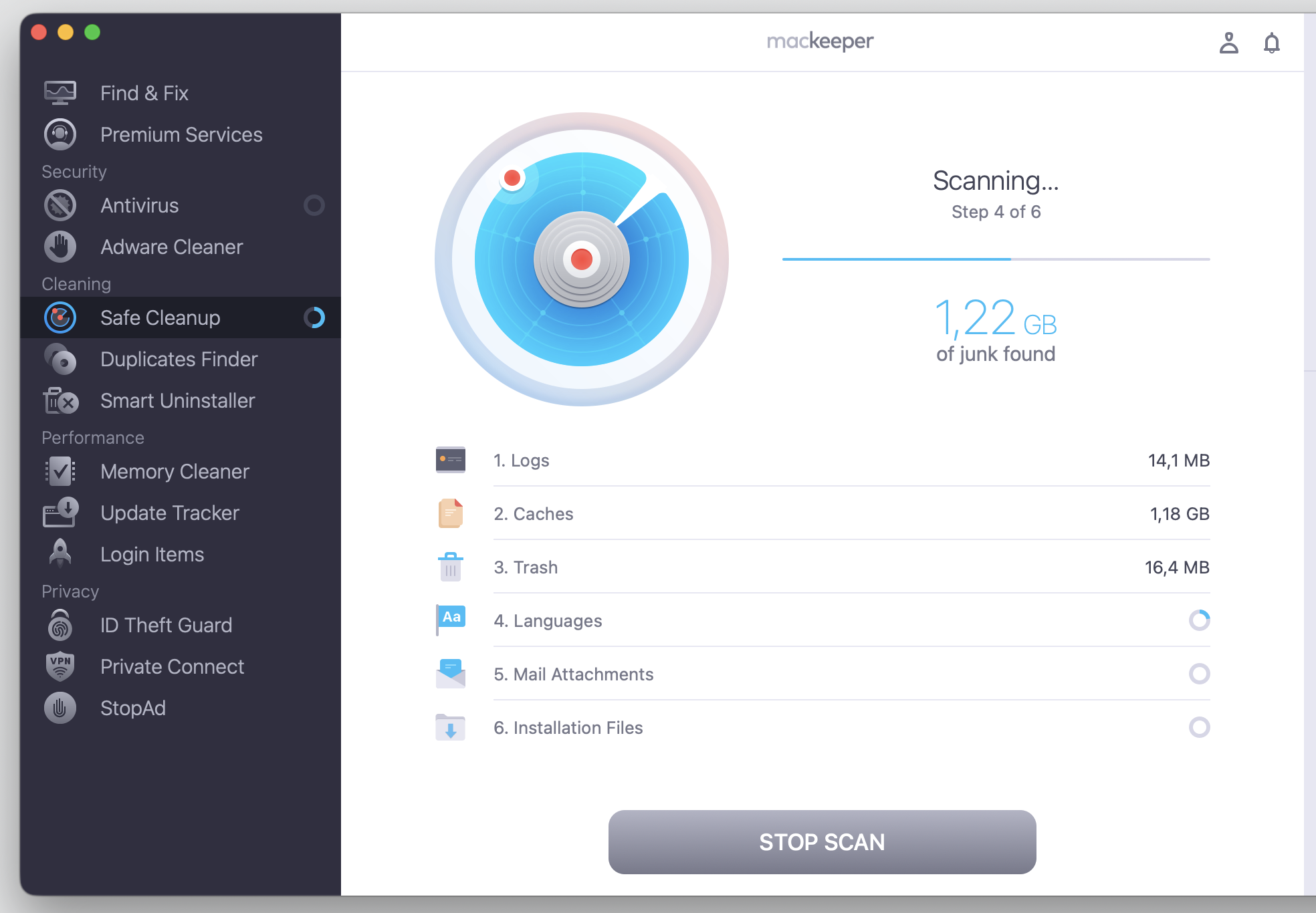
Step 1. Go to MacKeeper > Safe Cleanup and click Start ScanStep 2. Wait until the scan is finishedStep 3. Check all the desired boxes and proceed with Clean Junk Files
How does iCloud Family Sharing work?
iCloud Family Sharing lets up to six people share Apple services—including storage, iCloud Drive, and more—without signing in to one shared Apple Account. Each person keeps their own account, their own login, and their own private data.
One adult acts as the family organizer. They set up the group, send invites, and manage the shared iCloud+ plan so multiple people can use it at once. If you notice some iCloud data isn’t syncing after joining, we’ve found it’s usually a simple settings fix rather than anything serious.
Can family members see your iCloud files?
This is the question we hear most, and the answer brings peace of mind. Sharing a storage plan doesn’t give anyone access to your private files.
Your photos, backups, iCloud Drive files, notes, and documents stay yours alone. The only time someone else sees your content is when you selectively share a specific file, folder, album, or note with them.
How to share iCloud storage with family on iPhone or iPad?
For most people, the iPhone or iPad is the easiest place to start. The steps are short, and you can access iCloud storage the same way once everything’s connected. Let’s walk through it together, step by step, below.
1. Open Family settings
Let’s begin on the device you use most:
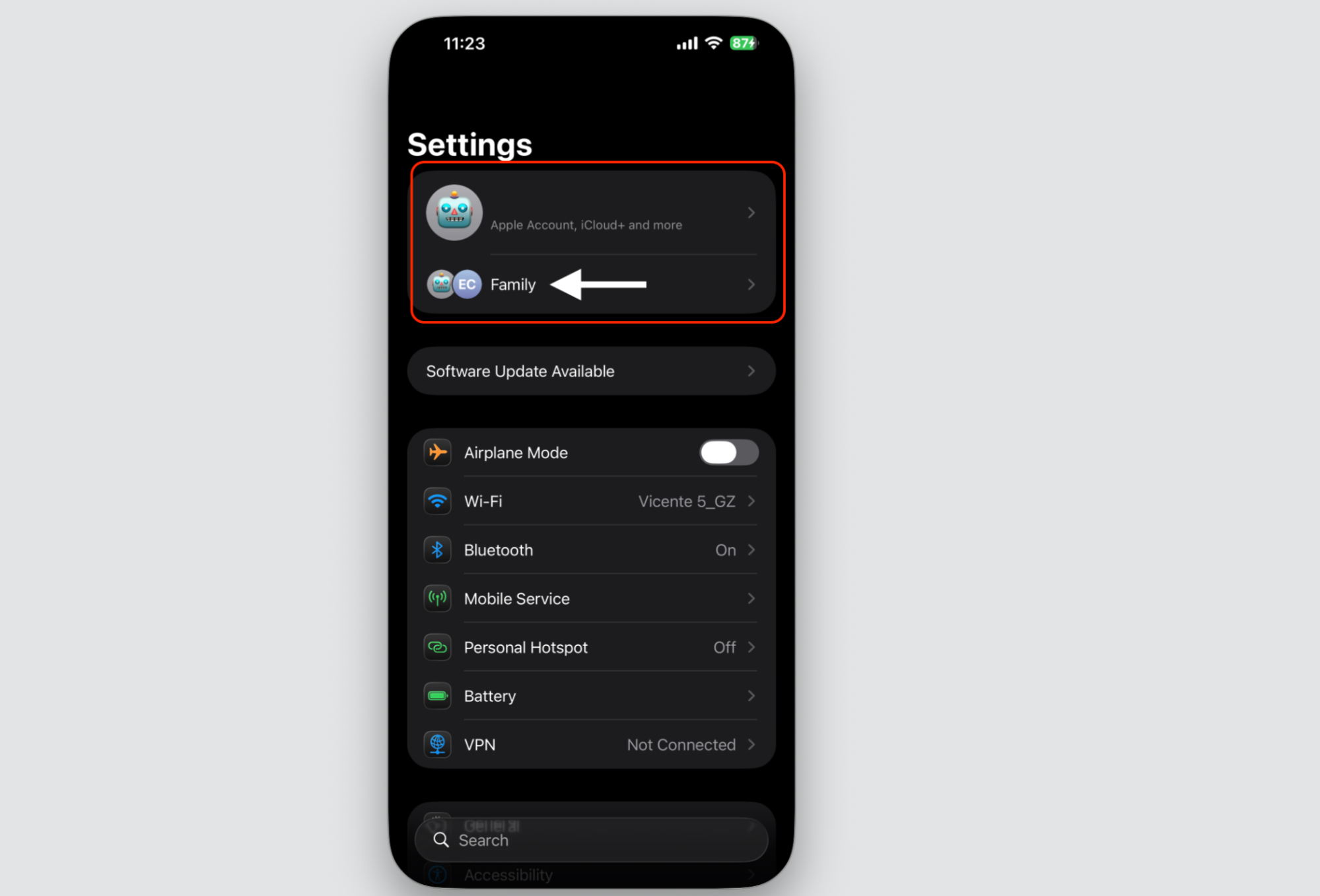
Open Settings on your iPhone or iPad.
Go to Apple Account at the top of the screen and select Family.
2. Invite family members
Now it’s time to bring everyone in:
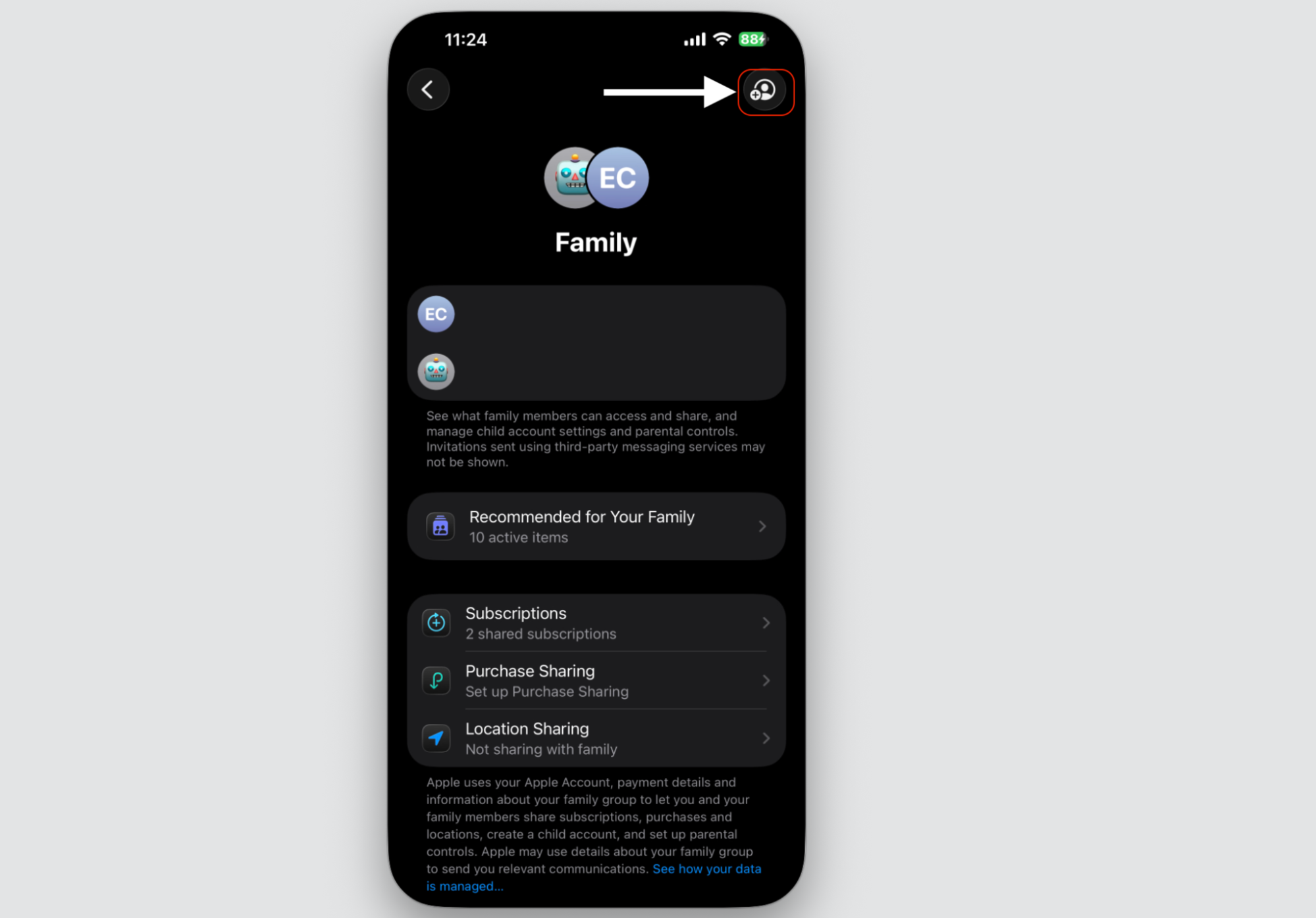
Tap Add Member.
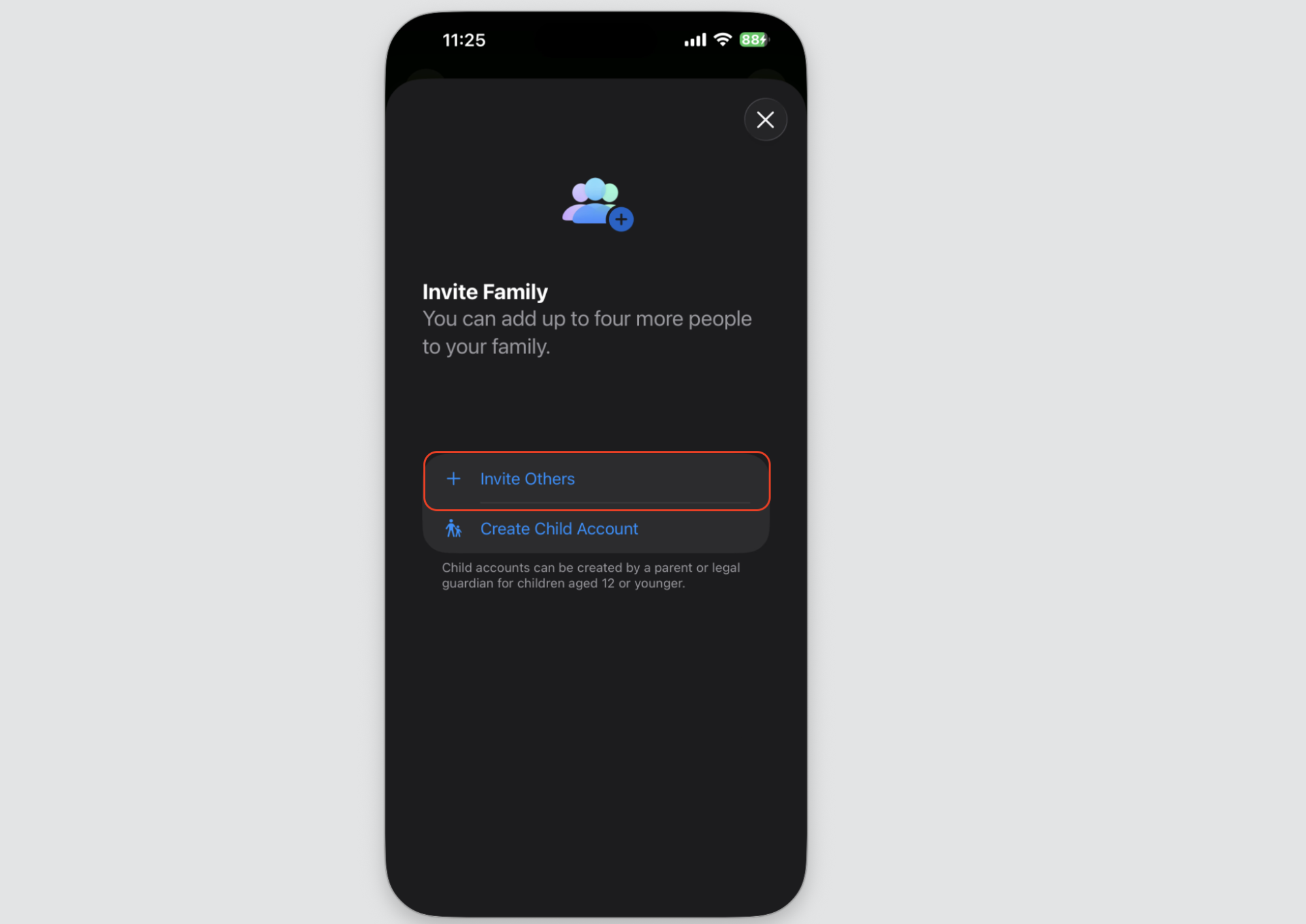
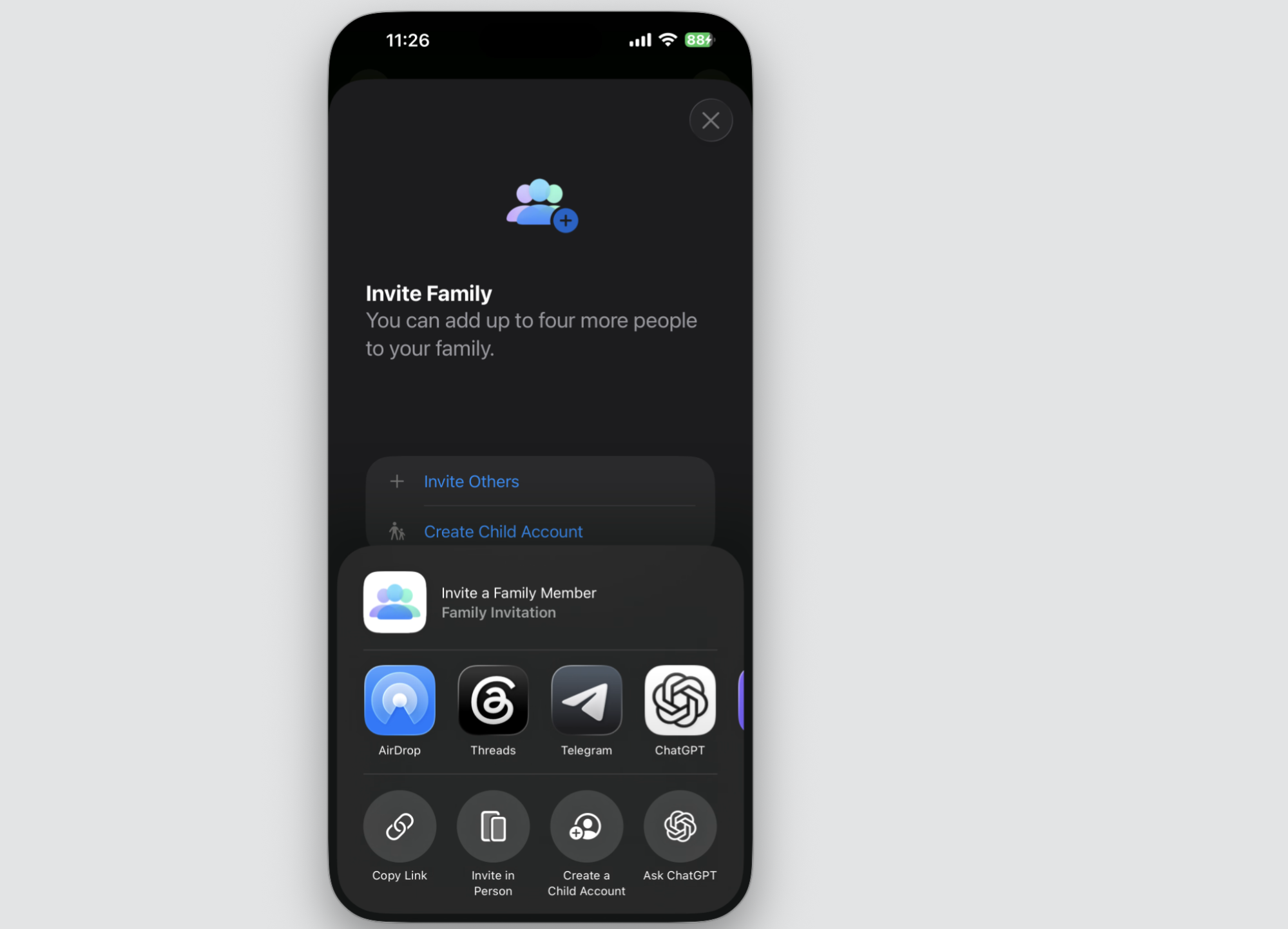
Choose Invite Others and select the invite option from the list.
3. Share iCloud+ storage
This is the part that shares your plan:
On the Family screen, select iCloud+ or Subscriptions.
Tap Share with Family.
Turn on sharing for your current storage plan.
4. Ask family members to accept or switch to family storage
The final step happens on their devices, so ask each person to:
Open the invitation you sent.
Tap Accept.
Select the shared family storage plan in their iCloud settings.
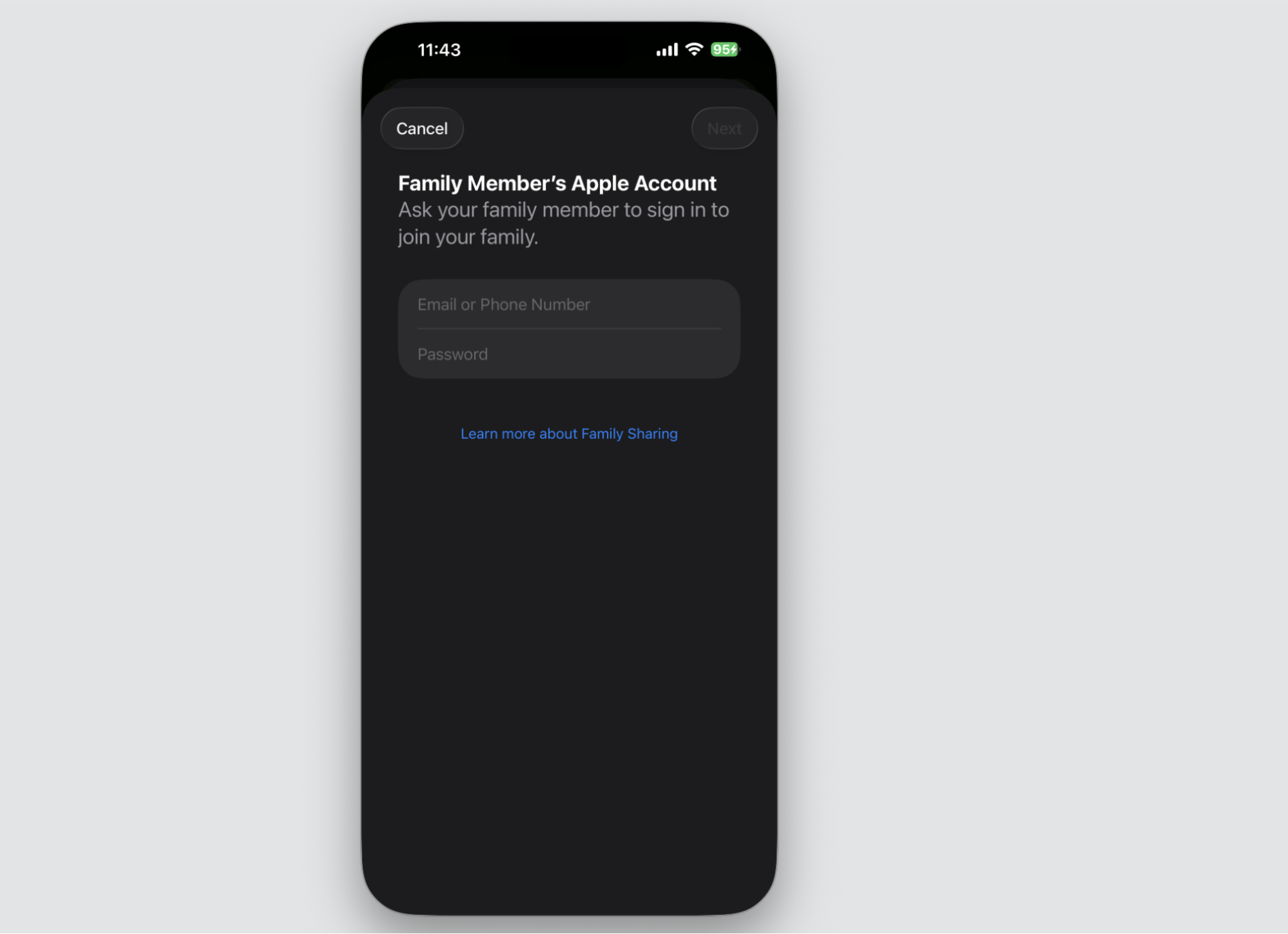
Step 1. Go to SettingsStep 2. Go to Apple Account at the top of the screen and select FamilyStep 3. Select Add Option at the top right cornerStep 4. Choose Invite OthersStep 5. Choose the option you’d like to useStep 6. Example of using the Invite in Person option
How to share iCloud storage with family on Mac?
Prefer working on your Mac or MacBook? The process runs through System Settings and takes just a few clicks. Here’s how we’d do it on macOS:
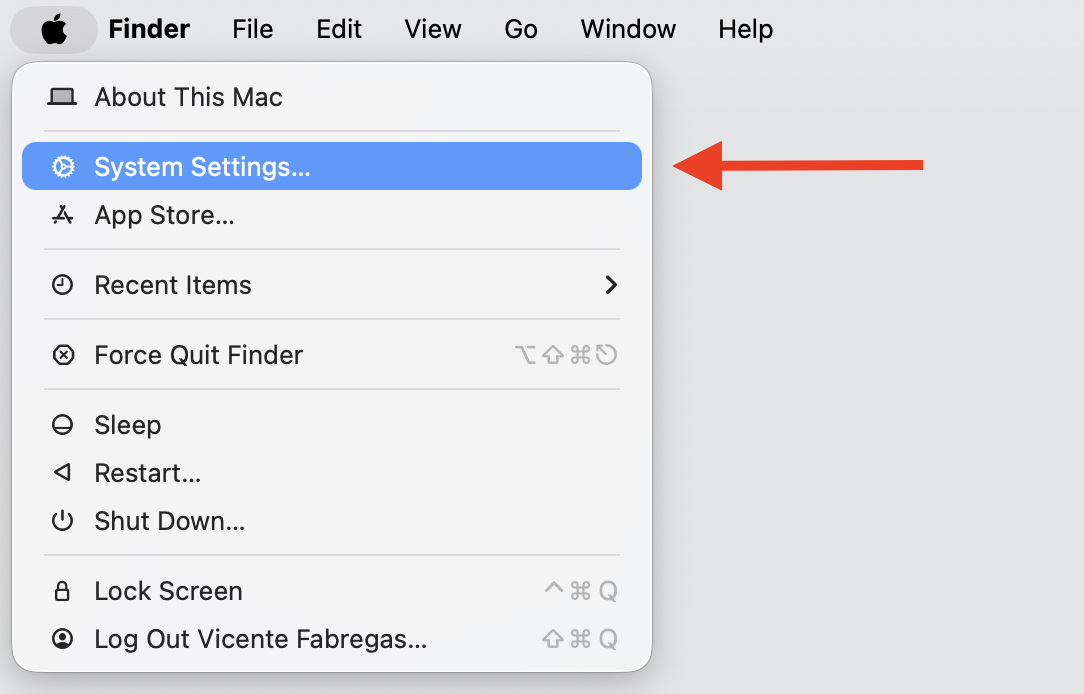
Open the Apple menu and select System Settings.
Click your name to open Apple Account.
Select Family or Family Sharing in the sidebar.
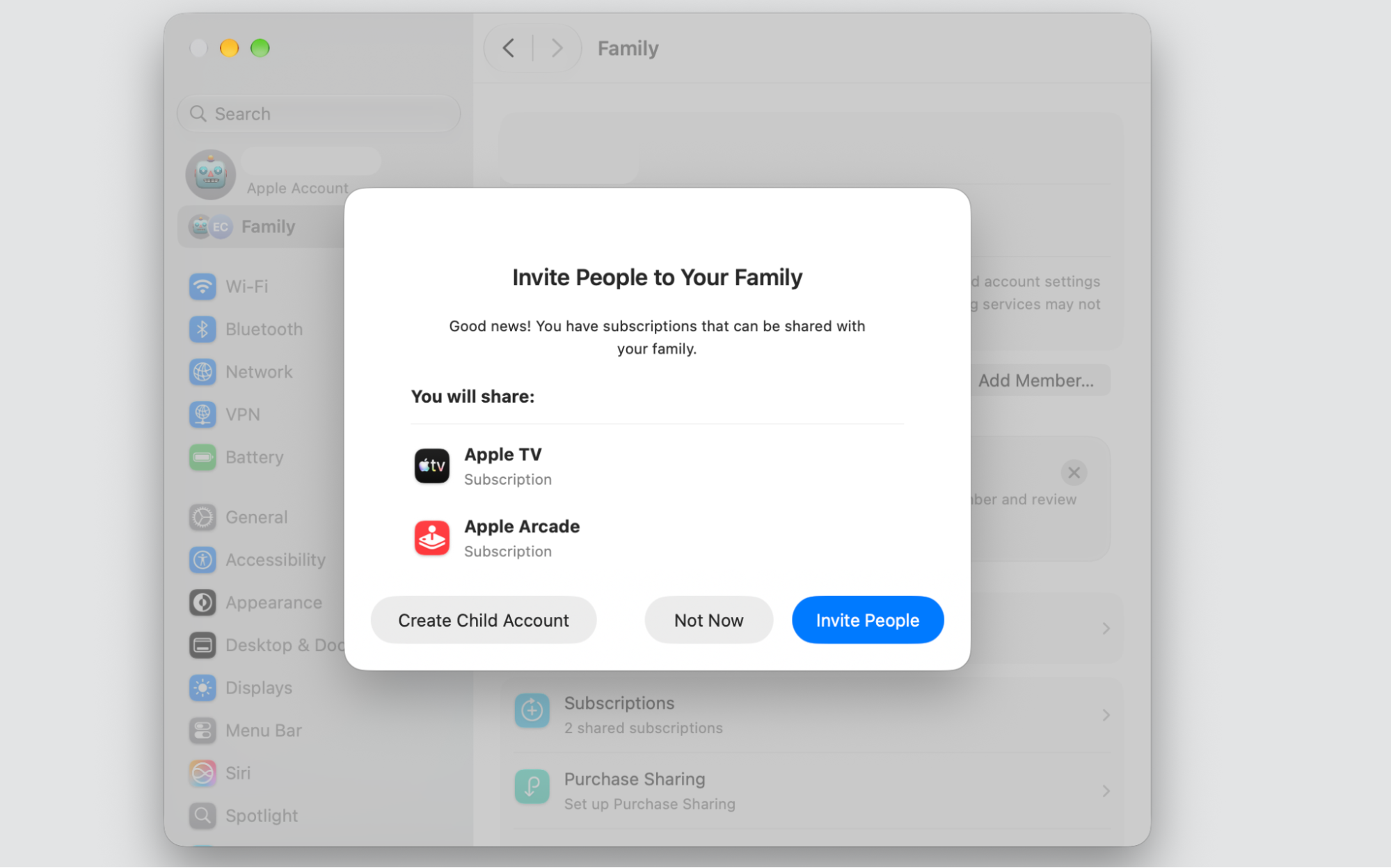
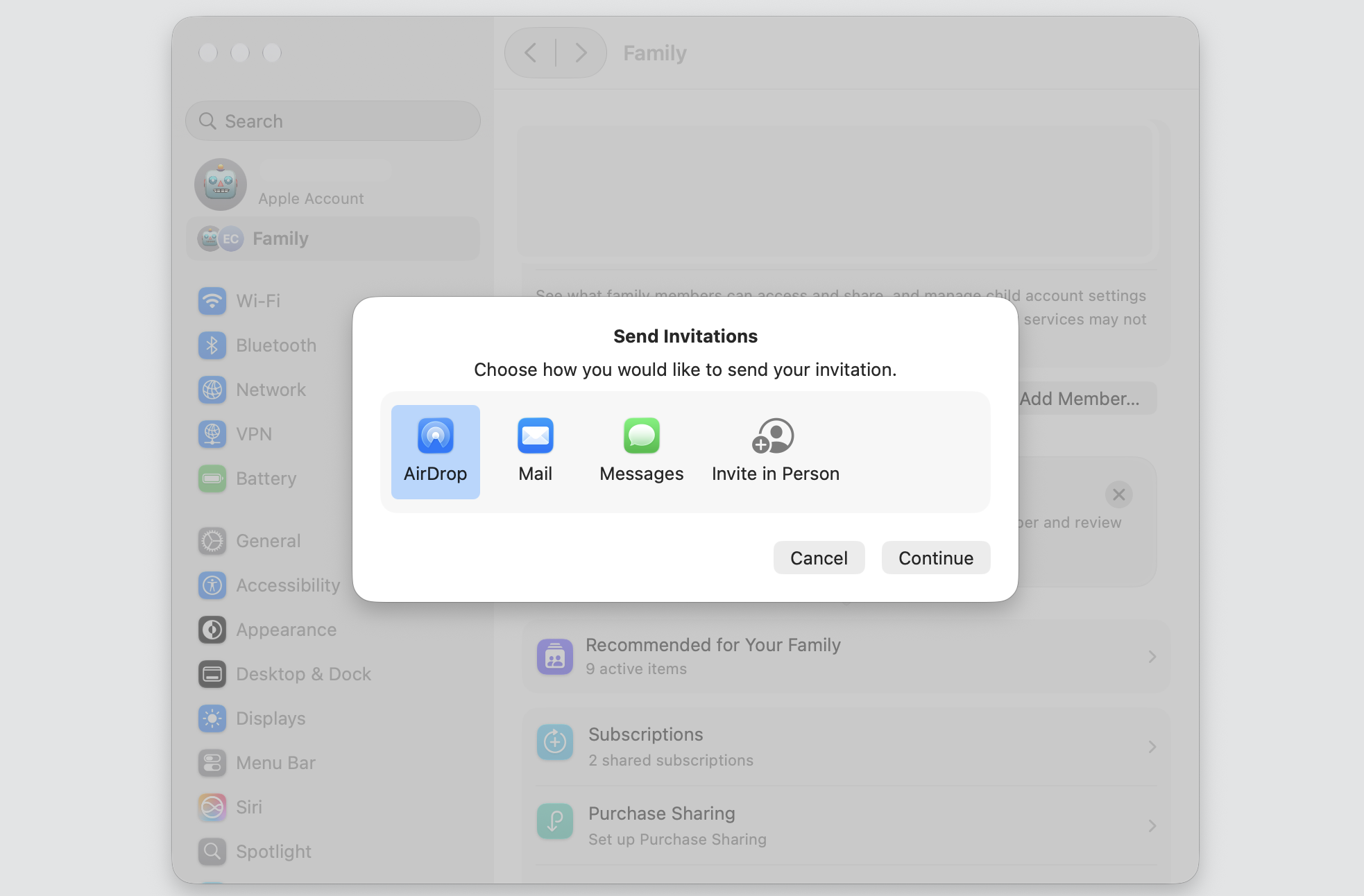
Click Add Member, then invite people through Messages, Mail, or in person.
Select iCloud+ and turn on Share with Family for your plan.
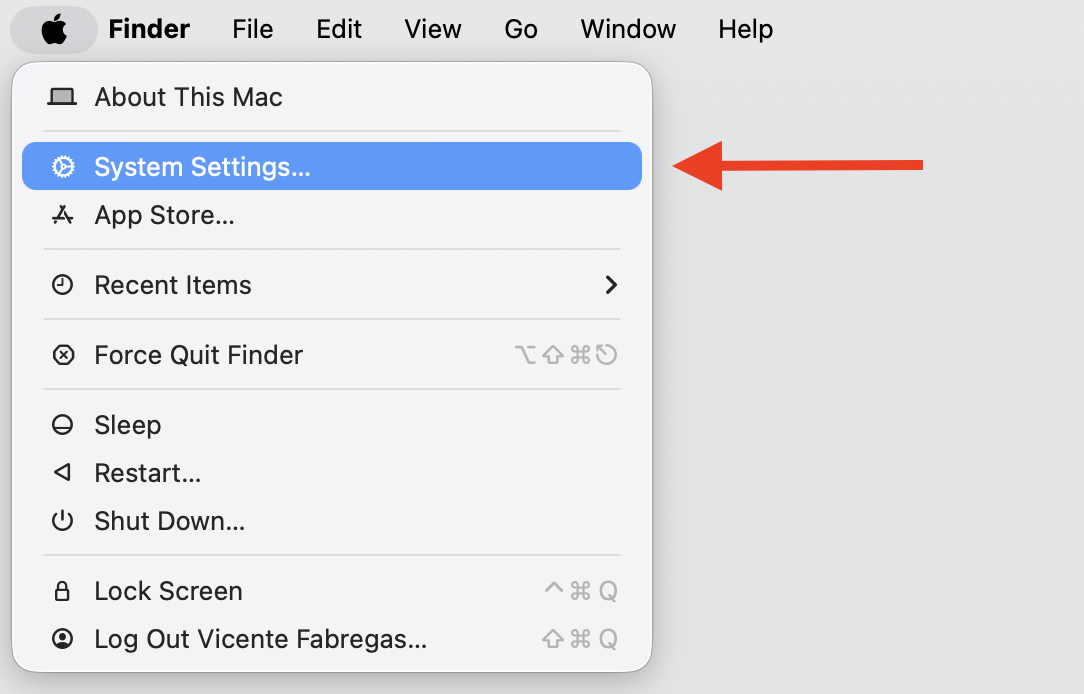
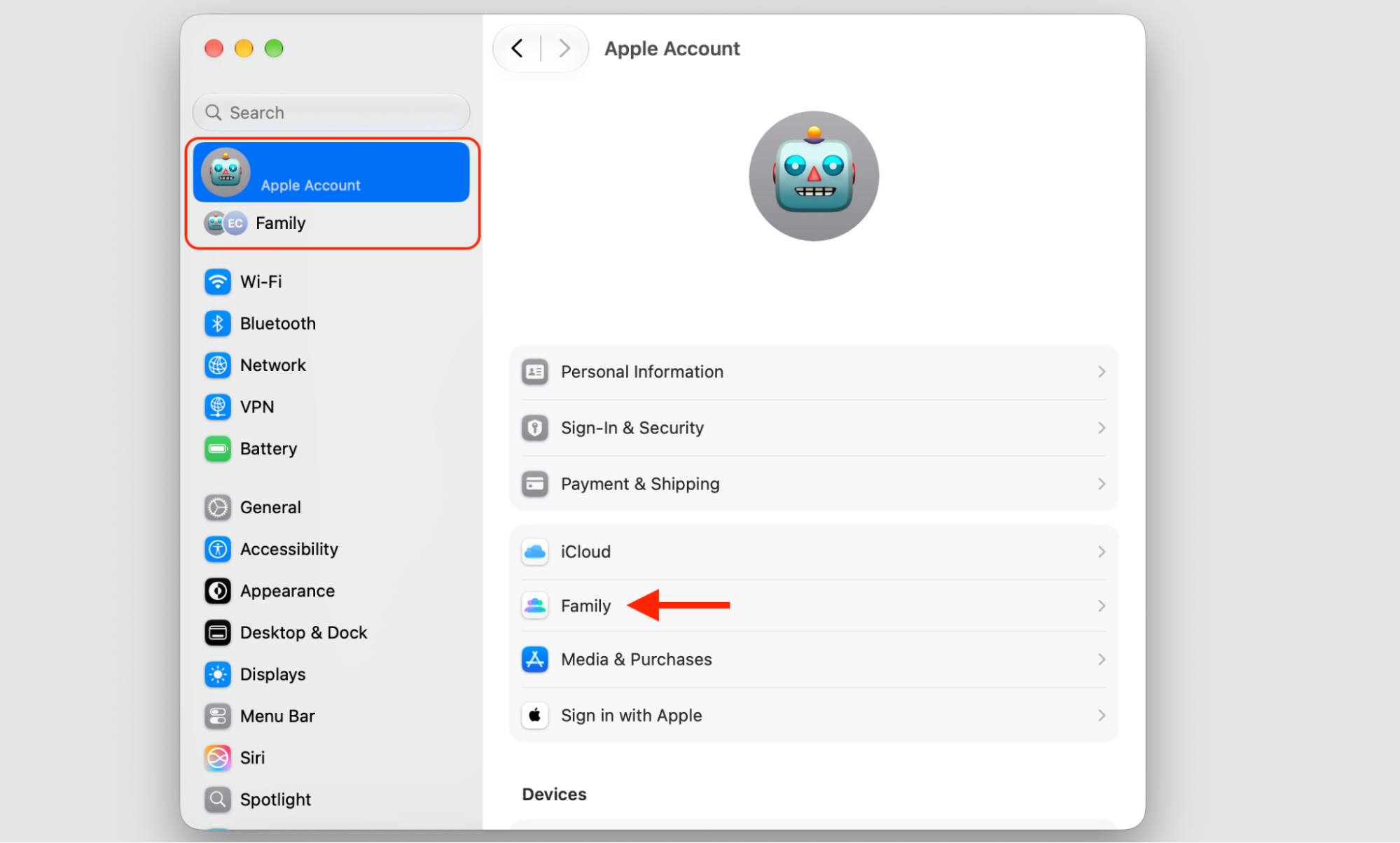
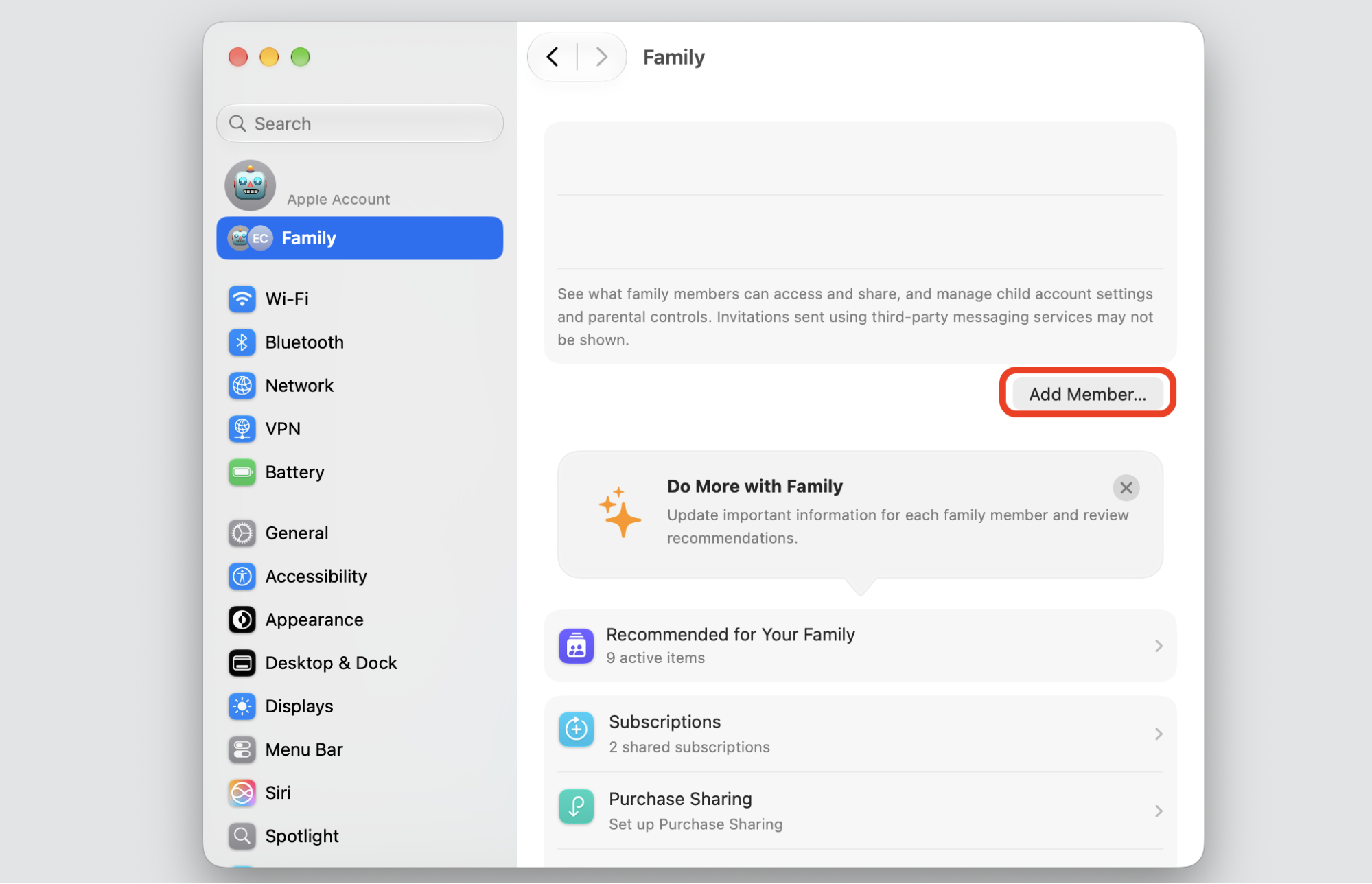
Step 1. Go to Apple logo > System SettingsStep 2. Select your Apple Account > FamilyStep 3. Select Add MemberStep 4. Choose Invite PeopleStep 5. Invite people through Messages, Mail, or in person
How to check family iCloud storage usage?
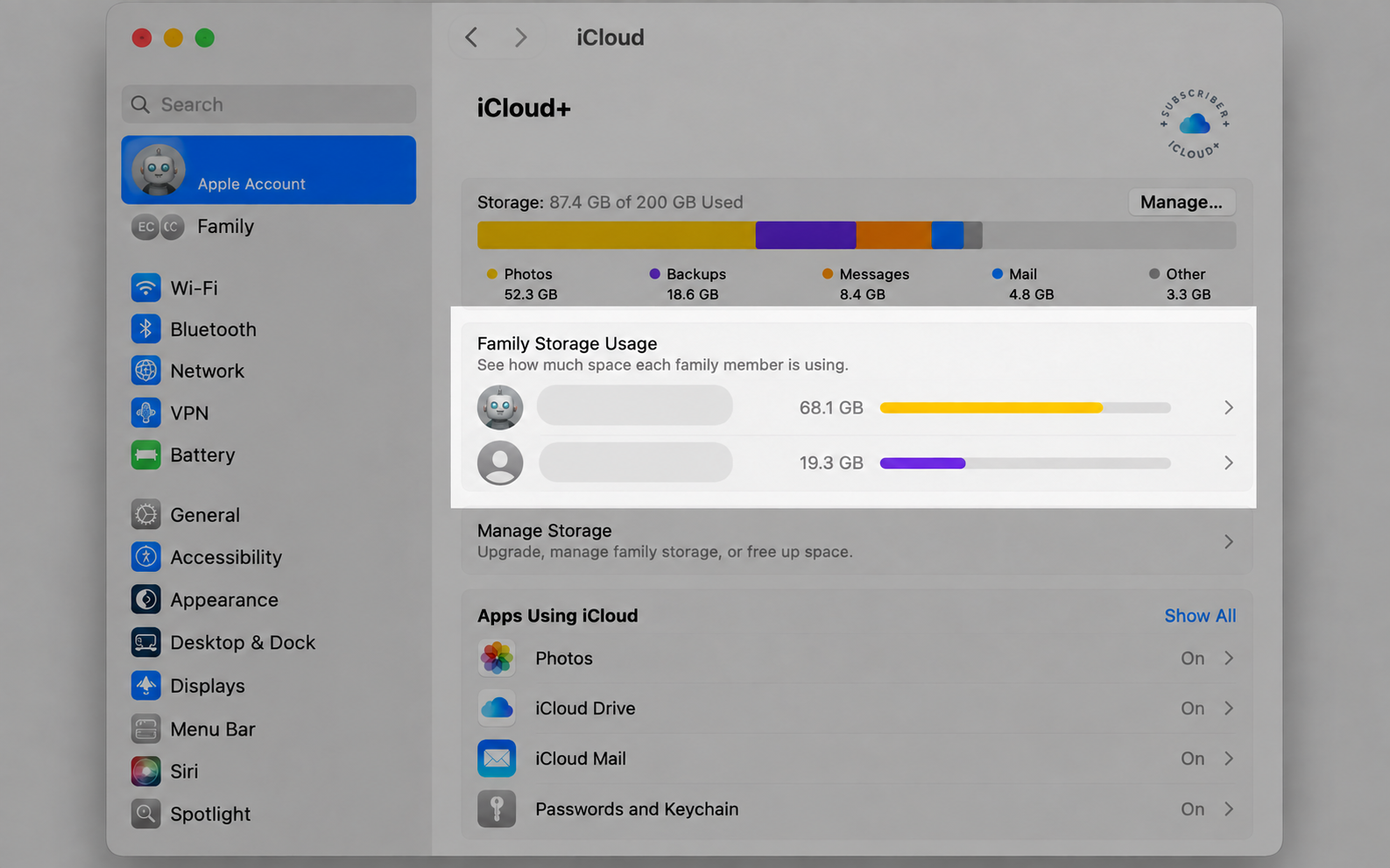
As the organizer, you can see how much of the shared space each person is using. This makes it easy to spot when you’re getting close to the limit and decide whether to upgrade for additional space. Here’s how we recommend checking:
Open Settings or System Settings.
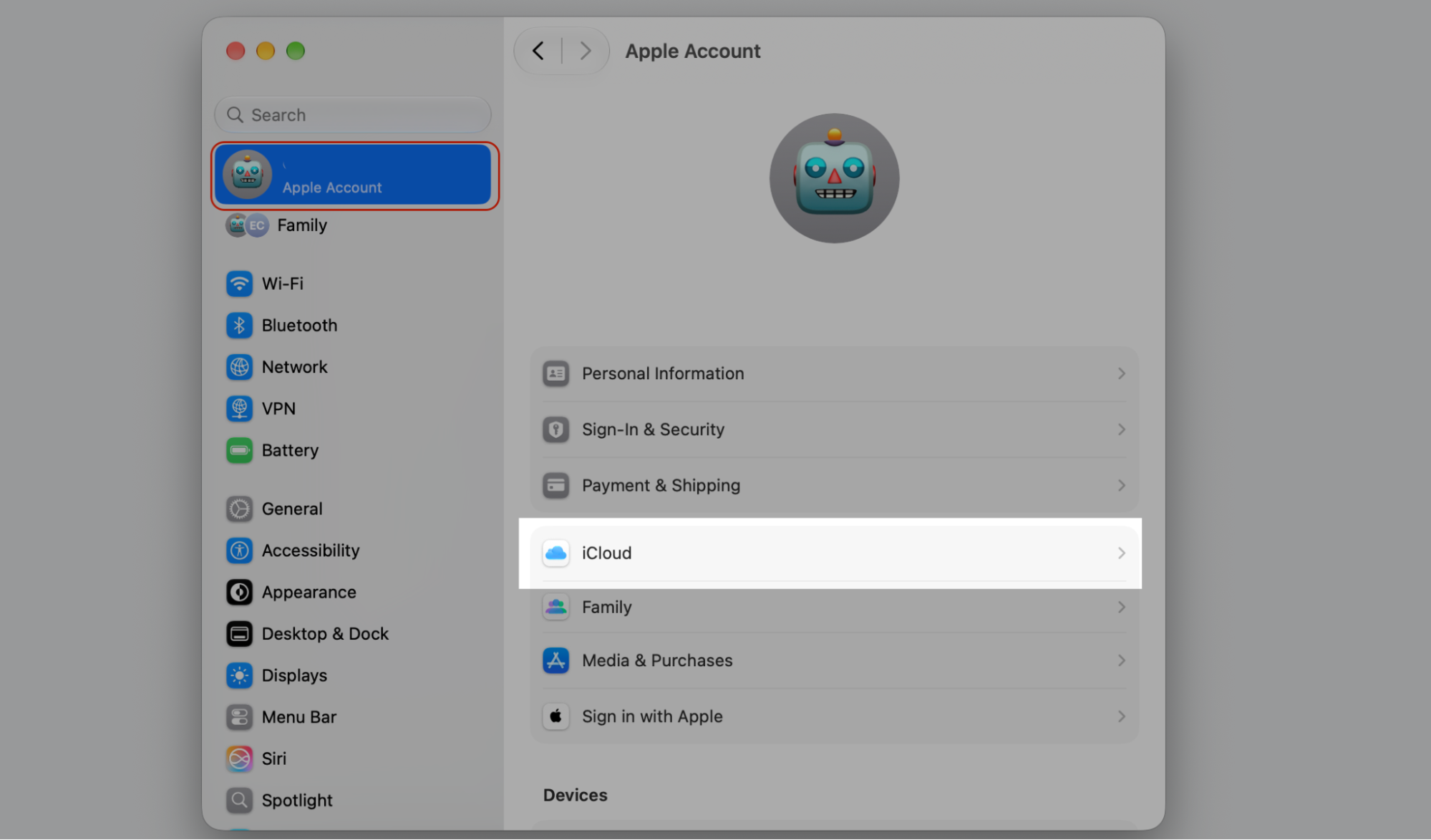
Tap or click your name, then select iCloud.
View the storage bar to see usage by person.
Step 1. Go to Apple Logo > System SettingsStep 2. Select iCloud from your Apple AccountStep 3. View the storage bar to see usage by person
An extra hint from our team:
Checking in now and then helps everyone stay on track. You can also manage iCloud storage across your devices to clear out what you no longer need.
Conclusion
Sharing iCloud storage with family comes down to two things: Family Sharing and an eligible iCloud+ plan. Everyone draws from one pool, yet each person’s files stay private, so you get the savings without giving up your privacy.
If space still feels tight, the clutter on your Mac might be the real reason. MacKeeper’s Safe Cleanup removes junk files, caches, and logs in one click, without touching your personal files. Try it to free up extra room and keep your Mac clean.
We respect your privacy and
use cookies
for the best site experience.
Privacy Preferences Center
We use cookies along with other tools to give you the best possible experience while using the
MacKeeper website. Cookies are small text files that help the website load faster. The cookies we
use don’t contain any type of personal data meaning they never store information such as your
location, email address, or IP address.
Help us improve how you interact with our website by accepting the use of cookies. You can change
your privacy settings whenever you like.
Manage consent
All cookies
These cookies are strictly necessary for enabling basic website functionality (including page
navigation, form submission, language detection, post commenting), downloading and purchasing
software. The website might malfunction without these cookies.