When iCloud Family Sharing not working leaves your family locked out of shared storage, photos, and subscriptions, a single misconfigured setting can stall everyone’s access at the worst possible moment. If you’d rather skip the trial-and-error, MacKeeper’s Premium Services connects you with real Mac experts who diagnose and fix the issue fast, so your family group gets back to sharing without the guesswork.
iCloud Family Sharing lets up to six members share selected Apple services—an iCloud+ storage plan, Apple Music, Apple TV+, and purchases—while everyone keeps their own private Apple Account. From our experience, that’s the appeal: you pay once, the family benefits, and nobody sees each other’s photos or messages. The organizer invites members, picks the shared features, and manages the plan from a Mac, MacBook, or iPhone.
It’s worth noting that shared storage only stretches so far, so if your iCloud storage is full, members may stop syncing until you upgrade the plan or free up space.
Why iCloud Family Sharing isn’t working?
In our experience, family sharing iCloud storage not working almost always traces back to one of a few culprits.
The most common reasons include:
Incomplete or incorrect setup, where members were invited but never fully added to the plan.
Apple Account mismatches, like signing in with the wrong account on a device.
Device settings that block sharing, or a pending invitation that was never accepted.
Software bugs, outdated macOS or iOS versions, or temporary syncing delays on Apple’s end.
Sometimes the option itself looks unavailable. If you find a setting like iCloud greyed out, it usually points to a sign-in or restrictions issue rather than a true outage.
How to fix iCloud Family Sharing not working?
Here’s the good news: most cases of iCloud not sharing with family clear up once you review the main settings, refresh access, and confirm every condition for sharing is in place. Working through the steps below in order is the quickest route to a fix.
Before you start, it helps to manage iCloud storage on Mac so you know exactly how much space your plan offers and who’s actually using it.
A note from our experts:
Chasing a stubborn sharing glitch across menus is nobody’s idea of fun. The good thing is, whenever you hit a technical wall on your Mac or MacBook, the team at MacKeeper’s Premium Services is ready to help you find the right solution. MacKeeper, developed by Clario Tech, boasts a 93% satisfaction rating and has resolved issues for more than 332,000 Macs.
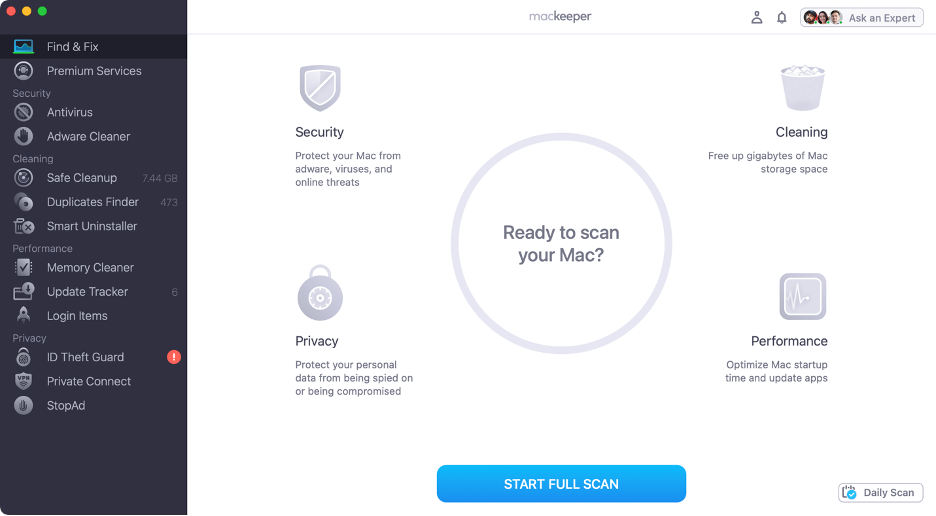
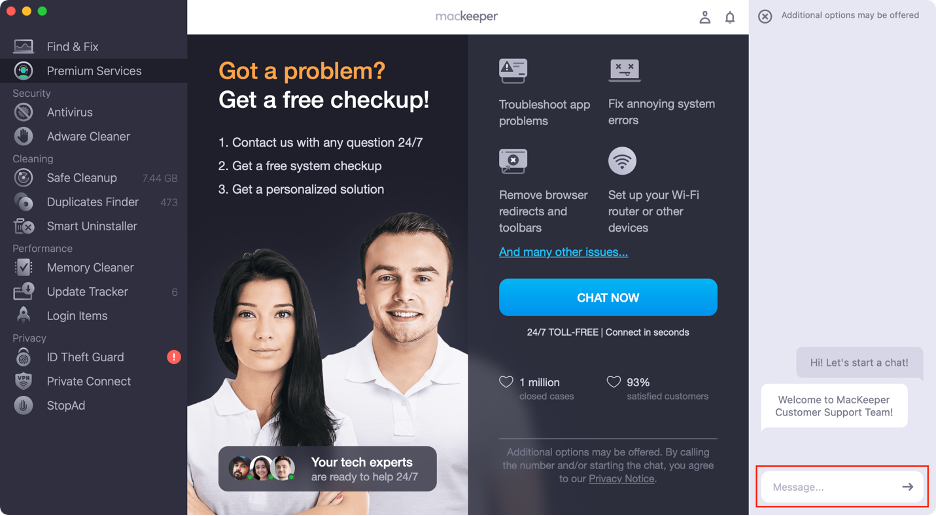
Follow our tips to benefit from MacKeeper’s Premium Services:
Type in your message and let our team know what you need.
Step 1. Launch MacKeeper Step 2. Select Premium Services Step 3. Click Chat NowStep 4. Type in your message
1. Review Family Sharing settings
Checking the main setup first reveals whether your group and shared features are configured correctly, and it often fixes the issue on its own.
Here's what to do:
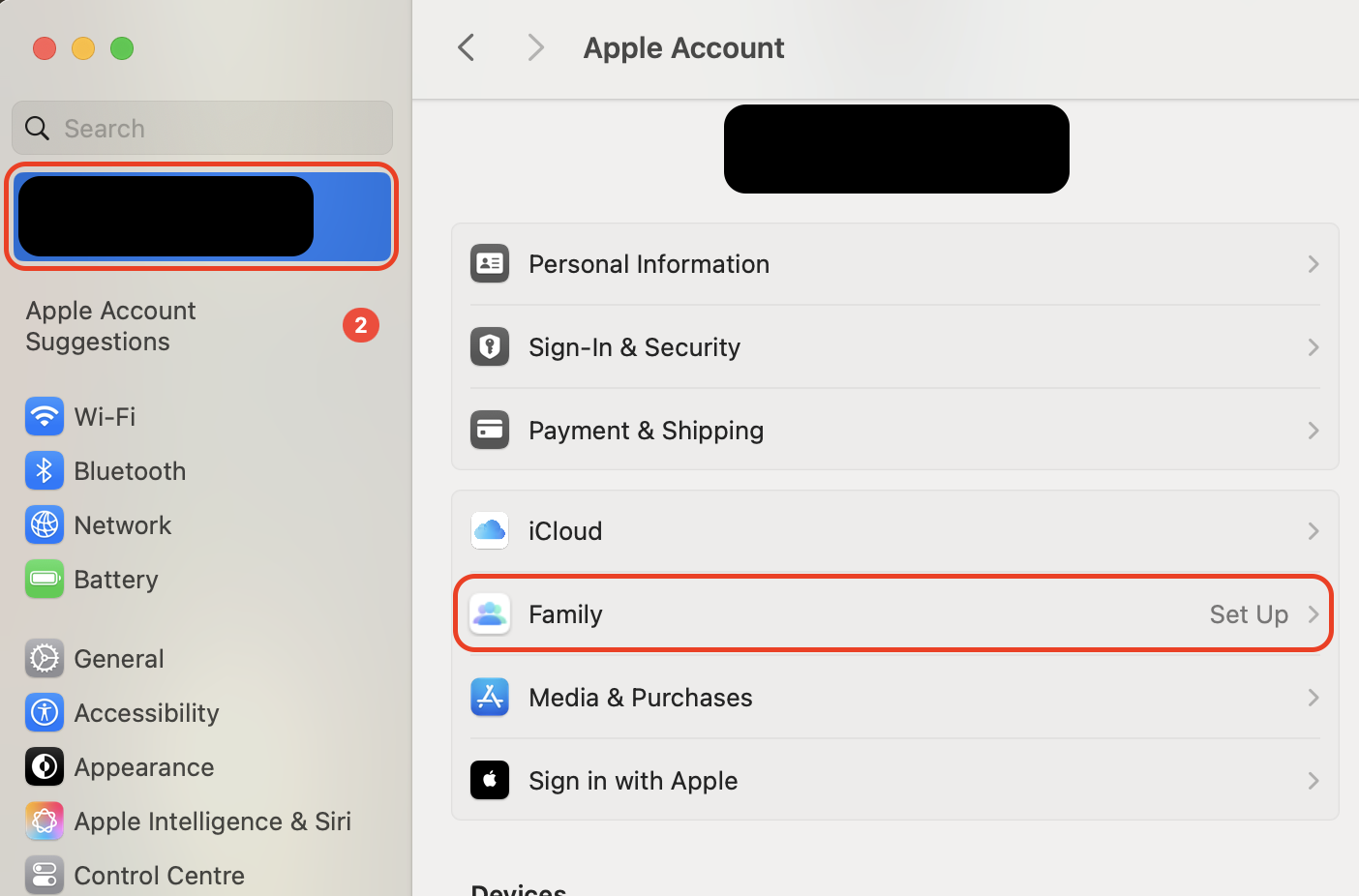
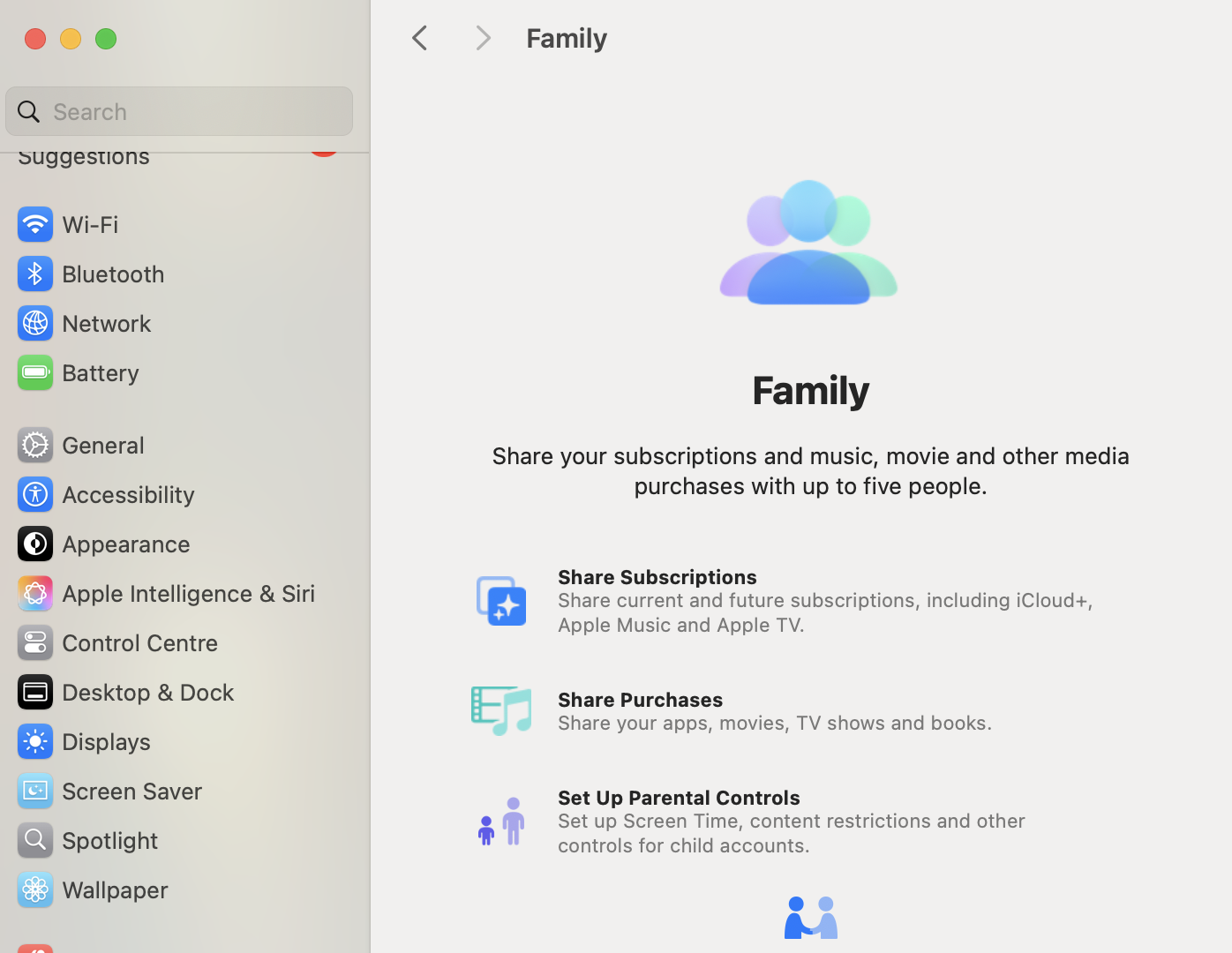
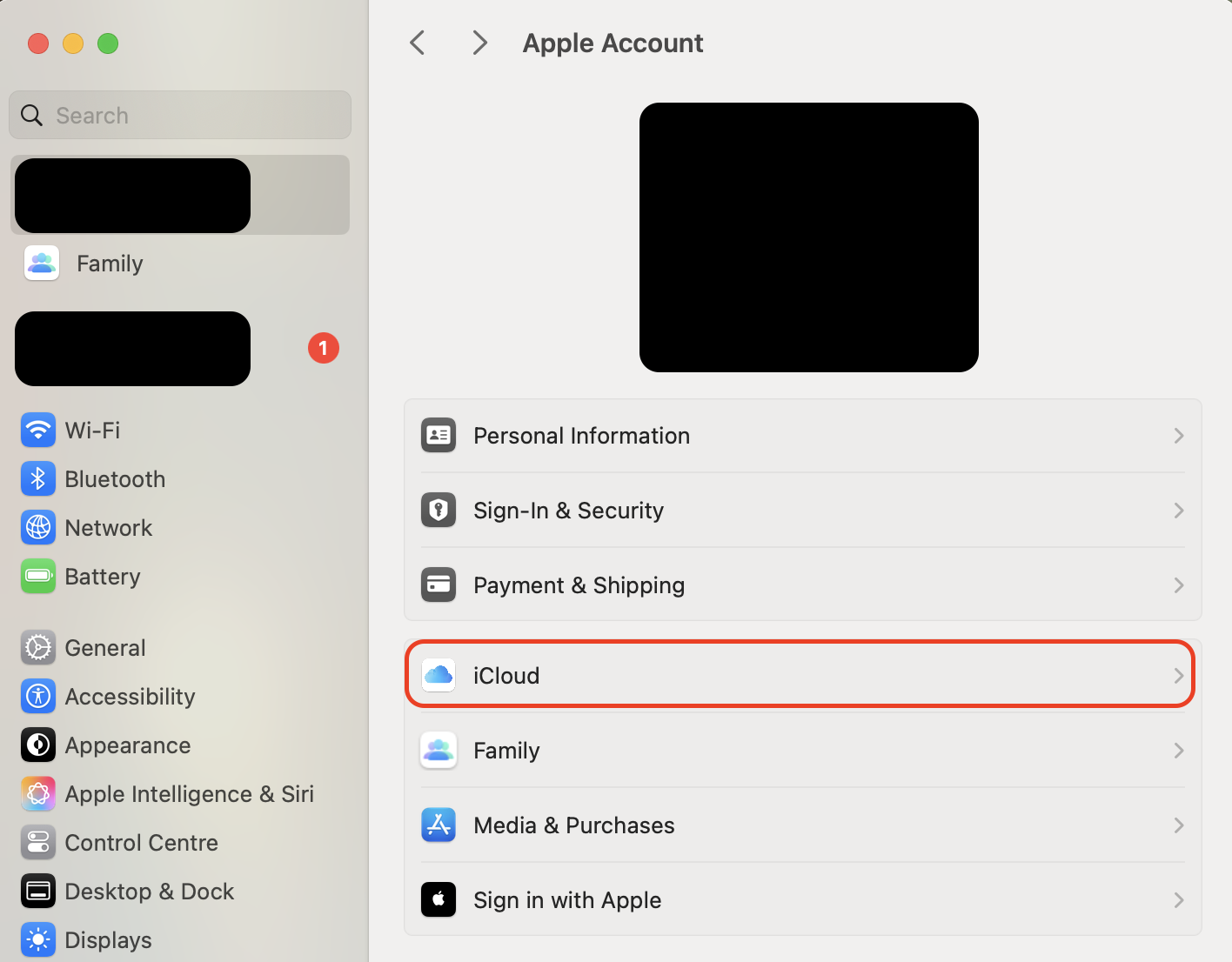
Open System Settings on your Mac and click your name at the top.
Select Family and review the list of members in your group.
Click each shared feature to confirm it's switched on, and check that you're listed as the organizer.
Open System Settings, click your name, and select Family to review your group setup
2. Check Apple Account details
From what we can tell, a member signed in with the wrong Apple Account simply won't see anything you're sharing.
Follow these steps:
Ask each member to open System Settings and check the Apple Account shown.
Confirm it matches the account that received the family invitation.
Sign out of any incorrect account and sign back in with the right one.
Open System Settings and check that the Apple Account in use matches the invited account
If someone is on the wrong account, our guide on how to change Apple ID on Mac walks you through the switch safely.
3. Confirm family member access
Invited members must be fully added before any shared feature works, and we've seen plenty of invitations that were sent but never accepted.
Here's how:
Open Family in System Settings and check each member's status.
Look for anyone marked as Invited rather than active.
Ask that person to accept the invitation on their own device.
Open Family in System Settings and check whether each member is active or still invited
4. Send a new invitation
We have to point out that a re-sent invitation clears most stuck-pending situations when the first one never landed.
Try these steps:
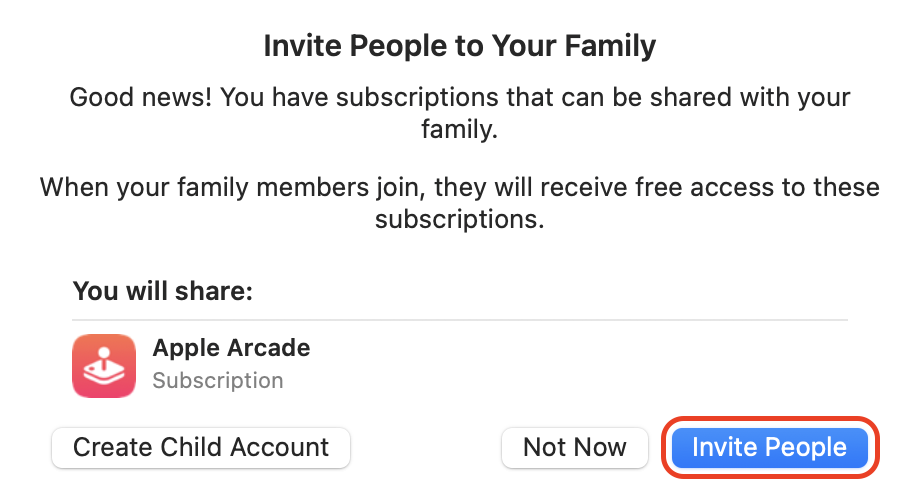
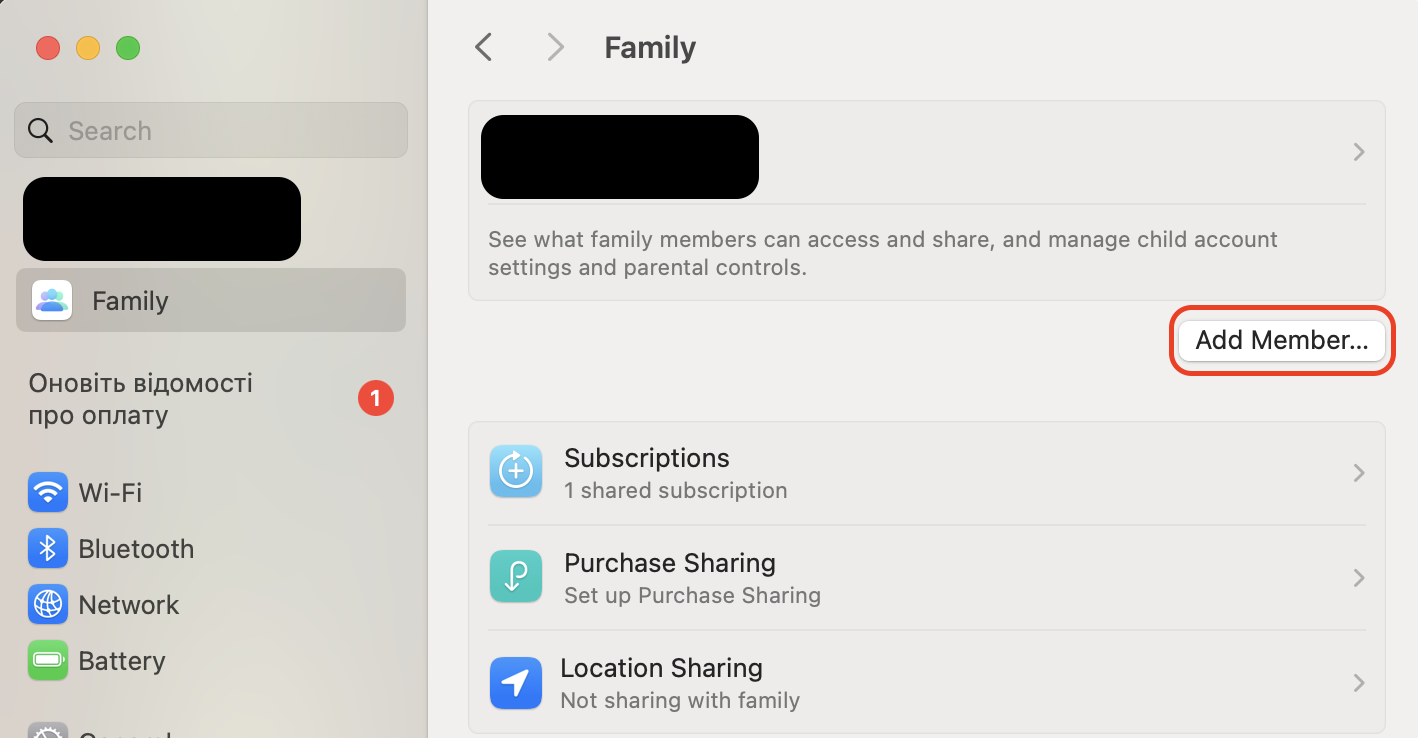
In Family, click Add Member, then Invite People.
Send the invite link through Messages, Mail, or AirDrop.
Have the member open the link and tap Accept to join.
Click Add Member, then Invite People to send the family invitation again
5. Review iCloud+ sharing options
As our tests show, sharing the plan doesn't always toggle every iCloud+ feature on automatically, so check them individually.
Do the following:
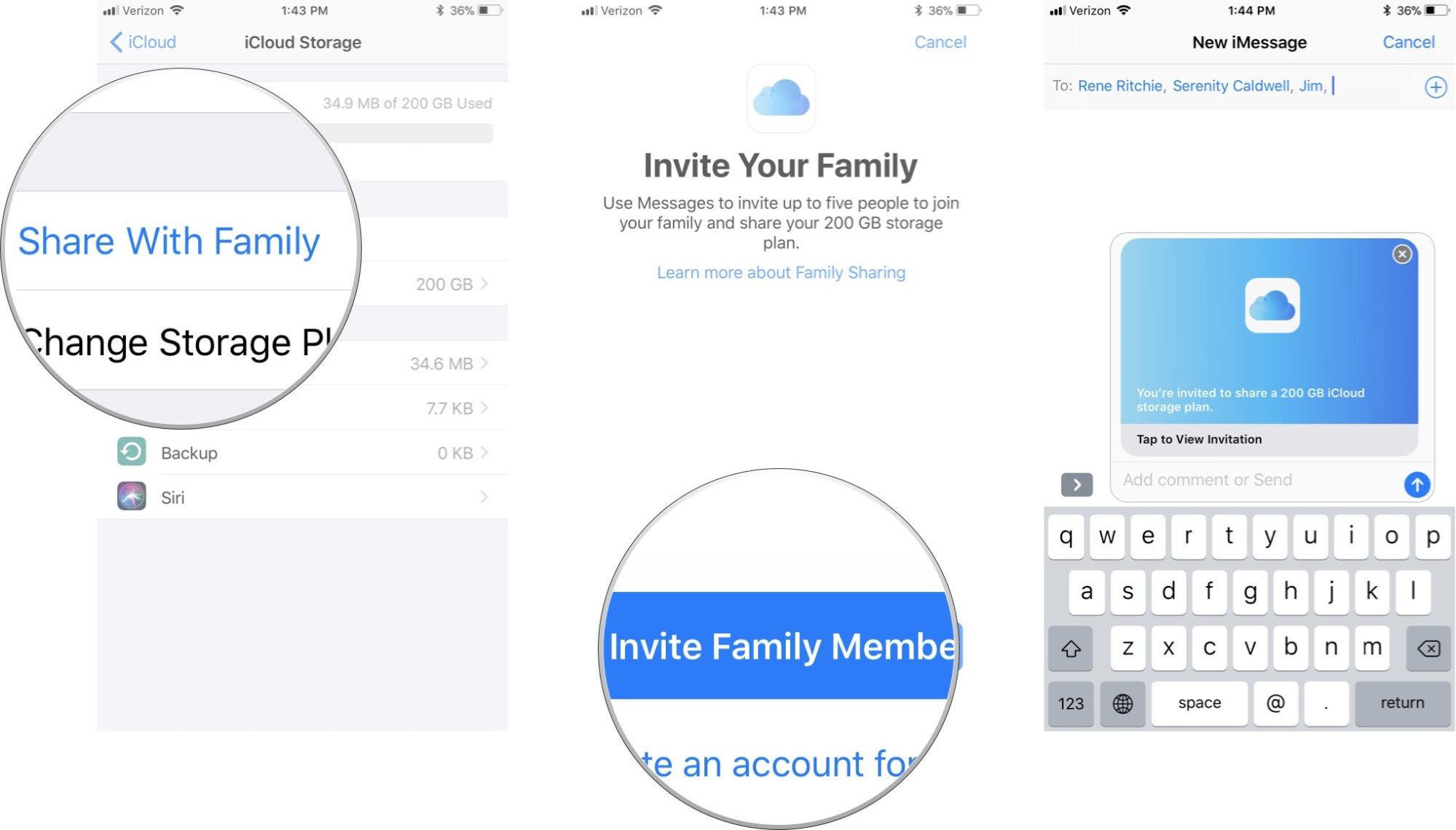
Open Family and select iCloud+ from the shared services.
Confirm that Share with Family is switched on.
Check that storage and any extra iCloud+ features are included.
Open Family, select iCloud+, and confirm that Share with Family is switched on
6. Refresh shared storage access
We've found that reselecting the storage option forces a refresh when members appear added but still can't use the space.
Here's what to do:
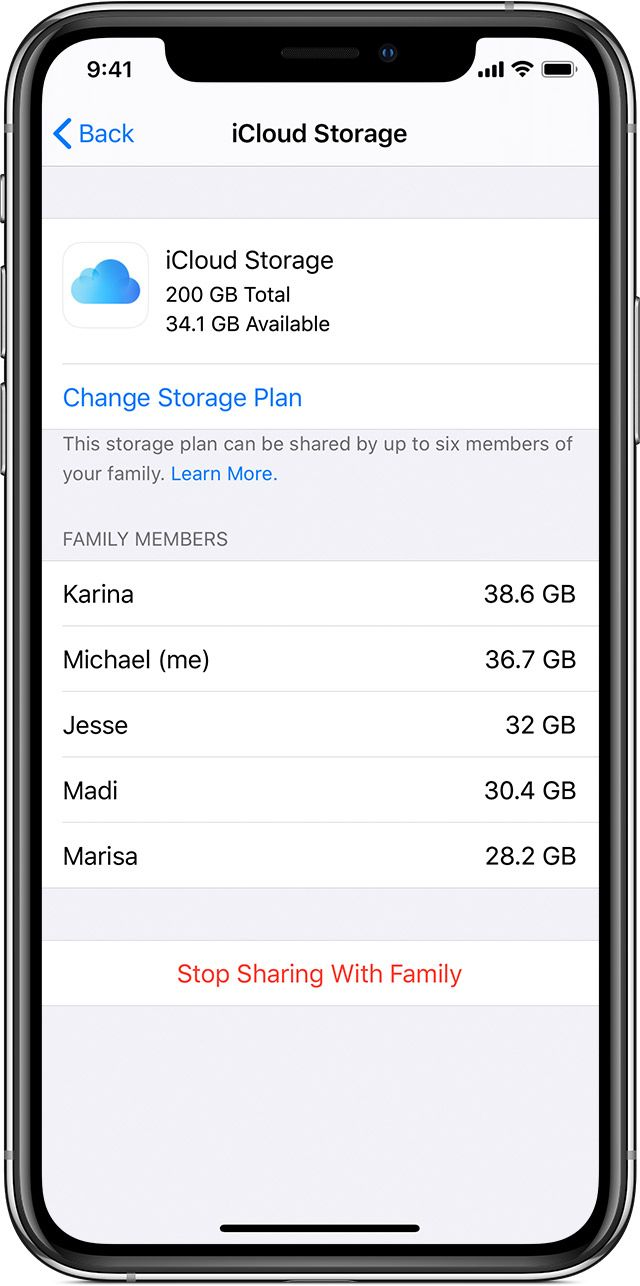
Open Family and tap iCloud Storage under the shared features.
Toggle sharing off, wait a moment, then turn it back on.
Ask members to reopen their iCloud settings to confirm the change.
Open Family, tap iCloud Storage, and toggle the sharing option off and back on
Members can then access iCloud storage on Mac to verify that the shared space appears correctly.
7. Update device software
Installing the latest macOS or iOS update often resolves service-related glitches, since outdated software is a quiet cause of compatibility problems.
Follow these steps:
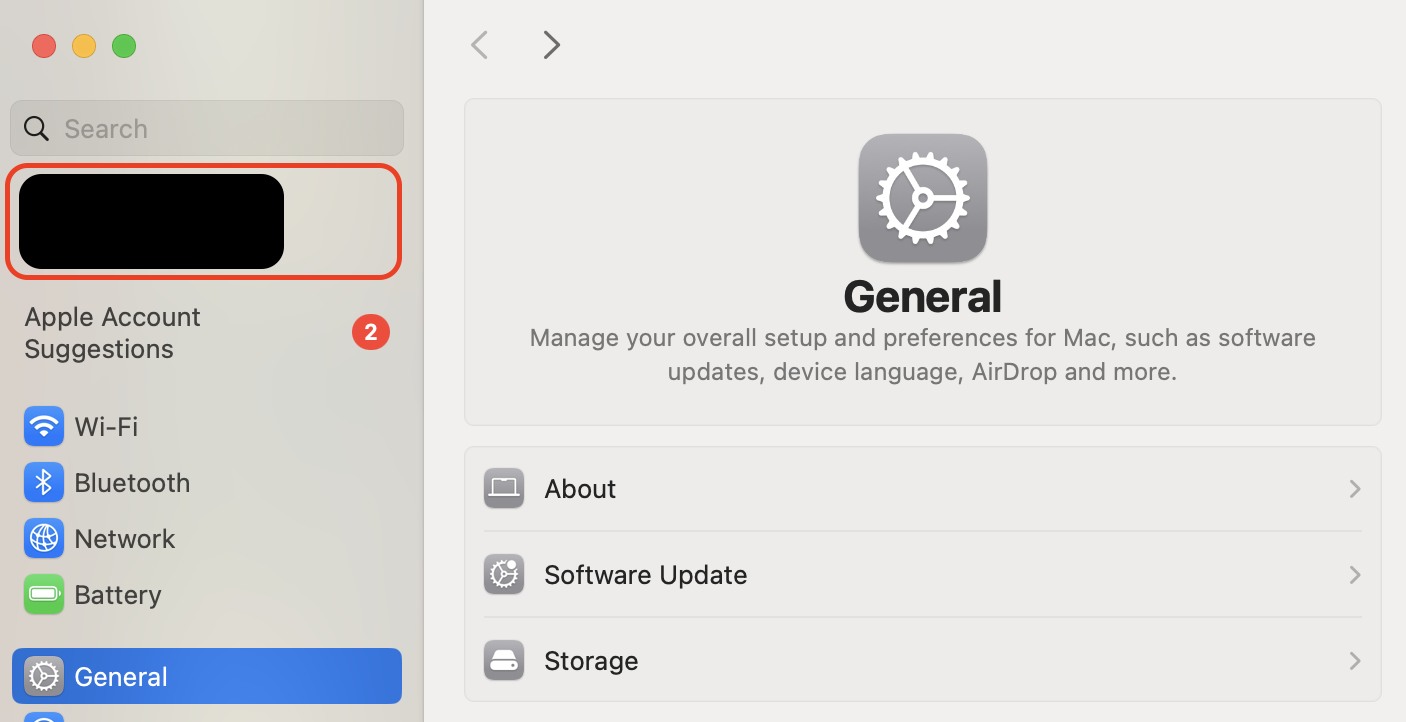
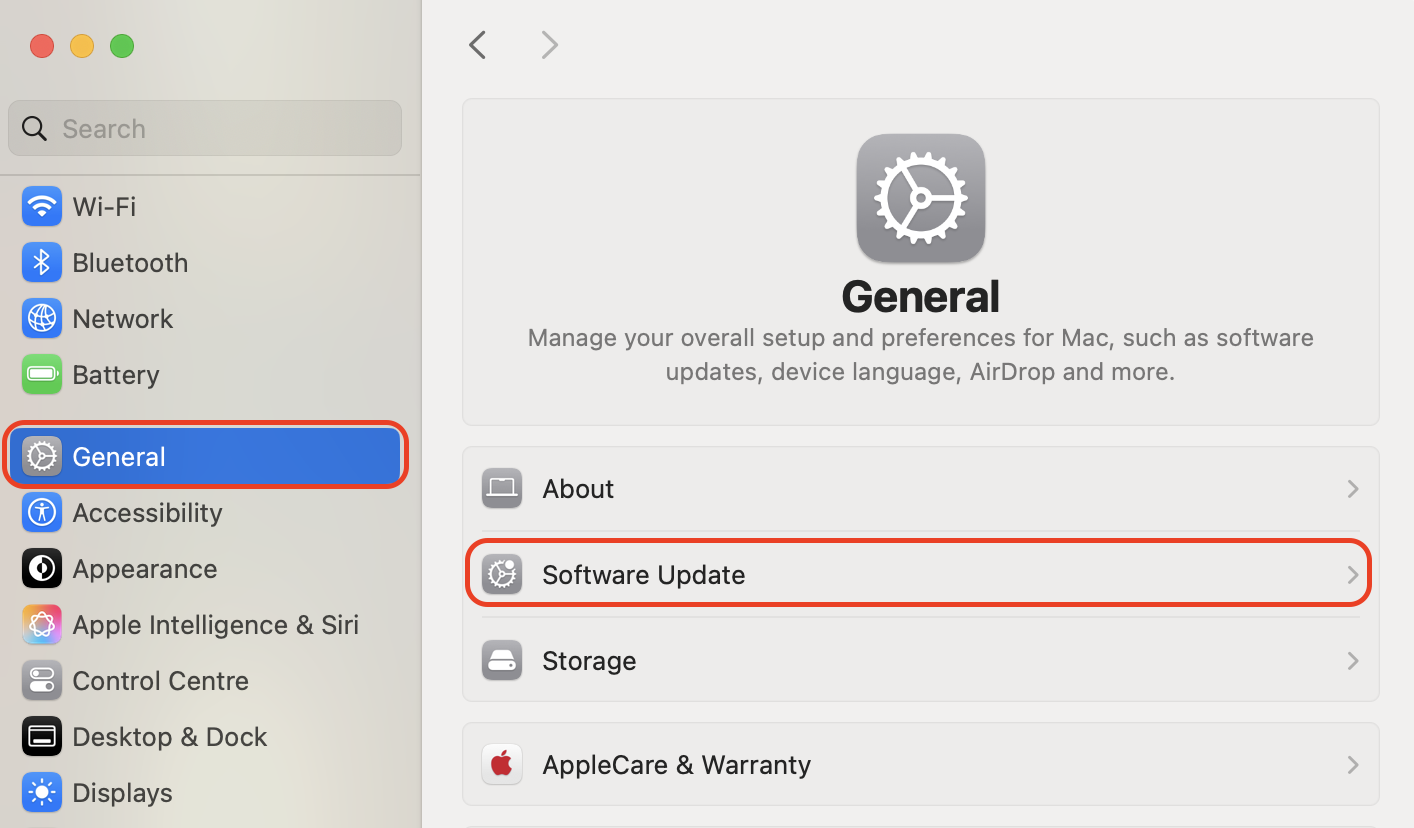
Open System Settings and go to General, then Software Update.
Install any available macOS update on your Mac.
Have every family member update their device too.
Open System Settings, go to General, then Software Update, and install the latest macOS
8. Refresh iCloud session
We’ve noticed that signing out and back in resets syncing behavior and clears authentication hiccups that block shared features.
Here's how:
Back up any important data before you sign out.
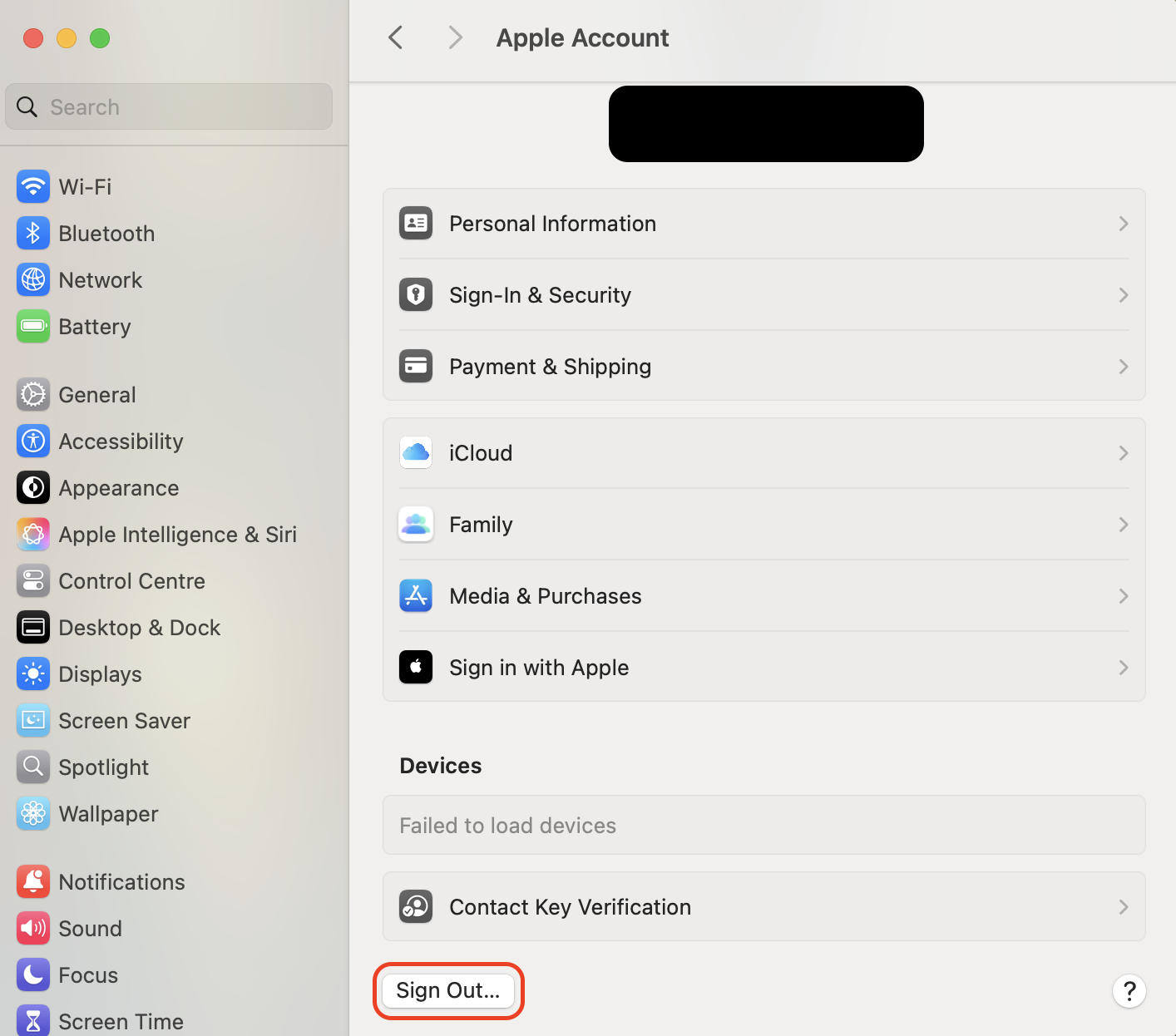
Open System Settings, click your name, and choose Sign Out.
Restart the Mac, then sign back in with your Apple Account.
Open System Settings, click your name, and choose Sign Out to refresh the session
If you're not sure how to do it cleanly, our guide on how to log out of iCloud on Mac covers the safe way to refresh your session.
9. Restart affected device
It sounds basic, but we’ve learned that a restart clears temporary glitches and fixes more sharing quirks than people expect.
Do this:
Save your work and quit any open apps.
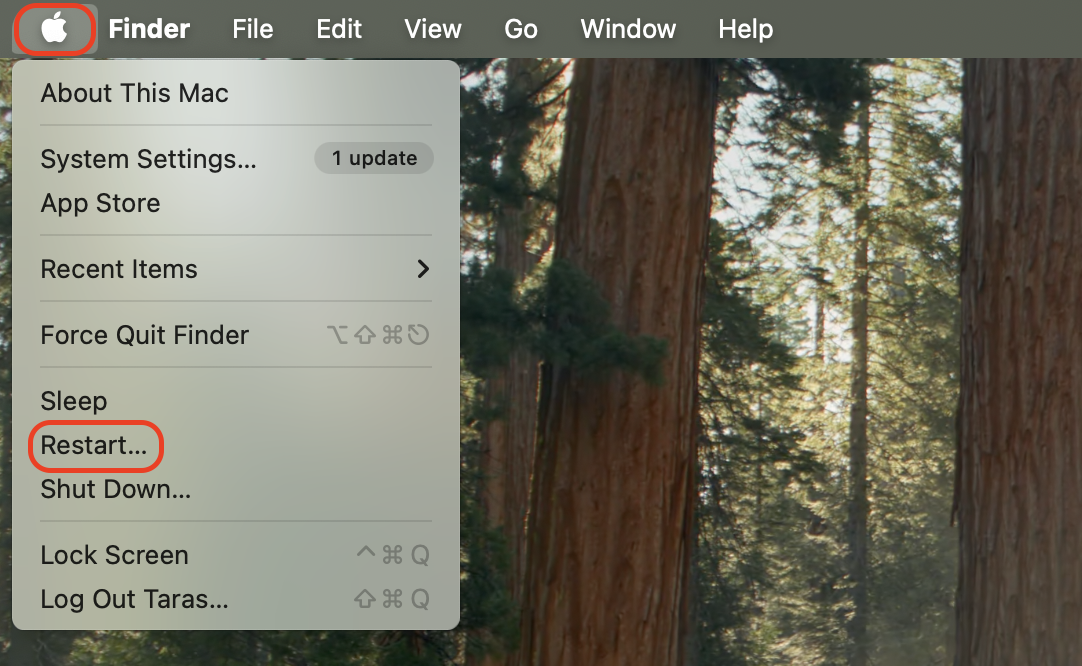
Click the Apple menu and select Restart.
Once it reboots, recheck whether sharing now works.
Click the Apple menu and select Restart to clear any temporary glitches
10. Check payment and subscription settings
We should note that an expired card on the organizer's account quietly stops the whole shared plan from working.
Follow these steps:
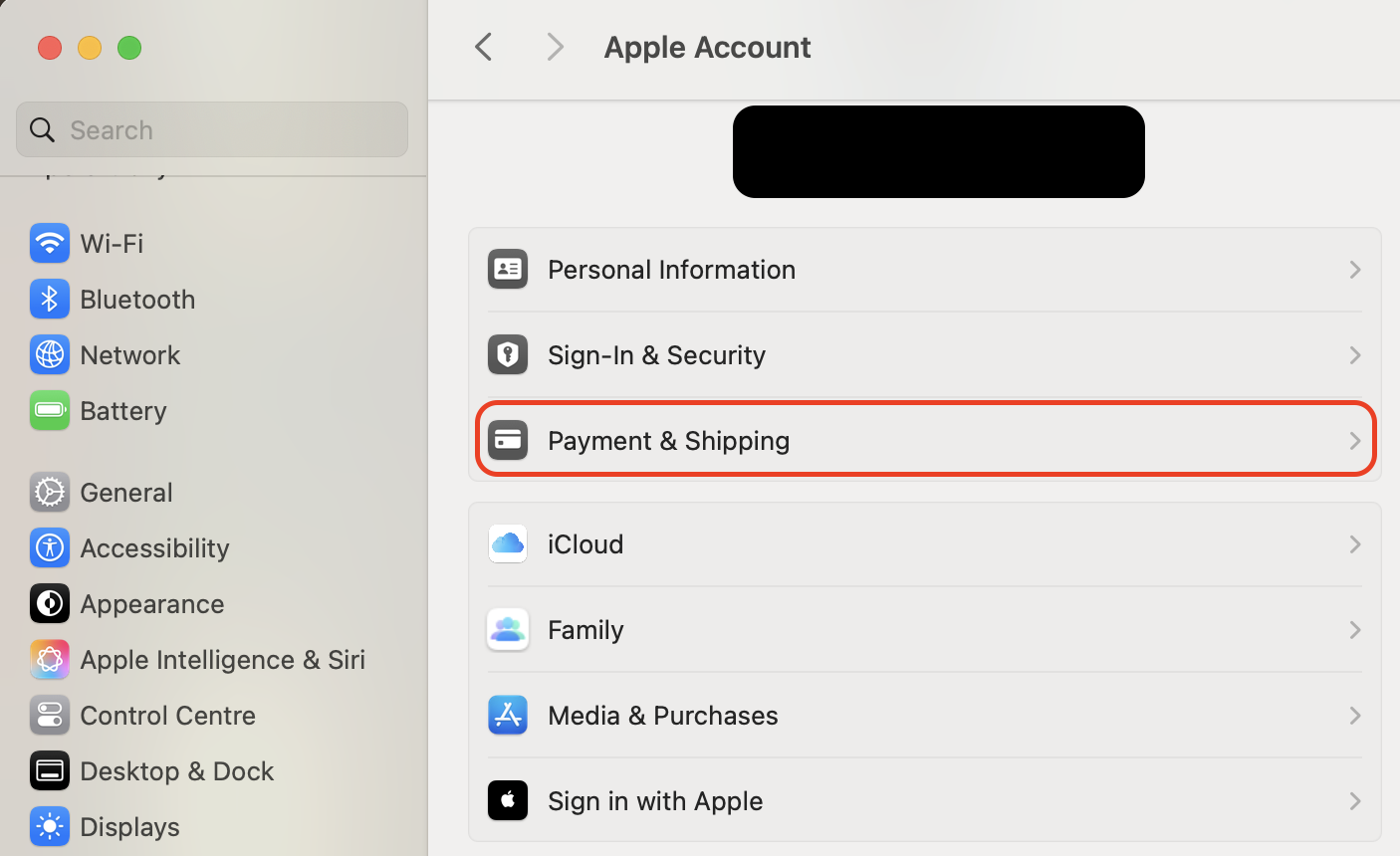
Open Apple Account settings and select Payment & Shipping.
Confirm that a valid payment method is on file.
Update any expired card details and save the changes.
Open Apple Account settings, select Payment & Shipping, and confirm a valid payment method
11. Re-add the family member
We turn to this when nothing else works: removing and re-adding a member resets their connection to the group.
Here's what to do:
Open Family, select the member, and choose to remove them.
Wait a moment, then click Add Member to invite them again.
Have them accept the new invitation to rejoin the group.
Open Family, remove the affected member, then use Add Member to invite them again
12. Review personal and shared plans
From what we can tell, a member already paying for their own iCloud+ may need to switch to yours to use the shared storage.
Do the following:
Open iCloud settings and check the current plan for each member.
Ask anyone on a separate plan to choose to switch to the shared one.
Confirm that members on the free 5 GB tier joined your plan automatically, while paid iCloud+ users switched manually.
Open iCloud settings and check whether each member is on a personal or shared plan
Conclusion
Most cases of iCloud not working on family sharing come down to setup, account, subscription, or syncing problems, and they're usually fixable once you review and refresh the relevant settings in the right order.
And when you'd rather hand it to a professional, MacKeeper's Premium Services is the practical way forward. MacKeeper is a macOS utility software that protects your Mac and is trusted by millions of users, so its experts can troubleshoot Apple sharing issues quickly and get you back to a setup that simply works.
We respect your privacy and
use cookies
for the best site experience.
Privacy Preferences Center
We use cookies along with other tools to give you the best possible experience while using the
MacKeeper website. Cookies are small text files that help the website load faster. The cookies we
use don’t contain any type of personal data meaning they never store information such as your
location, email address, or IP address.
Help us improve how you interact with our website by accepting the use of cookies. You can change
your privacy settings whenever you like.
Manage consent
All cookies
These cookies are strictly necessary for enabling basic website functionality (including page
navigation, form submission, language detection, post commenting), downloading and purchasing
software. The website might malfunction without these cookies.