If you’re a stickler for being on time and you want to make sure you’re never a second too late, we’re happy to tell you that it’s easy to show seconds on the Mac clock with a simple settings change. And it’s almost as easy to free up space and improve Mac performance by removing system junk and unnecessary files with MacKeeper’s Safe Cleanup.
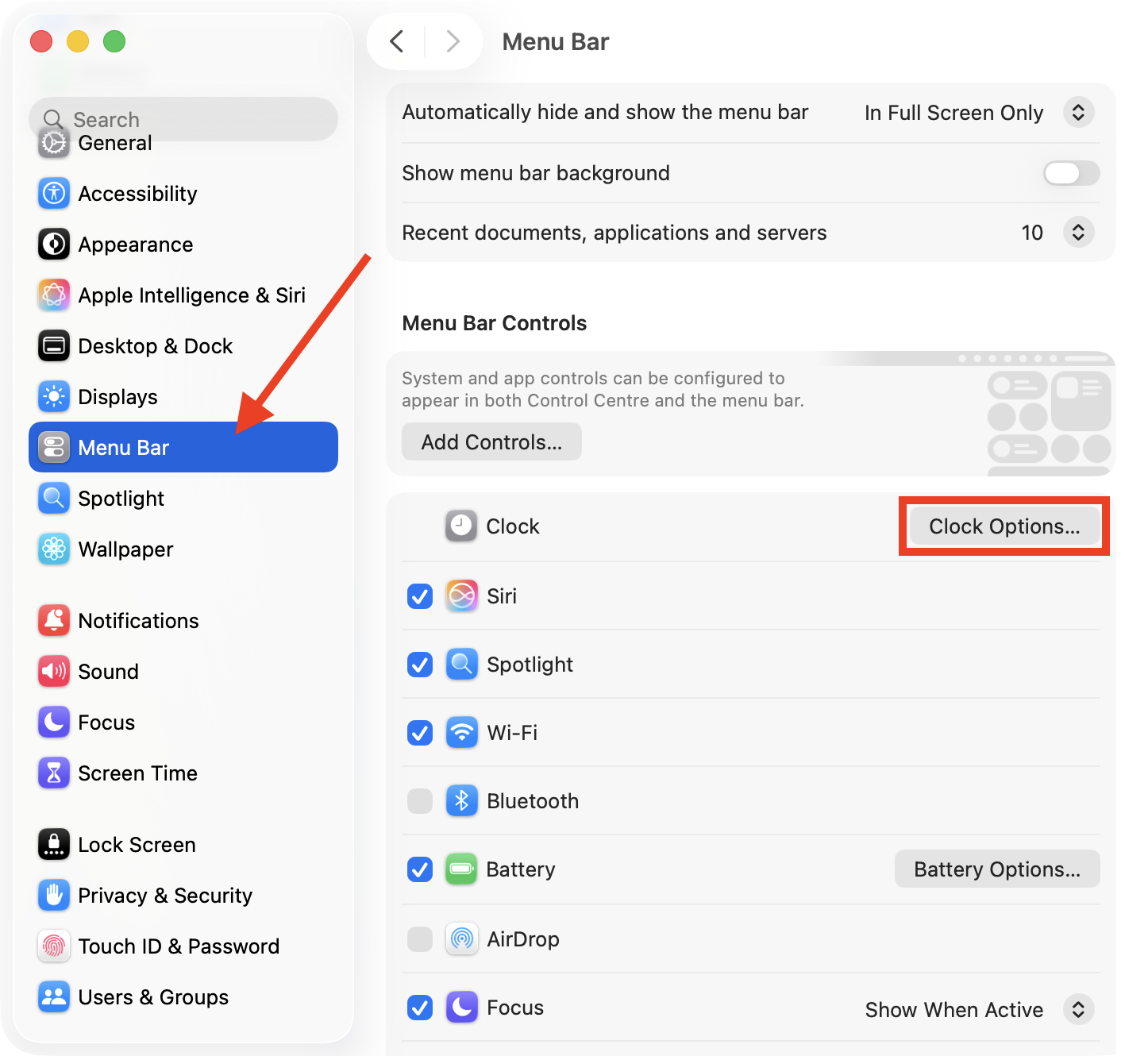
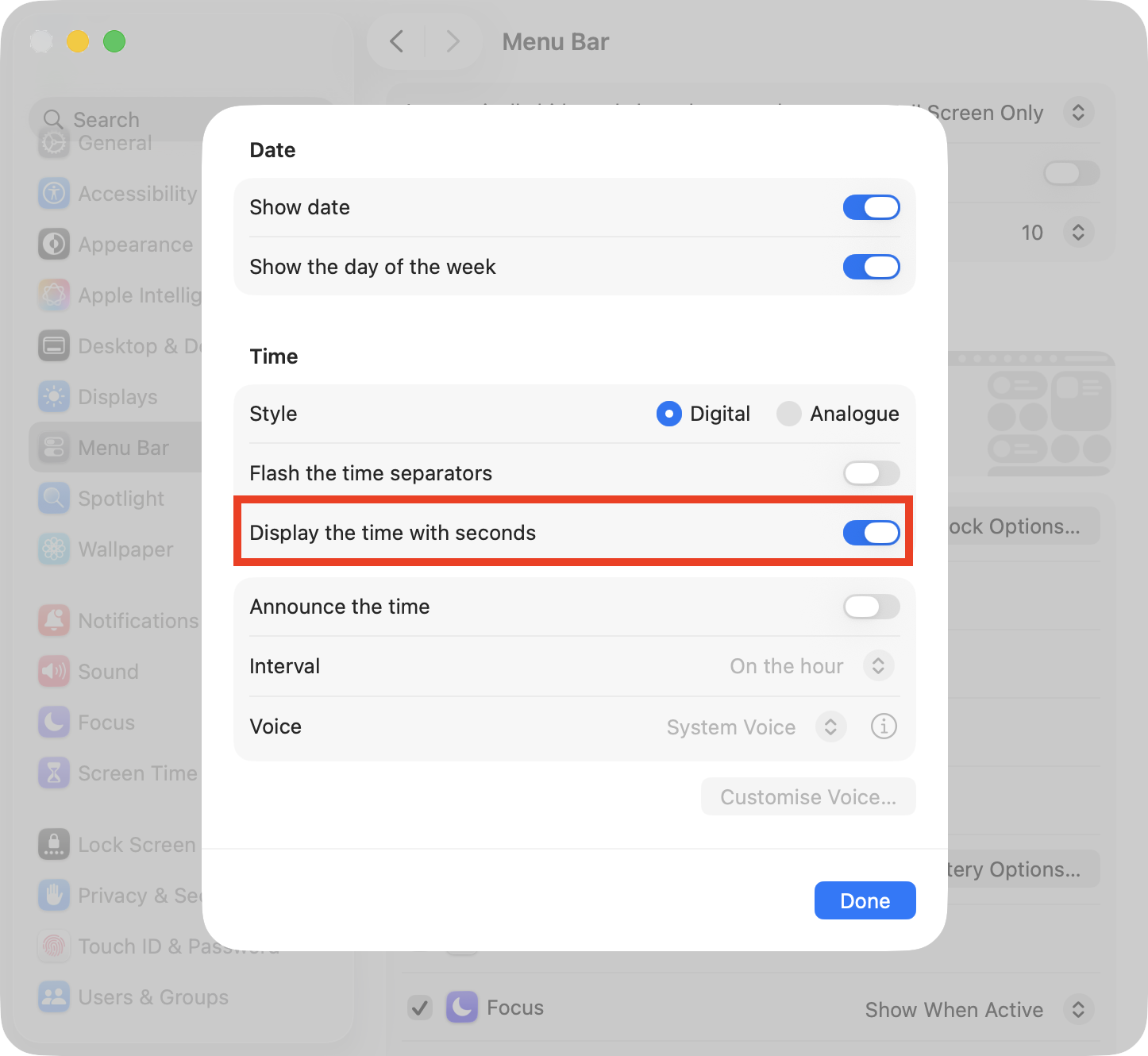
To add seconds to the Mac clock, we first open the Settings app and then select Menu Bar. Next to Clock, click the Clock Options button, and then click the toggle alongside Display the time with seconds to get seconds on the Mac clock.
Where to find clock setting in macOS?
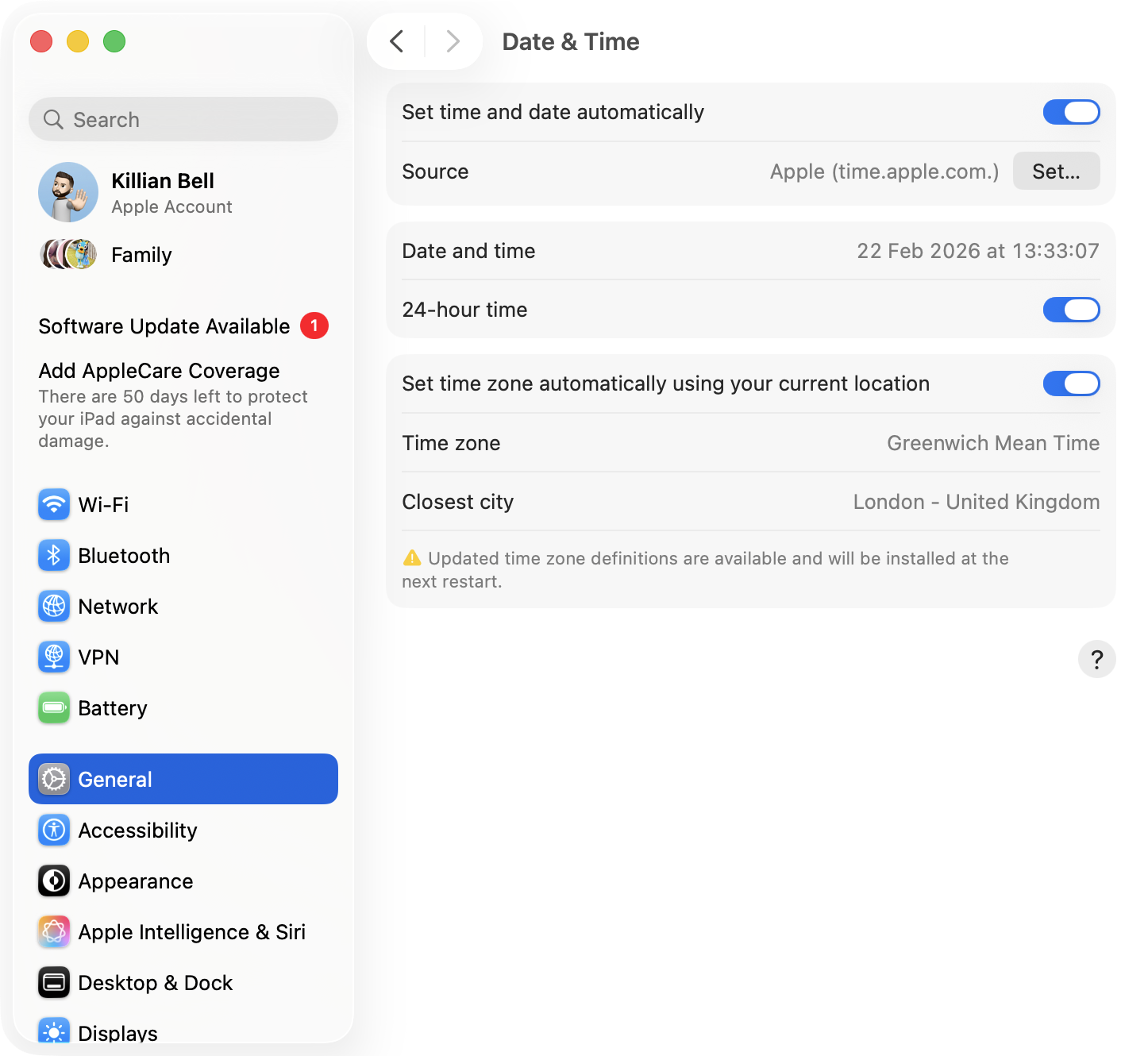
The clock settings are pretty easy to find in macOS; we can simply open the Settings app, choose General in the sidebar, then select Date & Time. Here, there are a bunch of options for the clock, including the ability to toggle between manual and automatic clock settings.
If you ever run into issues with the time not updating properly in macOS, you can go into the Date & Time menu and click the Set button to force a clock update. You can also choose to set your time zone automatically based on your location, or you can specify this manually if you prefer.
We must point out that the process for changing your clock settings differs slightly depending on which macOS version you’re running:
For macOS Ventura or Sonoma: These versions of Apple macOS use the redesigned Settings app, inspired by Settings on iPadOS, which has a different layout.
For older macOS versions: This includes the likes of Big Sur, Monterey, and earlier, which use the old System Preferences app.
1. For macOS Ventura or Sonoma
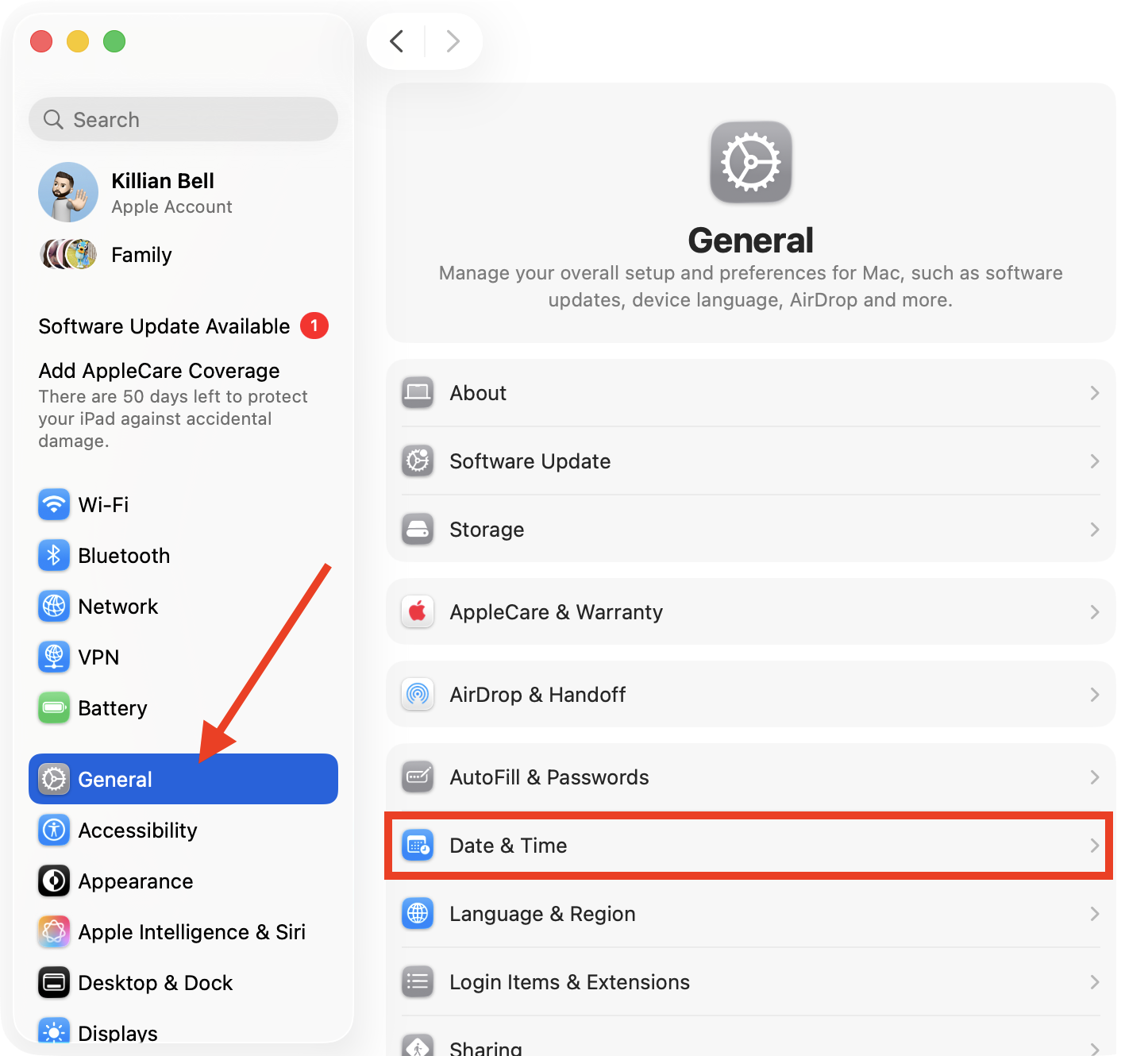
To change our clock settings in macOS Ventura, Sonoma, and Sequoia, follow these steps:
Launch the Settings app and select General.
Choose Date & Time to access clock settings.
Step 1. In Settings, go to General > Date & TimeStep 2. Find most clock settings here
An extra hint from us:
At this stage, while changing your clock settings, you can adjust the time manually if you choose, so if you encounter the clock is ahead error on MacBook, this is one way to fix it.
2. For older macOS versions (e.g., Big Sur, Monterey)
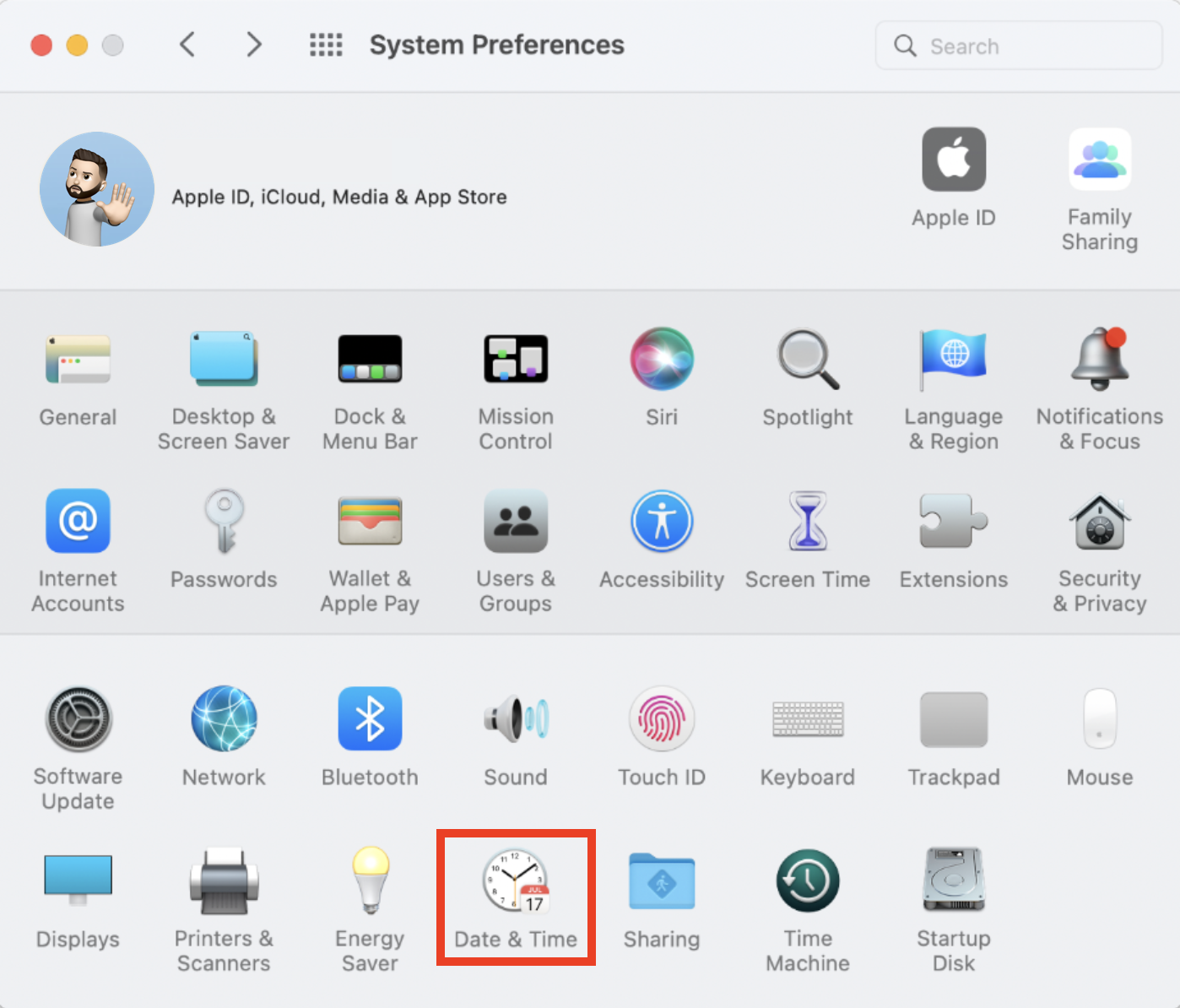
Here’s how to change clock settings in older macOS versions, including Big Sur, Monterey, and earlier:
Open System Preferences.
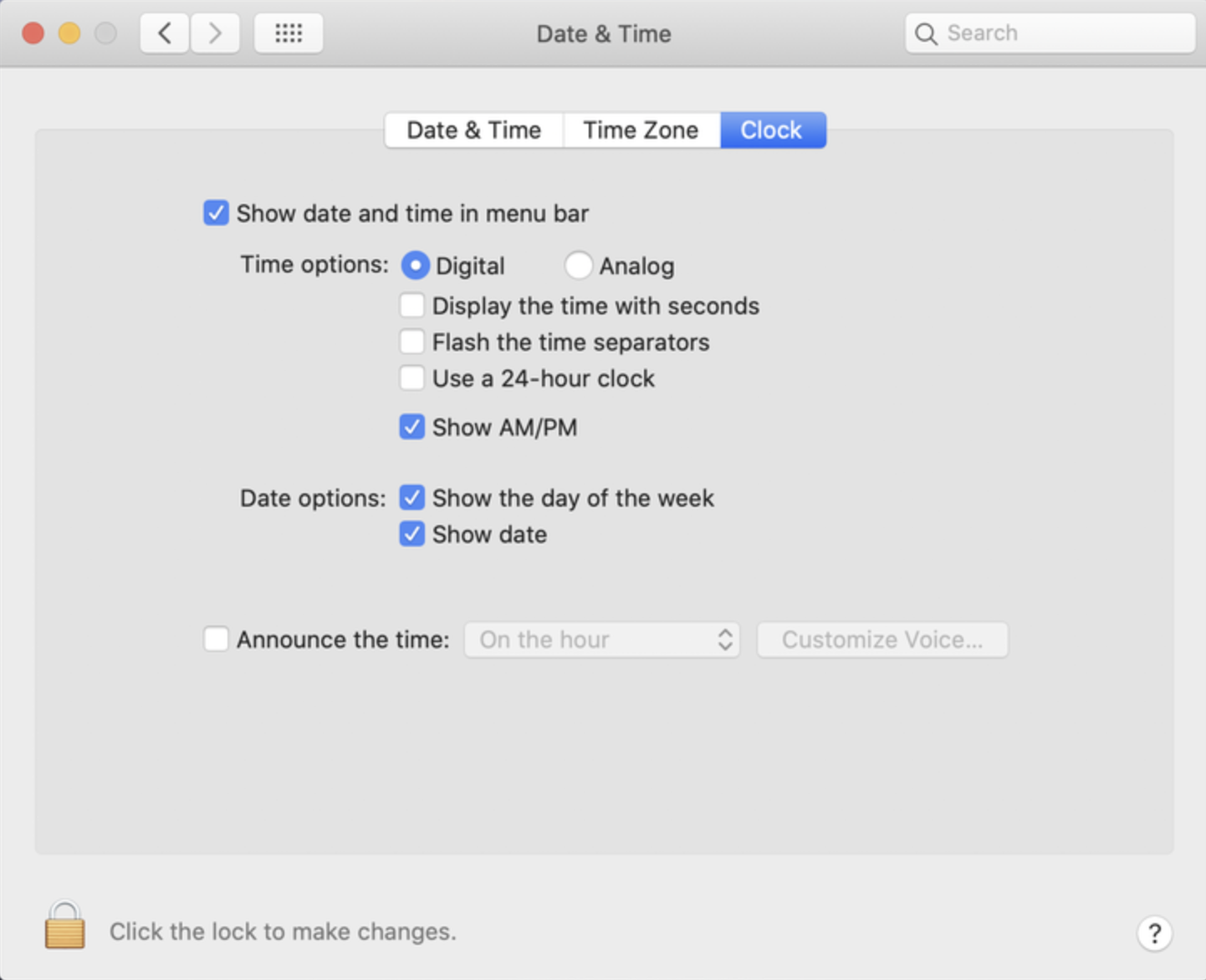
Click the Date & Time option to see all clock preferences.
Step 1. In System Preferences, choose Date & TimeStep 2. Adjust your clock settings here
Moreover, we can add here that users often reach out to say they can’t find the option to put seconds on the Mac clock within this menu. That’s because Apple decided to put that particular setting somewhere else since it’s a macOS menu bar option. We’ll show you how to find the settings for this below.
A note from our experts:
As well as keeping your macOS clock accurate, we highly recommend staying on top of Mac maintenance. Clear your system of unnecessary junk files with MacKeeper’s Safe Cleanup, developed by Clario Tech, which not only frees up space, but it can also have a noticeable improvement on performance.
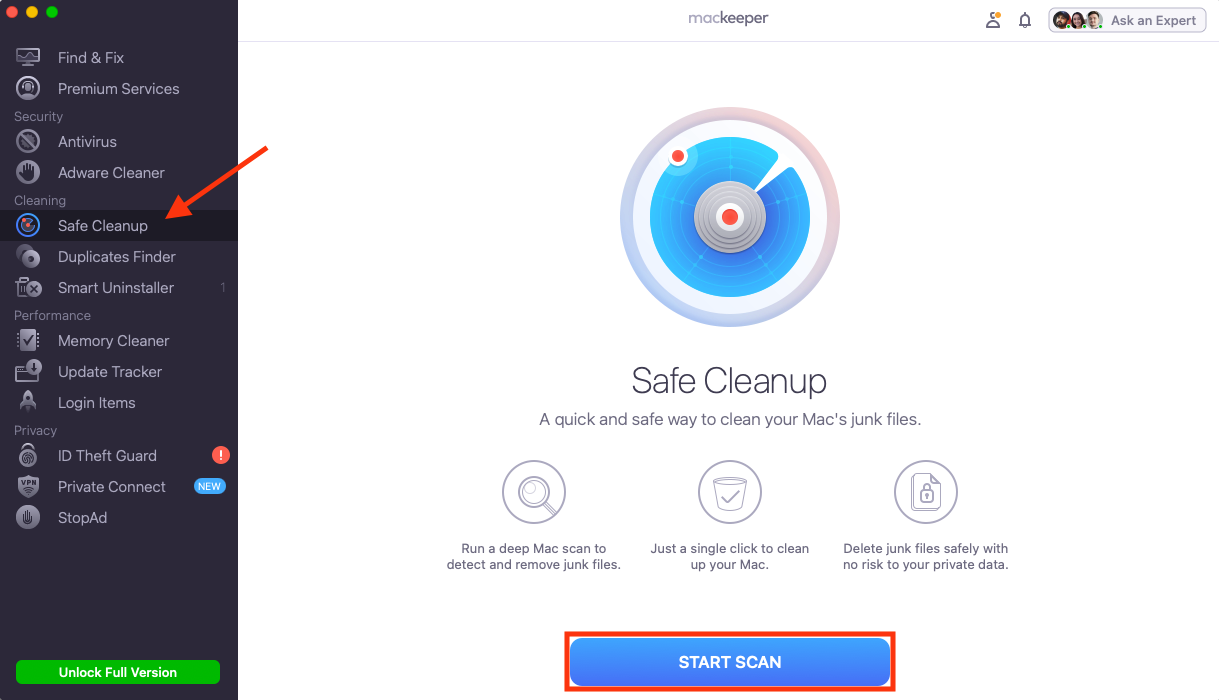
When MacKeeper opens, choose Safe Cleanup in the sidebar, then click Start Scan.
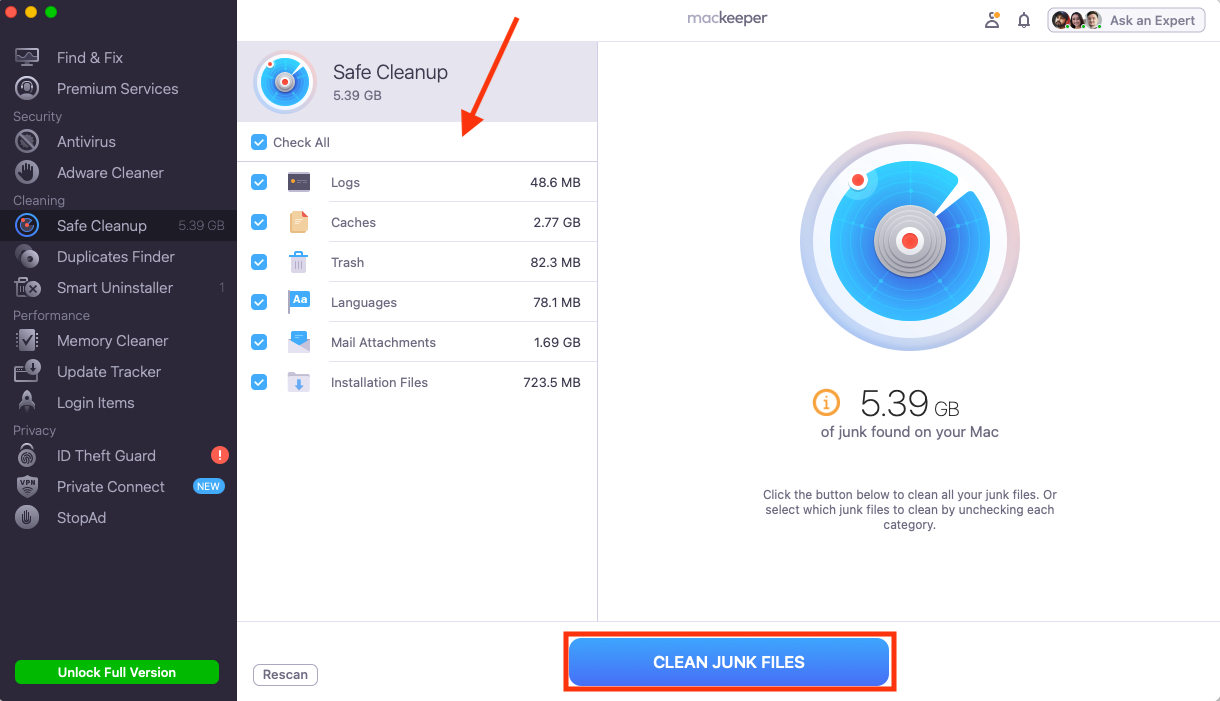
Select the files you want to remove, then click Clean Junk Files.
Step 1. Select Safe Cleanup, then click Start ScanStep 2. Select files to delete, then click Clean Junk Files
We always suggest that users remove unused language packs, old Mail attachments, and undeleted Trash files in particular as these are usually the largest and getting rid of them frees up the most space.
How to get seconds on Mac clock?
To show seconds on the Mac clock in macOS Ventura or later, we need to adjust our Mac’s menu bar settings. Here’s how:
Launch Settings and choose Menu Bar.
Select Clock Options.
Click the toggle next to Displaythe time with seconds to enable this option.
Step 1. In Settings > Menu Bar, choose Clock OptionsStep 2. Enable Display the time with seconds
If you’re running macOS Monterey or an earlier version of the Apple operating system, the process is very similar, except we go into System Preferences, choose Dock & Menu Bar then select Clock to find the option to add seconds to the Mac clock. Sadly, there is no way to use keyboard shortcuts to toggle clock seconds on and off in any version of macOS.
Conclusion
We can quickly and easily put seconds on the Mac clock by adjusting a setting within macOS. There’s no need for third-party software or other tweaks. However, this option is found in the macOS menu bar settings—not in the Date & Time options where you might expect to see it.
Keeping your clock up to date isn’t the only maintenance task that’s important on MacBook. We also recommend clearing your system of junk and unnecessary files on a regular basis with MacKeeper’s Safe Cleanup from Clario Tech to free up space and improve performance.
We respect your privacy and
use cookies
for the best site experience.
Privacy Preferences Center
We use cookies along with other tools to give you the best possible experience while using the
MacKeeper website. Cookies are small text files that help the website load faster. The cookies we
use don’t contain any type of personal data meaning they never store information such as your
location, email address, or IP address.
Help us improve how you interact with our website by accepting the use of cookies. You can change
your privacy settings whenever you like.
Manage consent
All cookies
These cookies are strictly necessary for enabling basic website functionality (including page
navigation, form submission, language detection, post commenting), downloading and purchasing
software. The website might malfunction without these cookies.