If you’re looking for a way to improve your efficiency, split screen on Mac Safari allows you to view two web pages simultaneously without needing to switch between them. While split screen improves productivity, MacKeeper’s Login Items feature can help ensure your laptop is running by managing all your startup apps and limiting system interruptions–further supporting your workflow.
The split-view Safari feature on Mac allows you to look at two Safari web pages on one screen. This shortcut makes it easier for you to navigate between sites with fewer window switches, slowing you down. With this setting enabled, you can customize your browser to help keep your work organized and convenient for your needs.
Can you split screen on Safari?
Yes, you can still use the split screen on Safari. If you’re having any issues, you might need to check that your MacBook has the latest Safari and macOS updates installed to avoid issues. It shouldn't matter whether you have a Mini, a MacBook Air, or a larger Pro model–you can enable this screen function on all compatible Apple laptops.
A note from our experts:
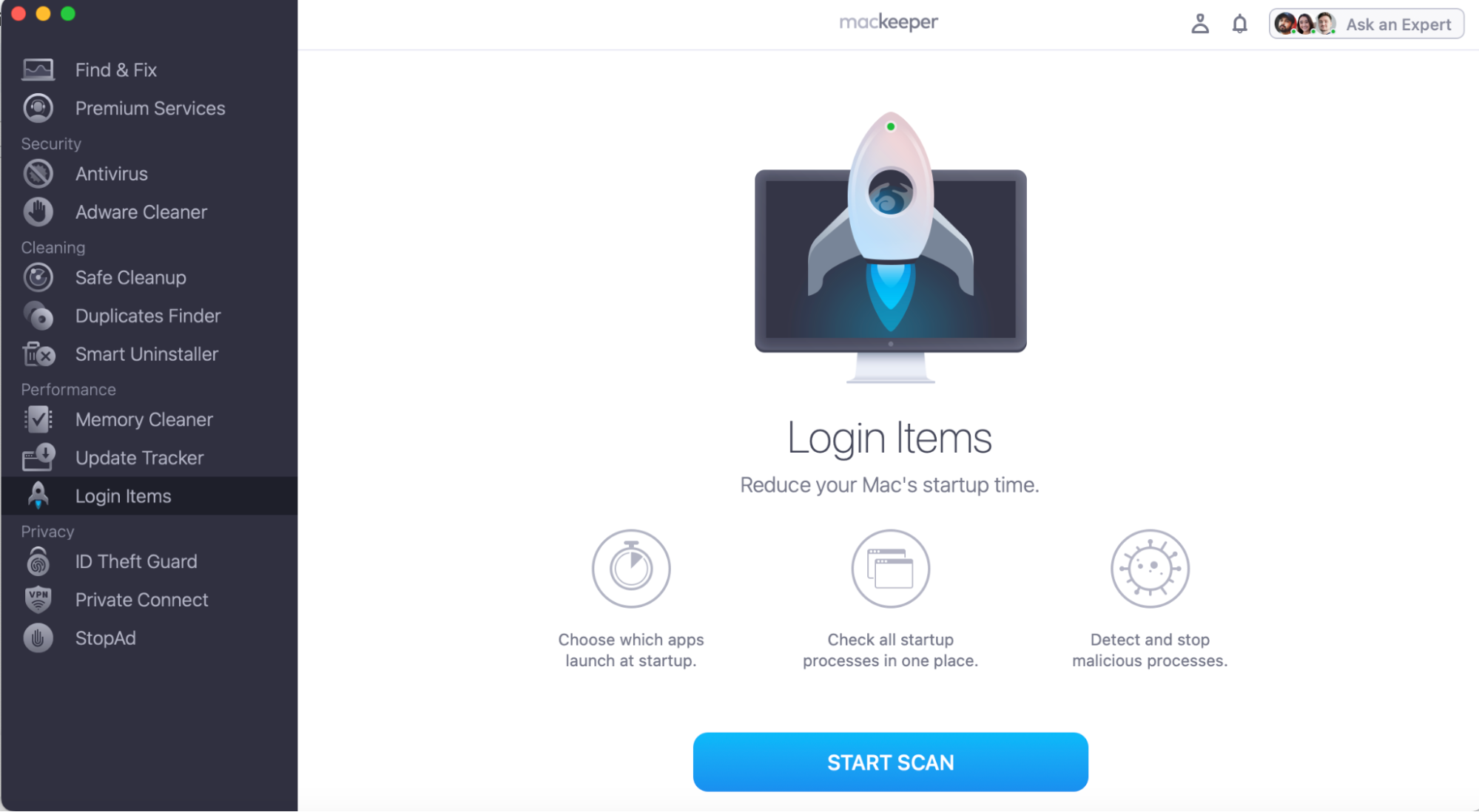
When you’re using Safari’s split screen, the last thing you want is your Mac slowing you down with unnecessary apps running in the background. We know how frustrating it can be when your computer takes longer to start or feels less responsive when you scroll. With MacKeeper’s Login Items feature, we can help you take command of your startup preferences by filtering the programs that launch every time your laptop powers up. You can remove unwanted startup apps, free up system resources, and create a smoother user experience from the moment you turn on your Mac.
Here’s how to use MacKeeper’s Login Items feature:
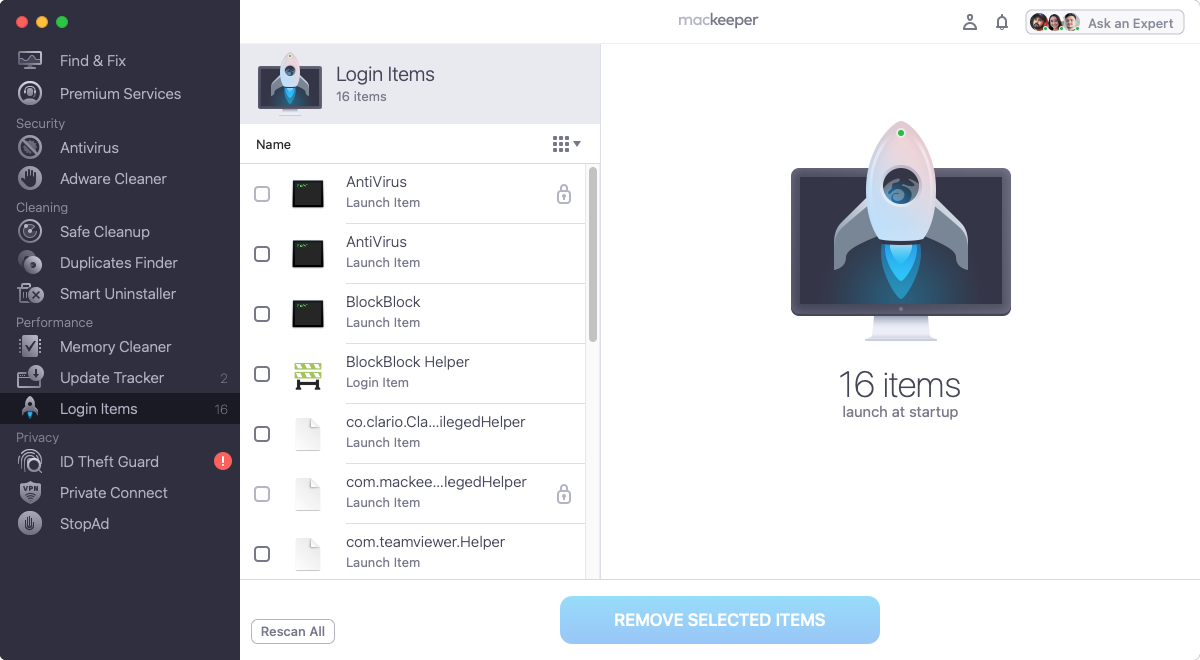
Review your Login Items, select any you don’t need, and press Remove Selected Items.
Step 1. In the MacKeeper app, open Login Items and press the Start Scan buttonStep 2. After your scan, review your Login Items to remove any you no longer need
How to enable split screen on Safari Mac?
Whether you want to view multiple pages at once or return to a standard Safari window, enabling split screen is simple. It’s also equally simple to disable Safari split screen if you change your mind later on, as this OS supported-feature makes it easy for you to both open and close split screen in Safari.
We'll show you how to support your workflow with these four simple methods to enable split-screen:
Green button on Safari window.
Drag lock.
Enable split view via Mission Control.
Add a new window in Safari.
1. Green button on Safari window
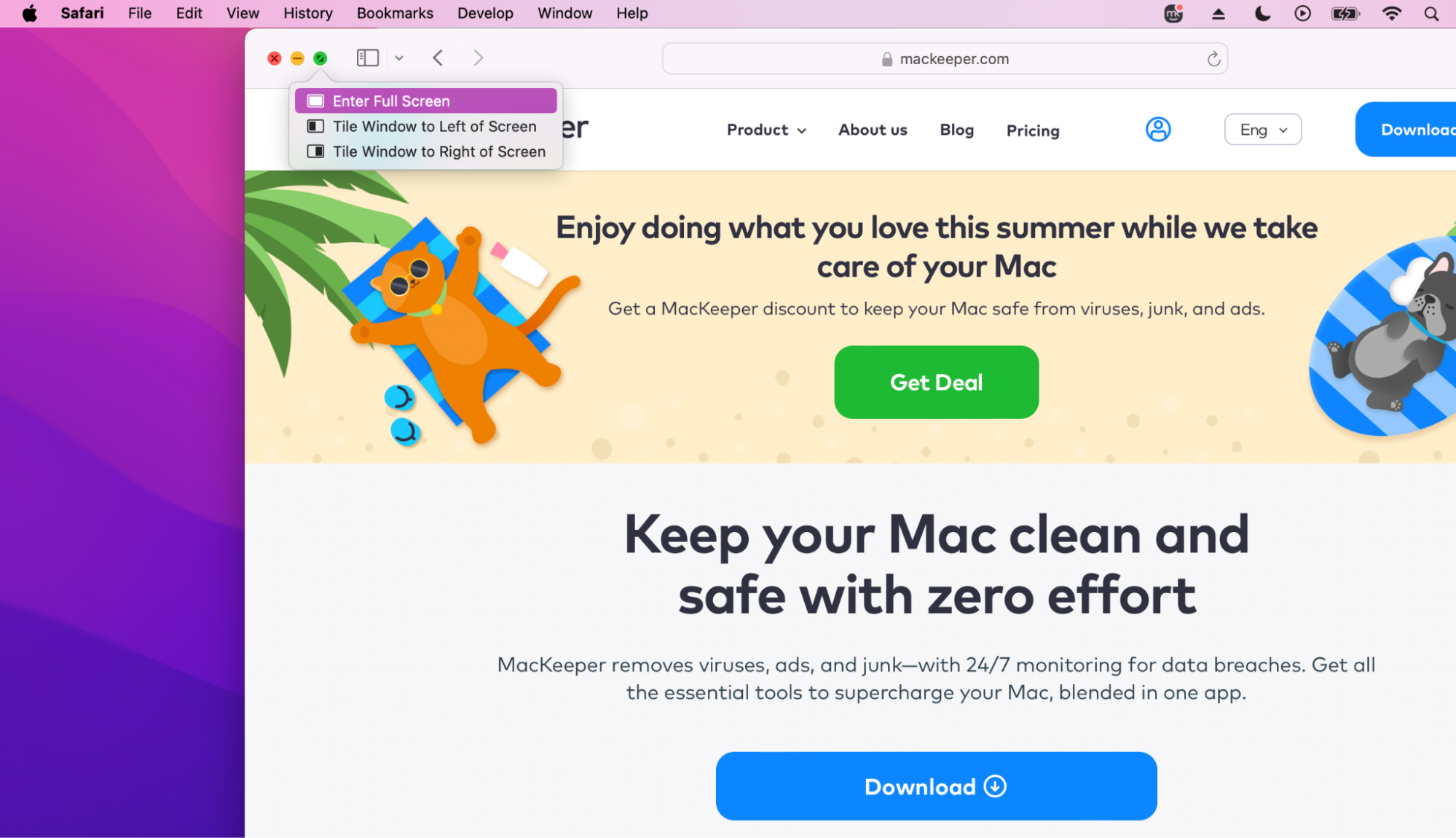
The way we recommend enabling split-screen in Safari is to use the green button. This method requires minimal effort, but gives you full control over the tabs you have open at once. Here’s how it works:
Open Safari.
Exit full-screen mode.
Open separate windows for the two tabs you want open at once.
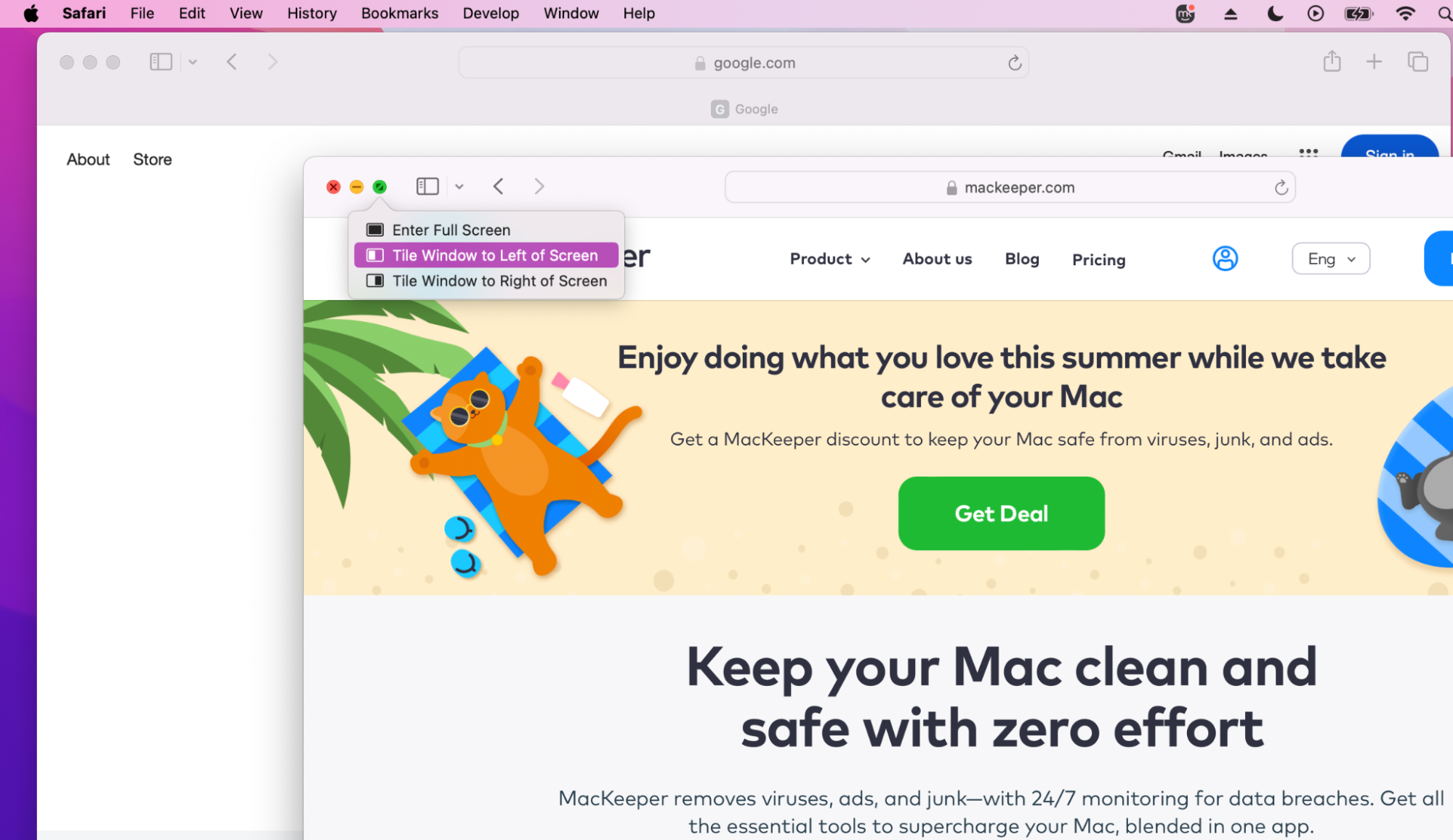
Press the green button to select either Tile Window to Left of Screen or Tile Window to Right of Screen.
In Safari, click on the green button to bring two window tabs onto one screen view
2. Drag lock
Next, you can try the drag lock method as a quick way to arrange your Safari windows. We believe that it makes it easier to compare pages and manage tasks without switching between tabs.
How to use Drag Lock:
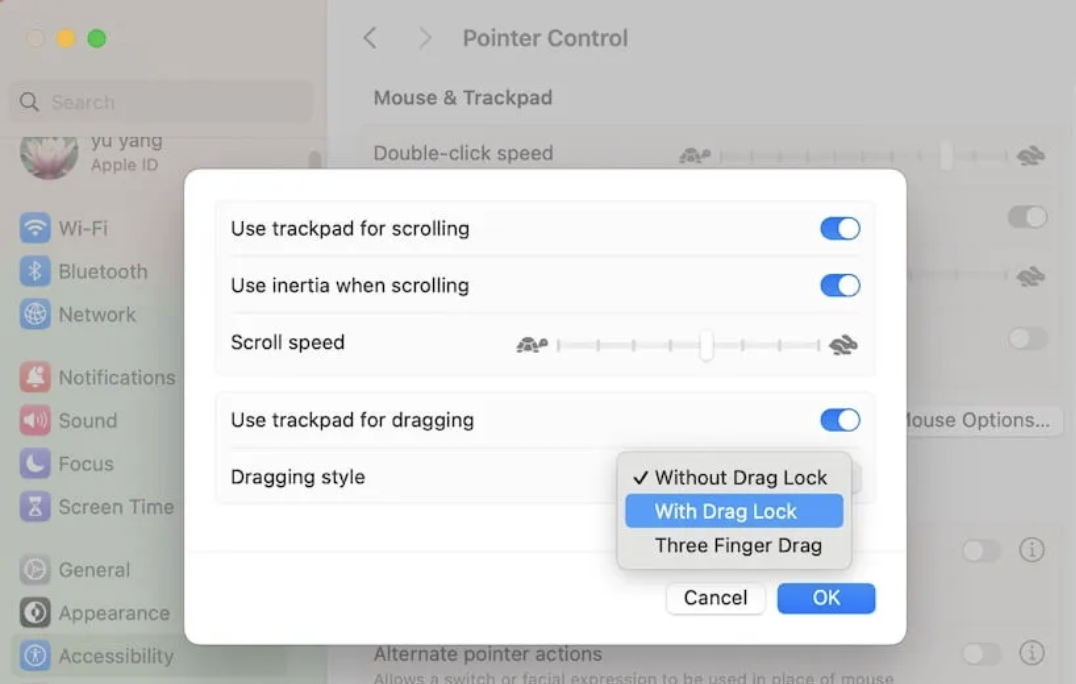
In System Settings, go to Accessibility > Pointer Control > Trackpad Options.
Ensure Use trackpad for dragging is Turned On.
Then choose With Drag Lock or Without Drag Lock.
Now you can drag Safari windows to the edge of your screen to create a split view.
In System Settings, click on Accessibility > Pointer Control > Trackpad Options to enable browser dragging with your trackpad with or without Drag Lock
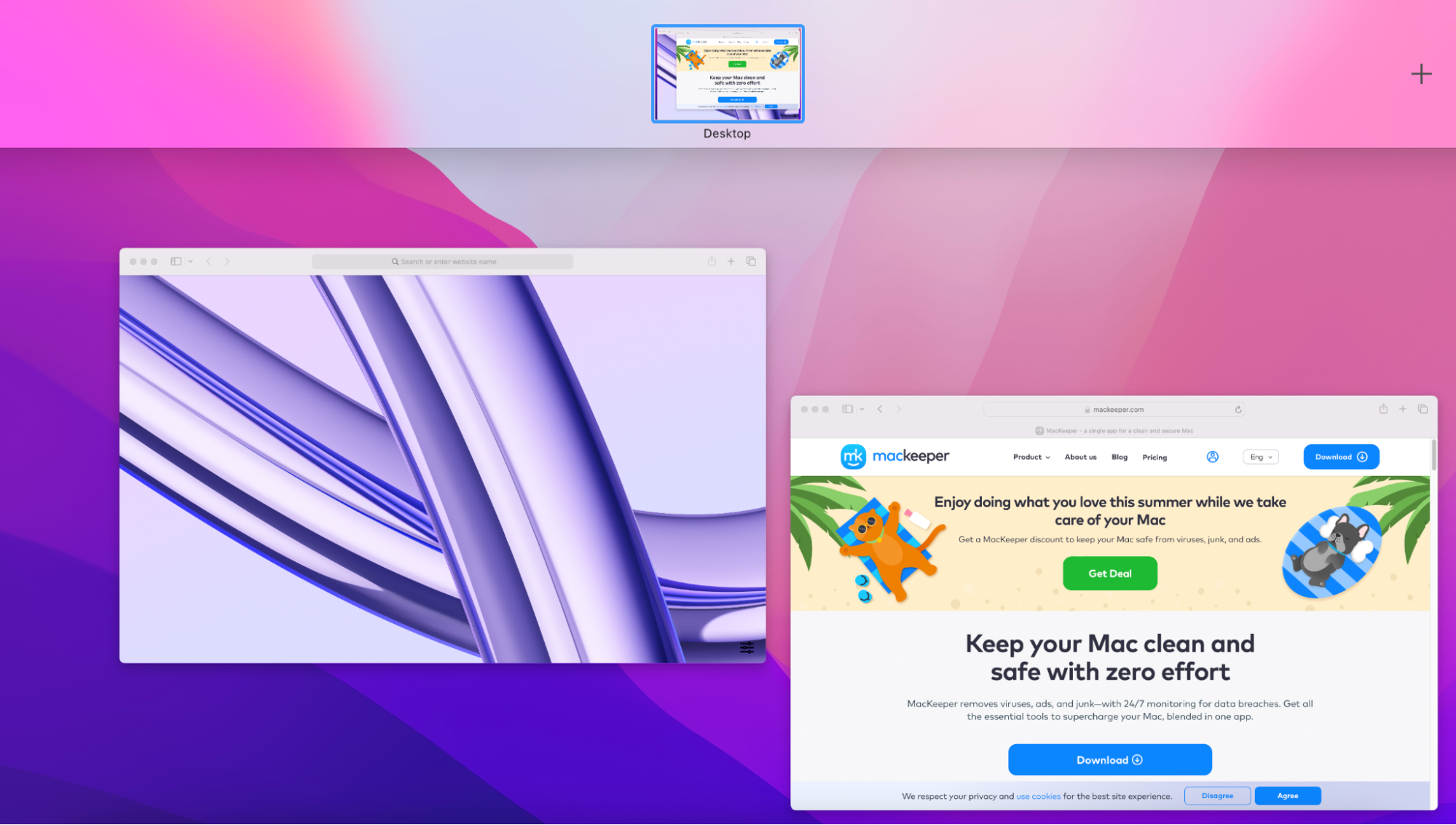
3. Enable split view via Mission Control
We also recommend using Mission Control if you’re looking for more options when it comes to enabling split-view Safari on Mac. This built-in feature can help you organise all your open windows, not just Safari–as you can easily flip between different browsers and apps all from one place.
How to enable Safari split view using Mission Control:
In Safari, open both of your tabs into separate full-screen viewing mode.
Open Mission Control by pressing F3.
Drag your Safari windows directly into the other to create split view.
Step 1. Open both Safari tabs you want to split into windowsStep 2. Press F3 to open Mission Control Step 3. Drag one of your tabs into the other to create split view
4. Add a new window in Safari
Lastly, why not try adding a new Safari window into a current web page to allow the two windows to be open simultaneously next to each other.
Here’s how to add a new window in Safari:
Open Safari.
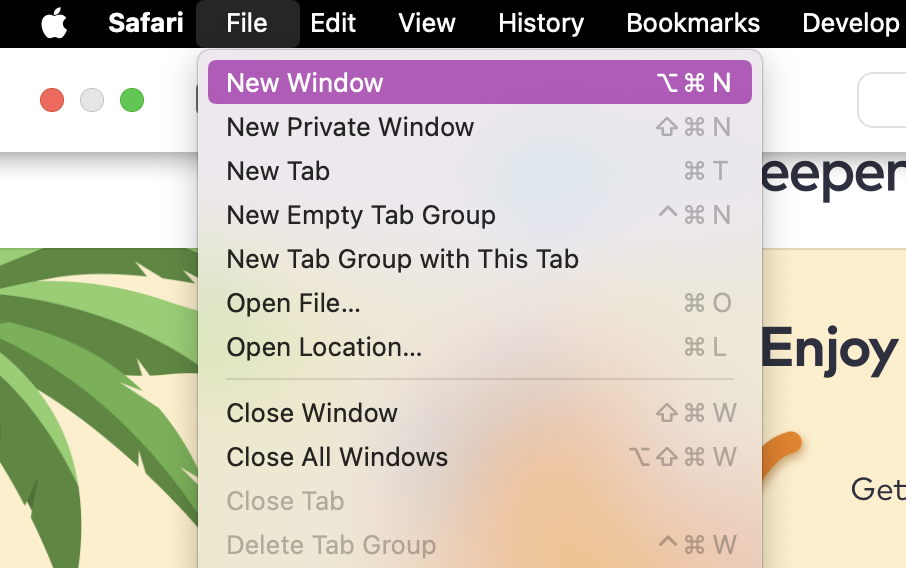
Select File > New Window.
Open the pages you want to view.
Click the Green Button to position the windows side by side.
Step 1. In Safari, select File > New Window and open the pages you want to split screenStep 2. Click the Green Button to position the windows next ot each other
How to close split Safari screen on Mac?
Have you changed your mind, and now you want to close Safari split screen? It’s just as easy to turn off split view in Safari, and there are two ways to do it.
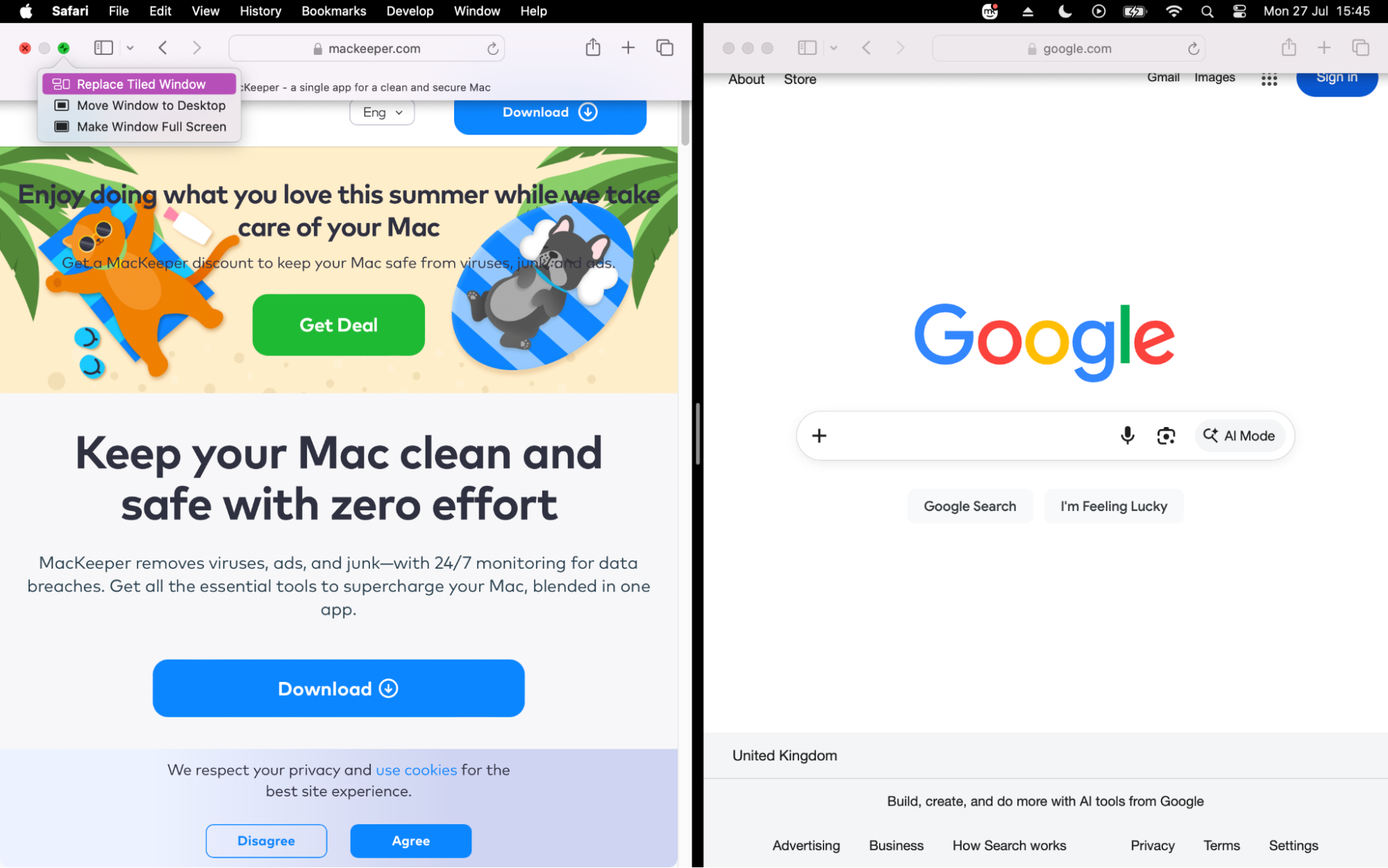
If only one tab is needed, with that window selected, press Make Window Full Screen.
Alternatively, press the Green button again to automatically minimize them both.
Hover over the green button and press Make Window Full Screen, or press the button to minimize them
Split screen Safari on your Mac with ease
Whether you're comparing web pages or multitasking, Safari's split screen makes it much easier to work between tabs without constantly switching back and forth. We've shown you how to enable split screen using methods like the green button, as well as how to get rid of split screen on Safari when you're done.
But split screen isn't the only way to boost Mac efficiency. We also recommend using MacKeeper's Login Items feature to help manage the programs that launch when your Mac powers on. By reducing unnecessary background apps, you can minimize interruptions and ensure your laptop runs smoothly—even when you have multiple Safari windows open.
We respect your privacy and
use cookies
for the best site experience.
Privacy Preferences Center
We use cookies along with other tools to give you the best possible experience while using the
MacKeeper website. Cookies are small text files that help the website load faster. The cookies we
use don’t contain any type of personal data meaning they never store information such as your
location, email address, or IP address.
Help us improve how you interact with our website by accepting the use of cookies. You can change
your privacy settings whenever you like.
Manage consent
All cookies
These cookies are strictly necessary for enabling basic website functionality (including page
navigation, form submission, language detection, post commenting), downloading and purchasing
software. The website might malfunction without these cookies.