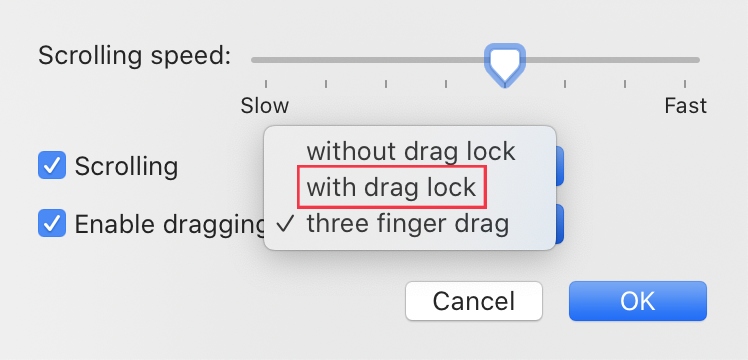
Tired of accidentally dropping items in the wrong place when dragging and dropping them on your Mac’s screen? Enable the drag lock feature to make this much easier. Speaking of improving your workflow, running a quick scan with MacKeeper’s Safe Cleanup tool instantly removes hidden system junk to keep your entire Mac operating just as smoothly.
Drag lock is an accessibility feature on a Mac trackpad that helps improve your workflow by keeping an item stuck to your cursor, so you can continue to drag it after lifting your finger. It can help you improve your workflow and efficiency, as well as prevent unwanted cramping and stiffness from pressing down on the trackpad for too long.
Where does drag lock appear on macOS?
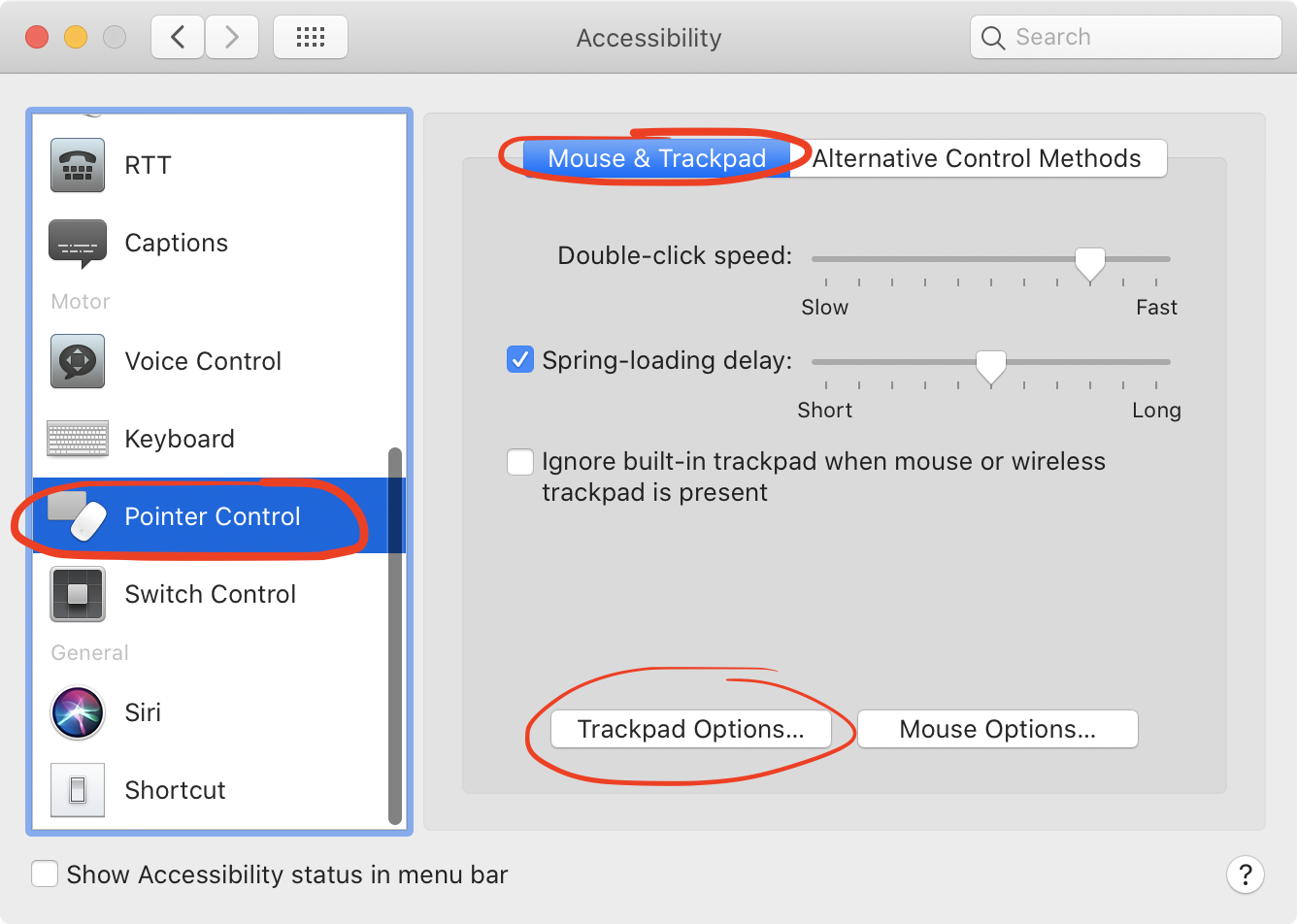
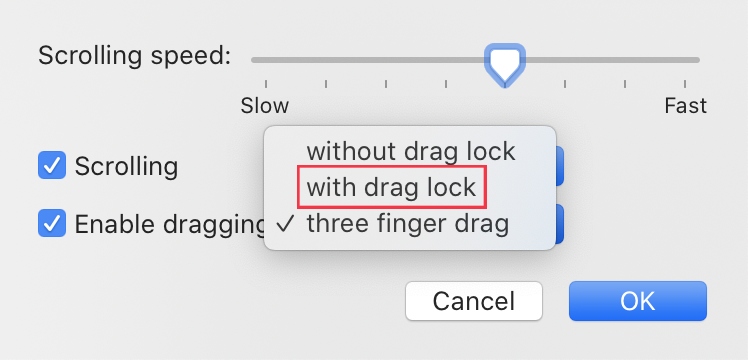
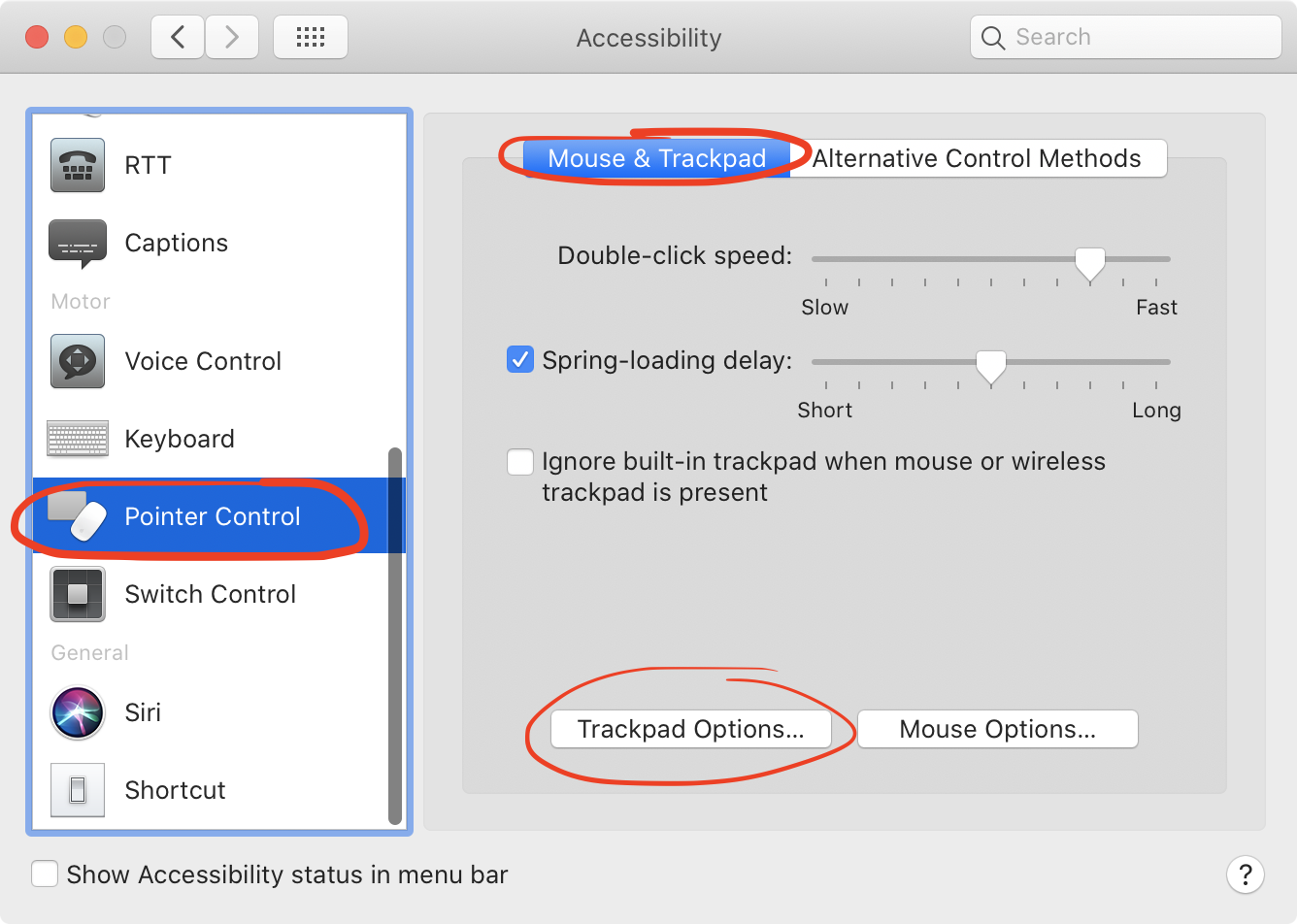
Drag lock is located in Accessibility settings in macOS. Specifically, you’ll find it in the Trackpad section of Accessibility settings in System Settings on macOS. Just look for the Pointer Control tab, then select Trackpad Options, Dragging style, and With drag lock.
Step 1. Select Pointer Control > Trackpad OptionsStep 2. Select With drag lock
A note from our experts:
Looking for ways to optimize your Mac? One of the quickest and easiest ways to achieve this is by automating the process. MacKeeper’s Safe Cleanup tool helps you do just that. It helps you efficiently and safely clear your Mac of system junk, including caches, mail attachments, and more, to improve your computer’s performance.
Follow the steps below to use MacKeeper’s Safe Cleanup tool:
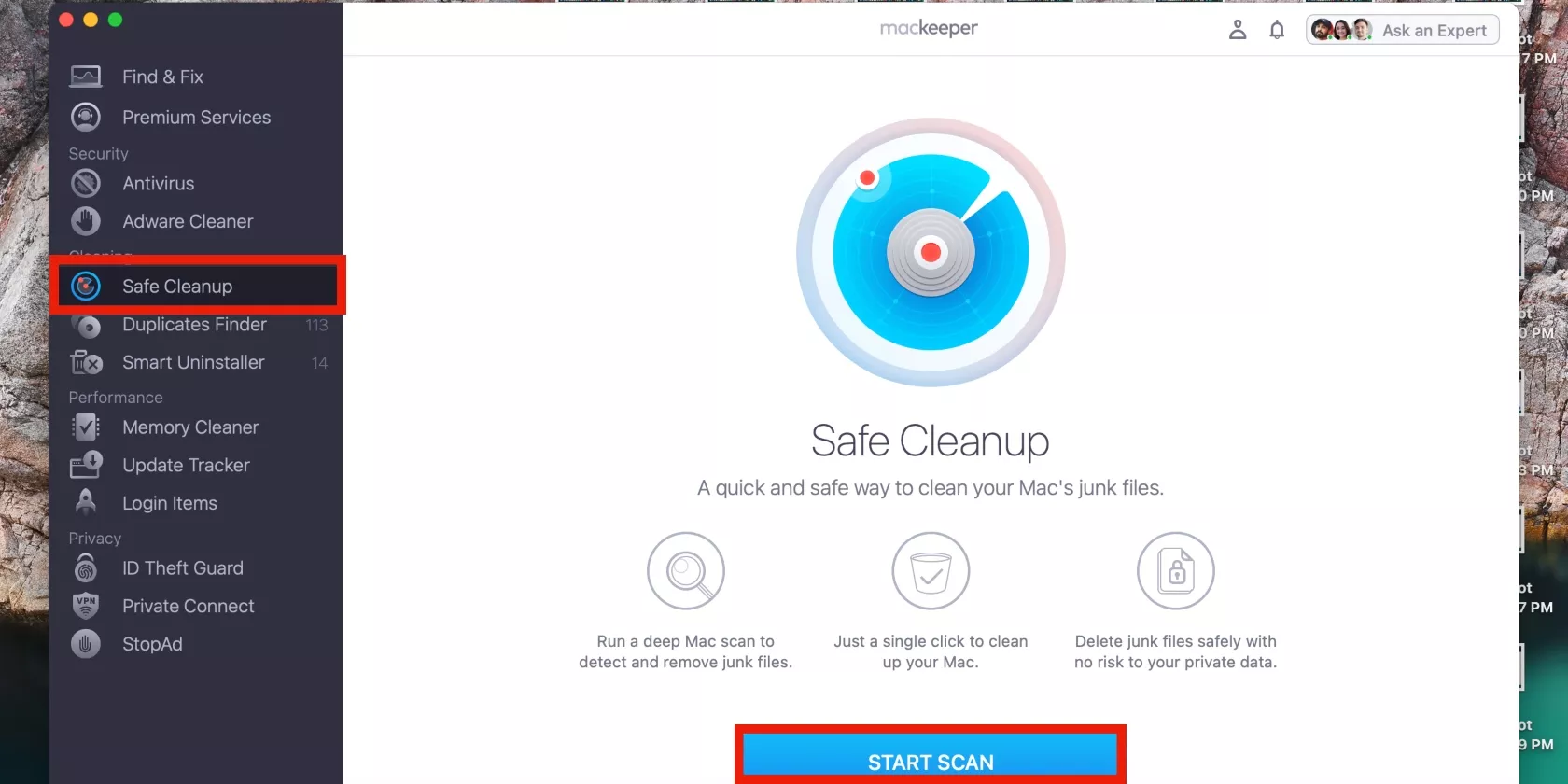
Download MacKeeper, open it, and then select Safe Cleanup in the sidebar, followed by Start Scan.
MacKeeper will start scanning your device. Wait for it to finish and then click the Clean Junk Files button at the bottom of the window.
Step 1. Initiate the MacKeeper Safe Cleanup scanStep 2. View the junk files found by MacKeeper’s Safe Cleanup
After MacKeeper has completed the process of clearing your Mac’s unwanted junk files, you’ll immediately notice a faster, more efficient operating system. That’s because its Safe Cleanup software actually frees up much-needed storage space, thereby preventing your device from lagging. It’s a simple solution that keeps your system working as new by addressing unwanted technical slowdowns.
How does drag lock work on Mac?
The drag lock feature is a more convenient way to drag and drop on Mac. Instead of holding your finger down on the trackpad to drag an item across the screen, you instead use a specific tap gesture to “lock” the item to your mouse cursor while you move it.
So what exactly is this gesture? You double tap an item and keep your finger pressed against the trackpad on the second tap. From there, you simply disengage your finger to move the file. You can then release the item with a single click or tap. Drag lock comes in particularly handy when using two monitors. It also minimizes physical hand strain and prevents the finger cramping you’d typically experience when moving items across long distances.
How to enable drag lock on Mac?
To enable drag lock on your MacBook device, open System Settings via the Apple menu and select the Accessibility option. Next, you should click on Pointer Control, and then select Trackpad Options. Now, click on the drop-down arrow next to Draggingstyle and select the With drag lock option.
Step 1. Select Pointer Control > Trackpad OptionsStep 2. Select With drag lock
Improve your workflow with Mac’s drag lock feature
The macOS drag lock feature is an excellent tool for improving your workflow. It enables you to easily and seamlessly drag and drop items across your screen. By eliminating the pressure of holding down the trackpad throughout, you’re less likely to drop the items in the wrong place and have to start all over again.
Instead of forcing your fingers to stay tense, you just double-tap and hold on the second tap to secure the item. This lets you lift your finger freely to reposition it on the trackpad without losing your grip on the file. You feel the difference when navigating across massive screens because you don’t run out of physical trackpad space. Plus, it reduces hand fatigue, giving you a much more seamless desktop experience.
Another tip from us is to improve your workflow is to use MacKeeper’s Safe Cleanup tool. Automating the process of deleting junk files takes the pressure off you, helping you save time, so you can get back to being productive.
We respect your privacy and
use cookies
for the best site experience.
Privacy Preferences Center
We use cookies along with other tools to give you the best possible experience while using the
MacKeeper website. Cookies are small text files that help the website load faster. The cookies we
use don’t contain any type of personal data meaning they never store information such as your
location, email address, or IP address.
Help us improve how you interact with our website by accepting the use of cookies. You can change
your privacy settings whenever you like.
Manage consent
All cookies
These cookies are strictly necessary for enabling basic website functionality (including page
navigation, form submission, language detection, post commenting), downloading and purchasing
software. The website might malfunction without these cookies.