Knowing how to reset Bluetooth on Mac Ventura can help you fix issues with many wireless devices, including peripherals and speakers. In this guide, we’ll show you exactly what you need to do, but if you need extra support, try MacKeeper’s Premium Services. They’re available 24 hours a day for expert support with all kinds of tech-related issues.
When you find Bluetooth not working on your Mac, you can reset it in a few different ways. We’re looking at the most common macOS Ventura ‘reset Bluetooth’ methods here, but it’s worth noting they’ll work in other versions of the operating system too—so it’s worth trying them even if you’re not using Ventura.
How to reset Bluetooth on Mac Ventura?
You can reset your Mac’s Bluetooth in your Mac’s System Settings, but there are other methods too. They include using Terminal, booting into safe mode, resetting the SMC, and running Apple Diagnostics.
Whichever methods you try, if you’re using a Bluetooth mouse, keep a wired mouse as a backup. Otherwise, when you reset the Bluetooth module on Mac Ventura, your mouse will lose connection, and you won’t be able to operate your Mac with it. If you have a MacBook, you can simply use your trackpad instead.
A note from our experts:
Often, simply resetting your Bluetooth will be enough to fix whatever issue you’re having. If you try all our tips here and you’re still struggling, reach out to MacKeeper’s Premium Services.
Select Premium Services from the list on the left.
Click Chat Now, and you’ll quickly be connected to a support agent.
Explain your issue, and they’ll tell you what to do next.
Contact MacKeeper Premium Services for fast, expert support
1. Restart Bluetooth with Terminal
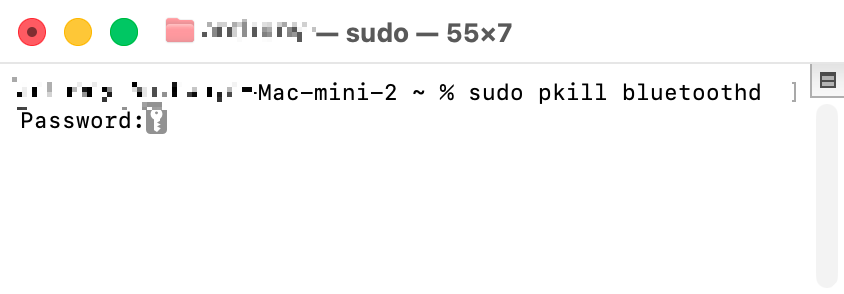
Here’s a fairly quick way to reset your Mac’s Bluetooth. You can use Terminal, Apple’s simple but powerful command-line tool. Simply do as follows:
Launch Terminal from Applications > Utilities > Terminal, or using Spotlight.
Type sudo pkill bluetoothd, and press Return.
Enter your password, if prompted, and press Return again.
Runing this Terminal command will reset your Bluetooth
macOS will temporarily turn off Bluetooth, then turn it back on. You might also want to reset your Mac, and then see if your problems have been resolved.
2. Delete Bluetooth property list
macOS uses .plist files to store your preferences for apps and services. By deleting the Bluetooth .plist file, you can force macOS to rebuild your Bluetooth preferences, which may fix any issues you’re having. The process for this is relatively simple:
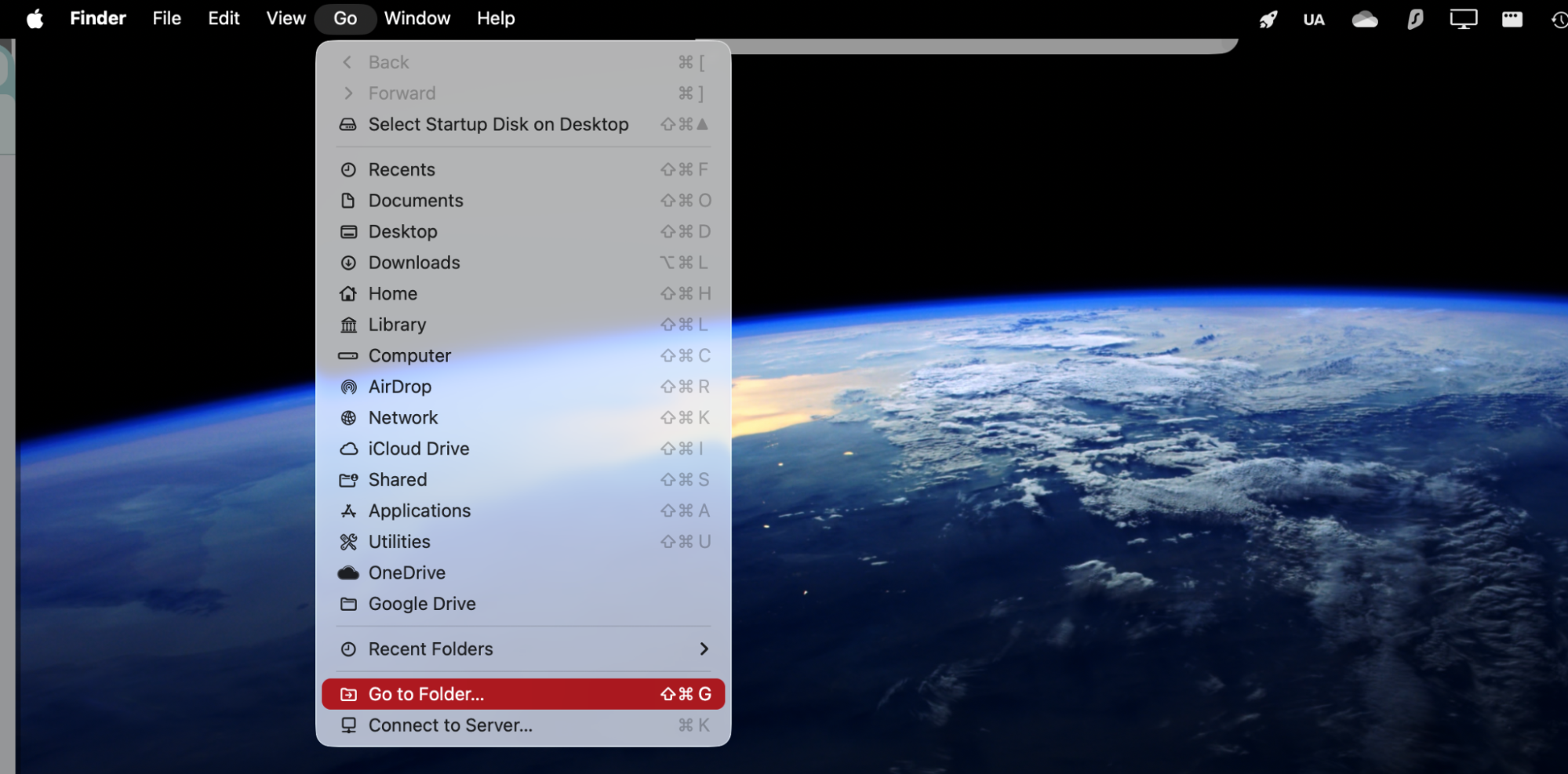
In Finder, select Go > Go to Folder from the menu bar.
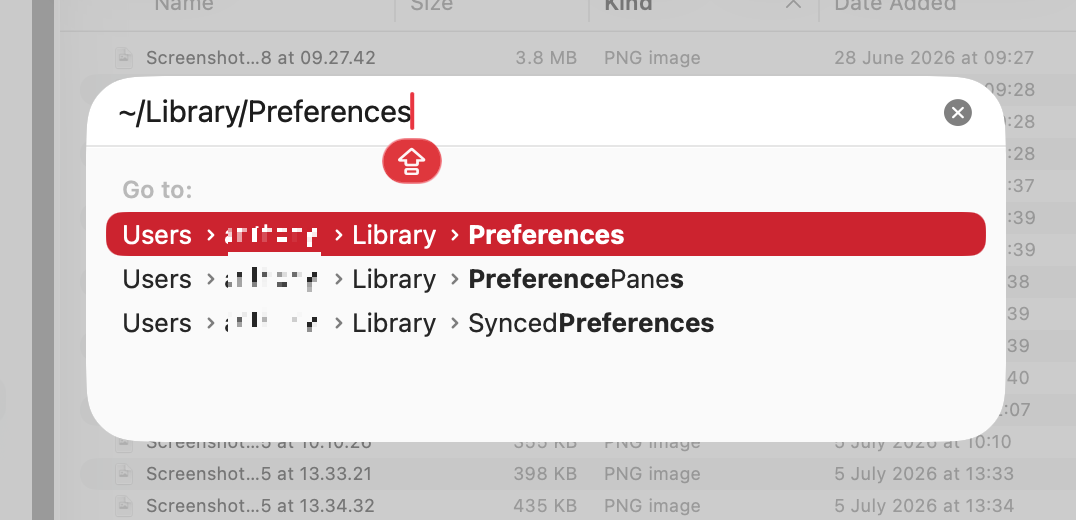
Search for and open ~/Library/Preferences.
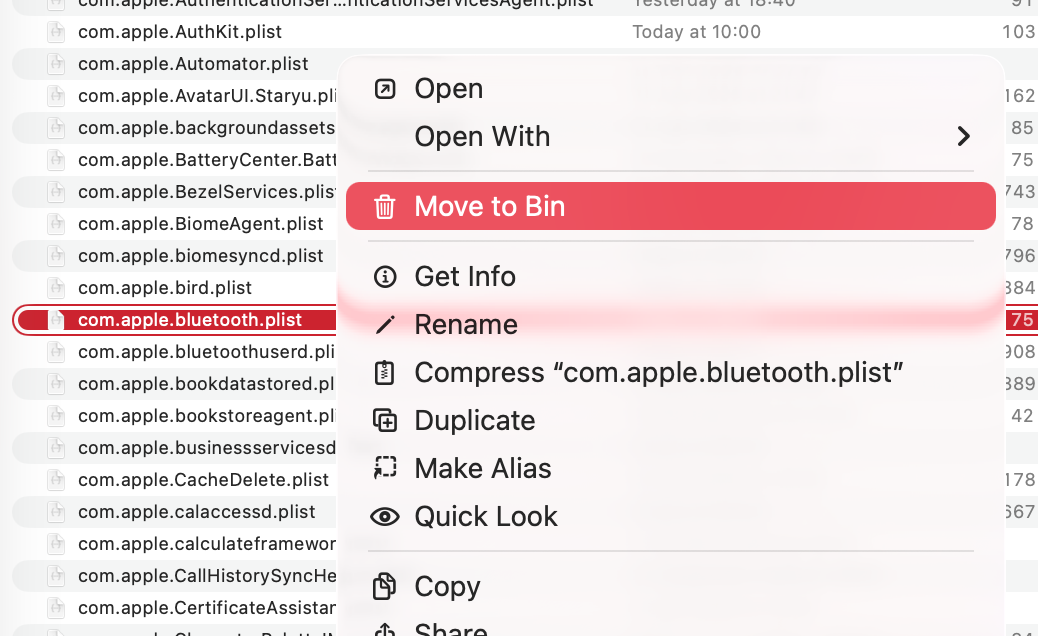
Find the com.apple.Bluetooth.plist file, and delete it.
Restart your Mac. When your Mac has rebooted, check if your Bluetooth issues have been fixed.
Step 1. Select Go > Go to Folder from your menu barStep 2. Open your Library > Preferences folderStep 3. Delete the Bluetooth .plist file
3. Reset Bluetooth module via System Settings
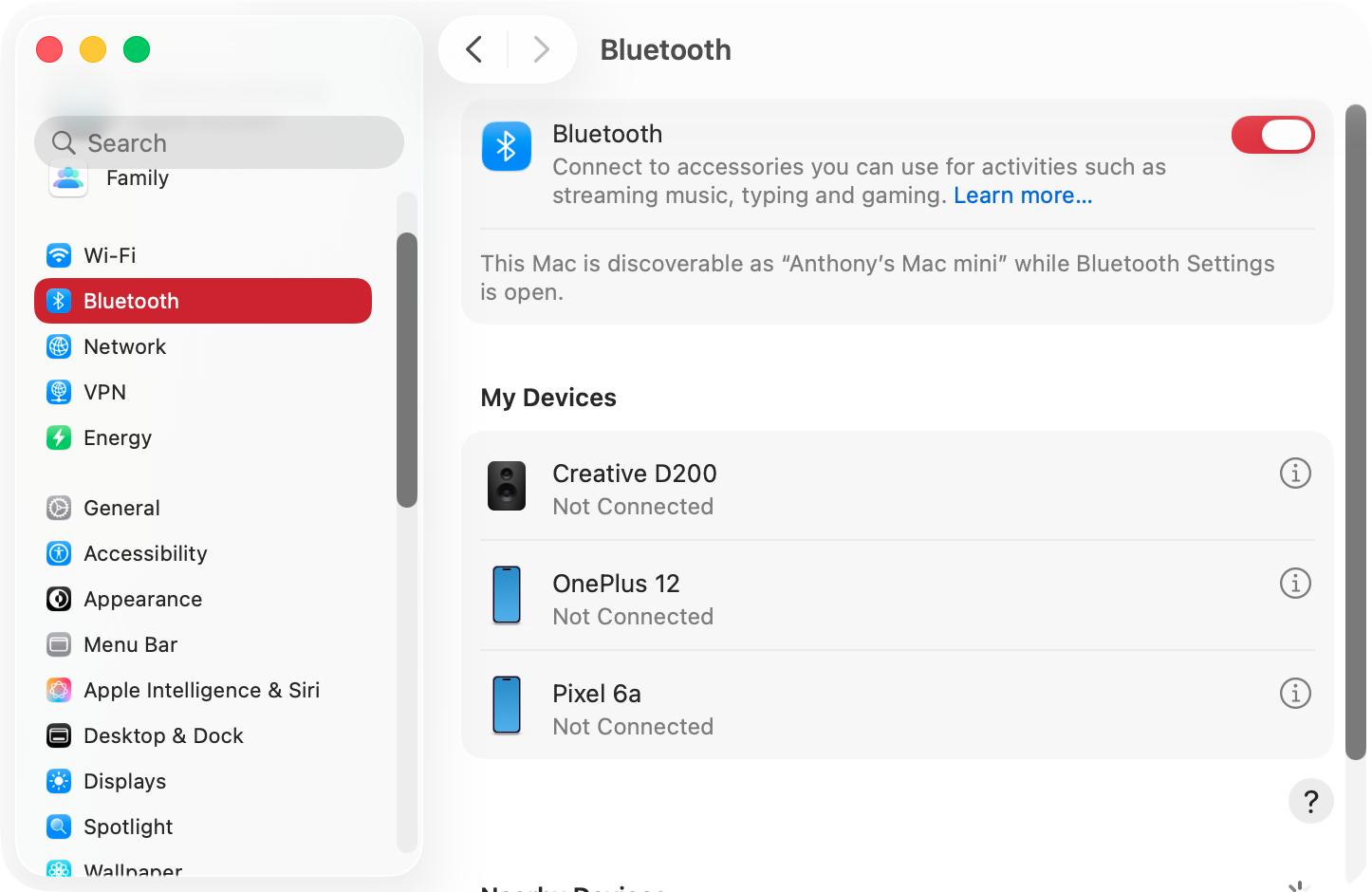
You can toggle Bluetooth on and off at any time from your System Settings. You can also reset connections with individual Bluetooth devices. Just follow these steps:
Open your macOS System Settings.
Select Bluetooth from the side menu.
Click the Bluetooth switch to turn off your Mac’s Bluetooth.
Click the switch again to restore Bluetooth.
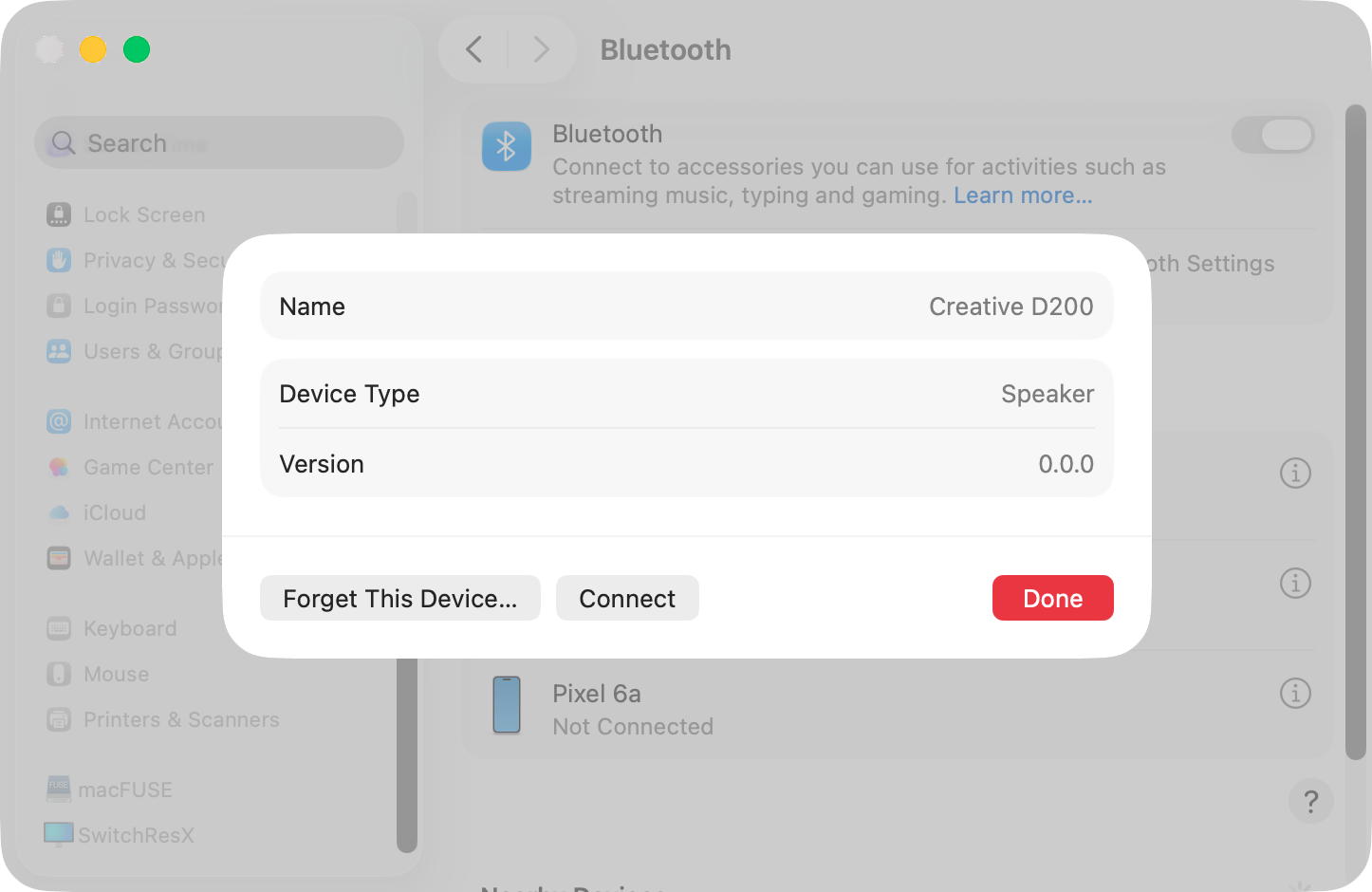
To reset a device connection, click its i button, then click Forget This Device.
Step 1. Open your Bluetooth settings, and use the switch to turn it off and onStep 2. Remove devices and add them back again
An extra help from our team: if you’re using a Bluetooth mouse and you’re not using a laptop, you’ll need a wired mouse to turn Bluetooth back on.
4. Boot Mac into Safe Mode
Whenever you’re dealing with macOS issues, including Bluetooth problems, we suggest booting your Mac in safe mode for troubleshooting. This loads up macOS without third-party drivers, and that can help you work out what’s wrong.
To boot an Apple Silicon Mac into safe mode:
Power down your Mac.
Press and hold the power button until you see Loading startup options.
Select your main drive.
Press and hold Shift, then select Continue in Safe Mode.
To boot an Intel Mac into safe mode:
Turn on or restart your Mac, and immediately hold Shift.
When you see the login window, release the Shift key.
Log back in, if asked to.
You should now be in safe mode. If your Bluetooth issues have disappeared, then it’s likely that a third-party app or extension is the root cause.
5. Reset NVRAM/SMC
When you reset NVRAM/SMC, you can reset Bluetooth and other hardware preferences, and that may fix your problems. Note, this only applies to Intel Macs.
Below, we’ve prepared the guidelines for your NVRAM/SMC reset depending on the Apple computer you’re using. Check it out.
Here’s how to reset NVRAM on an Intel Mac:
Turn on your Mac, and immediately press and hold Opt + Cmd + P + R.
If your Mac has a startup sound, release the keys when you hear the sound for the second time.
If your Mac has an Apple T2 security chip, wait until the logo goes away for the second time.
Here’s how to reset SMC on an Intel MacBook with a T2 chip:
Turn off your Mac.
Press and hold Left Ctrl + Left Opt + Right Shift.
After seven seconds, press and hold the power button too.
Hold everything for another seven seconds, then release.
Wait a few seconds, then turn on your Mac.
To reset SMC on an Intel MacBook that doesn’t have a T2 chip:
Turn off your MacBook.
Press and hold Left Shift + Left Ctrl + Left Opt + power.
Hold everything for 10 seconds, then release.
Turn on your Mac.
How to reset SMC on a desktop Mac:
Turn off your Mac, and unplug the power cable.
Wait 15 seconds, and then plug it in again.
Wait five seconds, then turn on your Mac.
6. Run Apple Diagnostics
Hopefully, your Mac doesn’t have a serious hardware issue, but just to be sure, we recommend running Apple Diagnostics. It’ll scan your Mac and flag anything that seems to be wrong.
To run Apple Diagnostics on an Apple Silicon Mac:
Turn off your Mac, then press and hold the power button.
Let go when you see Loading startup options.
Press and hold Cmd + D until your Mac reboots.
To run Apple Diagnostics on an Intel Mac:
Turn on your Mac, and immediately press and hold D. If that doesn’t work, use Opt + D.
When you see a progress bar or if you’re asked to choose a language, release the key.
When you run diagnostics, look out for anything related to Bluetooth.
No more Bluetooth blues
Bluetooth is a wonderful technology when it’s working properly. When it goes wrong, it’s a nightmare. As you’ve seen, there are a few different ways to reset Bluetooth on macOS Ventura and other versions of the OS, and hopefully one of them solves your problems.
If you need extra support, then don’t hesitate to contact the MacKeeper’s Premium Services team. They’re experts in all things Apple, and they have extensive experience of dealing with Bluetooth issues. Just hit that chat button, and tell them what’s up.
We respect your privacy and
use cookies
for the best site experience.
Privacy Preferences Center
We use cookies along with other tools to give you the best possible experience while using the
MacKeeper website. Cookies are small text files that help the website load faster. The cookies we
use don’t contain any type of personal data meaning they never store information such as your
location, email address, or IP address.
Help us improve how you interact with our website by accepting the use of cookies. You can change
your privacy settings whenever you like.
Manage consent
All cookies
These cookies are strictly necessary for enabling basic website functionality (including page
navigation, form submission, language detection, post commenting), downloading and purchasing
software. The website might malfunction without these cookies.