macOS certificates are used by everything from web browsers to email clients to ensure you only connect to safe online servers. Normally, this works automatically, but sometimes you may need to manually trust a certificate on Mac. Be careful, though, and use MacKeeper’s StopAd to prevent rogue websites from tracking you or bombarding you with intrusive ads.
What does it mean to trust a certificate on macOS?
Whether you have an iMac or a MacBook, it will store certificates locally in your macOS keychain. These certificates are issued to secure websites by certain trusted organisations, so users know those sites are legitimate and secure. This helps protect your personal information, such as your passwords and credit card numbers, and it’s a key part of how to protect your Mac from viruses.
Your Mac’s operating system comes with root certificates, and it will verify any external certificates against a public record to validate them. If it all checks out, macOS knows it can trust that certificate, and the connection goes ahead.
When and why do you need to trust certificates on Mac?
When certificates are working correctly, you’ll barely even realize they’re there. So why are we talking about how to get your Mac to trust a certificate? Because sometimes, a site might be using a self-signed or expired certificate, or some other error might be causing the certificate to malfunction.
Normally, we’d say not to visit any sites without a valid certificate, but there are some exceptions. Perhaps you’re trying to visit a website that you own. Maybe it belongs to a big organization that you know is safe. What we’re getting at is that you might want macOS to add a certificate to trusted status, because you know you can trust the website it’s associated with.
However, be careful with this. Connecting to an unsafe site will remove any data leakage protection on Mac that you would normally have.
A note from our experts:
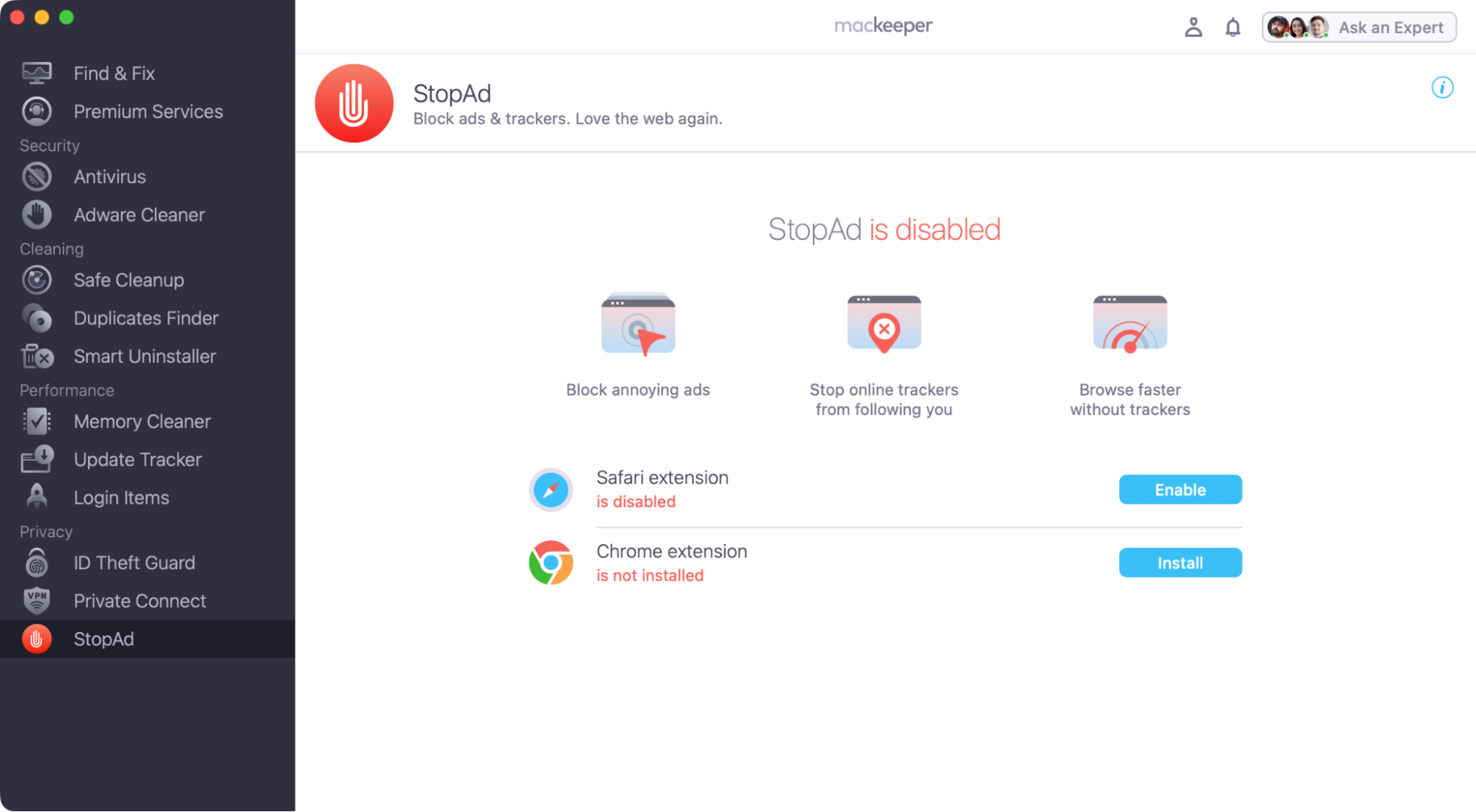
Any website you visit can have online trackers that follow you around, as well as intrusive ads. If you want to stop them, use MacKeeper’s StopAd browser extension.
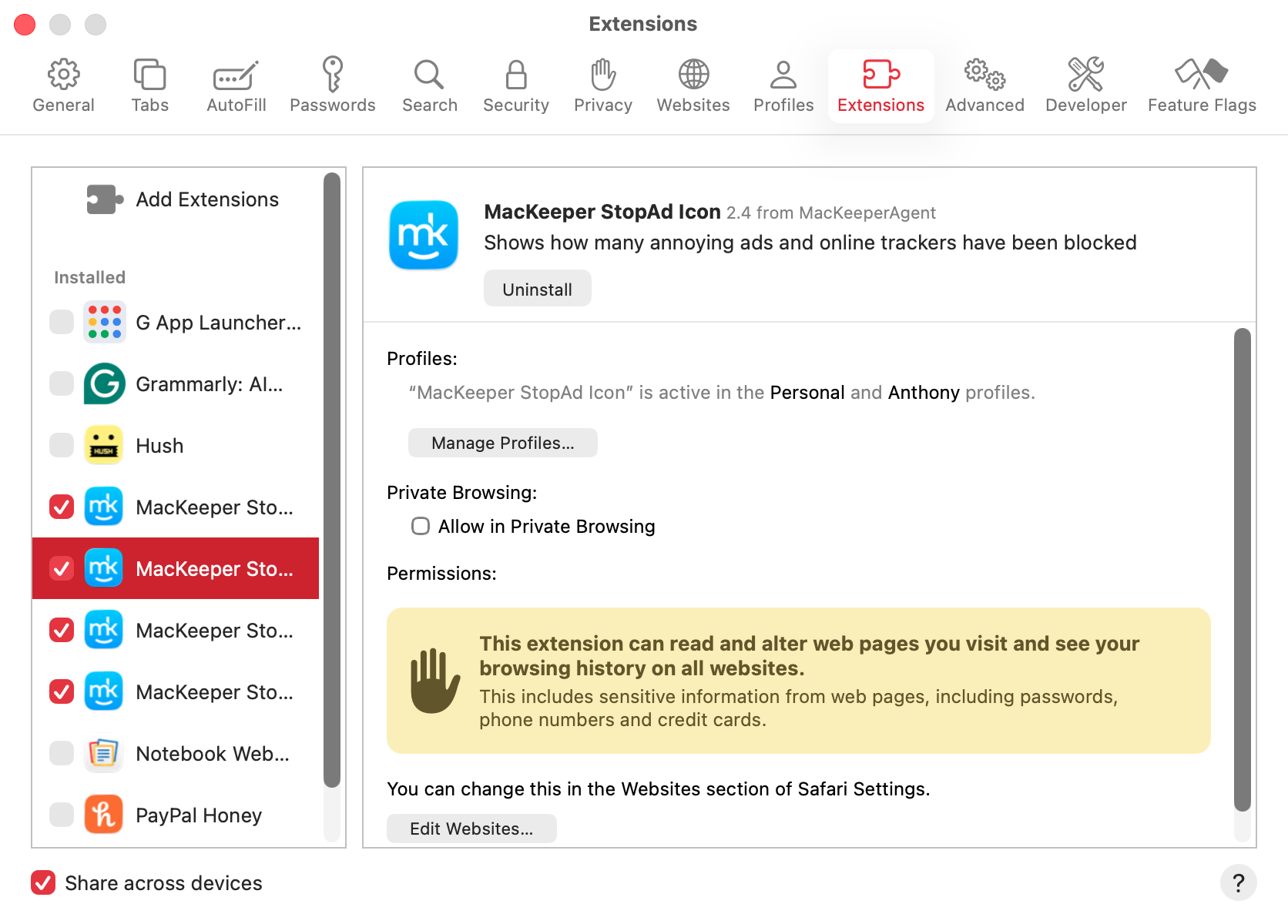
Open Safari, and go to Safari > Settings in the menu bar.
In the Extensions tab, make sure that all the MacKeeper extensions are enabled.
Step 1. Select StopAd, then click EnableStep 2. Check that the MacKeeper extension is installed
How to add and trust certificate on Mac?
When you try to connect to a site without a valid certificate, your browser will usually bring up a warning. Something along the lines of “Your connection is not private.” Your browser may let you visit the site temporarily, but if it’s your own site, you may want add your own self-signed certificate to macOS. This will stop your browser from flagging the site and bringing up a warning. Here’s how:
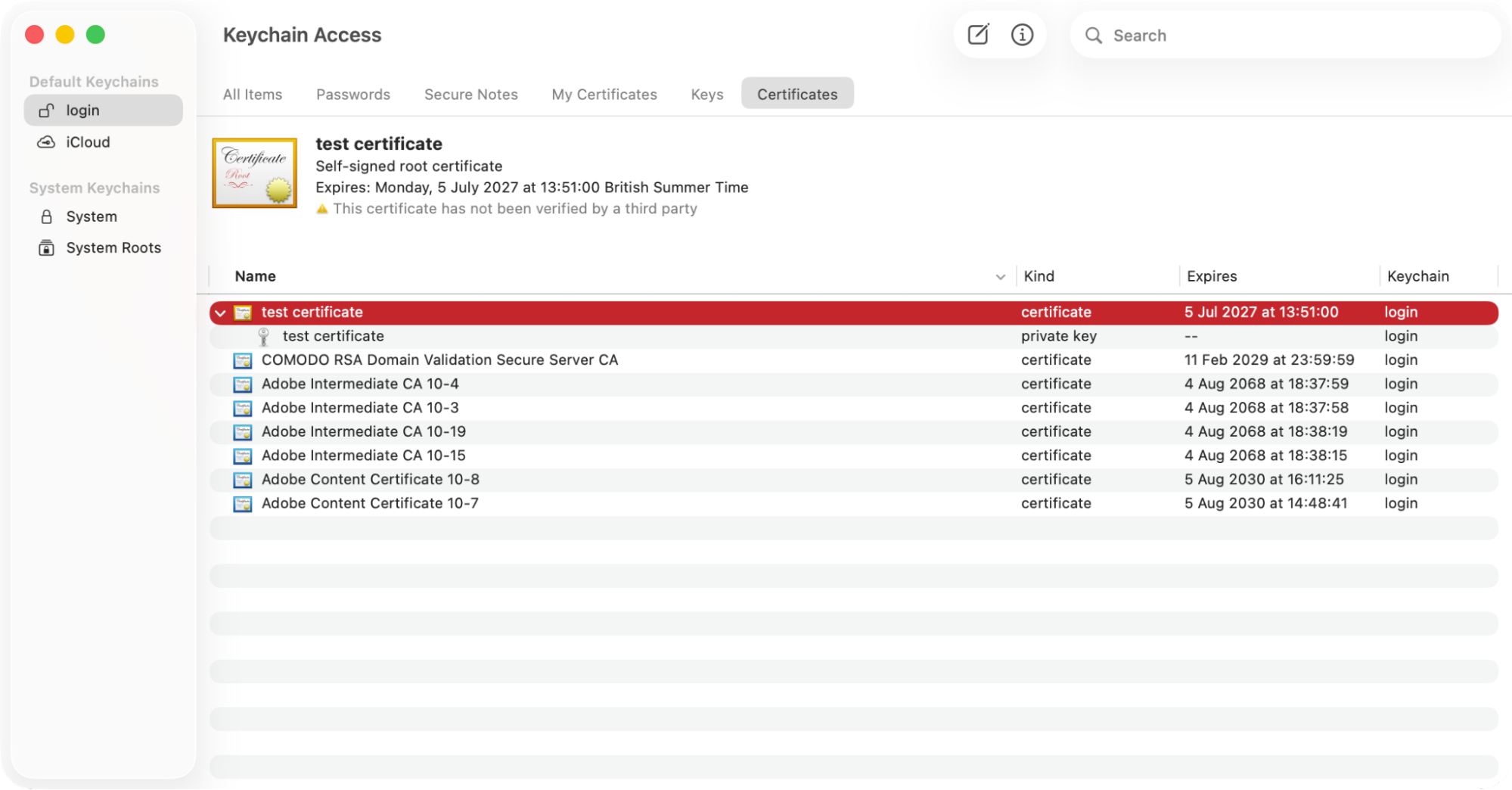
Use Spotlight to find and open the Keychain Access app.
From the side menu, select Login or System.
Select Certificates, then drag and drop your certificate file into the Keychain Access window.
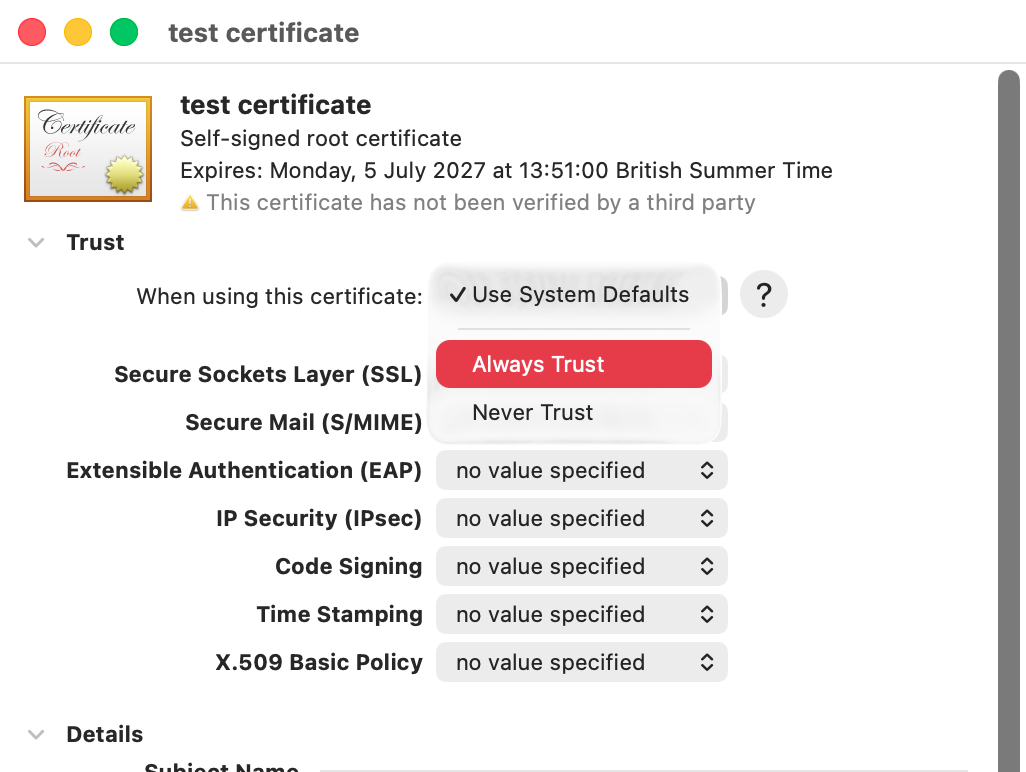
Double-click your certificate to bring up the certificate trust settings on your Mac.
Expand the Trust section. Use the dropdown next to When using this certificate, and select Always Trust.
Step 1. Open Keychain Access and drag your certificate into the windowStep 2. Select your certificate and set it to 'Always trust'
Better, safer browsing
We don’t recommend installing any certificates on your Apple Mac unless you’re absolutely certain it’s safe to do so. If you’re testing your own website or using an application that works in a browser, you might want to manually add certificates on macOS.
Whatever your reason for wanting to add certificates to your Mac, protect your online privacy with MacKeeper’s StopAd. Not only will it block annoying ads, but it’ll stop online trackers from following you around online, too.
We respect your privacy and
use cookies
for the best site experience.
Privacy Preferences Center
We use cookies along with other tools to give you the best possible experience while using the
MacKeeper website. Cookies are small text files that help the website load faster. The cookies we
use don’t contain any type of personal data meaning they never store information such as your
location, email address, or IP address.
Help us improve how you interact with our website by accepting the use of cookies. You can change
your privacy settings whenever you like.
Manage consent
All cookies
These cookies are strictly necessary for enabling basic website functionality (including page
navigation, form submission, language detection, post commenting), downloading and purchasing
software. The website might malfunction without these cookies.