When you need to turn off auto caps on a Mac, constant unwanted uppercase letters can slow you down, interrupt your typing flow, and create mistakes you didn't intend. That's why using MacKeeper's Smart Uninstaller alongside adjusting your settings can help keep everything running smoothly by removing old apps and leftover components that may interfere with system preferences.
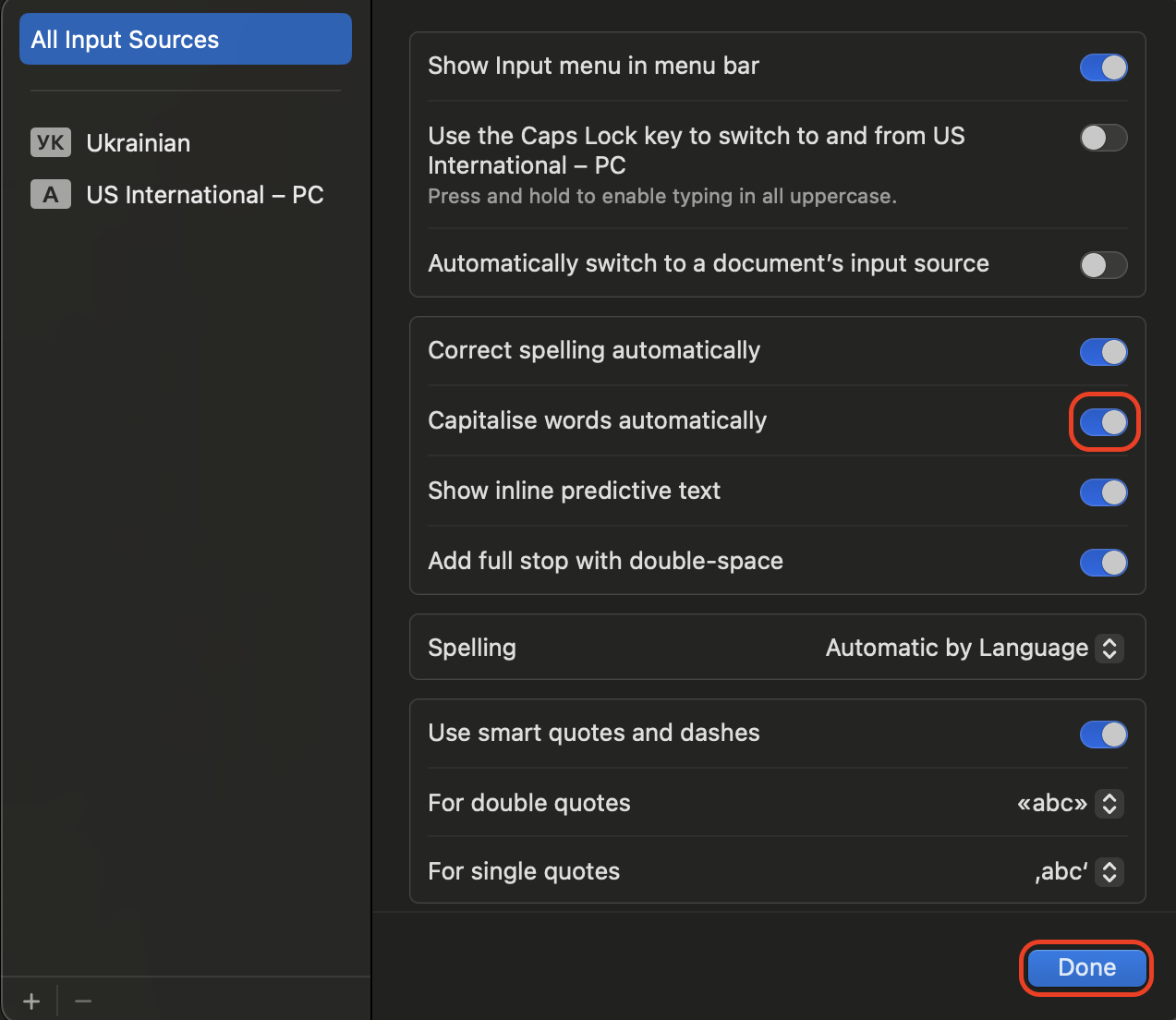
To disable auto caps on a Mac, open System Settings > Keyboard, select Edit under Text Input, and turn off "Capitalize words automatically." Click Done to confirm, and your Mac will stop automatically capitalizing.
Step 1. Open System Settings > Keyboard, select Edit under Input SourcesStep 2. Turn off "Capitalize words automatically. Then click Done
What is auto caps on Mac?
Auto caps on Mac are a built-in text correction feature that automatically capitalizes the first word of a sentence and specific proper nouns. It works system-wide and can influence typing in apps like Notes, Mail, or Pages. Users often disable it when they need consistent formatting or want to stop auto caps on your Mac for coding, multilingual typing, or precise text control.
Why turn off auto caps on Mac?
You may want to turn off auto caps on Mac to avoid incorrect capitalization of names, reduce unwanted uppercase letters when typing casually, or write in languages where capitalization rules differ. Besides, we’ve noticed that turning off the feature helps maintain consistent formatting, improves accuracy for technical or multilingual writing, and prevents automatic corrections from interrupting your typing flow.
A note from our experts:
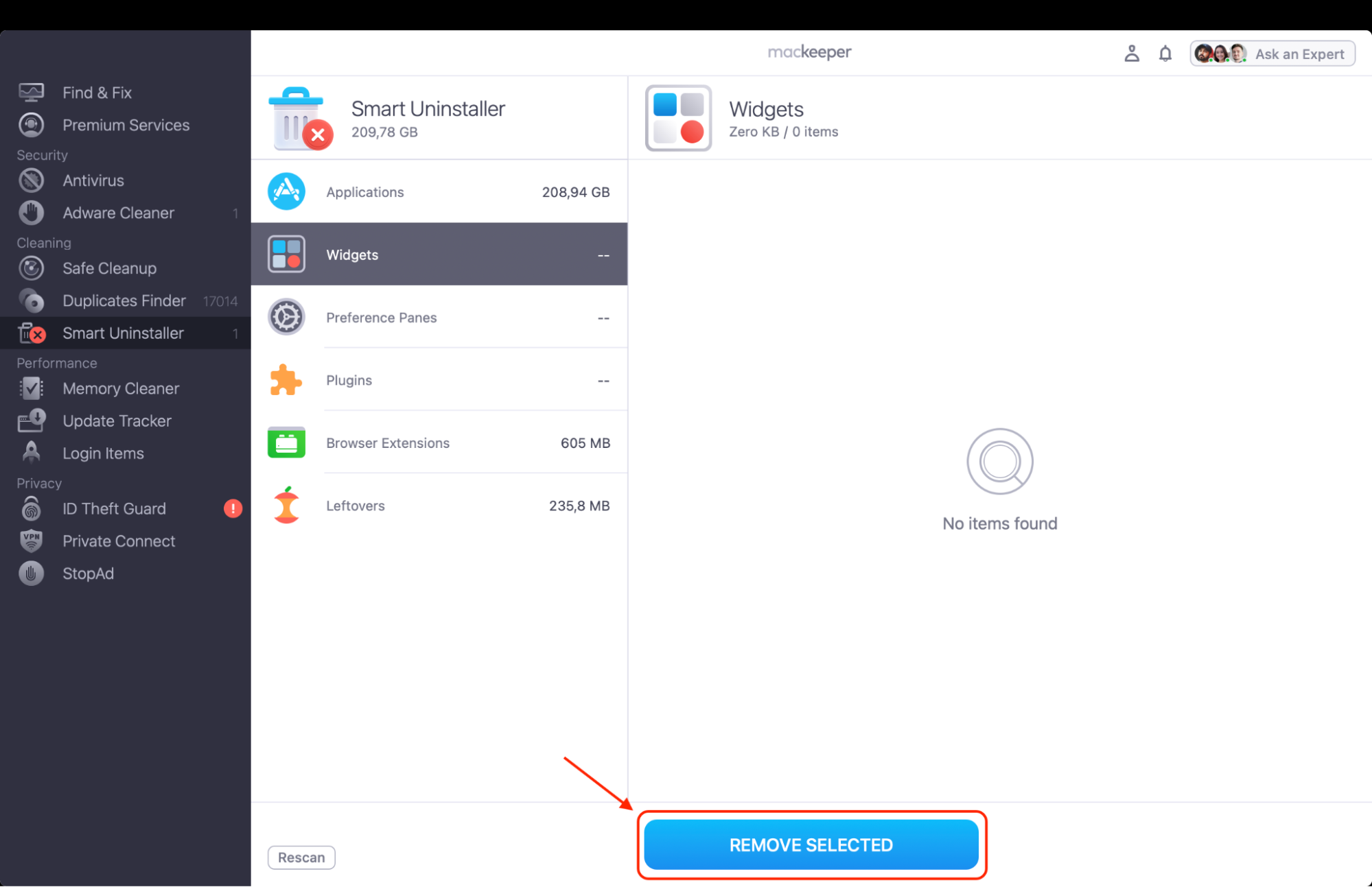
Auto-capitalization issues often appear after older writing tools, editors, or keyboard-related apps leave traces behind, even after deletion. Clearing these remnants helps prevent conflicts with system typing features. Since MacKeeper is a macOS utility software, our team designed Smart Uninstaller to remove apps completely, including components buried deep inside Library folders.
Here's how to use Smart Uninstaller to clean out old software safely:
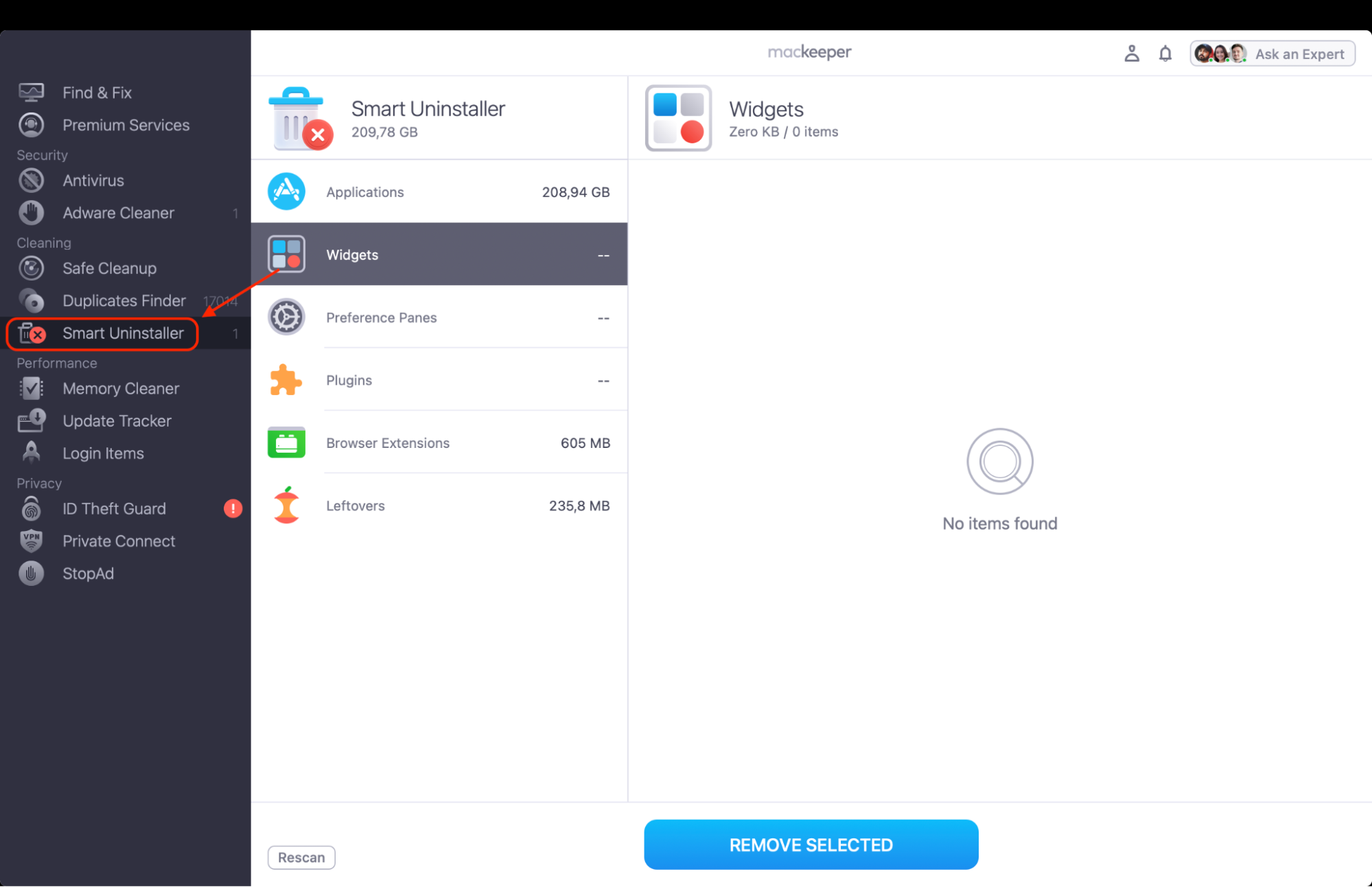
Open MacKeeper after downloading and installing the app and select Smart Uninstaller from the sidebar.
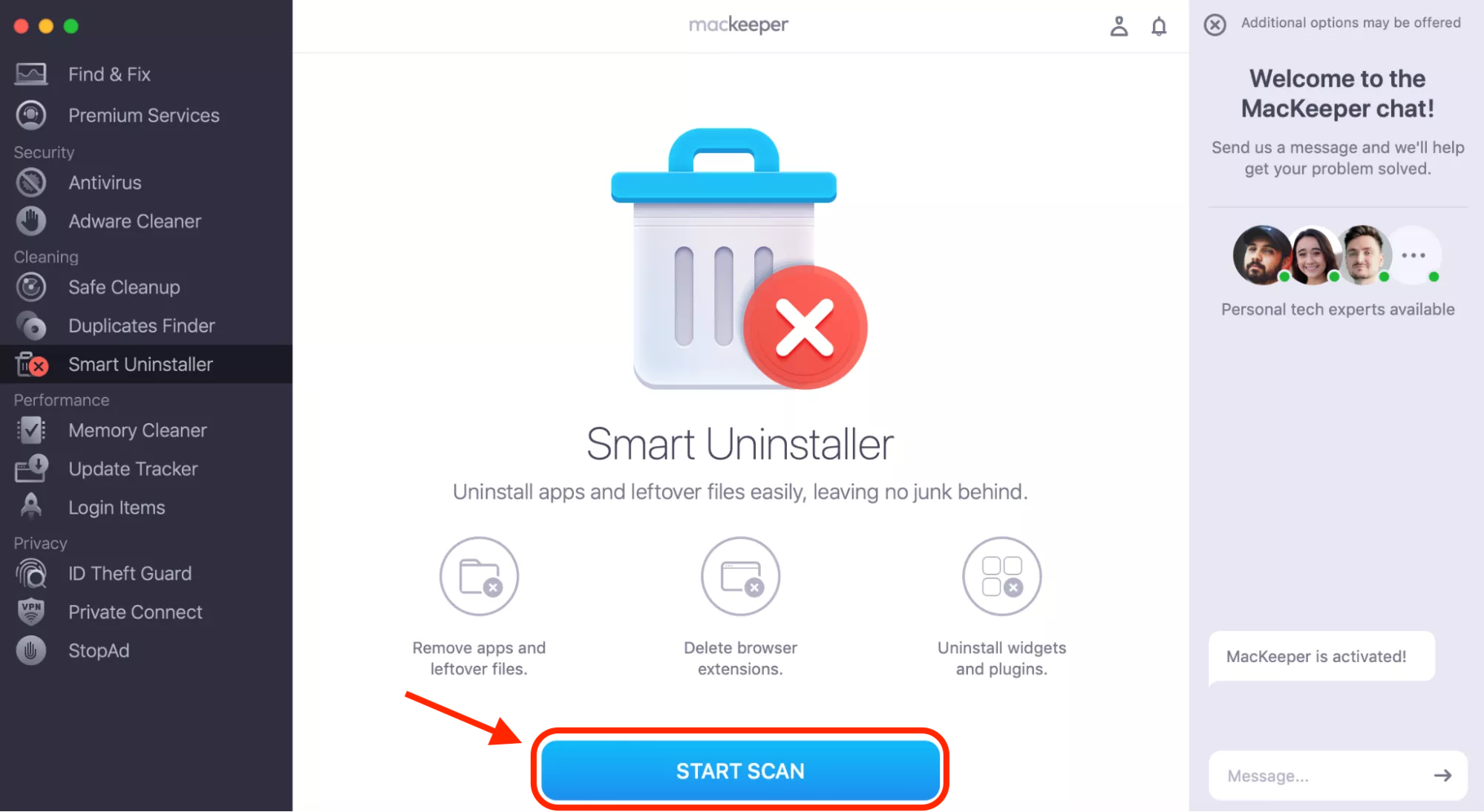
Click Start Scan to analyze installed apps, plugins, and leftover files.
Review the results and choose items you want to remove, especially older typing or keyboard utilities.
Click Remove Selected to erase the selected apps and all associated remnants instantly.
Step 1. Open MacKeeper and select Smart Uninstaller from the left-side barStep. 2. Click Start Scan to see a list of removable itemsStep. 3. Click Remove to uninstall the selected applications
How to stop auto caps on Mac?
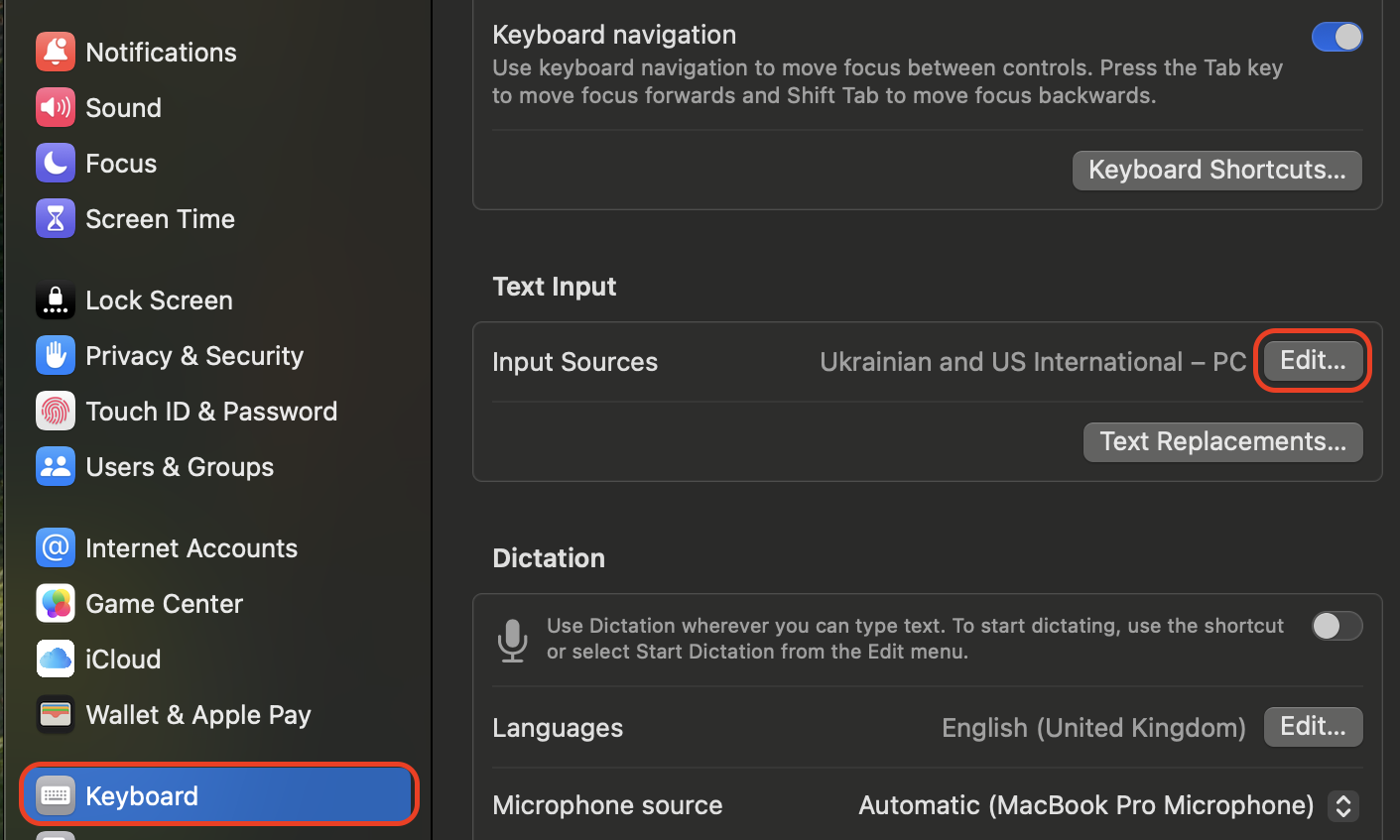
To stop auto caps on a Mac, open System Settings > Keyboard, then click Edit next to Input Sources under Text Input. In the menu that appears, turn off Capitalize words automatically. This disables macOS from automatically capitalizing the first word of each sentence in apps like Mail, Notes, Pages, and other text editors, including when you work in simple documents, such as when learning how to create a text file on a Mac.
1. Open the Keyboard settings on your Mac
Many users start this process by navigating to the correct system panel, and from our experience, this is the quickest way to access auto-capitalization controls. You'll also see where Mac keyboard shortcuts symbols appear inside the Keyboard menu.
Follow these steps:
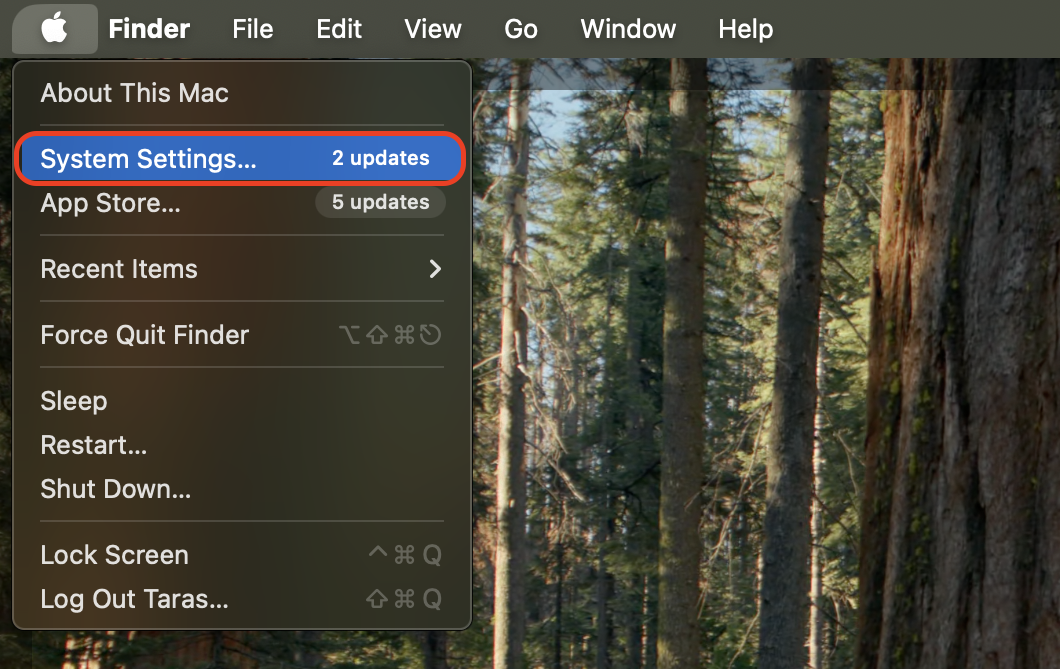
Click the Apple menu in the top-left corner.
Choose System Settings from the dropdown.
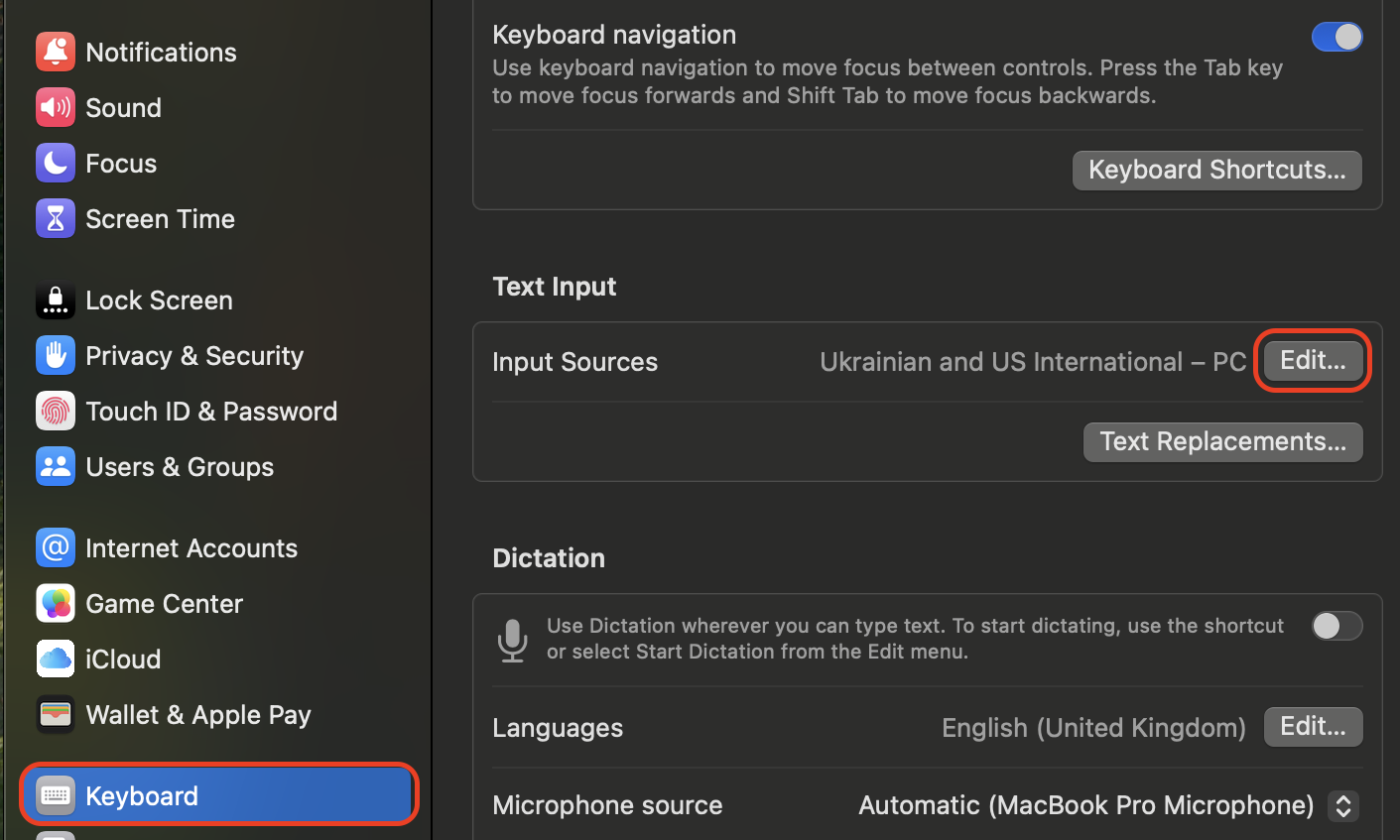
Scroll to the left sidebar and select Keyboard.
Locate the Text Input section on the right side.
Click Edit next to Input Sources to open typing preferences.
Step 1. Click the Apple menu in the top-left corner and choose System SettingsStep 2. Scroll to the left sidebar and select Keyboard. Then click Edit
2. Turn off automatic capitalization in Text Input
Once you reach Text Input settings, you can disable auto caps directly without affecting other typing behaviors. This is also where many users adjust options while learning how to delete text messages on Mac, since both features relate to text control and formatting.
Turn off auto caps here:
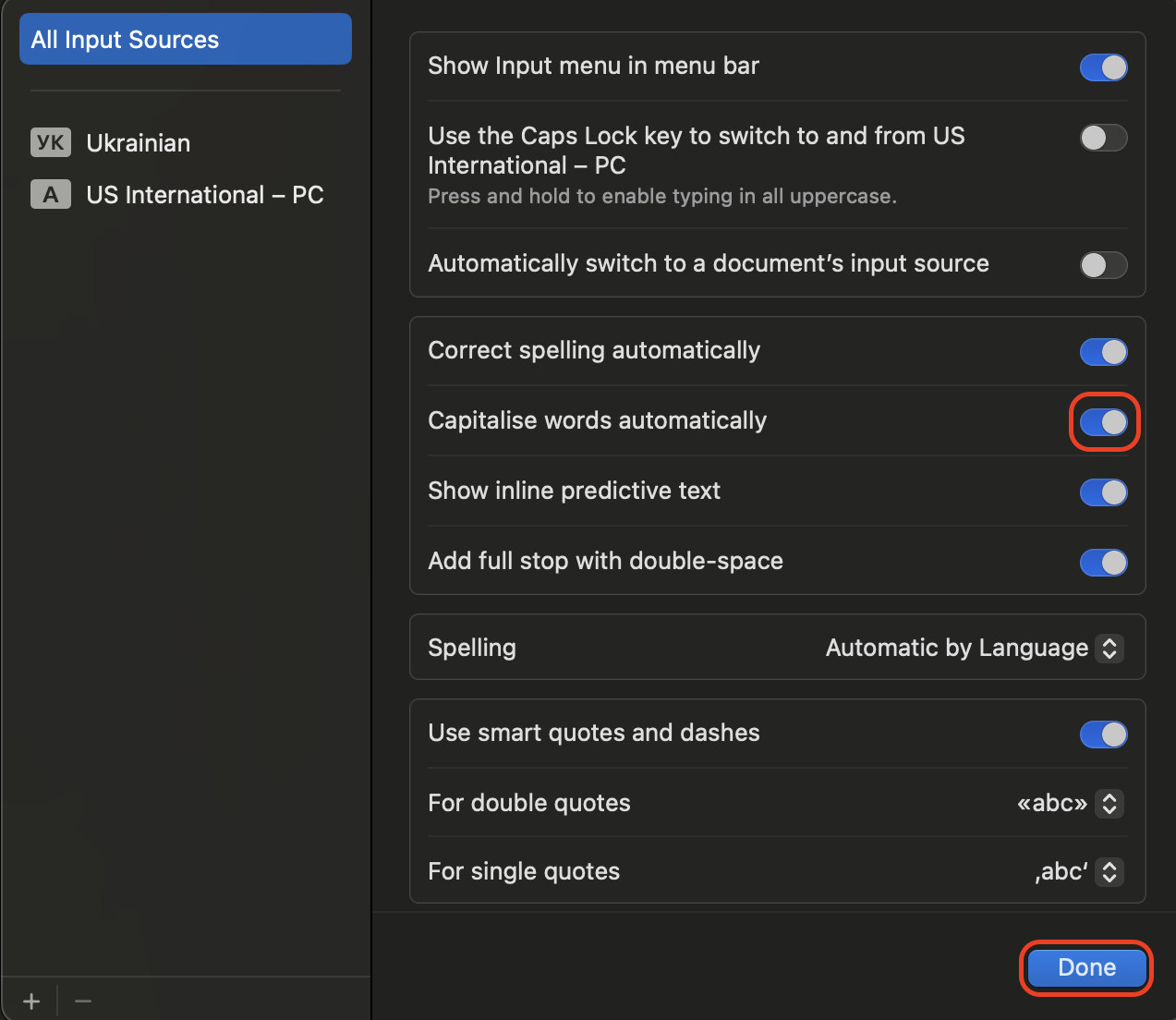
Open the Text Input window that appears.
Find the option labeled Capitalize words automatically.
Toggle the switch to the off position.
Confirm the change by clicking Done in the top-right corner.
Close the settings window to apply changes system-wide.
Open the Text Input window, find the option labeled Capitalize words automatically. Toggle the switch off and press Done
3. Apply the changes across apps and test typing behavior
After disabling auto caps, we suggest you to confirm the setting works in your daily apps. Many users test this while reviewing common actions, such as how to copy and paste on a Mac, since both tasks rely on consistent text handling.
Test the new setting this way:
Open a text editor like Notes or TextEdit.
Type a sentence starting with a lowercase letter.
Confirm that it no longer becomes capitalized automatically.
Repeat in apps like Mail, Pages, or browser fields.
Restart apps if capitalization still appears in older sessions.
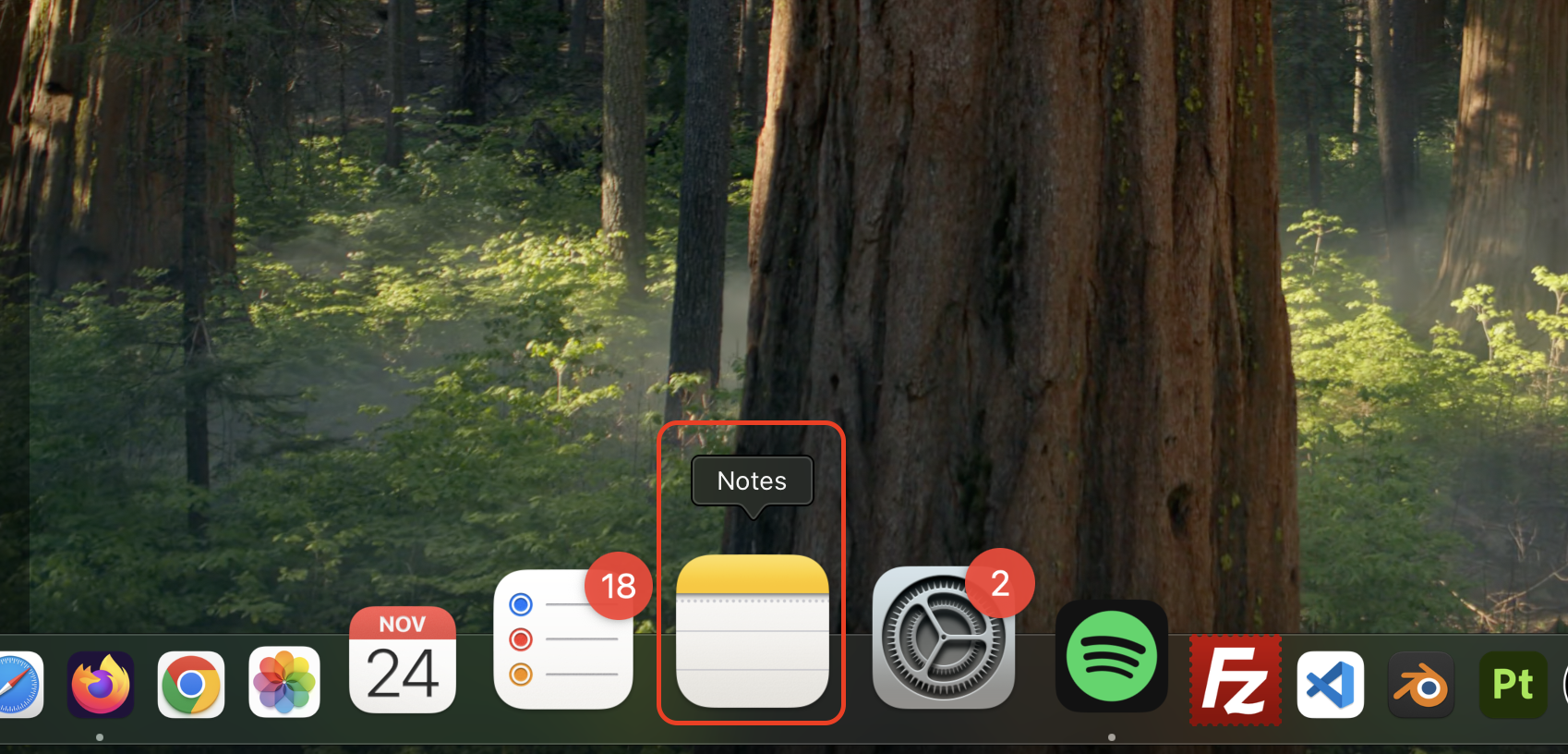
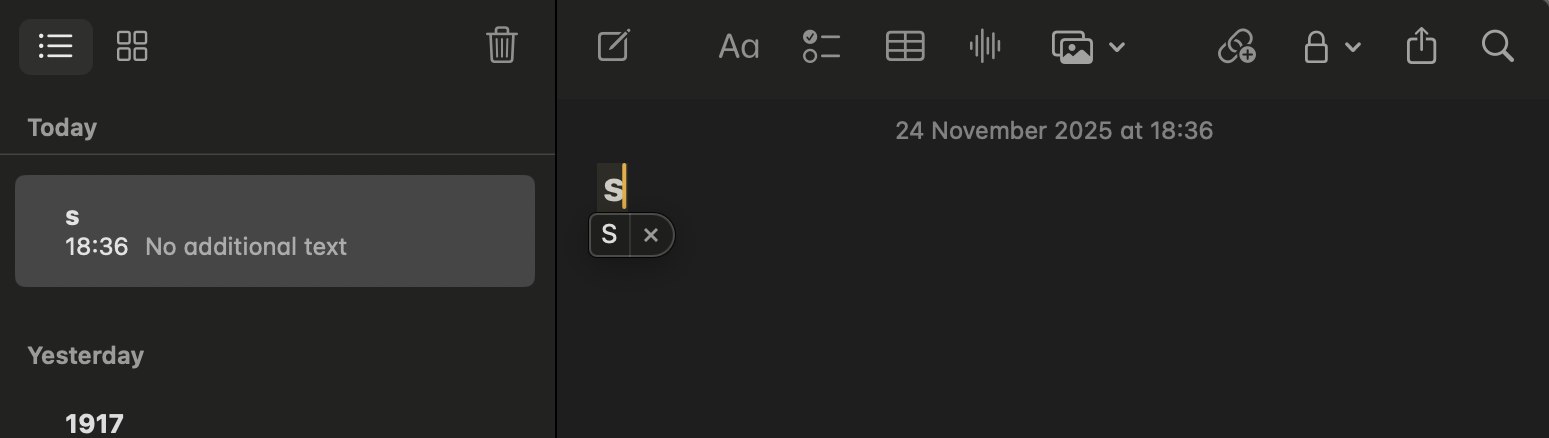
Step 1. Open a text editor like NotesStep 2. Type a sentence starting with a lowercase letter
Conclusion
Turning off auto caps on a Mac only takes a few quick changes in Keyboard settings. Once you disable automatic capitalization in Text Input and confirm the behavior across your favorite apps, your typing becomes more consistent and interruption-free, especially if you work with multilingual text or custom formatting.
If you also want to remove old typing tools or utilities that interfere with your settings, MacKeeper's Smart Uninstaller can streamline the process. Since MacKeeper offers memory optimization, using it helps you clear leftover components, free system resources, and keep your Mac running smoothly after adjusting your auto-capitalization preferences. Give it a try!
We respect your privacy and
use cookies
for the best site experience.
Privacy Preferences Center
We use cookies along with other tools to give you the best possible experience while using the
MacKeeper website. Cookies are small text files that help the website load faster. The cookies we
use don’t contain any type of personal data meaning they never store information such as your
location, email address, or IP address.
Help us improve how you interact with our website by accepting the use of cookies. You can change
your privacy settings whenever you like.
Manage consent
All cookies
These cookies are strictly necessary for enabling basic website functionality (including page
navigation, form submission, language detection, post commenting), downloading and purchasing
software. The website might malfunction without these cookies.