We’ve all accidentally deleted files, undone the wrong action, or used the wrong keyboard shortcuts on Mac—and when you need to undo your last action on Mac quickly, panic can set in. With the right undo methods and the help of MacKeeper’s Safe Cleanup, you’ll be able to regain control and confidently declutter your Mac without accidentally losing important data.
When you accidentally delete files or make an unwanted change on your MacBook, knowing how to quickly undo sudden deletions can save you time and prevent any data loss. In our experience, the quickest way to instantly undo is to use the Command + Z keyboard shortcut. The Edit > Undo option from your menu bar also works.
What does undo mean on Mac?
The undo action on Mac is exactly what it sounds—it’s the process of quickly retrieving closed applications, work files, or browser tabs that might have accidentally been deleted. However, MacBook keyboard shortcuts and other clever retrieval commands can help you restore data that you thought might have been lost for good.
Standard ways to undo on Mac
The standard ways to undo on a Mac include executing Command + Z on your keyboard. Whilst easy to action, this shortcut is not always reliable for all undo commands. Some macOS apps only support undoing via the Edit menu, while others require following application-specific undo steps to reverse actions. The bottom line? Depending on the software, you may need to navigate unique menus to restore previous changes.
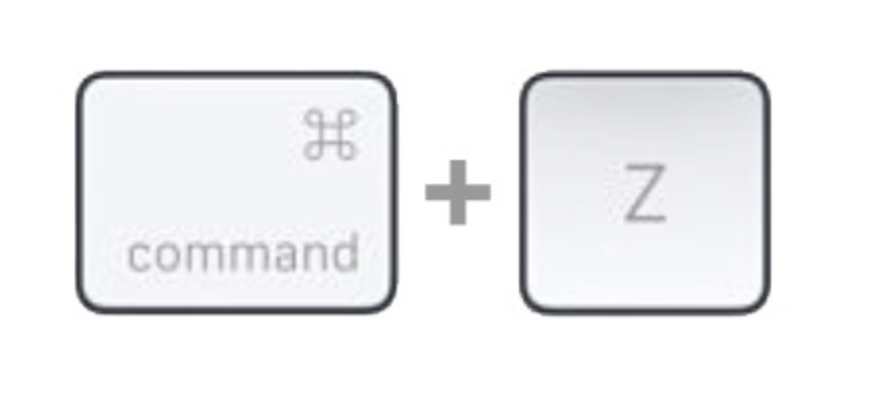
1. Using keyboard shortcuts (⌘ + Z)
For ease, we recommend the undo command-z on Mac. This method is known to work universally on multiple system applications and browsers to retrieve what you have accidentally closed or deleted.
Here’s how to undo with the keyboard shortcut:
Open the app or document that you need to undo.
Press Command + Z to restore deleted data or tabs.
In your app or documents, press Command (⌘) + R to Undo
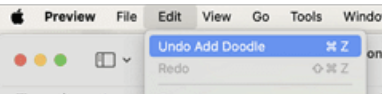
2. Undo via Edit menu
If your macOS app or document isn’t recognising or actioning the keyboard shortcut, then an alternative solution that might be vital. In this case, our Clario Tech experts recommend undoing your last action on Mac via the Edit menu.
Here’s how to perform the undo action from the Edit menu:
Click on Edit in the top menu bar.
Select Undo.
Repeat if you need to reverse more steps.
Click on Edit in the menu bar of your app Window, and press Undo
3. Application-specific undo options
Do you have keyboard shortcuts enabled, but still, they don’t work, and neither does undo via Edit? Some apps, like Preview or Pages, are known to have unique undo or version history features personal to them, meaning normal methods won’t always work.
Here’s how to gain more editing control over these kinds of applications:
Have the app open that you need to undo changes.
Look for app-specific undo actions or buttons in the menu, toolbar, or history panel.
Follow the on-screen prompts to undo.
Look for the Undo option in the menu, separate toolbar, or History tab
A note from our experts:
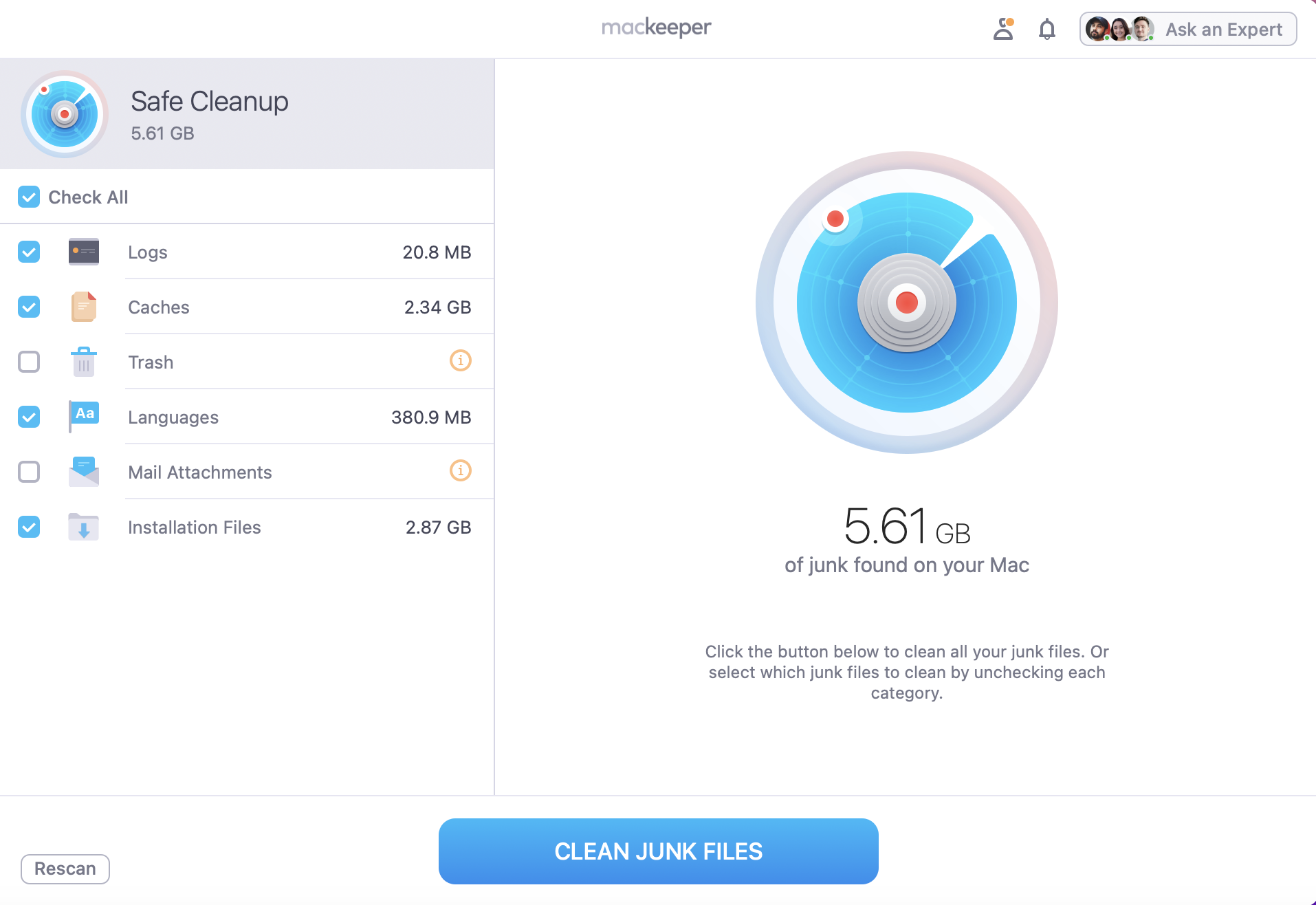
Undoing actions on a Mac can help reverse sudden changes or accidental deletions, but it may not work as smoothly if your device is bogged down by digital junk. That’s why we recommend keeping your Mac clutter-free. MacKeeper’s Safe Cleanup can keep your MacBook stable by removing digital debris in just a few clicks—less clutter means fewer chances of losing work or browser tabs.
Here’s how MacKeeper’s Safe Cleanup feature works:
Look through the Logs, Cache, Trash, and tick everything you want to remove.
Press Clean Junk Files.
Step 1. Open the MacKeeper app, go to Safe Cleanup, and click on Start ScanStep 2. Look for any old Logs, Cache, and Trash that can be removed, and press Clean Junk Files
How to undo in popular Mac apps?
Many apps, browsers, and text editors have different ways to undo. That’s why we’ll now walk you through correctly restoring your content in several programs on Mac: text editors, browsers, and Apple’s basic in-built apps like Finder, Photos, and Preview.
1. Text editors (Notes, Pages, Word)
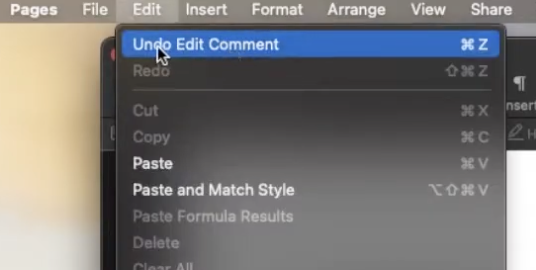
When you’re writing or editing text, mistakes can happen fast, but fixing them can be just as easy. If you’ve ever wondered how to undo in Notes on a MacBook, the same method also works across Pages and Microsoft Word.
Here’s the quickest way to undo in various text editors:
Open your document in Notes, Pages, or Word.
Press ⌘ + Z to undo your last text change.
Alternatively, go to Edit > Undo Edit.
In Pages, Notes, or Word, look for ⌘ + Z or go to Edit > Undo Edit
2. Finder
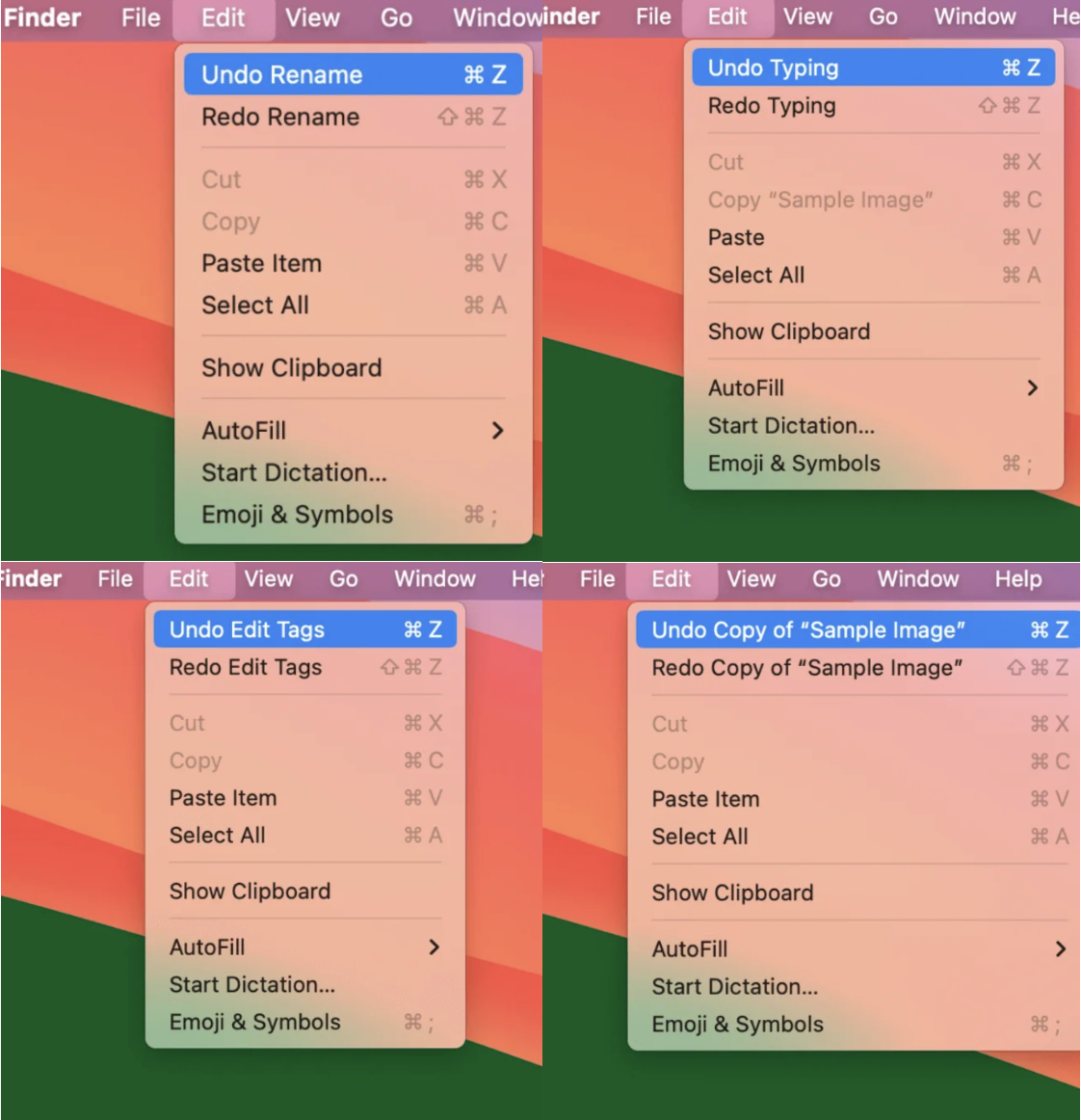
In Finder, there are several undo actions on Mac you can execute with a simple keyboard shortcut, including Renaming, Typing, Tags, and Sample Image changes.
Here’s a reminder of how to undo in Finder:
Open Finder.
If you make a mistake, press Command + Z to undo the last action.
To redo, press Command + Shift + Z.
You can rely on the Command + Z shortcut to correct errors with renaming, typing, tags, and images
3. Photos and Preview
Like the Finder app, you can again rely on Command + Z to undo your recent edits or changes. Although if your changes are from another session or you want to start again, you can just as easily remove all changes to your photos.
Let us show you how:
Undo with Command + Z.
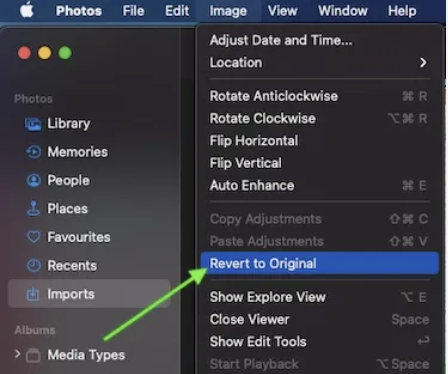
Undo all changes to a photo by going to Image> Revert to Original.
To undo all the changes to a photo, go to Image in the menu bar and click on Revert to Original
4. Safari and other browsers
Performing edits and undoing in web browsers mostly support the keyboard shortcut we’ve shown you throughout this post. It can bring back closed tabs and alter recently typed text.
Let us show you how to cope with undoing in Safari and other browsers.
Safari:
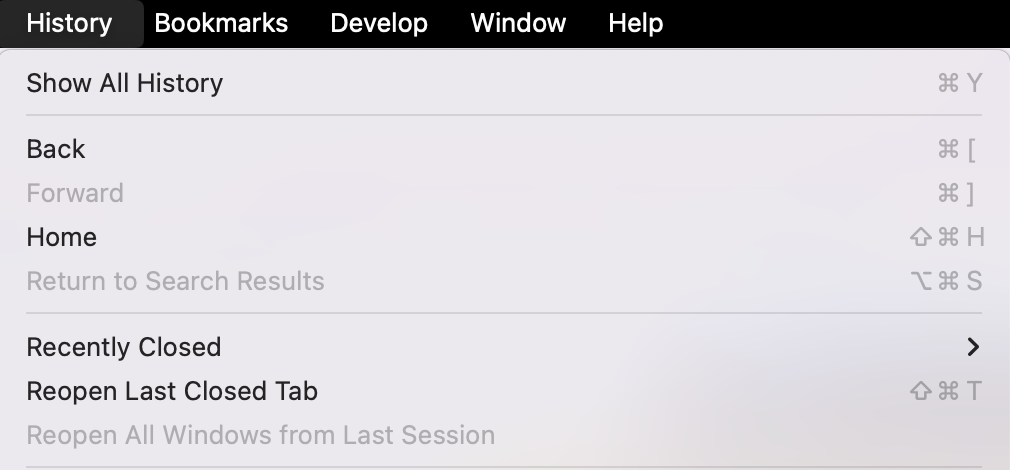
Go to History > Reopen Last Closed Tab.
Alternatively, press Command, Shift + T.
Go to History > Reopen Last Closed Tab to undo accidental closures
Chrome:
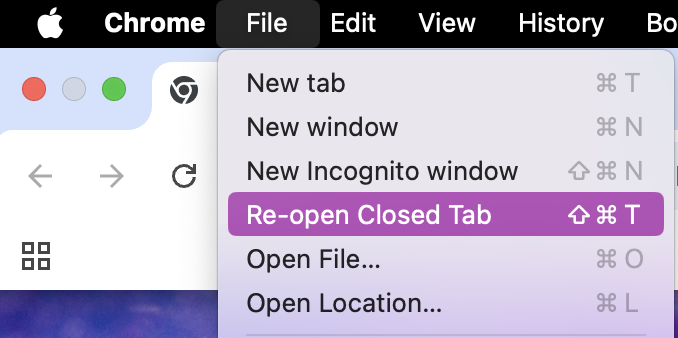
Go to Edit > Re-open Closed Tab.
Alternatively, press Command, Shift + T.
Go to Edit > Re-open Closed Tab or press Command, Shift + T
Extra tip from us:
If you’re worried about removing files by mistake on your MacBook Air or Pro, our guide on how to undo cleanup on Mac will show you additional ways to recover deleted desktop, application, and folder data safely.
Make Mac cleanup a priority with MacKeeper’s help
We’ve covered the easiest ways to undo the last action on Mac, from quick shortcuts to menu options, so you can edit mistakes before they become bigger problems. Knowing how to undo can help you remain in control, save time, and recover changes across macOS apps with ease.
Even so, a cluttered Mac can still cause slowdowns or unexpected issues. That’s why we recommend MacKeeper’s Safe Cleanup to help you safely remove digital junk and reduce the chances of mistakes that need undoing in the first place.
We respect your privacy and
use cookies
for the best site experience.
Privacy Preferences Center
We use cookies along with other tools to give you the best possible experience while using the
MacKeeper website. Cookies are small text files that help the website load faster. The cookies we
use don’t contain any type of personal data meaning they never store information such as your
location, email address, or IP address.
Help us improve how you interact with our website by accepting the use of cookies. You can change
your privacy settings whenever you like.
Manage consent
All cookies
These cookies are strictly necessary for enabling basic website functionality (including page
navigation, form submission, language detection, post commenting), downloading and purchasing
software. The website might malfunction without these cookies.