Whether you’re drafting emails, researching, or brainstorming, having AI a click away can transform how you work. To use ChatGPT on Mac, you can open it in a browser, download the official app, or enable it through Apple Intelligence. If a cluttered Mac is slowing you down first, MacKeeper’s Safe Cleanup clears out junk files so everything runs smoothly.
ChatGPT is OpenAI’s conversational AI assistant. On a Mac it answers questions, writes and edits text, explains code, and helps you brainstorm. From our experience, it’s one of the most useful everyday tools you can add to macOS, on any MacBook, iMac, or Mac mini.
How ChatGPT works on macOS?
At its core, ChatGPT takes your prompt, generates a written answer in seconds, and keeps the conversation so you can revisit it. As our tests show, the experience is nearly identical across the web, the app, and Apple Intelligence—what changes is how quickly you reach it.
If you’d like the dedicated app, our guide on how to download ChatGPT on Mac walks you through the install.
A note from our experts:
AI tools run best on a Mac that isn’t bogged down. In our experience, clearing junk regularly is a simple, healthy habit that keeps performance smooth and speedy—well before you ever need a backup or a restore. MacKeeper’s Safe Cleanup sweeps away caches, logs, and leftover files in a single pass, so your Mac stays responsive while you work. MacKeeper is a leading solution for Mac optimization and cybersecurity, protecting your Mac while keeping it tidy.
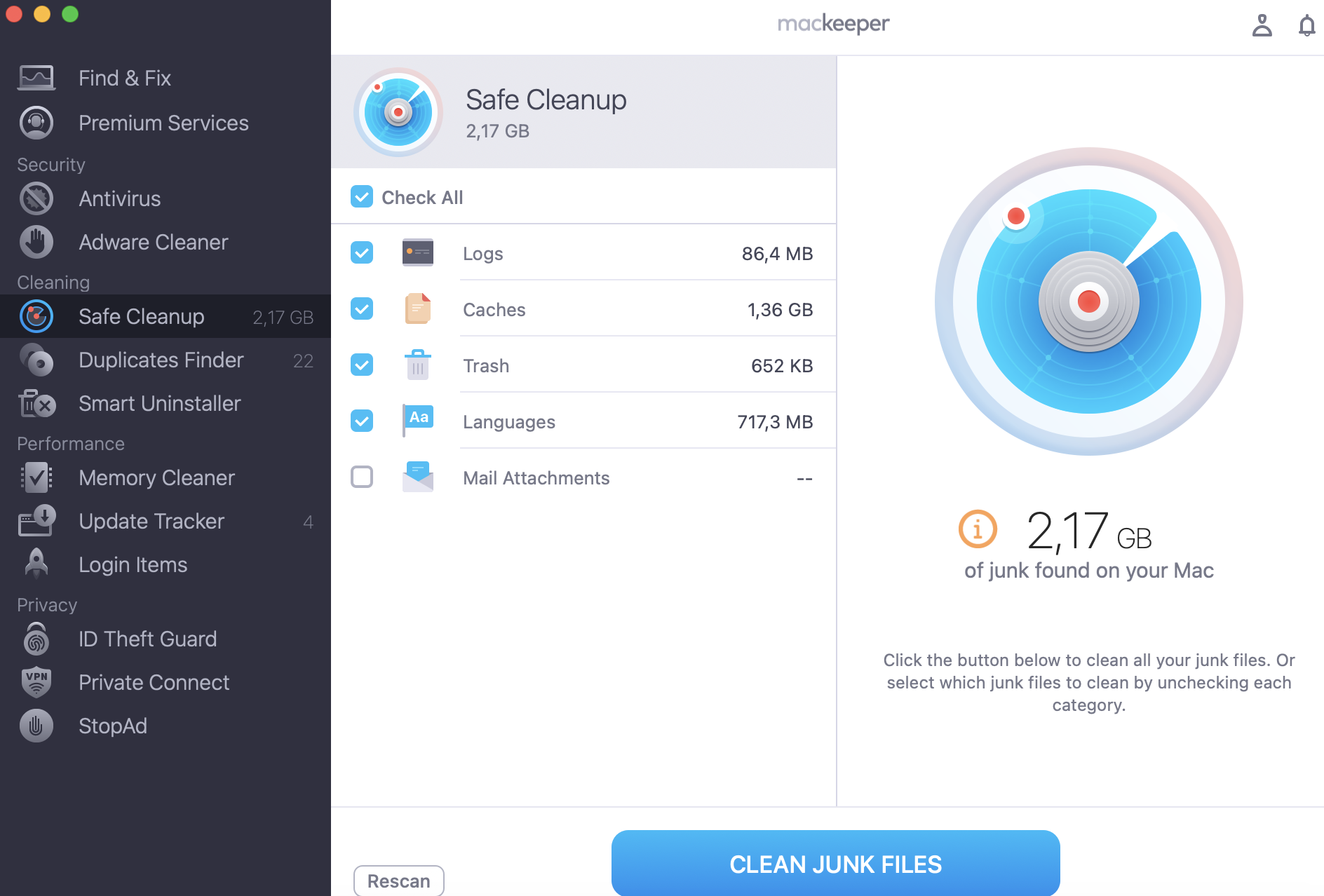
Review the results and click Clean Junk Files to free up space.
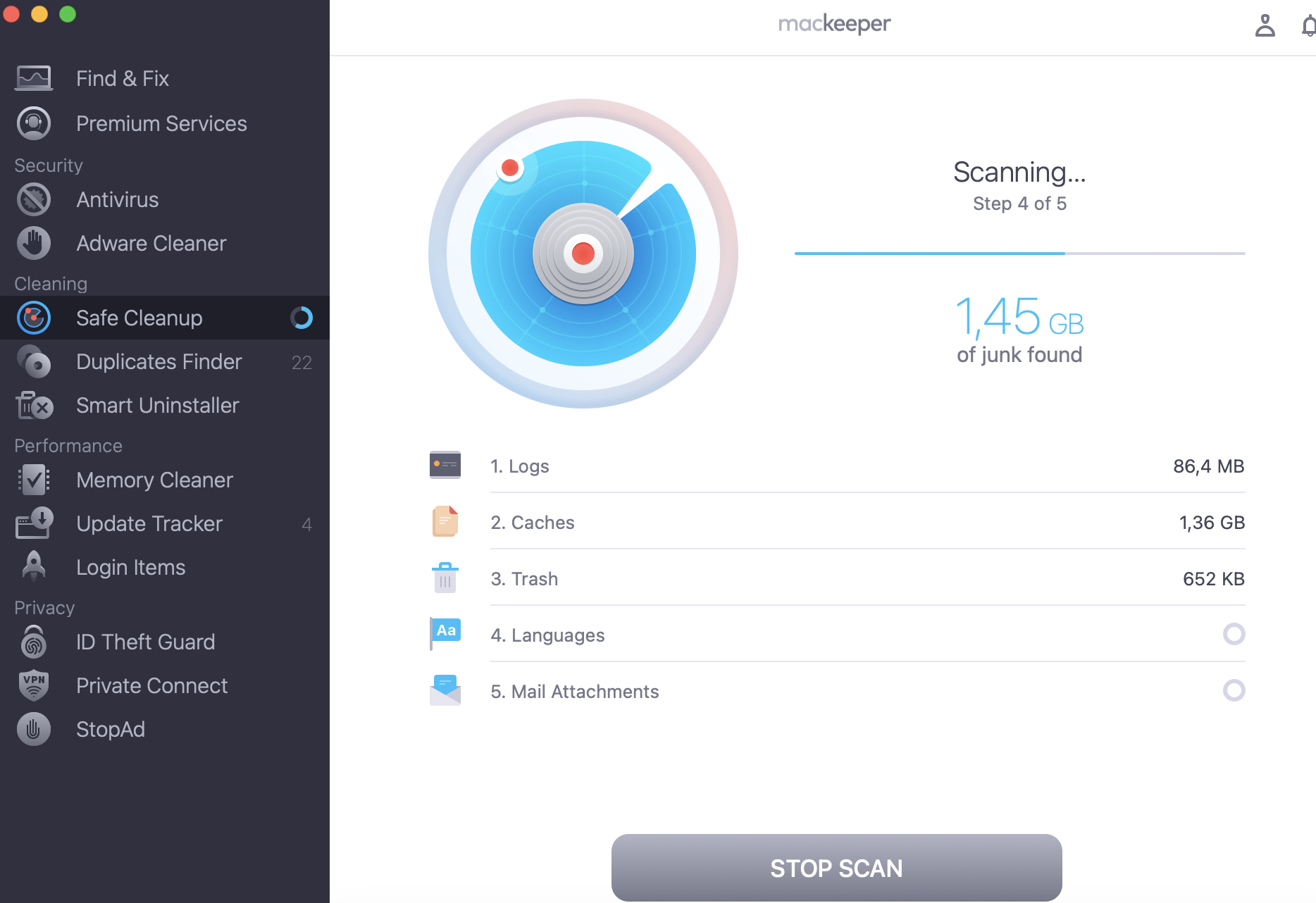
Step 1. Open MacKeeper, go to Safe Cleanup, and hit Start ScanStep 2. Review the results, select unnecessary files, and click on Clean Junk Files
Methods to use ChatGPT on Mac
There’s no single right way to use ChatGPT on macOS, so pick whichever of these four suits you. If privacy is on your mind first, our guide on whether is ChatGPT safe is worth a read.
1. Use ChatGPT in web browser
The fastest way to start needs no download at all—we reach for the browser on any shared or new Mac, since everything lives online.
Get going in your browser:
Open Safari or any browser and go to chatgpt.com.
Sign in with your account, or start chatting as a guest.
Type your prompt into the message box and press Return.
Read the response, then continue the conversation to refine it.
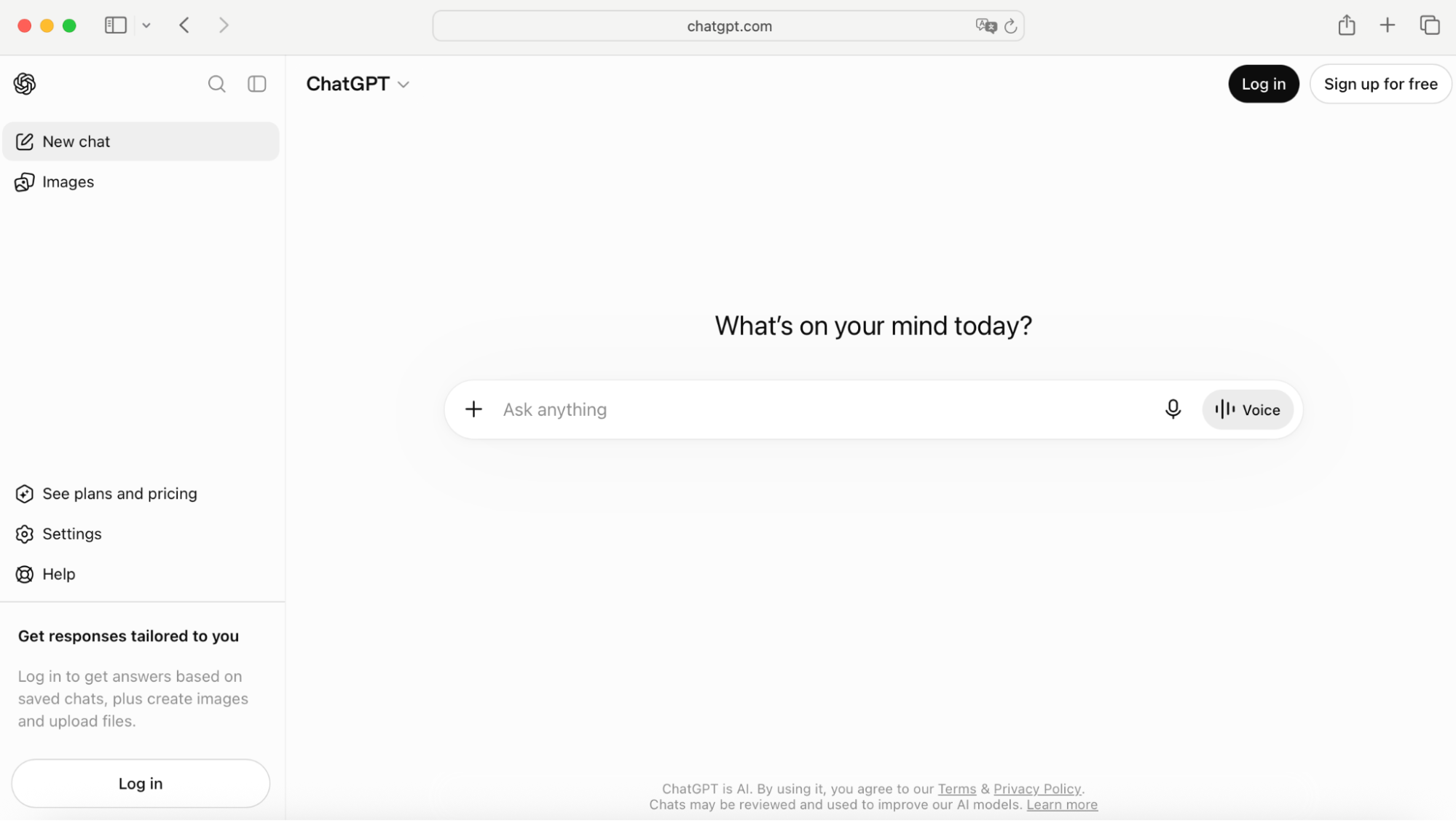
Open chatgpt.com in Safari, sign in, and type your prompt to start a conversation
2. Use official ChatGPT Mac app
For quicker access, the official app lives on your desktop and opens with a shortcut. In our experience, it’s the most convenient option if you use ChatGPT throughout the day.
Set up the desktop app:
Download the app from openai.com and drag it to your Applications folder.
Open the app and sign in with your OpenAI account.
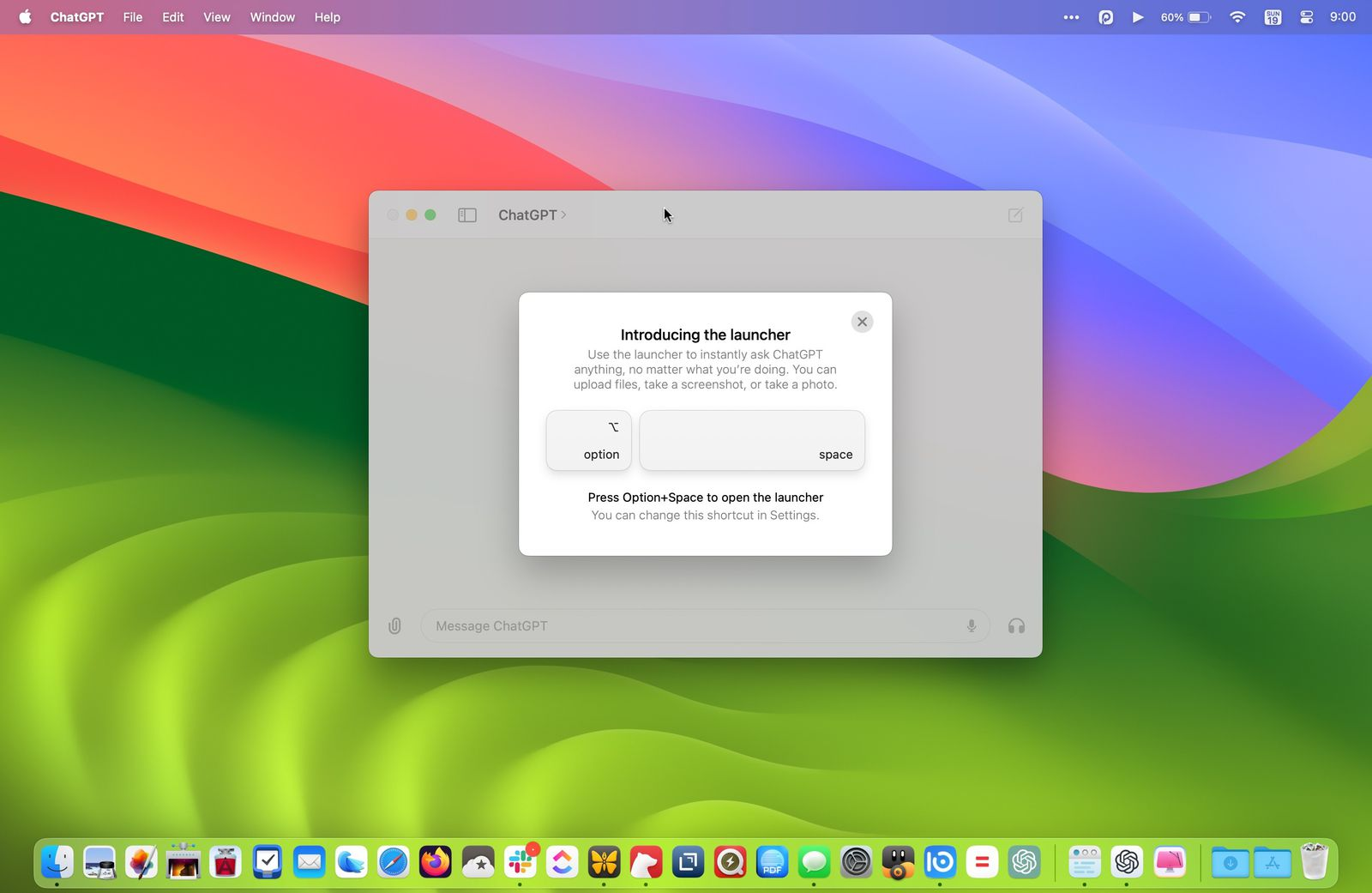
Press Option + Space to summon the app from anywhere.
Enter your query or use the microphone icon to speak it aloud.
Open the ChatGPT app, sign in, and press Option + Space to launch it from anywhere
3. Use ChatGPT with Apple Intelligence
You can also use ChatGPT on Apple Intelligence, which weaves it directly into Siri and Writing Tools. Note this needs an M-series Mac running macOS 15.2 or later.
Enable the built-in integration:
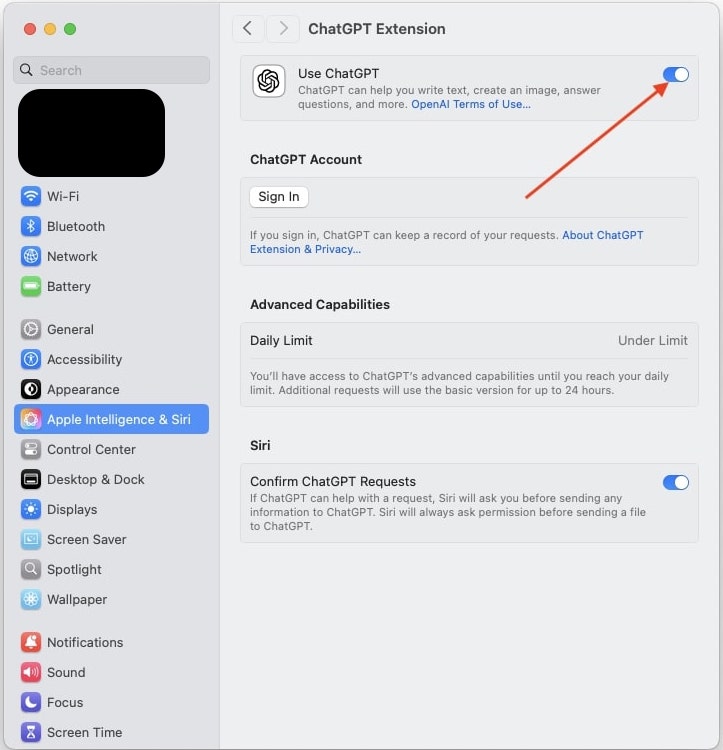
Open System Settings and click Apple Intelligence & Siri.
Under Extensions, click ChatGPT, then Set Up.
Choose Enable ChatGPT, or sign in with an account for more features.
Ask Siri a complex question and confirm when it offers to use ChatGPT.
In System Settings, open Apple Intelligence & Siri and set up the ChatGPT extension
4. Use third-party apps
Finally, several third-party apps put ChatGPT in your menu bar. We’d stick to well-reviewed options, since they ask for your API key or login.
Try a menu-bar client:
Download a trusted client such as MacGPT or Raycast.
Install it and grant the permissions it requests.
Add your OpenAI account or API key when prompted.
Open it from the menu bar whenever you need a quick answer.
Install a third-party client and open it from the menu bar for instant ChatGPT access
Conclusion
However you choose to use ChatGPT on Mac, you have four solid paths: the browser for zero setup, the official app for speed, Apple Intelligence for Siri integration, or a third-party client in your menu bar. Pick the one that fits how you work, and you’ll have AI help on tap.
To keep it all running smoothly, a clean Mac makes a real difference. MacKeeper, developed by Clario Tech and optimized for macOS, includes Safe Cleanup to clear the caches and clutter that build up over time, so your machine stays fast whenever you fire up your favorite AI tools.
We respect your privacy and
use cookies
for the best site experience.
Privacy Preferences Center
We use cookies along with other tools to give you the best possible experience while using the
MacKeeper website. Cookies are small text files that help the website load faster. The cookies we
use don’t contain any type of personal data meaning they never store information such as your
location, email address, or IP address.
Help us improve how you interact with our website by accepting the use of cookies. You can change
your privacy settings whenever you like.
Manage consent
All cookies
These cookies are strictly necessary for enabling basic website functionality (including page
navigation, form submission, language detection, post commenting), downloading and purchasing
software. The website might malfunction without these cookies.