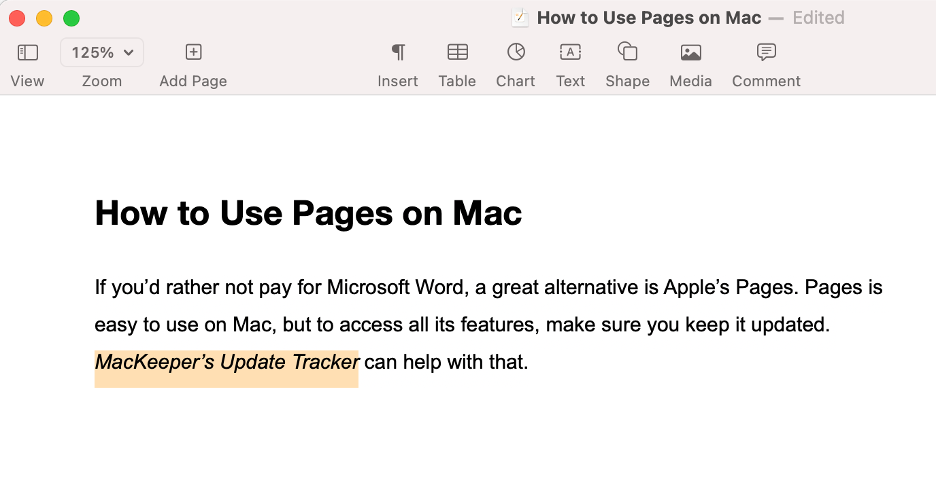
If you’d rather not pay for Microsoft Word, a great alternative is Apple’s Pages. Pages is easy to use on Mac, but to access all its features, make sure you keep it updated. MacKeeper’s Update Tracker is the perfect tool for that.
Pages is a free, user-friendly word processor developed by Apple that comes pre-installed on all macOS devices. A mobile version is also available for iPhone and iPad users. Pages makes it easy to create documents from scratch or by customizing one of its templates. You can add media, charts, and interactive elements. Besides, real-time collaboration lets you invite others to work on documents simultaneously, including Microsoft users. What’s more, we’ve noticed that Pages supports a wide range of file formats, including Word, PDF, and EPUB.
Why is Word so slow on Mac? If you’re searching for ways to overcome this, consider switching to Pages. Not only does it offer a smoother and faster experience, but it also serves as a reliable alternative when Word becomes problematic.
Features of Pages on Mac
Pages offers a rich suite of features you’d expect from a top-tier word processor. You can easily craft documents from scratch or choose from a selection of templates for reports, books, CVs, and more. Pages includes extensive formatting options, such as fonts, shapes, tables, charts, and media. It also enables real-time collaboration and lets you export your documents in all major formats.
1. Creating and formatting documents
The first feature we’d like to highlight is the ability to create and format documents, without doubt the core function of any word processor. You’ll likely use this feature most often, and with Pages, the process is both quick and intuitive. We especially appreciate how simple it is to adjust font style, color, and size to produce clean, professional-looking documents.
Here’s a step-by-step guide to creating and formatting a document in Pages:
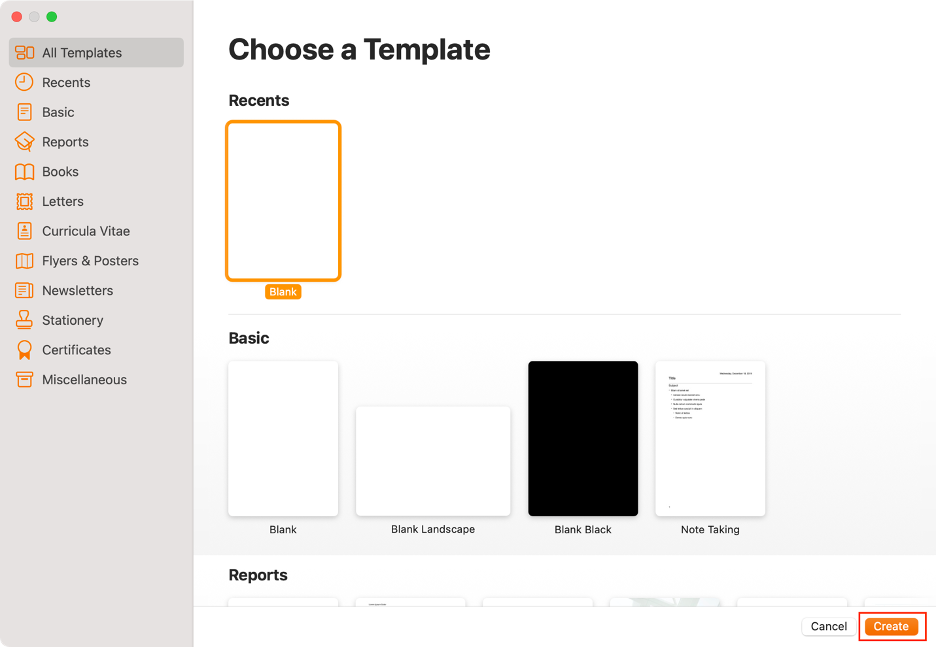
Launch Pages on Mac.
Select a blank document.
Click Create.
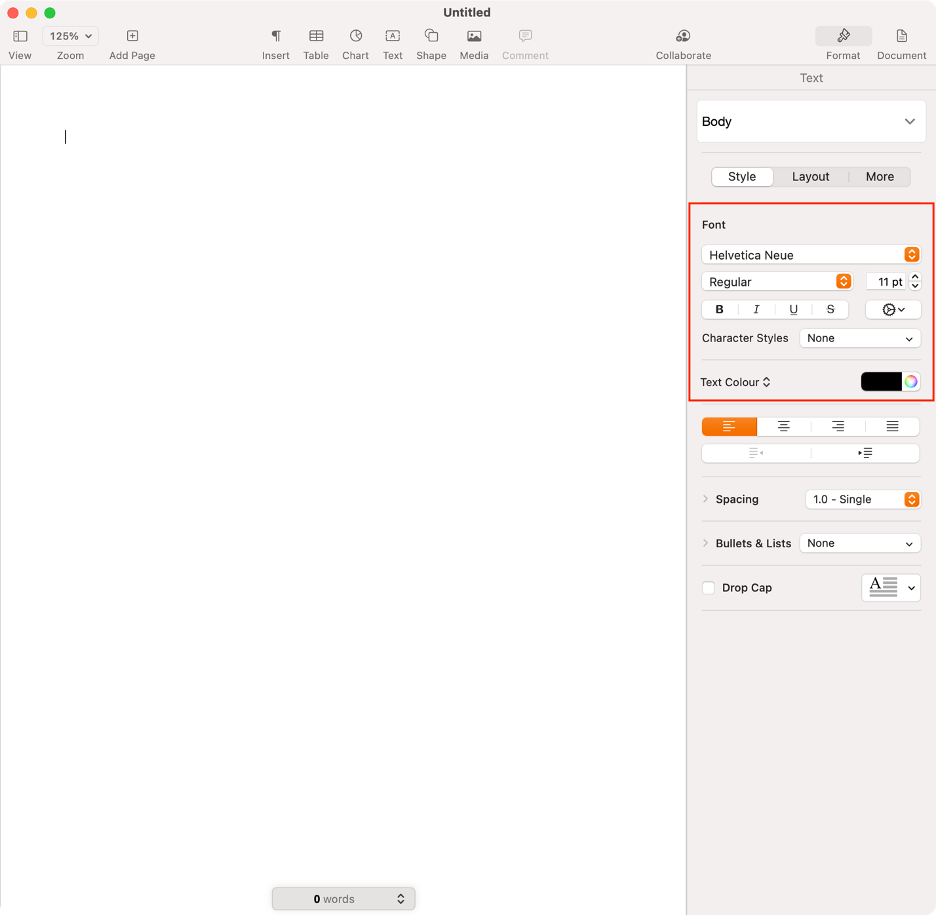
Next, find the formatting options in the right sidebar.
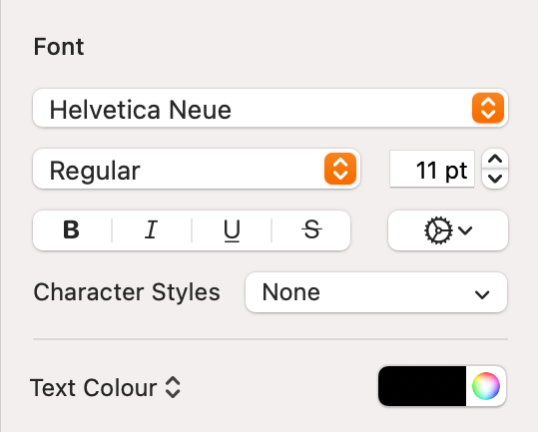
Choose a font type, size, and color.
Step 1. Pages > Blank > CreateStep 2. Find all formatting settingsStep 3. Select font type, size, and color
2. Collaborating and sharing
One of our favorite standout features is Pages’ real-time collaboration, allowing multiple users to work together on a document without constant file sharing. Apple also makes it easy to share your work through email, Messages, or AirDrop, streamlining teamwork and communication.
To easily share your Pages document and collaborate in real time, use these helpful tips:
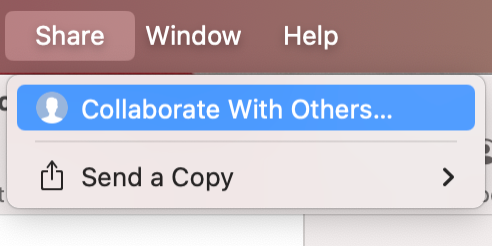
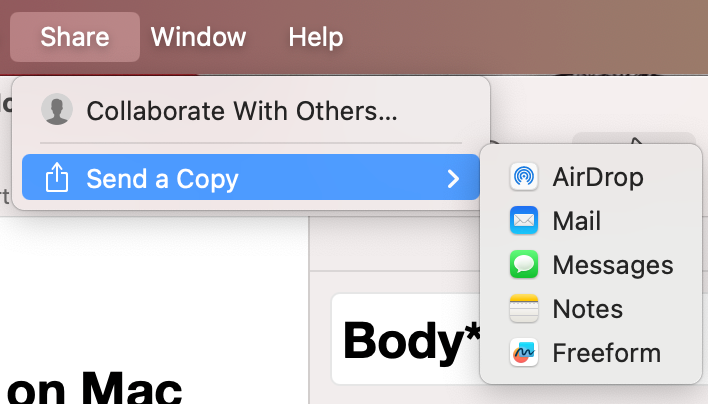
Go to Share in the menu bar.
Click Collaborate With Others.
Alternatively, choose Send a Copy.
Select how you want to share your document: AirDrop, Mail, Messages, Notes, etc.
Step 1. Pages > Share > Collaborate With OthersStep 2. Pages > Share > Send a Copy
3. Page layout
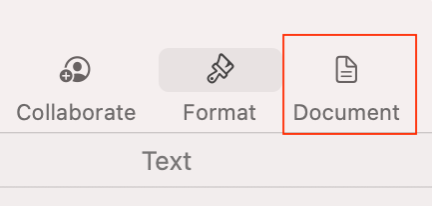
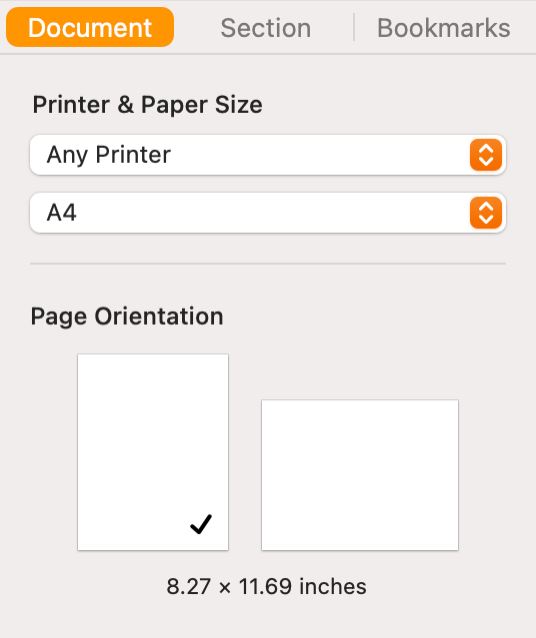
When starting a new document, one of the first steps is to set the orientation, size, and margins to fit your project’s requirements. In our opinion, Apple also makes this process straightforward by placing all layout preferences in a single, easily accessible menu. You can quickly select from default options or fine-tune the settings to suit your specific needs.
Follow these steps to tailor your document layout in Pages for Mac:
Pages provides a diverse range of templates, making it easy to start new projects quickly. You can also design your own templates or modify existing ones. Based on our experience, this flexibility allows you to efficiently create and personalize reports, newsletters, CVs, and more, whenever you need them.
We explain how to create your own custom template in Pages:
Launch Pages.
Create a new document.
Customize it as you wish.
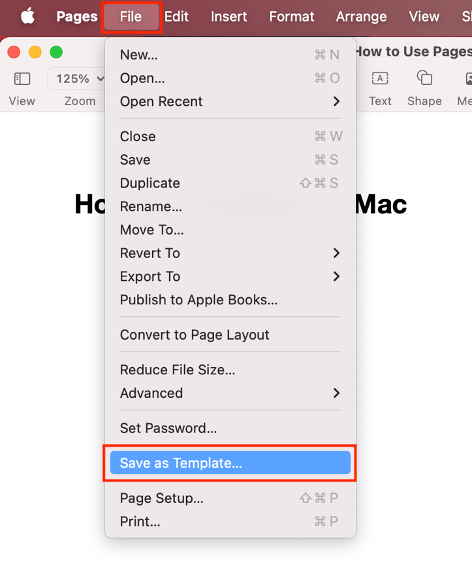
Go to File in the menu bar.
Choose Save as Template.
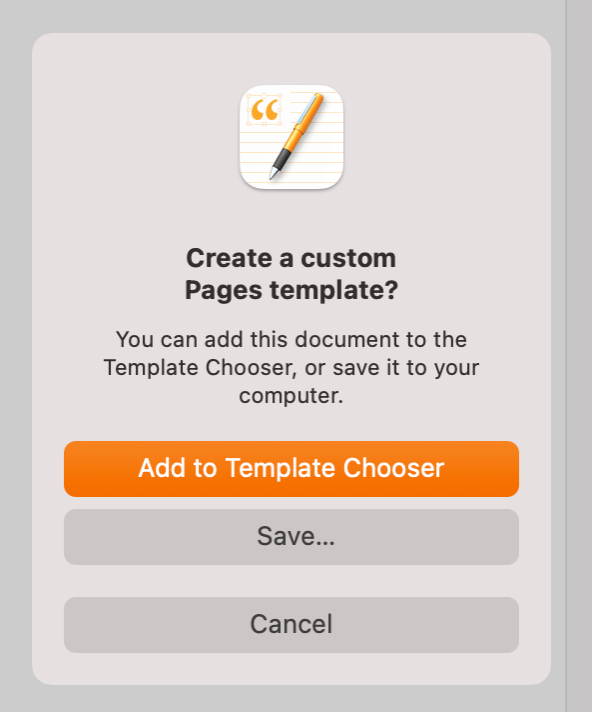
Select Add to Template Chooser to always have it at hand.
Step 1. Pages > Blank > CreateStep 2. File > Save as TemplateStep 3. Click Add to Template Chooser
A note from our experts:
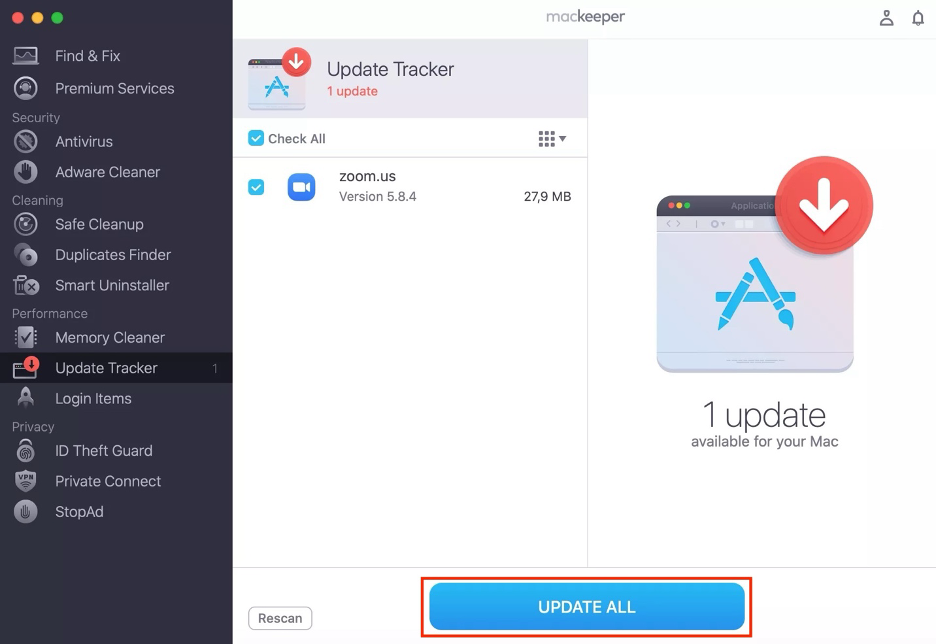
To take full advantage of everything Pages offers on Mac, make sure to keep the app up to date. MacKeeper’s Update Tracker makes it easy to stay current by helping you decide which apps to update and which to skip. Notarized by Apple and optimized for macOS, MacKeeper is trusted by millions as a leading performance monitoring and optimization tool.
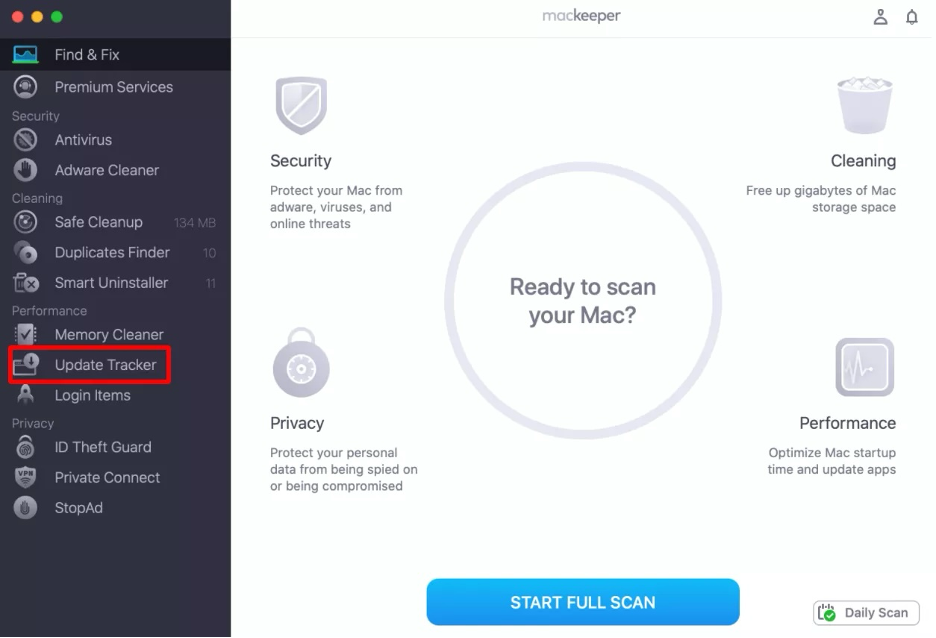
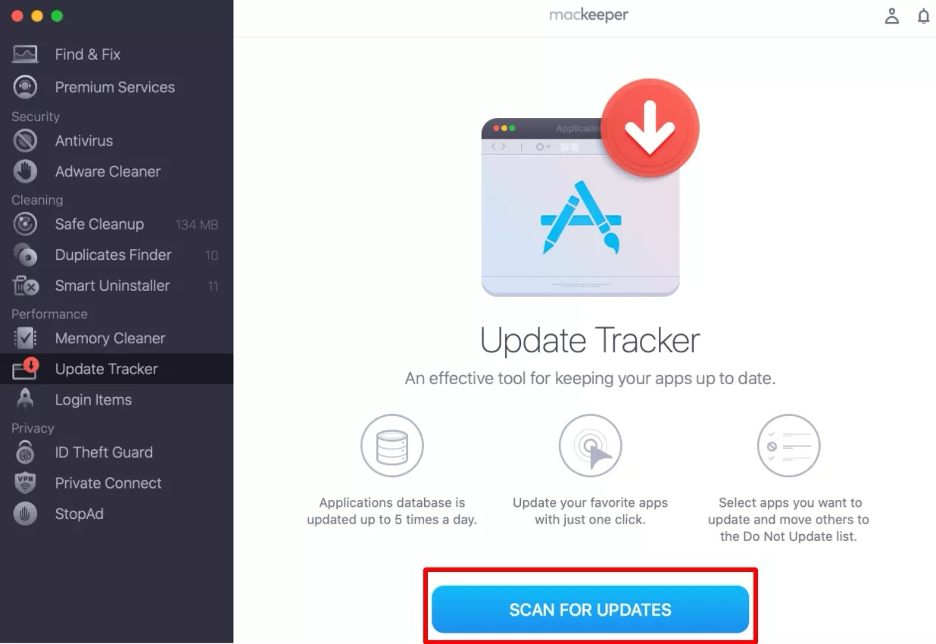
Follow these simple steps to use MacKeeper’s Update Tracker on Mac:
Step 1. MacKeeper > Update TrackerStep 2. Click Scan for UpdatesStep 3. Select apps to update > Click Update All
How to work Pages on Mac?
If Microsoft Word quits unexpectedly on Mac, we suggest you to consider switching to Pages, Apple’s fully compatible word processor for macOS. Below, you’ll find our tips for creating documents, building templates, adding hyperlinks and images, and saving Pages files in Word format. Based on our personal tests, you should be well on your way to mastering Pages with these techniques.
Create document
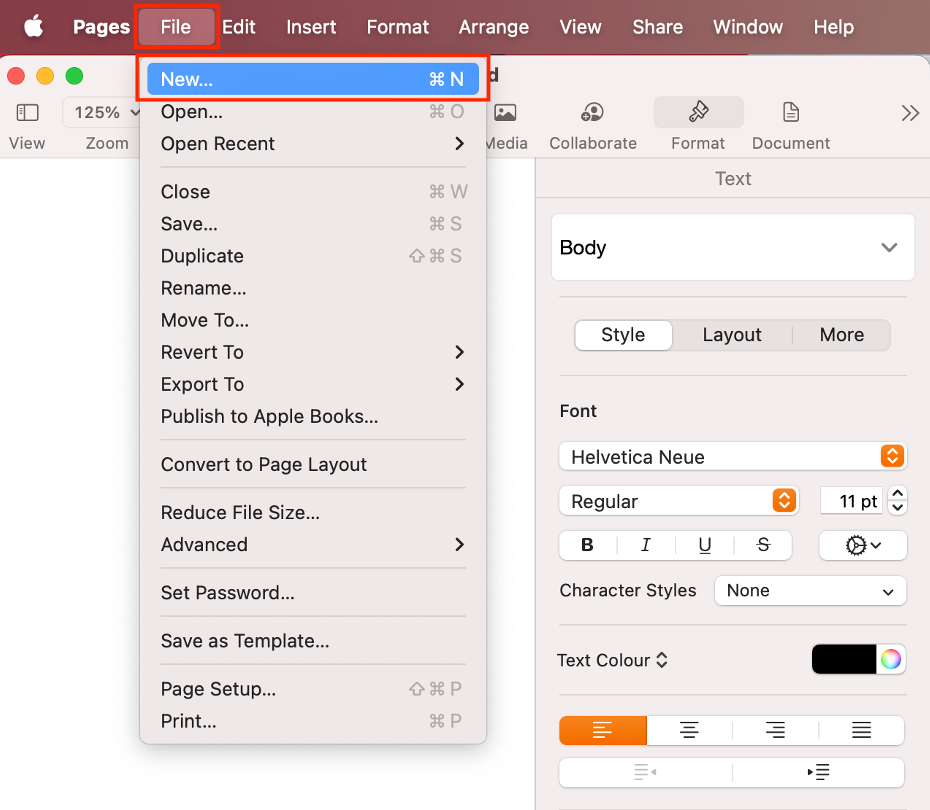
As we mentioned earlier, creating a document in Pages is straightforward. Much like Microsoft Word, Pages presents you with options to start a new document or select from pre-designed templates when you open the app. You can even open a new document while another one is already open, making multitasking seamless.
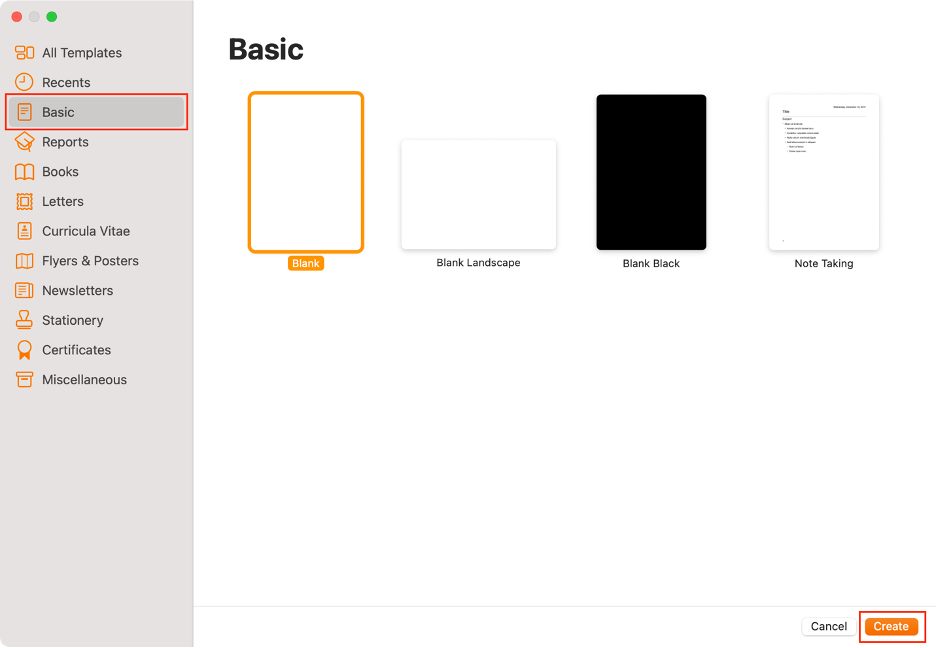
Here are the steps to create a Pages document:
Open Pages on your Mac.
Go to Basic in the left sidebar.
Select Blank.
Click Create.
To create a new document, choose File from the menu bar.
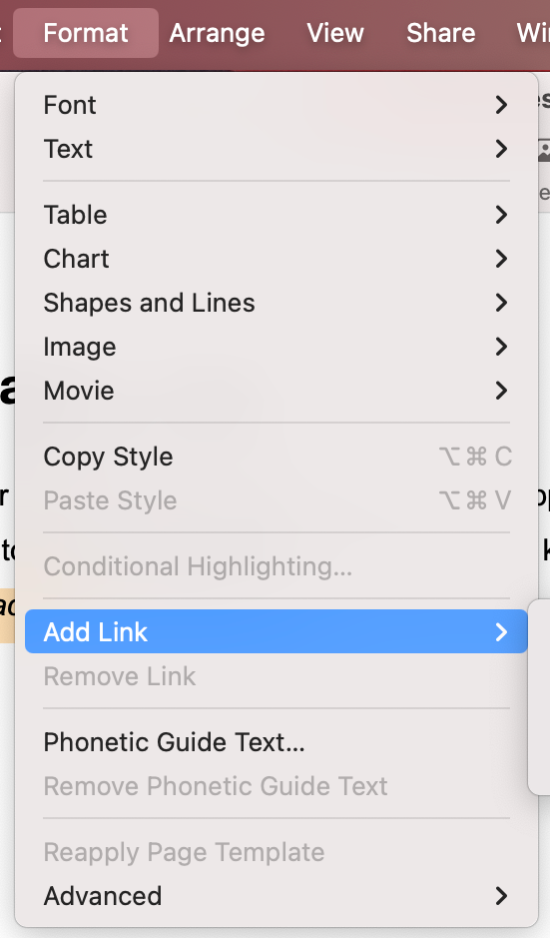
Hyperlinks add a professional touch and valuable depth to your documents, especially when they direct readers to relevant web pages. We believe they’re also practical for linking to email addresses and phone numbers, making it effortless for readers to get in touch directly from your document.
Check our quick guide for adding hyperlinks in Pages:
Open a Pages document on your Mac.
Highlight the text you’d like to link.
Click Format in the menu bar.
Choose Add Link.
Select the hyperlink type you wish to add (webpage, email, phone number, or bookmark).
Step 1. Highlight the text to linkStep 2. Format > Add LinkStep 3. Select the hyperlink type
Create template document with Pages
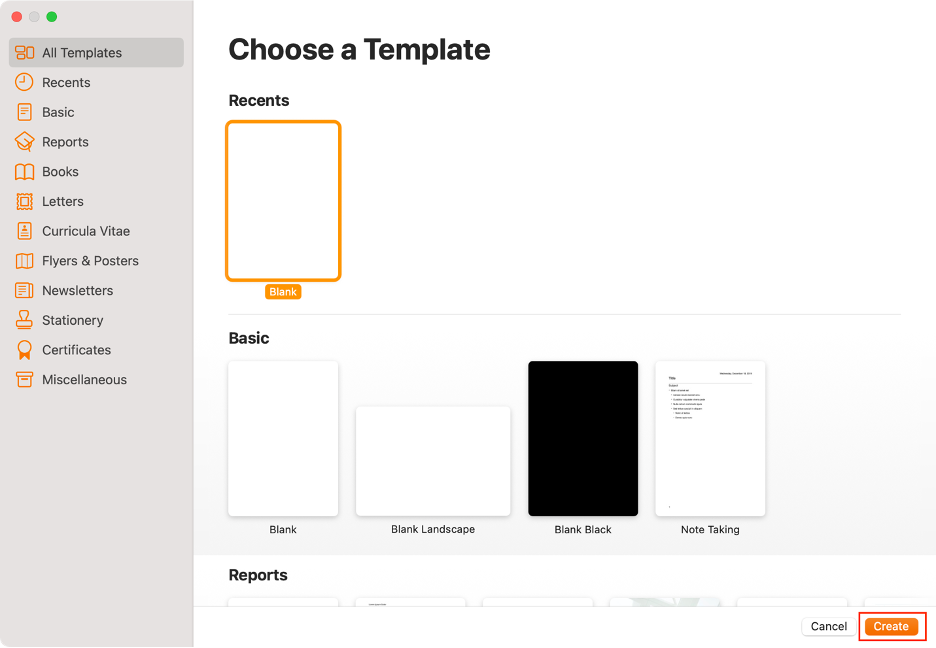
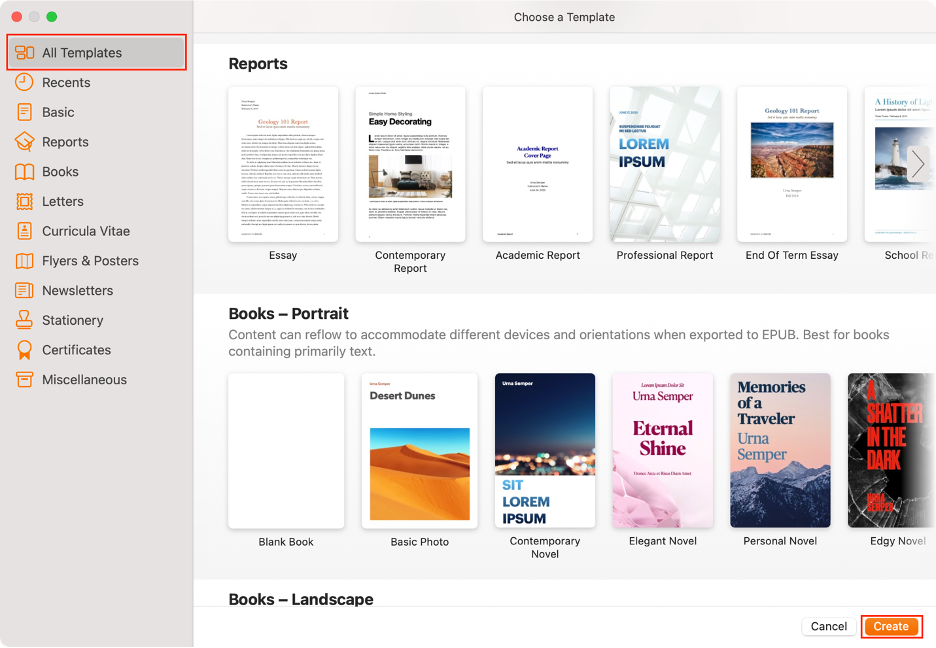
We highly recommend taking advantage of the templates Apple offers in Pages, especially if you lack graphic design experience. These professionally designed templates cover a wide range of needs, including reports, letters, flyers, newsletters, certificates, and CVs.
Creating a document template with Pages is as simple as:
Open Pages on Mac.
Browse the All Templates section. Alternatively, select from one of the categories.
Choose your preferred template document.
Click Create.
Pages > All Templates > Create
Add images
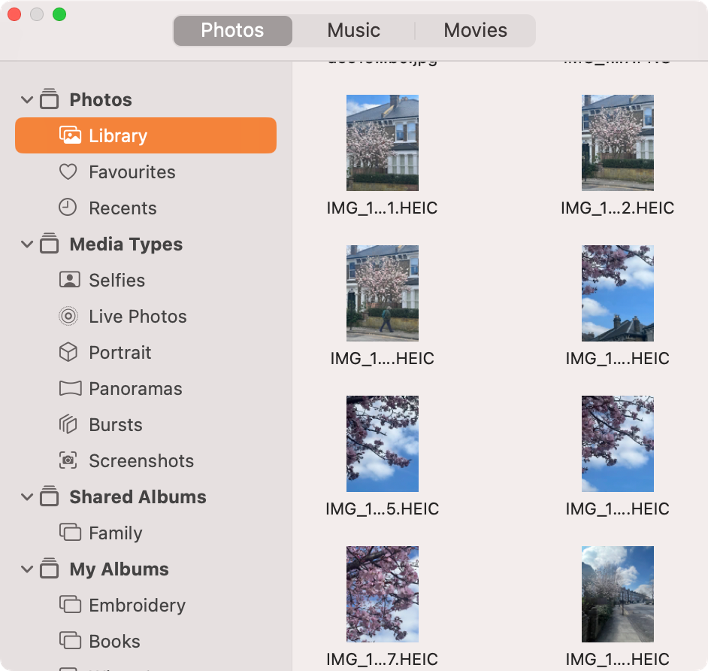
Including images, such as photos, screenshots, or scanned drawings, adds visual interest to your documents. It’s one of our favorite features because it’s so easy to use. You can simply save the image you wish to add to your Mac and drag it directly into your file.
Alternatively, follow our expert guide to adding images in Pages:
Open a Pages document on your Mac.
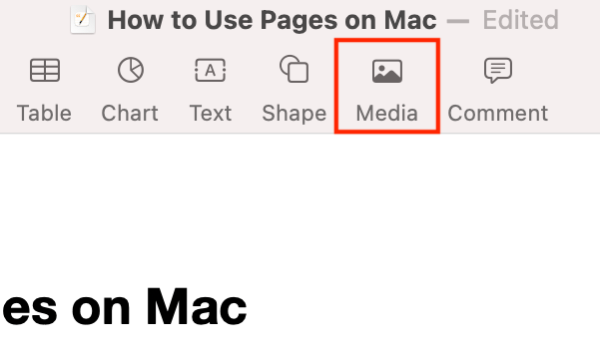
Click Media at the top.
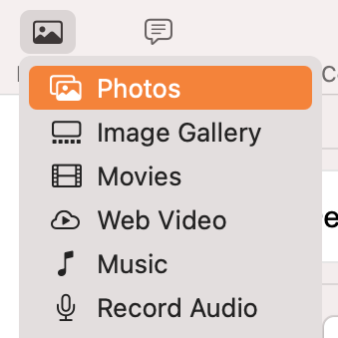
Select Photos.
Choose the photo to add.
Step 1. Pages > MediaStep 2. Select PhotosStep 3. Choose a photo to add
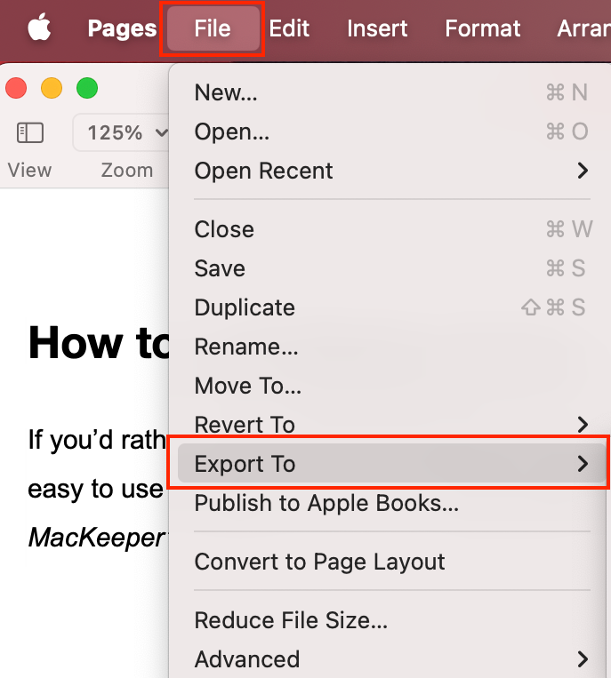
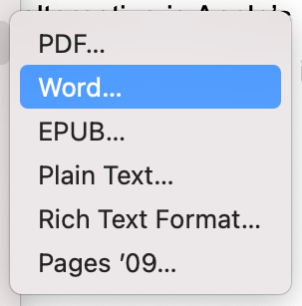
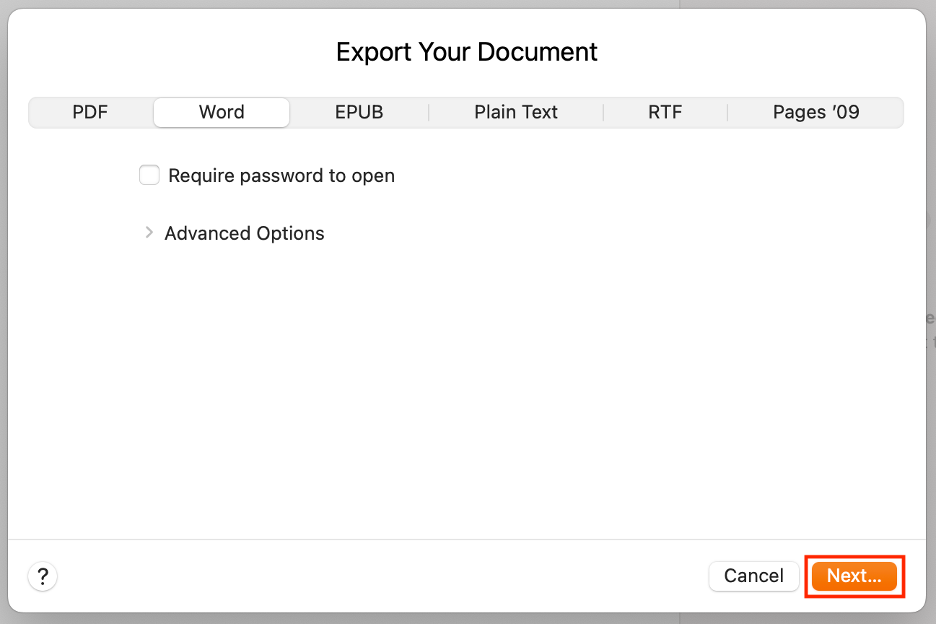
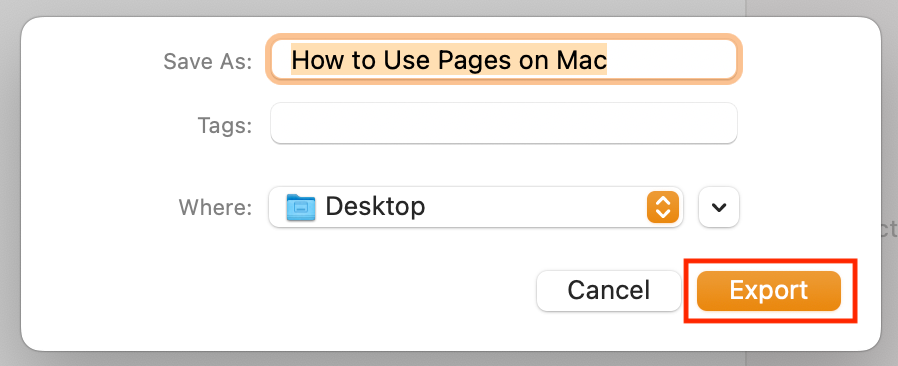
Save Pages files to Word format
While we love Pages as an excellent alternative to Word, Microsoft’s app remains the go-to choice for many users. To ensure your colleagues can access your work, we recommend saving your files in Word format whenever possible. Fortunately, Pages makes this process straightforward.
We’ve covered how to easily save a Pages file in Word format, but what if a Word document won’t open on Mac? Explore our guide for additional tips.
Reduce document file size
If you enjoy adding high-quality images and videos to your documents as much as we do, you may notice your files quickly become large and difficult to manage. This can make opening or sharing them with others a challenge.
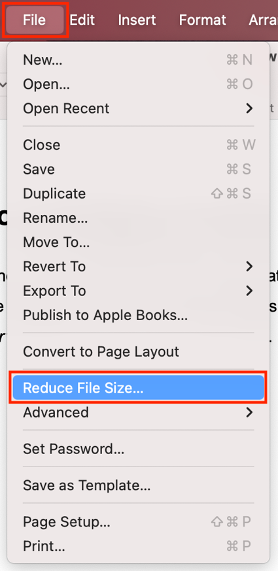
To help, we’ve compiled a practical guide for reducing the size of your Pages documents:
Open your Pages document.
Select File in the menu bar.
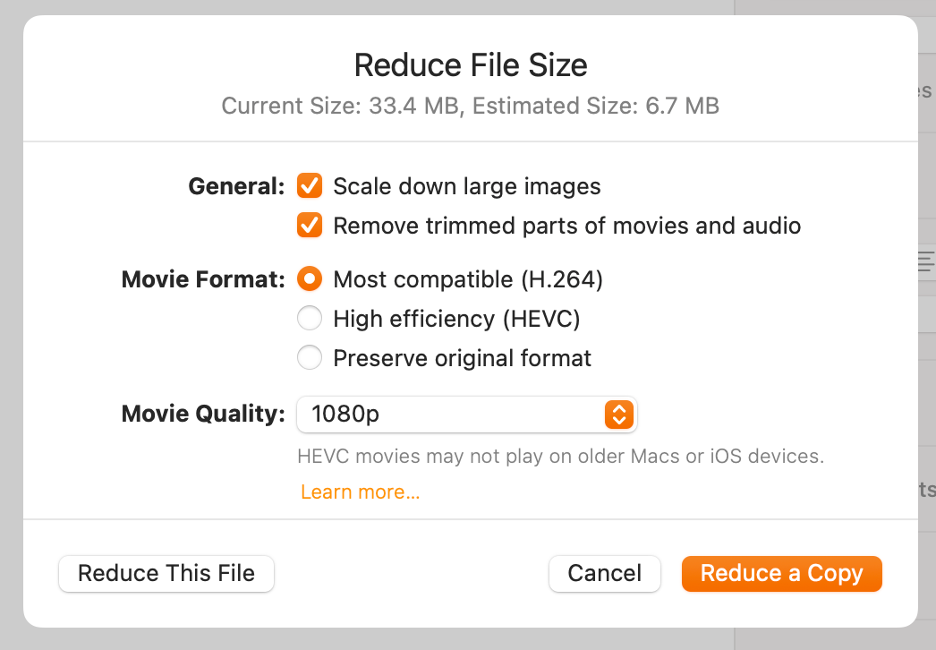
Choose Reduce File Size.
Make adjustments as needed.
Click Reduce This File or Reduce a Copy.
Step 1. Pages > File > Reduce File SizeStep 2. Choose either Reduce This File or Reduce a Copy
An important hint from us:
If you also struggle to save large files in apps beyond Pages, take a look at our guide on how to make a file smaller on Mac.
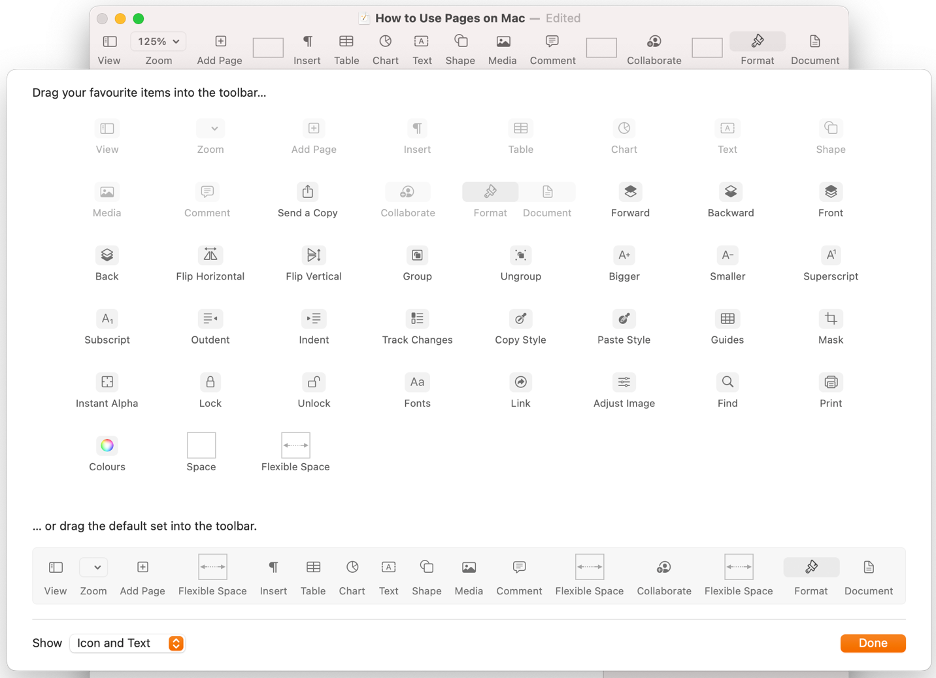
Customize Pages toolbar
Our final tip is about making your Pages workflow as efficient as possible. We appreciate that Apple allows users to customize the toolbar. This means you can keep your most-used controls and tools within easy reach at all times.
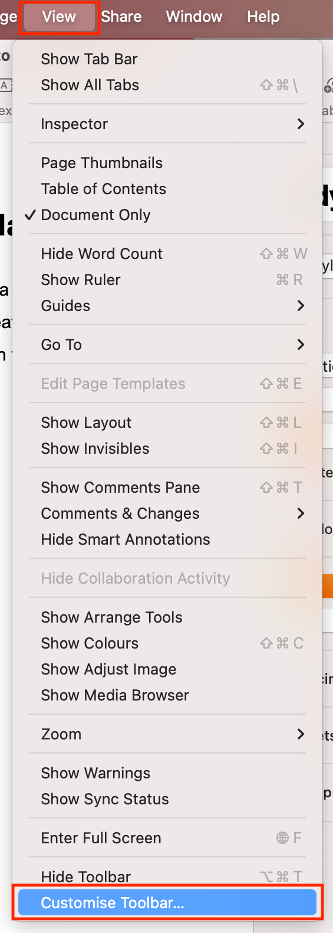
See below how to adjust the Pages toolbar to your needs:
Launch Pages on your Mac.
Go to View in the menu bar.
Select Customize Toolbar.
Drag items to the toolbar.
Click Done to save changes.
Step 1. Pages > View > Customize ToolbarStep 2. Drag items to the toolbar
The ultimate guide to master Pages on Mac
Pages is an excellent alternative to Microsoft Word. With Apple’s word processor, you can effortlessly create documents, use customizable templates, build tables, add interactive elements, and much more, all in an intuitive and efficient way. Pages also enables easy document sharing and real-time collaboration, plus it supports exporting to popular formats such as Word, PDF, and EPUB.
To get the most out of Pages (and any other app on your Mac), you should keep everything updated. MacKeeper’s Update Tracker helps you stay current, so you never miss essential updates. Developed by Clario Tech, MacKeeper combines antivirus protection, performance monitoring, memory optimization, and app update management in a single utility for your Mac.
We respect your privacy and
use cookies
for the best site experience.
Privacy Preferences Center
We use cookies along with other tools to give you the best possible experience while using the
MacKeeper website. Cookies are small text files that help the website load faster. The cookies we
use don’t contain any type of personal data meaning they never store information such as your
location, email address, or IP address.
Help us improve how you interact with our website by accepting the use of cookies. You can change
your privacy settings whenever you like.
Manage consent
All cookies
These cookies are strictly necessary for enabling basic website functionality (including page
navigation, form submission, language detection, post commenting), downloading and purchasing
software. The website might malfunction without these cookies.