Everyone should have reliable antivirus software installed on their Mac. Whether you’re worried about the Mac Auto Fixer or other malware, you should run regular malware scans to keep your Mac safe. Fortunately, MacKeeper’s Antivirus offers real-time protection, as well as on-demand scans—meaning you can find out quickly if there’s malware on your system.
Mac Auto Fixer is a type of malware called scareware. It offers to scan your Mac, then tries to trick you into thinking there are problems with your macOS so that you pay to fix a variety of errors. It adds extensions to your web browsers, too, so that you’re constantly interrupted.
Is Mac Auto Fixer a virus? Technically, no. But it’s still malware. To find out about different types of unwanted software, check out our article on malware vs virus.
Is Mac Auto Fixer safe and legit
Mac Auto Fixer isn’t safe or legit. It’s disguised as software that can help you, but it won’t. In fact, it’s there to display fake privacy and security warnings and convince you to purchase a license or “full version” of the app. If you did enter your payment details, though, you wouldn’t get a legitimate security app—your personal information would be stolen instead.
A note from our experts:
After detecting harmful software on your Mac, you’d better get rid of it sooner. MacKeeper’s Antivirus detects and removes viruses and malware from your Mac, provides scans, and sends alerts in critical situations.
Sometimes, Mac Auto Fixer is bundled with other software—you think you’re just installing one app, but unwanted apps are included in the bundle. Alternatively, you might have clicked on a link online—perhaps you saw a pop-up saying there was malware or outdated software on your MacBook, and clicking the link could solve it.
You can avoid the risk of downloading Mac Auto Fixer and other malware by following some precautions:
Only download software from reputable sources, such as the App Store or a legitimate developer’s website. Make sure that the app is notarized by Apple.
Don’t click on pop-ups or other online adverts.
If you see errors, scan reminders, or other unexpected messages, check the name of the app—if you don’t remember installing it, this could be a scam or a sneaky advert, trying to get you to download malicious software.
However, even if you follow this advice, you may still end up with malware—so let’s find out how to identify and remove it.
How to find out if Mac Auto Fixer is on your Mac
You might notice signs that there’s something wrong with your Mac.
Symptoms of Mac Auto Fixer:
Your Mac is running more slowly than usual.
You’re redirected to other search engines when browsing the internet.
You see more adverts than usual, or pop-up ads appear.
You see pop-up windows telling you that your system has errors, malware, or other problems.
However, some of these symptoms could be signs of other macOS viruses or entirely different issues.
Important: To find out if Mac Auto Fixer is installed on your system, you should run a malware scan. This will confirm whether you’ve got this potentially unwanted program on your Mac and alert you to other malware issues.
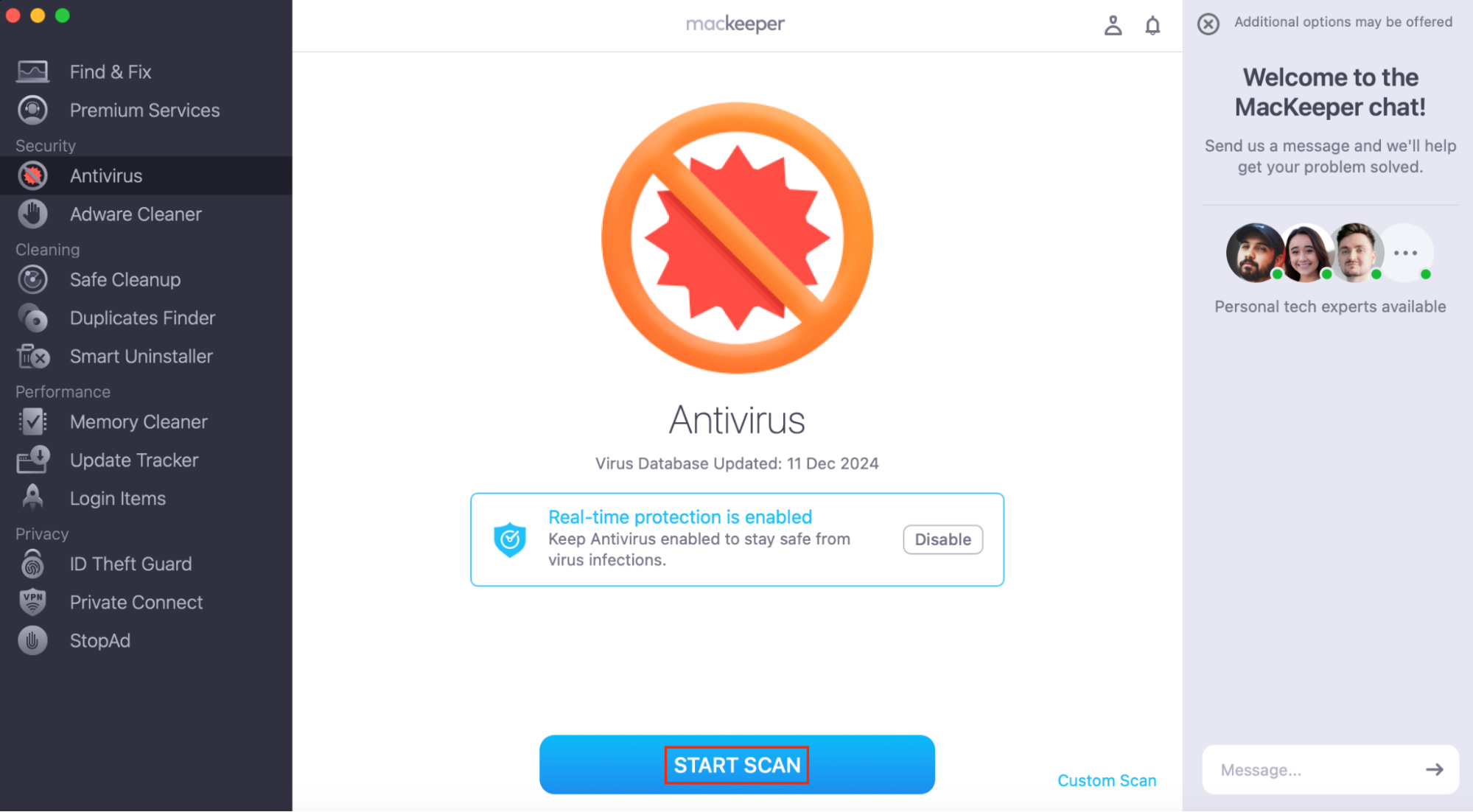
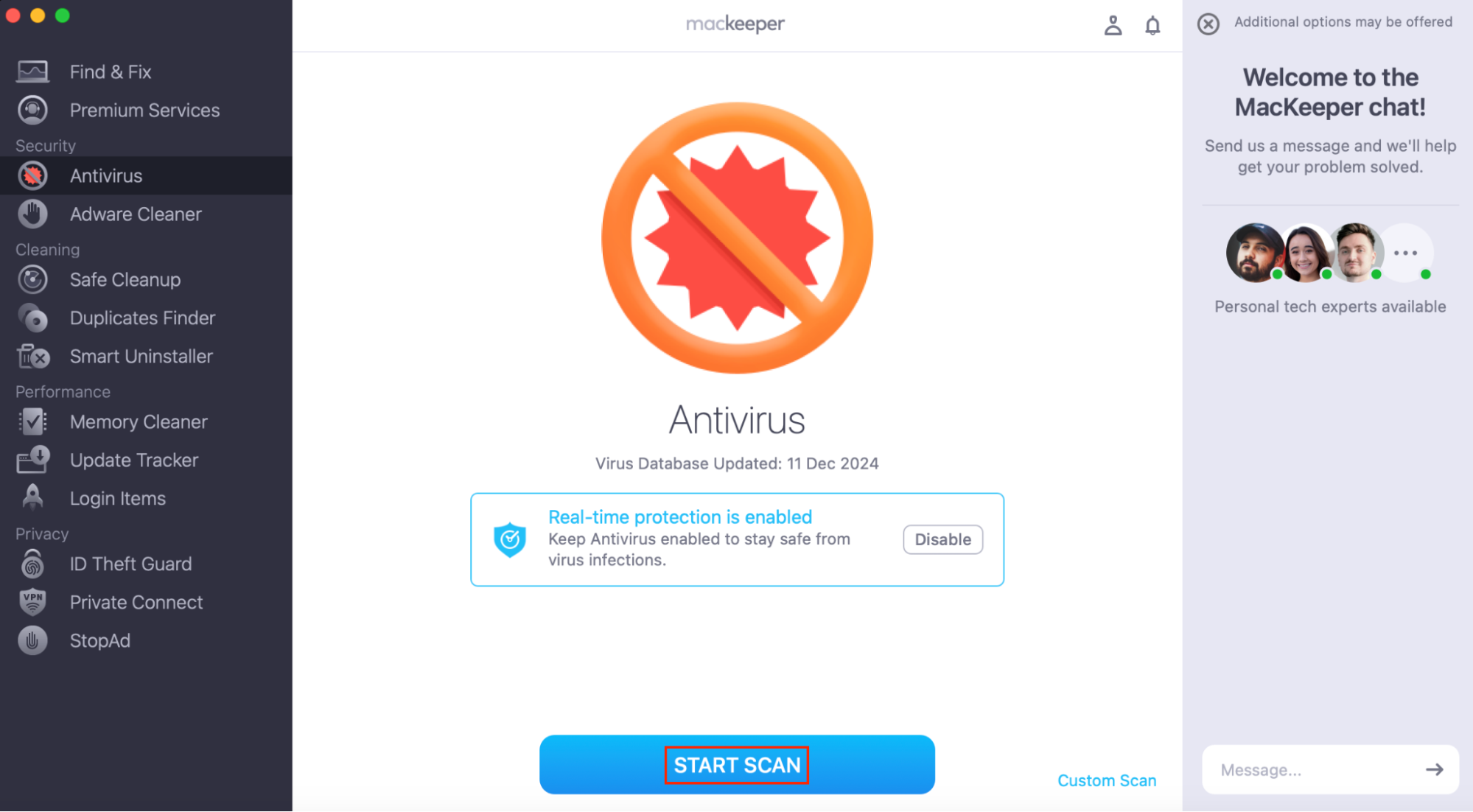
It’s simple to run a scan with MacKeeper’s Antivirus. Additionally, to help improve your MacBook’s security, MacKeeper even includes real-time malware detection, which alerts you as soon as malware is installed on your system. 47% of MacKeeper users discovered malware on their first scan!
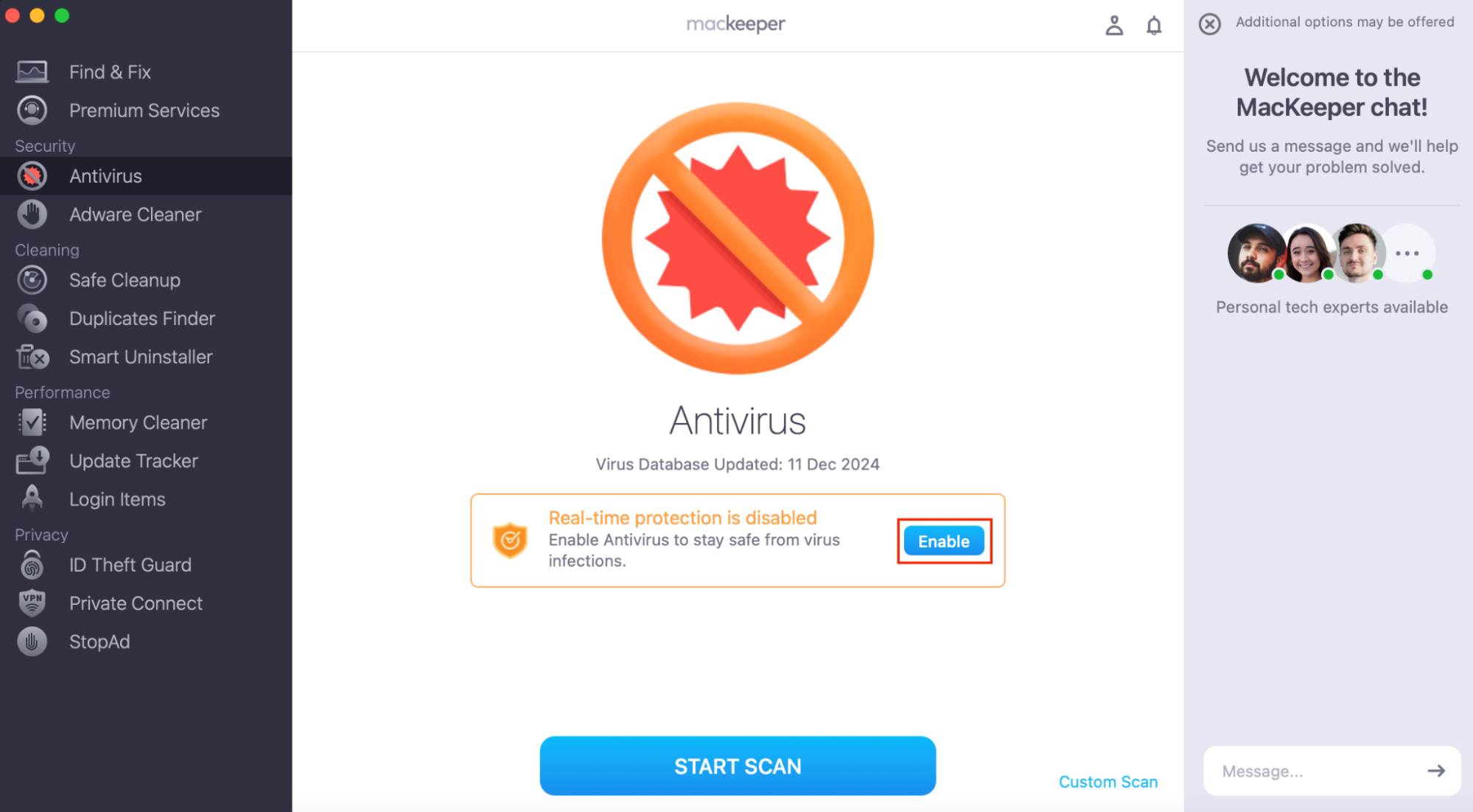
Click Enable to turn on real-time malware detection.
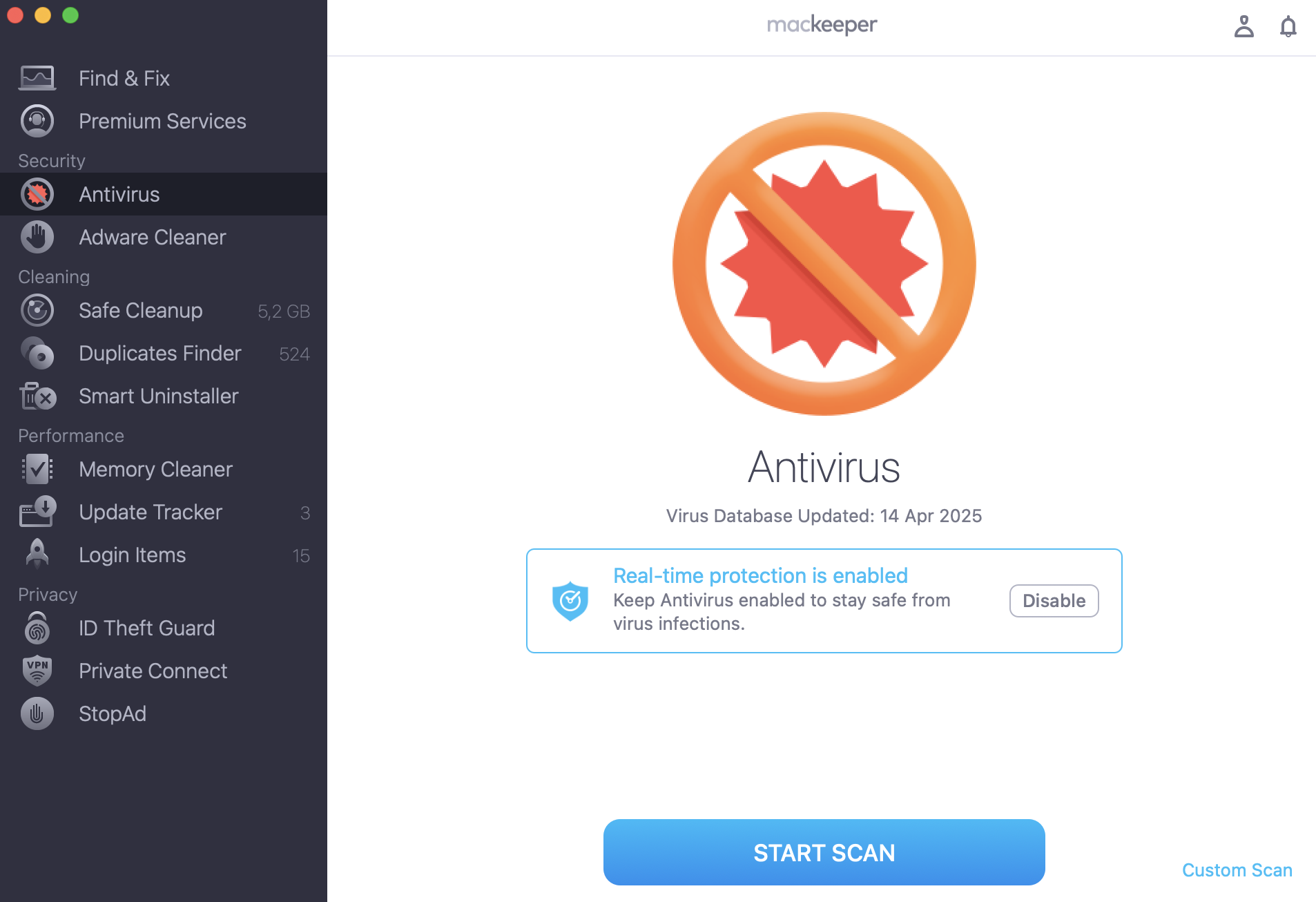
Choose Start Scan.
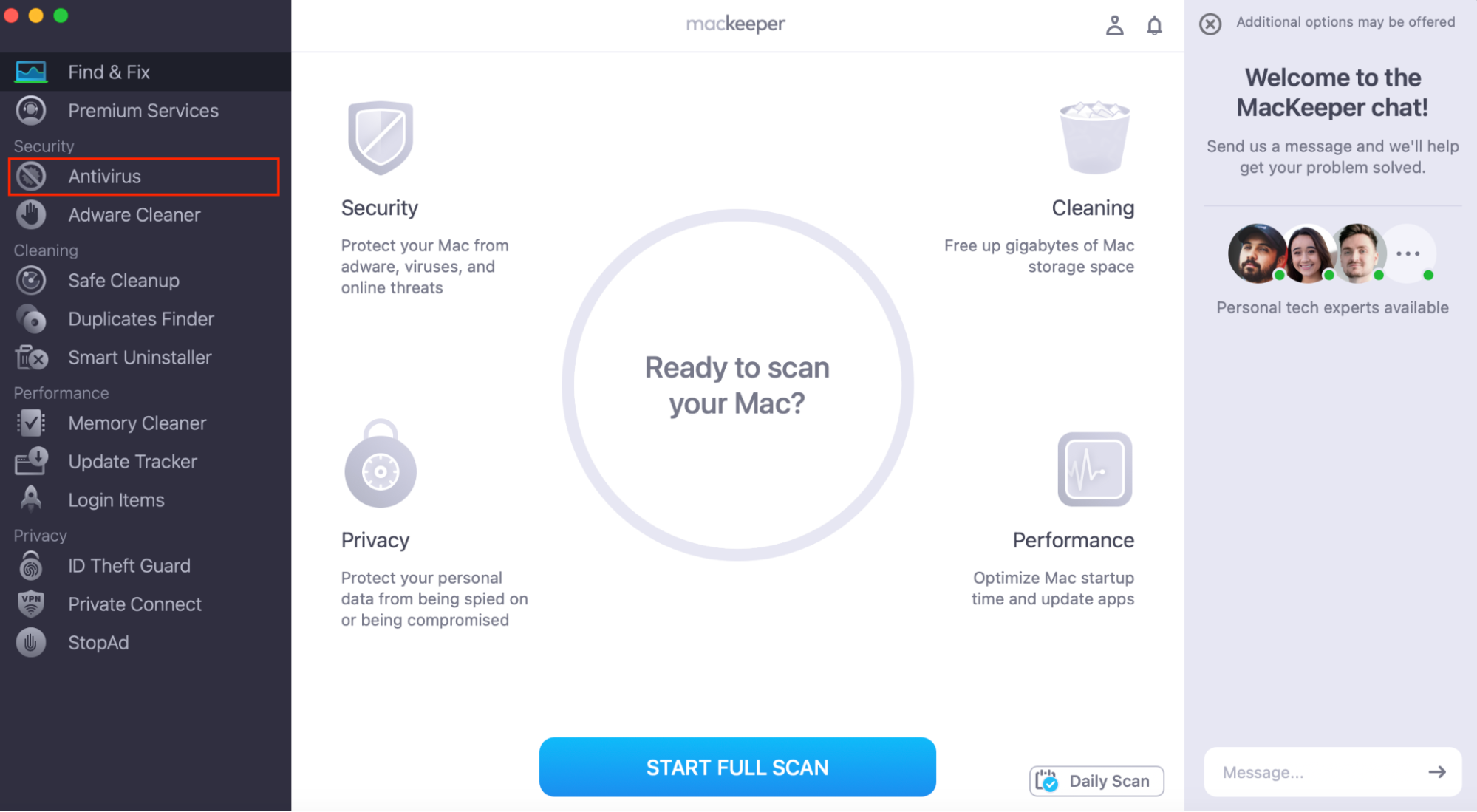
Step 1. Open MacKeeper and choose AntivirusStep 2. Click EnableStep 3. Click Start Scan
How to remove Mac Auto Fixer
Next, you’ll need to know how to remove Mac Auto Fixer from your system. If you have a MacBook Air or Pro, iMac, or other Apple computer, you should know how to remove malware from a Mac.
There are a few steps to delete Mac Auto Fixer from macOS, but don’t worry—I’ll explain them as we go along.
To delete Mac Auto Fixer from your computer:
Delete the unwanted application via Finder
Remove Login Items
Get rid of malicious Mac Auto Fixer browser extensions
Uninstall Mac Auto Fixer with antivirus software
1. Delete unwanted applications via Finder
First, you’ll need to get rid of the Mac Auto Fixer app. You can do this using Finder.
How to delete Mac Auto Fixer in Finder:
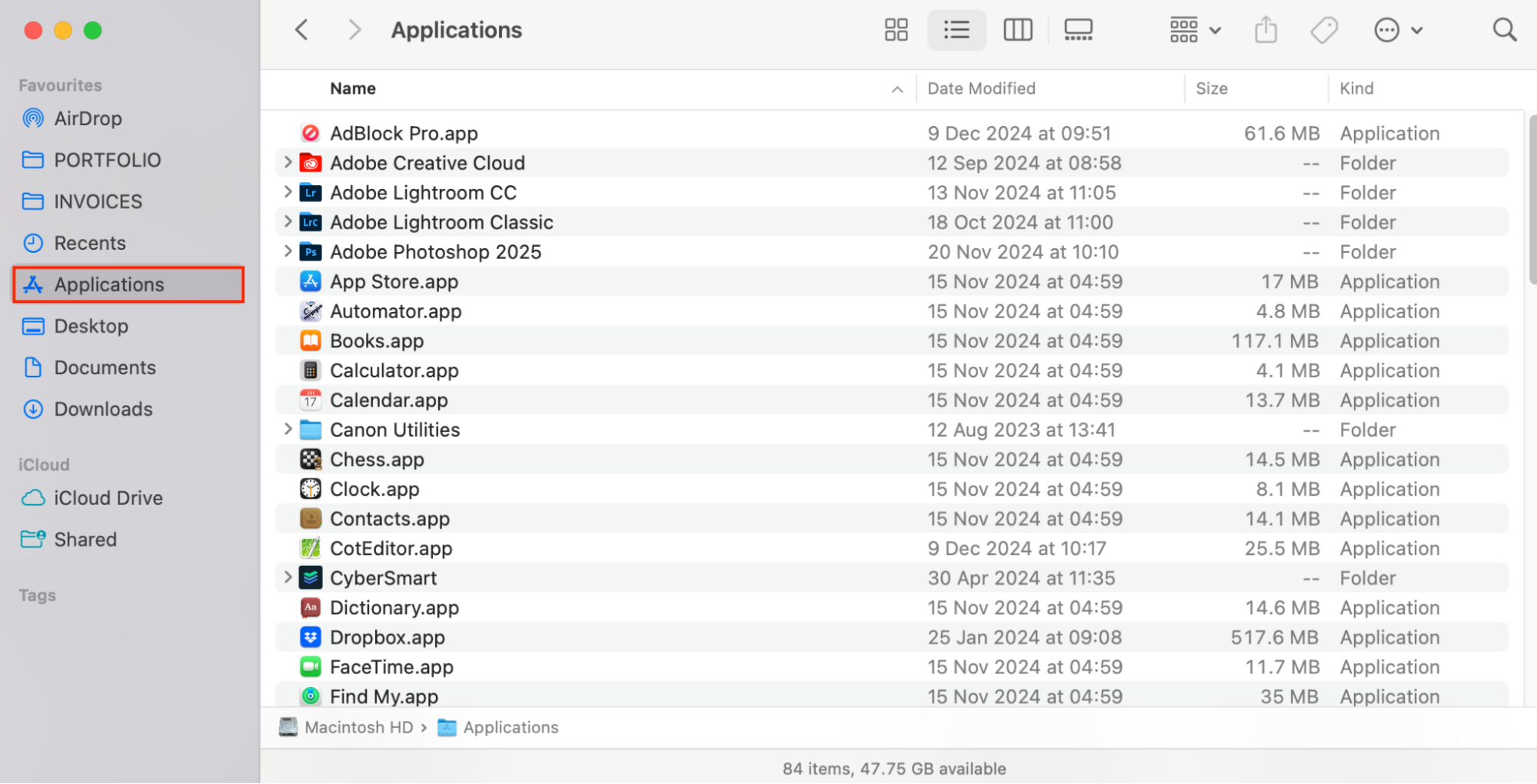
Open Finder, and go to your Applications folder.
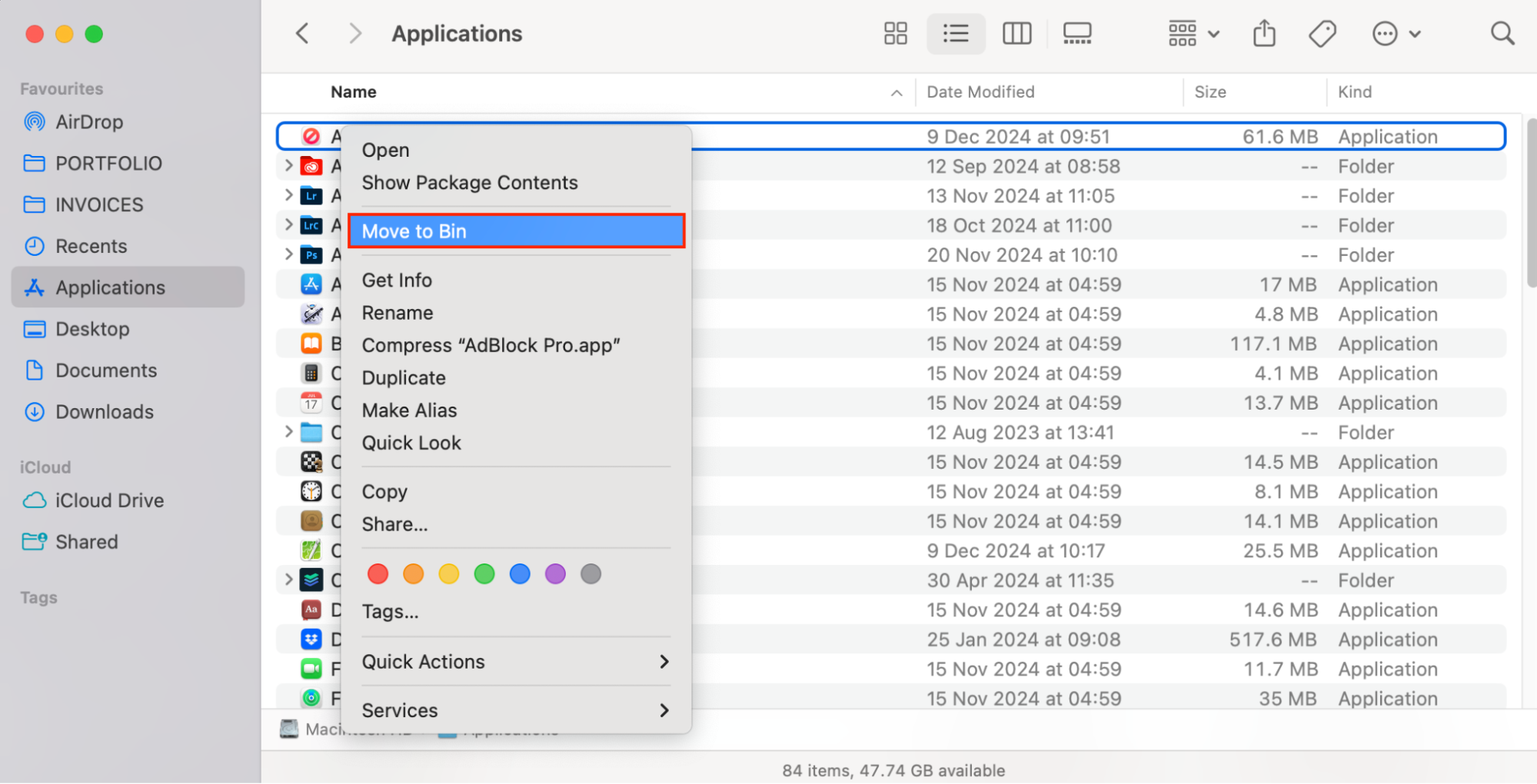
Look for software you don’t recognize—it may be called Mac Auto Fixer. Right-click on the item you want to remove and click Move to Bin.
Right-click on the Bin, and choose Empty Bin.
Step 1. Open Finder, and go to your Applications folderStep 2. Right-click on the app and click Move to BinStep 3. Right-click on the Bin and choose Empty Bin
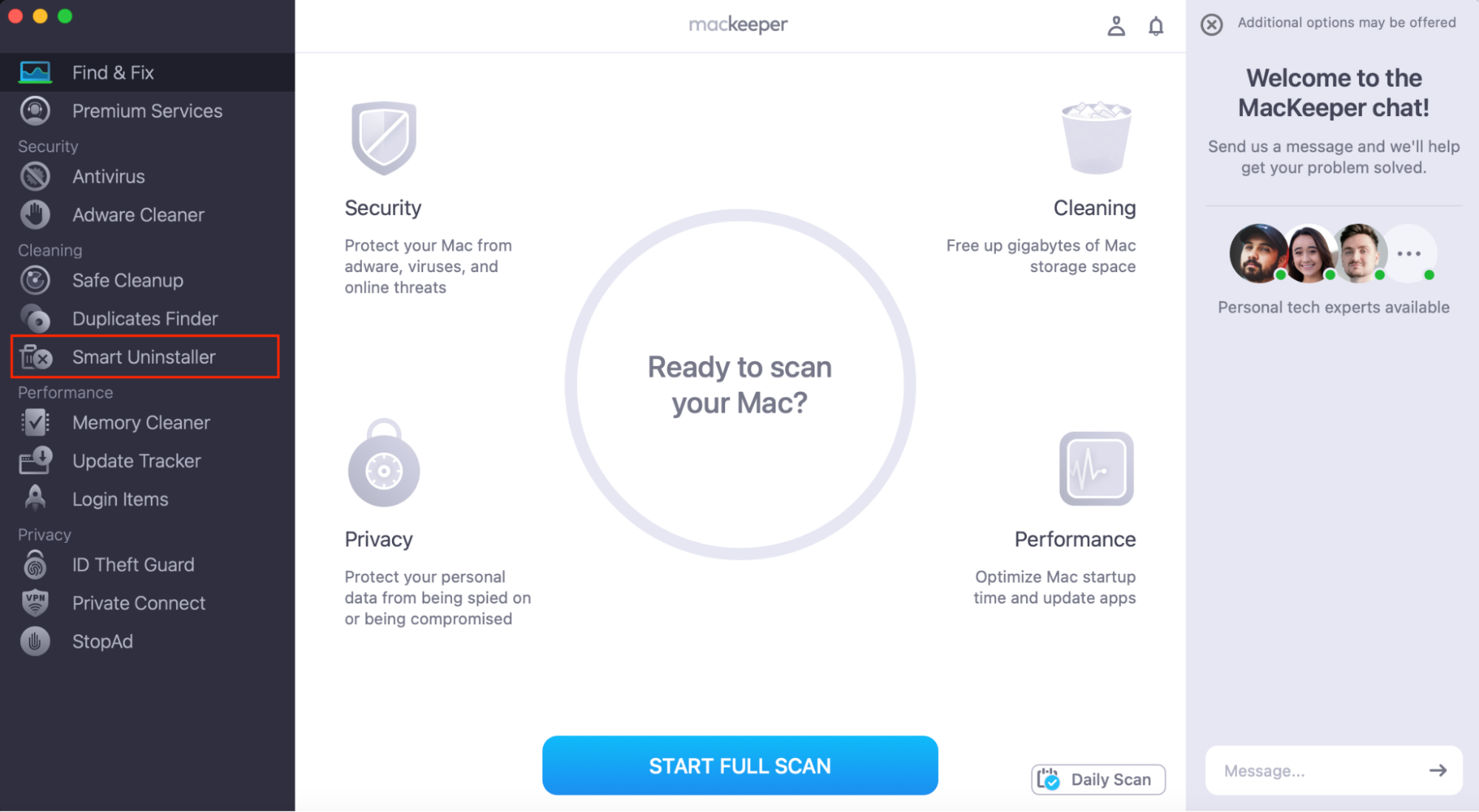
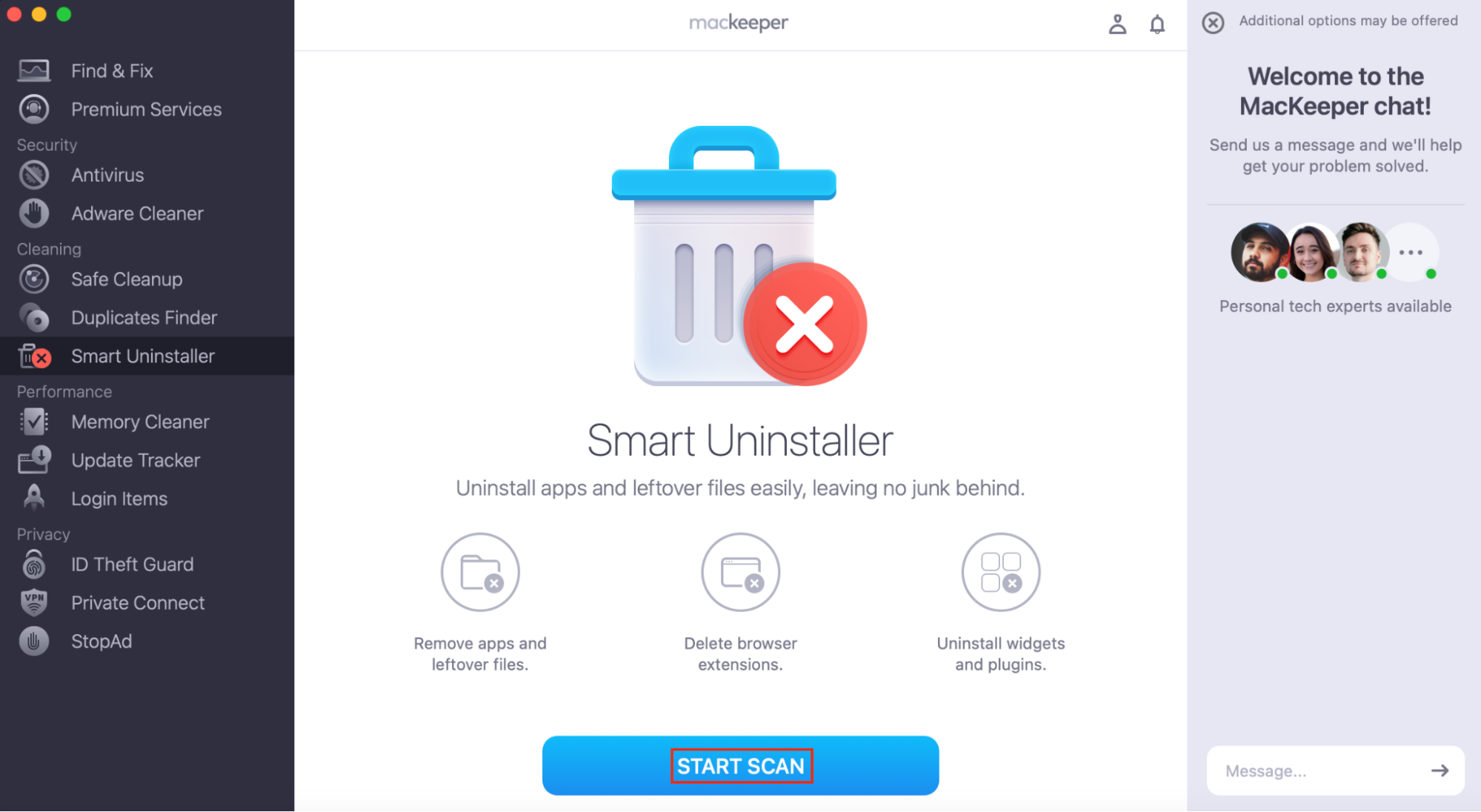
Alternatively, you can use MacKeeper’s Smart Uninstaller to uninstall software—here’s how to remove software using MacKeeper:
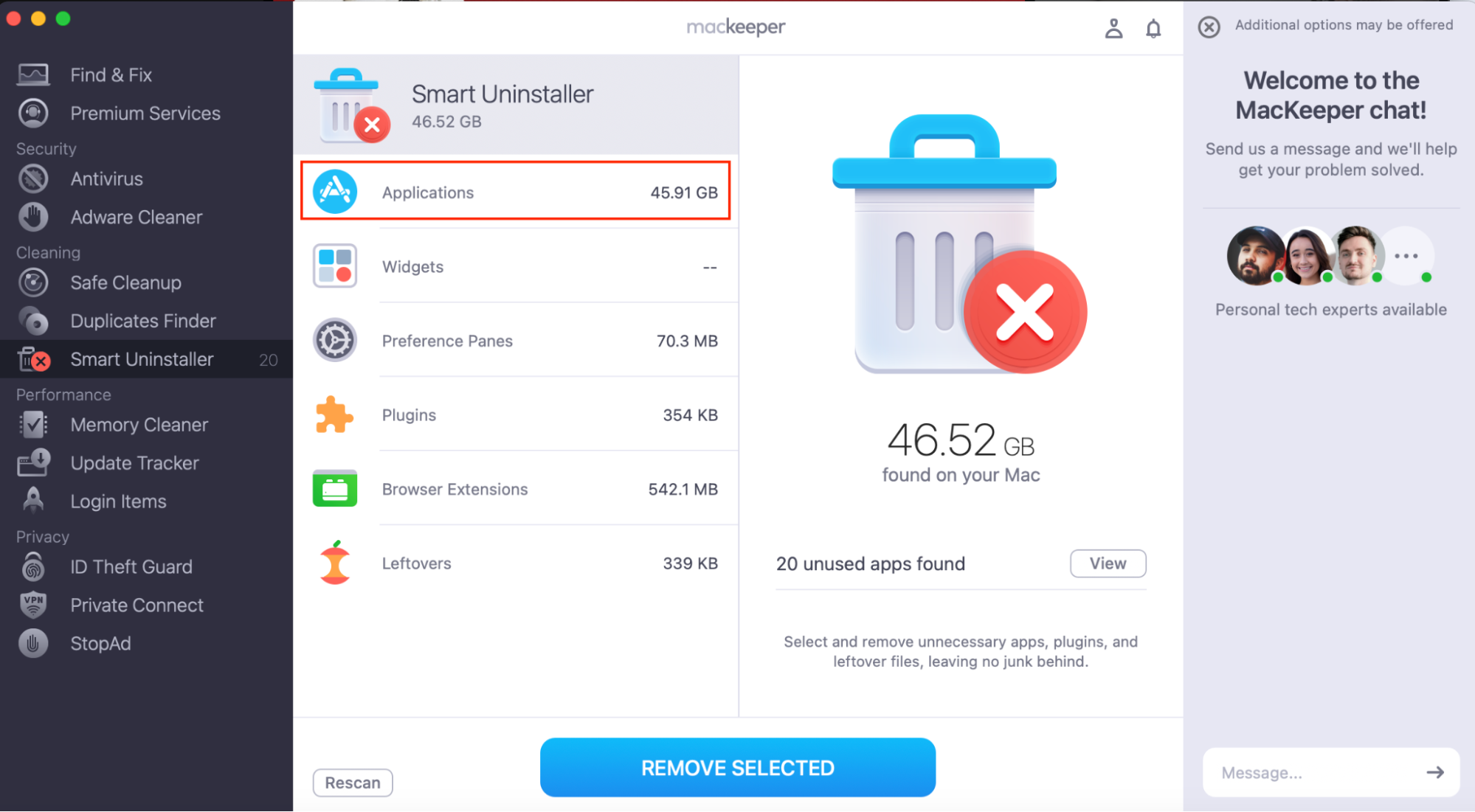
Choose the app you want to remove and click Remove Selected.
Step 1. Open MacKeeper and choose Smart UninstallerStep 2. Click Start ScanStep 3. Click ApplicationsStep 4. Choose the app you want to remove and click Remove Selected
2. Remove Login Items
Mac Auto Fixer automatically installs some login items on your system. Login items are the apps that open on startup. This is why you see the effects of Mac Auto Fixer even when you haven’t chosen to open the app—macOS opens it automatically every time it starts up.
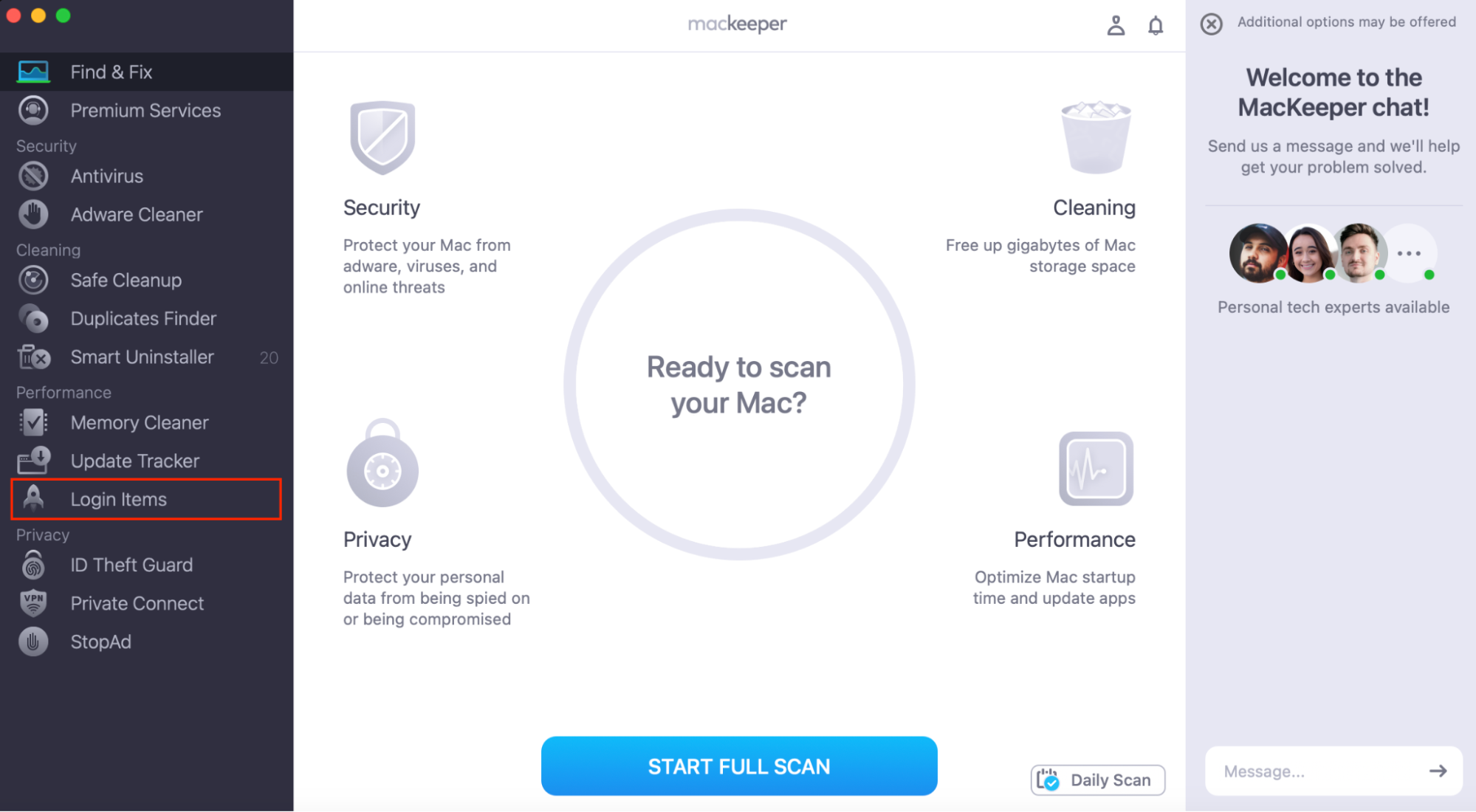
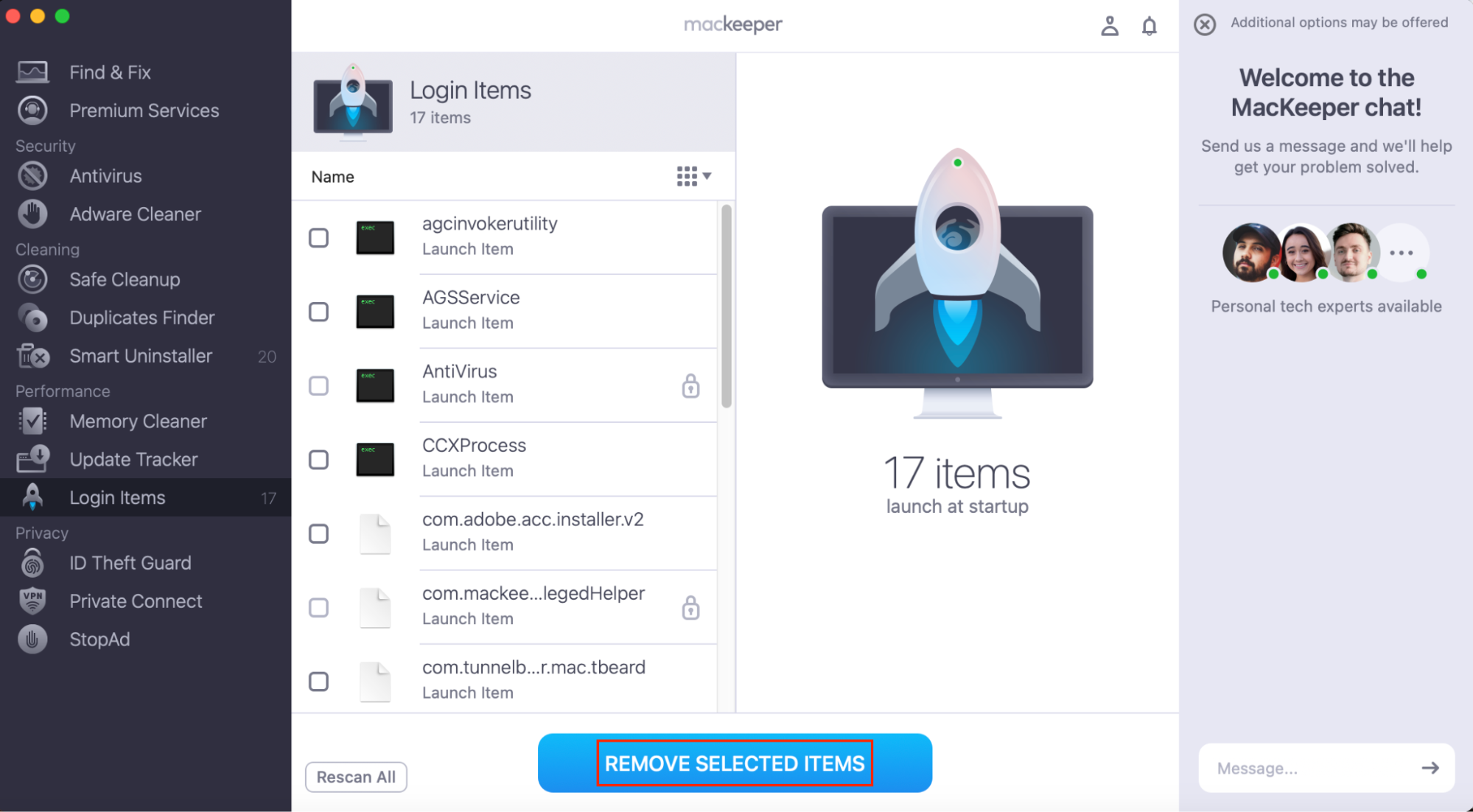
You can remove login items using System Settings, but you can also use MacKeeper. I find that MacKeeper shows more login items than System Settings, so I’ll explain how to do it that way.
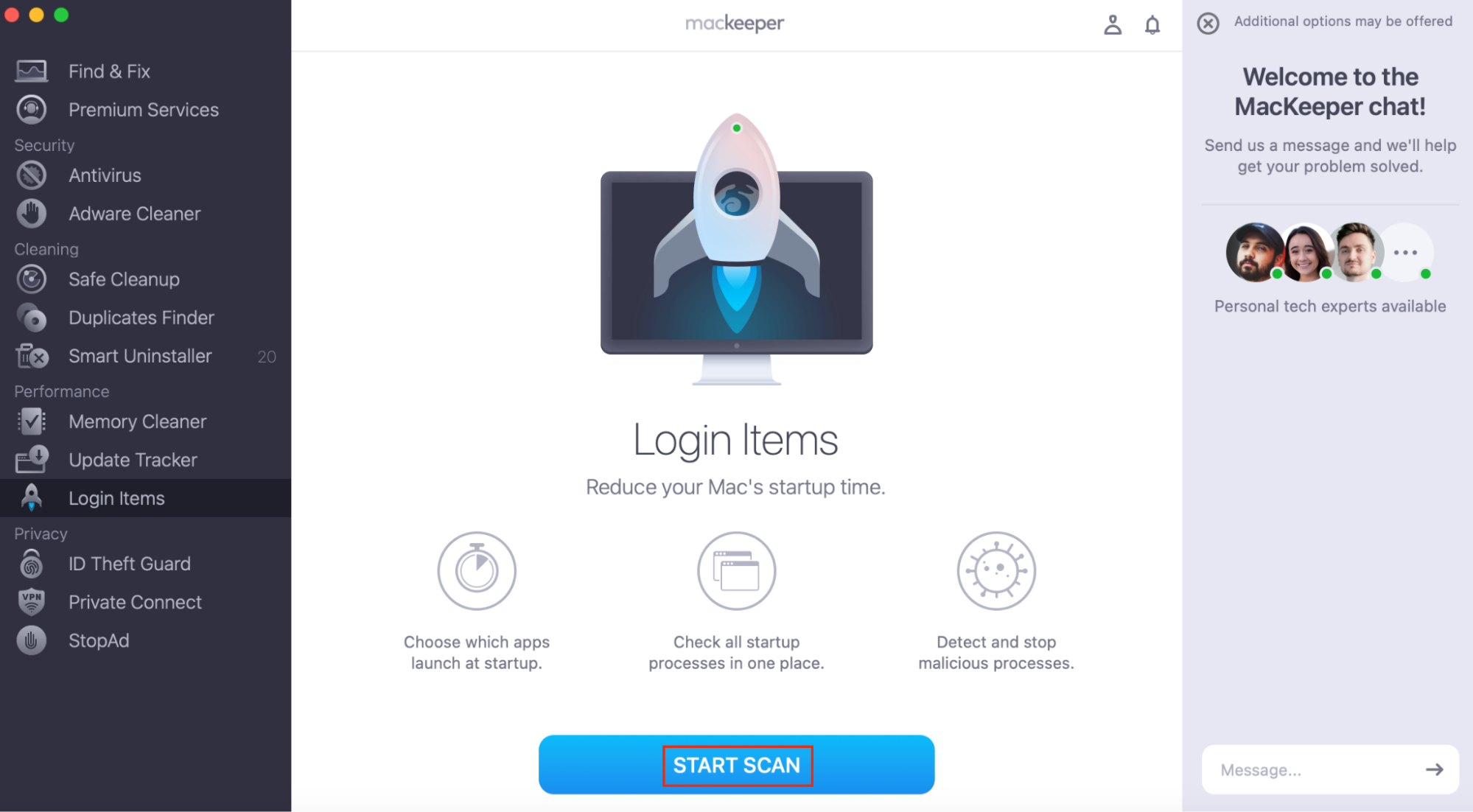
Select the items you want to remove and click Remove Selected Items.
Step 1. Open MacKeeper, and choose Login ItemsStep 2. Click Start ScanStep 3. Select the items you want to remove, and click Remove Selected Items
3. Get rid of malicious Mac Auto Fixer browser extensions
Mac Auto Fixer also installs some browser extensions, so we’ll need to remove these. Unfortunately, if you use more than one web browser, you’ll need to do this for each one. I’ll explain how to remove extensions in Safari, Firefox, Chrome, and Opera.
In each case, you’ll want to look for unfamiliar browser extensions that you don’t remember installing.
To remove browser extensions in Safari:
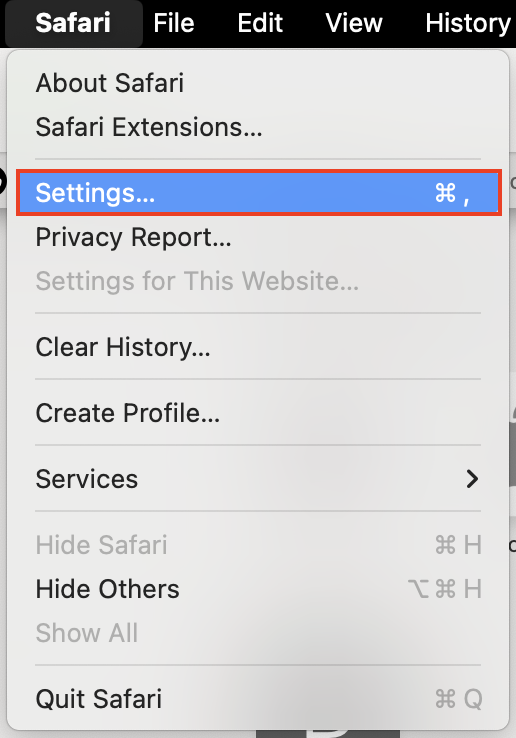
Go to Safari > Settings.
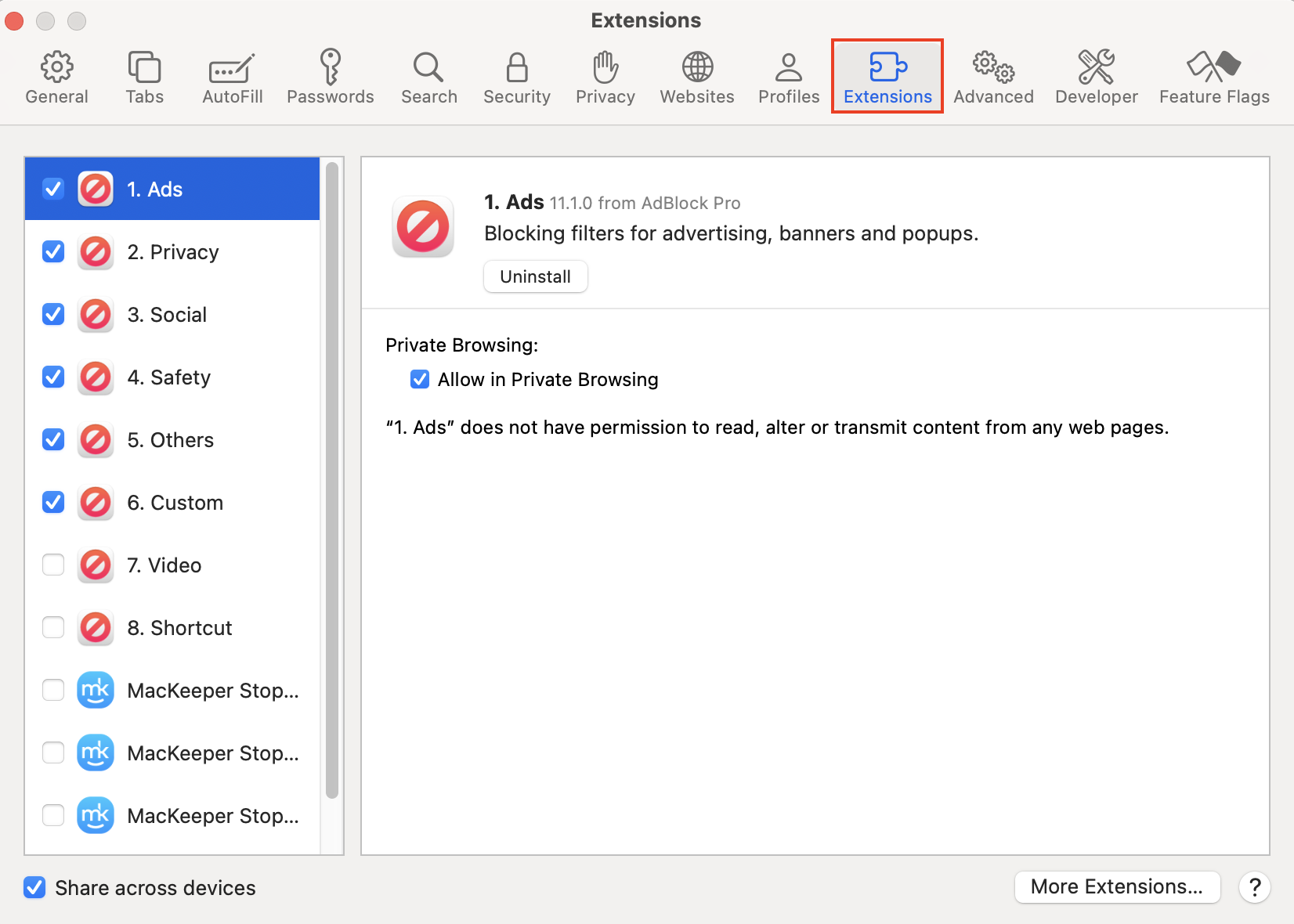
Under the Extensions tab, find the extension you want to remove.
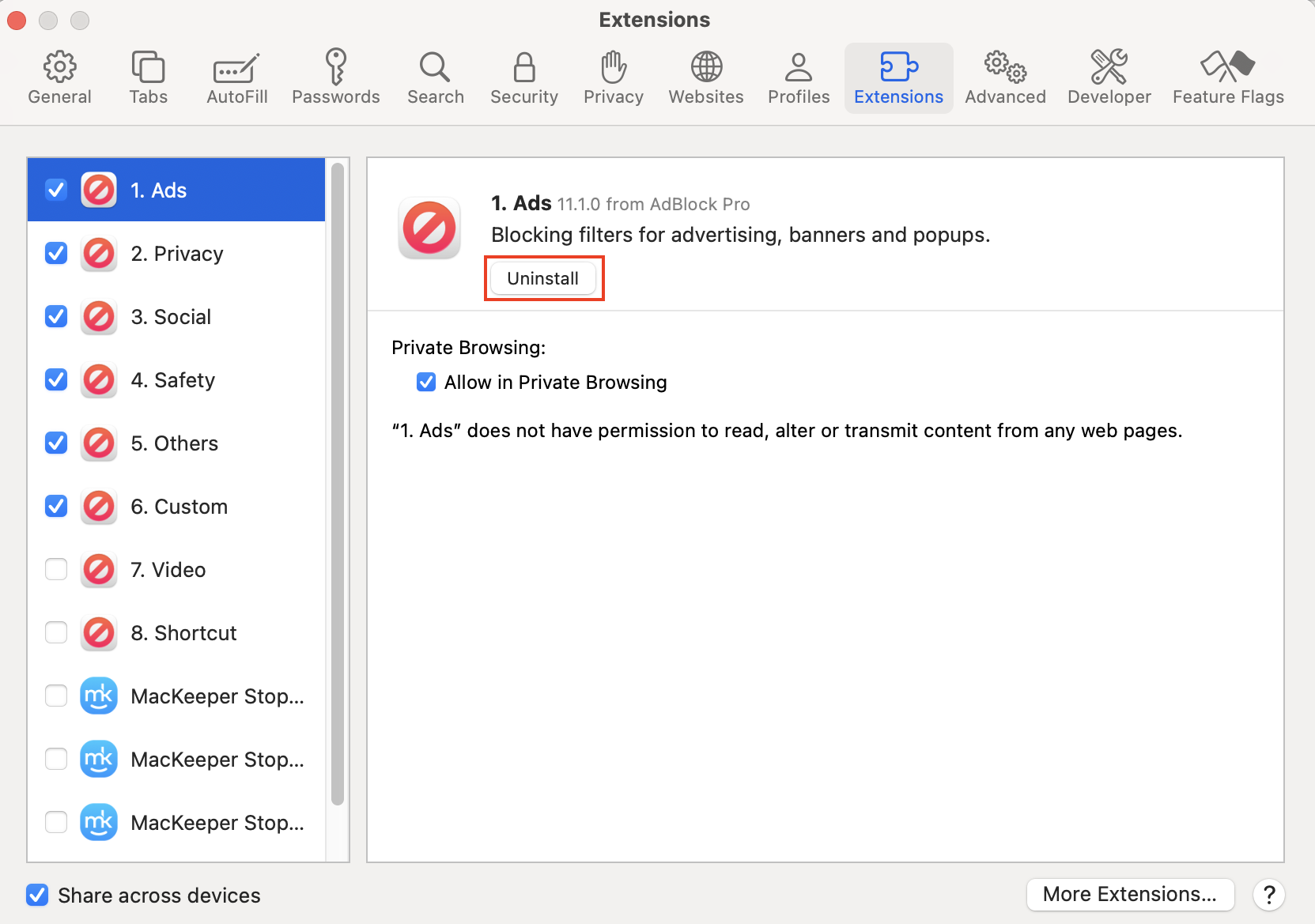
Click Uninstall.
Step 1. Go to Safari > SettingsStep 2. Under the Extensions tab, find the extension you want to removeStep 3. Click Uninstall
To remove suspicious extensions in Firefox:
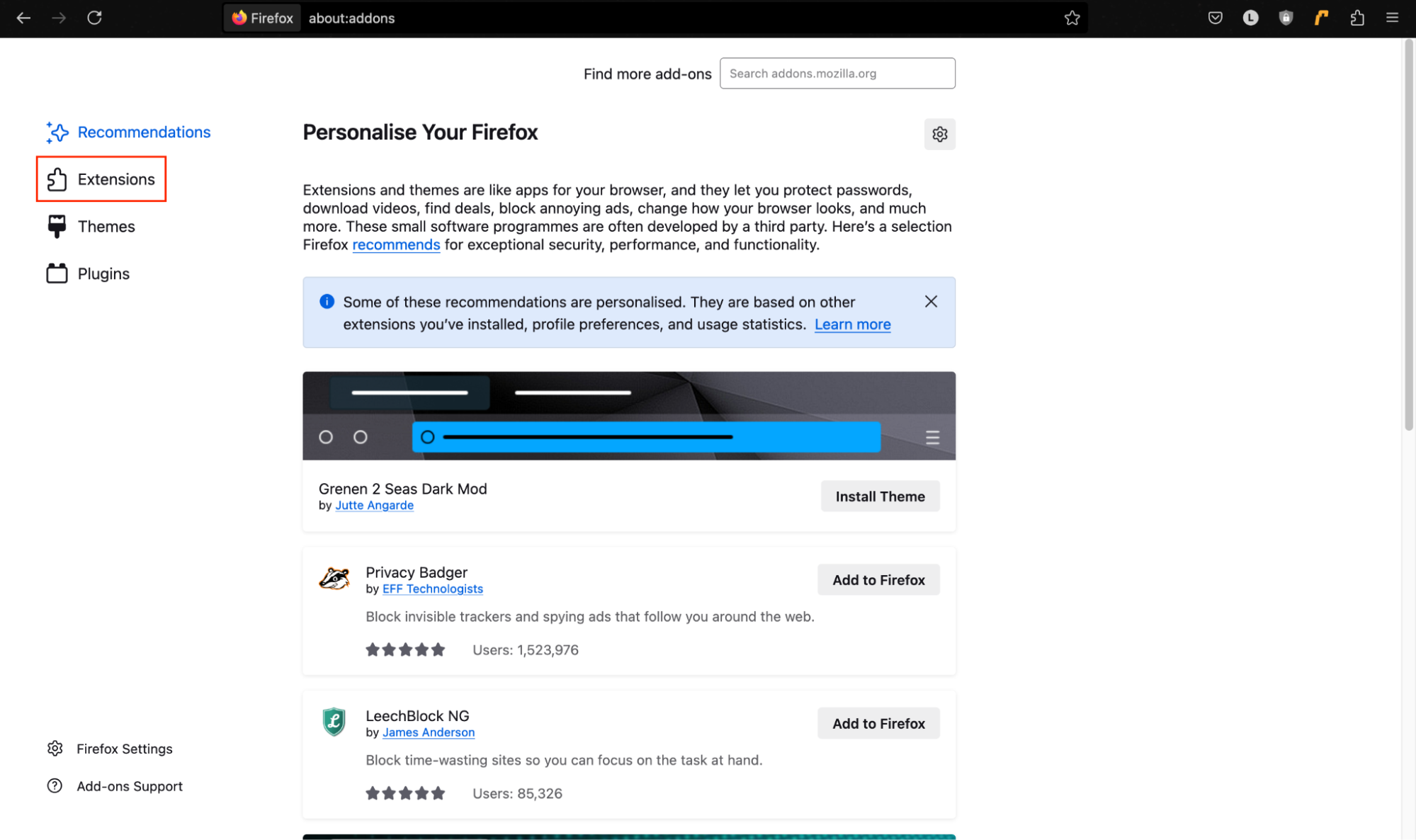
Click the Extensions button—the one that looks like a puzzle piece.
Choose Extensions.
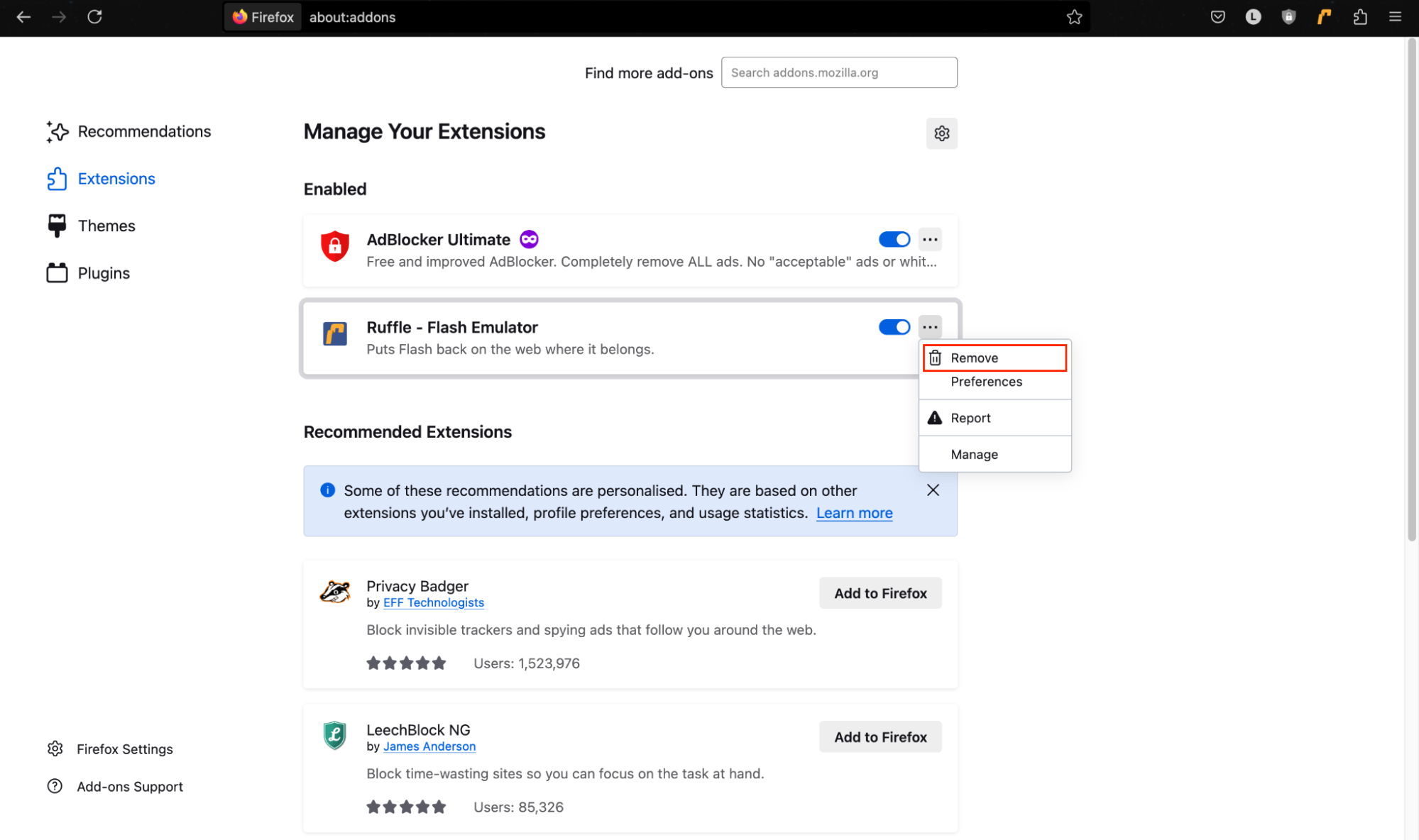
Click the three dots next to the extension you want to delete, and choose Remove.
Step 1. Click the Extensions button–the one that looks like a puzzle pieceStep 2. Choose ExtensionsStep 3. Click the three dots next to the extension you want to remove, and choose Remove
To remove browser extensions in Chrome:
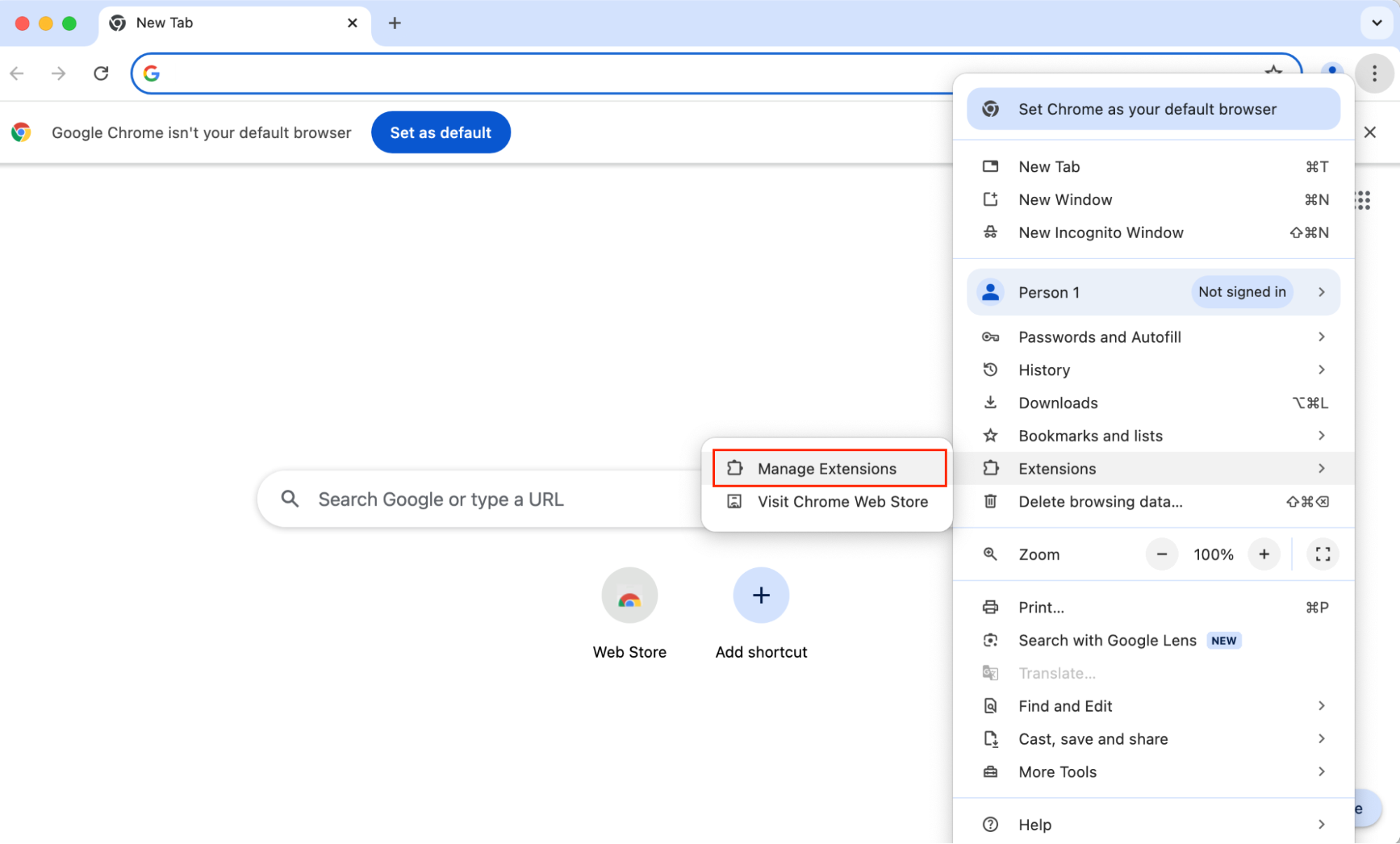
Go to the menu (three dots) > Extensions > Manage Extensions.
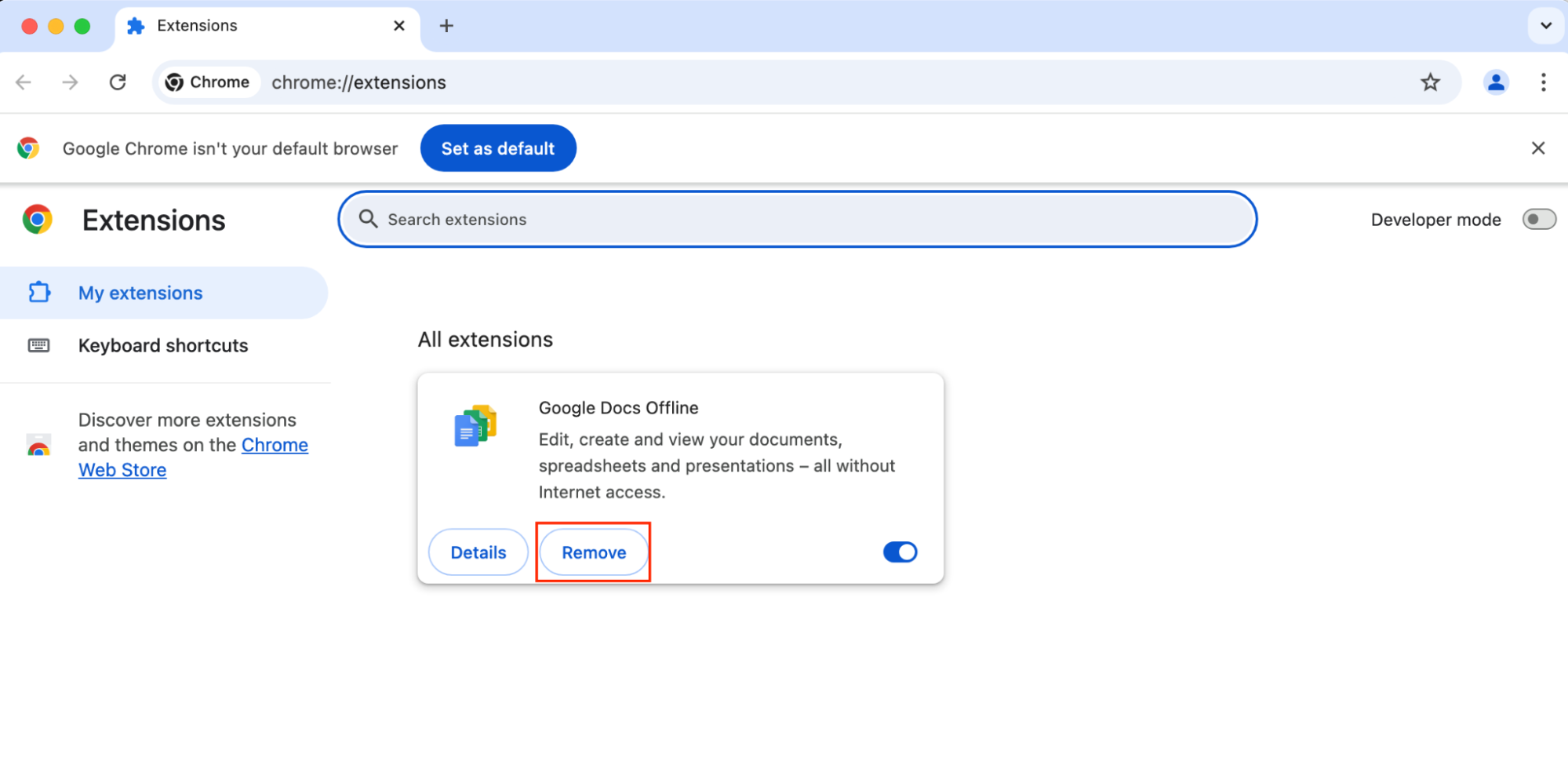
Find the extension you want to delete, and choose Remove.
Step 1. Go to menu (three dots) > Extensions > Manage ExtensionsStep 2. Find the extension you want to delete, and choose Remove
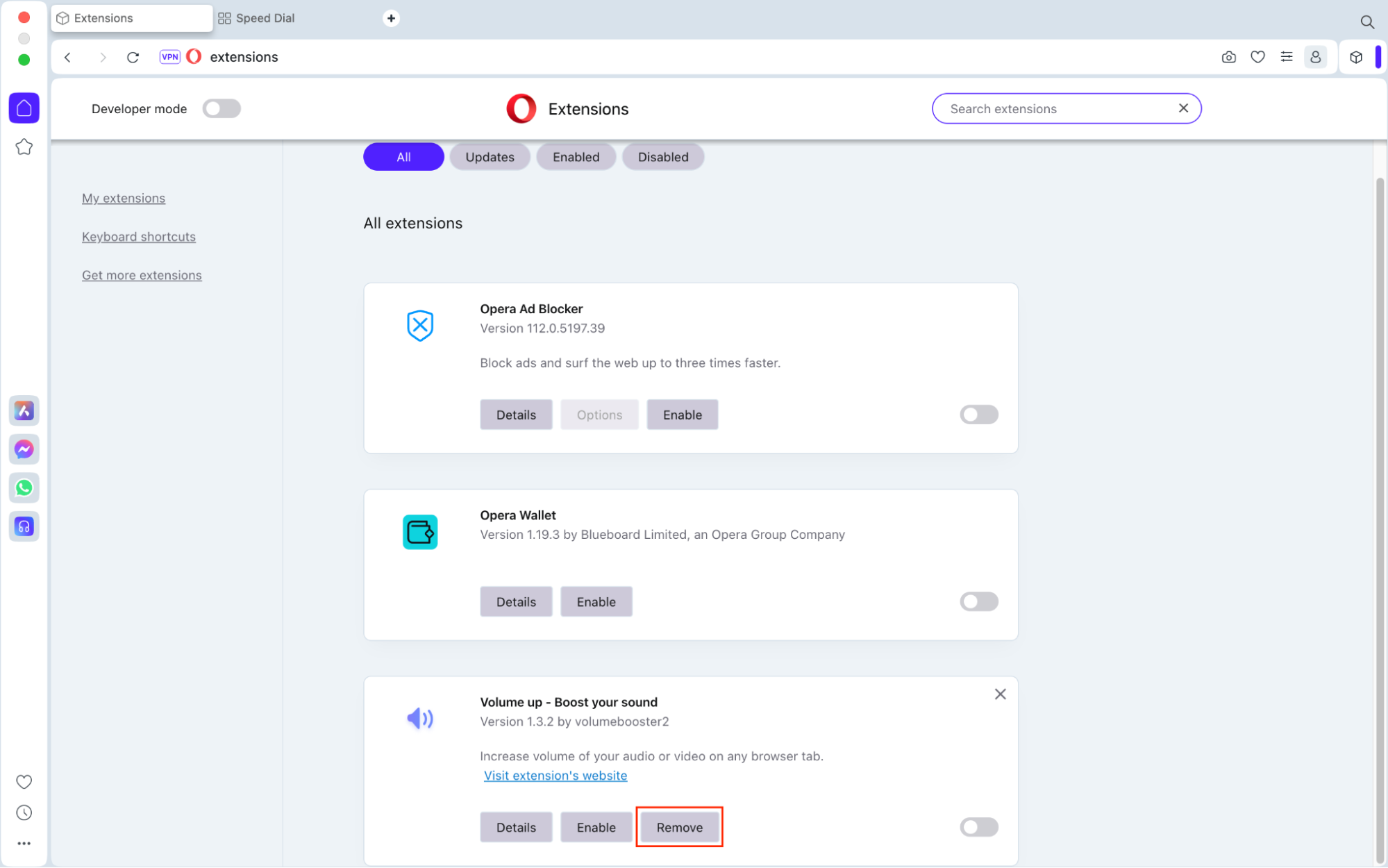
To remove browser extensions in Opera:
Click the Extensions icon (it looks like a cube) and then choose Manage Extensions.
Find the extension you want to delete and click Remove.
Step 1. Click the Extensions icon and then choose Manage ExtensionsStep 2. Find the extension you want to delete, and click Remove
4. Uninstall Mac Auto Fixer with antivirus
Finally, you’ll want to run a virus scan to make sure that everything is removed. I’ve already explained how to run a scan to check if your system is infected, but here’s how to delete Mac Auto Fixer with MacKeeper.
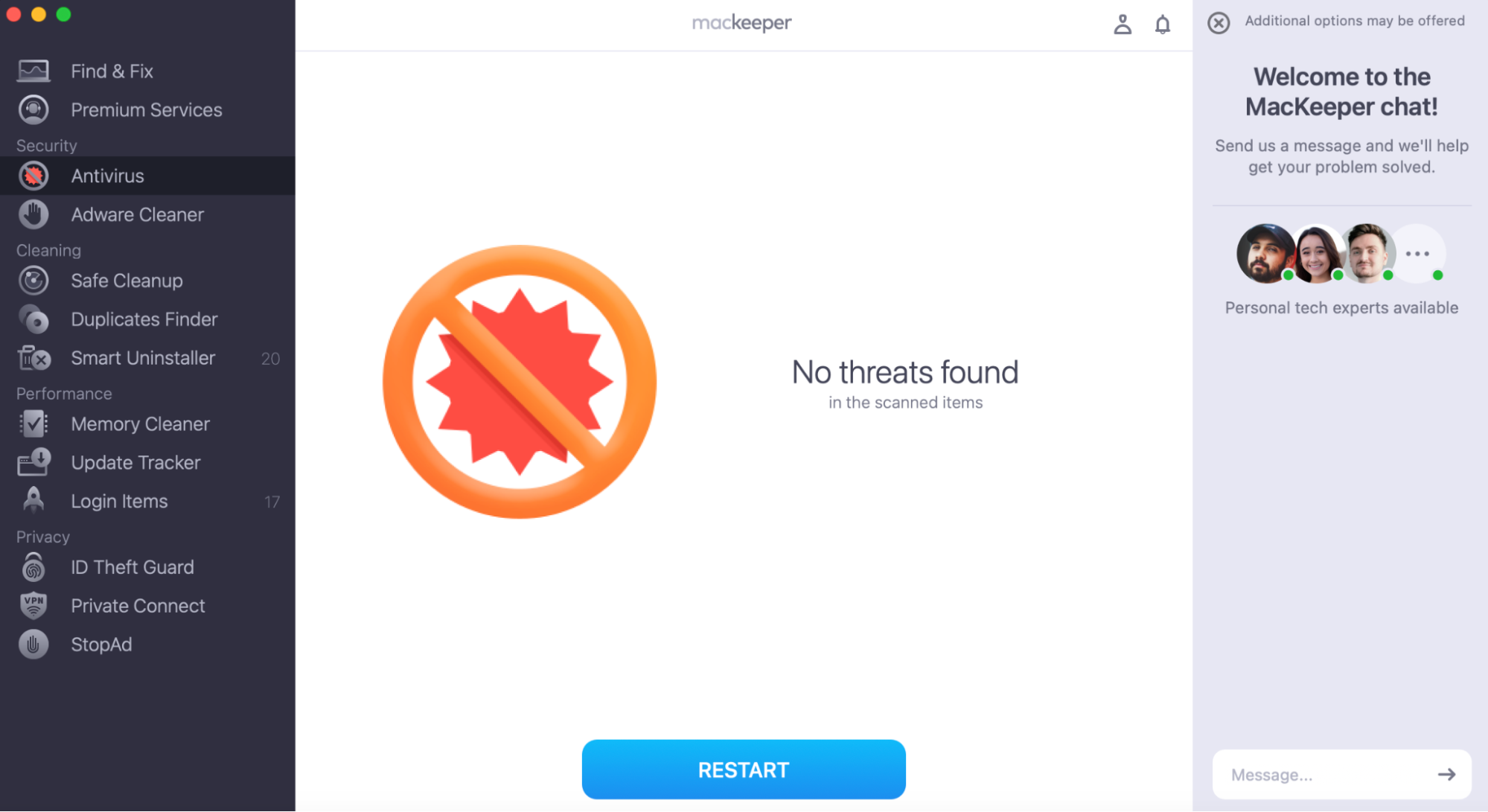
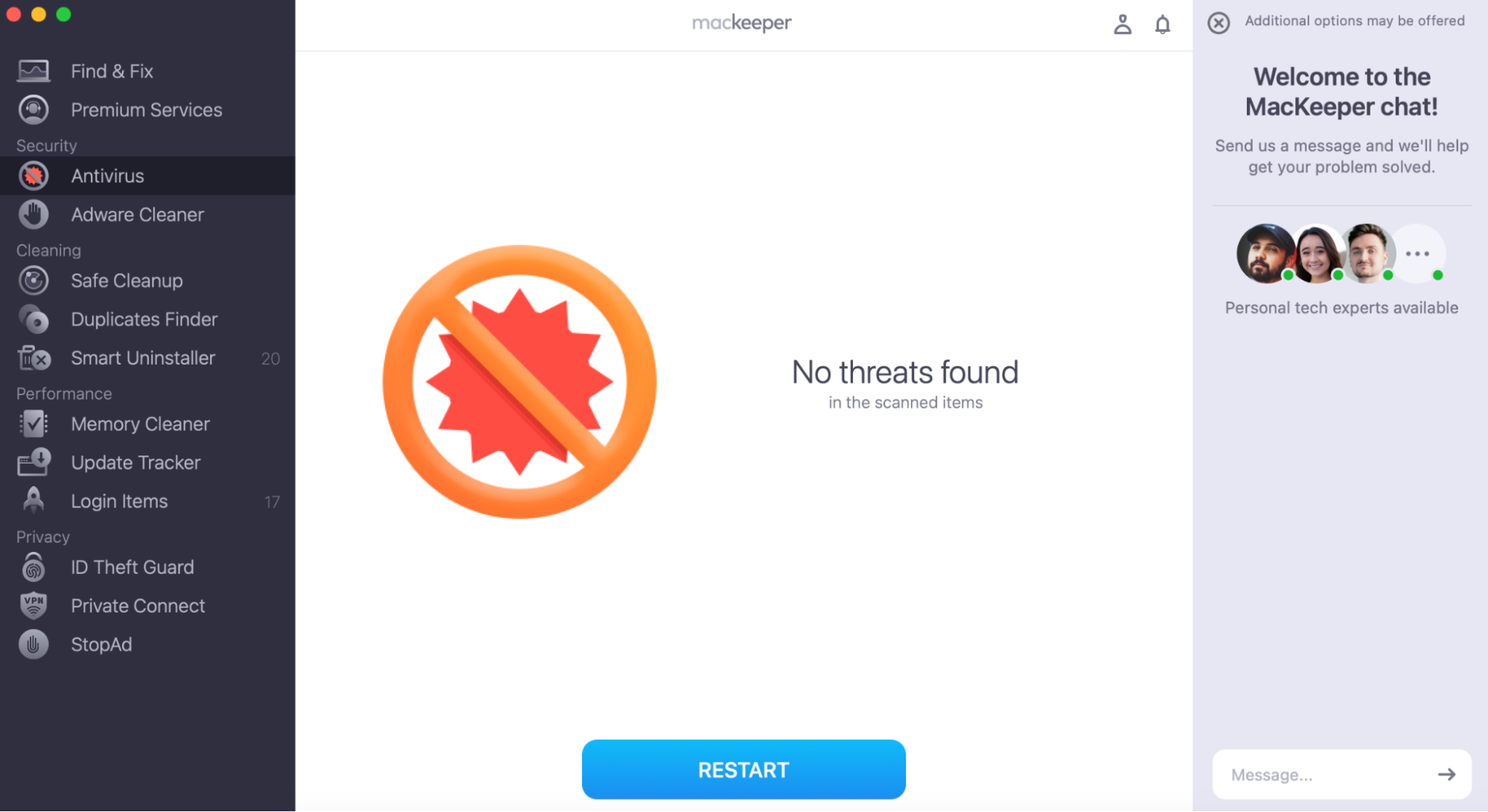
When the scan is complete, follow the on-screen instructions to remove Mac Auto Fixer and any other malware found on your system.
Step 1. Open MacKeeper’s Antivirus and click Start ScanStep 2. Follow the on-screen instructions to remove Mac Auto Fixer and any other malware found on your system
Conclusion
Remove Mac Auto Fixer from your MacBook as soon as you notice it. It’s only there to cause anxiety, display fake privacy and security warnings, and try to steal your personal payment information.
Fortunately, MacKeeper’s Antivirus can help you: it stops 99.7% of known threats and can remove malware with just a few clicks.
We respect your privacy and
use cookies
for the best site experience.
Privacy Preferences Center
We use cookies along with other tools to give you the best possible experience while using the
MacKeeper website. Cookies are small text files that help the website load faster. The cookies we
use don’t contain any type of personal data meaning they never store information such as your
location, email address, or IP address.
Help us improve how you interact with our website by accepting the use of cookies. You can change
your privacy settings whenever you like.
Manage consent
All cookies
These cookies are strictly necessary for enabling basic website functionality (including page
navigation, form submission, language detection, post commenting), downloading and purchasing
software. The website might malfunction without these cookies.