Ever fallen asleep while your Mac kept running all night? A Mac shutdown timer turns off your MacBook automatically, so you don’t have to. And while you’re tidying up, MacKeeper’s Safe Cleanup clears junk files in one click—select the button below to keep your Mac fast and clean.
Yes, you can set a shutdown timer on Mac, and you’ve got a few ways to do it. Which one fits depends on your macOS version, since every Macintosh handles power management a little differently over the years.
Here are your main options:
Terminal — a built-in app that runs the shutdown command
Shortcuts or Script Editor — turn a timer into a one-click button
Third-party apps — a simple choice if you’d rather skip commands
Graphical scheduling — older macOS versions tuck it into the Mac power settings
On newer releases, Apple moved these Mac power settings around, so Terminal or an app is usually the way to go. There’s more than one route to shutdown Mac with timer settings, and we’ll walk through each below.
Shutdown timer, scheduled shutdown, and sleep timer—what’s the difference?
These names get mixed up a lot, so let’s clear them up. A countdown timer turns off your Mac after a set number of minutes, which is handy for a one-time shutdown like bedtime. A scheduled shutdown fires at an exact clock time instead, so it’s the pick for a single planned shutdown.
A recurring schedule goes a step further and powers your Mac down on the days and times you choose, ideal for a regular routine. A sleep timer is the odd one out—it pauses your Mac in low-power sleep mode rather than turning off the screen and display, so it suits short breaks.
It also helps to know your hibernate vs sleep on Mac options, since each low-power state treats your battery and open work differently.
How to prepare your Mac for an automatic shutdown?
Save your work first—an automatic shutdown can quit apps with unsaved changes. A little prep keeps a scheduled shutdown from catching you off guard, and clearing clutter on a slow Mac beforehand frees up space so everything runs cleanly.
Run through this quick checklist first:
Save open files and documents.
Quit apps you don’t need running.
Check that any downloads or updates have finished.
Plug in the power adapter for a long countdown timer.
Double-check the specific time you set.
A note from our experts:
To minimize the risk of an automatic shutdown, we recommend keeping your Mac clean by keeping only the files you really need and regularly deleting clutter. This goal is easier to achieve with the cleaning solution on your side, and MacKeeper’s Safe Cleanup is exactly what you need to quickly and safely remove cache, logs, and other junk files.
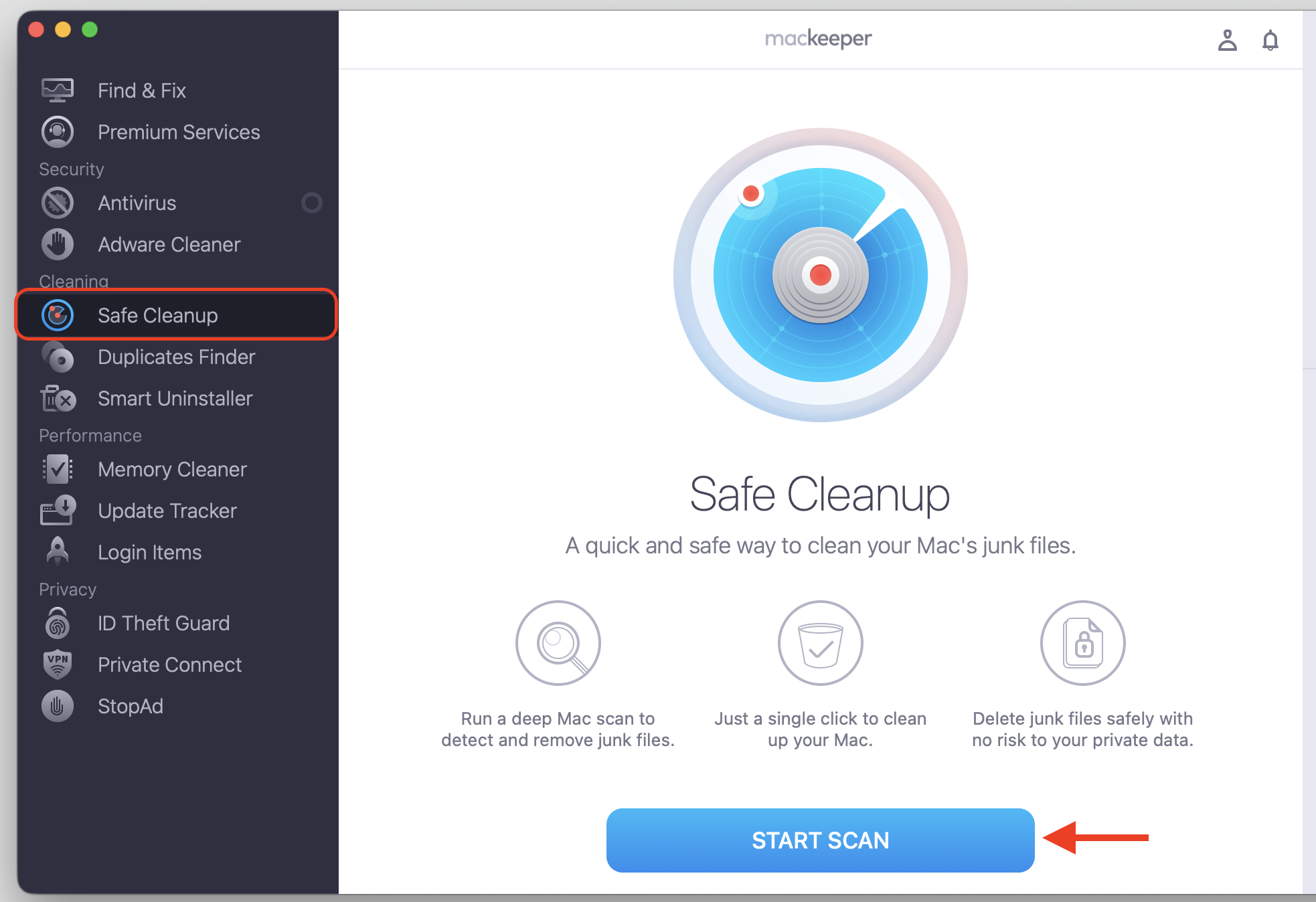
To try using MacKeeper’s Safe Cleanup, do the following:
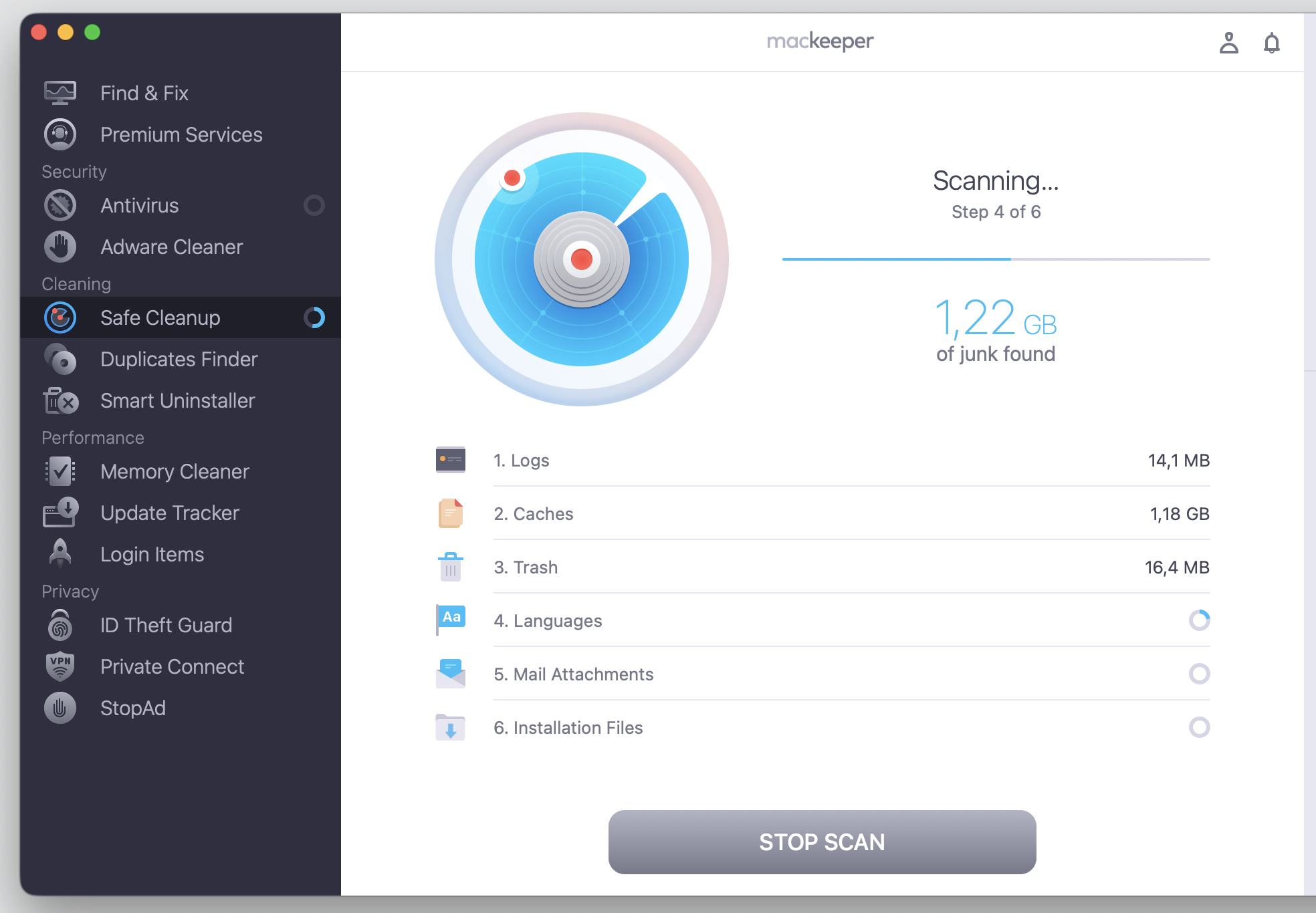
Wait until the app finishes its scan, then pick the files you want to delete.
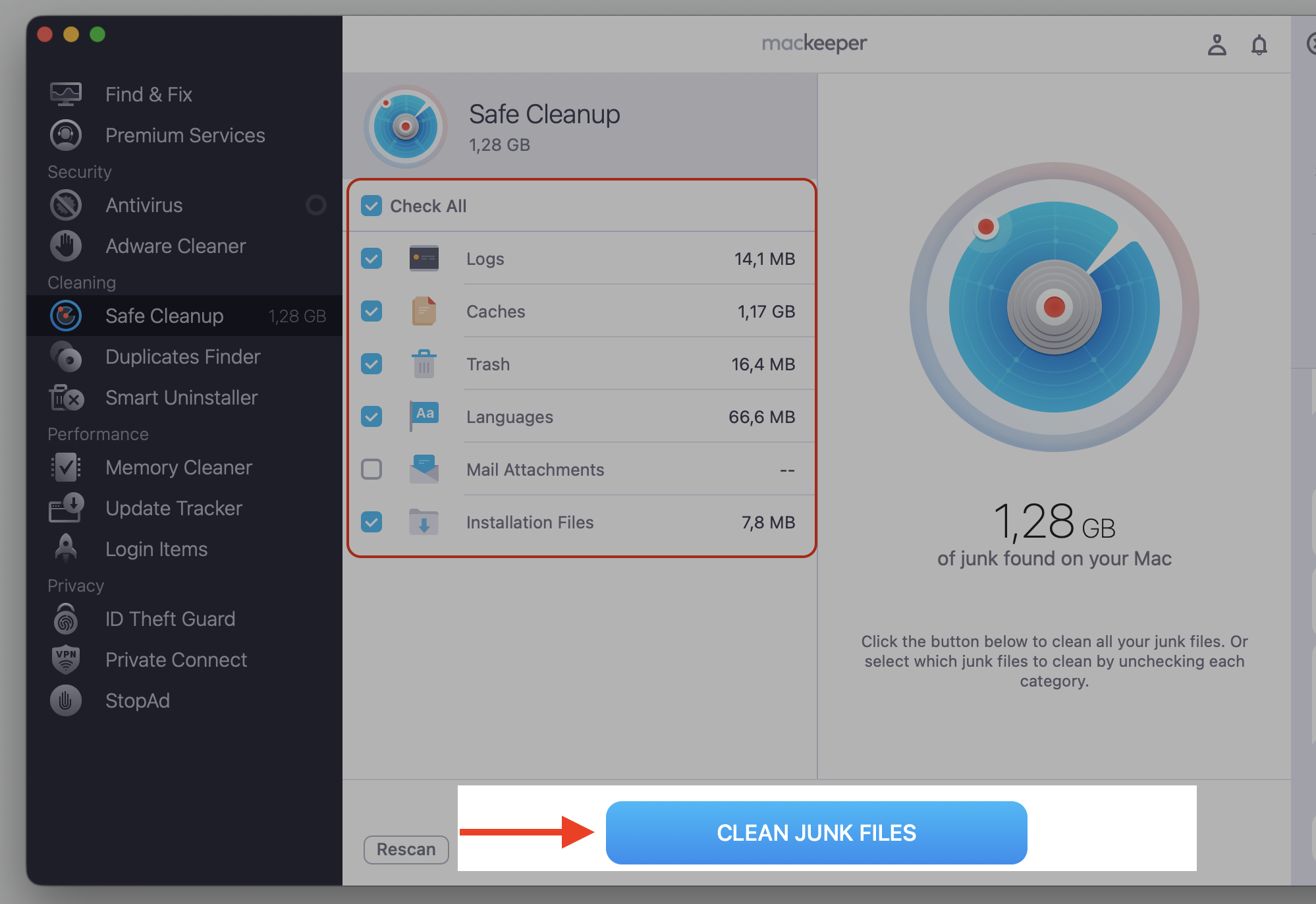
Select the Clean Junk Files option to remove clutter from your Mac.
Step 1. Go to MacKeeper > Safe Cleanup and Start ScanStep 2. Wait until the scan is finishedStep 3. Check all setup and proceed with Clean Junk Files
How to set Mac shutdown timer with Terminal?
Terminal is your Mac’s built-in command line, and it’s the reliable way to put shutdown timer on Mac. If you’ve never run something in Terminal on Mac before, don’t worry—you’ll paste one line and press Return. Looking for a Mac set timer to shut down option? Terminal is the closest built-in tool—just do this:
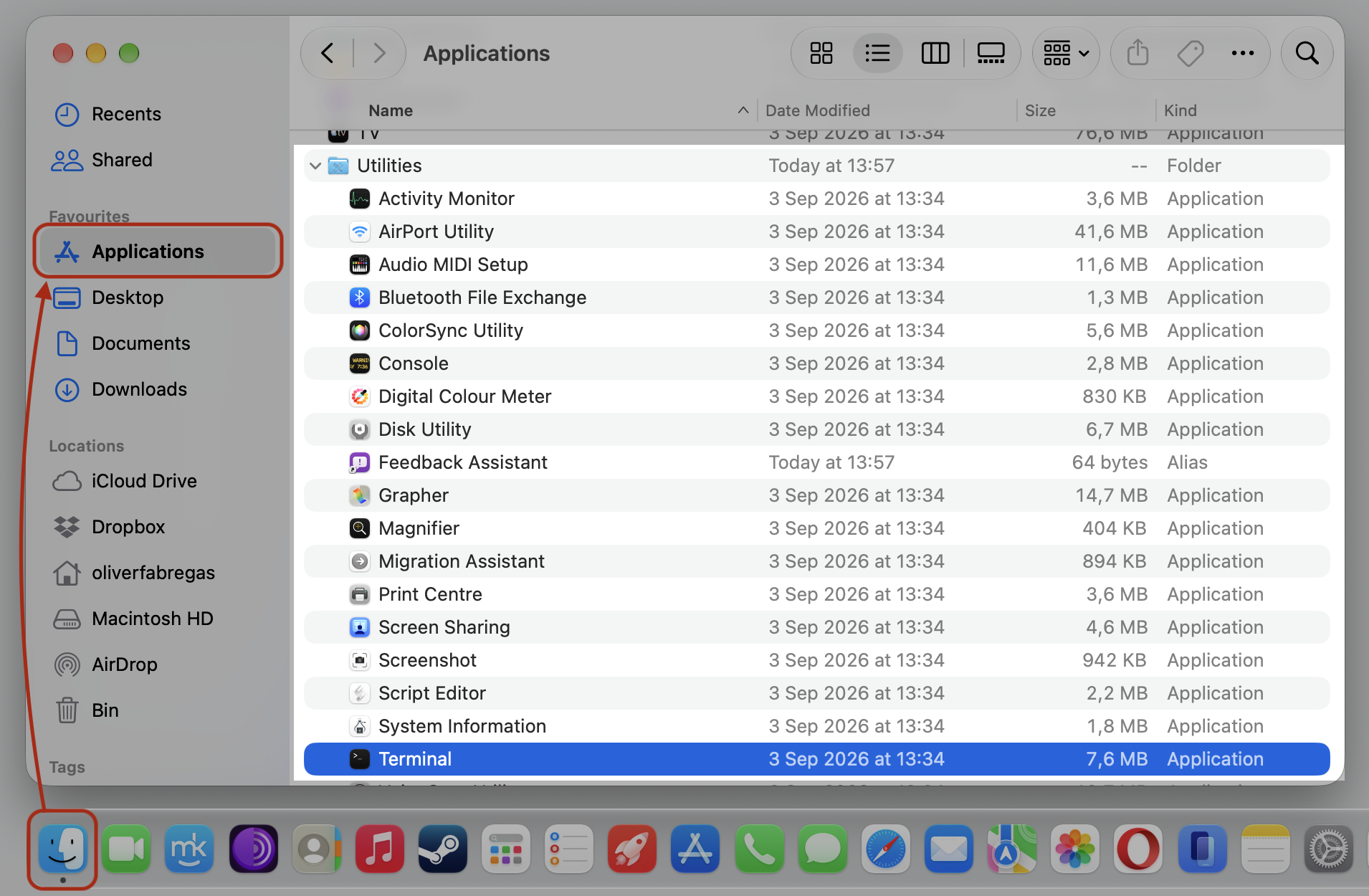
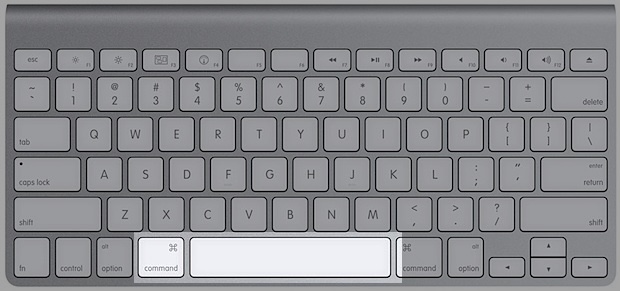
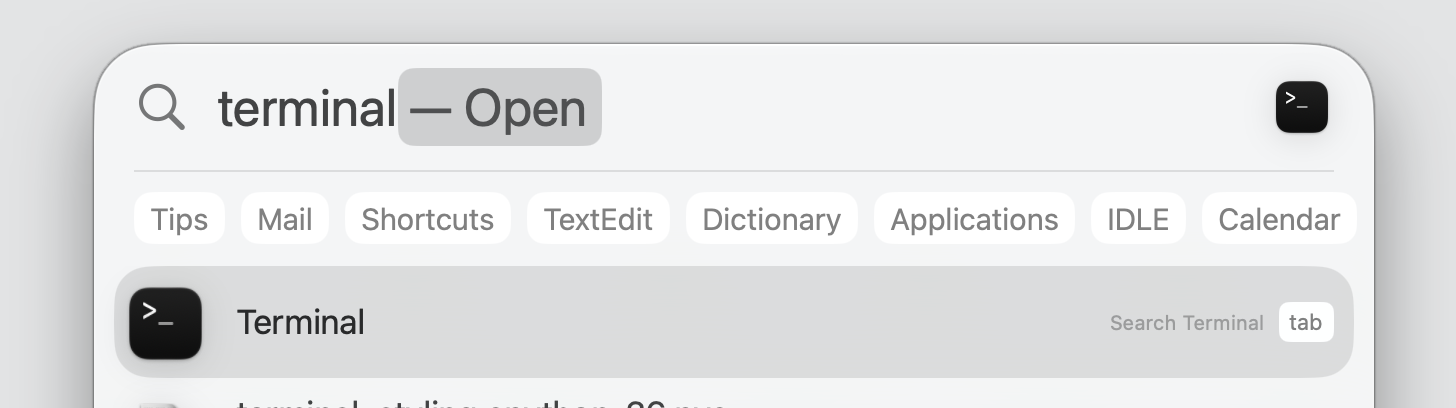
Open it from Applications > Utilities, or press Command + Space and type Terminal.
Method 1. Open Terminal from Finder > Applications > UtilitiesMethod 2. Press Command+SpaceThen type “Terminal” and hit Enter
Below, I’ll walk you through three approaches—a countdown, a one-time timer, and a recurring schedule—so you can pick the one that suits you.
Set countdown before your Mac shuts down
A countdown lets you set timer on Mac to turn off after a chosen number of minutes.
Here’s the quickest way to set one:
Open Terminal.
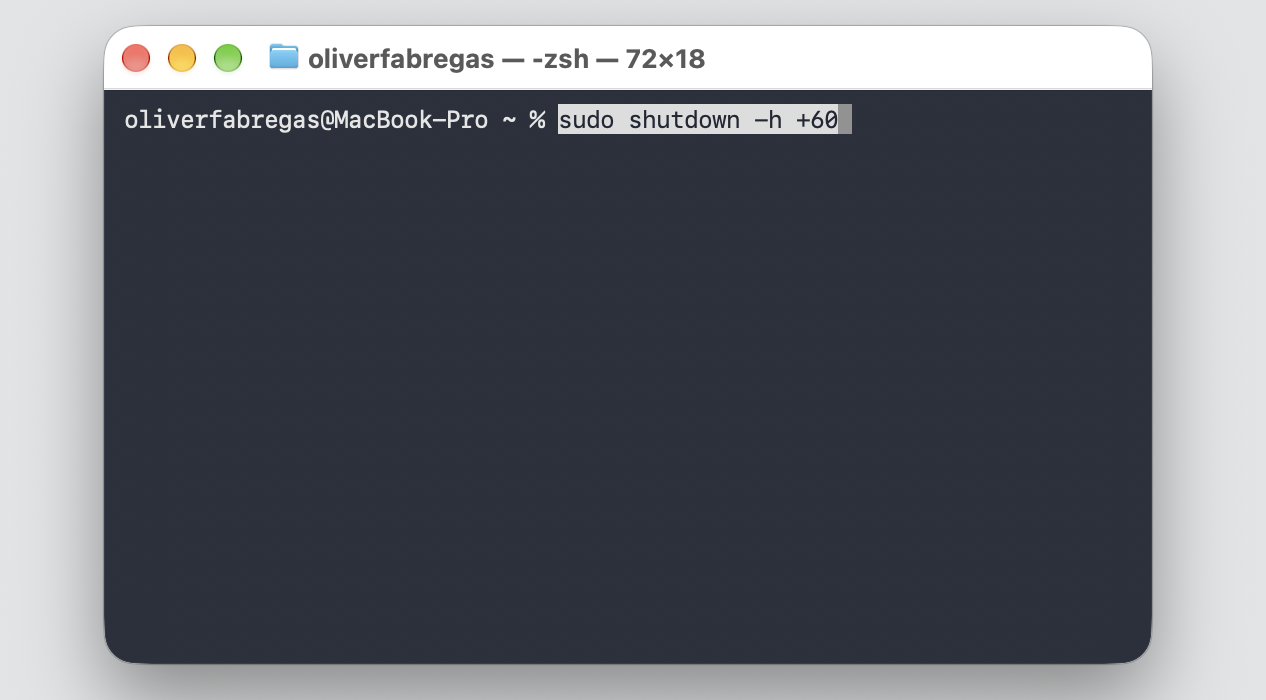
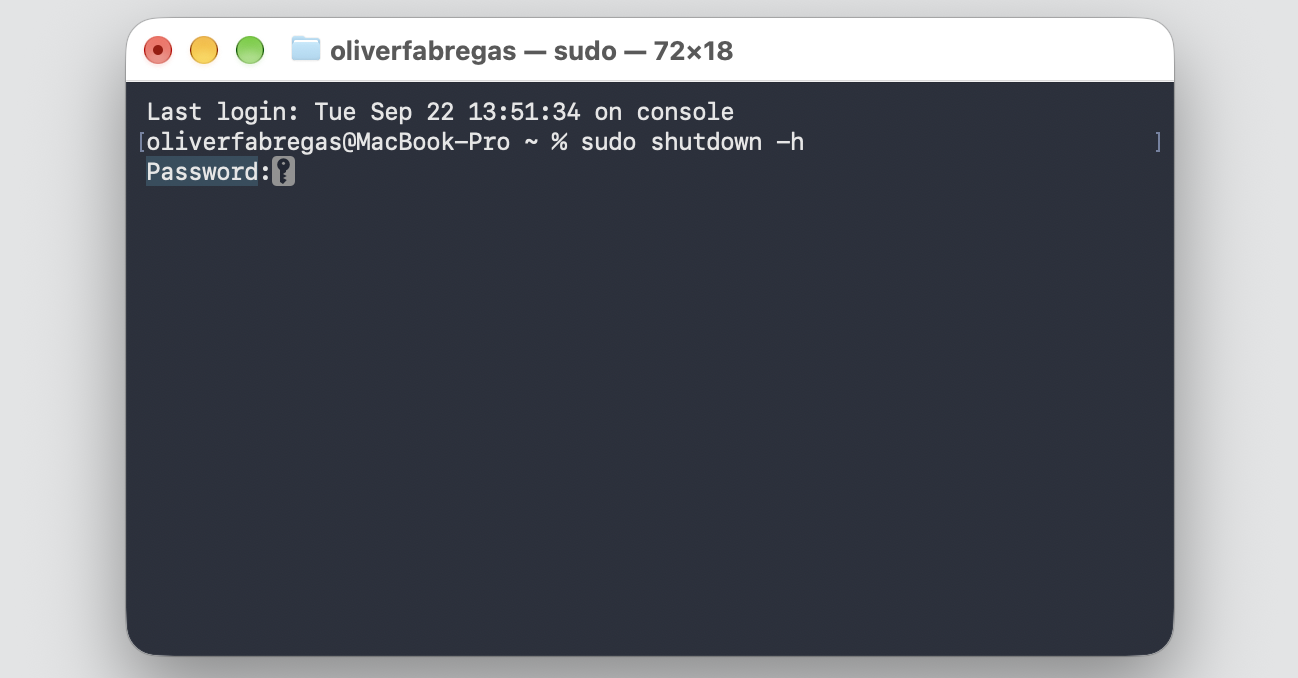
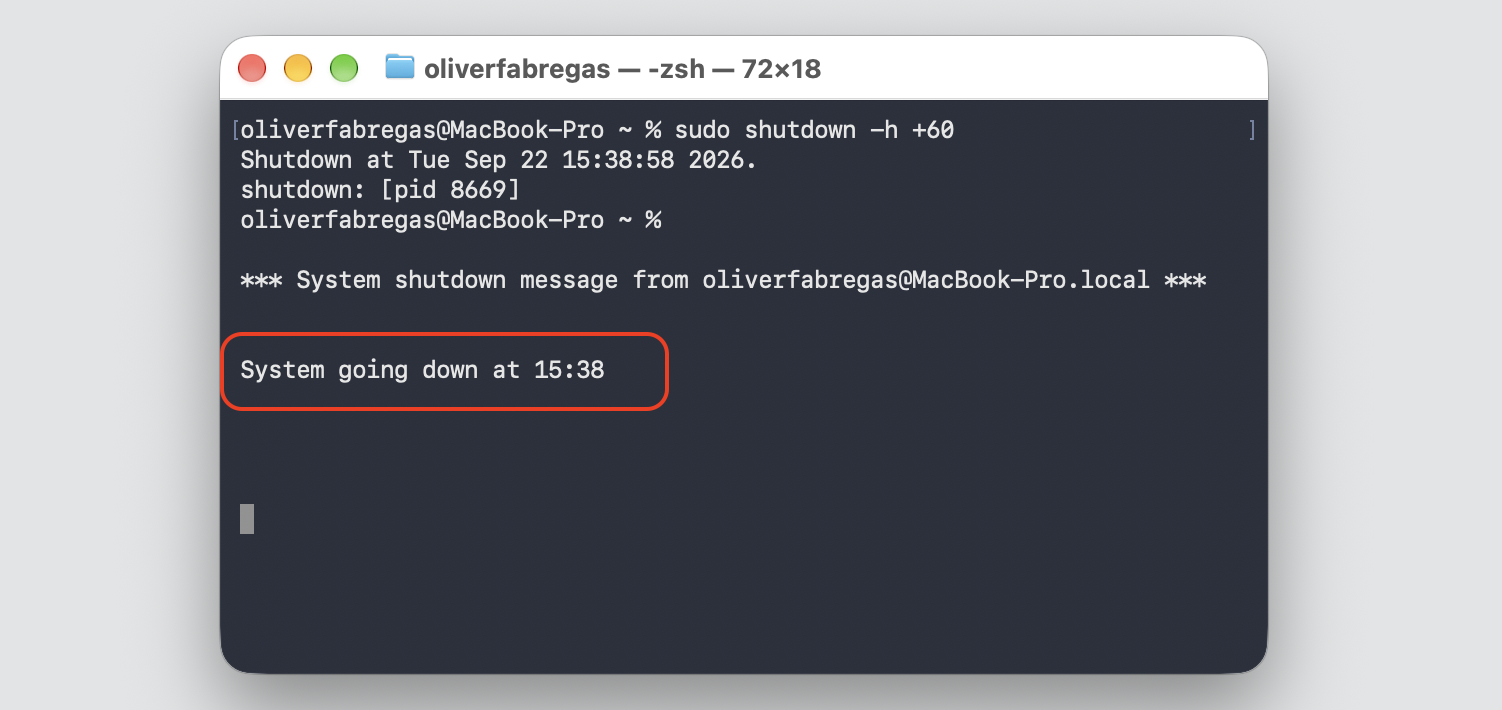
The command sudo shutdown -h +60 tells your Mac to power off in 60 minutes, so type it and swap 60 for the minutes you want.
Press Return, enter your admin password, and press Return again (the password stays hidden as you type).
Step 1. Type in Terminal sudo shutdown -h +60 and press ReturnStep 2. Input your admin password and press ReturnStep 3. Check the result
Shut down your Mac at specific time
Prefer a one-time shutdown at an exact clock time instead of a countdown? We’ve got you covered.
Set it in three quick steps:
Open Terminal.
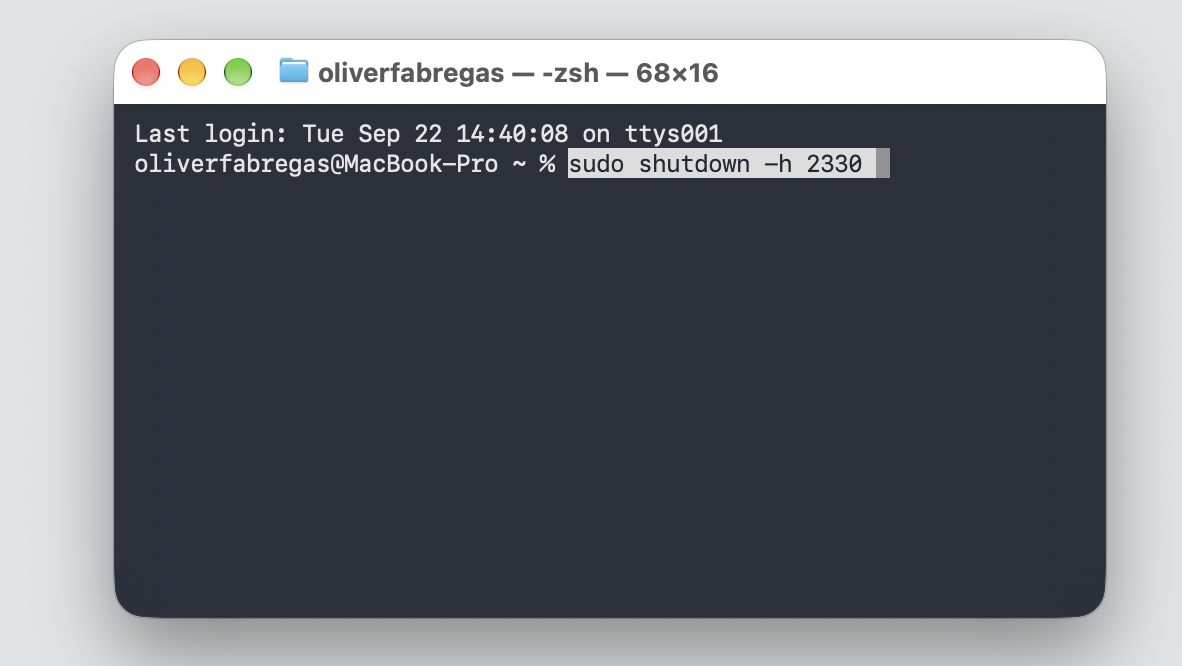
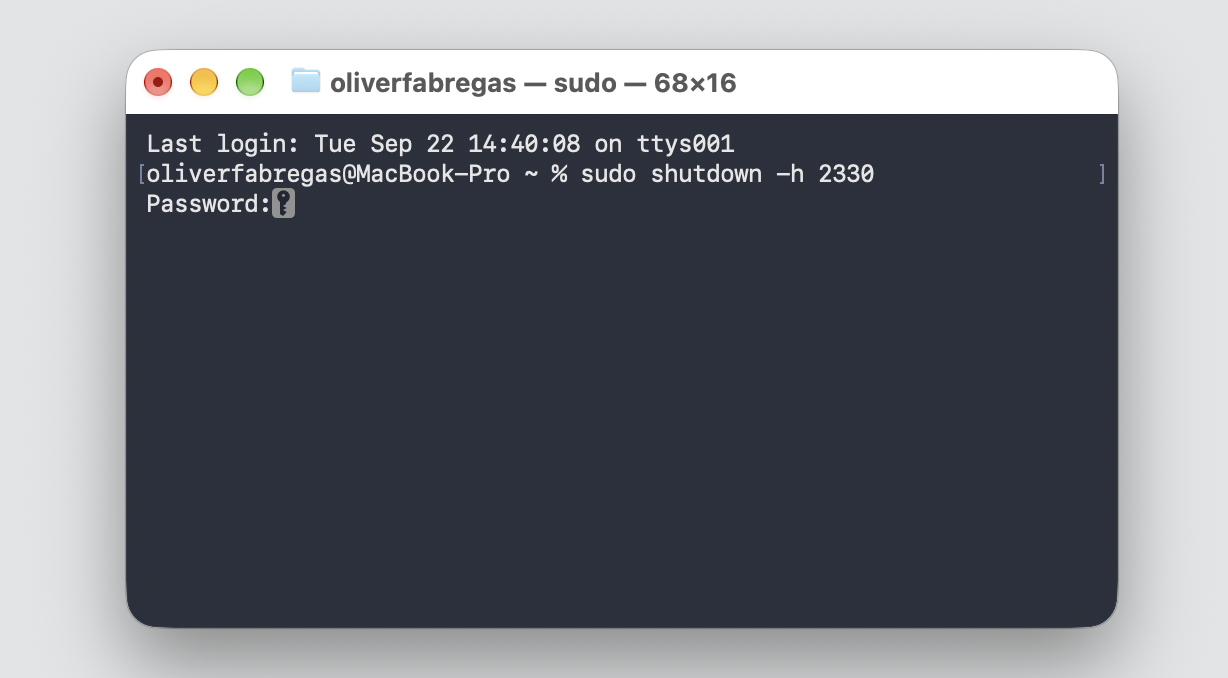
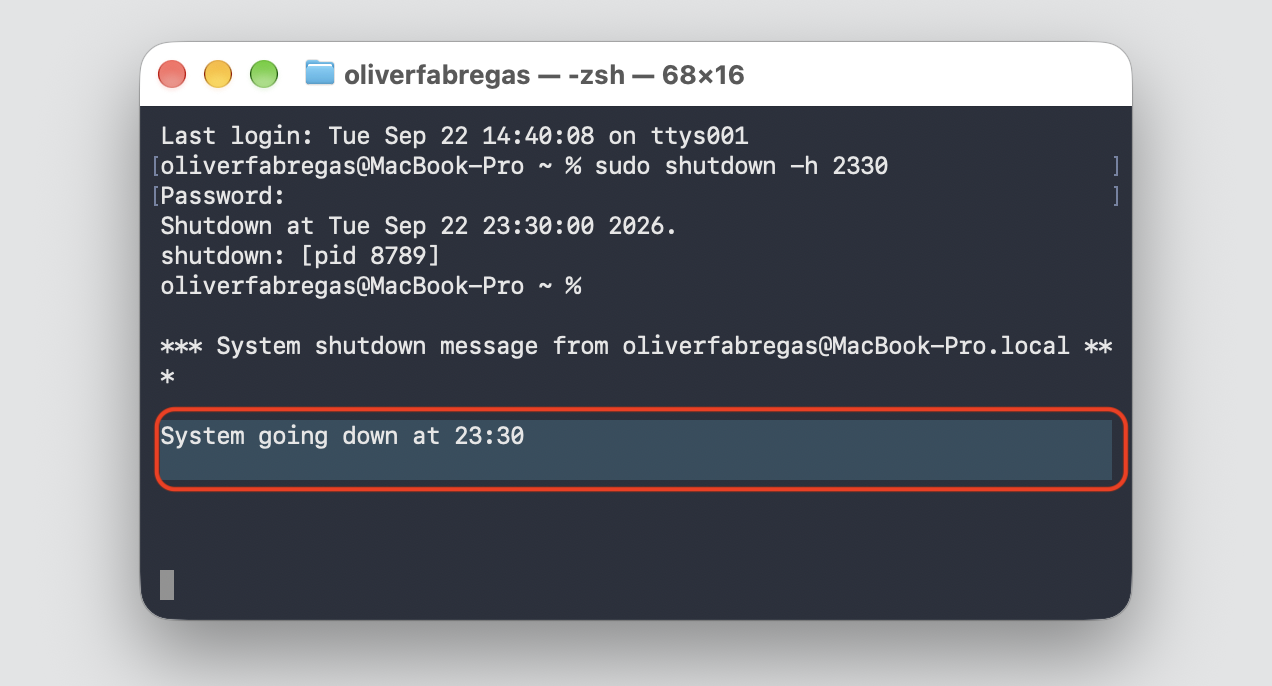
The command sudo shutdown -h 2330 sets a shutdown for 11:30 PM, so type it using the 24-hour hhmm format.
Press Return and enter your password to confirm.
Step 1. Type in Terminal sudo shutdown -h 2330 sets a shutdown for 11:30 PMStep 2. Input your admin password and press ReturnStep 3. Check the result
Schedule automatic shutdown on selected days
The pmset power-management command lets you Mac schedule a shutdown on a recurring schedule.
Set up your weekday routine like this:
Open Terminal.
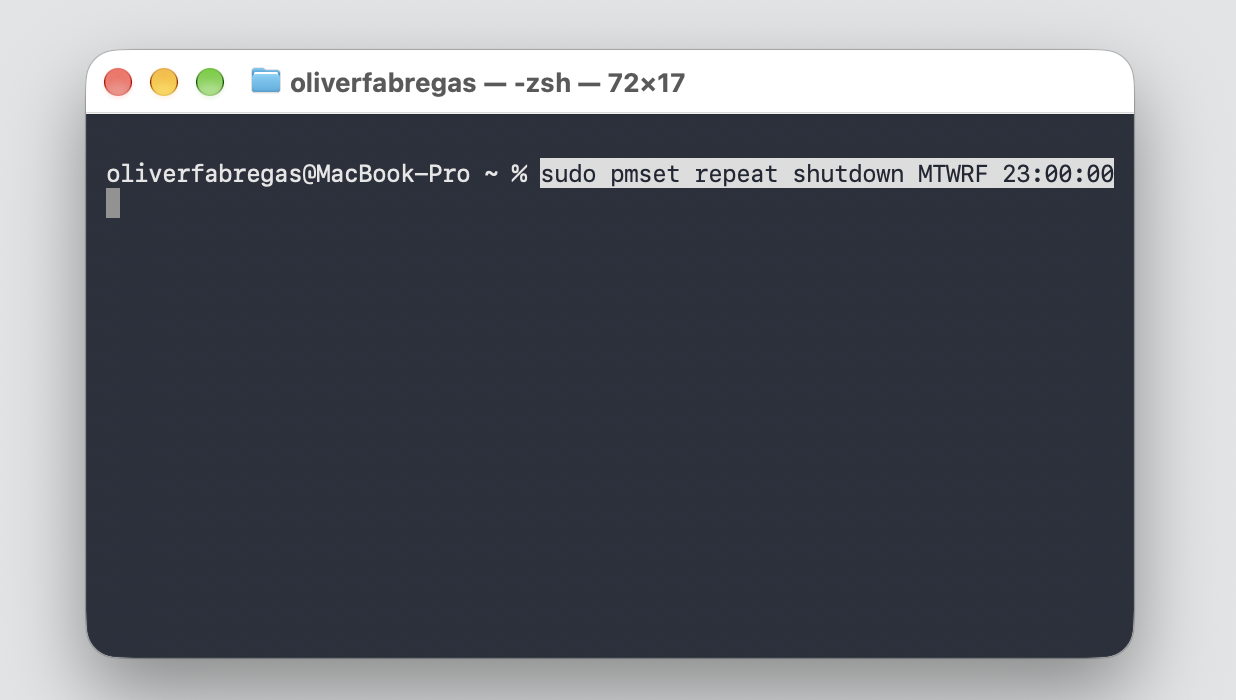
The command sudo pmset repeat shutdown MTWRF 23:00:00 powers off at 11 PM on weekdays, where M, T, W, R, and F stand for Monday through Friday (R is Thursday, U is Sunday).
Press Return and enter your password.
Type in Terminal sudo pmset repeat shutdown MTWRF 23:00:00 and hit Return
An extra hint from our team: Recurring shutdowns can behave differently across recent Macs, so I’d test yours once before you rely on it.
How to check or cancel Mac shutdown timer?
Changed your mind? You can confirm a pending power event and cancel shutdown in a few seconds.
Take back control like so:
Open Terminal.
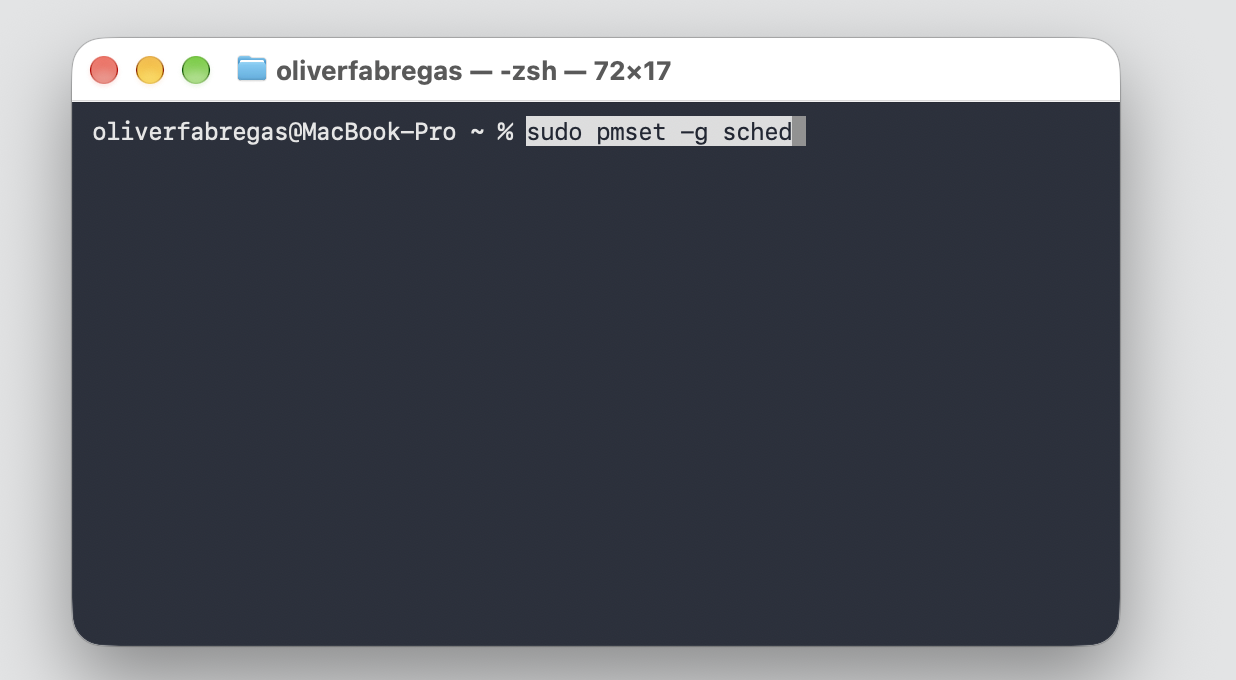
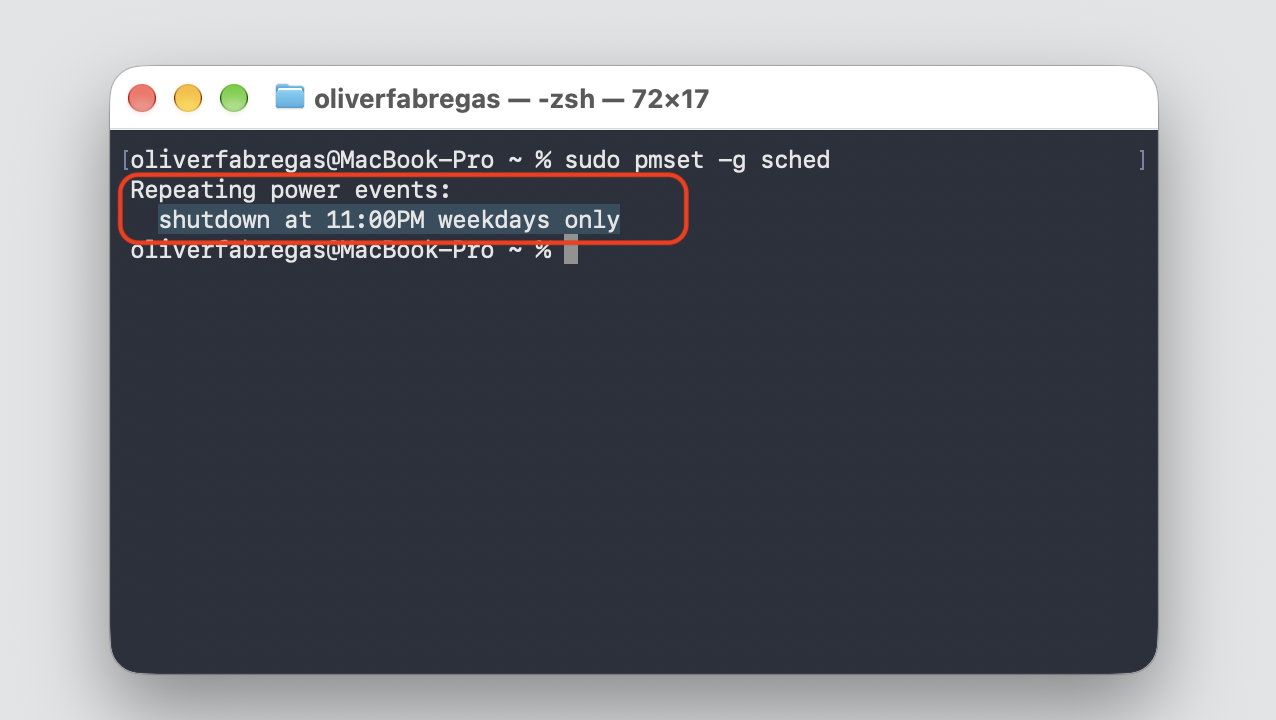
pmset -g sched lists any scheduled power event, so type it and press Return to see what’s coming up.
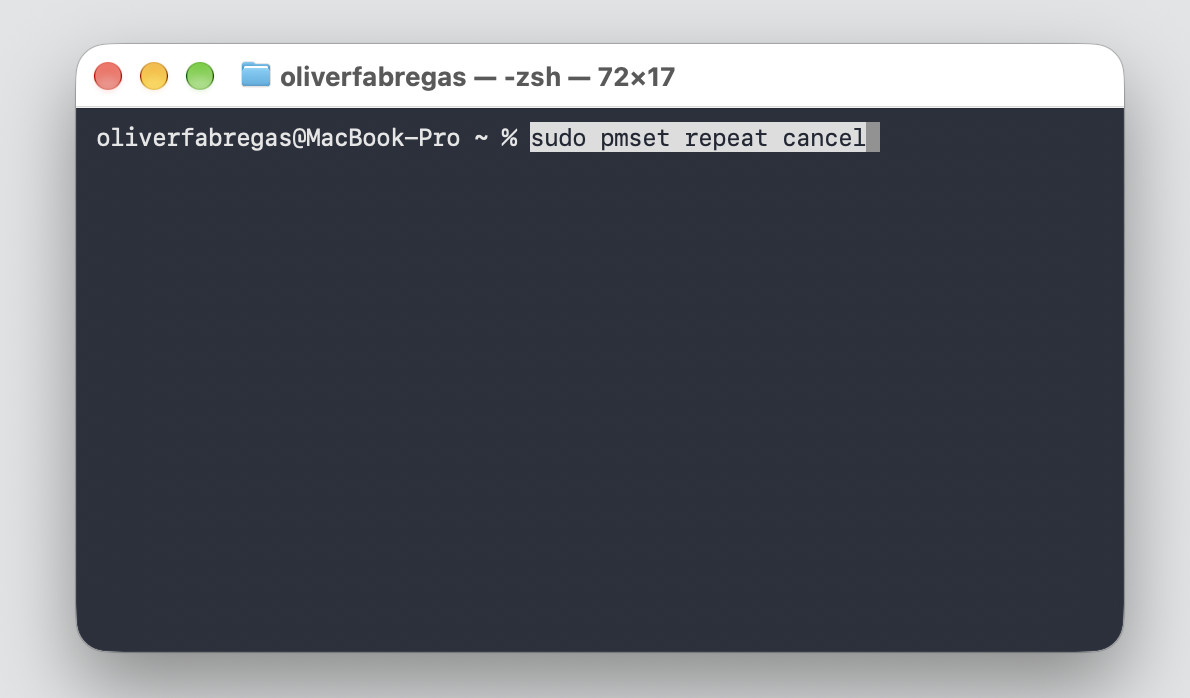
sudo pmset repeat cancel removes a recurring schedule.
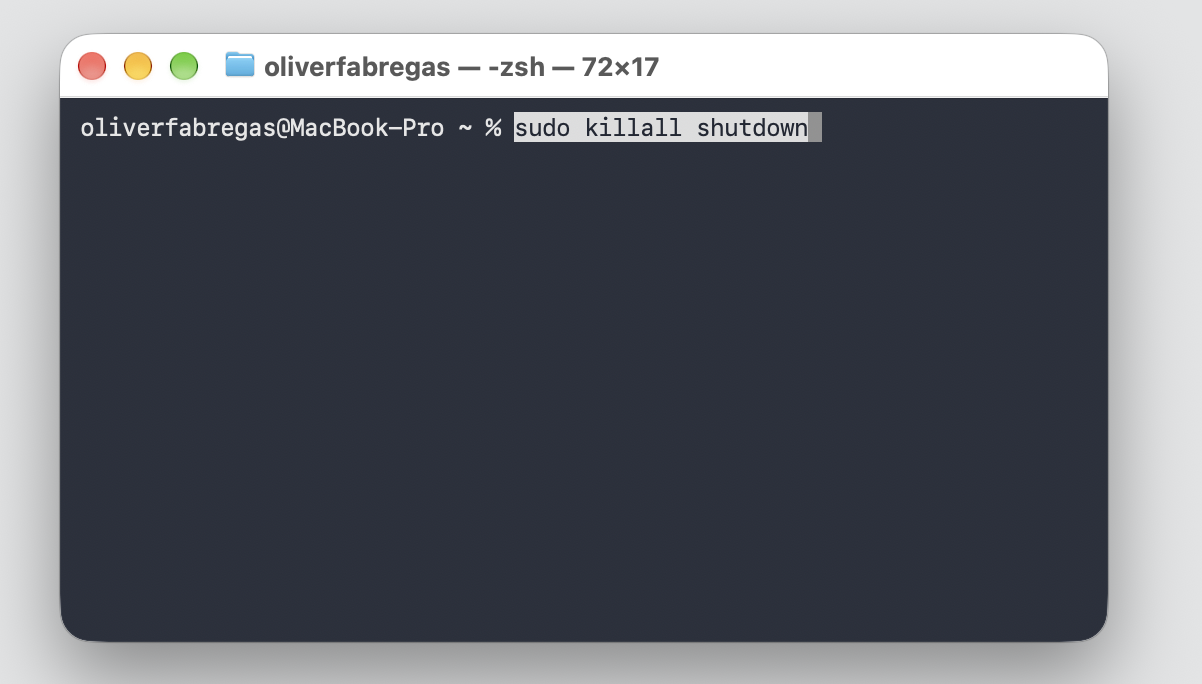
sudo killall shutdown stops a countdown you started, since that command runs as a background process until it fires.
Step 1. To check if the schedule is active type in Terminal pmset -g schedStep 2. Check the resultStep 3. sudo pmset repeat cancel removes a recurring scheduleStep 4. sudo killall shutdown stops a countdown you started
How to create shutdown timer shortcut on Mac?
If you use the same timer often, a saved app turns it into a double-click.
We’ll build one with Script Editor:
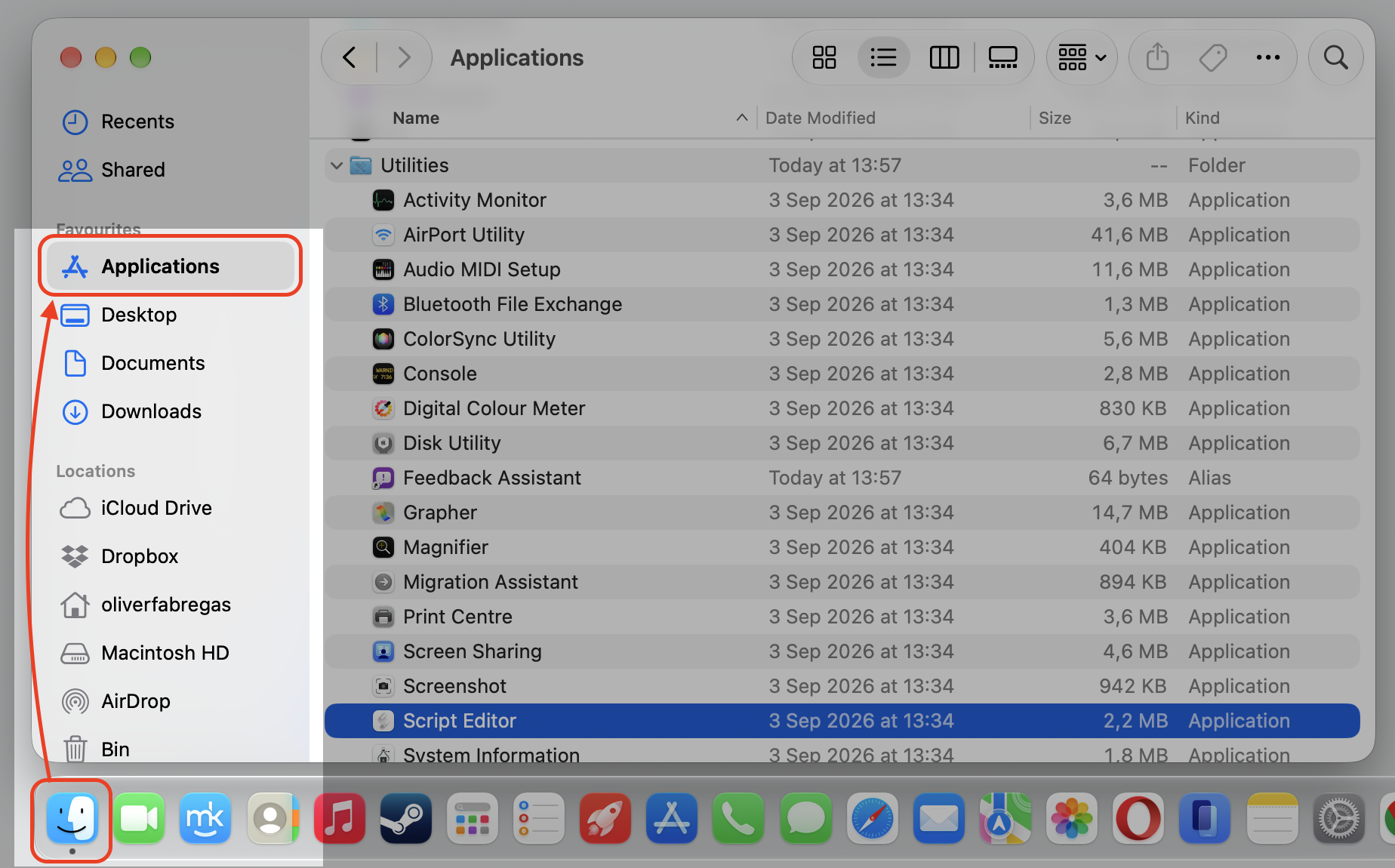
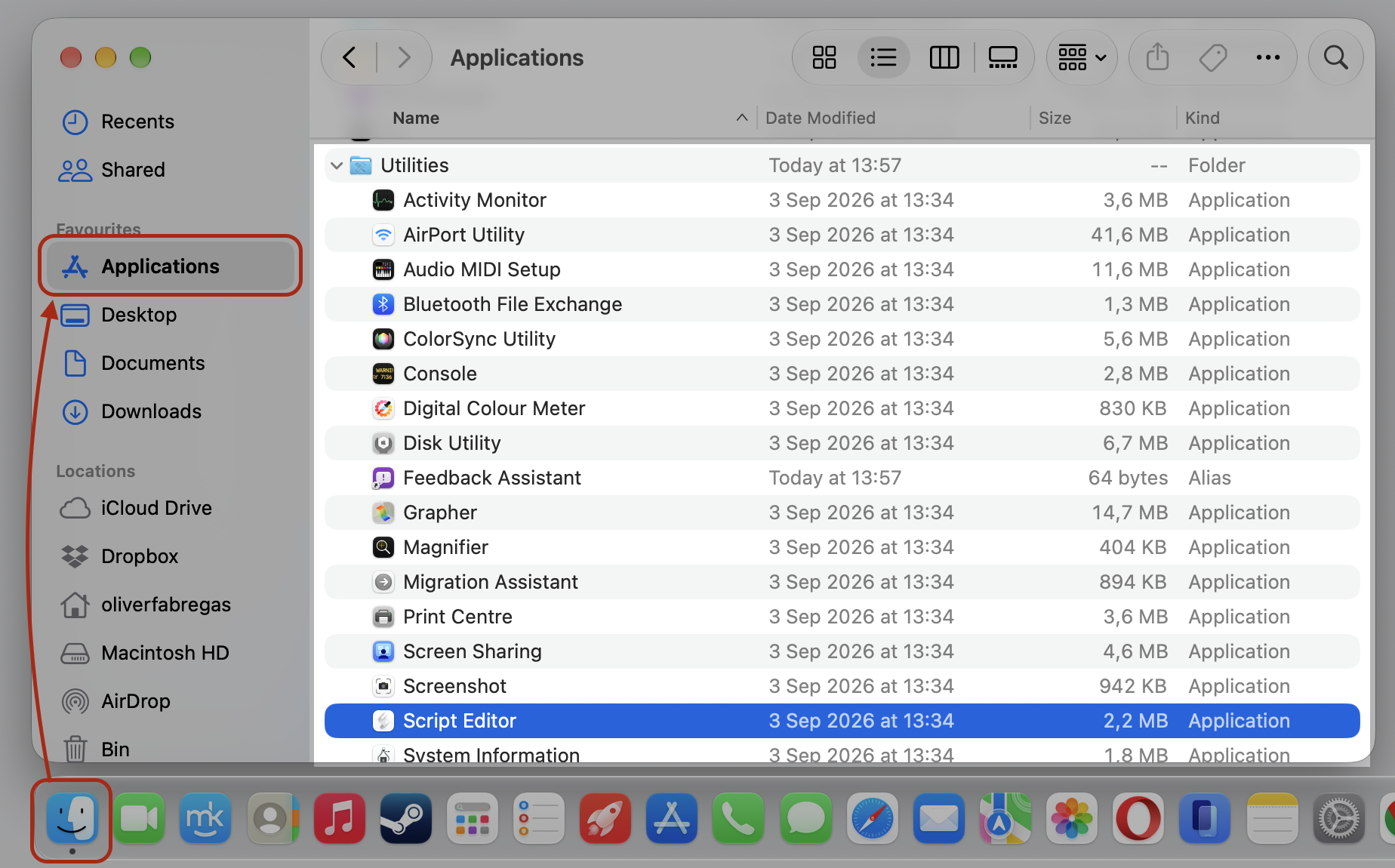
Open Script Editor from Applications > Utilities.
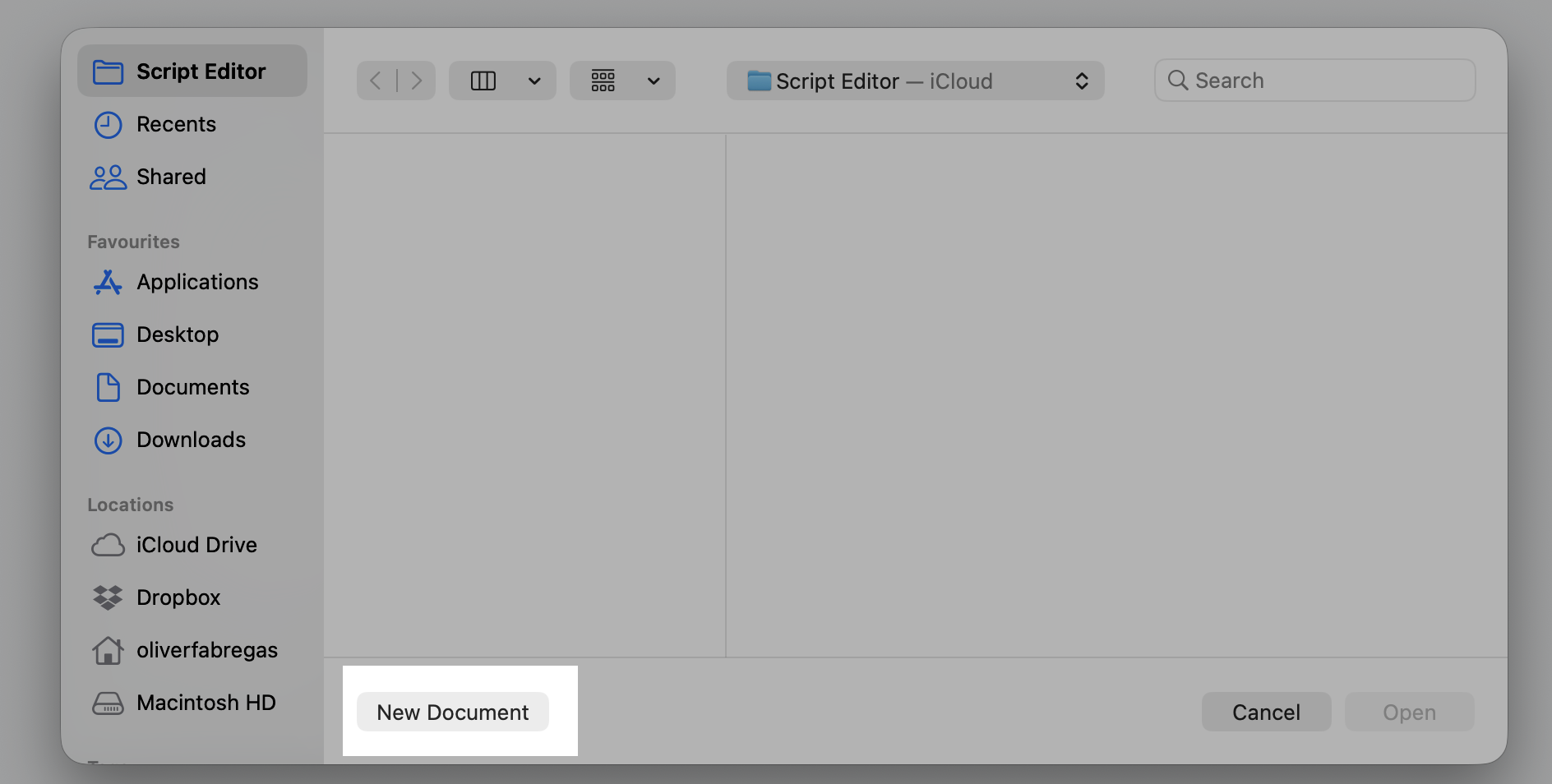
Choose New Document.
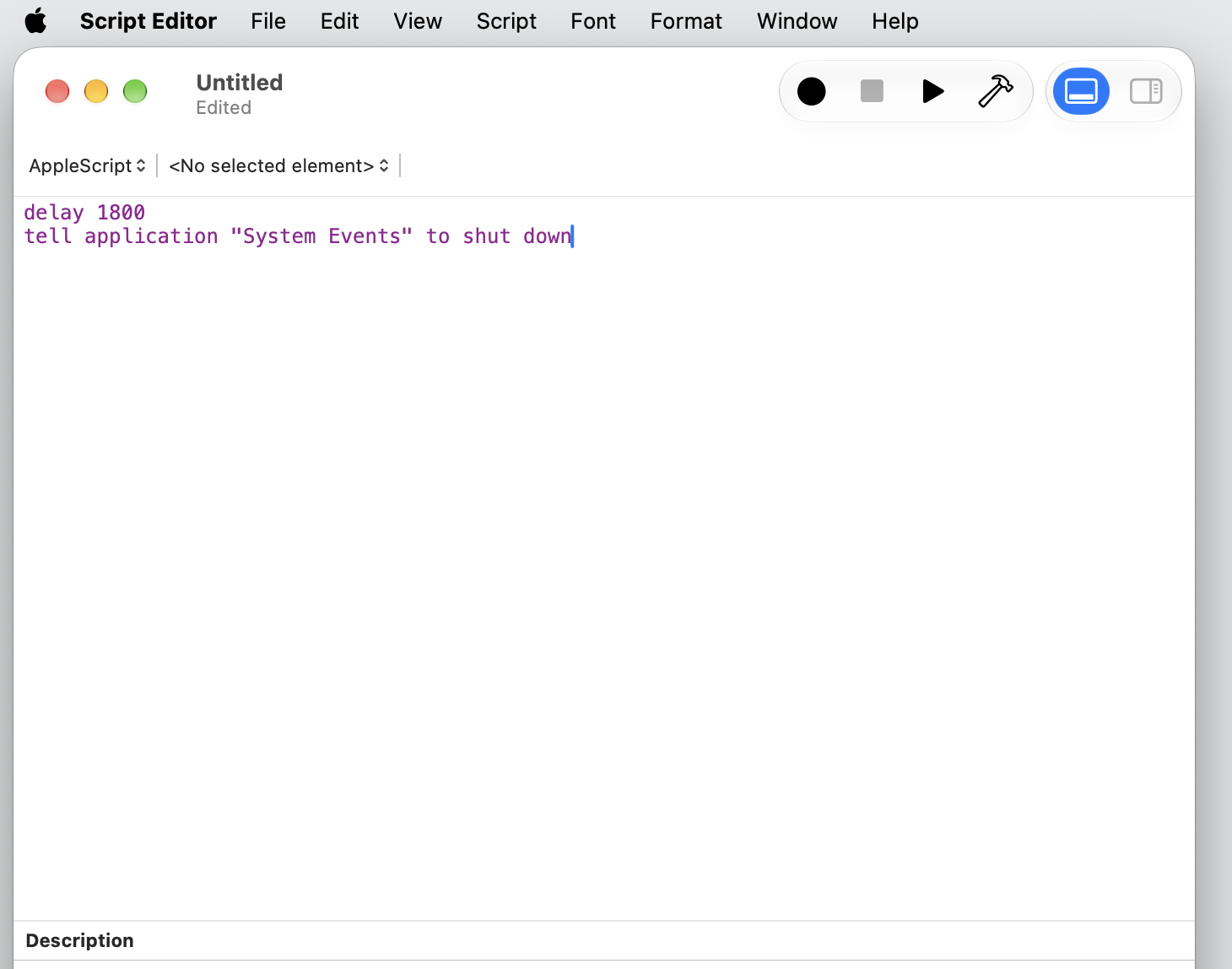
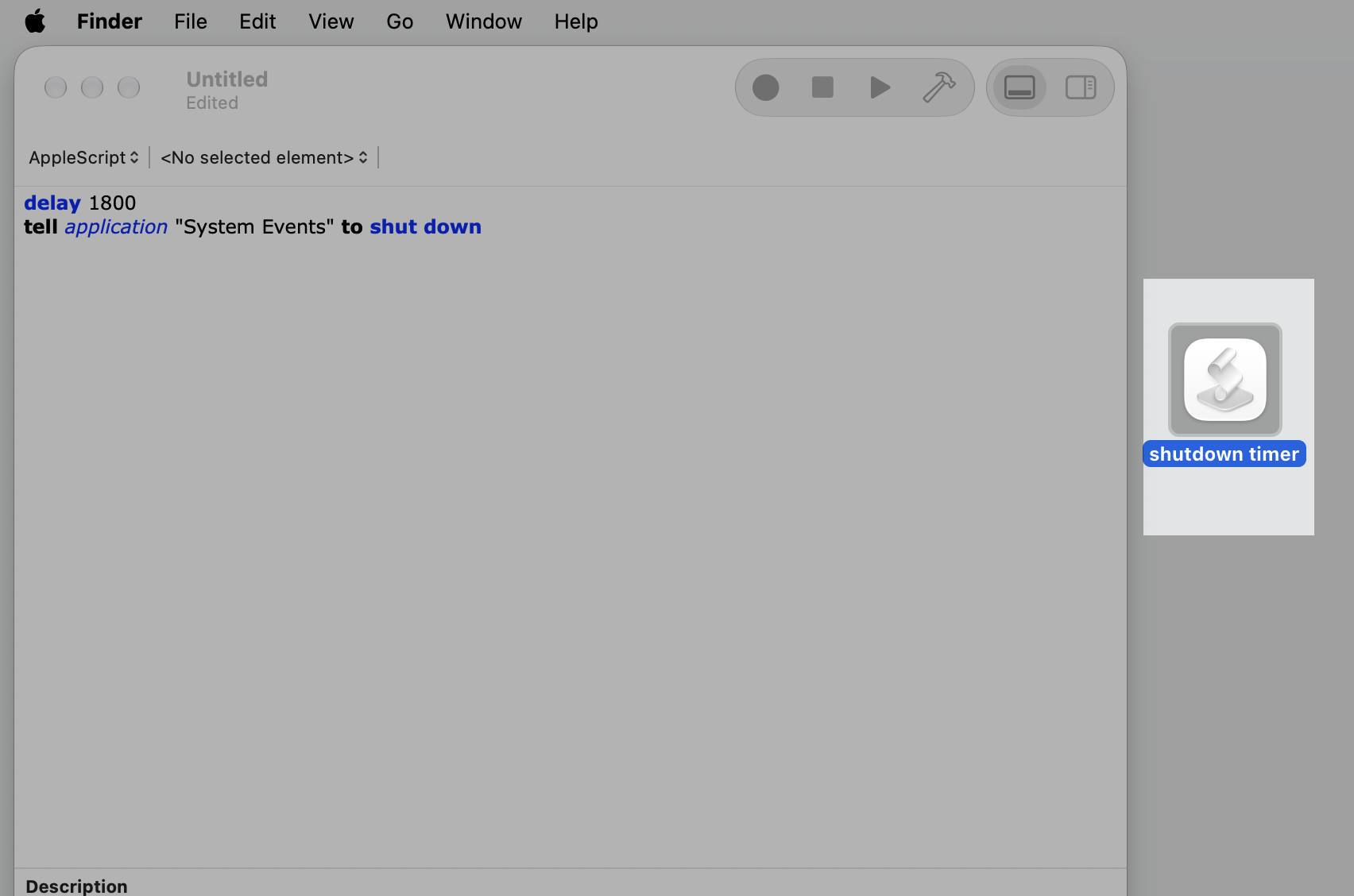
Type delay 1800 on the first line to tell the application System Events to shut down on the next 1800 seconds is 30 minutes.
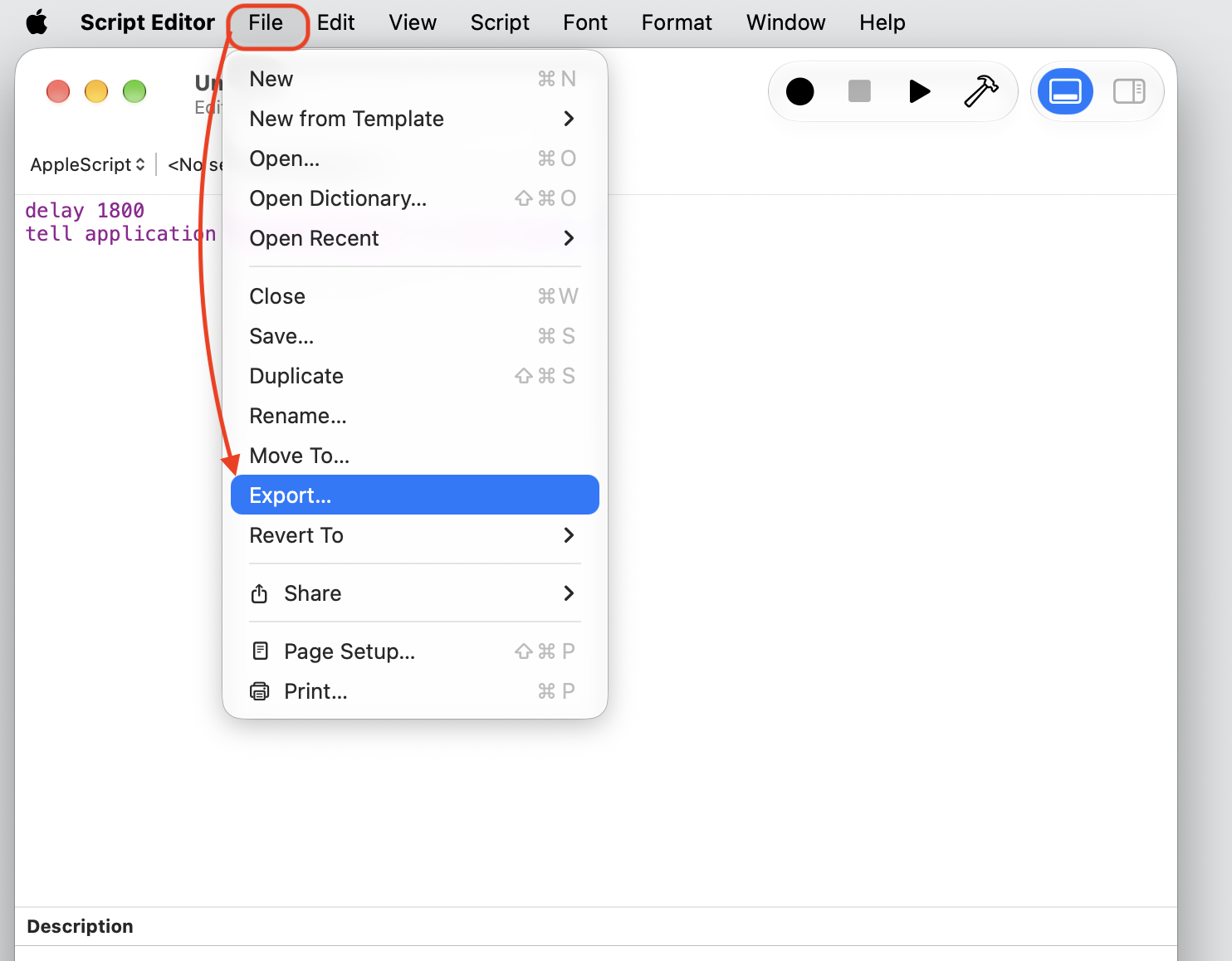
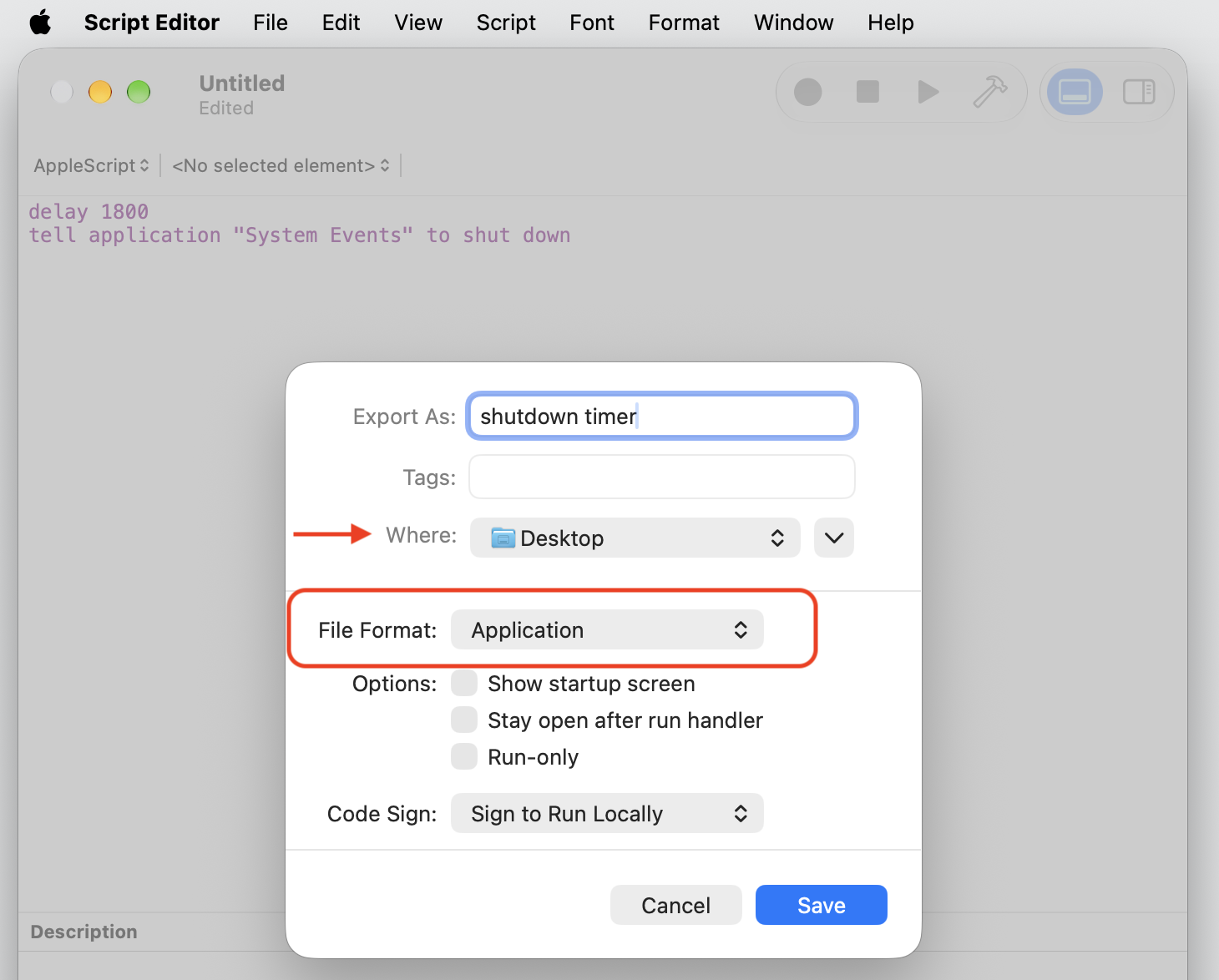
Choose File > Export, set the format to Application, and save it to your Desktop.
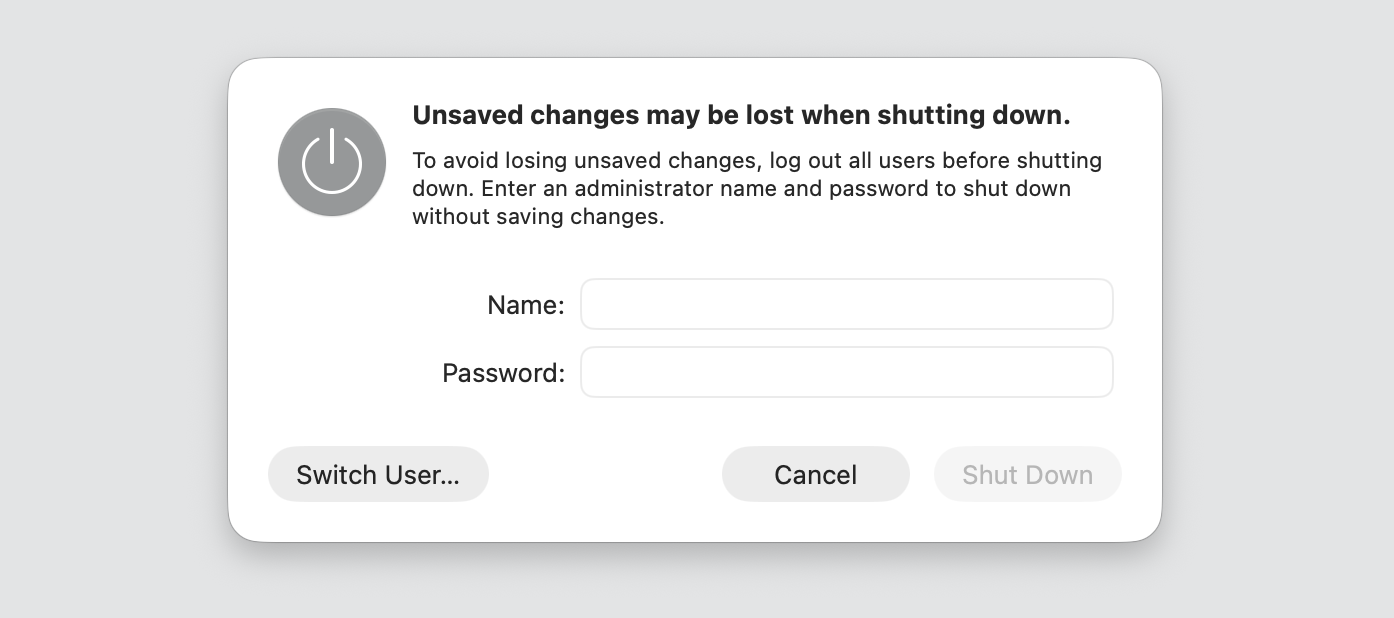
Double-click the app whenever you want that timer. It may ask you to confirm the shutdown).
Step 1. Go to Finder > ApplicationsStep 2. Open Script Editor from UtilitiesStep 3. Select New DocumentStep 4. Input your code (delay may be a custom time)Step 5. Go to File > ExportStep 6. Set the format to Application, and save it to your DesktopStep 7. Double-click the app whenever you want that timerStep 8. Confirm the shutdown
Another recommendation from us: The Shortcuts app also works to create a shutdown timer shortcut on Mac. In this case, add a Wait action followed by a shutdown step for a menu bar button.
How to schedule shutdown through macOS settings?
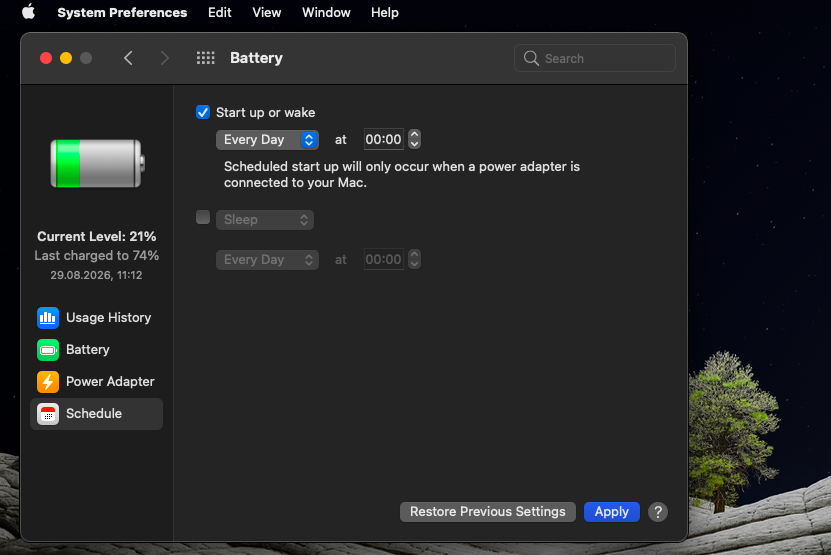
Older macOS versions include a graphical power schedule, no commands needed. At the same time, we should remind that Apple removed this panel from most Macs in later versions, so it may not appear on yours. If you’re comparing Sonoma vs Tahoe, you’ll notice neither brings the old Schedule controls back—Terminal fills the gap.
On macOS Monterey and earlier, find it here:
Open System Settings (or System Preferences on older releases).
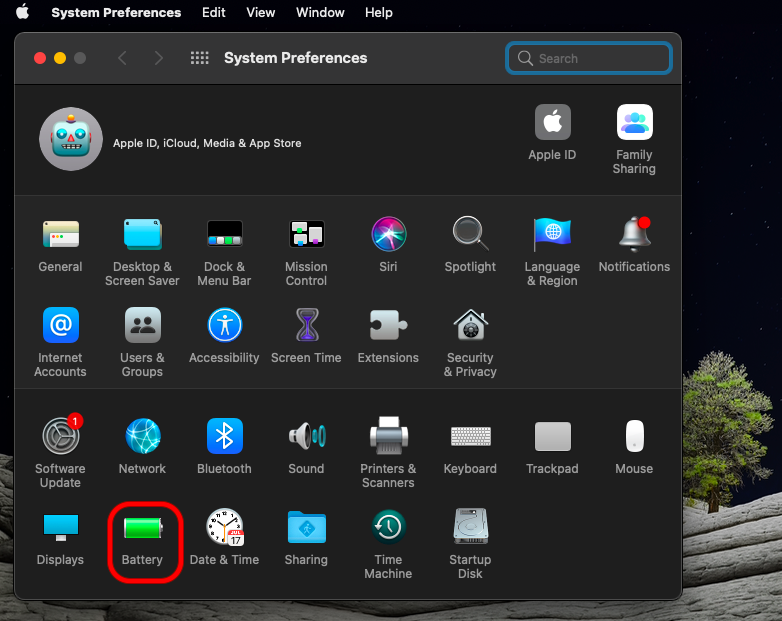
Select Battery, then Schedule.
Turn on Sleep, Restart, or Shut Down, pick the days and specific time, and select Apply.
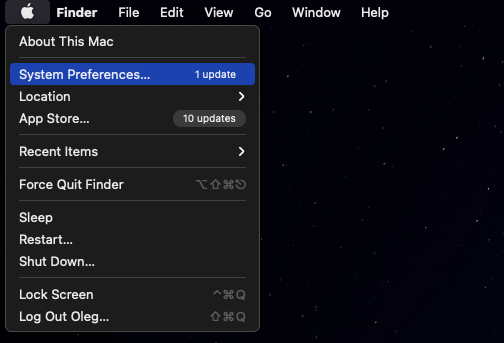
Step 1. Go to Apple Logo > System PreferencesStep 2. Select BatteryStep 3. Turn on Sleep, Restart, or Shut Down
How to use shutdown timer app on Mac?
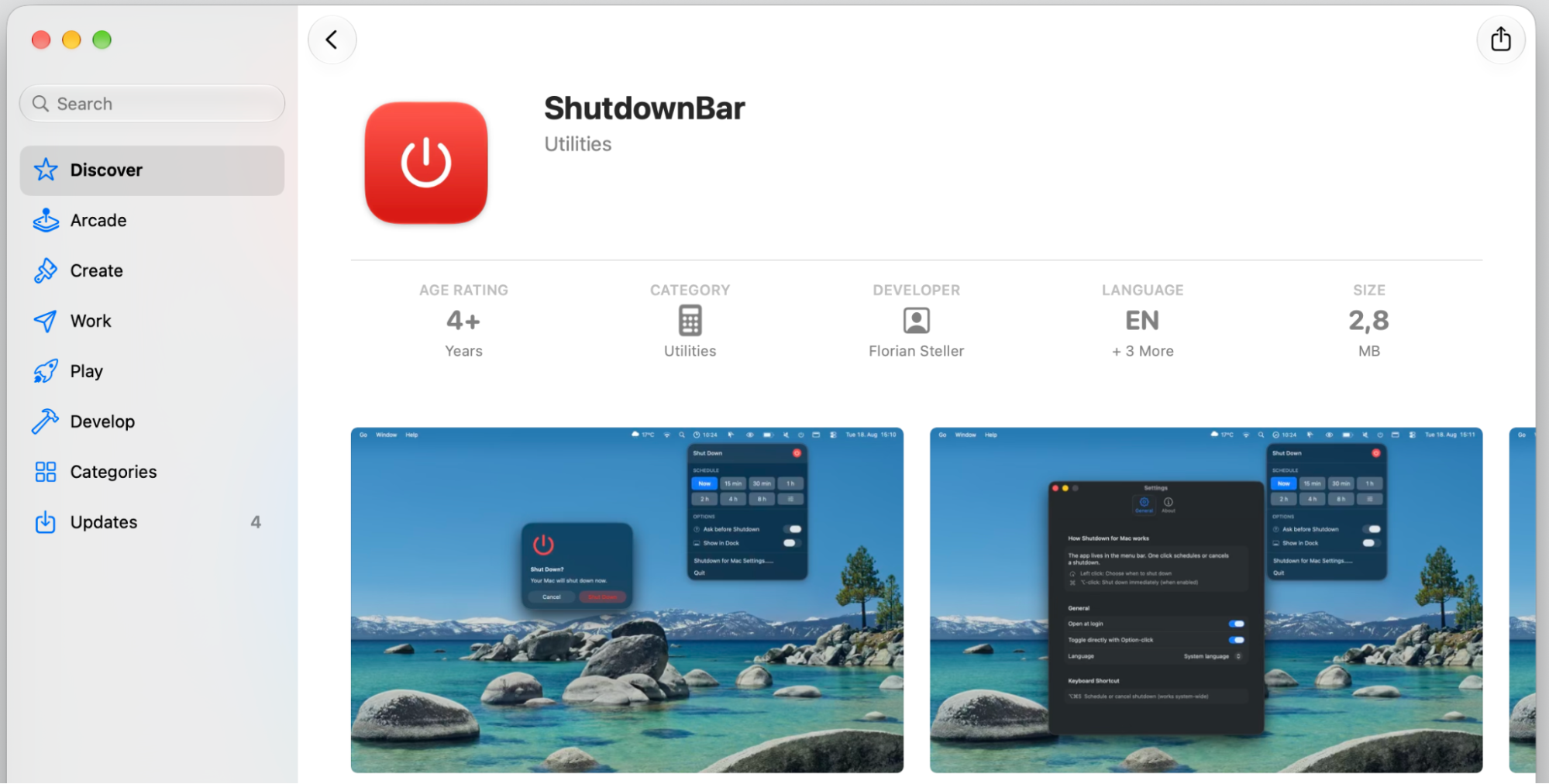
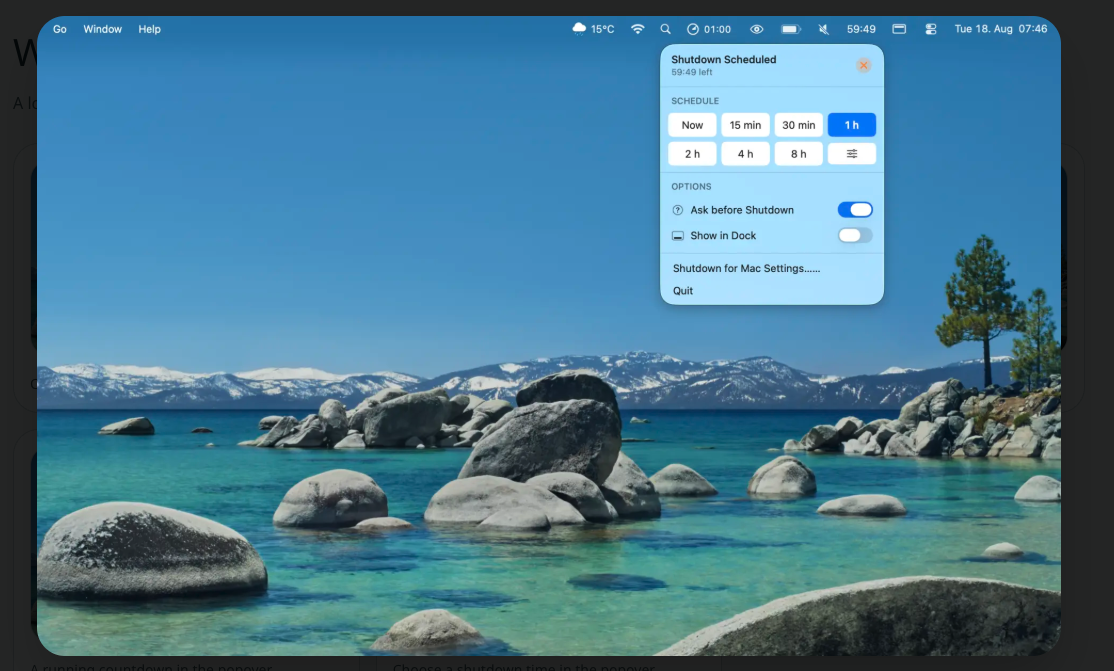
A third-party shutdown timer app is a friendly alternative if you’d rather not touch Terminal. Most give you a slider or a clock and handle the rest.
Getting started takes three steps:
Download the app from the developer’s site or the App Store.
Open it and grant any permission it asks for.
Set your minutes or specific time, then start the countdown timer.
Step 1. Download the app from the developer’s site or the App StoreStep 2. Set your minutes or a specific time
Before you install one, we suggest keeping a few things in mind:
Check that the app supports your macOS version.
Download only from a trusted source.
Read recent reviews first.
Prefer apps that ask for the fewest permissions.
Should you shut down your Mac or put it to sleep?
Both are fine—it mostly comes down to how soon you’ll be back. A shutdown gives your Mac a full reset, while sleep mode picks up right where you left off:
Bedtime or a full night away — a shutdown saves the most power
Short breaks or lunch — sleep gets you back in seconds
A long trip — shutting down is the tidy, low-drain choice
Finishing a long task — keep your Mac awake so a backup or download can complete
Still unsure whether to shut down or sleep MacBook each night? Either way, a restart now and then keeps things running smoothly.
Conclusion
You’ve now got several ways to set a Mac shutdown timer, so your MacBook can power off on its own instead of running through the night. On newer macOS versions, Terminal is the main built-in method, while a shortcut or a third-party app gives you a more visual, one-click approach.
And once your Mac is powering down on schedule, keep it running smoothly with MacKeeper’s Safe Cleanup. It clears caches, logs, and other junk in one click, freeing up storage without touching your personal files. Select the button to give your Mac a fast, clean start.
We respect your privacy and
use cookies
for the best site experience.
Privacy Preferences Center
We use cookies along with other tools to give you the best possible experience while using the
MacKeeper website. Cookies are small text files that help the website load faster. The cookies we
use don’t contain any type of personal data meaning they never store information such as your
location, email address, or IP address.
Help us improve how you interact with our website by accepting the use of cookies. You can change
your privacy settings whenever you like.
Manage consent
All cookies
These cookies are strictly necessary for enabling basic website functionality (including page
navigation, form submission, language detection, post commenting), downloading and purchasing
software. The website might malfunction without these cookies.