Want a friend to hear the same movie or music without passing one earbud back and forth? We’ll show you how to share audio on your MacBook. And if the setup gets confusing, MacKeeper’s Premium Services connects you with a tech expert who’ll guide you 24/7.
Yes, you can share audio from Mac to several devices, although macOS has no one-click Share Audio button like iOS and iPadOS. Instead, you send sound to multiple Bluetooth or wired headphones, AirPods, or external speakers with built-in utilities, hardware, or third-party software.
A note from our experts:
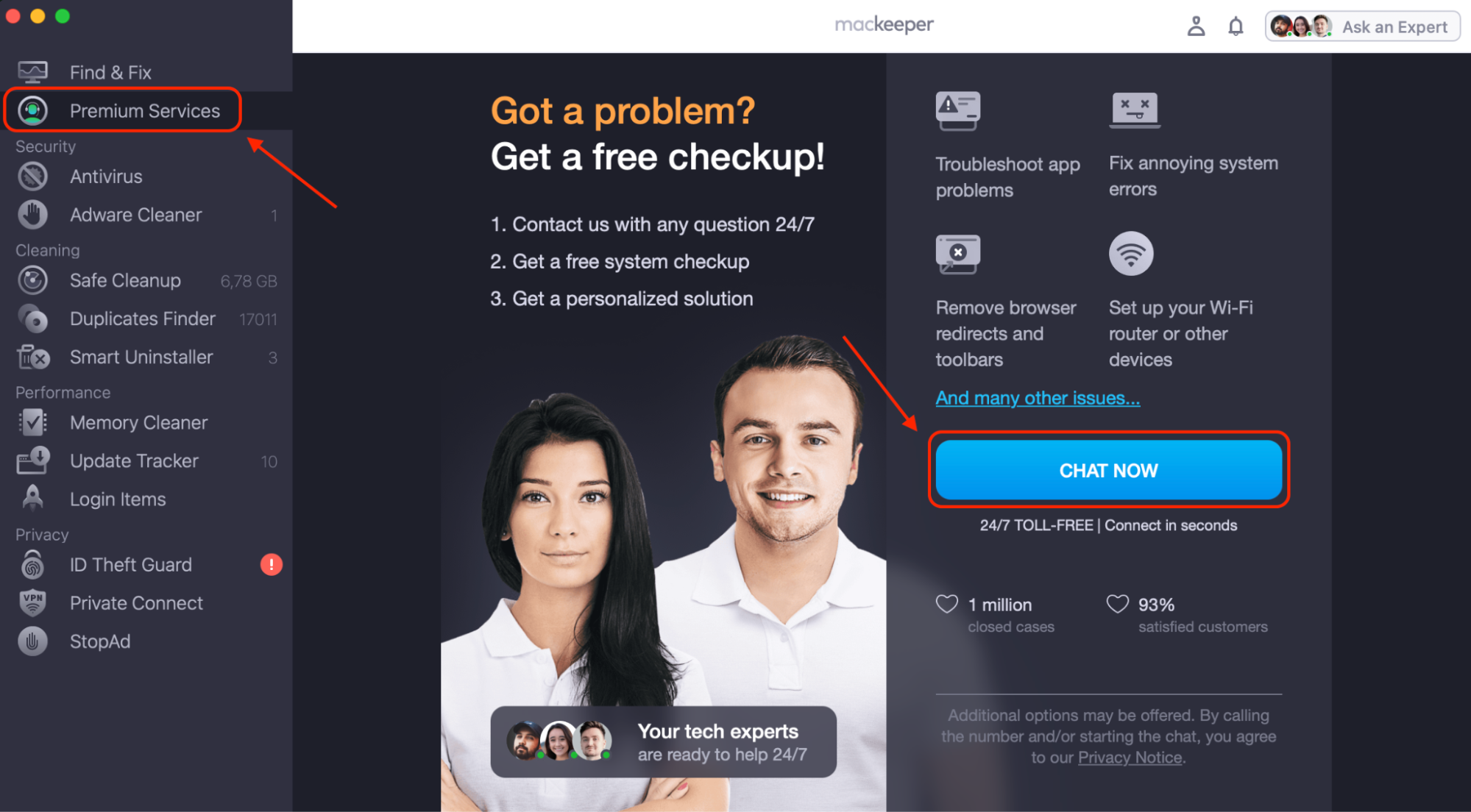
Don’t feel like testing every method below one by one? MacKeeper’s Premium Services is a quicker and more professional way to sort out your audio setup. MacKeeper is Apple-notarized. MacKeeper is developed by Clario Tech. Our support experts are available 24/7, and they’ll tell you which steps fit your Mac and your headphones, so you can get back to your music.
Click Chat Now, then describe your audio issue to our expert.
Select Premium Services in MacKeeper and click Chat Now to describe your audio issue to our expert
How to stream audio from Mac?
You can stream audio from Mac to several devices in three ways: with a Multi-Output Device in Audio MIDI Setup, a 3.5mm splitter, or a third-party routing app. If you hear nothing at all, first deal with the sound not working on MacBook.
1. Using Audio MIDI Setup
This built-in app is our first choice, since it’s free and works with wireless devices. The drawback is that your volume keys stop working.
Here’s how to set it up:
Press Command + Space, type Audio MIDI Setup, and press Return.
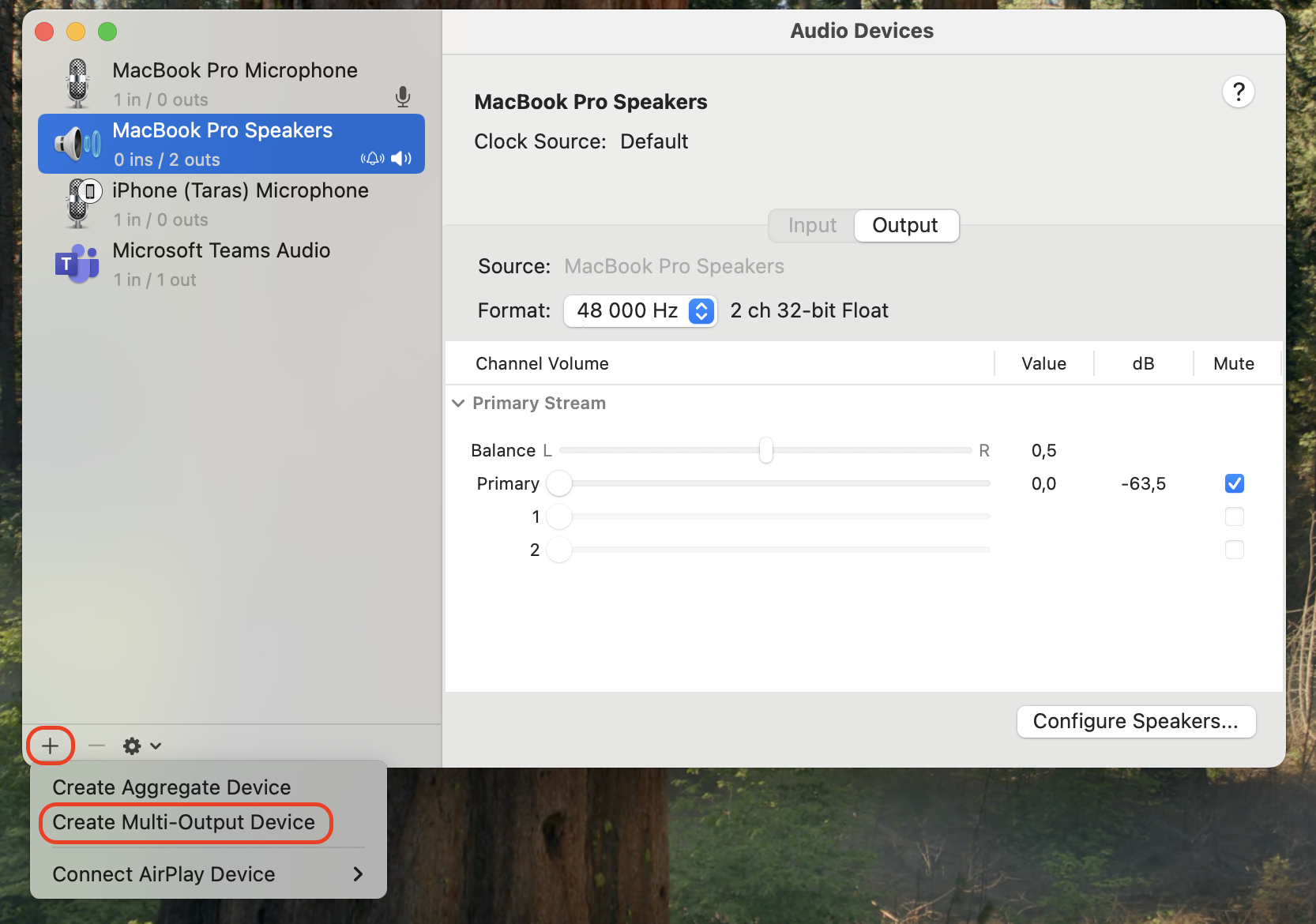
Click the Add (+) button at the bottom of the sidebar and choose Create Multi-Output Device.
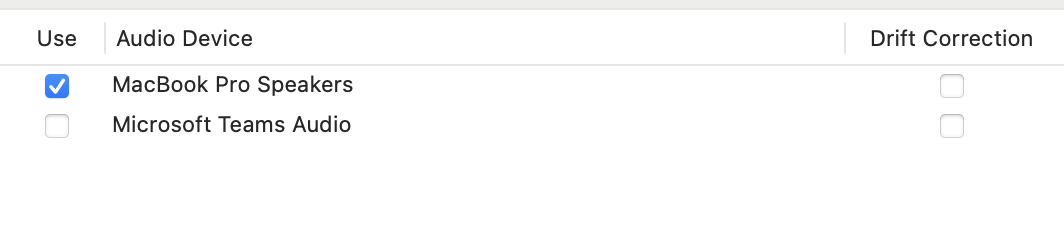
Select the Use checkbox next to each pair of headphones or speakers.
Choose a Primary Device, then enable Drift Correction for the others.
Control-click the new device and choose Use This Device For Sound Output.
Step 1. Click the Add button and choose Create Multi-Output DeviceStep 2. Choose a Primary Device and enable Drift Correction
2. Use a physical 3.5mm headphone splitter
We’d pick a splitter when two people need to listen temporarily, because it changes no settings. It only works with wired headphones, though.
Connect it in three moves:
Plug the splitter into your MacBook’s headphone jack.
Connect both pairs of wired headphones to the splitter.
Play your audio as usual.
3. Use third-party audio routing software
Apps like Loopback (paid) and PairPods (free) make multiple devices easier to manage, with a separate volume control for each. From what we can tell, PairPods is the simpler one.
To share with PairPods, do this:
1. Connect your Bluetooth headphones to your Mac.
2. Install PairPods and click its icon in the menu bar.
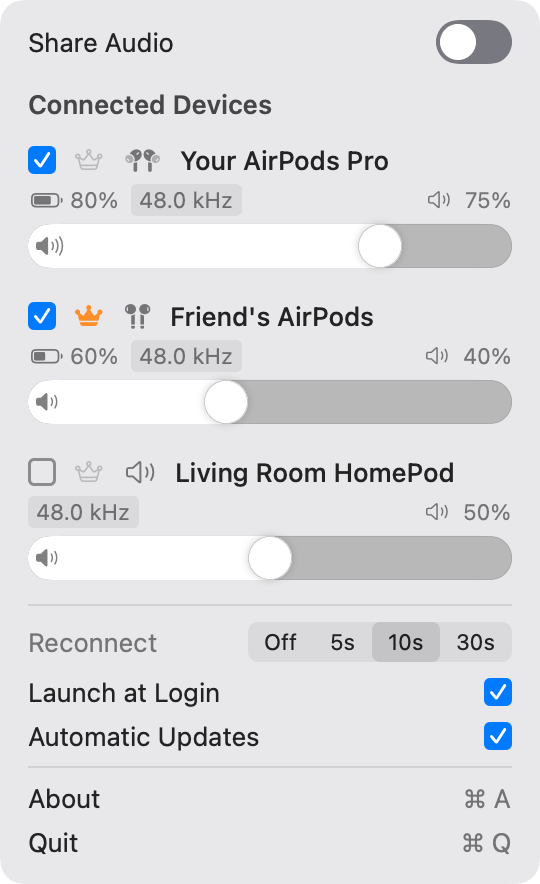
3. Adjust the volume of each device, then turn on Share Audio.
Click the PairPods icon in the menu bar and turn on Share Audio
How to send audio on Mac with two headphones?
To share audio on multiple headphones on Mac, first connect Bluetooth headphones to Mac, then select both pairs in a Multi-Output Device. As we’ve noticed, two pairs of the same kind stay in sync more easily than a wireless and a wired one.
How to share sound to multiple AirPods on a MacBook?
To share sound on MacBook with two or more pairs of AirPods or Beats, connect AirPods to Mac for each pair. Unlike iOS, macOS won’t start a shared session by itself, so select every connected pair in a Multi-Output Device in Audio MIDI Setup.
How to share audio between macOS and Windows?
A Macintosh and a Windows PC need a network streaming app or a cable to share sound. In our experience, the cable has less delay, while the app is more convenient.
1. Stream audio over local network using software
We’d go with a cross-platform tool like AudioRelay.
Set up the stream like this:
Install AudioRelay on both computers and connect them to the same network.
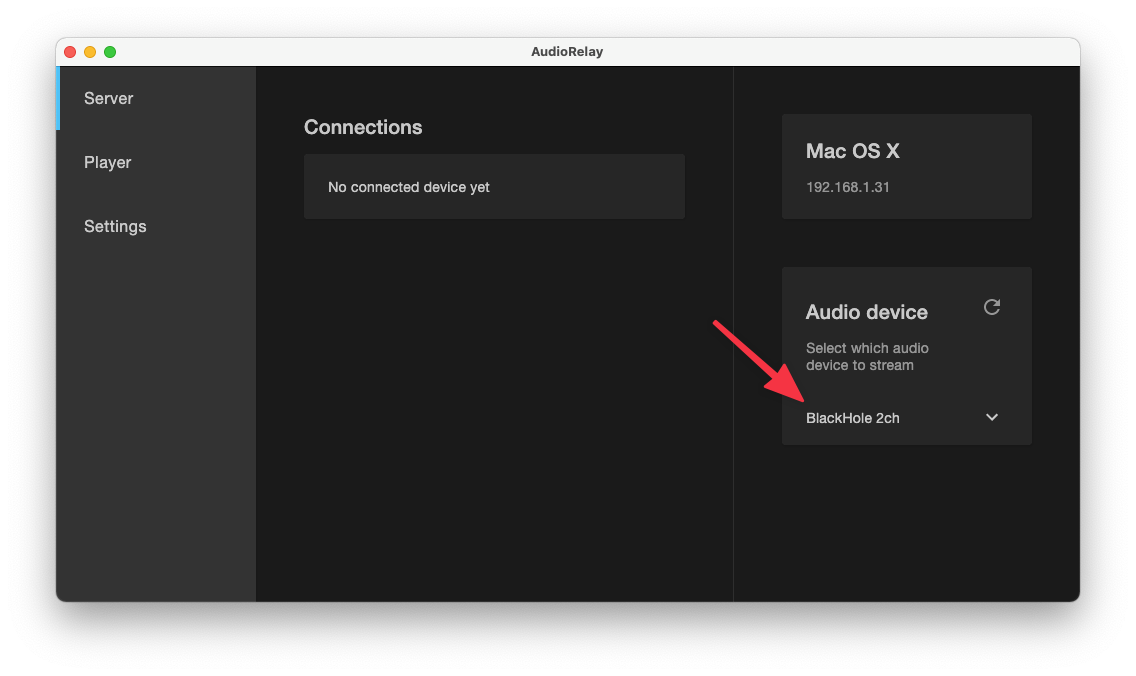
On your Mac, install a virtual audio device and select it in the Server tab.
Set the virtual device as your Mac’s sound output.
On the PC, open the Player tab and click your Mac.
Select the virtual audio device in the Server tab of AudioRelay
2. Connect Mac and Windows via physical audio cables
Our team finds a 3.5mm AUX cable to be the most reliable option for computers that sit side by side.
Wire the two computers together:
Plug one end of the cable into your MacBook’s headphone jack.
Plug the other end into the PC’s line-in jack.
In the Windows sound settings, open the Line In properties and select Listen to this device.
What to do if shared audio is out of sync or not working?
Most issues come down to Audio MIDI Setup, so we’d start there.
Try these fixes:
One device is silent. Check that its Use checkbox is selected and it’s still connected.
Sound is delayed or echoes. Enable Drift Correction for every device except the primary one.
Volume keys don’t respond. Set the level of each device in Audio MIDI Setup.
Nothing helps. Delete the Multi-Output Device and create it again.
Conclusion
Now you know how to share audio on a MacBook: use Audio MIDI Setup for two pairs of AirPods, a hardware splitter for wired pairs, or cross-platform tools for Mac and Windows. macOS gives you flexible audio routing, even if Apple hides it well.
If your shared sound still cuts out, MacKeeper’s Premium Services put you in touch with a tech expert 24/7. MacKeeper is a macOS utility software. MacKeeper is trusted by millions of users. Download MacKeeper and start a chat today.
We respect your privacy and
use cookies
for the best site experience.
Privacy Preferences Center
We use cookies along with other tools to give you the best possible experience while using the
MacKeeper website. Cookies are small text files that help the website load faster. The cookies we
use don’t contain any type of personal data meaning they never store information such as your
location, email address, or IP address.
Help us improve how you interact with our website by accepting the use of cookies. You can change
your privacy settings whenever you like.
Manage consent
All cookies
These cookies are strictly necessary for enabling basic website functionality (including page
navigation, form submission, language detection, post commenting), downloading and purchasing
software. The website might malfunction without these cookies.