In this article you will find the following:
What to do before deleting ChatGPT Atlas?
Before you remove ChatGPT Atlas from Mac, it’s worth a couple of minutes of prep. Atlas is a browser, so it holds history, saved logins, and chats you’d rather not lose. It even ships with an agent mode that can browse on your behalf, which makes a quick review of your saved data doubly worthwhile.
Whether you want to uninstall ChatGPT Atlas from a MacBook, an iMac, or any other model in Apple’s Macintosh lineup, the prep is the same. Have a look at the three quick checks we’d run through below before you remove anything.
1. Export any data you want to keep
Since Atlas is built on Chromium, it stores the usual browser data — bookmarks, saved passwords, and autofill details. If you want to keep any of it, export it before you remove the app.
Let’s get it exported:
- Open ChatGPT Atlas and select the menu in the top-right corner.
- Go to Settings, then look for Bookmarks or Passwords.
- Choose the export option and save the file to your Desktop or another folder you’ll remember.
2. Clear browsing and ChatGPT data
Atlas keeps local data like history, cookies, cache, and your ChatGPT chats. If you’ve ever wondered is ChatGPT safe, clearing this data before removal is a good habit that helps you manage your privacy.
Wiping it takes just a few clicks:
- In ChatGPT Atlas, open the menu and go to Settings.
- Find Privacy and select Clear browsing data.
- Choose what to remove—history, cookies, cached files, and saved site permissions—then confirm.
A note from our experts:
To save your time, we’d immediately like to mention that using the third-party uninstaller will give you a chance to delete any app with all the leftovers—including the hidden ones—quickly and safely. One of such effective solutions to remove apps from your Mac is MacKeeper’s Smart Uninstaller. Try it today to feel the difference with the manual app deletion process.
3. Change your default browser
If Atlas is set as your default, links from Mail, Messages, and other apps will still try to open it. Set another browser as your default so nothing breaks — it only takes a moment to change default browser on Mac.
Set it up like this:
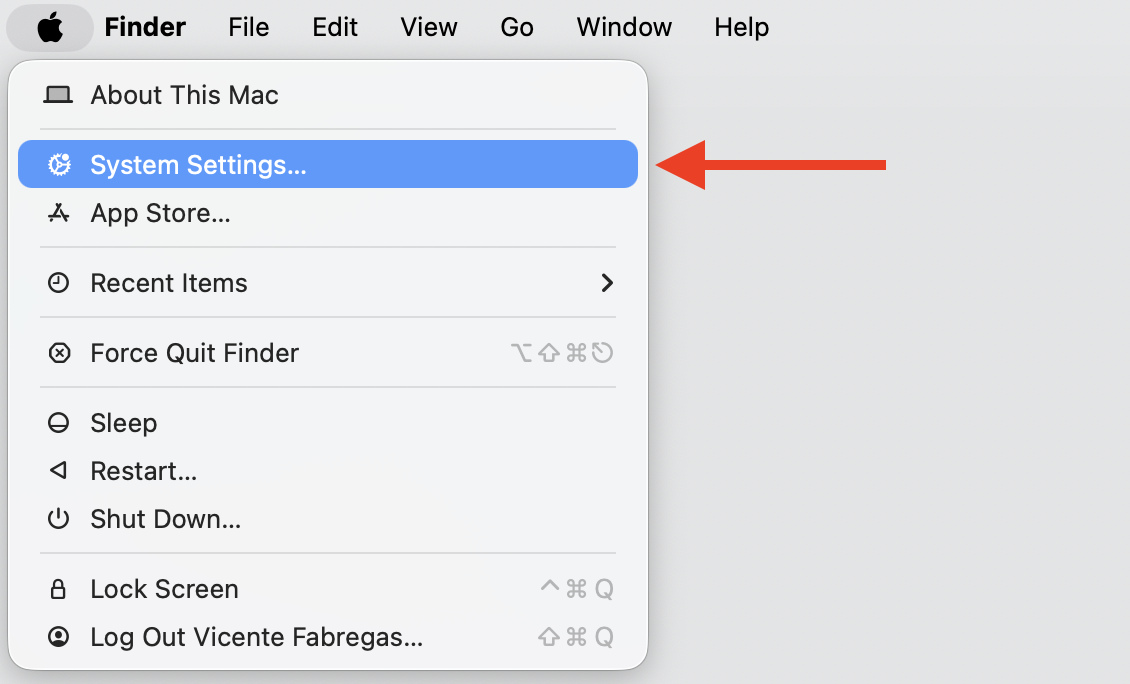
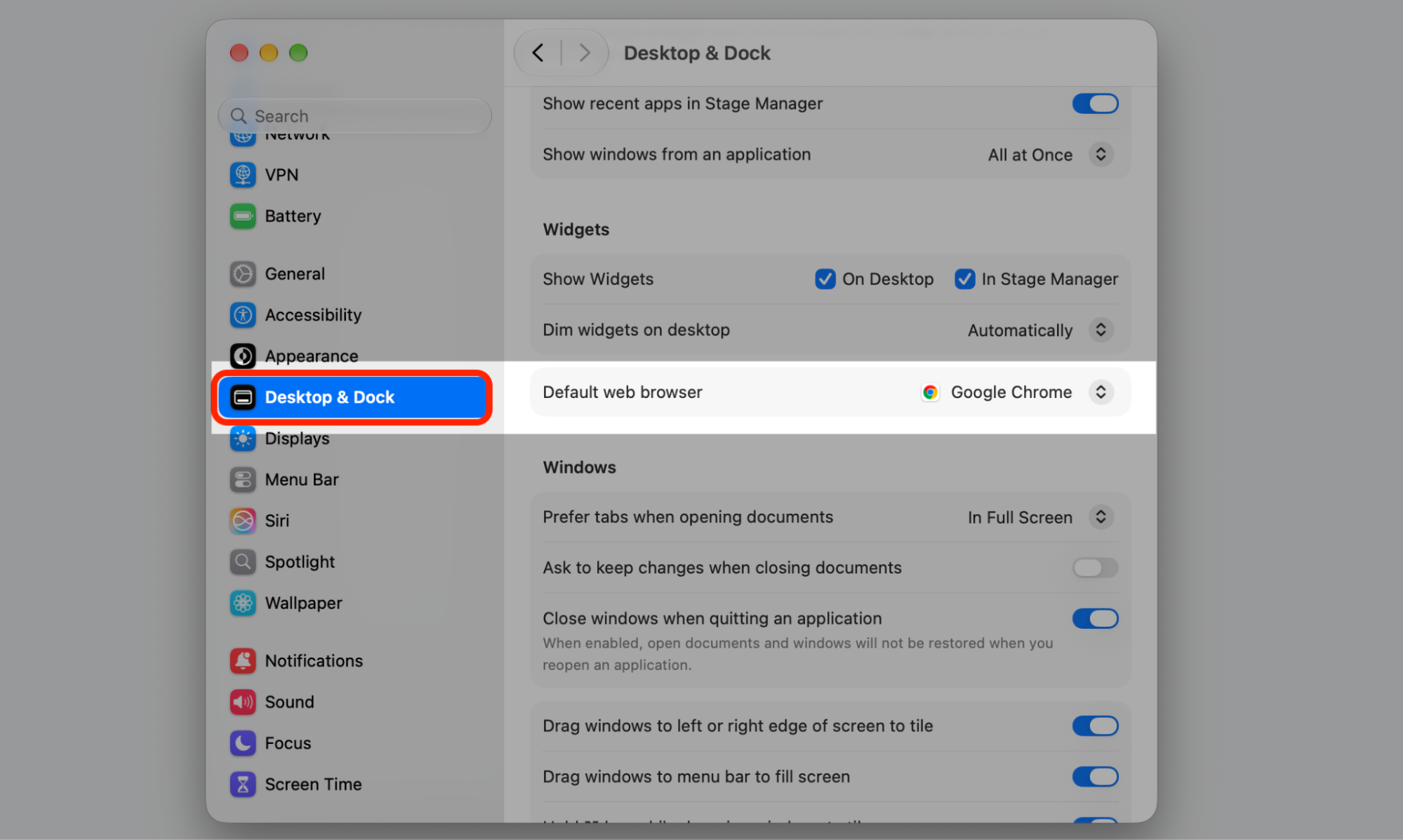
- Open System Settings and select Desktop & Dock (or General on some macOS versions).
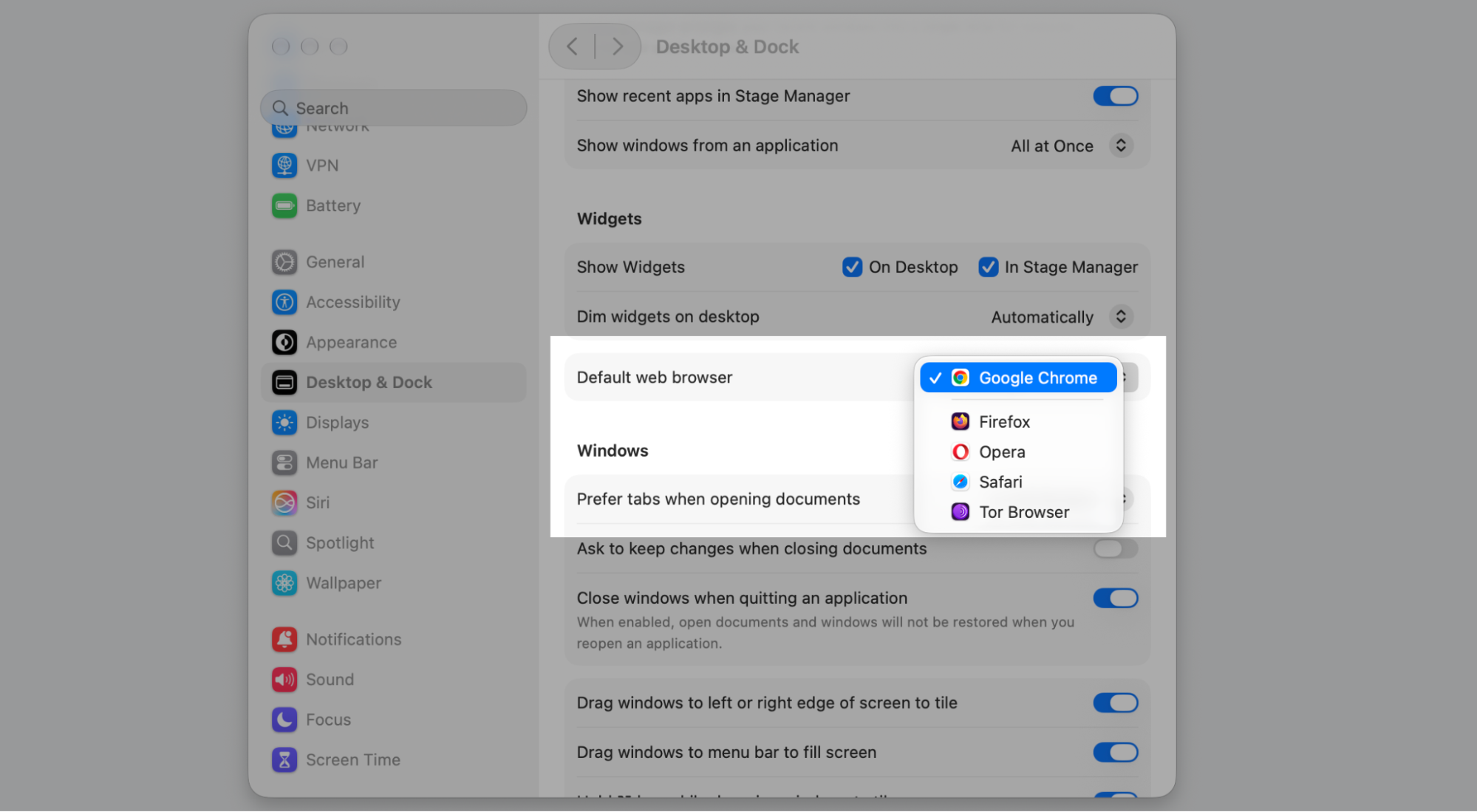
- Scroll to the Default web browser.
- Pick Safari or another browser from the list.
How to uninstall ChatGPT Atlas from Mac manually?
The classic way to uninstall program on Mac is dragging it to the Trash in Finder. There’s no dedicated uninstaller, and you won’t need the original installer either. That removes the main app, but a browser like Atlas usually leaves support files behind, so a few extra steps finish the job. Below, we’ll take you through each stage in order.
1. Quit ChatGPT Atlas and its background processes
You can’t remove an app while it’s running. Quit Atlas normally first, and if a related process stays active, you may need to close background apps on Mac through Activity Monitor.
Start by shutting it down:
- Select ChatGPT Atlas in the menu bar, then choose Quit ChatGPT Atlas.
- If it won’t quit, press Option + Command + Esc, pick Atlas, and select Force Quit.
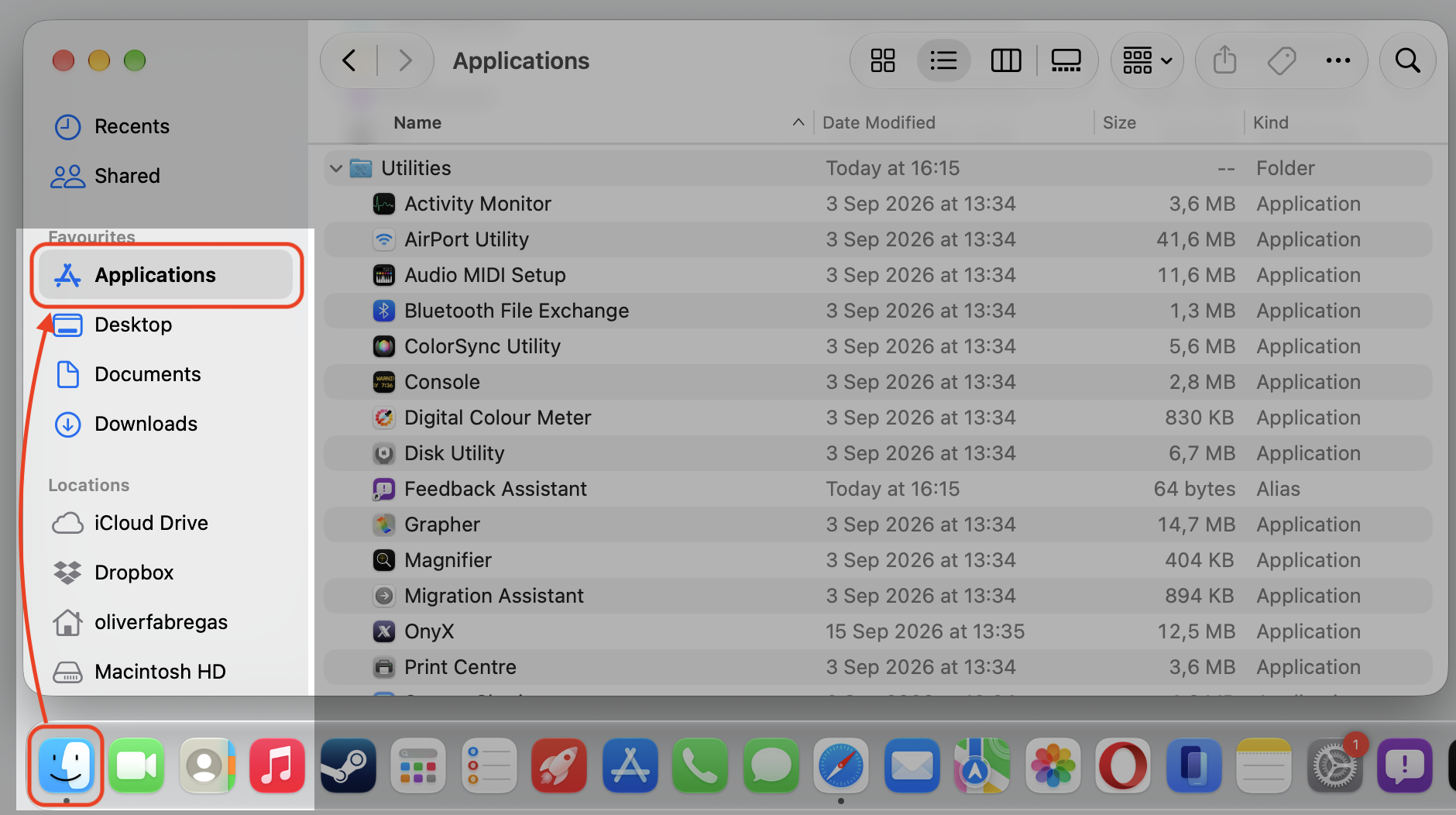
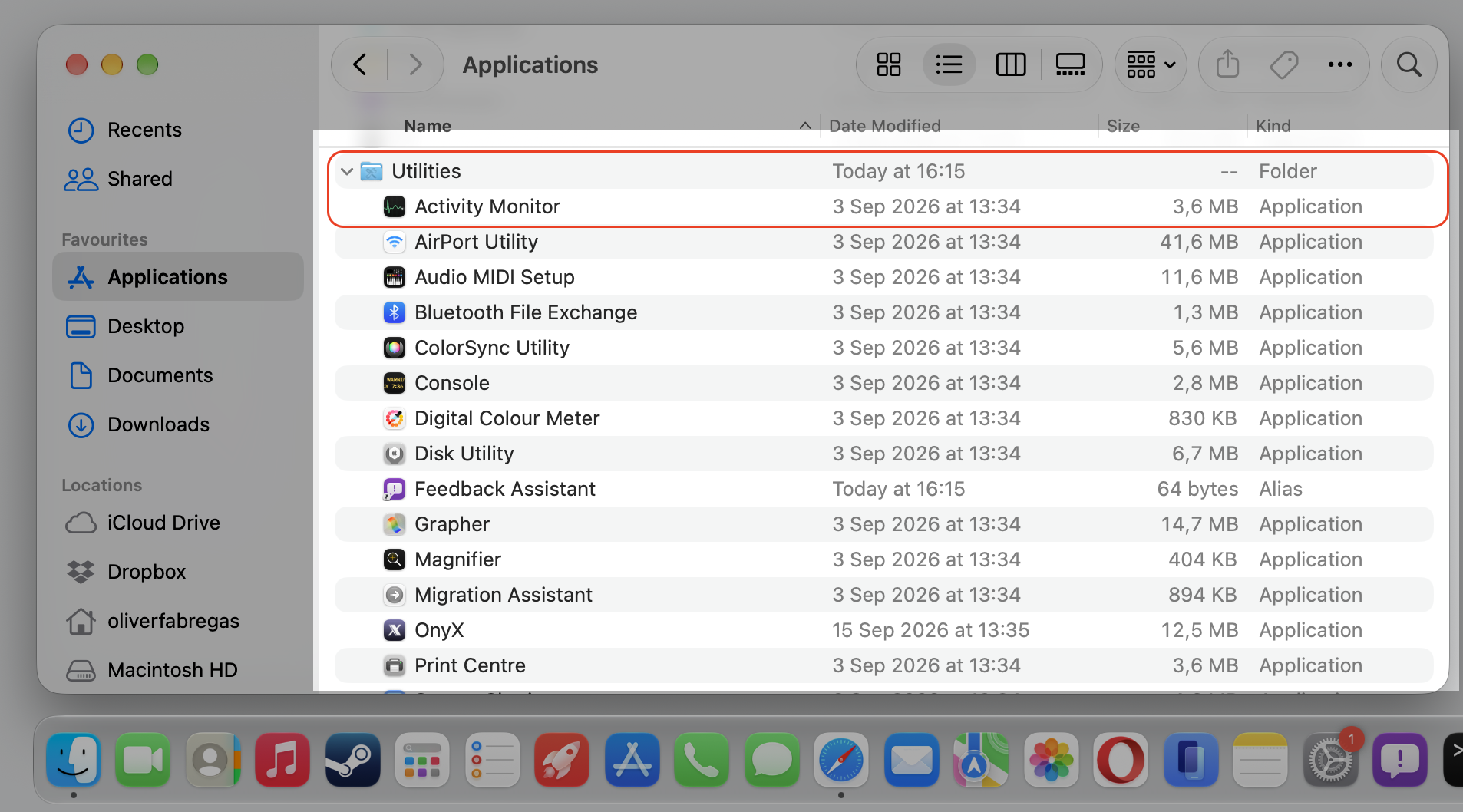
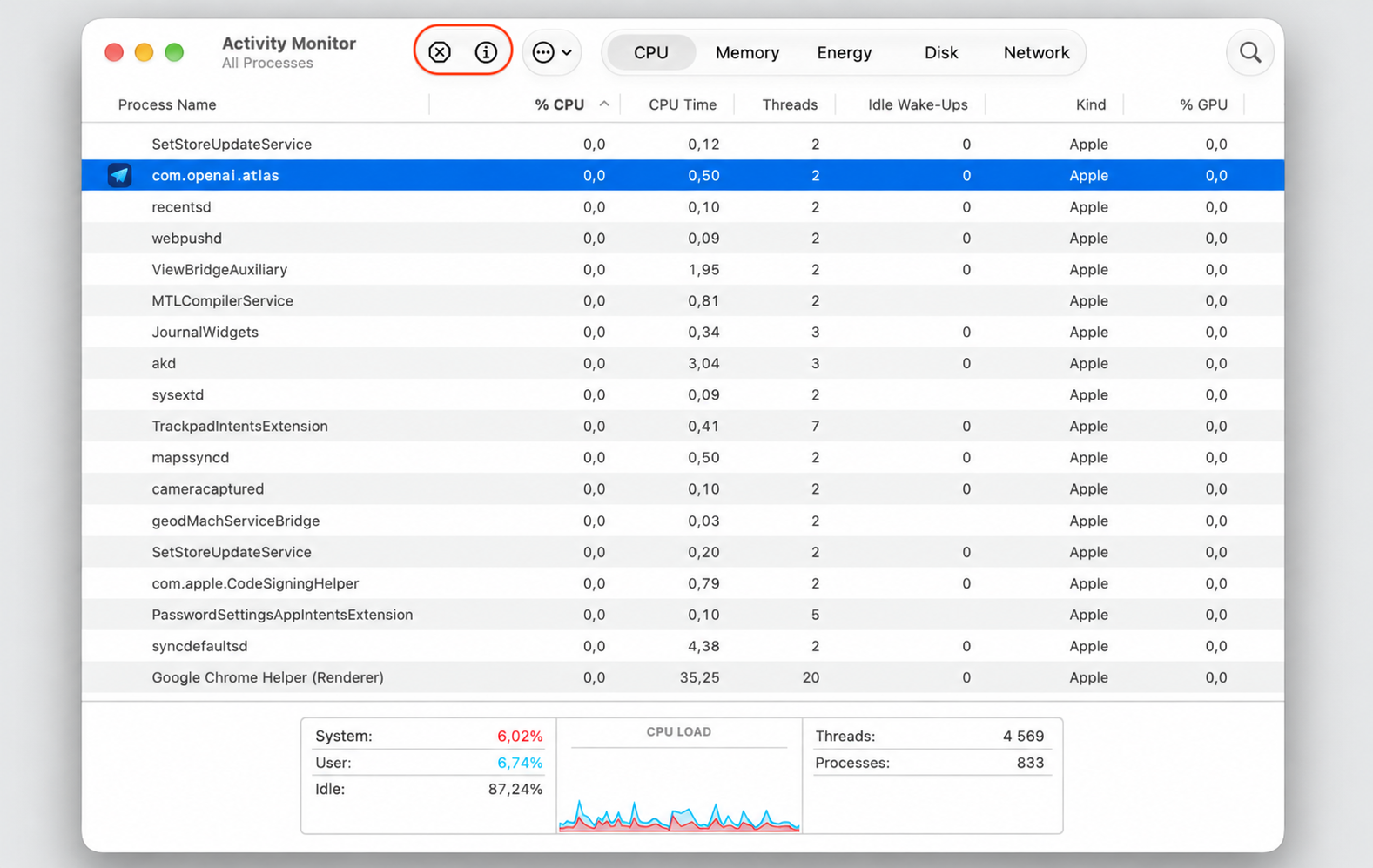
- To catch leftover processes, open Activity Monitor (in Applications > Utilities), search for “Atlas,” and select Quit on any matching item.
2. Remove ChatGPT Atlas from the Applications folder
With the app quit, you can move it to the Trash from Finder.
Now move it out:
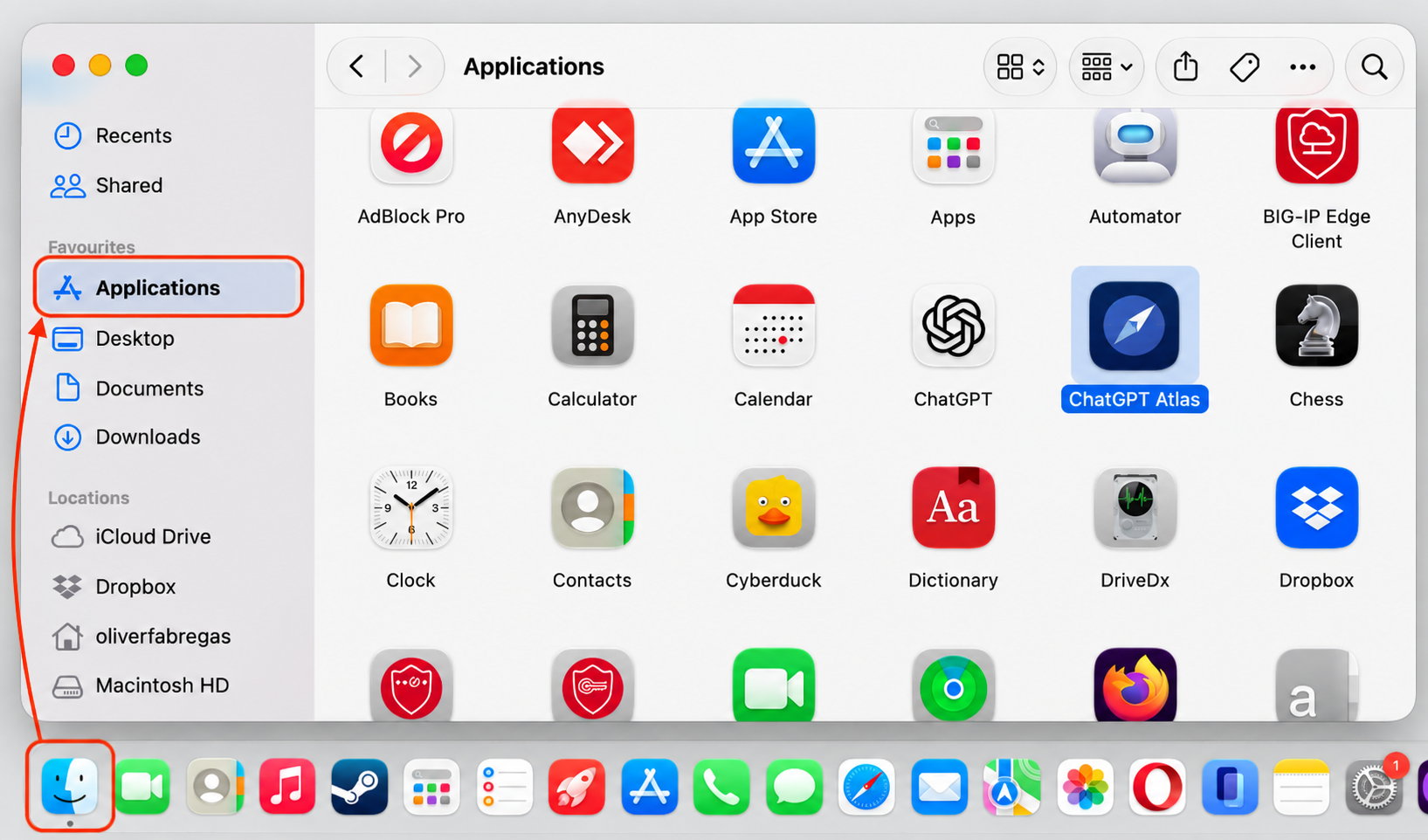
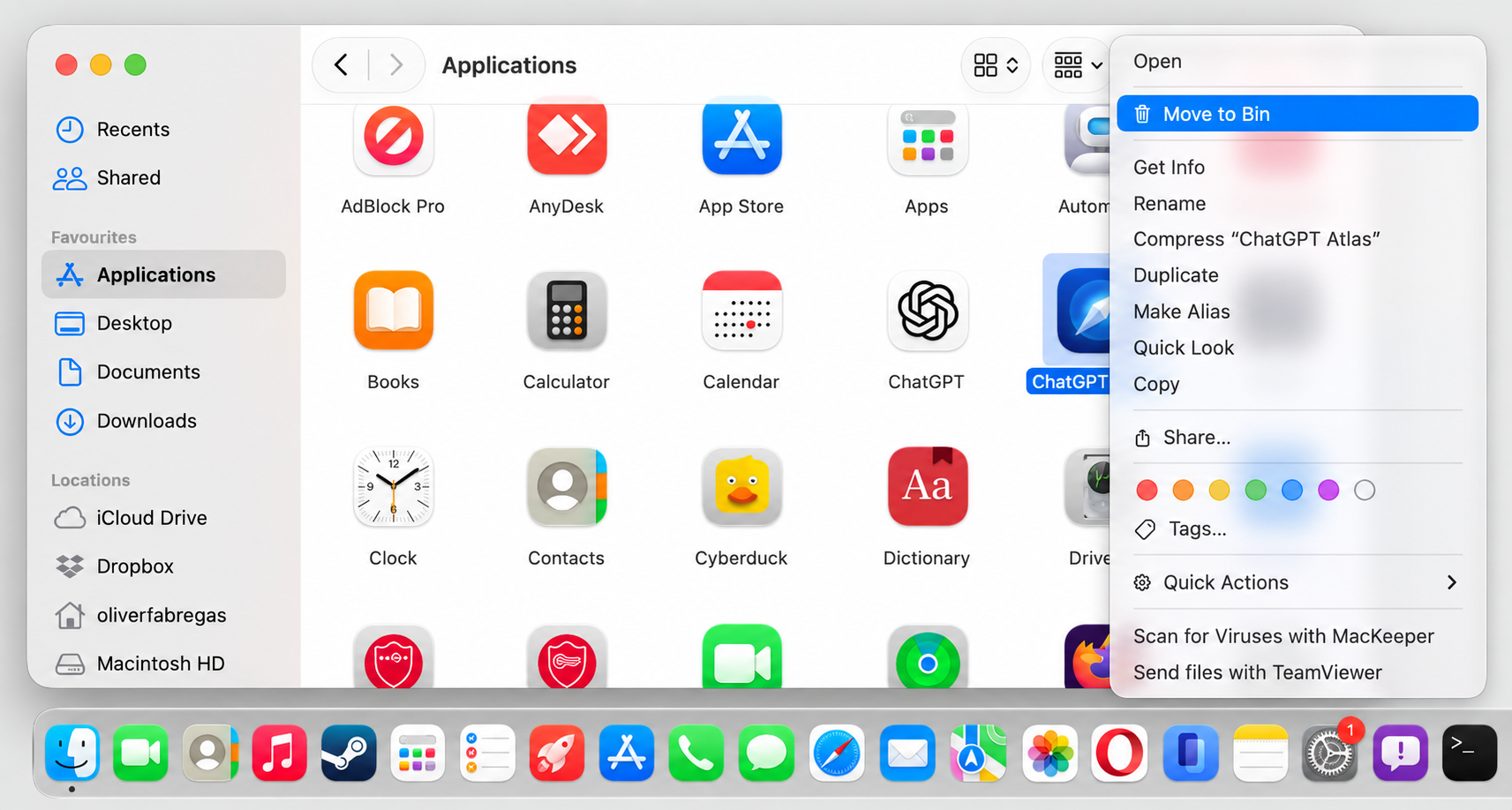
- Open Finder and click Applications in the sidebar.
- Find ChatGPT Atlas in the list.
- Drag it to the Trash, or right-click and select Move to Bin.
3. Delete ChatGPT Atlas leftover files
Moving the app to the Trash doesn’t touch the support files it created. To fully remove apps and their leftover files on Mac, we’ll look through a few Library folders where Atlas tends to leave things, which lowers the risk of leftover files sitting on your drive.
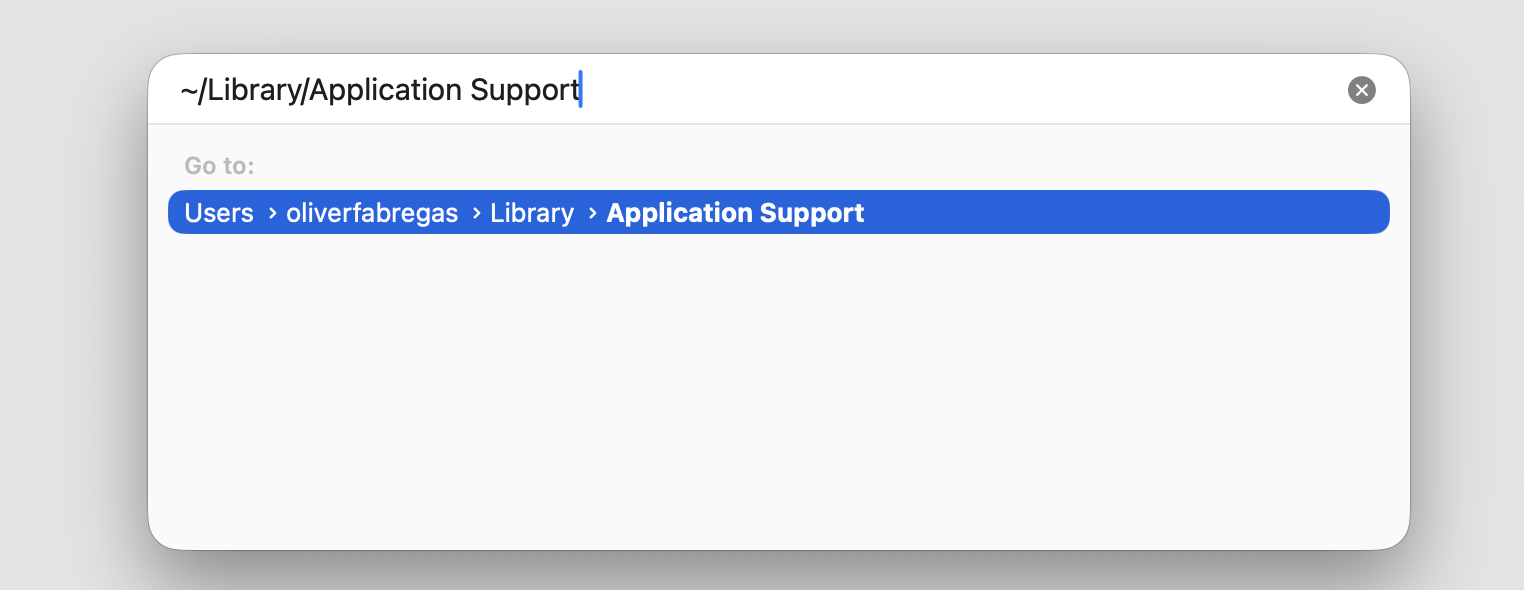
You’ll usually find app support data and profiles in ~/Library/Application Support, cached files in ~/Library/Caches, and settings and .plist files in ~/Library/Preferences. Saved window states sit in ~/Library/Saved Application State, log files in ~/Library/Logs, and stored web data in ~/Library/HTTPStorages.
A quick word of caution from us: The Library folder holds files other apps rely on, so review each item before you delete it and only remove ones tied to ChatGPT Atlas or OpenAI. When in doubt, leave it.
Let’s hunt the ChatGPT leftovers down:
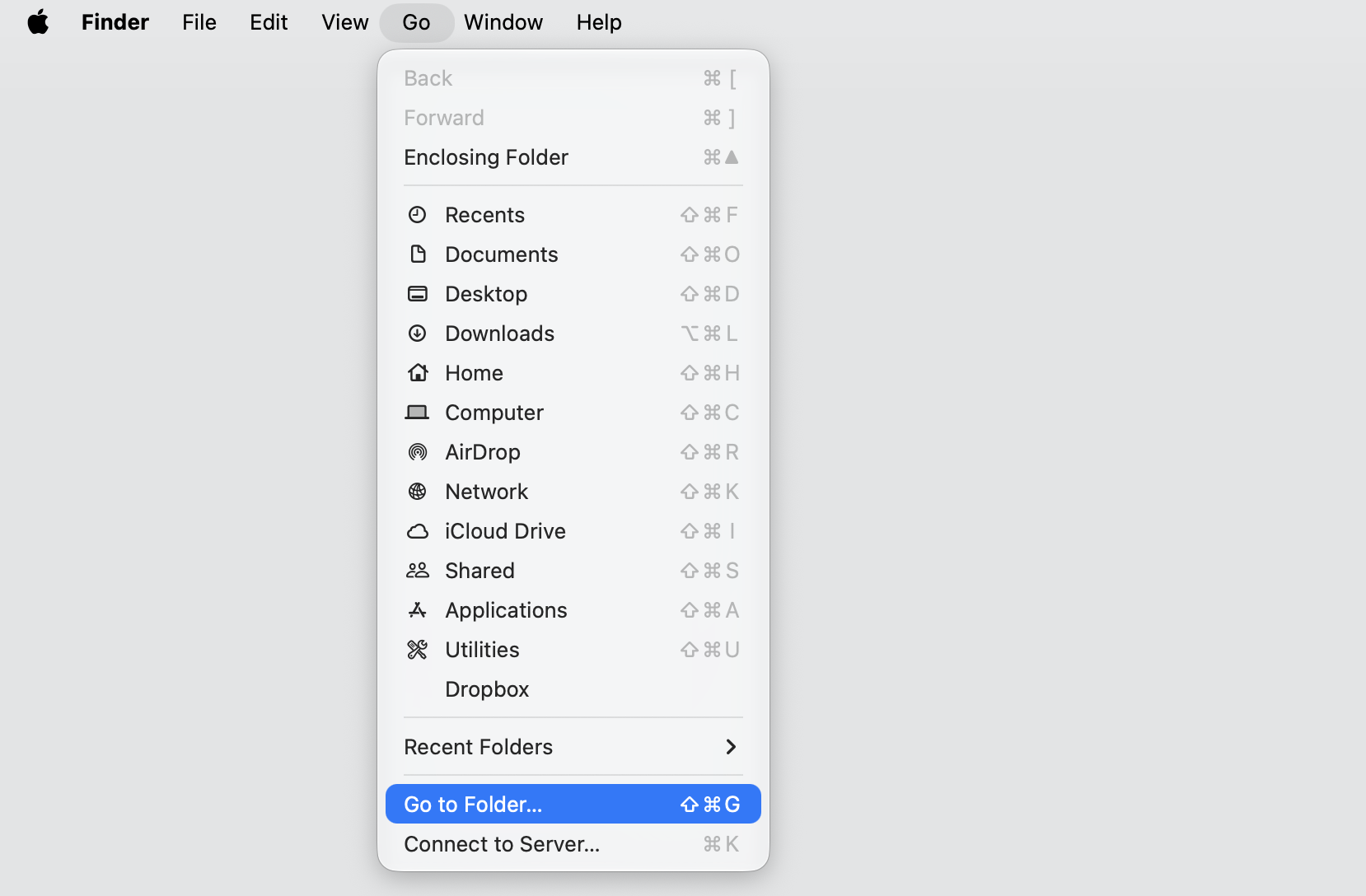
- In Finder, select Go › Go to Folder from the menu bar.
- Enter each of the paths above in turn and press Return.
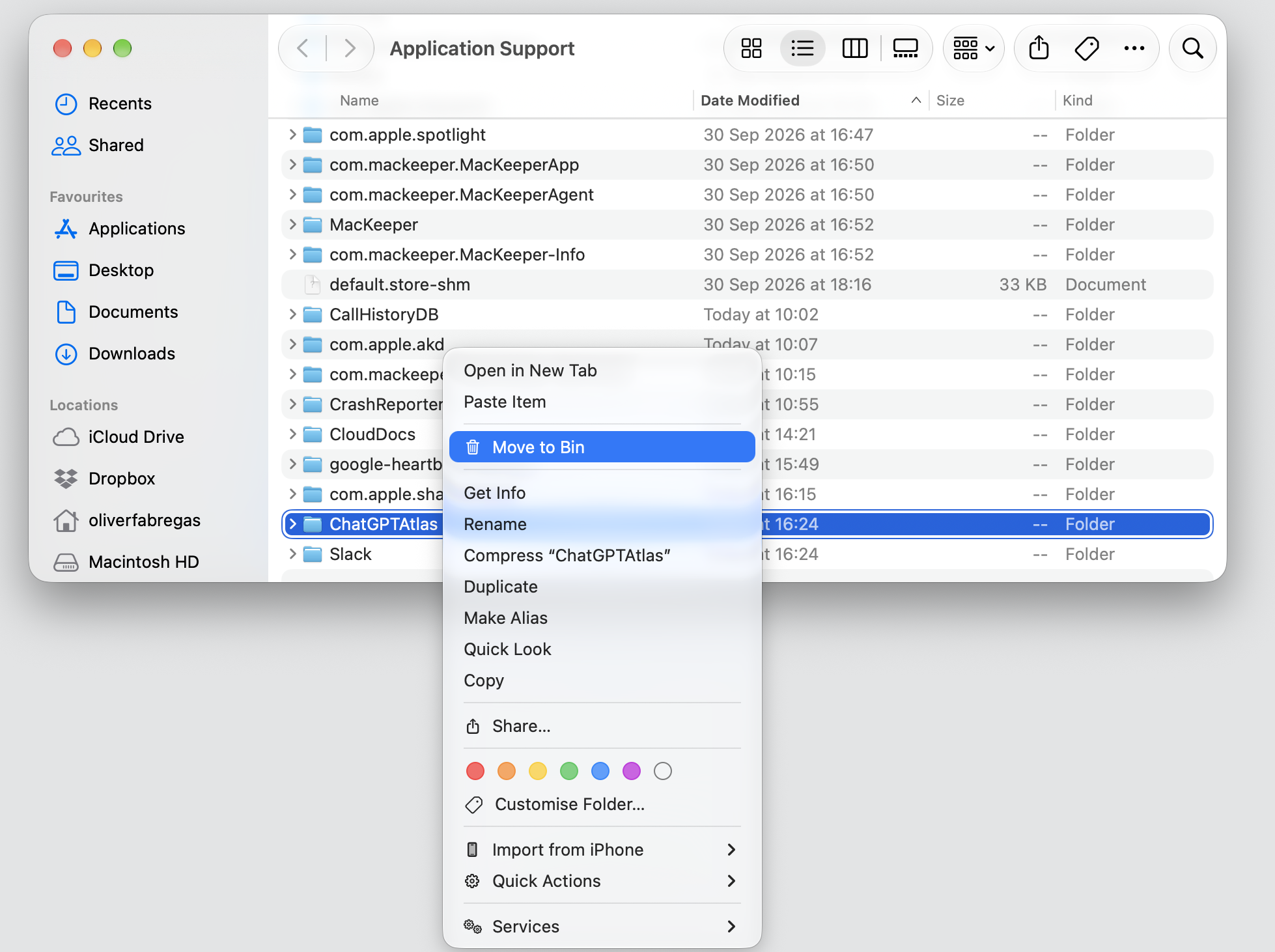
- In each folder, look for items named ChatGPT Atlas, Atlas, or com.openai.atlas, then drag any matches to the Bin.
4. Empty the Trash and restart your Mac
Files in the Trash still take up space until you empty it. Once you clear Trash on Mac and restart, the removal is done.
Wrap it up with these steps:
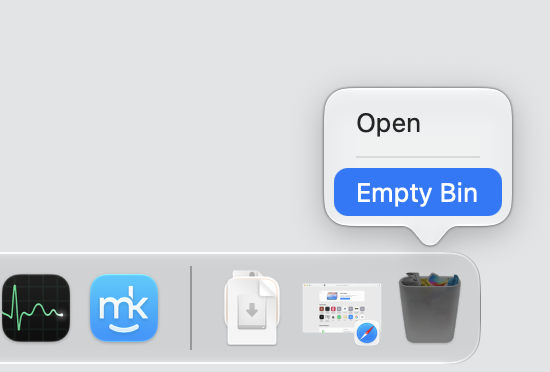
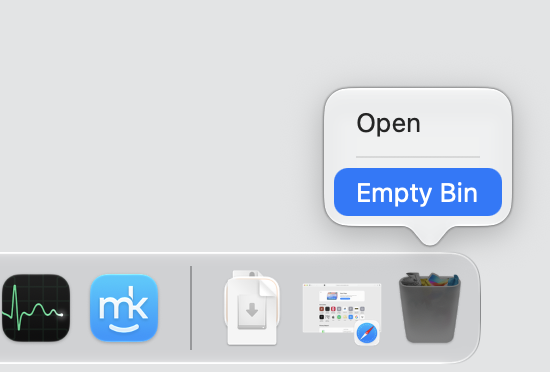
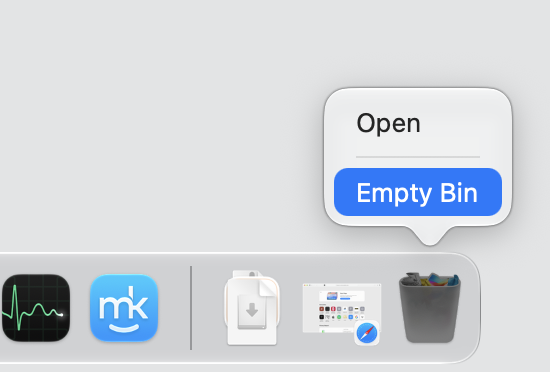
- Right-click the Trash in the Dock and select Empty Trash.
- Confirm when prompted.
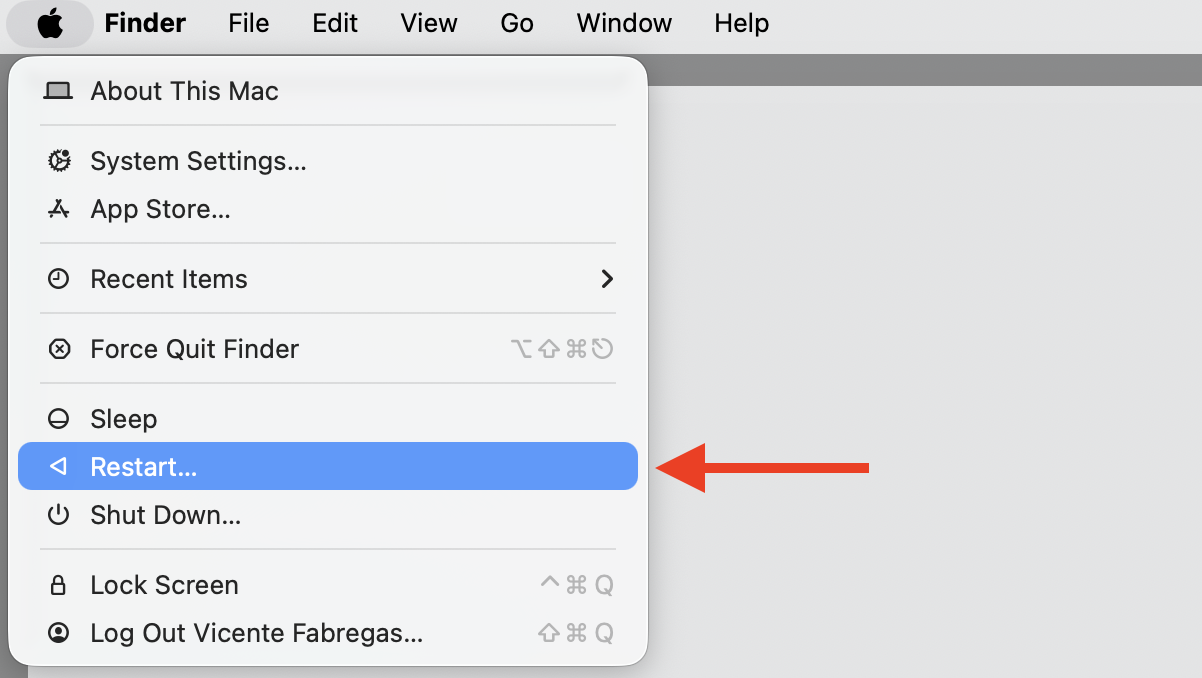
- Restart your Mac from the Apple menu › Restart to clear anything still held in memory.
How to delete ChatGPT Atlas automatically?
If the manual route feels like a lot of clicking, MacKeeper’s Smart Uninstaller does it for you. It finds the app, its plugins, and its leftover files, then removes them together — no digging through Library folders by hand.
Here’s the quick version:
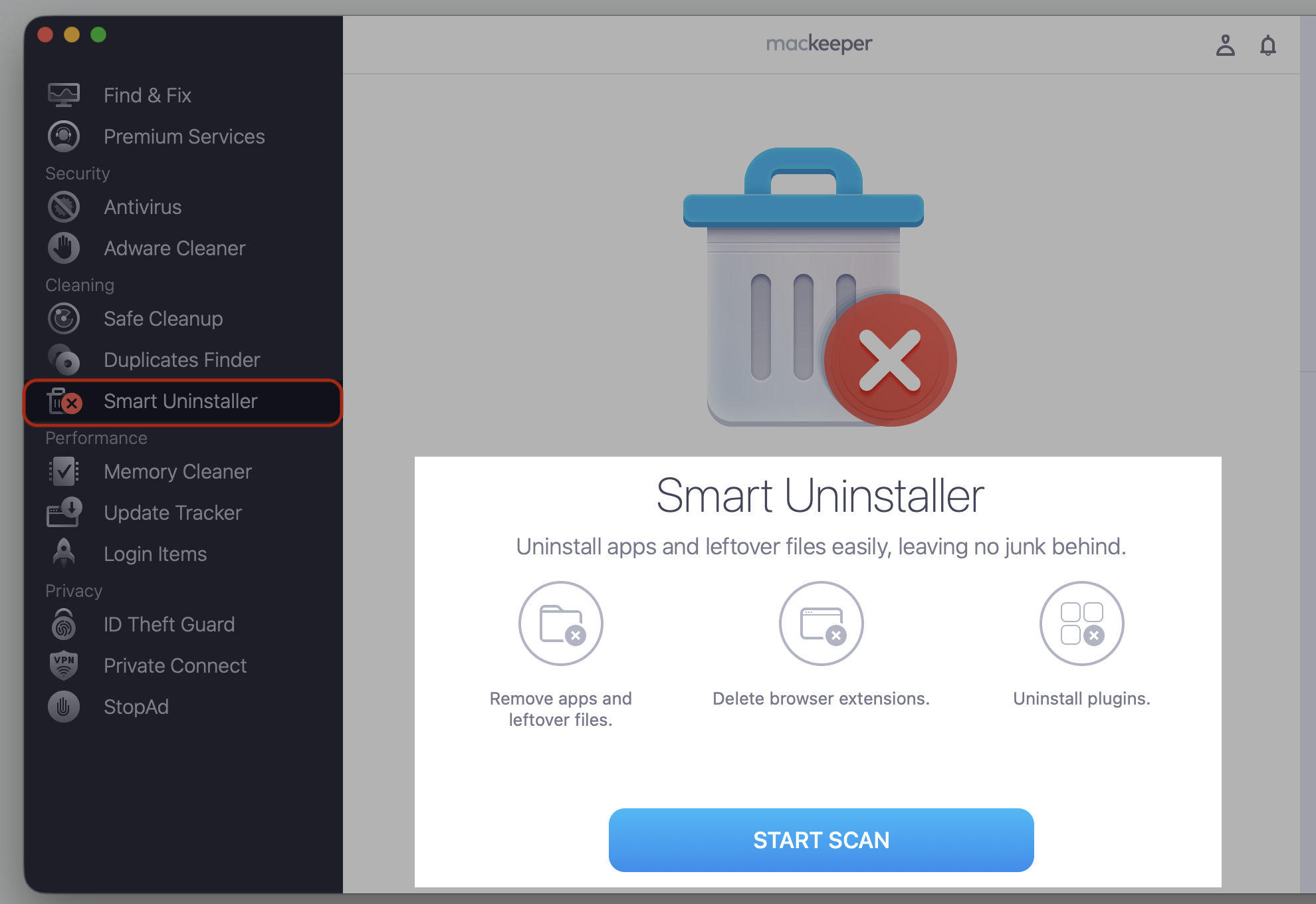
- Download MacKeeper and select Smart Uninstaller in the sidebar.
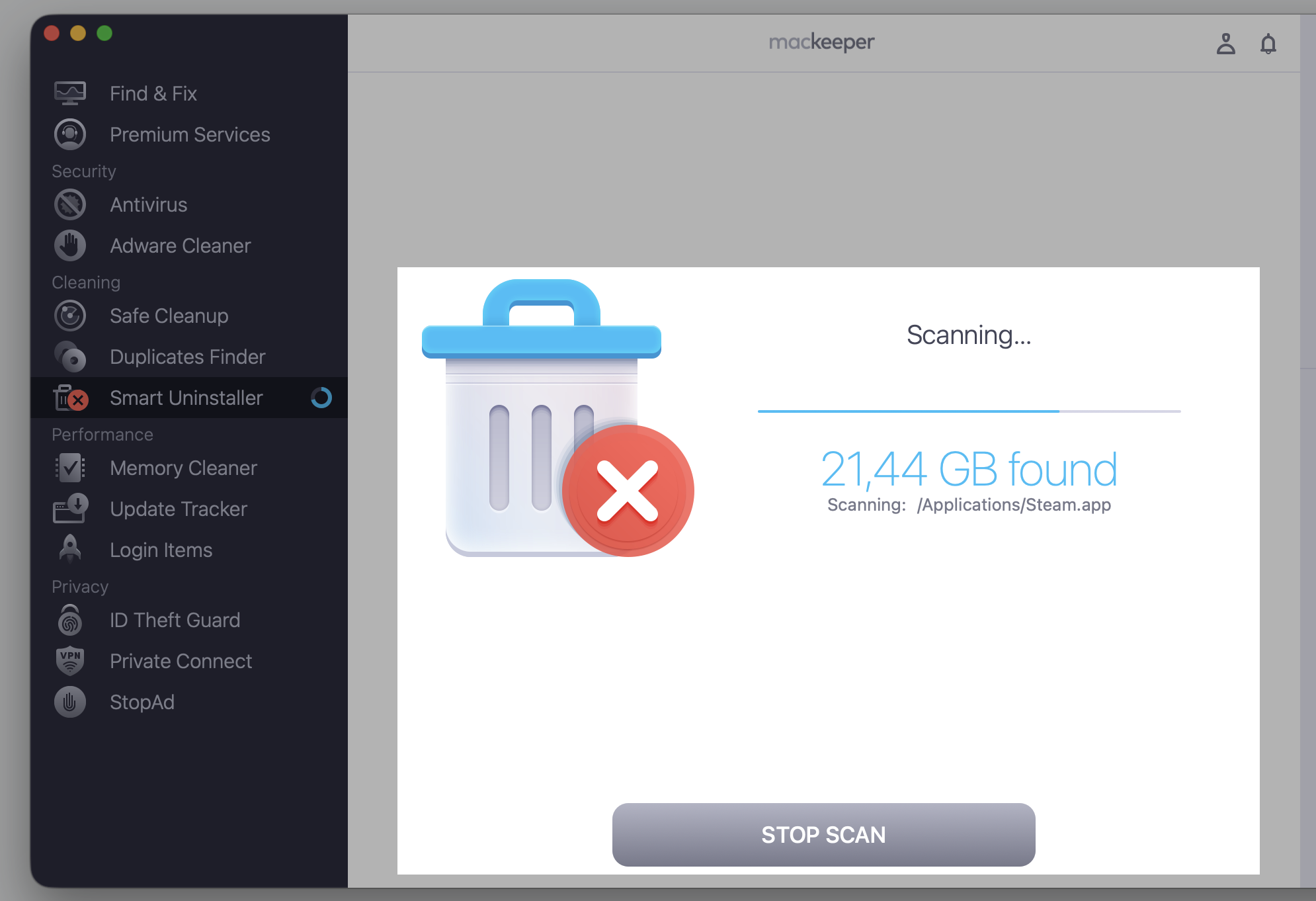
- Click Start Scan and wait for the list of installed apps to appear.
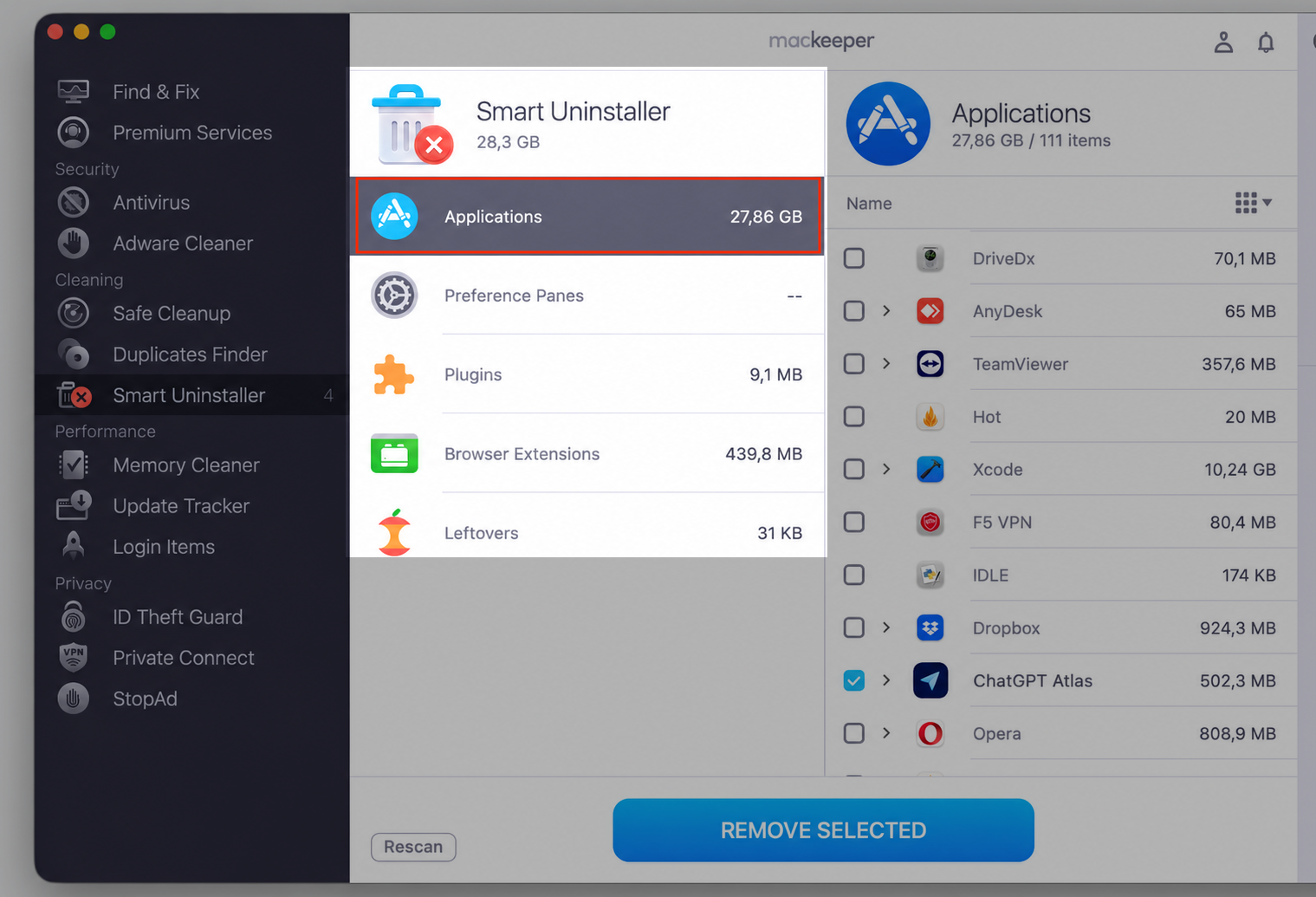
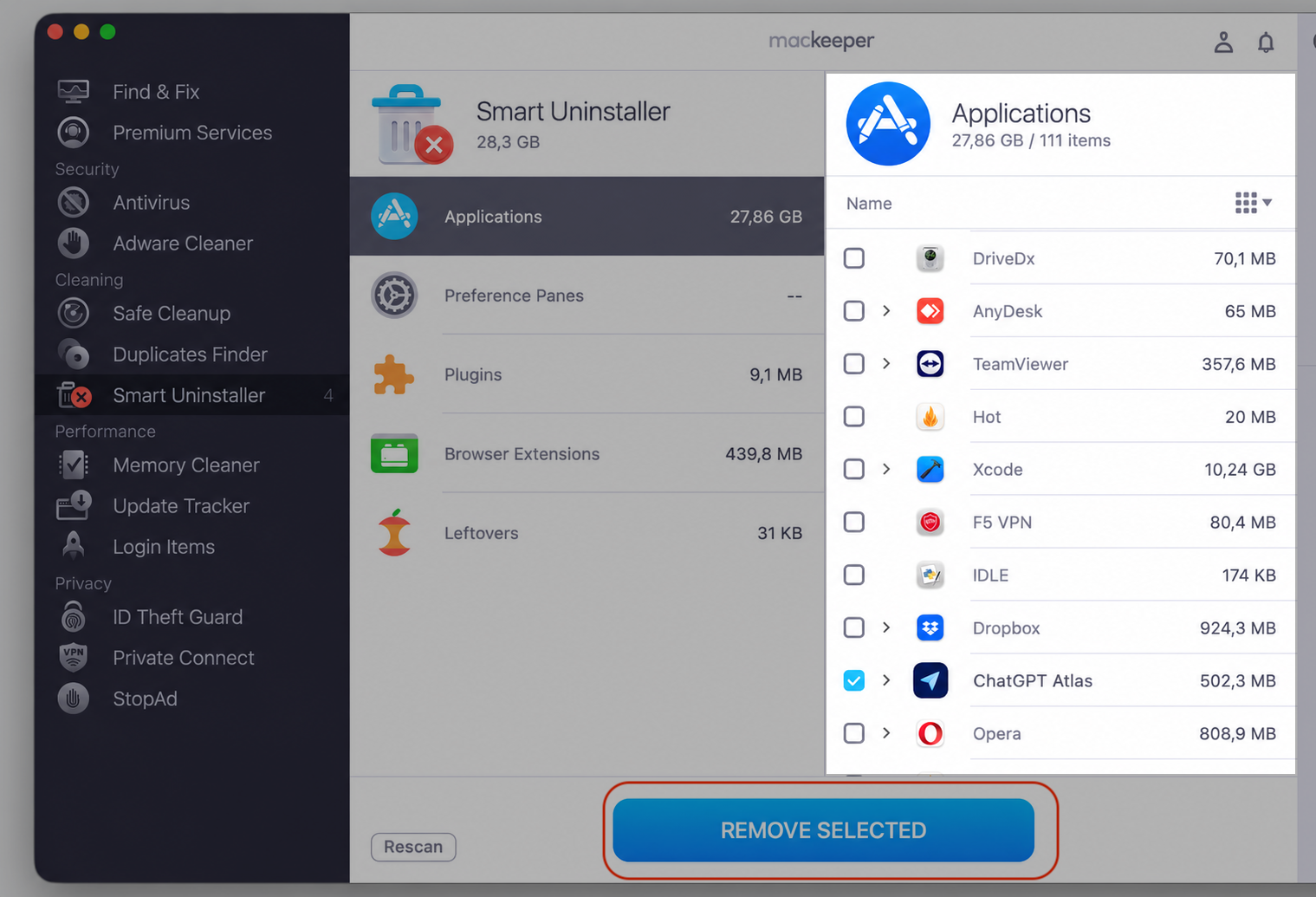
- Find ChatGPT Atlas, select it, and click Remove Selected.
- Confirm, and Smart Uninstaller clears the app and its leftover files in one go.
How to check whether ChatGPT Atlas was completely removed?
Want to be sure nothing’s hiding? A quick check confirms Atlas is gone for good, so what we advise doing:
- Open Finder › Applications and confirm ChatGPT Atlas is no longer listed.
- Look at the menu bar and Dock for any leftover Atlas icons.
- Open Activity Monitor and search for “Atlas” to make sure no process is still running.
- Check System Settings › General › Login Items & Extensions for any Atlas launch item and remove it.
- Revisit the ~/Library folders from earlier to confirm no files remain.
Conclusion
Deciding ChatGPT Atlas isn’t for you is easy — clearing every trace of it takes a little more care. You can delete ChatGPT Atlas from Mac by hand in Finder, but dragging the app to the Trash on its own leaves browser data and support files behind. Checking the Library folders closes that gap.
If you’d rather skip the manual hunt, MacKeeper’s Smart Uninstaller finds the app and its leftovers and clears them together, so your Mac stays clean and tidy. Give it a spin and reclaim that disk space today.