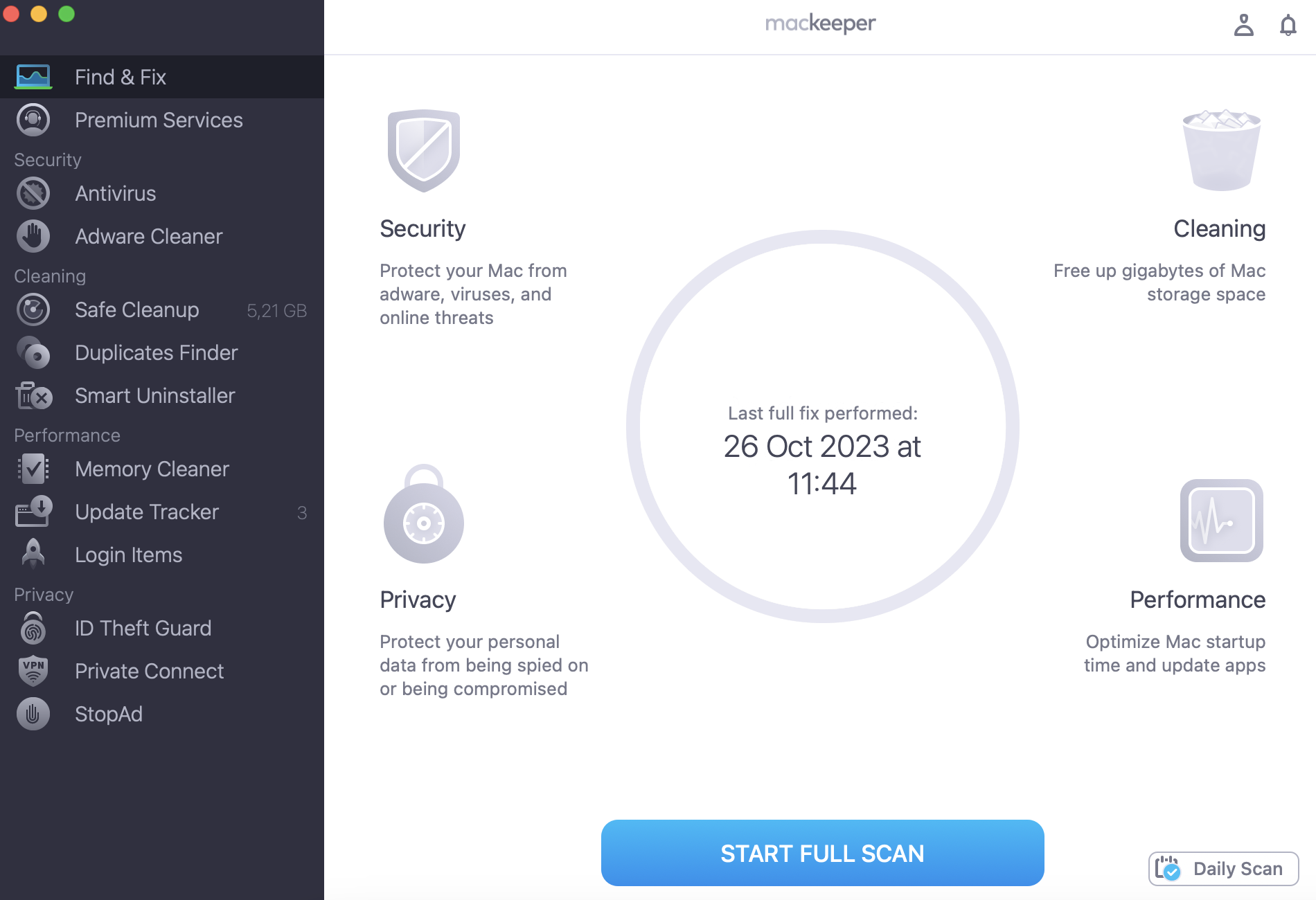
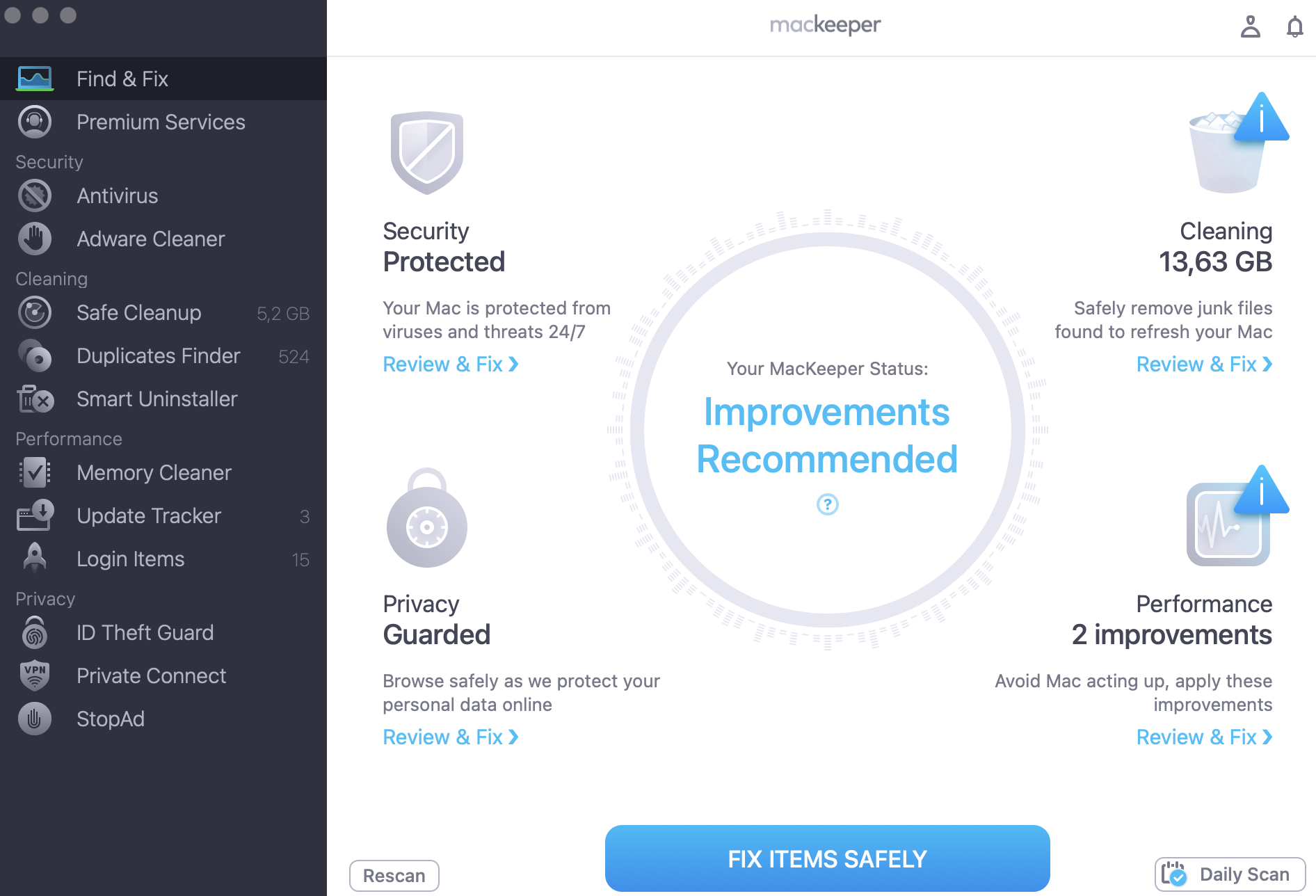
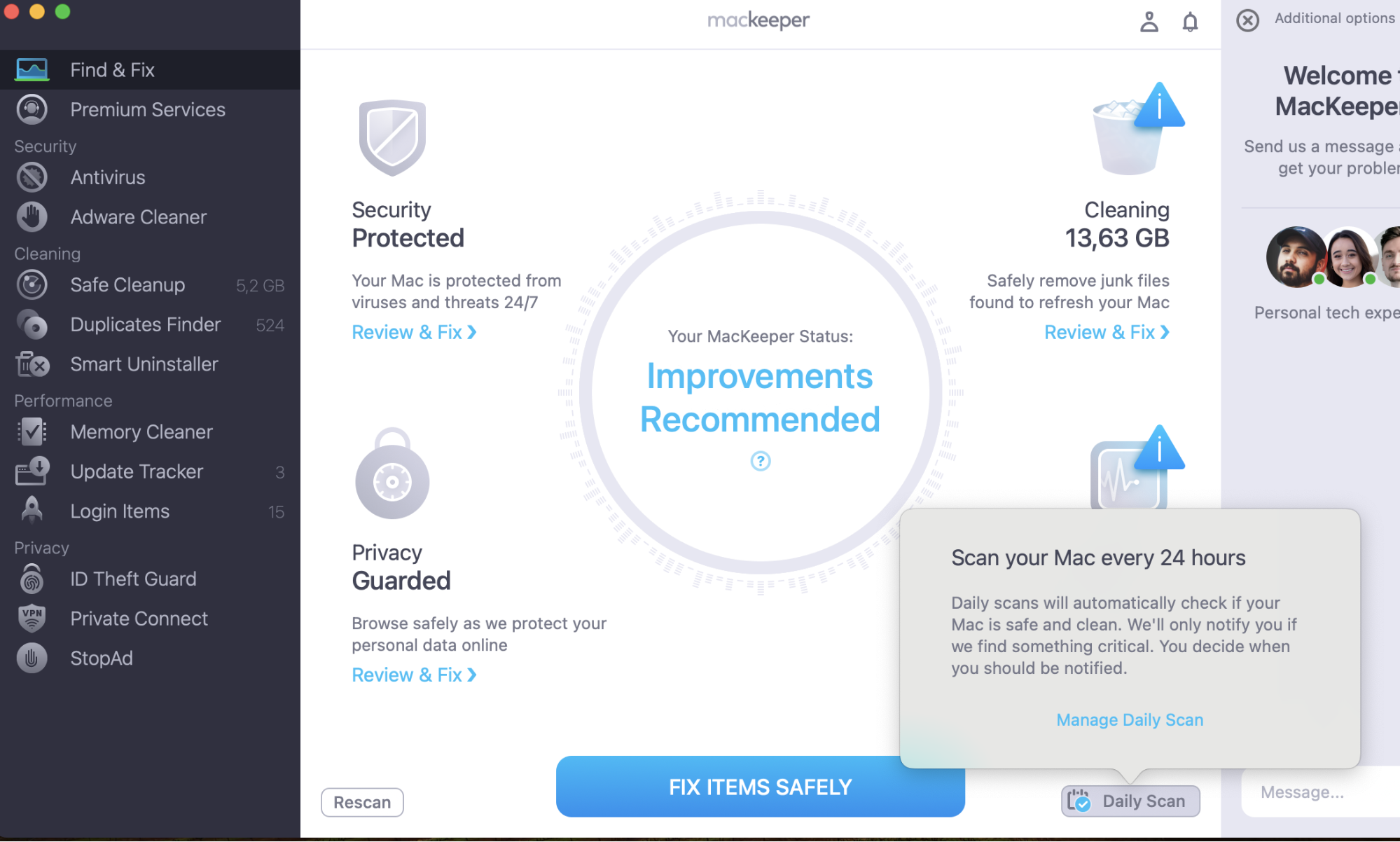
Using the Terminal command line on your Mac can take your Mac experience to the next level, but its incorrect usage may accidentally damage your operating system and make it unusable. So if you need a safer way to uncover your Mac abilities and fix errors, try MacKeeper’s Find & Fix.
With its endless array of commands, Terminal helps Mac users get the most out of their computer. It does this by giving you direct access to the capabilities of your Mac without being hindered by other software.
A note from our experts:
While Terminal is a useful tool for Mac users, it’s not an entirely easy experience learning to use it. If you’re looking for a way to use your Mac better and correct some issues, you can use MacKeeper’s Find & Fix to help get rid of malfunctions and use your Mac to its best.
Terminal is the Mac command-line program that functions as an interface to your underlying operating system.
While there are other apps that can be used similarly to Terminal, it stands apart from them because its commands go directly to your OS.
Using text-based prompts, Terminal helps you to control your Mac by entering a single or chain of commands.
How to open Terminal
Depending on what you’re comfortable with, there are several ways to launch Terminal on your Mac. Here are all the ways that you can do it.
Using Spotlight
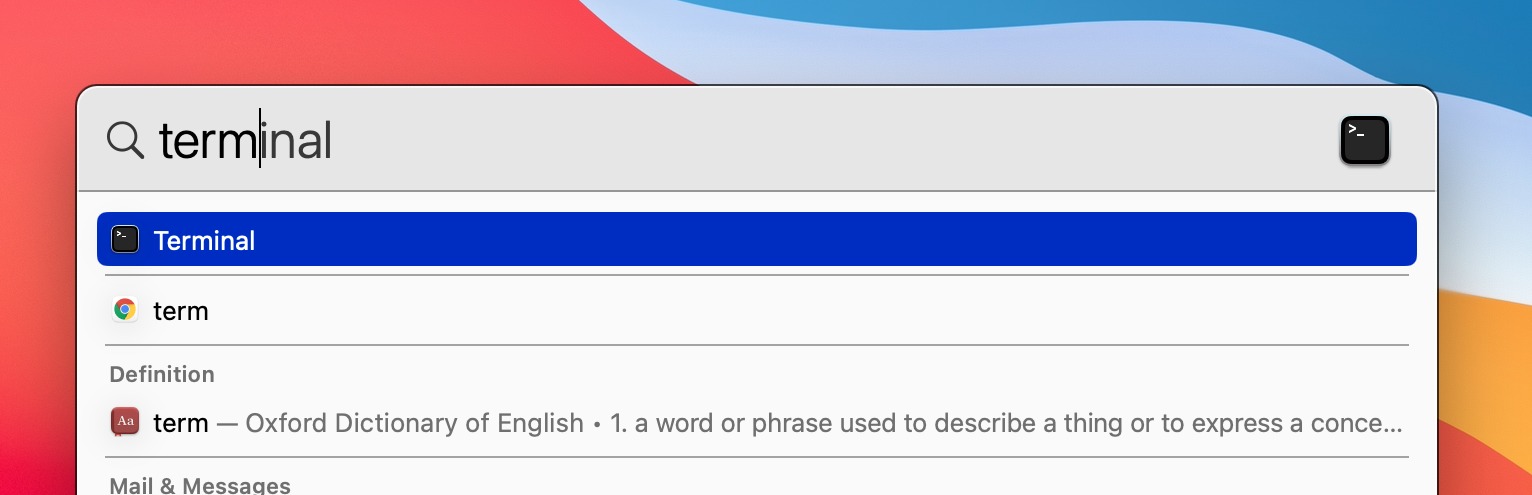
The fastest way to launch Terminal, with as few steps as possible, is through the Spotlight feature. To do this, press Command + Space to launch Spotlight. Then, type “Terminal” into the search box. You can then either click on the Terminal app or press Return.
Through the Applications folder
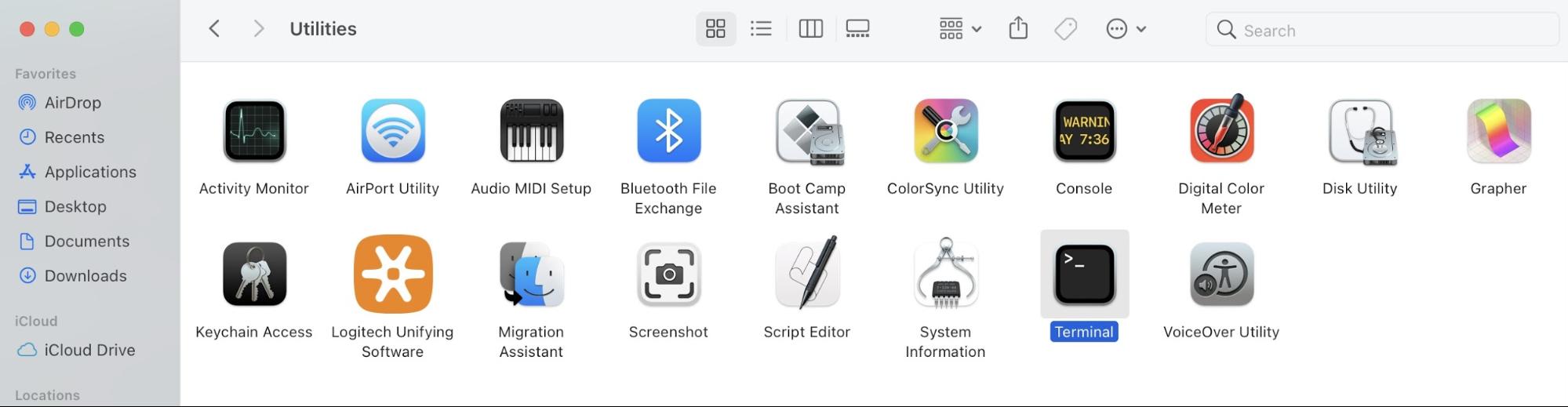
For users who aren’t familiar with Spotlight, Terminal is also available through your Mac’s Applications folder. To launch Terminal, open your Applications folder. Next, select Utilities > Terminal.
Using Finder
The last method to open Terminal is to launch it through Finder. On your Mac, open Finder and type “Terminal” in the search bar. Then, select Terminal.
Once you do any of the methods above, a black window will open on your desktop. You’ll see your username, bash, and window size. This is Terminal.
Common types of Terminal commands
Command lines work with built-in shortcuts that tell your Mac exactly what you want it to do. However, it’s only possible to use these commands when you give them in a way your Mac understands.
Here are some common types of commands that you can use in Terminal on your Mac:
man – verify what a command does
sleep – delay a process for seconds, minutes, or days
kill – terminate a process from the command line
compgen – show available commands and functions
ls – list directory contents
mkidir – directory creation
rmdir – remove an empty directory
locate – locate a directory or file
mv – move or rename a directory
pwd – print the working directory
cd – change directory
cp – copy files and directories for backup
cat – display, combine and create files
touch – file creation timestamp changes
less – view a text file’s content
head – displays the first ten lines of a file
tail – displays the last ten lines of a file
echo – print text in Terminal
grep – search the text for patterns
history – list recent commands
clear – erase previous commands and outputs
exit – close Terminal
Aside from the commands in this list, there are also other commands that you can use. You can even create custom bash commands called “aliases.” In the form of functions, an alias can execute simple and complex instructions.
Parts of a command line
Most types of commands will have three parts – utility, flags, and arguments. Depending on the type of command, flags and arguments are optional. However, the utility is always required to run a command.
Utility
The utility is used to get information, list directories, display content, and make changes to files like copying, moving, and deleting them. Utilities can run on their own or in tandem with single or multiple flags or arguments.
Flag
The flag is a part of the command line that gives the utility options or preferences. Usually, the flag appears after the utility and before the argument. You can identify the flag by the dash, or dashes, that appear before it.
Argument
While it sounds a little aggressive, the main job of the argument is to instruct the utility where to perform its action. Usually located at the end of the command, a single command can have anywhere from zero to several arguments to run.
Tips for using Terminal
Using Terminal for the first time can be challenging. Thankfully, there are plenty of ways to make it easier. Below are a few tips that you should remember when using Terminal.
Take note of characters
Every character is important in a command — including the spaces (or the lack of spaces) at the beginning and end. Additionally, other factors like spelling and capitalization also affect how commands are executed.
Navigate with the arrow keys
Arrow keys are the only way to navigate the Terminal. With this in mind, don’t be alarmed if you notice that you can't use your trackpad or mouse to navigate across command lines.
Repeat previous commands with the up arrow
Repeat commands by pressing the up arrow to find a previously executed command that you want to repeat. Then, confirm it with the Return key.
Automate commands with scripts
Automate commands that you use often using scripts. In tandem with aliases, scripts automate time-consuming workflows and tasks.
Be careful of hackers
Lastly, not all commands are good commands. Before executing a command line, especially when it comes from someone you don’t know, take the time to understand how it will affect your computer.
For many users, Terminal may be hard to understand and use. As a result, many Mac users turn to online tutorials or websites to teach them what command lines to use. However, there are several commands that hackers can use to give them access to your device, delete files without your consent, or crash your computer.
Alternatives to using Terminal command lines
If you’re looking for ways to make your Mac work better, MacKeeper’s Find & Fix helps you.
We respect your privacy and
use cookies
for the best site experience.
Privacy Preferences Center
We use cookies along with other tools to give you the best possible experience while using the
MacKeeper website. Cookies are small text files that help the website load faster. The cookies we
use don’t contain any type of personal data meaning they never store information such as your
location, email address, or IP address.
Help us improve how you interact with our website by accepting the use of cookies. You can change
your privacy settings whenever you like.
Manage consent
All cookies
These cookies are strictly necessary for enabling basic website functionality (including page
navigation, form submission, language detection, post commenting), downloading and purchasing
software. The website might malfunction without these cookies.