Dealing with a MacBook charger blinking orange but not charging can be a deeply frustrating experience, but stick around, and we’ll look at some possible fixes. If you need more help, don’t fret—reach out to the MacKeeper Premium Services team for on-demand, bespoke support, 24 hours a day.
If your MacBook charger is flashing orange and not charging, it is likely to be caused by a hardware issue such as a faulty charger, battery, or charging port. You may have dirt in your charging port, which you can simply remove. In some cases, charging problems can also be caused by software bugs in macOS, which can be fixed with a software update.
Why is your MacBook charger blinking orange?
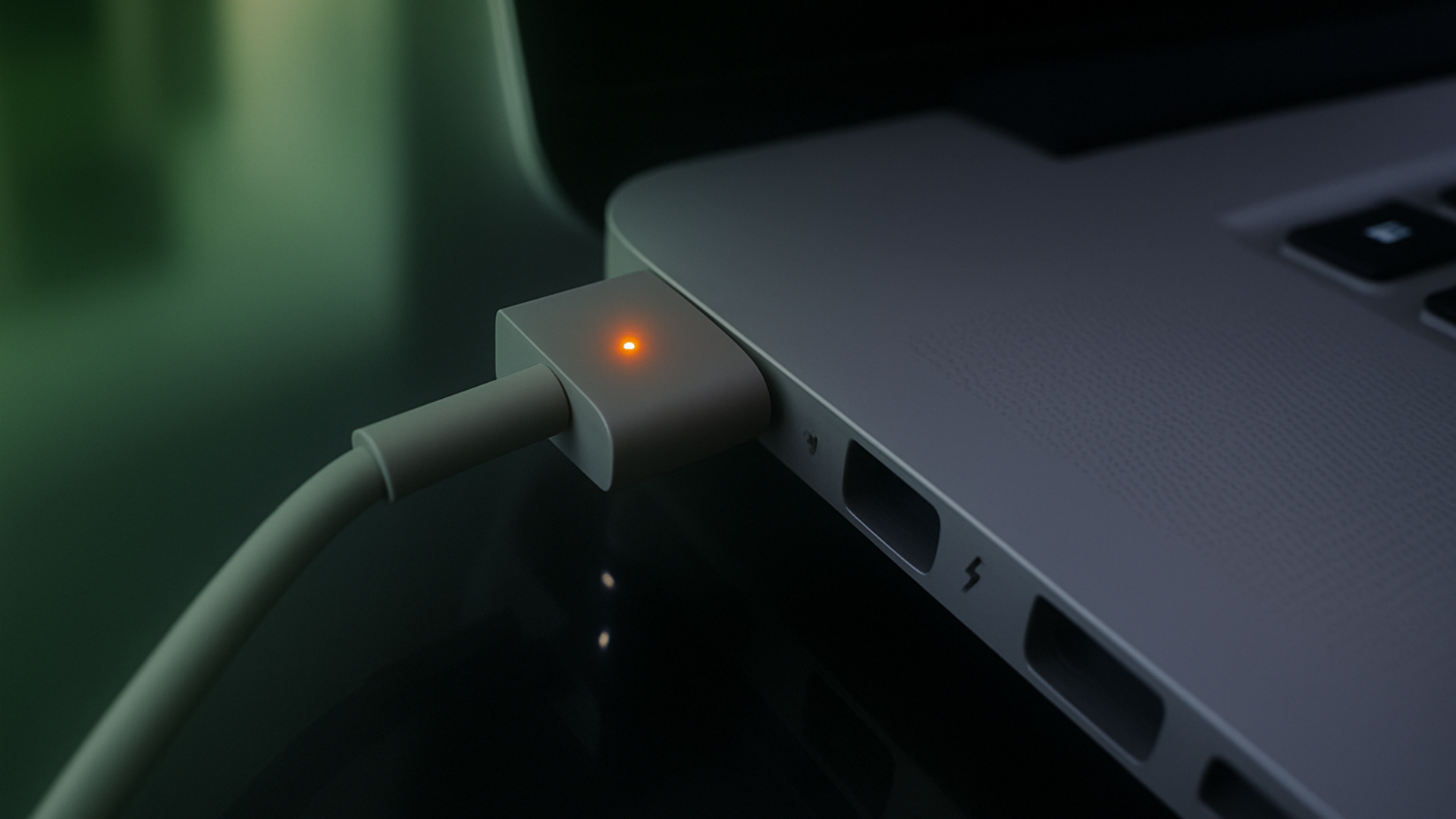
A MacBook charger orange light should be solid. If the light is flashing, it means your Apple laptop isn’t charging properly, and eventually you may not be able to turn the device on. Common reasons for this fault include a broken charger or battery, or some kind of obstruction in the charging port. Charging issues can also be caused by bad software.
Hopefully, you’ll be able to stop your MacBook charger turning orange and not charging, but if the issue is caused by an advanced fault, you might need extra support.
Click Chat Now, and then speak to our online agent.
Reach out to the Premium Services team for expert help
1. Damaged cable or adapter
The most likely reason for a MacBook charger orange light fault is the charging adapter itself. If the charging block or the cable is physically damaged, it can lead to a flashing light. Note that this damage may not be visible from the outside.
2. Battery is not working properly
A flashing orange light usually means your Mac battery isn’t charging, which could be caused by a physical fault inside the battery itself.
3. Charging port is damaged
We suggest looking at your MacBook Pro or MacBook Air MagSafe charging port as well. If it looks damaged, that may be what’s causing the blinking orange light.
4. Dirty charging port
When you’re looking at your charging port, you might notice some dirt in there. That can prevent your MacBook’s magnetic charger from making a good connection, which can lead to a blinking orange light.
5. Problems with MacBook software
We’ve also seen MacBook charging problems caused by software issues. These issues include macOS bugs as well as faults in third-party apps.
6. Dirty or oxidized cable connector
Check the end of your MacBook charger’s cable, and see if it’s dirty or rusty, as this can cause charging issues. (Warning: don’t try to clean the charger while it’s plugged in.)
How to fix MacBook charger flashing orange?
To stop a MacBook charger blinking orange, first check that the charging cable is firmly attached to the charging port. Then try a different power outlet. If that doesn’t work, clean any debris out of the charging port and MagSafe charging connector. If you have access to another compatible MacBook charger, see if that works instead.
Let’s look at some of these fixes in closer detail. If you’re looking for power efficiency tips, check out how to save battery on a MacBook.
1. Check for loose or poor connections
The first thing we suggest is checking that your MacBook charger is properly connected at all ends. Push the plug to make sure it’s fully inserted into your power outlet. Then make sure that the charging block is fully connected and that the end of the power connector has a complete connection with your charging port.
2. Inspect your charger and USB-C cable for damage
Check your charger and cable for signs of physical damage. Signs include:
Holes in the cable covering.
Bent metal on your USB cable.
Cracks or missing parts in your USB-C port.
Rust or other water damage.
Burn marks or a burned smell in your charging port or cable.
Physical damage to the charger plug.
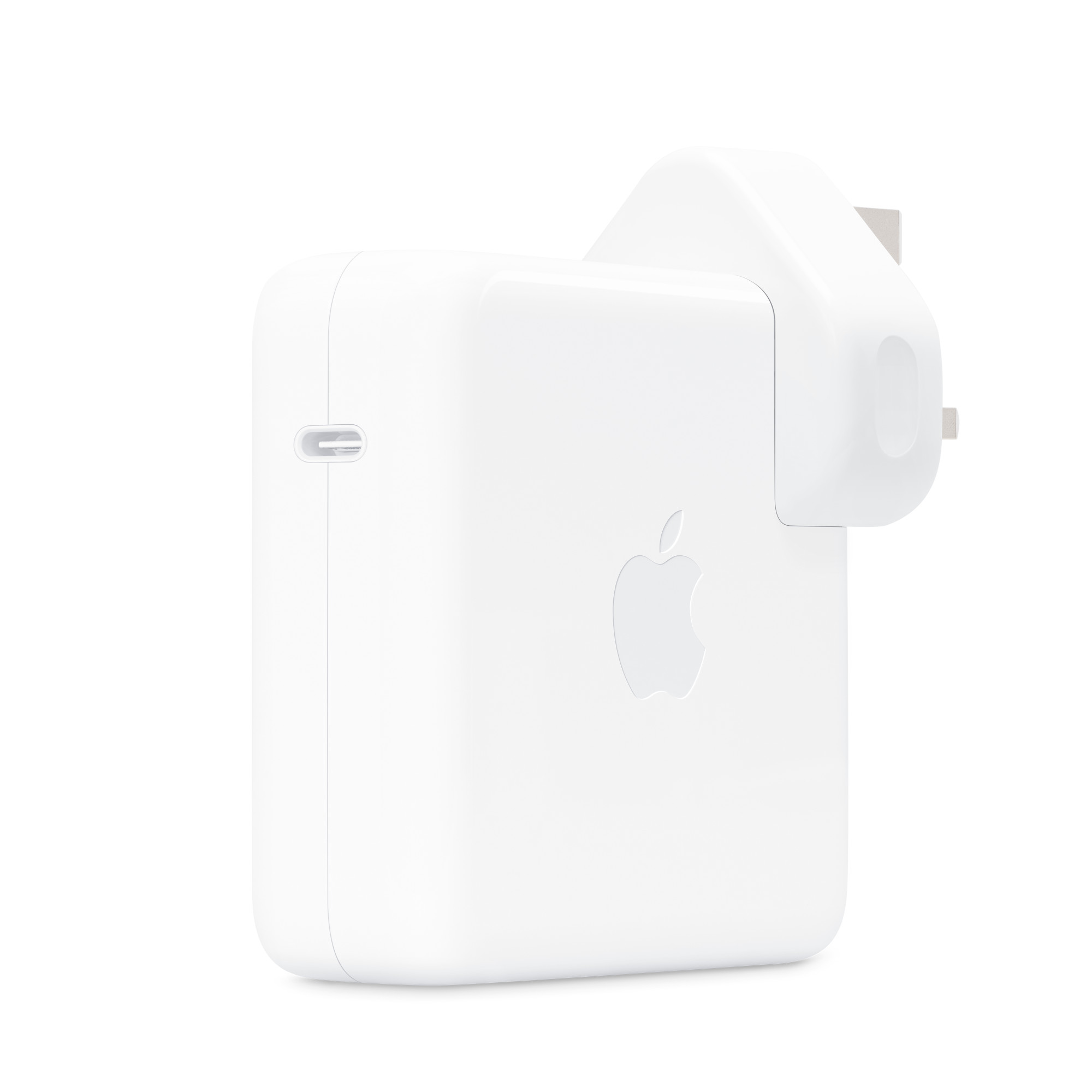
If you're going to replace your charger, get an official Apple unit
3. Test with another charger or cable
In our experience, a lot of charging issues are caused by faulty cables, particularly ones that are made by third parties. Try different cables with your charger, and see if it fixes the problem. Also, try using a completely different charger, if you have one.
We recommend trying your charger on another Mac too. If it works, then you know the problem is not the charger.
4. Clean your charging port and cable connector
Before you clean anything, turn off your MacBook completely, and unplug your charger from the mains. Wipe your charging port and charger connector gently with a lint-free cloth. You can also use pure isopropyl alcohol or specialist cleaning fluids.
5. Updating macOS
We strongly suggest that you keep macOS fully updated, in case Apple has patched any bugs that affect charging.
The usual macOS update process looks like this:
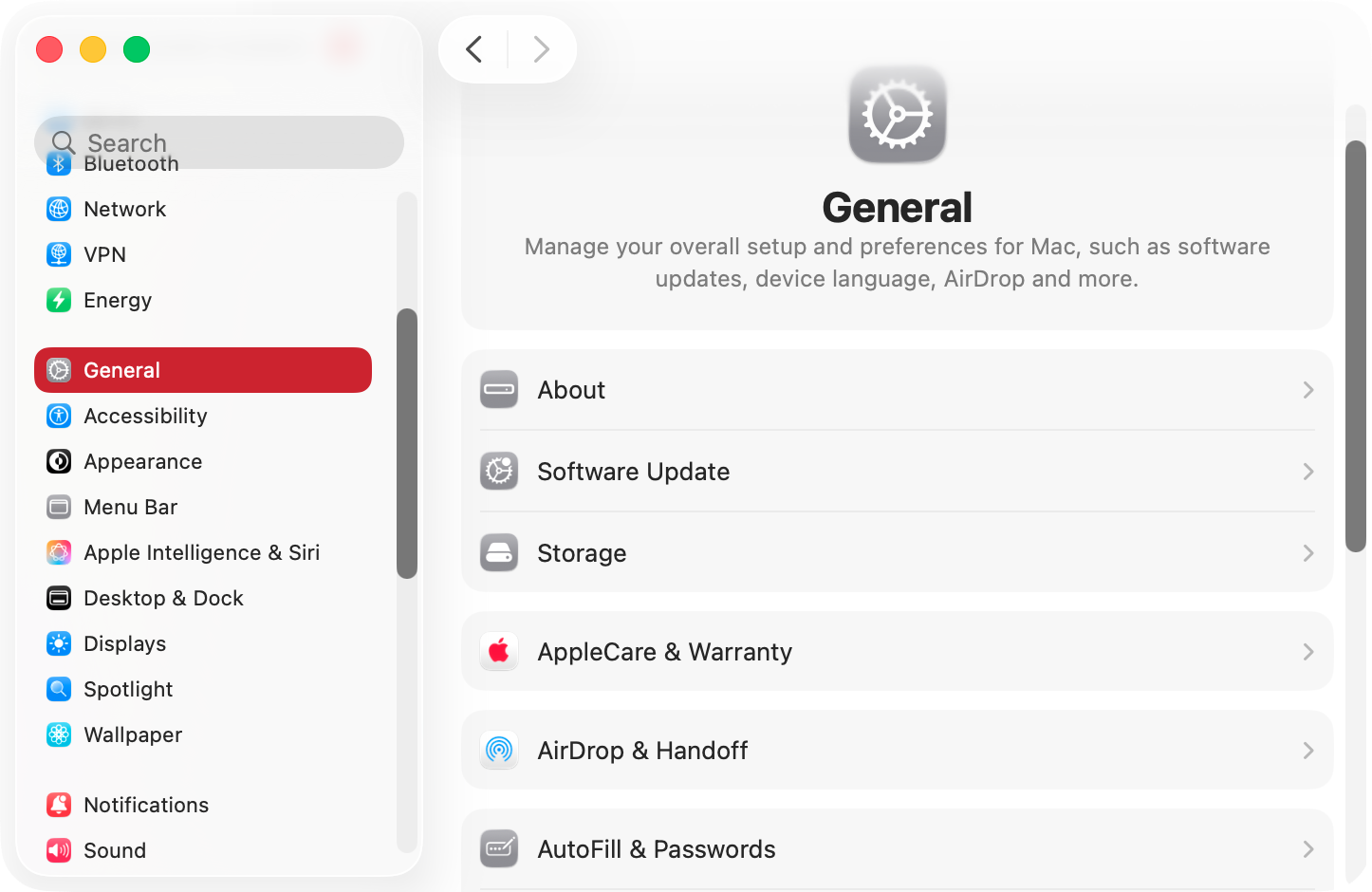
In System Settings, navigate to General > Software Update.
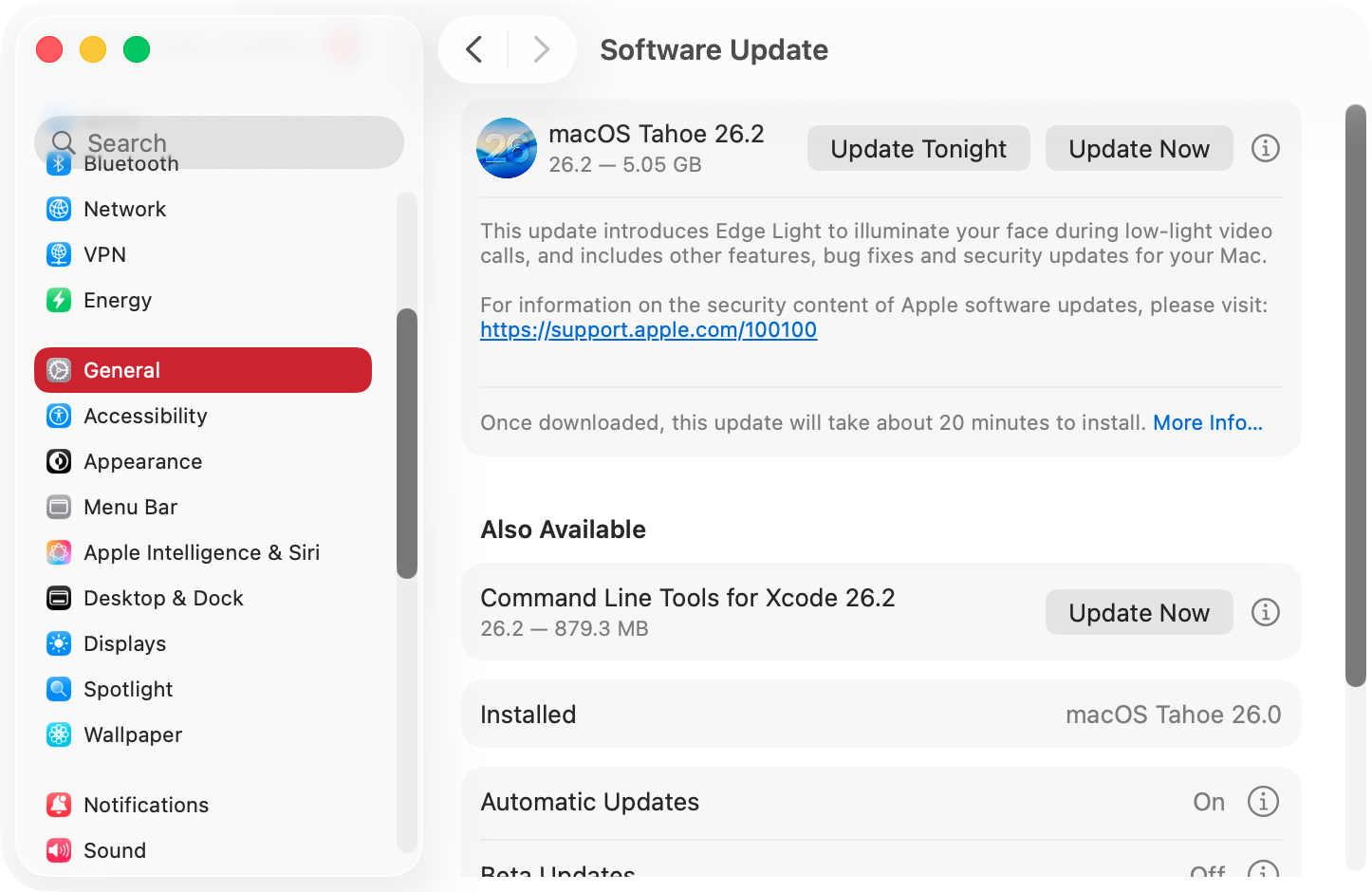
If any updates are available, click Update Now.
Follow the on-screen prompts to install the update.
Restart your Mac, and then see if your charging problem has been fixed.
Step 1. Select General > Software Update in System SettingsStep 2. Apply any updates and try charging your MacBook again
Also, look out for Mac power management features, as these might have something to do with your MacBook charger flashing orange. We’ved done the job to release your pain.
6. Resetting SMC
Resetting the System Management Controller (SMC) on your Mac could fix your charging issues. On an Apple Silicon Mac (with processors like the M1, M2, M3, and M4), you only need to restart your machine.
To reset the SMC on an Intel MacBook with a T2 Security Chip:
Turn off your Mac.
Press and hold Left Ctrl+Left Opt+Right Shift.
After seven seconds, press and hold the power button too.
To reset the SMC on an Intel MacBook that doesn’t have a T2 chip:
Power down your MacBook.
Press and hold Left Shift+Left Ctrl+Left Opt+Power for 10 seconds.
Turn your Mac on.
7. Replacing faulty parts
If your charger is broken, you can simply order a new one. We recommend getting an official Apple charger. If you think anything else is broken, like the charging port on your MacBook, the battery, or some other internal part, then you’ll need a different solution.
8. Seek professional help if the issue persists
If you’ve tried all the tips in our guide and you’re still seeing a flashing light on your charger, then your MacBook could have a serious hardware fault. Hopefully, your Mac is still under warranty or covered by AppleCare. If so, you can contact Apple and get your computer repaired or replaced.
The MacBook charger orange light problem is often caused by something simple—like a loose connection or a bit of dirt in the charging port. In some cases, you might have to replace your USB cable or your charger. Unfortunately, power issues can also be caused by software bugs, malware, and serious hardware faults.
The good news is you’re not alone, even if your Apple warranty has run out. With MacKeeper’s Premium Services, you can get expert help whenever you need it. Simply explain your issue to our team, and they’ll give you the advice you need, when you need it.
We respect your privacy and
use cookies
for the best site experience.
Privacy Preferences Center
We use cookies along with other tools to give you the best possible experience while using the
MacKeeper website. Cookies are small text files that help the website load faster. The cookies we
use don’t contain any type of personal data meaning they never store information such as your
location, email address, or IP address.
Help us improve how you interact with our website by accepting the use of cookies. You can change
your privacy settings whenever you like.
Manage consent
All cookies
These cookies are strictly necessary for enabling basic website functionality (including page
navigation, form submission, language detection, post commenting), downloading and purchasing
software. The website might malfunction without these cookies.