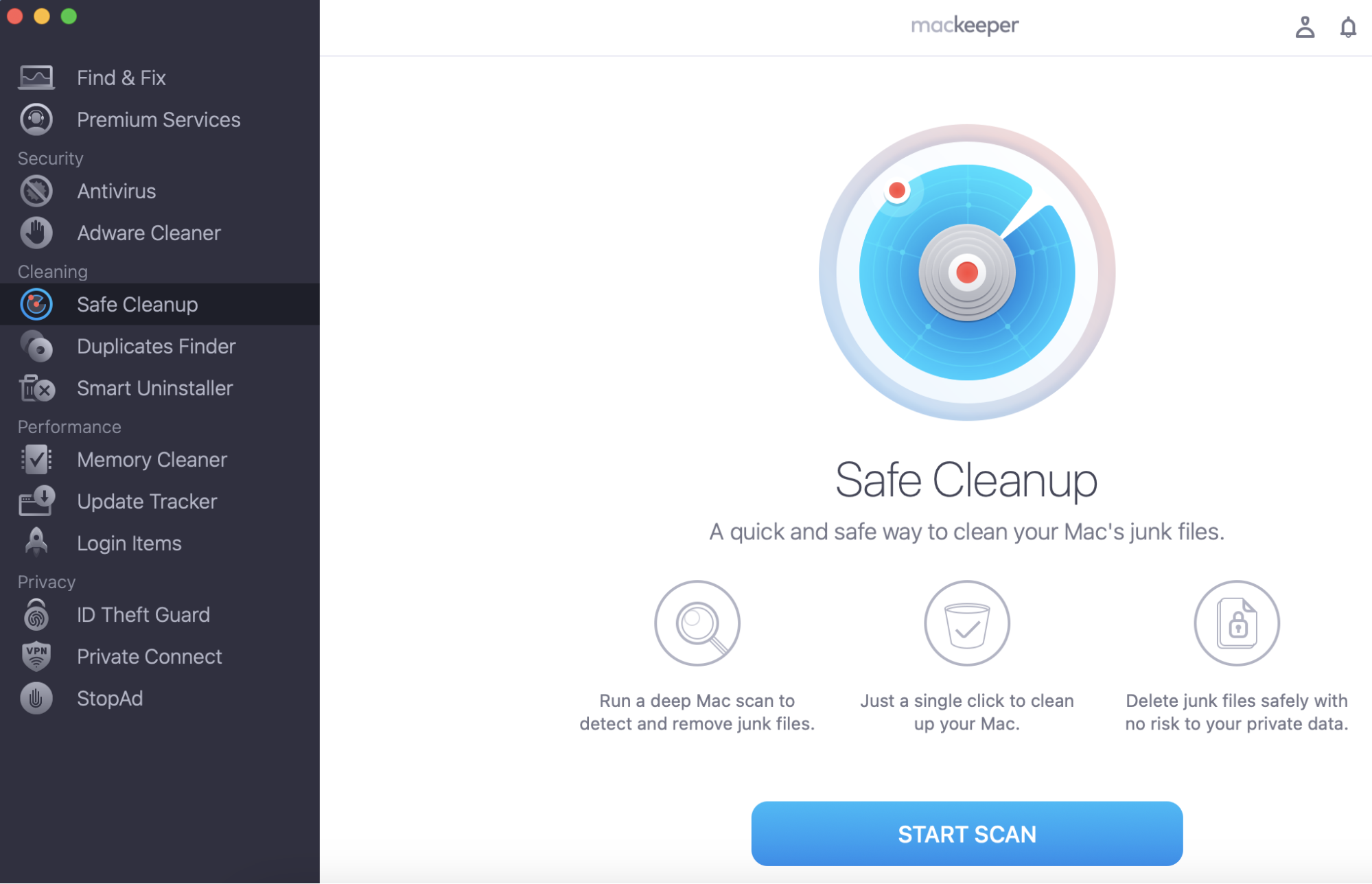
Before diving deep into our macOS Big Sur update overview, make sure your Mac has sufficient storage for this newest macOS installation. MacKeeper’s Safe Cleanup can help here—it will check your Mac for junk and remove it to free some gigabytes.
Many wonder whether they should update their Macs to Big Sur straightaway. What might stop you is the reputation of the macOS Big Sur beta version. It was marked #1 on the least stable Apple releases list. Among known issues are unexpected reboots and typical for the previous releases—apps freezing and not working like they are supposed to.
If you’re okay with the initial bugs—try your luck and update to macOS Big Sur 11.0.1. However, consider these before updating:
If you don’t feel like having disturbances in your Mac’s performance (like troubles during the Big Sur installation)—postpone updating. The next macOS Big Sur updates will bring bug fixes.
If you need all of the apps to run as usual because you need them for work or so (no one wants to have a video conference breaking up)—upgrade when the next build is released.
A note from our experts:
Before upgrading your macOS, ensure your Mac has enough space for the new software. MacKeeper’s Safe Cleanup automatically removes caches, log files, mail attachments, and other unnecessary items. Try ot out today!
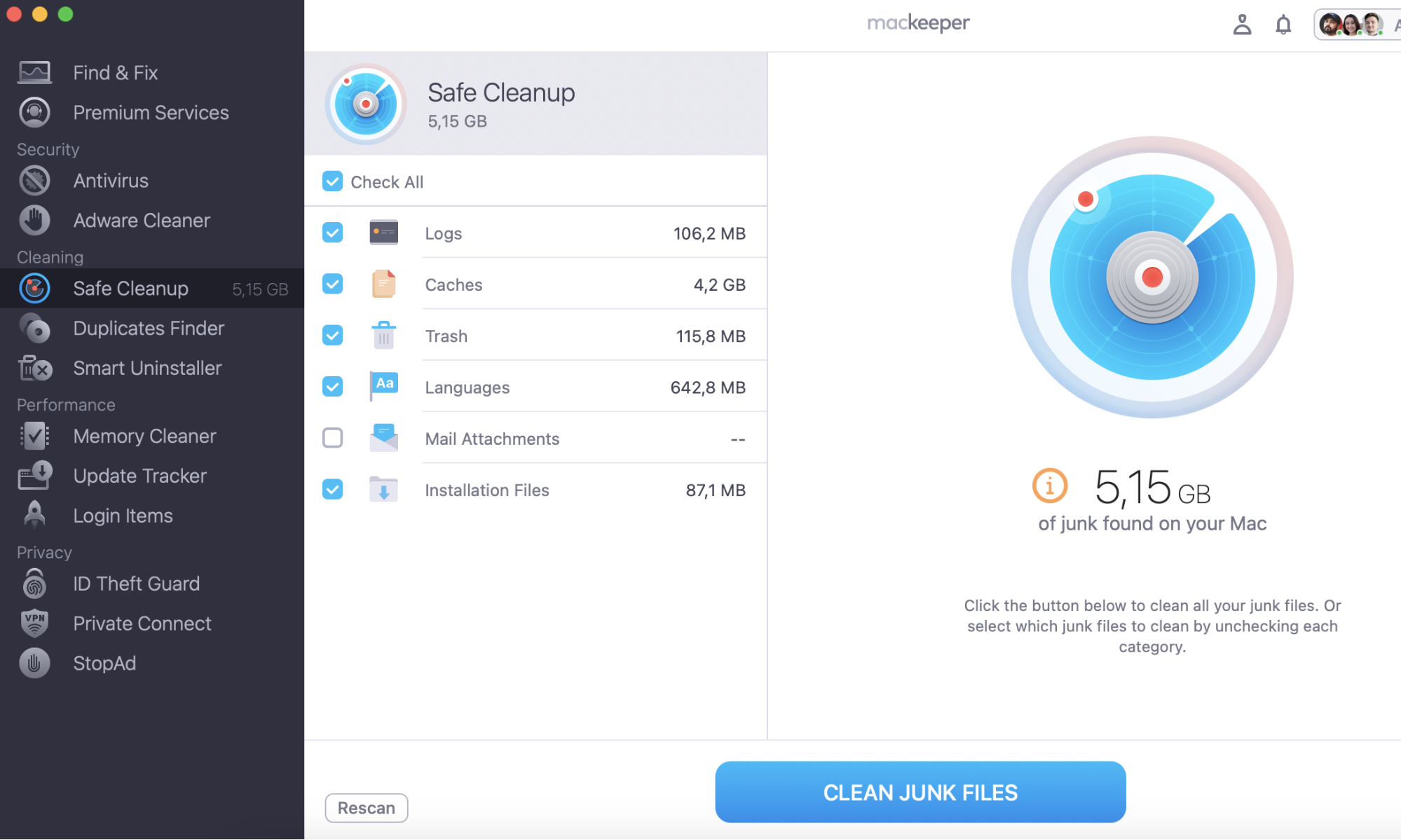
Select the file to remove and click Clean Junk Files.
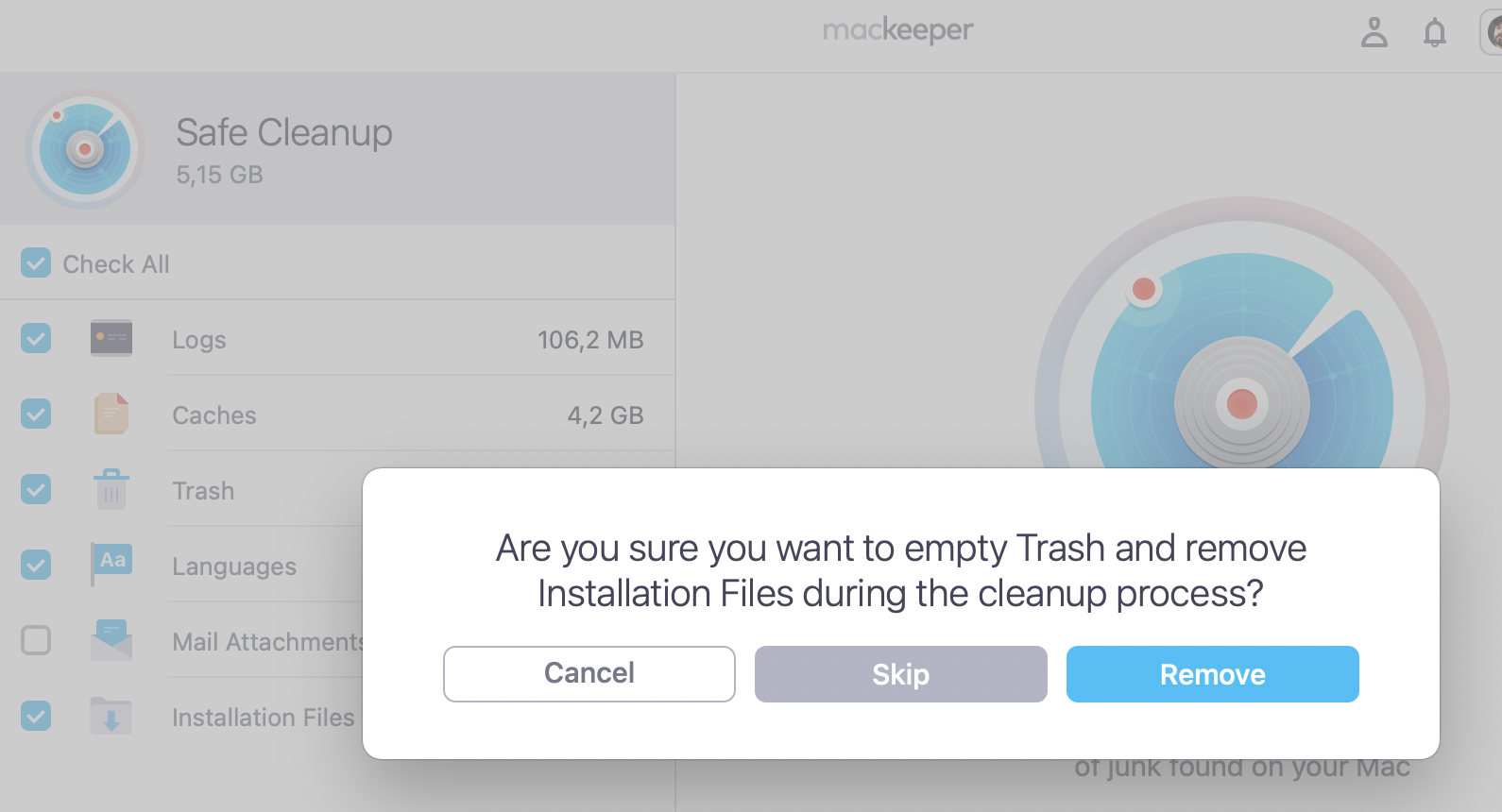
Step 1. MacKeeper > Safe Cleanup > Start ScanStep 2. Tick the boxes with the files to delete > Clean Junk FilesStep 3. Click Remove
Prepare your Mac for upgrade
Get ready for the macOS Big Sur upgrade by freeing up space on your Mac. You’ll need a bit more than 12GB to download it. Many Mac users can bump into the lack of disk space problems while upgrading to macOS 11.
How can you win extra GB back for the macOS Big Sur installer?
Delete useless files. Run the Safe Cleanup scan in MacKeeper 5 to get rid of junk files, duplicates, mail attachments, cache, logs, and even empty Trash. You might be surprised at how much GB are wasted by those items.
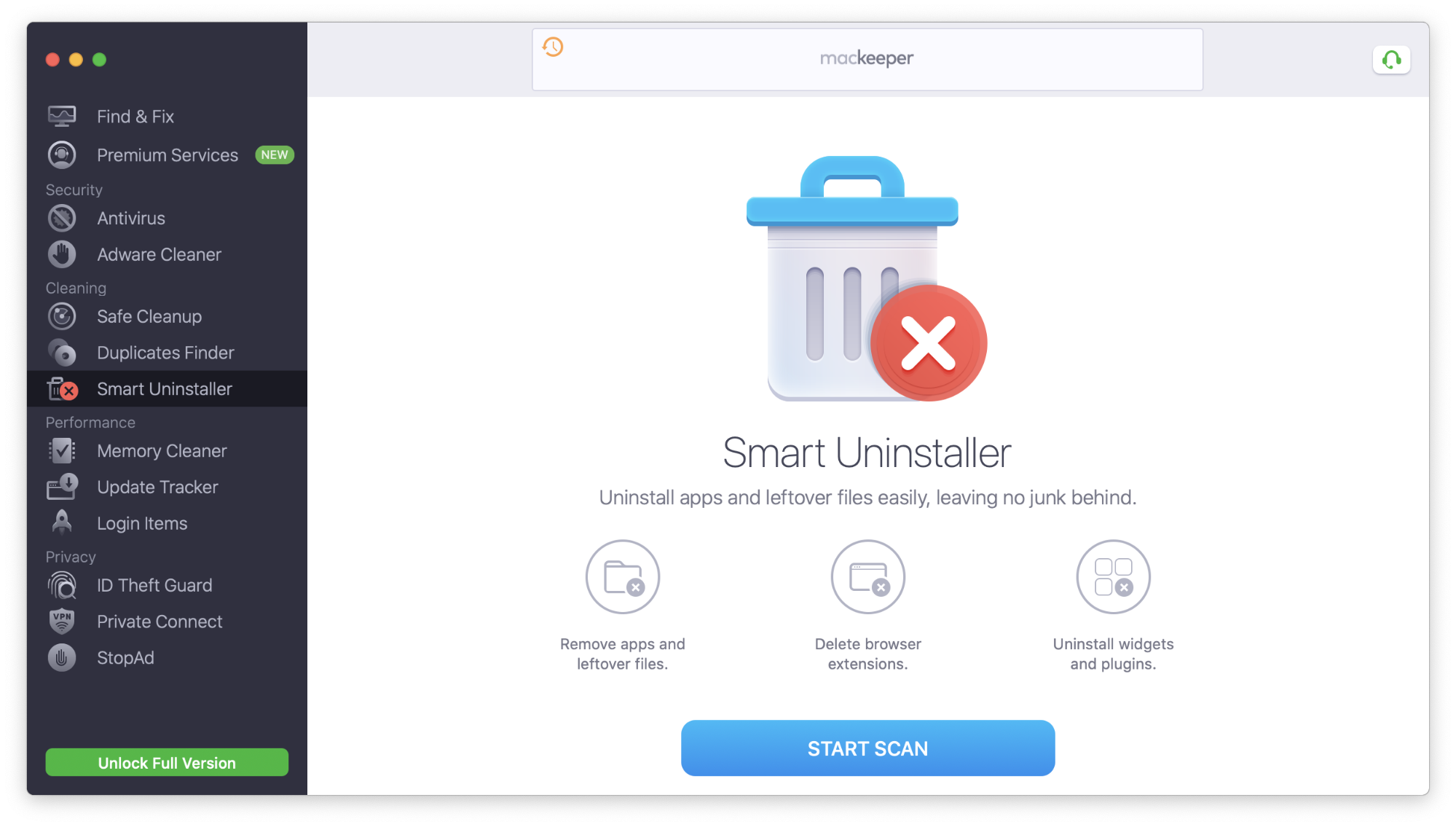
Review apps. Unused or long-forgotten apps contribute significantly to reducing free space on your Mac. The Mackeeper's Smart Uninstaller tool deals with such and helps you decide and delete the software you don’t need anymore.
With an extra 12 GB at hand, read on to find out how to download and install macOS Big Sur.
Big Sur compatible devices
Check out the table below to see if your Mac is eligible for the Big Sur upgrade:
With your Mac model compatible with macOS Big Sur and enough free space—check how to download and install it. You can do this in two ways.
Via the App Store
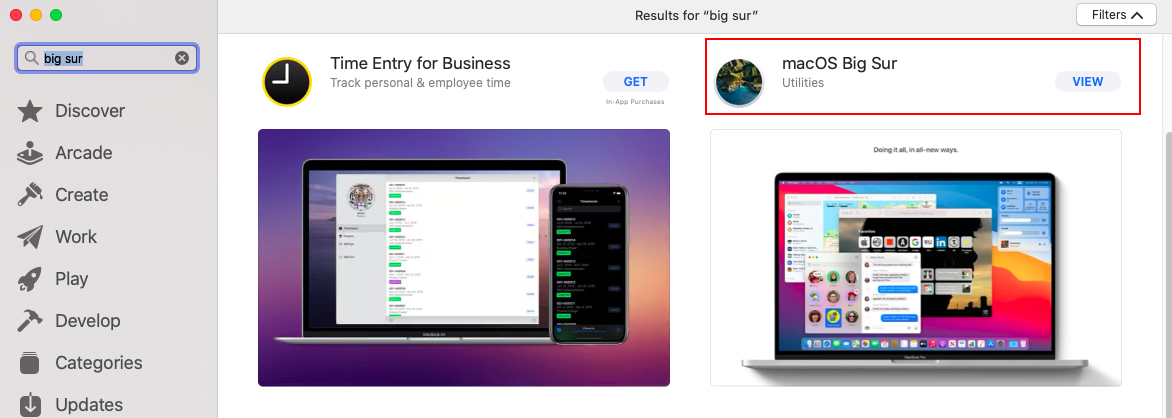
Open the App Store app—type in the search bar Big Sur—press Enter.
Click View next to the macOS Big Sur search option.
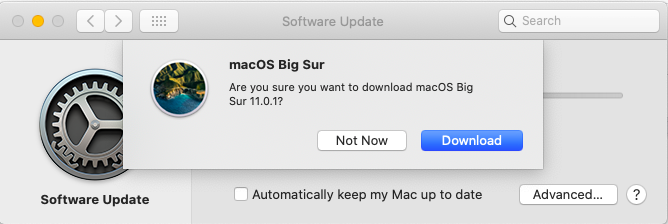
Click the blue Get button—press Download to confirm you want to download the macOS Big Sur.
After the download—wait for the installer to open automatically—follow the hints to load and install macOS Big Sur.
Step 1. Open AppStore, search for Big Sur and click View Step 2. Click on the Get button, then press Download
Via System Preferences
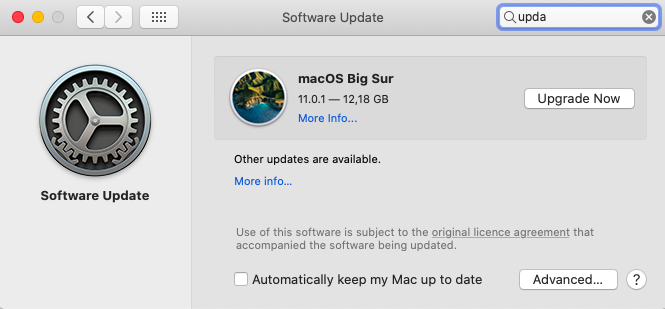
Open System Preferences—click the Software Updatetab.
Wait for the scan for updates to be over—click the Upgrade Nowbutton.
Check for the install window to open automatically upon the download.
Go through the follow-up instructions on how to upgrade to macOS Big Sur.
What is new in Big Sur?
Big Sur has an extensive list of updates—from privacy, design to international features. Read on to get a brief intro on the updates.
The refined design and user experience
The new macOS gives your Mac a fresh new look. The vivid color palette, smooth window corners, new apps icons, changed buttons and controls shape, new sounds on your Mac will make your Mac experience even better. Let’s see what else has been upgraded:
The Dock. The redesigned translucent Dock lets your wallpaper be seen through. Also, it gets easier to recognize the apps icons in the Dock
Control Center. The new Control Center can be customized, and now you can make features and controls for the apps you use the most meet in one place
Sidebar. Now it’s full-height and lets you find what you need much quicker
Notification Center. Grouped and interactive notifications will make your everyday routine tasks more comfortable and more fun to do.
Customize widgets by size, remove or add the ones you want just by dragging them to the widgets list
Pin apps to the menu bar. Just drag & drop apps you wish to see in the menu bar
The enhanced Safari
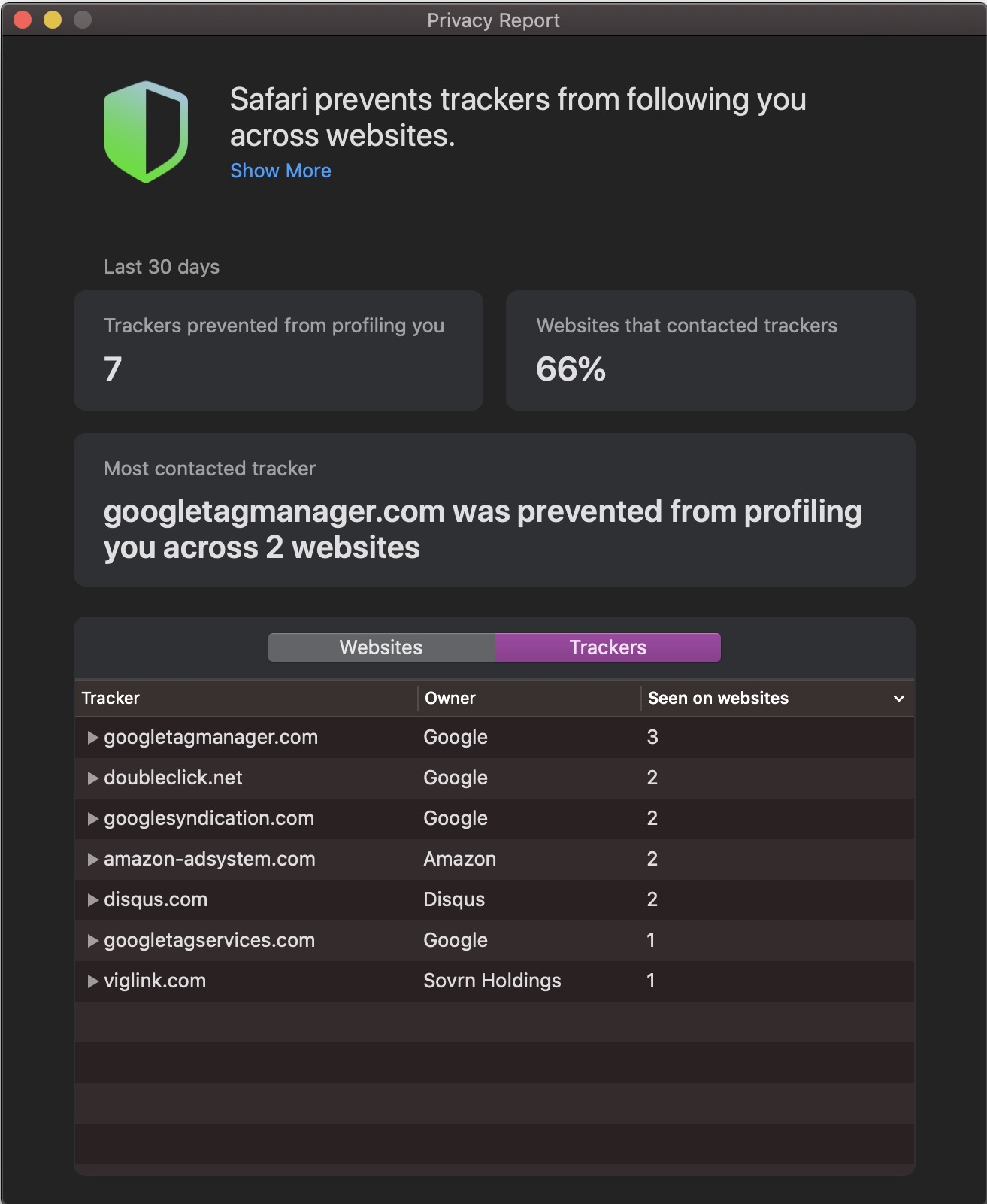
The new features added to Safari will lure more Mac users into making it as a default browser. Its new privacy features are a major breakthrough, allowing you to monitor your saved passwords and get instant warnings in case they get leaked. Plus, detailed privacy reports on each website you visit will show you the trackers prevented by Safari. And that’s just a small part of the improvements.
See what has been improved:
Speed. Safari is claimed to be one of the fastest browsers. Now it loads frequently visited websites 50% faster than Chrome
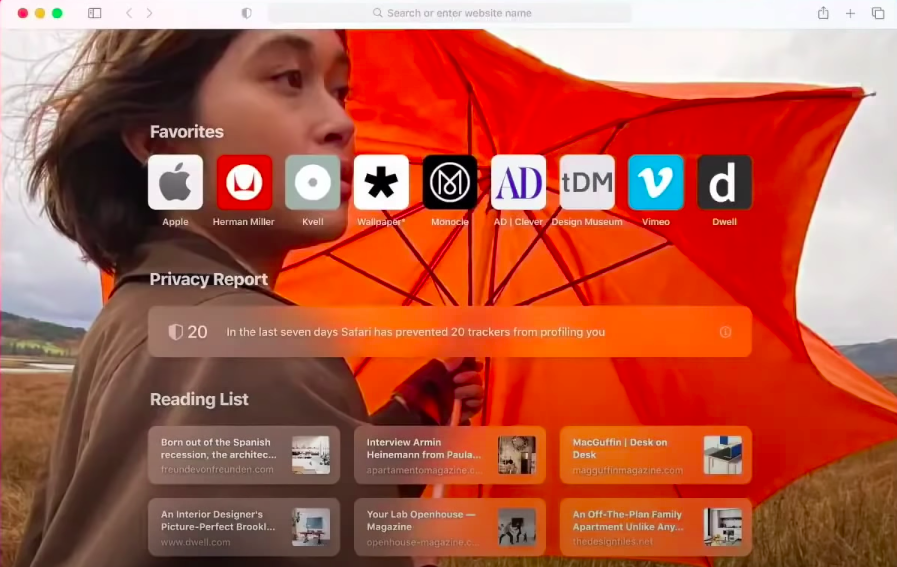
Start page. Make your Safari start page look the way you want—set background with the photo you like and add Favorites, Reading List, or Safari Privacy Report to the start page
Favicons in your default tabs will help you recognize and open the tabs you need at once
Power efficiency. Use the new Safari for energy-saving and have one additional hour of web surfing in comparison to Chrome or Firefox
Website preview. Hover over a tab to get a sneak peek of what’s on the webpage you’re about to visit
Monitor passwords. Safari will notify you if any of the passwords you’ve saved get leaked in a data breach
Privacy Report. Get a detailed report on your internet activity and see the list of online trackers detected by Safari
Import Chrome bookmarks. Now you can import your bookmarks, history, or passwords from Chrome to Safari
Other updates
Maps
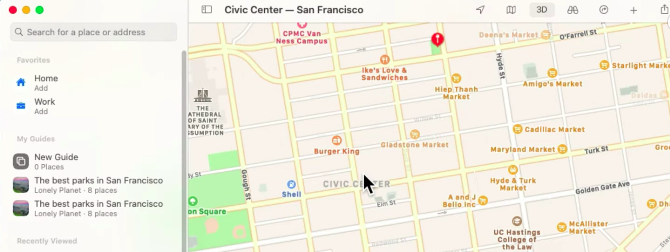
Maps upgraded features include indoor maps, guides recommending some local places to visit, 3D look around the view, cycling routes, and more.
Messages
Pin, group your conversations, mention people in the group chat, and answer a specific message with inline replies. These and much more come with the new Messages.
Airpods
With macOS Big Sur AirPods, switch between your Apple devices automatically (when paired to one iCloud account). It’s pretty convenient when you are switching from an iPhone to a Mac.
Bottom line
If you can’t wait any longer to use all the newest features and you’re aware of possible bugs—go get it! However, we would recommend holding off until Big Sur gets updated to become more stable.
We respect your privacy and
use cookies
for the best site experience.
Privacy Preferences Center
We use cookies along with other tools to give you the best possible experience while using the
MacKeeper website. Cookies are small text files that help the website load faster. The cookies we
use don’t contain any type of personal data meaning they never store information such as your
location, email address, or IP address.
Help us improve how you interact with our website by accepting the use of cookies. You can change
your privacy settings whenever you like.
Manage consent
All cookies
These cookies are strictly necessary for enabling basic website functionality (including page
navigation, form submission, language detection, post commenting), downloading and purchasing
software. The website might malfunction without these cookies.