You whip out your phone to quickly check a grocery list you saved on your Mac, only to find it failed to sync, meaning there’s no way to access it on your phone in real time. That’s not a problem you want to experience at the grocery store. If you’re having trouble getting your notes to sync between your iPhone and Mac, consider reaching out to tech experts through MacKeeper’s Premium Services—they’ll help you fix your notes syncing issue and other system issues on macOS quickly and efficiently.
Apple syncs your Notes content by storing it in iCloud, its built-in cloud service, and updating your content across all Apple devices. That means whatever changes you make on your Notes app in your iPhone almost reflect immediately on the Notes app on your MacBook computer, as long as you’re signed in to Notes with the same account or email address across all devices. This ensures you can easily and conveniently access your Notes at home or on the go.
Why are Notes not syncing between Mac and iPhone?
There are several reasons why your notes may not be syncing across your iPhone and Mac devices. One of the common culprits is a weak internet or Wi-Fi connection. You may have also forgotten to sign in to your iCloud account on one of your devices, which can affect the syncing process. In some cases, you may be signed in to different iCloud accounts on each device. Notes may not be configured correctly. Apple’s servers could also be experiencing issues.
A note from our experts:
Unless you’ve previously experienced a similar issue with iCloud not syncing your notes and fixed it, you might not know what to do. That’s where MacKeeper’s Premium Services tool comes in. Think of it as your personal Apple Support, right on your laptop. It connects you with tech experts who are experienced in troubleshooting Mac’s system issues, saving you time and costly mistakes. Worried about your privacy and keeping your data safe? MacKeeper is notarized by Apple, which is why it’s trusted by MacBook owners worldwide.
Start using MacKeeper’s Premium Services today (it’s free if you already have the MacKeeper app). Simply follow the steps below.
Select Premium Services from the sidebar on the left of the screen.
Click the Chat Now button on the right to start chatting with an expert and describe your problem in the text box.
How to fix if Notes are not syncing between iPhone and Mac?
First, check your internet connection, restart your iPhone and Mac devices, sign in using the same iCloud account on both devices, then enable iCloud service for Notes, check your Notes settings and Apple System status, sign out of iCloud, and back in again. Ensure that iCloud storage is available. Then, check for updates on your devices and whether notes are saved in iCloud or on your iPhone. Finally, contact Apple Support.
Typically, one cause is responsible for your iCloud not syncing on your iPhone and MacBook device. Using the process of elimination, follow the guides below to fix it.
1. Check internet connection
More often than not, our internet connection is the reason why our notes aren’t syncing across our devices. Whether it’s a weak signal or we unknowingly disconnected the Wi-Fi, checking it usually does the trick.
Here’s how to check your internet connection:
Click on the Wi-Fi icon in the upper-right corner of the screen.
Confirm that Wi-Fi is enabled.
2. Restart iPhone and Mac
Restarting our devices is our go-to solution when an app doesn’t work properly, including when our notes aren’t syncing on either our iPhone or MacBook devices. This action resolves any software conflicts that may be causing an app to malfunction.
Here’s how to restart your iPhone and Mac devices:
To restart your iPhone, press and quickly release the volume up button, followed by the volume down button, and hold the side button until the Apple logo appears.
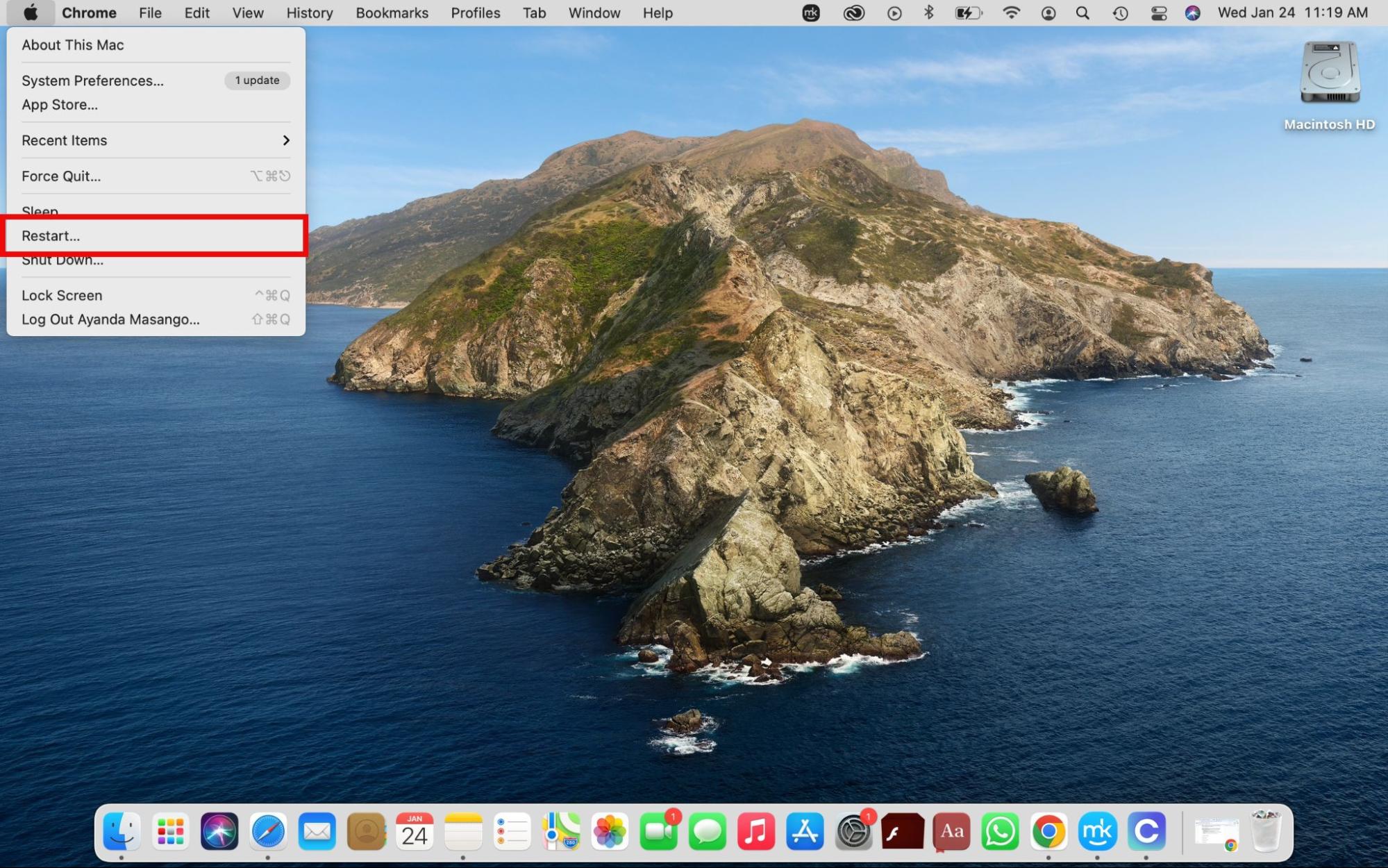
To restart your Mac, click on the Apple menu and choose the Restart option.
3. Sign in using the same iCloud account on both devices
We’ve sometimes made the mistake of signing in to different iCloud accounts on our iPhone and MacBook devices, making it virtually impossible to sync notes (or anything else, for that matter). Avoid making the same mistake—sign in to the same iCloud account on both your iPhone and Mac.
4. Enable iCloud service for Notes
When we first started using Apple products, we assumed all of Apple’s built-in tools and apps were automatically synced to iCloud, but this isn’t the case. You must enable iCloud for Notes, especially when your notes are failing to sync.
To enable iCloud for notes, do this:
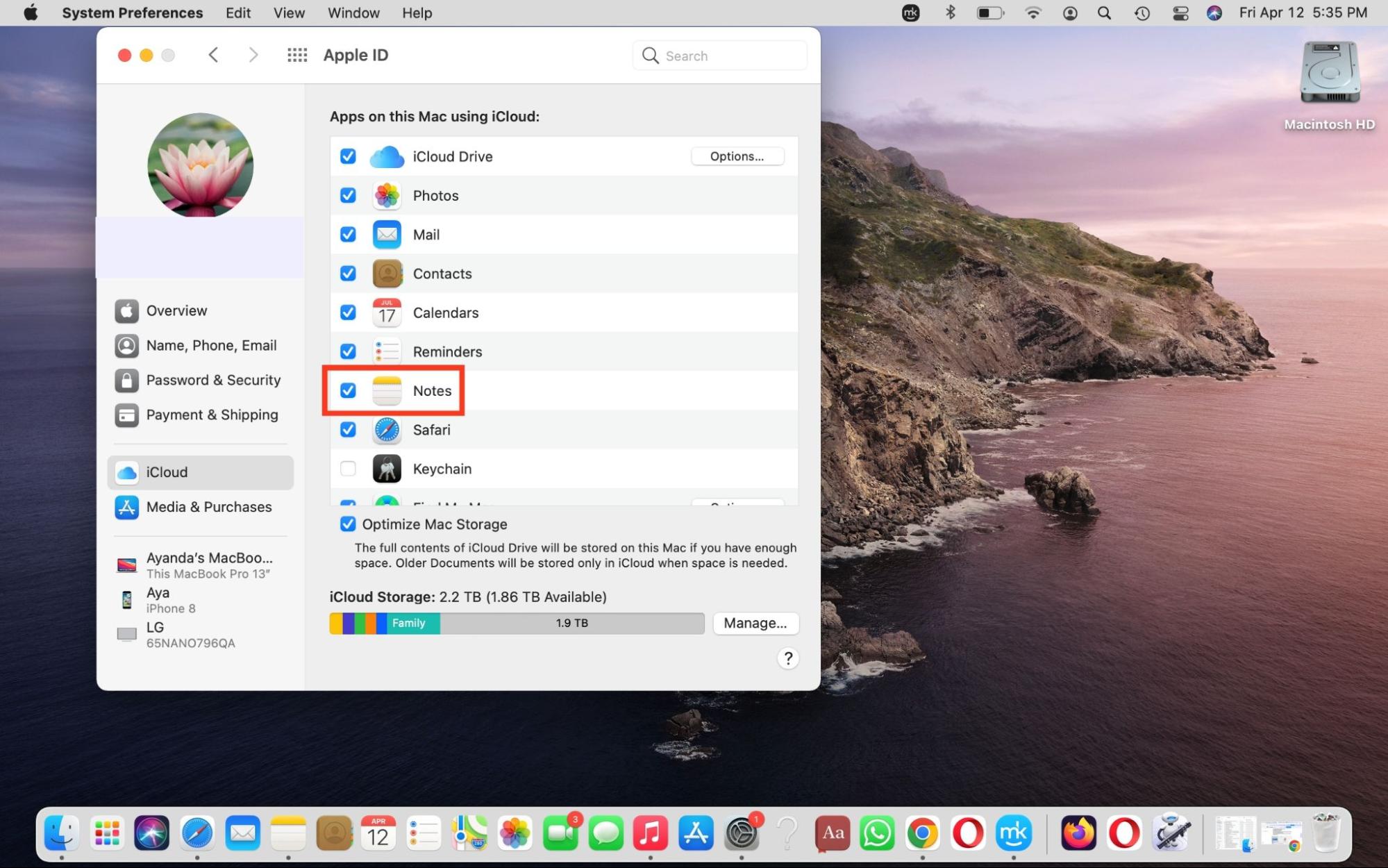
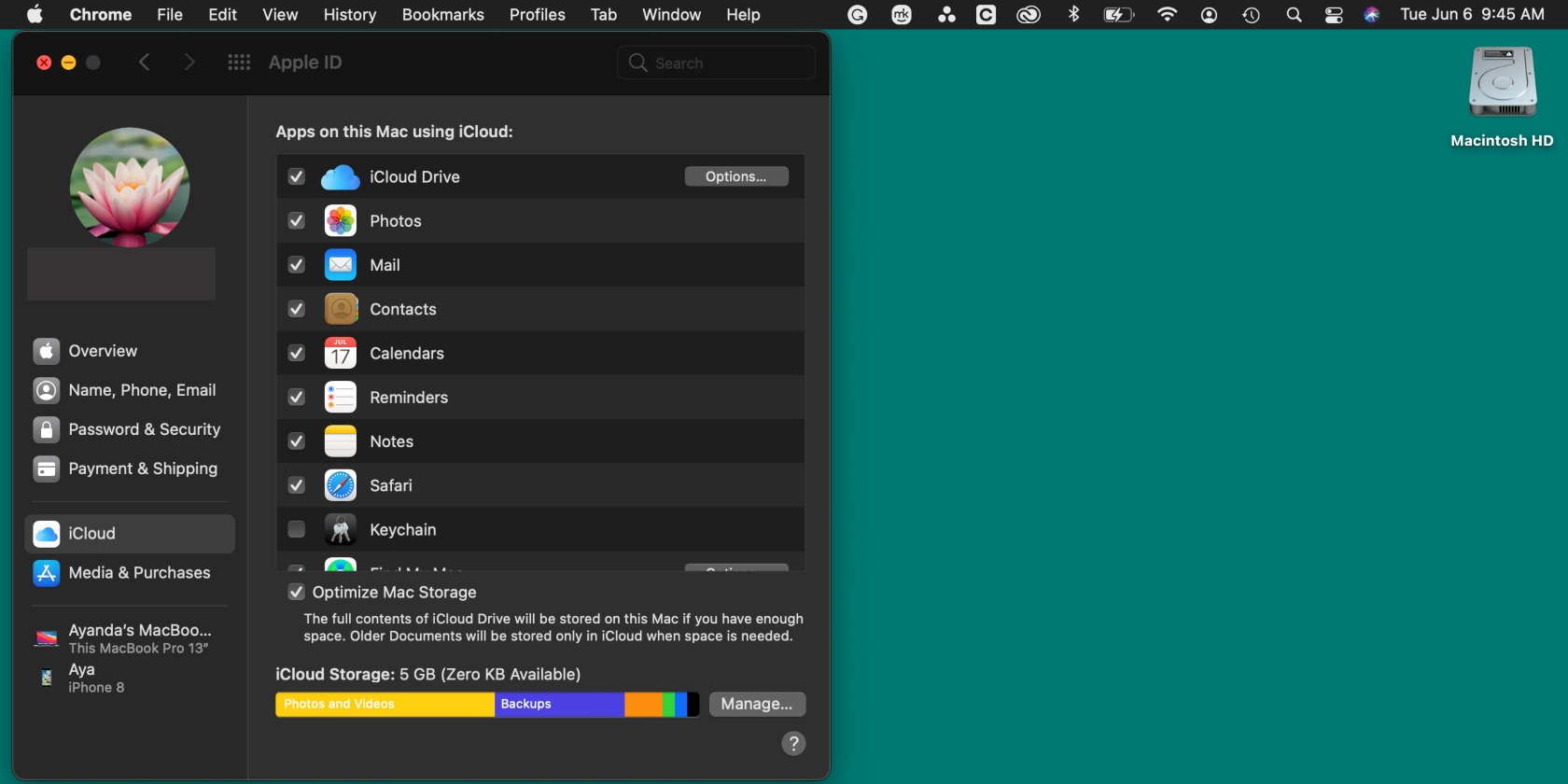
On your MacBook, go to System Preferences > iCloud > Notes and tick the box next to Notes.
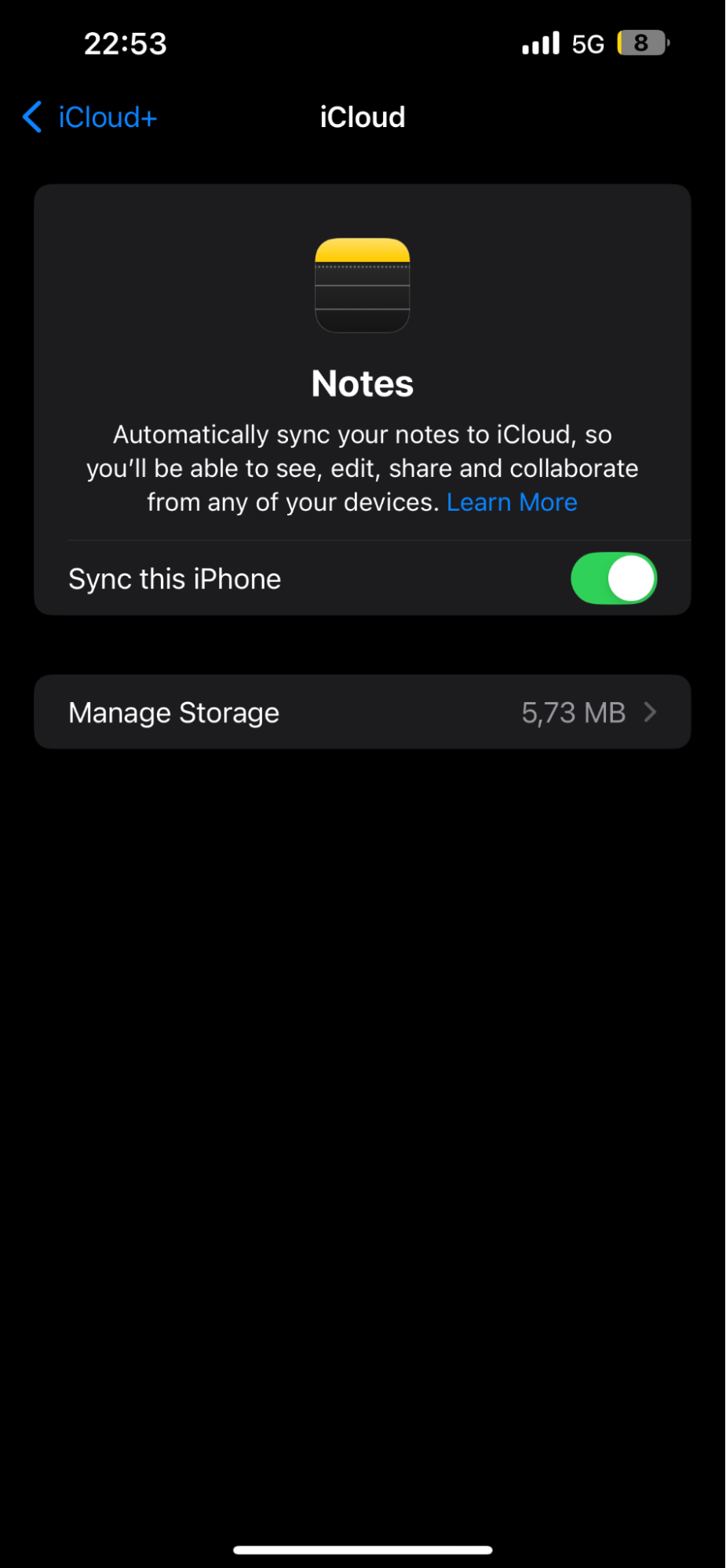
On your iPhone, go to Settings > tap your Apple account > iCloud > Notes and toggle on the Sync this iPhone setting.
Step 1. Go to System Preferences > iCloud > Notes and tick the box next to NotesStep 2. Go to Settings > tap your Apple account > iCloud > Notes and toggle on the Sync this iPhone setting
5. Check Notes settings
Have you checked if iCloud sync is enabled for notes? Chances are, the setting is disabled and likely has been for some time. For this reason, we ensure we check that iCloud sync is enabled on both our devices. Follow the steps in the Enable iCloud service for Notes section to check if iCloud sync is enabled for notes on your iPhone and MacBook laptop.
Did you know the errors you make in your notes aren’t permanent? Just undo notes in MacBook to quickly fix them.
6. Check Apple System status
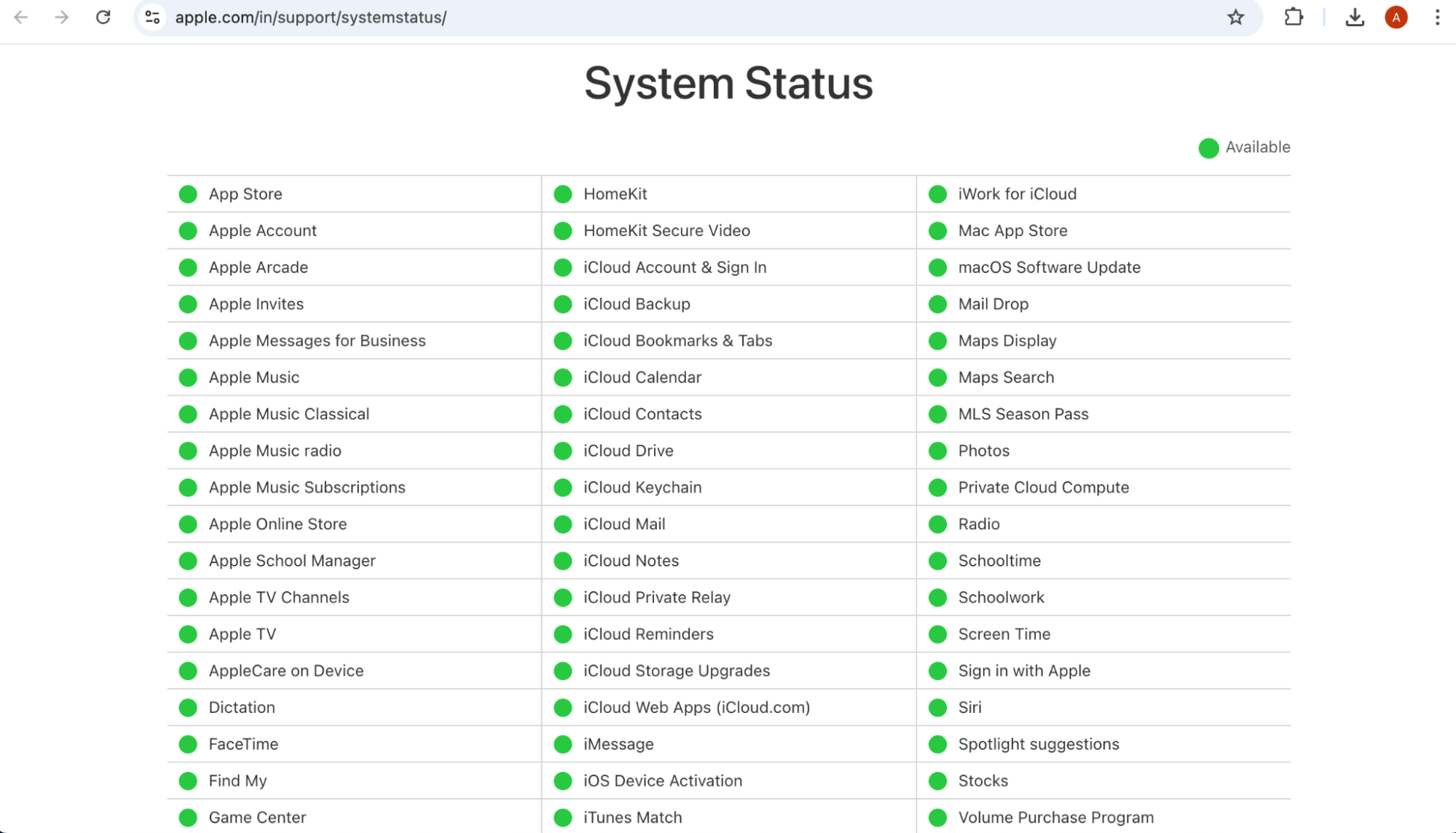
Apple’s servers being down can impact features like iCloud sync, causing your notes to delay syncing across your Apple devices. For this reason, we always ensure we check Apple’s System Status page.
Look for iCloud Account & Sign In, iCloud Web Apps (iCloud.com), and iCloud Notes. A yellow or red dot next to either of these indicates a server issue, and you must wait until Apple fixes it.
7. Sign out of iCloud and back in again
When errors are responsible for our notes not syncing across our iPhone and Mac, signing out and back in to our iCloud account usually does the trick.
Follow these steps to sign in and out of your iCloud account on both devices:
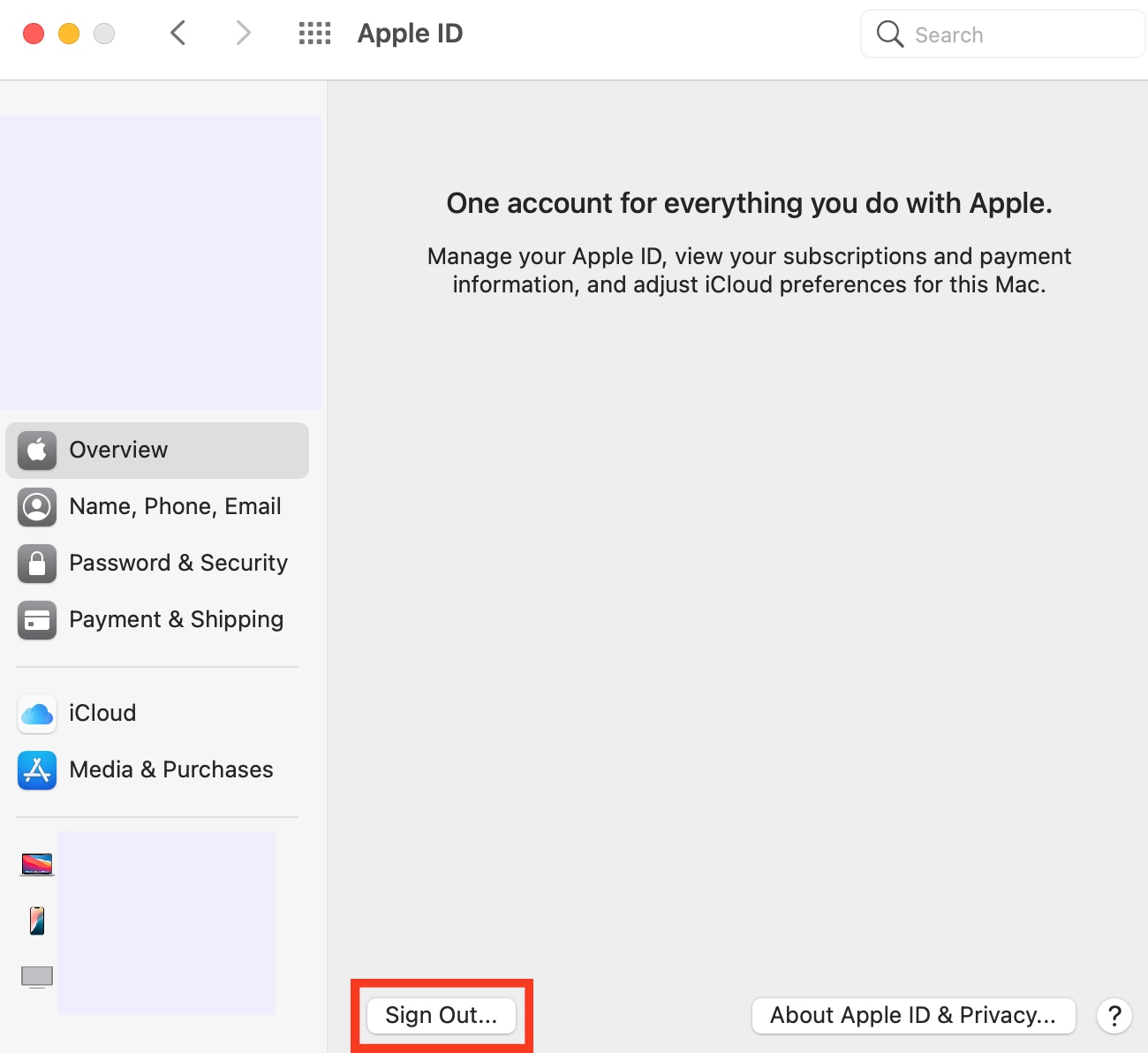
On your Mac, hit the Apple menu > System Preferences or System Settings > Apple ID or Apple ID > Overview > Sign Out and sign in again after a few minutes.
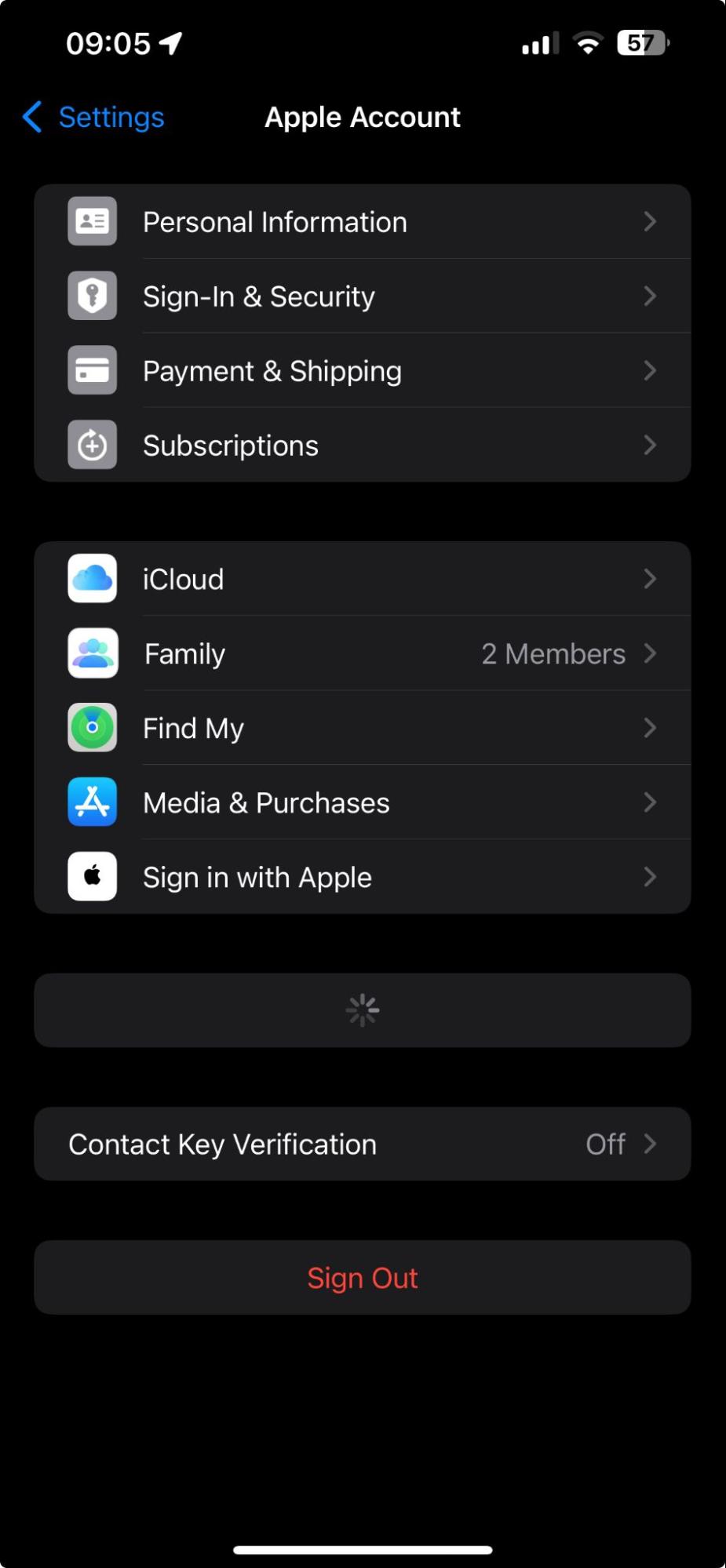
On your iPhone, open the Settings app > click on your name > Sign Out and sign in again after a short while.
Step 1. Click on the Apple menu > System Preferences or System Settings > Apple ID or Apple ID > Overview > Sign OutStep 2. Open the Settings app > click on your name > Sign Out
8. Ensure that iCloud storage is available
We’ve noticed that iCloud stops syncing our notes when we’ve run out of iCloud storage. That’s why we recommend checking if you have enough space to begin with.
Here’s how to check your iCloud storage:
Open System Preferences or System Settings via the Apple menu.
Click on iCloud and view storage under iCloud Storage.
9. Check for updates
Software bugs can affect the performance of your Apple devices. So we never neglect to check if our devices have updates available that fix known bugs when our notes stop syncing.
Follow this approach to look for software updates:
On your Mac, open System Preferences or Settings > General > Software Update > Update Now to implement available updates.
On your iPhone, open the Settings app > General > Software Update > Download and Install where applicable.
Step 1. Open System Preferences or Settings > General > Software Update > Update NowStep 2. Open the Settings app > General > Software Update > Download and Install
10. Check whether notes are saved in iCloud or “On My iPhone”
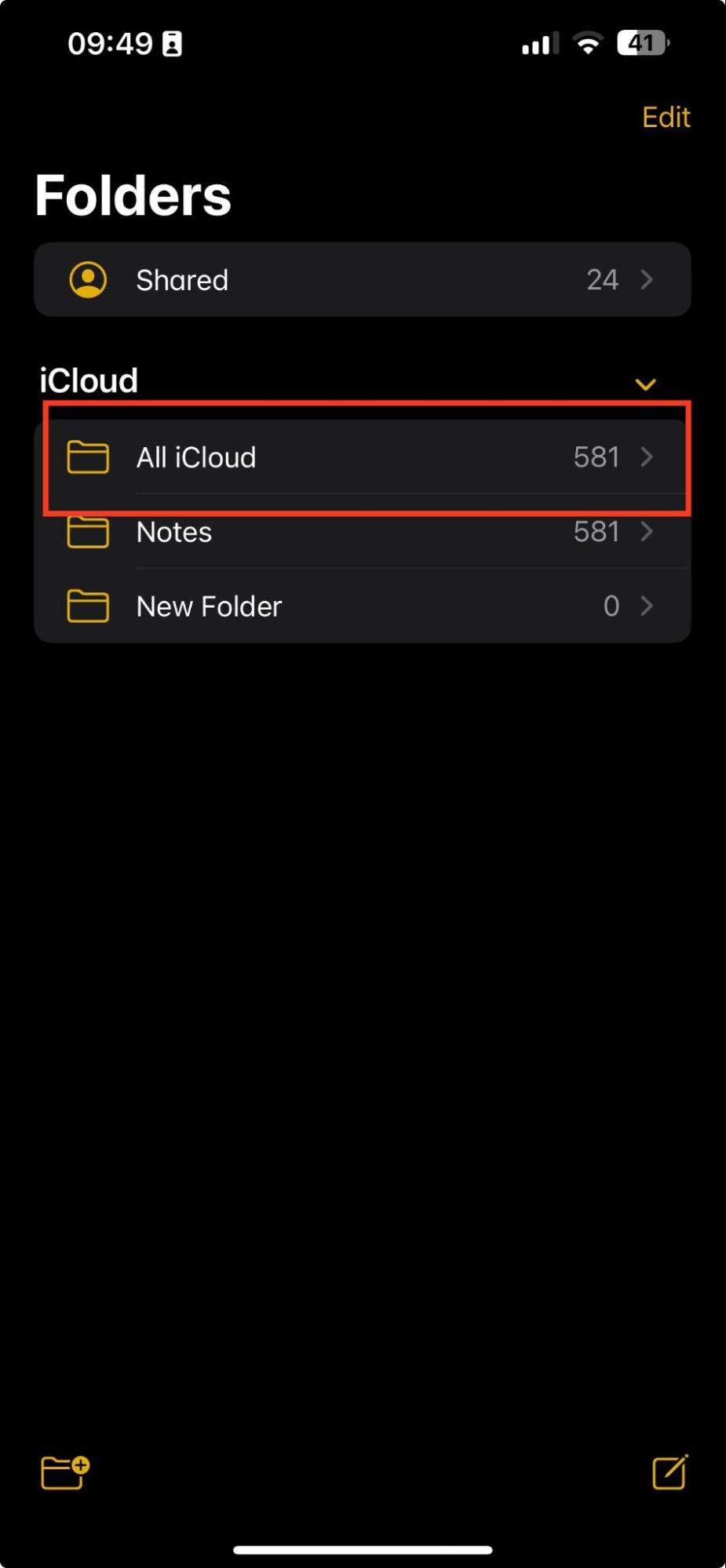
Given that only notes stored in the iCloud folder sync between devices, all notes not saved in this folder remain local and won't appear on your Mac. So if the notes you saved on your iPhone aren’t appearing on your Mac, it’s worth checking where they’re stored. Additionally, discover where notes are stored on a Mac.
To check the notes saved in the iCloud folder:
Open the Notes app and tap Folders > All iCloud.
All notes saved in this folder should appear on your Mac.
11. Contact Apple Support
When none of the fixes we’ve tried have worked, we resort to contacting Apple Support. Apple’s experts are well-versed in fixing a wide range of Apple-related problems, such as notes not syncing across Mac and iOS devices.
Fix the notes syncing issue between your iPhone and MacBook devices
Your notes not syncing across your iPhone and MacBook devices can be an inconvenience, depending on when and why you need to access your notes. Fortunately, there are many ways to fix it, and we’ve laid out 11 solutions you can try—including checking your iCloud storage and signing out and back into your iCloud account.
Remember, if you get stuck, you can always use MacKeeper’s Premium Services to get in contact with tech experts who are experienced in resolving iCloud syncing problems and other system-related issues on a Mac.
We respect your privacy and
use cookies
for the best site experience.
Privacy Preferences Center
We use cookies along with other tools to give you the best possible experience while using the
MacKeeper website. Cookies are small text files that help the website load faster. The cookies we
use don’t contain any type of personal data meaning they never store information such as your
location, email address, or IP address.
Help us improve how you interact with our website by accepting the use of cookies. You can change
your privacy settings whenever you like.
Manage consent
All cookies
These cookies are strictly necessary for enabling basic website functionality (including page
navigation, form submission, language detection, post commenting), downloading and purchasing
software. The website might malfunction without these cookies.