When you’re experiencing software issues on your Mac that persist even after you’ve tried common troubleshooting steps, you may need to factory reset OS X El Capitan and reinstall a fresh copy of Apple’s operation system. We also recommend running MacKeeper’s Safe Cleanup tool, developed by Clario Tech, to remove old files and system junk that can cause crashes and performance issues.
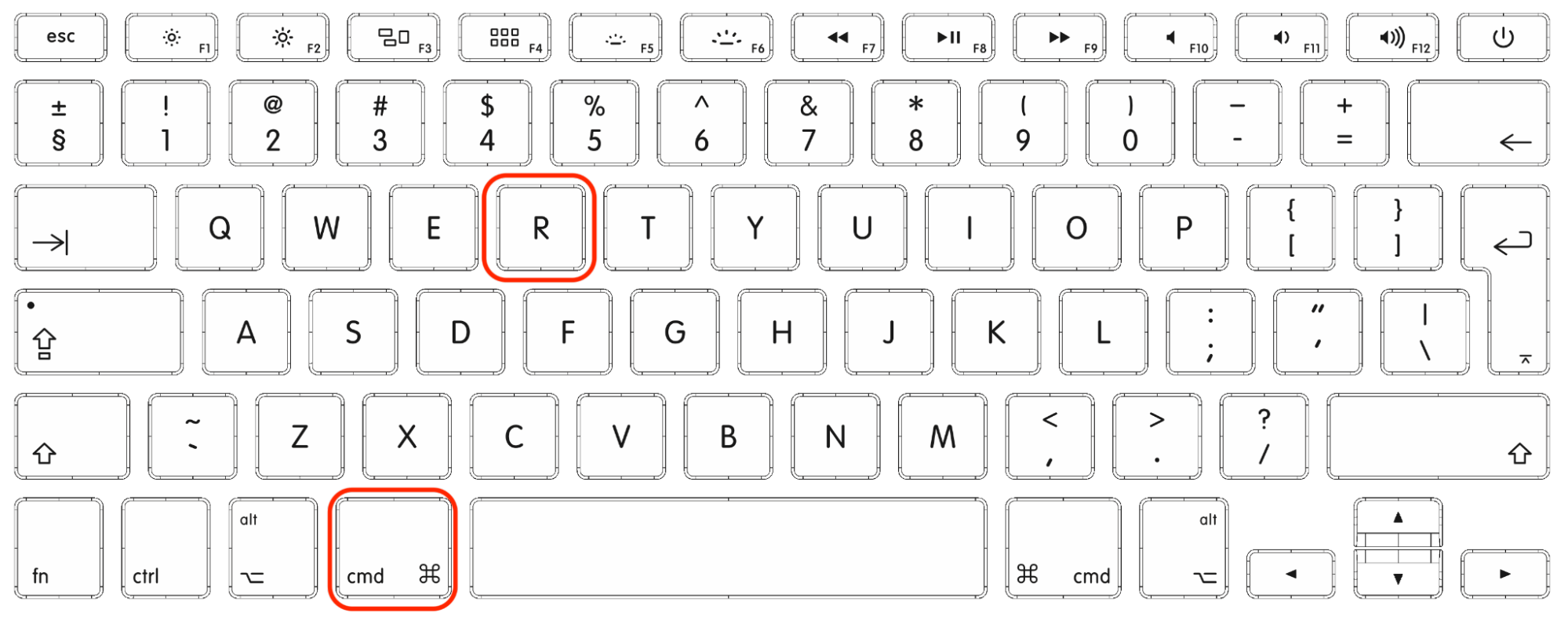
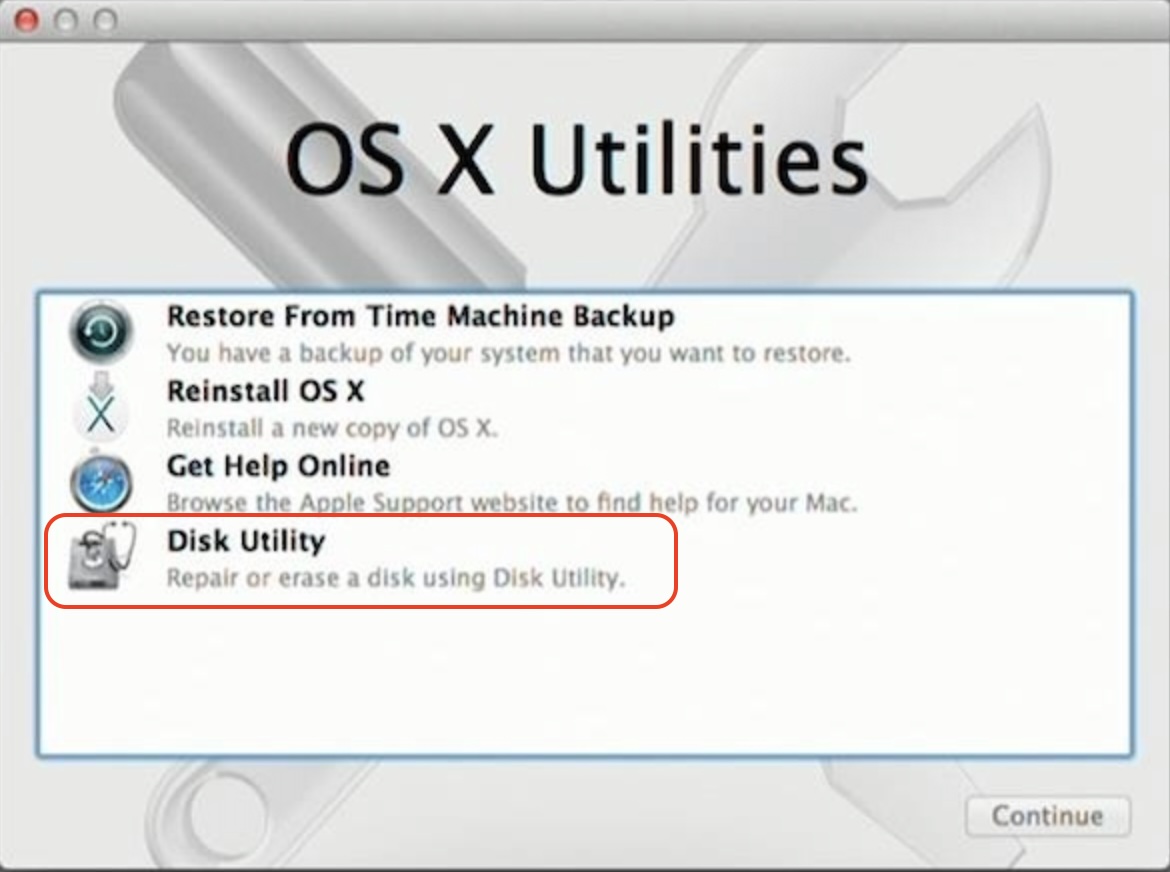
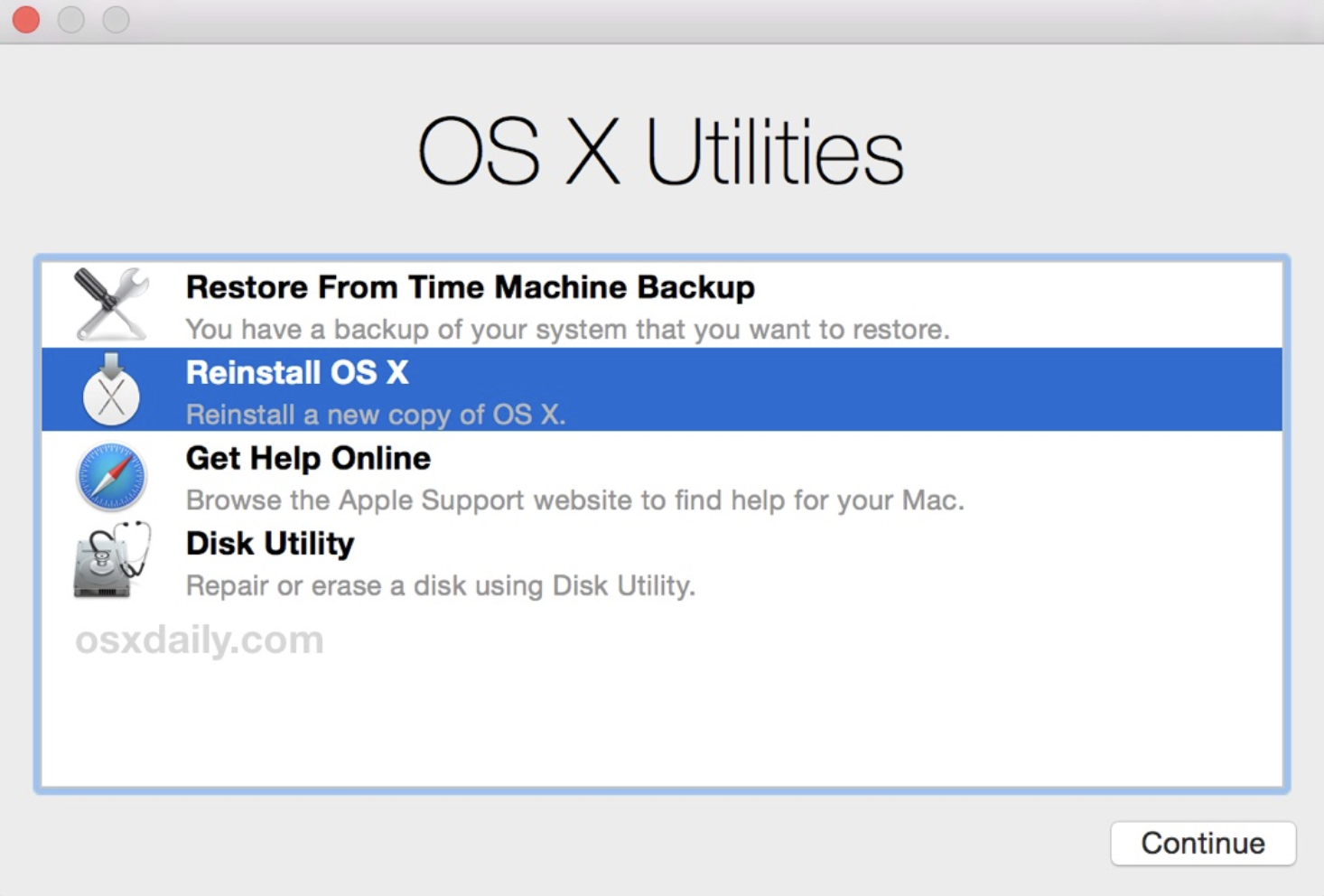
To factory reset El Capitan, we first boot into the OS X Recovery mode by holding Command + R on the keyboard while starting up our Mac. Choose Disk Utility from the list, then erase the Macintosh HD startup disk to get it ready for a fresh OSX install. Finally, we quit Disk Utility and select Reinstall OS X.
What is factory reset on OS X El Capitan?
An OS X El Capitan factory reset is the process of formatting a Mac’s startup disk to completely remove the existing macOS install and all other data, then reinstalling a fresh copy of the Apple operating system. This will restore the computer to its factory state, as if it was just unboxed and turned on for the first time. Before you erase Mac El Capitan, it’s important to back up important files.
We advise users to factory reset El Capitan when their operating system becomes corrupted or they run into issues they can’t resolve. However, if your Mac isn’t turning on, this indicates a problem with its hardware, not its software, and you won’t be able to factory reset it.
A note from our experts:
Before reinstalling OS X 10.11 El Capitan, you can likely fix problems with your Mac and improve its performance using MacKeeper’s Safe Cleanup from Clario Tech. This essential utility wipes potentially corrupted log and cache files that can make your Mac buggy and unstable, and clears out unused language packs, old Mail attachments, and undeleted trash to free up space. Try this:
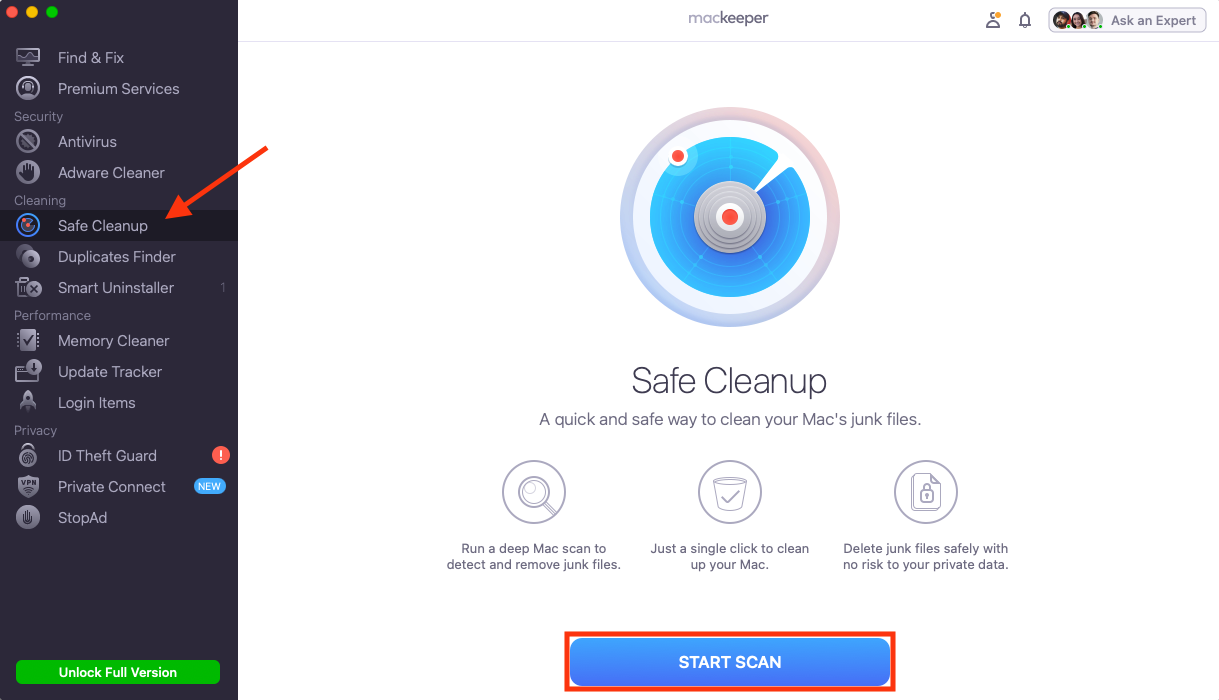
Choose Safe Cleanup in the MacKeeper sidebar, then click Start Scan.
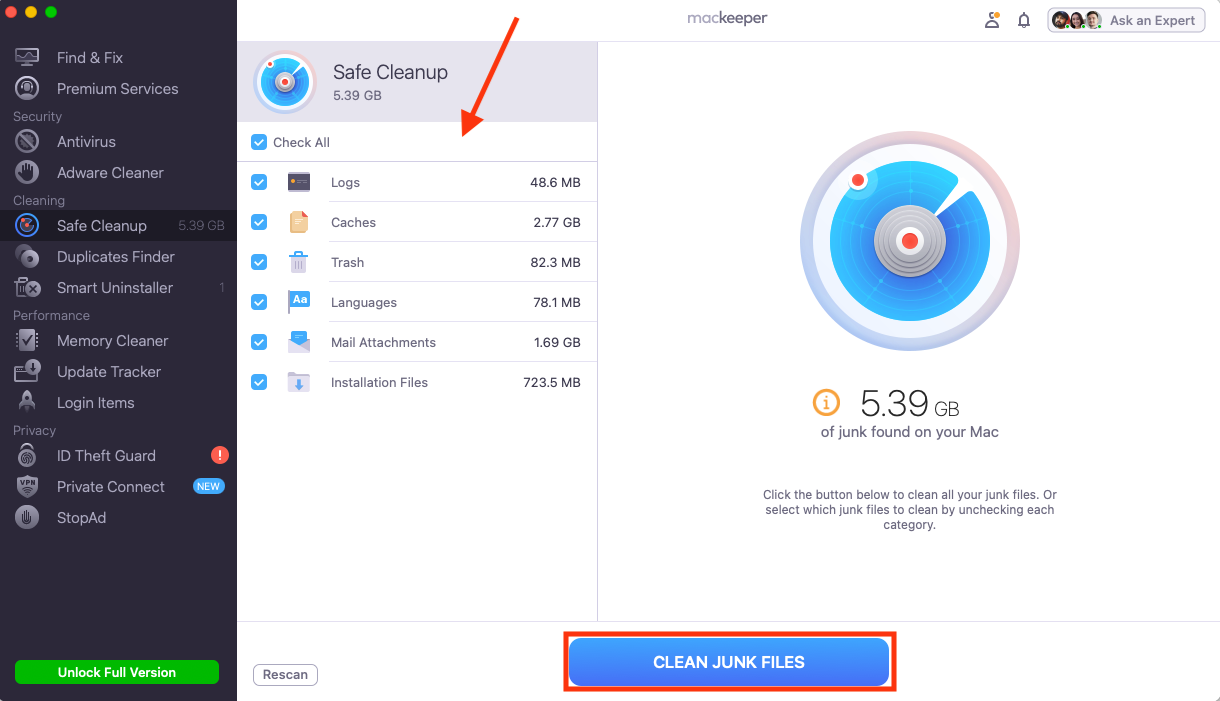
Select the files you want to remove, making sure you choose Logs and Caches, then click Clean Junk Files.
Step 1. Select Safe Cleanup, then Start ScanStep 2. Select files to delete, then click Clean Junk Files
How to prepare for OS X El Capitan factory reset?
Before we factory reset a Mac from Recovery mode, there are some important steps we need to take to ensure the process goes smoothly and we don’t lose any important data. These include logging out of your Apple ID and other accounts, backing up any files you want to keep, making sure your internet connection is stable, and confirming your recovery options. We can then erase the Macintosh HD using Disk Utility and reinstall OS X 10.11 El Capitan within Mac Recovery mode.
Here are the steps we suggest you take before factory reset El Capitan:
Sign out of accounts: Unlink your Apple ID and other accounts to avoid potential blocks.
Back up your data: Create a copy of all the important files you want to keep.
Ensure stable internet connection: Make sure your network is fast and stable enough to download OS X El Capitan during re-installation.
Check your Apple ID/FileVault recovery options: Figure out if FileVault is enabled and what you need to unlock it.
1. Sign out of accounts
Much like when we would perform a macOS Monterey reset to factory state, the first step we take before reinstalling OSX El Capitan is to sign out of our Apple ID and other accounts. Let’s start with iCloud:
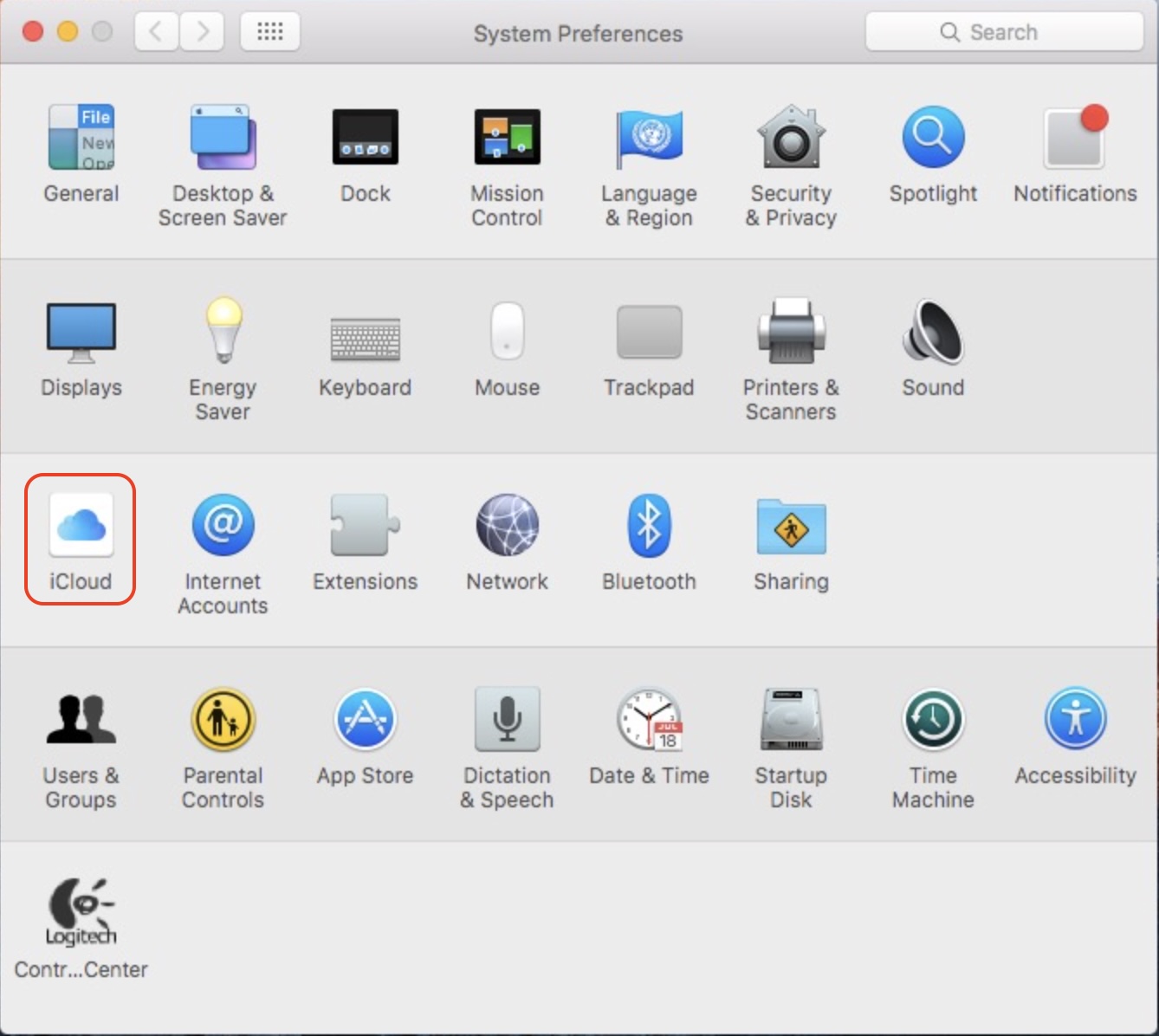
Open System Preferences, then choose iCloud.
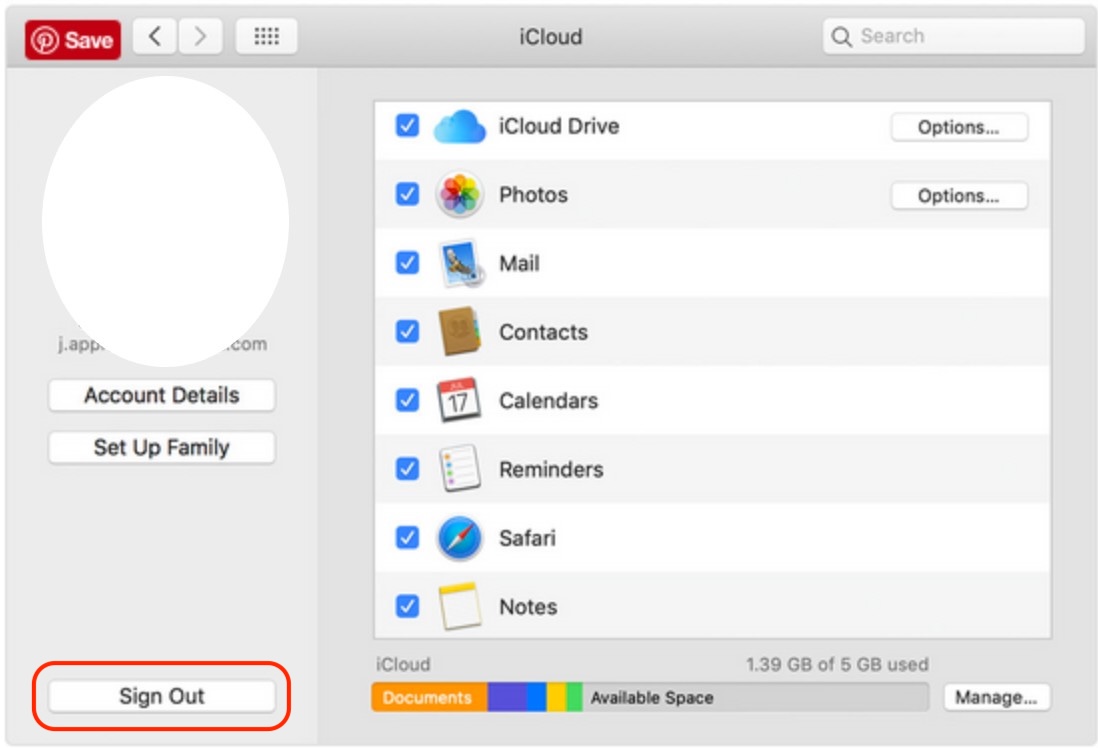
Click Sign Out, then follow the steps to unlink your Apple ID.
Step 1. In System Preferences, choose iCloudStep 2. Click Sign Out
Although it’s not as important, we also recommend signing out of other linked accounts before you erase Mac El Capitan—especially if you’re wiping your machine to sell it or give it to someone else. Here’s how:
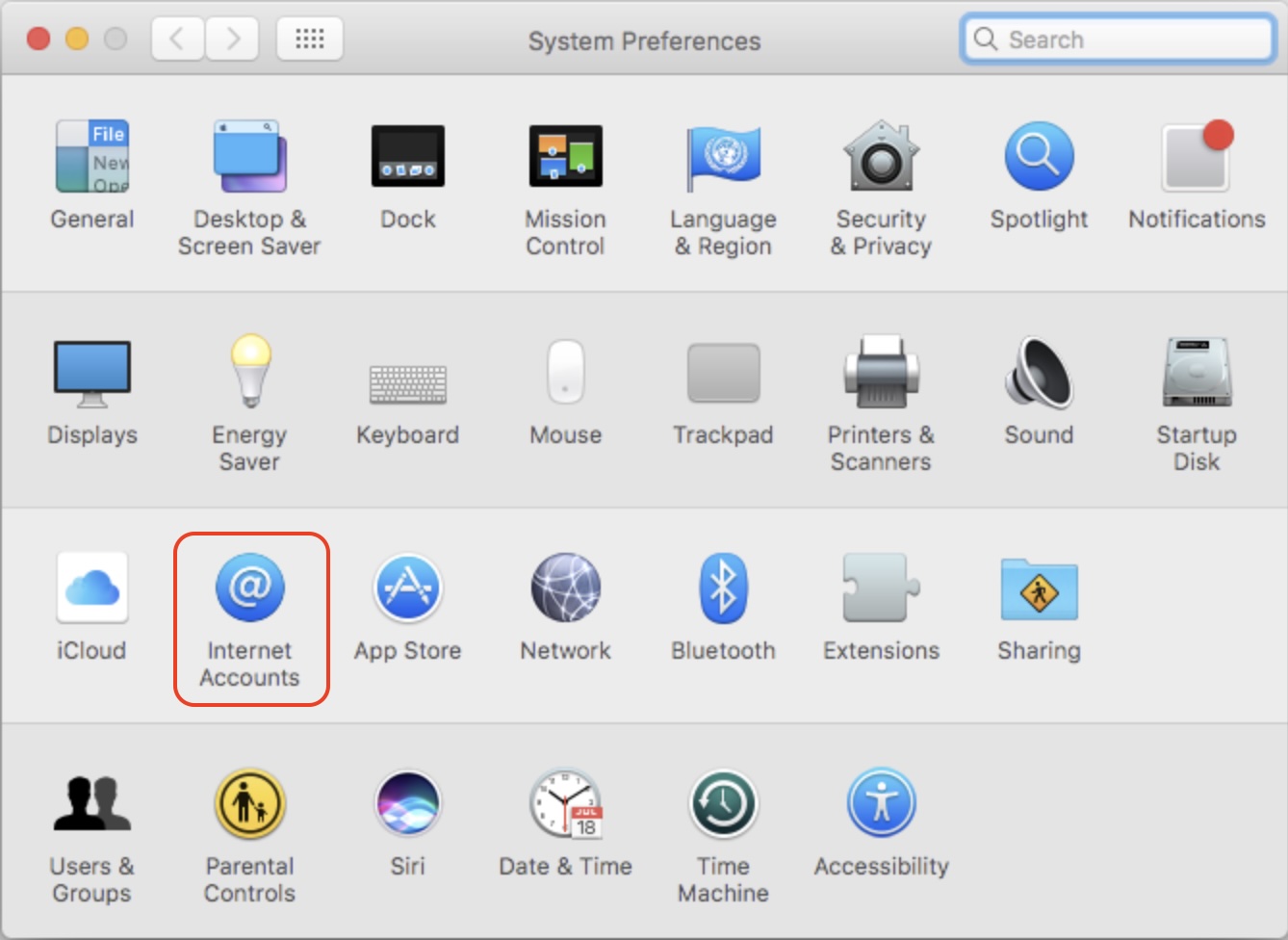
Return to System Preferences and select Internet Accounts.
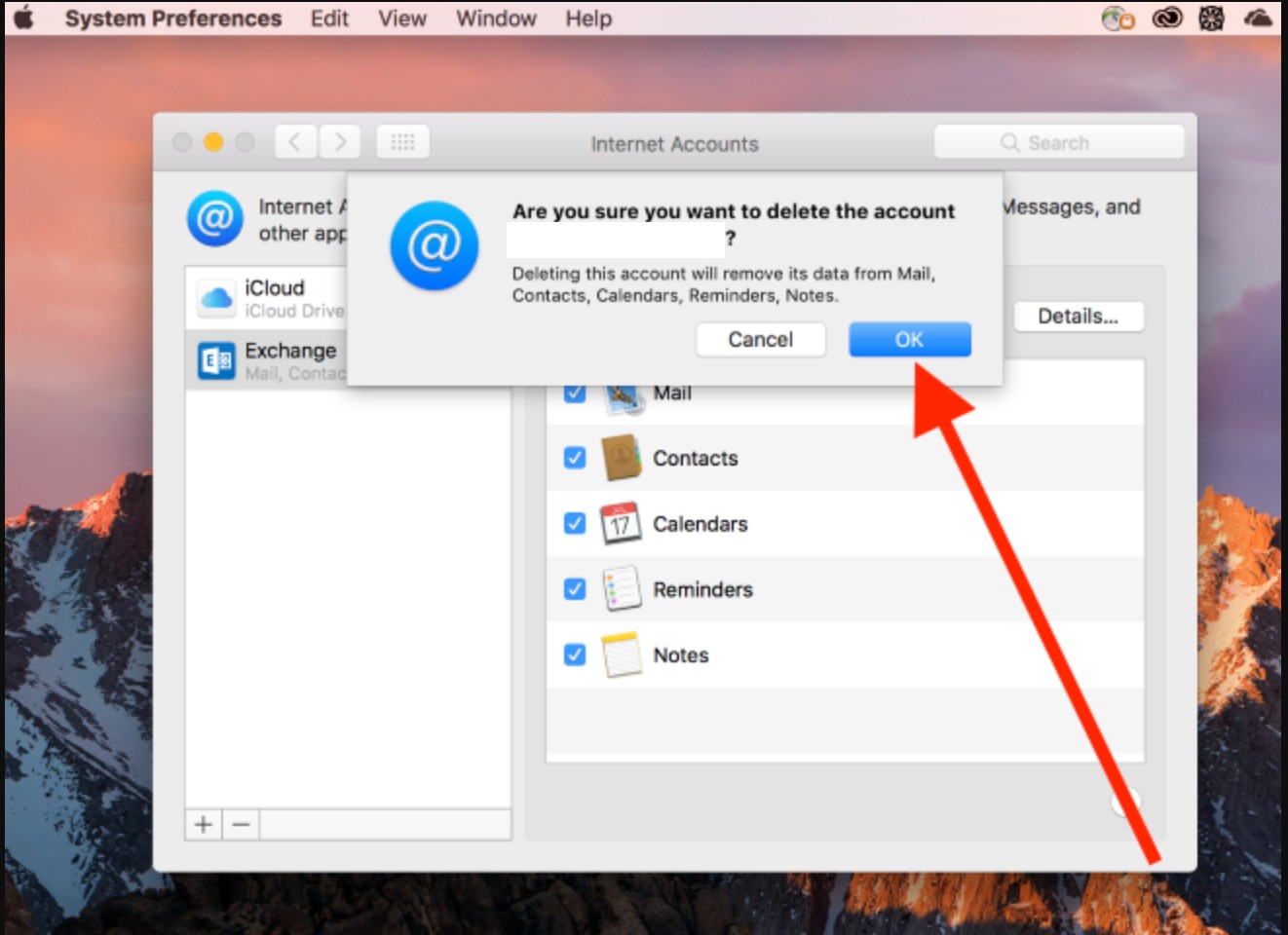
Choose an account, then click the – button to remove it.
Click OK when prompted to confirm.
Step 1. Select Internet Accounts in System PreferencesStep 2. Select an account, click - then OK
2. Back up your data
When we perform an OS X El Capital factory reset, it removes all data from our Mac’s primary hard disk. If you don’t already have a recent backup, you can create one using Time Machine:
Plug an external hard drive into your MacBook Pro. It needs to be large enough to hold a copy of all the data your Mac contains.
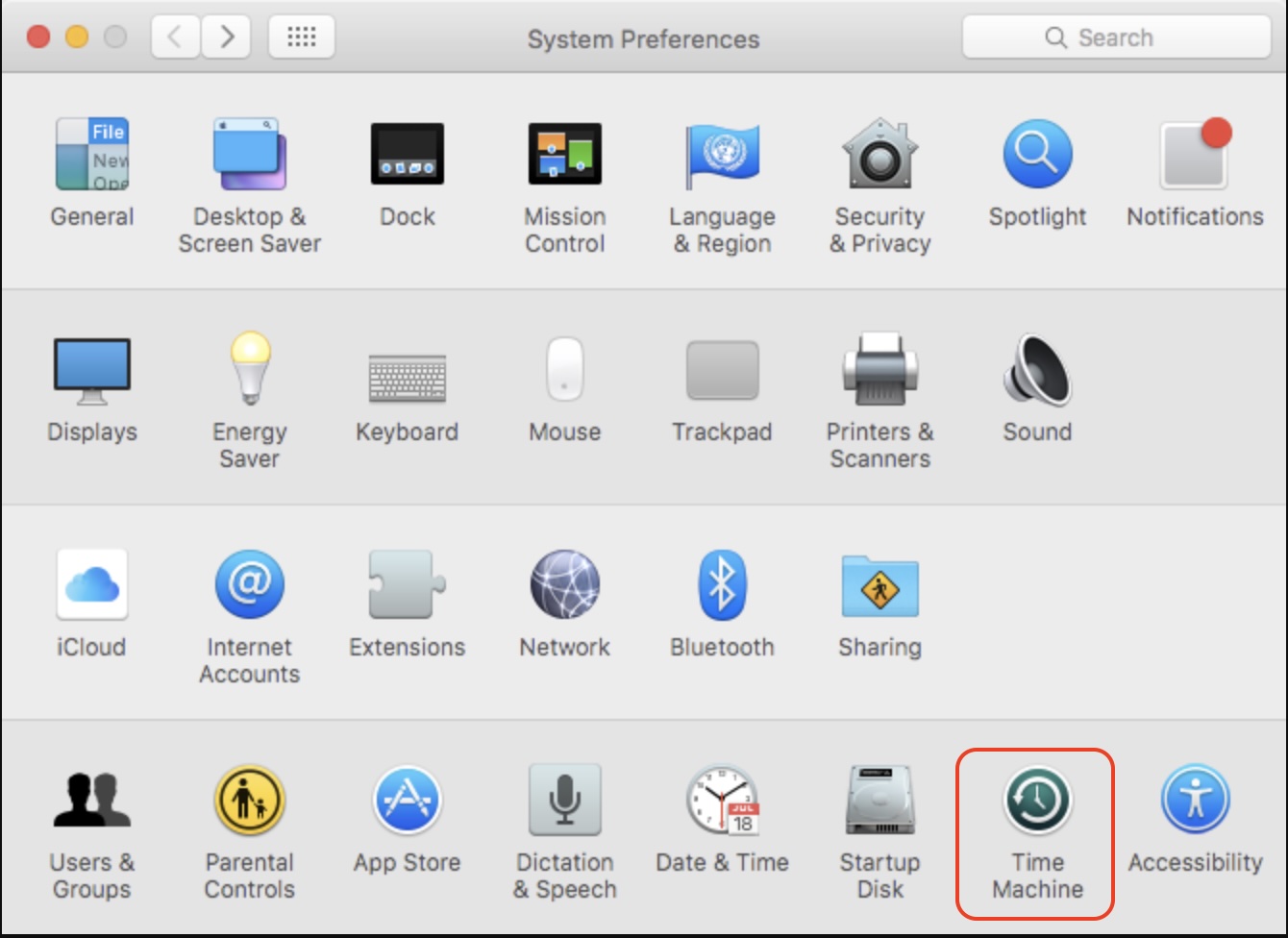
In System Preferences, select Time Machine.
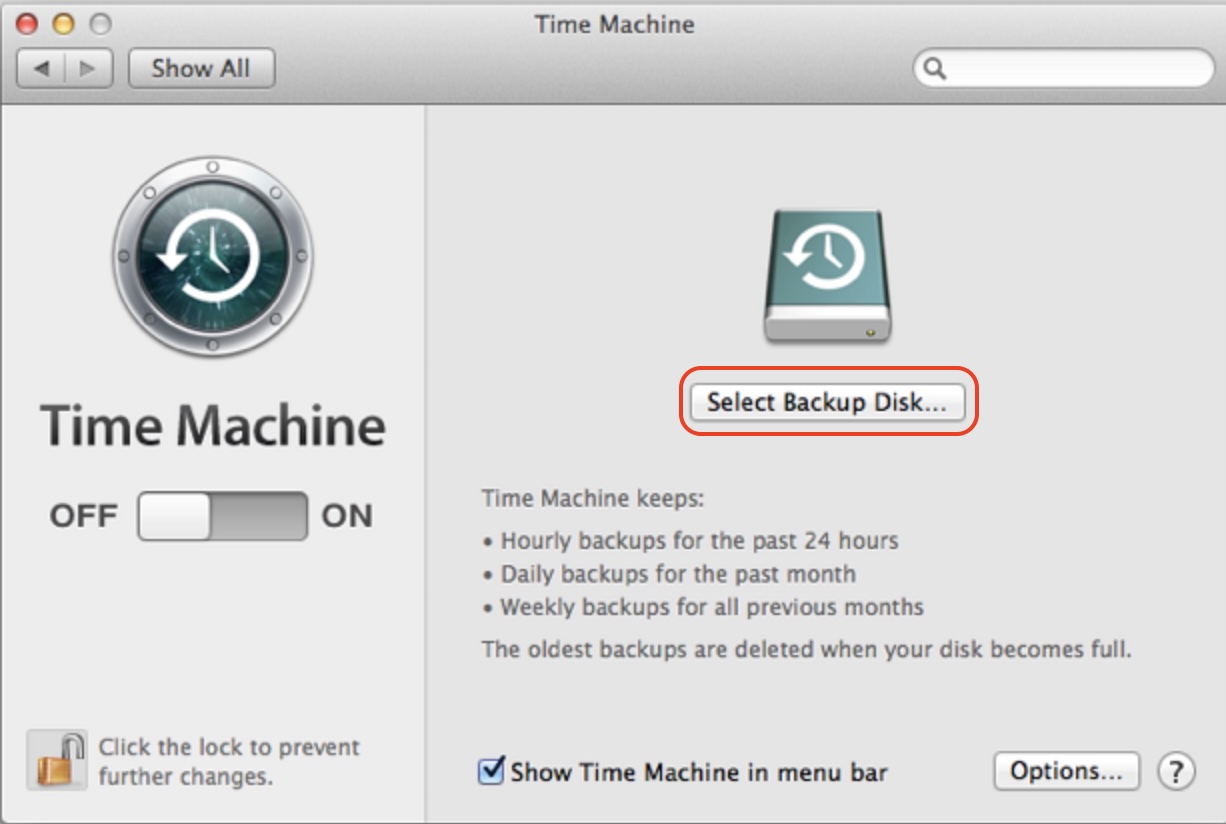
Click Select Backup Disk.
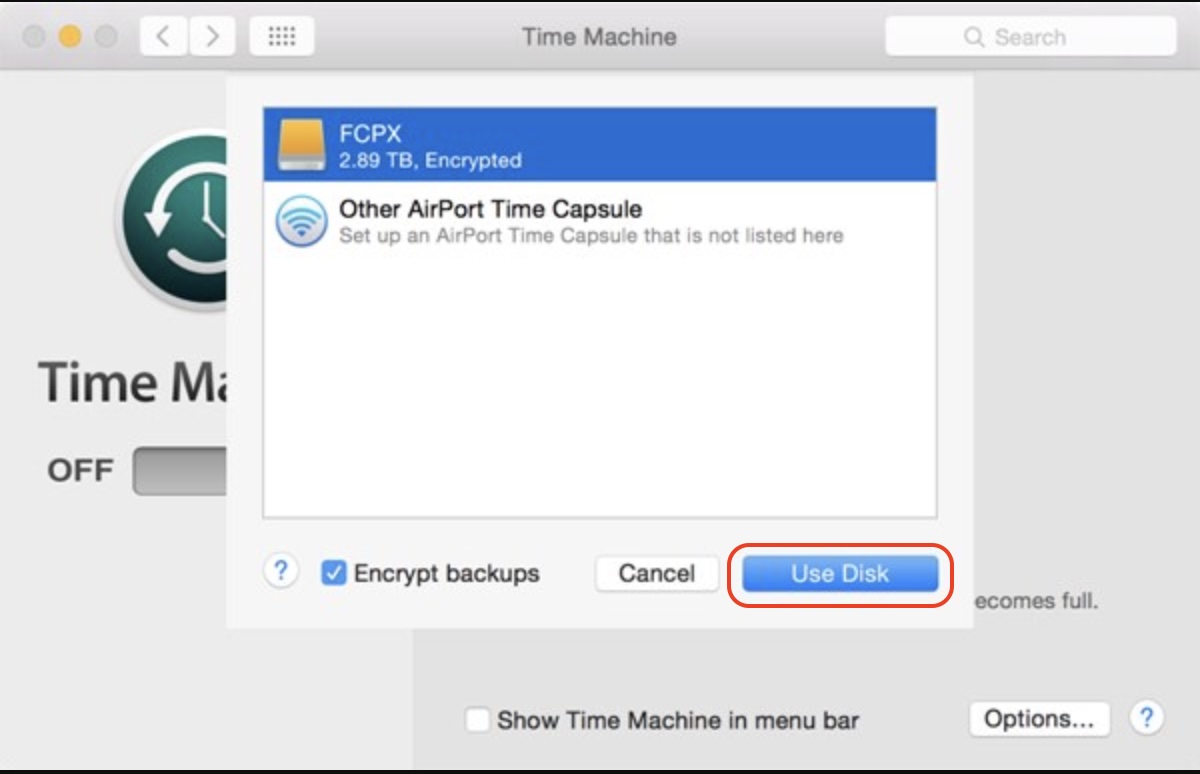
Choose your external hard drive, then click Use Disk.
Time Machine will now be enabled. Give your Mac enough time to back up all data before you continue with a factory reset. This can take a while—especially if your Mac holds a lot of data—but you could lose files if you don’t wait for the backup to complete.
Step 1. In System Preferences, select Time MachineStep 2. Click Select Backup DiskStep 3.Select a disk, then click Use Disk
3. Ensure stable internet connection
You’ll need to download OS X 10.11 El Capitan during the reinstall process. To avoid install failures, make sure your internet connection is stable like so:
Click Go to test your internet speed and stability.
Perform a speed test in your browser to check internet stability
4. Check your Apple ID/FileVault recovery options
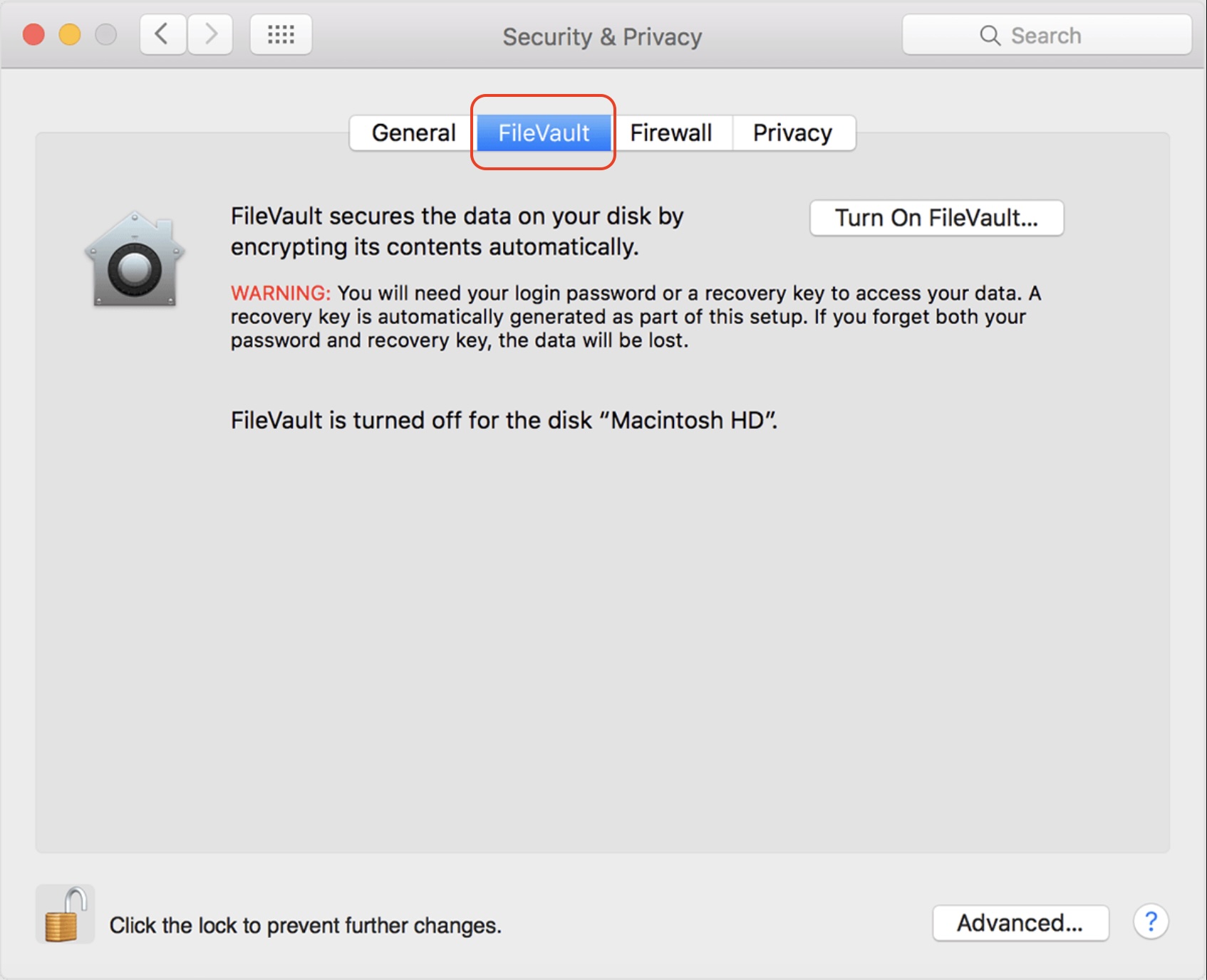
If you have FileVault enabled on your iMac, we recommend unlocking it first to make the formatting process simpler later. Here’s how:
Go to FileVault settings in System Preferences > Security & Privacy.
Click the lock icon and enter your password to unlock the options.
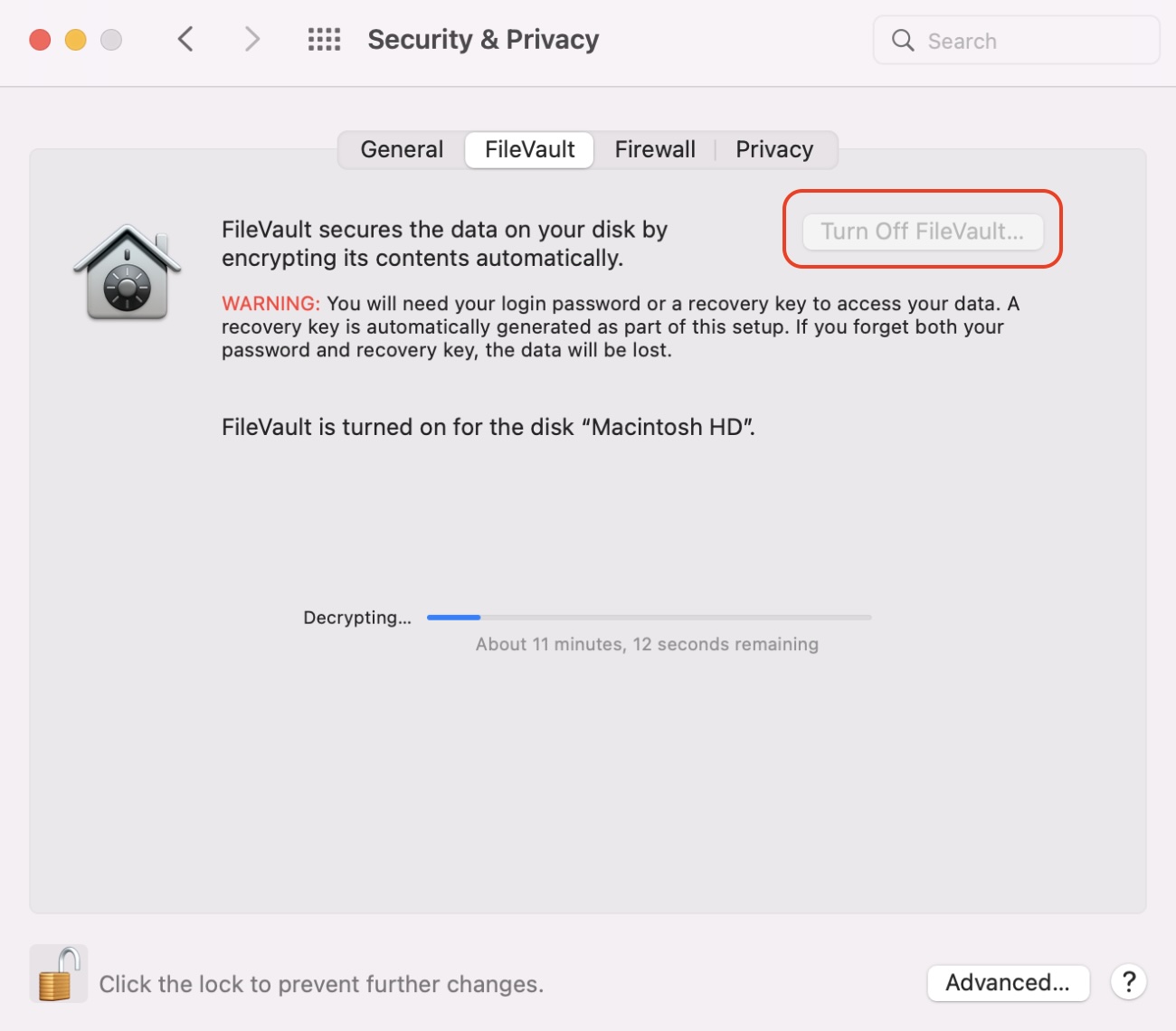
Choose Turn Off FileVault.
Step 1. In System Preferences > Security & Privacy, select FileVaultStep 2. Click the padlock, then select Turn Off FileVault
How to factory reset OS X El Capitan?
To factory reset El Capitan, we need to boot into macOS Recovery mode by holding Command + R at startup. Next, select Disk Utility from the list of Recovery tools, and choose the Mac’s primary startup disk, usually named Macintosh HD, before clicking Erase. Select the Mac OS Extended (Journaled) option for the best results. Next, we can return to the Recovery applications and choose Reinstall OS X.
Let’s take a look at how to perform an OS X El Capitan factory reset in more detail:
Enter macOS Recovery mode: Boot into Apple’s Recovery environment.
Erase hard drive: Delete all data on the Mac’s startup disk to wipe the existing OS X install.
Reinstall OS X El Capitan: Install a fresh copy of Mac OS X.
1. Enter macOS Recovery mode
Entering macOS Recovery mode is one of the easiest parts of this process. Here’s what you need to do:
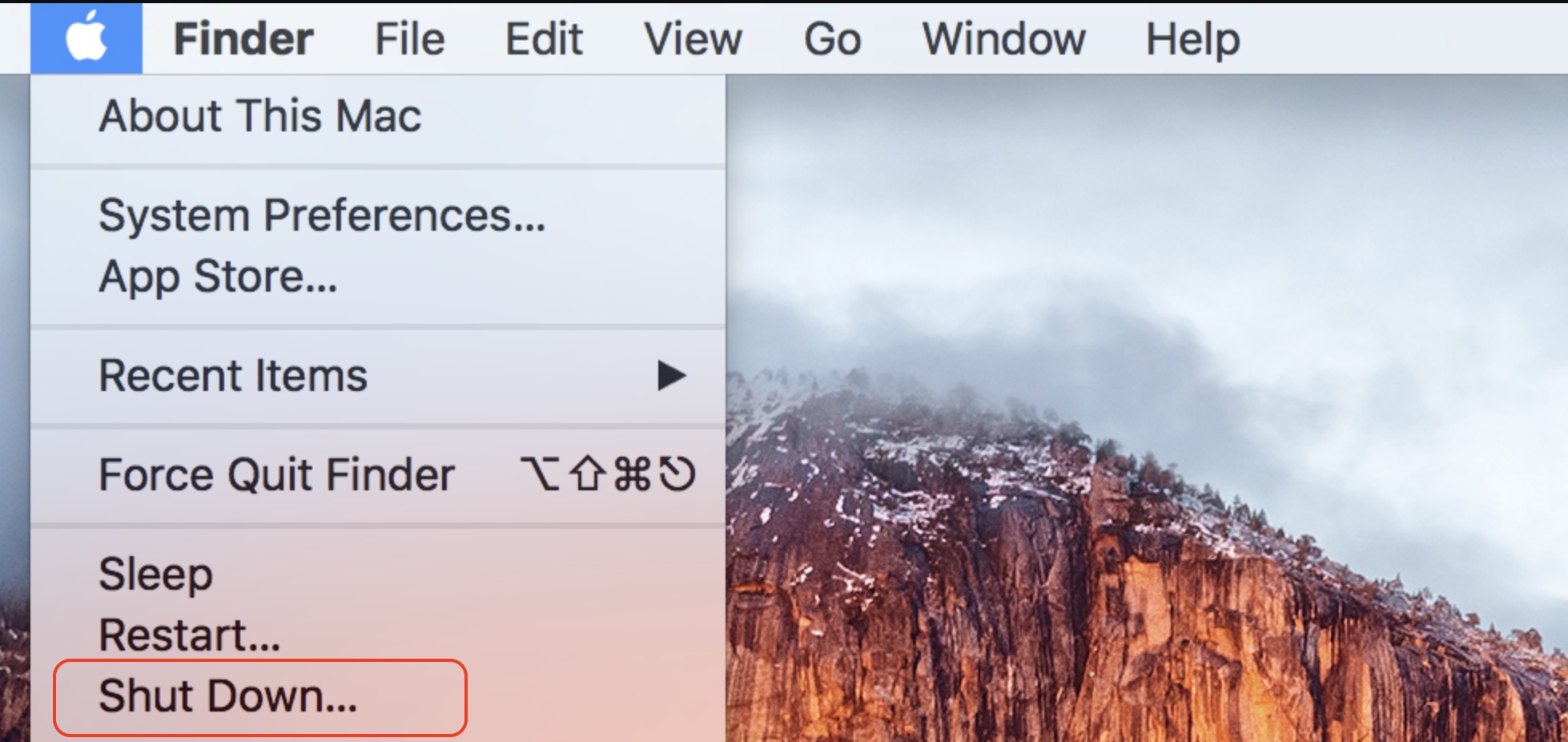
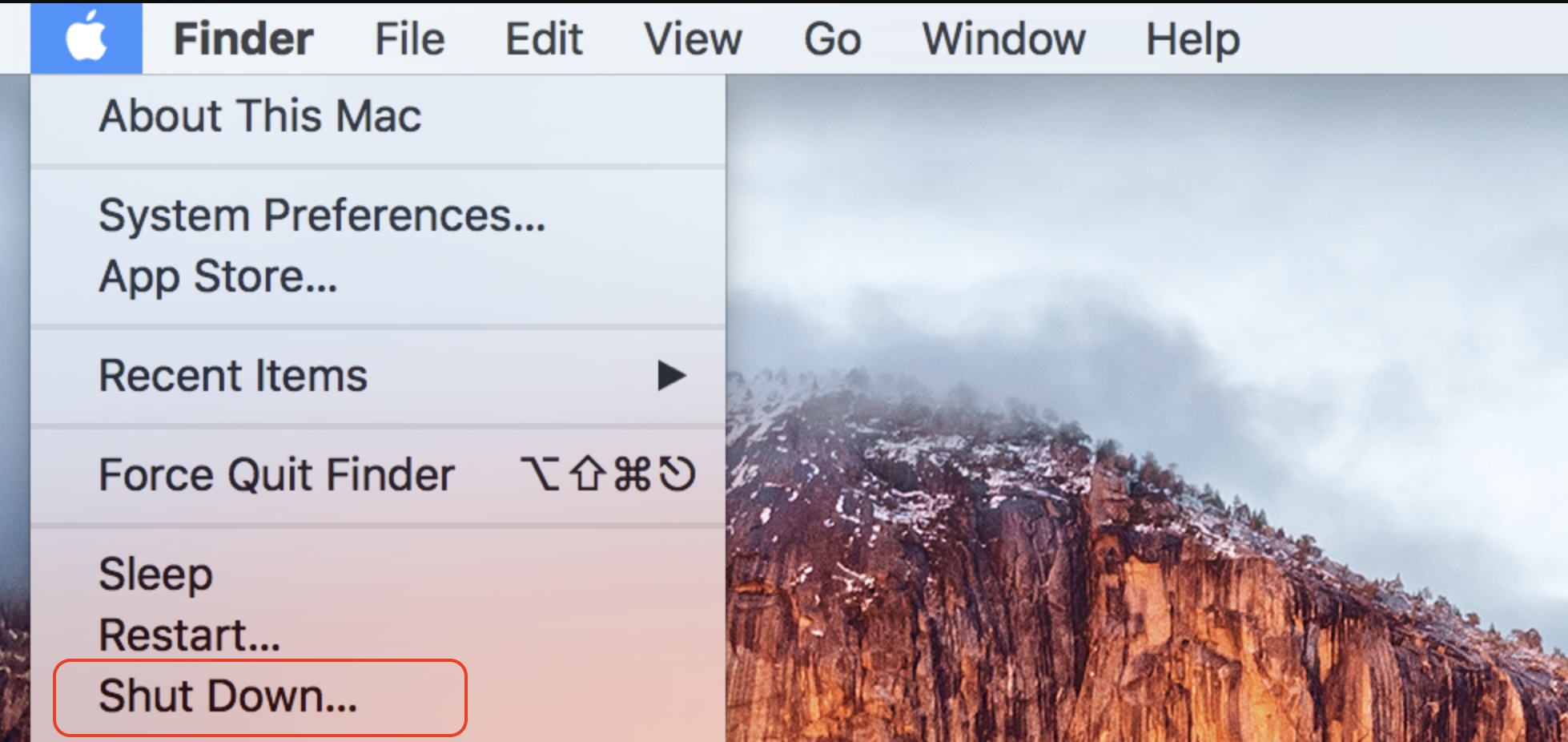
Shut down your MacBook if it’s running.
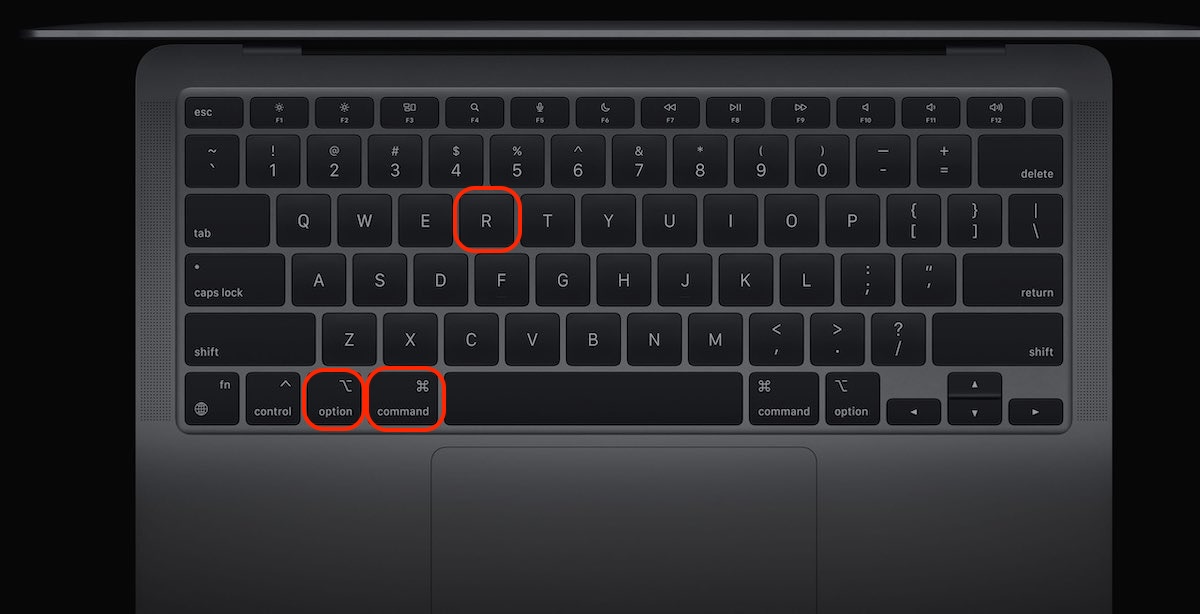
Turn on your Mac and immediately hold down Command + R.
Release the keys when you see the Apple logo.
Select your user account and enter your password to continue.
Step 1. Shut down your MacStep 2. Turn on your Mac then immediately hold Command + R
2. Erase hard drive
Now we’re in Recovery mode, we can use Disk Utility to erase the Mac’s hard drive ready for a fresh OSX install. Follow these steps:
Choose Disk Utility from the list of Recovery options, then click Continue.
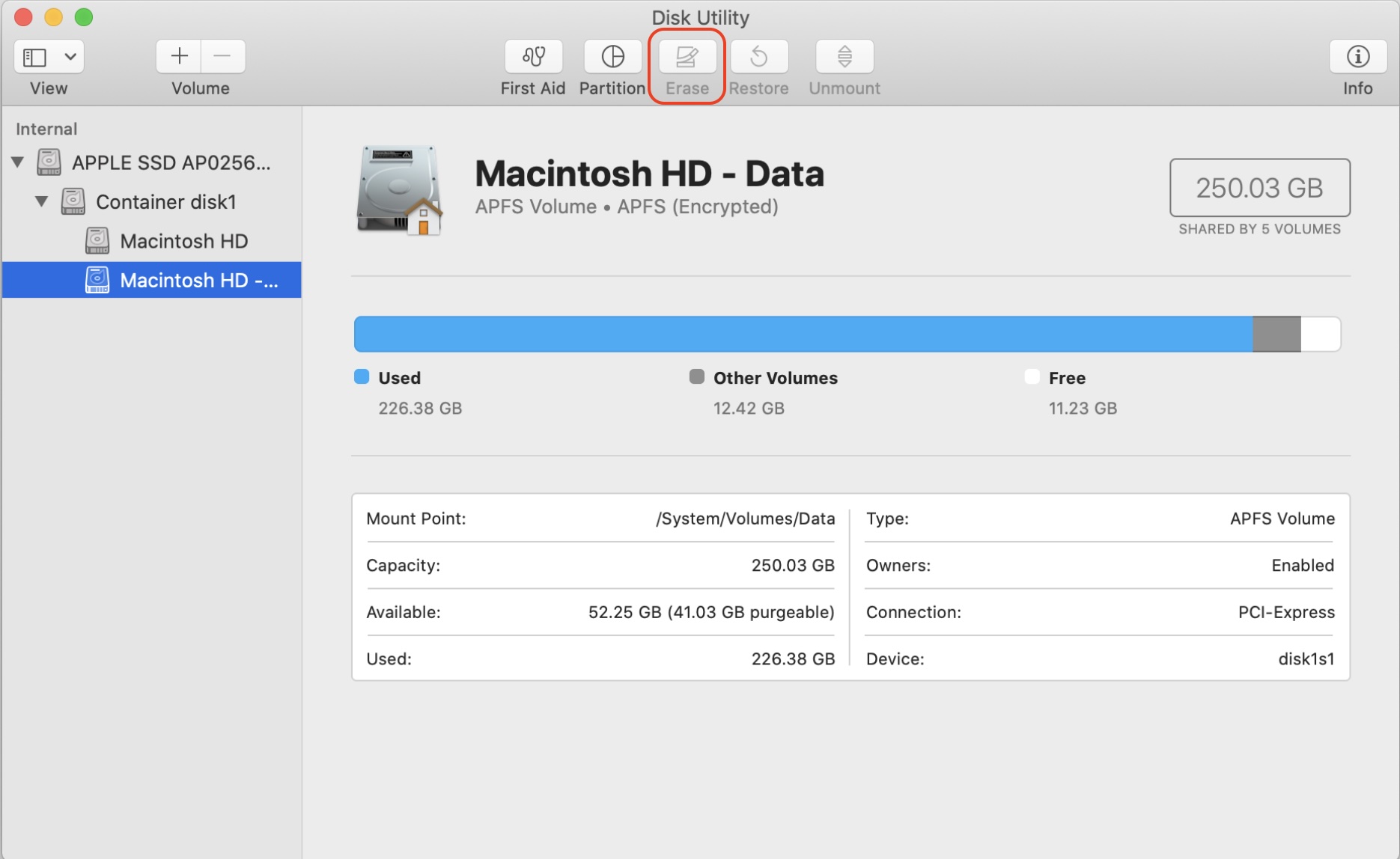
Select your Mac’s startup disk, usually named Macintosh HD, and click Erase.
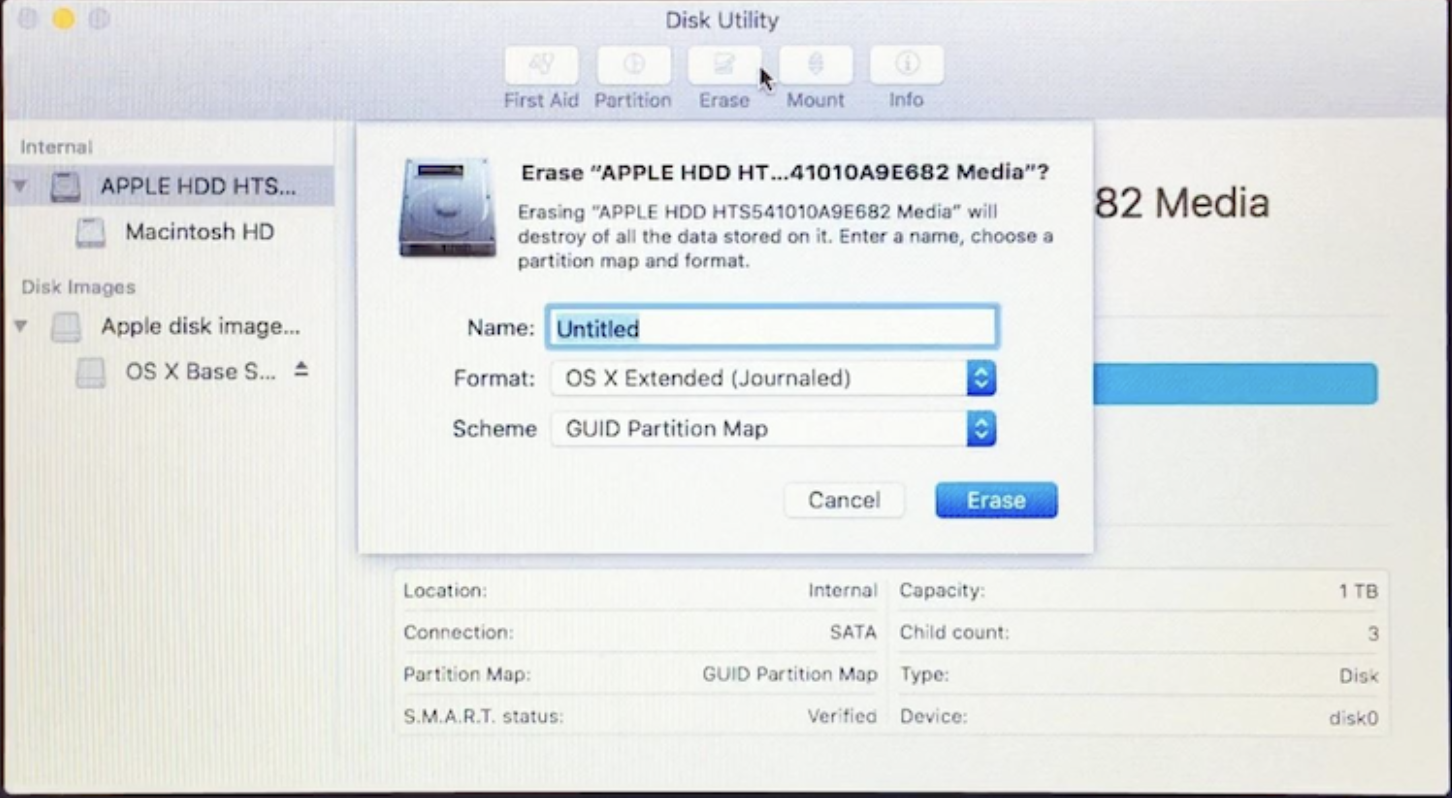
Give your disk a name and choose the OS X Extended (Journaled) format, then click Erase.
Once the process is complete, quit Disk Utility.
Step 1. Choose Disk Utility, then click ContinueStep 2. Select your Mac's startup disk, then click EraseStep 3. Select the settings stated above, then click Erase
3. Reinstall OS X El Capitan
Your Mac’s primary hard disk is now empty, so it’s finally time to reinstall OS X 10.11 El Capitan like so:
Select Reinstall OS X from the list of Recovery options, then click Continue.
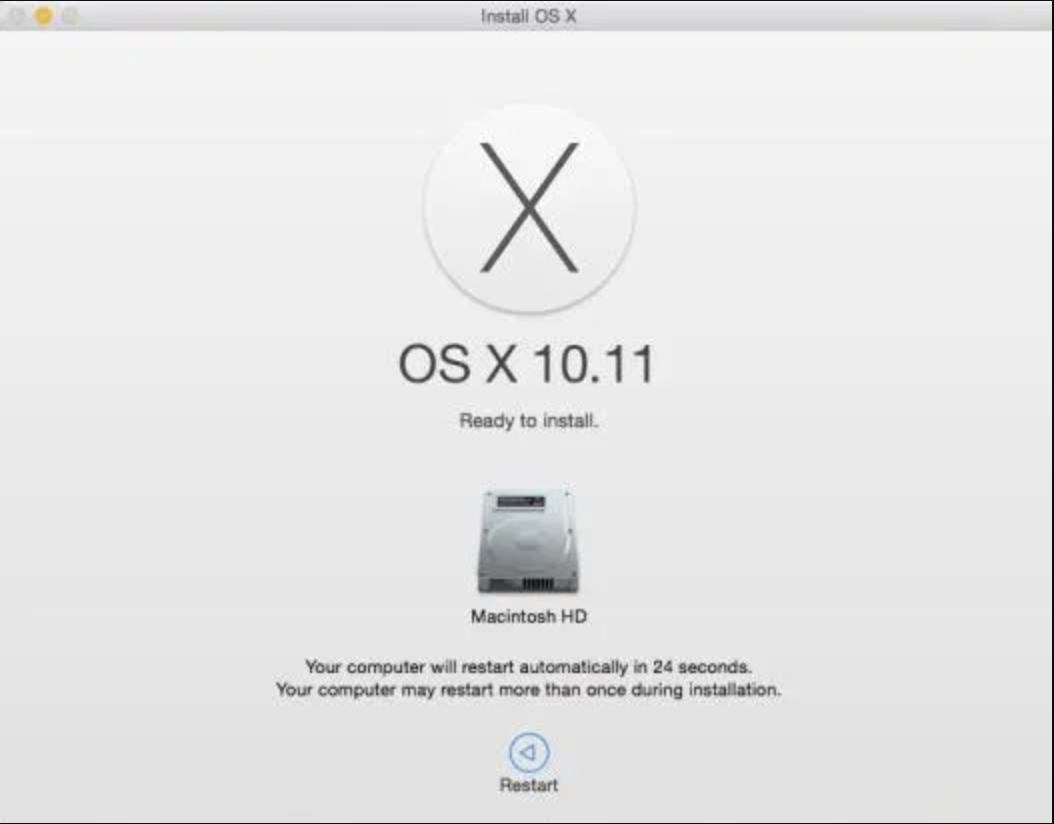
When the OS X installer appears, click Continue again, then follow the steps onscreen.
Step 1. Select Reinstall OS X and click ContinueStep 2. Follow the steps on screen to install OS X
Troubleshooting macOS El Capitan factory reset issues
It’s not uncommon to run into issues when we try to erase Mac El Capitan and reinstall OS X. Here are the problems we face most frequently and how we overcome them:
No Recovery mode available: Your Mac won’t boot into Recovery mode when holding Command + R at startup.
Disk not showing or won’t erase: Your Mac’s startup disk doesn’t appear in Disk Utility.
Installation fails or loops: Reinstalling OS X freezes or isn’t successful.
1. No Recovery mode available
If your Mac doesn’t boot into Recovery mode when holding Command + R at startup, it’s likely the Recovery mode partition on your hard disk is missing. Here’s what we can do to get around this:
Shut down your Mac.
Turn on your Mac, then immediately press and hold Command + Option + R.
Step 1. Shut down your MacStep 2. Hold down Command + Option + R during startup
A hint from our team: This shortcut starts Recovery from over the internet and automatically installs the most recent OS X release that’s compatible with your iMac. To reinstall the version of OS X that came with your computer, use Shift + Command + Option + R instead.
2. Disk not showing or won’t erase
When you load up Disk Utility in Recovery mode, you may find your Mac’s startup disk doesn’t appear or won’t erase. A missing disk usually indicates that your Mac’s hard drive has failed and needs replacing, especially if you’re unable to boot into OS X. If it won’t erase, there are two options:
Boot into Internet Recovery mode using the steps outlined above.
Install Mac OS X on an external drive, boot from that, then try to erase your Mac’s built-in startup disk from there.
Try using Internet Recovery if necessary
3. Installation fails or loops
When OS X El Capitan fails to reinstall, or you get stuck in a Recovery loop, it usually means your Mac is unable to download the OS, or the installation files are corrupted. Here are the best ways to fix this:
Check your internet connection to confirm it’s stable. If possible, use Ethernet rather than Wi-Fi.
Shut down your MacBook, boot back into Recovery mode, then try installing Mac OS again.
If neither of these are successful, we recommend creating a bootable OS X installer on a USB drive and installing El Capitan from that.
Important:
If you get your MacBook stuck in Recovery mode, try holding down its power button to force a shutdown, then turn it back on.
Conclusion
When you experience software glitches on Mac—such as frequent crashes, freezes, and shutdowns—the best fix may be to factory reset OS X El Capitan and then create a fresh install. However, there are important steps to take before you do this, like signing out of your accounts and backing up your data.
We know that erasing and reinstalling Mac OS may seem daunting, which is why we always recommend trying to fix OS issues before taking this step. A quick and easy way to do this is to use MacKeeper’s Safe Cleanup tool from Clario Tech to remove system junk and potentially corrupted logs and caches.
We respect your privacy and
use cookies
for the best site experience.
Privacy Preferences Center
We use cookies along with other tools to give you the best possible experience while using the
MacKeeper website. Cookies are small text files that help the website load faster. The cookies we
use don’t contain any type of personal data meaning they never store information such as your
location, email address, or IP address.
Help us improve how you interact with our website by accepting the use of cookies. You can change
your privacy settings whenever you like.
Manage consent
All cookies
These cookies are strictly necessary for enabling basic website functionality (including page
navigation, form submission, language detection, post commenting), downloading and purchasing
software. The website might malfunction without these cookies.