When photos take up so much space on your Mac, it becomes difficult to work smoothly, install updates, or even save new files without constant storage warnings. Using MacKeeper's Duplicates Finder gives you an immediate way to clear unnecessary photo copies safely, recover valuable disk space, and keep your library organized without extra effort.
To check why you have photos taking up space on your Mac, go to Apple menu → System Settings → Storage to view how much of your drive is used by Photos. Select Manage to locate your Photos Library. Then you should open it in Finder and press File → Get Info to see the exact library size.
Why do your photos take up so much storage?
Your photos often take up so much storage because macOS keeps local copies of high-resolution images, even when iCloud Photos is enabled. Editing photos, importing new files, or keeping originals instead of optimized versions also increases the library size. Cached thumbnails, hidden duplicates, and incomplete iCloud syncs can all add extra weight, making your Photos Library grow much faster than expected.
How to free up space taken by photos on Mac?
If you're looking for how to delete photos on a MacBook to free up storage, start by enabling Optimize Mac Storage so macOS keeps only lightweight versions locally. You can then remove unneeded images directly in the Photos app, delete Recently Deleted items, or move your Photos Library to an external drive. Exporting large originals elsewhere also helps reclaim meaningful space instantly.
A note from our experts:
Managing duplicate photos manually can feel endless, especially when your library grows across iCloud, Downloads, and external drives. Based on our experience, using MacKeeper's Duplicates Finder is the fastest way to bring order to your storage, as it scans your entire Mac for identical files and safely removes redundant copies. MacKeeper is a macOS utility software designed to keep your system organized, so you won't risk accidentally deleting originals or important media.
Follow these steps to remove duplicate photos and free up meaningful storage space:
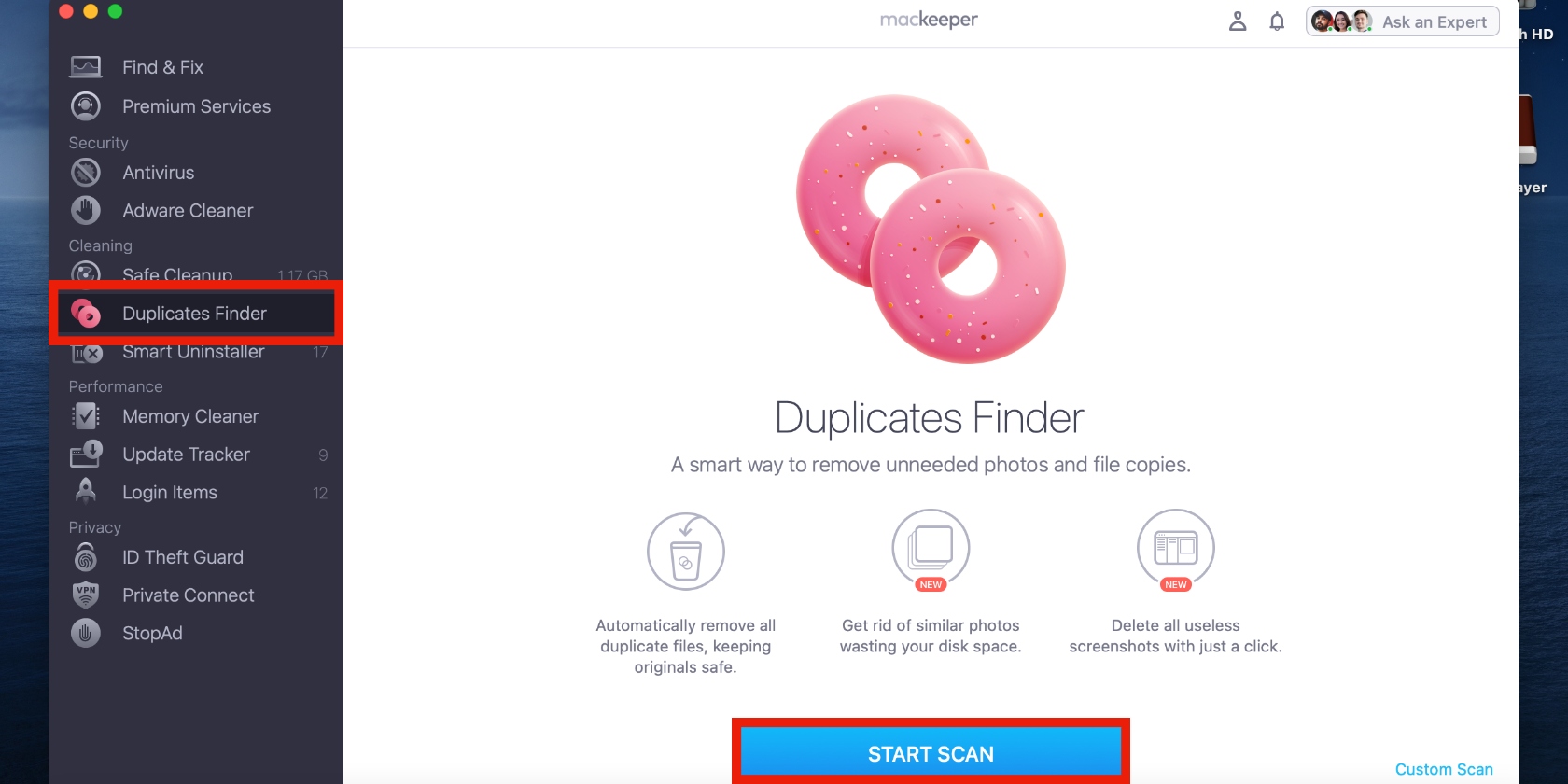
Select Duplicates Finder from the sidebar and click Start Scan to analyze your entire system for identical photos and files.
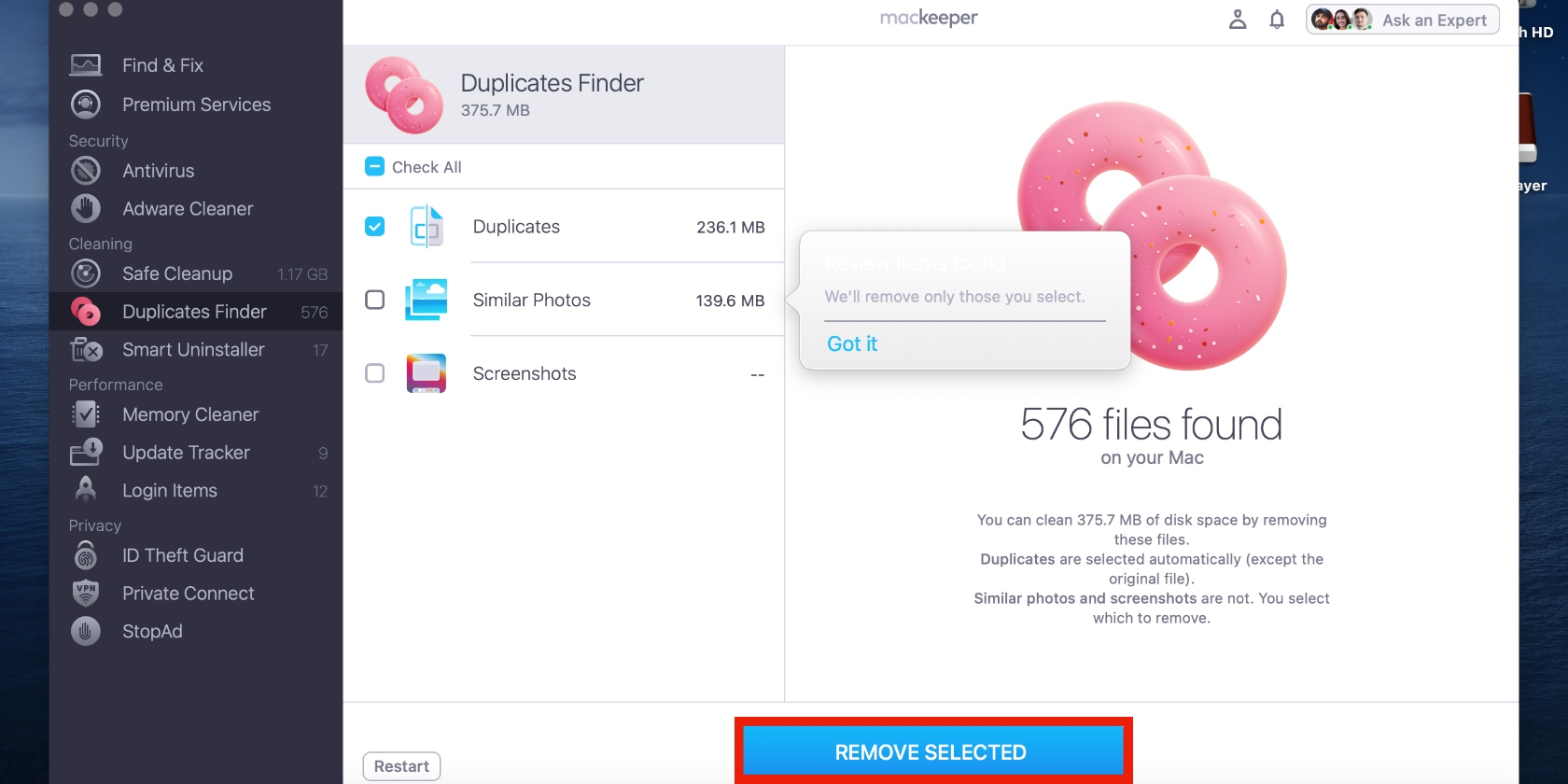
Review the results under Duplicates, select items you no longer need, and press Remove Selected to delete them safely.
Step 1. Click on Duplicates Finder > Start ScanStep 2. Click on Remove Selected
1. Built-in Photos features
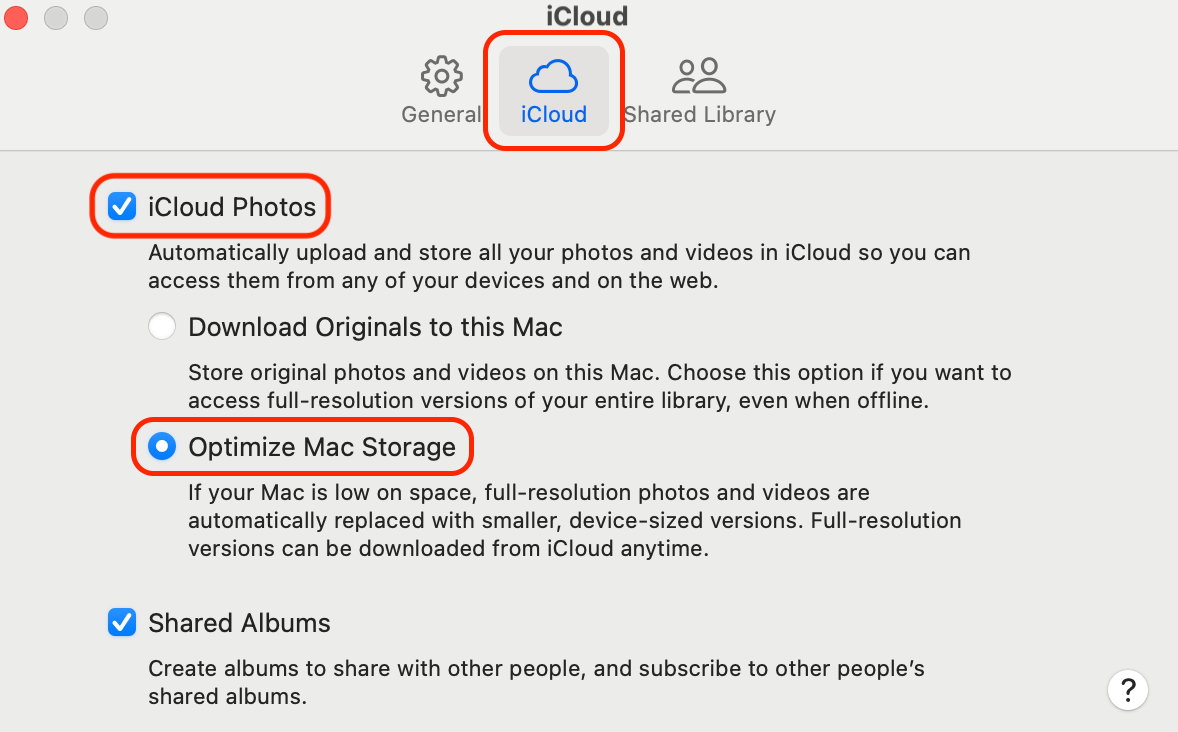
When you focus on organizing photos on a Mac, Optimize Mac Storage is the easiest place to start. Based on our experience, it lets you keep full-resolution originals in iCloud while your Mac stores only smaller, device-optimized copies. You still see your entire library, but your internal storage grows much more slowly.
Here’s what to do to enable Optimize Mac Storage:
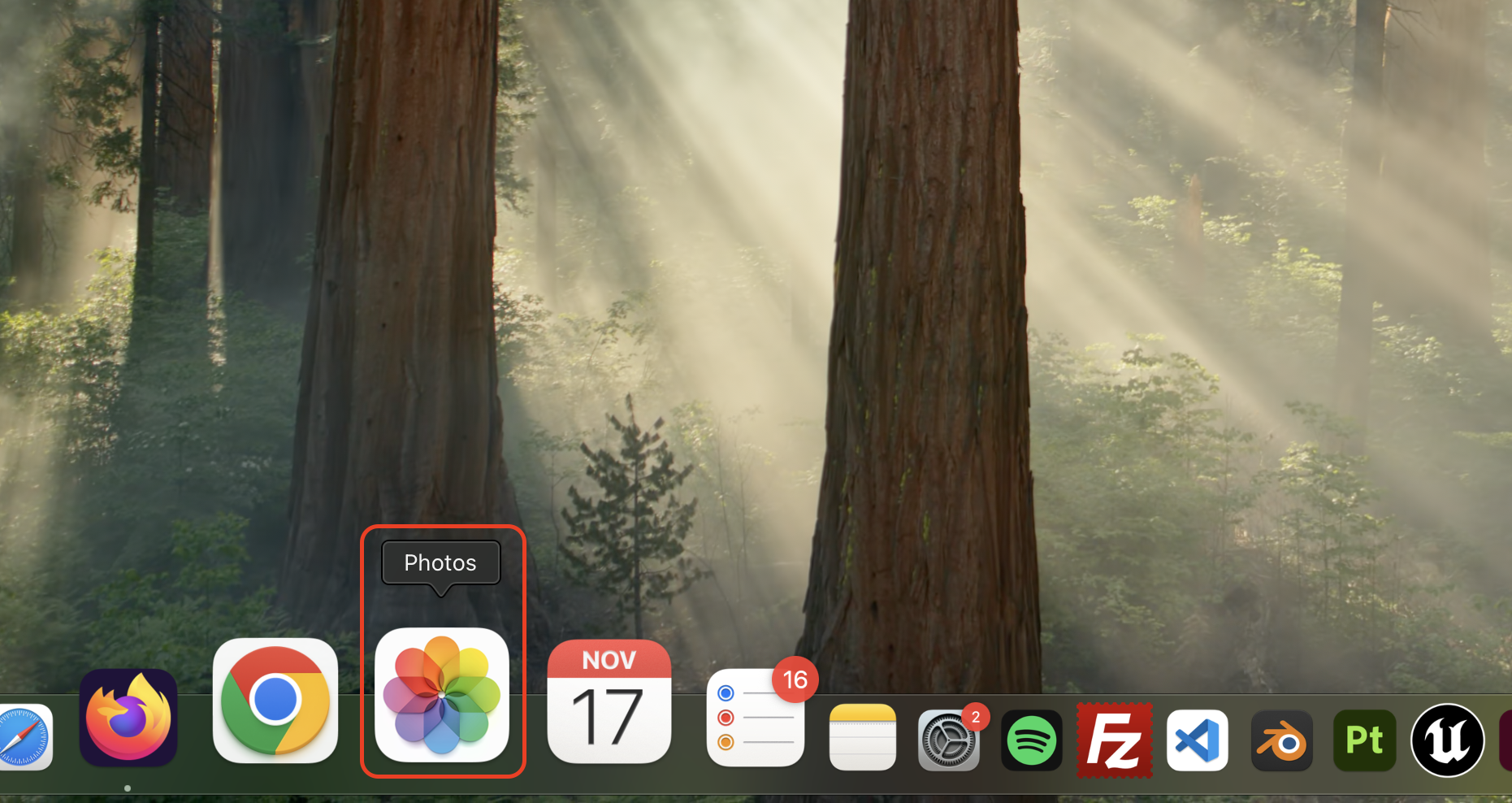
Open the Photos app on your Mac.
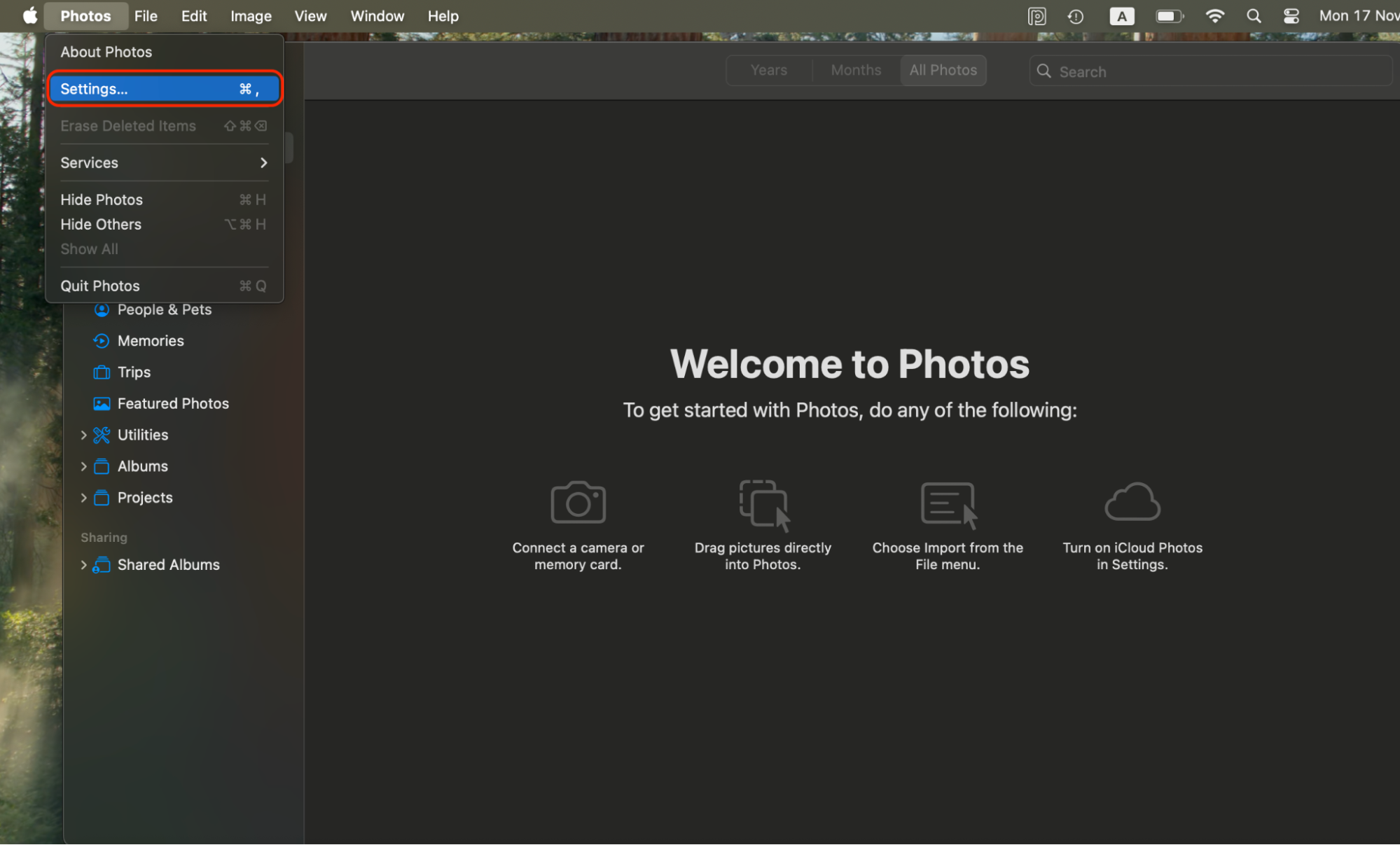
In the menu bar, click Photos → Settings.
Go to the iCloud tab at the top of the window.
Make sure iCloud Photos is turned on for your account.
Select Optimize Mac Storage instead of Download Originals to this Mac.
Leave your Mac plugged in and connected to Wi-Fi so optimization can run quietly in the background.
Step 1. Open the Photos app on your MacStep 2. In the menu bar, click Photos → SettingsStep 3. Go to the iCloud tab, turn on iCloud Photos, and select Optimize Mac Storage
2. Using iCloud Photo Library
iCloud Photos turns your entire library into a synchronized, off-site backup that follows you across iPhone, iPad, and Mac. When people ask where imported photos are stored on a Mac, we usually explain that they reside inside the Photos Library file, which then syncs to iCloud as a second, cloud-based copy. You get both local access and remote safety with almost no manual work.
Follow these steps to set up iCloud Photos correctly:
Open Photos on your Mac and go to Photos → Settings.
Click the iCloud tab to manage cloud options.
Turn on iCloud Photos to start syncing your entire library.
Choose Optimize Mac Storage or Download Originals to this Mac, depending on your space needs.
Sign in with the same Apple ID on your iPhone and iPad to keep everything in sync.
Give iCloud time to upload; large libraries may need several hours.
3. Try external drives
If your Photos Library is enormous, moving it to an external SSD or HDD is one of the most direct ways to reclaim space on your internal drive. We usually suggest this when you want to keep all original photos, but your macOS storage is nearly full. The main benefit is raw capacity; the trade-off is that you must connect the drive whenever you use Photos.
Here’s how to move your Photos Library to an external drive:
Quit the Photos app if it's currently open.
Connect an external SSD or HDD that has plenty of free space.
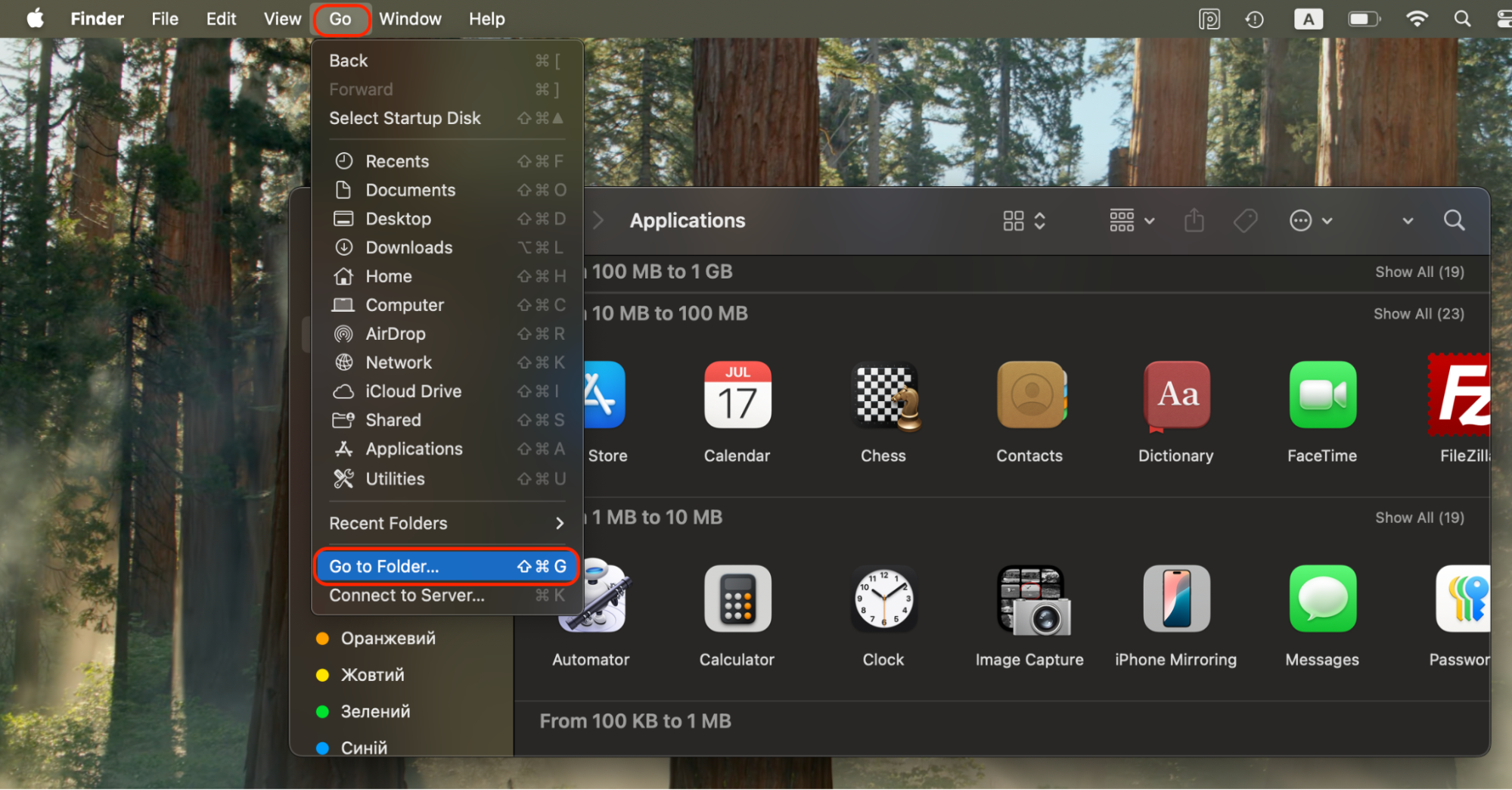
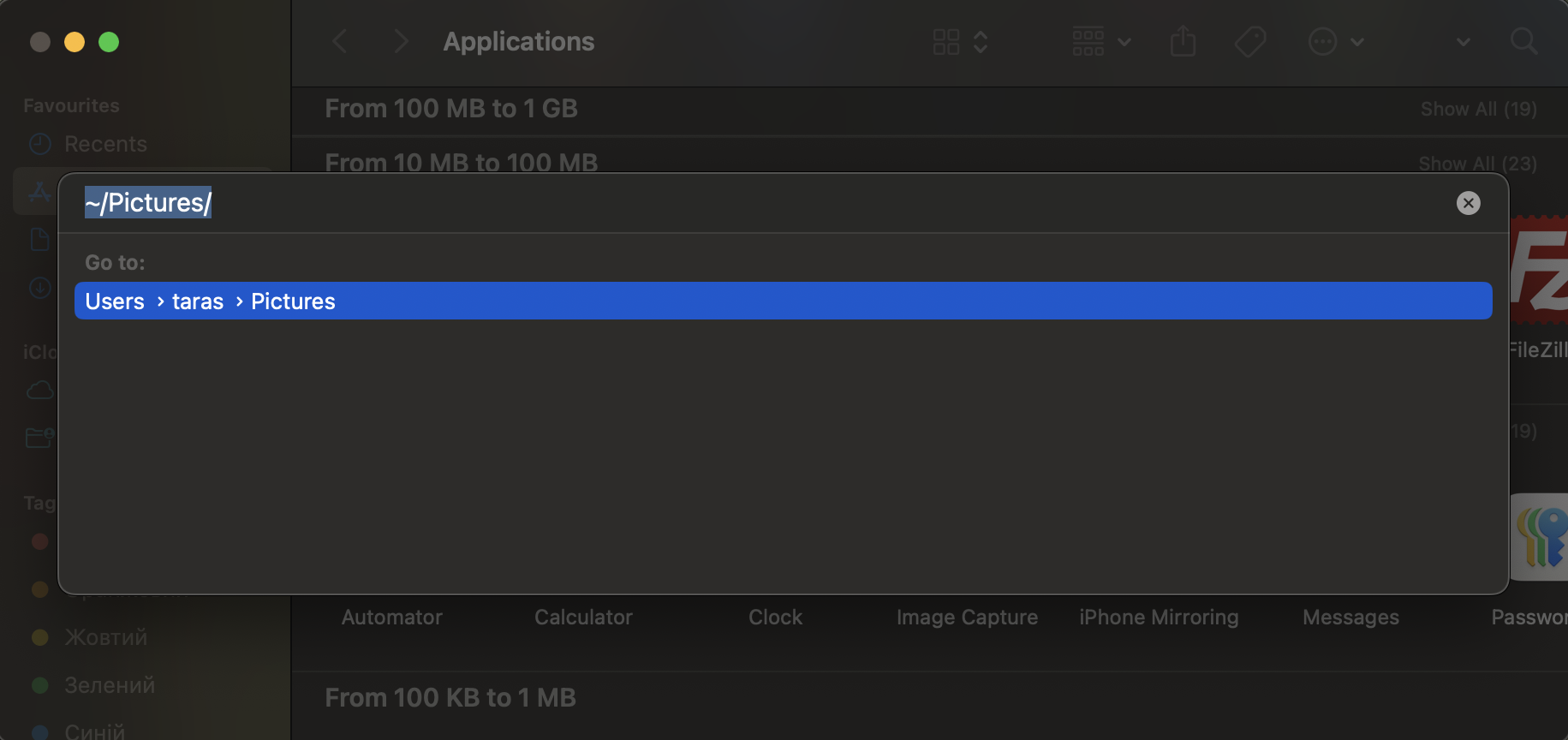
Open Finder and go to your Pictures folder by writing ~/Pictures/ in the search bar that appears after you click on Go → Go to Folder.
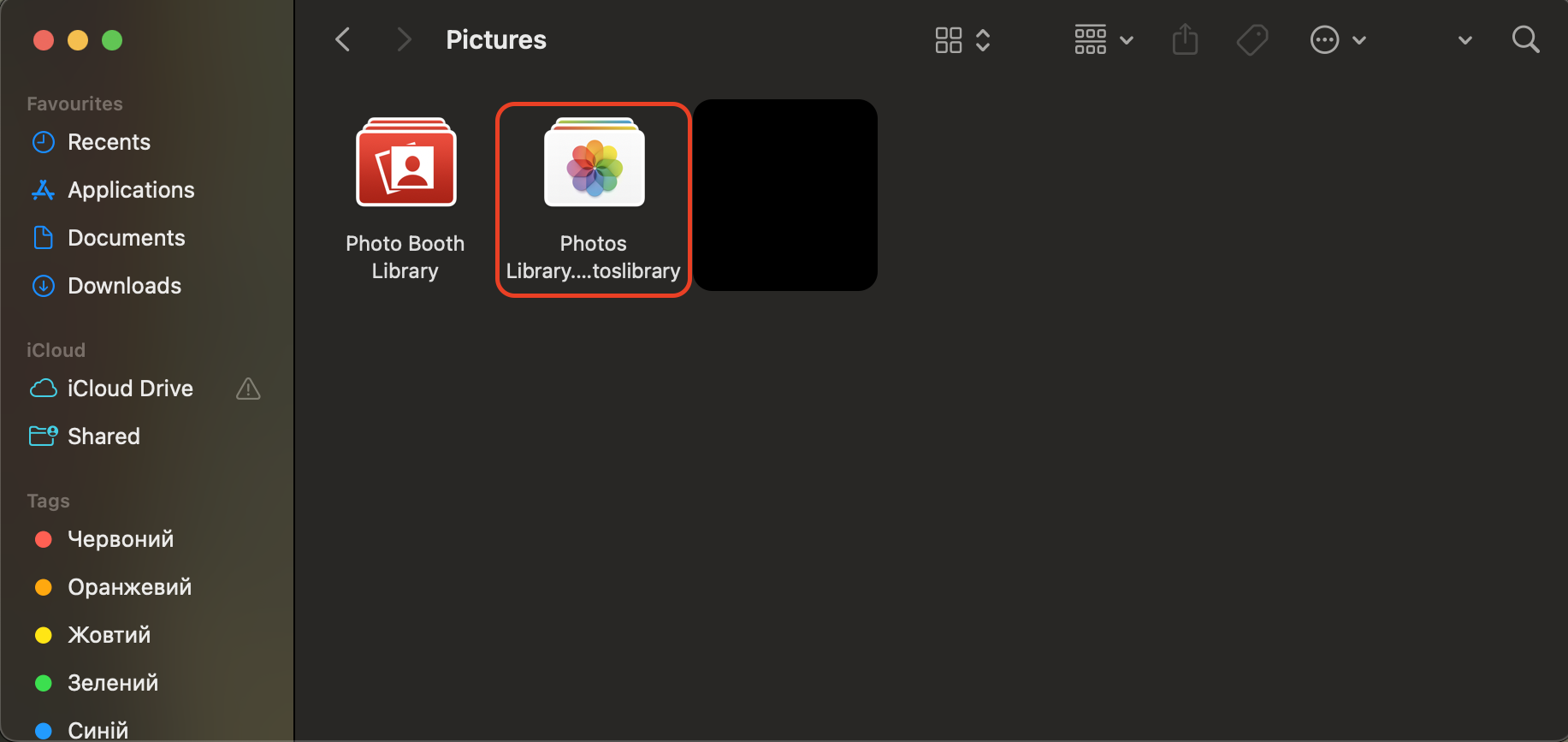
Drag Photos Library.photoslibrary to the external drive and wait for the copy to finish.
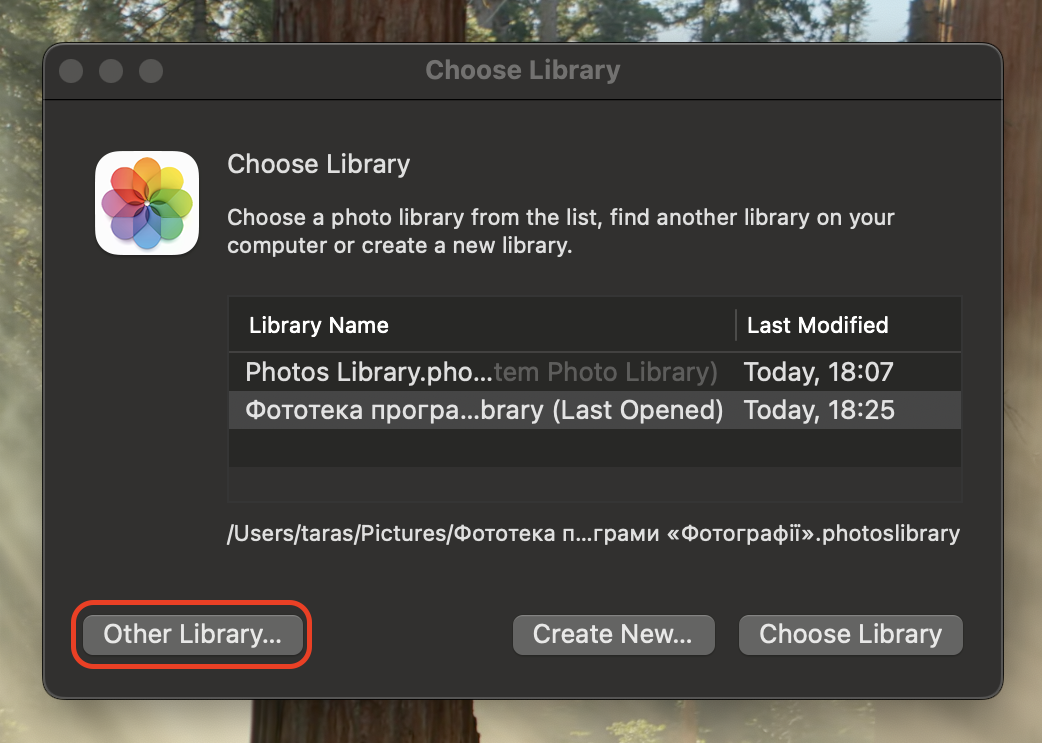
Hold Option and open Photos, then choose Other Library and select the copy on the external drive.
Confirm that the library opens correctly, then delete the old local copy to free up internal space.
Step 1. Quit the Photos app if it's currently openStep 2. Open Finder and click on Go → Go to FolderStep 3. Write ~/Pictures/ in the search barStep 4. Drag Photos Library.photoslibrary to the external driveStep 5. Hold Option and open Photos, then choose Other Library and select the copy on the external drive
4. Other cloud services
If you prefer not to rely solely on iCloud, you can offload photos to services like Google Photos, Dropbox, or OneDrive. We often recommend this when users want an additional backup layer or cheaper long-term storage. It also pairs well with guides on how to access iCloud photos on your Mac, providing you with more than one way to access your memories.
Follow these steps to export your photos to another cloud service:
Create an account with Google Photos, Dropbox, or another trusted cloud provider.
Install the service's Mac client app from the official website or the App Store.
Choose or create a folder on your Mac where you will store the exported photos temporarily.
In the Photos app, select images or albums and use File → Export to export them to that folder.
Let the cloud app upload the exported files to your online storage.
After confirming everything is backed up, delete the exported copies from your Mac to recover space.
Create an account with Google Photos, Dropbox, or another trusted cloud provider
How to keep your photo library from growing too large?
If you want to stop your Photos Library from ballooning over time, there are several habits our team consistently recommends. Each of these suggestions helps you prevent unnecessary buildup, so your Mac stays fast and responsive without sudden storage pressure.
Practical ways to keep photos from taking up too much space:
Turn on Optimize Mac Storage in Photos so your Mac stores smaller versions instead of full-resolution originals.
Review Recently Deleted regularly and empty it so that removed photos don't sit there for 30 days consuming space.
Delete burst photos and duplicates—these often accumulate quietly and can occupy gigabytes of space.
Export and archive old albums to an external SSD or HDD once or twice a year to offload older content.
Avoid importing large RAW files unless you're actively editing them, as they occupy far more space than JPEGs.
Disable auto-downloads in messaging apps like WhatsApp and Telegram to prevent clutter from saving to Photos.
Conclusion
Photos can take up space on a Mac for many reasons—full-resolution originals, hidden duplicates, cached thumbnails, or large video files that stay stored locally even when iCloud syncing is enabled.
If you want an easier way to reduce photo clutter in the long term, our team recommends using MacKeeper's Duplicates Finder. MacKeeper is trusted by millions of users, and the tool quickly detects identical images and redundant files, allowing you to clear them with a single click. It's a simple way to maintain an organized photo library and prevent storage issues before they build up.
We respect your privacy and
use cookies
for the best site experience.
Privacy Preferences Center
We use cookies along with other tools to give you the best possible experience while using the
MacKeeper website. Cookies are small text files that help the website load faster. The cookies we
use don’t contain any type of personal data meaning they never store information such as your
location, email address, or IP address.
Help us improve how you interact with our website by accepting the use of cookies. You can change
your privacy settings whenever you like.
Manage consent
All cookies
These cookies are strictly necessary for enabling basic website functionality (including page
navigation, form submission, language detection, post commenting), downloading and purchasing
software. The website might malfunction without these cookies.