12 Things to Check Before Buying Second-hand MacBook
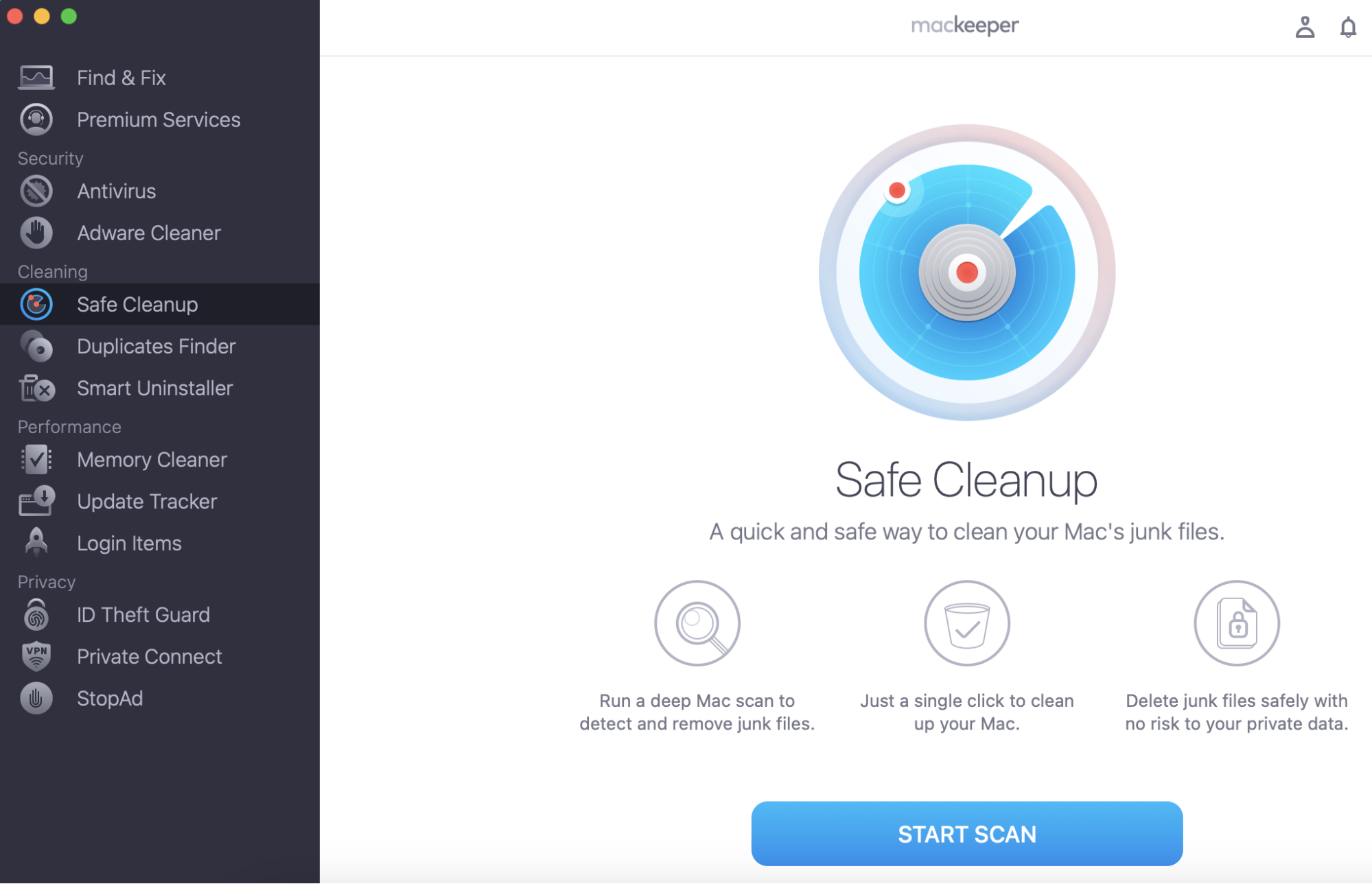
We’ve designed these 12 things to check before buying a second-hand MacBook to help you choose what’s best and highlight the crucial criteria. But sometimes you don’t really need a new Mac—you just need to breathe new life into the old one! Try MacKeeper's Safe Cleanup—it helps clean junk to free up your storage.
Are you a Windows-to-Mac switcher with a limited budget? Then buying a refurbished Mac with a warranty and tech support included sounds like the best option. Alternatively, you can save extra money by purchasing a used Mac. We’ll walk you through all the necessary steps you should take to ensure the Mac you are purchasing won’t crash the very next day.
Note: It’s a great idea to perform some basic diagnostics when you meet your seller. So, remember to take an external USB drive with macOS preinstalled and headphones.
A note from our experts:
Are you sure you need to buy a Mac? Try to optimize your own at first, and start by freeing up its storage to optimize performance. Use MacKeeper's Safe Cleanup to remove all unnecessary items from your device.
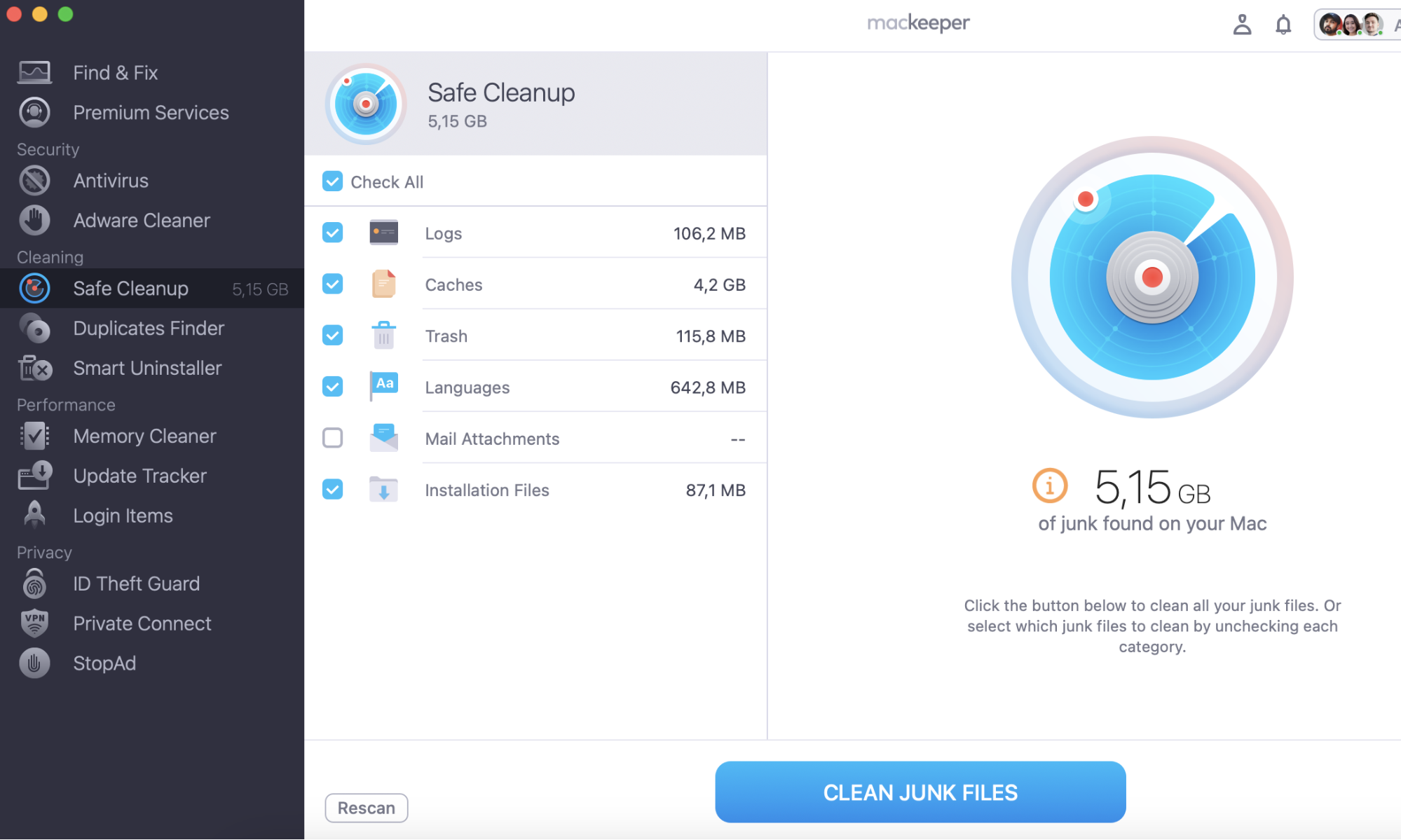
Wait until the scan is done, then select the items you wish to remove from your Mac.
Click Clean Junk Files.
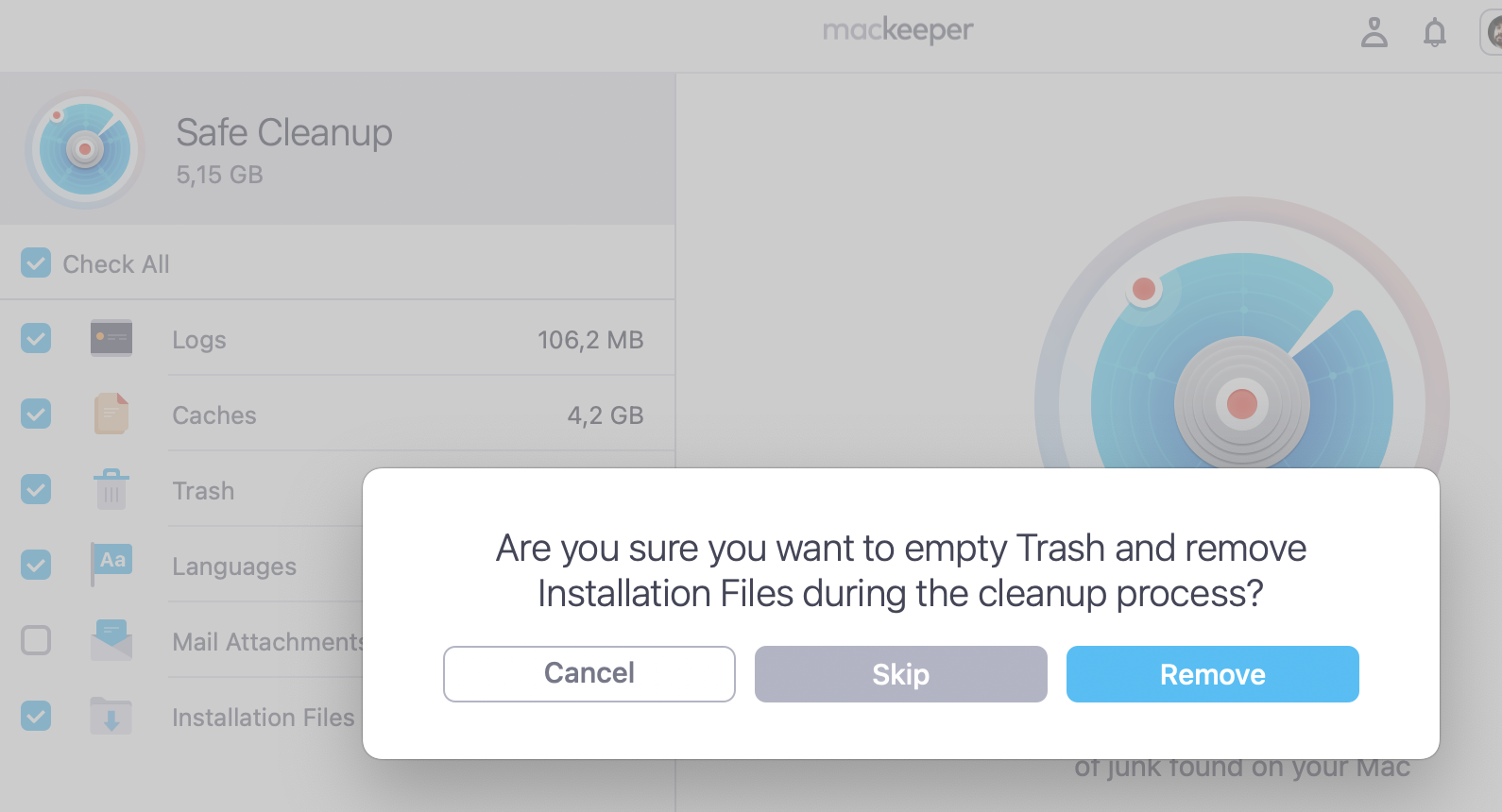
Step 1. MacKeeper > Safe Cleanup > Start ScanStep 2. Choose the files and folders you want to remove > click Clean Junk FilesStep 3. Click Remove to empty Trash and remove Installation Files
What to look for when buying a used MacBook?
Buying a pre-owned MacBook is an excellent way to save money and extend the life of a device. However, not every used Mac is a good purchase. Start by thoroughly inspecting the device for any external damage (such as the case, screen, or ports) and internal issues (like the optical drive or battery). Additionally, check the specs and run performance tests to ensure everything works as it should.
Step 1: Check for damages
Start diagnostics by carefully examining the body of the used Mac for any physical damage, such as visible scratches. Next, check all the screws. Any loose screws can be a sign that the Mac has been serviced by a non-authorized repair service. Also, make sure the screen and the case aren’t bent.
Finally, check the display hinges (the joints that hold the display and case together). These hinges should be powerful enough to support the lid and prevent it from casually falling.
If you find any damage when buying a used Mac, you could use it to bargain.
Step 2: Check Mac specifications
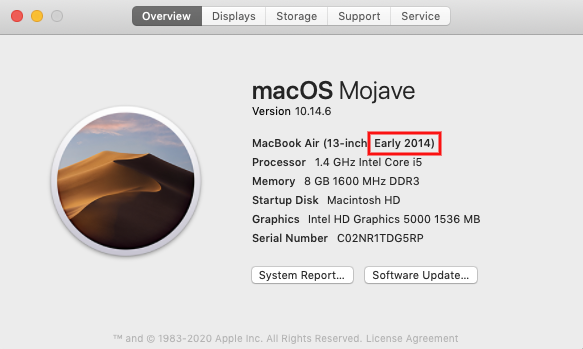
Next, we recommend checking the release year, model, and specs of the MacBook you plan to purchase. Even if a device appears nearly new, our experts advise against pre-owned models that use Intel processors rather than Apple Silicon. We also suggest aiming for at least 16 GB of RAM and preferably more than 256 GB of storage.
To review a Mac’s specs list, open the Apple menu in the upper-left corner, select About This Mac, and click More Info.
If macOS is not installed on the used Mac you’re examining, you can check its age with its serial number. Turn the Mac over and you’ll find the serial number next to the regulatory markings. Use these resources to identify the Mac model and its age, as well as its warranty and support at the Apple’s coverage check webpage.
Step 3: Boot this Mac
Time to give this Mac a whirl. Make sure the machine you want to buy starts and macOS loads all the way to the desktop picture. If macOS is not installed on this machine, use the bootable drive you brought with you (the one with macOS on board). Hold down the Option key once you hear the startup chime and select the external startup drive.
If the Mac doesn’t boot, it’s not really a deal-breaker. You can check out our tips on what to dо if a Mac doesn't turn on. However, it’s up to you to decide whether you’re ready to overcome such obstacles. And if you are, it might be another reason for a discount on the second-hand Mac.
Step 4: Disable firmware password
Mac users set up various passwords for their devices, but one of them can be a real headache for the new Mac owner. Bad news if the seller set up a firmware password on their device — you won’t be able to start your Mac from the USB drive. When booting a Mac and hearing a startup chime, hold down the Option key. If you’re prompted to type in the firmware password, ask the Mac owner to turn it off.
Here’s how to disable the firmware password:
Turn off the Mac.
Turn it on again and hold down Command (⌘) + R keys immediately afterwards.
Release the keys when you see a lock icon and a password field.
Ask the Mac owner to enter the firmware password.
Click Utilities and select Firmware Password Utility or Startup Security Utility.
Click Turn Off Firmware Password.
Enter the firmware password when requested.
Quit the utility and restart the Mac.
Step 5: Check the display condition
To spot defective pixels on the display, go to a dead pixel checker that fills your screen with pure colors. Alternatively, open pictures with a mono-colour background (red, green, blue, white, or black) on the used Mac. If any pixels are damaged, you’ll notice small spots on the display.
It’s ok if there’s a dead pixel or two. However, if there are groups of broken pixels, then you probably shouldn’t buy this used MacBook.
Note:
Looking ahead, if you need any advice or have any specific questions regarding the device you’ve chosen, you can always install MacKeeper and message/call our tech expert.
Our team would love to help you choose the best device for you, and they will also explain how to use MacKeeper effectively to prolong your Mac’s life.
Step 6: Run a keyboard test
Use the macOS built-in Text Edit app to make sure the keyboard is not malfunctioning. Open it and type every keyboard character. Works fine? Now try the Caps Lock button and functional keys. Works perfectly? Great!
Open Text Edit and type every keyboard character
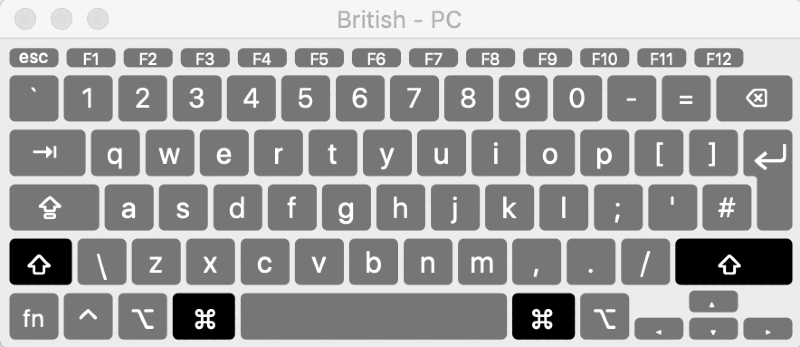
Alternatively, you may use Keyboard Viewer. Go to the language menu at the top menu bar, and select Show Keyboard Viewer. Now every key you hit is displayed in the new keyboard-like window.
Go to the language menu and select Show Keyboard Viewer
Step 7: Check the optical drive
If the Mac you’re about to buy has the optical drive, insert a DVD or a CD disk to check if it reads information.
Step 8: Check all ports
It’s easy to do. Just connect your external drive to the USB port. Do the same with the headphones. Works? Amazing!
Step 9: Run webcam diagnostics
Launch the FaceTime app or Apple’s Photo Booth app to test the iSight camera. Can you see your face in the app window? That means your webcam works perfectly.
If you encounter a pop-up message saying “There is no connected camera”, change your app’s default camera to the iSight camera. If this problem persists, it could be a sign of camera issues.
Step 10: Check the hard drive
Disk Utility is a handy tool to help you examine the health of a Mac’s hard drive.
Here’s what to do:
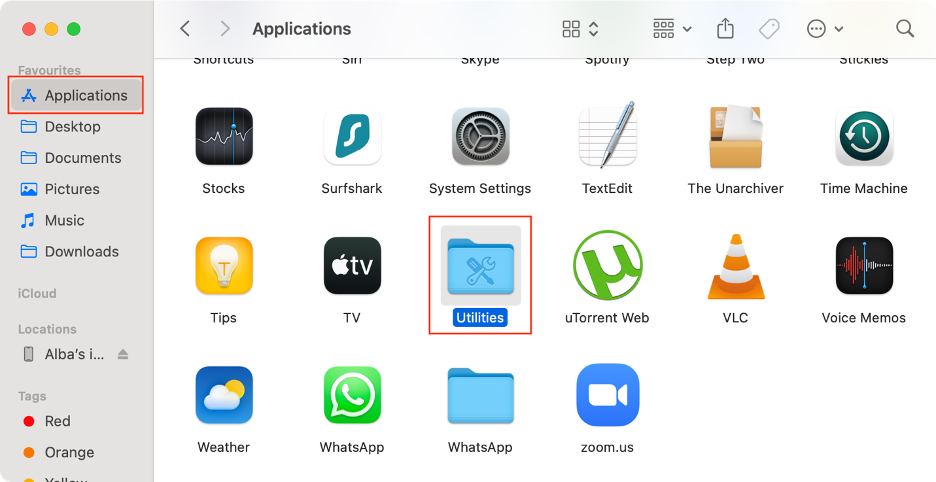
Go to Applicationsin Finder.
Choose Utilities.
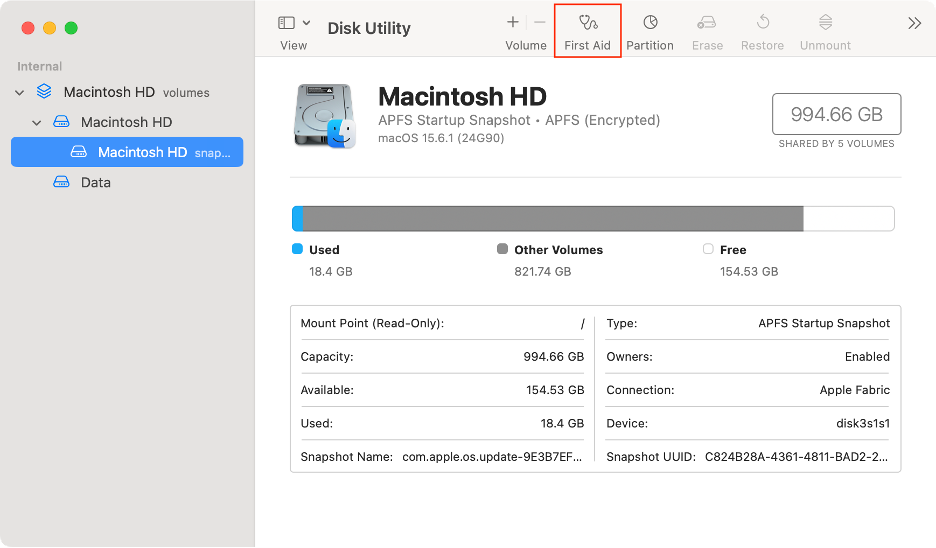
Select Disk Utility.
Click onFirst Aid in the menu above.
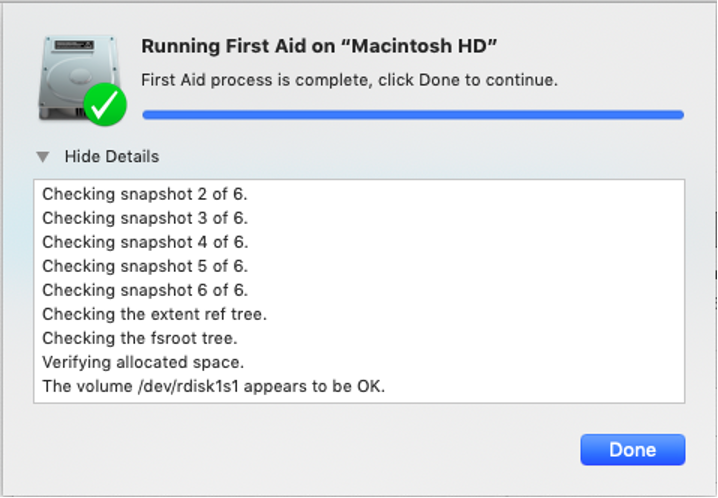
Click Run.
Step 1. Finder > Applications > Utilities > Disk UtilityStep 2. Click First AidStep 3. Wait until the checkup is complete
The checkup will take a while, and once you’re done, you’ll see a window with a list of messages regarding the status of your hard drive. If you notice any messages in red, it means that something is wrong with the disk.
A MacBook with a failing hard drive can be a big headache, but it’s not the end of the world. You can always fix or replace it. If this is the case, then make sure to get a discount from the seller.
Step 11: Check the battery
MacBooks are known for their outstanding battery performance, so you want to make sure the Mac you buy won’t drain after just an hour or so of use.
To check your Mac’s battery health:
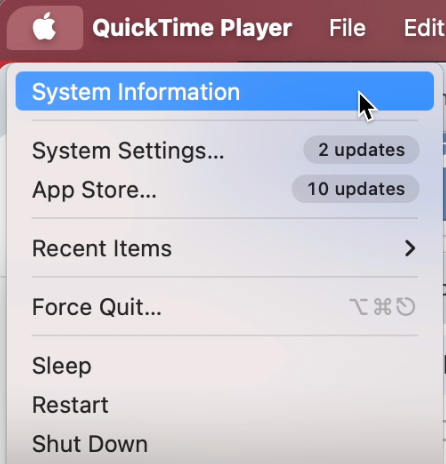
Click on the Apple Logo.
Hold down the Optionkey.
Select System Information from the drop-down menu.
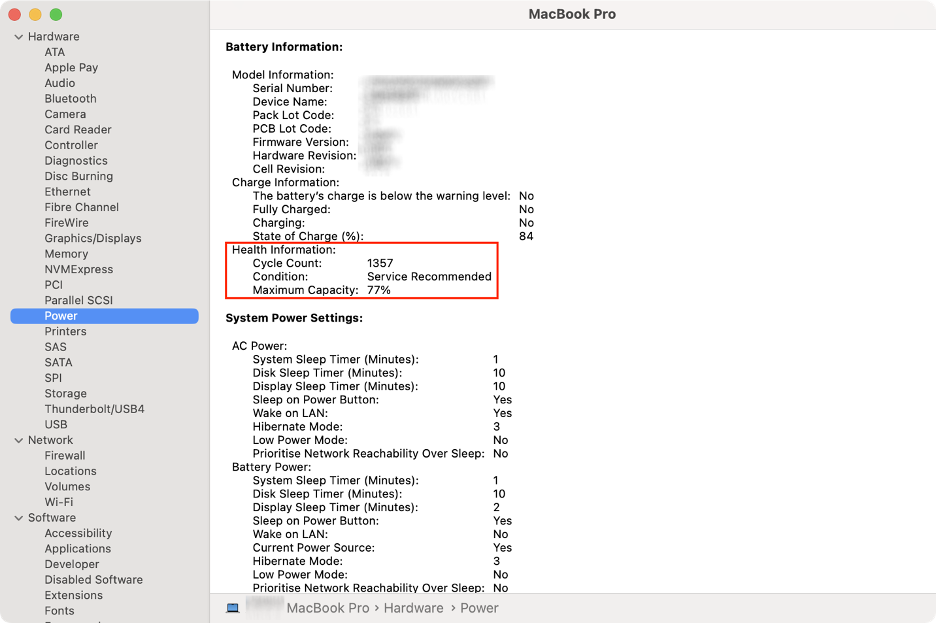
Open the Powersection in the left sidebar menu.
Pay attention to the Health Information section.
Step 1. Apple logo > System InformationStep 2. Power > Battery Information > Health Information
Cycle count and Condition will help you diagnose the Mac’s battery health. Most Mac batteries tend to last between 300 and 1000 charge cycles. Here you can find more information on battery cycle count for different Macs. Make sure the battery cycle count and health are within the limit. As a general rule, the fewer battery cycle counts, the better.
Step 12: Apple Hardware Test
The final step we recommend is an Apple Hardware Test (or Apple Diagnostics on newer Macs). It detects issues with the logic board, memory, and other hardware components.
To start Apple Hardware Test:
Disconnect all external devices and turn off the Mac.
Turn it back on and hold the D key once you hear the startup chime.
Select the language you need and press the arrow button to run the test.
To test out a used MacBook before you buy, run Apple Diagnostics. It’s a built-in Apple tool that can help you detect issues with RAM, battery, sensors, graphics, CPU, and other hardware components. Here’s how to run Apple Diagnostics to test out a used MacBook before committing to a purchase:
Shut down your Mac and disconnect all peripherals.
Press and hold the power button until the startup window appears.
Press Command (⌘) + D.
Wait for the test to complete and review the results.
How to check whether a MacBook is original or not?
To check whether your MacBook is original or not, go to the Check Coverage page, which is an Apple service allowing you to verify your warranty status. Once there, enter Mac’s serial number into the search field, solve a CAPTCHA, and click Continue. Among the results, you will find the validation of the purchase date, telephone tech support, and service coverage, among others.
To check whether the MacBook is original you need its serial number. It can be found in the About this Mac section of the Apple menu. Alternatively, look up the serial number on Mac’s bottom case.
How to check whether a second-hand or refurbished Mac is stolen or not?
To check whether a second-hand or refurbished Mac is stolen or not, ask the seller to provide the original box and receipt. If the reseller cannot provide you with the receipt, check used Mac’s Find My settings. If the settings are disabled, it doesn’t necessarily mean the Mac has been stolen, but it’s a reason to raise your guard.
Ask the seller to tell you the approximate expiration date of Apple’s Limited Warranty and check whether it matches the information on the Check Coverage page.
Here’s how it’s done:
Go to the Apple menu and select About this Mac.
In a window that opens, copy a serial number.
Go to the Check Coverage page and paste the serial number into the search field.
Compare the results to the one provided by the seller.
If there’s a considerable discrepancy between the two dates, stay away from the purchase.
Is buying a used MacBook worth it?
Buying a pre-owned Mac is a smart choice for budget-conscious buyers who want to experience the benefits of a Mac. However, not all used Macs are created equal. The cheapest models, particularly those still using Intel processors, are often best avoided. In the second-hand market, we recommend choosing an Apple-refurbished model, as these come with a guarantee of full functionality.
What is the best place to buy a used MacBook?
The best place to buy a pre-owned MacBook is Apple’s Certified Refurbished Products store, which offers models from previous years, all guaranteed to be in excellent condition. However, these options may not be the most affordable. If you’re seeking lower prices, consider reputable sites such as eBay, Best Buy, Amazon, or Back Market. However, you should be aware that the device’s condition may vary.
What used MacBook should I buy?
Before purchasing a pre-owned MacBook, keep in mind that it’s unlikely you’ll find one with the latest specs, top-tier performance, or a customizable configuration. If you’re comfortable with these limitations, prioritize models released after 2020 that feature Apple Silicon, such as the M2 or M3 MacBook Air or MacBook Pro, or even newer models if available at a good price.
We respect your privacy and
use cookies
for the best site experience.
Privacy Preferences Center
We use cookies along with other tools to give you the best possible experience while using the
MacKeeper website. Cookies are small text files that help the website load faster. The cookies we
use don’t contain any type of personal data meaning they never store information such as your
location, email address, or IP address.
Help us improve how you interact with our website by accepting the use of cookies. You can change
your privacy settings whenever you like.
Manage consent
All cookies
These cookies are strictly necessary for enabling basic website functionality (including page
navigation, form submission, language detection, post commenting), downloading and purchasing
software. The website might malfunction without these cookies.