Safari causing Mac to overheat is a frustrating problem because even light browsing can trigger loud fans, rising temperatures, and overall sluggish performance. Using MacKeeper’s Memory Cleaner helps stabilize your system by freeing up overloaded RAM, reducing background pressure, and preventing Safari from pushing your Mac into unnecessary heat spikes.
Safari can trigger overheating by consuming high CPU and memory resources, especially when you load complex websites, keep many tabs open, or run background processes that increase system workload. Heavy video playback, inefficient extensions, outdated software, and poor ventilation also add stress, causing your Mac to generate more heat and push the fans to their limits. Regularly monitoring your activity monitor helps identify which specific tabs are draining your power.
Symptoms of overheating with Safari on Mac
Symptoms that appear when Safari makes your Mac hot often include a noticeably warm device, fans running loudly or constantly, sluggish performance, and apps responding slowly or freezing. In severe cases, your Mac may display error messages, disconnect accessories, or even shut down unexpectedly as it tries to protect itself from heat damage. You should address these performance issues to prevent any permanent hardware failure.
A note from our experts:
From our experience, Safari-related overheating is often intensified by redundant background tasks that keep consuming RAM even after you close tabs or quit the browser. When memory pressure builds, processes stay active, pushing your Mac's temperature even higher. Since MacKeeper is a macOS utility software, its Memory Cleaner tool is designed specifically to release occupied RAM safely and stabilize system performance without interrupting essential tasks.
Here’s how to use MacKeeper’s Memory Cleaner to prevent RAM overload and reduce temperature spikes:
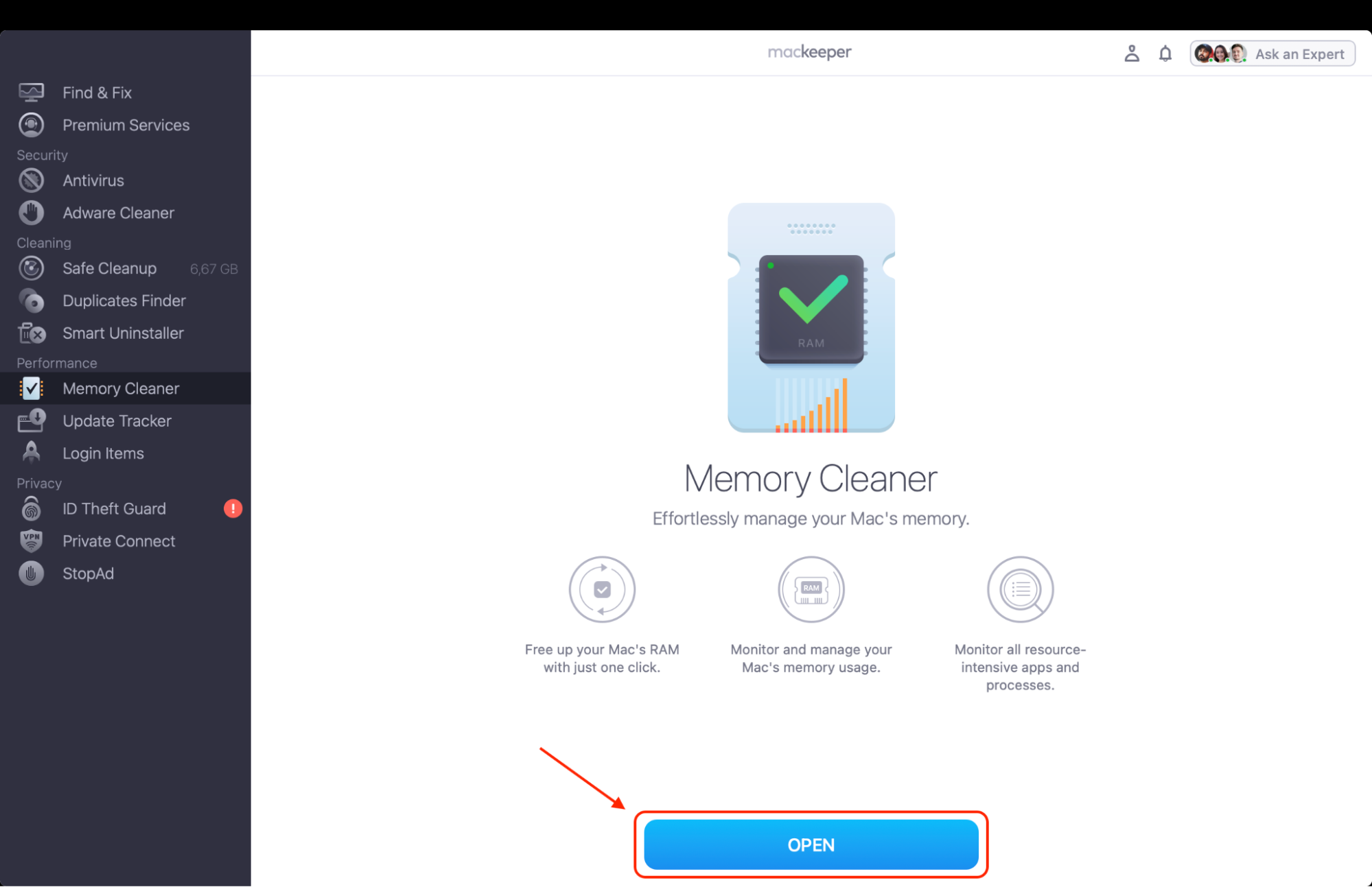
Open the app and select Memory Cleaner from the left sidebar.
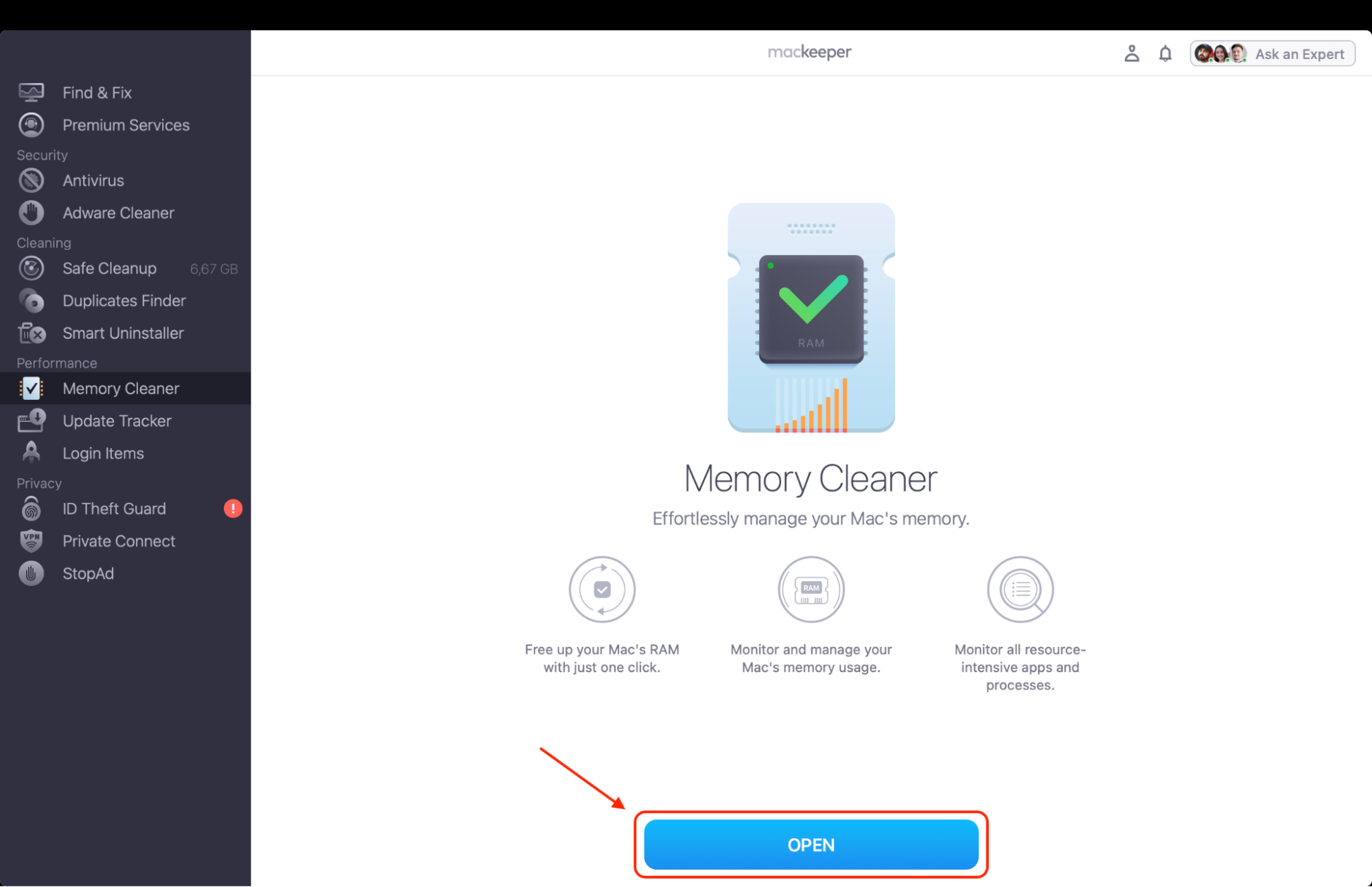
Click Open to view real-time memory usage and spot processes consuming the most RAM.
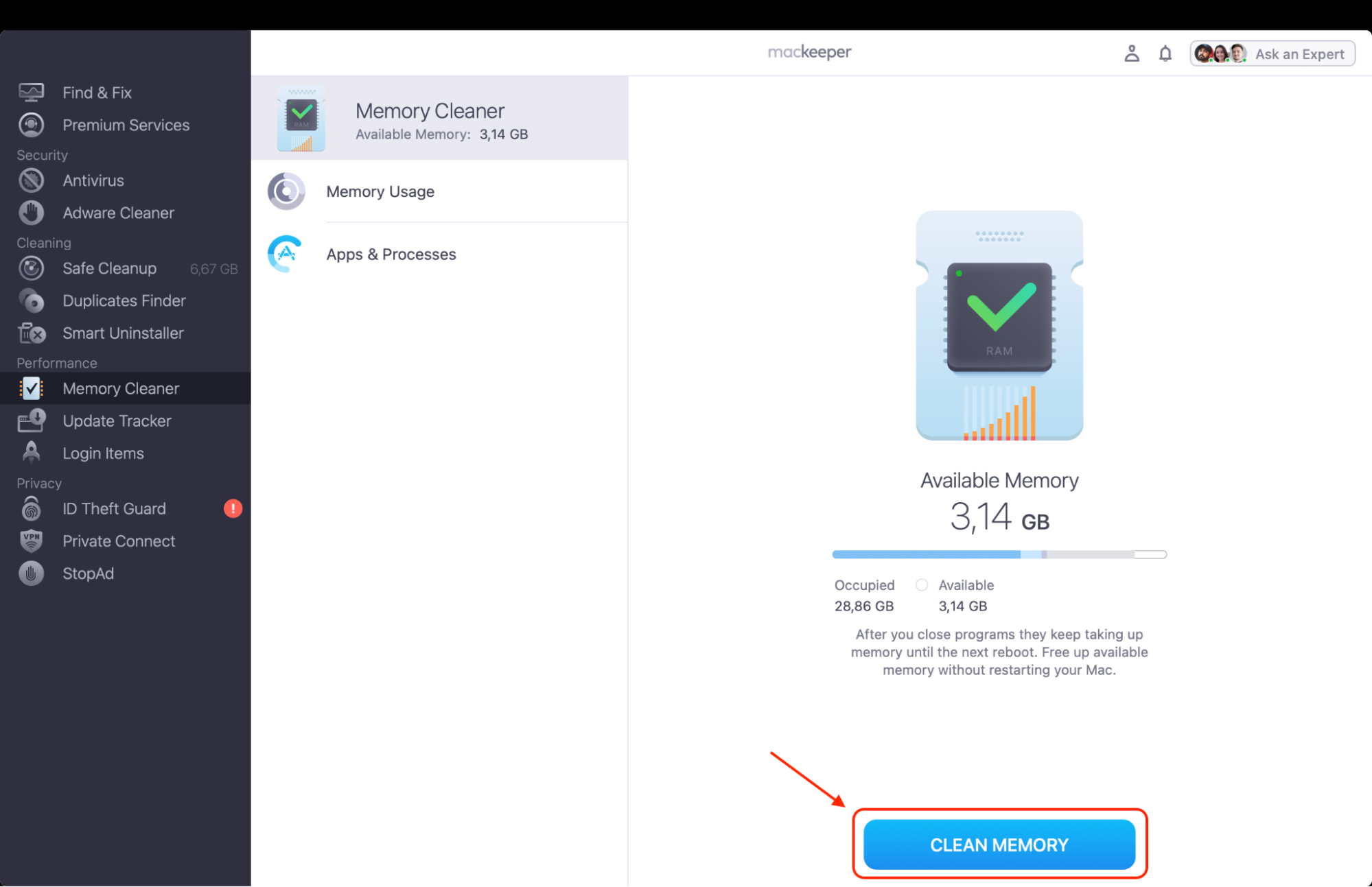
Select Clean Memory to terminate unnecessary background services and free resources instantly.
Keep MacKeeper active so it can automatically maintain optimal memory balance and stop those runaway Safari processes before they cause overheating again.
Step 1. Choose Memory Cleaner from the left-side menu barStep 2. Click Open to see memory consumption informationStep 3. Hit the Clean Memory button to free up disk space
How to fix Safari causing Mac to overheat?
To fix Safari causing your Mac to overheat, update Safari and macOS, close unused tabs, disable unnecessary extensions, as well as clear cache and cookies. Afterwards, restart Safari, then check Activity Monitor for processes that are overloading the CPU. If the issue continues, try resetting the SMC, ensure proper ventilation, and remove dust buildup. Finally, using fewer heavy websites may also help reduce thermal load.
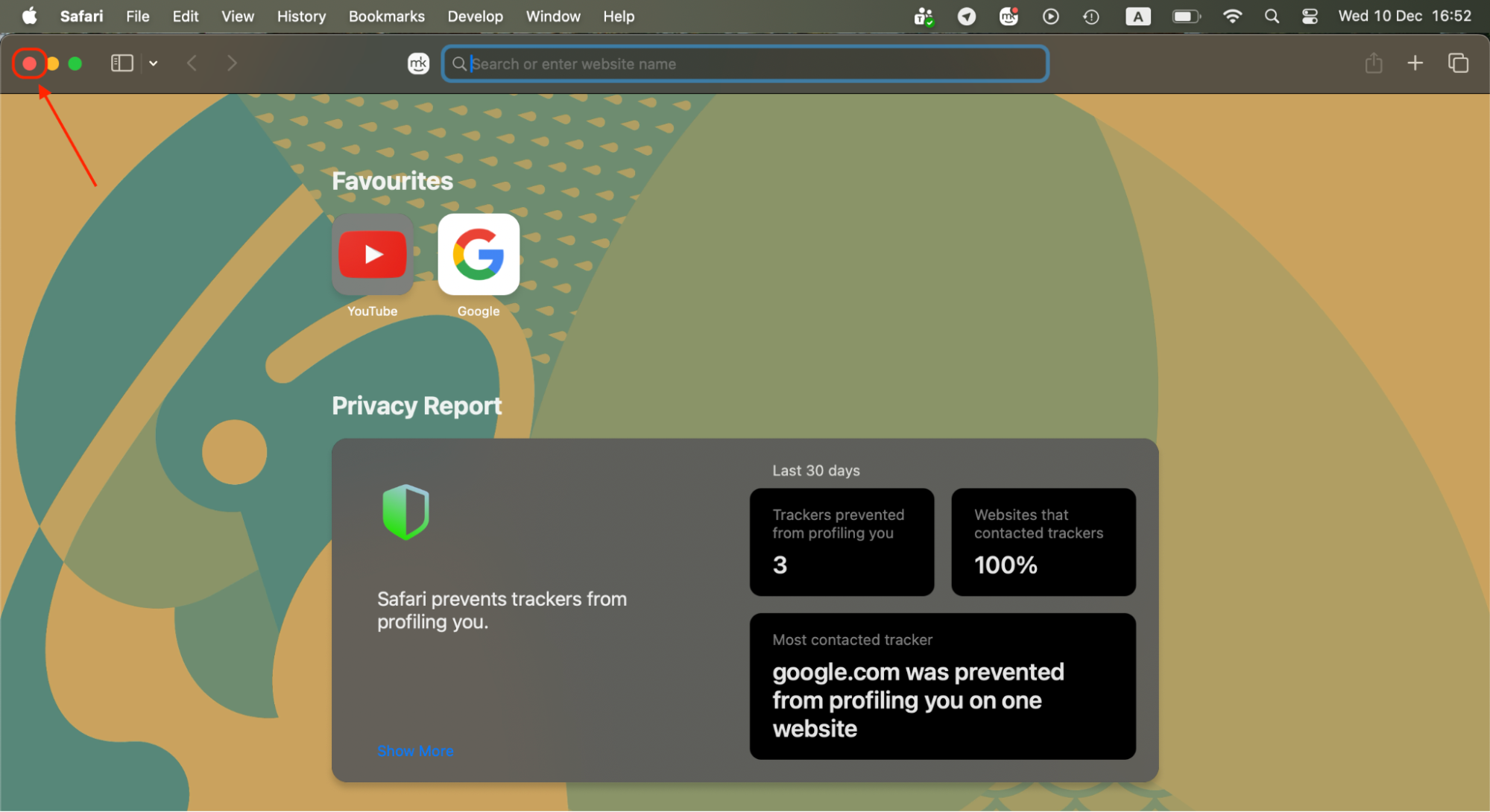
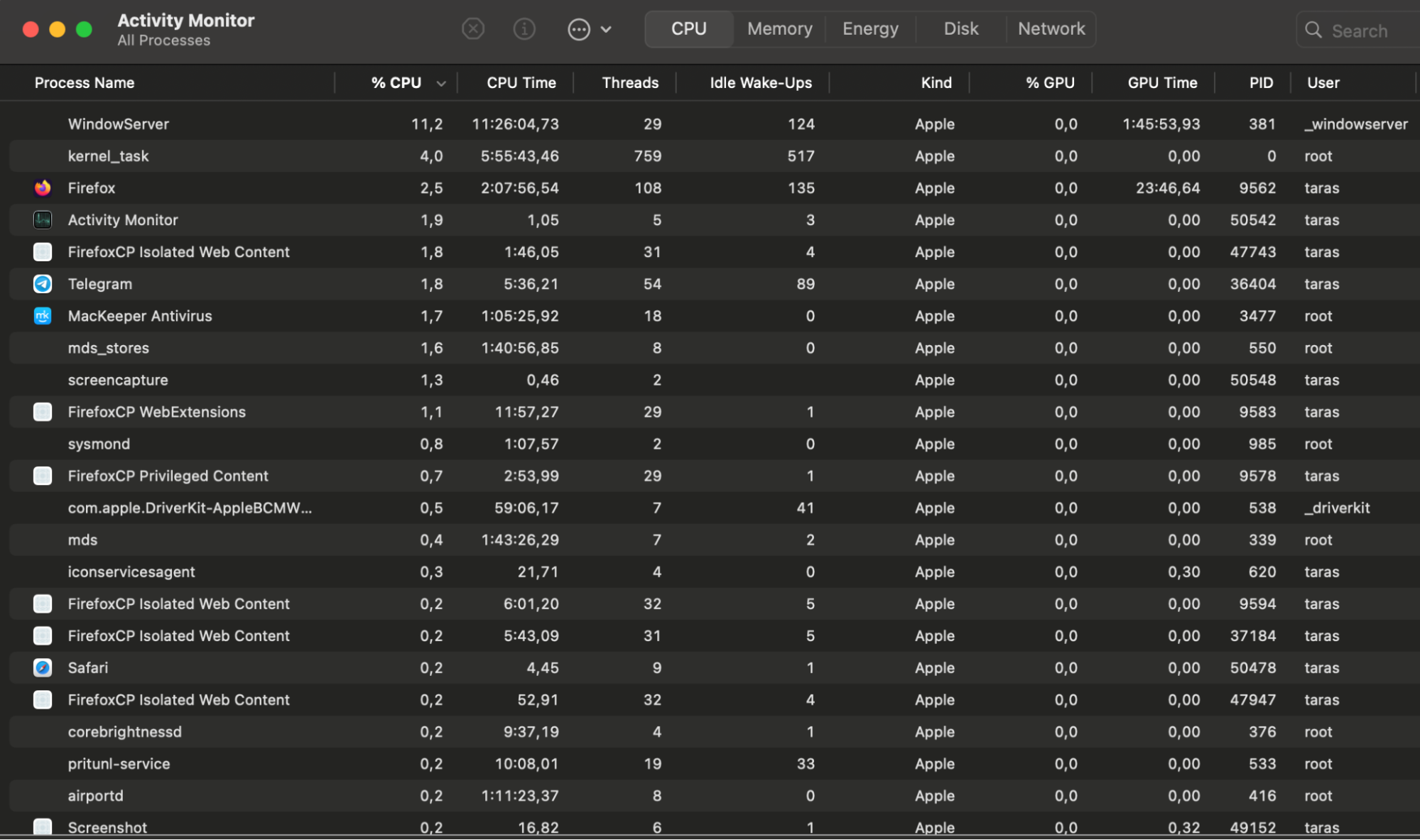
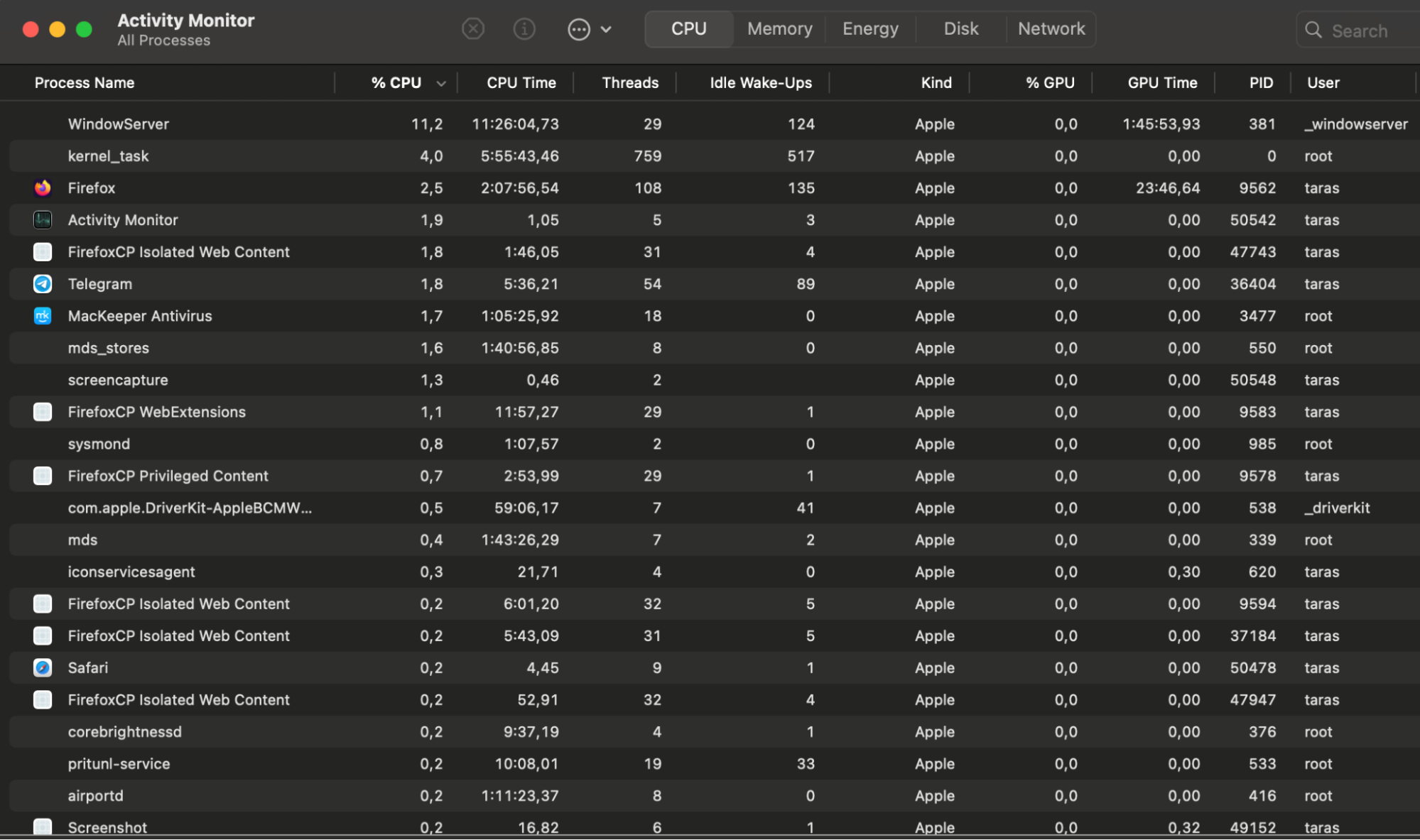
Step 1. Restart SafariStep 2. Check Activity Monitor for processes that are overloading the CPU
1. Closing unnecessary tabs and windows
Closing extra tabs reduces Safari’s load and is one of the easiest ways to understand how to stop a MacBook from overheating. Too many windows keep scripts active, raise CPU usage, and push the fans. Minimizing what you keep open helps your Mac cool down faster.
Here’s what you should do next to reduce the load:
Open Safari and review all open tabs.
Close the ones you no longer need.
Right-click a tab, then choose Close Other Tabs to close all tabs except the current one.
Quit unrelated apps to free extra system resources.
Right-click a tab, then choose Close Other Tabs
2. Disabling or removing heavy extensions
Extensions often run constant background tasks that slow Safari and increase heat output. If you disable or remove heavy add-ons, it’ll help reduce memory use, speed up browsing, and keep your Mac cooler while you work.
We suggest you follow these steps to cut down on unnecessary extension activity:
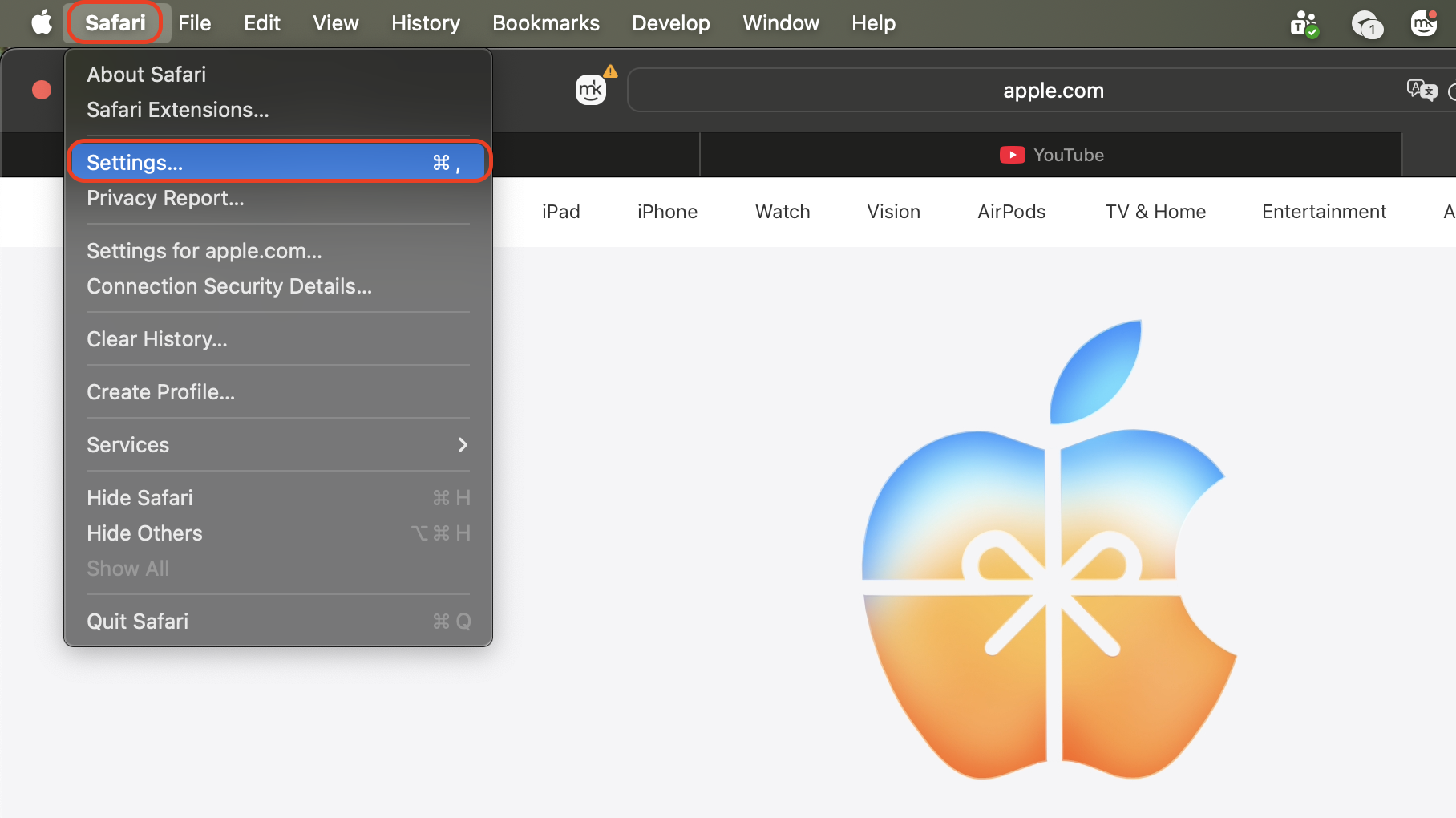
Open Safari and select Safari > Settings.
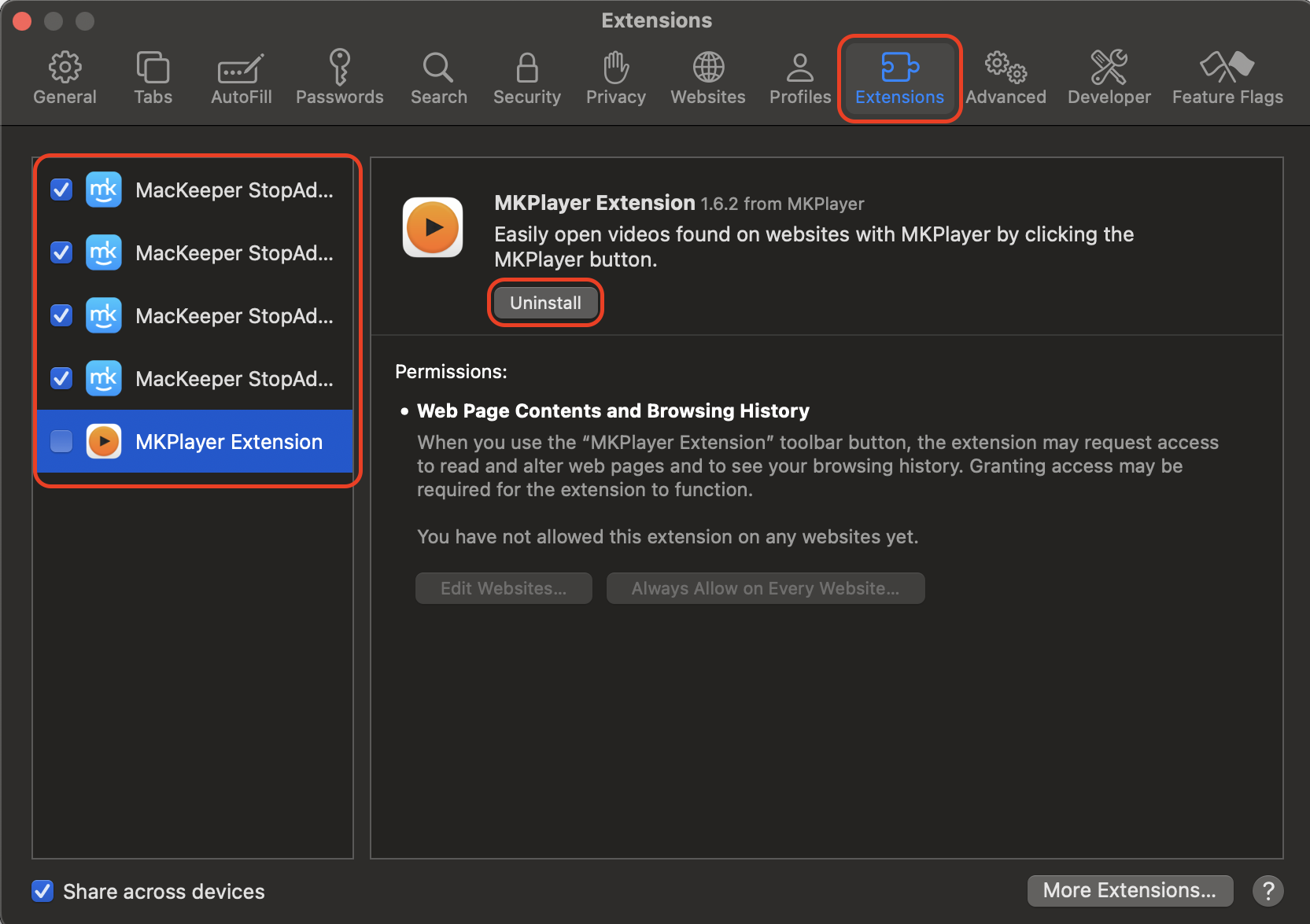
Go to the Extensions tab.
Uncheck extensions you want to disable.
Click Uninstall to remove those you no longer need.
Step 1. Open Safari and select Safari > SettingsStep 2. Go to the Extensions tab and uncheck or uninstall unwanted extensions
3. Checking CPU usage in Activity Monitor
High CPU usage explains why your MacBook makes a fan noise, especially when Safari processes spike. Activity Monitor helps you find demanding tasks quickly so you can prevent overheating and restore smoother performance.
Use the steps below to check which tasks are causing trouble:
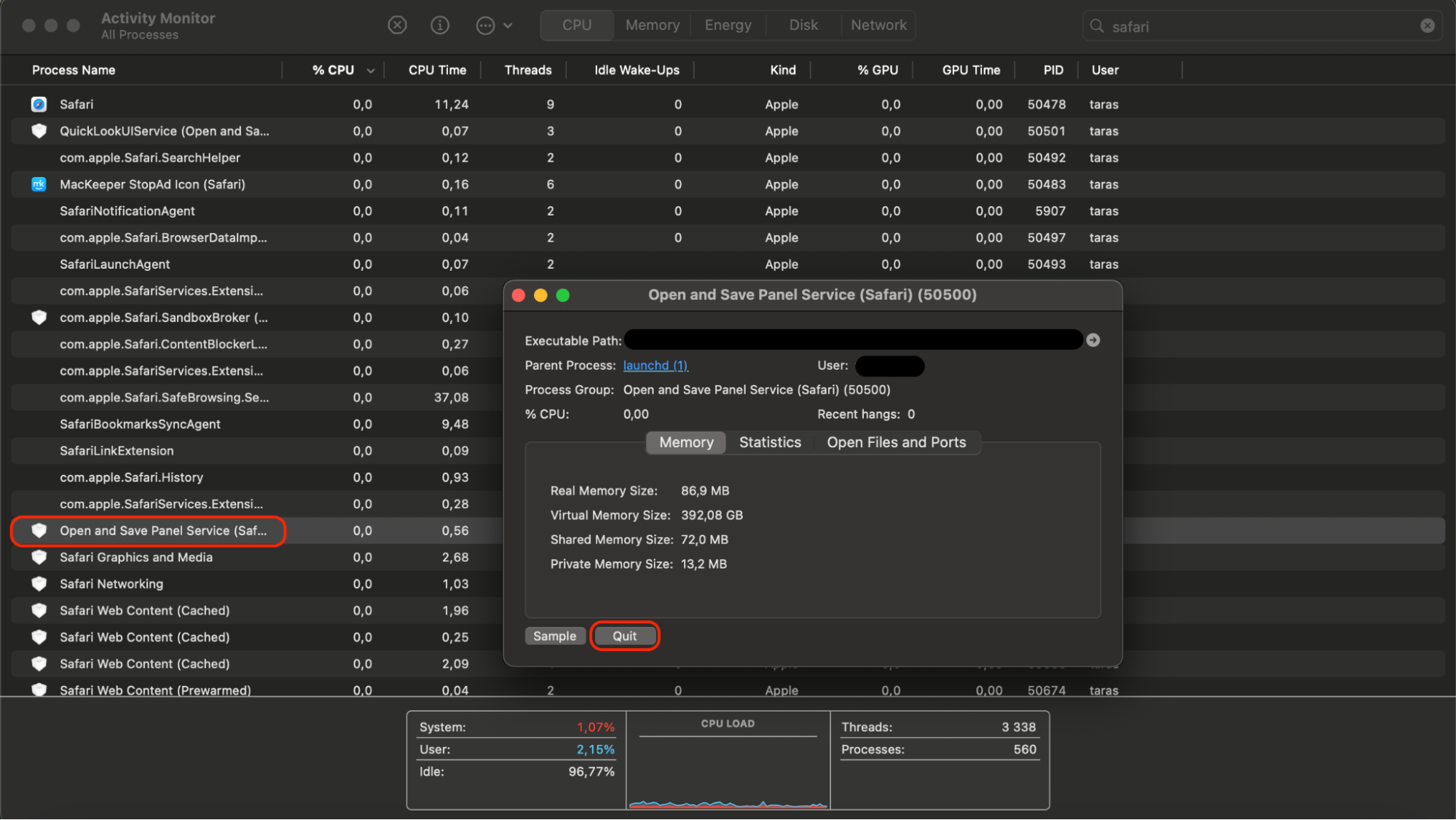
Open Spotlight and search for Activity Monitor.
Go to the CPU tab.
Look for Safari processes with unusually high usage.
Quit or Force Quit the ones repeatedly causing spikes.
Step 1. Open Spotlight and search for Activity Monitor and click on the CPU tabStep 2. Look for Safari processes with unusually high usage and Quit or Force Quit the ones repeatedly causing spikes
4. Clearing cache, website data, and temporary files
We know that cached data speeds up browsing but eventually becomes cluttered, making Safari work harder than necessary.
Follow these quick steps to clear unnecessary Safari data:
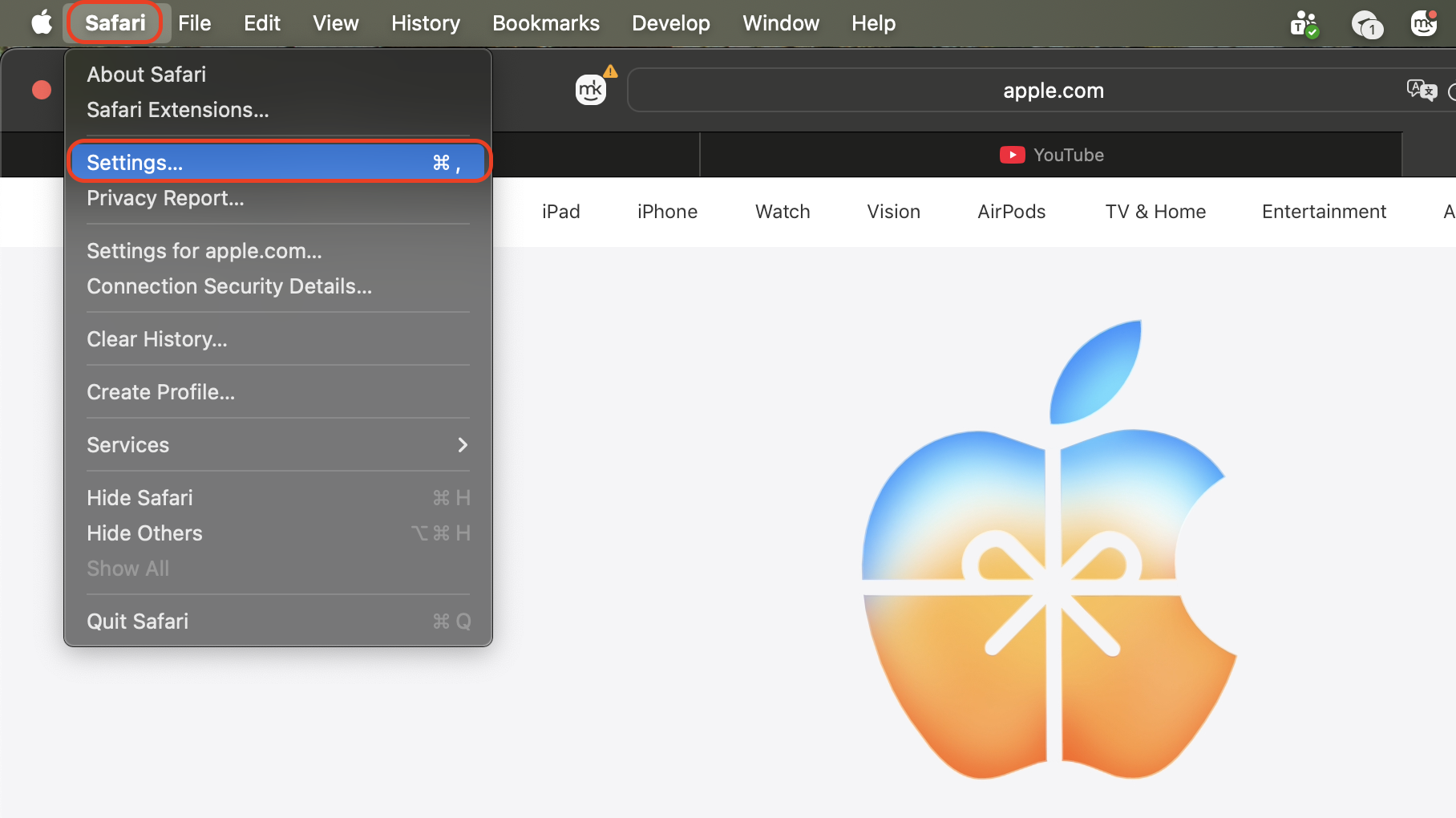
Open Safari and go to Safari > Settings.
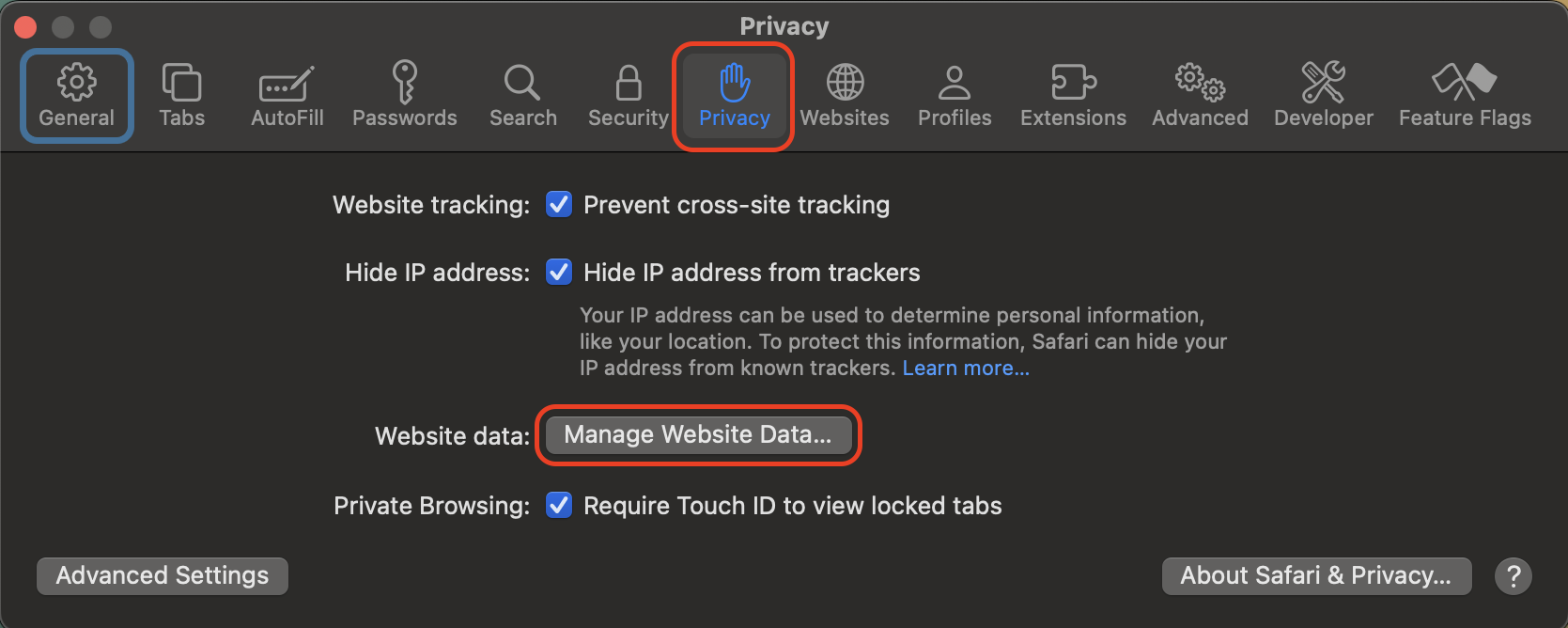
Open the Privacy tab and click Manage Website Data.
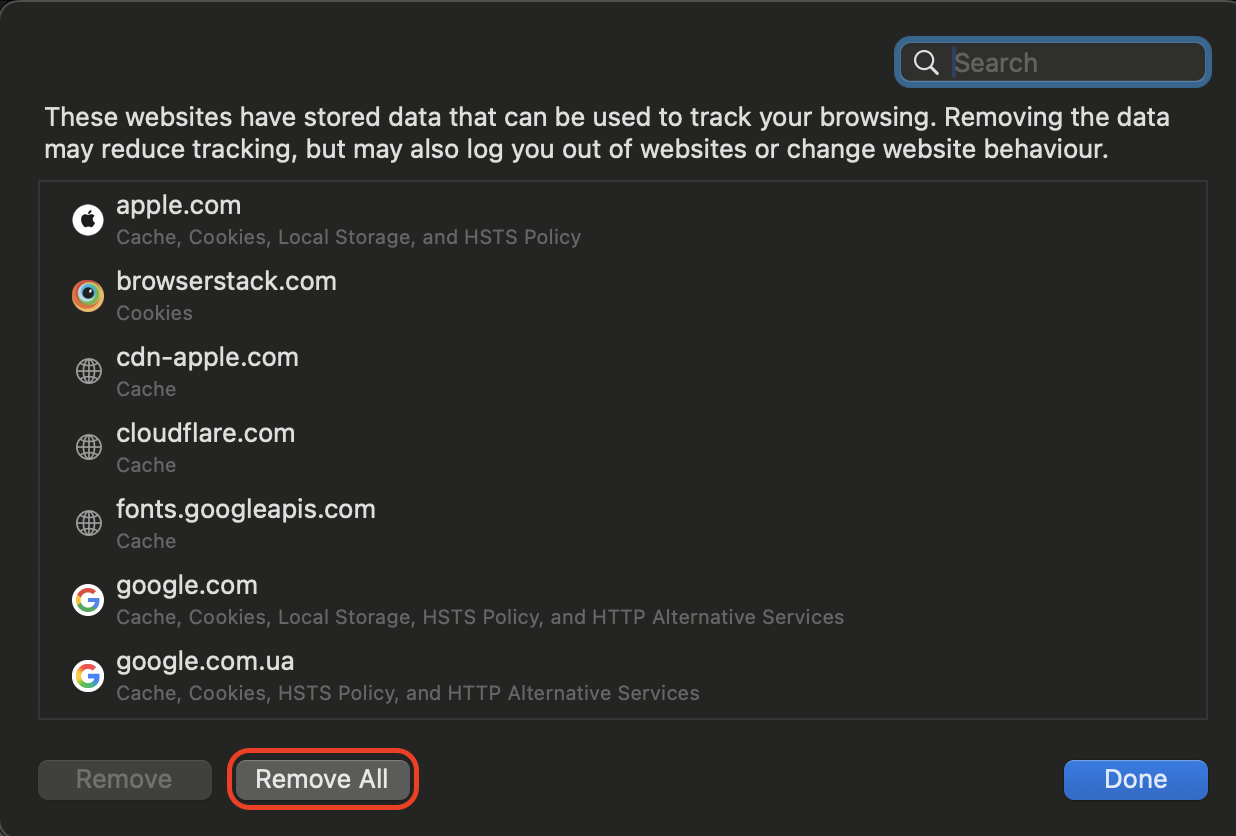
Select Remove All to clean website data.
Step 1. Open Safari and go to Safari > SettingsStep 2. Open the Privacy tab and click Manage Website DataStep 3. Select Remove All to clean website data
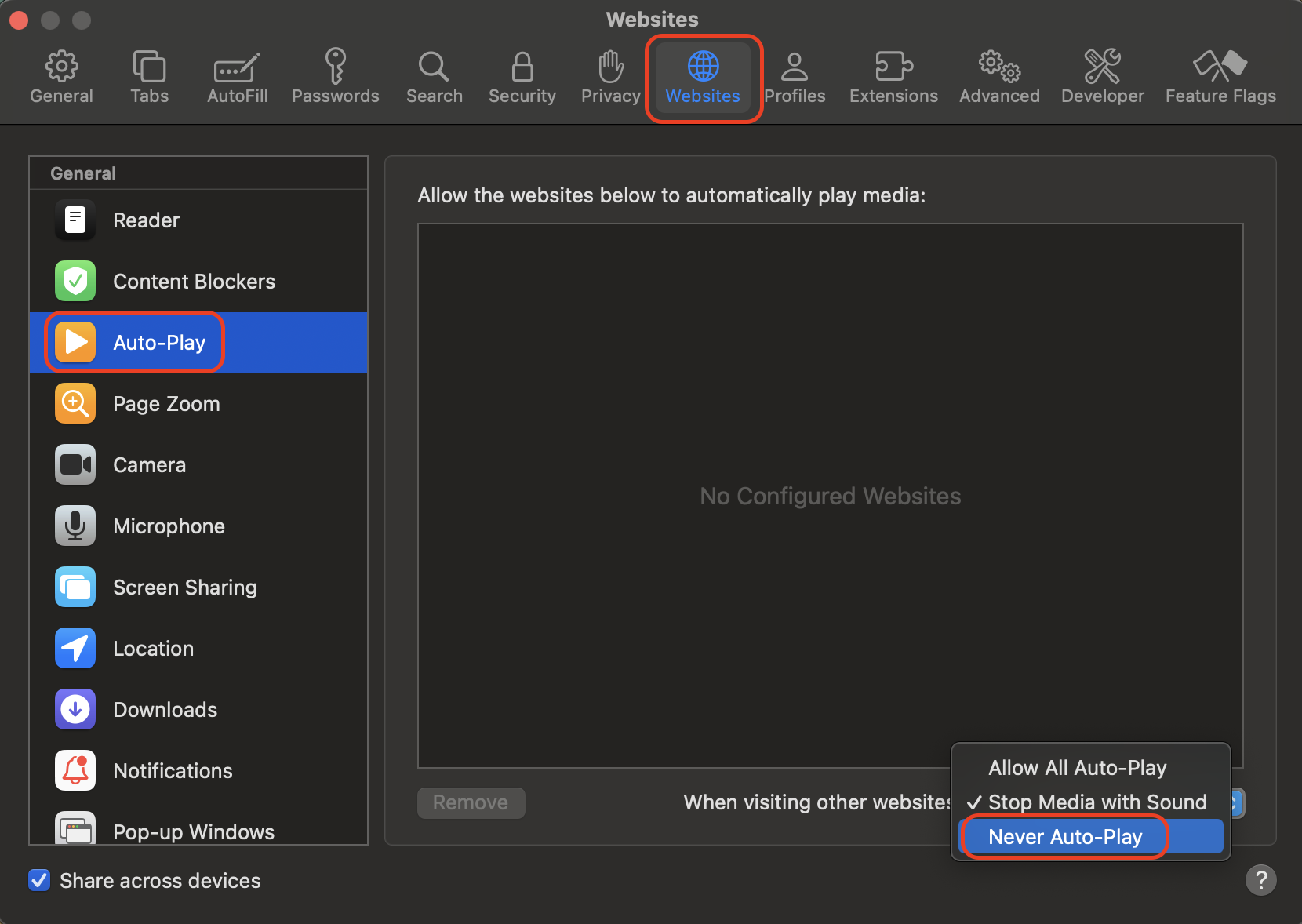
5. Disabling autoplay, reducing media load
Our team is confident that by reducing autoplay and media quality, you help Safari cool your system through lowering background processing.
Here’s how to scale down heavy content quickly:
Open Safari Settings.
Disable autoplay in Websites.
Lower video quality manually.
Pause unused streams.
Close high-load tabs when finished.
From Safari Settings, disable autoplay in Websites
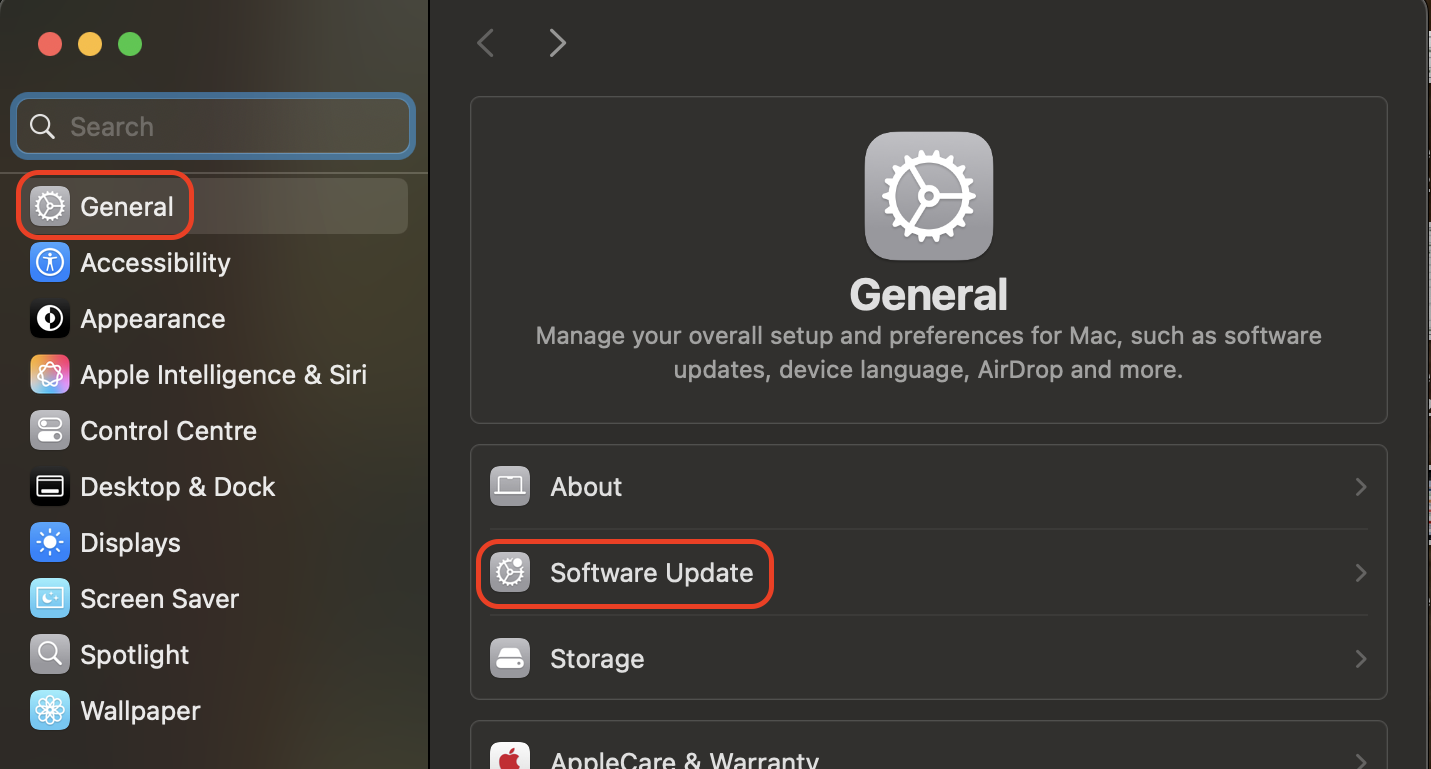
Open System Settings, go to General > Software Update, and install all the patches
7. Resetting SMC / PRAM
We’ve noticed that resetting SMC or PRAM resolves thermal mismanagement and fixes persistent fan behavior.
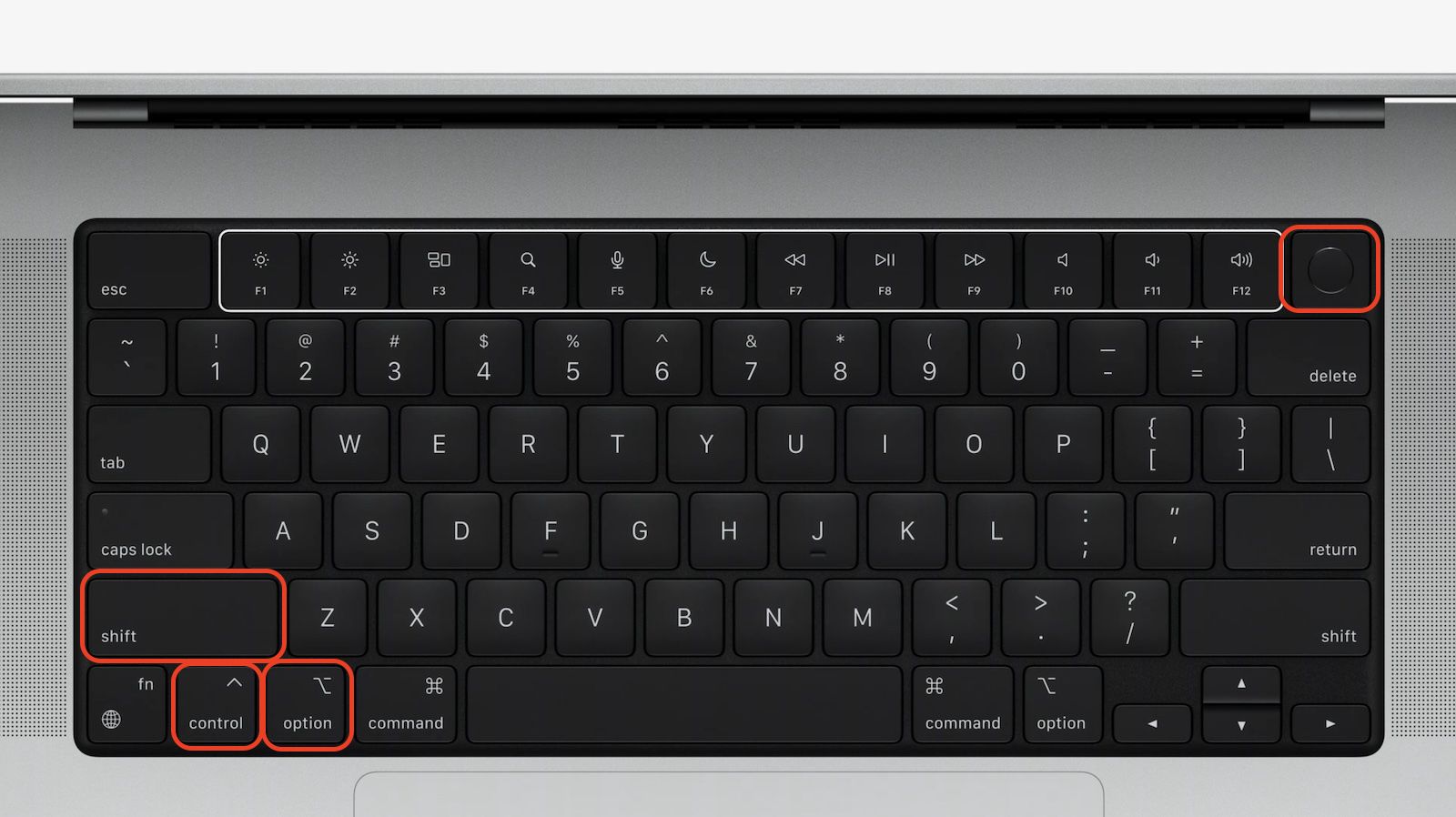
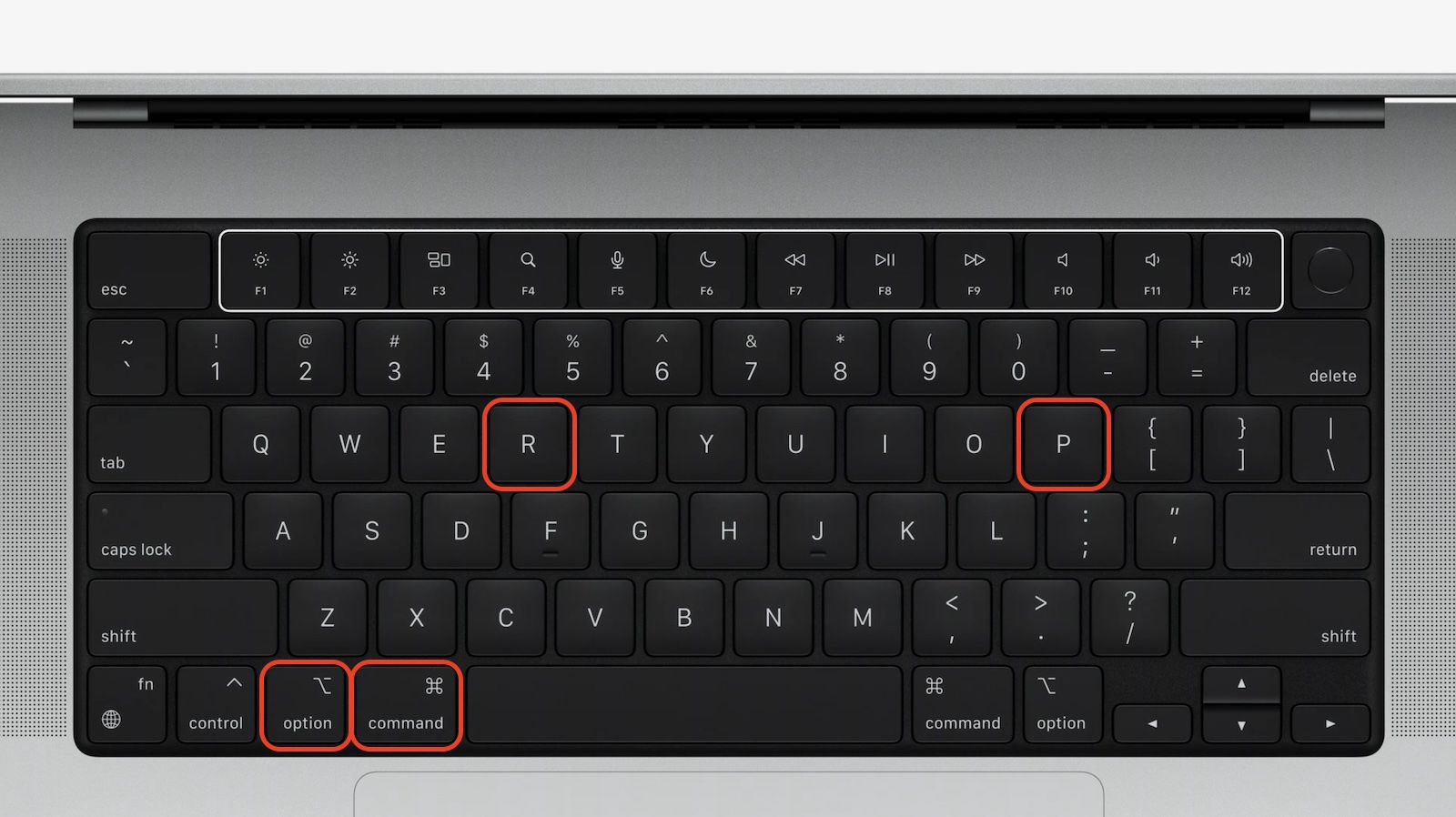
Follow this simple reset process to stabilize hardware controls:
Shut down your Mac.
Hold Shift+Control+Option+Power for SMC.
Restart holding Option+Command+P+R to clear PRAM.
Step 1. After shutting down your Mac, hold Shift+Control+Option+Power for SMCStep 2. Restart holding Option+Command+P+R to clear PRAM
8. Improve airflow and ventilation
Better ventilation helps your Mac cool itself while Safari loads heavy sites or video streams.
These adjustments improve airflow immediately:
Place the Mac on a solid surface.
Keep vents unobstructed.
Use a stand for elevation.
Avoid bedding or soft materials.
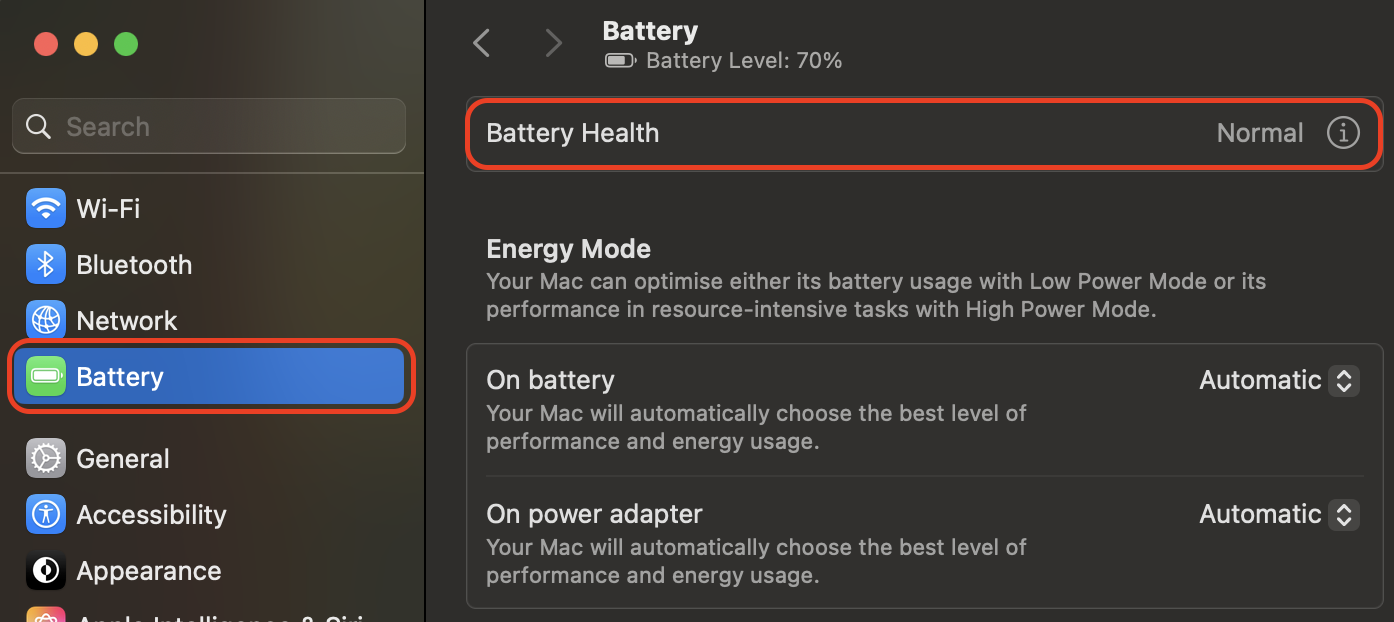
9. Checking battery health
Our practice shows that weak batteries can heat the system and affect Safari’s performance.
Use these steps to confirm whether the battery contributes to overheating:
Open System Settings.
Select Battery > Battery Health.
Review the condition message.
Replace the battery if Service Recommended appears.
Open System Settings, select Battery > Battery Health, and review the condition message
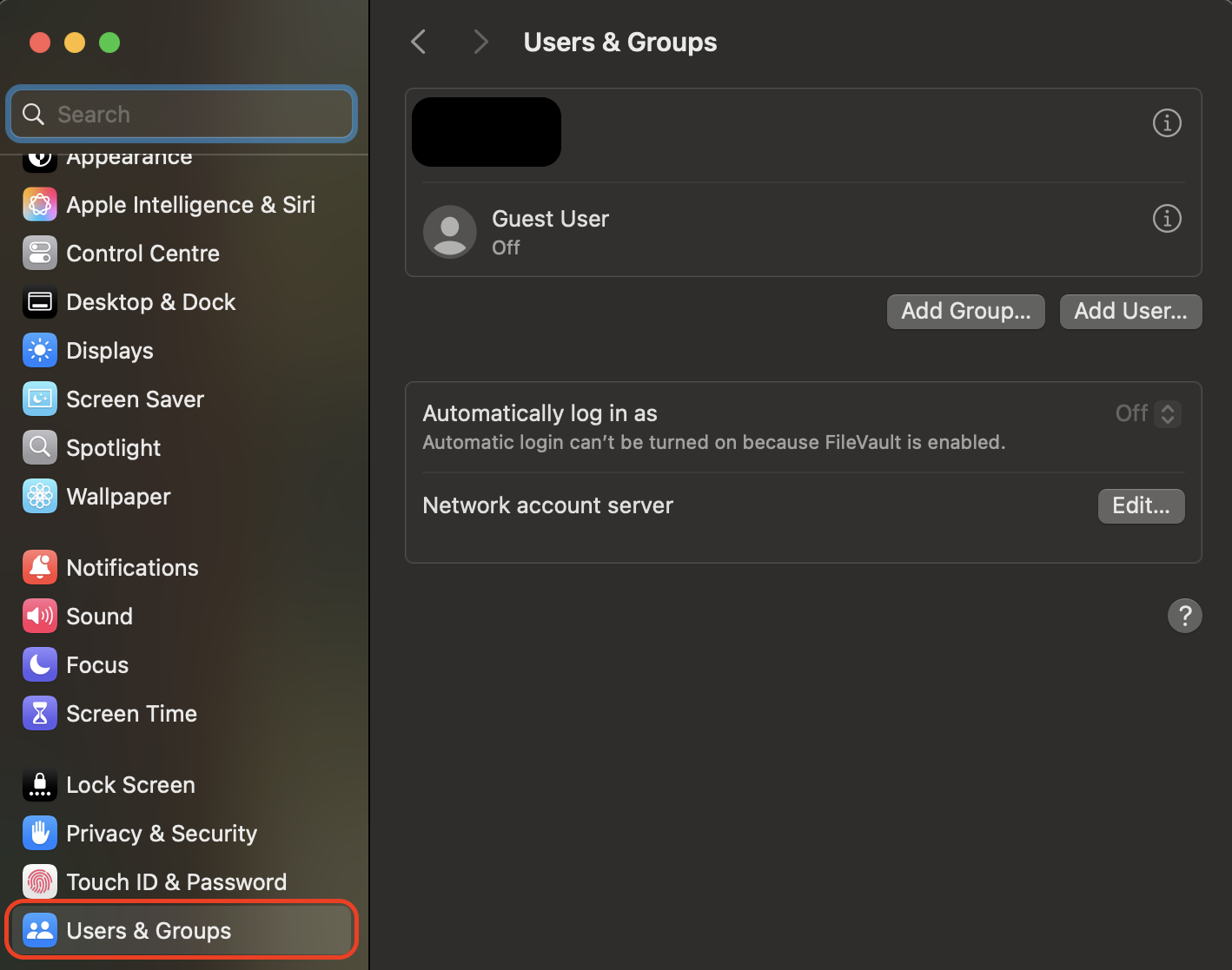
10. Testing in new user account
A new macOS account isolates configuration issues and shows how to make your Mac faster when Safari overheats.
Try these steps to compare behavior:
Open System Settings.
Go to Users & Groups.
Create a new user.
Log in and retest Safari.
Open System Settings, go to Users & Groups, create a new user, and log in and retest Safari
11. Contacting Apple Support
When overheating continues, hardware issues may be involved and require professional diagnostics.
Here’s how to reach Apple for confirmed guidance:
Open the Apple Support app or site.
Sign in with your Apple ID.
Schedule a chat, call, or Genius Bar appointment.
Open the Apple Support app or site, sign in with your Apple ID, and schedule a chat, call, or Genius Bar appointment
Conclusion
Safari can overheat a Mac when tabs, extensions, or background tasks strain system resources. Managing browser load, updating software, and monitoring CPU usage helps stabilize both temperature and performance.
MacKeeper is Apple-notarized and offers Memory Cleaner to safely remove unnecessary background processes, giving your Mac more headroom and reducing heat buildup.
We respect your privacy and
use cookies
for the best site experience.
Privacy Preferences Center
We use cookies along with other tools to give you the best possible experience while using the
MacKeeper website. Cookies are small text files that help the website load faster. The cookies we
use don’t contain any type of personal data meaning they never store information such as your
location, email address, or IP address.
Help us improve how you interact with our website by accepting the use of cookies. You can change
your privacy settings whenever you like.
Manage consent
All cookies
These cookies are strictly necessary for enabling basic website functionality (including page
navigation, form submission, language detection, post commenting), downloading and purchasing
software. The website might malfunction without these cookies.