A process called Searchpartyd on a Mac may be one of the reasons for your device slowdown. But you can temporarily close it to let your Mac invest resources in currently more important processes. Use MacKeeper’s Login Items to track resource-intensive operations launching at startup and stop them in case of necessity.
Searchpartyd is a Mac process that supports security functions and syncs data, often used for Find My device tracking.
What does Searchpartyd do on Mac
Searchpartyd on Mac works with Find My software generating cryptographic keys, updating location data to Apple’s servers and managing communications between the Apple owner and other devices for tracking purposes.
An extra hand from us:
While Searchpartyd is known to slow down Apple devices, it might not be the only culprit. We recommend reading our supporting blog on how to test MacBook performance, to check if it’s originating from a bigger threat like malware or just slow Wi-Fi.
Common issues with Searchpartyd on Mac
Searchpartyd issues on Mac can cause many problems, including high CPU usage, memory drain, and overheating. Factors like heavy location activity, Bluetooth interactions, and increased system demands can all trigger these issues. The worst is that each of them is affecting your Apple’s overall stability.
Advice from our experts:
Searchpartyd can create a demanding backlog of files all stored deep within your disk, which is why we recommend getting familiar with how to clear RAM on Mac to avoid an excess of clutter leading to system glitches.
How to fix Searchpartyd's high CPU usage on Mac
To fix the high CPU usage caused by Searchpartyd, we recommend trying the Force Quit method. Open Activity Monitor, find Searchpartyd, choose Force Quit. This solution should help restart the process and temporarily steady your Mac’s system resources. Try it out before moving to the more complicated methods.
Another hint from our team:
Not sure how high your CPU usage is? You can read our supporting blog titled: How to check Mac CPU usage to help you identify and manage any slowness you experience.
How to remove Searchpartyd on Mac
In case Force Quit didn’t solve your Searchpartyd issues and you’re still facing system glitches—we understand your frustrations. Fear not, our alternative troubleshooting solutions should help you resolve your Mac problems once-and-for-all.
A note from our experts:
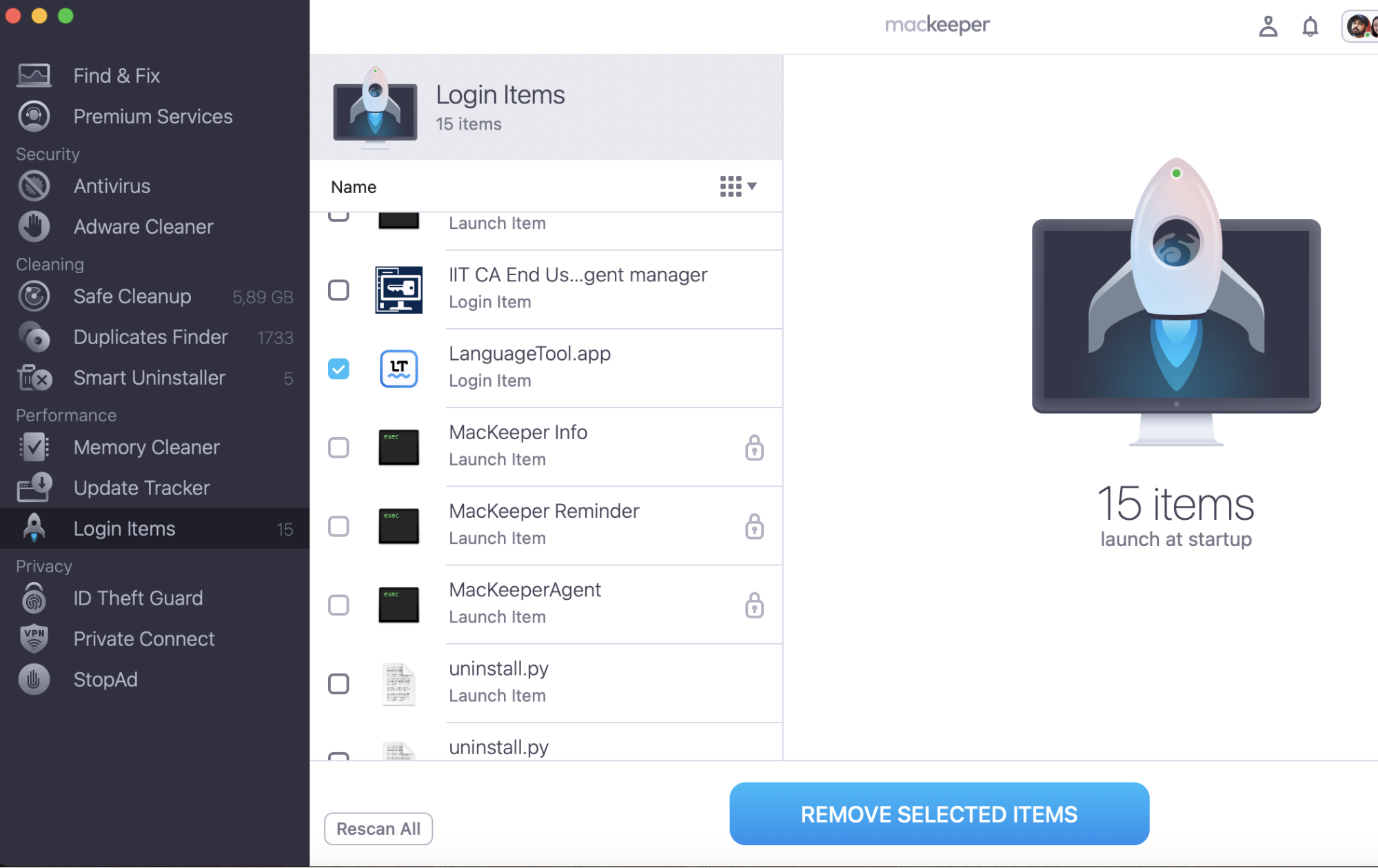
When you need to speed up your Mac’s startup, stop unnecessary processes from launching when you run your Mac. Fortunately, MacKeeper’s Login Items can help you easily cope with this issue. Our feature stops processes like Searchpartyd that slow your Mac down.
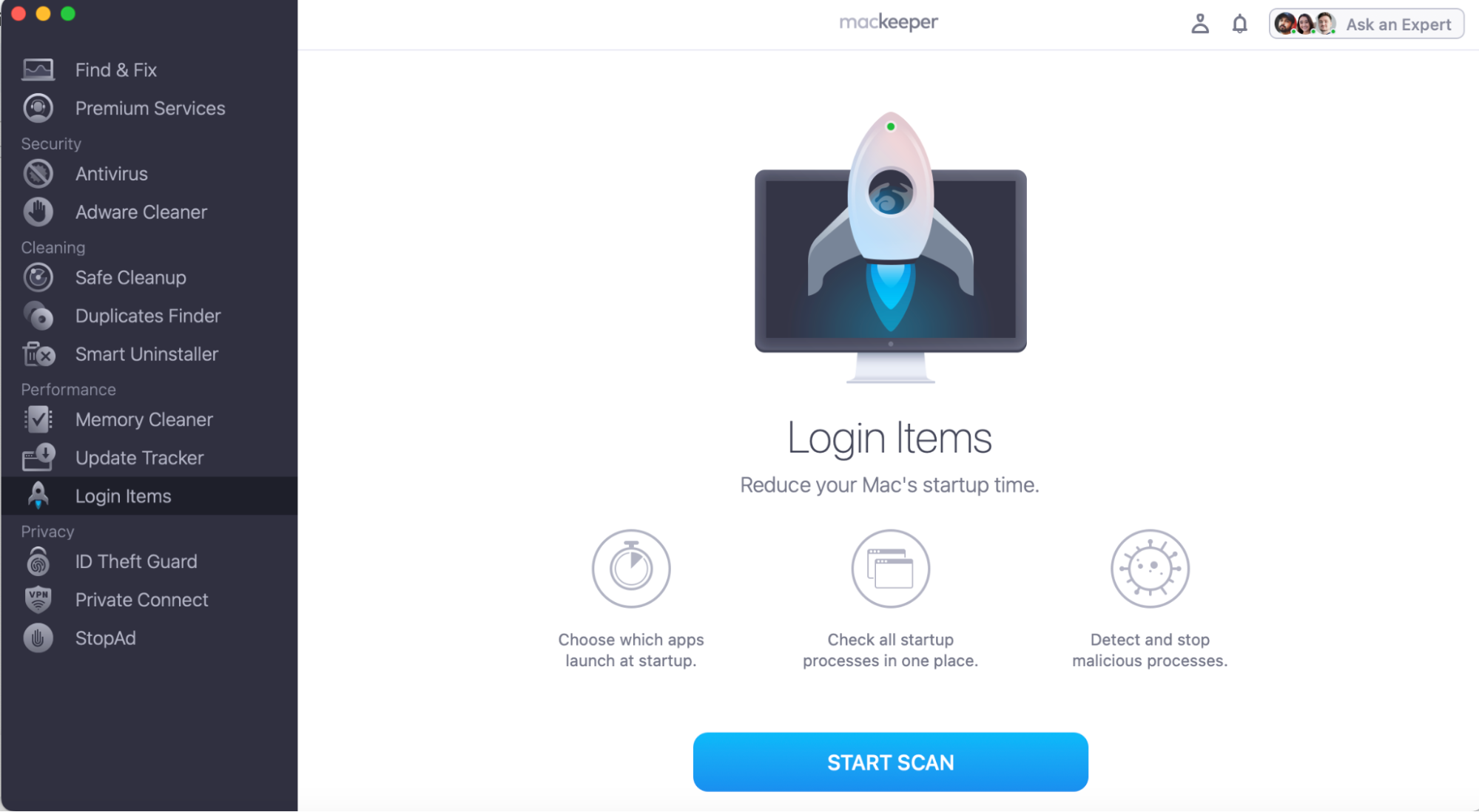
Here’s how to use MacKeeper’s Login Items features:
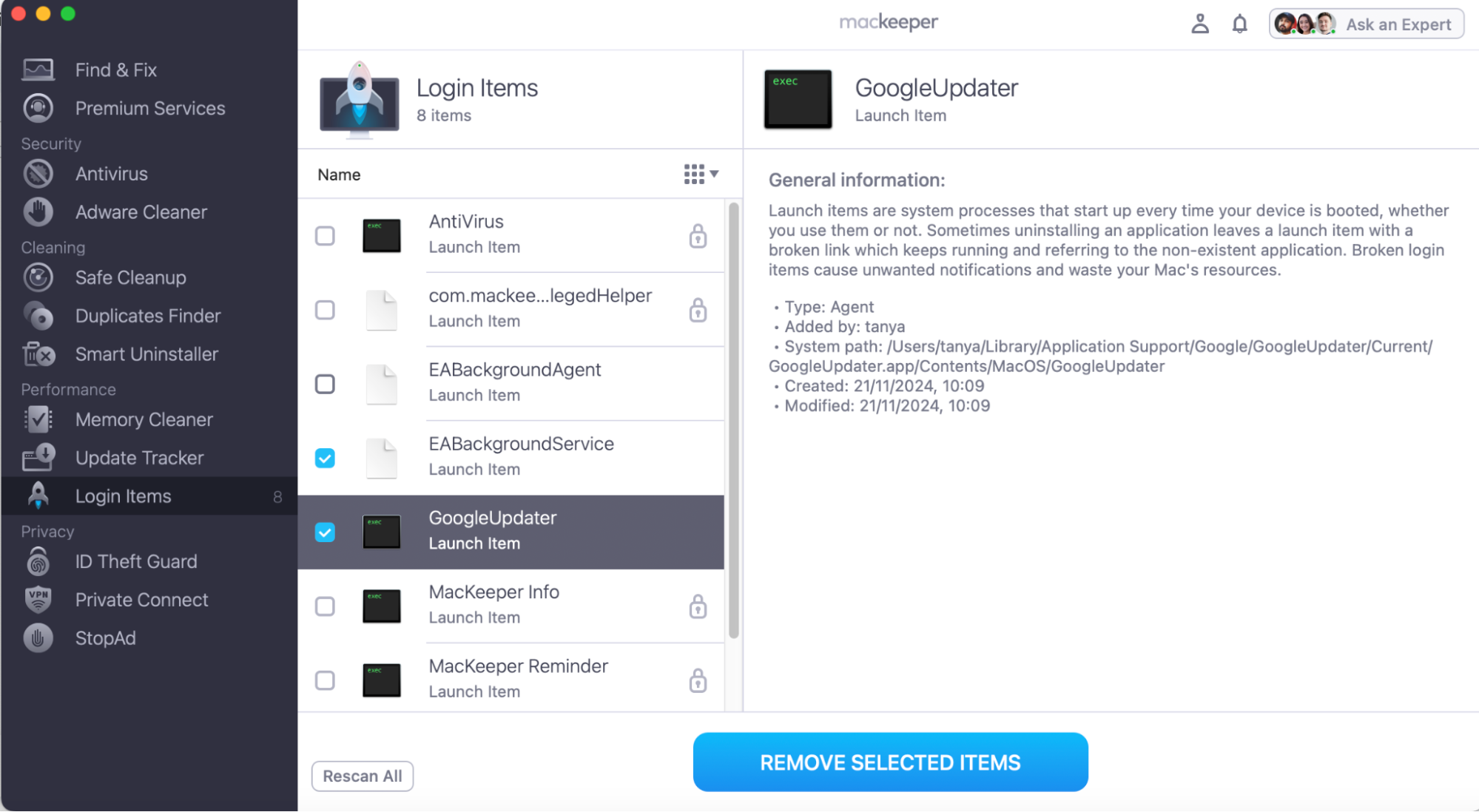
Look through the list of Login Items, tick any items that are unfamiliar, and press Remove Selected Items.
Step 1. MacKeeper > Login Items > Start ScanStep 2. Select the process to stop > Remove Selected Items
We’ll walk you through the following methods to remove Searchpartyd on Mac:
Identifying legitimate vs. malicious Searchpartyd
Remove malware disguised as Searchpartyd
Disabling Searchpartyd via system preferences
1. Identifying legitimate vs. malicious Searchpartyd
It’s paramount to determine whether the Searchpartyd process on your Mac is genuine or potentially malicious. Checking the resource consumption can help you spot if it’s authentic or suspicious. Here’s how we identify whether Searchpartyd is legitimate or malicious:
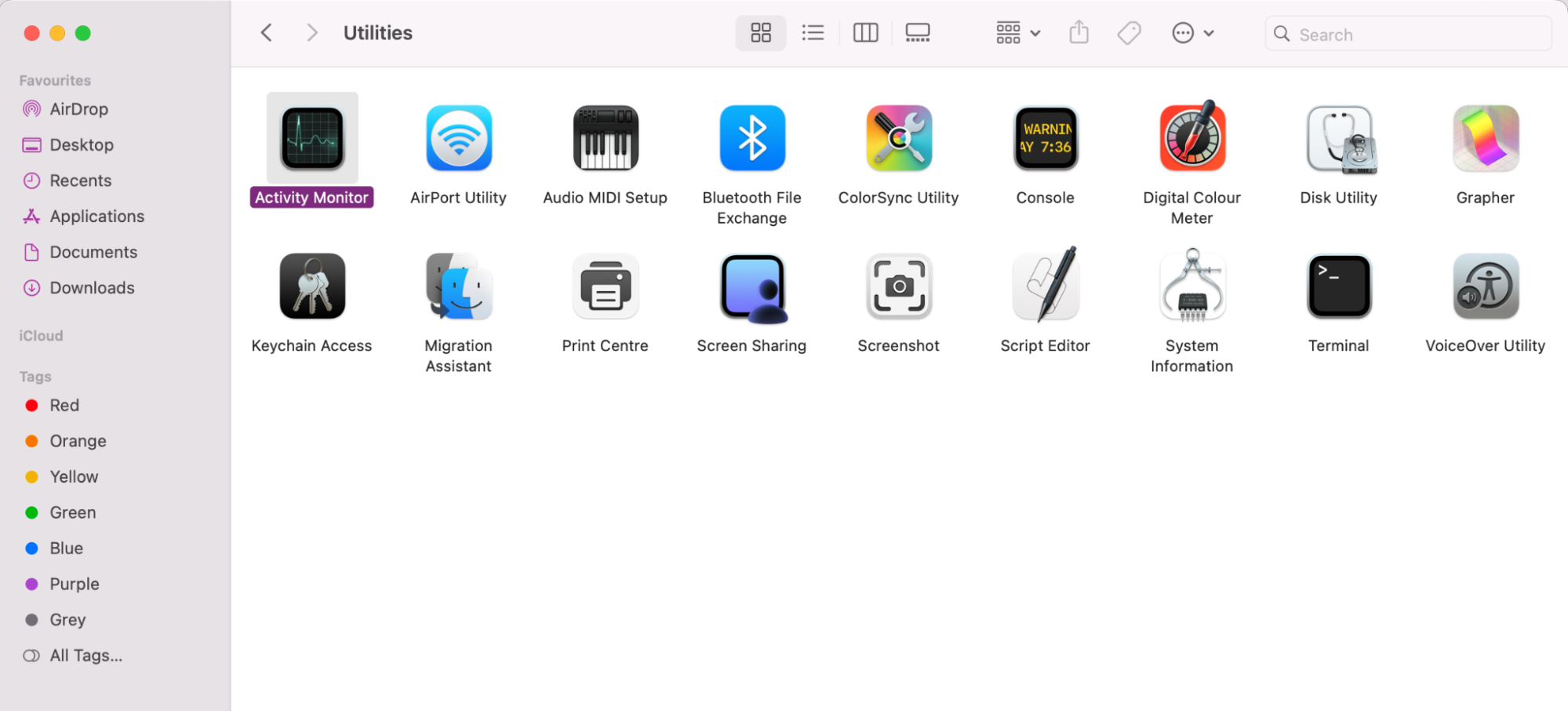
Open Activity Monitor.
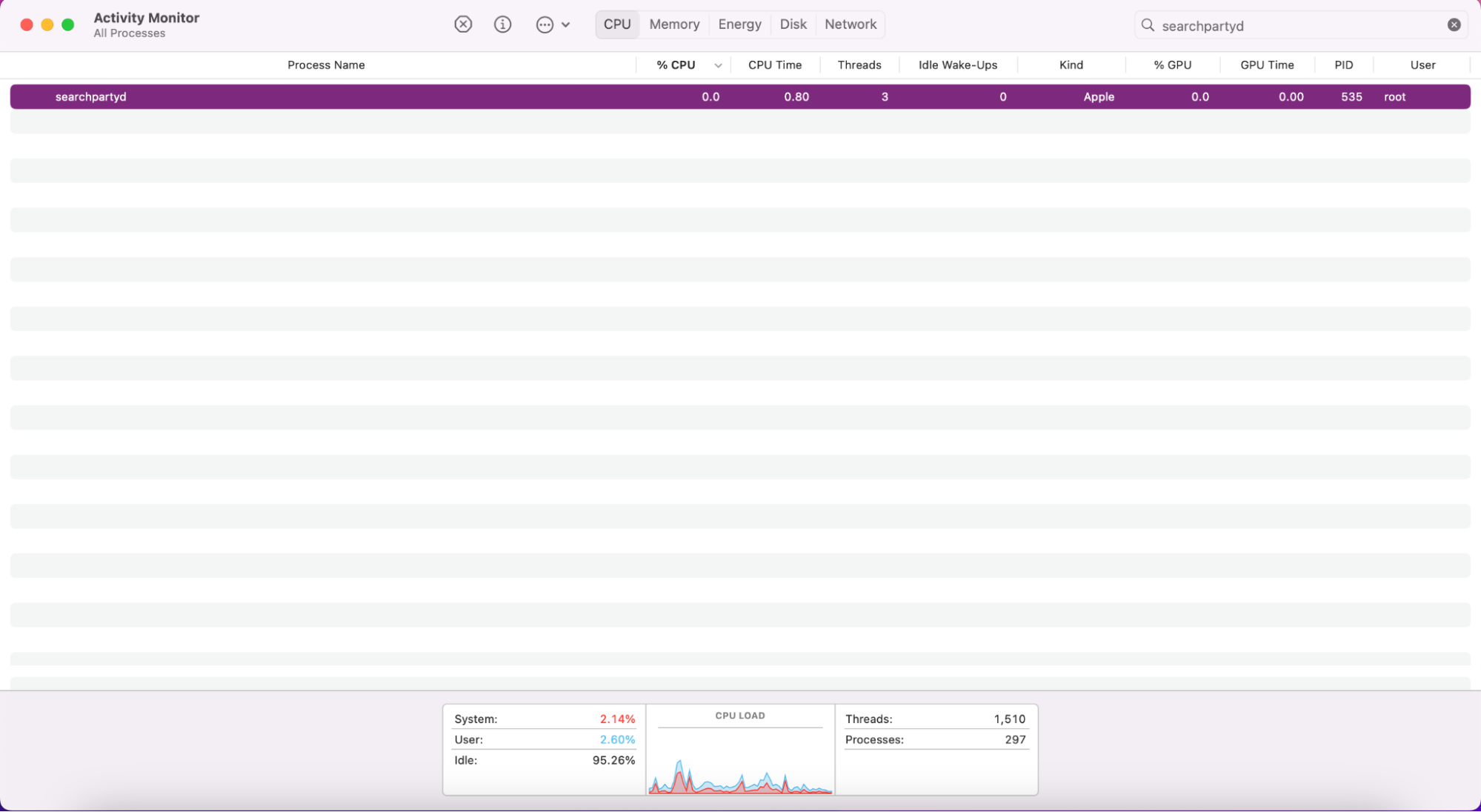
Find Searchpartyd on your list of processes.
Check its CPU usage. If it’s high that’s an indicator it could be malicious.
Step 1. Open Activity Monitor from your Utilities folder on your MacStep 2. Find Searchpartyd in your list of processes and check how much CPU it’s using
2. Remove malware disguised as Searchpartyd
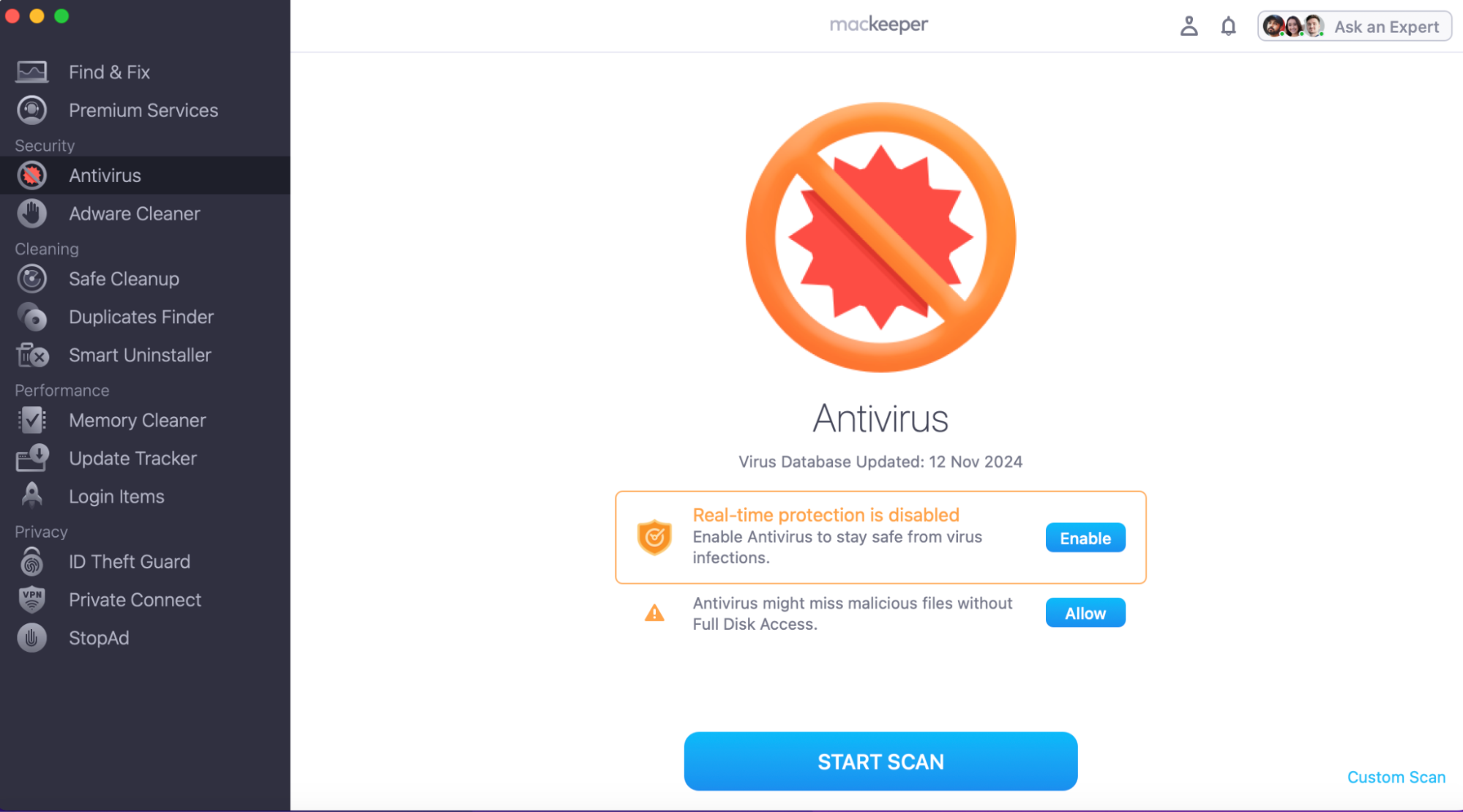
Thinking it could be malware disguised as a legitimate Searchpartyd process,? We suggest acting quickly. Use a trusted antivirus to help you simply remove threats from your device. Here’s how MacKeeper’s Antivirus can remove malware disguised as Searchpartyd:
After the scan, any threats will be detected and ready for you to Move to Quarantine.
Step 1. Open the MacKeeper app, click on Antivirus and Start ScanStep 2. If any malicious threats are found they’ll be here ready for you to Move to Quarantine
Important:
Whilst Antivirus software is your strongest defense against malicious threats, there are other ways to help you get rid of malware from Mac. Our attached blog can walk you through several ways to get you back to doing what matters uninterrupted.
3. Disabling Searchpartyd via system preferences
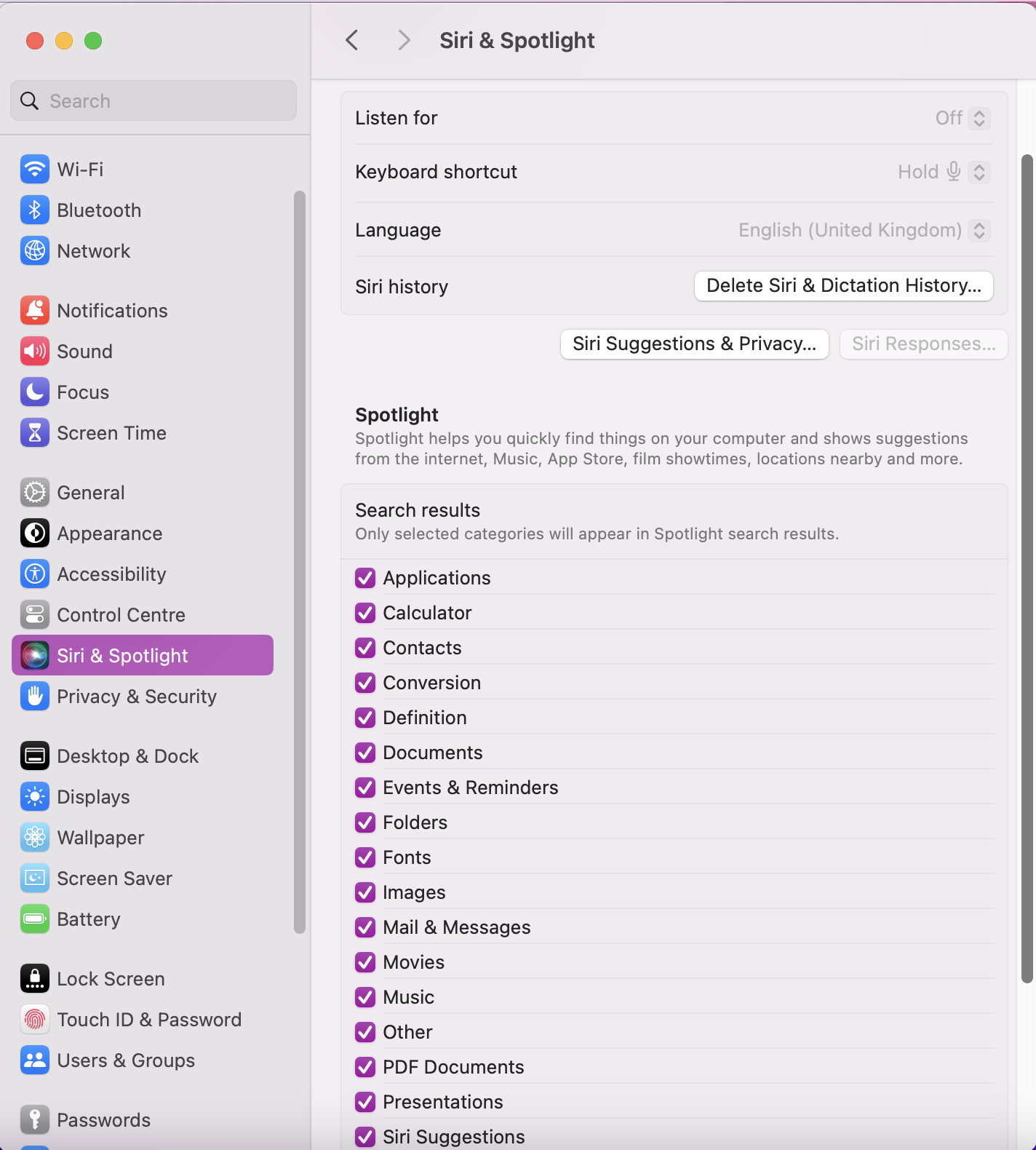
Still no luck? You could also try temporarily disabling Searchpartyd on your Mac. We’ve noticed that it can be safer to turn off certain system features, like Spotlight indexing, rather than deleting them. To help you, these are our steps to safely disable Searchpartyd:
Open System Preferences and navigate to the Spotlight tab.
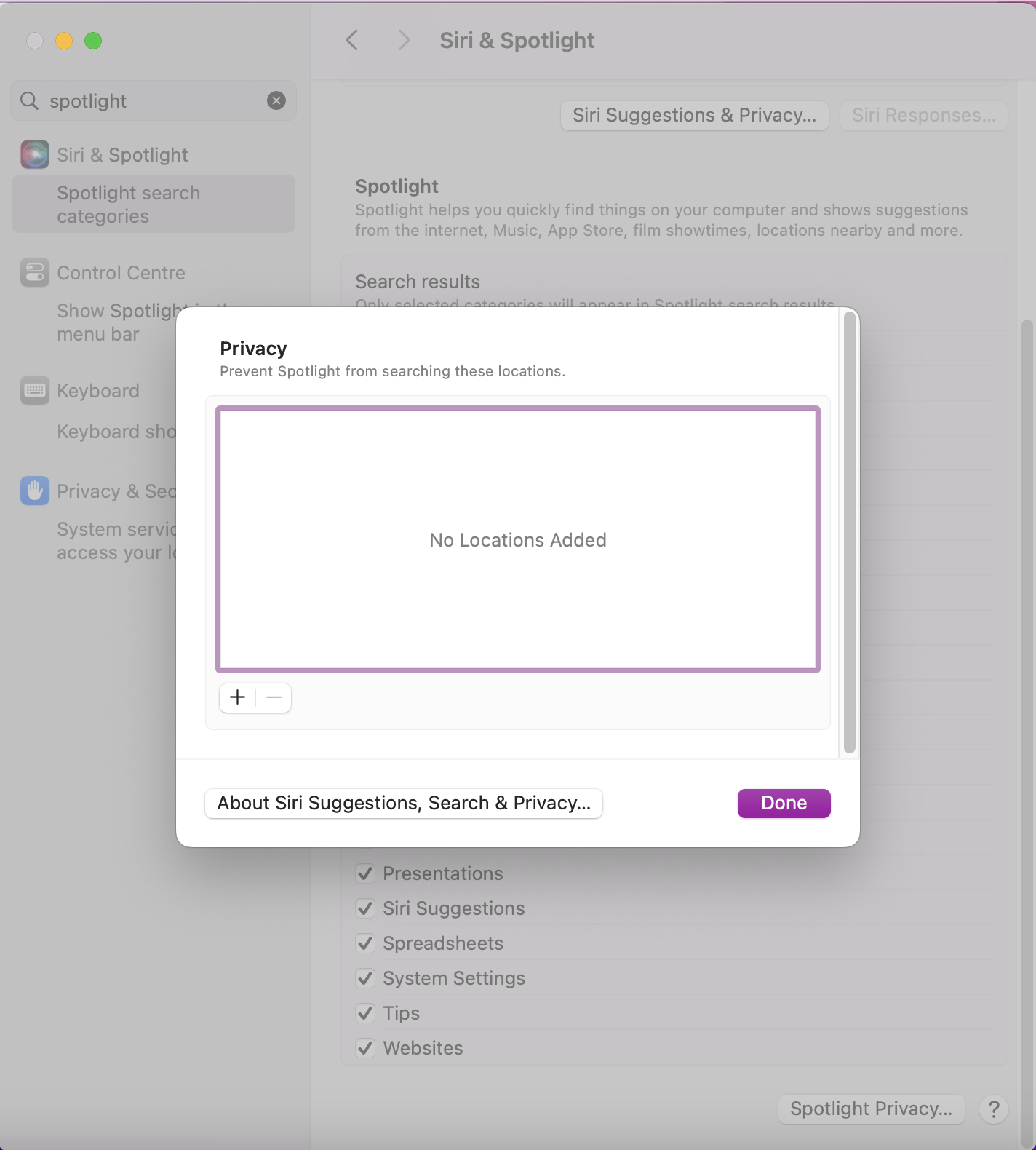
Click on the Spotlight Privacy button and press (+) to add a folder or drive to the list.
This pauses indexing and stops Searchpartyd from running in the background.
Step 1. In System Preferences, click on SpotlightStep 2. Click on Spotlight Privacy and press (+) to add folders to stop Spotlighting
Risks of removing legitimate Searchpartyd
We advise caution when removing legitimate processes like Searchpartyd from Mac, as it may interfere with macOS, compromise Find My connectivity and affect other security services. Instead, you can address high CPU usage by reducing location activity, disabling unnecessary processes or removing unwanted apps from your device.
Managing Searchpartyd for good with MacKeeper’s help
When Searchpartyd is linked to high CPU usage or slow performance, you’ll now know how to identify their legitimacy, remove threats, and disable processes temporarily. For a quick fix, deploy MacKeeper’s Login Items tool to help you keep your startup clutter-free.
Here’s a reminder of how MacKeeper’s login Items feature works:
Look through your Login Items and tick any you don’t need.
Press Remove Selected Items.
Step 1. In the MacKeeper app, open Login Items and press the Start Scan buttonStep 2. After your scan, look through your Login Items to remove any you no longer need
With these steps, you’ll know how to handle Searchpartyd and regain control over your Mac in case any future disruptions arise.
We respect your privacy and
use cookies
for the best site experience.
Privacy Preferences Center
We use cookies along with other tools to give you the best possible experience while using the
MacKeeper website. Cookies are small text files that help the website load faster. The cookies we
use don’t contain any type of personal data meaning they never store information such as your
location, email address, or IP address.
Help us improve how you interact with our website by accepting the use of cookies. You can change
your privacy settings whenever you like.
Manage consent
All cookies
These cookies are strictly necessary for enabling basic website functionality (including page
navigation, form submission, language detection, post commenting), downloading and purchasing
software. The website might malfunction without these cookies.