When you import iPhone contacts to a Mac, you can accidentally transfer some junk files to your Mac as well. MacKeeper’s Safe Cleanup will help you bring all your files in order and remove unnecessary ones.
One of the most awesome things about owning Apple products is that it’s very easy to use all of them together. And if you own a smartphone, you might want to sync your iPhone contacts to a Mac.
If you don’t sync your contacts from your iPhone to your Mac, you risk losing them when you get a new device–especially if you switch to an Android phone.
It can also become a problem if you change your Apple ID. which would result in your contacts not automatically syncing to a new phone. Sure, you might be able to find your contacts on social media. But do you really want to have to message everyone asking for their numbers again?
Luckily, importing contacts is pretty straightforward – and you have got plenty of options. In this article, you’ll learn how to sync iPhone contacts to Mac–and I’ll show you which choices you have.
A note from our experts:
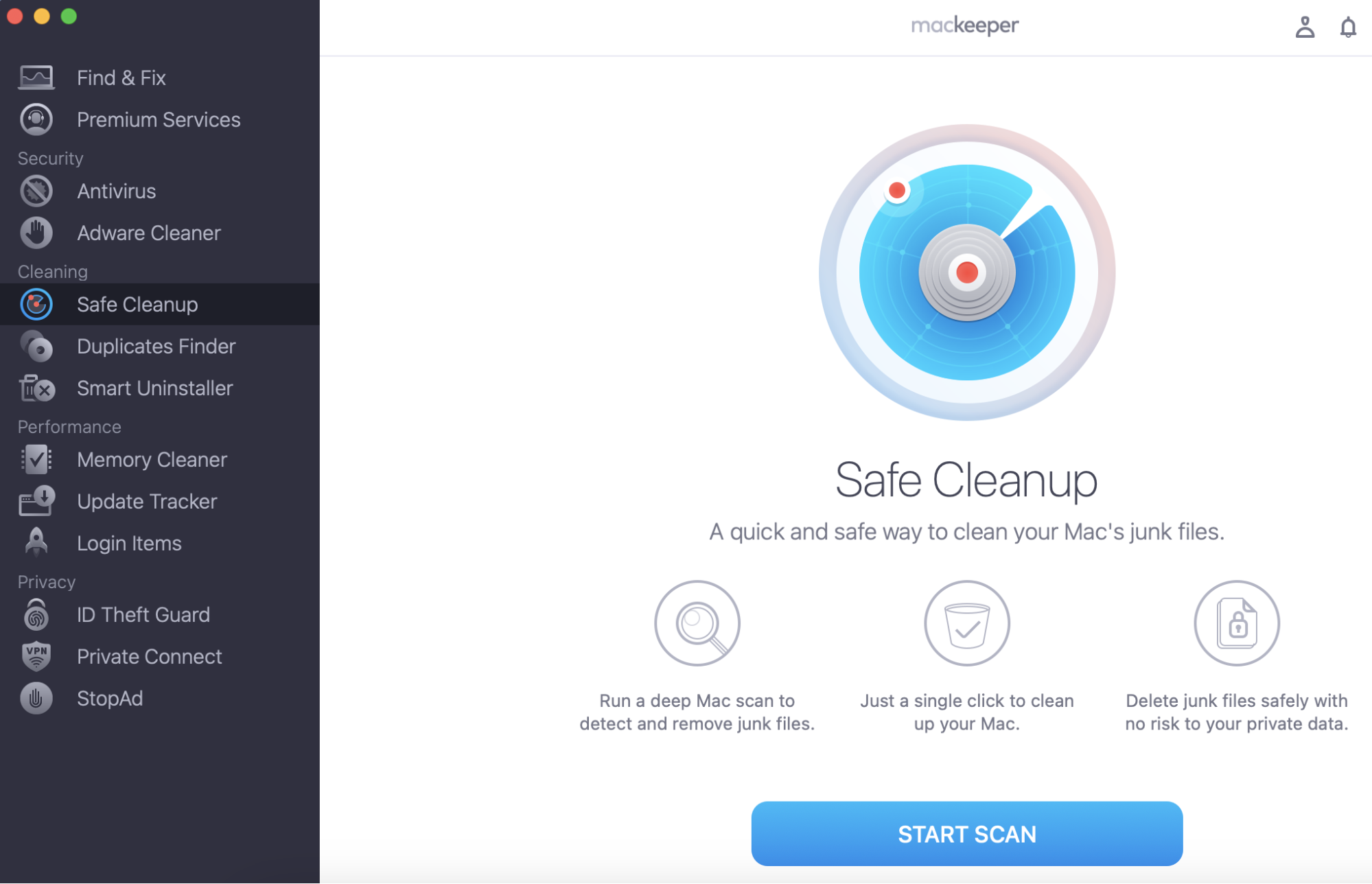
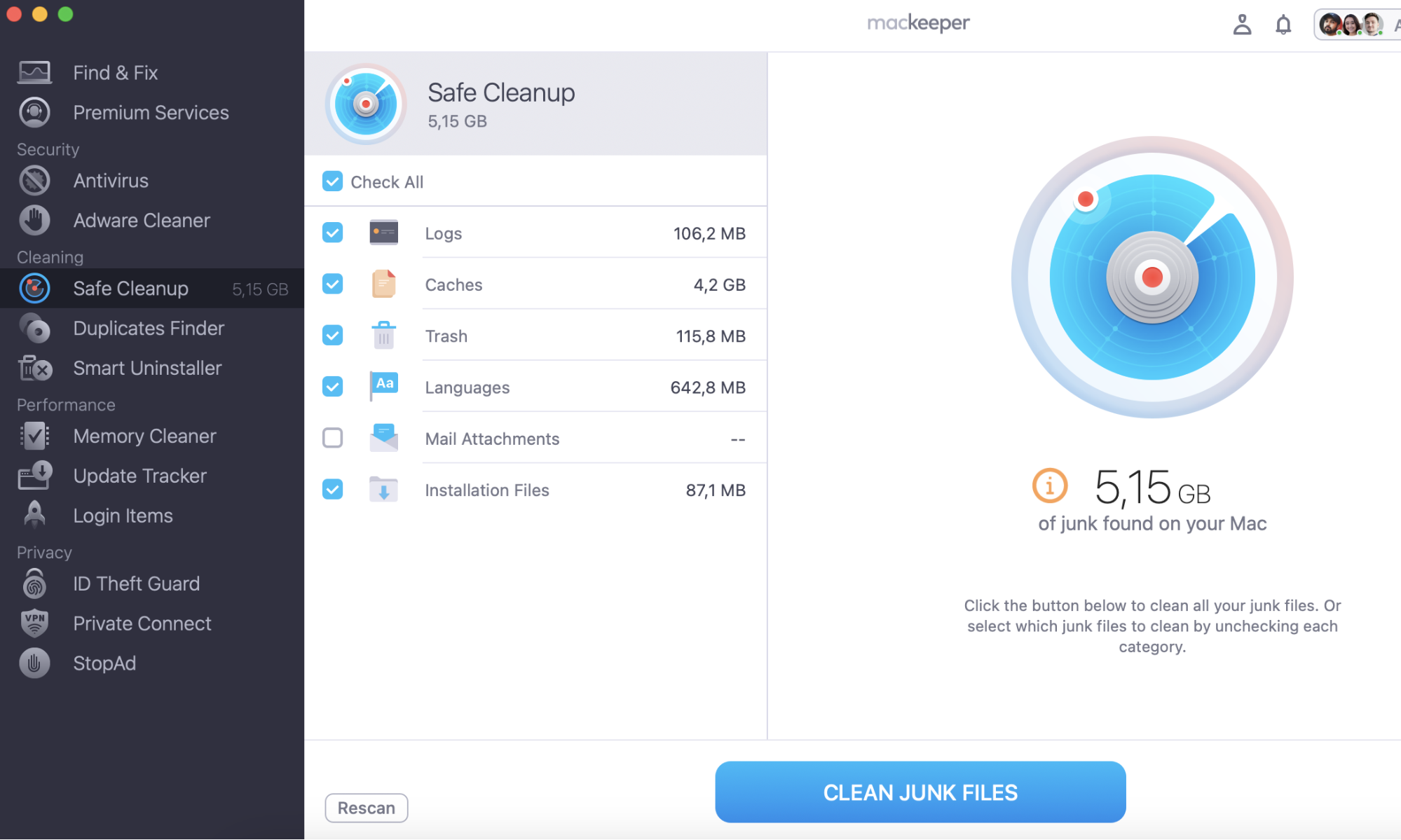
Usually, we accumulate some junk files on our devices. If you don’t want to transfer unnecessary items between your gadgets, remove digital junk before syncing contacts. MacKeeper’s Safe Cleanup automatically removes junk and keeps your data safe.
Using iCloud to sync contacts between your iPhone and your Mac
One of the most common ways to import Mac contacts from your iPhone is via iCloud. The steps below will help you do precisely that.
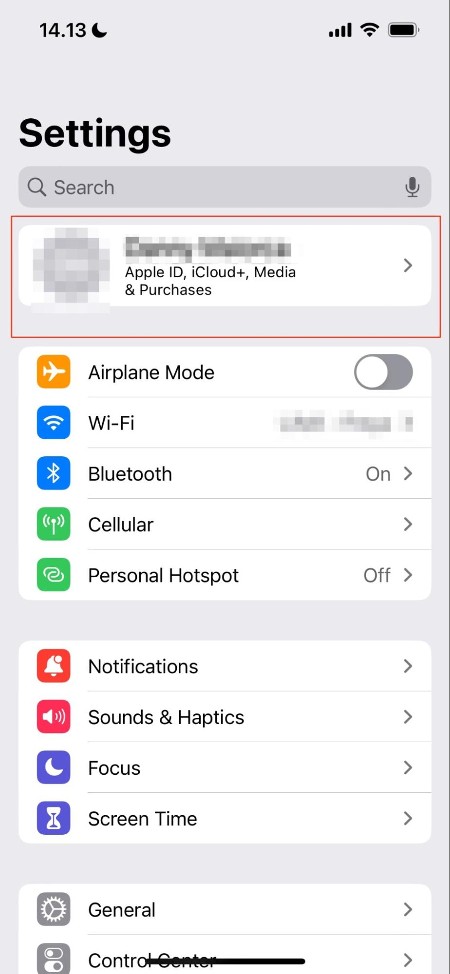
Open the Settings app on your iPhone.
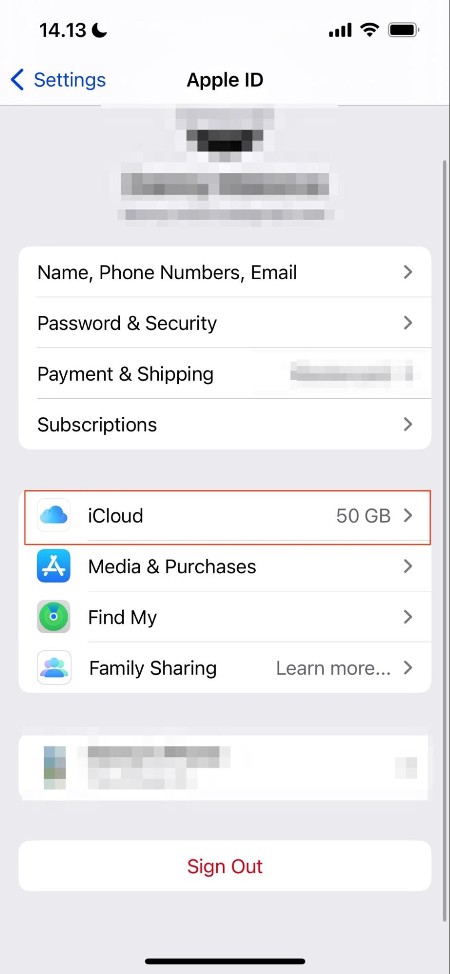
Click on your Apple ID at the top of the Settings app.
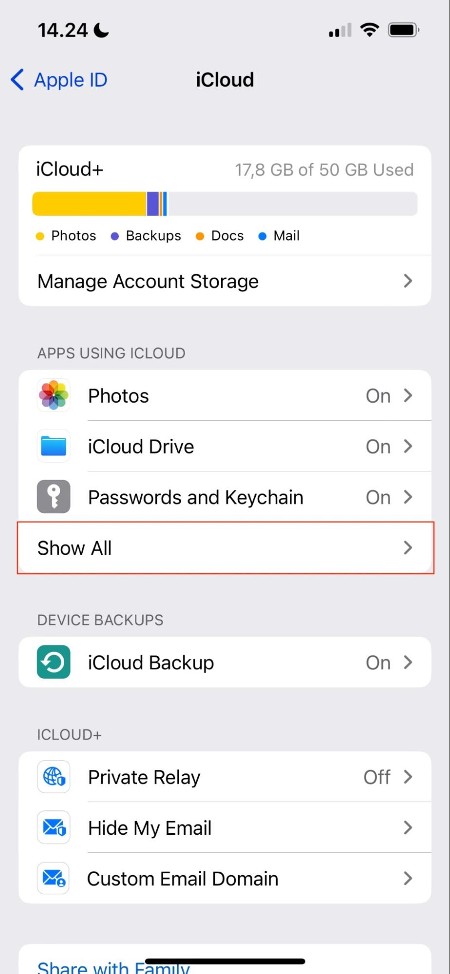
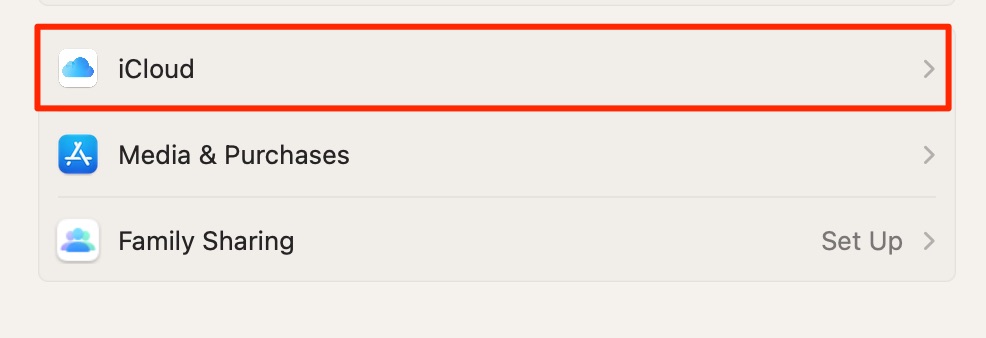
Select the iCloud tab when the next screen appears.
Under the Apps Using iCloud section, hit Show All.
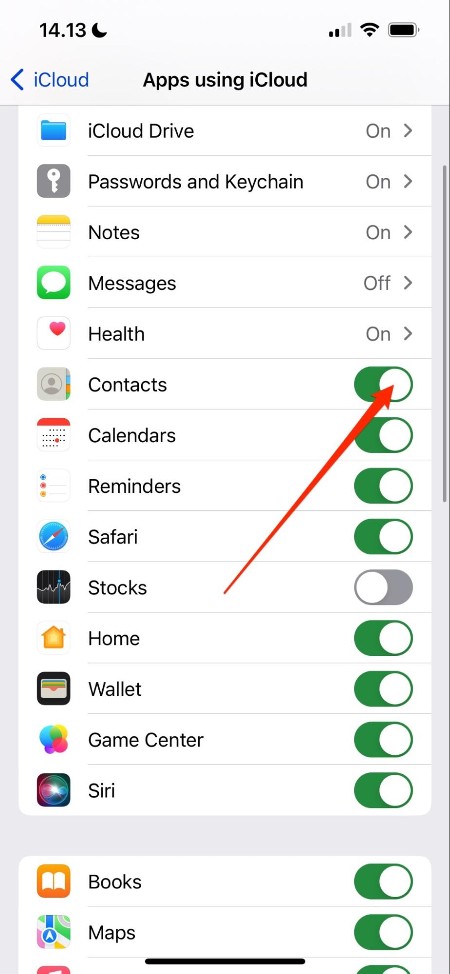
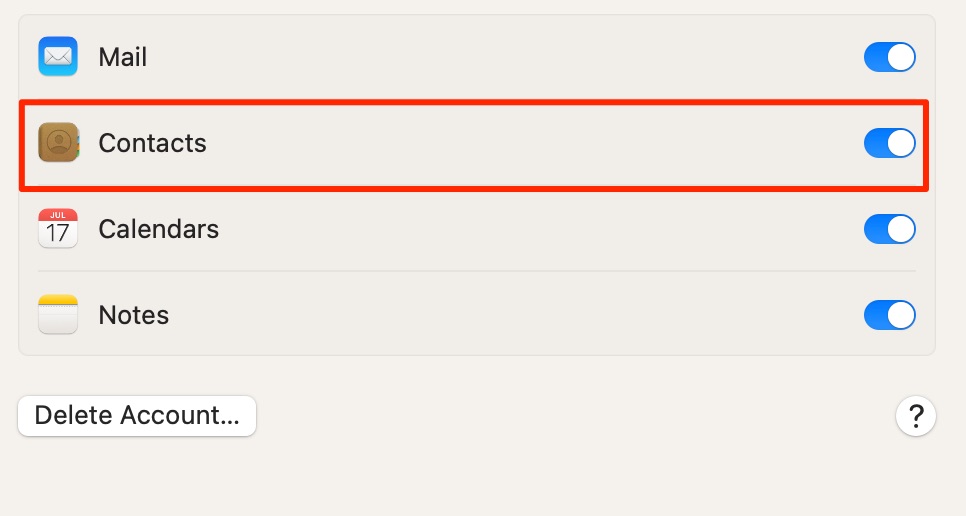
Make sure that you’ve toggled the Contacts option on.
Step 1. On your iPhone go to Settings and click on your Apple IDStep 2. Click on iCloudStep 3. Click on Show All under the Apps Using iCloud sectionStep 4. Toggled the Contacts option on
Once you’ve turned contact syncing on your iPhone, you’ll need to go to your Mac and ensure that you’ve done likewise. Follow these instructions:
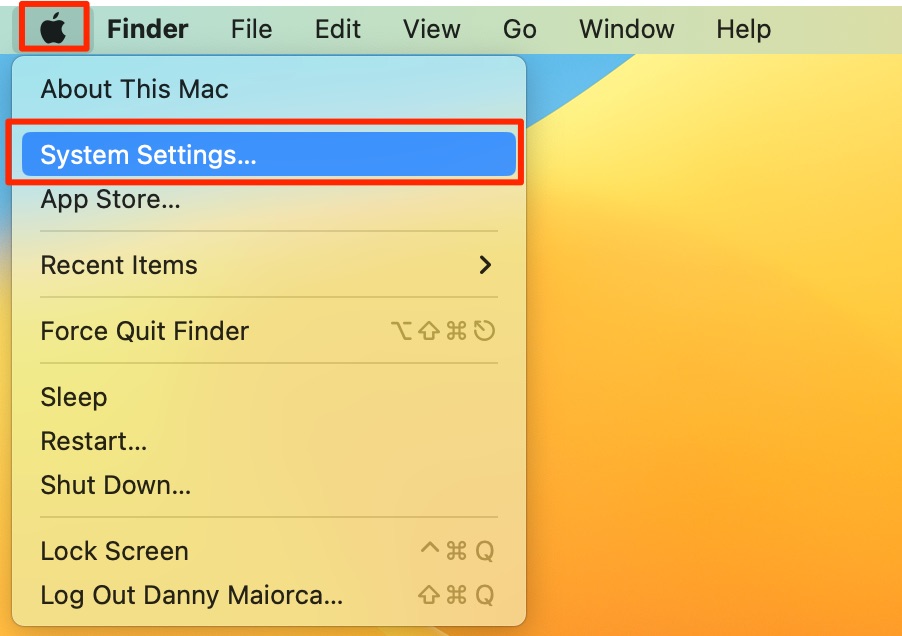
Go to the Apple logo in the top left-hand corner and select System Settings.
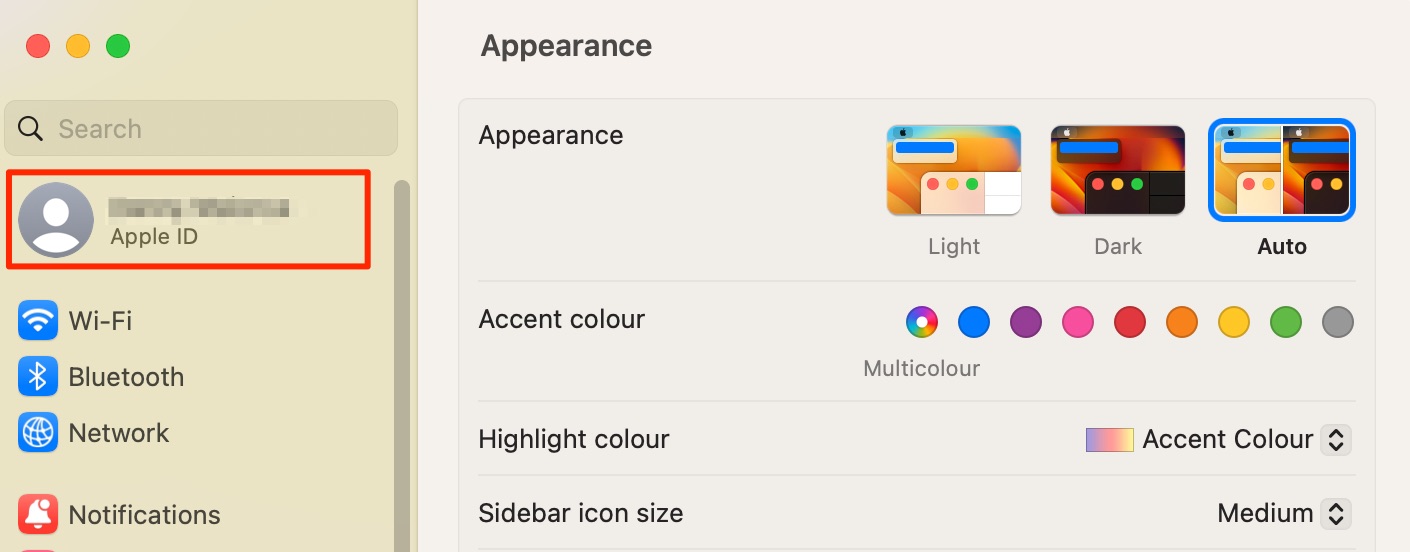
When the app loads, click on your Apple ID at the top of the left-hand toolbar.
Select the iCloud tab.
Toggle the Contacts option on. When you’ve done that and your contacts have synced, you should be able to see them in your Contacts app.
Step 1. Click on Apple logo, go to System Settings and click on your Apple IDStep 2. Click the iCloud tabStep 3. Toggle the Contacts option on
What can you do if you don’t have iCloud to sync your iPhone contacts to your Mac?
If you use a different Apple ID for your Mac and your iPhone, or you don’t use iCloud for whatever reason, you still can transfer iPhone contacts to your Mac. I’ll show you other options in the sections below.
How to sync contacts from iPhone to Mac via Airdrop
The easiest way to import contacts to your Mac is via Airdrop if you use an iPhone. First, check that both devices have Airdrop switched on, and that you have the necessary permissions to send contacts via Airdrop.
Once you’ve tweaked your Airdrop settings accordingly, follow these instructions to sync your iPhone contacts:
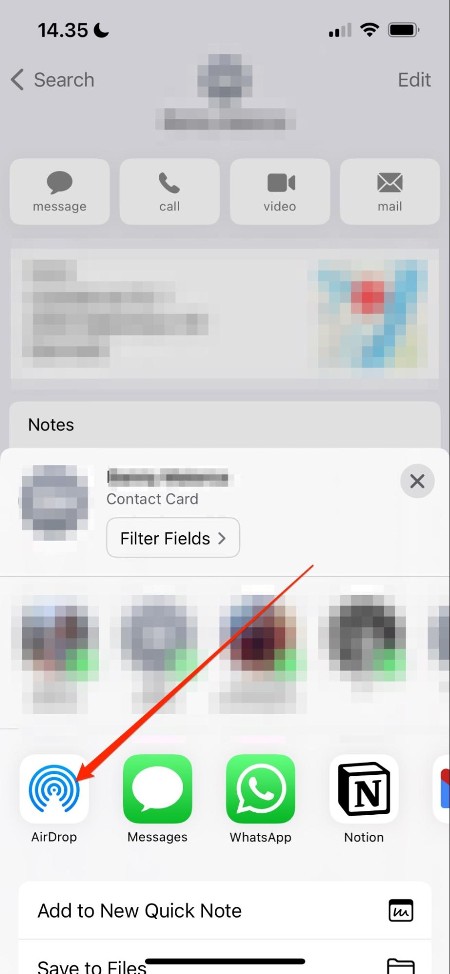
Go to your iPhone contacts and select the contact you want to share via Airdrop.
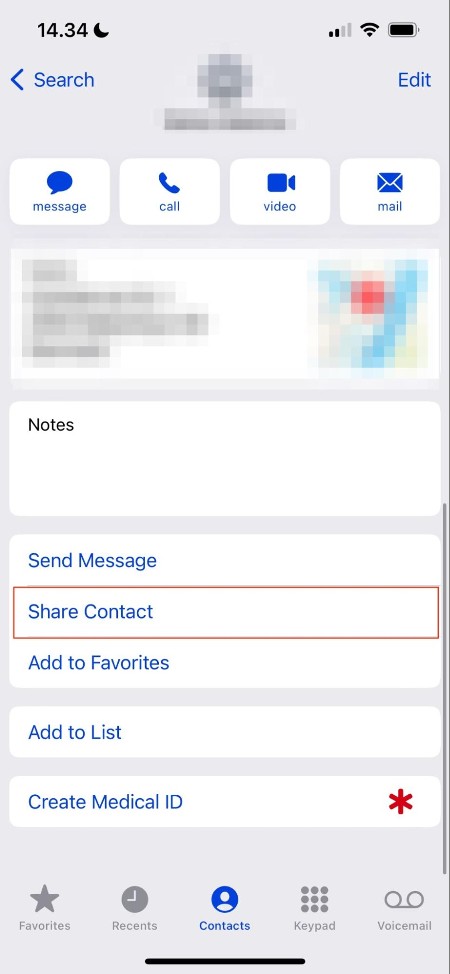
When you’ve chosen your contact, scroll down until you see the Share Contact option toward the bottom.
Click on the Airdrop icon.
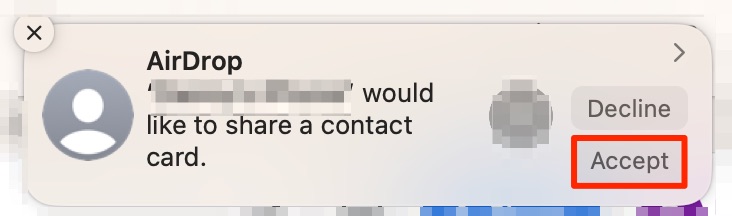
Choose the device you want to Airdrop the contact to. On your Mac, select Accept when the sharing request appears.
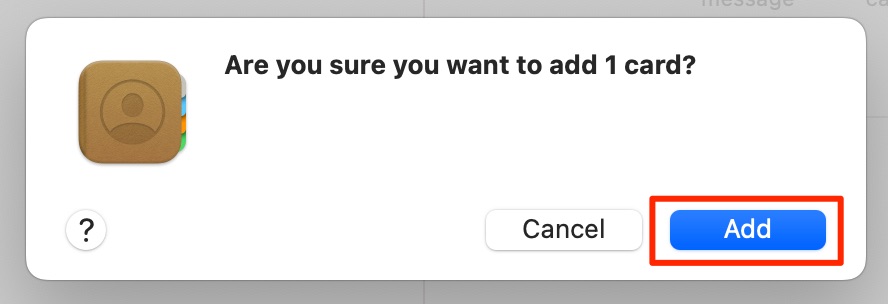
Double-click on the .vcf file when it downloads. When the Contacts app opens, hit the Add button. You’ill see the contact appear in your address book straight after.
Step 1. Open Contacts on iPhone and click Share ContactStep 2. Open System Settings on your MacStep 3. Click on Airdrop on iPhoneStep 4. Click Accept on your Mac Step 5. Hit the Add button
Transferring contacts with your USB cable
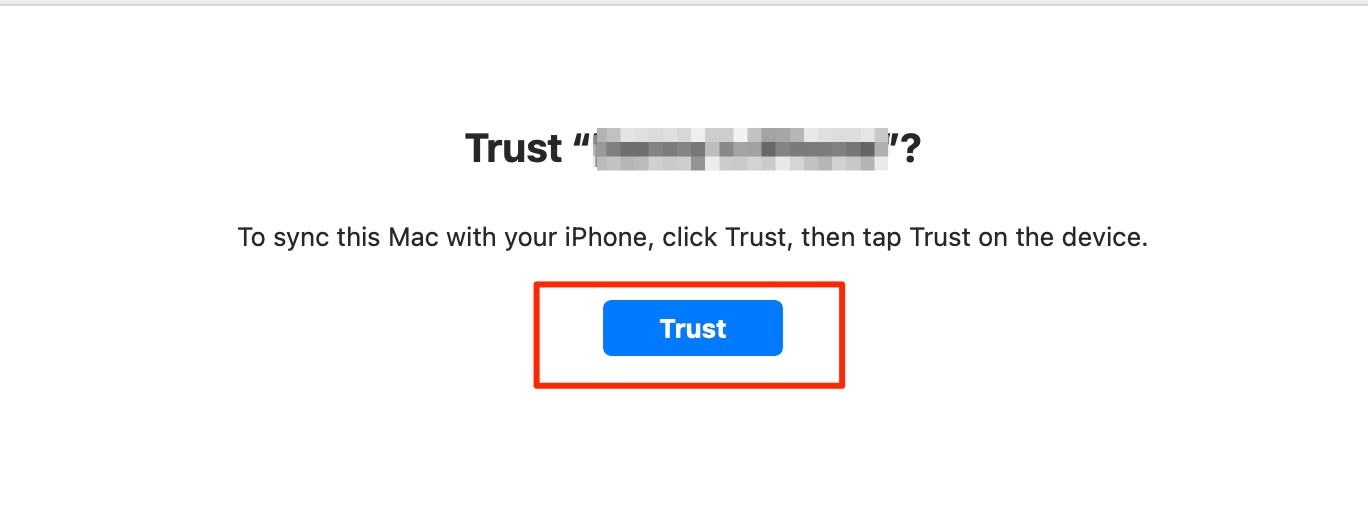
Another way you can transfer contacts from an iPhone to your Mac is by using a USB cable to connect your devices. First, plug your iPhone into your Mac. If this is the first time you’ve used your iPhone and Mac together, hit the Trust button in Finder.
Once you’ve hit the Trust button, you’ll need to do the same on your iPhone. When everything is set up, follow these steps:
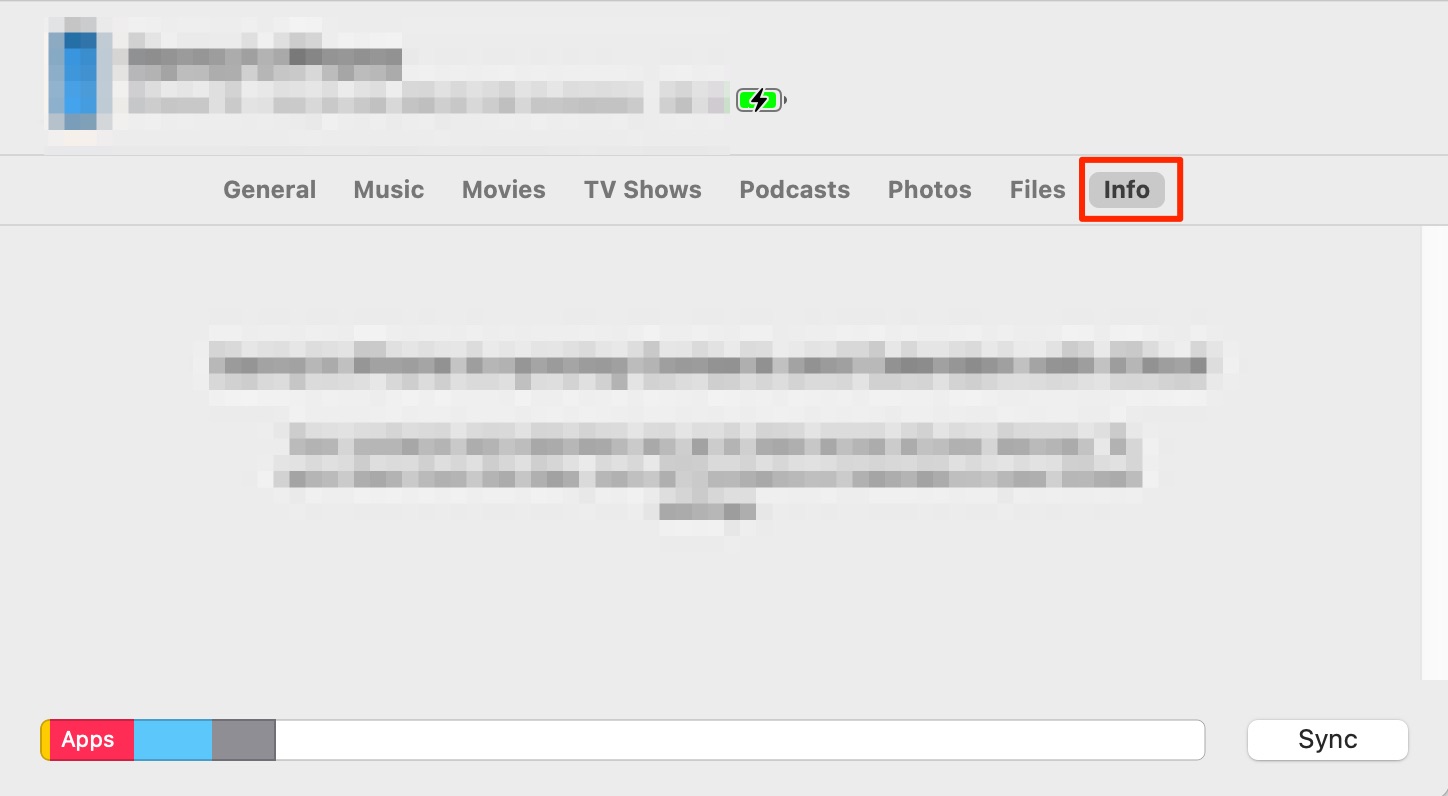
Click on the Info tab for your iPhone from your Mac.
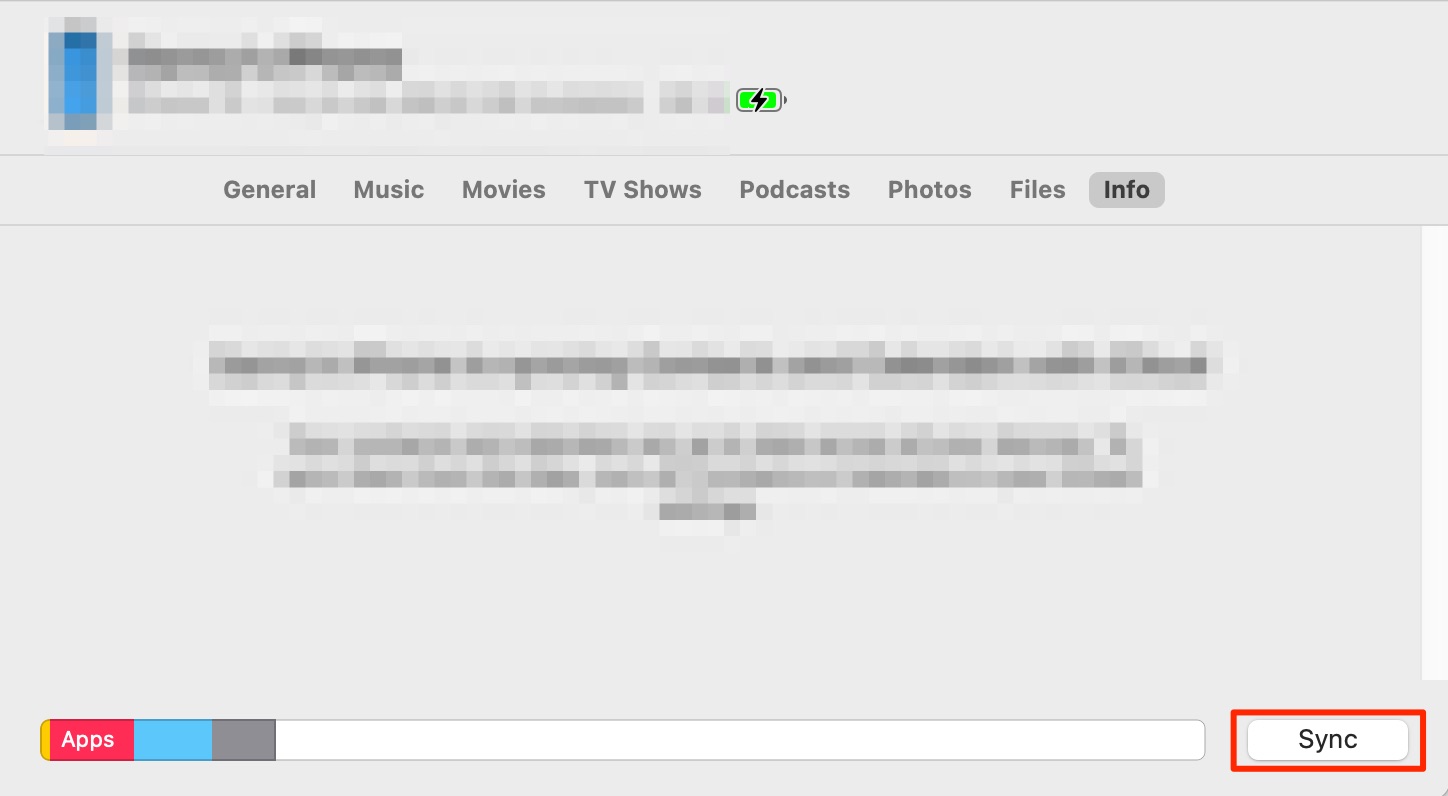
Select the Sync button in the bottom right.
Step 1. Click on the Info tab for your iPhone from your MacStep 2. Click on the Sync button
Sync contacts from iPhone to Mac via Google or Microsoft accounts
While syncing contacts is easier if you have an Apple ID, you can do the same with Google or Microsoft accounts. Once you’ve read these instructions, you’ll know how to transfer contacts from your iPhone to a MacBook Air and other Mac devices.
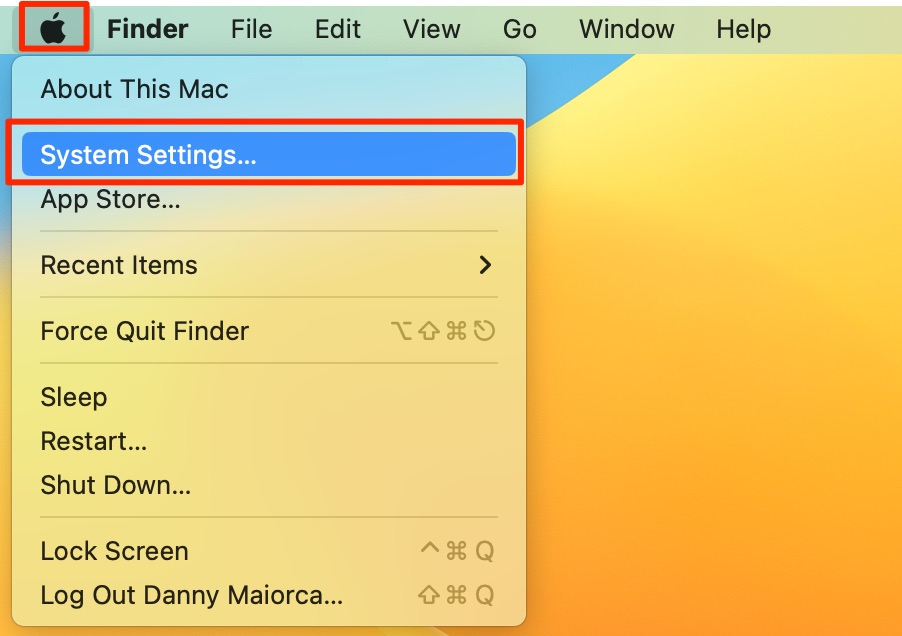
Go to the Apple logo in the top left and select System Settings.
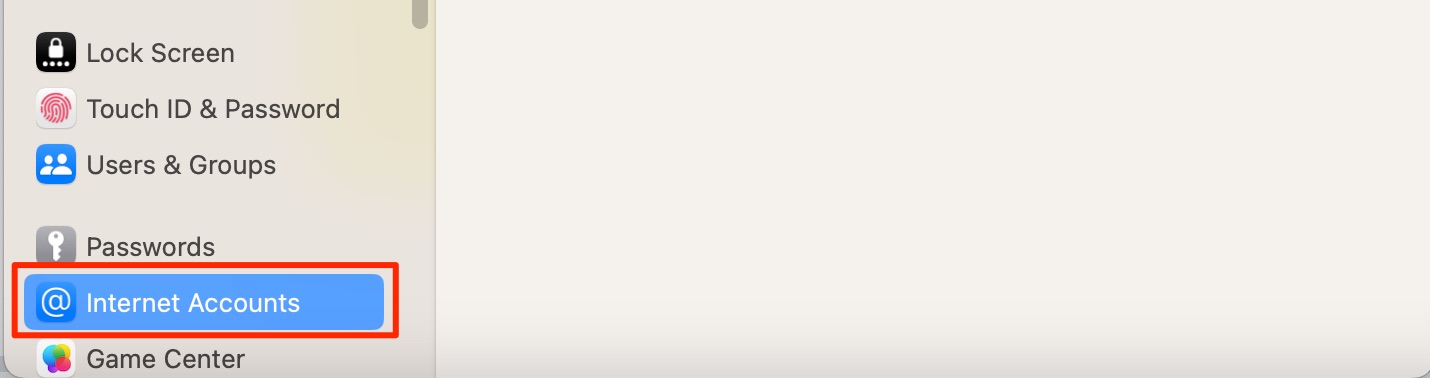
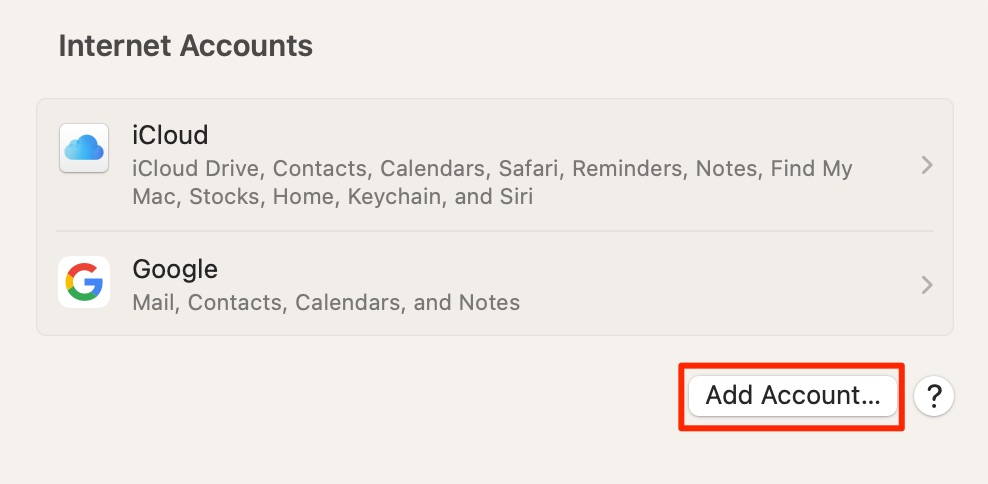
In the left-hand toolbar, click on the Internet Accounts tab.
If you need to add your account, select the Add Account button and enter your details.
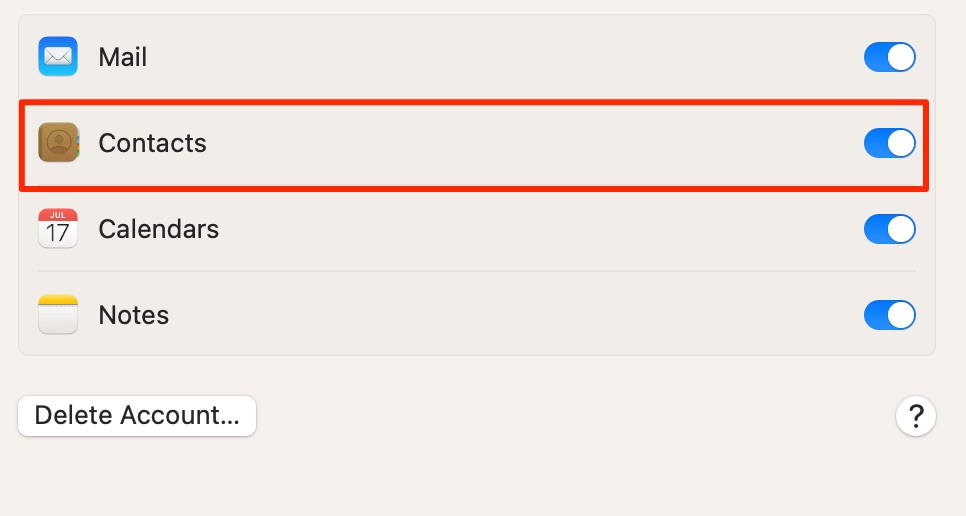
Now click on the provider you added. Here, you can toggle the Contacts option on.
Step 1. Open System Settings on your MacStep 2. Click on the Internet Accounts tabStep 3. Click on the Add Account buttonStep 4. Toggle the Contacts option on
Get contacts from iPhone to Mac via Gmail
If you have a Gmail account, you might want to import contacts to your Mac via the emailing platform. To do that, follow these steps.
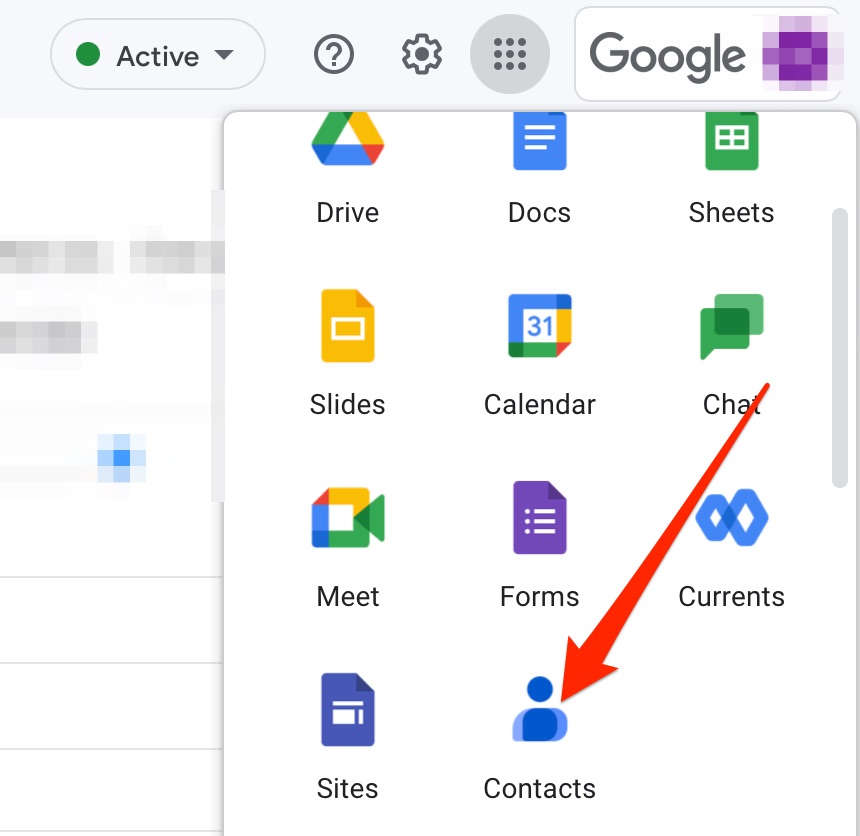
Log into your Gmail account and go to the dots icon in the top right.
Go to the Contacts icon and click on it; you might need to scroll down.
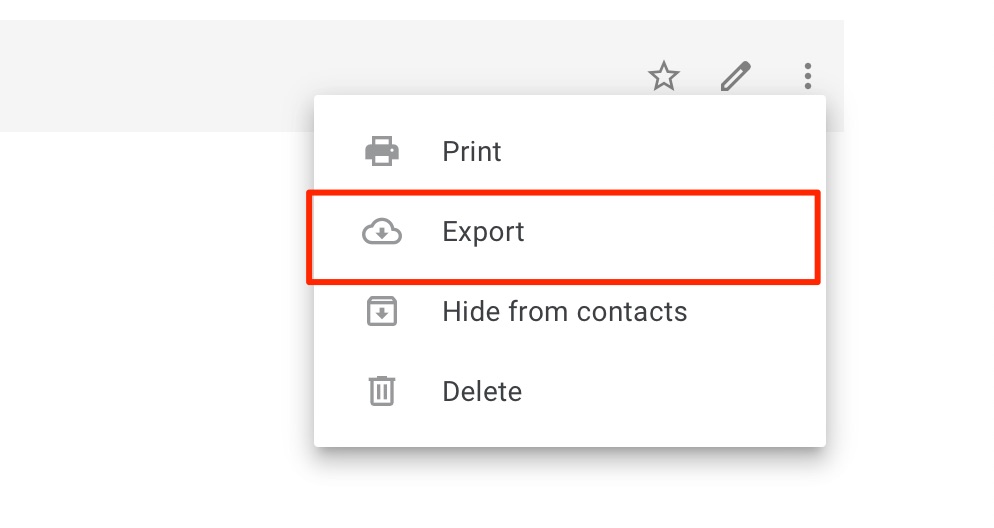
Find the Gmail contact you’d like to export. Then, tap the three vertical lines and select Export.
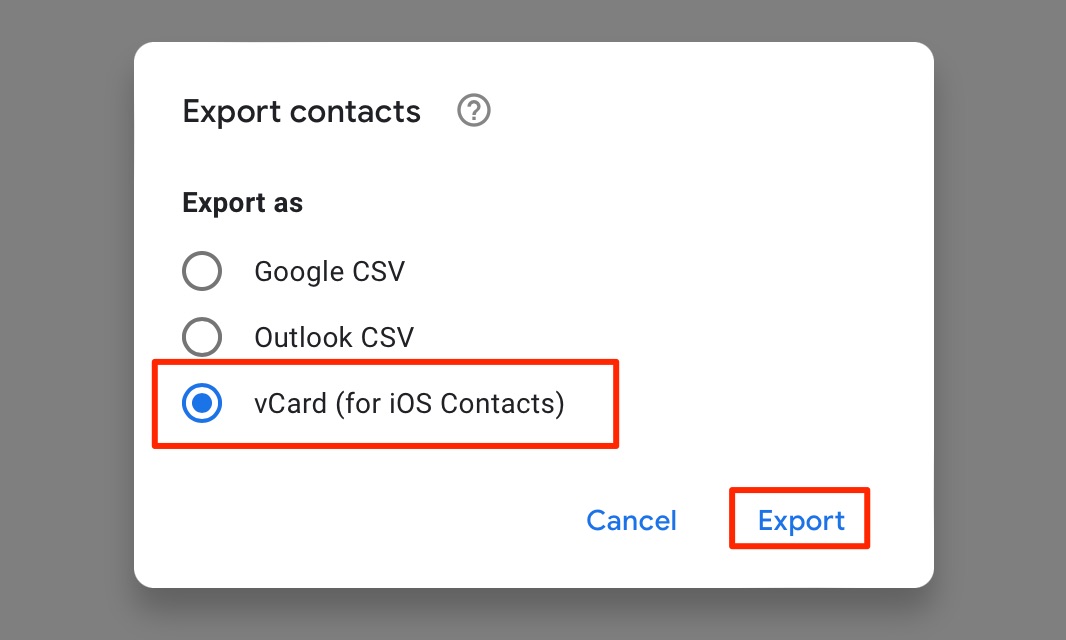
Choose the vCard format when asked to, before clicking on Export again.
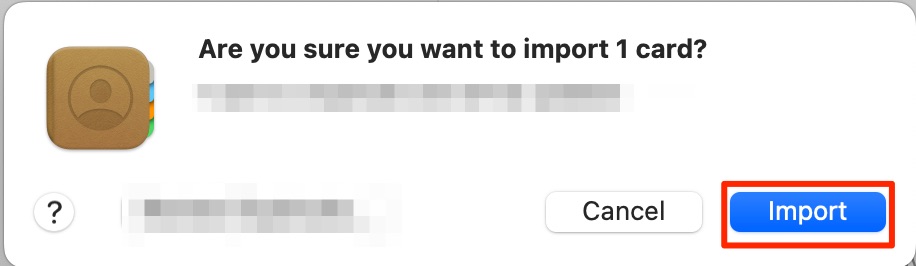
Double-click on the exported file. When Contacts opens, hit the Import button.
Step 1. Open your Gmail account and go to the dots iconStep 2. Click on the Contacts iconStep 3. Click on the Gmail contact and select Export Step 4. Choose the vCard format and click ExportStep 5. Click Import
Other ways to transfer your contacts from your iPhone to a Mac
Another way to import contacts from your iPhone to your Mac is perhaps a bit more old-fashioned. On top of that, it’s also a little more time-consuming. However, you can always use Google Drive to create a spreadsheet of your contacts and add them manually to your Mac.
Similarly, you can send contact details via email and iMessage, along with other messaging apps like WhatsApp or Telegram. I would, however, make this a last resort as there are several options that are much easier and will take up less of your time.
Use third-party apps for transferring iPhone contacts to Mac
Transferring iPhone contacts to your Mac can result in a lot of confusion, including duplicate contacts. However, you can use third-party apps to ensure everything is in order.
MacKeeper’s Duplicates Finder is one of the best tools for managing iPhone contacts. The instructions listed below will help you get the most out of the surface.
Open the MacKeeper app.
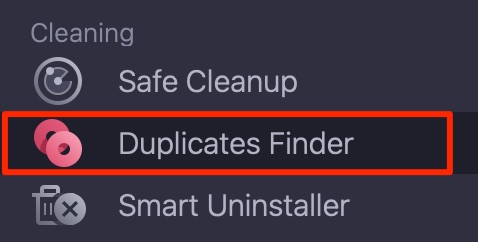
Go to Cleaning > Duplicates Finder.
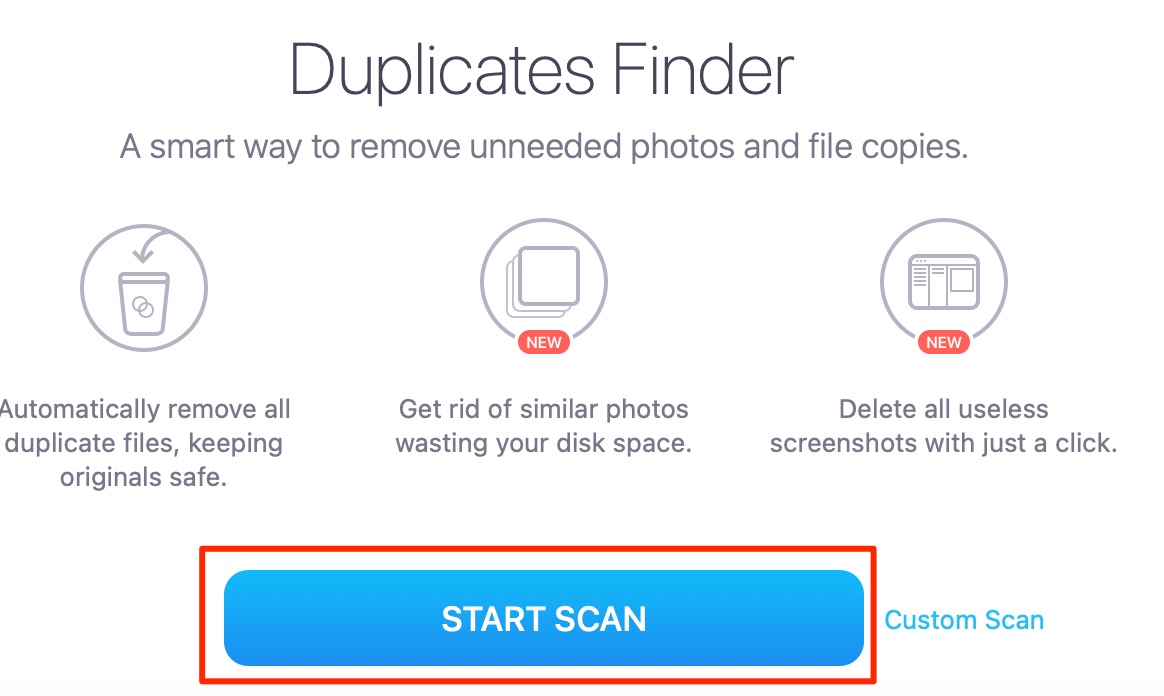
Click on the Start Scan button at the bottom.
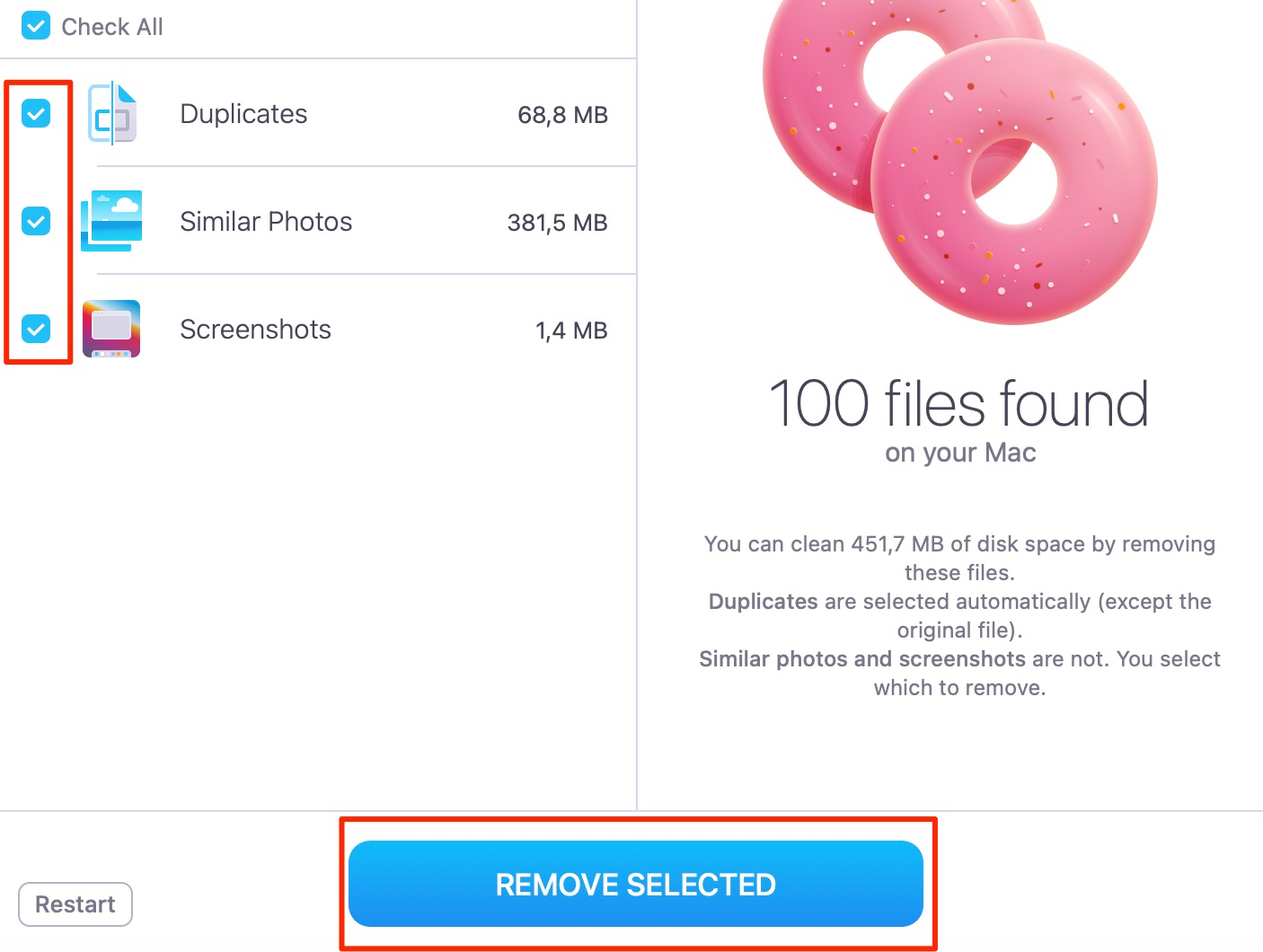
Let the Duplicates Finder scan for any files that might be duplicated. Then, tick the boxes for the sections you’d like to delete – before clicking on Remove Selected.
Step 1. Open MacKeeper and click on Duplicates Finder Step 2. Click on the Start Scan buttonStep 3. Wait for scan to complete and click Remove Selected
MacKeeper’s Duplicates Finder will help check if the contacts you might have entered twice aren’t duplicated. Removing duplicates will free space on your Mac, enabling you to perform tasks more efficiently. Also, it’ll ensure that you don’t accidentally select the wrong contact if you need to update details later.
Why are my iPhone contacts not syncing?
Your iPhone contacts might not be syncing for several reasons. One of the most common is that you haven’t signed into the same Apple ID on all of your devices. To fix this issue, make sure you’re using the same Apple ID login on both your iPhone and your Mac.
Another reason your iPhone contacts might not sync on your Mac is that you haven’t enabled the option on either of your devices. Check if the Contacts toggle is switched on for both. I’ve listed the instructions for doing that in the “How to sync contacts from iPhone to Mac via iCloud” section.
Wrapping up
Now you should know how to sync contacts from your iPhone to your Mac. As you can see, there are plenty of ways to import contacts to a Mac from an iPhone, and you can even do so with services like Gmail as well.
Some of the ways to sync contacts between your iPhone and Mac are relatively straightforward. Others, however, are a little more complicated–and you’ll ideally avoid needing to use these unless absolutely necessary.
If I was to pick one option, I’d recommend signing into the same Apple ID on your iPhone and Mac. Once you’ve allowed contact syncing between them, you’ll have hardly any issues keeping everything up-to-date.
MacKeeper can help you keep your contacts organized once you’ve imported them. Download the MacKeeper app to help your device perform better today.
We respect your privacy and
use cookies
for the best site experience.
Privacy Preferences Center
We use cookies along with other tools to give you the best possible experience while using the
MacKeeper website. Cookies are small text files that help the website load faster. The cookies we
use don’t contain any type of personal data meaning they never store information such as your
location, email address, or IP address.
Help us improve how you interact with our website by accepting the use of cookies. You can change
your privacy settings whenever you like.
Manage consent
All cookies
These cookies are strictly necessary for enabling basic website functionality (including page
navigation, form submission, language detection, post commenting), downloading and purchasing
software. The website might malfunction without these cookies.