The Supplied iCloud Account Was Unable to Unlock This Volume
Getting stuck because the supplied iCloud account was unable to unlock this volume is incredibly frustrating, especially when you’re certain your credentials are correct and you just need to access your data. MacKeeper’s Premium Services connect you with certified experts who can navigate these tricky FileVault and Apple ID synchronization issues, providing a stress-free path back into your Mac.
The error usually means the iCloud account you're using lacks permission to unlock the encrypted volume. This can happen during password resets or startup recovery if there's a mismatch with the device's associated Apple ID. To fix it, ensure you're using the correct account, verify credentials on another device, or use your FileVault recovery key. If these fail, reset the password using Terminal in Recovery Mode to regain full access to your personal files.
What does “The supplied iCloud account was unable to unlock this volume” mean?
This error means the iCloud account you’re using does not have permission to unlock the encrypted volume. This typically occurs during a password reset or startup recovery if there's a mismatch with the device’s associated Apple ID. To fix “the supplied iCloud account was unable to unlock this volume,” ensure you use the correct Apple ID, verify credentials on another device, or enter your FileVault recovery key. If these steps fail, reset the password using Terminal in Recovery Mode.
How to fix “The supplied iCloud account was unable to unlock this volume”?
To resolve the issue where a supplied iCloud account cannot unlock this volume, you should first reboot to refresh system processes. If the error persists, based on our experience, booting into macOS Recovery and using the resetpassword command inTerminal is the most effective fix. Alternatively, try updating your Apple ID password on a separate device to force a sync with Apple’s servers before attempting to unlock the volume again.
A note from our experts:
Troubleshooting why a supplied iCloud account cannot unlock this volume often involves complex terminal commands or risk of data loss. Instead of spending hours trial-and-erroring through various methods, using MacKeeper’s Premium Services provides a faster, expert-led resolution. Our macOS utility software, developed by Clario Tech, provides direct access to certified technicians who can remotely guide you through safely decrypting your volume.
To get expert help with MacKeeper’s Premium Services:
Download MacKeeper and follow the installation prompts to launch the app.
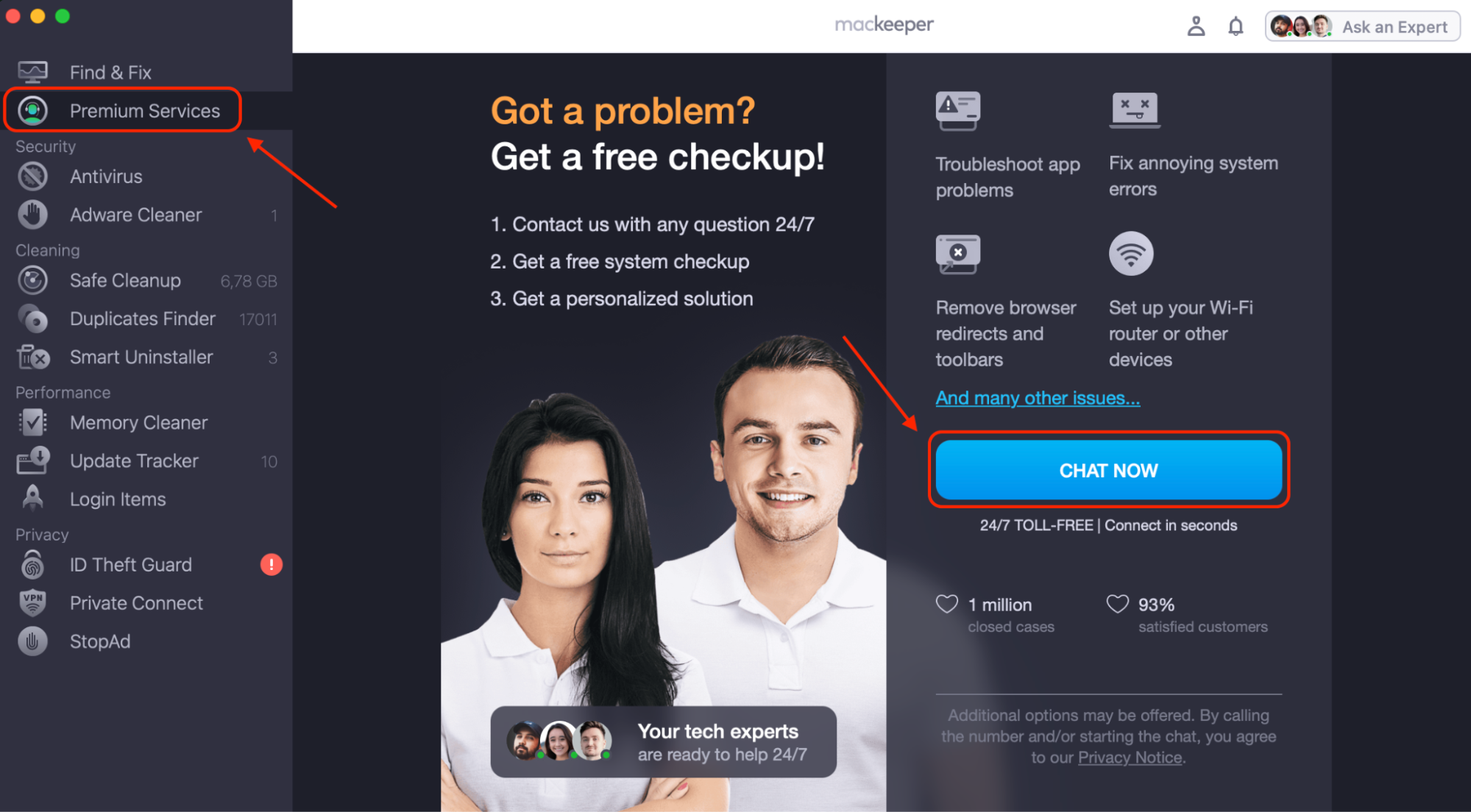
Select Premium Services from the left-hand sidebar to view your support options.
Click Chat Now to start a secure, real-time conversation with a professional who protects Mac systems daily.
Explain that the iCloud account you provided cannot unlock this volume; our team will provide step-by-step instructions tailored to your specific hardware.
Open MacKeeper, click Premium Services in the sidebar, then choose Chat Now
1. Quick-check fixes before deep recovery
As our tests show, simple oversights often trigger this error, so we suggest performing basic checks first. We also advise verifying that your Apple ID is active by checking how to access iCloud photos on a Mac or signing into another device.
Here’s how to perform quick checks:
Check your internet connection by opening a webpage.
Restart your Mac to refresh the system authentication processes.
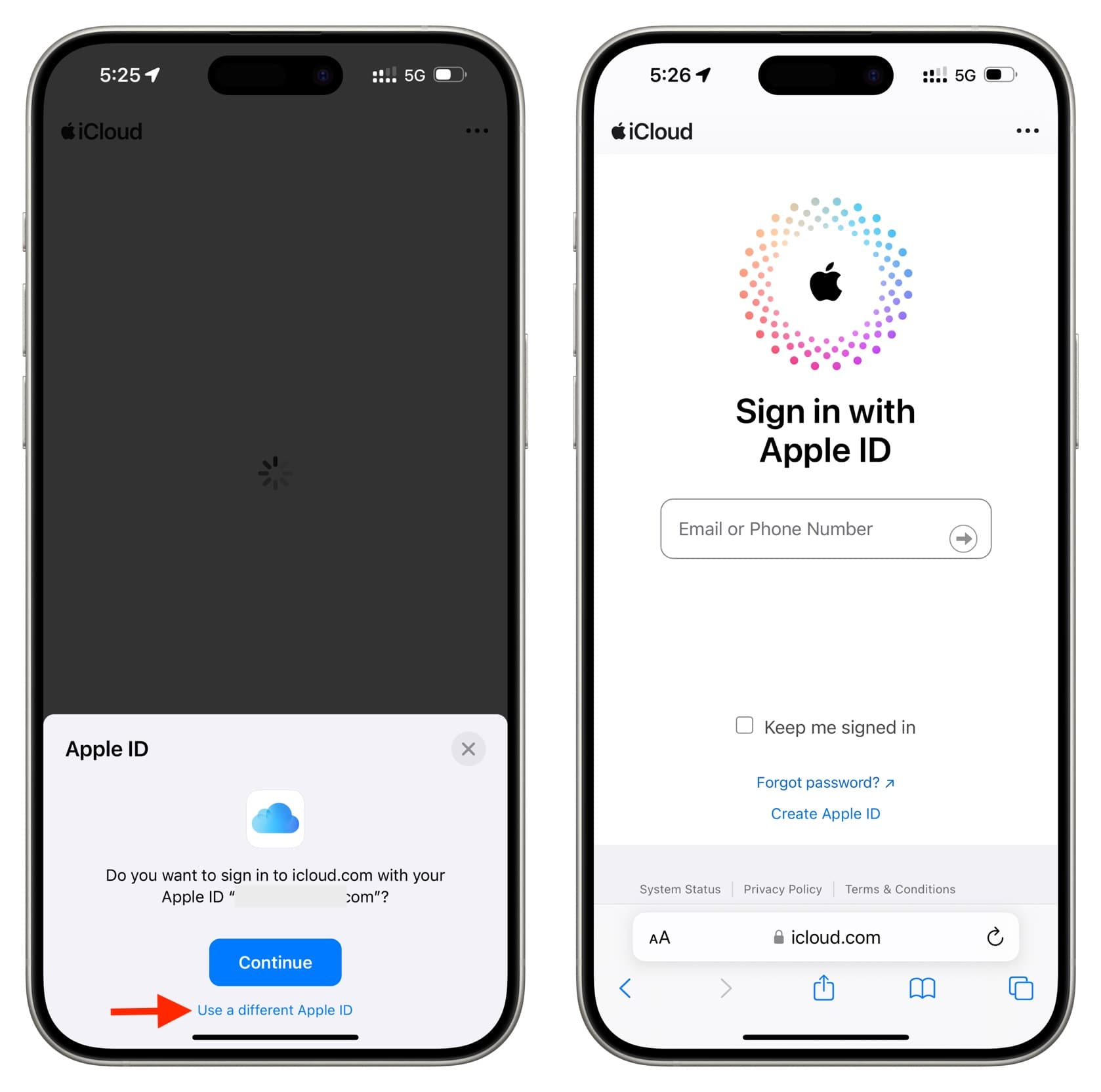
Sign in to iCloud on your iPhone to confirm your password is correct.
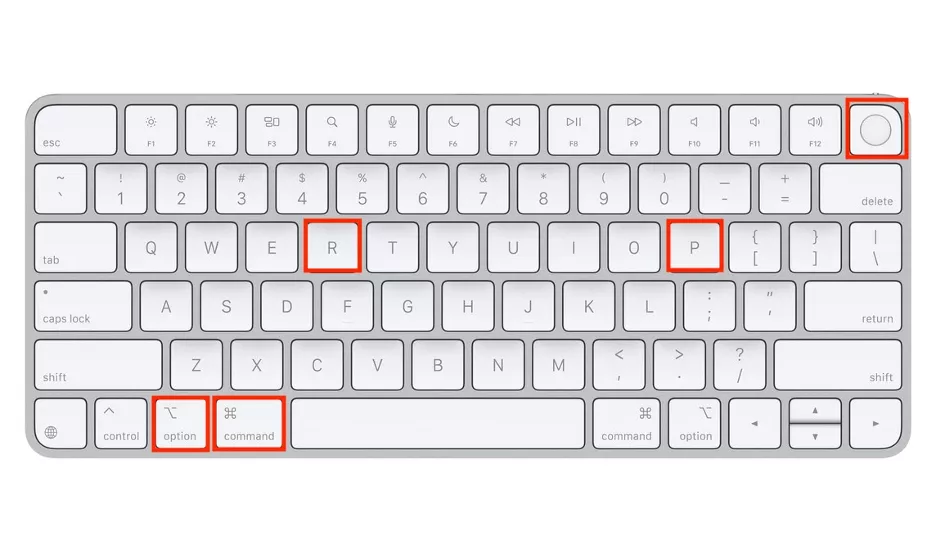
Reset NVRAM by holding Option+Command+P+R during an Intel Mac's startup.
Step 1. Sign in to iCloud on your iPhone to confirm your password is correctStep 2. Reset NVRAM by holding Option+Command+P+R during an Intel Mac's startup
2. Delete password at login window
Your Mac is designed to help you if you simply can't remember your login. Our team has found that this method is particularly effective if you previously authorized your Apple ID to reset your local account.
Follow these steps at the login window:
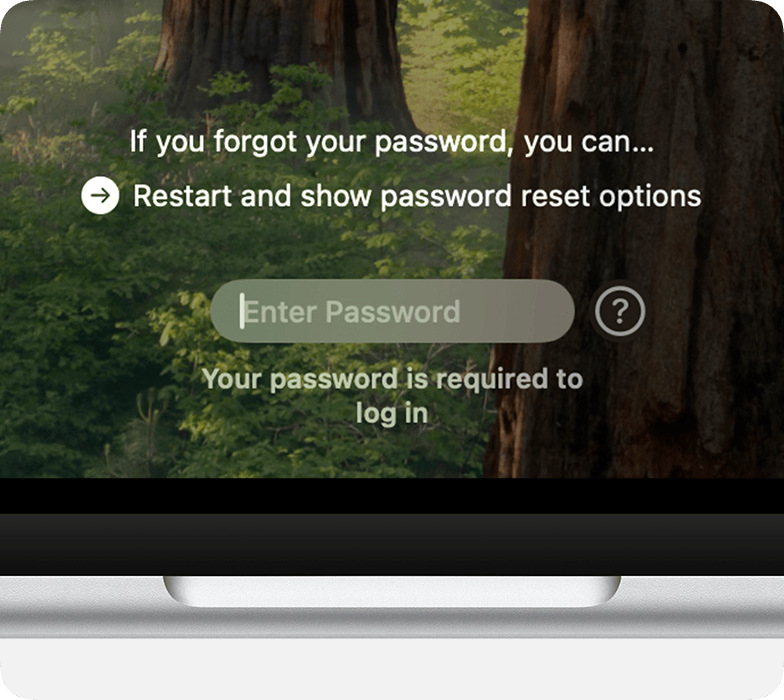
Input any password three times until the recovery prompt appears.
Select the option to Restart and show password reset options.
Enter your Apple ID credentials when prompted.
Create a fresh password and reboot to access your desktop.
Input any password three times until the recovery prompt appears. Select the option to Restart and show password reset options.
3. Use macOS recovery to reset password
From our experience, while it might seem intimidating to type commands when you're already stressed about how to backup a MacBook to iCloud, this path is incredibly safe and doesn't touch your personal files.
Tto reset via Recovery Mode:
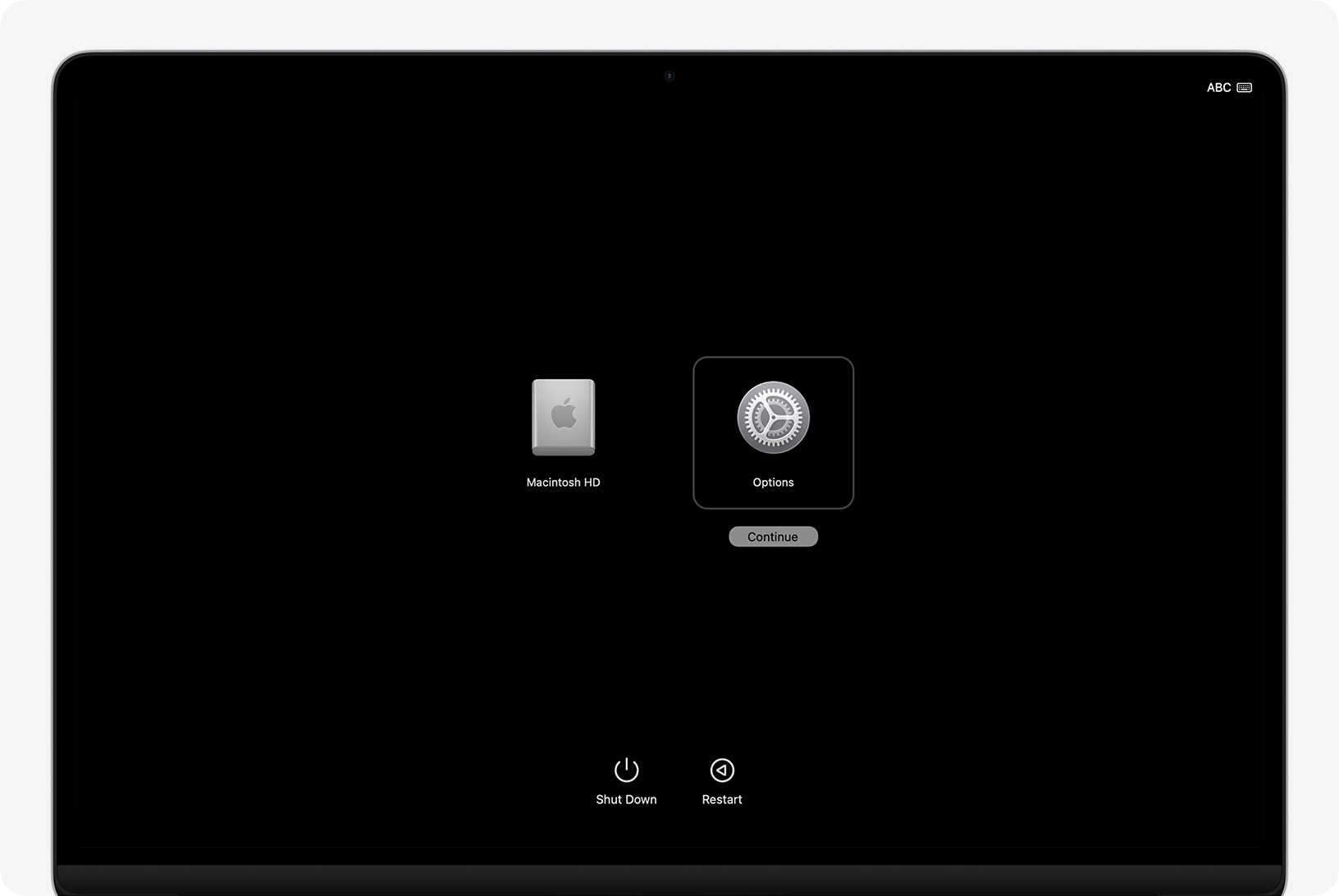
Power down your Mac and hold Command+R (Intel) or the Power button (Silicon) to enter Recovery.
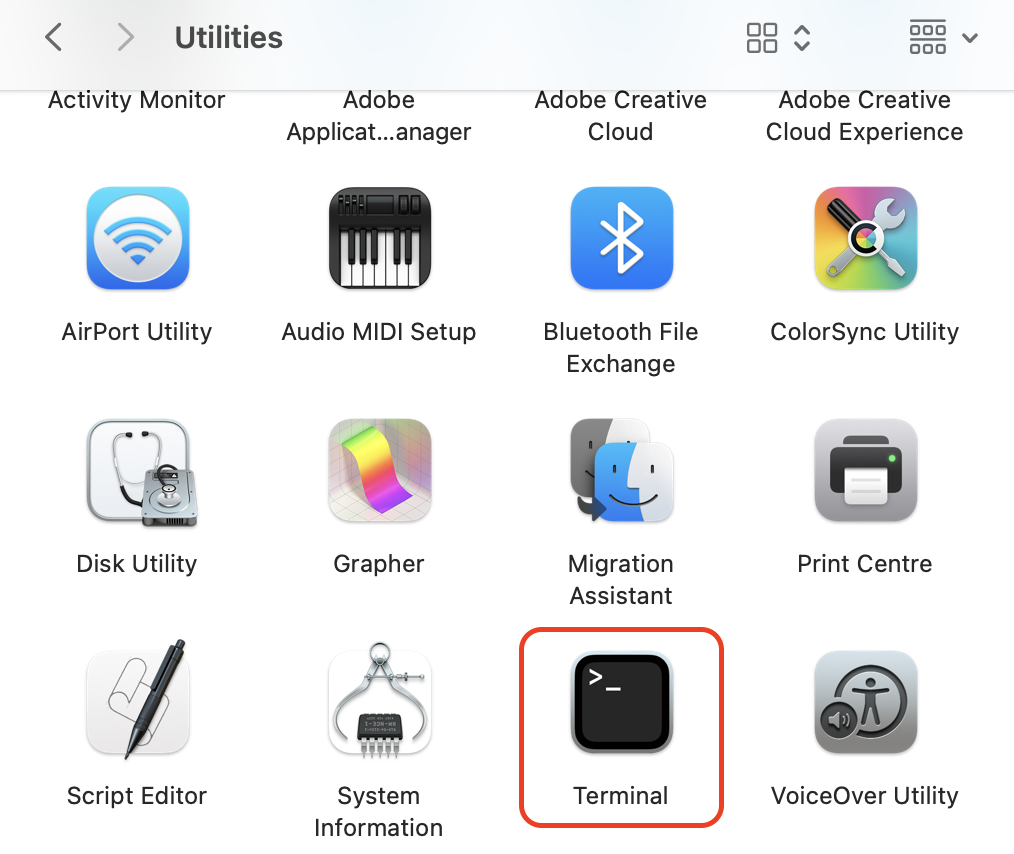
Navigate to Utilities in the top menu and open Terminal.
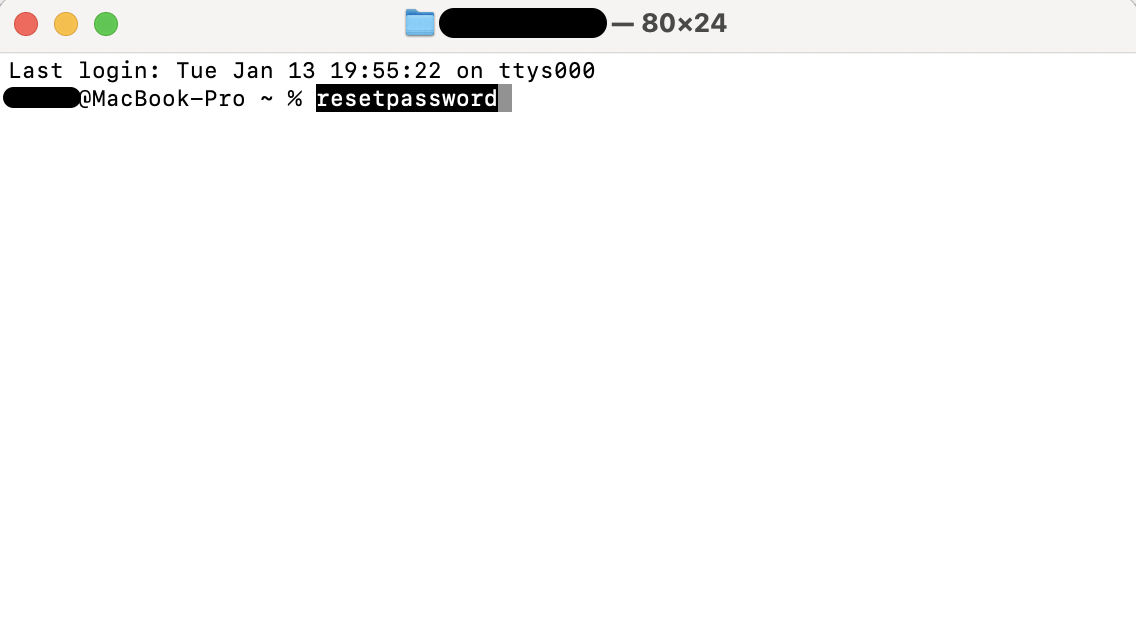
Carefully type resetpassword, then press the Return key.
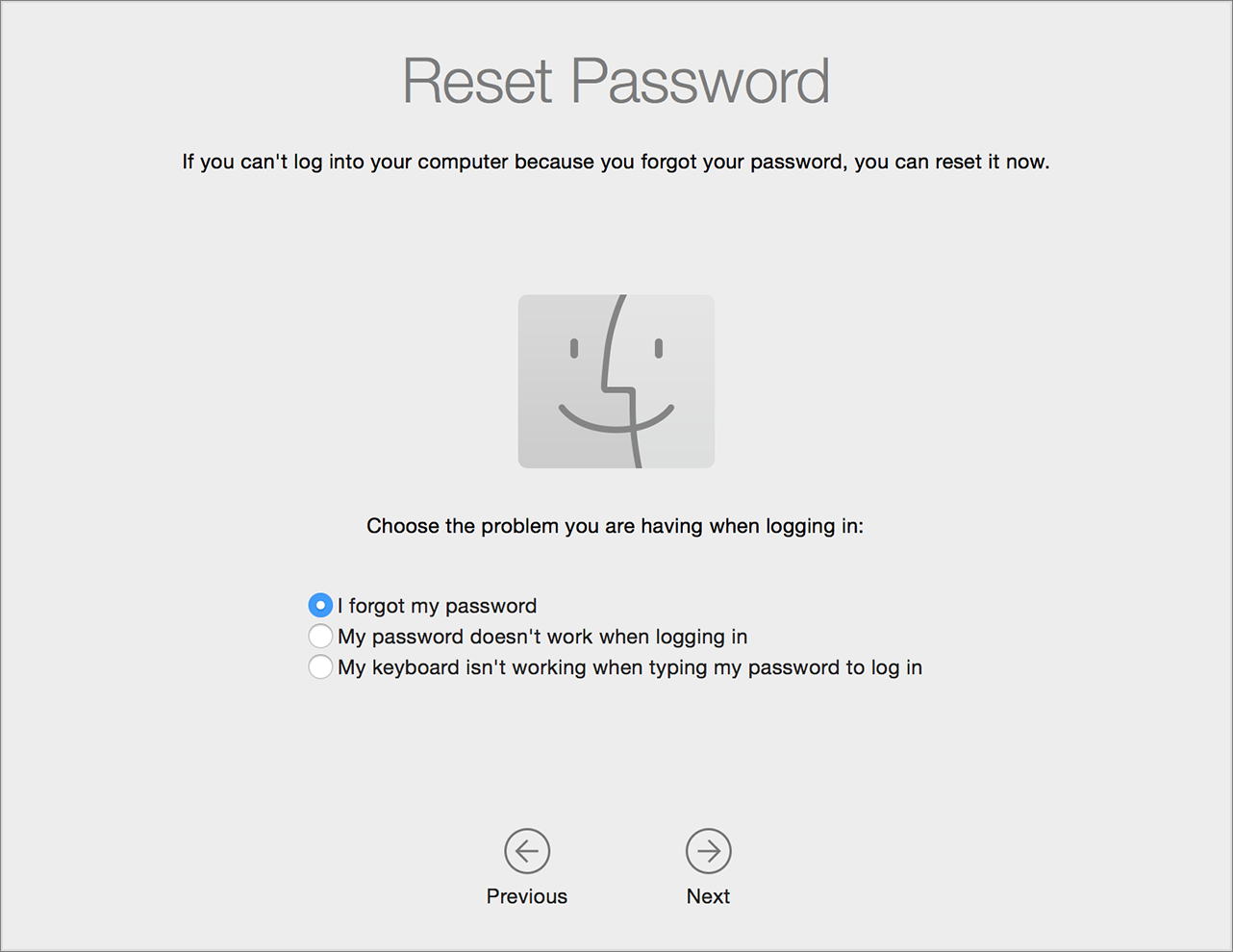
Select your user account in the Reset Password Assistant and follow the prompts to finalize the change.
Step 1. Power down your Mac and hold Command+R (Intel) or the Power button (Silicon) to enter RecoveryStep 2. Navigate to Utilities in the top menu and open TerminalStep 3. Type resetpassword, then press the Return keyStep 4. Select your user account in the Reset Password Assistant and follow the prompts
4. Change Apple ID password and reattempt
If your Mac rejects credentials you know are right, it often signals a sync delay between the local hardware and Apple’s security servers. This is also a perfect time to investigate why iCloud Drive is taking up space on your Mac, as maintaining a lean account often prevents these login hurdles.
How to update your credentials:
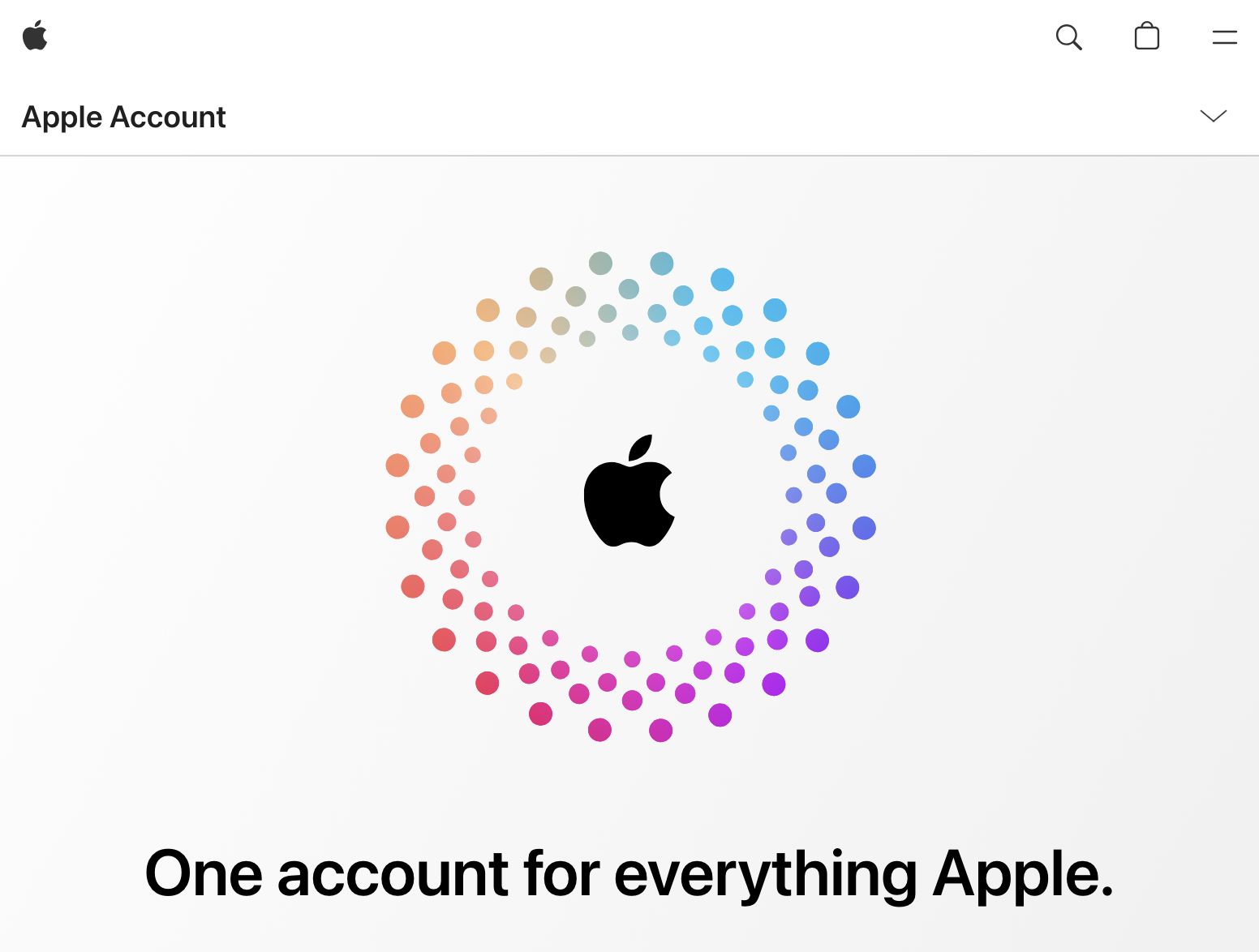
Sign in to appleid.apple.com on an iPhone or another computer to modify your account settings.
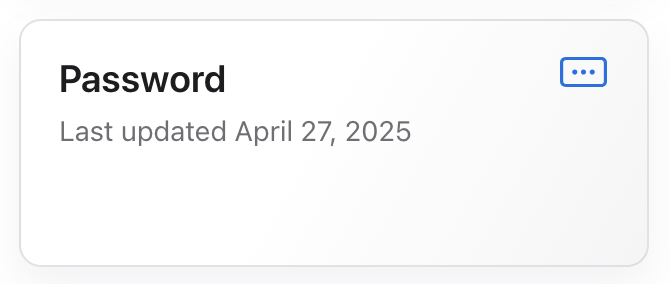
Select the Password option and follow the prompts to create a new, secure login.
Try to use the Reset Password Assistant again if the initial login window still fails.
Step 1. Sign in to appleid.apple.com on an iPhone or another computer to modify your account settingsStep 2. Select the Password option and follow the prompts to create a new, secure login
5. Restore from backup
When a failed software update causes the system to stop recognizing your password, rolling back to a previous state is your safest bet. We’ve found that restoring an APFS snapshot is the quickest way to return your disk to a moment when the login worked perfectly.
Steps to restore your system:
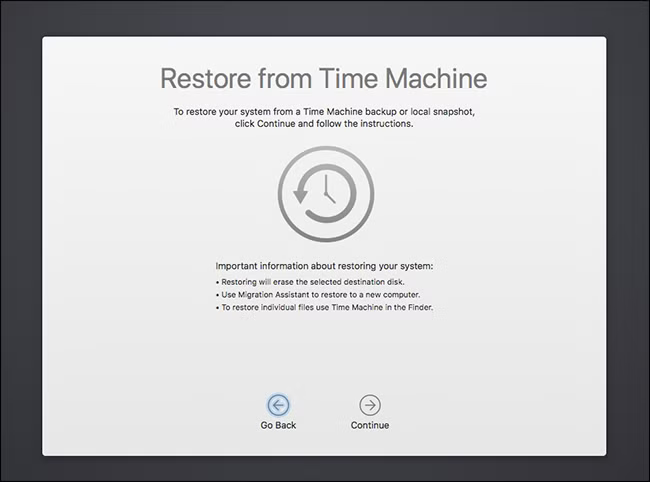
Reboot into Recovery Mode and select Restore from Time Machine from the main utilities menu.
Connect your external backup drive to the Mac or choose your internal drive to view local snapshots.
Scan the list for a backup date and time that precedes your current login issue.
Select Continue and confirm your Macintosh HD as the destination for the restoration.
Reboot into Recovery Mode and select Restore from Time Machine from the main utilities menu
6. Erase and reinstall macOS as a last resort
If no recovery path works, a fresh start is the only way to clear deep-seated FileVault corruption or drive headers. We suggest this only when this Mac can’t connect to iCloud or unlock the volume despite all other efforts, as it clears the drive.
How to perform a clean installation:
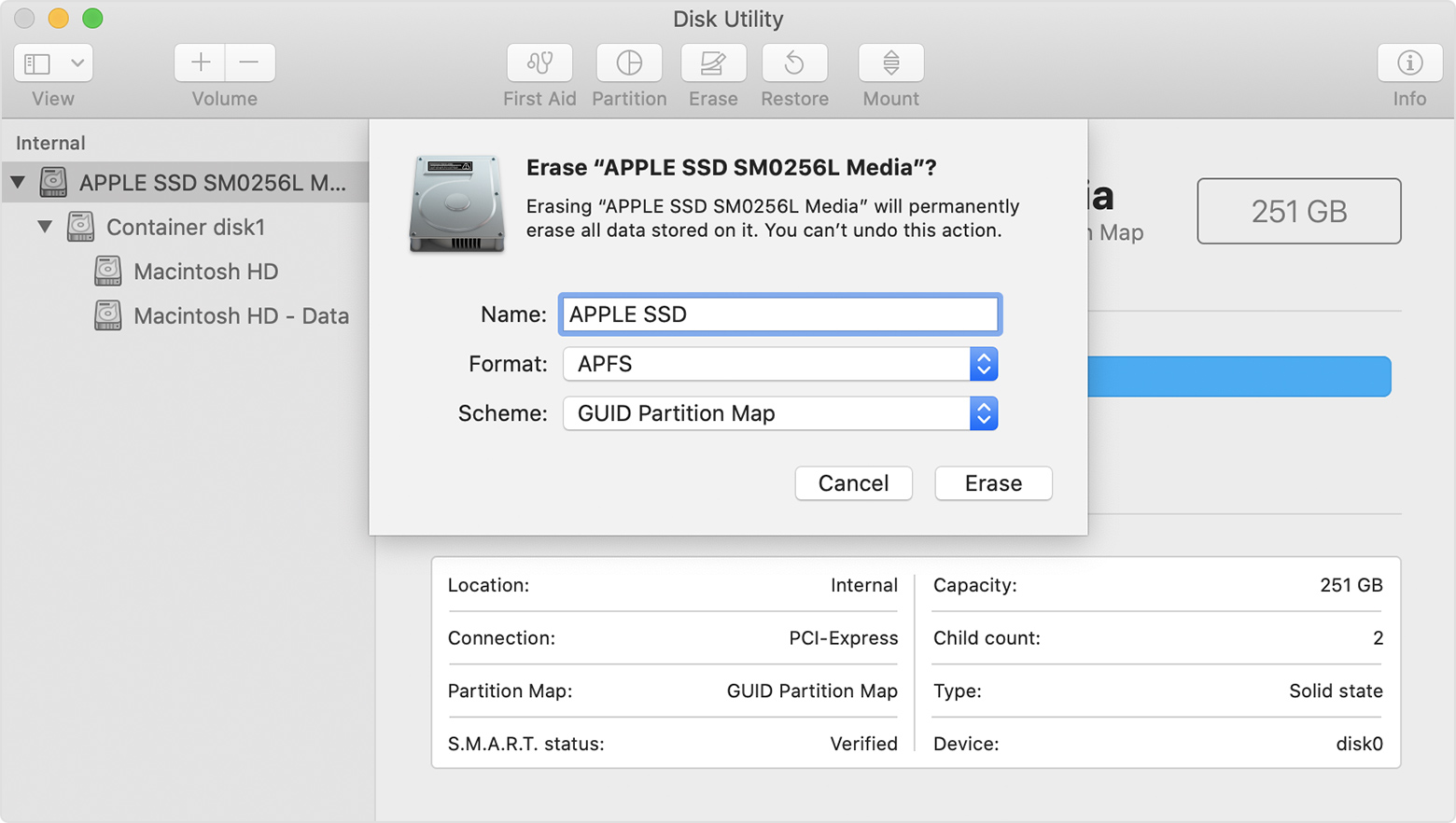
Open Disk Utility within the Recovery screen and select your internal startup drive.
Click the Erase button and name the volume Macintosh HD.
Set the format to APFS to ensure the best performance with modern macOS versions.
Close Disk Utility, return to the main menu, and choose Reinstall macOS.
Follow the on-screen installation prompts and create a new user account once the download completes.
Open Disk Utility and select your internal startup drive. Click the Erase button, then set the format to APFS, close Disk Utility, return to the main menu, and choose Reinstall macOS
Conclusion
The "supplied iCloud account was unable to unlock this volume" error occurs when the credentials you enter don't match the administrative Apple ID linked to your Mac’s FileVault encryption. Instead of struggling with manual fixes, we recommend utilizing MacKeeper’s Premium Services for a professional resolution. MacKeeper is a macOS utility software that offers adware and malware removal, and it is trusted by millions of users worldwide.
We respect your privacy and
use cookies
for the best site experience.
Privacy Preferences Center
We use cookies along with other tools to give you the best possible experience while using the
MacKeeper website. Cookies are small text files that help the website load faster. The cookies we
use don’t contain any type of personal data meaning they never store information such as your
location, email address, or IP address.
Help us improve how you interact with our website by accepting the use of cookies. You can change
your privacy settings whenever you like.
Manage consent
All cookies
These cookies are strictly necessary for enabling basic website functionality (including page
navigation, form submission, language detection, post commenting), downloading and purchasing
software. The website might malfunction without these cookies.