If your Mac is running slow and the spinning colour wheel keeps appearing, you might be facing performance lags due to the demanding triald process. Luckily, you can regain control of your system resources with MacKeeper’s Memory Cleaner, which frees up RAM, reduces CPU strain, and keeps your device running smoothly—no manual declutter needed.
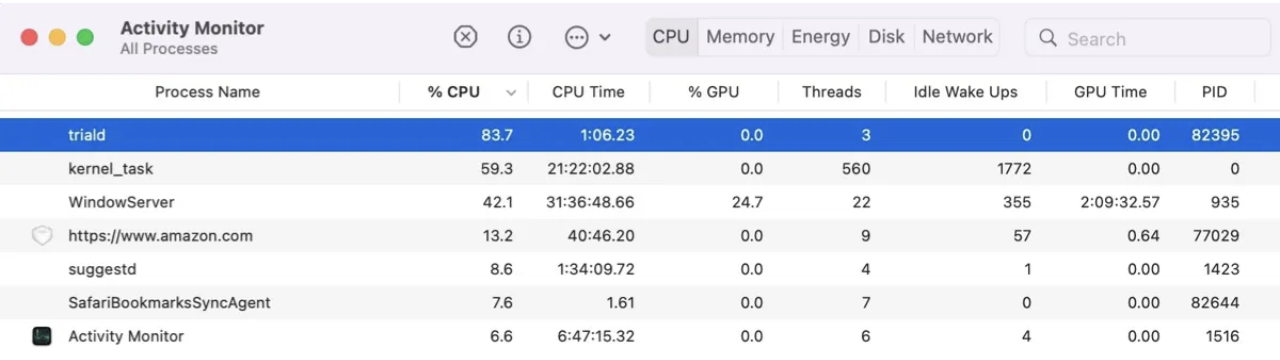
The triald process on Mac is a background system service hooked to Siri, machine learning, and Siri Knowledge features like Visual Look Up, Dictation, and Find My. It collects data for Apple’s internal experiments via CloudKit. First appearing in macOS Big Sur, triald became more noticeable in macOS Monterey 12.3 due to its increased CPU activity.
The triald process on Mac
Why does triald cause high CPU usage on Mac
Triald is believed to force high CPU usage on Mac, especially when Siri is disabled. The demanding process runs background tasks linked to Siri-related data in ~/Library/Trial, even if those features aren't actively being used.
Not sure if CPU usage on your Mac is high? You can follow the advice in our attached blog to help you see Mac CPU usage and determine if any processes need troubleshooting.
A note from our experts:
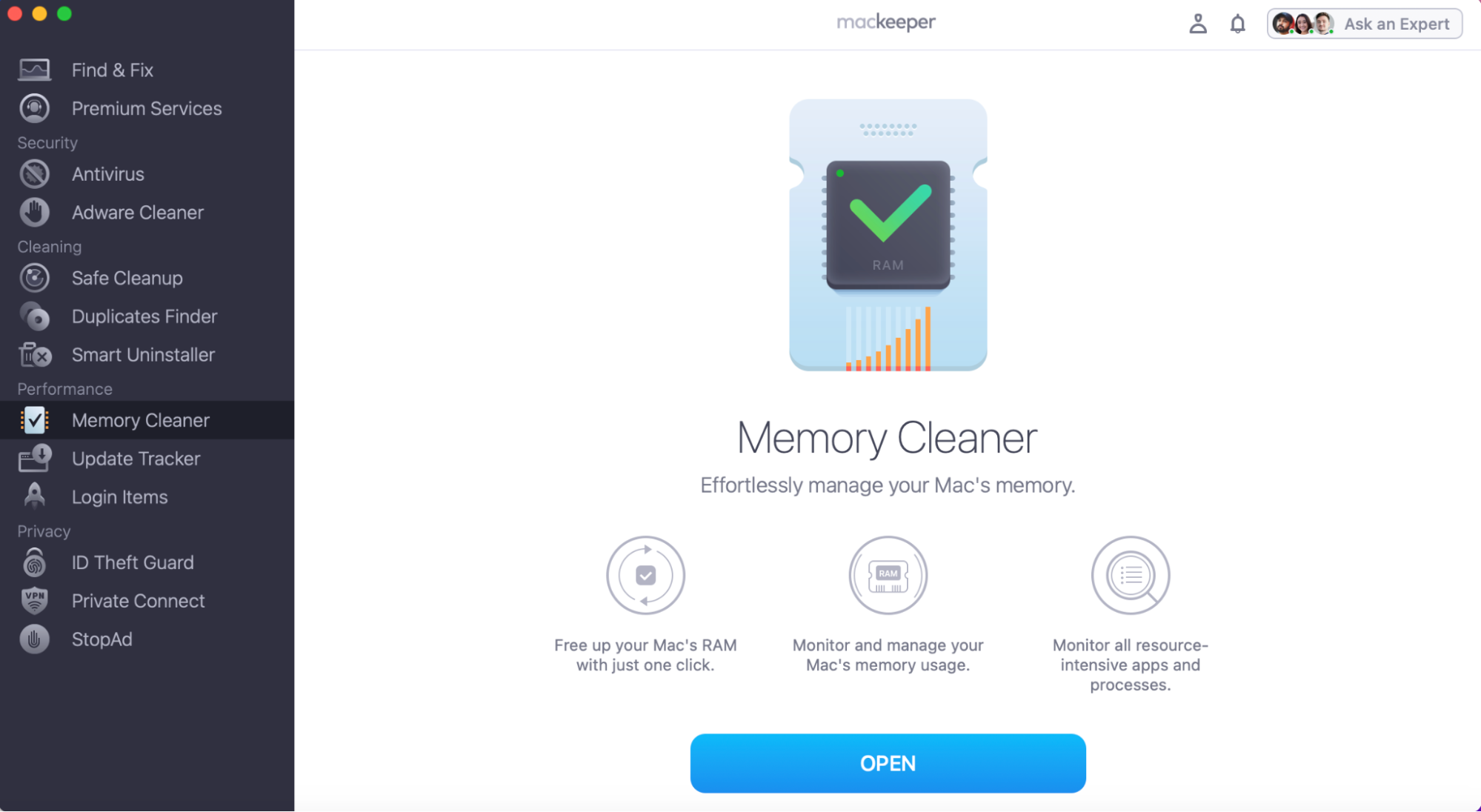
One of the most effective ways to reduce CPU usage from background processes, like triald, is by using a dedicated tool like MacKeeper’s Memory Cleaner. It can free up RAM and monitor your memory usage in real-time to help prevent slowdowns or performance lags.
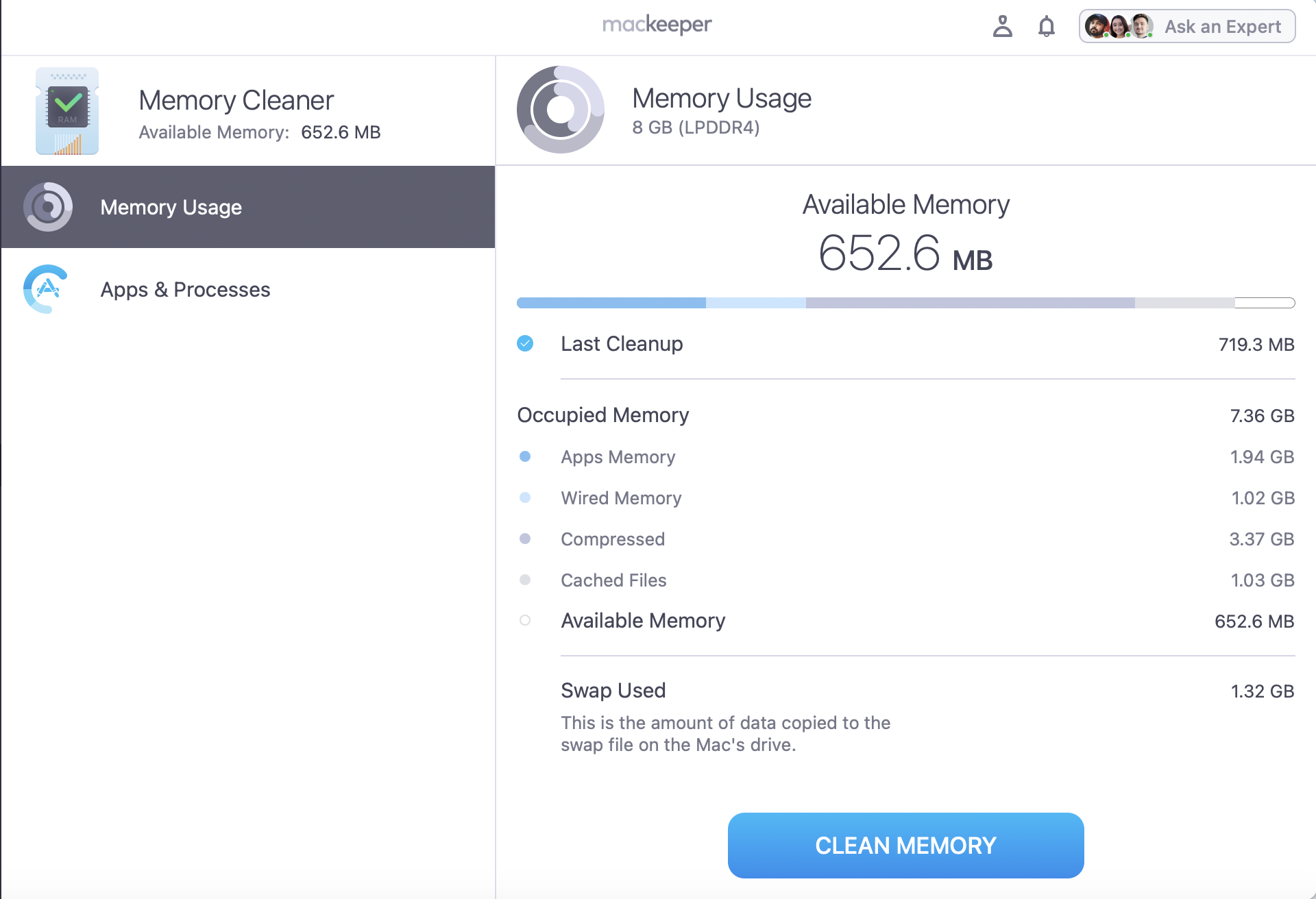
Look through your Memory Usage, including Apps & Processes.
Press Clean Memory.
Step 1. In the MacKeeper App, go to Memory Cleaner and press OpenStep 2. Look through your Mac’s memory usage and then press Clean Memory
How to fix high CPU usage on Mac caused by triald
To fix triald Mac high CPU usage, try troubleshooting Siri in your System Settings. Many Apple users have noticed a rapid improvement in performance after changing their Siri settings, even if the feature is unused.
1. Restart triald process via Activity Monitor.
Worried that triald on Mac is responsible for your high CPU usage? If so, we recommend restarting all triald-related processes in Activity Monitor. This troubleshooting measure can help you fix lags, reduce RAM usage, and give your system a much-needed boost.
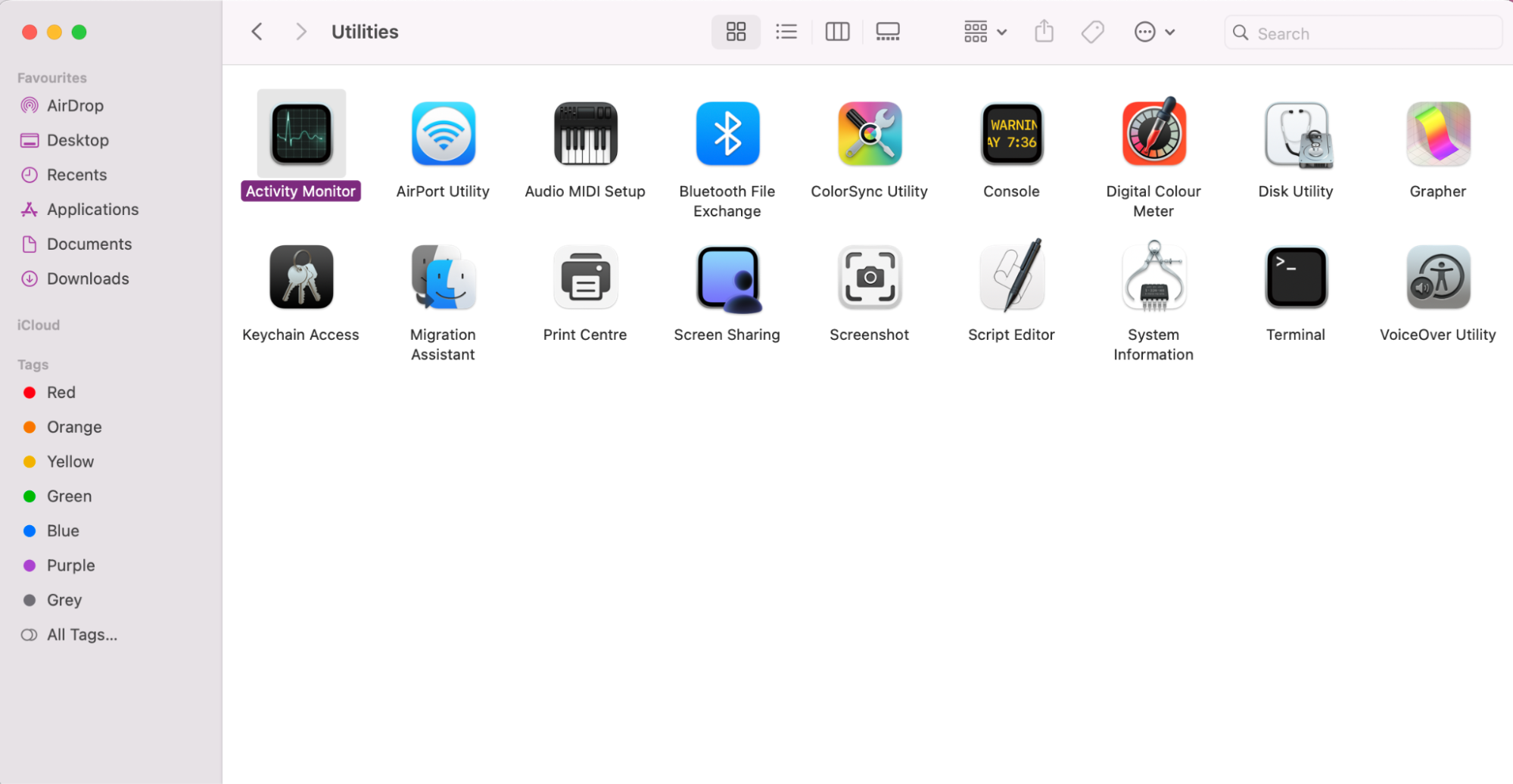
Our steps below can show you how to restart the triald process via Activity Monitor:
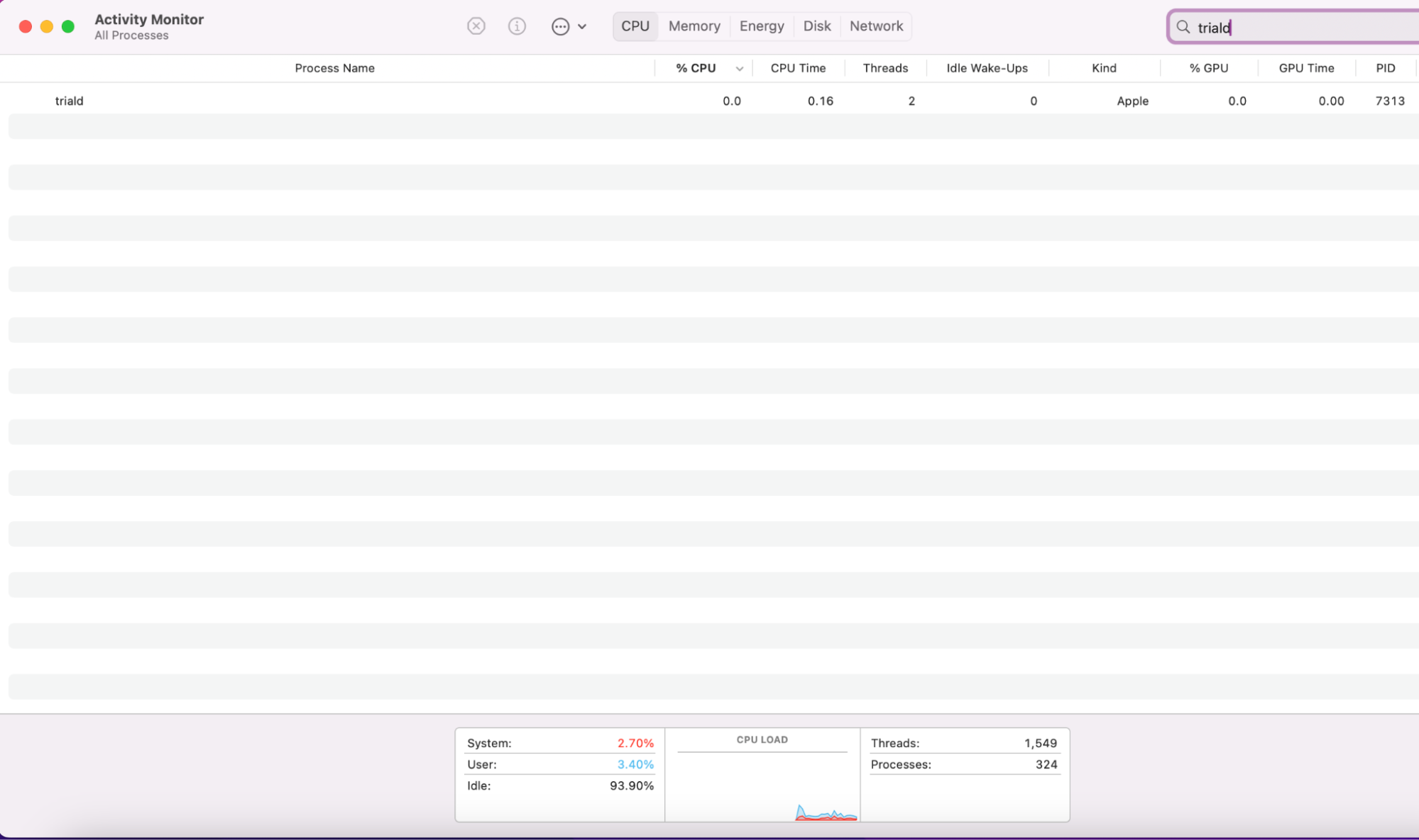
In Finder, click on Applications > Utilities and open Activity Monitor.
In the CPU search box, type in triald to locate all related processes.
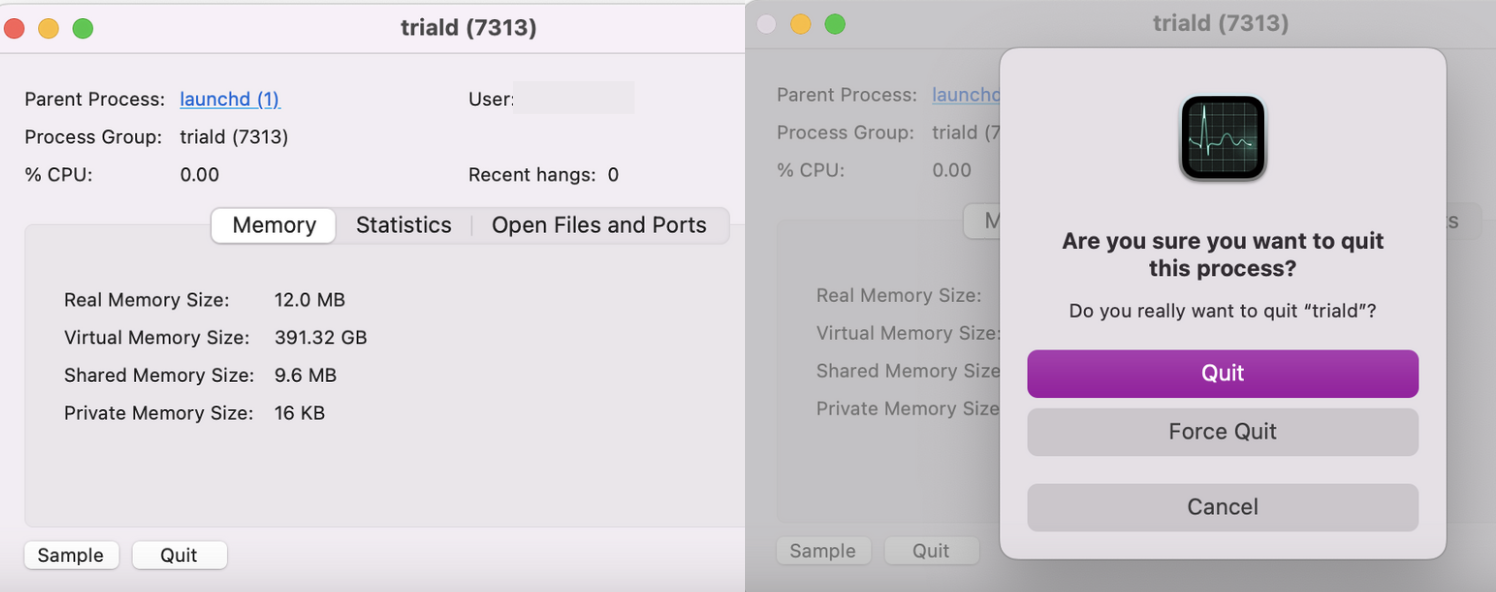
Click on the triald process and press Quit.
Confirm by pressing Force Quit to restart the process.
Step 1. Open Activity MonitorStep 2. In the CPU tab, head to the search box and type in trialdStep 3. Click on the triald process, press Quit, and then Force Quit to restart the triald process
An extra hint from us:
Force-quitting demanding processes, like triald, is not the most effective way to speed up your Mac. Our supporting blog shares over 15 more efficient methods to help you get your Mac back up to speed and running smoothly.
2. Update macOS to fix triald-related bugs
In case you’re still noticing performance issues, it might be due to bugs embedded in macOS. Apple regularly releases patch updates that fix these types of glitches, including repairing the triald process on Mac.
We highly recommend you keep macOS up-to-date, and here’s how:
Click on the Apple Icon and select System Settings.
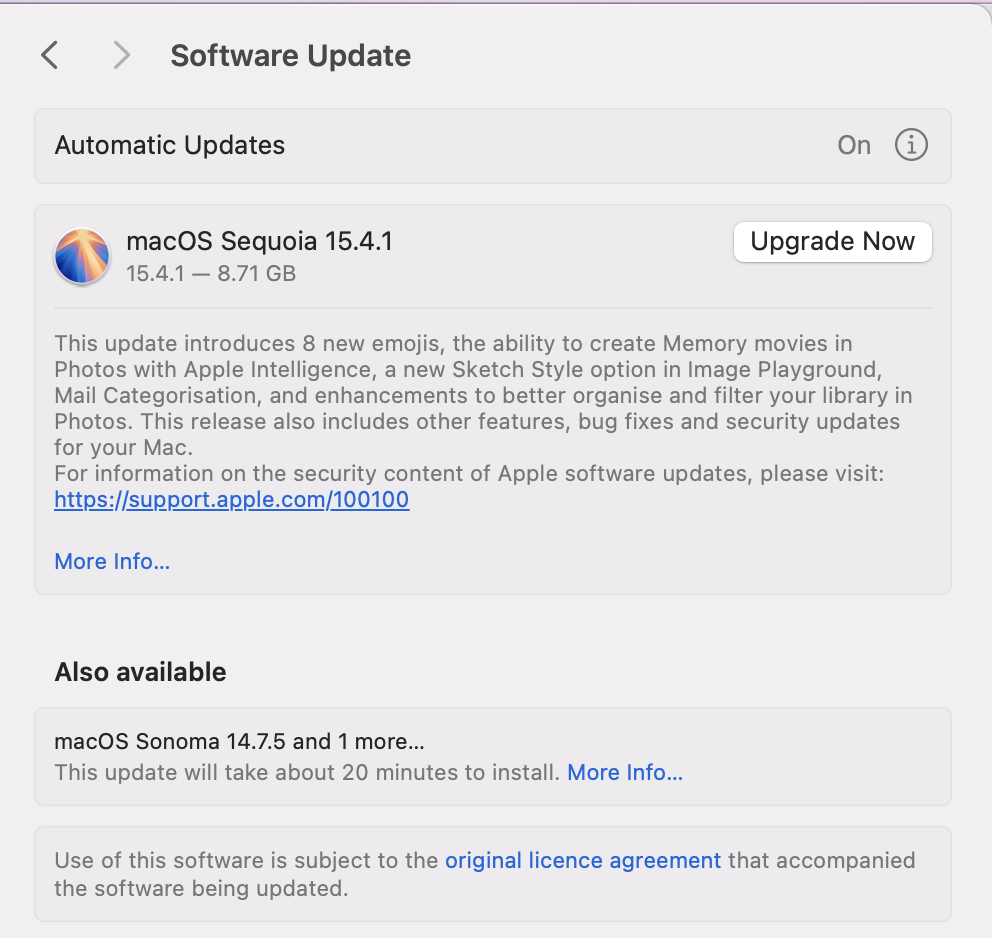
Go to General, then click on Software Update.
If an update is available, you can click Update Now.
Step 1. In System Settings, go to General > Software UpdateStep 2. If an update or upgrade is available, click on Update Now.
A helping hand from the MacKeeper team:
After you have confirmed your macOS is up-to-date, it’s worth checking out our supporting blog on how to check Mac performance and keep your laptop optimized. Our extra guidance can assist you in preventing and fixing slowdowns from happening again.
3. Use Activity Monitor to track triald resource usage
Now that we’ve shared how you can restart the triald process on Mac, our advice extends to keeping an eye on your triald resources to avoid it leading to high CPU usage. Otherwise, your Mac activities will likely continue to be interrupted by performance slowdowns and halts.
Here’s how you can track triald using the Activity Monitor app:
Open Finder and go to Applications > Utilities > Activity Monitor.
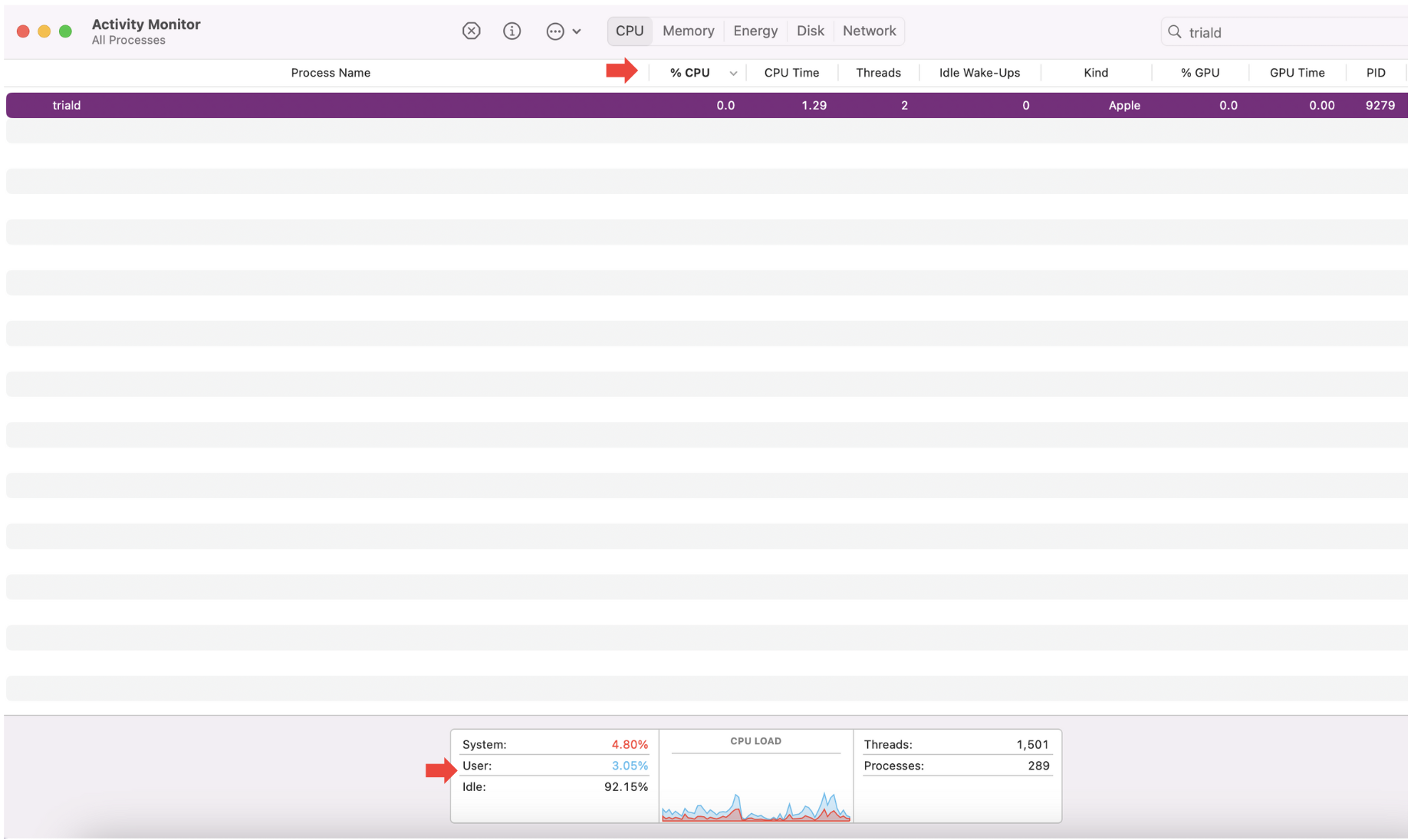
With the CPU tab open, type triald into the search box.
You can now keep track of the CPU and Memory usage of the triald process.
You can use Activity Monitor to track the CPU and Memory usage of the trial process on Mac
Important:
Sometimes, background processes run on your device without any clear reason. To safely terminate unnecessary processes, we recommend you check out the step-by-step guide on how to end tasks on Mac.
Staying on top of performance with MacKeeper’s help
In case you run into Mac performance lags, and you suspect triald to be the cause, you now know our top recommendations to help fix any glitching caused by demanding background processes. You can restart the triald process in Activity Monitor, update macOS, or remove the triald process on Mac altogether.
For an extra hand, you can always turn to MacKeeper’s Memory Cleaner to help troubleshoot your device, freeing up RAM and reducing the strain on your resources caused by unnecessary background operations.
We respect your privacy and
use cookies
for the best site experience.
Privacy Preferences Center
We use cookies along with other tools to give you the best possible experience while using the
MacKeeper website. Cookies are small text files that help the website load faster. The cookies we
use don’t contain any type of personal data meaning they never store information such as your
location, email address, or IP address.
Help us improve how you interact with our website by accepting the use of cookies. You can change
your privacy settings whenever you like.
Manage consent
All cookies
These cookies are strictly necessary for enabling basic website functionality (including page
navigation, form submission, language detection, post commenting), downloading and purchasing
software. The website might malfunction without these cookies.