Stuttering frames and a laggy controller can ruin a session, so it pays to know how to turn on Game Mode on Mac. And if your drive is too full for a new title, MacKeeper’s Smart Uninstaller removes unused apps along with their leftovers to free up space for your games.
Game Mode is a built-in macOS feature that gives a game first call on your Mac’s processor and graphics while it runs in full screen. Apple introduced it in macOS Sonoma to make gaming smoother and more responsive.
You rarely need to enable Game Mode on Mac yourself, because it’s on by default. Things get trickier when you play Steam Windows games on Mac, as we explain below.
What does Game Mode do?
In our experience, the result is steadier frame rates rather than extra speed.
Here’s what changes while it’s active:
CPU and GPU priority. Your game gets the highest-priority access to both.
Quieter background tasks. macOS lowers usage for everything behind the game.
Faster wireless accessories. A doubled Bluetooth sampling rate cuts latency for supported controllers and AirPods.
It doesn’t free up memory, though, so we’d take a moment to see RAM usage before a long session.
A note from our experts:
Is your drive too full for the game you want to play next? Dragging old apps to the Trash leaves their leftover files behind, so try MacKeeper’s Smart Uninstaller instead. MacKeeper is a macOS utility software. MacKeeper is optimized for macOS. Our tool finds your apps together with their plugins, browser extensions, and leftovers, and removes the ones you pick in a few clicks, which is a quicker and more professional way to make room for new games.
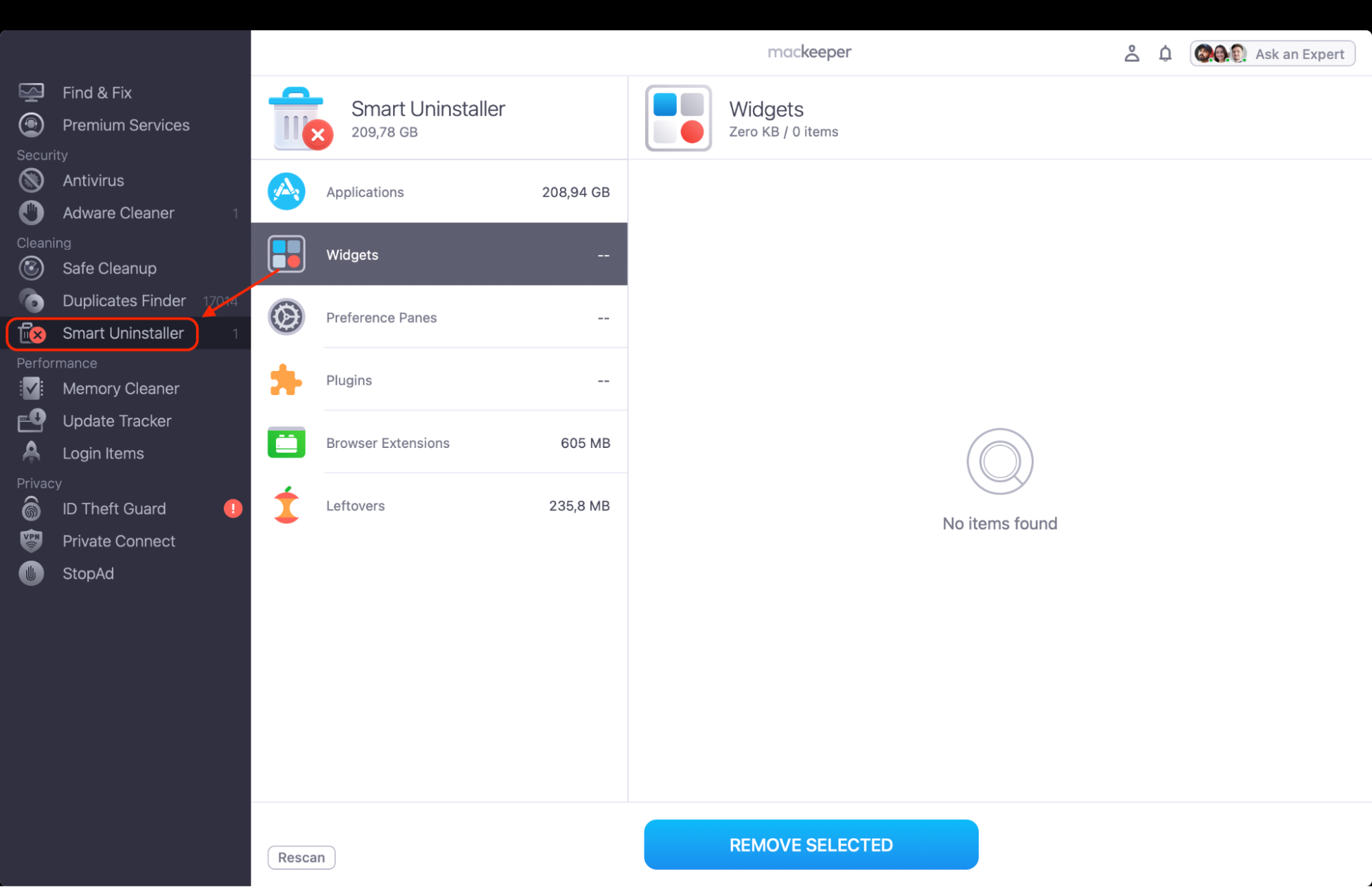
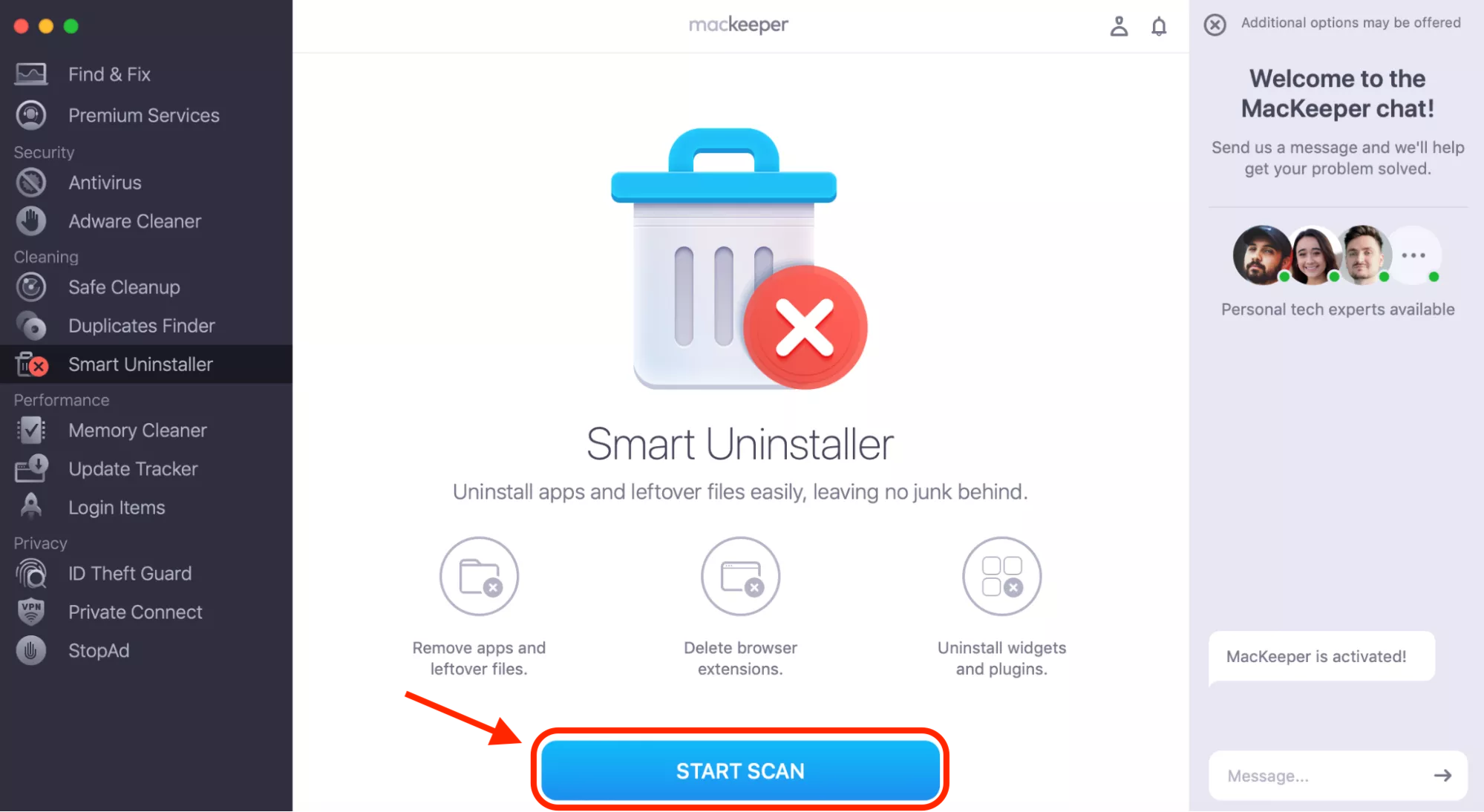
Select Smart Uninstaller from the left sidebar and click Start Scan.
When the scan is done, select the apps, widgets, and plugins you no longer need.
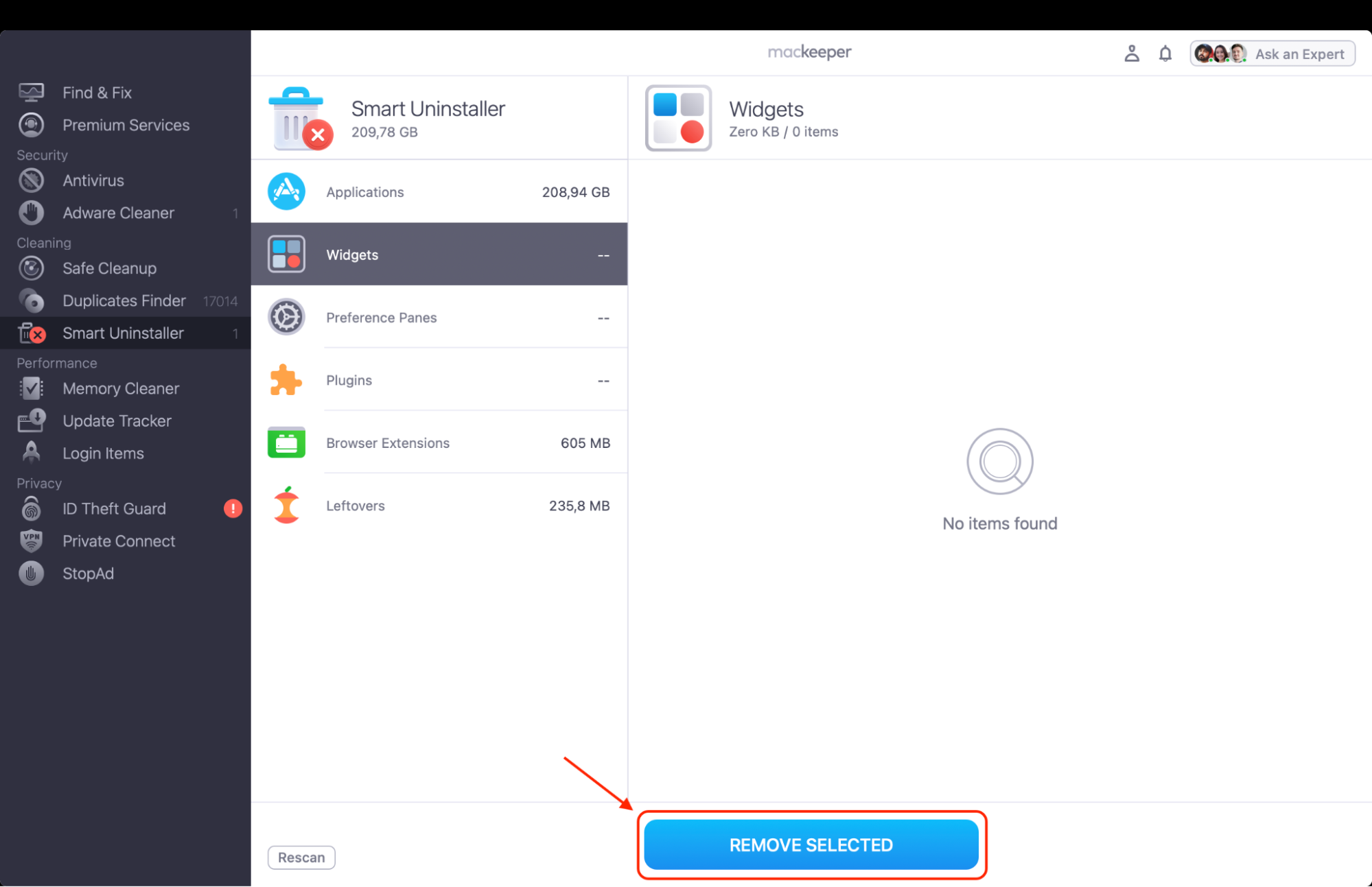
Click Remove Selected, then click Remove to confirm.
Step 1. Select Smart Uninstaller from the left sidebar in MacKeeper Step. 2. Click Start Scan to generate a list of removable itemsStep. 3. Click Remove Selected, then click Remove to confirm and free up space
Which Macs support Game Mode?
Game Mode works on any Mac with Apple silicon that runs macOS Sonoma 14 or later, as long as the game supports the native macOS full-screen mode.
Check these three requirements:
Hardware. Apple Silicon only, so Intel-based Macintosh computers are out.
macOS. Sonoma 14, Sequoia 15, Tahoe 26, or later.
Game. A title with the full-screen button in the corner of its window.
How to enable Game Mode on Mac?
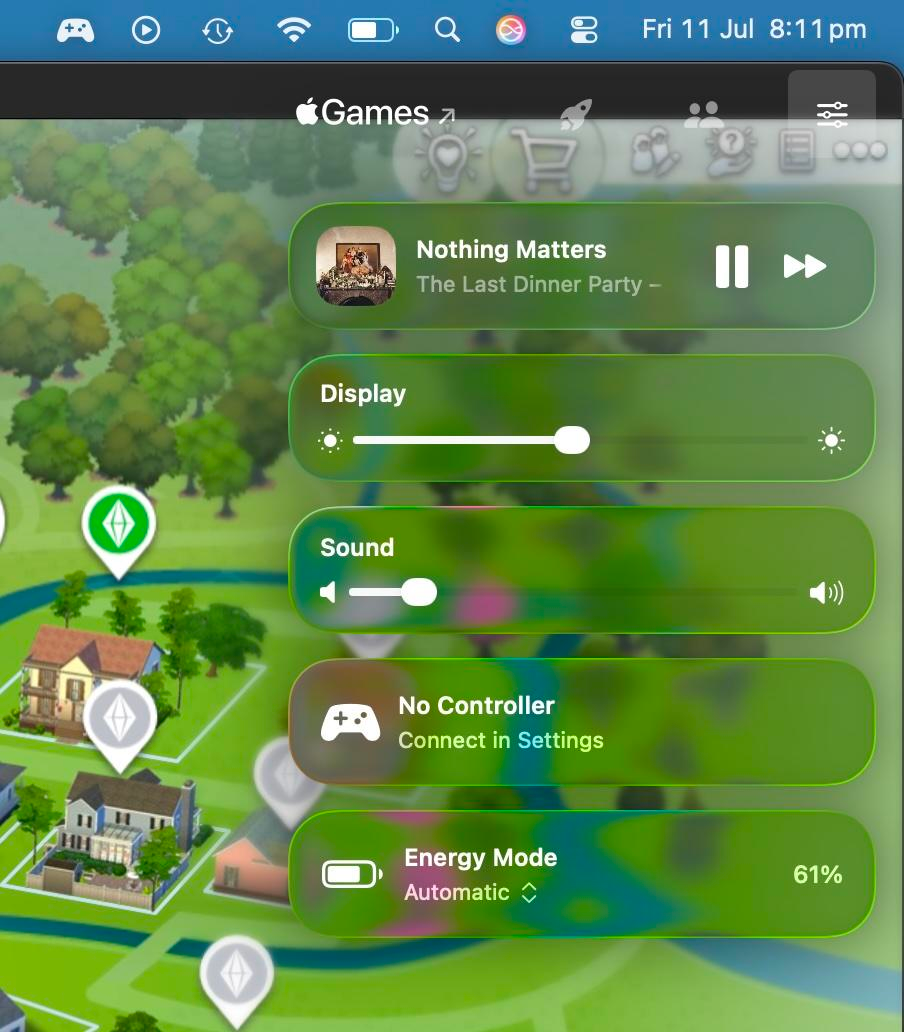
Game Mode turns on automatically when a supported game enters full screen, and it turns off when you quit. If you’ve switched it off for a title, enable it again from Game Overlay in macOS Tahoe or from the Game Mode menu in Sequoia and Sonoma.
A heads-up from our team: long gaming sessions are a common reason people see their MacBook battery drain so fast, so plug in first.
1. Activate Game Mode automatically
We rely on this method, since there’s nothing to configure. The catch is that in windowed play, Game Mode stays paused.
Here’s how to activate Game Mode on MacBook without any settings:
Open your game.
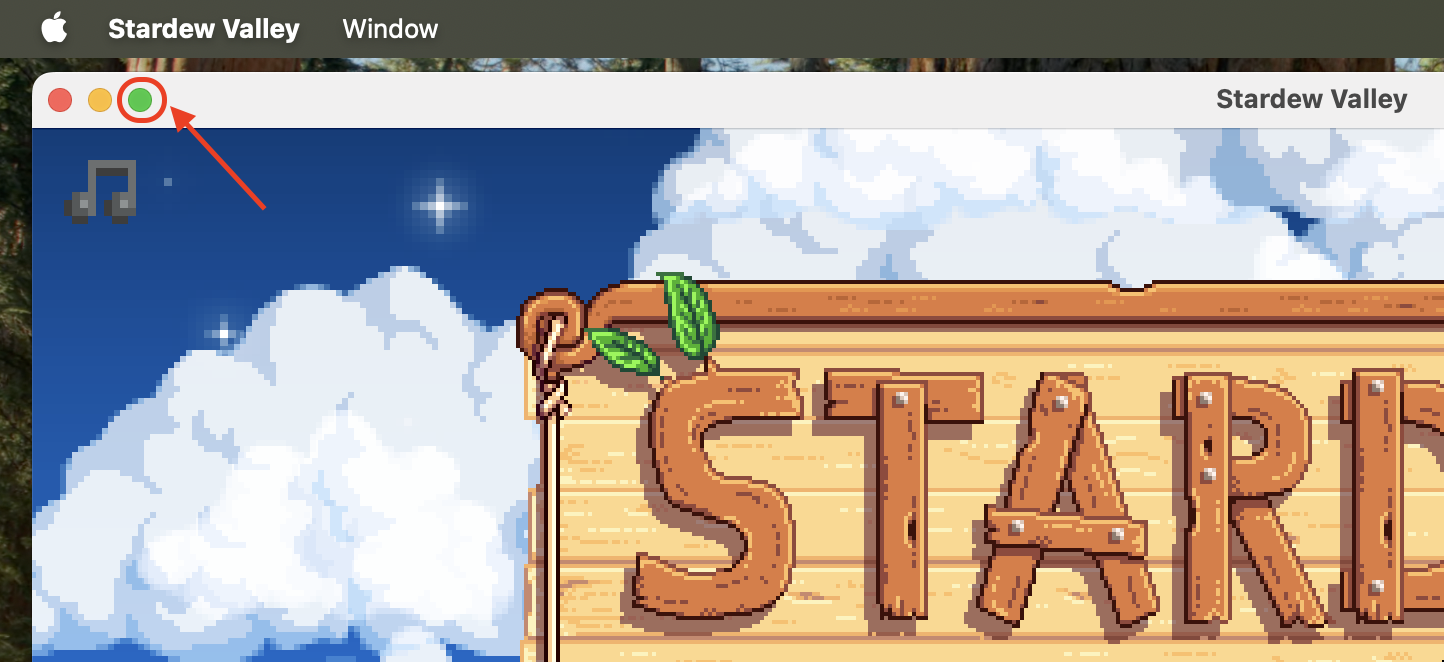
Click the green full-screen button in its window or pick fullscreen in the game’s display settings.
Watch for the Game Mode notification.
Click the green full-screen button and wait for the Game Mode notification
2. Start Game Mode in macOS Tahoe
macOS Tahoe moved the manual control into Game Overlay. We like its keyboard shortcut, which saves a trip to the menu bar. Later macOS versions work the same.
To start Game Mode on Mac in Tahoe, do the following:
In full screen, press Command + Esc, or click the game icon in the menu bar.
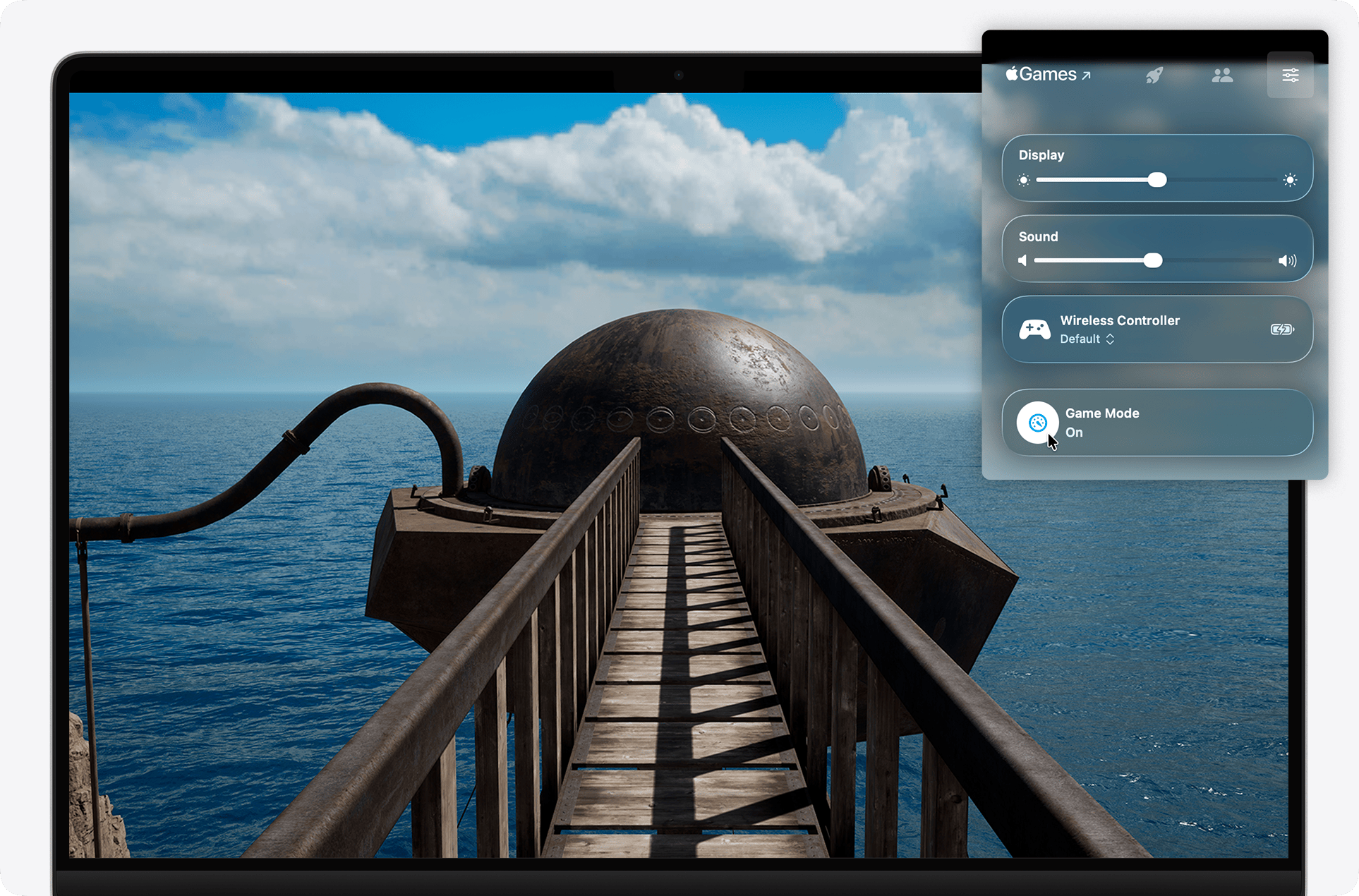
Click the Settings button in Game Overlay.
Click Game Mode to toggle it on.
Step 1. Press Command + Esc to open Game OverlayStep 2. Click Game Mode to toggle it on
3. Turn on Game Mode in macOS Sequoia or Sonoma
These versions have no overlay or hotkey, so the menu bar is your only route. It’s less handy, in our view, but it takes two clicks.
Follow this route to put your Mac into Game Mode again:
In full screen, move your pointer to the top of the screen.
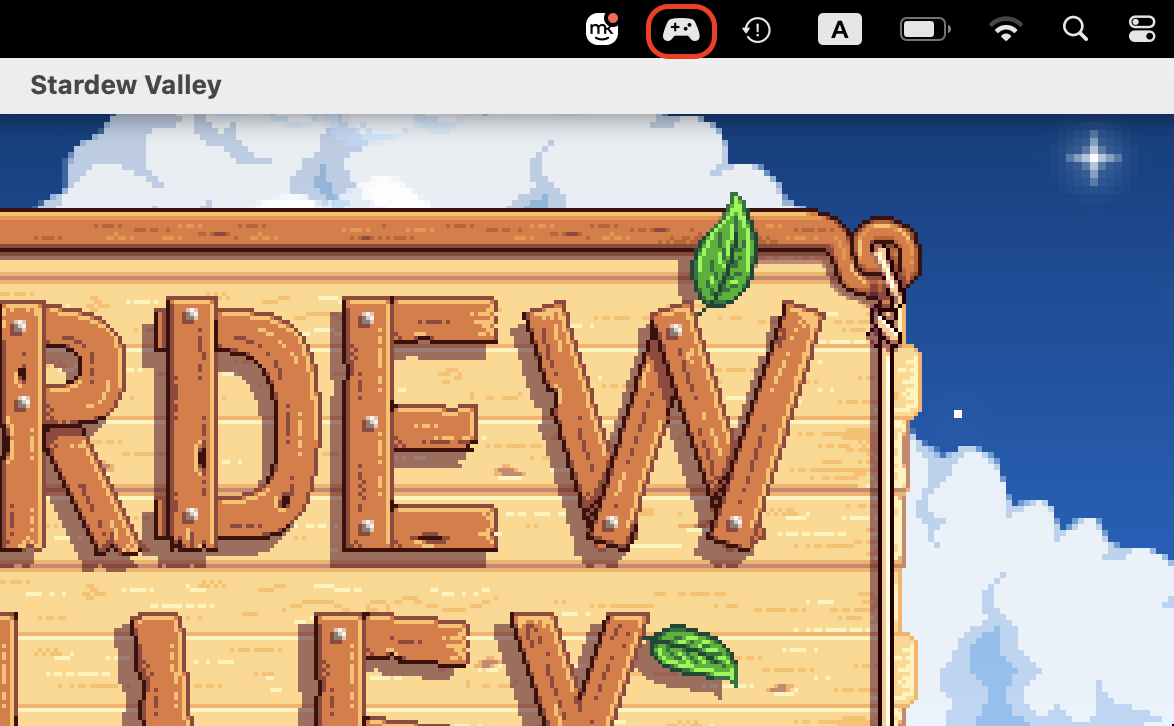
Click the Game Mode menu (the game controller icon).
Choose Turn Game Mode On.
Step 1. Click the game controller icon in the menu barStep 2. Choose Turn Game Mode On from the menu
How to check if Game Mode is on?
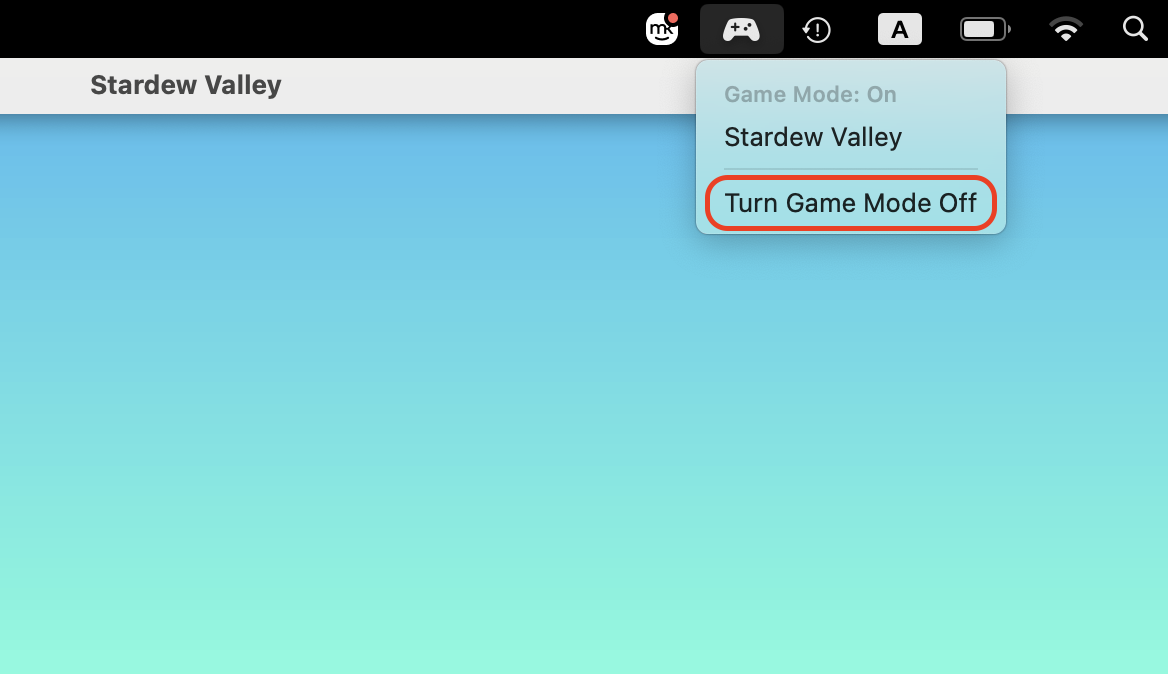
The quickest check is the notification you see when your game goes full screen. If you missed it, press Command + Esc in macOS Tahoe and open the Game Overlay settings to see the toggle. In Sequoia or Sonoma, click the game controller icon. If the menu offers Turn Game Mode Off, the feature is on.
How to improve gaming performance beyond Game Mode?
As we’ve noticed, a nearly full drive and a dozen open apps hold games back more than any toggle.
These factors are worth a look:
Storage. Leave room for game updates.
Background apps. Quit unused browsers and launchers.
Memory pressure. Yellow or red in Activity Monitor means you’re short on RAM.
System updates. Install macOS and game patches.
Graphics settings. Lower the in-game resolution.
Power. Plug in and turn off Low Power Mode.
Accessories. Keep controllers charged and nearby.
Our guide on how to improve Mac performance goes deeper if you’re interested in having an uninterrupted gaming experience with no lags.
How to turn off Game Mode?
You can disable Game Mode while a game is running. We’d only do this when a background task needs its share of resources.
Use the control for your macOS:
Tahoe. Press Command + Esc, click Settings in Game Overlay, and click Game Mode.
Sequoia or Sonoma. Click the Game Mode menu and choose Turn Game Mode Off.
macOS remembers this choice. Game Mode stays off for that game, even after you reopen it, until you turn it on again.
Why is Game Mode not turning on?
Game Mode usually fails to turn on for one of five reasons: your Mac has an Intel chip, macOS is older than Sonoma, the game runs in a window, the game uses its own full-screen method, or macOS doesn’t recognize the app as a game.
From what we can tell, the last one is most common with CrossOver titles and with Steam games where macOS sees the launcher instead. If you can’t enter Game Mode on Mac with such a title, no manual switch will force it.
If it’s the macOS version, check whether you have a Mac too old to update to Sonoma.
Conclusion
Now you know how to turn on Game Mode on Mac. Mostly, you don’t have to, because it starts automatically when a supported game goes full screen. To check or enable it manually, use Game Overlay in macOS Tahoe or the Game Mode menu in Sequoia and Sonoma.
If there’s no room left for the game, MacKeeper’s Smart Uninstaller removes the apps you no longer use with their leftover files. MacKeeper is developed by Clario Tech and is trusted by millions of users. Download the app and clear some room for your next game.
We respect your privacy and
use cookies
for the best site experience.
Privacy Preferences Center
We use cookies along with other tools to give you the best possible experience while using the
MacKeeper website. Cookies are small text files that help the website load faster. The cookies we
use don’t contain any type of personal data meaning they never store information such as your
location, email address, or IP address.
Help us improve how you interact with our website by accepting the use of cookies. You can change
your privacy settings whenever you like.
Manage consent
All cookies
These cookies are strictly necessary for enabling basic website functionality (including page
navigation, form submission, language detection, post commenting), downloading and purchasing
software. The website might malfunction without these cookies.