
In this article you will find the following:
To manually remove Silverlight on Mac, open Finder, select Go > Go to Folder, and enter /Library/Internet Plug-Ins/. Locate the Silverlight.plugin file, move it to the Trash, and don’t forget to empty the Trash to complete the removal. For a more thorough uninstallation, delete remaining folders and files in the /Library/Application Support/Microsoft/ directory.
What is Microsoft Silverlight?
Microsoft Silverlight was an application framework designed for rich Internet applications. Much like Adobe Flash, it operated as a browser plugin, allowing users to stream video from services like Netflix and display animations and graphics directly within their browsers. The introduction of HTML5 in 2012 rendered Silverlight obsolete, leading Microsoft to terminate its support in 2021.
Why uninstall Microsoft Silverlight from Mac?
Our team recommends uninstalling Microsoft Silverlight from your Mac. As an outdated, discontinued technology, Silverlight no longer receives security updates, leaving your system vulnerable to potential threats. Additionally, it unnecessarily occupies storage space, which can gradually reduce your Mac’s performance.
A note from our experts:
If you’ve decided it’s time to remove Microsoft Silverlight, we recommend using MacKeeper’s Smart Uninstaller for a seamless experience. The MacKeeper tool efficiently uninstalls plugins, browser extensions, and any leftover files, helping free up space and optimize your Mac's performance.
How to remove Microsoft Silverlight from Mac?
There are several effective ways to delete Silverlight on Mac. We suggest starting by following the standard procedure for removing plugins using Finder. Next, we recommend deleting any leftover files or folders. If you prefer an automated option, use a third-party tool such as MacKeeper’s Smart Uninstaller.
For step-by-step instructions on how to uninstall apps on a Mac, refer to our separate guide.
1. Delete Silverlight plugin via Finder
Microsoft Silverlight works as a browser plugin, so the logical first step is to follow the usual process for uninstalling plugins. While manually removing plugins can sometimes be time-consuming and inconvenient, we recommend beginning with this approach for thoroughness.
Below are step-by-step instructions for removing Silverlight using Finder:
- Open Finder.
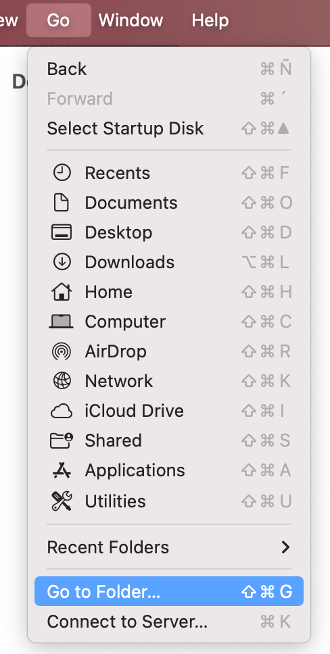
- In the menu bar, click Go, then select Go to Folder.
- Copy and paste the following file path: /Library/Internet Plug-ins/.
- Press Enter.
- Find the Silverlight.plugin file and drag it to the Trash.
- In the Trash, click the Empty button.



2. Find and remove Silverlight’s leftovers on Mac
After removing the main plugin, we believe it’s important to ensure that no related files or folders remain. Over time, Microsoft Silverlight may have created additional data on your Mac that is now occupying valuable storage space.
Follow these steps to locate and delete Silverlight leftovers:
- Open Finder.
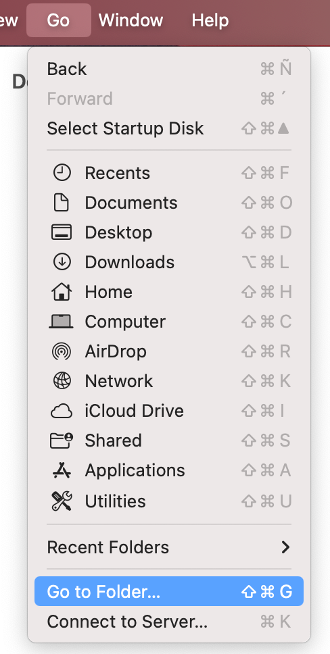
- In the menu bar, click Go, then select Go to Folder.
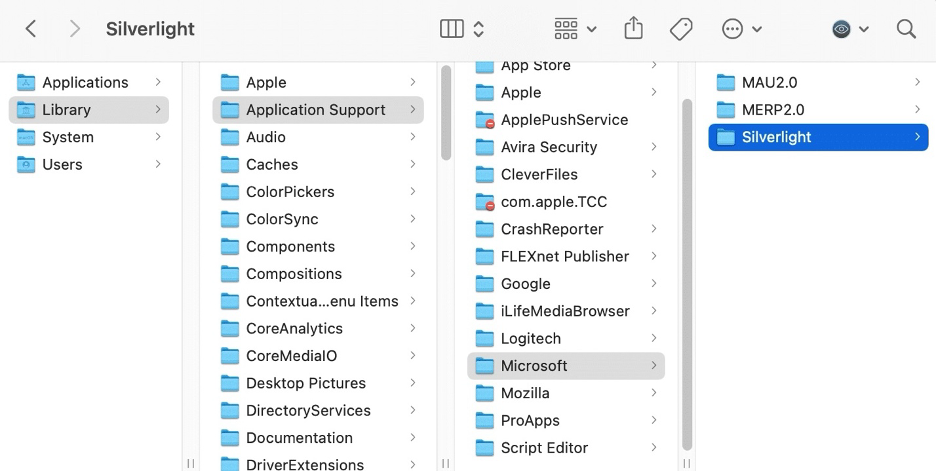
- Copy and paste this file path: /Library/Application Support/Microsoft/.
- Press Enter.
- Find the Silverlight folder and drag it to the Trash.
- Repeat steps 3-5, but instead, use the following file paths:
- /Library/Caches
- /Library/Cookies
- /Library/Logs
- /Library/Preferences
- Go to the Trash, click the Empty button.


3. Delete Silverlight from Mac with MacKeeper
For complete peace of mind, we also recommend using a reputable tool like MacKeeper’s Smart Uninstaller, which is trusted by millions of users worldwide. This app streamlines the removal process, making it fast, straightforward, and thorough.
Here’s how to use MacKeeper’s Smart Uninstaller to erase Silverlight and any leftover files from your Mac:
- Download and install MacKeeper.
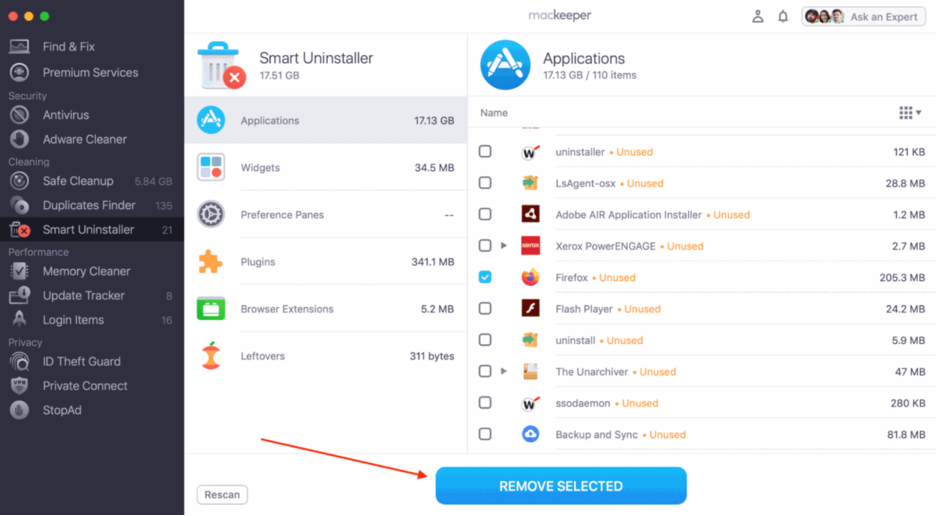
- Choose Smart Uninstaller under Cleaning.
- Click Start Scan.
- Select all relevant categories from the list.
- Hit Removed Selected, then click Remove.


Wish to be a pro in cleaning your MacBook? Check out our dedicated guide to discover how to clean app leftovers on macOS.
Microsoft Silverlight uninstall on Mac: the ultimate solution
Uninstalling Microsoft Silverlight from your Mac is both essential and straightforward. Removing this outdated app helps safeguard your Mac’s security and maintain peak performance. Begin by following the steps to remove the plugin using Finder. Next, be sure to remove any leftover files and folders, either manually or with a reputable third-party tool.
We recommend using MacKeeper’s Smart Uninstaller. Developed by Clario Tech and notarized by Apple, MacKeeper not only removes unwanted apps and plugins but also protects your Mac against malware and optimizes your system’s performance.