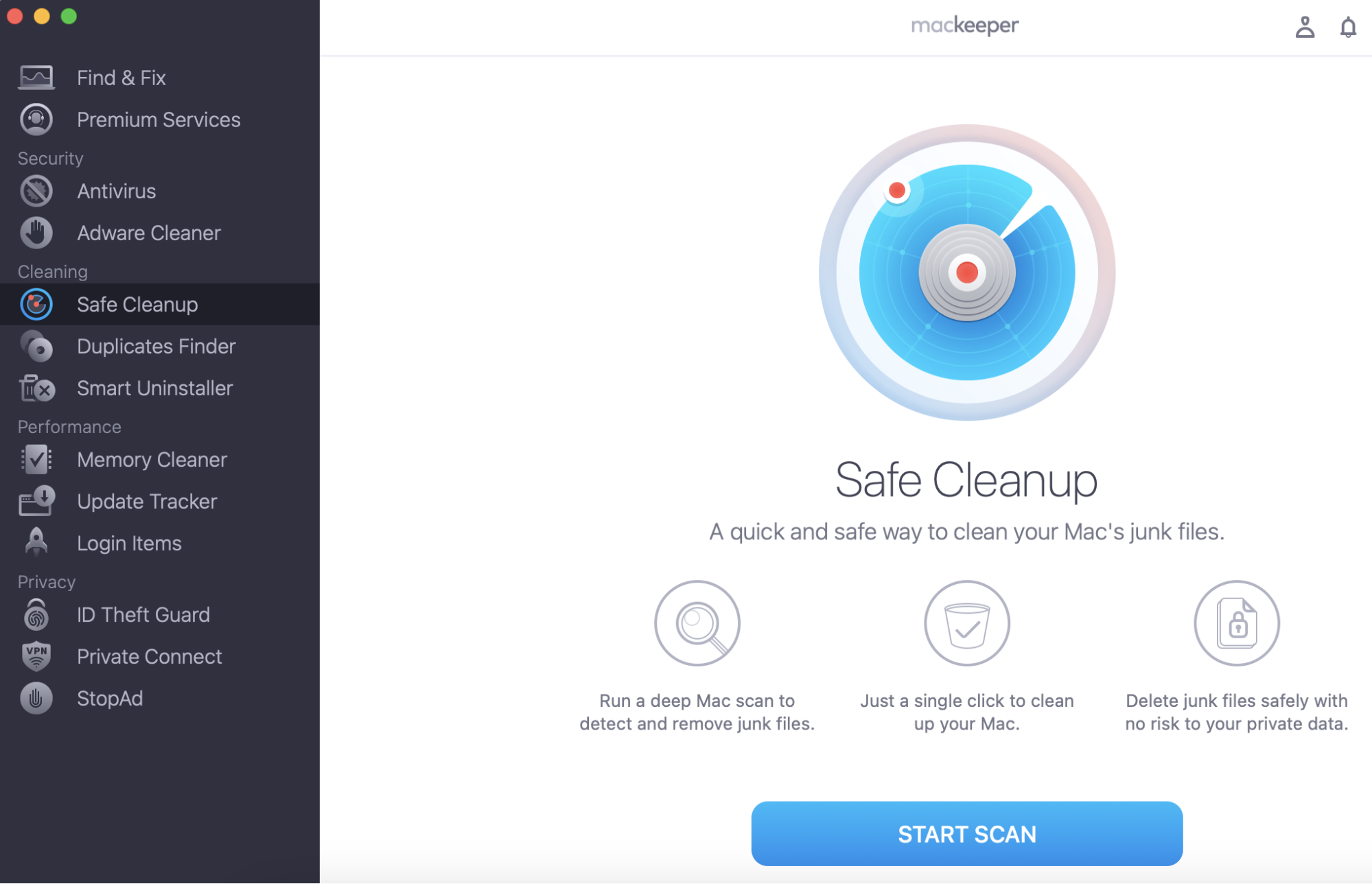
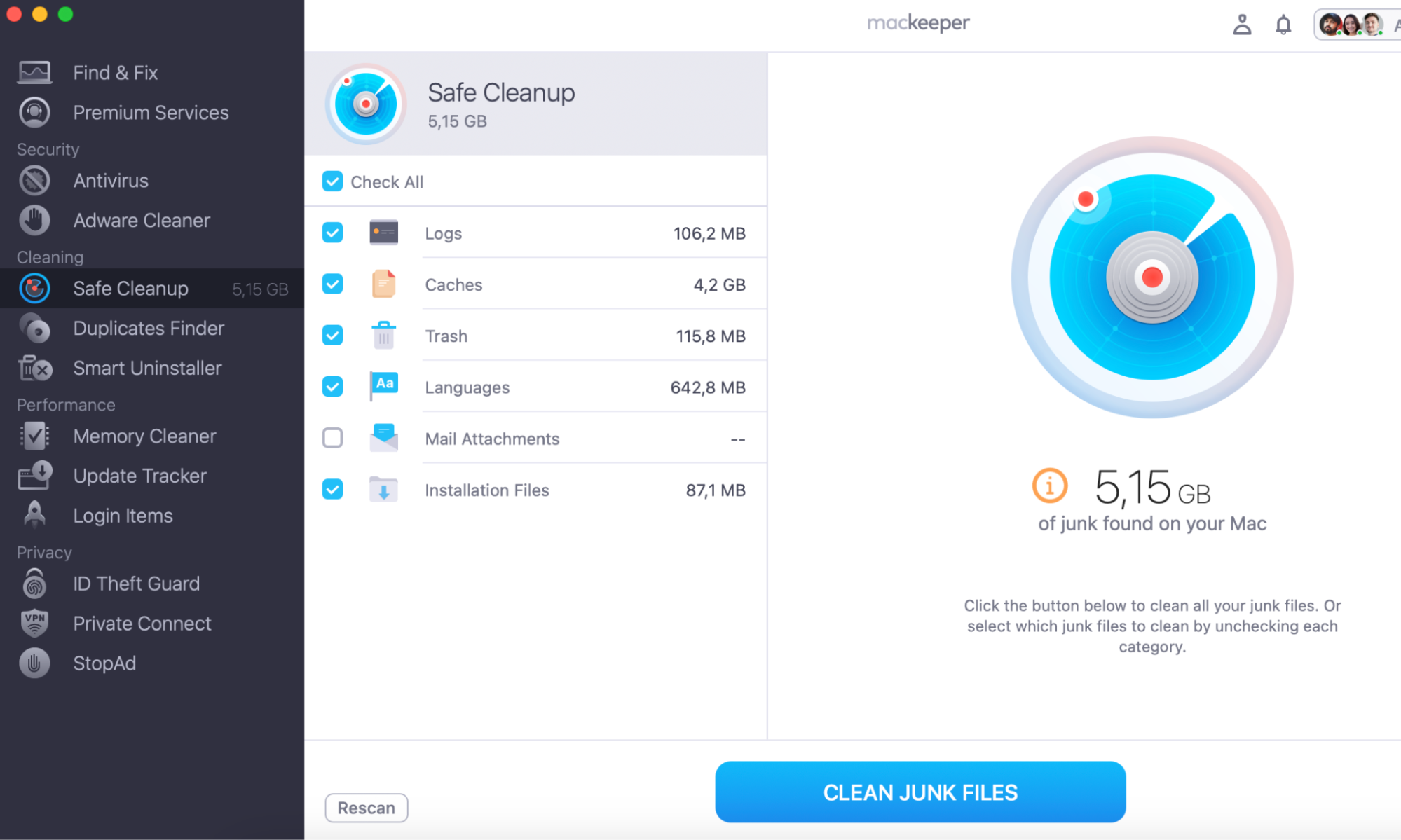
Spotted a 12 GB “Install macOS Monterey” file on your Mac and wondering if it’s safe to remove? You can delete it without any risk. Meanwhile, to clean up leftover installers, caches, and junk files with a single click, we suggest trying MacKeeper’s Safe Cleanup—it frees up storage without touching your personal data.
The “Install macOS Monterey” file is an installer app distributed through the App Store. It’s a setup package used to upgrade from an older macOS version to macOS 12.
This app bundle doesn’t replace your current system on its own. It sits in your Applications folder until you run it. Once you’ve installed Monterey or decided not to, the installer has no purpose.
In some cases, macOS downloads this installer automatically, even if you didn’t request it. That’s why many Mac users are surprised to find a 12+ GB file taking up unexpected space.
Where is the macOS Monterey installation file located?
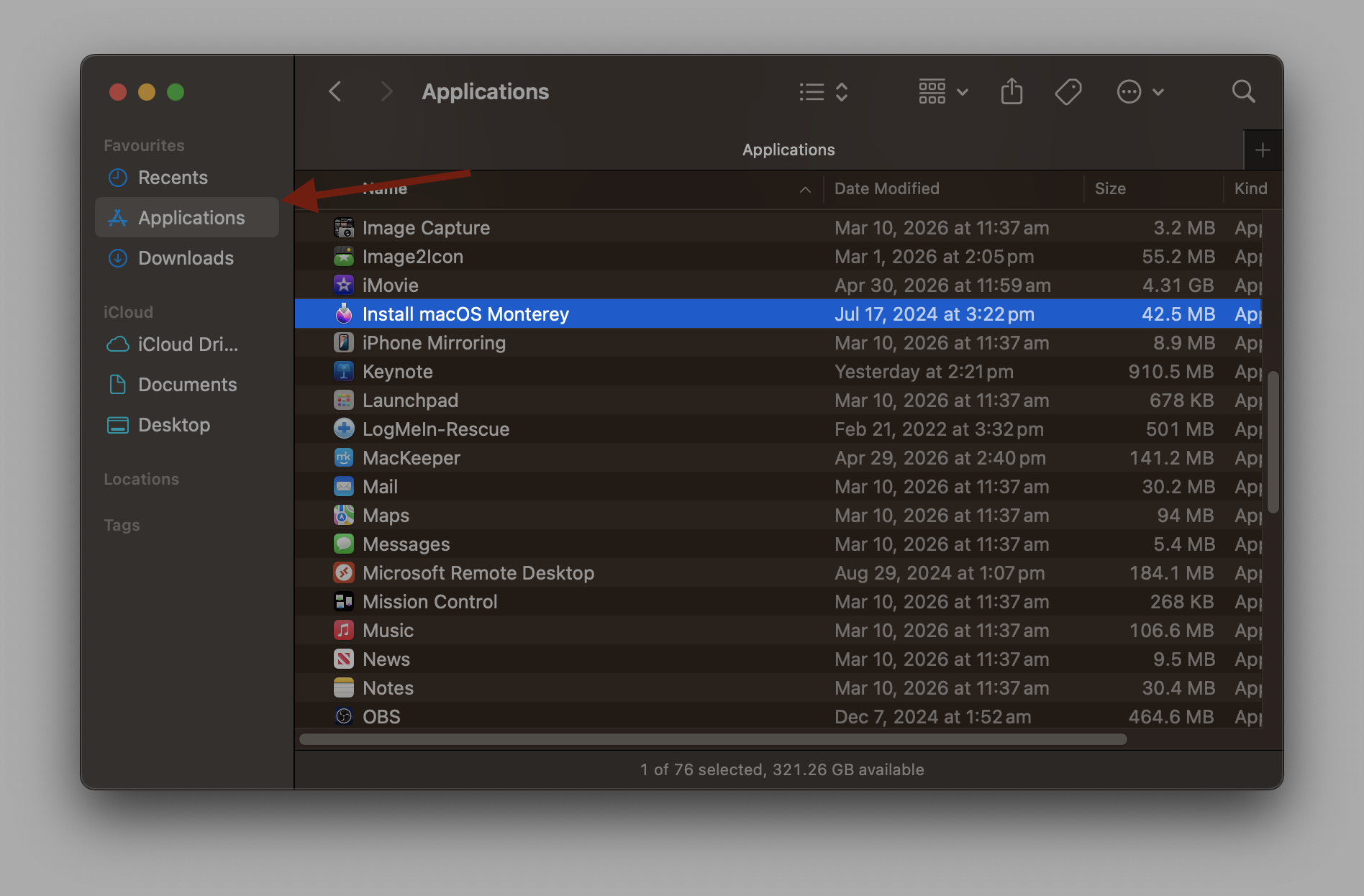
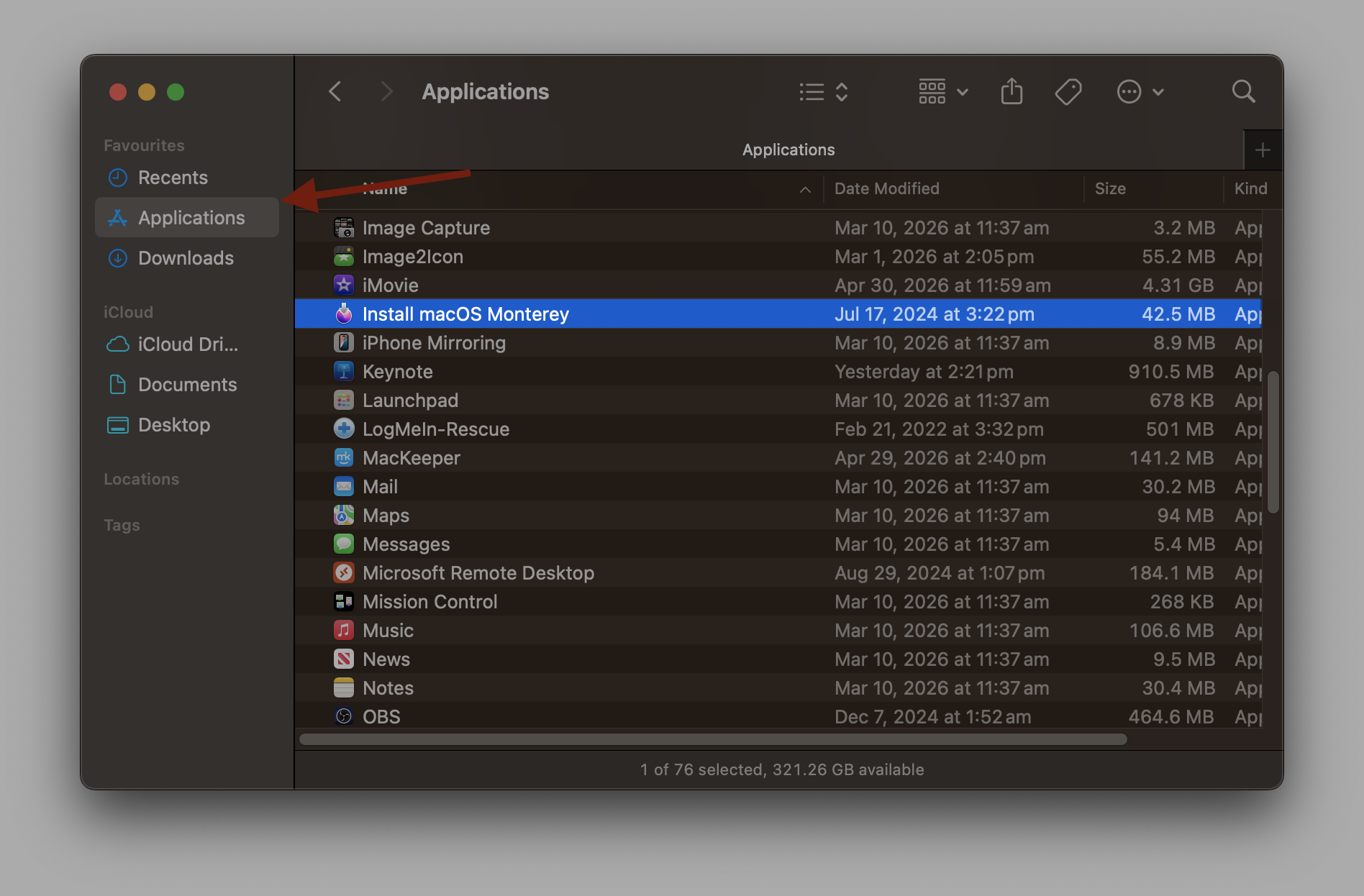
The installer typically lives in one place—the Applications folder. Its full name is “Install macOS Monterey.app,” and it weighs roughly 12–15 GB. Here’s how to locate it:
Open Finder from the Dock.
Click Applications in the sidebar.
Scroll through the list or use the search bar in the top-right corner to find “Install macOS Monterey.”
Step 1. Open Finder from the DockStep 2. Click Applications in the sidebar and find Install macOS Monterey
A hint from us:
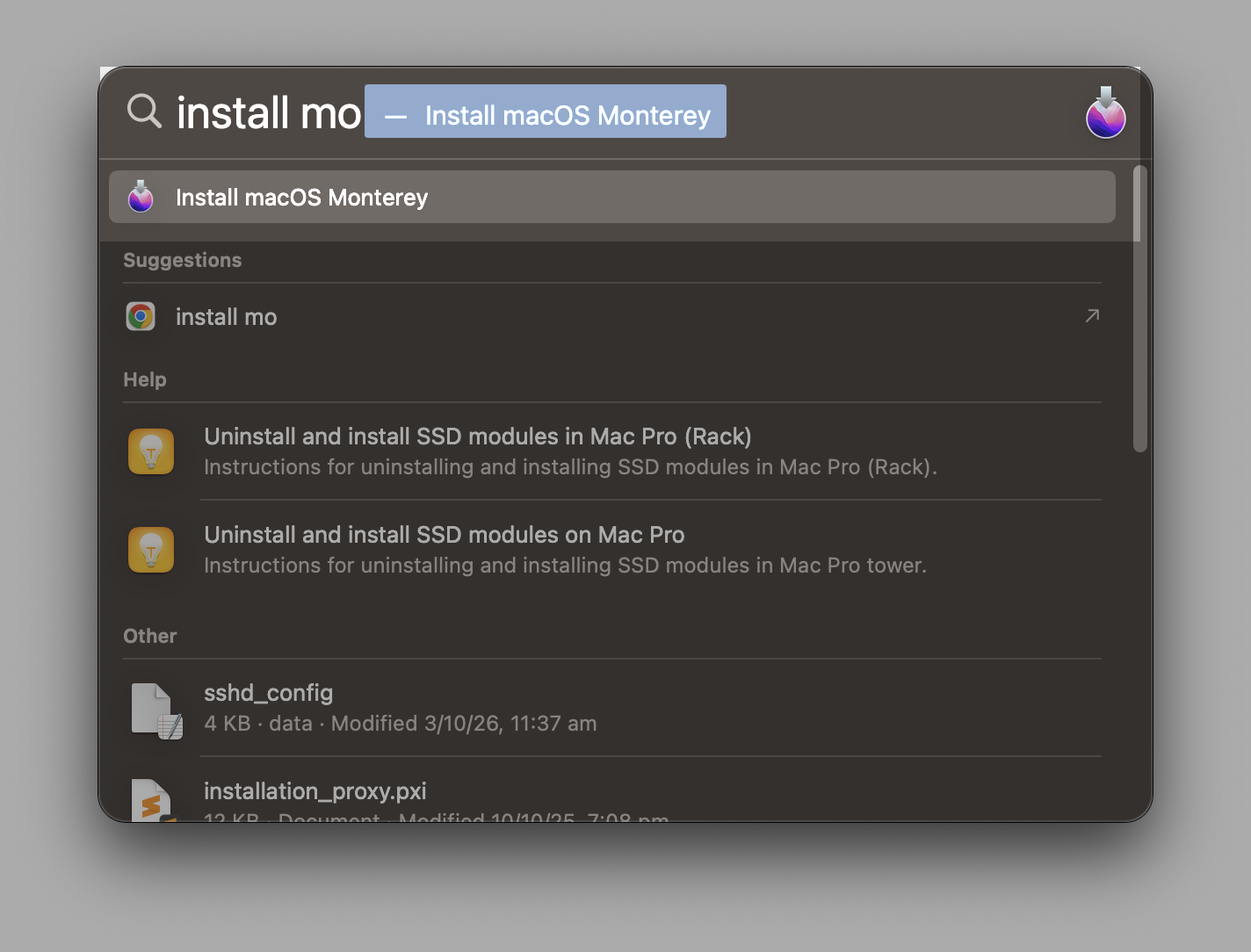
You can also try Spotlight—press Command + Space and type the installer’s name. If it exists on your system, it’ll show in the results.
Spotlight search showing Install macOS Monterey result
Can you safely delete the macOS Monterey app?
Yes, it's safe to delete the Install macOS Monterey application if you don’t plan to install macOS 12. The installer is a standalone app—it isn’t your operating system itself. Removing it won’t affect your current macOS, your apps, or your system stability.
If you’ve already upgraded to Monterey, the installer is even more unnecessary. macOS normally removes it after a successful installation, but sometimes it sticks around. Either way, you can delete it without worry.
A note from our experts:
When you need to remove the app, you should know that the most preferable method to do it is to delete it with all its leftovers. It’s often impossible to do it manually in an equal way as the third-party cleaning software like MacKeeper will do it for your MacBook.
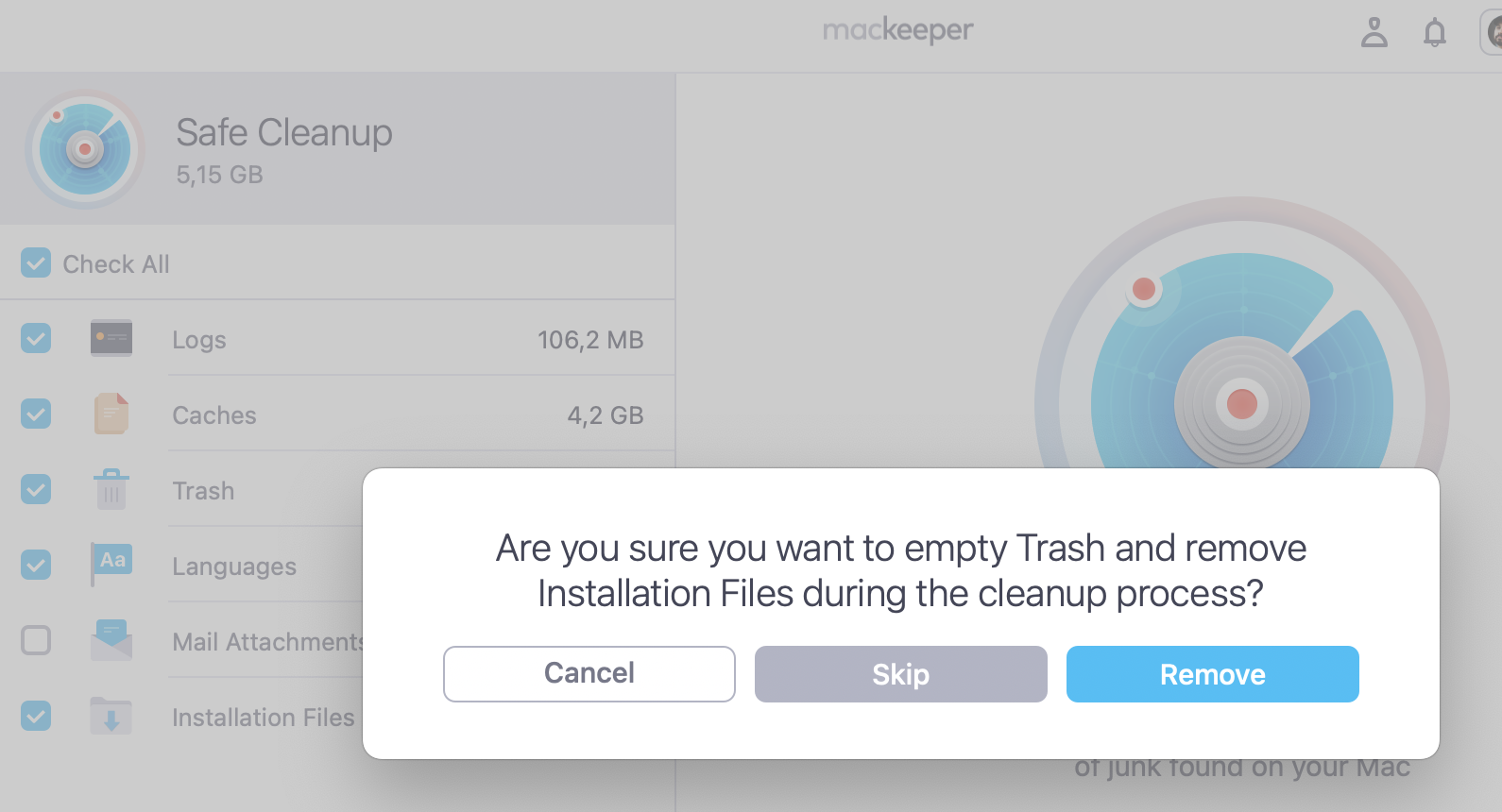
Try MacKeeper’s Safe Cleanup and enjoy the ease of deletion already today:
What happens if you remove macOS Monterey installer?
When you delete the installer, here’s what changes—and what doesn’t:
You'll free up roughly 12–15 GB of storage space. That’s a significant chunk, especially on a MacBook with limited disk space.
Your current macOS remains untouched. The installer is separate from your active operating system. Deleting it won’t erase files, settings, or apps.
You won’t be able to install or reinstall Monterey unless you re-download the installer from the App Store.
In short, from our tests, there’s no downside to removing it if you’ve already upgraded or don’t plan to.
How to get rid of the installation of macOS Monterey?
Ready to remove Monterey installer from your Mac? Below are several methods we recommend using—from a simple drag-and-drop approach to Terminal commands for stubborn files.
1. Using Finder
This is the safest and simplest method to delete the macOS Monterey installer. If you prefer it, do the following:
Click the Finder icon in your Dock.
Select Applications in the left sidebar.
Locate “Install macOS Monterey.”
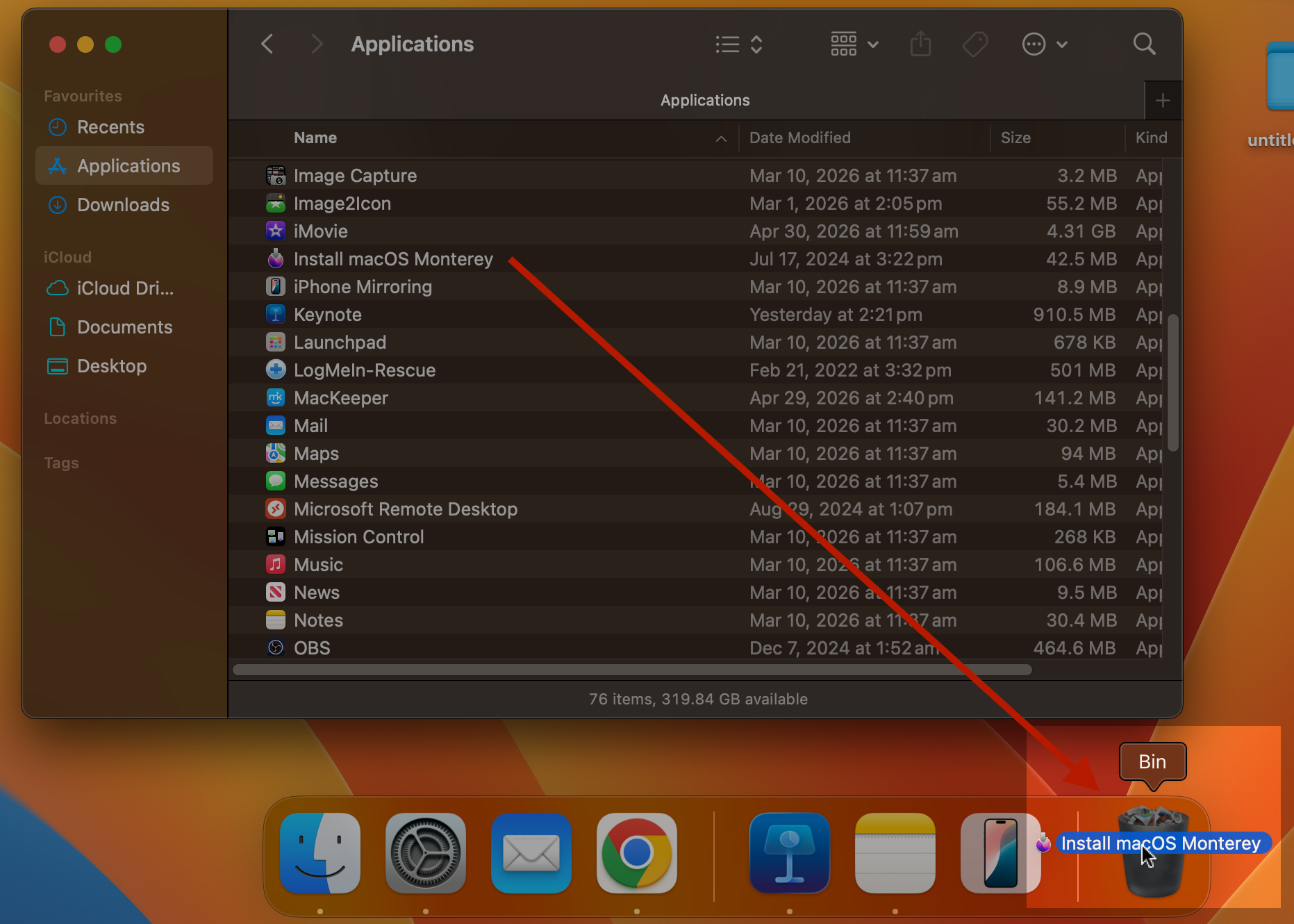
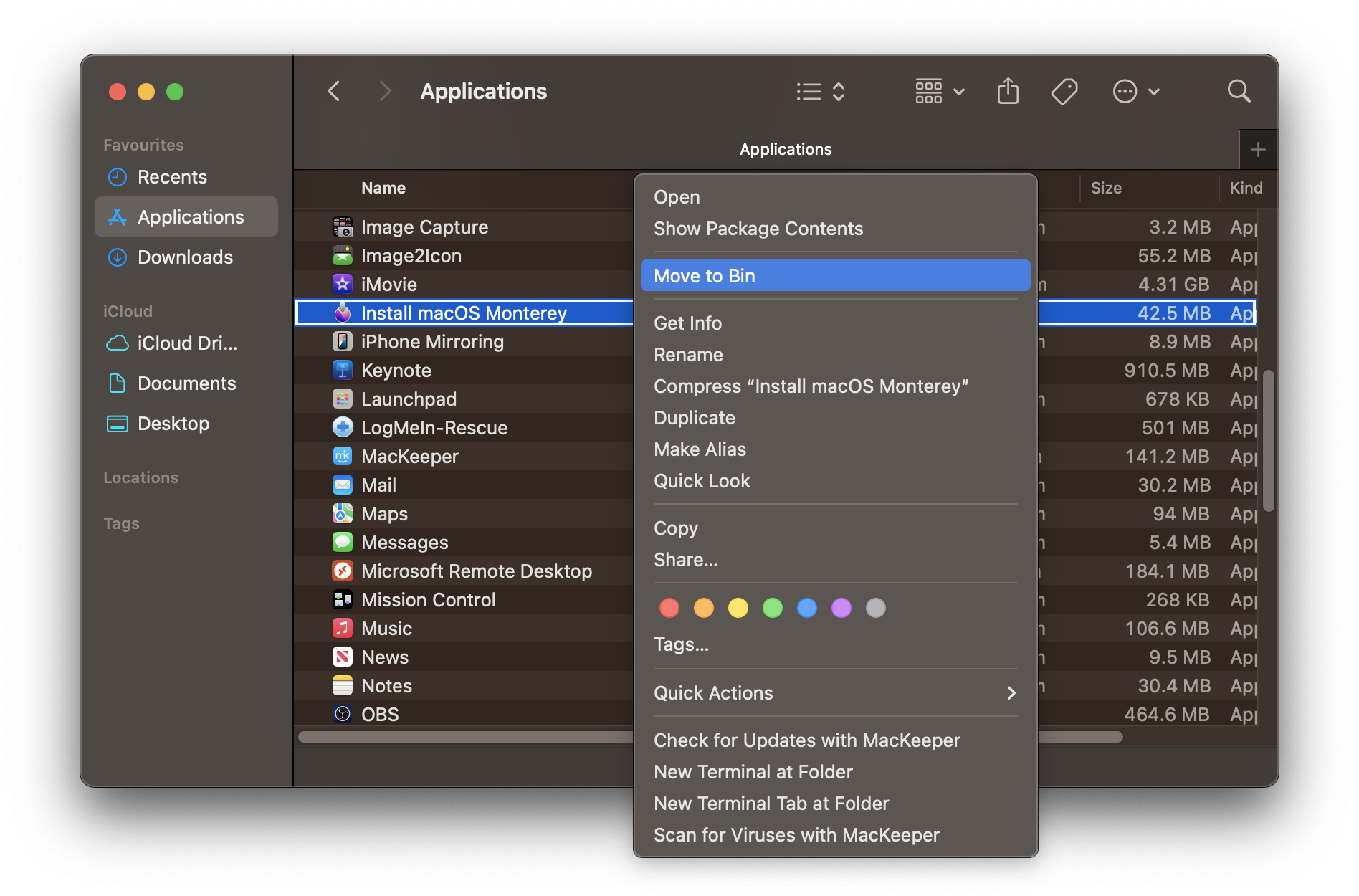
Drag the installer to the Trash in your Dock. Alternatively, right-click it and select Move to Trash.
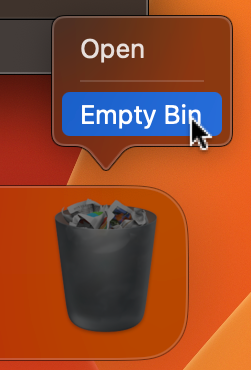
Right-click the Trash icon and choose Empty Trash to permanently delete the installer macOS Monterey from Applications.
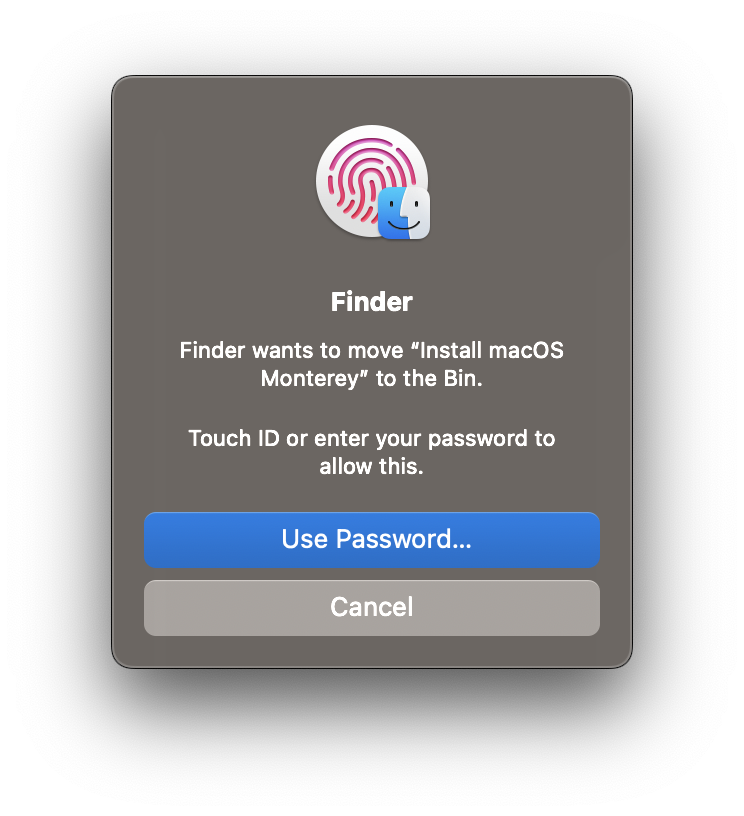
Your Mac may ask for your administrator password—that’s normal, so do it to confirm the action.
Step 1. Click the Finder icon in your DockStep 2. Select Applications and locate Install macOS MontereyStep 3. Right-click Install macOS Monterey and select Move to BinStep 4. Right-click the Trash icon and choose Empty TrashStep 5. Drag Install macOS Monterey to the TrashStep 6. Enter your administrator password to confirm deletion
2. Use a third-party app
Sometimes macOS installers leave behind associated files that a simple drag-to-Trash won’t catch. A reliable cleanup tool can scan for these leftovers and ensure a thorough removal.
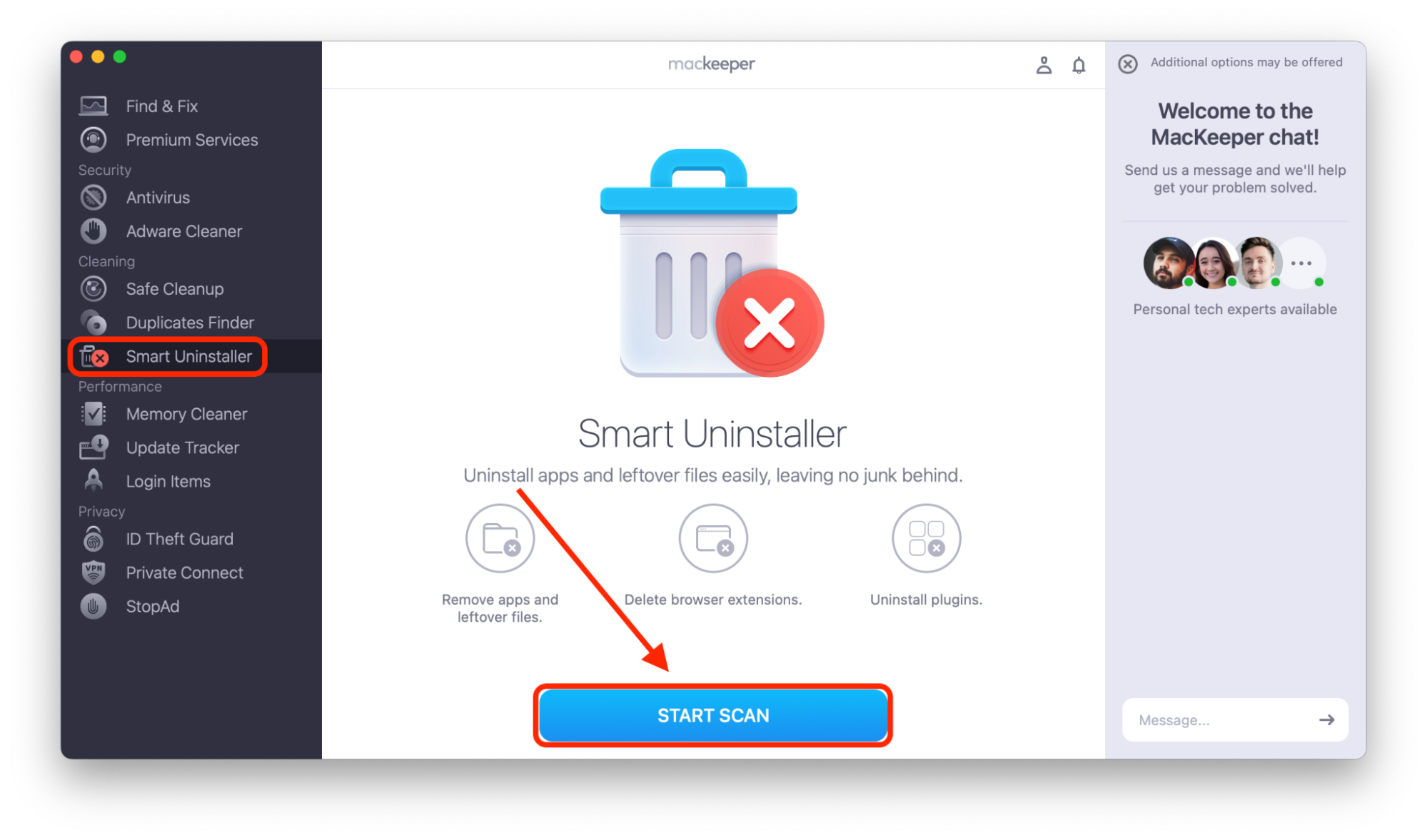
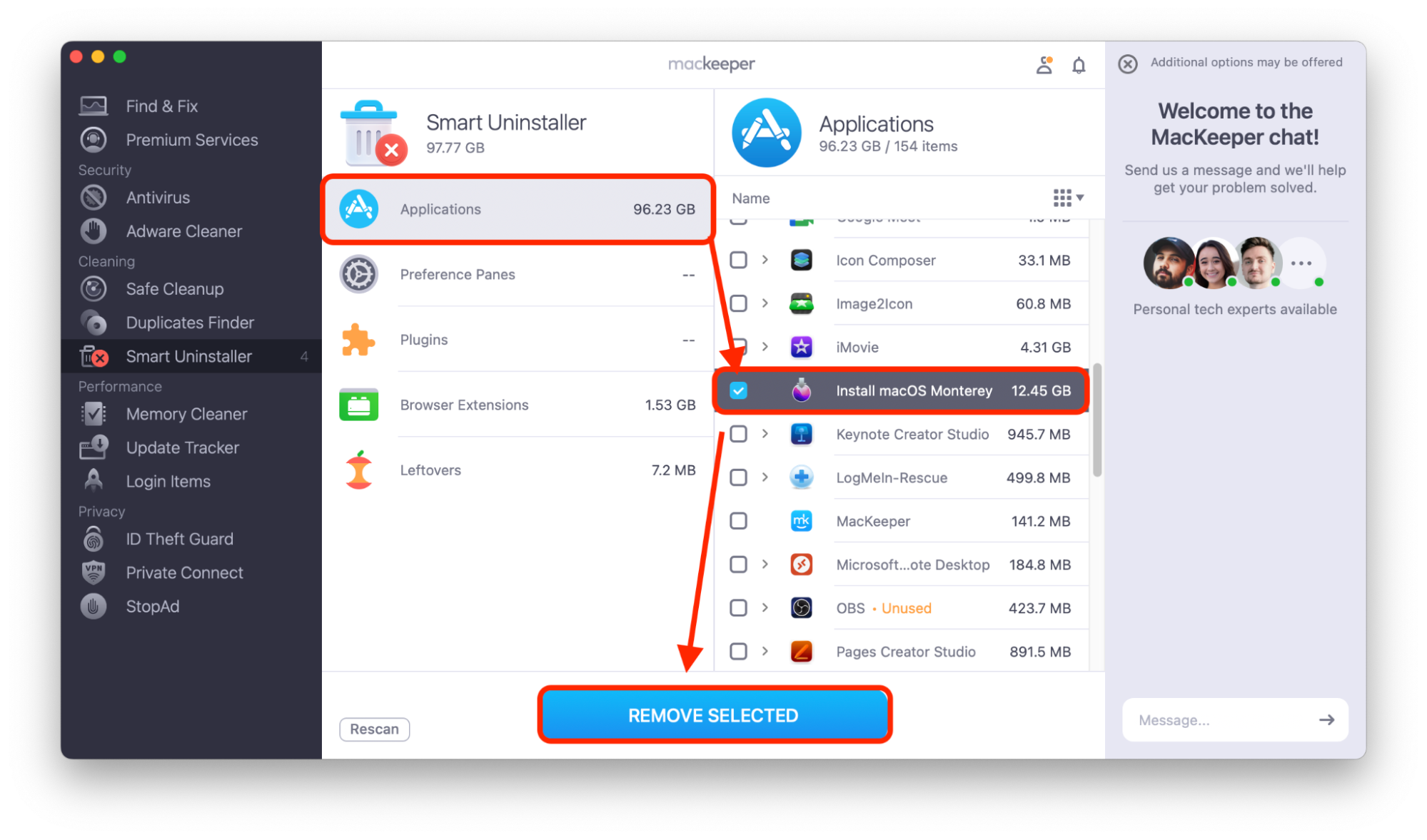
MacKeeper’s Smart Uninstaller is a helpful option here. It doesn’t just remove the main app file—it also finds leftover system files and related data that linger after a standard deletion. This means you get a cleaner removal while using disk space efficiently.
If you’d like a thorough way to get rid of the Install macOS Monterey app and its remnants, give MacKeeper’s Smart Uninstaller a try. And below, we’ll leave the quick visual guidelines for you to see how it works in practice.
Step 1. Open MacKeeper, select Smart Uninstaller, and click Start ScanStep 2. Select Install macOS Monterey and click Remove Selected
3. Delete via Terminal (if needed)
If Finder doesn’t work—say the file refuses to move to Trash—you can use a Terminal command to force-remove it. Only use this as a last resort. Knowing how to open Terminal on your Mac is helpful here, since the next steps require entering commands manually. Here’s what to do:
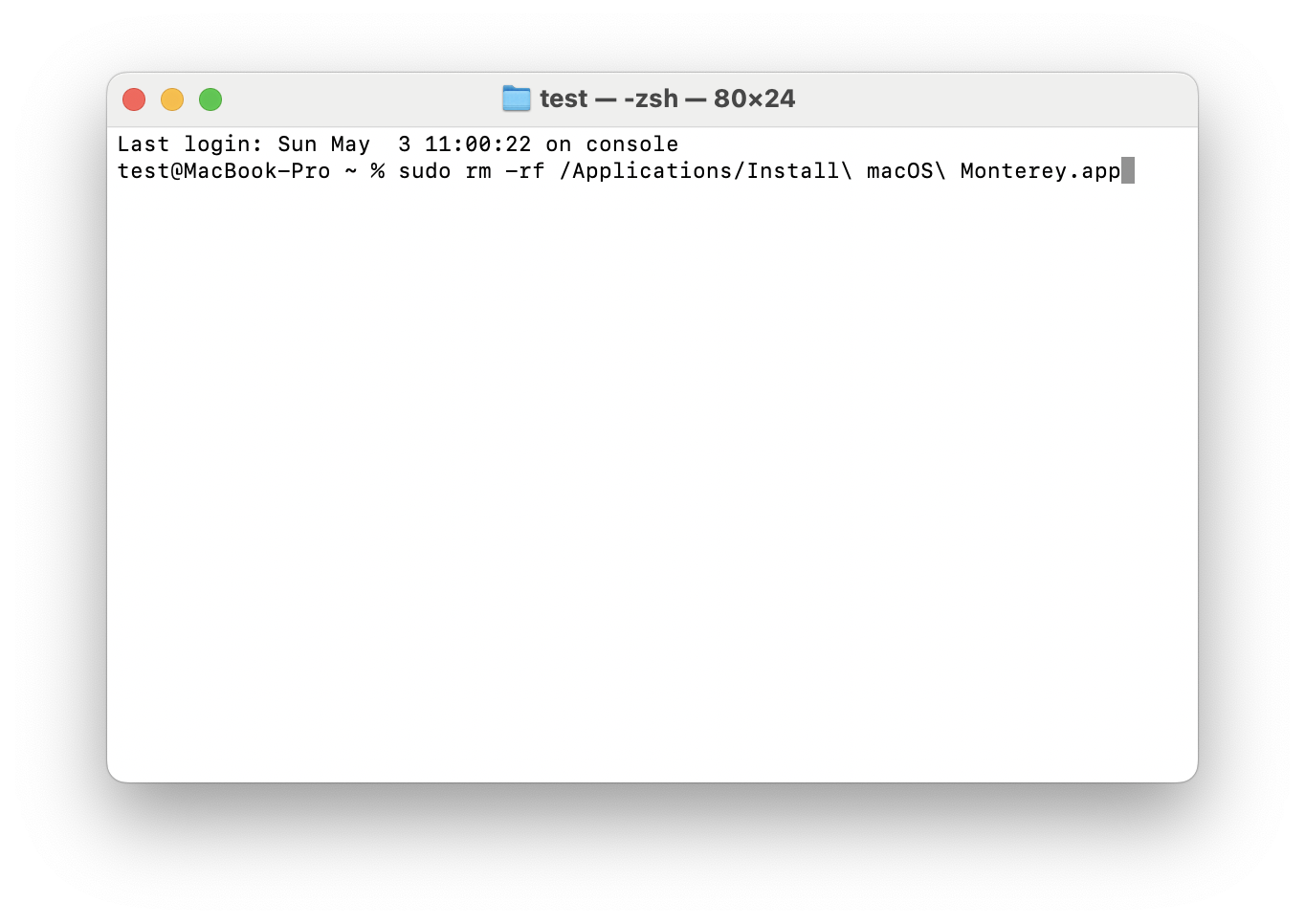
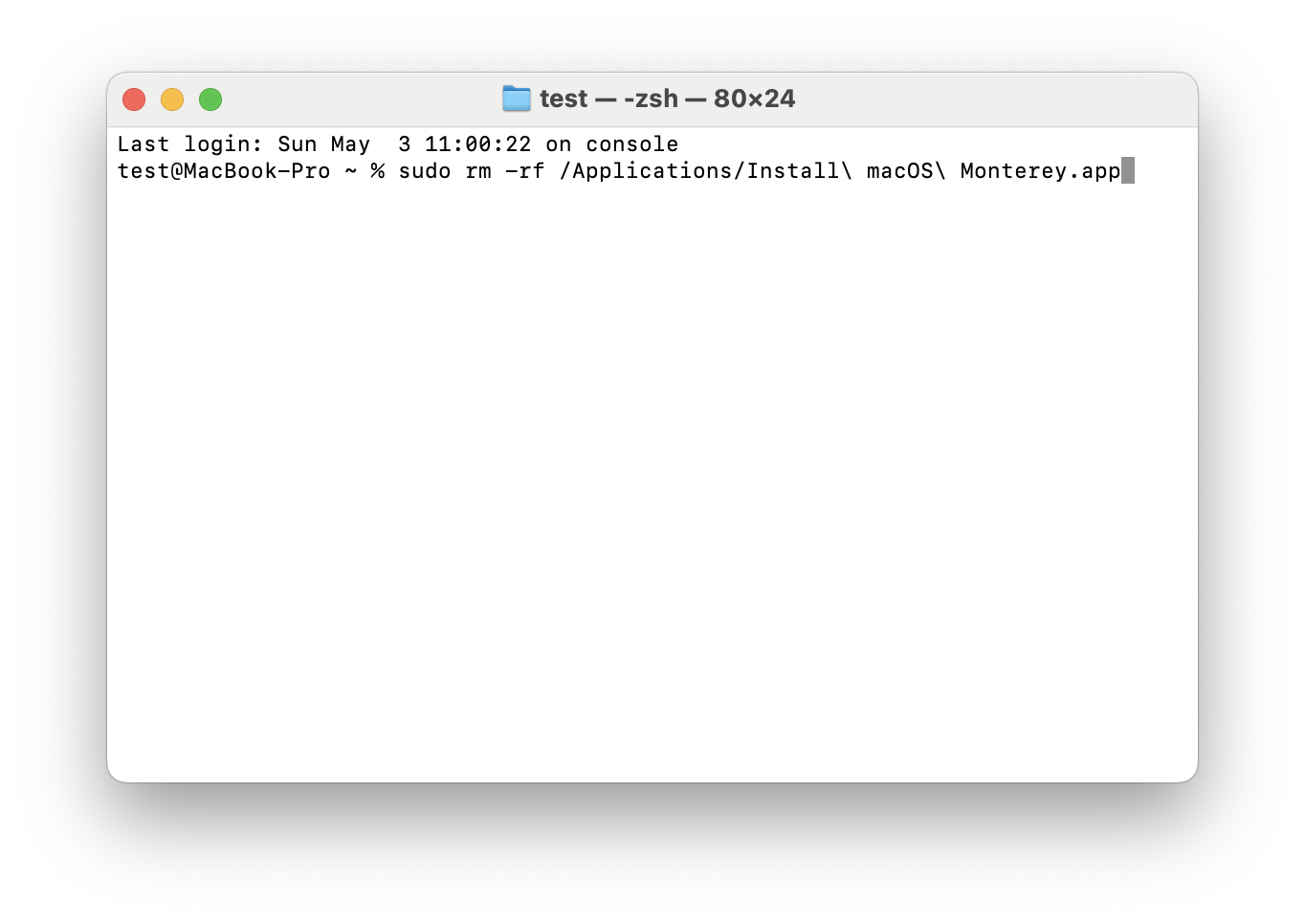
Type this command: sudo rm -rf /Applications/Install\ macOS\ Monterey.app/ and press Return.
Enter your administrator password when prompted. We should warn you here immediately that you’ll need to type it without seeing, as Terminal hides the password symbols completely. When it’s done, press Return.
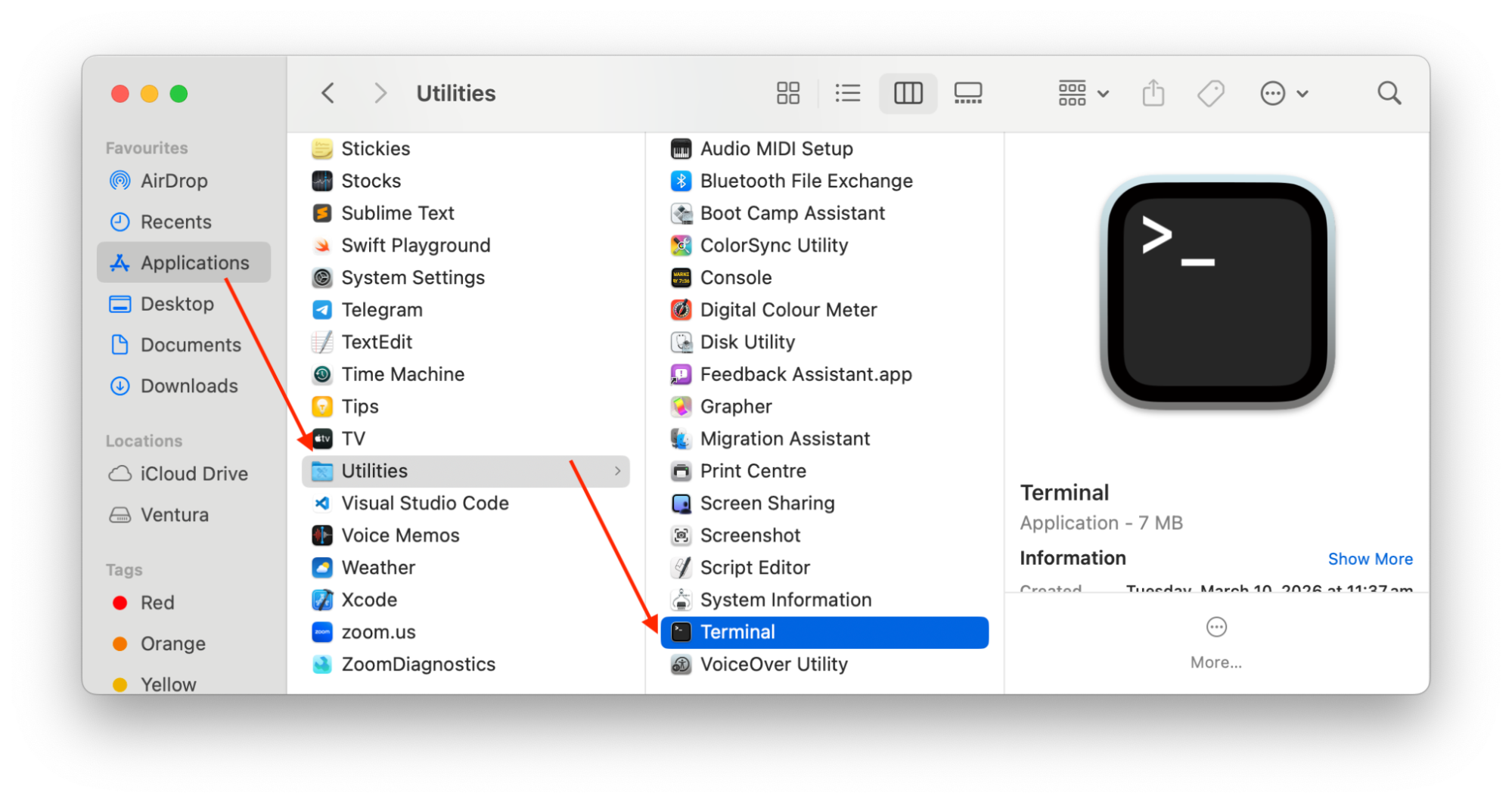
Step 1. Launch Terminal via Applications > Utilities > TerminalStep 2. Type the sudo rm -rf command and press ReturnStep 3. Enter your administrator password when prompted
Another hint from our team: The “sudo” command gives you administrator-level access, and “rm -rf” forces the removal. Double-check the file path before pressing Return—a typo here can erase something you didn’t intend to remove.
What if the installer of macOS Monterey won’t delete?
Sometimes the installer stubbornly refuses to go. Here are common reasons and workarounds driven from our experience:
The file is “in use.” A background process may be linked to it. Restart your Mac and try again.
You don't have permission. Make sure you’re logged into an admin account.
The file doesn't appear in Applications. Use Spotlight to search for it or try the Terminal method above.
The Trash won't empty. Restart in Safe Mode (hold Shift during startup) and try again.
In our expert’s opinion, holding onto the installer actually makes sense in a few scenarios:
You plan to install Monterey on another Mac. Keeping it saves you from re-downloading 12+ GB.
You want to create a bootable USB installer for clean installations or troubleshooting.
You need to reinstall macOS, and you want the installer ready to go.
If none of these situations apply to your case, keeping the file is unnecessary. Also, remember that you can always re-download it from the App Store. And if you’re worried about data safety, make sure you have current backups through Time Machine before removing large files.
How to prevent macOS installer files from reappearing?
Deleted the installer only to find it back a week later? You’re not imagining things. macOS can re-download the installer automatically as part of its Software Update process.
Here’s how to stop that from happening:
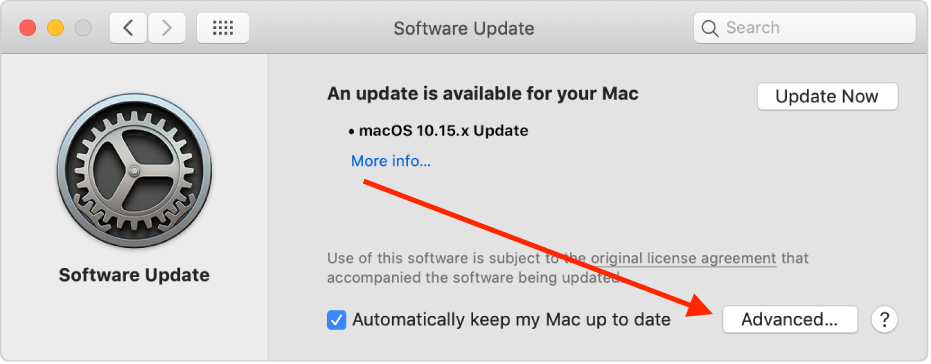
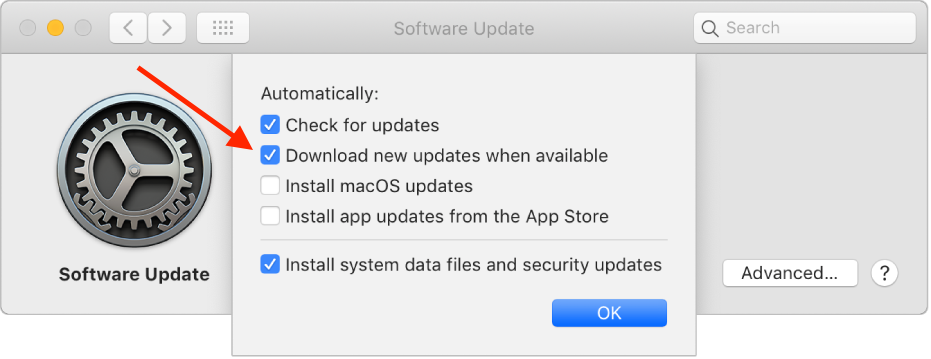
Open System Preferences > Software Update.
Click Advanced.
Deselect “Download new updates when available.”
Step 1. Open System Preferences > Software Update and click AdvancedStep 2. Deselect "Download new updates when available"
Important: There’s a difference between macOS update notifications and actual installer files. Notifications just inform you that an update exists. The installer is the 12+ GB file. Turning off automatic downloads prevents the file from appearing, but you’ll still see notifications.
It’s still a good idea to check for updates regularly—just do it on your own schedule rather than letting your Mac download large files in the background.
Final verdict
So, can you delete Install macOS Monterey? Yes—and in most cases, you should. The installer is a standalone app that has nothing to do with your running system. Removing it frees up 12–15 GB of storage without any negative side effects. You can always re-download it from the App Store if you need it again.
If you’re looking for an easy way to keep your Mac’s storage clean, MacKeeper's Safe Cleanup makes it simple. It removes caches, logs, and leftover installers in one click—helping your Mac run faster without risking your personal data. Try it today and see how much space you can reclaim!
We respect your privacy and
use cookies
for the best site experience.
Privacy Preferences Center
We use cookies along with other tools to give you the best possible experience while using the
MacKeeper website. Cookies are small text files that help the website load faster. The cookies we
use don’t contain any type of personal data meaning they never store information such as your
location, email address, or IP address.
Help us improve how you interact with our website by accepting the use of cookies. You can change
your privacy settings whenever you like.
Manage consent
All cookies
These cookies are strictly necessary for enabling basic website functionality (including page
navigation, form submission, language detection, post commenting), downloading and purchasing
software. The website might malfunction without these cookies.