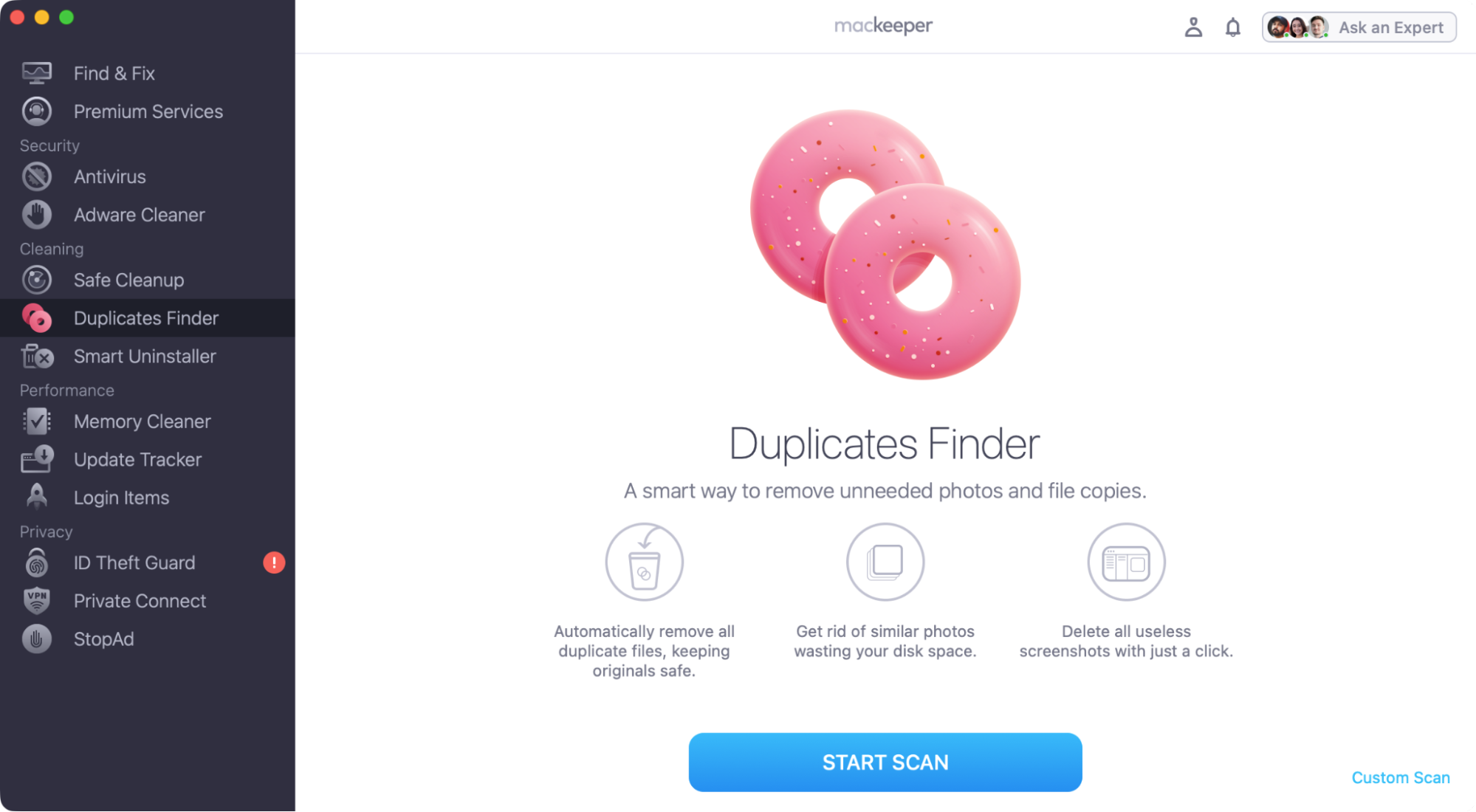
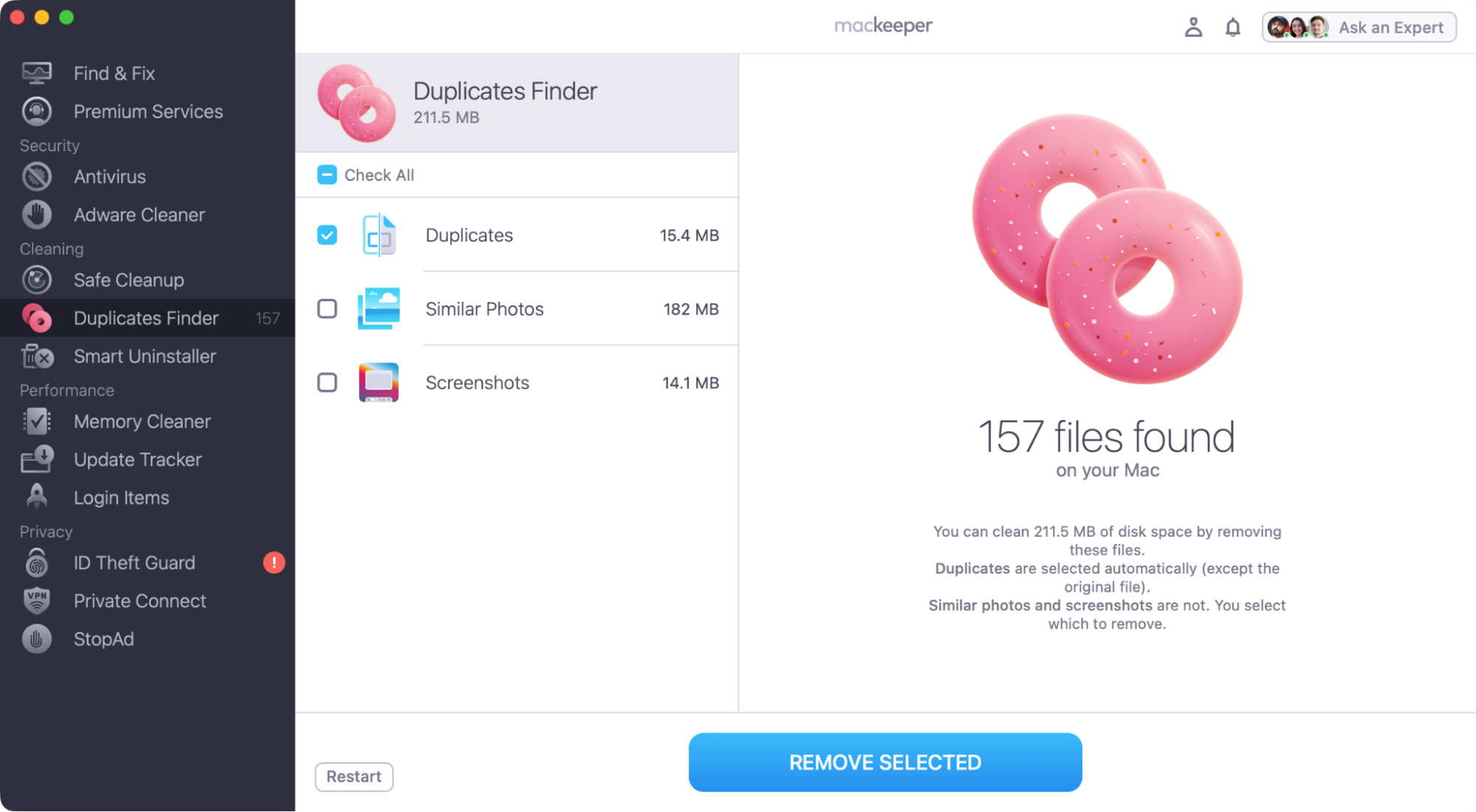
If you want to move files from Android to Mac, it isn’t simply plug-and-play, but there are some easy and free ways to do it. To avoid clogging up your Mac with duplicate copies, use MacKeeper’s Duplicates Finder to quickly track down and remove them.
There are a few different ways to transfer files from an Android phone or tablet to a Mac or MacBook. Some of them rely on USB cables while others send files wirelessly, using Wi-Fi or Bluetooth. Google used to have an official Android File Transfer tool for macOS, but the company discontinued it several years ago, so we’re going to look at other options here.
A note from our experts:
Whenever you copy files from one device to another, you risk creating duplicate copies of data. With MacKeeper’s Duplicates Finder, you can locate and remove these unneeded copies in just a few clicks.
Okay, let’s get on to our file transfer method. We’re going to look at a few different ways to import files from Android to Mac, and we’ll explain the benefits of each one as we go along. Some offer faster data transfer speeds, while others are more convenient.
1. Third-party applications
There are several third-party macOS applications that let you send files from Mac to Android and vice versa. They include:
MacDroid
OpenMTP
DroidSync
iDroid
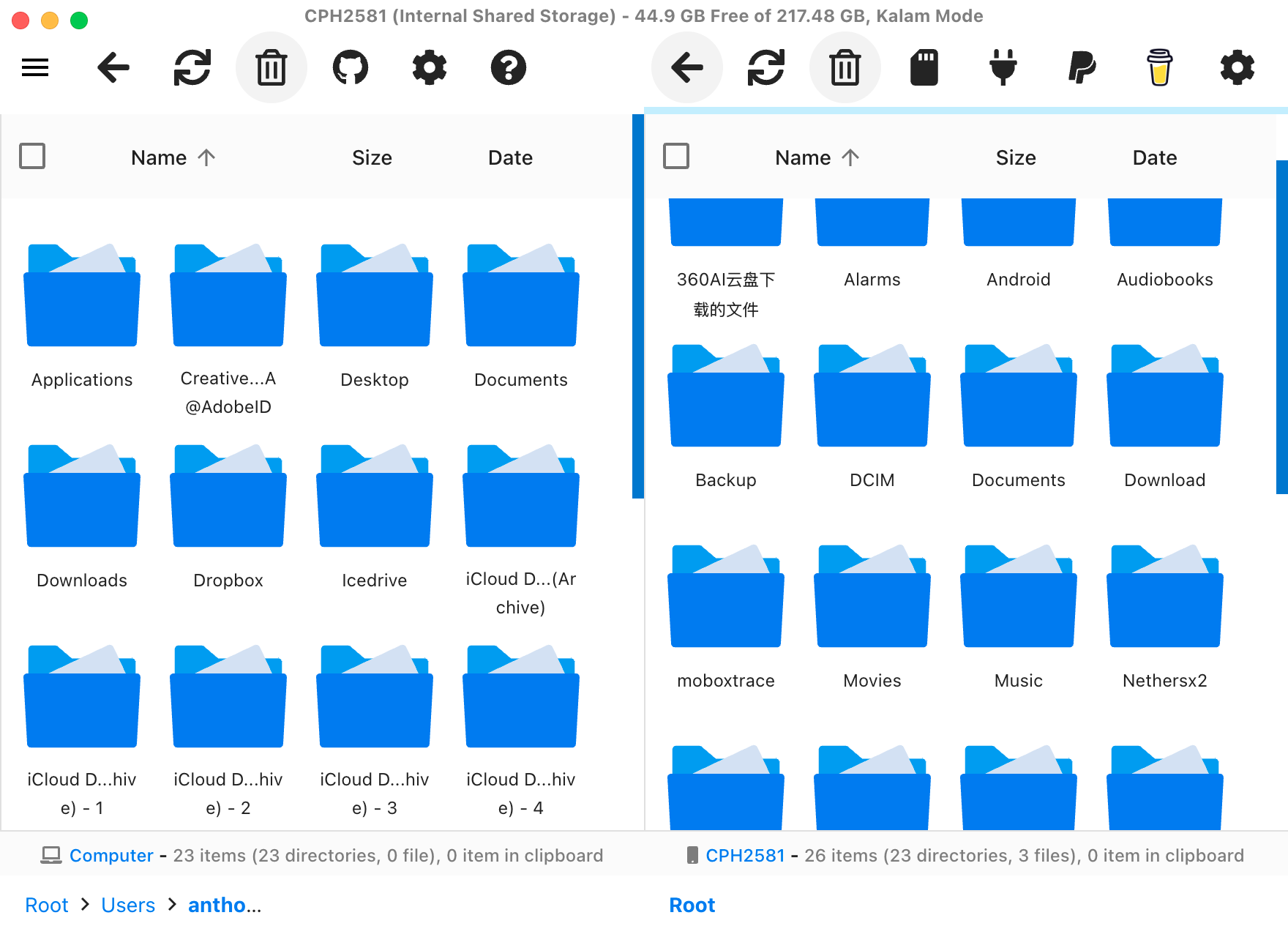
These apps make it easy to browse your Android device’s content and move things over to your Mac. We’ve used OpenMTP a lot because it’s completely free, and it works pretty well. Let’s have a quick look at how to use it:
Connect your Android device to your Mac via USB.
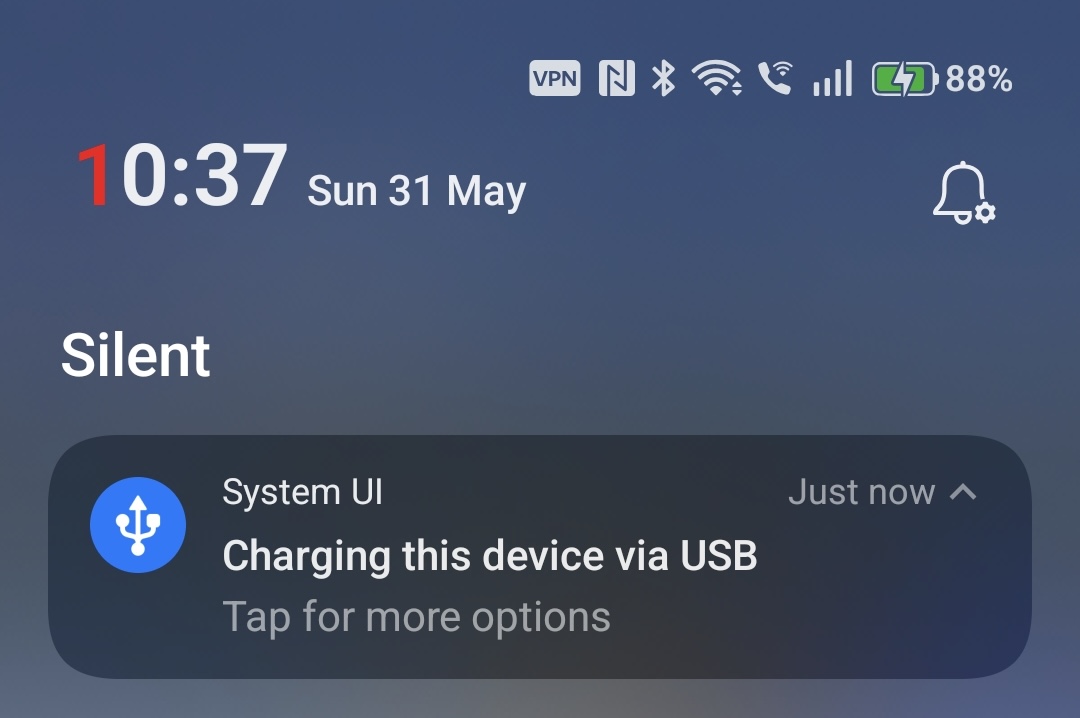
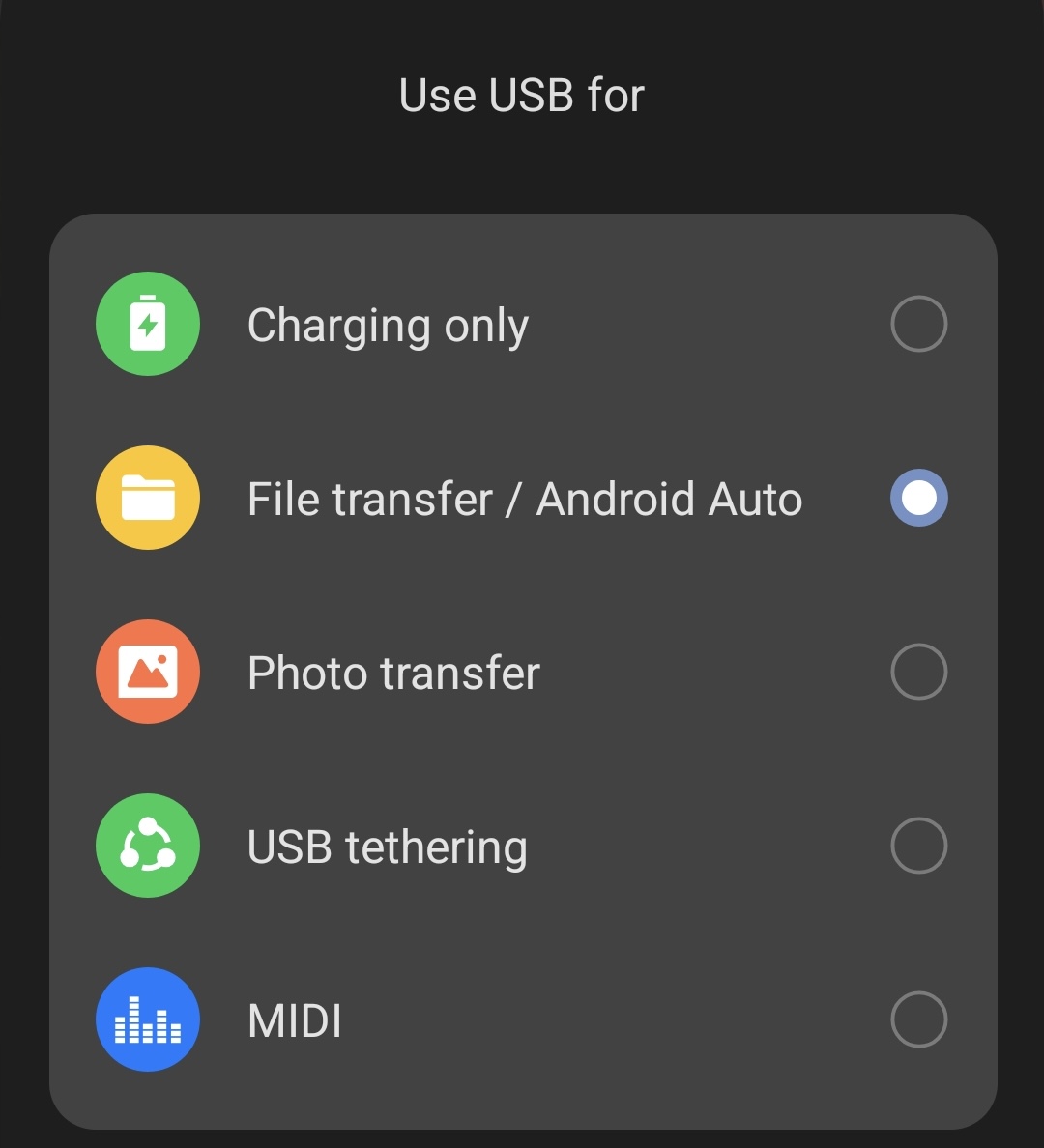
Swipe down from the top of your Android and select File Transfer (this might be called something like MTP).
Start OpenMTP on your Mac. You should see your Mac contents on the left and your Android stuff on the right.
Now just drag and drop files from one side to the other.
Step 1. Select USB options on your Android deviceStep 2. Select the File Transfer modeStep 3. Connect to your Android device with OpenMTP
2. Via SD card (if supported)
If your Android device has an SD card slot, then it gives you a simple way to upload files from Android to Mac and vice versa.
Remove the SD card from your Android device and use an SD card reader on your Mac to access the data. If the data you want is on your Android device’s internal storage and not the SD card, then use an Android file manager app first to get the data on the SD card.
To get data from your Mac to your Android, just reverse the process. Put the SD in a card reader connected to your Mac, then copy the files over. Remove the SD card and put it in your Android device.
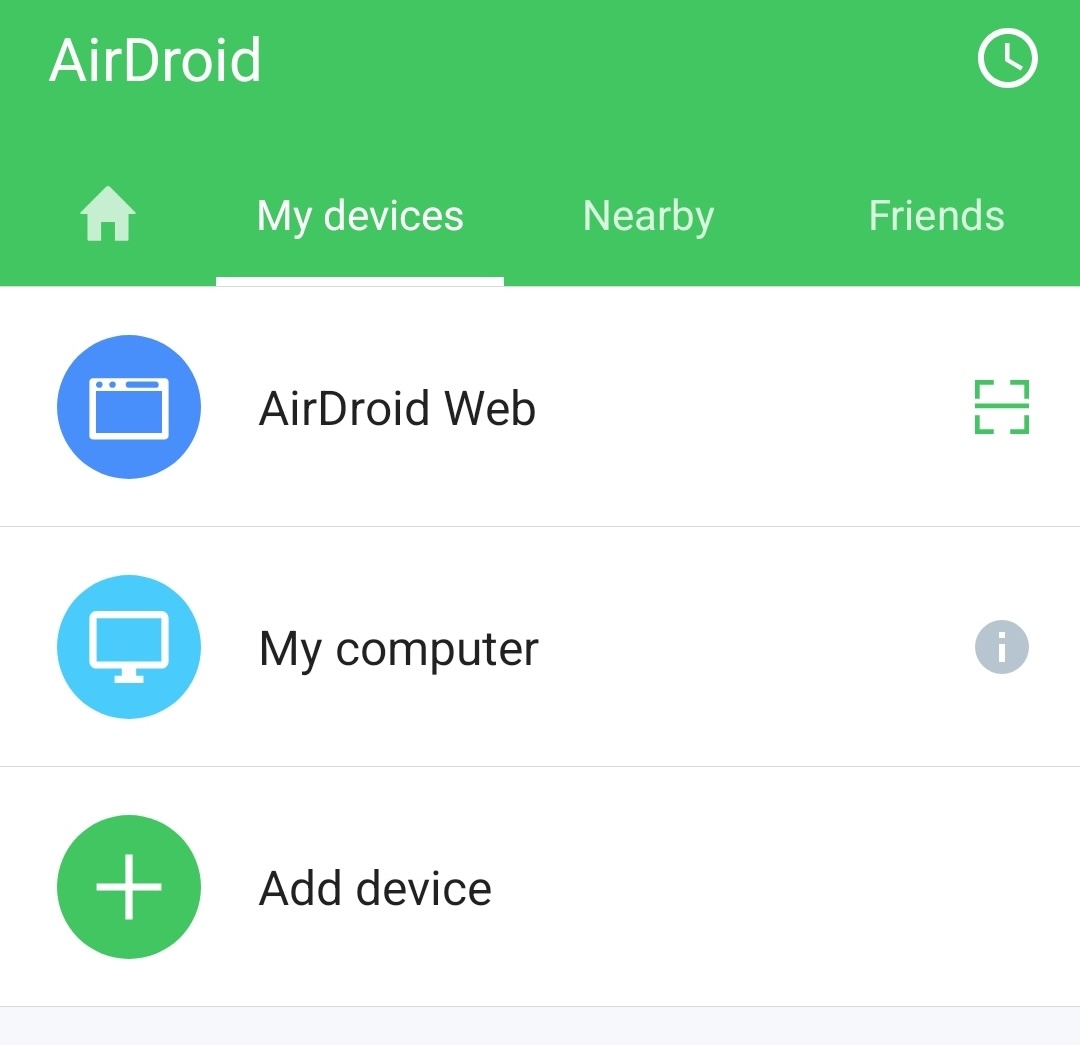
Some Android apps let you access your device’s storage via a web browser. Most of them create a temporary server on your Wi-Fi network, which you can then get into through a specific IP address. One of the most popular solutions is AirDroid, which works like this:
Install and run the AirDroid app on your phone or tablet.
In the transfer section, select AirDroid Web.
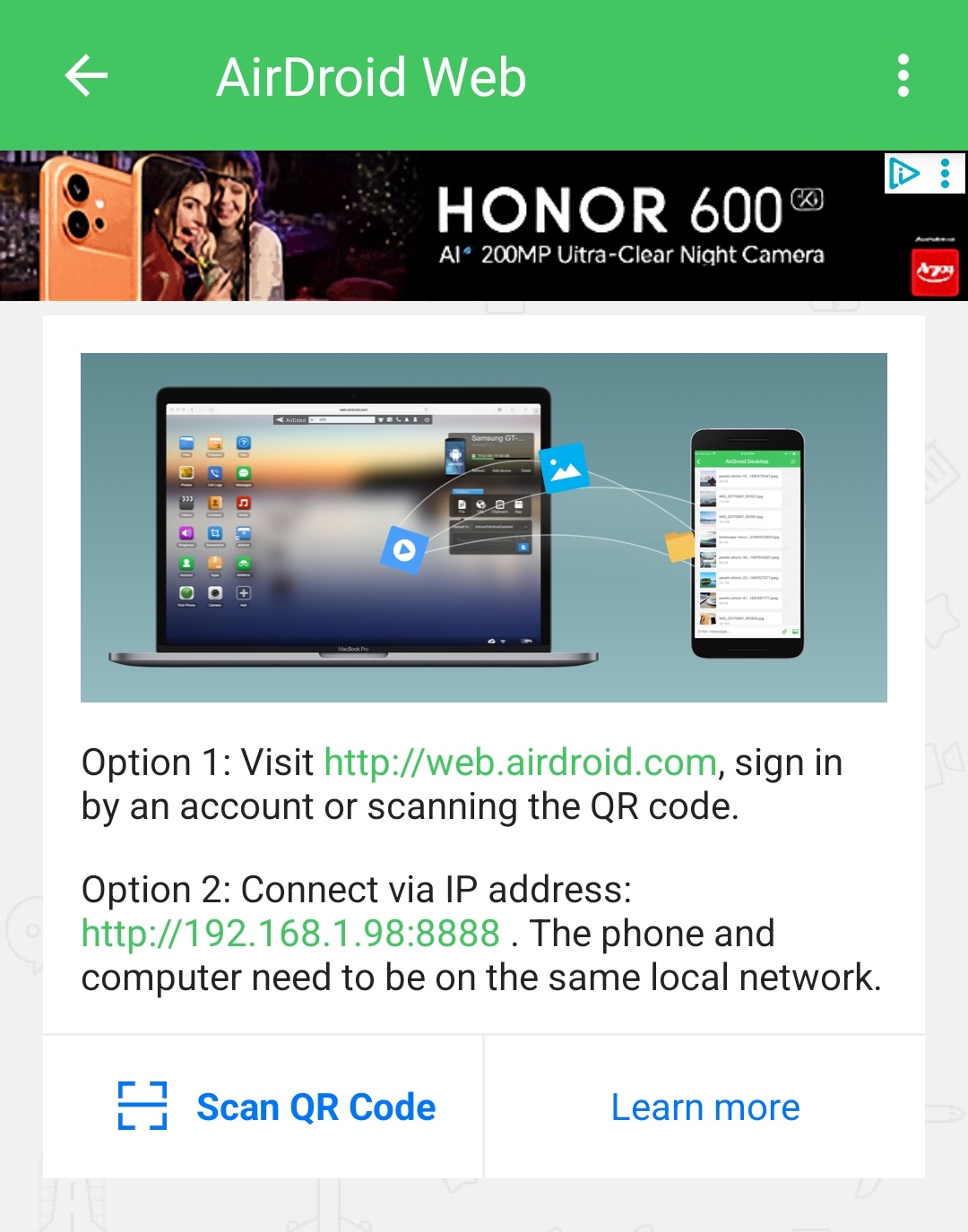
Note the IP address in the app.
Now, on your Mac, open your web browser and go to the IP address from the AirDroid app.
Tap Accept on your Android.
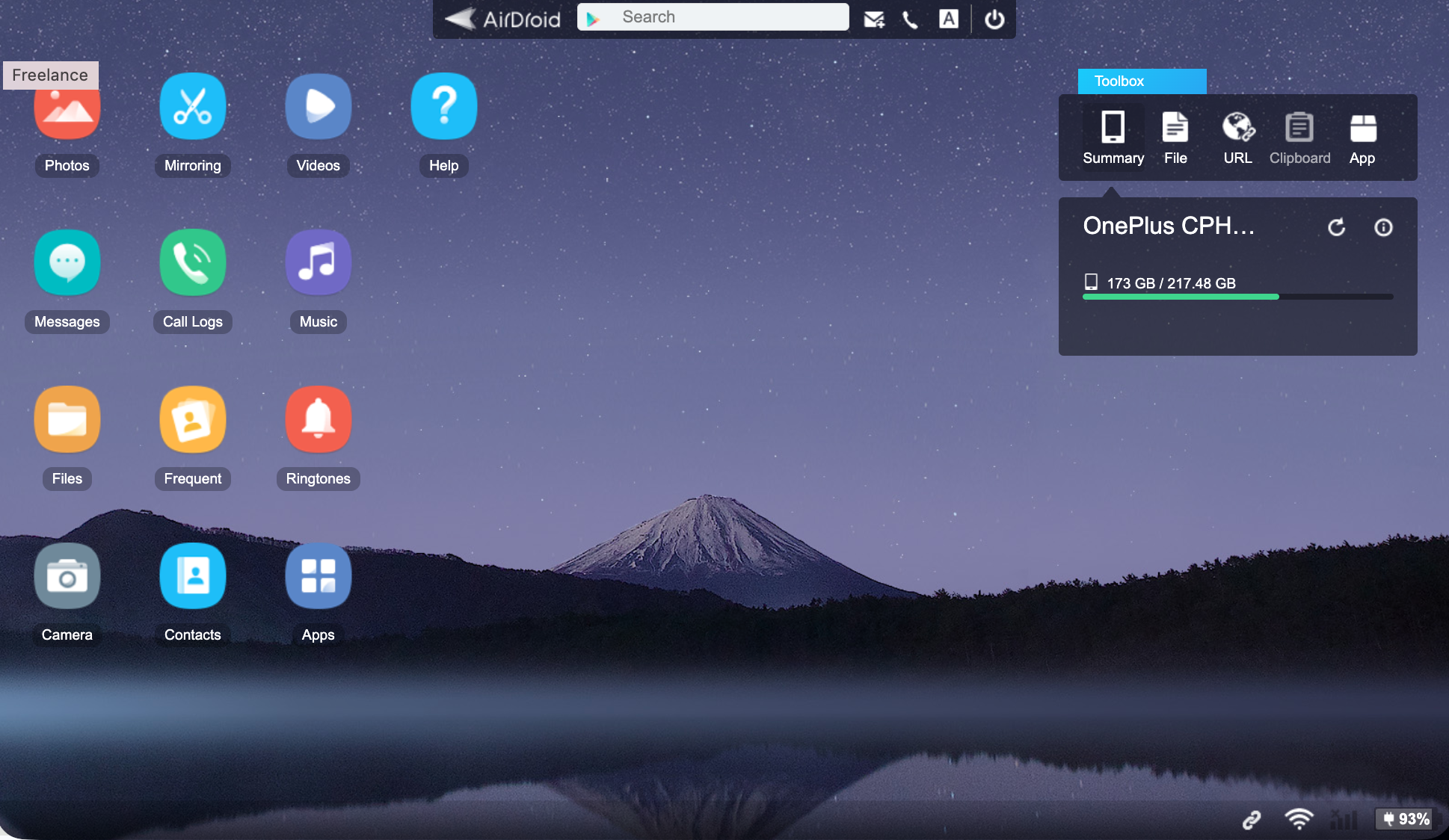
You should now see the AirDroid interface in your browser. You can now download and upload files.
Step 1. In the AirDroid app, select AirDroid WebStep 2. Visit the AirDroid web interfaceStep 3. Use AirDroid to transfer files
An extra hint from us:
AirDroid works better if you create an account and then visit web.airdroid.com on your Mac.
4. Cloud storage services
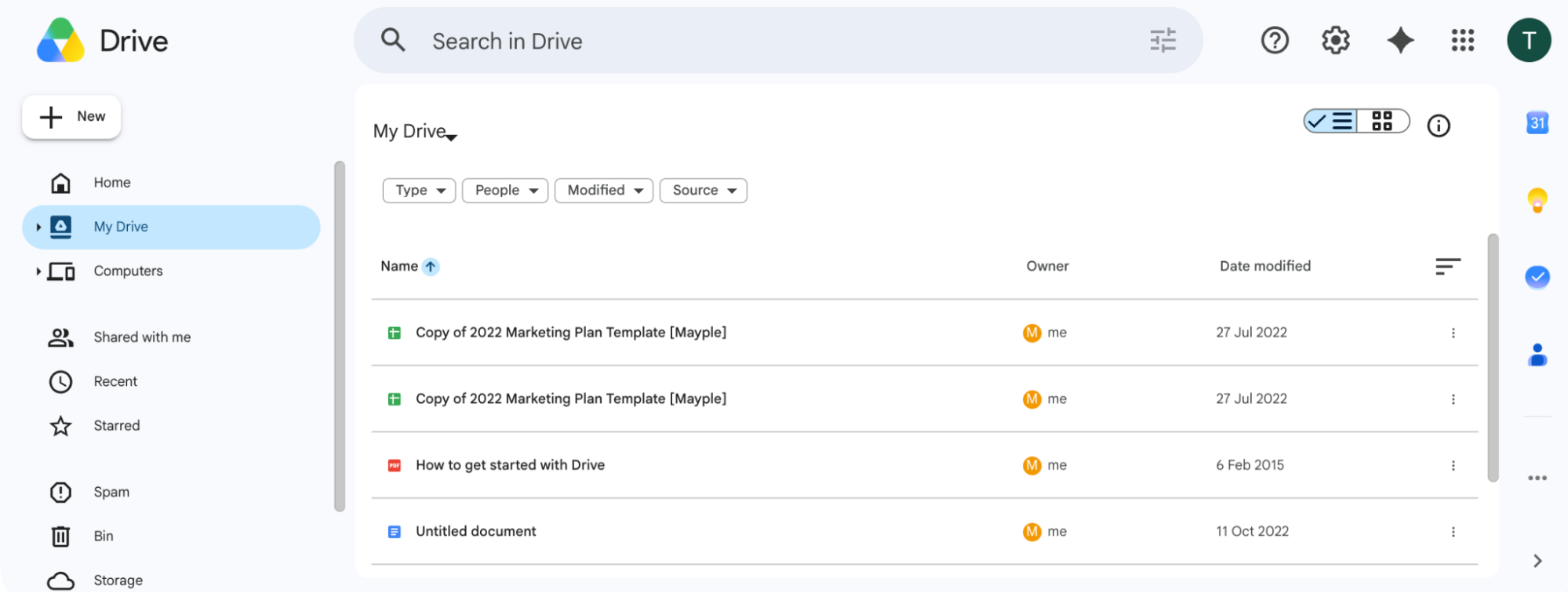
The great thing about cloud services is that they work with almost all devices. You can put files on your Android phone from Mac or send them the other way—without ever touching a cable.
The process is simple. To send a file from Android to macOS, upload the file from the Android device to your cloud storage. The data will automatically be available to your other devices, so just log into the same cloud storage on your Mac, and pick up the files from there.
Which cloud service should you use? For compatibility, we suggest Dropbox, Google OneDrive, or Microsoft OneDrive as the best cloud storage for Mac and Android. Apple iCloud is great for Macs and iPhones, but there’s no Android iCloud app.
Cloud services like Google Drive make it easy to move files between devices
5. Bluetooth file transfer
It’s possible to transfer files from Android to Mac using Bluetooth. The main advantage of this is that almost every device has Bluetooth, and it’s also wireless. However, Bluetooth is a low-bandwidth technology, so using it for file transfers is incredibly slow. We wouldn’t recommend it for anything other than small files or if you want to occasionally send photos from Android to Mac.
If you want to send files over Bluetooth, follow our instructions below:
Enable Bluetooth on your Android device and Mac.
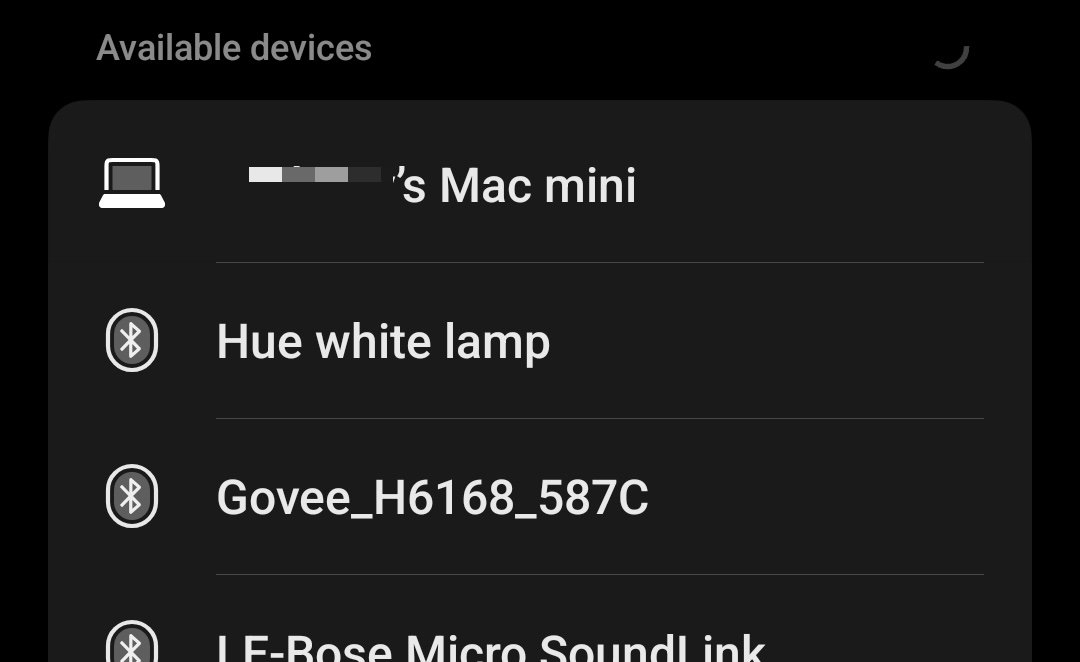
On your Android, go into your Bluetooth settings, and find your Mac. Create a new connection.
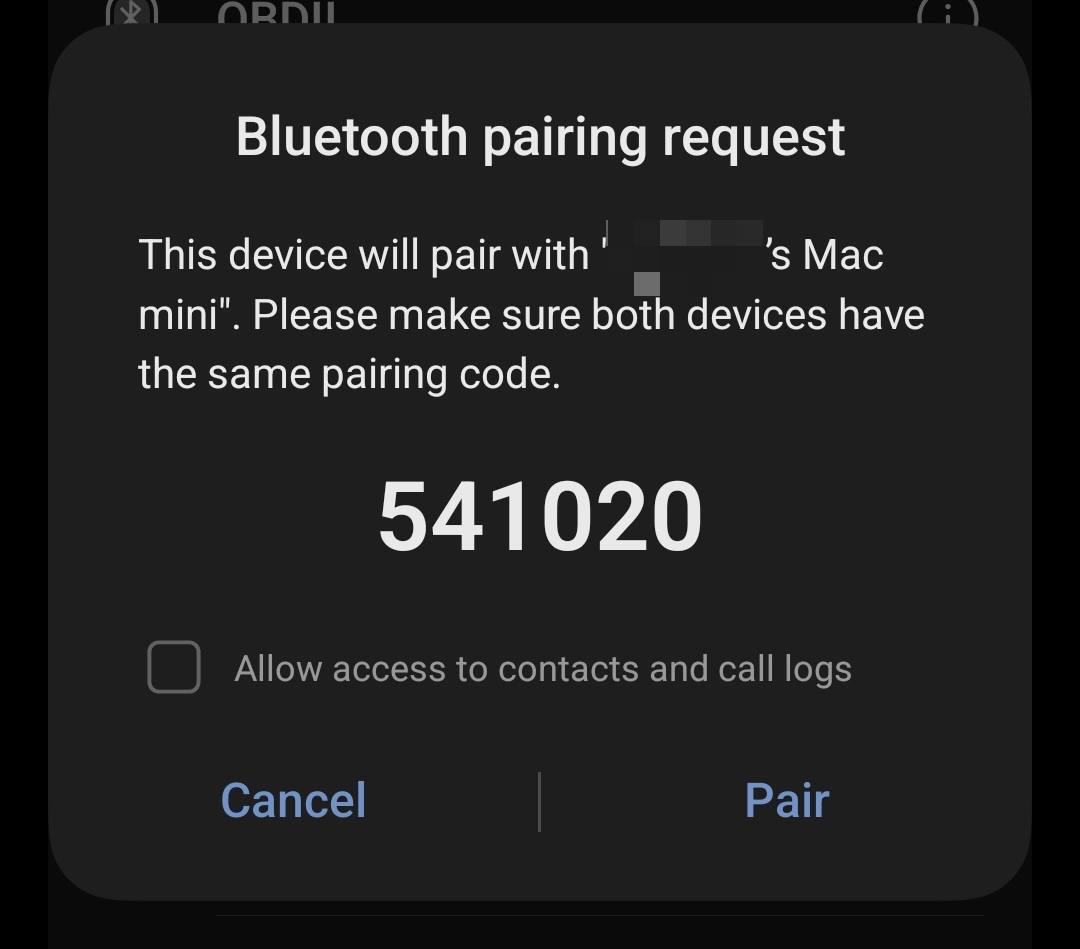
Accept the connection on your Android device.
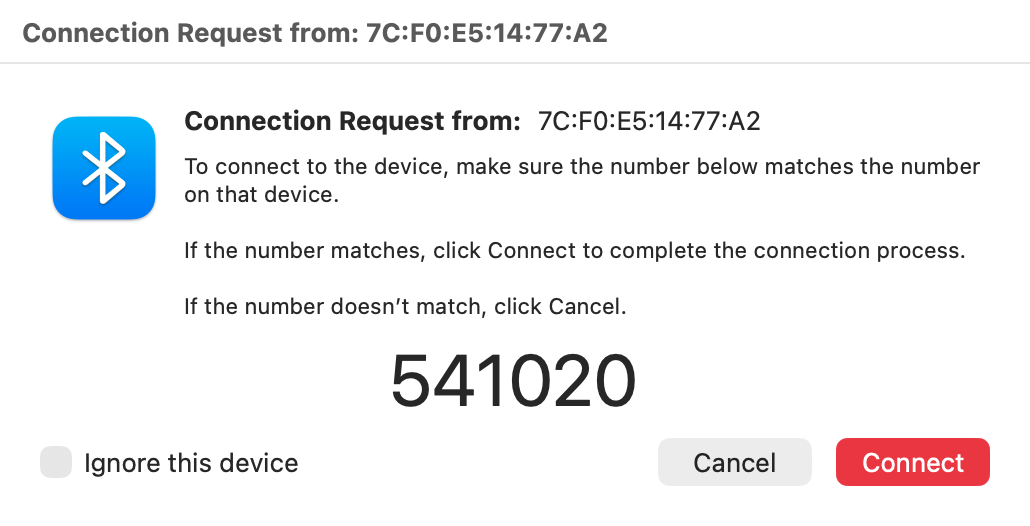
Do the same on your Mac.
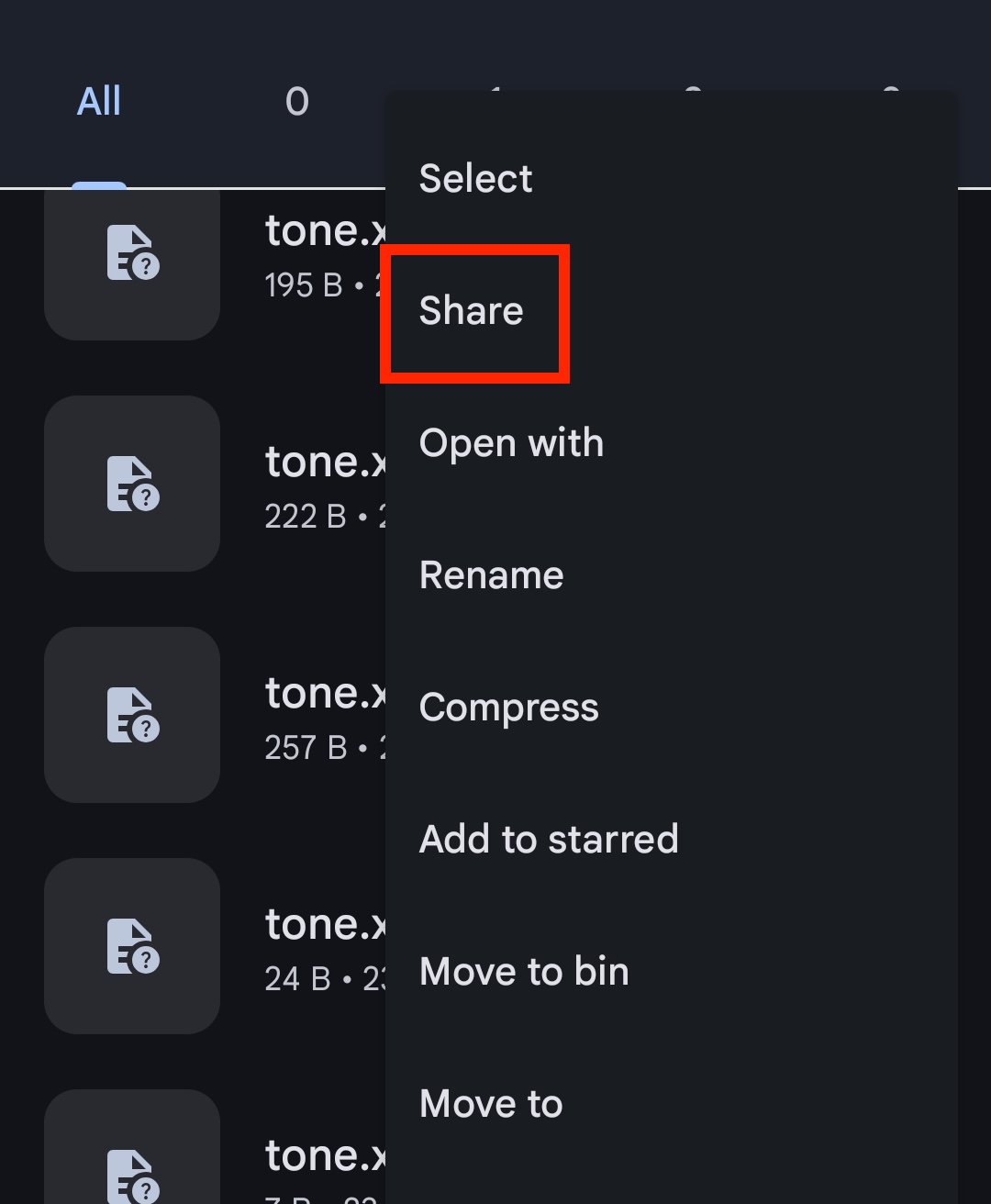
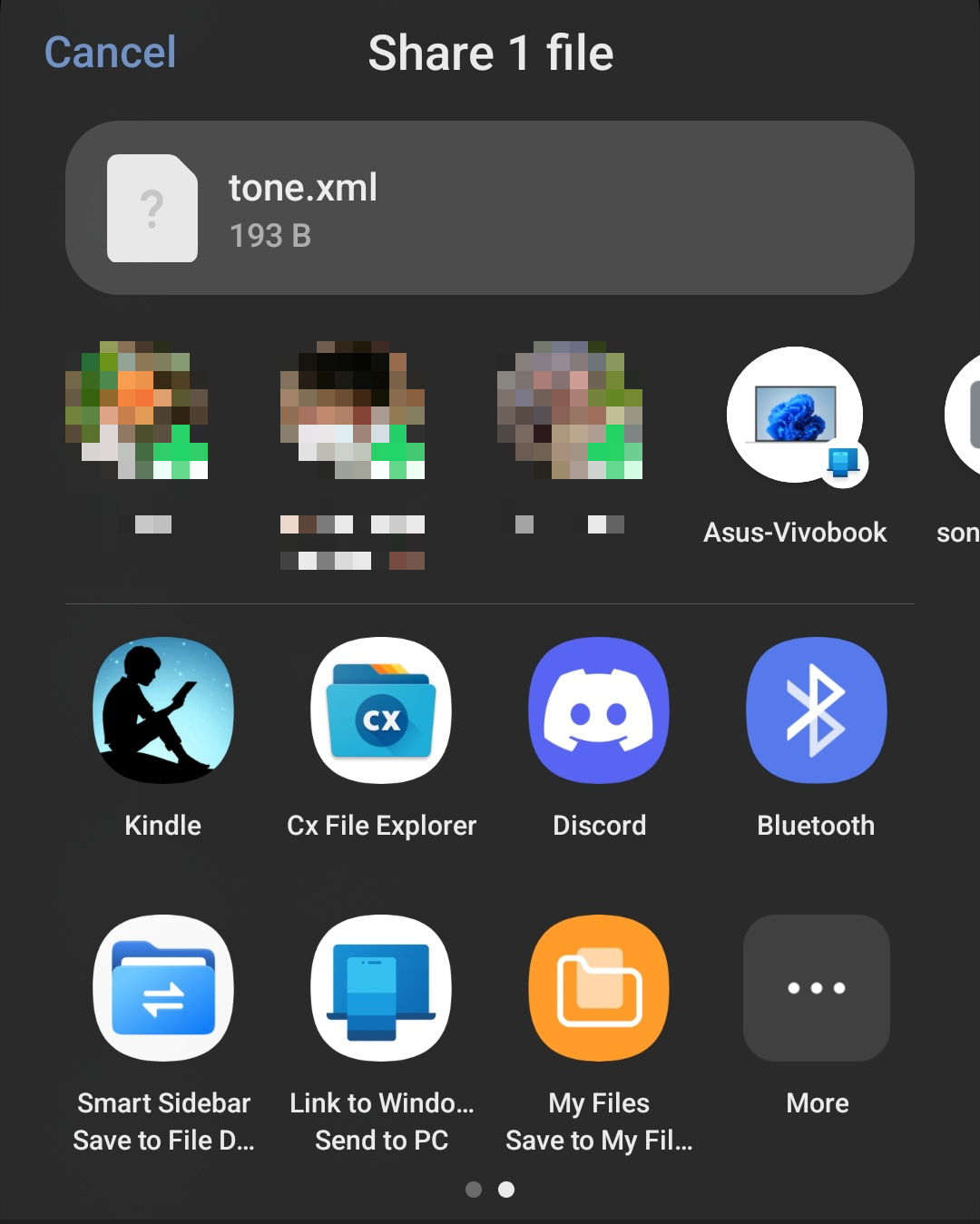
On your Android device, use a file manager app. Select a file and select Share > Bluetooth.
Select your Mac from the list of devices. The file should now be sent to your Mac, to your Downloads folder.
Step 1. Select your Mac in your Android Bluetooth settingsStep 2. Accept the pairing request on your MacStep 3. Tap the Pair button in AndroidStep 4. Choose a file to send, and select the Share optionStep 5. Select the Bluetooth option to send your file
Also, you might be interested in reading our guide on MacBook Bluetooth not working if you have any pairing issues.
Simplify your file transfers
Unfortunately, moving files between macOS and Android isn’t as simple as it could be. Android works better with Windows PCs, and iOS works best with Macs. But as we’ve shown you here, there are a few different ways to get your data where you want it, including wired and wireless methods, as well as the cloud. For big jobs, we recommend USB with something like OpenMTP, but wireless options like AirDroid and even Bluetooth are fine for smaller file transfers.
Whatever you do, don’t end up with loads of duplicate files dotted around your Mac, needlessly eating into your available disk space. Instead, use MacKeeper’s Duplicates Finder to hunt down and eliminate these unnecessary copies. It only takes a few clicks, and it’s an easy way to solve a very annoying problem.
We respect your privacy and
use cookies
for the best site experience.
Privacy Preferences Center
We use cookies along with other tools to give you the best possible experience while using the
MacKeeper website. Cookies are small text files that help the website load faster. The cookies we
use don’t contain any type of personal data meaning they never store information such as your
location, email address, or IP address.
Help us improve how you interact with our website by accepting the use of cookies. You can change
your privacy settings whenever you like.
Manage consent
All cookies
These cookies are strictly necessary for enabling basic website functionality (including page
navigation, form submission, language detection, post commenting), downloading and purchasing
software. The website might malfunction without these cookies.