You’re trying to turn up the sound on your keyboard buttons, but nothing happens—and now you’re wondering what the 🚫 means on Mac volume? The canel symbol is a locked volume error that can be quickly fixed with the help of our MacKeeper’s Premium Services team, who can walk you through a solution to your volume troubles.
If you’re not sure what the cancel symbol means, it’s your computer's way of alerting you to a locked interaction when trying to adjust audio output. This error can occur if you’re connected to an external device, like an HDMI or a TV, as the volume might not allow changes via your MacBook device, thereby triggering the cancel symbol on your Mac.
Before we start:
Would you prefer your music and audio to play through extra headphones, but you’re unsure how to connect Bluetooth headphones to Mac? We can help, as our supporting blog will walk you through all the relevant starting with how to turn on Bluetooth on Mac, pairing your device, and how to troubleshoot in case of any connection issues on your MacBook.
Why 🚫 appears on the Mac volume?
Should you see the 🚫 symbol appear on your Mac when you’re trying to adjust your volume, it’s likely your computer's way of telling you that Mac sound is not working correctly. This error is likely to pop up if your Mac is plugged into external audio speakers or if your system is detecting a jam inside your headphone port.
How to diagnose volume issues on Mac?
We understand how frustrating it can be when you see the Mac volume cancel sign, and diagnosing the issue can be equally challenging. Our recommendation is to open System Settings to look at your output options—it’ll show you where your audio is playing from, either through your computer speakers or via an external plug-in device.
1. Checking which audio output is selected
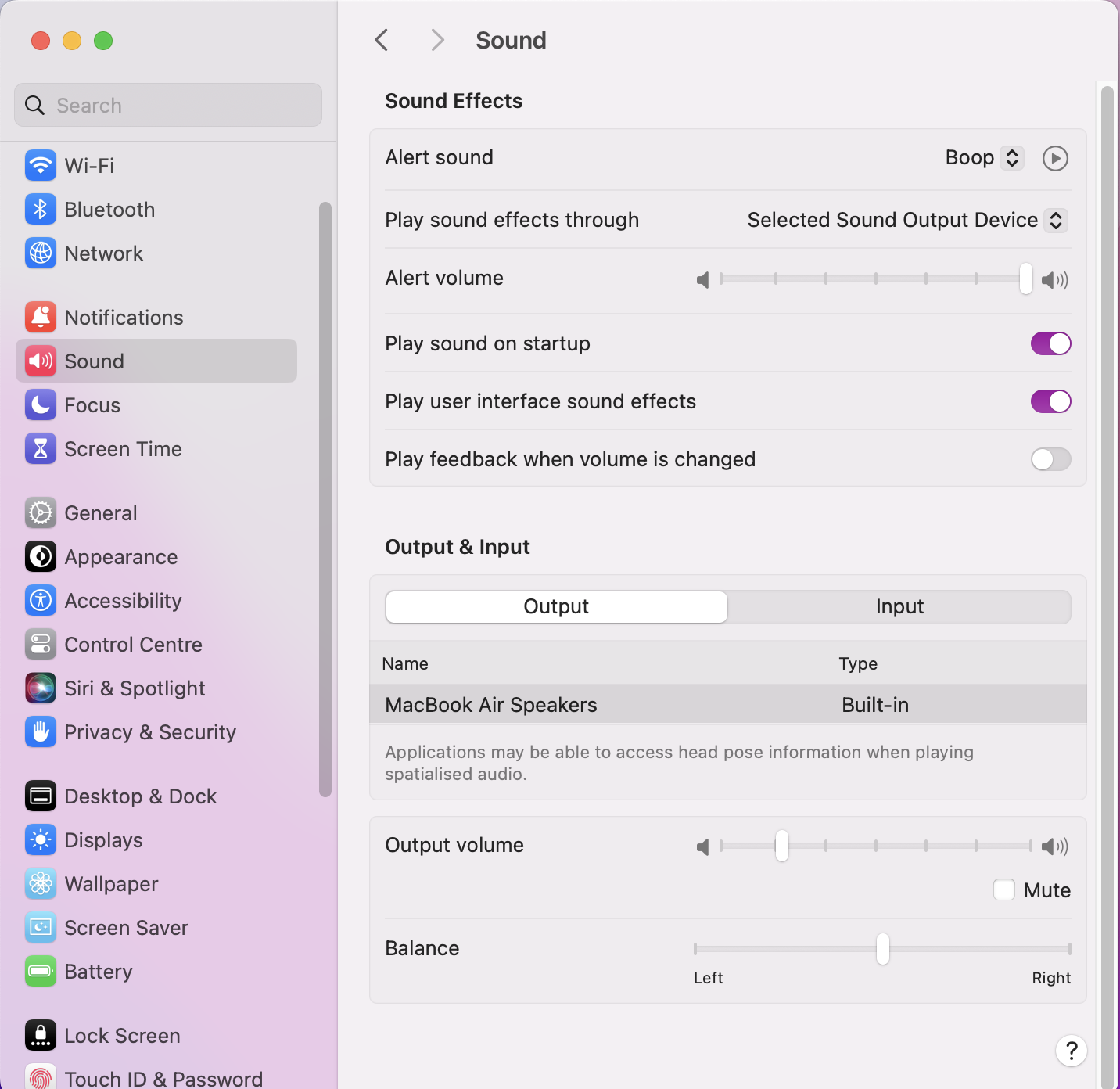
Finding out where your Mac’s sound is meant to be playing from can help get rid of the pesky cancel sign for good. Open up your Sound Settings and check what Outputs you’ve selected to ensure no volume restrictions or interruptions are triggering the 🚫 symbol.
Let us show you how:
Click on the Apple Icon and select System Settings.
Go to Sound.
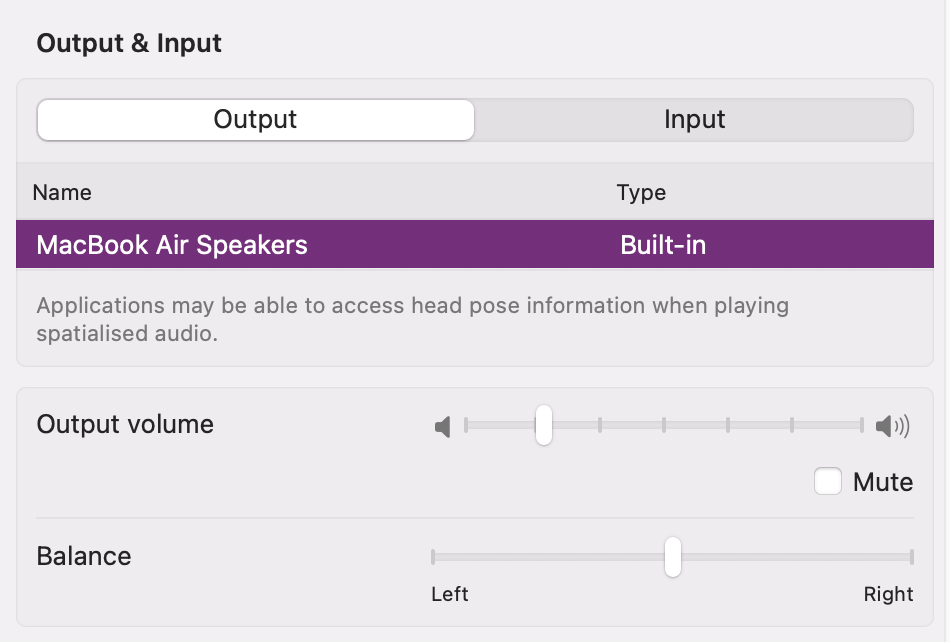
Click on Output and choose the location you want your music to play from, like MacBook Air Speakers, an external speaker, or headphones.
Step 1. In System Settings, go to the Sound tab and click on OutputsStep 2. To choose where you want your audio to play from, select your preferred Output from the list
2. Verifying built-in speakers vs external devices
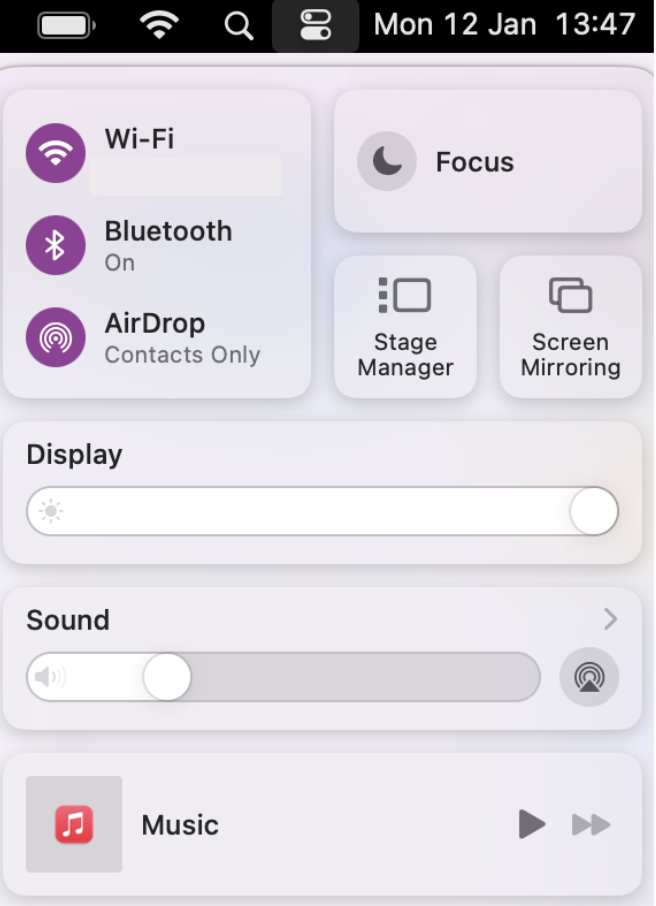
Is your MacBook speaker buzzing as you flip between websites or applications? If it is, you can easily check where your audio is playing by accessing the Control Center in the top-right corner of your Mac. From our test, this makes switching or verifying your audio output when moving between apps more efficient, especially if you suspect the buzzing is coming from an external device.
Here’s how to access the Control Center pop-up menu to monitor your audio output:
In the top right corner of your screen, click on the Control Center.
Then look at your Sound Output.
Click on the arrow for more infomration or to change your output.
Step 1. Click on the Control Center icon in the top-right corner of your screen and look at your SoundStep 2. To check your sound output, click on the Arrow and check that the right audio output is selected
A note from our experts:
Still having no luck at getting rid of the Mac volume cancel sign? Allow MacKeeper’s Premium Services to come to your aid—you’ll be connected to one of our Apple matters connoisseurs who’ll offer tailored, troubleshooting solutions to help you finally regain control over your volume.
Here’s a reminder of how to access MacKeeper’s Premium Services:
In the chat, explain your volume issues, and one of our experts will walk you through the right steps to get your sound issues resolved.
Step 1. For volume help, open the MacKeeper app and go to Premium ServicesStep 2. You can use the chat function to get advice on dealing with the cancel symbol on Mac
How to fix the cancel symbol on the Mac volume?
Our troubleshooting steps should have fixed your volume issues. If not, try the extra methods we’ve stated below.
Quick fixes:
Toggle your Output on and off in Sound Settings
Restart Mac
Advanced solutions:
Unpair/Pair Bluetooth devices
Reset PRAM/NVRAM
Check audio HDMI settings
A final helping hand:
Are your Mac volume buttons not working? This could be a sign of malfunctioning audio drivers or interference from other software–both are very serious issues that need resolving fast. To help, our supporting blog shows how to find the culprit and make sure your volume key buttons function correctly again.
Fix issues with the cancel symbol under MacKeeper’s support
Now that we’ve shared how to fix the annoying 🚫 symbol on Mac volume, you should be able to use your keyboard buttons to adjust your audio exactly how you want it–as loud as you like and playing from your preferred output. Should you ever hear buzzing or no sound at all, check your output in Control Center, just in case it was changed without realizing it.
We’ve also spoken to many Apple users who said that it’s very common for the sound to be coming out of a Bluetooth device they didn’t realize was still connected, so that’s also worth checking. If you need some extra support, start a chat through MacKeeper’s Premium Services and share the details of your issue with our experts. Our helpers with get you back to listening to your music uninterrupted in no time.
We respect your privacy and
use cookies
for the best site experience.
Privacy Preferences Center
We use cookies along with other tools to give you the best possible experience while using the
MacKeeper website. Cookies are small text files that help the website load faster. The cookies we
use don’t contain any type of personal data meaning they never store information such as your
location, email address, or IP address.
Help us improve how you interact with our website by accepting the use of cookies. You can change
your privacy settings whenever you like.
Manage consent
All cookies
These cookies are strictly necessary for enabling basic website functionality (including page
navigation, form submission, language detection, post commenting), downloading and purchasing
software. The website might malfunction without these cookies.