A downgrade from Tahoe to Sequoia is the cleanest fix when the new version brings app crashes, broken peripherals, or performance regressions that disrupt your day-to-day work. Before you start, MacKeeper’s Safe Cleanup prepares your Mac by removing junk files, outdated caches, and duplicates, helping your downgrade run faster while keeping storage organized.
Yes, you can roll back, but Apple doesn’t include a single-click option inside macOS. Based on our experience, the safest paths are restoring from a Time Machine backup created on Sequoia, using an APFS snapshot, running Internet Recovery on Intel Macs, or installing through a bootable USB drive. Each option erases Tahoe and installs Sequoia fresh, so you can revert back to Sequoia from Tahoe without losing access to your familiar workflow.
Situations where downgrading macOS Tahoe to Sequoia makes sense
Not every Tahoe issue calls for a full rollback, but some scenarios genuinely benefit from going back. From our experience helping users troubleshoot version-related problems, the most common reasons to roll back include:
App or driver compatibility issues. Critical apps for music production, design, or development sometimes break under Tahoe before vendors release patched versions.
Battery or performance regressions. Some Macs run hotter, drain faster, or feel slower on Tahoe, especially older Intel models and base-spec Apple silicon devices.
Hardware that’s no longer officially supported. If your machine sits on the edge of Tahoe’s compatibility list, Sequoia may simply run better day to day.
What to prepare before downgrading macOS Tahoe?
Going from a macOS Tahoe downgrade to Sequoia rewrites your startup disk, so preparation directly affects whether you keep your files or lose them. As our tests show, the safest approach combines a full backup, a working installer, sign-outs from licensed apps, and disabled beta channels. Spending an hour on prep can save days of file recovery later.
A note from our experts:
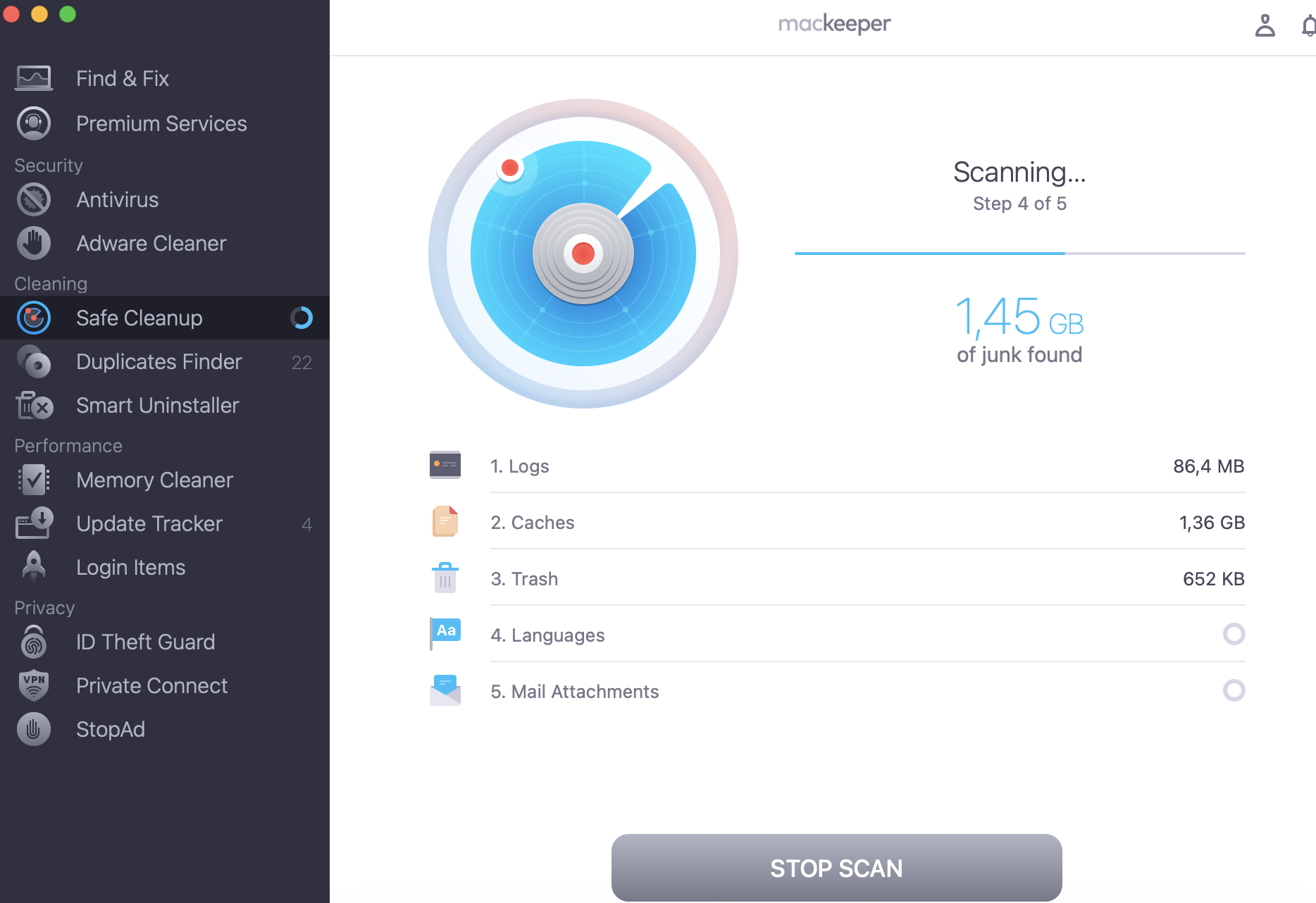
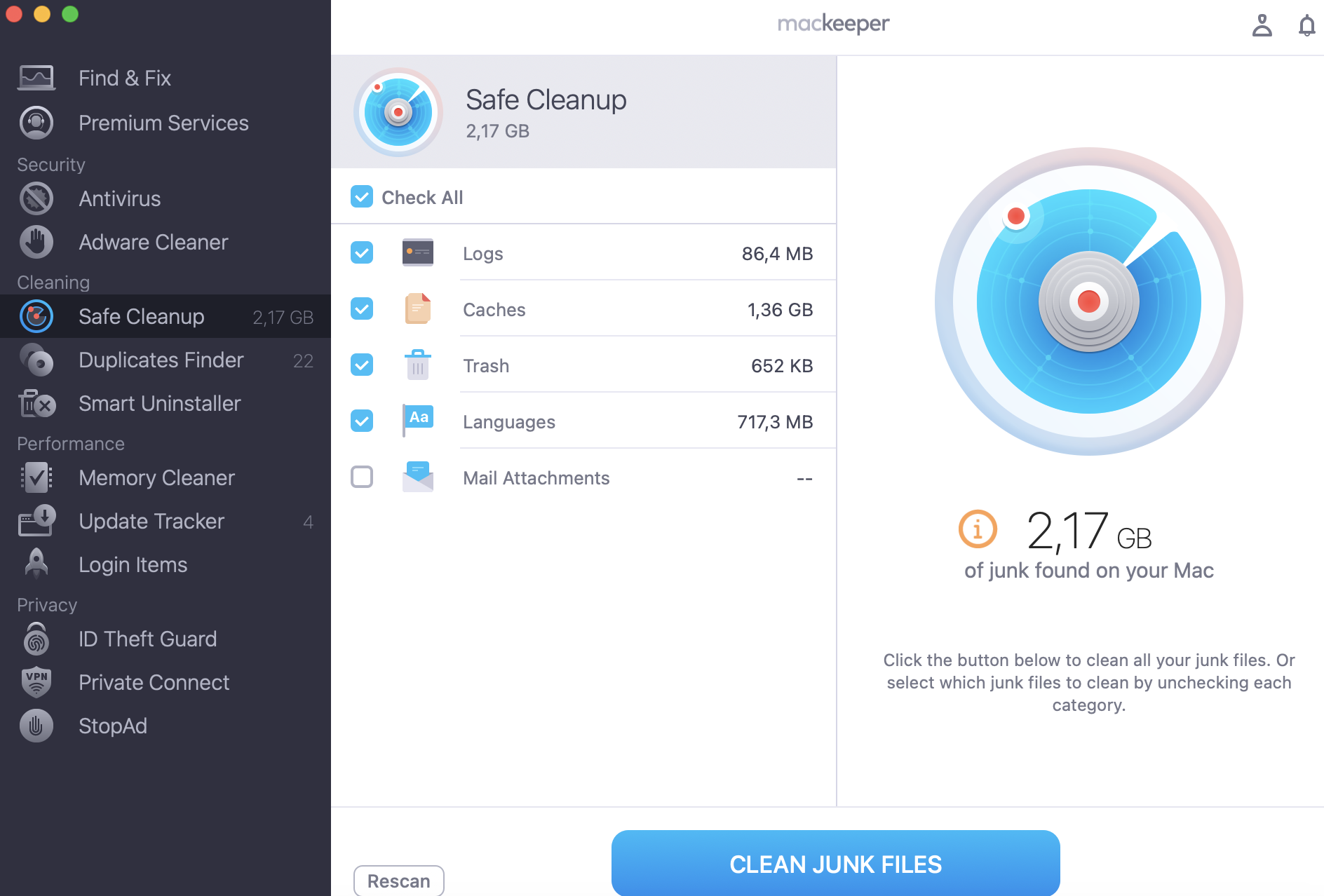
One thing you should understand before upgrading to macOS Tahoe is that system updates don’t always guarantee smooth performance of your laptop. Actually, your Mac’s condition matters a lot. Don’t forget that over time, your Mac collects temporary files, outdated caches, duplicates, old logs, and other unnecessary files that consume storage and affect your Mac’s performance. That’s why I suggest using MacKeeper’s Safe Cleanup as a secure alternative to gain better performance on your Apple laptop by deleting the old and unnecessary data. With this feature, MacKeeper, developed by Clario Tech, offers to remove clutter that has accumulated over months or even years just in a few clicks.
Follow these instructions to make your Mac more responsive with MacKeeper’s Safe Cleanup:
We recommend two backup types: a Time Machine snapshot for a full system restore, and a separate copy of essential files on an external drive or in the cloud.
Here’s how to create a Time Machine backup before downgrading:
Connect an external drive with enough space for your full system.
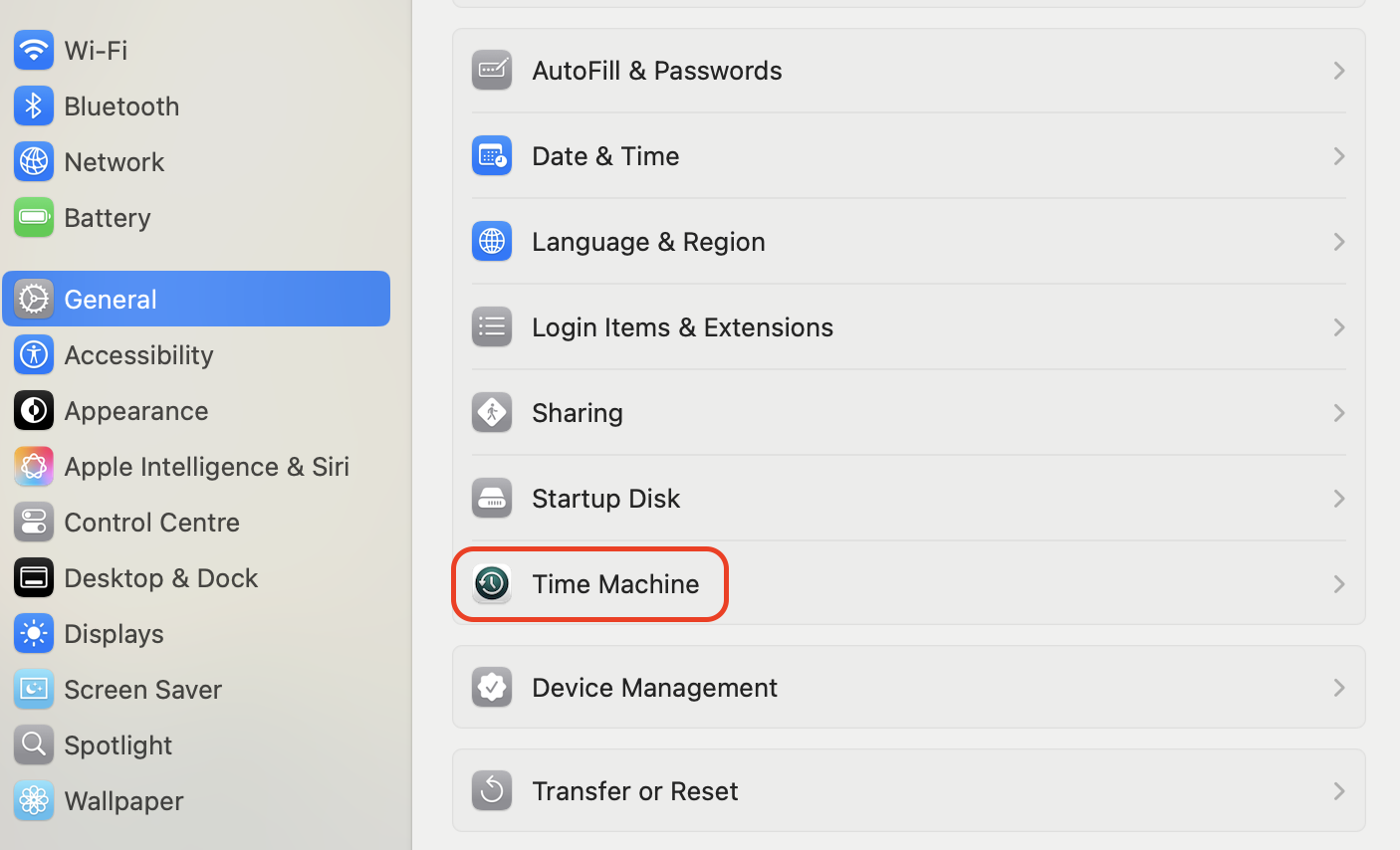
Open System Settings and select General.
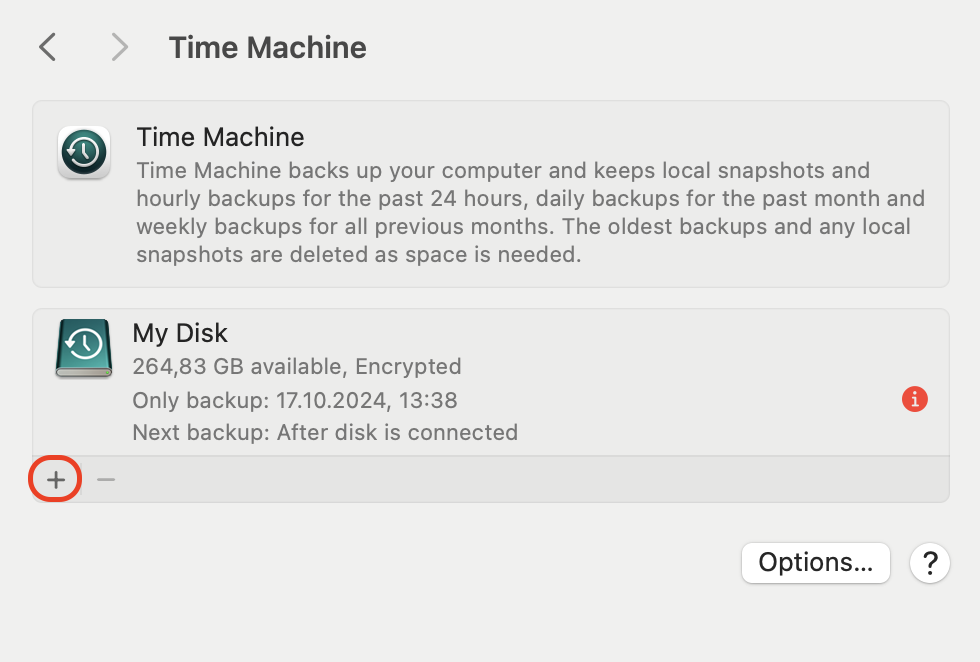
Click Time Machine, then choose Add Backup Disk.
Select your external drive and confirm the setup.
Wait for the first full backup to complete before continuing.
Step 1. Open System Settings > General > Time MachineStep 2. Click Add Backup Disk and select your external drive
If you already keep older backups, learning how to delete Time Machine backups you no longer need helps free space for this new one without compromising your safety net.
2. Get macOS Sequoia installer ready
We recommend downloading the Sequoia installer before you start the process, so you’re not stuck mid-way through.
Steps to get the macOS Sequoia installer ready:
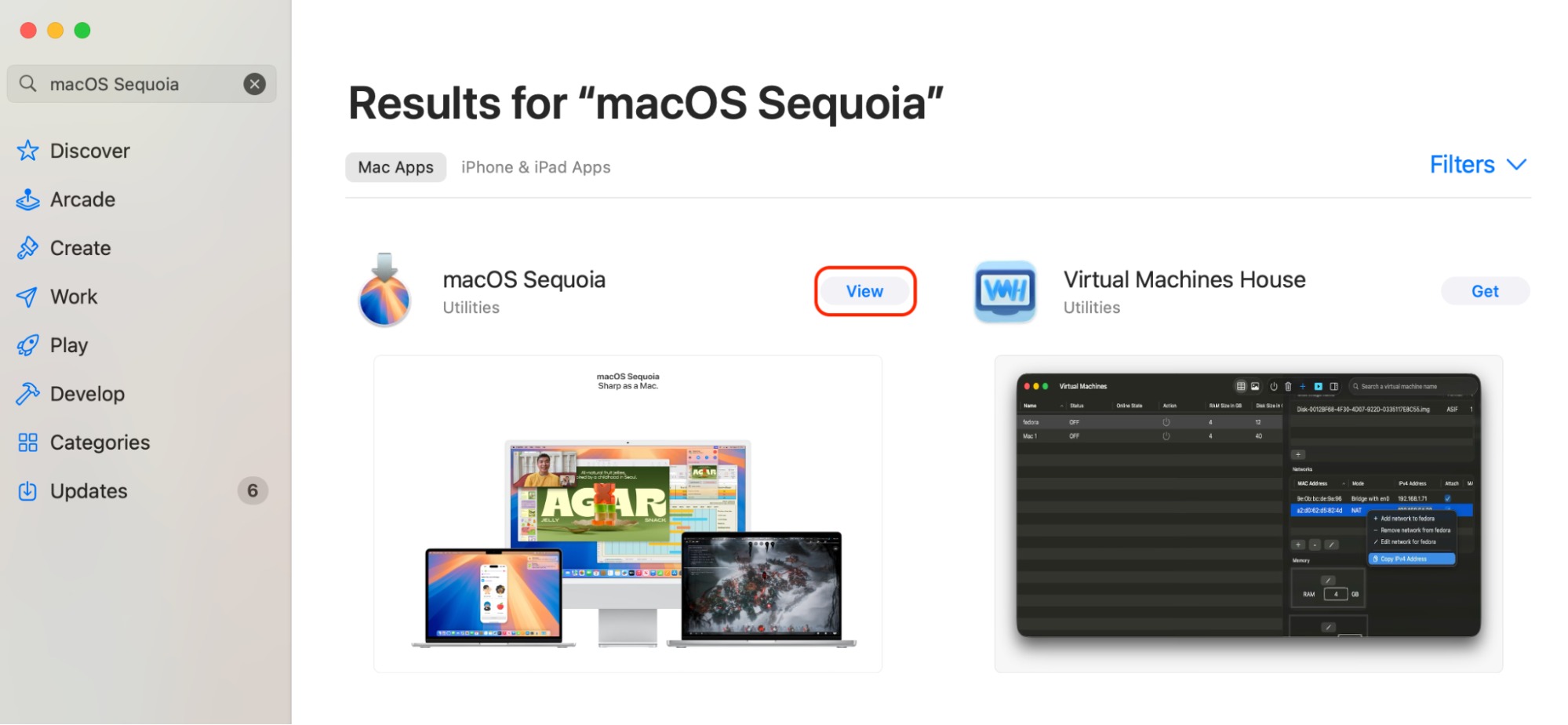
Open the App Store on a Mac still running Sequoia, or check Apple’s official support page for a direct link.
Search for macOS Sequoia and click Get.
Wait for the installer (around 14 GB) to download into your Applications folder.
Confirm the file Install macOS Sequoia appears before quitting the installer prompt.
Search for macOS Sequoia in the App Store and click Get
3. Sign out and deactivate sensitive software
Many apps tie licenses to your hardware and macOS version. To avoid activation conflicts when you revert macOS Tahoe to Sequoia, we suggest signing out of services and deactivating license-locked software in advance.
Sign out and deactivate software with these steps:
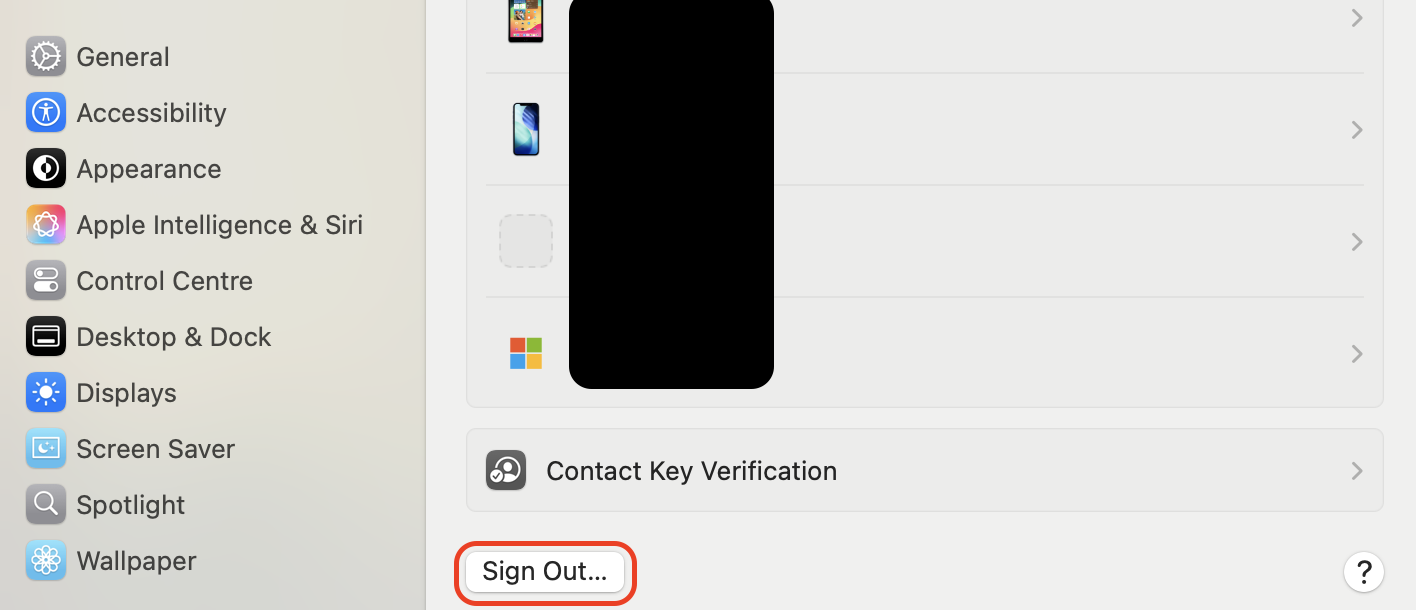
Open iCloud settings and sign out of your Apple Account.
Sign out of iMessage, FaceTime, and Music if you use them.
Deactivate Adobe Creative Cloud, Microsoft 365, and similar licensed apps from their account menus.
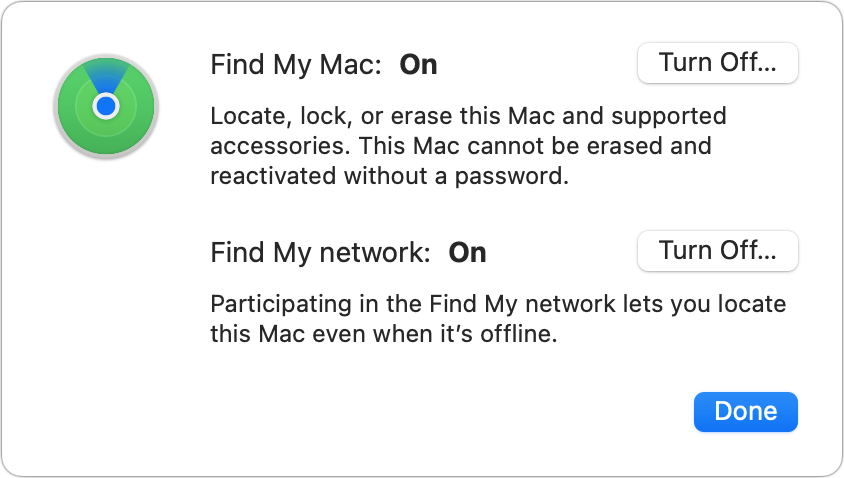
Disable Find My Mac under iCloud so the disk can be erased without lock issues.
Step 1. Sign out of your Apple Account in iCloud settingsStep 2. Disable Find My Mac before erasing the disk
4. Disable beta and update channels
If your Tahoe install came from a beta program, your Mac will keep receiving Tahoe updates unless you remove the beta profile first. From what we can tell, skipping this step pulls users right back to Tahoe after a successful rollback.
Follow our steps below to disable beta and update channels:
Open System Settings and select General.
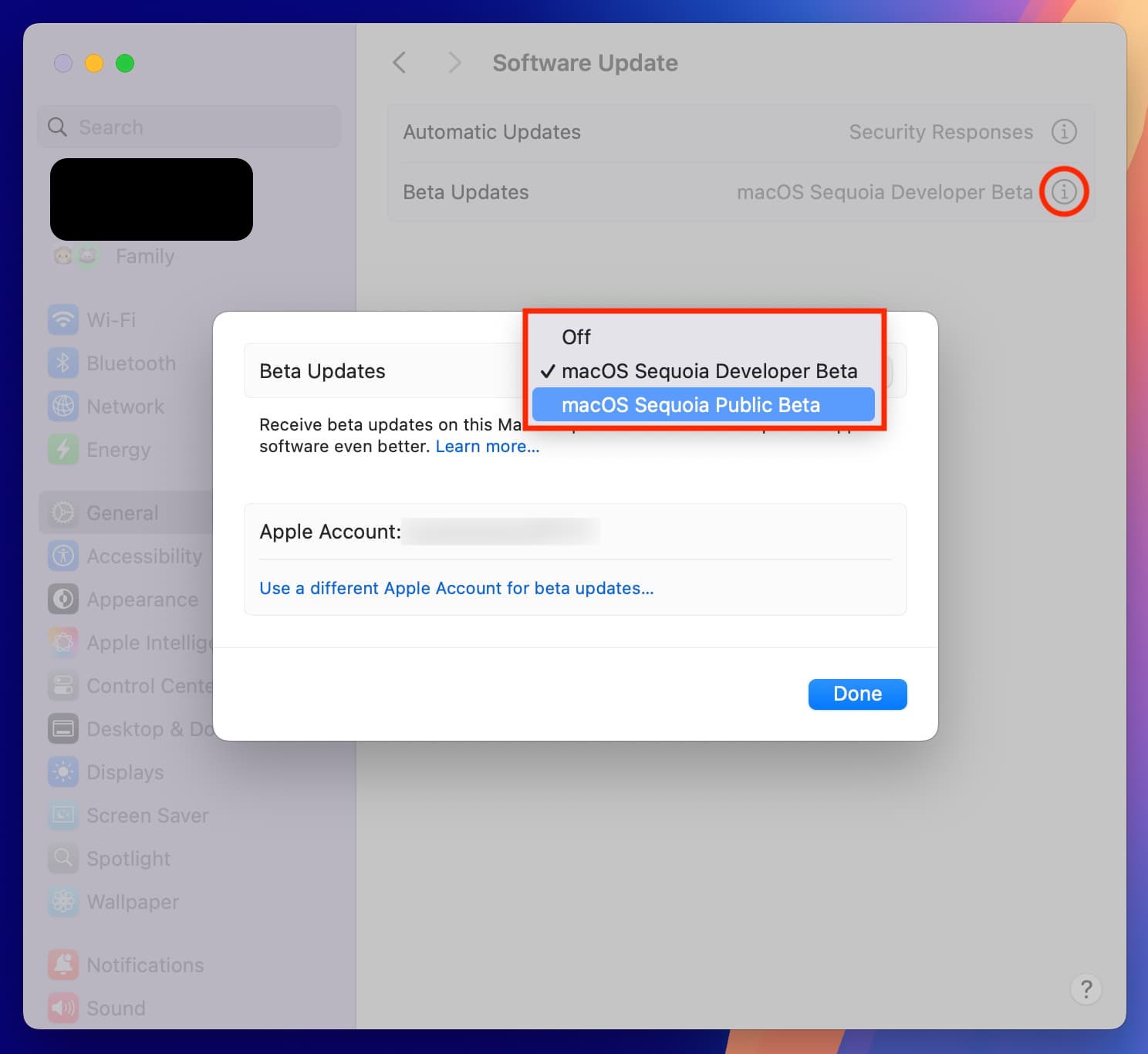
Click Software Update, then Beta Updates.
Choose Off from the dropdown menu.
Restart your Mac to confirm the change.
Go to System Settings > General > Software Update > Beta Updates. Select Off from the dropdown menu
How to revert from macOS Tahoe to Sequoia?
With your backup, installer, and accounts ready, you can pick the method that fits your hardware and your tolerance for time. We’ve ranked the four main options below from fastest to most thorough, so you can match the approach to your situation.
1. Restore Sequoia using Time Machine backup
If you ran Time Machine on Sequoia before installing Tahoe, this is the fastest way to roll back. Our team finds it especially useful because it restores apps, files, and settings in one pass, with no need to reconfigure your setup from scratch.
Restore Sequoia using a Time Machine backup this way:
Connect the external drive holding your Sequoia Time Machine backup.
Restart your Mac and hold Command + R (Intel) or the Power button (Apple silicon) to enter Recovery.
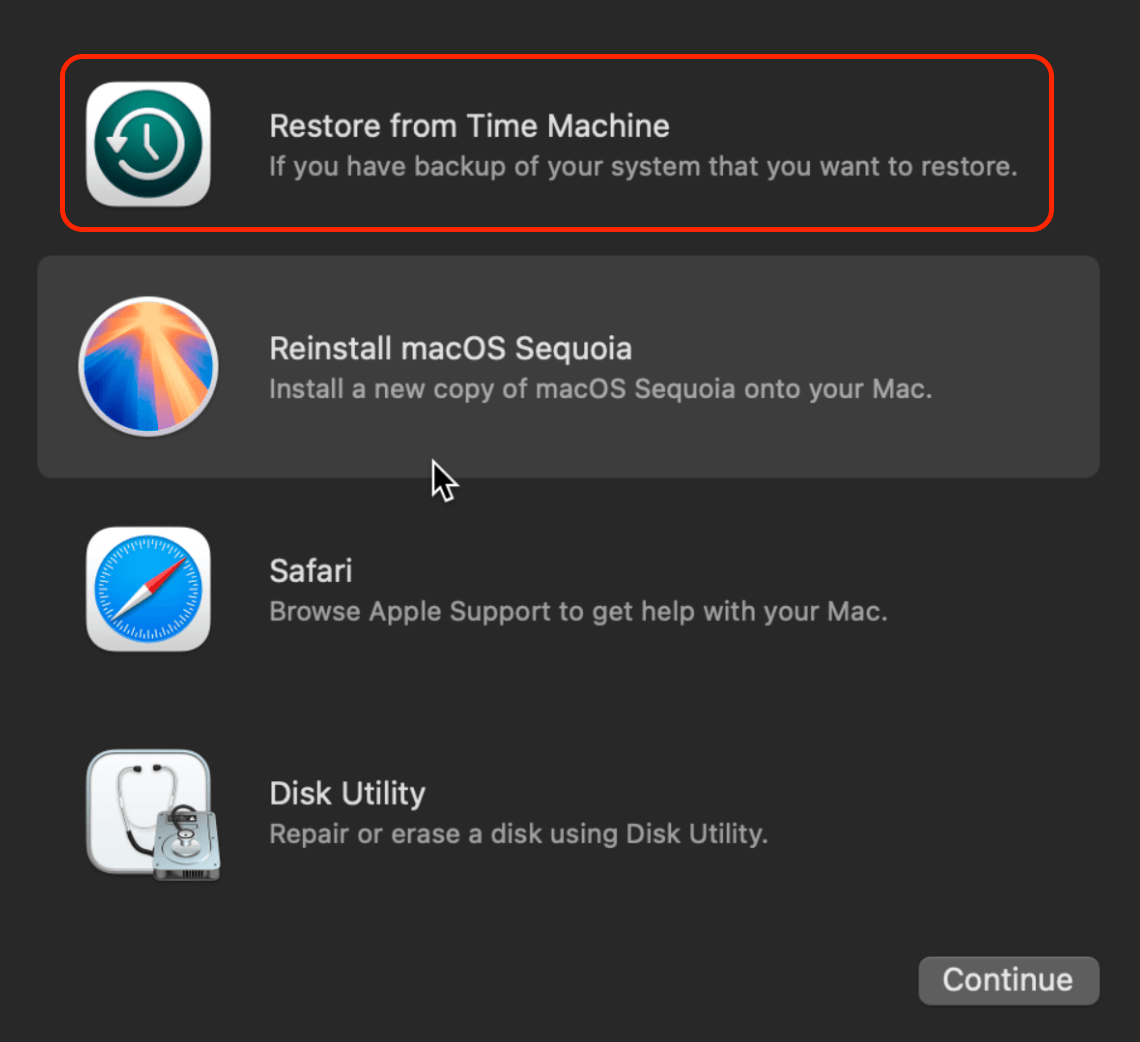
Select Restore From Time Machine Backup in the utilities window.
Choose your backup disk and pick the latest Sequoia snapshot.
Confirm the destination disk and wait for the restore to finish.
Enter Recovery Mode and select Restore From Time Machine Backup
2. Revert to Sequoia using an APFS snapshot
When Tahoe creates an APFS snapshot before updating, you may be able to roll back directly without an external backup.
Use an APFS snapshot to revert by following these instructions:
Restart your Mac and enter Recovery Mode.
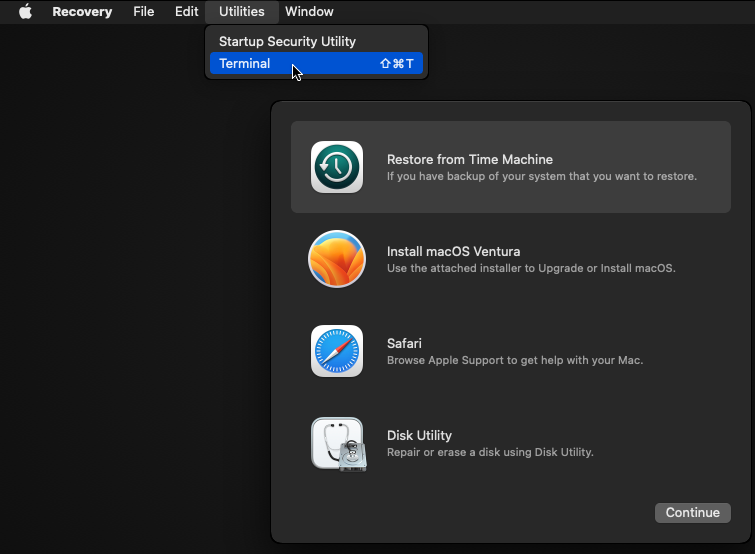
Open Terminal from the Utilities menu.
Type tmutil listlocalsnapshots / and press Return to view available snapshots.
Note the snapshot dated before the Tahoe upgrade.
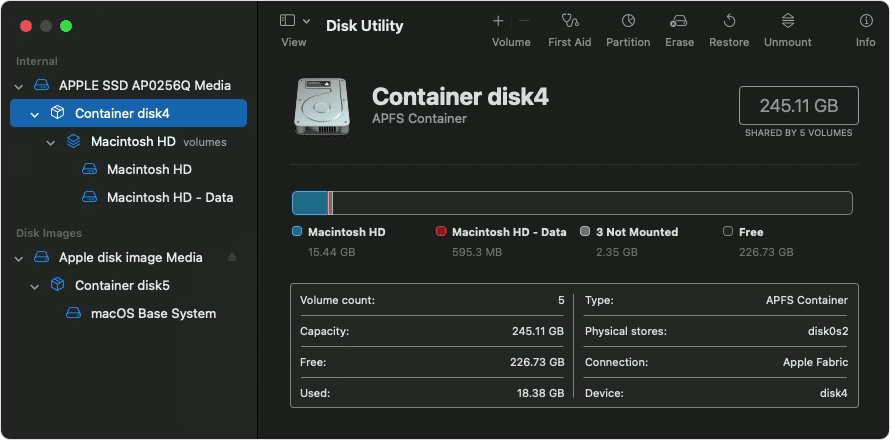
Use Disk Utility to restore the volume from that snapshot.
Reboot when the process finishes.
Step 1. Open Terminal from the Utilities menu in Recovery ModeStep 2. Use Disk Utility to restore the volume from the Sequoia snapshot
3. Reinstall macOS Sequoia via Internet Recovery (Intel Macs)
For Intel Macs that originally shipped with Sequoia or earlier, Internet Recovery can pull a clean Sequoia installer from Apple’s servers.
Reinstall macOS Sequoia using Internet Recovery with these steps:
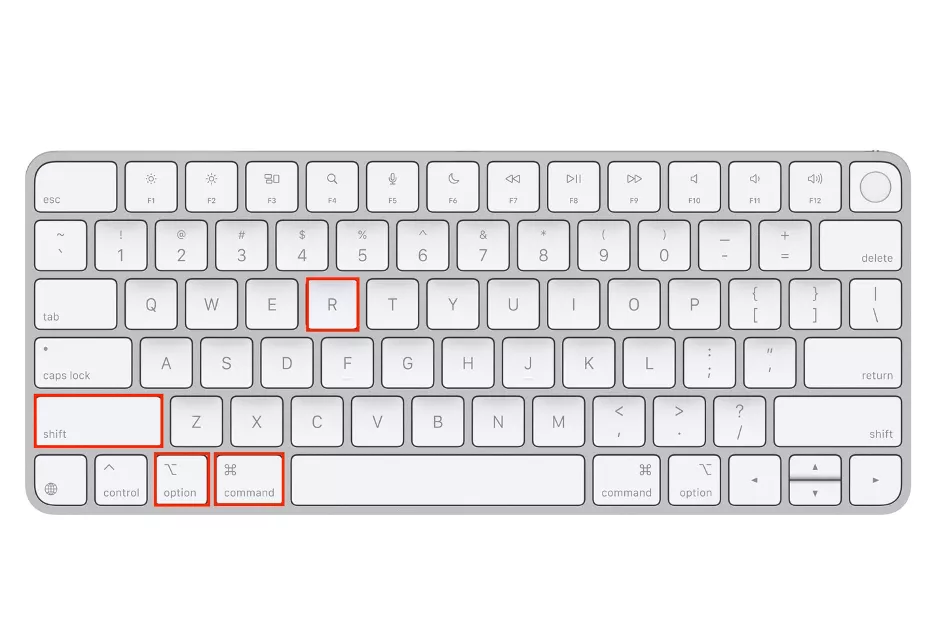
Restart your Intel Mac and immediately hold Shift + Option + Command + R.
Keep holding the keys until the spinning globe appears.
Connect to Wi-Fi when prompted.
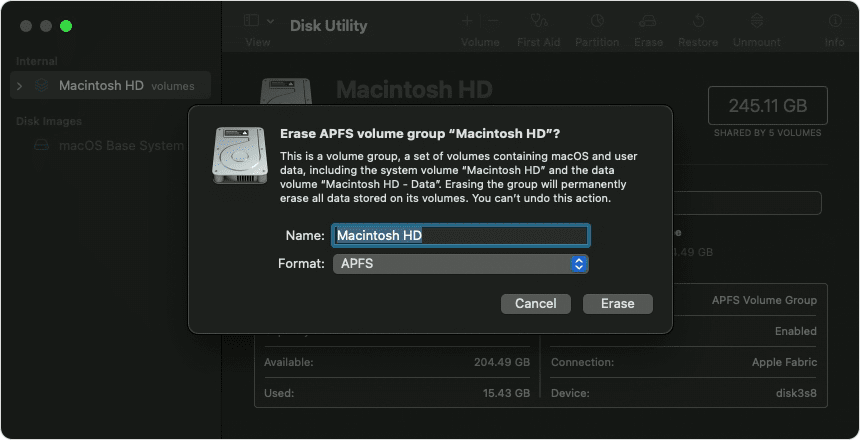
Choose Disk Utility and erase the startup disk using APFS.
Quit Disk Utility and select Reinstall macOS.
Follow the prompts to install Sequoia on the erased volume.
Step 1. Hold Shift + Option + Command + R until the spinning globe appearsStep 2. Erase the startup disk in Disk Utility and select Reinstall macOS
For the full walkthrough on rollback options across macOS versions, our guide on how to downgrade macOS covers each path in detail.
4. Downgrade to Sequoia using bootable USB installer
A bootable USB installer is the most reliable rollback path if Internet Recovery isn’t available or your backup isn’t usable. Based on our experience, this method works on both Intel and Apple silicon Macs, though preparation takes longer than the other options.
Downgrade to Sequoia using a bootable USB installer with these steps:
Connect a USB drive of at least 16 GB to a Mac running Sequoia.
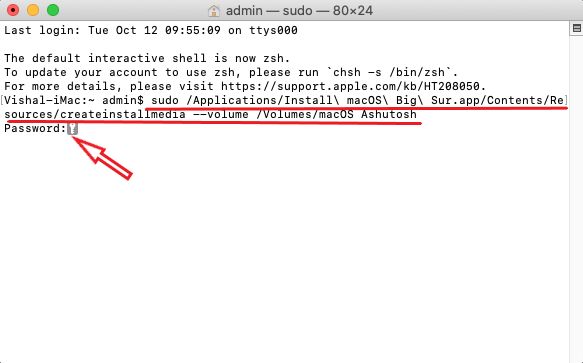
Open Terminal and run the createinstallmedia command for Sequoia.
Wait until Terminal reports the installer is ready.
Plug the USB into the Mac running Tahoe and restart it.
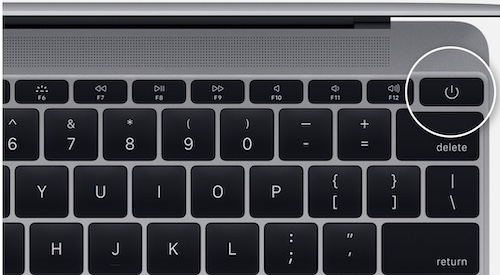
Hold Option (Intel) or the Powerbutton (Apple silicon) at boot to open the startup picker.
Select the USB installer and follow the on-screen prompts to install Sequoia.
Step 1. Run the createinstallmedia command in Terminal to prepare the USBStep 2. Hold Option or the Power button at boot to choose the USB installer
Comparing downgrade methods: what to consider
Choosing between methods comes down to what you’ve already prepared and what your Mac supports. From our experience, the trade-offs usually fall into these areas:
Speed. APFS snapshots and Time Machine restores typically finish in under an hour, while USB installs can take two or more.
Data preservation. Time Machine and snapshots restore files and settings, while clean installs from USB or Internet Recovery wipe the disk.
Hardware compatibility. Internet Recovery on Apple silicon won’t give you Sequoia, so USB or Time Machine is the right call for those Macs.
Final thoughts on downgrading from macOS Tahoe to Sequoia
Switching from macOS Sequoia to Tahoe and back again is more common than Apple’s official path suggests, and the right method depends on what you’ve prepared. Before any version change, a clean system improves your odds of a smooth result. MacKeeper, trusted by millions of users, includes Safe Cleanup to remove junk files, caches, and duplicates that quietly slow your Mac.
We respect your privacy and
use cookies
for the best site experience.
Privacy Preferences Center
We use cookies along with other tools to give you the best possible experience while using the
MacKeeper website. Cookies are small text files that help the website load faster. The cookies we
use don’t contain any type of personal data meaning they never store information such as your
location, email address, or IP address.
Help us improve how you interact with our website by accepting the use of cookies. You can change
your privacy settings whenever you like.
Manage consent
All cookies
These cookies are strictly necessary for enabling basic website functionality (including page
navigation, form submission, language detection, post commenting), downloading and purchasing
software. The website might malfunction without these cookies.