Is your storage filling up faster than you can manage it? MacKeeper’s Safe Cleanup is the best disk utility for Mac when you want a quick, one-click way to empty trash and clear out junk files like caches and logs—without touching your personal files. Free up space and enjoy faster performance today.
Picking the right tool feels overwhelming when every app promises something different. The good news? A few key factors make the choice much clearer, whether you’re on an older platform or a brand-new Mac with a fast, solid-state hard drive.
Before you settle on any app, we suggest you to check how to use Disk Utility, a Mac’s built-in app, and get which capabilities actually matter for your needs. Then, learn what to look for in the third-party disk utility tool:
File system support—make sure the tool works with both APFS and HFS+, so it covers modern and older drives.
External drive compatibility—a good utility manages your internal disk and any external storage you connect.
Repair features—look for First Aid-style checks that find and fix common disk issues, effectively preventing them from spreading.
Cleanup tools—the app should clear junk files and free up storage space without removing what you need.
Data recovery—some tools help you recover deleted files from a damaged or formatted drive.
S.M.A.R.T. monitoring—this feature lets you monitor drive health and spot early signs of trouble.
Ease of use—a clean, user-friendly layout matters if you’re not a technical person.
Pricing—compare free options against paid apps and check what each plan includes.
macOS compatibility—confirm the software is supported on your version of macOS.
A note from our experts:
Recognizing the importance of the criteria outlined below, we’ve built our solution to help you achieve Mac’s optimal performance across all levels. Though MacKeeper isn’t just about cleaning, one of the key features we’ve developed under the hood is freeing up the Mac’s disk space. You can do it quickly and easily with MacKeeper’s Safe Cleanup:
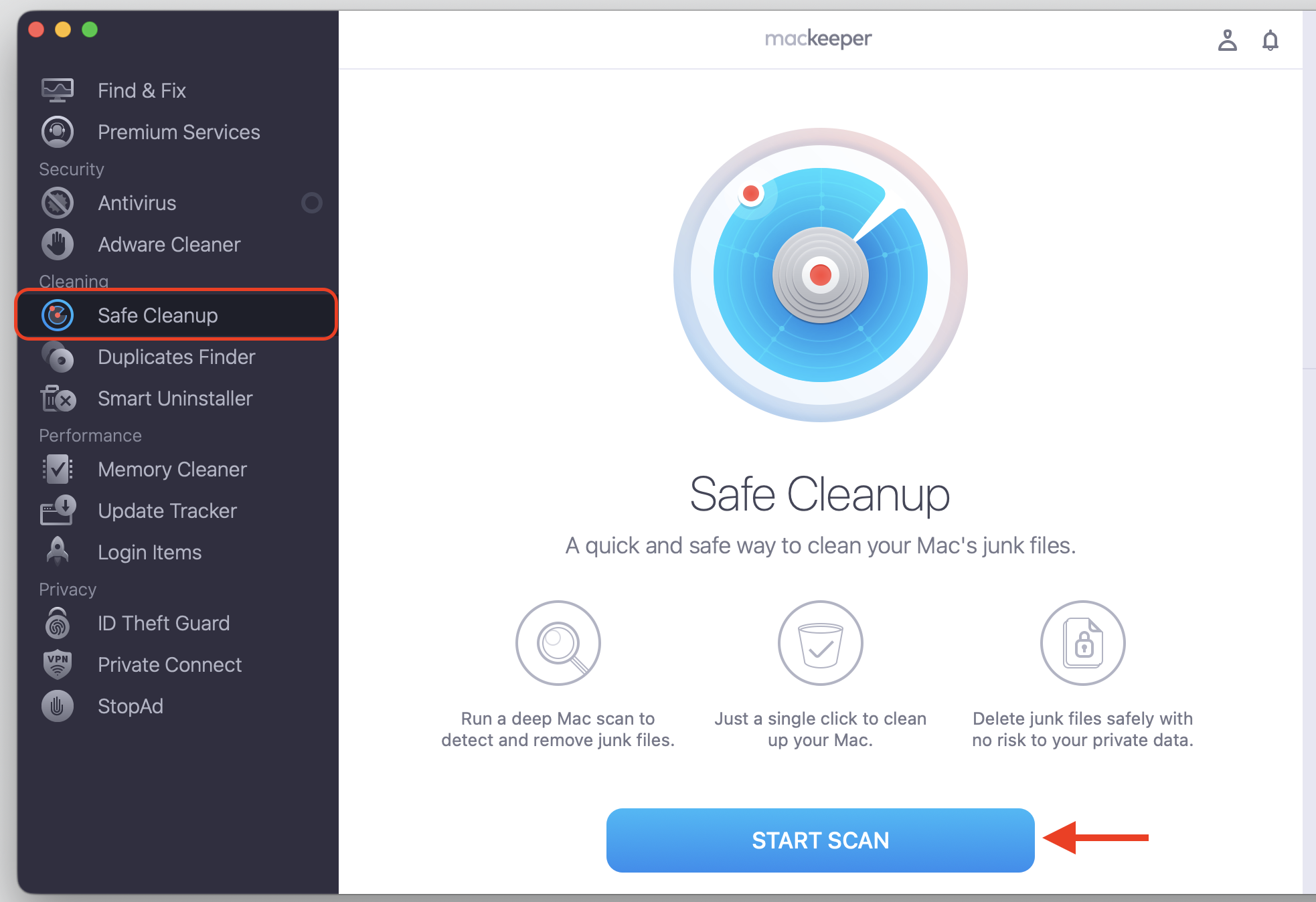
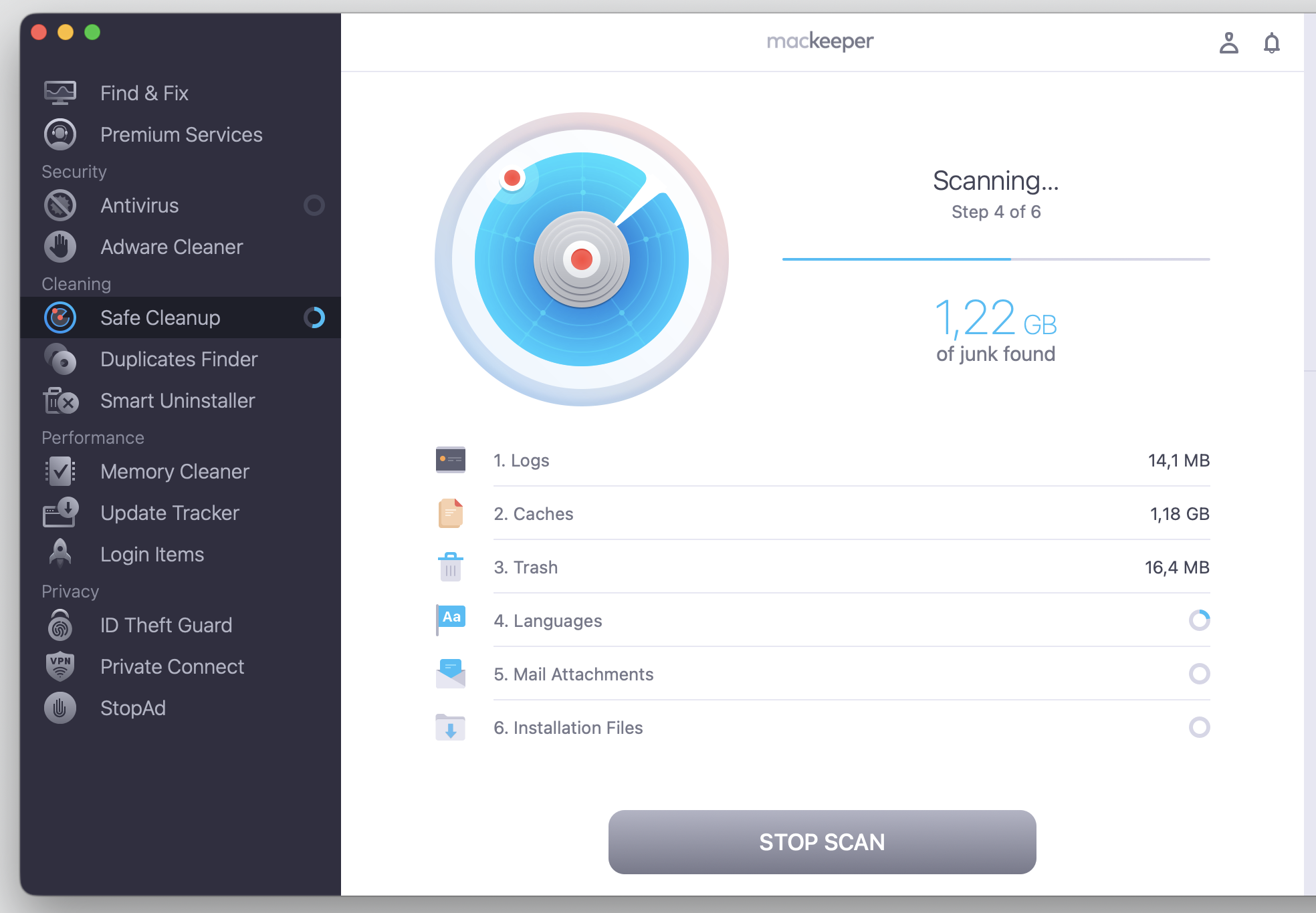
Select the Safe Cleanup feature, then click Start Scan.
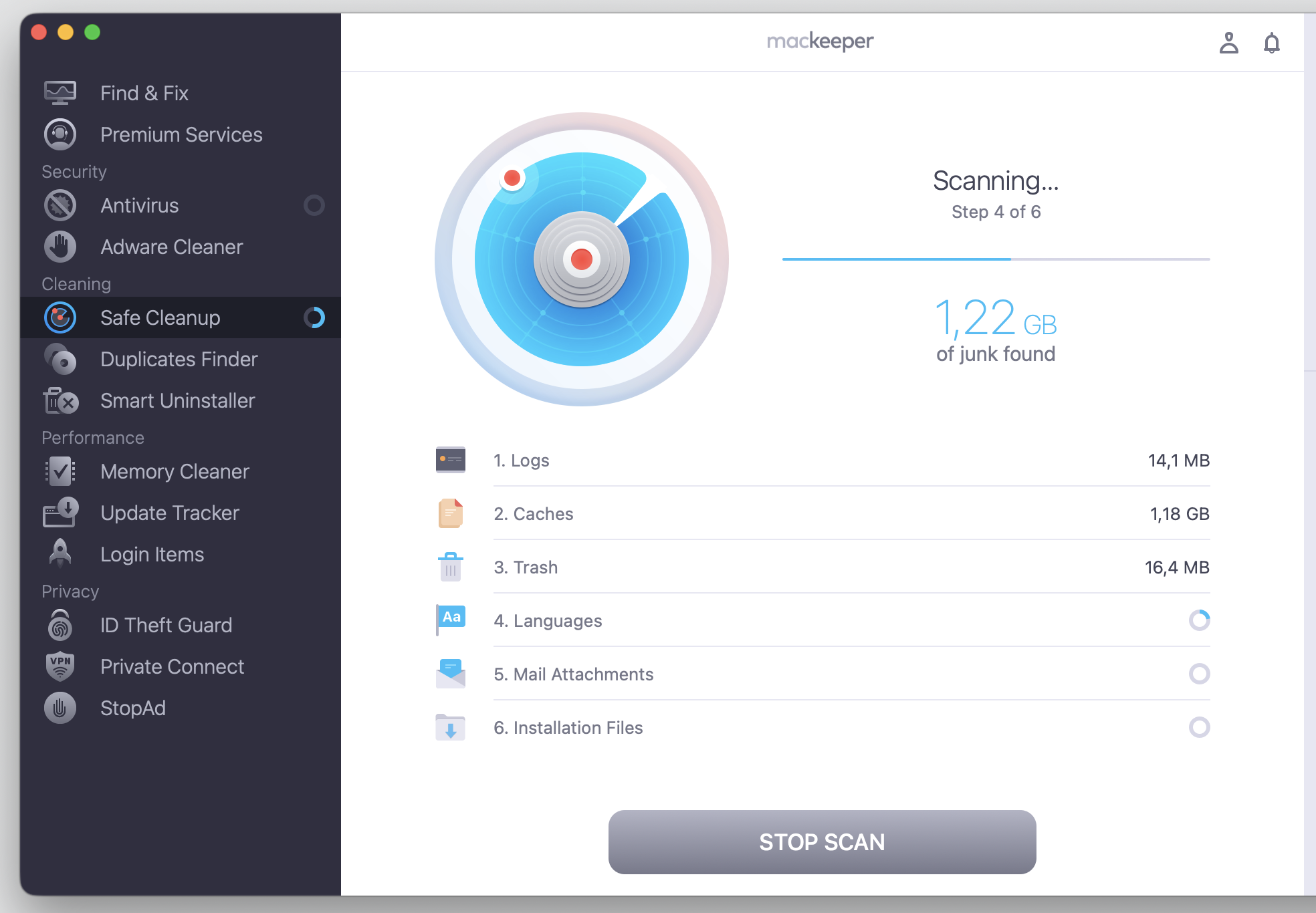
Wait for MacKeeper to complete its scan.
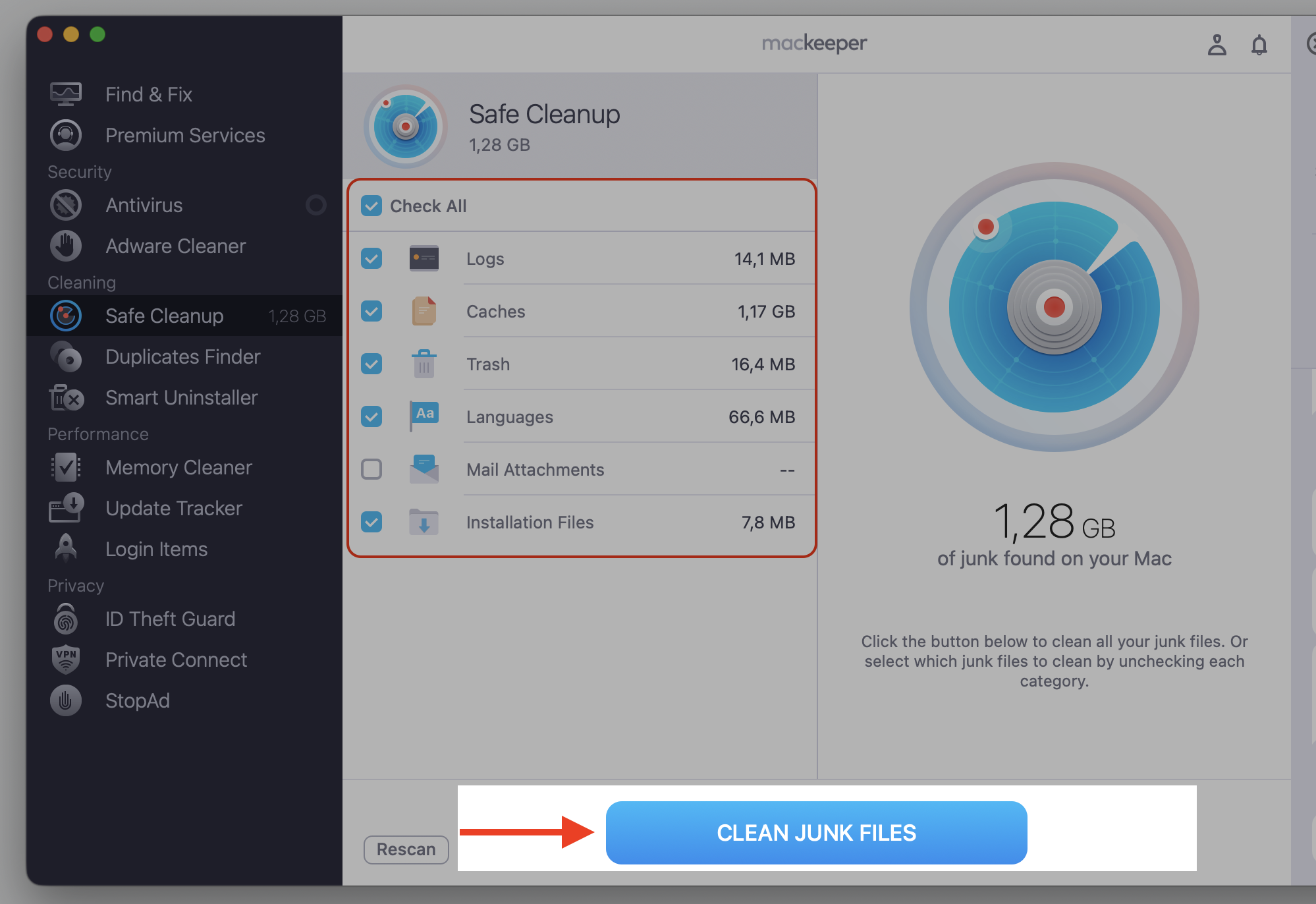
Select the desired boxes, then confirm deletion of the redundant files using the Clean Junk Files button.
Step 1. Go to MacKeeper > Safe Cleanup and click Start ScanStep 2. Wait until the scan is finishedStep 3. Check all the desired boxes and proceed with Clean Junk Files
Best disk tools for Mac
Each tool below covers its main purpose, key features, advantages, limitations, pricing model, and the type of user it suits best. There’s no single winner, since one option may be a better disk utility for Mac than another depending on your situation—so match the app to your needs instead of guessing.
To ease up your choice, our team has prepared the helpful comparison table for you—check it out.
Tool
Best for
Pricing
Apple Disk Utility
Basic drive management
Free, built-in
MacKeeper
Cleanup and everyday optimization
Subscription
Carbon Copy Cloner
Cloning and bootable backups
Paid, free trial
Disk Drill
File recovery
Free + paid
DriveDx
Drive health monitoring
Paid, free trial
R-Studio for Mac
Advanced data and RAID recovery
Paid
Drive Genius
Diagnostics and hardware testing
Paid
DiskWarrior
Older HFS+ repair
Paid
TestDisk
Partition recovery
Free
Blackmagic Disk Speed Test
Drive speed testing
Free
1. Built-in disk management: Apple Disk Utility
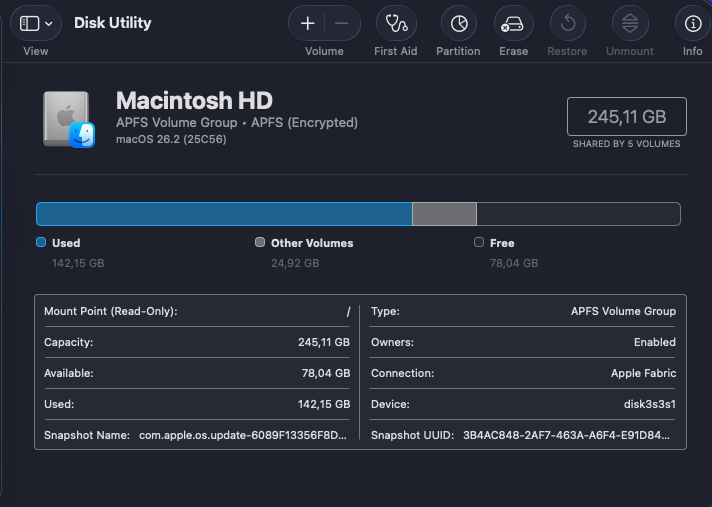
Disk Utility is the default macOS tool, and it’s already on your Mac. It handles basic drive management—formatting, partitioning, creating disk images, and running First Aid checks for simple repairs. For disk repair on a Mac, we see it as the natural first stop.
Advantages—free, always available, and simple to open from the Utilities folder.
Limitations—it won’t deep-clean junk files, recover lost data, or monitor long-term drive health.
Best for—anyone who needs everyday formatting, partitioning, or a quick First Aid check.
2. Mac cleanup and everyday optimization: MacKeeper
MacKeeper is a broader maintenance app for people who want several tools in one place. Instead of juggling apps, you can clean MacBook storage, remove duplicates, manage apps, and optimize memory under one clean interface.
Its Safe Cleanup feature clears junk files and frees up storage space, while Duplicates Finder removes similar file copies and keeps your originals. That combination makes it a practical pick for general performance support.
Advantages—user-friendly, all-in-one, and safe with your personal files.
Limitations—it’s a subscription, and some components are sold separately.
Best for—users who want cleanup and everyday optimization without technical setup.
3. Disk cloning and bootable backups: Carbon Copy Cloner
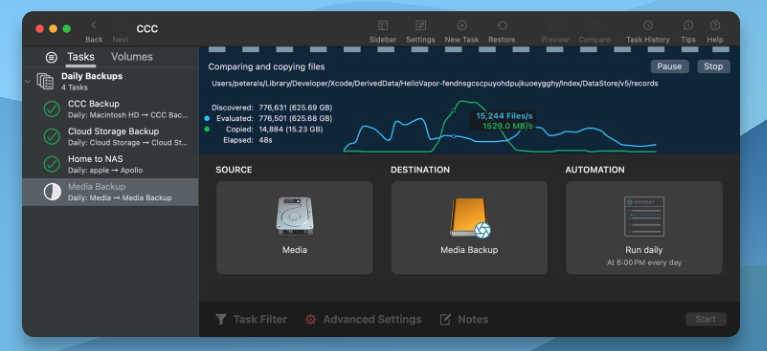
Carbon Copy Cloner is a dedicated cloning and backup utility. It creates byte-to-byte bootable clones, system snapshots, and automated backup schedules, which is exactly what you want before a repair or a drive upgrade. When you need to clone Mac hard drive safely, this is the tool to reach for.
Advantages—reliable bootable clones and flexible, scheduled backups.
Limitations—it focuses on backups, so it won’t clean or recover deleted files.
Best for—users who want a safe backup before repairs or a new drive.
4. File recovery: Disk Drill
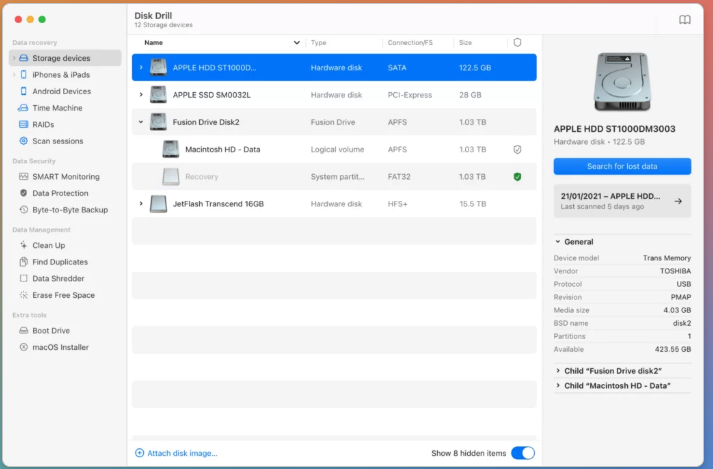
Disk Drill focuses on data recovery. It can recover deleted files, scan damaged drives, create disk images, and monitor disk health, which makes it handy after an accidental deletion. If you need to dig deeper, our Disk Drill review walks through its recovery capabilities.
Advantages—effective recovery options and a free tier to scan first.
Limitations—full recovery features require a paid version.
Best for—anyone trying to recover lost files or check a failing drive.
5. Drive health monitoring: DriveDx
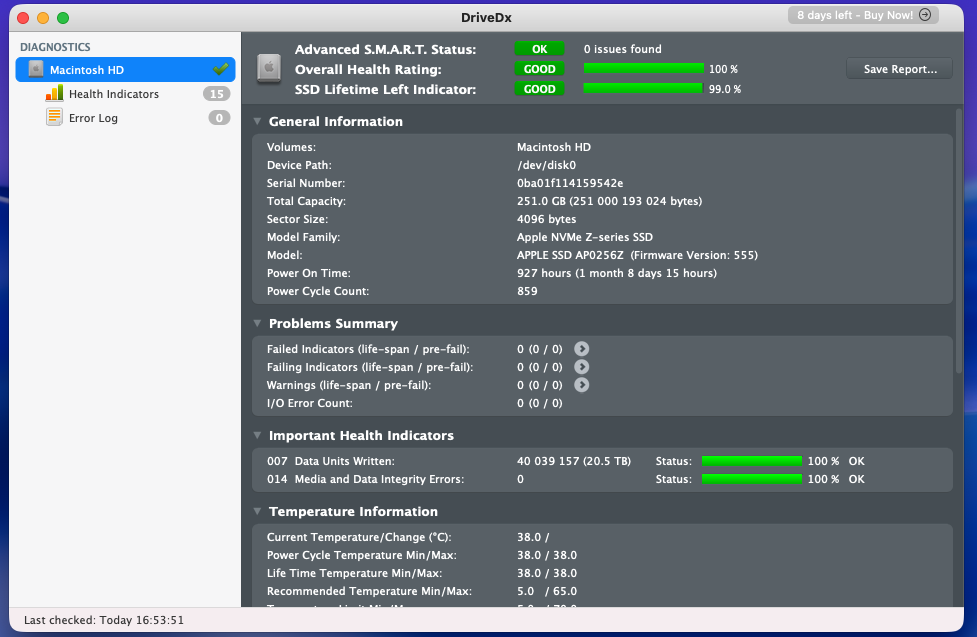
DriveDx is a monitoring utility that tracks S.M.A.R.T. data, drive condition, SSD usage, and wear. It watches for early signs of disk failure and alerts you before a small issue turns into lost data, so you can plan improvements ahead of time.
Advantages—detailed health information and clear status reports.
Limitations—it monitors rather than cleans or repairs.
Best for—users who want to keep an eye on long-term drive health.
6. Advanced data and RAID recovery: R-Studio for Mac
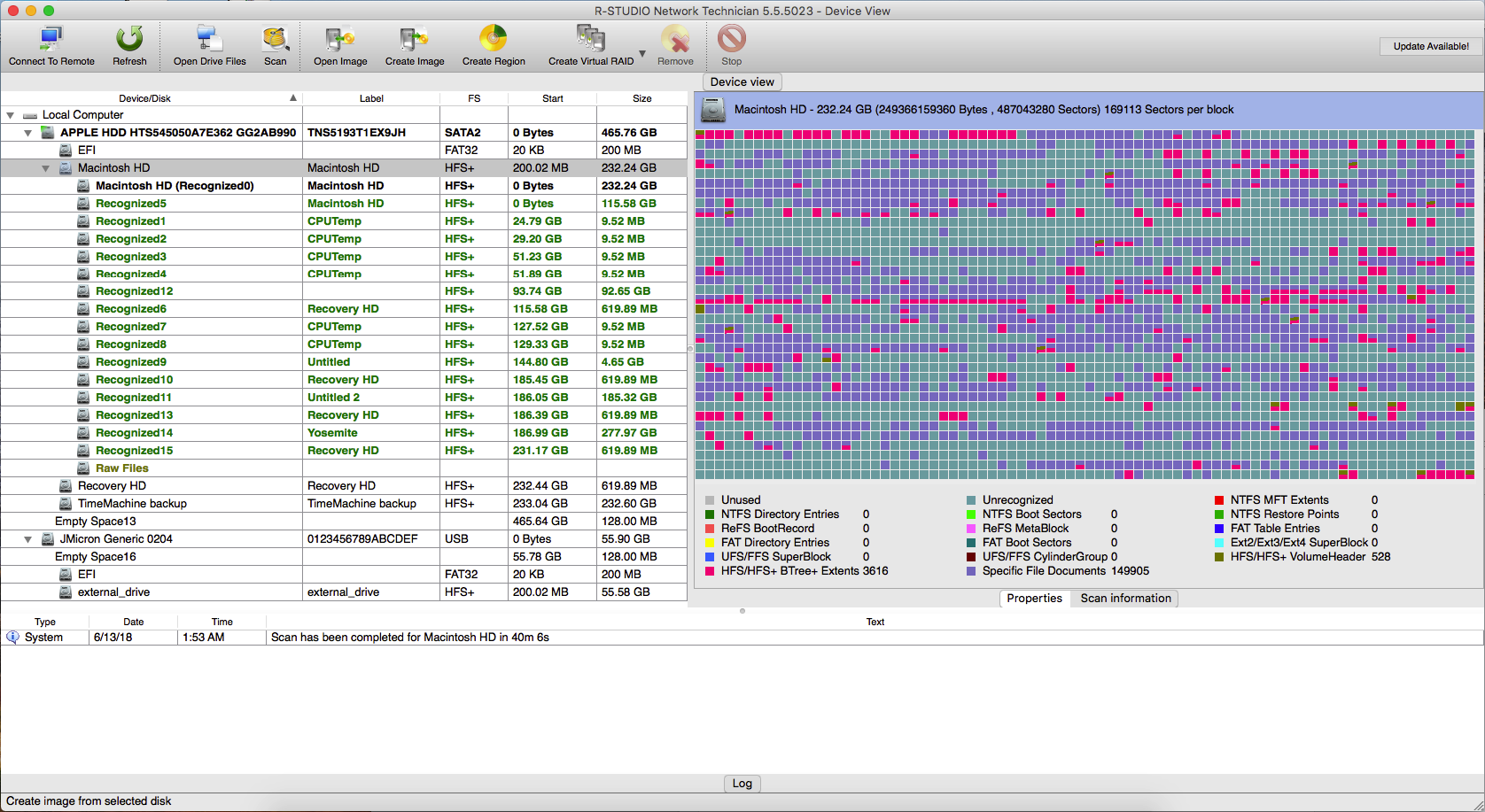
R-Studio is a professional-grade recovery and disk imaging utility built for complex data loss. It handles corrupted partitions, damaged RAID arrays, and deep sector inspection, giving you control when simpler tools fall short.
Advantages—powerful recovery for tough scenarios, including RAID.
Limitations—the depth of options makes it more technical than most users need.
Best for—advanced users facing serious or RAID-related data loss.
7. Drive diagnostics and hardware testing: Drive Genius
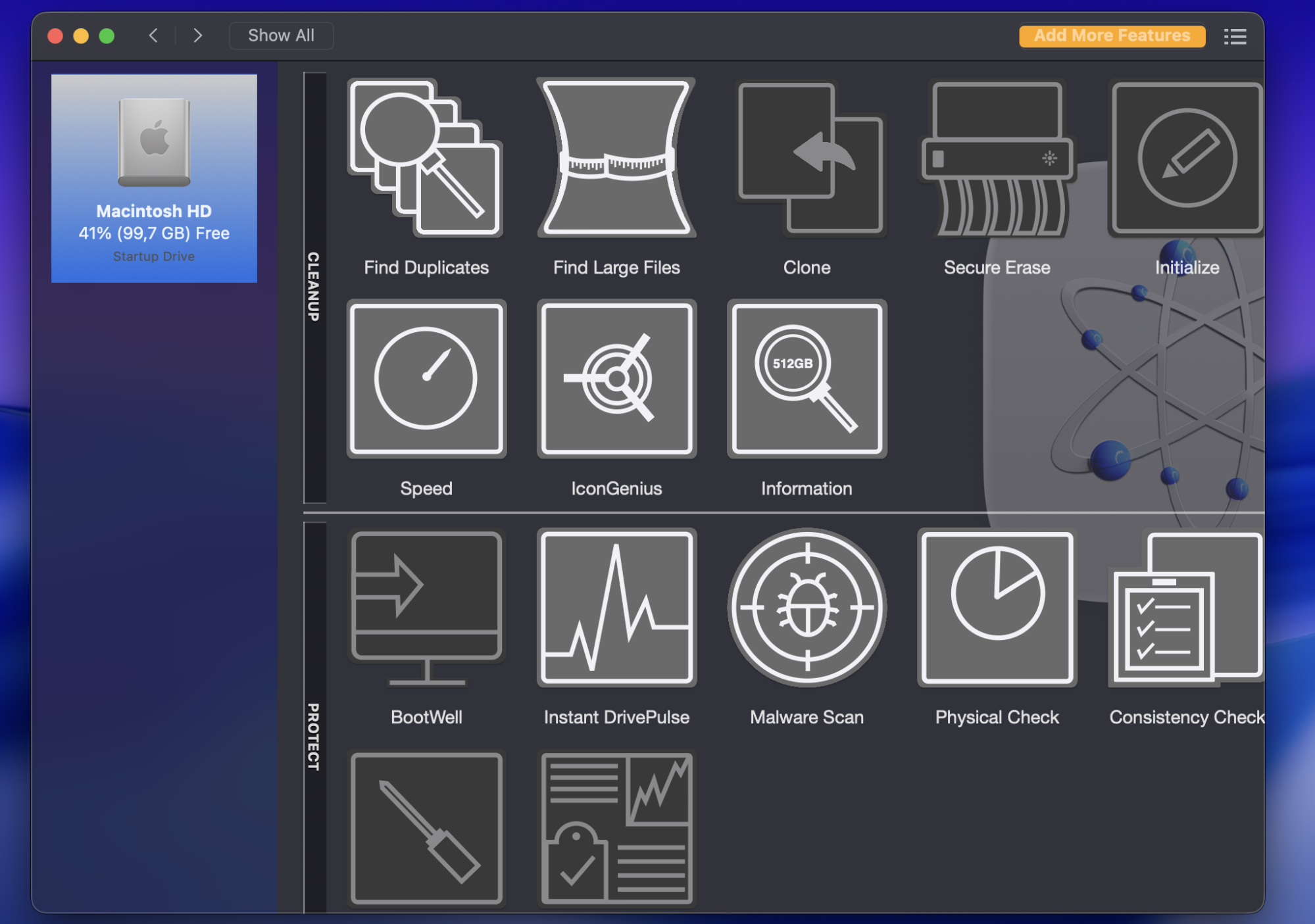
Drive Genius is a comprehensive disk utility for diagnostics. To our eyes, its DrivePulse feature runs in the background to check health of hard drive, flag hardware or connection issues, scan disk surfaces, and manage partitions.
Advantages—wide range of diagnostics with helpful background monitoring and scan customization.
Limitations—it’s a paid app, and some tools assume a bit of know-how.
Best for—Macintosh users who want ongoing diagnostics and hardware checks.
8. Older HFS+ directory repair: DiskWarrior
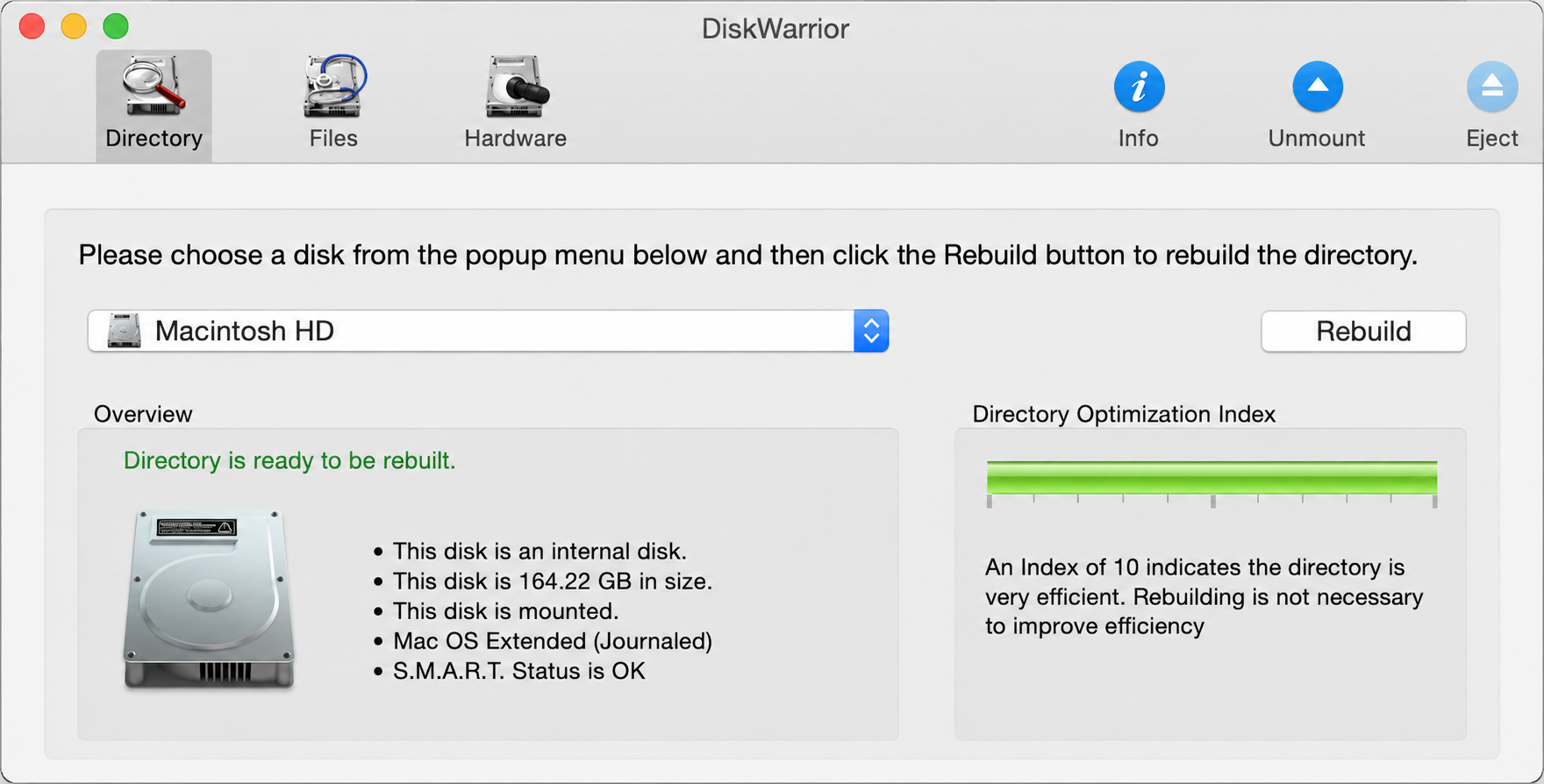
DiskWarrior is a specialized repair tool that rebuilds directory structures on older Mac drives. In our opinion, it shines when an HFS+ disk’s directory gets damaged. Just check compatibility first, since support for modern APFS-based Macs is limited.
Advantages—strong directory repair for older drives.
Limitations—limited APFS support on newer Macs.
Best for—owners of older Macs with HFS+ directory issues.
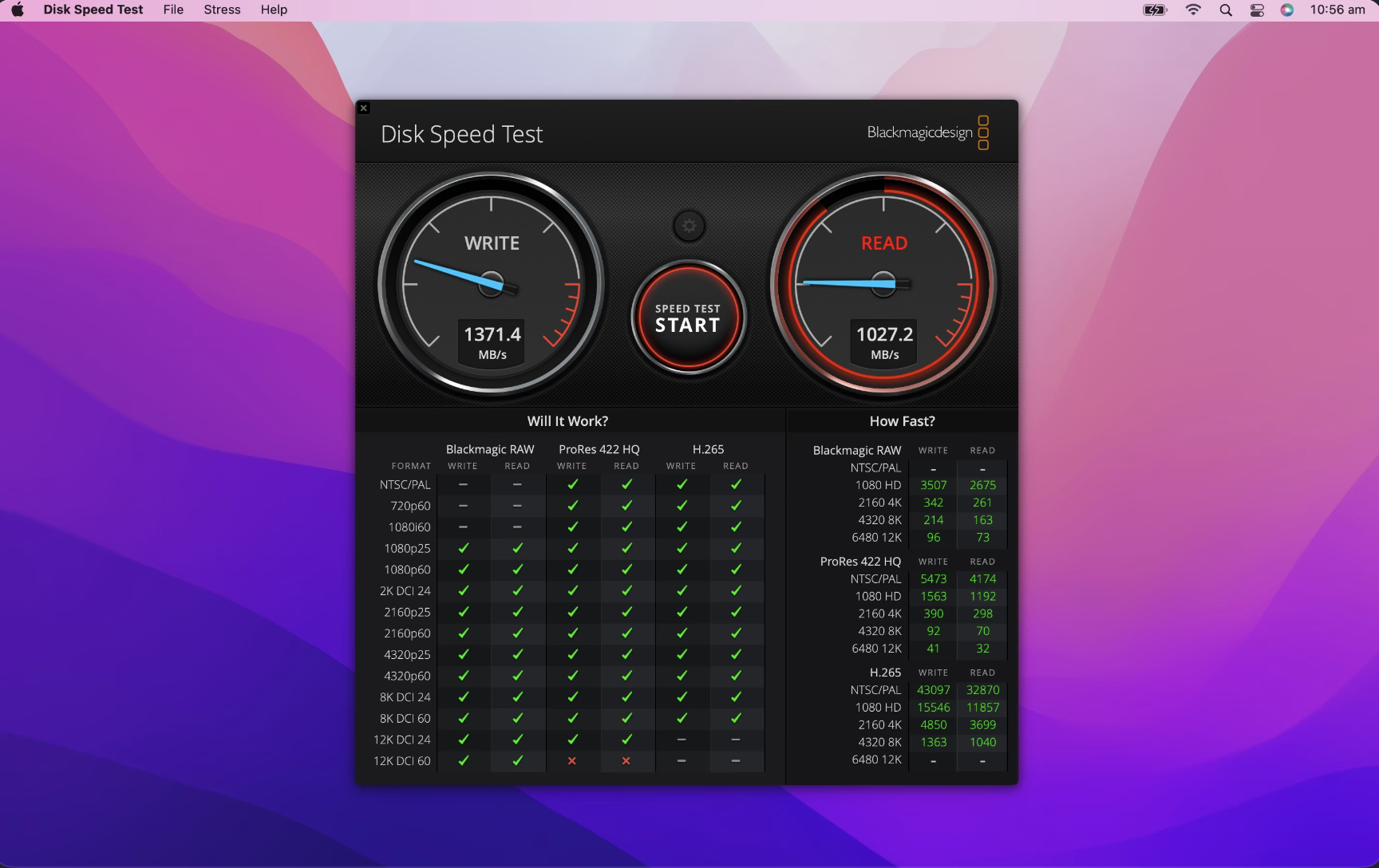
9. Drive speed testing: Blackmagic Disk Speed Test
Blackmagic Disk Speed Test is a simple benchmarking tool that checks read and write speeds. We consider it especially useful for video work and external drives, and it pairs well with a broader performance test when you want a full picture of how your Mac is running.
Advantages—free, fast, and easy to read.
Limitations—it only measures speed; it won’t clean or repair anything.
Best for—video editors and anyone checking storage performance.
Match the tool to your disk, and keep it clean
The best disk utility for Mac depends on your goal—drive management, cleanup, recovery, monitoring, or repair—so match the tool to the specific disk issue. If a cluttered, slow Mac is your real worry, MacKeeper’s Safe Cleanup clears junk files in one click and frees up space. Download it and start fresh today.
We respect your privacy and
use cookies
for the best site experience.
Privacy Preferences Center
We use cookies along with other tools to give you the best possible experience while using the
MacKeeper website. Cookies are small text files that help the website load faster. The cookies we
use don’t contain any type of personal data meaning they never store information such as your
location, email address, or IP address.
Help us improve how you interact with our website by accepting the use of cookies. You can change
your privacy settings whenever you like.
Manage consent
All cookies
These cookies are strictly necessary for enabling basic website functionality (including page
navigation, form submission, language detection, post commenting), downloading and purchasing
software. The website might malfunction without these cookies.