Is your Mac feeling sluggish, and you can’t tell why? Mac monitoring software tracks CPU, memory, and temperature so you can spot what’s draining your resources. MacKeeper’s Find & Fix scans your Mac and gathers these items in one clear place. Run a scan below and see what’s going on.
There’s plenty of macOS monitoring software out there, and picking one can feel overwhelming. The tools below cover different needs—from detailed system tracking to temperature control and broader optimization. Each one gives you a different way to check MacBook speed, detect what’s using your resources, and keep an eye on how your Mac behaves day to day.
Some are free, some are paid, and a couple doubles as cleanup helpers. Instead of poking around blind, we’ve prepared a quick comparison of the 5 best monitoring Mac software apps below for you:
Tool
Main focus
Price
iStat Menus
Detailed real-time system metrics
Paid
TG Pro
Temperature tracking and fan control
Paid
Sensei
Monitoring plus built-in cleanup
Paid
XRG
Essential metrics, lightweight
Free
iStatistica Pro
Widgets and remote monitoring
Paid
A note from our experts:
It’s often not easy to identify what’s wrong on your Mac that's causing slower performance. Knowing that, we’ve built MacKeeper’s Find & Fix to do this reason-solution transfer much faster for all MacBook users. Try it yourself today:
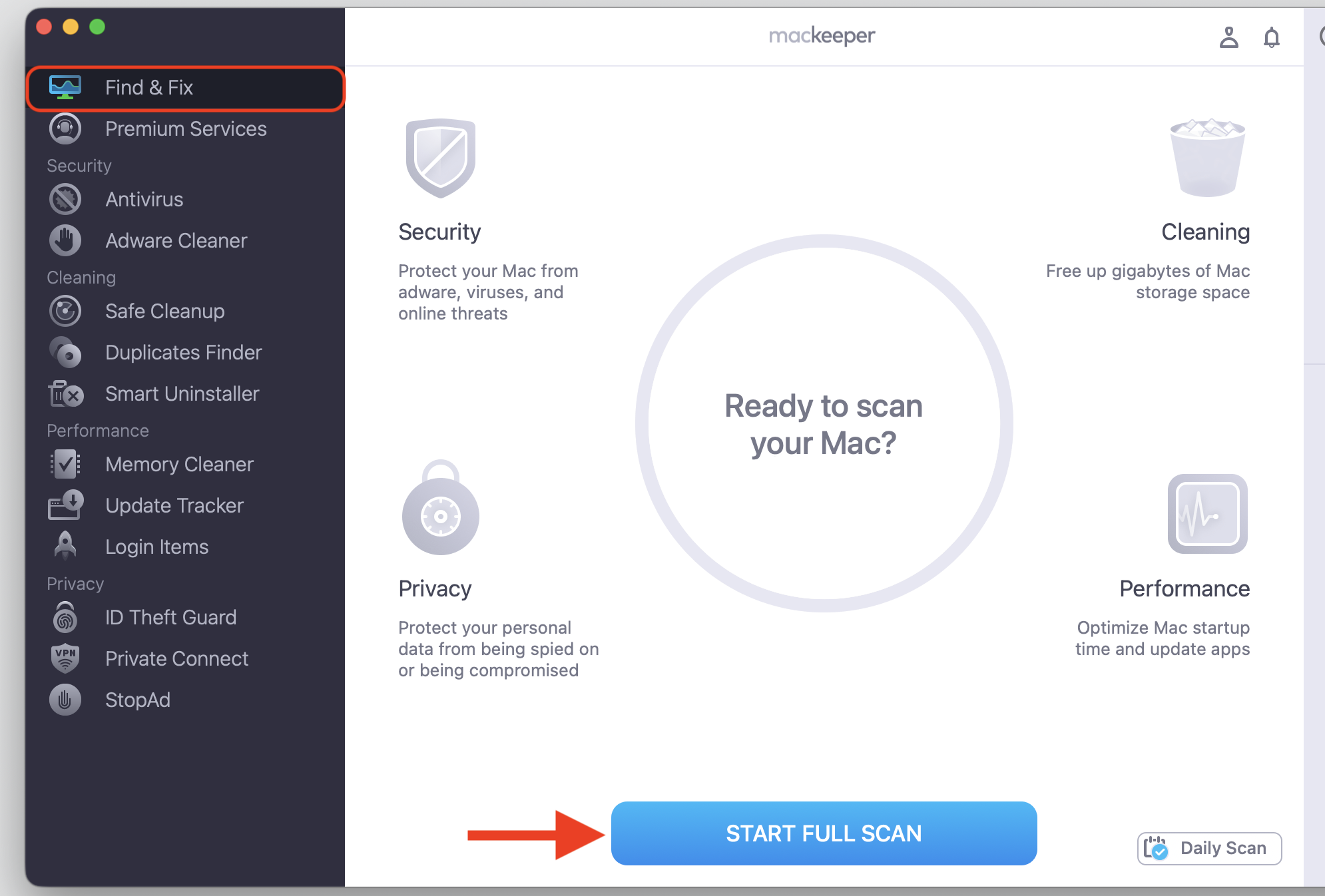
Choose the Find & Fix feature at the top of the list.
Initiate the quick check with Start Full Scan.
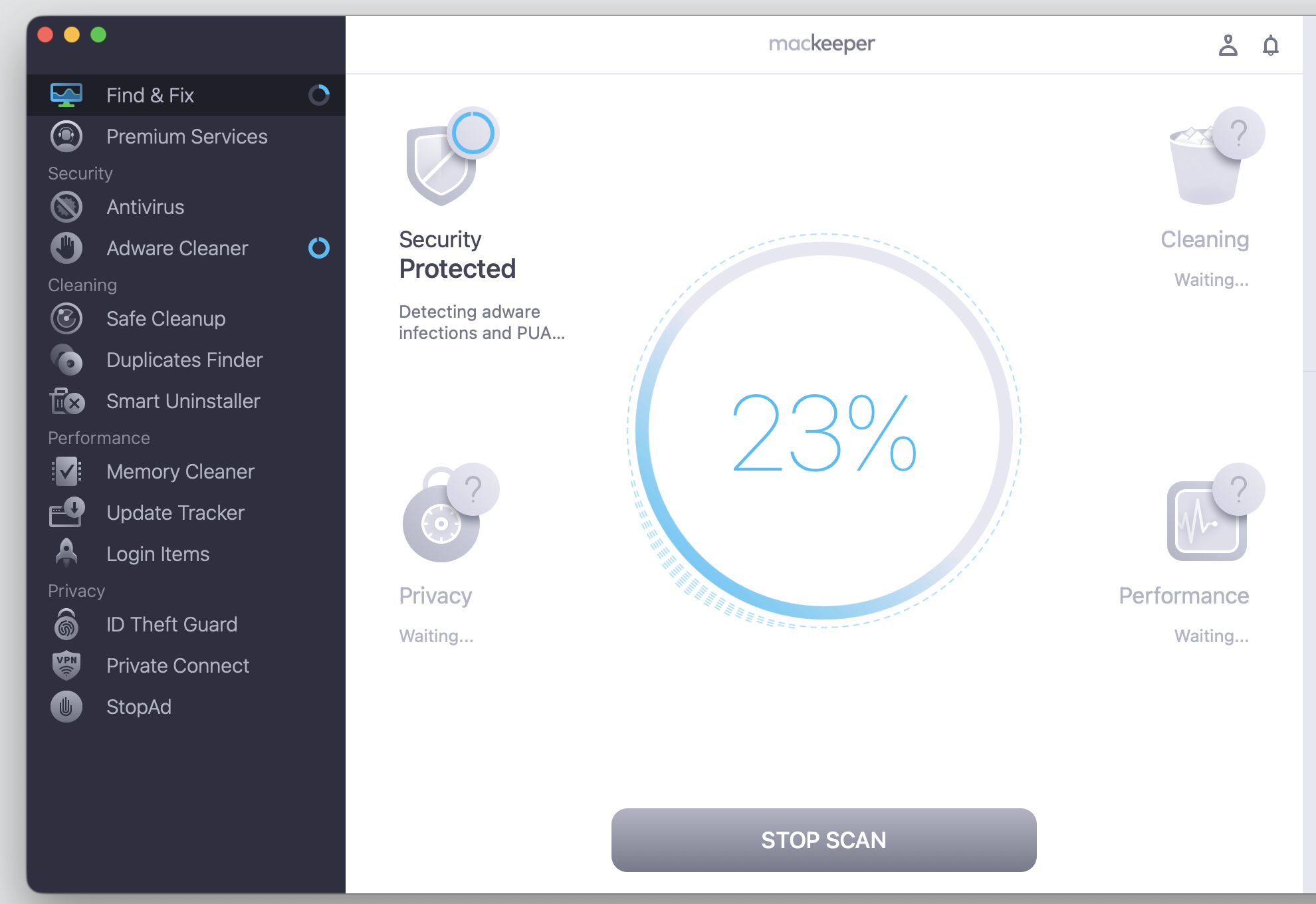
Wait until the app finishes its scanning job.
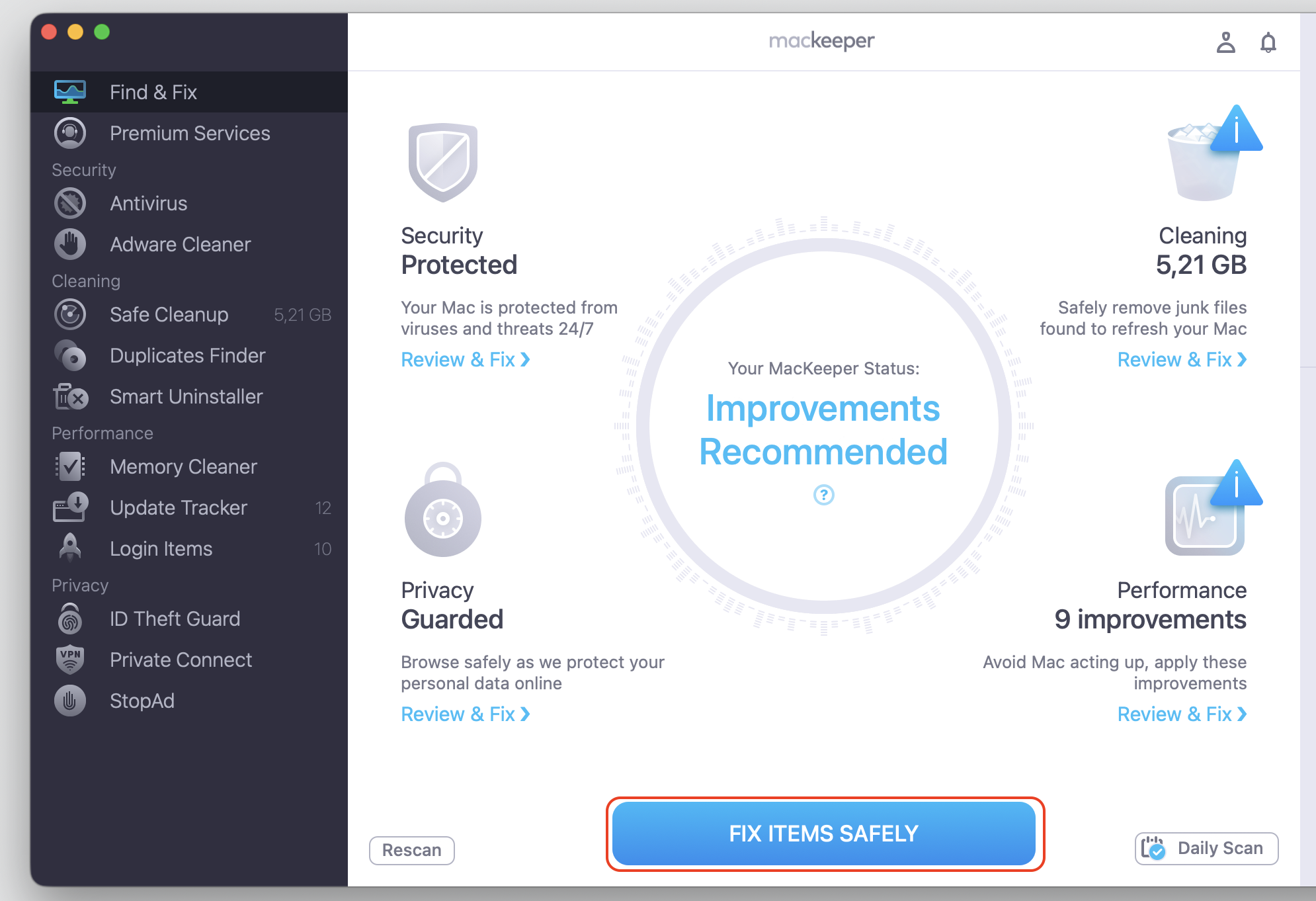
Review the results and click Fix Items Safely.
Step 1. Go to MacKeeper > Find & Fix > Start Full ScanStep 2. Wait for the MacKeeper scan to finishStep 3. Select Fix Items Safely
Now, let’s take a closer look at each monitoring software tool, starting with the tool that goes deepest.
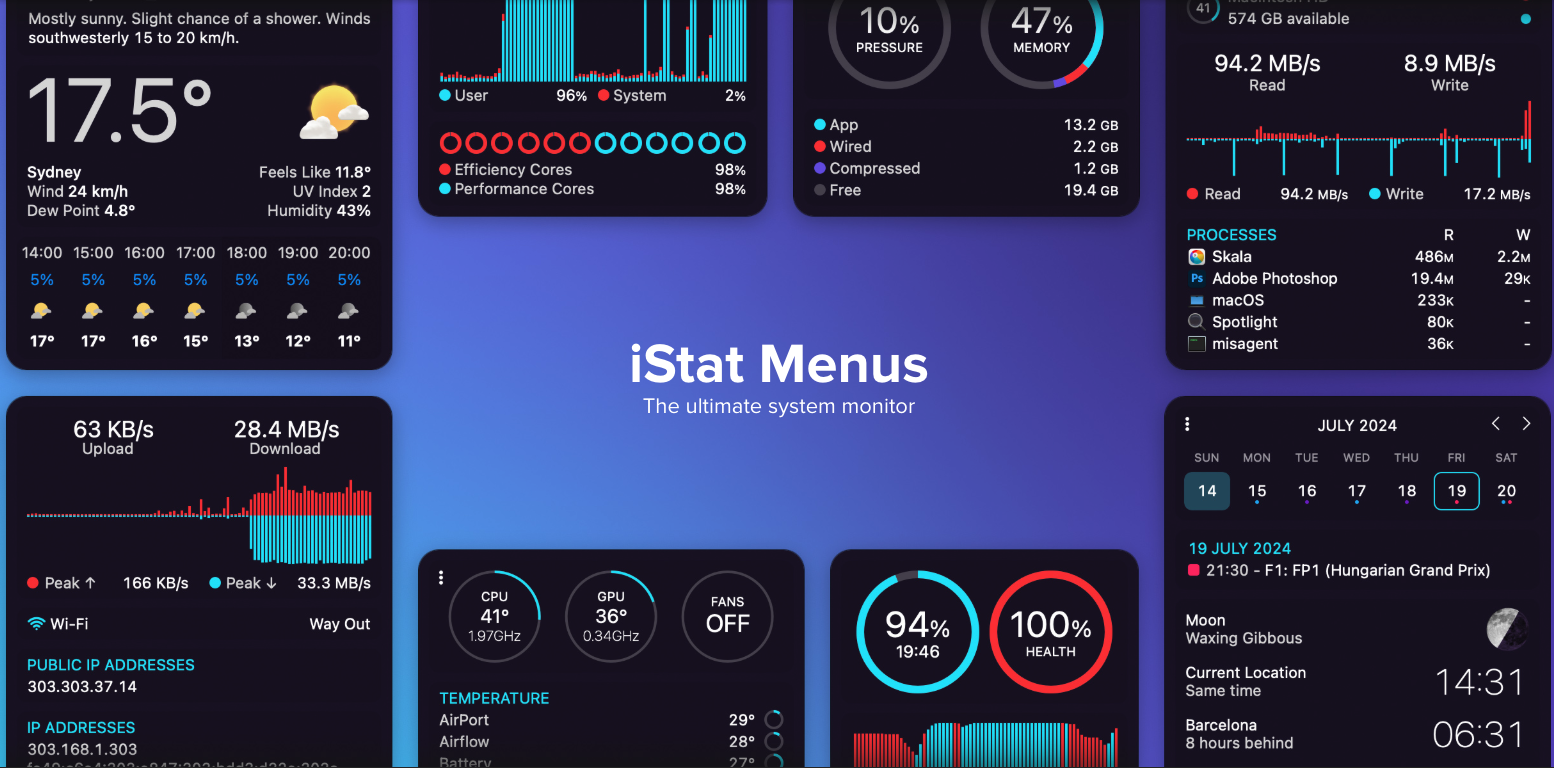
1. iStat Menus—a detailed monitoring tool for Mac
iStat Menus is a well-known Mac monitoring software option, and it’s the one I reach for when I want the full picture. It tucks into your menu bar and reports real-time data on your Mac's hardware and system performance. What keeps us coming back is the sheer breadth of it—pop open its dropdowns, and you can keep tabs on:
CPU load and the number of active processes
Memory pressure during heavy tasks
Disk and network activity as it happens
Battery health and charge cycles over time
Temperature from the sensors dotted around your Mac
Moreover, you can pare that display back to only the metrics you care about, which keeps things tidy. It even moonlights as a capable Mac temperature monitor that watches your hardware without slowing things down. It’s a paid app with a free trial, so you can take it for a spin first—just know there’s a lot to configure, and a casual user might find it more than they need.
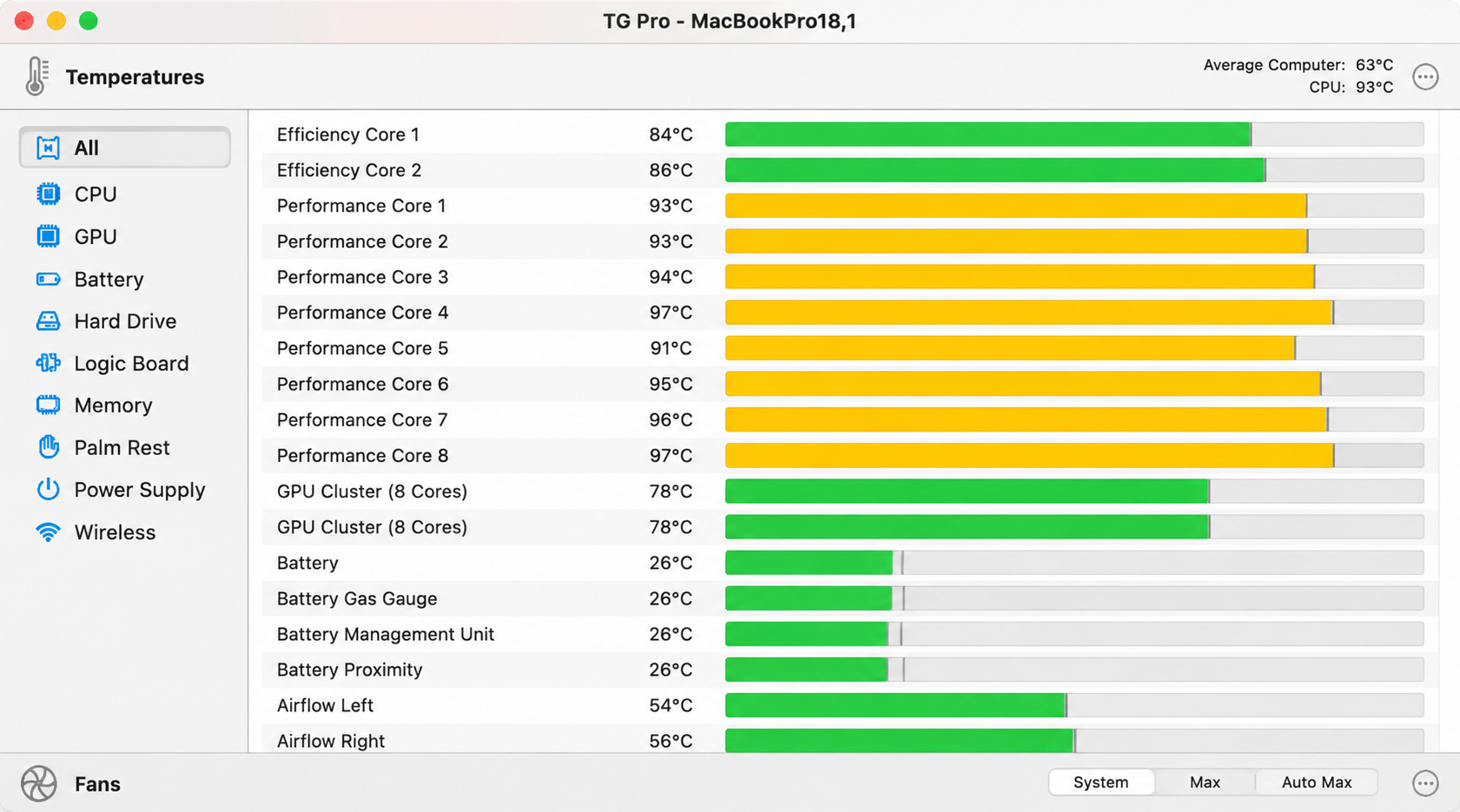
2. TG Pro for temperature monitoring and fan control
Does your Mac run hot? TG Pro was built for exactly that worry. It reads temperatures from every sensor inside your Mac and, unlike most tools, hands you manual control over the fans. That’s genuinely handy if you’ve noticed your Mac fan constantly running and want to pin down which component is to blame.
Besides, we’d like to mention that it’ll flag hot spots the moment they appear, which can help prevent MacBook overheating during heavy sessions like video editing or gaming. The catch is its narrow scope—thermal data is really all it does, and the manual fan settings can feel a touch intimidating at first. Even so, for anyone wrestling with heat or fan noise, it earns its keep, and a free trial lets you test the waters before the one-time purchase.
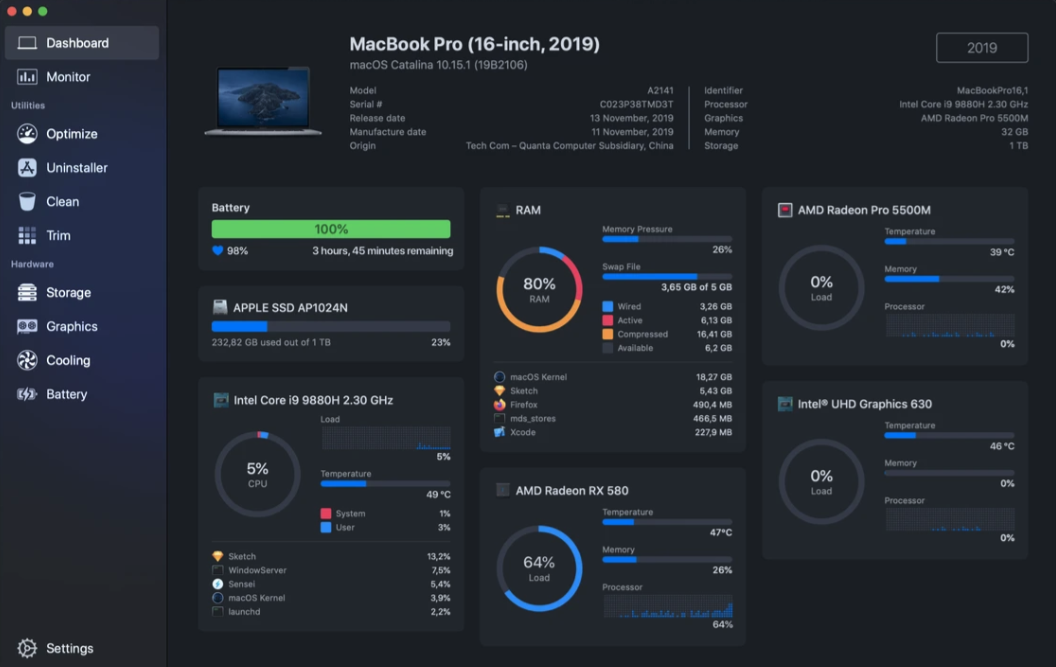
3. Sensei—monitoring with built-in optimization
Sensei stands out by refusing to pick a lane—it pairs live performance tracking with a full set of cleanup tools. Rather than juggling separate apps, you get several jobs handled inside one polished interface:
Live readouts for CPU, memory, and storage
System cleaning that clears out junk
App management for uninstalling cleanly
Hardware diagnostics for your drive and battery
We like being able to watch the numbers and tidy up in the same window. That makes it a comfy home base if you’d like to clean up Mac storage while keeping an eye on how things run. Fair warning—it won’t dig as deep as a dedicated monitor like iStat Menus, and a few of its cleanup features may double up with apps you already own. Sensei sells as either a one-time purchase or a subscription, so you can go with whichever suits your budget.
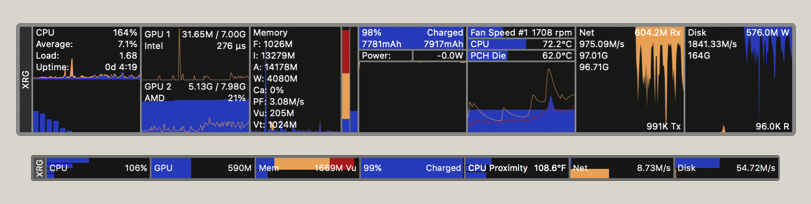
4. XRG as free monitoring software for Mac
Here’s one that won’t cost you a cent. XRG has been quietly doing its job for years, showing the essentials—CPU, memory, disk activity, and network usage—in a small floating window you can drop anywhere on screen. It’s a friendly first step if your Mac running slow has you wondering what’s going on underneath.
Now we’ll move to the flip side. The interface shows its age, and there’s limited detail and little in the way of alerts, so it won’t hold the hand of a nervous beginner. What it does have going for it is that it’s featherlight and free, which is tough to argue with. We often nudge curious friends toward it before they spend anything—once you know what you’re watching, stepping up to something richer is easy.
5. iStatistica Pro for widget-based and remote monitoring
iStatistica Pro is made for people who like their information glanceable. It drops your Mac’s statistics into tidy widgets on your desktop or in Notification Center, so you never have to open an app to see how things stand. Where it really shines in our expert opinion:
Checking CPU, memory, and temperature at a glance
Checking another Mac’s performance and hardware stats remotely
Building a compact dashboard of just the readouts you follow
From our experience, that remote trick is a small lifesaver when you look after more than one Macintosh at home or in the office. It carries a modest one-time price, and while it won’t replace a full diagnostics suite, its widget-first design makes day-to-day monitoring feel effortless.
Conclusion
So, which is the best monitoring software for Mac? Honestly, we consider that the answer comes down to what you need from it. In short, reach for iStat Menus when you want depth, TG Pro when heat is the story, Sensei when you’d like monitoring and tidying in one place, iStatistica Pro for at-a-glance and remote checks, and XRG when your budget is zero. There’s no wrong answer here—only the one that fits how you work.
And if you’d rather not fuss with setup at all, we suggest MacKeeper’s Find & Fix as the smart way to scan your Mac and clean junk, free memory, and find suspicious items in one clear view—a simple place to start your Mac monitoring job. Give it a try.
We respect your privacy and
use cookies
for the best site experience.
Privacy Preferences Center
We use cookies along with other tools to give you the best possible experience while using the
MacKeeper website. Cookies are small text files that help the website load faster. The cookies we
use don’t contain any type of personal data meaning they never store information such as your
location, email address, or IP address.
Help us improve how you interact with our website by accepting the use of cookies. You can change
your privacy settings whenever you like.
Manage consent
All cookies
These cookies are strictly necessary for enabling basic website functionality (including page
navigation, form submission, language detection, post commenting), downloading and purchasing
software. The website might malfunction without these cookies.