Playing Overwatch on Mac isn’t officially supported, but cloud gaming, compatibility layers, and virtual machines make it entirely possible, so you don’t need to abandon your favorite hero shooter just because you’re running macOS. If leftover files from broken app installs are eating into your disk space, MacKeeper’s Smart Uninstaller removes apps with all their hidden leftovers in one click, freeing up storage for your gaming setup.
The game doesn’t have a native Overwatch macOS version, but you can play it on a Mac using workarounds. We’ve noticed that the most reliable option is cloud gaming through GeForce NOW or Boosteroid, which streams the game without taxing local hardware. CrossOver and Whisky act as compatibility layers that translate Windows commands for macOS. Intel Mac owners can also use Boot Camp to run Windows natively and play Overwatch directly.
Is Overwatch available on Mac?
No, Blizzard has never released a macOS version of Overwatch. The original launched in 2016 for Windows and consoles only, and its free-to-play successor followed the same path in 2022. In February 2026, Blizzard dropped the “2” from the title and rebranded it simply as Overwatch, but this didn’t include Mac support. If you want to know how to play Steam games on Mac or other Windows-exclusive titles on your Apple laptop, you’ll need a workaround.
A note from our experts:
Before you install any gaming workaround, make sure your Mac has enough room. Old apps you’ve dragged to the Trash can leave behind caches, preferences, and support files that quietly consume gigabytes of storage. MacKeeper is a leading solution in Mac optimization and cybersecurity developed by Clario Tech, offering performance monitoring to keep your Mac running flawlessly.
To free up space with Smart Uninstaller:
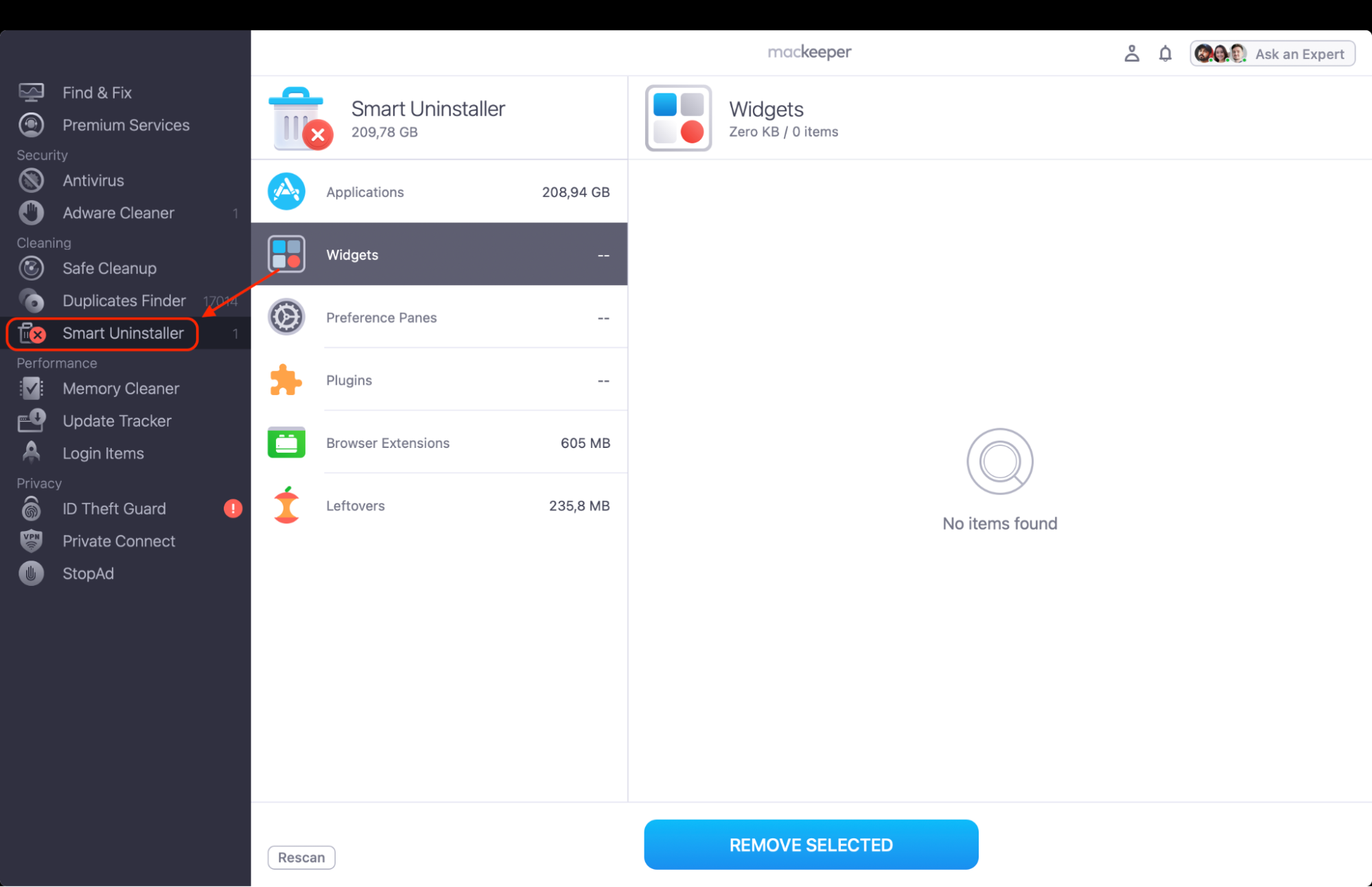
Download MacKeeper from the official website, open it, and navigate to Smart Uninstaller in the left-hand sidebar.
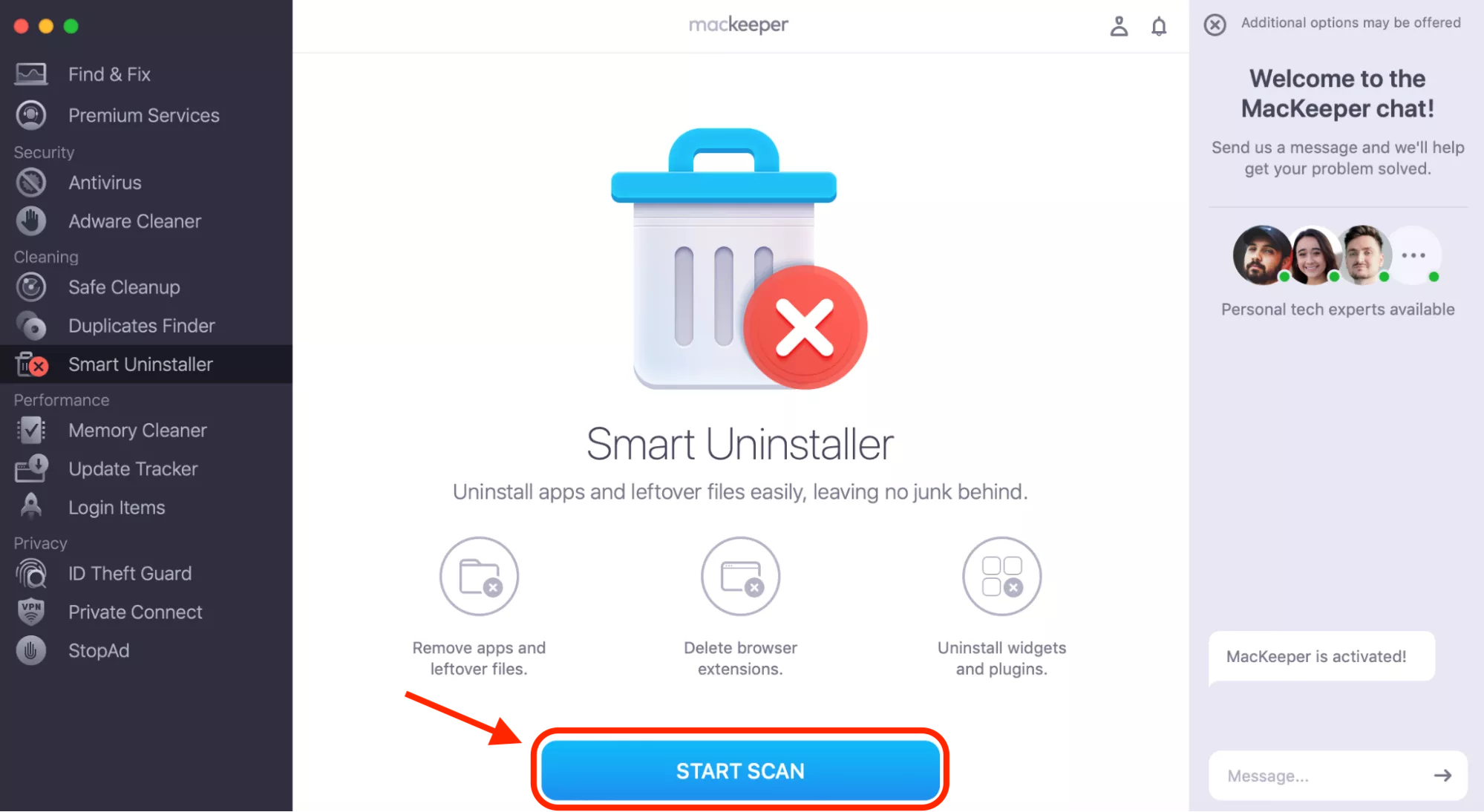
Hit Start Scan to let the tool identify every installed app along with its associated service files.
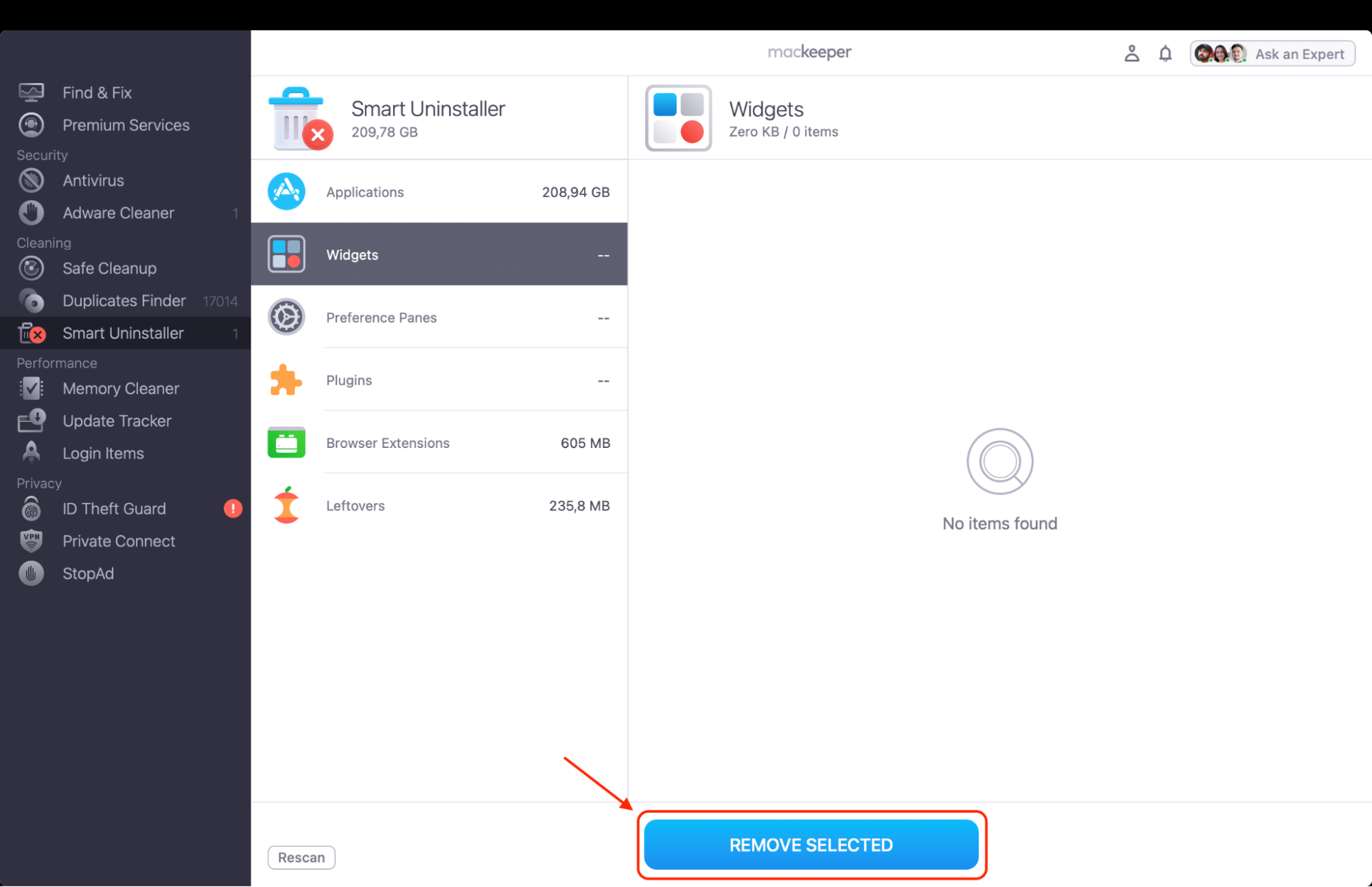
Browse through the scan results, then check the boxes next to any apps you no longer need or that aren’t working properly.
Press Remove Selected to wipe the apps and all their leftover data in one go, giving you a clean slate for a fresh install.
Step 1. Open MacKeeper and select Smart Uninstaller from the left sidebarStep. 2. Click Start Scan to generate a list of removable itemsStep 3. Click Remove to uninstall selected apps
Why doesn't Overwatch run natively on Mac?
Overwatch relies on DirectX, a Windows-exclusive graphics API incompatible with Apple’s Metal framework, making a native port a major engineering effort. Blizzard has historically prioritized platforms with the largest gaming audiences. Despite Apple’s Game Porting Toolkit making things easier for developers, Blizzard hasn’t used it for Overwatch, leaving Mac gamers who want to play Xbox games on MacBook or Windows titles reliant on third-party tools.
When will Overwatch come to Mac?
As of April 2026, Blizzard hasn’t announced any plans for a macOS version of Overwatch. With the studio focused on the “Reign of Talon” story arc and 10 new heroes throughout 2026, a Mac port doesn’t appear to be on the horizon.
How to play Overwatch on Mac?
Even without native support, several proven methods let you run Overwatch on your MacBook or iMac. Each has trade-offs in cost, performance, and ease of setup.
1. Cloud gaming services (recommended)
We recommend Cloud gaming, as it’s the easiest way to play Overwatch on Mac. Services like GeForce NOW and Boosteroid stream the game from remote servers, so even a base MacBook Air handles it—your machine just displays a video feed.
To play Overwatch on Mac with GeForce NOW:
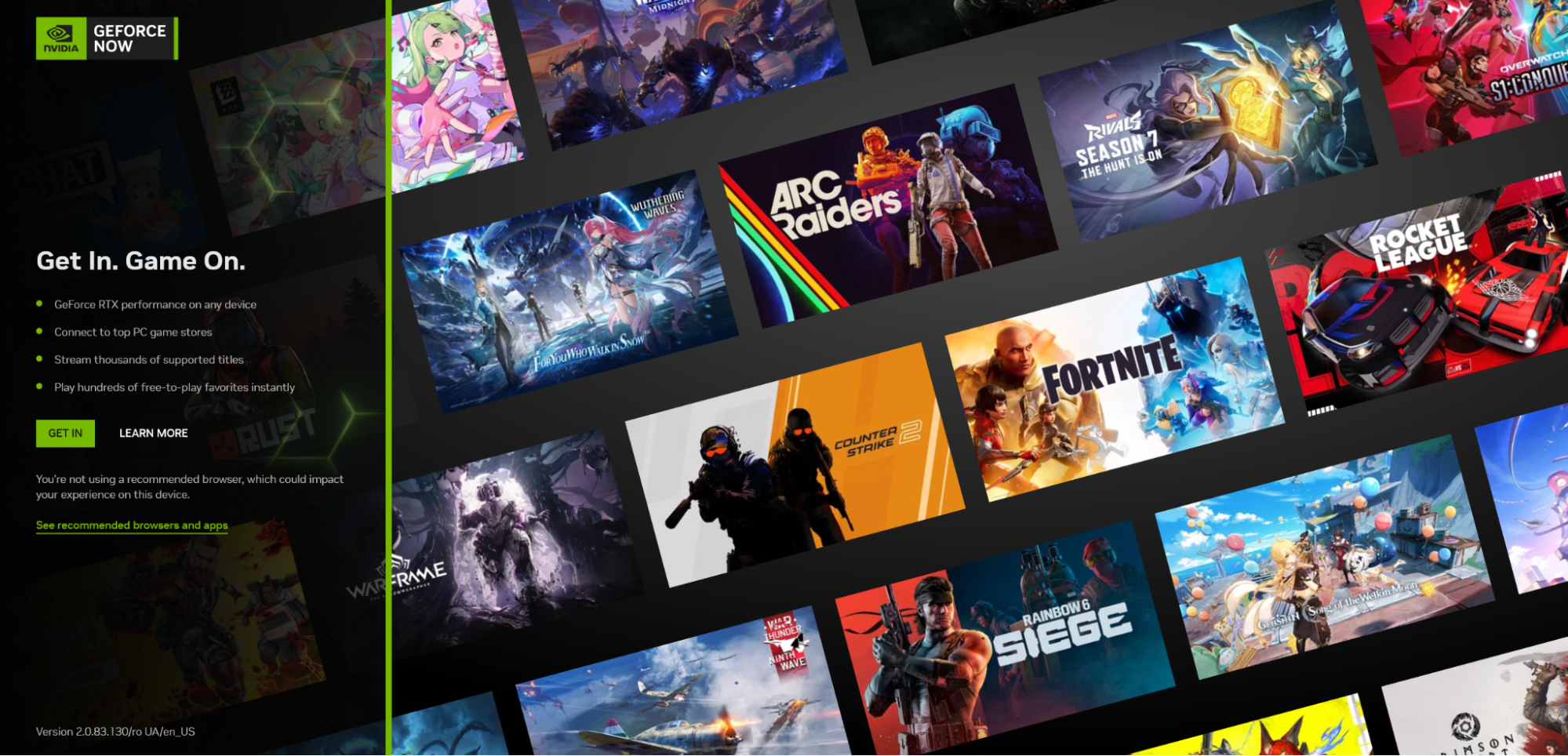
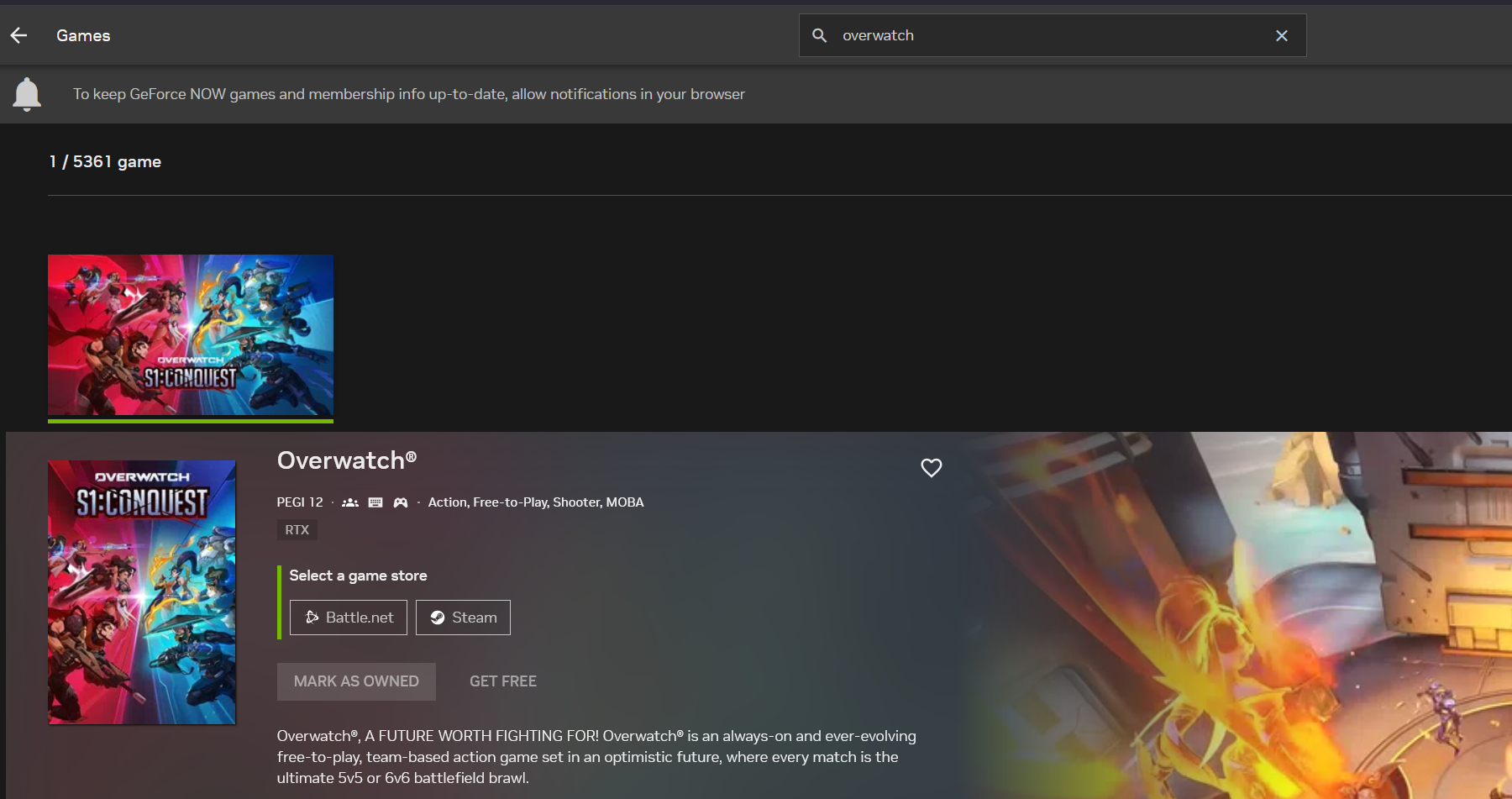
Visit the GeForce NOW website, create an account, and download the macOS app.
Log in and search for Overwatch in the game library.
Click Play and sign in to your Battle.net account when prompted.
Adjust in-game settings to match your connection speed for the smoothest experience.
Step 1. Visit the GeForce NOW website, create an account, and download the macOS appStep 2. Search for Overwatch in the game library, and press Play if you have access to the game
2. Compatibility layers
In our experience, this method gives you the closest thing to native gameplay on macOS, but game updates can break compatibility without warning, and you may have to wait days or weeks for a fix before you can play again.
How to set up Overwatch on Mac with CrossOver:
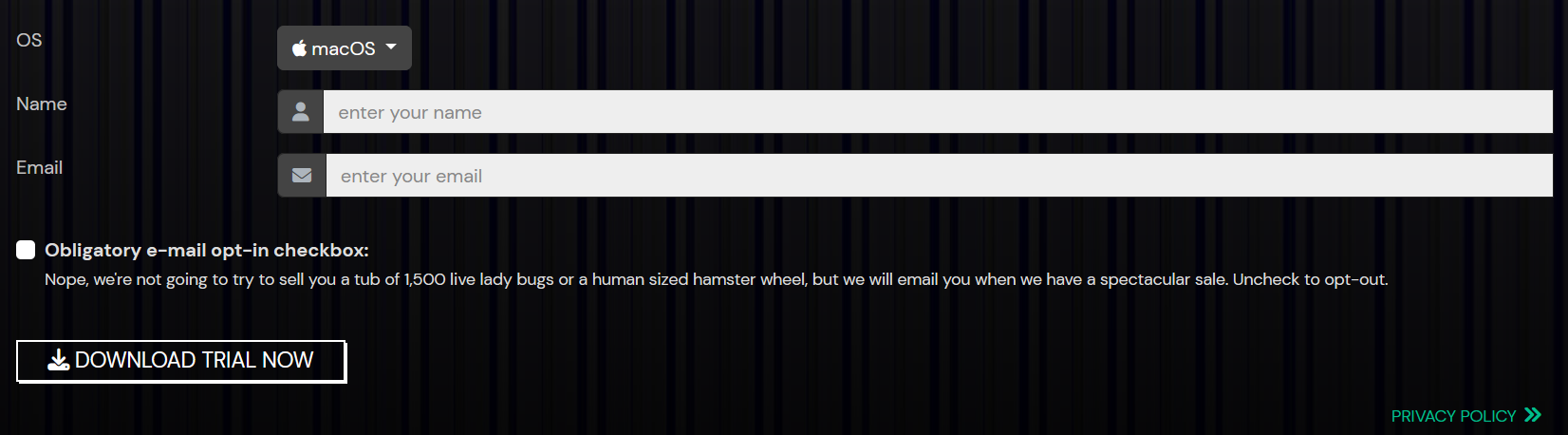
Go to the CodeWeavers website and download CrossOver 24 for macOS.
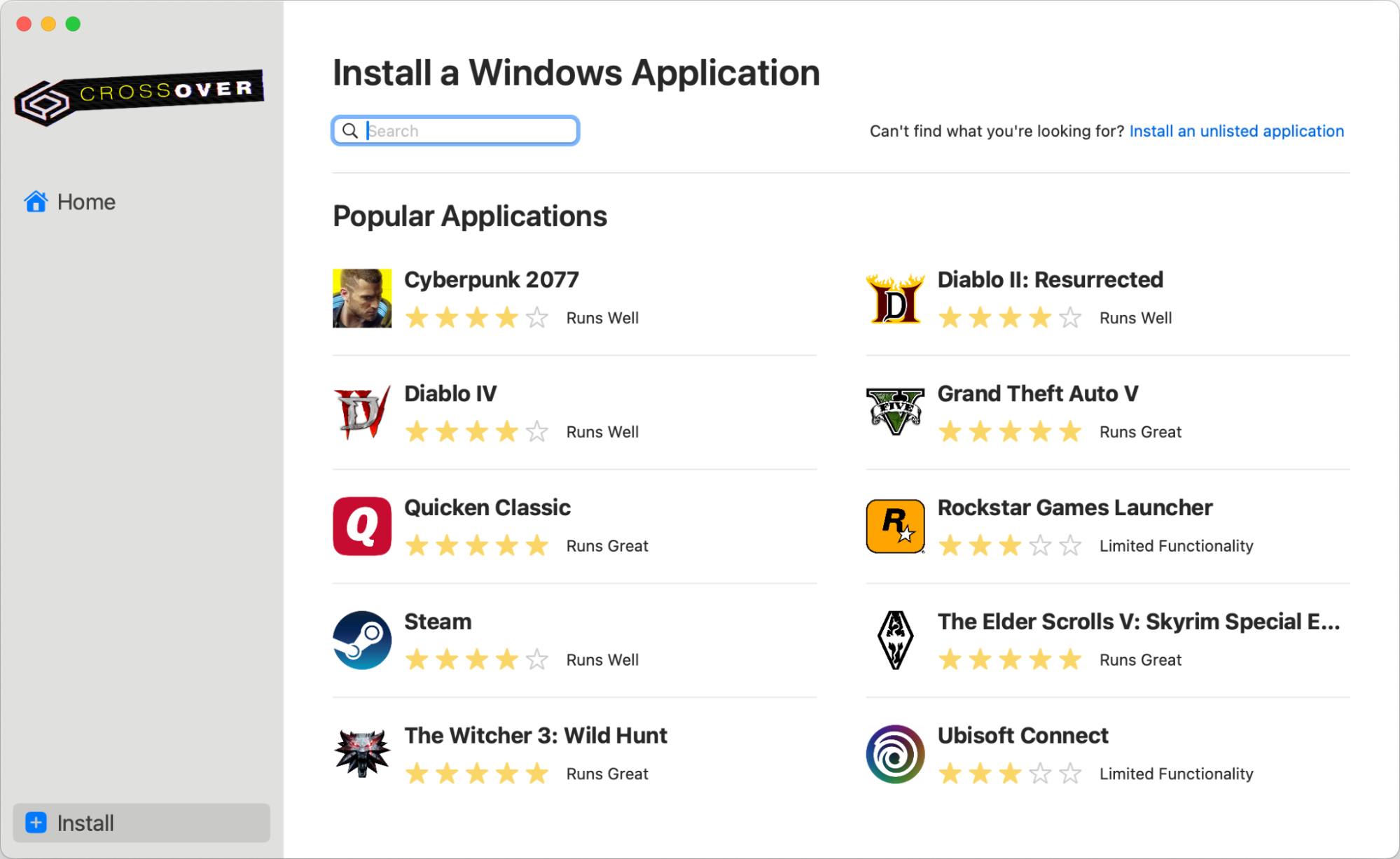
Open CrossOver, click Install, and search for Battle.net to add it to a new bottle.
Launch Battle.net inside CrossOver, sign in, and install Overwatch from your library.
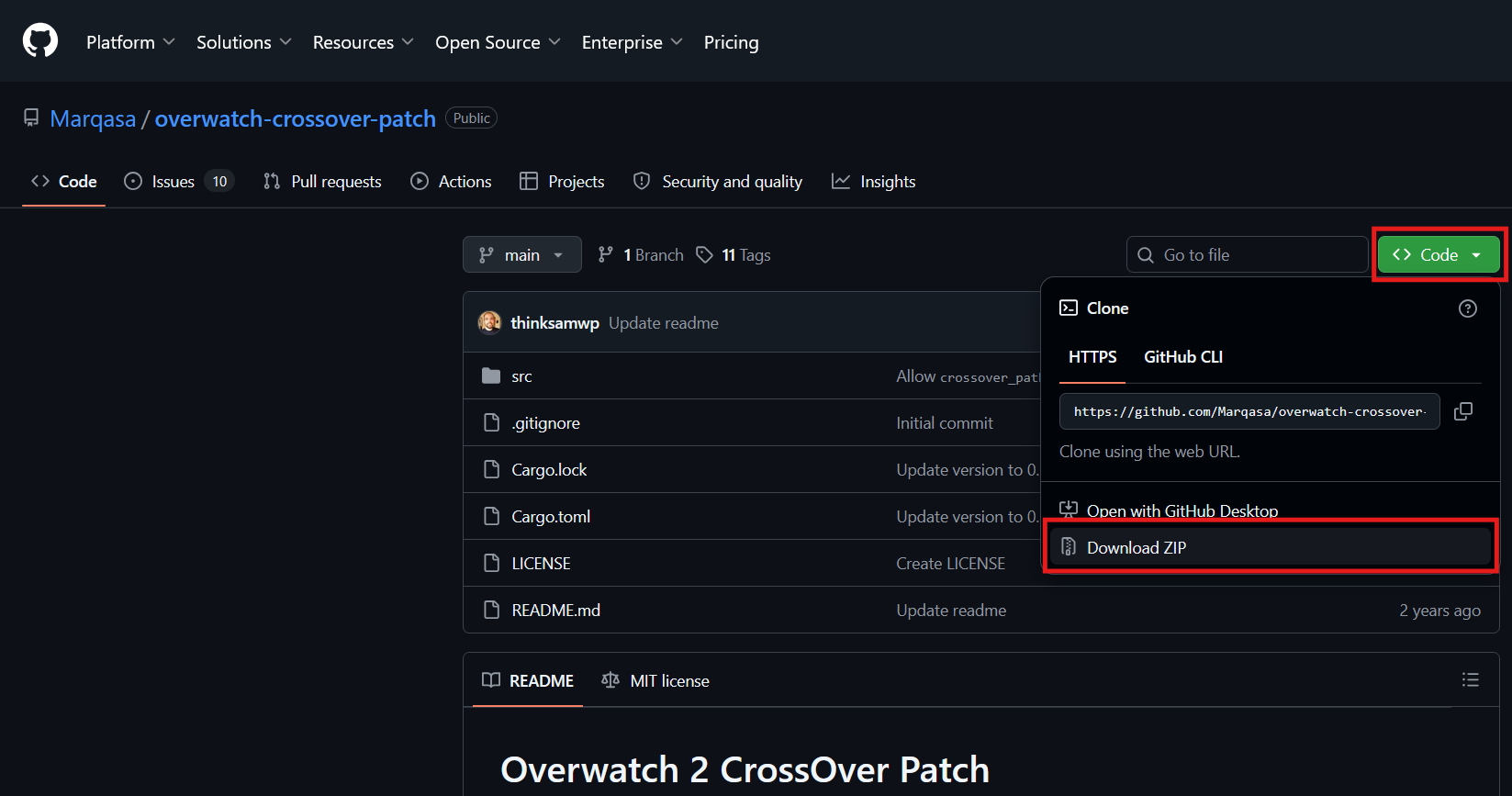
Download the Marqasa patch from GitHub and apply it to your Overwatch bottle.
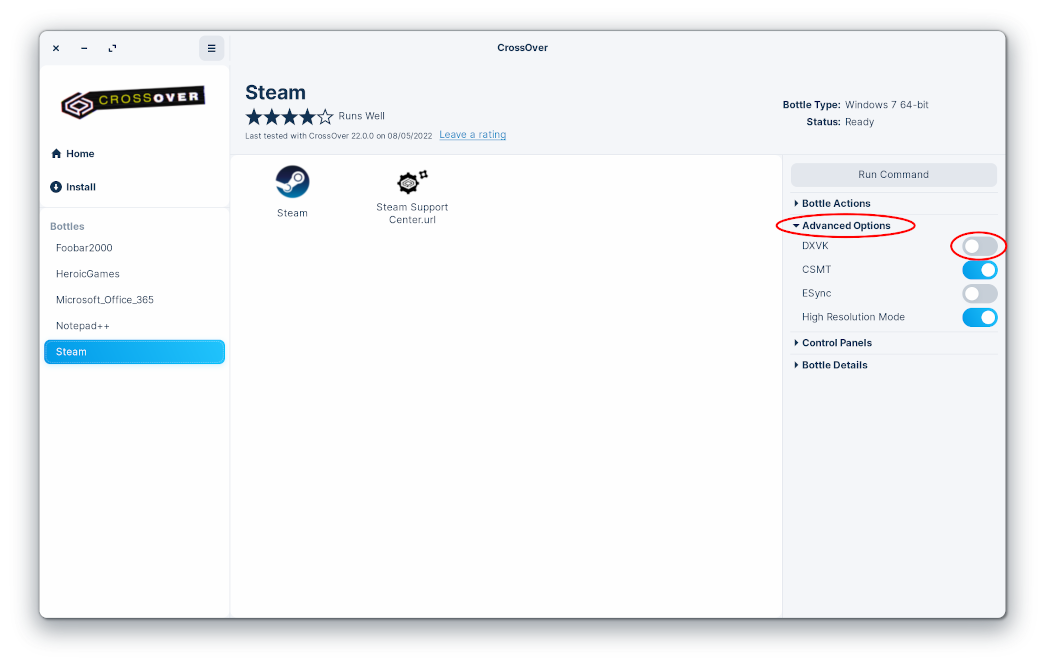
Place the DXVK cache file into Program Files (x86)/Overwatch/retail/ inside the bottle. Toggle the Advanced option in the CrossOver app.
Step 1. Go to the CodeWeavers website and download CrossOver 24 for macOSStep 2. Open CrossOver, click Install, and search for Battle.net to add it to a new bottleStep 3. Download the Marqasa patch from GitHub and apply it to your Overwatch bottleStep 4. In the Advanced options menu, toggle the DXVK option on
3. Virtual machines
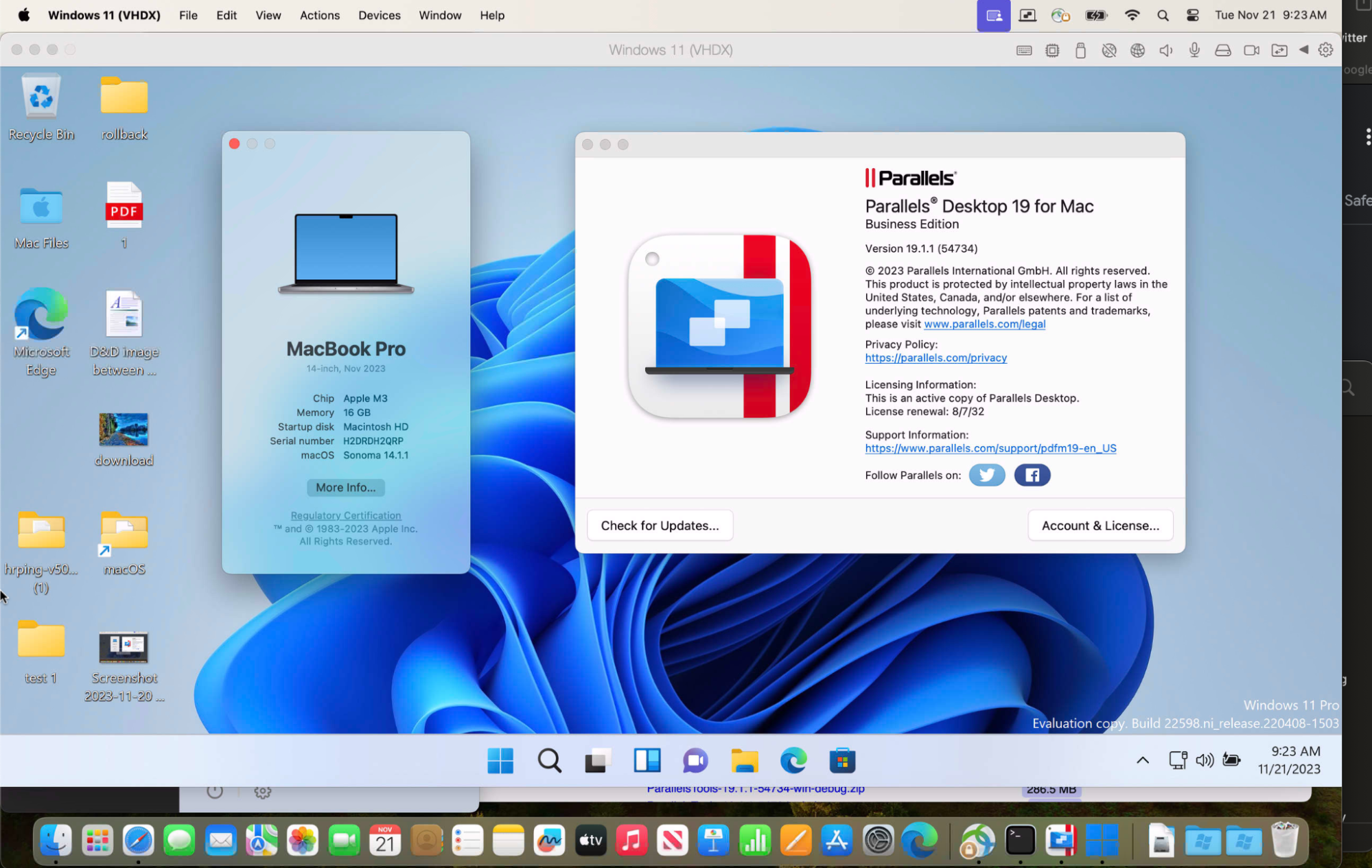
If you already have Parallels Desktop or another virtualization tool running on your Mac, you can install Battle.net inside Windows and download Overwatch directly. We must also point out that finding the best VM for Mac depends on GPU passthrough support and how much RAM you can allocate.
How to play Overwatch on Mac with a virtual machine:
Download and install Parallels Desktop or your preferred virtualization software on your Mac.
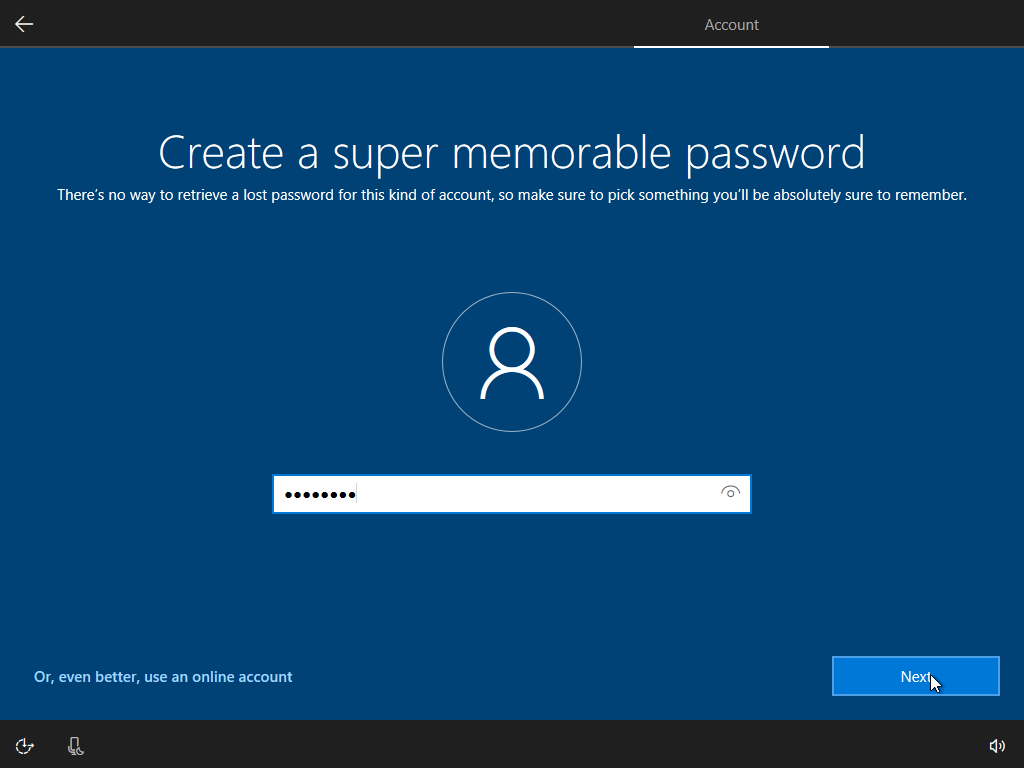
Follow the on-screen setup wizard to create a Windows virtual machine and activate your license.
Inside the virtual machine, open a browser and download the Battle.net launcher from Blizzard's website.
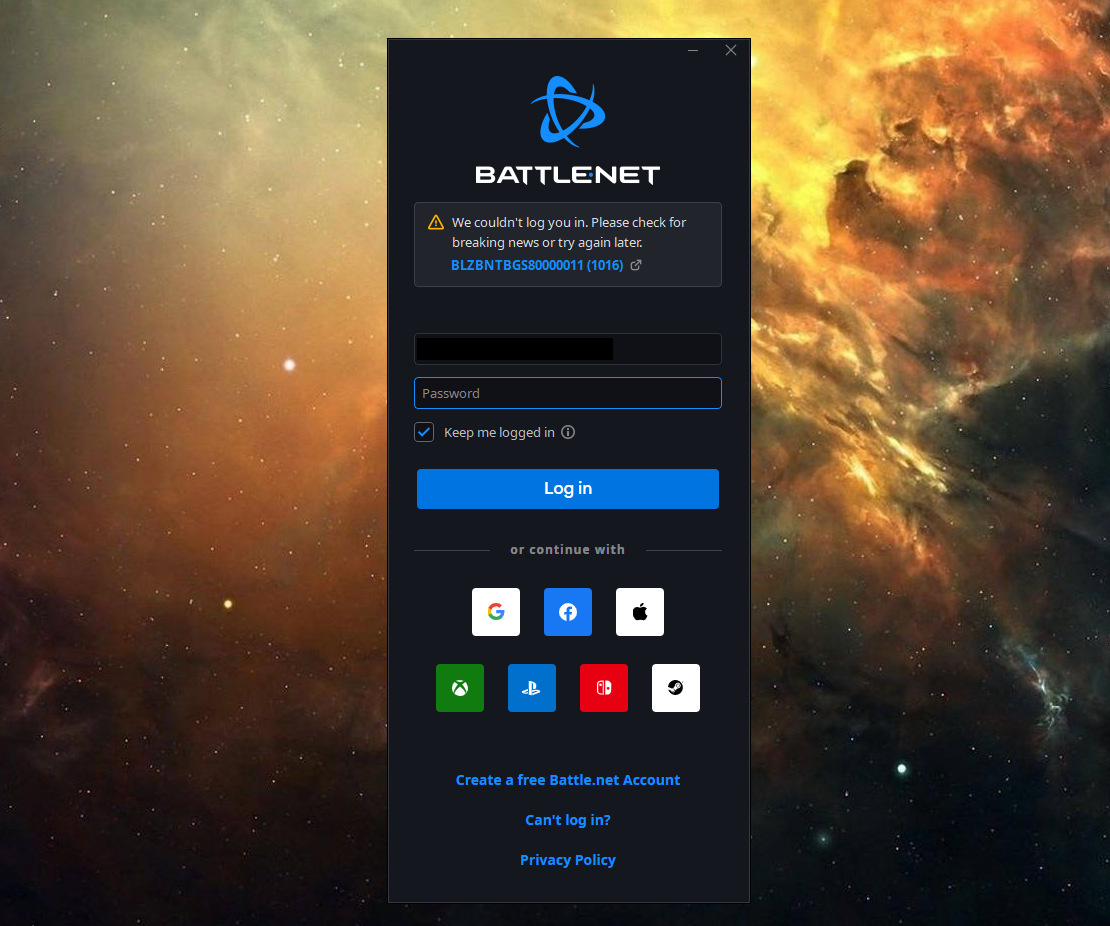
Sign in to your Battle.net account and install Overwatch from the game library.
Before launching the game, allocate as much RAM and GPU memory as possible to the virtual machine in your VM's settings.
Set Overwatch's graphics to Low and reduce the resolution to maintain a stable frame rate during gameplay.
Step 1. Download and install Parallels DesktopStep 2. Follow the on-screen setup wizard to create a Windows virtual machine and activate your licenseStep 3. Sign in to your Battle.net account and install Overwatch from the game library
4. Boot Camp
Our team confirms that Boot Camp only works on Intel Macs. If you own an Apple silicon MacBook, this method isn't an option. For Intel Mac owners, Boot Camp lets you install Windows on Mac on a separate partition and boot directly into it, giving you full access to your hardware with no virtualization overhead.
How to play Overwatch on Mac with Boot Camp:
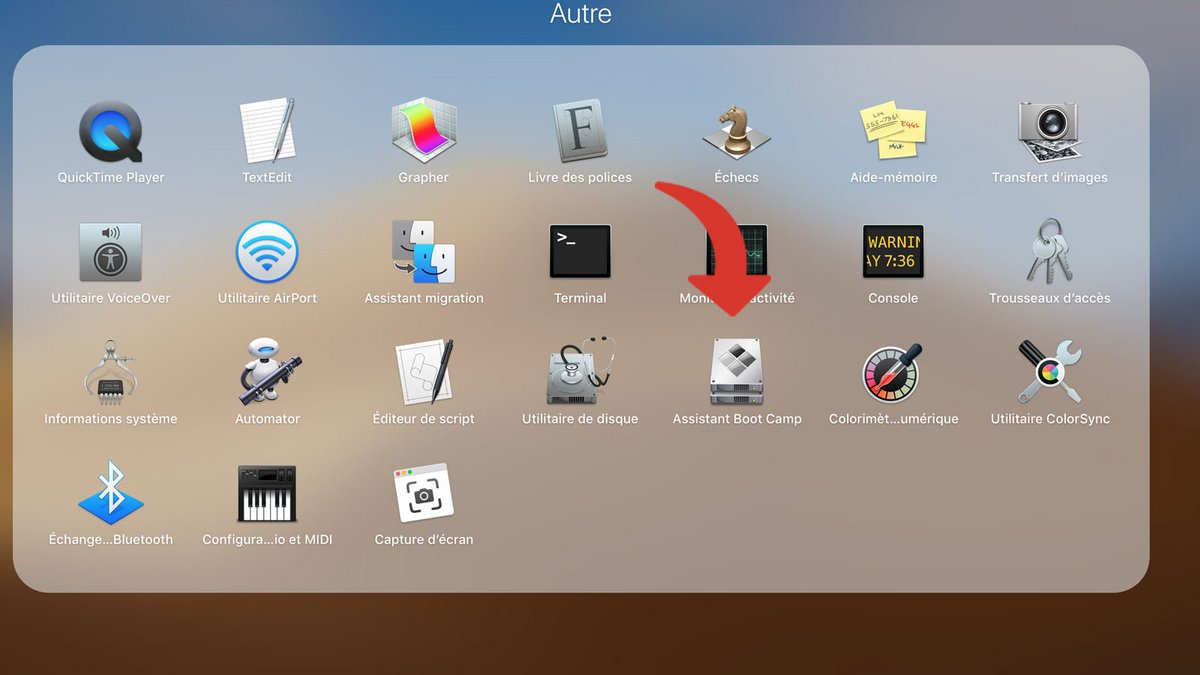
Open Boot Camp Assistant.
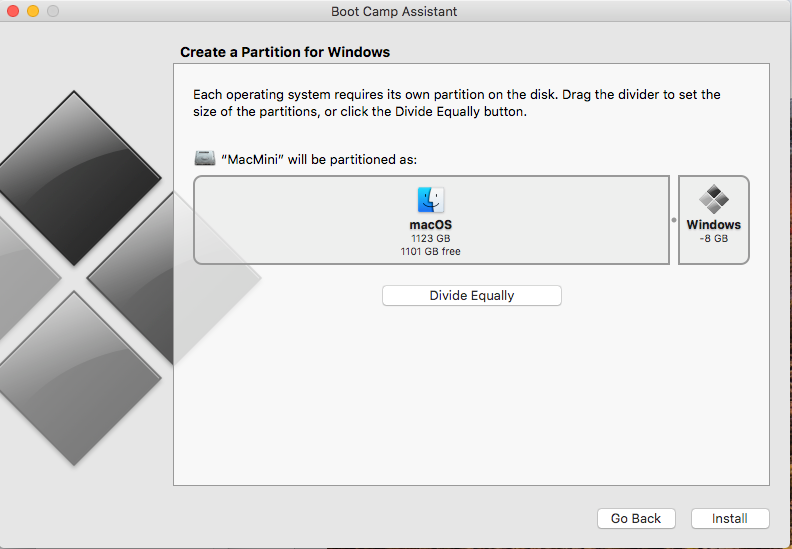
Follow the prompts to create a Windows partition with at least 50 GB of free space.
Insert your Windows installation media or ISO and let Boot Camp install Windows on the new partition.
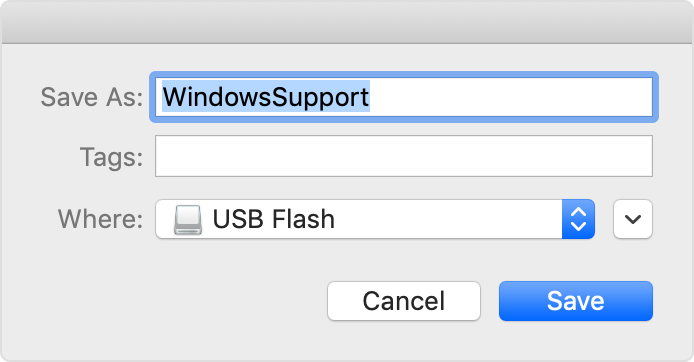
Once Windows boots up, install the Boot Camp drivers when prompted to enable full hardware support.
Download the Battle.net launcher, sign in, and install Overwatch from your library.
Adjust in-game graphics to Low or Medium settings depending on your Mac's GPU for a stable frame rate.
Step 1. Open Boot Camp AssistantStep 2. Follow the prompts to create a Windows partitionStep 3. Once Windows boots up, install the Boot Camp drivers when prompted to enable full hardware support
Which method is the best for Mac users?
After testing every approach, we claim that cloud gaming is the clear winner for most Mac owners:
Cloud gaming—best overall. Low cost, works on every Mac, zero setup headaches. Requires stable internet.
CrossOver—best local option. Decent FPS on Apple silicon, but game updates can break it.
Virtual machines—flexible but expensive and resource-heavy. Better for casual play.
Boot Camp—Intel Macs only. Best raw performance but increasingly impractical as Apple moves to its own chips.
Conclusion
Overwatch doesn’t have a native macOS version, but Mac users aren’t locked out. Cloud gaming services offer the smoothest path, while CrossOver provides a solid local alternative for Apple Silicon Macs.
Before setting up any workaround, make sure your Mac has enough free storage and runs at peak performance. MacKeeper is an Apple-notarized macOS utility software trusted by millions of users, and its Smart Uninstaller removes old or broken apps completely.
We respect your privacy and
use cookies
for the best site experience.
Privacy Preferences Center
We use cookies along with other tools to give you the best possible experience while using the
MacKeeper website. Cookies are small text files that help the website load faster. The cookies we
use don’t contain any type of personal data meaning they never store information such as your
location, email address, or IP address.
Help us improve how you interact with our website by accepting the use of cookies. You can change
your privacy settings whenever you like.
Manage consent
All cookies
These cookies are strictly necessary for enabling basic website functionality (including page
navigation, form submission, language detection, post commenting), downloading and purchasing
software. The website might malfunction without these cookies.