Learning how to save Sims 4 while frozen Mac is the only way to protect hours of progress and character development when the game suddenly stops responding. Using MacKeeper’s Premium Services provides you with instant access to experts who can diagnose these system hangs, ensuring your gameplay remains fluid and your data stays secure.
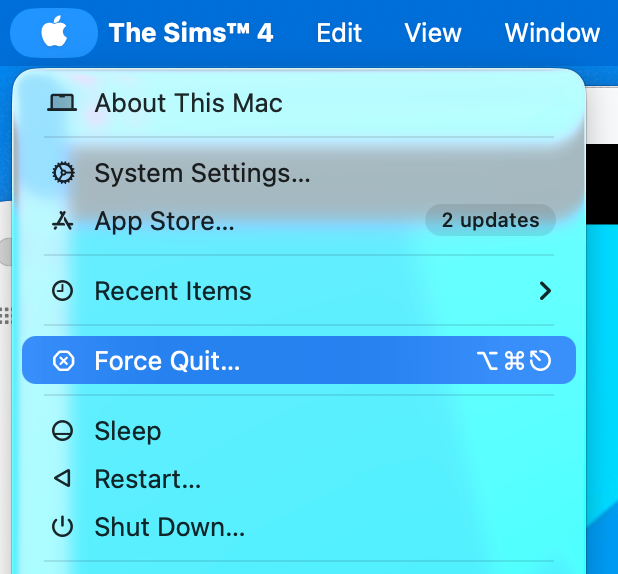
Saving your progress during a sudden freeze is possible if you act quickly using the right keyboard shortcuts. I recommend trying Command + Q to trigger the built-in save prompt or using Control + Shift + C to type quit into the game's internal console. If your system remains completely unresponsive, you may eventually need to Force Quit, which carries a high risk of losing any unsaved gameplay data.
Press Command + Q to trigger the built-in save promptIf your system remains completely unresponsive, you may eventually need to Force Quit
Why Sims 4 freezes on Mac?
Frequent Sims 4 freezes on Mac usually stem from hardware limitations, outdated graphics drivers, or incompatible game modifications (mods). High CPU usage from background apps can also cause the game to stall. Keeping your macOS up to date and monitoring system resources ensures smoother performance, as older hardware often struggles with the increasing demands of newer expansion packs and custom content.
If your Mac still struggles despite these fixes, it may be time to consider hardware replacement. Check out our guide to the best MacBooks for playing games to see which models deliver the smoothest experience.
What to do if Sims 4 freezes on Mac?
First of all, try pressing Command + Q, which is the fastest way to trigger a save prompt during a freeze. If the UI is stuck, use Control + Shift + C to type quit in the command box. As a last resort, select Force Quit from the Apple menu, though this may lose unsaved data.
A note from our experts:
When your Mac keeps freezing or restarting, identifying the real cause can take a lot of trial and error. Users often spend hours testing fixes like Safe Mode, system resets, or reinstalling macOS without knowing which one actually addresses the issue. A faster approach is getting direct guidance from professionals. Since MacKeeper offers performance monitoring, its Premium Services allow technicians to quickly analyze system behavior and pinpoint what’s triggering the reboot cycle.
Follow these steps to get help from a MacKeeper expert:
Open the app and choose Premium Services from the sidebar to access live technical assistance.
Click Chat Now to connect with a certified Mac specialist who will diagnose why your MacBook keeps restarting and guide you through a safe fix step by step.
Open MacKeeper, click Premium Services in the sidebar, and select Chat Now
1. Command-Q: save and exit prompt
I find that this method is your best first line of defense because it uses a system-level command that the game often still listens to, even when the graphics are stuck. When I trigger this, it doesn't just kill the process, but also forces the game to pause and ask if I want to protect my progress. I recommend trying this immediately before clicking around, as excessive clicking can sometimes make a minor freeze become a total crash, and you won’t get how to play Sims 4 on Mac.
Follow these steps to rescue your progress:
Press Command + Q on your keyboard to request a standard application exit.
Look for the pop-up window titled Exit Game? that appears over the frozen screen.
Click the Save and Exit button to write your current data to the disk.
Restart your Mac if the application fails to close after the save completes.
Launch The Sims 4 again to verify your last save point is intact.
When it works best: I suggest using this when the game music is still playing, or the cursor is still moving, as the "listener" for the quit command is likely still active. However. if your Mac is completely unresponsive to any keyboard input, this shortcut may not trigger the save dialog at all.
2. Using in-game command box
I often turn to the command console when the standard UI buttons are completely unresponsive to my mouse clicks. This back-end approach bypasses the graphical interface, allowing me to speak directly to the game's engine.
I have discovered that even if my Sim is frozen mid-animation and the MacBook cursor stuck in place, the command line can usually still execute instructions. It is a reliable way to force a save routine when the "Options" menu refuses to open, or the game refuses to acknowledge my mouse movement.
Execute a command-line save with these instructions:
Press Control + Shift + C simultaneously to bring up the white input box.
Type the word quit into the console bar that appears at the top left.
Press Enter to submit the command and wait for the save prompt.
Select the Save option from the resulting menu to secure your data.
Exit the game and clear your Electronic Arts cache files before restarting.
When it works best: I find this most effective when a specific action, like a wedding or aging up, has caused a "soft lock" where the world is still running but the UI is broken. Ensure you don't have any typos in the console, as incorrect commands will simply do nothing and leave you stuck.
3. Using in-game command box
I sometimes resolve a freeze simply by forcing the Mac to redraw the entire game window. When I toggle between full-screen and windowed modes, it often "shocks" the application back into a responsive state, which is vital if the game on MacBook keeps freezing during heavy simulation moments.
I use this trick when the screen goes black or the graphics stutter, as it forces the macOS window manager to re-establish its connection with the game's rendering engine and resume the frame flow.
Refresh your display scale using these steps:
Press Command + Return to instantly switch from full-screen to windowed mode.
Wait a few seconds to see if the game animations resume their normal speed.
Click inside the windowed game to see if the cursor and menus respond.
Navigate to the Options menu and save your progress manually if it unfreezes.
Press Command + Return again to go back to full-screen once you are safe.
When it works best: I recommend this if you suspect a resolution conflict or if you recently plugged in an external monitor. Switching modes can occasionally cause a temporary lag spike while your Mac reallocates video memory to the new window size.
How to prevent data loss in Sims 4?
To prevent data loss in Sims 4, I recommend regularly copying your Saves folder from the Electronic Arts directory to an external drive or cloud service. Using automated backup software ensures your progress is protected even during a sudden crash, allowing you to restore your characters and builds without starting over. Be sure that such a proactive strategy keeps your legacy safe forever.
Conclusion
Saving your progress during a freeze is possible by using keyboard shortcuts like Command + Q or the in-game command console to trigger a save prompt. Prompt action prevents the loss of hours of gameplay and ensures your Sim's legacy remains intact even when the application stops responding to standard mouse clicks.
Because MacKeeper is a leading solution in Mac optimization and cybersecurity, I recommend using its Premium Services for persistent issues. Expert technicians can pinpoint the exact cause of system hangs, providing a professional alternative to manual troubleshooting that saves you significant time and effort.
We respect your privacy and
use cookies
for the best site experience.
Privacy Preferences Center
We use cookies along with other tools to give you the best possible experience while using the
MacKeeper website. Cookies are small text files that help the website load faster. The cookies we
use don’t contain any type of personal data meaning they never store information such as your
location, email address, or IP address.
Help us improve how you interact with our website by accepting the use of cookies. You can change
your privacy settings whenever you like.
Manage consent
All cookies
These cookies are strictly necessary for enabling basic website functionality (including page
navigation, form submission, language detection, post commenting), downloading and purchasing
software. The website might malfunction without these cookies.