Cannot Be Opened Because It Is from an Unidentified Developer
We know it can be irritating if your app cannot be opened because it’s from an unidentified developer. But remember that it helps to keep your Mac secure. To make sure no virus can access your files, get MacKeeper’s Antivirus and turn on real-time protection.
Why are you getting a message that an app can't be opened because it's from unknown developer
macOS displays the "App cannot be opened because it is from an unidentified developer" error to protect users like you from launching unverified apps that may contain malware. Specifically, it’s Apple's Gatekeeper feature that blocks apps without proper certification, ensuring safety against potentially harmful software.
How to allow apps from unidentified developers on Mac
Follow these steps to open an app from the unidentified developer on Mac and feel safe about their app:
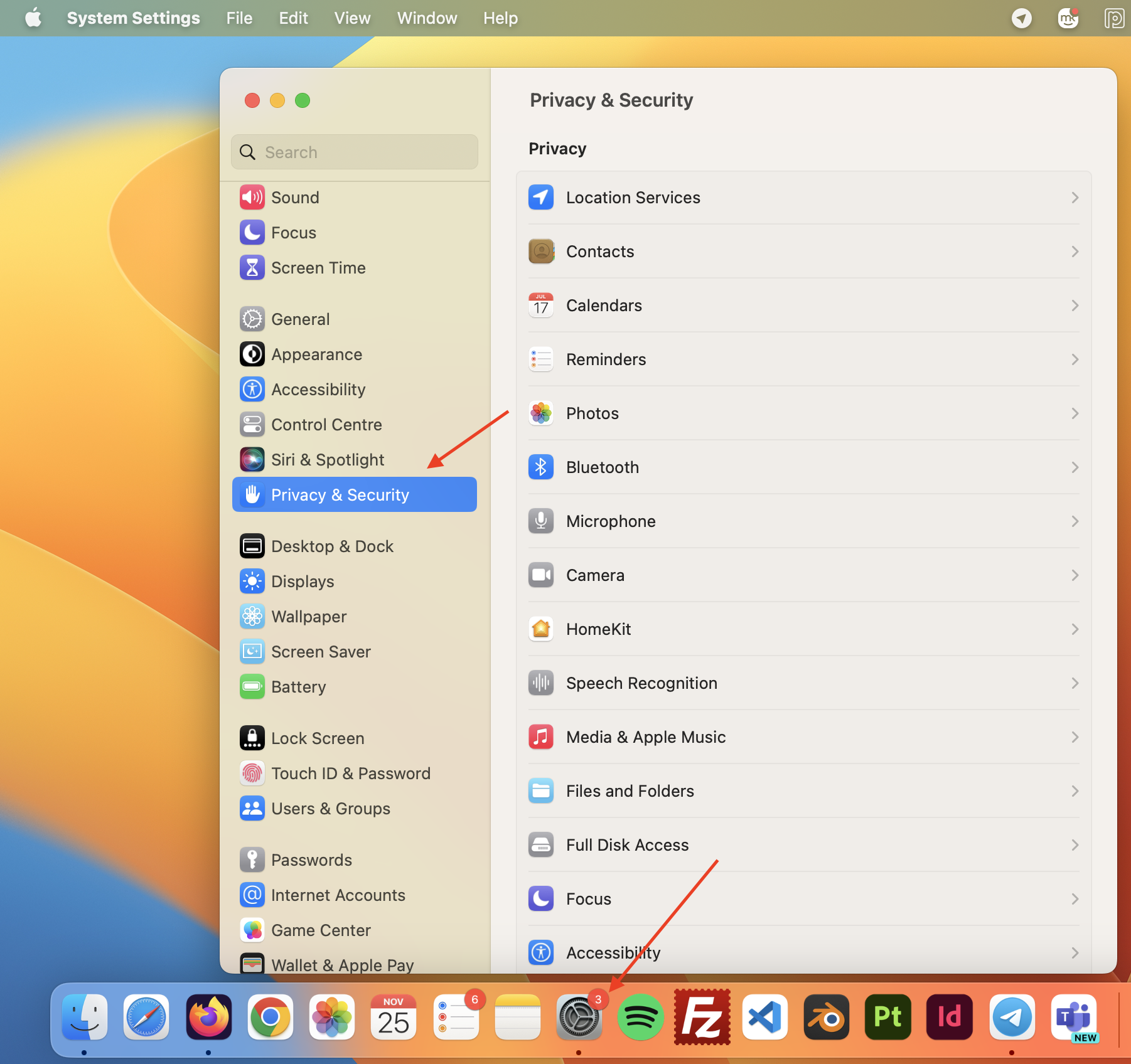
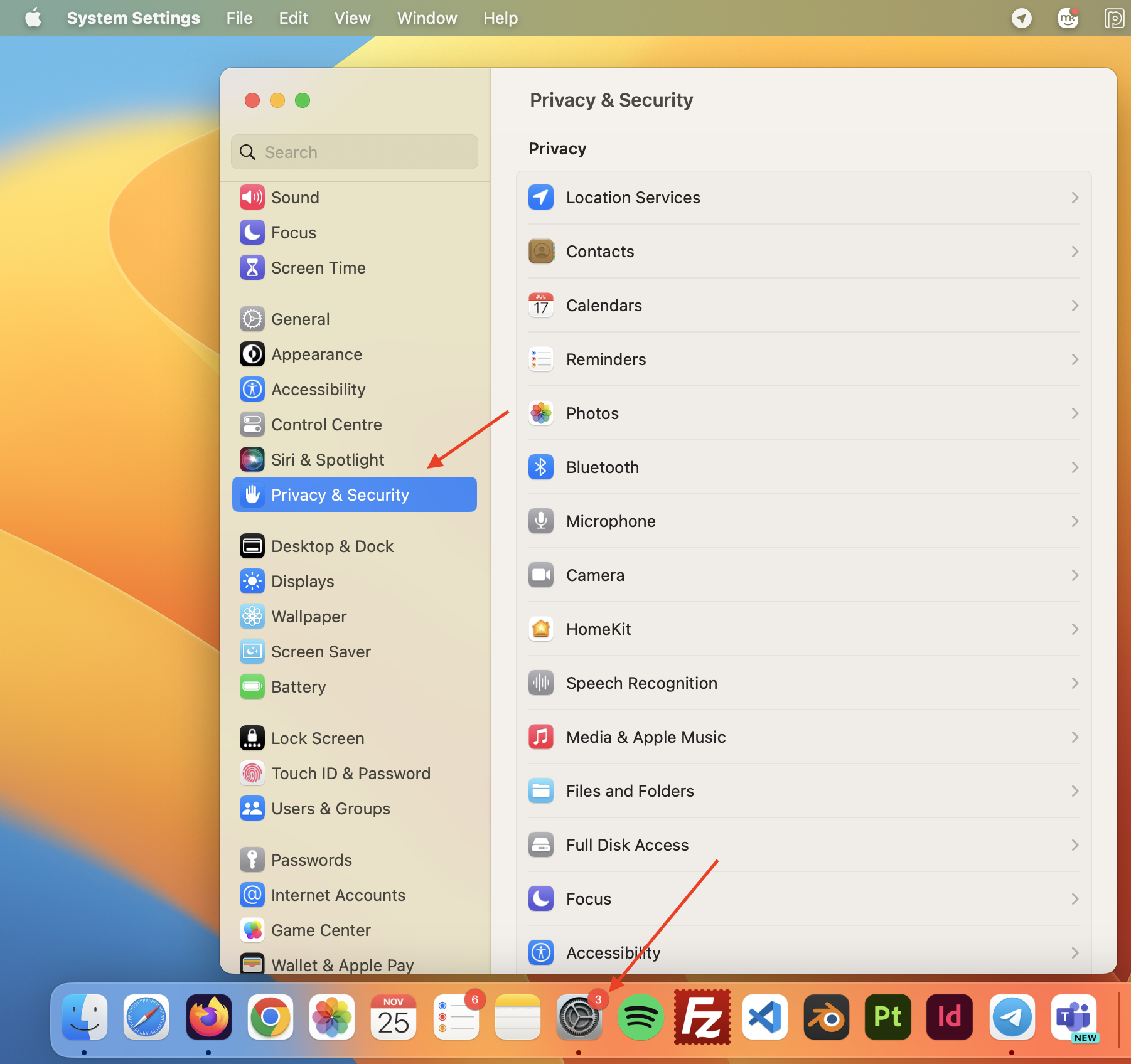
Open System Settings and navigate to Privacy & Security.
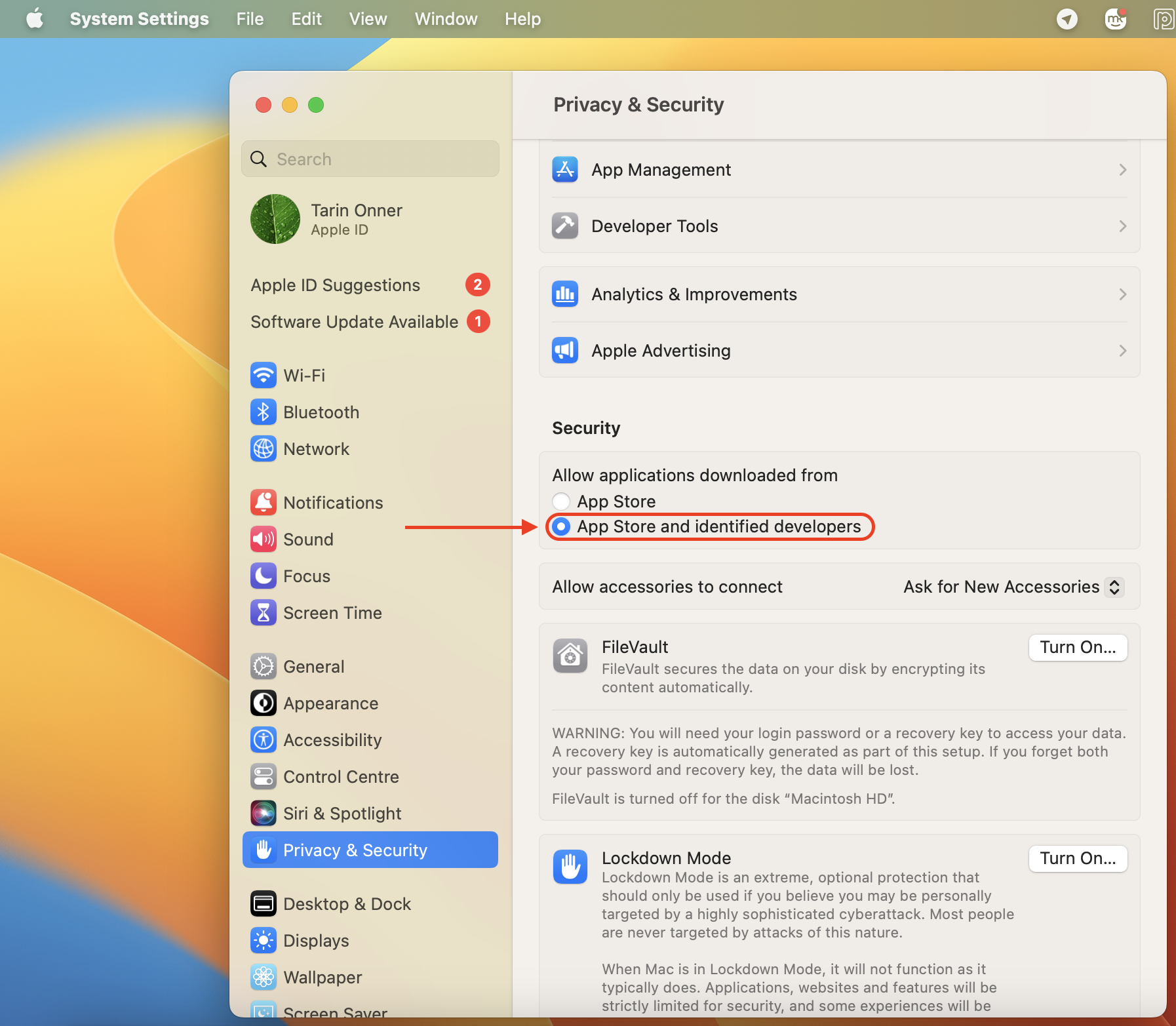
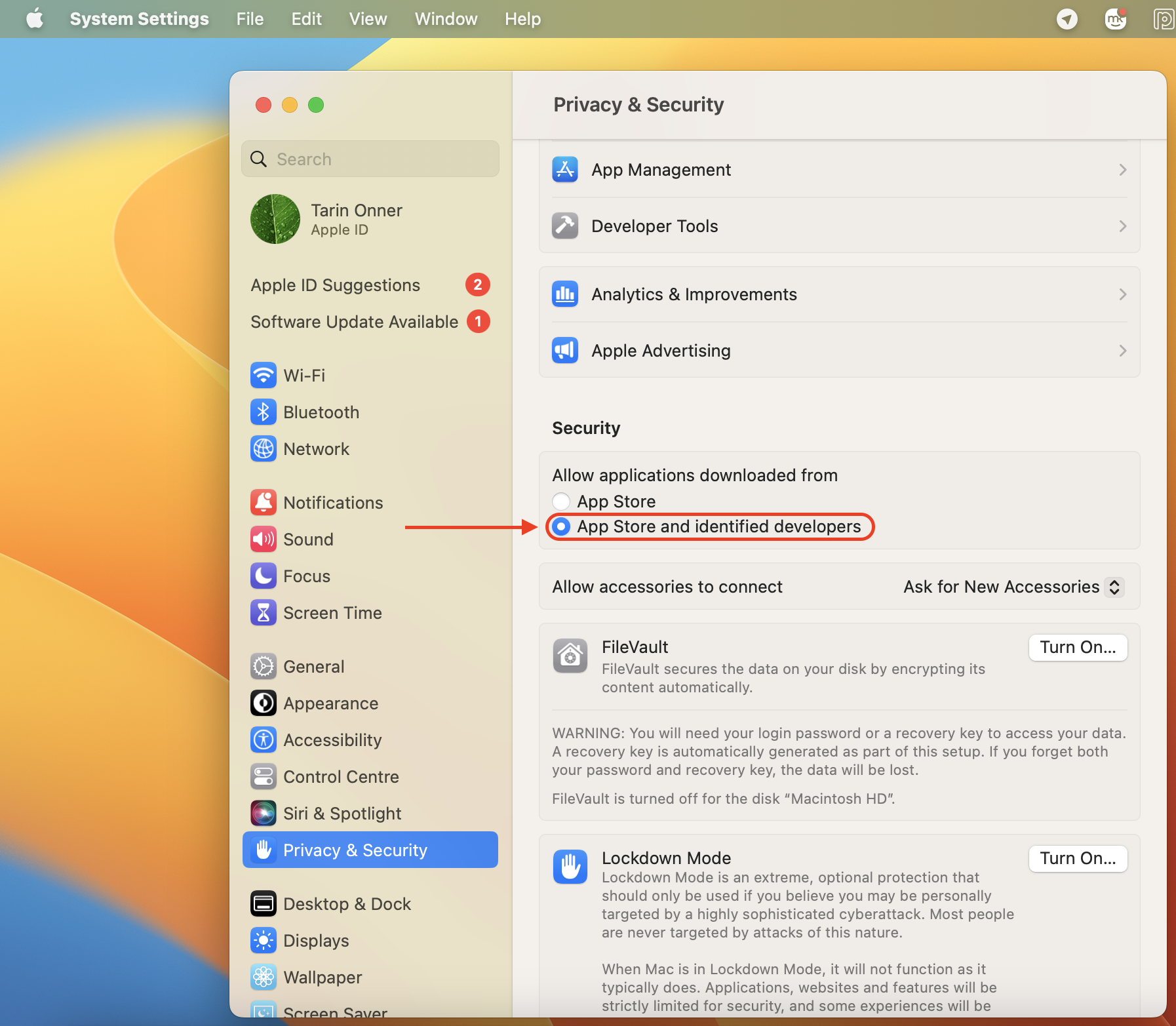
Under Allow apps downloaded from, select App Store and identified developers.
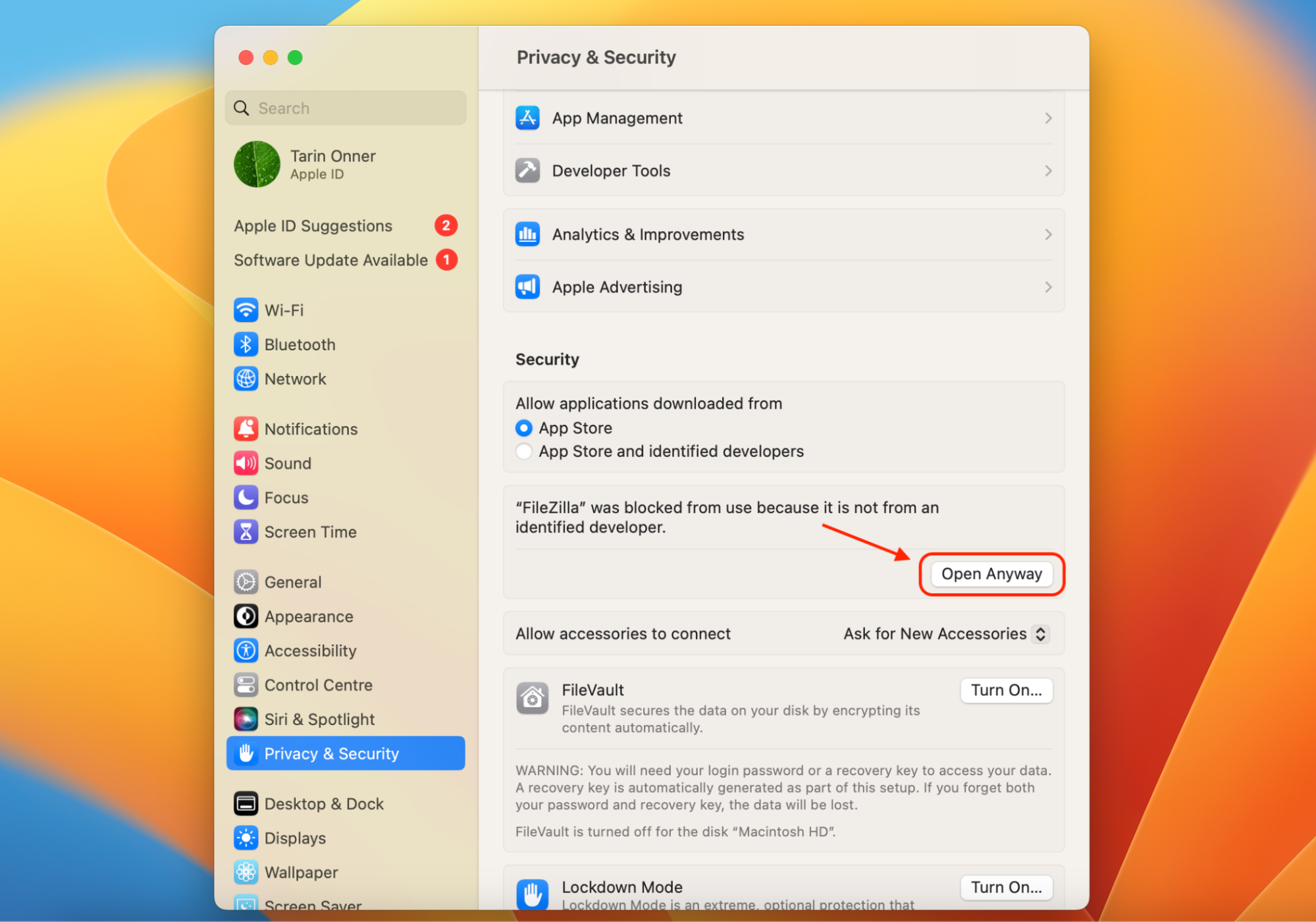
Try to open your app and click Open Anyway for blocked apps to override restrictions.
Step 1. Find and open System Settings and go to Privacy & SecurityStep 2. Under Allow apps downloaded from, select App Store and identified developersStep 3. Click Open Anyway for blocked apps to override restrictions
A note from our experts:
A message, "App cannot be opened because it is from an unidentified developer" is one of the ways to protect devices from viruses. There are several decisions to open the app despite this message. But make sure your Mac is protected from malicious files with MacKeeper’s Antivirus.
To protect your Mac with MacKeeper’s Antivirus:
Download, install, and open MacKeeper on your Mac or MacBook.
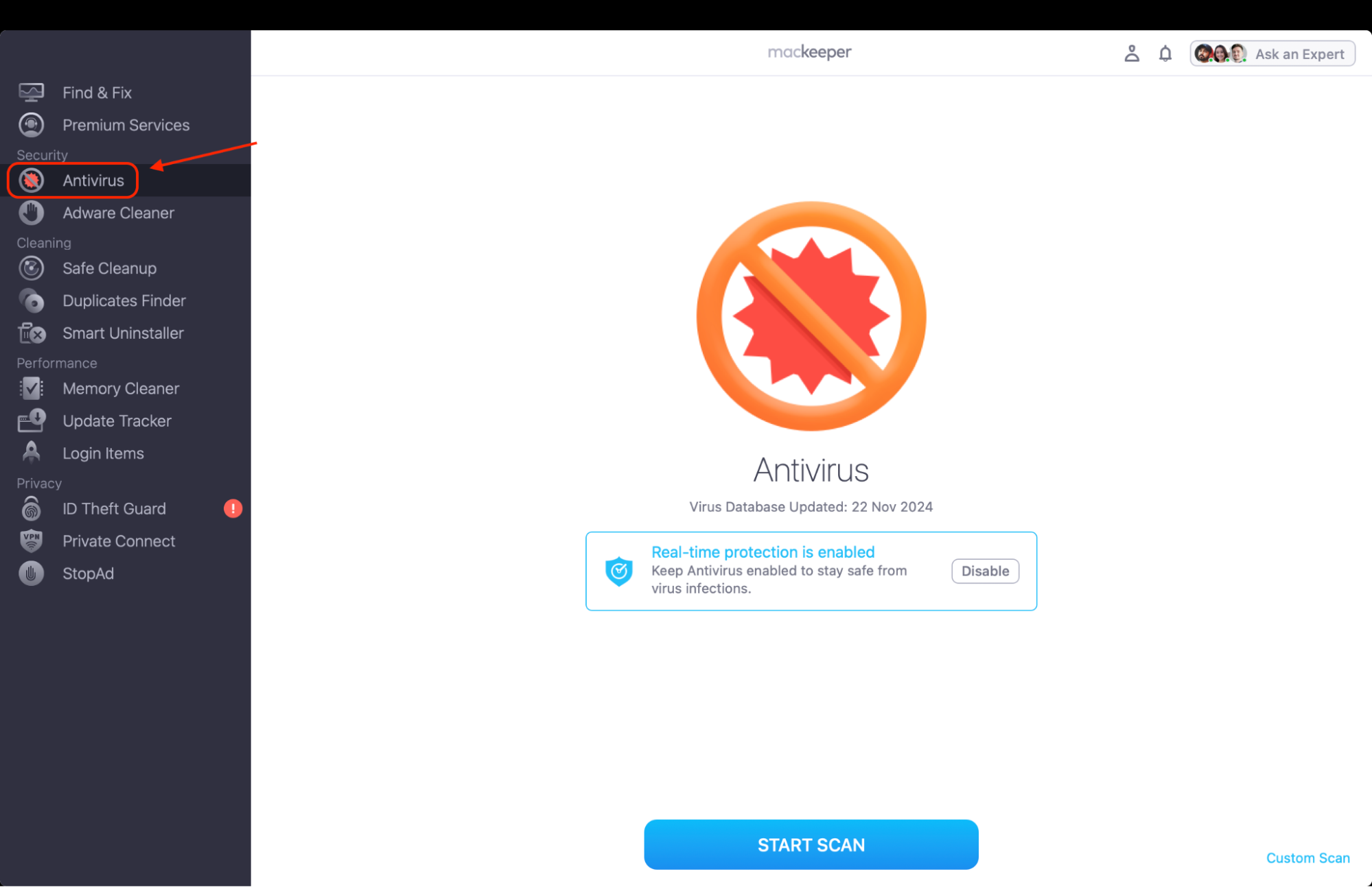
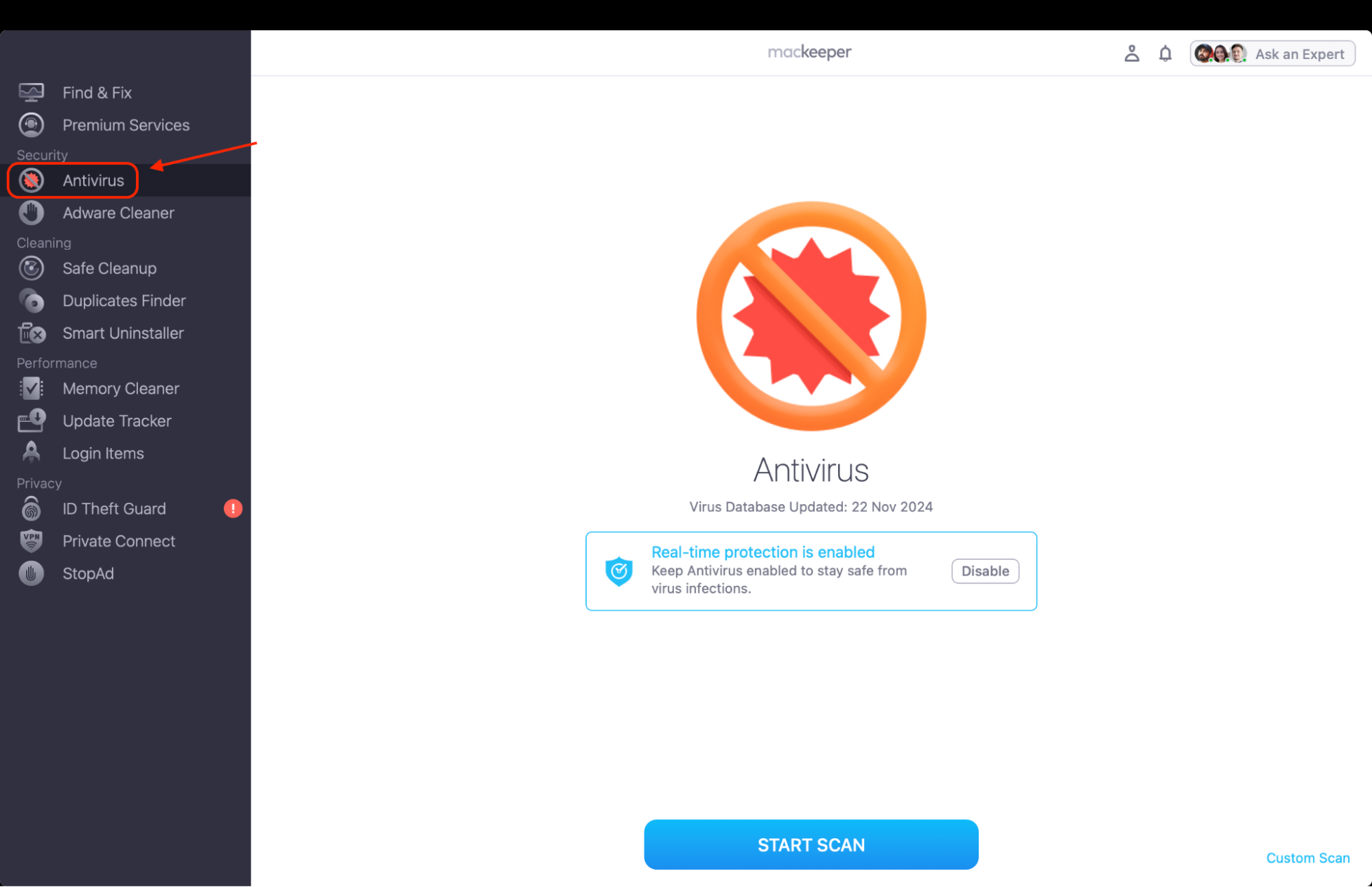
Locate Antivirus under the Security section.
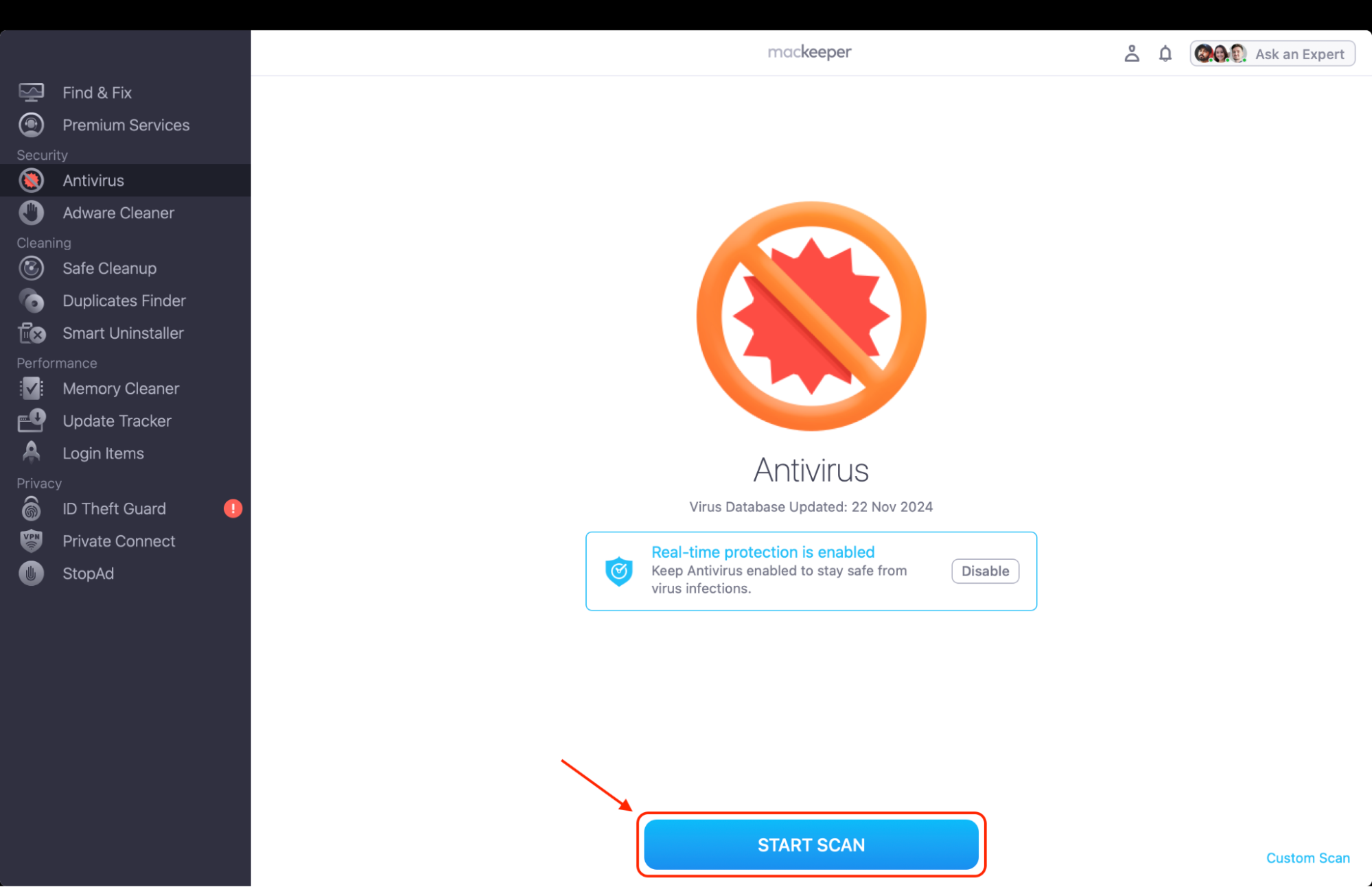
Click Start Scan to begin.
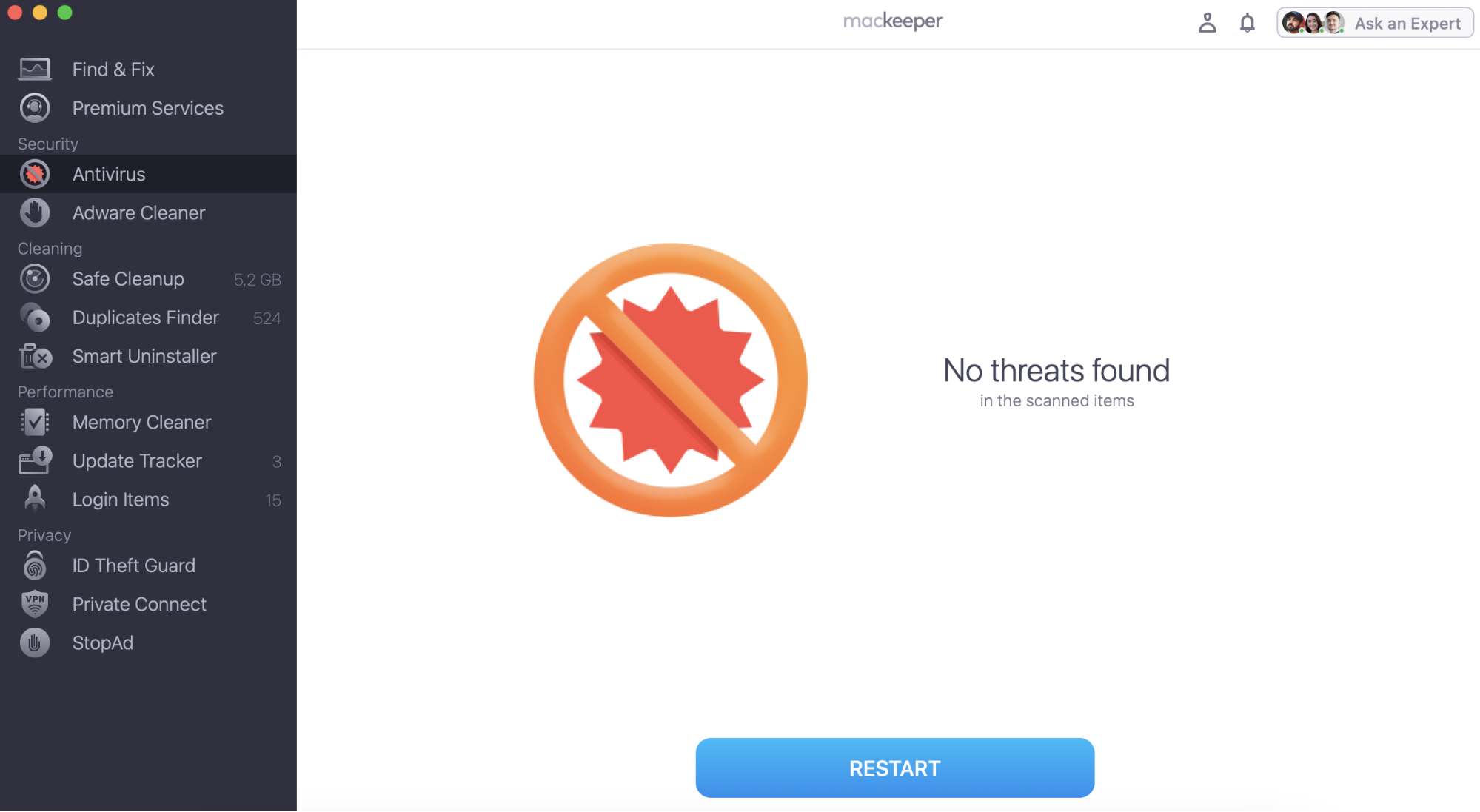
Review the detected threats after the scan completes.
In case you don’t have permission to open the application, the following method is quick and straightforward. It bypasses Gatekeeper for individual apps without altering your overall security settings. Based on our tests, we can recommend this if you need to fix the "Cannot be opened because it is from an unidentified developer” issue quickly and feel confident about an app’s source. It creates an exception for that app, so you don’t need to repeat the process next time.
Here are the steps to open an unidentified app:
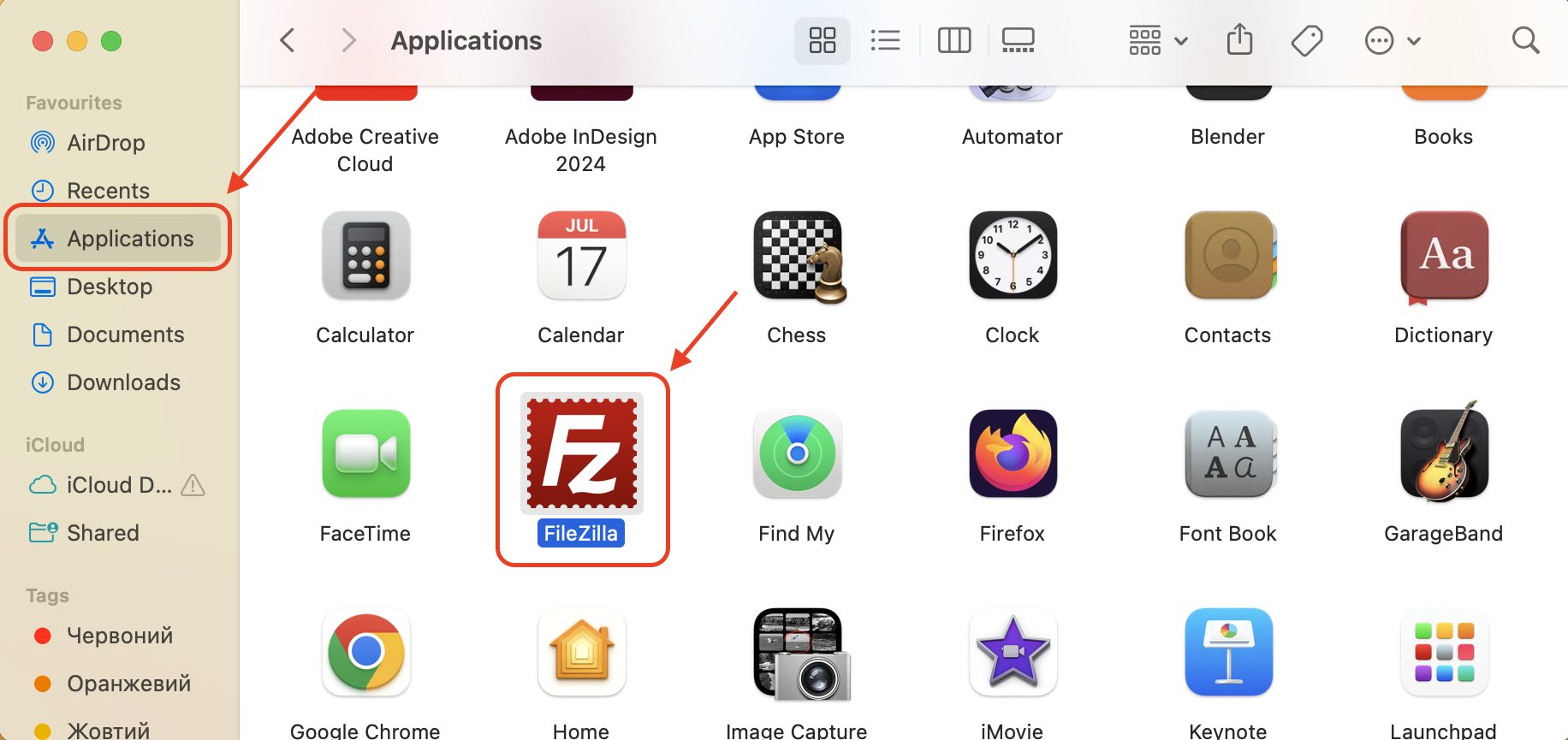
Locate the app in your Applications folder or wherever you saved it.
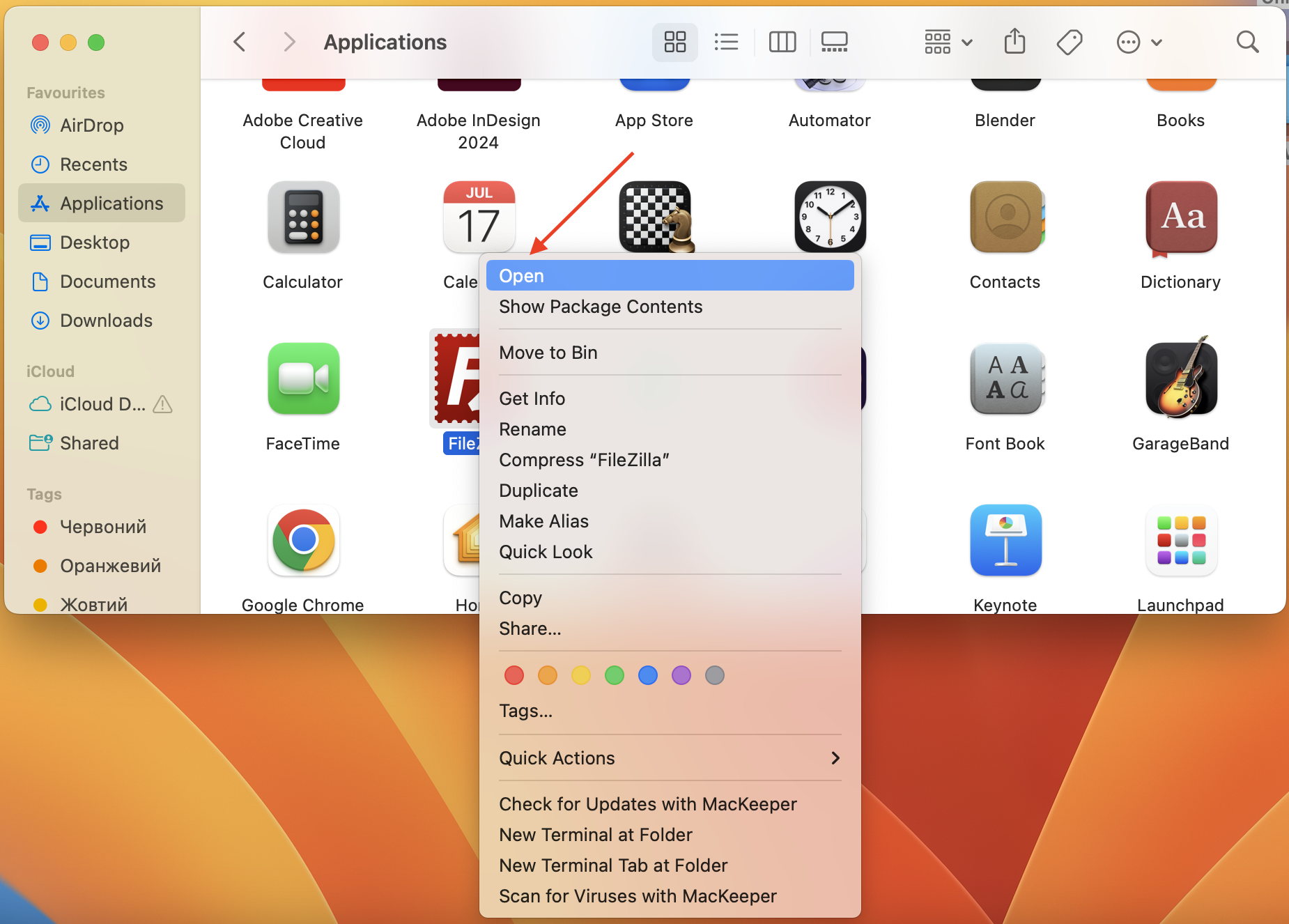
Press Control on your keyboard and click the app.
Select Open from the dropdown menu.
Confirm by clicking Open again in the warning dialogue box (if it pops up).
Step 1. Find the app in the Applications folder (or wherever you saved it)Step 2. Press Control on your keyboard, click the app, and choose Open
Now you know that an app you download from the internet cannot be opened because it’s from an unidentified developer. That’s how the Apple ecosystem works. But if you really need to open a particular app, we recommend removing file attributes and clearing the quarantine flag that macOS applies to downloaded files. This is what Gatekeeper uses to block apps.
Important:
Messages like macOS cannot verify that this app is free from malware are a common reason for these blocks. Our experts suggest using this option if other methods don’t work, but make sure the app is definitely safe first as this approach turns off macOS warnings for this file.
To remove extended file attributes:
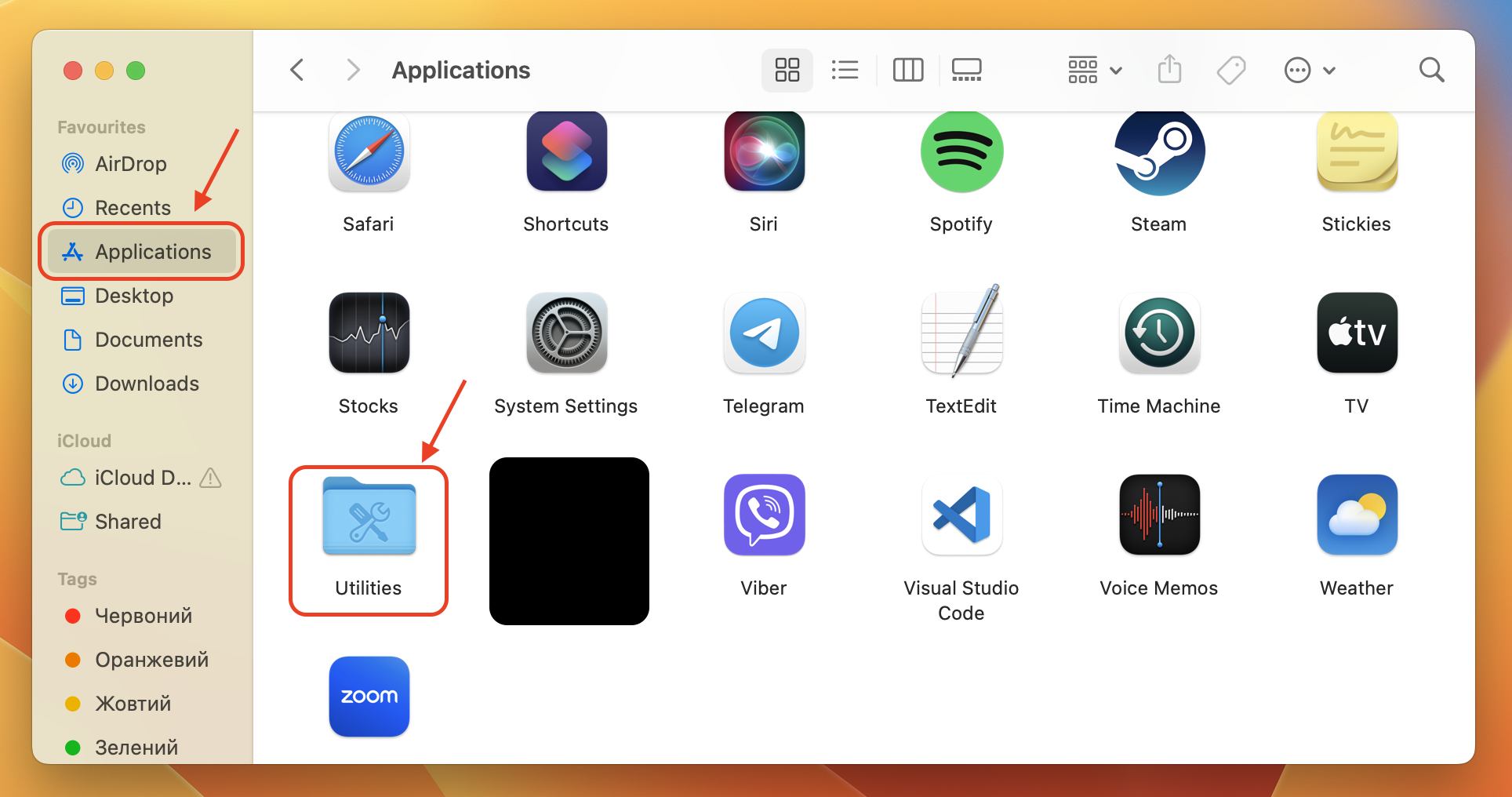
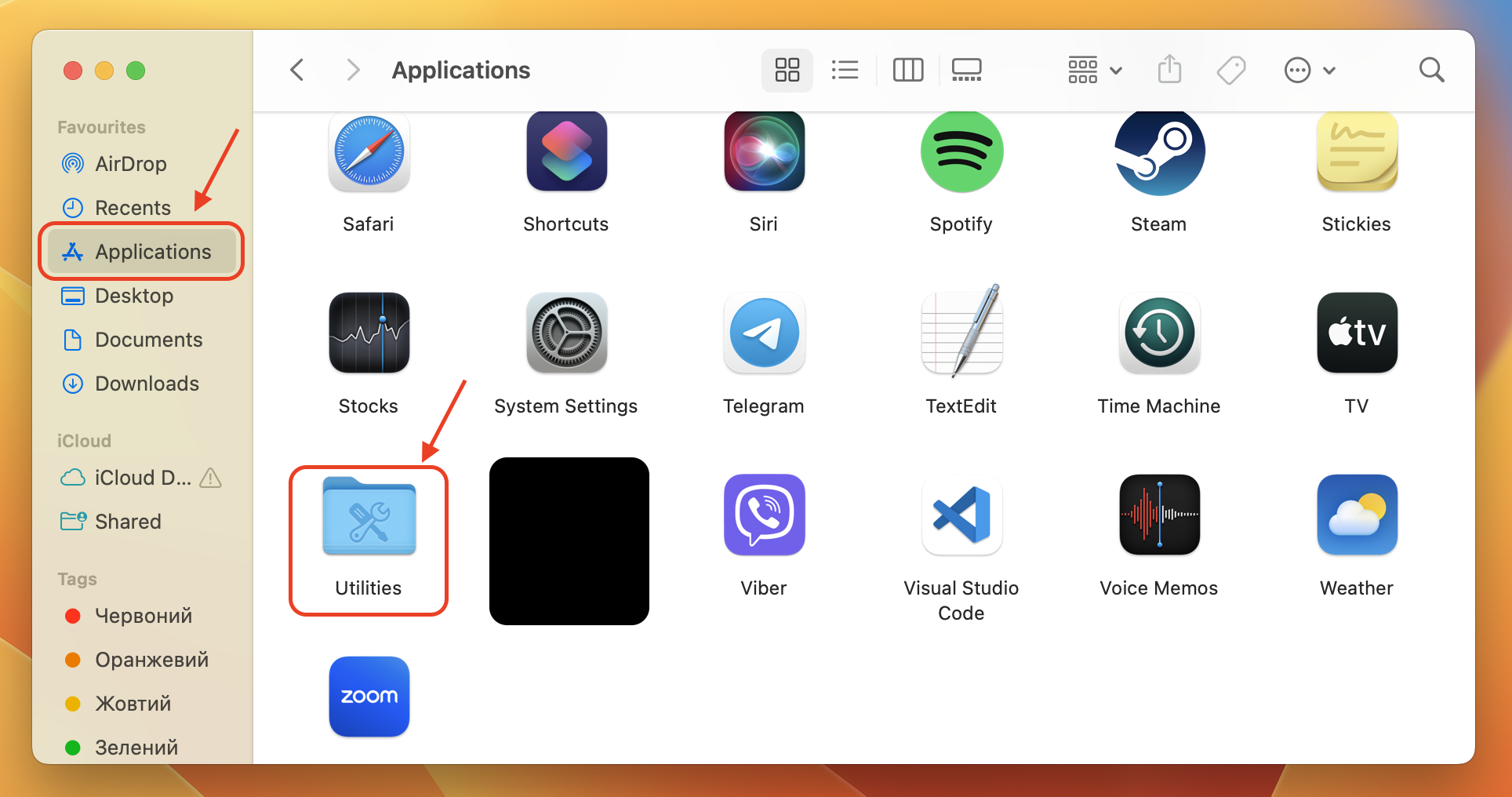
Open Terminal from the Applications > Utilities folder.
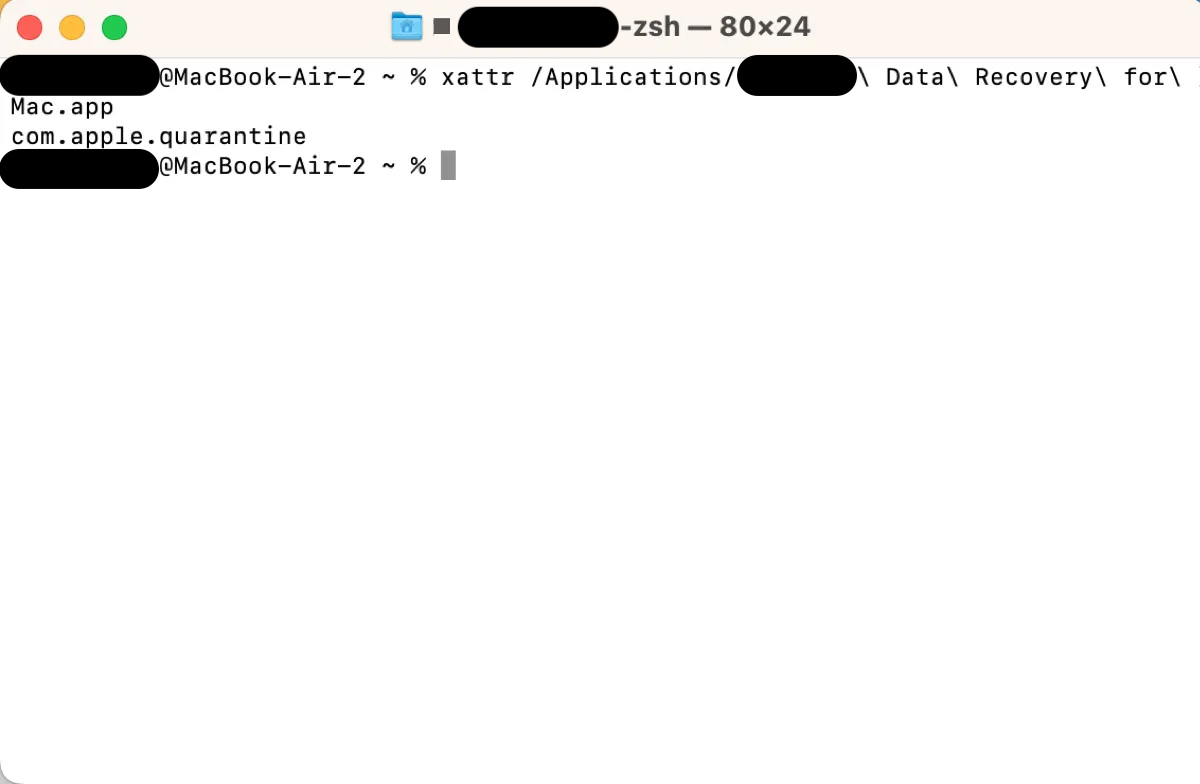
Type xattr, then drag the app into Terminal to check for quarantine attributes.
If flagged, type the command: sudo xattr -r -d com.apple.quarantine [file_path].
Drag and drop the app file into Terminal to complete the command.
Enter your administrator password when prompted, then press Enter.
Step 1. Find Terminal in the Applications > Utilities folderStep 2. Type xattr, then drag the app into Terminal to check for quarantine attributesStep 3. If flagged, type the command: sudo xattr -r -d com.apple.quarantine [file_path]
3. Click “open anyway” in Privacy & Security
Using the “Open Anyway” option in Privacy & Security is one of our favorite ways to handle blocked apps if you definitely trust them. It’s simple, effective, and doesn’t require any technical knowledge. Still, it’s worth remembering that it only works for a short period after trying to open unverified apps on Mac.
We’ll remind you of how to use the “Open Anyway” option:
Go to System Preferences via the Apple menu.
Click Privacy & Security in the left-hand menu.
Find the app listed under the Security section, which says it was blocked from use.
Click Open Anyway next to the app’s name.
Confirm by selecting Open in the pop-up dialogue box.
4. Allow apps from anywhere
Allowing apps from anywhere disables Gatekeeper entirely, meaning your Mac will no longer block apps based on their developer status. We only recommend this method as a temporary fix and for advanced users who understand the risks.
To allow unidentified developer on Mac in Terminal:
Open Terminal from the Applications > Utilities folder.
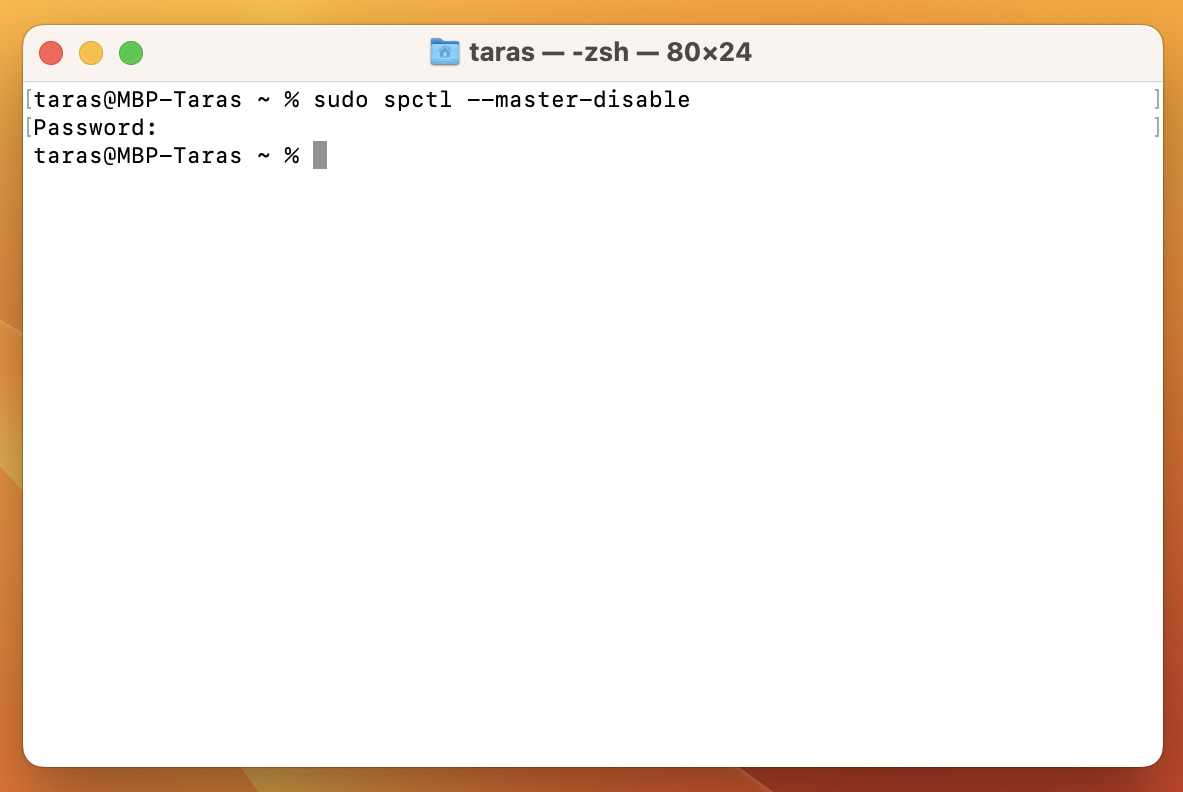
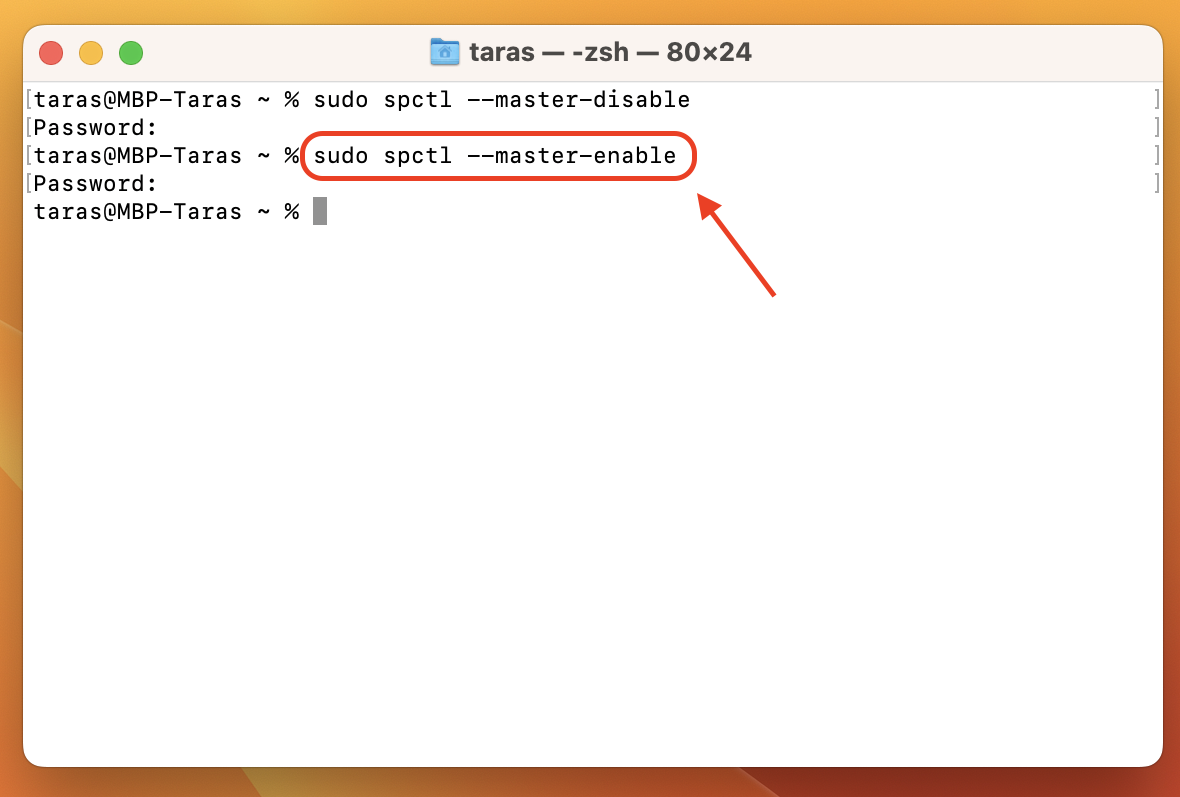
Type the command: sudo spctl --master-disable, then press Enter.
Enter your administrator password, then press Enter again.
Go to System Preferences > Privacy & Security.
Tick App Store and identified developers under the Allow apps downloaded from section.
Step 1. Find Terminal in the Applications > Utilities folderStep 2. Type the command: sudo spctl --master-disable, hit Enter, type in your password, and click Enter againStep 3. Find and open System Settings, then go to Privacy & SecurityStep 4. Under Allow apps downloaded from, select App Store and identified developersStep 5 (*bonus). To re-enable Gatekeeper, run the command: sudo spctl --master-enable
A helpful suggestion from our team:
Annoyed by unnecessary pop-ups while managing app permissions? Adjusting your browser settings can block pop-ups on Mac, giving you a smoother experience as you focus on allowing downloaded apps to run safely. A small tweak can save you time and frustration.
Best practices for avoiding unidentified developer issues
Preventing the "unidentified developer" message is simpler than dealing with its consequences. Follow our recommendations to safeguard your macOS experience:
Regularly update macOS to maintain compatibility with trusted apps and minimize security warnings.
Use only reputable sources for downloads, such as the App Store or verified developer websites.
Check user reviews and community forums to verify the authenticity of new software.
Monitor suspicious processes using Activity Monitor to identify potential unverified apps.
Enable Gatekeepers' intermediate settings to provide a balanced approach to security and usability.
Employ comprehensive tools like MacKeeper’s Antivirus to monitor system integrity and block threats.
By adopting the measures above, you can significantly improve security and enjoy a hassle-free macOS experience.
Conclusion
Encountering the “cannot be opened because it is from an unidentified developer” message can be frustrating, but understanding how to bypass it safely empowers you to manage your Mac confidently. From control-clicking to advanced solutions like removing file attributes or enabling “Open Anyway,”, the methods we’ve discussed in this article allow you to open trusted apps while keeping security intact.
For next-level protection, consider using MacKeeper’s Antivirus. It goes beyond standard antivirus features by offering 24/7 real-time protection, which is your shield against threats when you need to download and use trusted unidentified software.
Here’s how to use MacKeeper’s Antivirus:
Open MacKeeper and click Antivirus in the Security section.
Start a scan by clicking Start Scan, review threats, and quarantine or delete them (if any are found).
Step 1. Find the Antivirus section in the left-side menu barStep 2. Click the Start Scan button to launch the scanning process
MacKeeper keeps your Mac running smoothly and securely, giving you peace of mind and ensuring it's always ready for what you need. Try it yourself now.
We respect your privacy and
use cookies
for the best site experience.
Privacy Preferences Center
We use cookies along with other tools to give you the best possible experience while using the
MacKeeper website. Cookies are small text files that help the website load faster. The cookies we
use don’t contain any type of personal data meaning they never store information such as your
location, email address, or IP address.
Help us improve how you interact with our website by accepting the use of cookies. You can change
your privacy settings whenever you like.
Manage consent
All cookies
These cookies are strictly necessary for enabling basic website functionality (including page
navigation, form submission, language detection, post commenting), downloading and purchasing
software. The website might malfunction without these cookies.

![If flagged, use the command sudo xattr -r -d com.apple.quarantine [file_path] in Terminal to remove quarantine attributes from the app.](https://static-cdn.mackeeper.com/mk-blog-upload/images/new_A8HOqb7bPe.jpg "If flagged, use the command sudo xattr -r -d com.apple.quarantine [file_path] in Terminal to remove quarantine attributes from the app.")