Have you noticed unusual activity on your Mac, such as constant overheating, fans overworking, or slow responsiveness? Chronod’s high CPU consumption could be the reason. Stop this process and similar ones using MacKeeper’s Memory Cleaner, which automatically identifies resource-intensive apps and processes so you can manage them in one place.
Chronod is a macOS daemon or LaunchAgent within the ChronoCore framework. Released with OS X Sonoma, it manages widgets and keeps your desktop and Notification Center data up to date. Though it may seem like it due to how it affects Mac performance, Chronod isn’t malware—it’s a legitimate system-level component.
What is Chronod on Mac?
Chronod is an Apple system-level process introduced in macOS Sonoma. It helps keep your widgets up to date and synchronizes data in your Notifications Center. For this reason, sync issues, corrupted widgets, and excessive third-party widgets can cause Chronod’s CPU consumption to spike. This can cause performance issues on your MacBook device, including the MacBook Air fan constantly running.
A note from our experts:
High CPU consumption can be a huge inconvenience, from slowing down your Mac’s performance to showing concerning signs, such as high temperatures (which Mac temperature monitor can help with, by the way). The good news is that you can manage this using MacKeeper’s Memory Cleaner. This tool quickly finds resource-intensive apps and processes and presents them to you so you can immediately close them to improve your computer’s performance. MacKeeper is developed by Clario Tech, a reputable cybersecurity company that develops consumer-focused, cross-platform security and privacy software for macOS, iOS, Android, and Windows.
Curious about how MacKeeper’s Memory Cleaner works? Here’s how to use it:
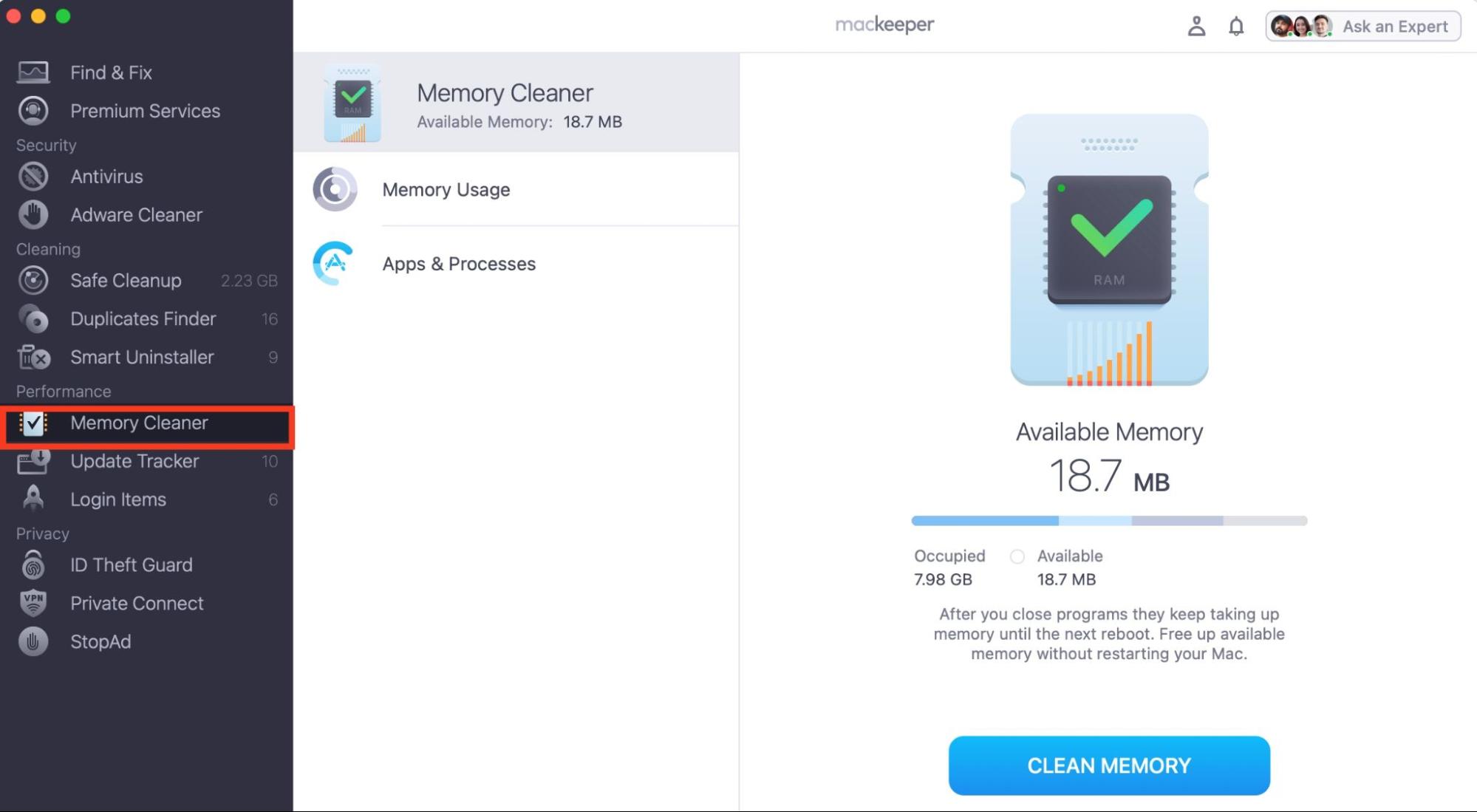
Open the app and click on Memory Cleaner in the sidebar. It’s in the Performance section.
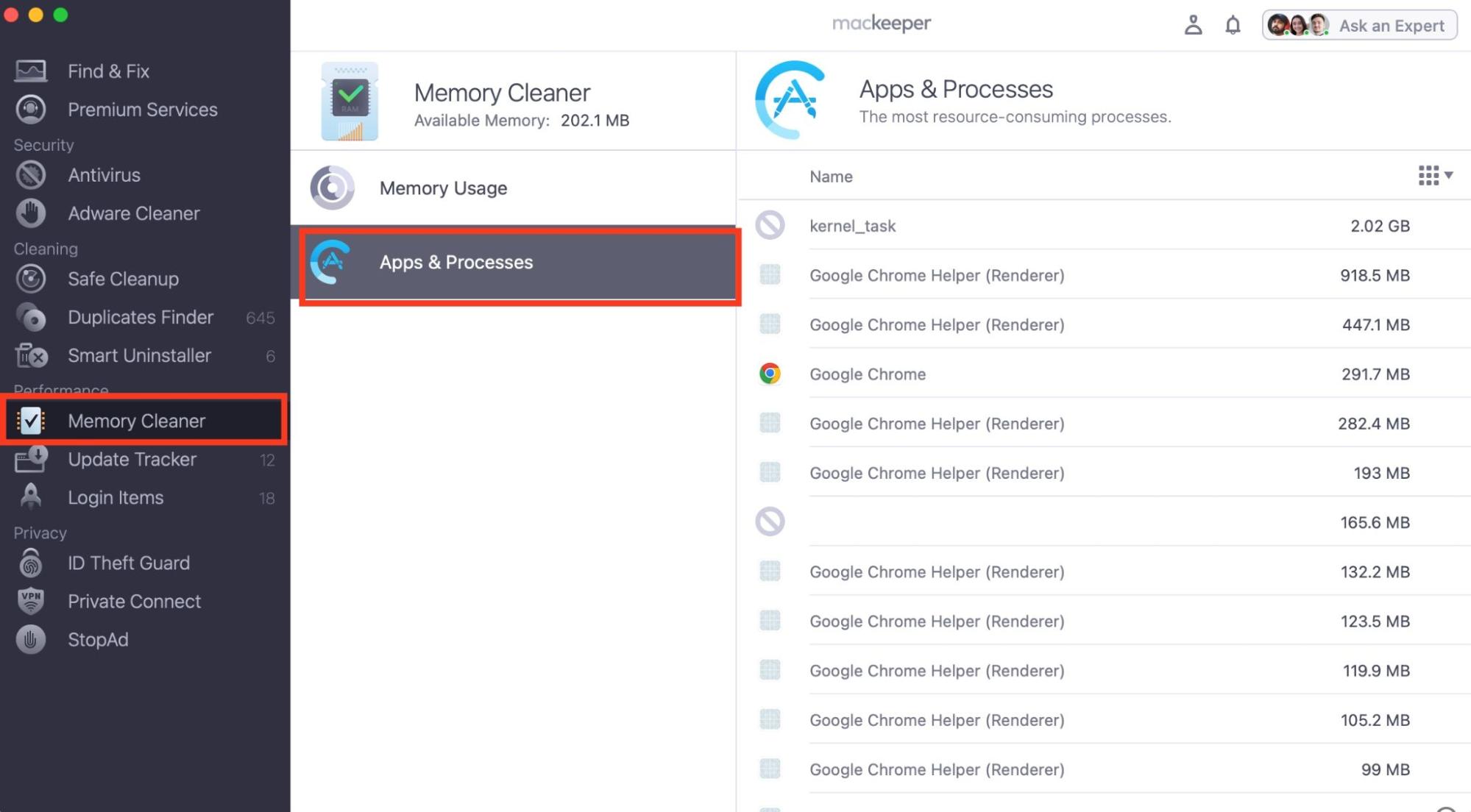
Select Apps & Processes, go through the list, hover over an app or process you want to stop, and click on the x icon that appears on the right.
Repeat step 3 above to remove any other resource-intensive processes where applicable until you’re confident that you’ve removed all troublesome apps and resources.
Step 1. Click on Memory Cleaner in MacKeeper’s sidebarStep 2. Click on Apps & Processes and remove the Chronod Mac process
Now that you’ve stopped Chronod and other resource-intensive apps and processes, run a Mac performance check to see if you notice a difference in your MacBook’s performance. If the apps or processes you stopped were responsible for your Mac’s performance issues, your device should now function smoothly without overheating, freezing, or causing the fan to be loud.
How to fix Chronod's high CPU usage on Mac?
To resolve Chronod’s high Mac CPU usage issue, remove buggy or troublesome third-party widgets and clear widget caches. Restart your device to fix stuck processes and temporary system glitches. Temporarily disable third-party antivirus tools, which sometimes falsely interpret Chronod's network activity as malicious. Also, update macOS to fix system bugs.
A quick hint from us:
Figuring out how to see what apps are running on a Mac can also come in handy. Not only can you achieve this in Activity Monitor, but you can stop the active process from the same place, too.
Closing apps and stopping resources in Activity Monitor is easy. Follow these steps to stop Chronod's high CPU usage on a Mac:
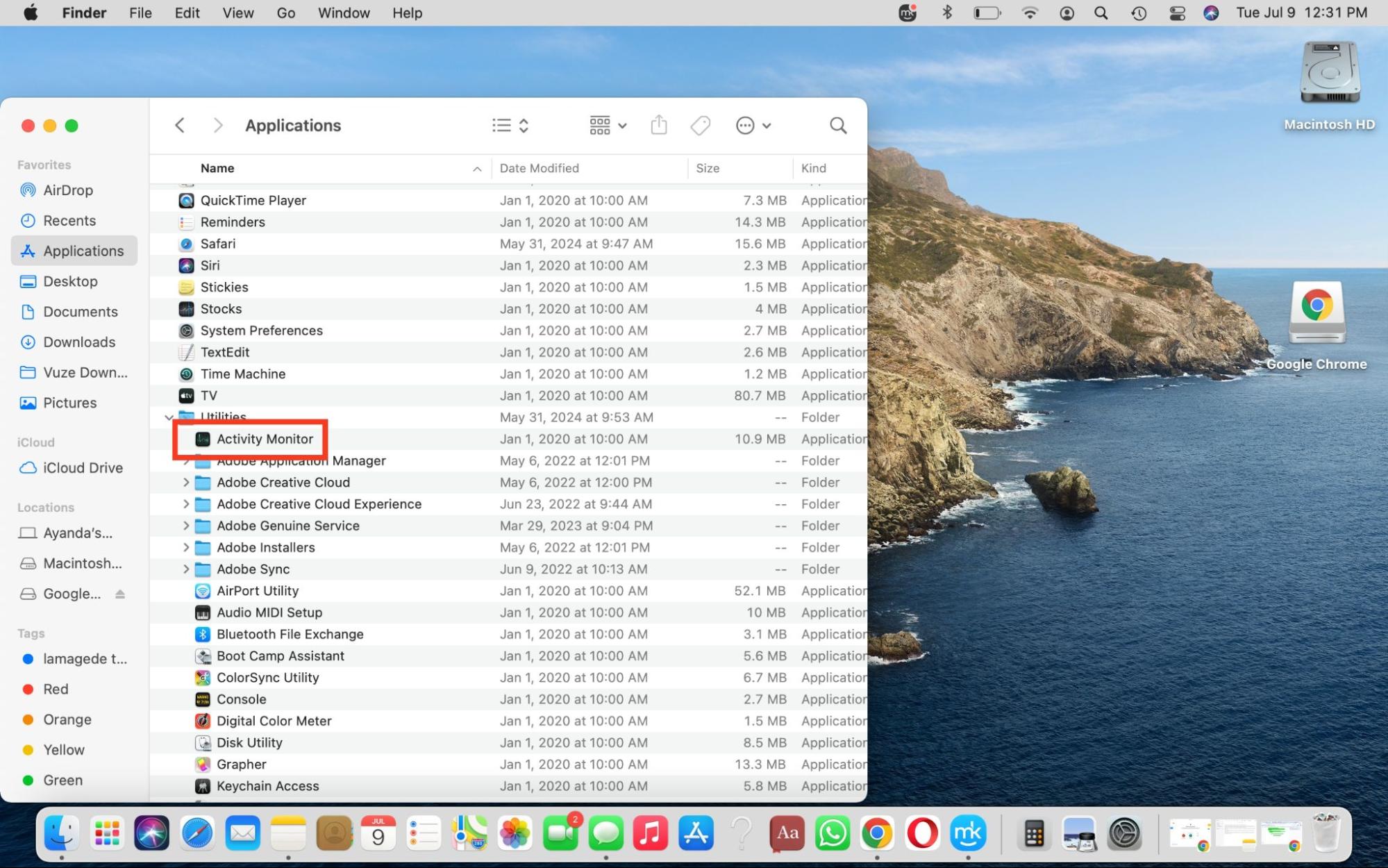
Open Activity Monitor from Applications or Spotlight search.
Ensure the CPU tab is selected and scroll down the list to find the Chronod process.
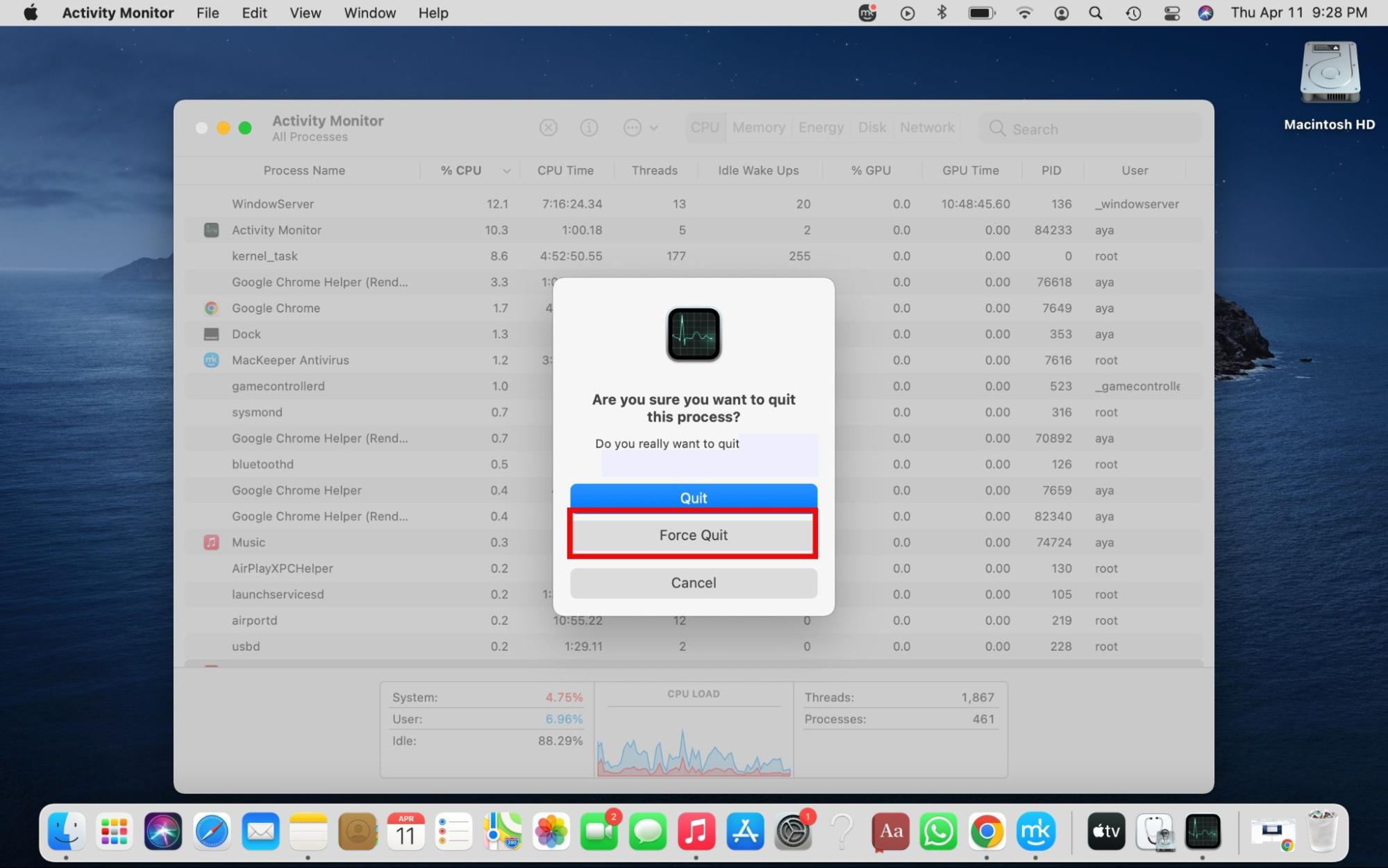
Click on the process, hit the x icon at the top of the window, and select either the Quit or Force Quit option.
Step 1. Open Activity Monitor via Applications or Spotlight searchStep 2. Select Chronod from the list and either Quit or Force Quit the process
Safely stop the Chronod process on your Mac
Chronod on Mac helps with widget functionality by synchronizing data and keeping it updated on your Mac’s desktop and Notifications Center. As a macOS Sonoma user, Chronod can dampen your Mac’s performance due to its high CPU consumption, even though it isn’t malware. But you can fix this by stopping the process in Mac’s Activity Monitor. That’s the manual solution to cutting off the Chronod process and freeing up system resources on a Mac… But it’s not the only solution.
If you want to achieve this automatically, use MacKeeper’s Memory Cleaner. It identifies resource-intensive apps and processes so you don’t have to, saving you time and effort and making it easier for you to stop these processes and improve your MacBook’s performance.
We respect your privacy and
use cookies
for the best site experience.
Privacy Preferences Center
We use cookies along with other tools to give you the best possible experience while using the
MacKeeper website. Cookies are small text files that help the website load faster. The cookies we
use don’t contain any type of personal data meaning they never store information such as your
location, email address, or IP address.
Help us improve how you interact with our website by accepting the use of cookies. You can change
your privacy settings whenever you like.
Manage consent
All cookies
These cookies are strictly necessary for enabling basic website functionality (including page
navigation, form submission, language detection, post commenting), downloading and purchasing
software. The website might malfunction without these cookies.