Dealing with a slow or freezing Excel that crashes at critical moments is incredibly frustrating. While clearing the cache can often resolve these issues, using MacKeeper’s Safe Cleanup provides a long-term improvement in your Mac’s overall performance.
To manually clear the Microsoft Excel cache on your Mac, you need to open Finder, click the Go menu, select Go to Folder, and enter the following address: ~/Library/Caches. In this folder, locate and delete the Excel cache files. For optimal results, consider removing other unnecessary temporary files as well.
Read on to find out our expert tips to optimize all Microsoft Office apps. For instance, are you curious why is Word so slow on Mac? Check out our guide to troubleshoot Microsoft’s text processor.
Reasons to remove Excel cache on Mac
Clearing Excel’s cache is a simple and effective way to resolve performance issues on your Mac. If you experience sudden app crashes and slowdowns, clearing the cache may help. This solution can also address data synchronization or formatting problems, as well as help you when you’re having trouble opening your Excel files. Finally, our expert team recommends it as a quick way to free up disk space.
Why is Excel on Mac so slow? Check out our separate article to understand the causes before following the steps below to clear the Excel cache on Mac.
A note from our experts:
Performance issues on a Mac, whether with Excel or any other app, are often caused by the buildup of leftover files, cache, and other unnecessary data. Instead of manually removing these files, you can use Clario Tech’s MacKeeper. Its Safe Cleanup feature, notarized by Apple and trusted by millions, automatically optimizes your Mac while safeguarding your important files.
Follow our expert advice to benefit from MacKeeper’s Safe Cleanup on your Mac:
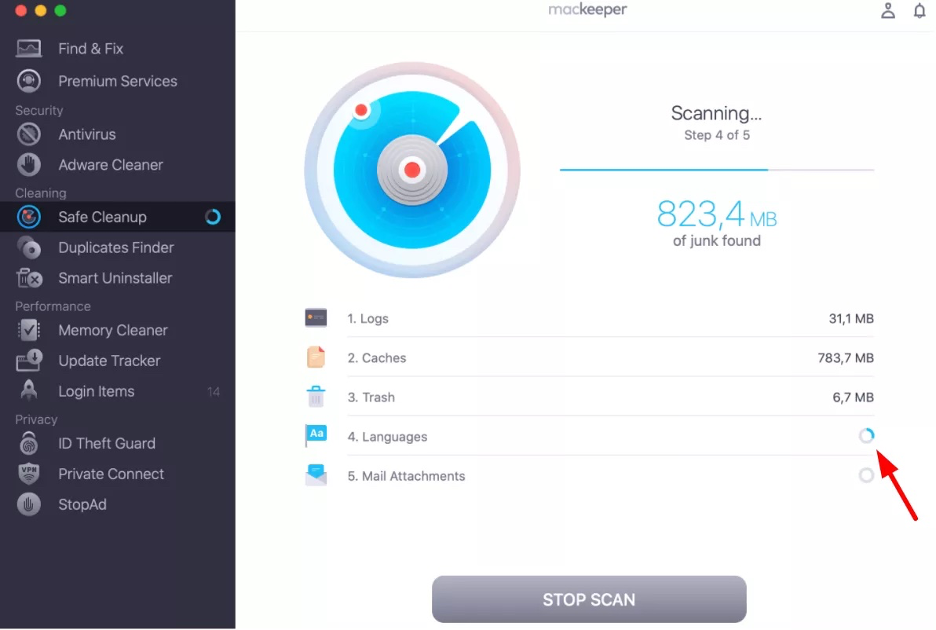
Step 1. Safe Cleanup > Start ScanStep 2. Wait until the scan is doneStep 3. Select foldersStep 5. Click Clean Junk FilesStep 6. Click Empty Trash
Preparation before deleting Excel cache on Mac
Before clearing the Excel cache on your Mac, we strongly recommend backing up all your files to prevent unexpected data loss, though such issues are rare. We also advise closing all Office apps beforehand—leaving them open could lead to complications during the process.
If you're considering clearing the cache because your account doesn’t allow editing on a Mac, read our troubleshooting guide first. There may be a more effective solution for your issue.
How to delete Excel cache on Mac?
You can clear the Excel cache on your Mac using different methods. You can begin with the manual approach by navigating to the ~/Library/ folder to remove temporary files generated by the Office app. Alternatively, use Excel’s built-in cache-clearing option, though this feature is only available in certain versions. For a simpler, automated solution, consider third-party apps that handle the process for you.
Additionally, we suggest reviewing our guide on how to clear temp files on Mac. This resource can help you address broader performance issues, not just those related to Excel.
1. Manual method via Finder and Library folder
First, we recommend clearing the Excel cache on your Mac using the manual method. This approach is universally accessible, working with any version of Office and any macOS user, whether you have admin rights or not. Another benefit is its versatility, considering you can use the same steps to clear cache files from all apps.
Follow the steps below to clear Excel cache via your Mac’s Finder:
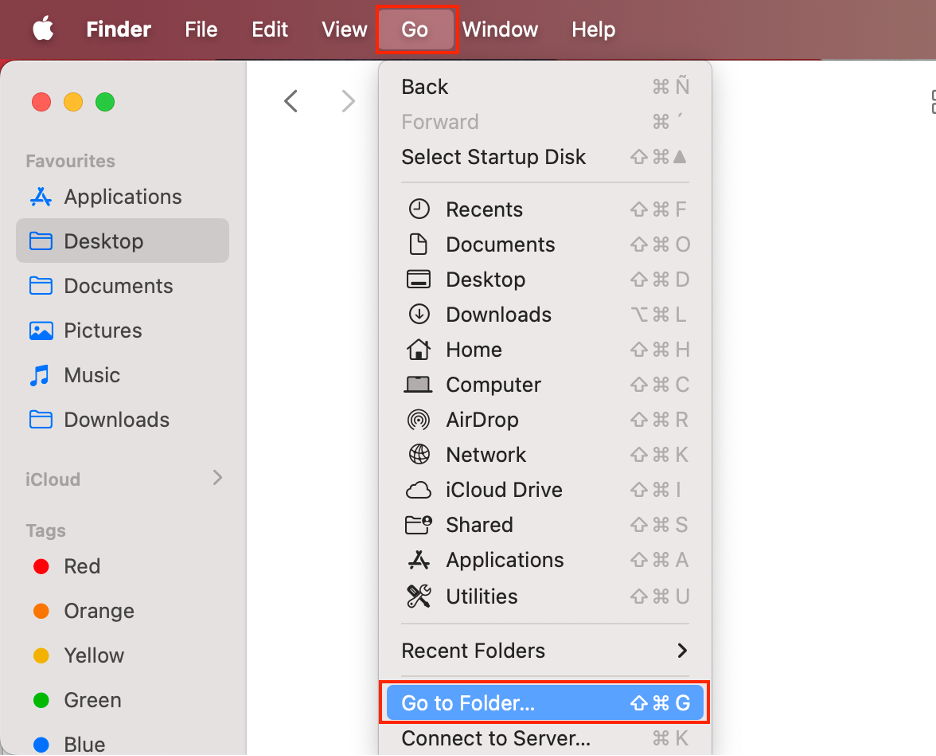
Open Finder.
Click Go from the menu bar.
Select Go to Folder from the dropdown menu.
In the dialog box, enter the following address: ~/Library/Caches.
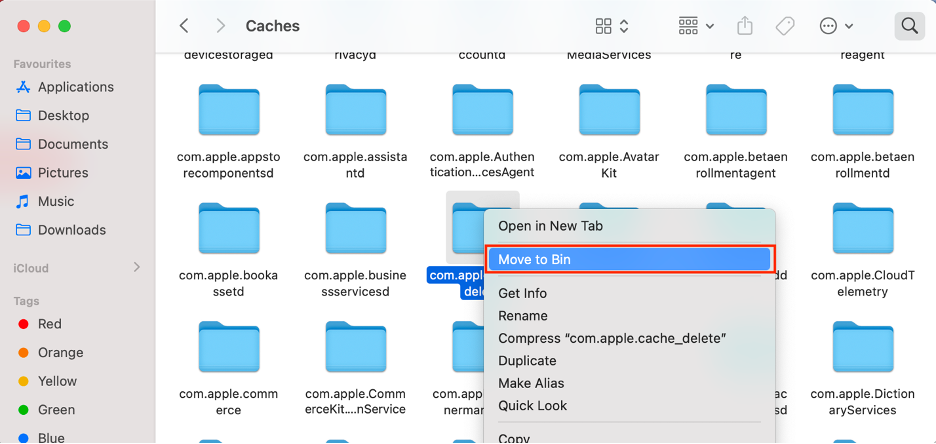
Look for any Excel cache files and folders.
Select the files.
Right-click the files, then select Move to Trash to delete them.
Step 1. Finder > Go > Go to FolderStep 2. Enter ~/Library/CachesStep 3. Select the Excel files > Right-click on them > Choose Move to Bin
2. Using built-in Excel options
Here’s our next tip: consider using the built-in cache management tool included in some versions of Microsoft Excel. We particularly like this feature because it lets you clear the cache instantly or set a schedule for how long cached data is retained.
We explain how to use Excel’s built-in cache-clearing tool below:
Launch the Excel app on your Mac.
Go to the Excel menu at the top.
Select Preferences.
In the new window, click Save under Sharing and Privacy.
Scroll down to the Cache Settings.
Click Deletecached files.
3. Using third-party cleaning tools
Finally, for a hands-off approach, we suggest automating cache clearing for Excel and other programs using reputable third-party software. Our top recommendation is MacKeeper’s Safe Cleanup, which efficiently removes junk files across your system at an affordable price.
Below is our brief guide on how to benefit from Safe Cleanup on your Mac:
Launch MacKeeper.
Select the Safe Cleanup tool from the left menu.
Click Start Scan.
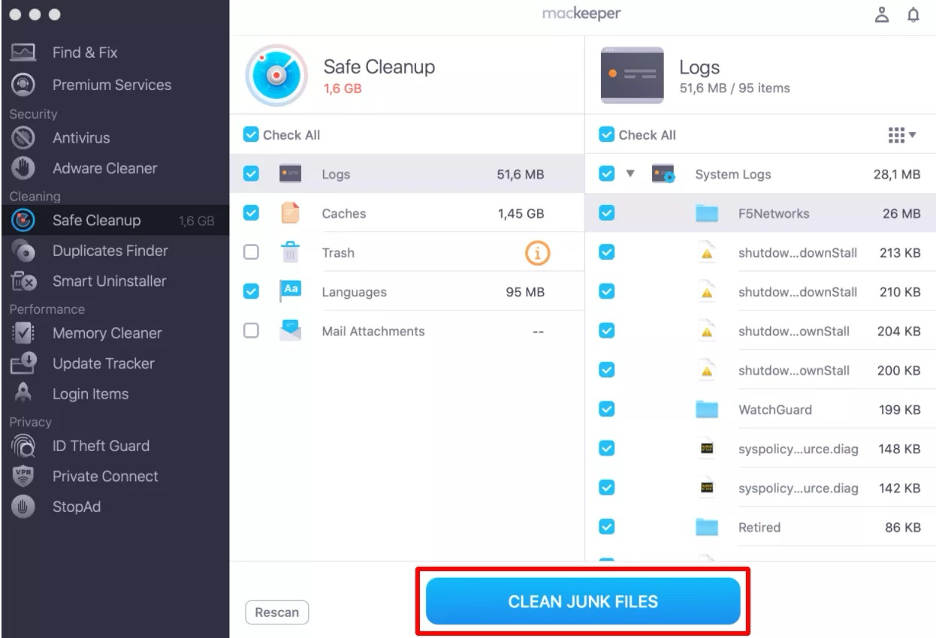
Check the boxes next to the folders you need to scan.
Click Clean Junk Files, then confirm by clicking Empty Trash.
Wait until the scan is complete.
Step 1. Safe Cleanup > Start ScanStep 2. Wait until the scan is doneStep 3. Select folders to scanStep 5. Click Clean Junk FilesStep 6. Click Empty Trash
Want to reset Excel cache on Mac? Here’s the ultimate solution!
To keep Excel running efficiently on your Mac, our experts recommend clearing your cache and other temporary files on a regular basis. This practice is especially crucial when troubleshooting issues such as sudden crashes or sluggish performance on your Office app. You can remove these files manually or by using Excel’s built-in cache-clearing feature.
For the most seamless experience, consider automating this process with a trusted third-party app like MacKeeper’s Safe Cleanup. MacKeeper stands out as a comprehensive macOS utility, providing real-time antivirus protection alongside performance and memory optimization tools.
We respect your privacy and
use cookies
for the best site experience.
Privacy Preferences Center
We use cookies along with other tools to give you the best possible experience while using the
MacKeeper website. Cookies are small text files that help the website load faster. The cookies we
use don’t contain any type of personal data meaning they never store information such as your
location, email address, or IP address.
Help us improve how you interact with our website by accepting the use of cookies. You can change
your privacy settings whenever you like.
Manage consent
All cookies
These cookies are strictly necessary for enabling basic website functionality (including page
navigation, form submission, language detection, post commenting), downloading and purchasing
software. The website might malfunction without these cookies.