If you want to clear the Steam download cache on a Mac or if you want to remove any other cache quickly and efficiently, try MacKeeper’s Safe Cleanup. It also helps get rid of old screenshots, installation files, and more.
Clearing Steam’s download cache can help resolve issues with slow downloads or games not updating properly. Use MacKeeper Safe Cleanup to find and remove logs, caches, language packs and other temporary files.
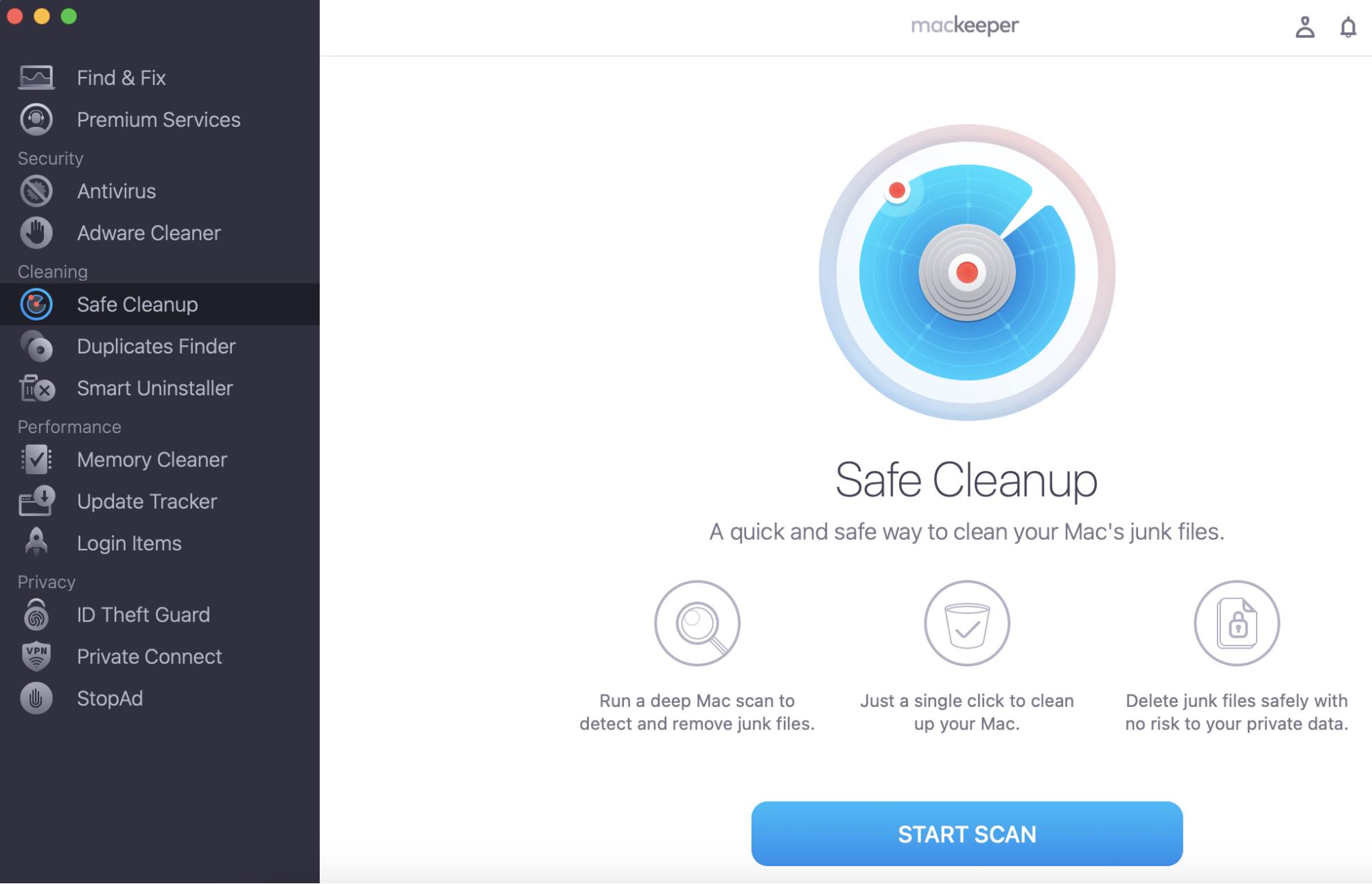
Select Safe Cleanup in the menu on the left and click Start Scan.
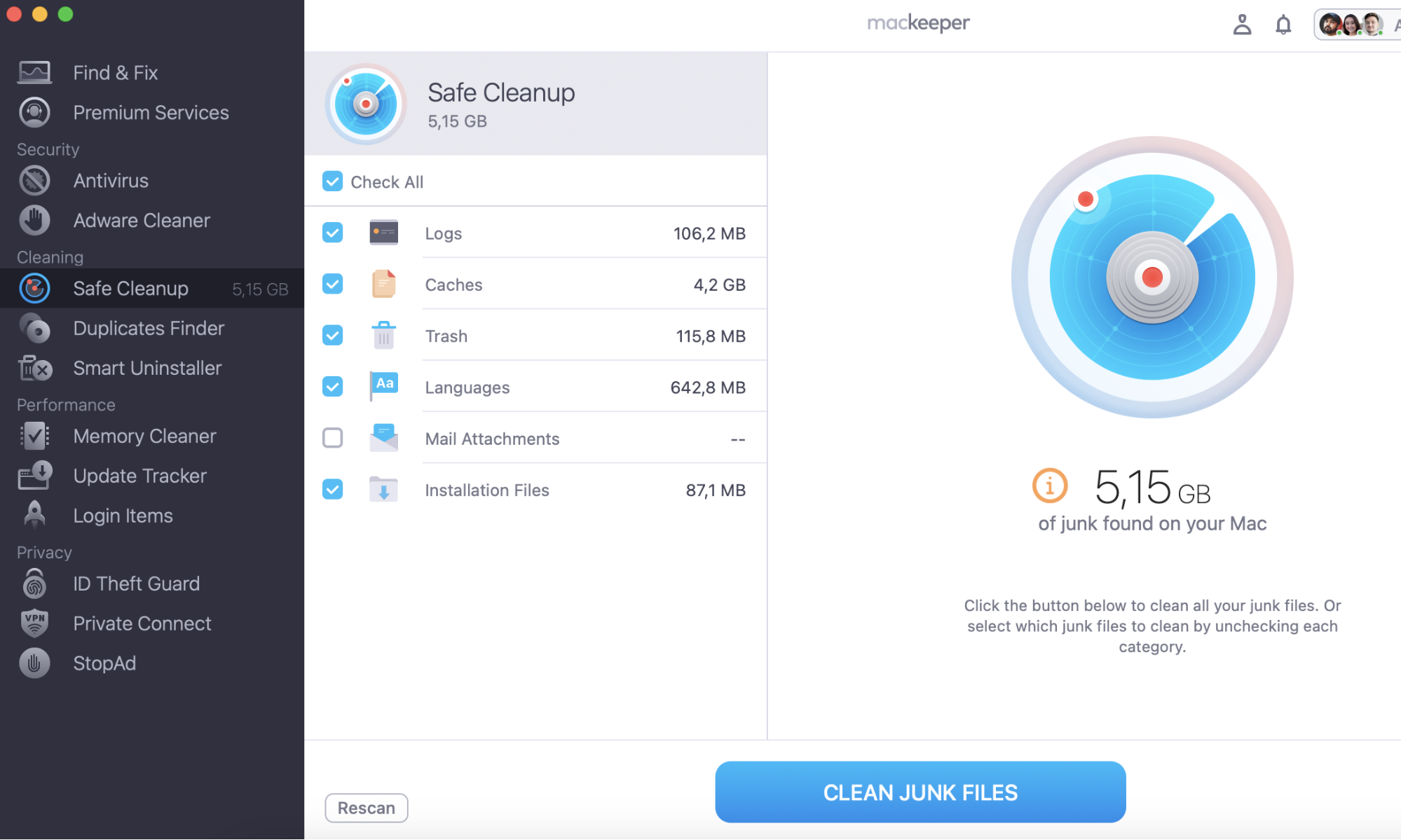
Once the scan is done, put a checkmark next to files you want to remove or click on Check All and click on the Clean Junk Files button.
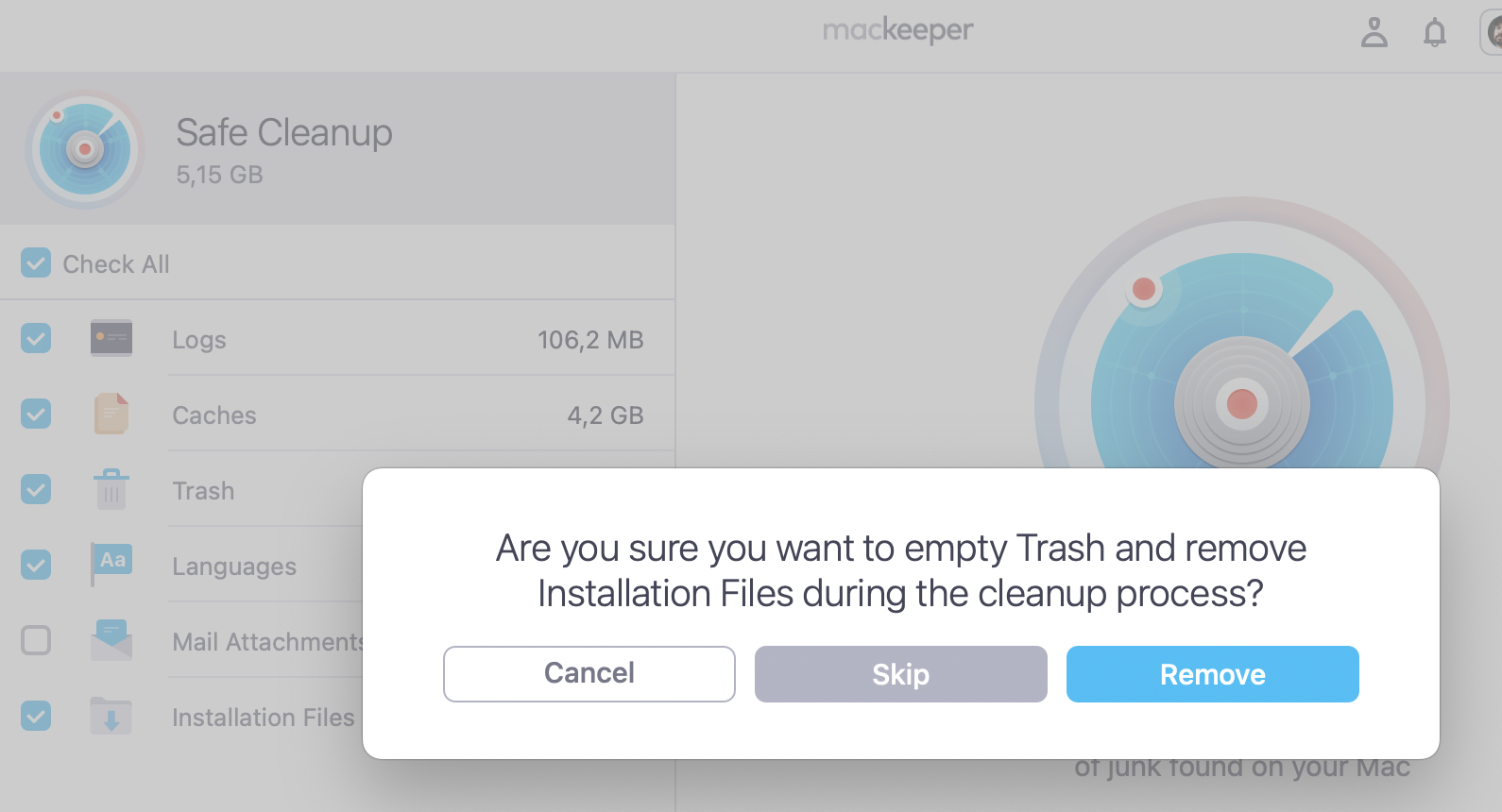
Step 1. MacKeeper > Safe Cleanup > Start ScanStep 2. Tick the boxes next to the files to remove > Clean Junk FilesStep 3. Click Remove
Do your downloads on Steam keep getting stuck? Or are your installed games not working properly? You can usually fix these issues in no time at all by clearing Steam’s download cache on Mac in the Preferences.
The download cache is a hidden folder on your Mac that Steam uses to store downloads or temporary preferences. You can usually clear the cache without losing any valuable data, and it’s one of the best ways to troubleshoot various issues with Steam.
Will I lose my data if I clear Steam’s download cache?
Steam says that clearing the download cache shouldn’t have any effect on your installed games, but you will lose any progress on your current downloads. Unfortunately, if your Steam download is frozen, the only way you can usually fix it is to clear the cache and start again from scratch.
After clearing the download cache, you’ll also need to log in to Steam again. So make sure you know your username and password before you go any further.
Finally, clearing the download cache could affect any mods you’ve installed on your Steam games. Although this shouldn’t happen, we’d advise you to download and back up any mods you’ve installed before clearing the cache.
Clearing the Steam download cache doesn’t usually create much more free storage on your Mac. If that’s your goal, we suggest you follow these guides on how to free space on Mac and delete system storage instead.
How to clear Steam’s download cache on Mac
Clearing the download cache in Steam is remarkably easy.
Just follow these steps:
Open Steam on your Mac and log in if prompted.
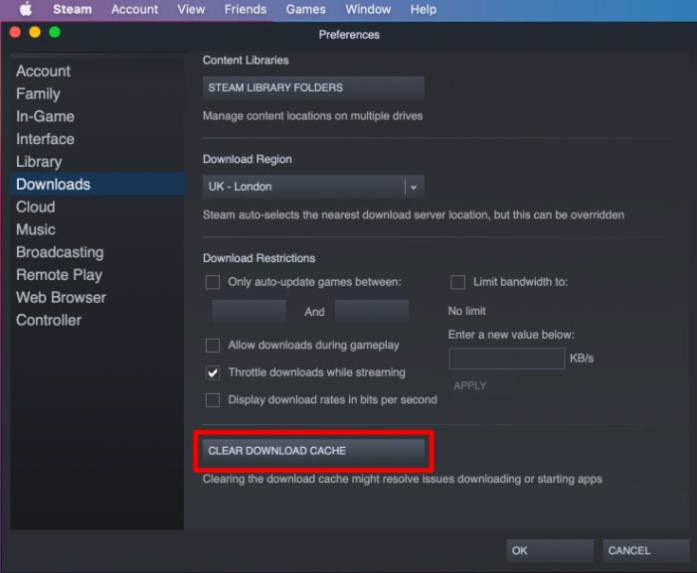
From the menu bar, go to Steam > Preferences.
Select Downloadsfrom the Preferences sidebar.
Near the bottom, click Clear Download Cache.
Click OKto confirm you want to clear the cache.
Issues with clearing Steam’s cache on Mac
If clearing the download cache doesn’t fix your games or downloads, it could point to a bigger issue with Steam. Before taking any further steps, quit the app by going to Steam > Quit Steam from the menu bar, then restart your Mac.
If Steam still isn’t working properly, whether your downloads won’t complete or your installed games won’t open, contact the support team on Steam’s website. They should be able to help you diagnose and fix whatever bugs are causing your Steam issues.
Automatically clear other Mac caches with MacKeeper
Most apps on your Mac store a cache of some kind to save temporary data. For example, web browsers like Safari use a cache to help you load frequently visited websites faster.
We respect your privacy and
use cookies
for the best site experience.
Privacy Preferences Center
We use cookies along with other tools to give you the best possible experience while using the
MacKeeper website. Cookies are small text files that help the website load faster. The cookies we
use don’t contain any type of personal data meaning they never store information such as your
location, email address, or IP address.
Help us improve how you interact with our website by accepting the use of cookies. You can change
your privacy settings whenever you like.
Manage consent
All cookies
These cookies are strictly necessary for enabling basic website functionality (including page
navigation, form submission, language detection, post commenting), downloading and purchasing
software. The website might malfunction without these cookies.