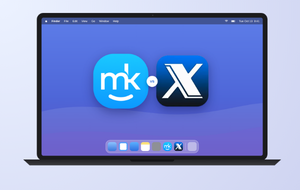
Is your Mac running low on space and slowing down? This Combo Cleaner for Mac review looks at how well it cleans and protects your device. If you’d rather start freeing up storage right now, MacKeeper’s Safe Cleanup removes junk files in one click—without touching your personal files.
Combo Cleaner is a Mac maintenance and security app developed by RCS LT, the team behind the pcrisk security blog. It’s a cross-platform tool, with separate versions for macOS and Windows.
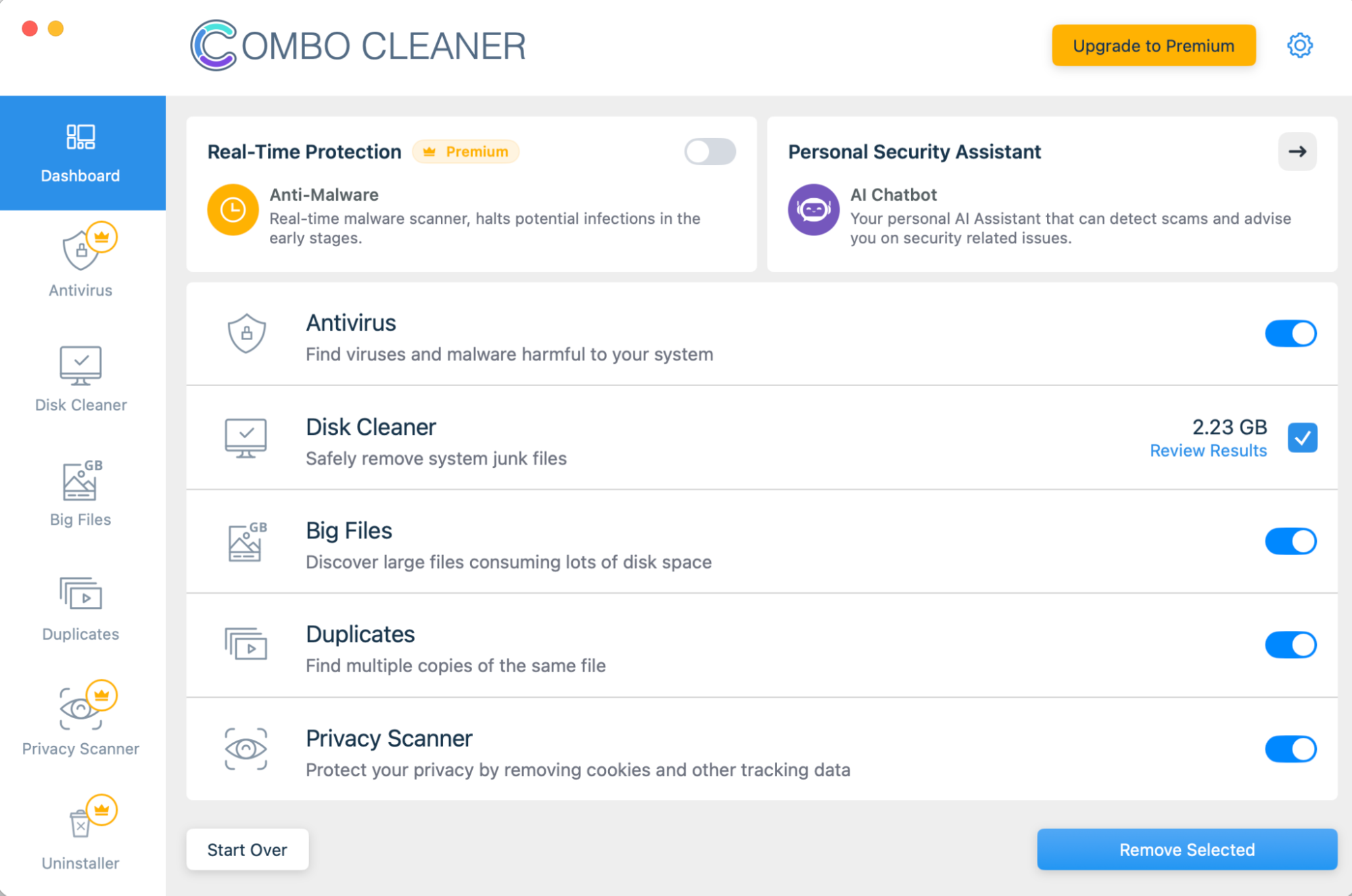
The app bundles several jobs into one window. It combines antivirus protection with storage cleanup, privacy cleaning, and application-management tools, so you don’t need a handful of separate utilities. Think of it as a small toolbox rather than a single wrench.
Combo Cleaner features for MacBook
Combo Cleaner brings together security and maintenance tools inside one macOS app. Some run automatically in the background, while others wait for you to press scan.
We’ve grouped the main tools below, so take a look through them before you decide whether the app fits your MacBook.
Antivirus and malware scanner
The scanner is the heart of the app. It offers a quick scan, a full scan, and a custom scan, so you can check a single folder or the whole disk.
It’s built to spot Mac malware, adware, potentially unwanted programs, and other malicious files. Pairing a scanner like this with careful everyday habits gives you solid malware protection without much effort.
Real-time protection
Real-time protection watches new files and apps as they arrive, rather than waiting for a scheduled scan. This background layer usually needs an active paid subscription.
On most Apple Silicon Macs, the impact on everyday performance is light. Older MacBooks may notice it a little more, though it rarely gets in the way.
Web and anti-phishing protection
This tool aims to block malicious, fraudulent, or phishing websites before they finish loading. If you click a risky link by mistake, it pops up a warning.
Ransomware protection is another part of the safety net, especially if you shop or bank online from your Mac. It’s a useful layer for preventing cybercrime, but it isn’t a substitute for backups. That’s why we still suggest keeping a recent Time Machine copy, just in case.
Disk Cleaner
Disk Cleaner scans for caches, logs, Trash contents, old downloads, and other files you probably don’t need, then shows the results grouped by type.
We always recommend reviewing the detected items before you remove anything, since one person’s junk is another’s keepsake.
A note from our experts:
Removing the files safely, without deleting anything important for the smooth running of macOS, is important, and here we’re glad to present you with an alternative to Disk Cleaner within the Combo Cleaner app. Instead, MacKeeper’s Safe Cleanup gives you peace of mind when removing redundant files on your Mac by showing only the junk files that need to be deleted.
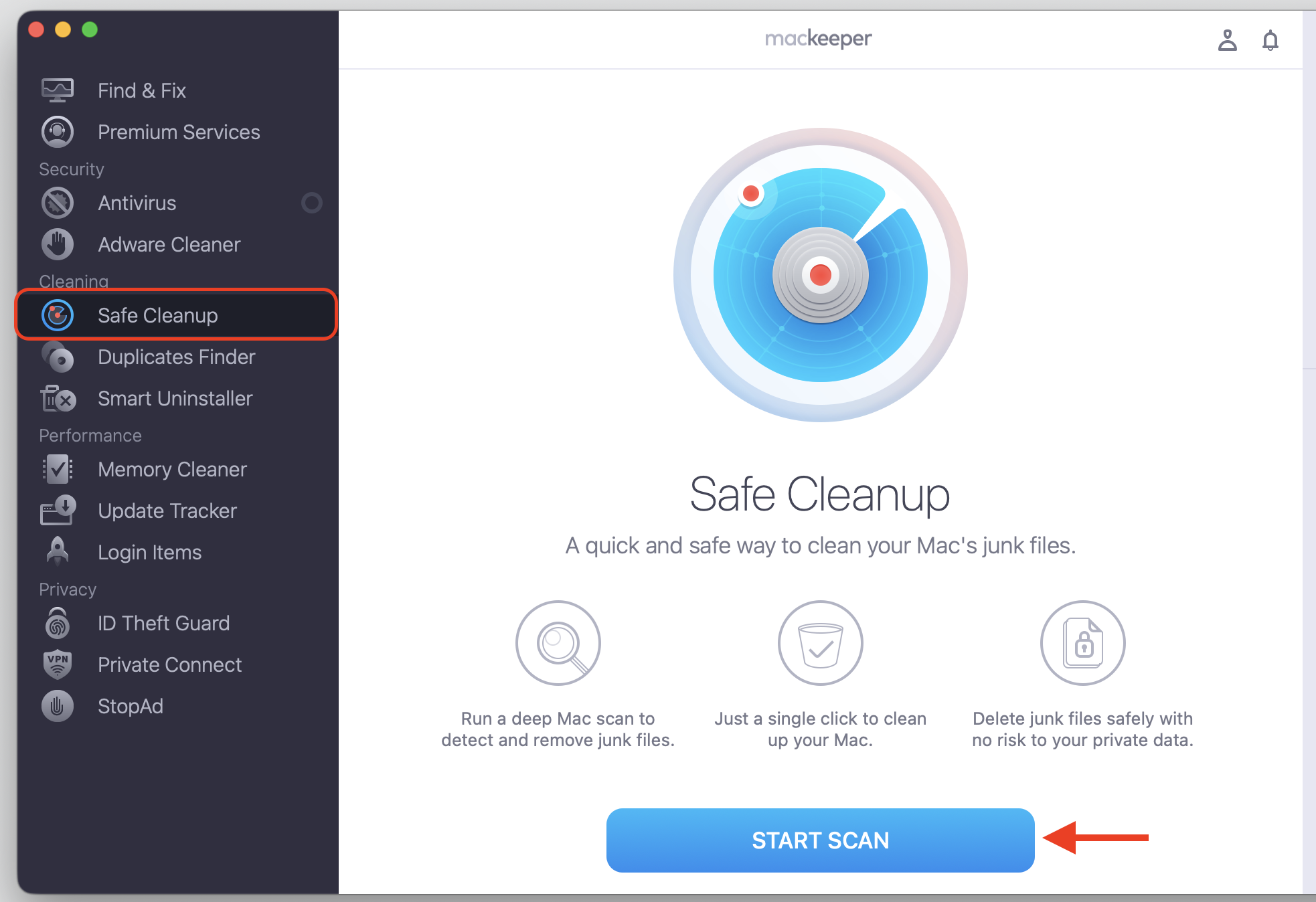
Here’s how to benefit from using MacKeeper’s Safe Cleanup:
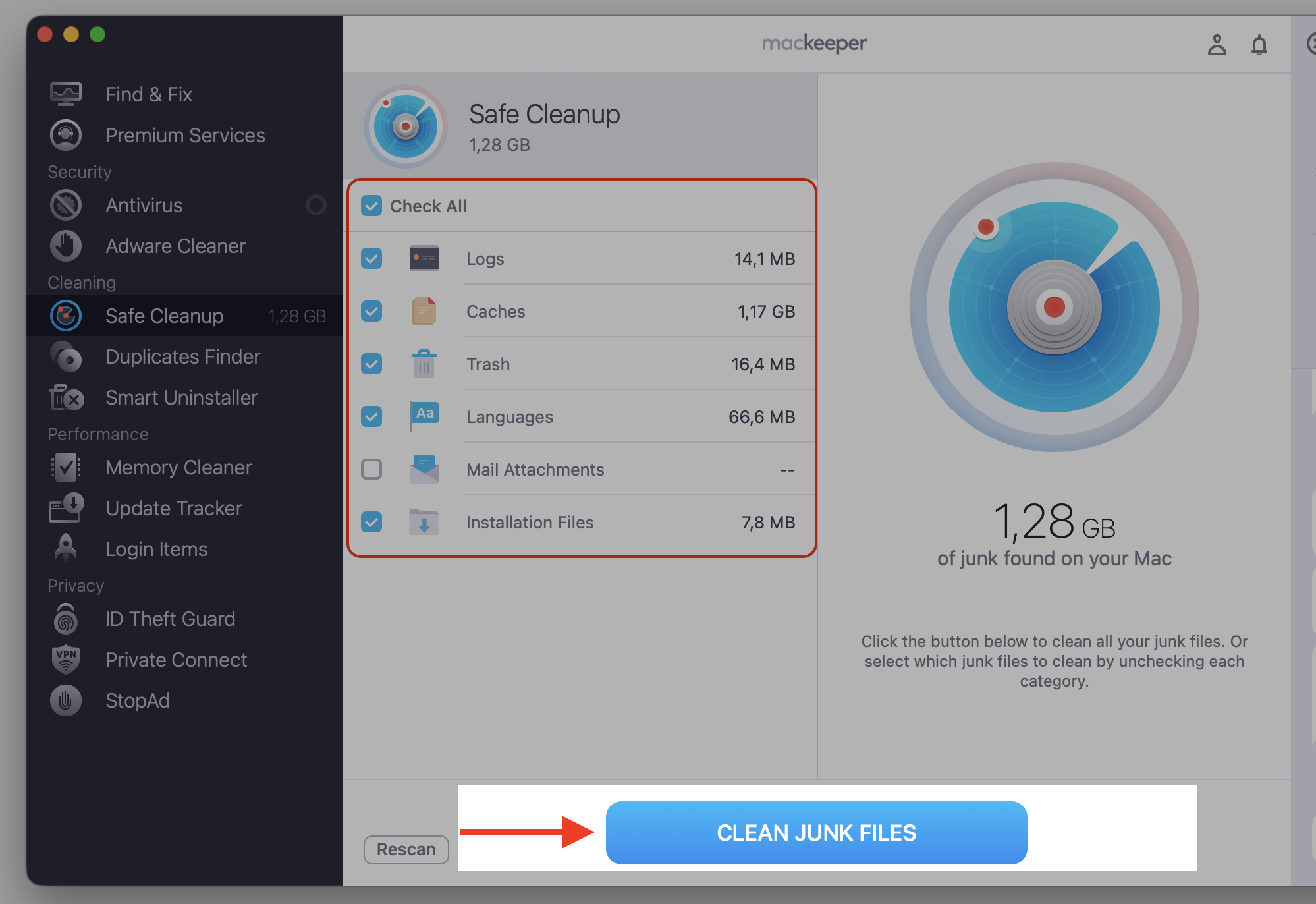
View the scan results, select what to delete, then click Clean Junk Files.
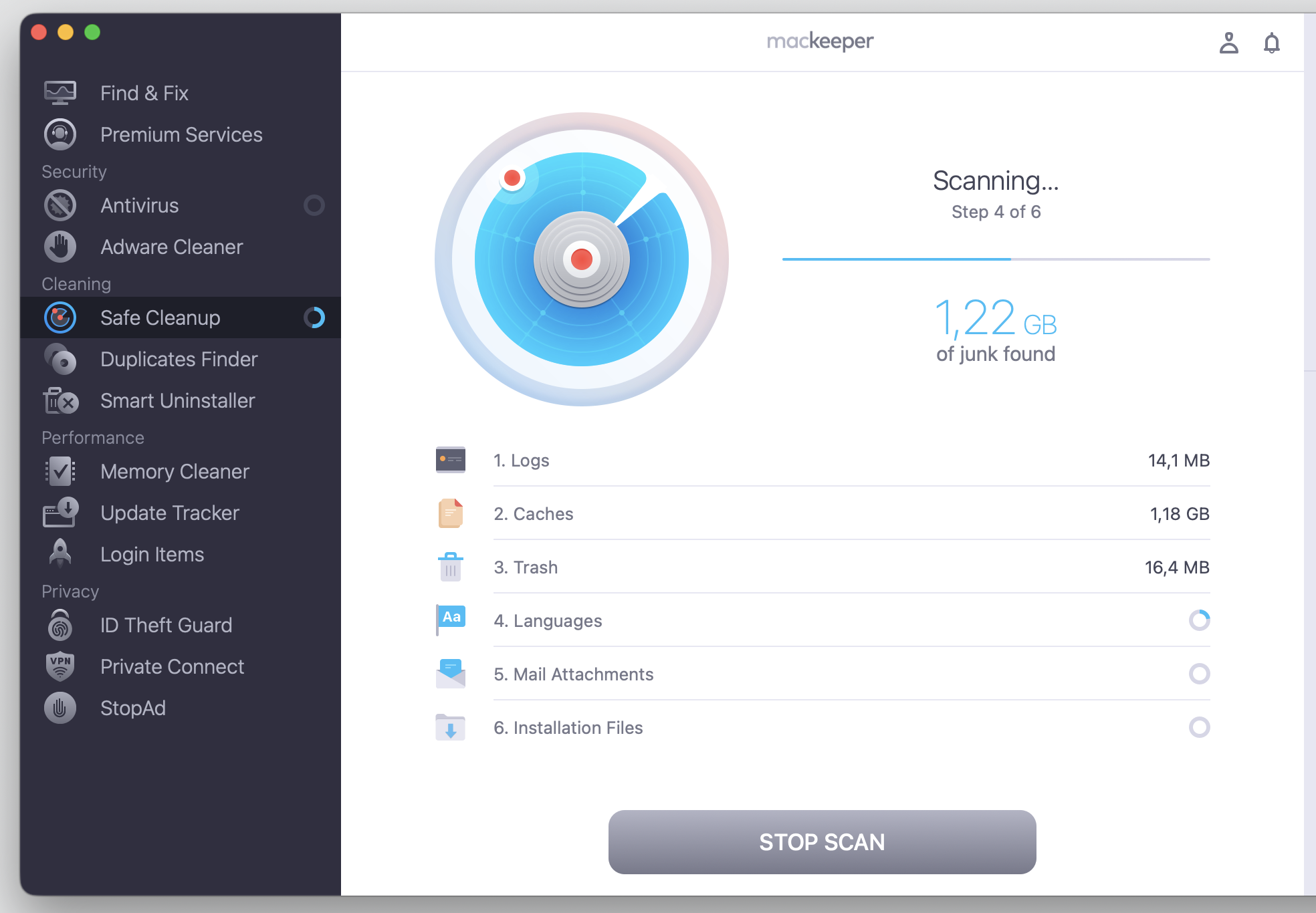
Step 1. Go to MacKeeper > Safe Cleanup and Start ScanStep 2. Wait until the scan is finishedStep 3. Check all setup and proceed with Clean Junk Files
Big Files Finder
Big Files Finder sorts through your storage to surface large items that quietly eat up space. You stay in control and decide what to keep.
It’s a quick way to find largest files and reclaim room for photos, apps, and updates.
Duplicate Files Finder
This feature hunts for duplicate photos, videos, documents, and other files—including copies saved under different names. It’s handy once years of downloads pile up.
Privacy Scanner clears browsing traces such as history, cookies, cache, saved form data, and old extensions. It works across your main browsers.
If you share a Macintosh with family, this is a simple way to tidy up after a browsing session.
Application Uninstaller
When you drag an app to the Trash, bits of it often stay behind. Application Uninstaller removes the app along with its support files, caches, preferences, and other leftovers.
That makes it easy to fully uninstall programs on Mac and keep your disk space in good shape.
Breach Scan and Personal Security Assistant
Breach Scan checks whether your email address has turned up in a known data breach. The Personal Security Assistant is an AI-based helper that answers security questions in plain language.
Keep in mind what these tools can’t do—they can’t change your leaked passwords for you or remove your data from a breach. They point you in the right direction, but the follow-up steps are yours.
Combo Cleaner performance on MacBook
During quick scans, Combo Cleaner stays light on its feet, and you can keep working. Full scans use more CPU and may spin up the fans, which is normal for any deep scan.
Startup time, battery use, and memory pressure look reasonable overall. Apple silicon MacBooks handle background protection smoothly, while older Intel models feel the load a bit more. If you’re curious, it’s worth learning to test speed before and after installing, so you can see the real difference on your own machine.
Combo Cleaner: Free vs. Premium
The app has a free tier and a paid tier, and the line between them matters. The free version can scan your Mac and detect malware, but removing infections and turning on real-time protection require a subscription.
Below, we’ve laid out how the two tiers compare:
Feature
Free version
Premium
Malware scanning
Yes
Yes
Malware removal
Limited
Yes
Real-time protection
No
Yes
Disk & duplicate cleanup
Manual, limited
Full
Web & ransomware protection
No
Yes
So the free version is fine for a one-off checkup, while ongoing protection sits behind the paywall.
Combo Cleaner pricing and subscription terms
Combo Cleaner is sold as a yearly subscription, and the price climbs as you add more Macs to a single plan. Plans typically cover one or several devices on a 6-month term.
Subscriptions renew automatically unless you cancel, and the developer publishes a refund policy on its site. Prices and terms change often, so we recommend confirming the current 6-month plan, any trial conditions, and the cancellation steps on the official page before you buy.
Combo Cleaner customer support and user reputation
Support runs mainly through email and an online knowledge base, with articles that walk you through common tasks. There’s no phone line, which some users would prefer.
Feedback across review sites and forums is mixed. Many people find the app effective and easy to use, while others mention the free version removal limits or renewal charges they didn’t expect. As always, a single comment—good or bad—doesn’t speak for everyone.
Is Combo Cleaner worth it?
Combo Cleaner is a legitimate app from an established developer, and it handles system optimization tasks reasonably well—scanning, cleaning, and basic privacy—inside one clean interface. Independent testing and certifications are worth verifying, since results shift over time.
Whether it’s worth it depends on your needs. If you want an all-in-one app and don’t mind a yearly fee, it’s a practical pick. If you already own separate tools you trust, the extra value is less clear.
Conclusion
We hope this Combo Cleaner Mac review helped you weigh the app’s strengths and limits. Its main draw is combining antivirus and cleanup in one place, and its main catch is that real protection and full removal sit behind a subscription, with a limited free tier.
If your core issue is a cluttered, slow Mac, you might not need a full security suite to solve it. MacKeeper’s Safe Cleanup clears caches, logs, and Trash in one click—freeing up storage while leaving your personal files untouched.
We respect your privacy and
use cookies
for the best site experience.
Privacy Preferences Center
We use cookies along with other tools to give you the best possible experience while using the
MacKeeper website. Cookies are small text files that help the website load faster. The cookies we
use don’t contain any type of personal data meaning they never store information such as your
location, email address, or IP address.
Help us improve how you interact with our website by accepting the use of cookies. You can change
your privacy settings whenever you like.
Manage consent
All cookies
These cookies are strictly necessary for enabling basic website functionality (including page
navigation, form submission, language detection, post commenting), downloading and purchasing
software. The website might malfunction without these cookies.